warning MERCEDES-BENZ GLC SUV 2015 Owners Manual
[x] Cancel search | Manufacturer: MERCEDES-BENZ, Model Year: 2015, Model line: GLC SUV, Model: MERCEDES-BENZ GLC SUV 2015Pages: 497, PDF Size: 15.27 MB
Page 314 of 497
Useful information
............................312
Important safety notes .....................312
Displays and operation .....................312
Menus and submenus ......................317
Display messages ............................. 335
Warning and indicator lamps in the instrument cluster ............................375 311On-board computer and displays
Page 315 of 497
Useful information
i This Owner's Manual describes all mod-
els, series and optional equipment for your
vehicle that were available at the time of
going to press. National variations are pos- sible. Note that your vehicle may not be
equipped with all of the functions descri-
bed. This is also the case for systems and
functions relevant to safety.
i Read the information on qualified special-
ist workshops: (Y page 28). Important safety notes
G
WARNING
Operating the integrated information systems and communications equipment in the vehicle
while driving will distract you from traffic con-
ditions. You could then lose control of the
vehicle. There is a risk of an accident.
Only operate these devices if road traffic con-
ditions permit. If you are unsure about the
surrounding conditions, pull over to a safe
location and make entries only while the vehi-
cle is stationary.
You must observe the legal requirements for
the country in which you are currently driving when operating the on-board computer.
PLUG-IN HYBRID vehicles only: G
WARNING
If the instrument cluster has failed or there is a malfunction, you may not know about
safety-related function restrictions. The oper- ating safety of your vehicle may be affected.
There is a risk of an accident.
Immediately stop the vehicle while paying
attention to the traffic conditions and consult
a qualified specialist workshop.
All vehicles, except PLUG-IN HYBRID vehi- cles: G
WARNING
If the instrument cluster has failed or mal-
functioned, you may not recognise function
restrictions relevant to safety. The operating
safety of your vehicle may be impaired. There is a risk of an accident.
Drive on carefully. Have the vehicle checked
at a qualified specialist workshop immedi-
ately.
If the operating safety of your vehicle is
impaired, park the vehicle safely as soon as
possible. Contact a qualified specialist work-
shop.
The on-board computer only shows messages
or warnings from certain systems in the mul- tifunction display. You should therefore make
sure your vehicle is operating safely at all
times.
For an overview, see the instrument cluster
illustration (Y page 34). Displays and operation
Instrument cluster lighting
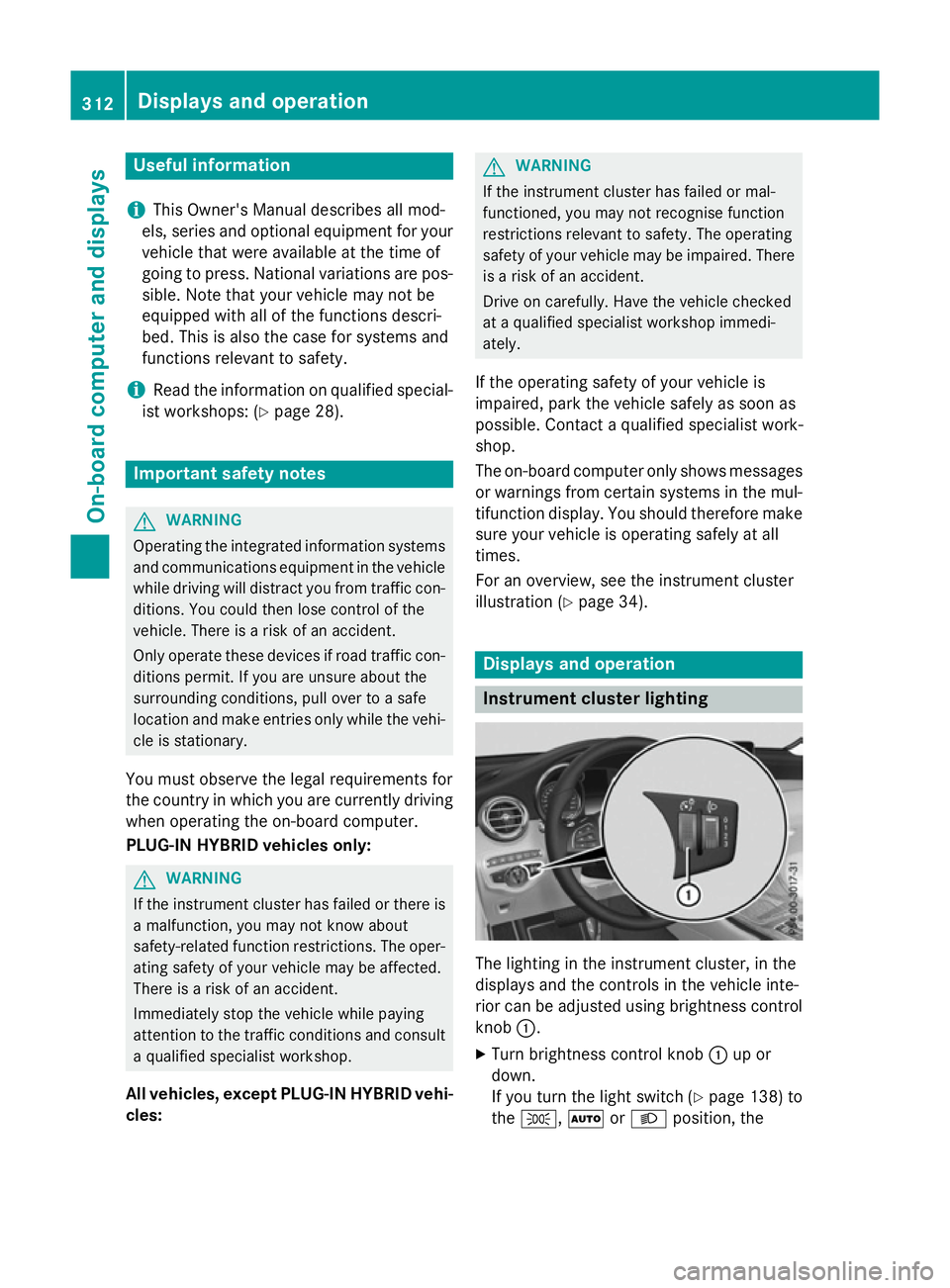
The lighting in the instrument cluster, in the
displays and the controls in the vehicle inte-
rior can be adjusted using brightness control
knob :.
X Turn brightness control knob :up or
down.
If you turn the light switch (Y page 138) to
the T, ÃorL position, the 312
Displays and operationOn-board computer and displays
Page 316 of 497
brightness will depend upon the brightness
of the ambient light.
i The light sensor in the instrument cluster
automatically controls the brightness of
the multifunction display.
In daylight, the displays in the instrument
cluster are illuminated. A dimming function
is not possible in daylight. Speedometer with segments
The speedometer is divided into segments on vehicles with DISTRONIC PLUS.
The segments in the speedometer indicate
which speed range is available.
R Cruise control activated (Y page 230):
The segments light up from the stored
speed to the type-tested maximum speed.
R Variable SPEEDTRONIC activated
(Y page 233):
The segments light up from the start of the
scale to the selected limit speed.
R DISTRONIC PLUS activated (Y page 236):
One or two segments in the set speed
range light up.
R DISTRONIC PLUS detects a vehicle in front
moving more slowly than the stored speed:
The segments between the speed of the
vehicle in front and the stored speed light
up. Rev counter
! Do not drive in the overrevving range.
Doing so will damage the engine.
The red band in the rev counter indicates the
engine's overrevving range.
The fuel supply is interrupted to protect the
engine when the red band is reached.
PLUG-IN HYBRID vehicles: when you select
the E-MODE operating mode, the display in
the instrument cluster switches from rev
counter to wattmeter (Y page 289). Outside temperature display
You should pay special attention to road con-
ditions when temperatures are around freez-
ing point.
Bear in mind that the outside temperature
display indicates the measured air tempera-
ture and not the road surface temperature.
The outside temperature display is in the mul- tifunction display (Y page 315).
Changes in the outside temperature are dis-
played after a short delay. Coolant temperature gauge
G
WARNING
If you open the bonnet while the engine is
overheating or while there is a fire in the
engine compartment, you could come into
contact with hot gases or other leaking ser-
vice products. There is a danger of injury.
Allow an overheating engine to cool down
before opening the bonnet. If there is a fire in the engine compartment, leave the bonnet
closed and notify the fire brigade.
All vehicles except PLUG-IN HYBRID vehicles: the coolant temperature gauge is in the lower
section of the rev counter (Y page 34).
PLUG-IN HYBRID vehicles: the multifunction
display shows the coolant temperature in the
Coolant Coolant submenu (Y page 327).
At high outside temperatures and when driv-
ing uphill, the coolant temperature may rise
to the end of the scale.
Under normal operating conditions and with
the specified coolant level, the coolant tem-
perature may rise to 120 †. Displays and operation
313On-board computer and displays Z
Page 327 of 497
X
Press :or9 to select the corre-
sponding DVD single drive or disc.
X Press ato confirm.
X To open the scene list: press:or
9 briefly.
X To select the next or previous scene in
the scene list: press:or9 briefly.
X To select a scene in the scene list using
rapid scroll: press and hold :or9
until desired scene :has been reached.
X Press ato confirm your selection.
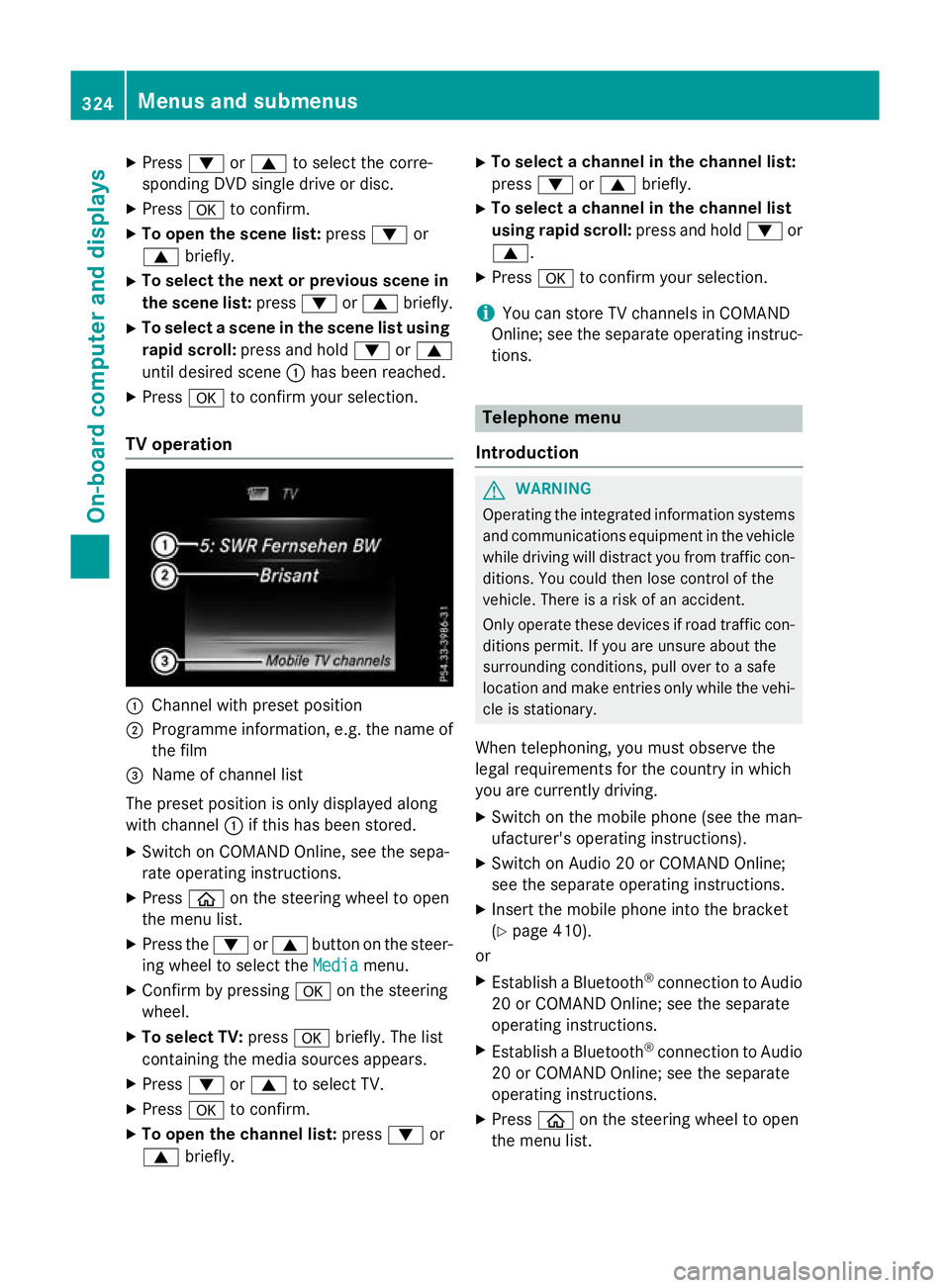
TV operation :
Channel with preset position
; Programme information, e.g. the name of
the film
= Name of channel list
The preset position is only displayed along
with channel :if this has been stored.
X Switch on COMAND Online, see the sepa-
rate operating instructions.
X Press òon the steering wheel to open
the menu list.
X Press the :or9 button on the steer-
ing wheel to select the Media
Media menu.
X Confirm by pressing aon the steering
wheel.
X To select TV: pressabriefly. The list
containing the media sources appears.
X Press :or9 to select TV.
X Press ato confirm.
X To open the channel list: press:or
9 briefly. X
To select a channel in the channel list:
press :or9 briefly.
X To select a channel in the channel list
using rapid scroll: press and hold:or
9.
X Press ato confirm your selection.
i You can store TV channels in COMAND
Online; see the separate operating instruc-
tions. Telephone menu
Introduction G
WARNING
Operating the integrated information systems and communications equipment in the vehicle
while driving will distract you from traffic con-
ditions. You could then lose control of the
vehicle. There is a risk of an accident.
Only operate these devices if road traffic con-
ditions permit. If you are unsure about the
surrounding conditions, pull over to a safe
location and make entries only while the vehi-
cle is stationary.
When telephoning, you must observe the
legal requirements for the country in which
you are currently driving.
X Switch on the mobile phone (see the man-
ufacturer's operating instructions).
X Switch on Audio 20 or COMAND Online;
see the separate operating instructions.
X Insert the mobile phone into the bracket
(Y page 410).
or
X Establish a Bluetooth ®
connection to Audio
20 or COMAND Online; see the separate
operating instructions.
X Establish a Bluetooth ®
connection to Audio
20 or COMAND Online; see the separate
operating instructions.
X Press òon the steering wheel to open
the menu list. 324
Menus and submenusOn-board computer and displays
Page 329 of 497
Redialling
The on-board computer saves the last names
or numbers dialled in the redial memory.
X Press òon the steering wheel to open
the menu list.
X Press the :or9 button on the steer-
ing wheel to select the Telephone
Telephone menu.
X Confirm by pressing aon the steering
wheel.
X Press the 6button to switch to the
redial memory.
X Press :or9 to select the desired
name or number.
X Press the 6ora button to start dial-
ling.
or
X To exit the redial memory: press the
~ or% button. Assistance graphic menu
X
Press òon the steering wheel to open
the menu list.
X Press :or9 on the steering wheel
to select the Assistance graphic
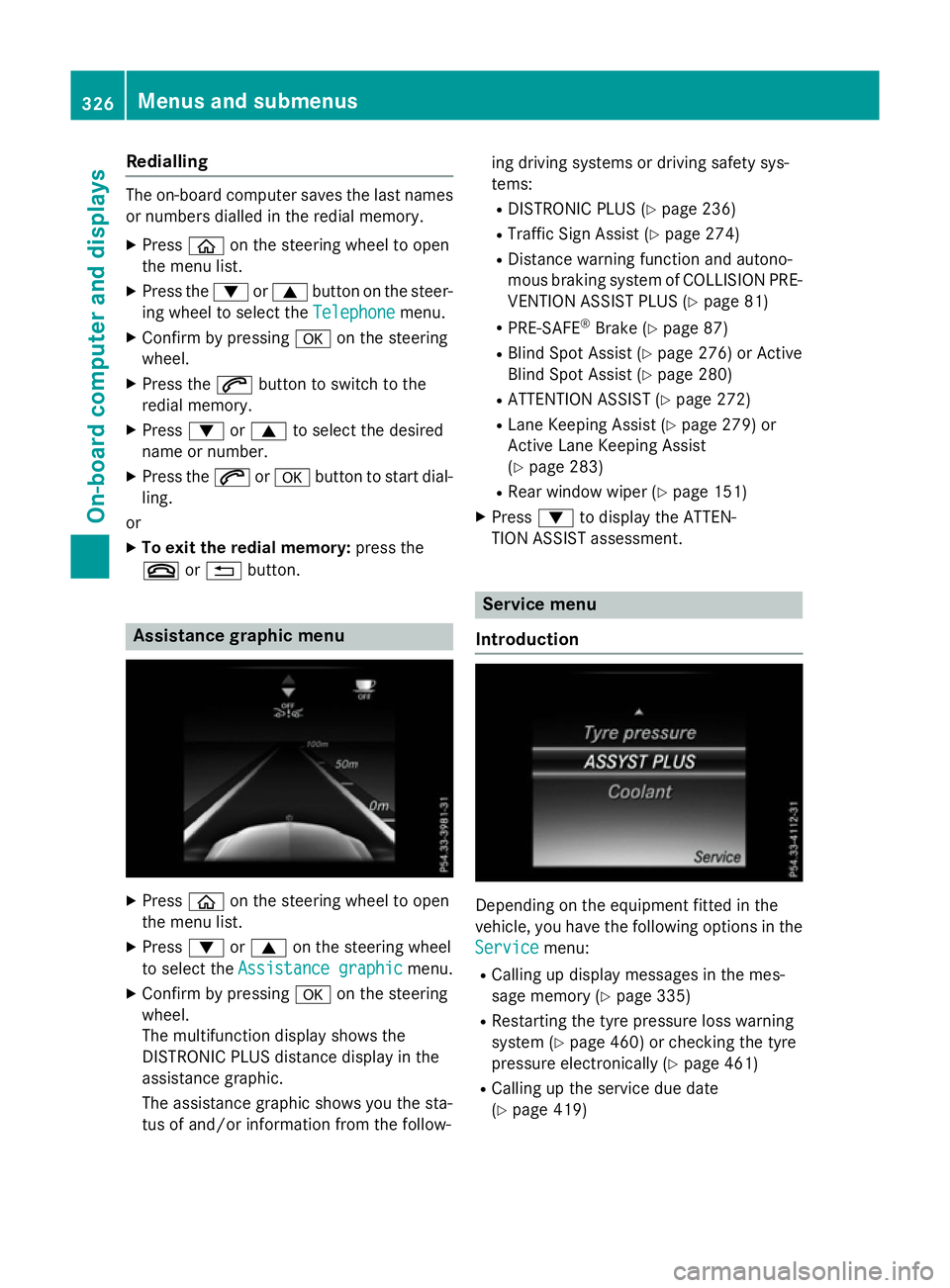
Assistance graphic menu.
X Confirm by pressing aon the steering
wheel.
The multifunction display shows the
DISTRONIC PLUS distance display in the
assistance graphic.
The assistance graphic shows you the sta-
tus of and/or information from the follow- ing driving systems or driving safety sys-
tems:
R DISTRONIC PLUS (Y page 236)
R Traffic Sign Assist (Y page 274)
R Distance warning function and autono-
mous braking system of COLLISION PRE-
VENTION ASSIST PLUS (Y page 81)
R PRE-SAFE ®
Brake (Y page 87)
R Blind Spot Assist (Y page 276) or Active
Blind Spot Assist (Y page 280)
R ATTENTION ASSIST (Y page 272)
R Lane Keeping Assist (Y page 279) or
Active Lane Keeping Assist
(Y page 283)
R Rear window wiper (Y page 151)
X Press :to display the ATTEN-
TION ASSIST assessment. Service menu
Introduction Depending on the equipment fitted in the
vehicle, you have the following options in the
Service
Service menu:
R Calling up display messages in the mes-
sage memory (Y page 335)
R Restarting the tyre pressure loss warning
system (Y page 460) or checking the tyre
pressure electronically (Y page 461)
R Calling up the service due date
(Y page 419) 326
Menus and submenusOn-board computer and displays
Page 330 of 497
R
Displaying the coolant temperature (PLUG-
IN HYBRID vehicles) (Y page 327)
R Displaying the AdBlue ®
level and range
(Y page 327) (BlueTEC vehicles only)
Displaying the AdBlue ®
level and range The
AdBlue
AdBlue menu is only available in BlueTEC
vehicles.
X Press òon the steering wheel to open
the menu list.
X Press :or9 on the steering wheel
to select the Service
Servicemenu.
X Confirm by pressing aon the steering
wheel.
X Press :or9 to select the AdBlue
AdBlue
submenu.
X Press ato confirm your selection.
The range and AdBlue ®
level appear in a bar
graph in the multifunction display.
Observe the information and notes on "Refu- elling" (Y page 207).
Displaying the coolant temperature The
Coolant
Coolant menu is only available in PLUG-
IN HYBRID vehicles.
Observe the notes on coolant temperature
(Y page 313).
X Press òon the steering wheel to open
the menu list.
X Press :or9 on the steering wheel
to select the Service
Service menu.
X Confirm by pressing aon the steering
wheel.
X Press :or9 to select the Coolant Coolant
submenu.
X Press ato confirm your selection.
The coolant temperature is shown in a bar
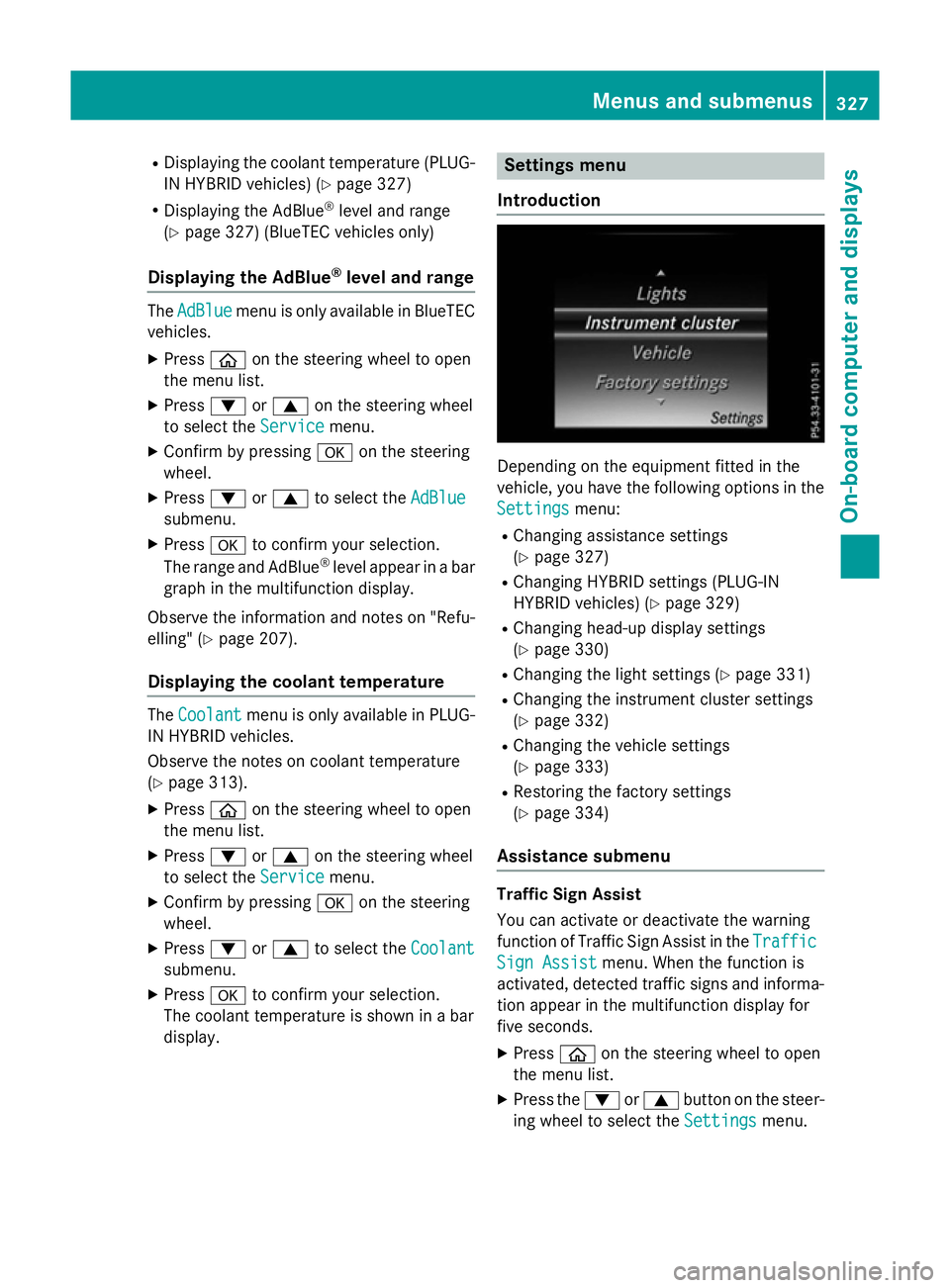
display. Settings menu
Introduction Depending on the equipment fitted in the
vehicle, you have the following options in the
Settings Settings menu:
R Changing assistance settings
(Y page 327)
R Changing HYBRID settings (PLUG-IN
HYBRID vehicles) (Y page 329)
R Changing head-up display settings
(Y page 330)
R Changing the light settings (Y page 331)
R Changing the instrument cluster settings
(Y page 332)
R Changing the vehicle settings
(Y page 333)
R Restoring the factory settings
(Y page 334)
Assistance submenu Traffic Sign Assist
You can activate or deactivate the warning
function of Traffic Sign Assist in the
Traffic Traffic
Sign Assist
Sign Assist menu. When the function is
activated, detected traffic signs and informa-
tion appear in the multifunction display for
five seconds.
X Press òon the steering wheel to open
the menu list.
X Press the :or9 button on the steer-
ing wheel to select the Settings Settingsmenu. Menus and submenus
327On-board computer and displays Z
Page 331 of 497
X
Confirm by pressing aon the steering
wheel.
X Use : or9 to select the Assis‐
Assis‐
tance
tance submenu.
X Press ato confirm.
X Press :or9 to select Traffic
Traffic
Sign Assist
Sign Assist .
X Press ato confirm.
The current selection appears.
X Activate or deactivate the warning func-
tion: press aagain.
Further information about Traffic Sign Assist
(Y page 274).
Activating/deactivating COLLISION PRE-
VENTION ASSIST PLUS
X Press òon the steering wheel to open
the menu list.
X Press the :or9 button on the steer-
ing wheel to select the Settings Settingsmenu.
X Confirm by pressing aon the steering
wheel.
X Use : or9 to select the Assis‐
Assis‐
tance
tance submenu.
X Press ato confirm.
X Press 9or: to select Collision
Collision
Prevention
Prevention.
X Press ato confirm.
The current selection appears.
X To activate/deactivate: press thea
button again.
When COLLISION PREVENTION ASSIST
PLUS is deactivated, the æsymbol
appears in the multifunction display in the
Assistance graphic
Assistance graphic menu.
For further information about COLLISION
PREVENTION ASSIST PLUS, see (Y page 81).Activating/deactivating PRE-SAFE
®
Brake
PRE ‑SAFE ®
Brake is only available for vehi-
cles with the Driving Assistance package.
X Press òon the steering wheel to open
the menu list.
X Press the :or9 button on the steer-
ing wheel to select the Settings Settingsmenu.
X Confirm by pressing aon the steering
wheel.
X Use : or9 to select the Assis‐
Assis‐
tance
tance submenu.
X Press ato confirm.
X Press :or9 to select PRE-SAFE
PRE-SAFE
Brake
Brake.
X Press ato confirm.
The current selection appears.
X To activate/deactivate: press thea
button again.
When PRE-SAFE ®
Brake is deactivated, the
æ symbol appears in the multifunction
display in the Assistance
Assistance graphic
graphicmenu.
For more information on PRE‑SAFE ®
Brake,
see (Y page 87).
Activating/deactivating Blind Spot Assist
X Press òon the steering wheel to open
the menu list.
X Press :or9 on the steering wheel
to select the Settings
Settings menu.
X Confirm by pressing aon the steering
wheel.
X Press :or9 to select the Assis‐
Assis‐
tance
tance submenu.
X Press ato confirm.
X Select Blind Spot Assist
Blind Spot Assist with: or
9.
X Press ato confirm.
The current selection appears.
X To activate/deactivate: press thea
button again.
Further information about Blind Spot Assist
(Y page 276). 328
Menus and submenusOn-board computer and displays
Page 338 of 497
Display messages
Introduction
General notes Display messages appear in the multifunction display.
Display messages with graphic symbols are simplified in the Owner's Manual and may differ
from the symbols in the multifunction display.
Please respond in accordance with the display messages and follow the additional notes in this Owner's Manual.
With certain display messages, you will also hear a warning tone.
You can hide the display messages. The display messages are then stored in the message
memory. Rectify the cause of a display message as soon as possible.
When you stop and park the vehicle, please observe the notes on:
R HOLD function (Y page 247)
R Parking (Y page 219)
Hiding display messages X
Press the aor% button on the steering wheel.
The multifunction display hides the display message.
High-priority display messages are shown in red in the multifunction display. Some high-pri-
ority display messages cannot be hidden.
The multifunction display shows these messages continuously until the causes for the mes-
sages have been remedied.
Message memory The on-board computer saves certain display messages in the
message memory. You can call
up the display messages:
X Press òon the steering wheel to open the menu list.
X Press :or9 on the steering wheel to select the Service
Service menu.
X Confirm by pressing aon the steering wheel.
X Press :or9 to select the message memory.
If there are no display messages, the No messages No messagesdisplay appears in the multifunction
display.
When there are display messages, the number of stored messages appears.
X Press ato confirm.
X Press :or9 to scroll through the display messages. Display
messages
335On-board computer and displays Z
Page 339 of 497
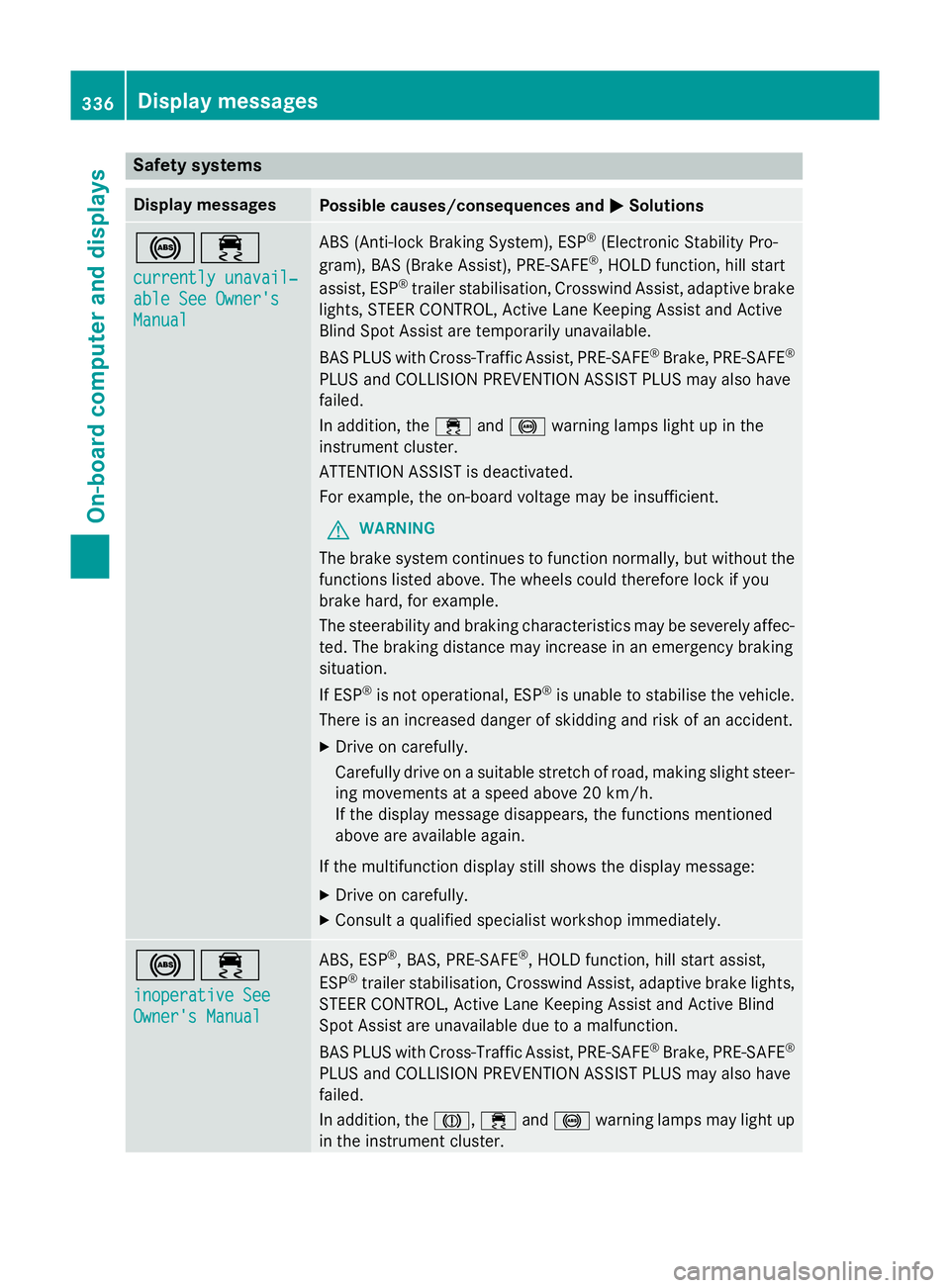
Safety systems
Display messages
Possible causes/consequences and
M
MSolutions !÷
currently unavail‐ currently unavail‐
able See Owner's able See Owner's
Manual Manual ABS (Anti-lock Braking System), ESP
®
(Electronic Stability Pro-
gram), BAS (Brake Assist), PRE‑SAFE ®
, HOLD function, hill start
assist, ESP ®
trailer stabilisation, Crosswind Assist, adaptive brake
lights, STEER CONTROL, Active Lane Keeping Assist and Active
Blind Spot Assist are temporarily unavailable.
BAS PLUS with Cross-Traffic Assist, PRE‑SAFE ®
Brake, PRE‑ SAFE®
PLUS and COLLISION PREVENTION ASSIST PLUS may also have
failed.
In addition, the ÷and! warning lamps light up in the
instrument cluster.
ATTENTION ASSIST is deactivated.
For example, the on-board voltage may be insufficient.
G WARNING
The brake system continues to function normally, but without the functions listed above. The wheels could therefore lock if you
brake hard, for example.
The steerability and braking characteristics may be severely affec-ted. The braking distance may increase in an emergency braking
situation.
If ESP ®
is not operational, ESP ®
is unable to stabilise the vehicle.
There is an increased danger of skidding and risk of an accident.
X Drive on carefully.
Carefully drive on a suitable stretch of road, making slight steer-
ing movements at a speed above 20 km/h.
If the display message disappears, the functions mentioned
above are available again.
If the multifunction display still shows the display message:
X Drive on carefully.
X Consult a qualified specialist workshop immediately. !÷
inoperative See inoperative See
Owner's Manual Owner's Manual ABS, ESP
®
, BAS, PRE‑SAFE ®
, HOLD function, hill start assist,
ESP ®
trailer stabilisation, Crosswind Assist, adaptive brake lights,
STEER CONTROL, Active Lane Keeping Assist and Active Blind
Spot Assist are unavailable due to a malfunction.
BAS PLUS with Cross-Traffic Assist, PRE‑SAFE ®
Brake, PRE‑SAFE ®
PLUS and COLLISION PREVENTION ASSIST PLUS may also have
failed.
In addition, the J,÷and! warning lamps may light up
in the instrument cluster. 336
Display messagesOn-board computer and displays
Page 340 of 497
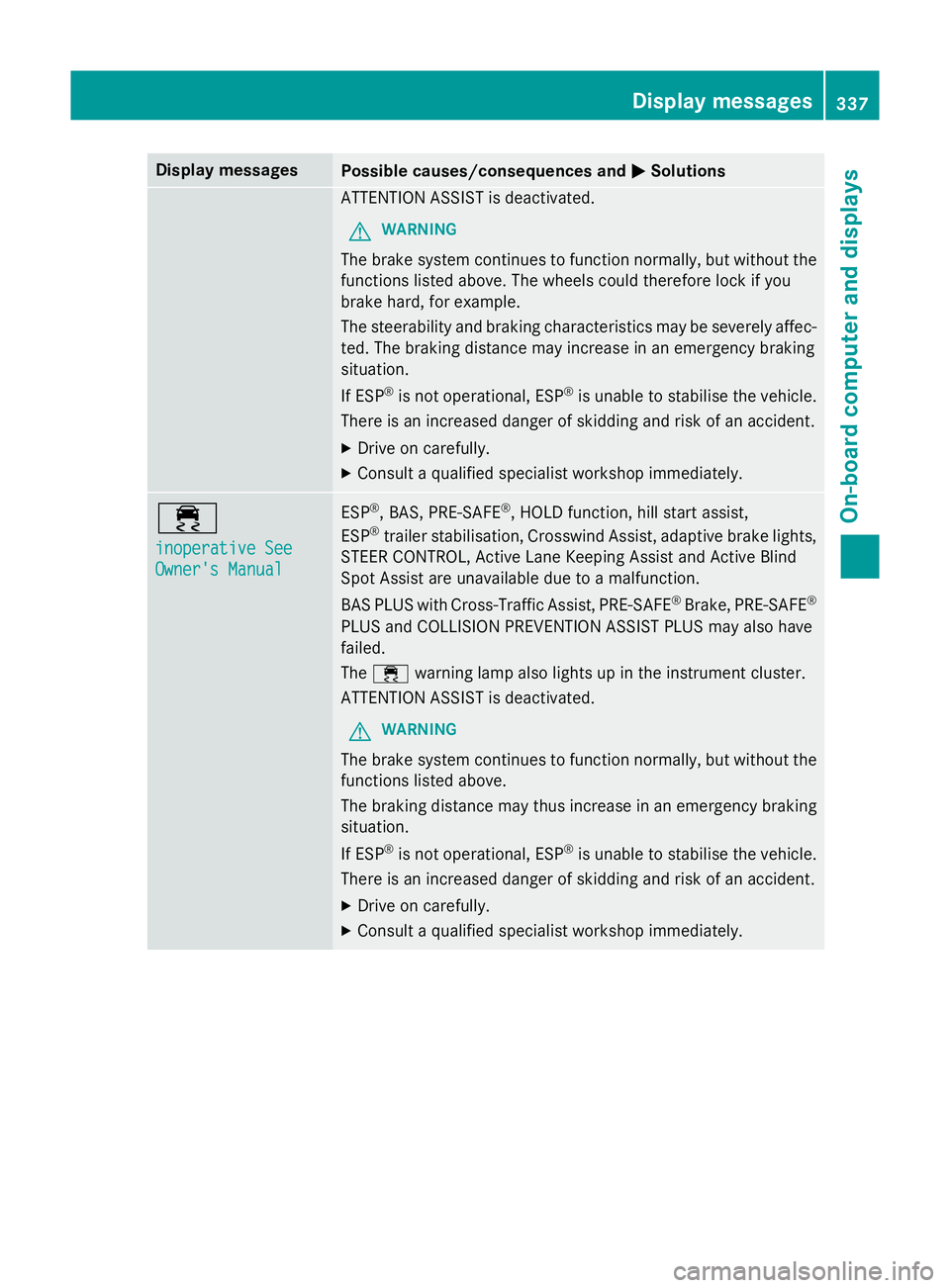
Display messages
Possible causes/consequences and
M
MSolutions ATTENTION ASSIST is deactivated.
G WARNING
The brake system continues to function normally, but without the functions listed above. The wheels could therefore lock if you
brake hard, for example.
The steerability and braking characteristics may be severely affec- ted. The braking distance may increase in an emergency braking
situation.
If ESP ®
is not operational, ESP ®
is unable to stabilise the vehicle.
There is an increased danger of skidding and risk of an accident.
X Drive on carefully.
X Consult a qualified specialist workshop immediately. ÷
inoperative See inoperative See
Owner's Manual Owner's Manual ESP
®
, BAS, PRE ‑SAFE®
, HOLD function, hill start assist,
ESP ®
trailer stabilisation, Crosswind Assist, adaptive brake lights,
STEER CONTROL, Active Lane Keeping Assist and Active Blind
Spot Assist are unavailable due to a malfunction.
BAS PLUS with Cross-Traffic Assist, PRE‑ SAFE®
Brake, PRE ‑SAFE®
PLUS and COLLISION PREVENTION ASSIST PLUS may also have
failed.
The ÷ warning lamp also lights up in the instrument cluster.
ATTENTION ASSIST is deactivated.
G WARNING
The brake system continues to function normally, but without the functions listed above.
The braking distance may thus increase in an emergency braking
situation.
If ESP ®
is not operational, ESP ®
is unable to stabilise the vehicle.
There is an increased danger of skidding and risk of an accident.
X Drive on carefully.
X Consult a qualified specialist workshop immediately. Display
messages
337On-board computer and displays Z