navigation MERCEDES-BENZ GLC SUV 2015 User Guide
[x] Cancel search | Manufacturer: MERCEDES-BENZ, Model Year: 2015, Model line: GLC SUV, Model: MERCEDES-BENZ GLC SUV 2015Pages: 497, PDF Size: 15.27 MB
Page 318 of 497
Right control panel
~ R
Rejects or ends a call
R Exits the telephone book/redial
memory 6 R
Makes or accepts a call
R Switches to the redial memory W
X R
Adjusts the volume 8 R
Mute ó R
Vehicles with Audio 20:
Switches on voice-operated con-
trol for navigation (see manufac-
turer's operating instructions)
R Vehicles with COMAND Online:
Switches on LINGUATRONIC
(see the separate operating
instructions) Multifunction display
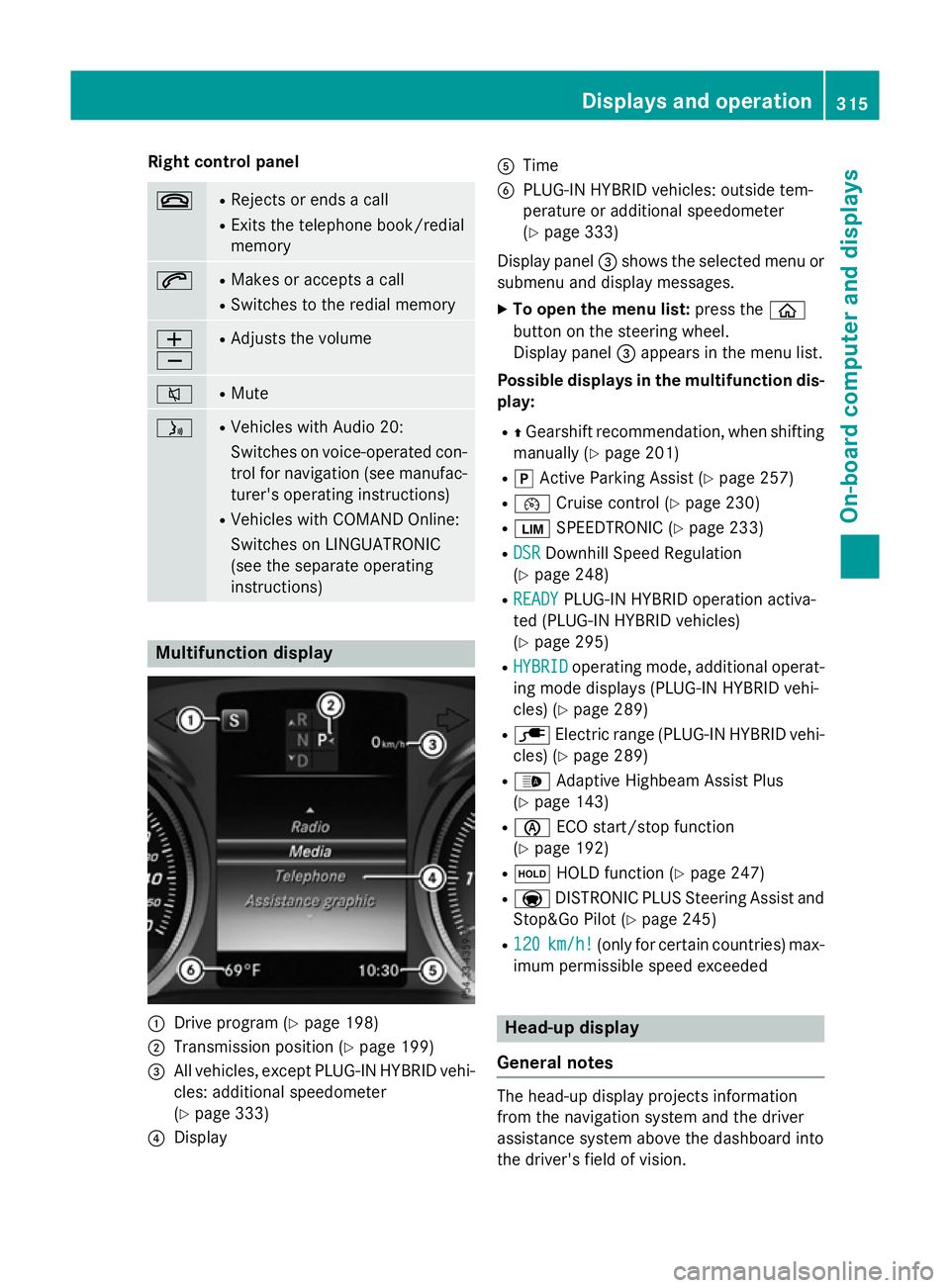
:
Drive program (Y page 198)
; Transmission position (Y page 199)
= All vehicles, except PLUG-IN HYBRID vehi-
cles: additional speedometer
(Y page 333)
? Display A
Time
B PLUG-IN HYBRID vehicles: outside tem-
perature or additional speedometer
(Ypage 333)
Display panel =shows the selected menu or
submenu and display messages.
X To open the menu list: press theò
button on the steering wheel.
Display panel =appears in the menu list.
Possible displays in the multifunction dis-
play:
R ZGearshift recommendation, when shifting
manually (Y page 201)
R j Active Parking Assist (Y page 257)
R ¯ Cruise control (Y page 230)
R È SPEEDTRONIC (Y page 233)
R DSR DSR Downhill Speed Regulation
(Y page 248)
R READY READY PLUG-IN HYBRID operation activa-
ted (PLUG-IN HYBRID vehicles)
(Y page 295)
R HYBRID HYBRID operating mode, additional operat-
ing mode displays (PLUG-IN HYBRID vehi-
cles) (Y page 289)
R è Electric range (PLUG-IN HYBRID vehi-
cles) (Y page 289)
R _ Adaptive Highbeam Assist Plus
(Y page 143)
R è ECO start/stop function
(Y page 192)
R ë HOLD function (Y page 247)
R a DISTRONIC PLUS Steering Assist and
Stop&Go Pilot (Y page 245)
R 120 120 km/h!
km/h! (only for certain countries) max-
imum permissible speed exceeded Head-up display
General notes The head-up display projects information
from the navigation system and the driver
assistance system above the dashboard into
the driver's field of vision. Displays and operation
315On-board computer and displays Z
Page 319 of 497
A requirement for the display of the contents
is that the following functions are available in the vehicle and are switched on:
R Cruise control and SPEEDTRONIC
R DISTRONIC PLUS
R Traffic Sign Assist
R Navigation
The head-up display allows the driver to see
all of the information without having to take
their eyes off the road.
Important safety notes The head-up display is only an aid and is not a
substitute for attentive driving.
Speed limits and overtaking restrictions are
not always correctly displayed. Traffic signs
always have priority over the Traffic Sign
Assist display.
The visibility of the head-up display is influ-
enced by the following conditions:
R the driver's seat position
R the positioning of the display image
R the general light conditions
R sunglasses with polarisation filters
R Wet road surfaces
R blocking of sunlight by objects on the dis-
play cover
In the event of extreme sunlight, sections of
the display may fade. This can be reversed by
switching the head-up display off and on
again.
i Vehicles with the head-up display are
equipped with a special windscreen.
Should repairs be necessary, have the
windscreen replaced at a qualified special-
ist workshop. Displays and operation Switching the head-up display on/off
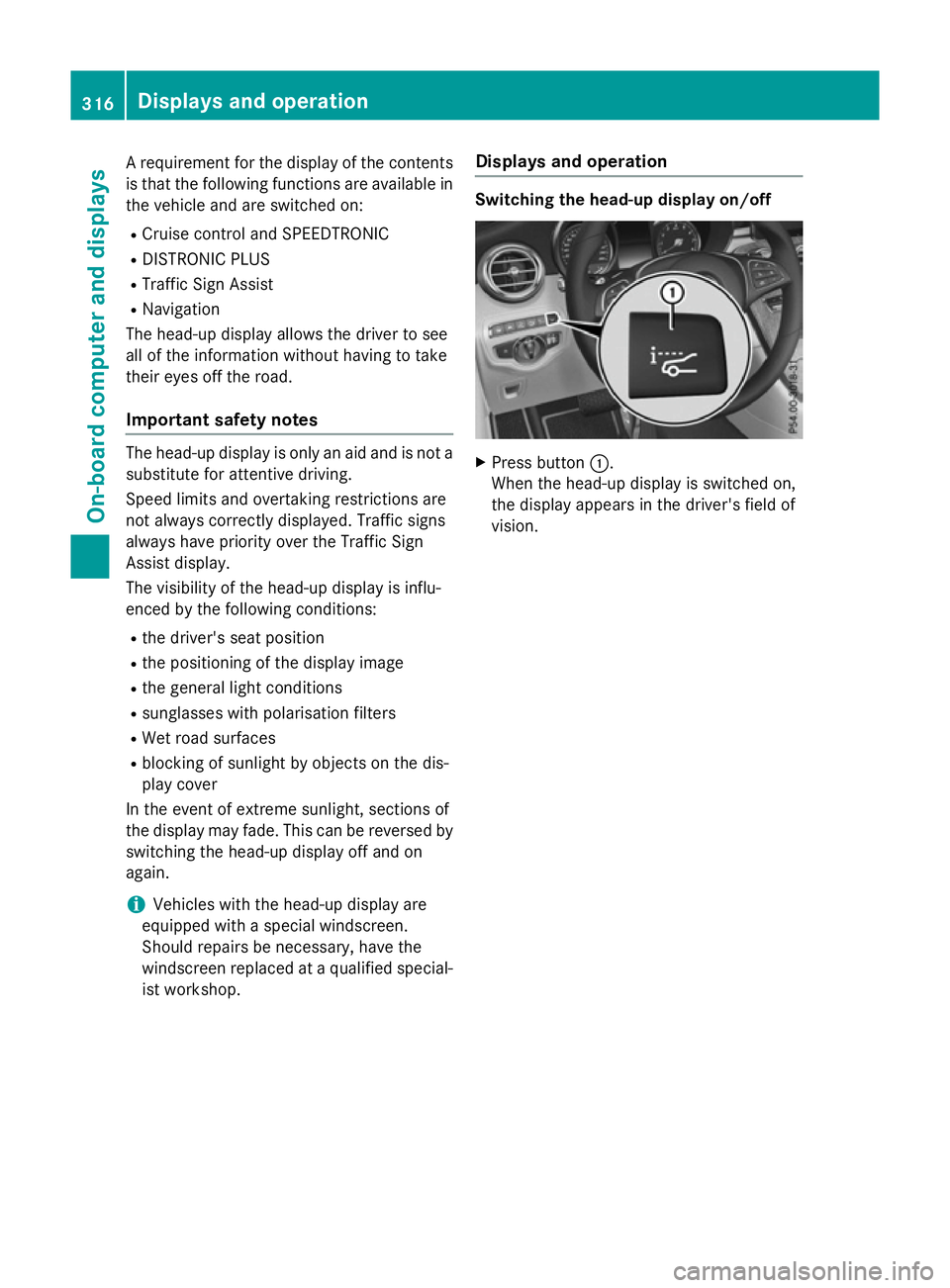
X
Press button :.
When the head-up display is switched on,
the display appears in the driver's field of
vision. 316
Displays and operationOn-board computer and displays
Page 320 of 497
Standard displays in the head-up display
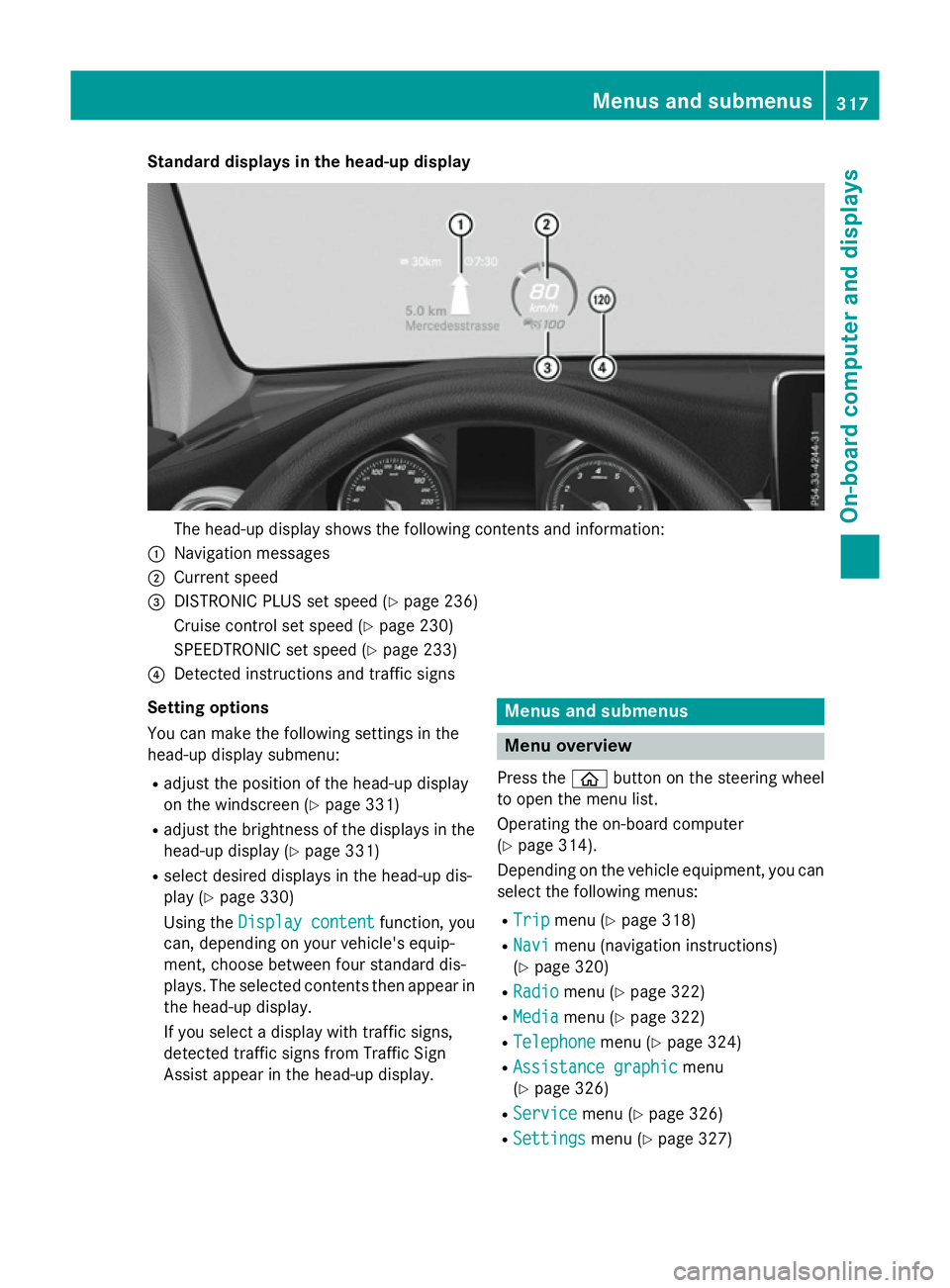
The head-up display shows the following contents and information:
: Navigation messages
; Current speed
= DISTRONIC PLUS set speed (Y page 236)
Cruise control set speed (Y page 230)
SPEEDTRONIC set speed (Y page 233)
? Detected instructions and traffic signs
Setting options
You can make the following settings in the
head-up display submenu:
R adjust the position of the head-up display
on the windscreen (Y page 331)
R adjust the brightness of the displays in the
head-up display (Y page 331)
R select desired displays in the head-up dis-
play (Y page 330)
Using the Display content
Display content function, you
can, depending on your vehicle's equip-
ment, choose between four standard dis-
plays. The selected contents then appear in
the head-up display.
If you select a display with traffic signs,
detected traffic signs from Traffic Sign
Assist appear in the head-up display. Menus and submenus
Menu overview
Press the òbutton on the steering wheel
to open the menu list.
Operating the on-board computer
(Y page 314).
Depending on the vehicle equipment, you can
select the following menus:
R Trip
Trip menu (Y page 318)
R Navi Navi menu (navigation instructions)
(Y page 320)
R Radio
Radio menu (Y page 322)
R Media
Media menu (Y page 322)
R Telephone
Telephone menu (Ypage 324)
R Assistance graphic
Assistance graphic menu
(Y page 326)
R Service
Service menu (Ypage 326)
R Settings
Settings menu (Ypage 327) Menus and submenus
317On-board computer and displays Z
Page 323 of 497
You can reset the values of the following func-
tions:
R Trip meter
R "From start" trip computer
R "From reset" trip computer
R ECO display
If you reset the values in the "ECO display",
the values in the "From start" trip computer
are also reset. If you reset the values in the
"From start" trip computer, the values in the
"ECO display" are also reset. Navigation menu
Displaying navigation instructions In the
Navi Navimenu, the multifunction display
shows navigation instructions.
Further information on navigation can be
found in the separate Audio 20 or COMAND
Online operating instructions.
X Switch on Audio 20 or COMAND Online;
see the separate operating instructions.
X Press òon the steering wheel to open
the menu list.
X Press :or9 on the steering wheel
to select the Navi
Navi menu.
X Confirm by pressing aon the steering
wheel.
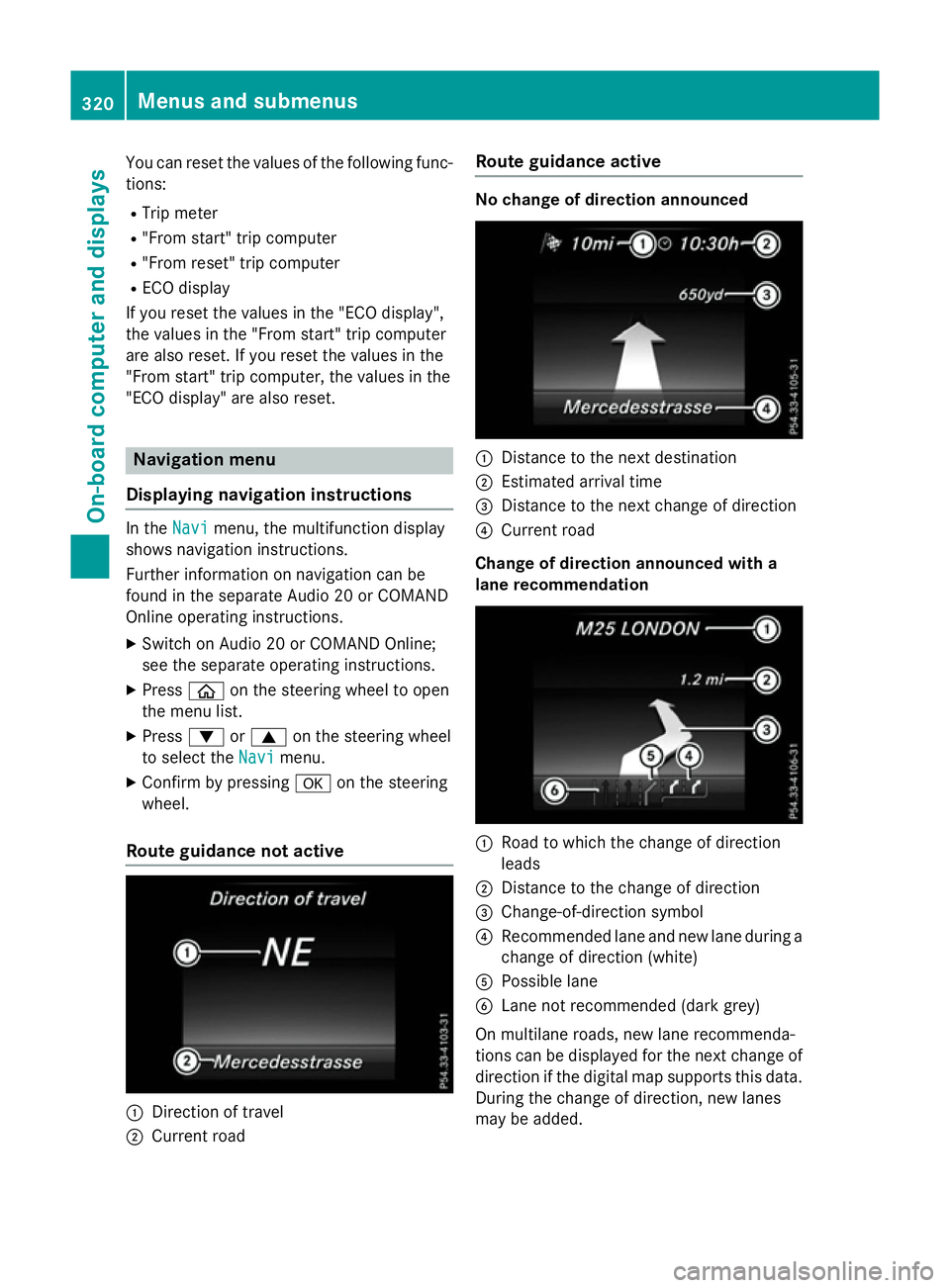
Route guidance not active :
Direction of travel
; Current road Route guidance active No change of direction announced
:
Distance to the next destination
; Estimated arrival time
= Distance to the next change of direction
? Current road
Change of direction announced with a
lane recommendation :
Road to which the change of direction
leads
; Distance to the change of direction
= Change-of-direction symbol
? Recommended lane and new lane during a
change of direction (white)
A Possible lane
B Lane not recommended (dark grey)
On multilane roads, new lane recommenda-
tions can be displayed for the next change of
direction if the digital map supports this data.
During the change of direction, new lanes
may be added. 320
Menus and submenusOn-board computer and displays
Page 333 of 497
Setting the departure time
With the "Departure time" function you can
R climatise the vehicle interior before depar-
ture. Further information on pre-entry cli-
mate control (Y page 176).
R charge the high-voltage battery at mini-
mum cost at intelligent charging stations.
The vehicle will calculate an optimized
charging plan. The charging process starts
when the electricity is at the best price
possible. As a result the high-voltage bat-
tery is charged with more affordable elec-
tricity.
Please note that the high-voltage battery
may not be completely charged before your
departure. The necessary charge time may
not be sufficient depending on the charge
status of the high-voltage battery and the
set departure time.
Please use the setting "Set no departure time
and charge immediately" if you would like to
briefly charge the high-voltage battery.
The charging process will immediately begin
if you load the high-voltage battery at stand-
ard charging stations and have previously set
a departure time.
X Press òon the steering wheel to open
the menu list.
X Press :or9 on the steering wheel
to select the Settings
Settings menu.
X Confirm by pressing aon the steering
wheel.
X Use : or9 to select the Hybrid
Hybrid
submenu.
X Press ato confirm.
X Using :or9, select the Depar‐ Depar‐
ture time
ture time function.
You will see the selected setting.
X Press the abutton to save the setting.
X To set no departure time and charge
immediately: press:or9 to select
No preselection
No preselection.
X Press ato confirm.
or X
To set a departure time: press:or
9 A A,B
Bor C
Cto select the desired preset.
X Press ato confirm the selection.
X Press :or9 to set the hours.
X Press ato confirm.
X Press :or9 to set the minutes.
X Press ato confirm.
If the selector lever is shifted to position P
and the charging cable connector is plug-
ged in, the multifunction display will show
the complete charging prediction after a
few moments.
Further information on charging the high-volt-
age battery (PLUG-IN HYBRID vehicles)
(Y page 211).
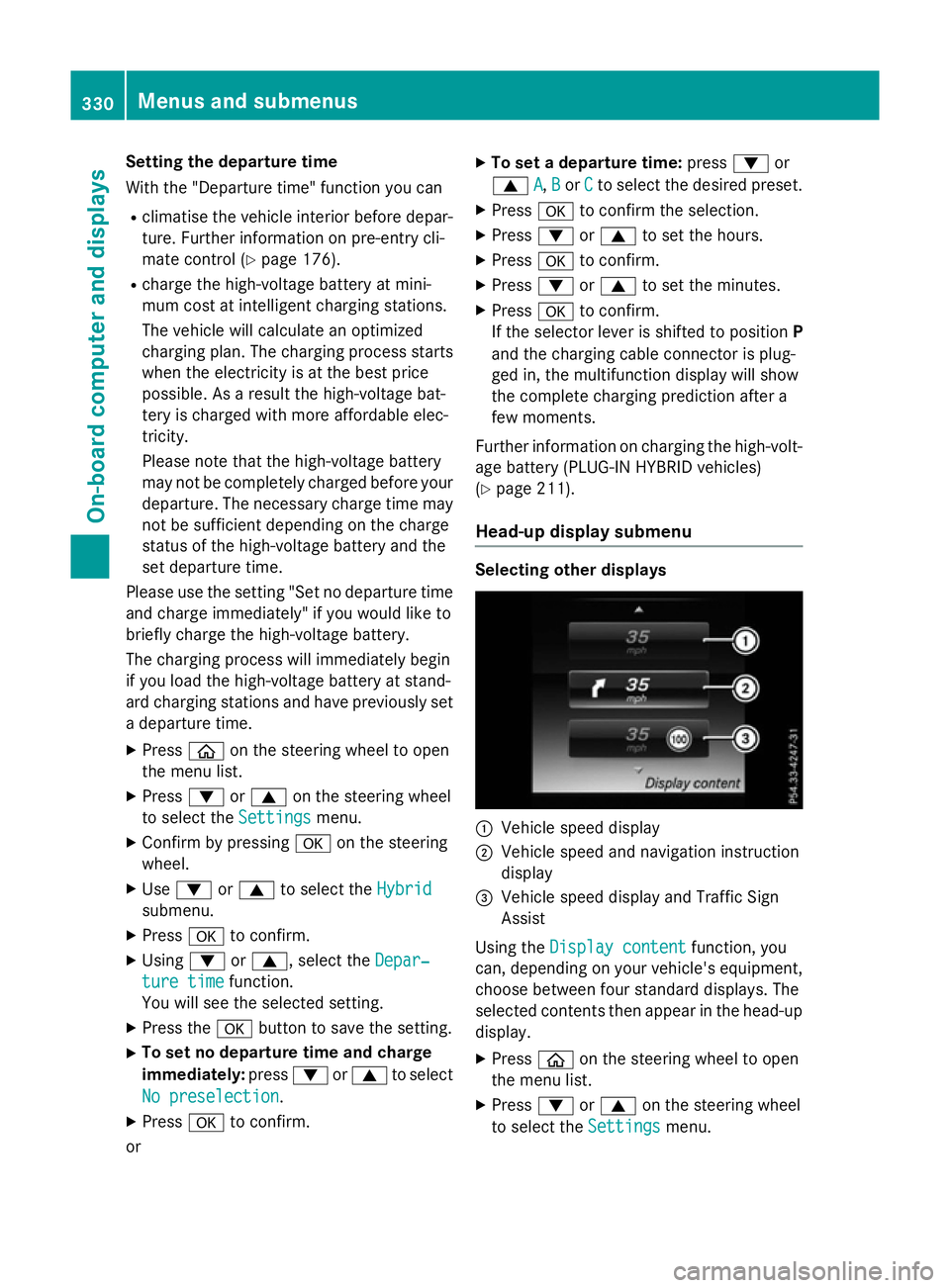
Head-up display submenu Selecting other displays
:
Vehicle speed display
; Vehicle speed and navigation instruction
display
= Vehicle speed display and Traffic Sign
Assist
Using the Display content
Display content function, you
can, depending on your vehicle's equipment,
choose between four standard displays. The
selected contents then appear in the head-up
display.
X Press òon the steering wheel to open
the menu list.
X Press :or9 on the steering wheel
to select the Settings Settingsmenu. 330
Menus and submenusOn-board computer and displays
Page 334 of 497
X
Confirm by pressing aon the steering
wheel.
X Press :or9 to select the Head-up
Head-up
display
display submenu.
X Press ato confirm.
X Select Display content
Display content with: or
9.
X Press ato confirm.
A graphic selection list appears.
X Press :or9 to select the desired
display.
X Press the abutton to confirm the selec-
tion.
Further information on navigation can be
found in the separate Audio 20 or COMAND
Online operating instructions.
Further information about Traffic Sign Assist
(Y page 274).
Setting the position
You can adjust the position of the head-up
display on the windscreen. You can compen-
sate for height differences if the seat posi-
tions are changed, for example.
X Switch on the head-up display
(Y page 316).
X Press òon the steering wheel to open
the menu list.
X Press :or9 on the steering wheel
to select the Settings
Settings menu.
X Confirm by pressing aon the steering
wheel.
X Use : or9 to select the Head-up
Head-up
display
display submenu.
X Press ato confirm.
X Using :or9, select the Position Position
function.
X Press ato save the setting.
X Press :or9 to adjust the position
to a level from Level +5
Level +5toLevel -5
Level -5.
X Press aor% to save the setting.
Using the Memory function, you can save and call up the set position of the head-up display
as a single memory preset (Y page 134).Adjusting the brightness
The brightness of the head-up display is auto-
matically adjusted to the surrounding light
conditions. You can also individually adjust
the brightness of the head-up display.
X Switch on the head-up display
(Y page 316).
X Press òon the steering wheel to open
the menu list.
X Press :or9 on the steering wheel
to select the Settings
Settings menu.
X Confirm by pressing aon the steering
wheel.
X Use : or9 to select the Head-up
Head-up
display display submenu.
X Press ato confirm.
X Using :or9, select the Bright‐
Bright‐
ness
ness function.
X Press the abutton to save the setting.
X Press :or9 to adjust the bright-
ness to a level from Level +5
Level +5(bright) to
Level -5
Level -5 (dark).
X Press the aor% button to save the
setting.
Light submenu Switching the Intelligent Light System
on/off
X Press òon the steering wheel to open
the menu list.
X Press :or9 on the steering wheel
to select the Settings Settingsmenu.
X Confirm by pressing aon the steering
wheel.
X Press :or9 to select the Lights Lights
submenu.
X Press ato confirm.
X Using :or9, select the Intelli‐ Intelli‐
gent Light System
gent Light System function.
If the Intelligent Light System Intelligent Light System func-
tion has been switched on, the cone of light Menus and submenus
331On-board computer and displays Z
Page 336 of 497
R
navigation instructions in the Navi
Navimenu
R cruise control
R SPEEDTRONIC
R DISTRONIC PLUS with Steering Assist and
Stop&Go Pilot
R ASSYST PLUS service interval display
Selecting permanent display
United Kingdom: this function is unavailable.
This function is only available on PLUG-IN
HYBRID vehicles.
Using the Permanent display Permanent display function, you
can switch on the outside temperature or the
additional speedometer in the multifunction
display.
X Press òon the steering wheel to open
the menu list.
X Press :or9 on the steering wheel
to select the Settings
Settings menu.
X Confirm by pressing aon the steering
wheel.
X Press :or9 to select the Instru‐
Instru‐
ment cluster
ment cluster submenu.
X Press ato confirm.
X Using :or9, select the Perma‐
Perma‐
nent display
nent display function.
X Press ato confirm.
The current selection, Outside tempera‐
Outside tempera‐
ture
ture orDig. speedo [km/h]
Dig. speedo [km/h] , appears.
i The multifunction display shows the unit
in the additional speedometer inverse to
the speedometer unit in the instrument
cluster.
X To change the setting: pressaagain.
Switching the additional speedometer
on/off
United Kingdom: this function is unavailable.
The additional speedometer is always
switched on.
This function is not available in PLUG-IN
HYBRID vehicles.
The Digital speedo [km/h]
Digital speedo [km/h] function
allows you to choose whether the status area in the multifunction display shows the speed
digitally. The unit in the additional speedom-
eter is always inverse to the speedometer
unit.
X Press òon the steering wheel to open
the menu list.
X Press :or9 on the steering wheel
to select the Settings Settingsmenu.
X Confirm by pressing aon the steering
wheel.
X Press :or9 to select the Instru‐
Instru‐
ment cluster
ment cluster submenu.
X Press ato confirm.
X Using :or9, select the Digital
Digital
speedo [km/h]
speedo [km/h] function.
The current selection appears.
X To switch on/off: press theabutton
again.
Vehicle submenu Setting permanent SPEEDTRONIC
X Press òon the steering wheel to open
the menu list.
X Press the :or9 button on the steer-
ing wheel to select the Settings
Settingsmenu.
X Confirm by pressing aon the steering
wheel.
X Use : or9 to select the Vehicle
Vehicle
submenu.
X Press ato confirm.
X Using :or9, select the Limit
Limit
speed (winter tyres)
speed (winter tyres) function.
The current setting appears.
X Press ato confirm.
X Press :or9 to adjust permanent
SPEEDTRONIC in increments of ten ( 240
240
km/h
km/h to160 km/h
160 km/h). The Off
Offsetting
switches permanent SPEEDTRONIC off.
X Press the abutton to store the entry.
For further information on permanent SPEED- TRONIC (Y page 236). Menus and submenus
333On-board computer and displays Z
Page 382 of 497
Warning/
indicator
lamp
N N
Signal type
Possible causes/consequences and M
MSolutions !
N
The yellow ABS warning lamp is lit while the engine is running.
PLUG-IN HYBRID vehicles: the yellow ABS warning lamp is shown in the READY
driving status.
ABS (Anti-lock Braking System) has been deactivated due to a fault. Therefore BAS (Brake Assist System), BAS PLUS with Cross-Traffic Assist, COLLISION
PREVENTION ASSIST PLUS, ESP ®
(Electronic Stability Program), PRE‑SAFE ®
,
PRE‑SAFE ®
PLUS, PRE‑SAFE ®
Brake, the HOLD function, Hill Start Assist,
ESP ®
trailer stabilisation, Crosswind Assist, adaptive brake lights, STEER
CONTROL, Active Lane Keeping Assist and Active Blind Spot Assist are also
deactivated.
ATTENTION ASSIST is deactivated.
G WARNING
The brake system continues to function normally, but without the functions
listed above. The wheels could therefore lock if you brake hard, for example.
The steerability and braking characteristics may be severely affected. The
braking distance may increase in an emergency braking situation.
If ESP ®
is not operational, ESP ®
is unable to stabilise the vehicle.
There is an increased danger of skidding and risk of an accident.
X Observe the additional display messages in the multifunction display.
X Drive on carefully.
X Consult a qualified specialist workshop immediately.
If the ABS control unit is faulty, there is also a possibility that other systems,
such as the navigation system or the automatic transmission, will be unavail- able. Warning and indicator lamps in the instrument cluster
379On-board computer and displays Z