reset MERCEDES-BENZ GLC SUV 2015 Owner's Manual
[x] Cancel search | Manufacturer: MERCEDES-BENZ, Model Year: 2015, Model line: GLC SUV, Model: MERCEDES-BENZ GLC SUV 2015Pages: 497, PDF Size: 15.27 MB
Page 321 of 497
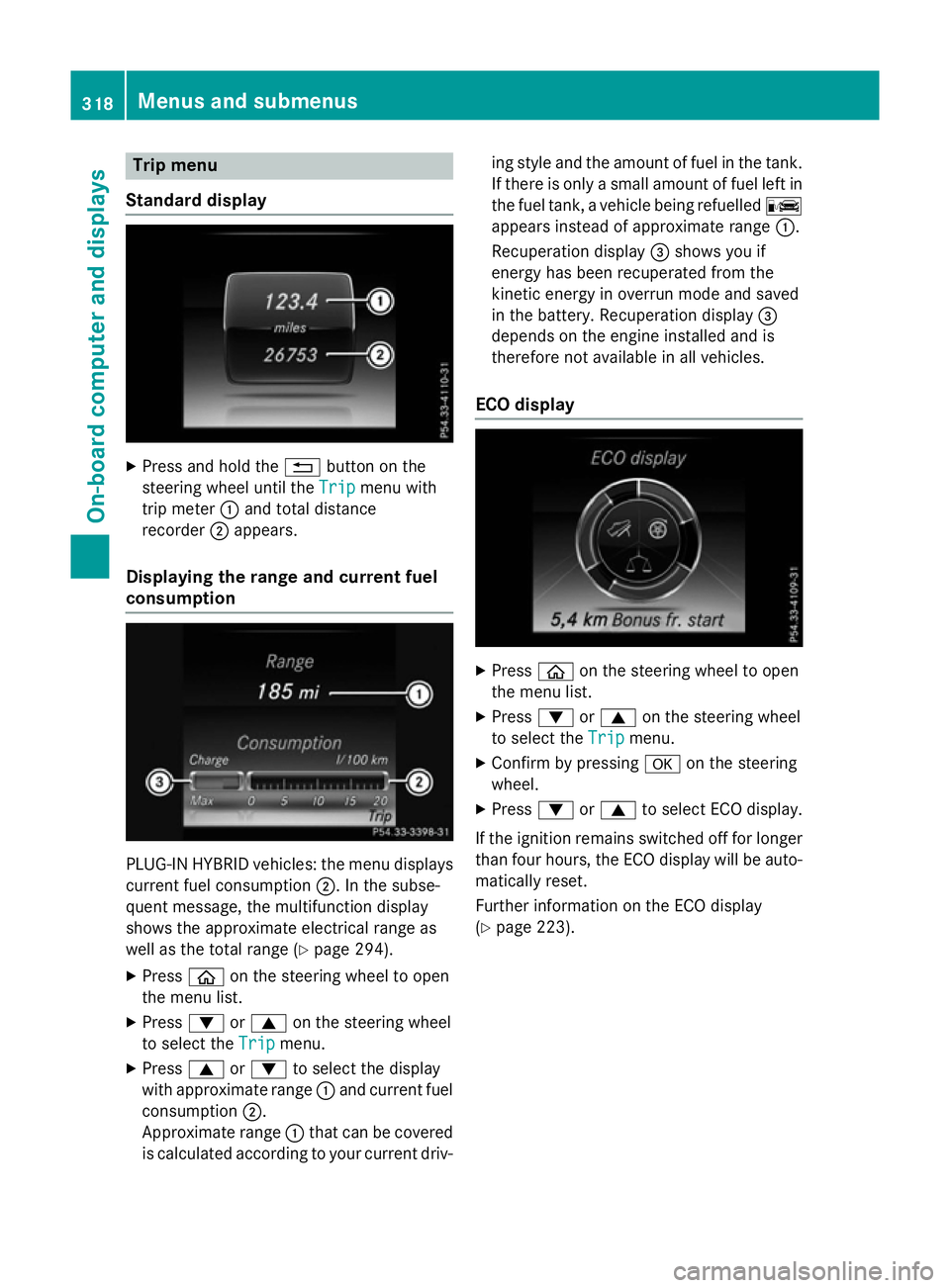
Trip menu
Standard display X
Press and hold the %button on the
steering wheel until the Trip
Tripmenu with
trip meter :and total distance
recorder ;appears.
Displaying the range and current fuel
consumption PLUG-IN HYBRID vehicles: the menu displays
current fuel consumption ;. In the subse-
quent message, the multifunction display
shows the approximate electrical range as
well as the total range (Y page 294).
X Press òon the steering wheel to open
the menu list.
X Press :or9 on the steering wheel
to select the Trip
Trip menu.
X Press 9or: to select the display
with approximate range :and current fuel
consumption ;.
Approximate range :that can be covered
is calculated according to your current driv- ing style and the amount of fuel in the tank.
If there is only a small amount of fuel left in
the fuel tank, a vehicle being refuelled C
appears instead of approximate range :.
Recuperation display =shows you if
energy has been recuperated from the
kinetic energy in overrun mode and saved
in the battery. Recuperation display =
depends on the engine installed and is
therefore not available in all vehicles.
ECO display X
Press òon the steering wheel to open
the menu list.
X Press :or9 on the steering wheel
to select the Trip Tripmenu.
X Confirm by pressing aon the steering
wheel.
X Press :or9 to select ECO display.
If the ignition remains switched off for longer than four hours, the ECO display will be auto-
matically reset.
Further information on the ECO display
(Y page 223). 318
Menus and submenusOn-board computer and displays
Page 322 of 497
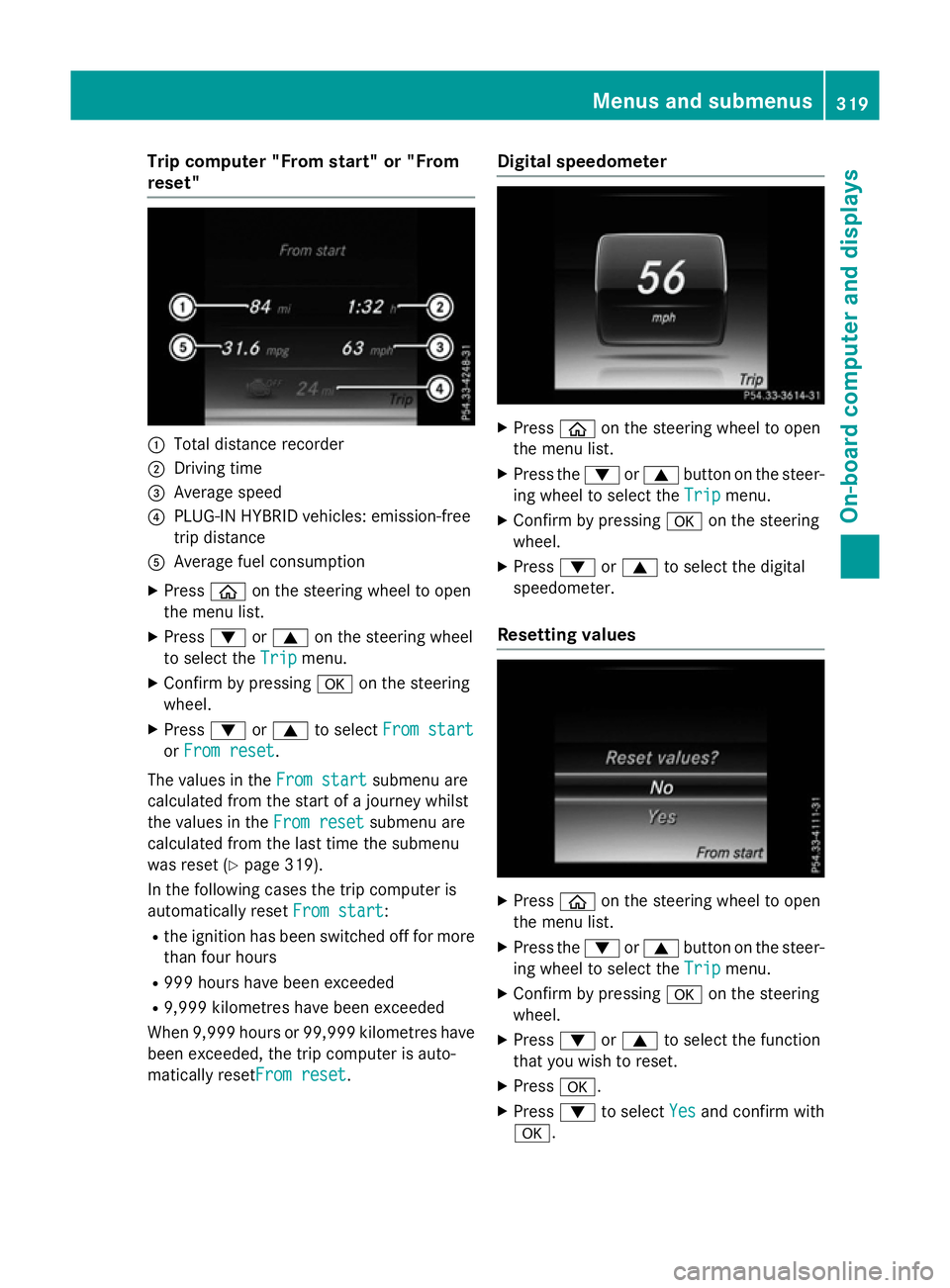
Trip computer "From start" or "From
reset" :
Total distance recorder
; Driving time
= Average speed
? PLUG-IN HYBRID vehicles: emission-free
trip distance
A Average fuel consumption
X Press òon the steering wheel to open
the menu list.
X Press :or9 on the steering wheel
to select the Trip
Trip menu.
X Confirm by pressing aon the steering
wheel.
X Press :or9 to select From start
From start
or From reset
From reset.
The values in the From start
From startsubmenu are
calculated from the start of a journey whilst
the values in the From reset From resetsubmenu are
calculated from the last time the submenu
was reset (Y page 319).
In the following cases the trip computer is
automatically reset From start
From start:
R the ignition has been switched off for more
than four hours
R 999 hours have been exceeded
R 9,999 kilometres have been exceeded
When 9,999 hours or 99,999 kilometres have been exceeded, the trip computer is auto-
matically resetFrom reset From reset. Digital speedometer
X
Press òon the steering wheel to open
the menu list.
X Press the :or9 button on the steer-
ing wheel to select the Trip Tripmenu.
X Confirm by pressing aon the steering
wheel.
X Press :or9 to select the digital
speedometer.
Resetting values X
Press òon the steering wheel to open
the menu list.
X Press the :or9 button on the steer-
ing wheel to select the Trip
Tripmenu.
X Confirm by pressing aon the steering
wheel.
X Press :or9 to select the function
that you wish to reset.
X Press a.
X Press :to select Yes
Yesand confirm with
a. Menus and submenus
319On-board computer and displays Z
Page 323 of 497
You can reset the values of the following func-
tions:
R Trip meter
R "From start" trip computer
R "From reset" trip computer
R ECO display
If you reset the values in the "ECO display",
the values in the "From start" trip computer
are also reset. If you reset the values in the
"From start" trip computer, the values in the
"ECO display" are also reset. Navigation menu
Displaying navigation instructions In the
Navi Navimenu, the multifunction display
shows navigation instructions.
Further information on navigation can be
found in the separate Audio 20 or COMAND
Online operating instructions.
X Switch on Audio 20 or COMAND Online;
see the separate operating instructions.
X Press òon the steering wheel to open
the menu list.
X Press :or9 on the steering wheel
to select the Navi
Navi menu.
X Confirm by pressing aon the steering
wheel.
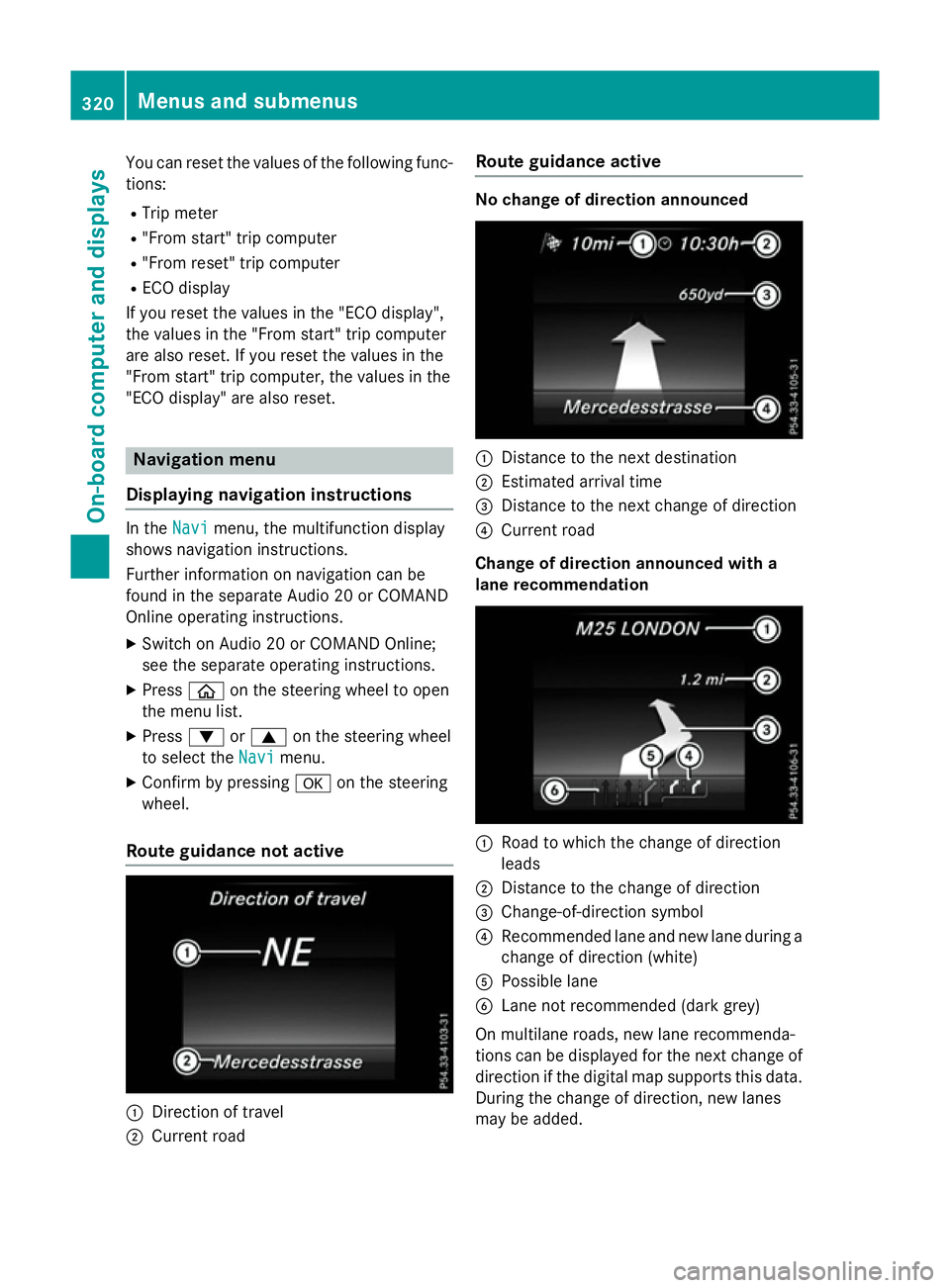
Route guidance not active :
Direction of travel
; Current road Route guidance active No change of direction announced
:
Distance to the next destination
; Estimated arrival time
= Distance to the next change of direction
? Current road
Change of direction announced with a
lane recommendation :
Road to which the change of direction
leads
; Distance to the change of direction
= Change-of-direction symbol
? Recommended lane and new lane during a
change of direction (white)
A Possible lane
B Lane not recommended (dark grey)
On multilane roads, new lane recommenda-
tions can be displayed for the next change of
direction if the digital map supports this data.
During the change of direction, new lanes
may be added. 320
Menus and submenusOn-board computer and displays
Page 325 of 497
You have reached the destination or an
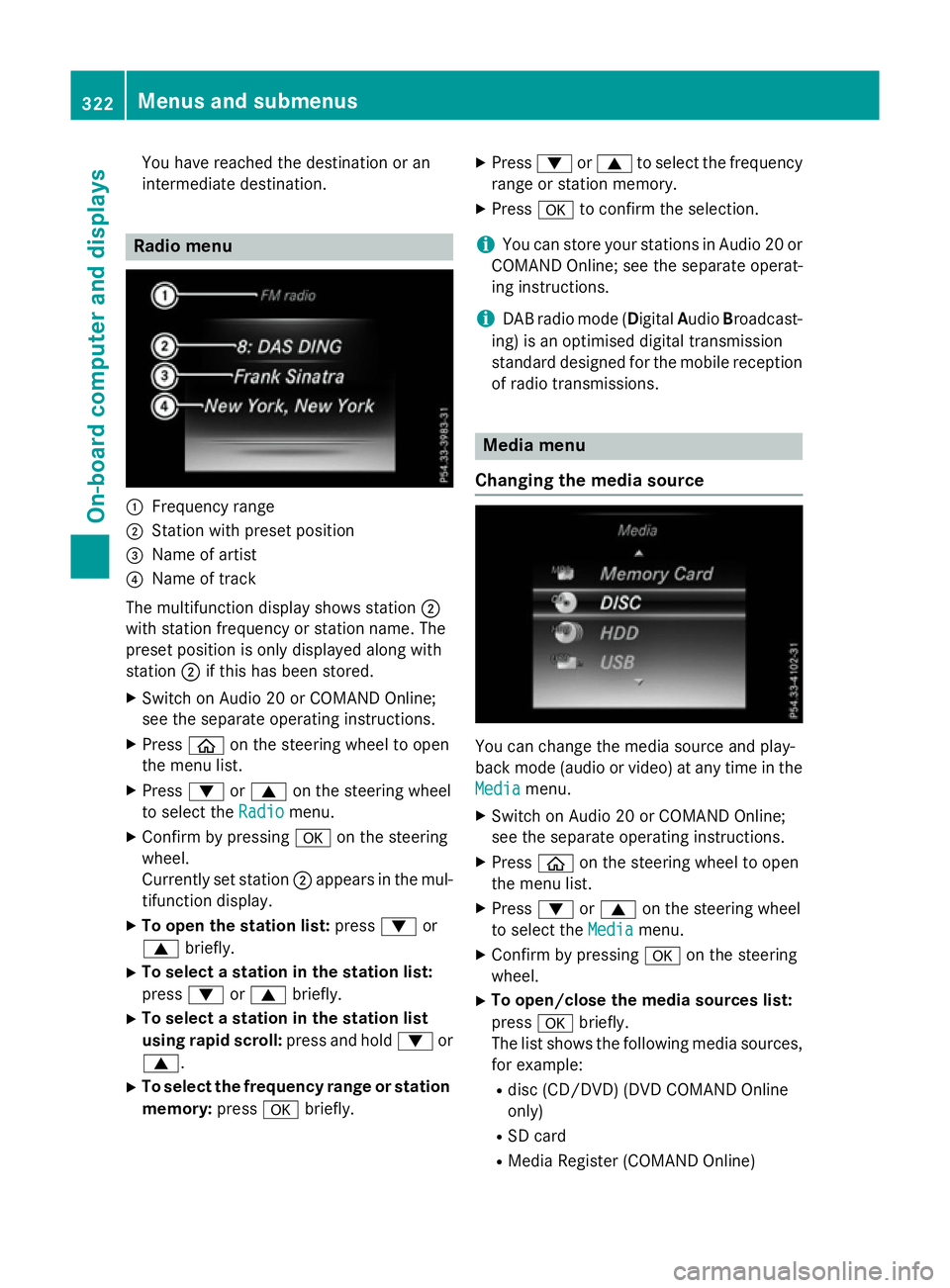
intermediate destination. Radio menu
:
Frequency range
; Station with preset position
= Name of artist
? Name of track
The multifunction display shows station ;
with station frequency or station name. The
preset position is only displayed along with
station ;if this has been stored.
X Switch on Audio 20 or COMAND Online;
see the separate operating instructions.
X Press òon the steering wheel to open
the menu list.
X Press :or9 on the steering wheel
to select the Radio Radiomenu.
X Confirm by pressing aon the steering
wheel.
Currently set station ;appears in the mul-
tifunction display.
X To open the station list: press:or
9 briefly.
X To select a station in the station list:
press :or9 briefly.
X To select a station in the station list
using rapid scroll: press and hold:or
9.
X To select the frequency range or station
memory: pressabriefly. X
Press :or9 to select the frequency
range or station memory.
X Press ato confirm the selection.
i You can store your stations in Audio 20 or
COMAND Online; see the separate operat-
ing instructions.
i DAB radio mode (Digital
AudioBroadcast-
ing) is an optimised digital transmission
standard designed for the mobile reception
of radio transmissions. Media menu
Changing the media source You can change the media source and play-
back mode (audio or video) at any time in the
Media Media menu.
X Switch on Audio 20 or COMAND Online;
see the separate operating instructions.
X Press òon the steering wheel to open
the menu list.
X Press :or9 on the steering wheel
to select the Media Mediamenu.
X Confirm by pressing aon the steering
wheel.
X To open/close the media sources list:
press abriefly.
The list shows the following media sources,
for example:
R disc (CD/DVD) (DVD COMAND Online
only)
R SD card
R Media Register (COMAND Online) 322
Menus and submenusOn-board computer and displays
Page 327 of 497
X
Press :or9 to select the corre-
sponding DVD single drive or disc.
X Press ato confirm.
X To open the scene list: press:or
9 briefly.
X To select the next or previous scene in
the scene list: press:or9 briefly.
X To select a scene in the scene list using
rapid scroll: press and hold :or9
until desired scene :has been reached.
X Press ato confirm your selection.
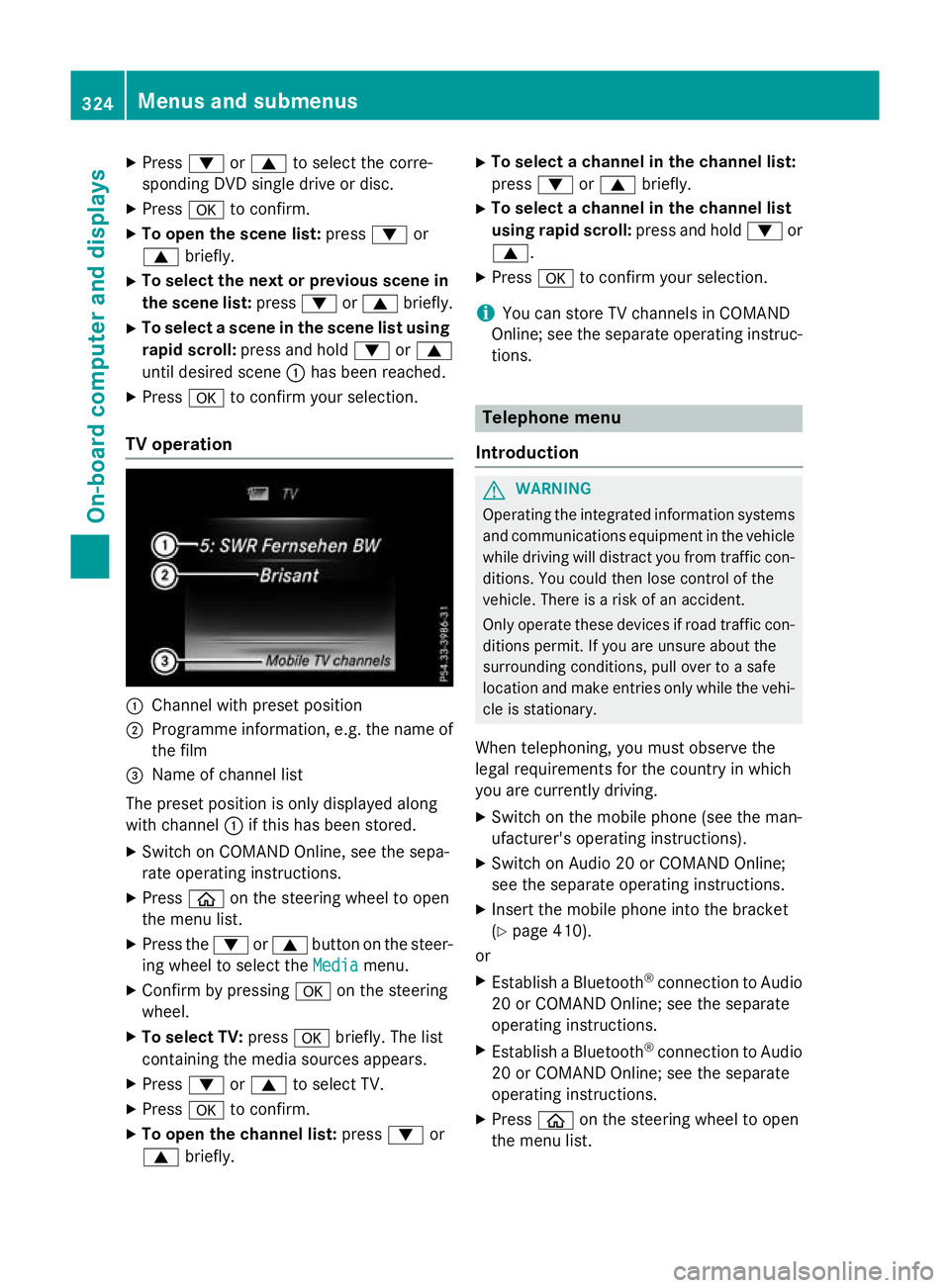
TV operation :
Channel with preset position
; Programme information, e.g. the name of
the film
= Name of channel list
The preset position is only displayed along
with channel :if this has been stored.
X Switch on COMAND Online, see the sepa-
rate operating instructions.
X Press òon the steering wheel to open
the menu list.
X Press the :or9 button on the steer-
ing wheel to select the Media
Media menu.
X Confirm by pressing aon the steering
wheel.
X To select TV: pressabriefly. The list
containing the media sources appears.
X Press :or9 to select TV.
X Press ato confirm.
X To open the channel list: press:or
9 briefly. X
To select a channel in the channel list:
press :or9 briefly.
X To select a channel in the channel list
using rapid scroll: press and hold:or
9.
X Press ato confirm your selection.
i You can store TV channels in COMAND
Online; see the separate operating instruc-
tions. Telephone menu
Introduction G
WARNING
Operating the integrated information systems and communications equipment in the vehicle
while driving will distract you from traffic con-
ditions. You could then lose control of the
vehicle. There is a risk of an accident.
Only operate these devices if road traffic con-
ditions permit. If you are unsure about the
surrounding conditions, pull over to a safe
location and make entries only while the vehi-
cle is stationary.
When telephoning, you must observe the
legal requirements for the country in which
you are currently driving.
X Switch on the mobile phone (see the man-
ufacturer's operating instructions).
X Switch on Audio 20 or COMAND Online;
see the separate operating instructions.
X Insert the mobile phone into the bracket
(Y page 410).
or
X Establish a Bluetooth ®
connection to Audio
20 or COMAND Online; see the separate
operating instructions.
X Establish a Bluetooth ®
connection to Audio
20 or COMAND Online; see the separate
operating instructions.
X Press òon the steering wheel to open
the menu list. 324
Menus and submenusOn-board computer and displays
Page 333 of 497
Setting the departure time
With the "Departure time" function you can
R climatise the vehicle interior before depar-
ture. Further information on pre-entry cli-
mate control (Y page 176).
R charge the high-voltage battery at mini-
mum cost at intelligent charging stations.
The vehicle will calculate an optimized
charging plan. The charging process starts
when the electricity is at the best price
possible. As a result the high-voltage bat-
tery is charged with more affordable elec-
tricity.
Please note that the high-voltage battery
may not be completely charged before your
departure. The necessary charge time may
not be sufficient depending on the charge
status of the high-voltage battery and the
set departure time.
Please use the setting "Set no departure time
and charge immediately" if you would like to
briefly charge the high-voltage battery.
The charging process will immediately begin
if you load the high-voltage battery at stand-
ard charging stations and have previously set
a departure time.
X Press òon the steering wheel to open
the menu list.
X Press :or9 on the steering wheel
to select the Settings
Settings menu.
X Confirm by pressing aon the steering
wheel.
X Use : or9 to select the Hybrid
Hybrid
submenu.
X Press ato confirm.
X Using :or9, select the Depar‐ Depar‐
ture time
ture time function.
You will see the selected setting.
X Press the abutton to save the setting.
X To set no departure time and charge
immediately: press:or9 to select
No preselection
No preselection.
X Press ato confirm.
or X
To set a departure time: press:or
9 A A,B
Bor C
Cto select the desired preset.
X Press ato confirm the selection.
X Press :or9 to set the hours.
X Press ato confirm.
X Press :or9 to set the minutes.
X Press ato confirm.
If the selector lever is shifted to position P
and the charging cable connector is plug-
ged in, the multifunction display will show
the complete charging prediction after a
few moments.
Further information on charging the high-volt-
age battery (PLUG-IN HYBRID vehicles)
(Y page 211).
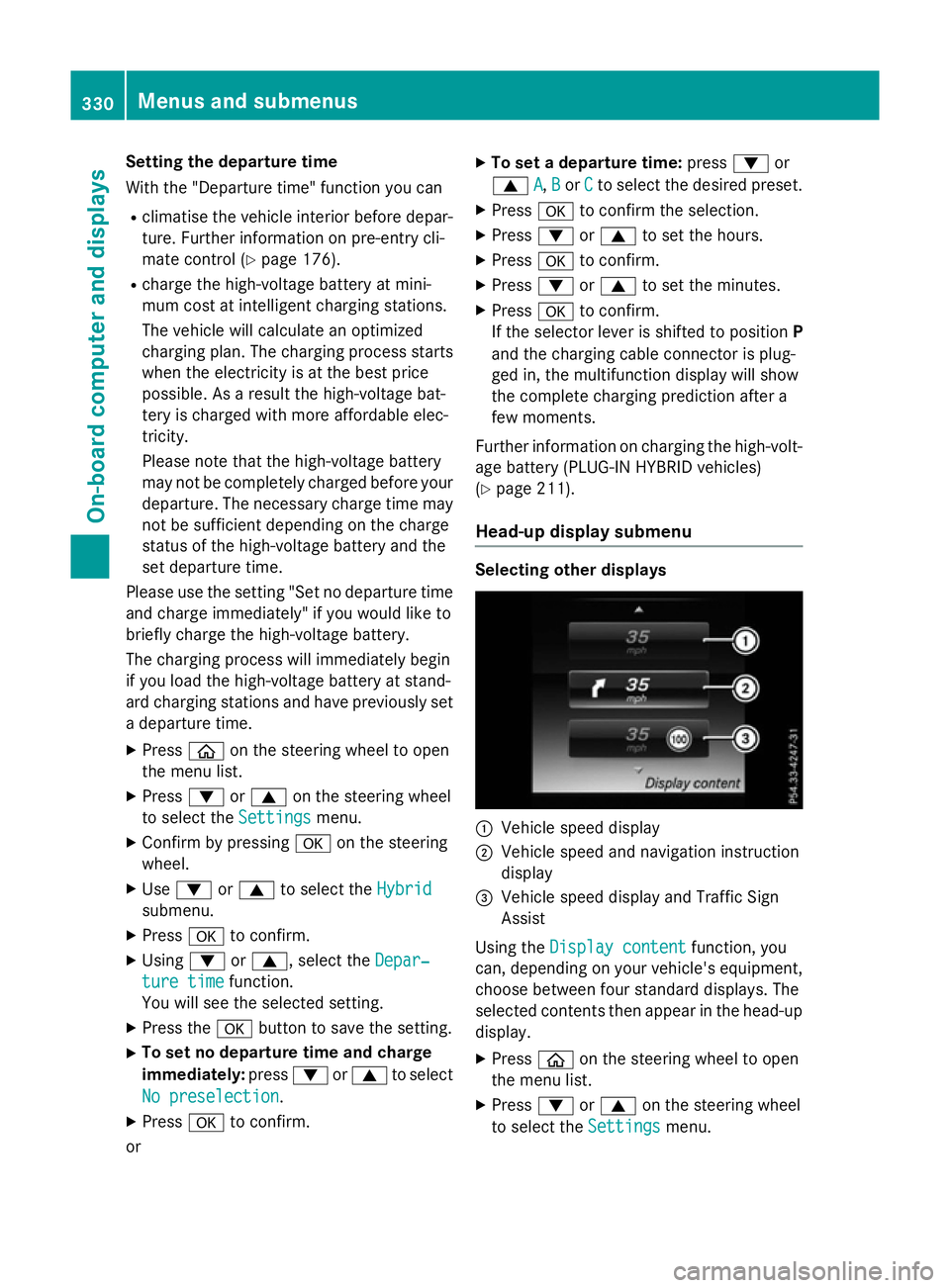
Head-up display submenu Selecting other displays
:
Vehicle speed display
; Vehicle speed and navigation instruction
display
= Vehicle speed display and Traffic Sign
Assist
Using the Display content
Display content function, you
can, depending on your vehicle's equipment,
choose between four standard displays. The
selected contents then appear in the head-up
display.
X Press òon the steering wheel to open
the menu list.
X Press :or9 on the steering wheel
to select the Settings Settingsmenu. 330
Menus and submenusOn-board computer and displays
Page 334 of 497
X
Confirm by pressing aon the steering
wheel.
X Press :or9 to select the Head-up
Head-up
display
display submenu.
X Press ato confirm.
X Select Display content
Display content with: or
9.
X Press ato confirm.
A graphic selection list appears.
X Press :or9 to select the desired
display.
X Press the abutton to confirm the selec-
tion.
Further information on navigation can be
found in the separate Audio 20 or COMAND
Online operating instructions.
Further information about Traffic Sign Assist
(Y page 274).
Setting the position
You can adjust the position of the head-up
display on the windscreen. You can compen-
sate for height differences if the seat posi-
tions are changed, for example.
X Switch on the head-up display
(Y page 316).
X Press òon the steering wheel to open
the menu list.
X Press :or9 on the steering wheel
to select the Settings
Settings menu.
X Confirm by pressing aon the steering
wheel.
X Use : or9 to select the Head-up
Head-up
display
display submenu.
X Press ato confirm.
X Using :or9, select the Position Position
function.
X Press ato save the setting.
X Press :or9 to adjust the position
to a level from Level +5
Level +5toLevel -5
Level -5.
X Press aor% to save the setting.
Using the Memory function, you can save and call up the set position of the head-up display
as a single memory preset (Y page 134).Adjusting the brightness
The brightness of the head-up display is auto-
matically adjusted to the surrounding light
conditions. You can also individually adjust
the brightness of the head-up display.
X Switch on the head-up display
(Y page 316).
X Press òon the steering wheel to open
the menu list.
X Press :or9 on the steering wheel
to select the Settings
Settings menu.
X Confirm by pressing aon the steering
wheel.
X Use : or9 to select the Head-up
Head-up
display display submenu.
X Press ato confirm.
X Using :or9, select the Bright‐
Bright‐
ness
ness function.
X Press the abutton to save the setting.
X Press :or9 to adjust the bright-
ness to a level from Level +5
Level +5(bright) to
Level -5
Level -5 (dark).
X Press the aor% button to save the
setting.
Light submenu Switching the Intelligent Light System
on/off
X Press òon the steering wheel to open
the menu list.
X Press :or9 on the steering wheel
to select the Settings Settingsmenu.
X Confirm by pressing aon the steering
wheel.
X Press :or9 to select the Lights Lights
submenu.
X Press ato confirm.
X Using :or9, select the Intelli‐ Intelli‐
gent Light System
gent Light System function.
If the Intelligent Light System Intelligent Light System func-
tion has been switched on, the cone of light Menus and submenus
331On-board computer and displays Z
Page 337 of 497
Restoring the factory settings
X
Press the òbutton on the steering
wheel to open the menu list.
X Press the :or9 button on the steer-
ing wheel to select the Settings
Settings menu.
X Confirm by pressing aon the steering
wheel.
X Use : or9 to select the Factory
Factory
settings
settings submenu.
X Press ato confirm.
The Reset all settings?
Reset all settings? function
appears.
X Press :or9 to select No
NoorYes
Yes.
X Press the abutton to confirm the selec-
tion.
If you have selected Yes
Yes, the multifunction
display shows a confirmation message.
For safety reasons, not all functions will be
reset: the Limit speed (winter tyres)
Limit speed (winter tyres)
permanent SPEEDTRONIC function can only
be set in the Vehicle Vehiclesubmenu. 334
Menus and submenusOn-board computer and displays
Page 418 of 497
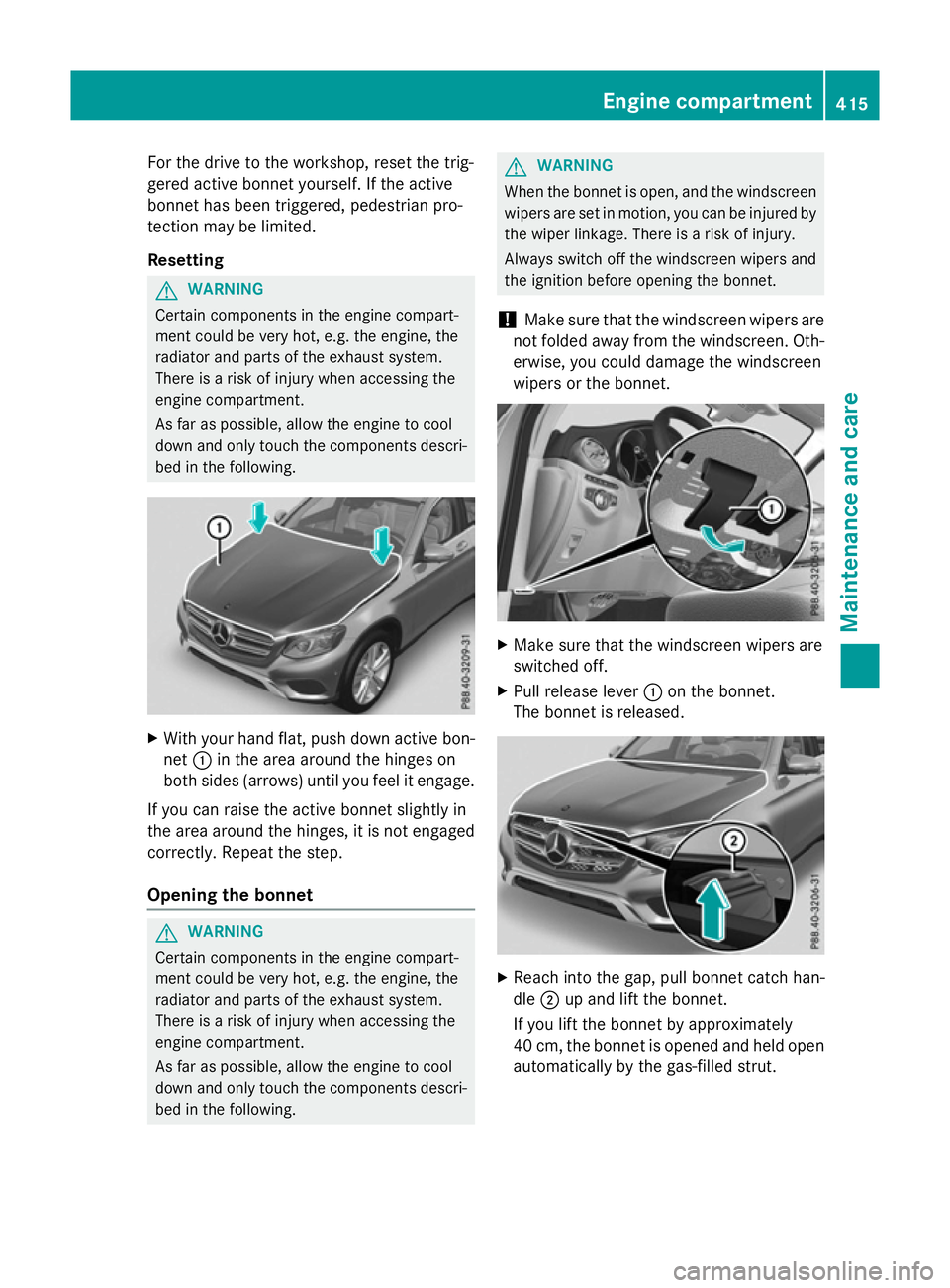
For the drive to the workshop, reset the trig-
gered active bonnet yourself. If the active
bonnet has been triggered, pedestrian pro-
tection may be limited.
Resetting G
WARNING
Certain components in the engine compart-
ment could be very hot, e.g. the engine, the
radiator and parts of the exhaust system.
There is a risk of injury when accessing the
engine compartment.
As far as possible, allow the engine to cool
down and only touch the components descri- bed in the following. X
With your hand flat, push down active bon-
net :in the area around the hinges on
both sides (arrows) until you feel it engage.
If you can raise the active bonnet slightly in
the area around the hinges, it is not engaged correctly. Repeat the step.
Opening the bonnet G
WARNING
Certain components in the engine compart-
ment could be very hot, e.g. the engine, the
radiator and parts of the exhaust system.
There is a risk of injury when accessing the
engine compartment.
As far as possible, allow the engine to cool
down and only touch the components descri- bed in the following. G
WARNING
When the bonnet is open, and the windscreen wipers are set in motion, you can be injured by
the wiper linkage. There is a risk of injury.
Always switch off the windscreen wipers and
the ignition before opening the bonnet.
! Make sure that the windscreen wipers are
not folded away from the windscreen. Oth-
erwise, you could damage the windscreen
wipers or the bonnet. X
Make sure that the windscreen wipers are
switched off.
X Pull release lever :on the bonnet.
The bonnet is released. X
Reach into the gap, pull bonnet catch han-
dle ;up and lift the bonnet.
If you lift the bonnet by approximately
40 cm, the bonnet is opened and held open automatically by the gas-filled strut. Engine compartment
415Maintenance and care Z
Page 422 of 497
If the washer fluid level drops below the rec-
ommended minimum of 1 litre, a message
appears in the multifunction display prompt-
ing you to top up the washer fluid
(Y page 374).
Further information on windscreen washer
fluid/antifreeze (Y page 487). ASSYST PLUS
Service message
The ASSYST PLUS service interval display
informs you of the next service due date.
Information on the type of service and service
intervals (see the separate Service Booklet).
You can obtain further information from a
Mercedes-Benz Service Centre.
i The ASSYST PLUS service interval display
does not show any information on the
engine oil level. Observe the notes on the
engine oil level (Y page 416).
The multifunction display shows a service
message for a few seconds, e.g.:
R Service A in XX days
Service A in XX days
R Service A due Service A due
R Service A overdue by XX days
Service A overdue by XX days
Depending on the operating conditions of the
vehicle, the remaining time or distance until
the next service due date is displayed.
The letter indicates which service is due. A
A
stands for a minor service and B
B for a major
service. A number or another letter may be
displayed after the letter.
Only for certain countries: the position after
the letter A Aor B
Bindicates any necessary addi-
tional maintenance work. If you notify a quali-
fied specialist workshop of this display, you
will receive a statement on the associated
costs.
The ASSYST PLUS service interval display
does not take into account any periods of
time during which the battery is disconnec-
ted. Maintaining the time-dependent service
schedule:
X Note down the service due date displayed
in the multifunction display before discon-
necting the battery.
or
X After reconnecting the battery, subtract
the battery disconnection periods from the
service date shown on the display. Hiding service messages
X Press the aor% button on the steer-
ing wheel. Displaying service messages
X Switch the ignition on.
X Use ò on the steering wheel to call up
the list of menus.
X Press 9or: on the steering wheel
to select the Service Servicemenu and confirm
with a.
X Press 9or: on the steering wheel
to select the ASSYST PLUS
ASSYST PLUS submenu and
confirm with a.
The service due date appears in the multi-
function display. Information about Service
Resetting the ASSYST PLUS service
interval display !
If the ASSYST PLUS service interval dis-
play has been inadvertently reset, this set-
ting can be corrected at a qualified special-
ist workshop.
Have service work carried out as described in the Service Booklet. This may otherwise
lead to increased wear and damage to the
major assemblies or the vehicle.
A qualified specialist workshop, e.g. a
Mercedes-Benz Service Centre, will reset the ASSYST PLUS
419Maintenance and care Z