update MERCEDES-BENZ GLC SUV 2018 COMAND Manual
[x] Cancel search | Manufacturer: MERCEDES-BENZ, Model Year: 2018, Model line: GLC SUV, Model: MERCEDES-BENZ GLC SUV 2018Pages: 170, PDF Size: 4.1 MB
Page 127 of 170
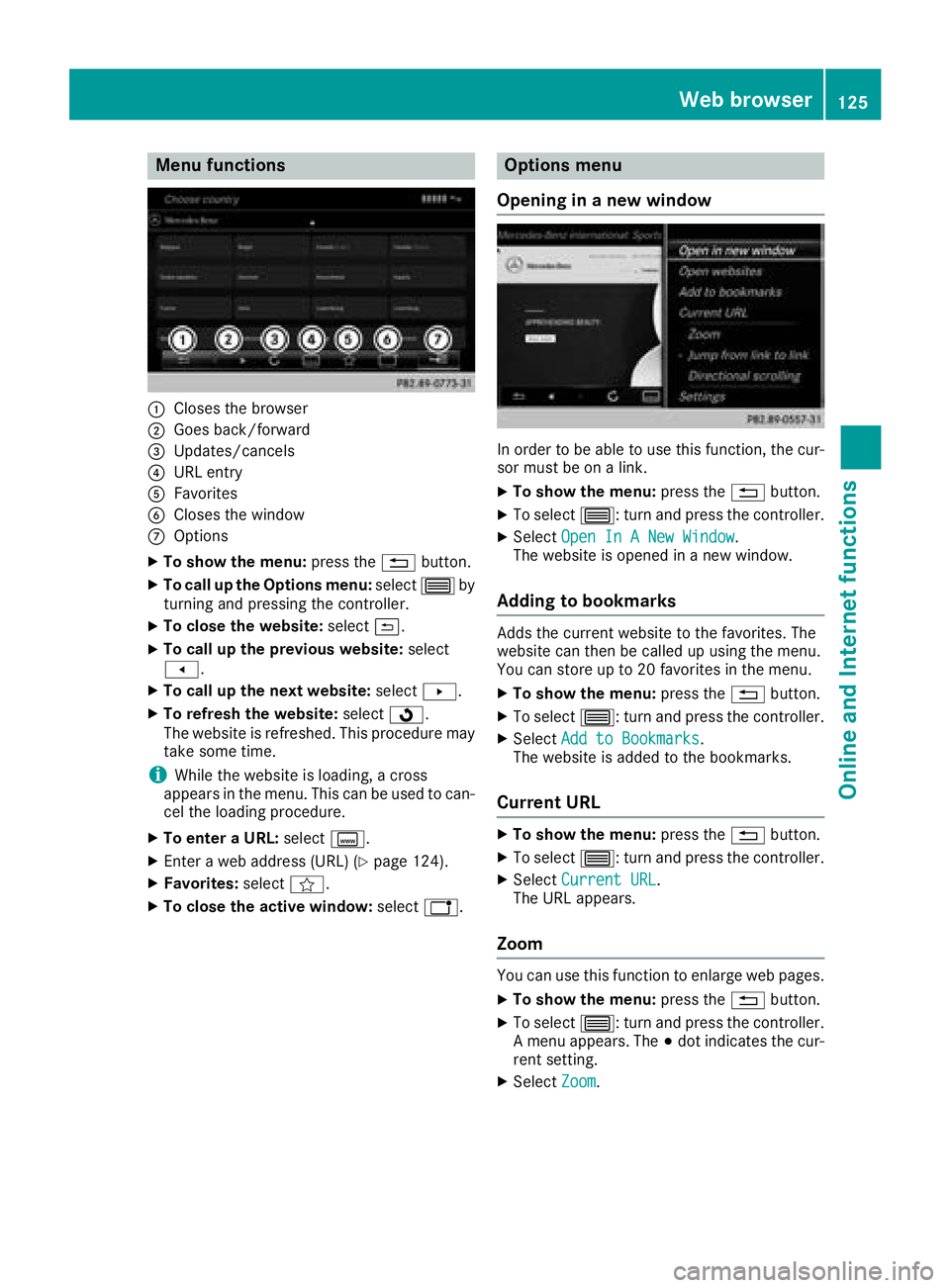
Menu functions
:Closes the browser
;Goes back/forward
=Updates/cancels
?URL entry
AFavorites
BCloses the window
COptions
XTo show the menu:press the%button.
XTo call up the Options menu: select3by
turning and pressing the controller.
XTo close the website: select&.
XTo call up the previous website: select
t.
XTo call up the next website: selectu.
XTo refresh the website: selectÎ.
The website is refreshed. This procedure may
take some time.
iWhile the website is loading, a cross
appears in the menu. This can be used to can-
cel the loading procedure.
XTo enter a URL: selectg.
XEnter a web address (URL) (Ypage 124).
XFavorites: selectf.
XTo close the active window: selecth.
Options menu
Opening in a new window
In order to be able to use this function, the cur-
sor must be on a link.
XTo show the menu: press the%button.
XTo select 3: turn and press the controller.
XSelectOpen In A New Window.
The website is opened in a new window.
Adding to bookmarks
Adds the current website to the favorites. The
website can then be called up using the menu.
You can store up to 20 favorites in the menu.
XTo show the menu: press the%button.
XTo select 3: turn and press the controller.
XSelectAdd to Bookmarks.
The website is added to the bookmarks.
Current URL
XTo show the menu: press the%button.
XTo select 3: turn and press the controller.
XSelectCurrent URL.
The URL appears.
Zoom
You can use this function to enlarge web pages.
XTo show the menu: press the%button.
XTo select 3: turn and press the controller.
A menu appears. The #dot indicates the cur-
rent setting.
XSelect Zoom.
Web browser125
Online and Internet functions
Z
Page 138 of 170
Displaying information
XTo selectInf oin th eradio men ubar :turn and
press th econtroller .
Information on th ecurrentl yreceived pro -
gram is displayed.
If available ,you will see :
Rthechannel log o
Rthechannel abbreviation
Rth eartist of th etrack that is currentl ybein g
playe d
Rthetrack that is currentl ybein gplaye d
XTo return to th eradi omenu :selec tInf oby
slidin g6 and pressing th econtroller .
Displaying service information
The satellite radio provider' scustomer servic e
center is available by phone at any time to
answer any genera lquestion sor question son
th eversions available .
XTo selectOption s:turn and press th econ-
troller.
XTo selec tServic e:turn and press th econ-
troller.
The satellite radio provider' sdetails appear.
XTo return to th emain display :press th e
% button.
Channel list update s
Duringreception of ane wchannel list ,th e
Updating Channels...messag eis shown .
The channel last selecte dis switched to mut e
until th eupdat ehas bee ncompleted. Satellite
radio mode is no tavailable durin gthis process.
Once th eupdat ehas bee ncompleted, th esat -
ellite radio men uappears .If th echannel last
selecte dis available ,this channel will be played.
Sound settings
Information on soun dsetting s (Ypage 159).
136Satellite radio
Radio
Page 144 of 170
XDelete all files in the Media Register
(Ypage 146).
XCall up information on the preset
(Ypage 146).
Pausing/continuing playback
XTo pause playback:in audio or video mode,
slide 6the controller.
The media menu bar is shown.
XTo select Ëin the media menu bar: turn
and press the controller.
Playback is interrupted. The display changes
to Ì.
XTo continue playback: in audio or video
mode, slide 6the controller.
The media menu bar is shown.
XTo select Ìin the media menu bar: turn
and press the controller.
Playback is continued from the point of inter- ruption. The symbol changes to Ë.
Selecting a track
Selecting a track using the current
track list
XTo display the current track list: press the
controller in the media mode menu.
The category list appears.
XSelect Current Tracklist.
XTo select a track: turn the controller and press
to confirm.
Selecting a track by skipping to a track
XTo skip forwards or backwards to a track: in
the media mode menu, turn or briefly slide
9or8 the controller.
Entering a track number directly
XIn media mode, slide 6the controller.
XTo select Options: turn and press the con-
troller.
XTo select TrackNumber:: turn and press the
controller.
A menu appears.
XEnter the desired track number.
Searching for a track
XIn the media mode menu, slide 6the con-
troller.
The media menu bar is shown.
XTo select Search: turn and press the control-
ler.
The category list is shown.
XSelect a category, e.g. Genres.
Sub-categories appear with the selection of
the main category (depends on the multime-
dia system default settings and the music
tracks available).
XSelect a sub-category, for example Rock.
If the selected sub-category contains music
tracks, these will be displayed.
Gracenote®Media Database
General notes
This function is available in CD mode.
There is a version of Gracenote®music recog-
nition technology, Emeryville, California, USA on
the multimedia system hard disk. In media
mode, you will recognize this by the logo in the
bottom right-hand corner of the display.
If the audio CD does not contain any CD text
information, the multimedia system can use the
Gracenote
®Media Database to identify
unknown audio tracks when in CD mode.
Carrying out an Internet update of met-
adata
The Updating Metadata Via Internetoption allows any missing metadata for an audio
CD (e.g. cover, track, album, artist) to be uploa-
ded retrospectively to the internal Gracenote
®
database.
An Internet connection is required for this
(
Ypage 123).
142Audio/video mode
Media
Page 145 of 170
Selecting Internet update of metadata
XIn media mode, slide6the controller.
The media menu bar is shown.
XTo select Options: turn and press the con-
troller.
XSelect Updating Metadata Via Internetin the selection list.
A connection with the Gracenote®server is
established. The missing data is loaded,
saved and displayed in the main display field.
If there is no data found or there is no Internet
connection, a corresponding error message
will appear.
Switching the Gracenote®data display
on/off
XActivate CD mode (Ypage 137).
XTo select Gracenote Media Database: turn
and press the controller.
XTo switch the display off: select None.
In the CD mode menu, Track 1is shown, for
example, instead of the Gracenote®data.
XTo switch on the display: press the controller.
Media search
General notes
The multimedia system plays back files from the following data media:
RDisc (audio CD or DVD)
RMemory card
RMedia Register
RUSB storage device
RApple®devices (folder, year and photos are
not available)
The categories are displayed according to the
data available.
Starting the media search
XIn the media mode menu, slide 6the con-
troller.
The media menu bar is shown.
XTo select Search: turn and press the control-
ler.
The category list appears.
Category list
XIn the media mode menu, slide 6the con-
troller.
The media menu bar is shown.
XTo select Search: turn and press the control-
ler.
The category list is shown.
Depending on the connected media sources and
files, the following categories are listed:
RCurrent Tracklist
RFolder
RSelect By Cover
RKeyword Search
RPlaylists
RArtists
RAlbums
RTrack
RGenres
RYear
RComposers
RVideos
RPhotos
RPodcasts
RAudiobooks
iThe categories are available as soon as the
entire media content has been read and ana-
lyzed.
If the same device is reconnected with
unchanged media content, these categories
are available more quickly.
When connecting Apple
®devices, the cate-
gories “Folder”, “Year” and “Photos” are not
available.
Searching a track using the current
track list
XSelect Current Tracklistfrom the cate-
gory list (Ypage 143).
The selection list appears.
XSelect the required track.
Searching for a track via a folder
Playable files can be searched for in the active
data medium's directories.
Media search143
Media
Z
Page 151 of 170
If the multimedia system cannot find your Blue-
tooth®audio device, external authorization may
follow (Ypage 149).
Authorizing a Bluetooth
®audio device
XIn the Bluetooth®device list, select a Blue-
tooth®audio device that has not yet been
authorized: turn and press the controller.
Authorization starts.
Depending on which Bluetooth
®audio device
is being used, the device can be authorized
either by entering a passkey or by Secure
Simple Pairing. You can find information on
this in the "Authorizing (connecting) a mobile
phone" section (
Ypage 93). After successful
authorization, the Bluetooth®audio device is
connected and starts playing.
iWith some Bluetooth®audio devices, play-
back must initially be started on the device
itself, so that the multimedia system can play
the audio data. For the audio device used, the
output of the audio files has to be specified via
Bluetooth
®.
iThe Bluetooth®audio device must support
Bluetooth®version 2.1 for connection via
Secure Simple Pairing. The multimedia sys-
tem creates a six-digit code which is dis-
played simultaneously on both devices that
are to be connected.
For some Bluetooth
®audio devices, the pair-
ing must also be confirmed within 10 sec-
onds.
External authorization
If the multimedia system does not find your
Bluetooth®audio device (Ypage 148), this may
be due to particular security settings on your
Bluetooth
®audio device. In this case, check
whether your Bluetooth®audio device can
locate the multimedia system.
The Bluetooth
®device name of the multimedia
system is MB Bluetooth.
XSwitch on Bluetooth®audio mode
(Ypage 148).
XSlide 6the controller.
The media menu bar is shown.
XTo select Connect Device: turn and press
the controller.
XTo select ConnectviaAudioDevice: turn
and press the controller.
XStart the authorization on your Bluetooth®
audio device (see the manufacturer's operat- ing instructions).
After successful authorization, the Blue-
tooth
®audio device is connected and starts
playing.
iWith some Bluetooth®audio devices, play-
back must initially be started on the device
itself, so that the multimedia system can play
the audio data.
Device-specific information on authorizing
and connecting Bluetooth
®-capable mobile
phones can be found on the Internet at
http://www.mercedes-benz.com/connect.
Displaying details
XTo select a Bluetooth®audio device from the
Bluetooth®device list: turn the controller
(Ypage 148).
XTo select G: slide 9the controller.
XTo select Details: turn and press the con-
troller.
The following information concerning the
selected mobile phone is shown:
RBluetooth®name
RBluetooth®address
RAvailability status (shown after an update)
RAuthorization status
XTo close the detailed display: press the
% button.
Starting/stopping playback
Requirement: the Bluetooth®audio menu
(Ypage 148) is shown.
Starting playback
XTo select Ì: turn and press the controller.
Playback starts. Ëis selected.
Stopping playback
XSelect Ë.
A message appears. Ìis selected.
Continuing playback
XSelect Ì.
A message appears. Ëis selected.
Bluetooth®audio mode149
Media
Z