ad blue MERCEDES-BENZ GLC SUV 2018 Owner's Manual
[x] Cancel search | Manufacturer: MERCEDES-BENZ, Model Year: 2018, Model line: GLC SUV, Model: MERCEDES-BENZ GLC SUV 2018Pages: 390, PDF Size: 6.54 MB
Page 8 of 390
Problem (malfunction) ...................155
Pulling away ................................... 139
Starting the engine ........................ 138
Steering wheel paddle shifters ...... 152
Trailer towing ................................. 150
Transmission position display
(DIRECT SELECT lever) ................... 148
Transmission positions .................. 148
Automatic transmission emer-
gency mode ....................................... 155
Axle load, permissible (trailer tow-
ing) ...................................................... 384
B
Back button ....................................... 281
Backup lamp
Display message ............................ 251
Replacing bulbs .............................1 19
Bag hook ............................................ 296
Ball coupling
Installing ........................................ 216
Removing ....................................... 218
BAS (Brake Assist System) ................. 67
Battery (SmartKey)
Checking .......................................... 81
Important safety notes .................... 81
Replacing ......................................... 81
Battery (vehicle)
Charging ........................................ 340
Display message ............................ 253
Important safety notes .................. 338
Jump starting ................................. 341
Belt warning ......................................... 49
Blind Spot Assist
Activating/deactivating (on-
board computer) ............................ 232
Display message ............................ 258
Notes/function .............................. 205
see Active Blind Spot Assist
Blower
see Climate control
Bluetooth
®
Searching for a mobile phone ........2 88
see also Digital Operator's Man-
ual ..................................................2 80Brake
Active Brake Assist with cross-
traffic function ................................. 73
Brake Assist
see BAS (Brake Assist System)
Brake assistance
see BAS (Brake Assist System)
Brake fluid
Display message ............................ 245
Notes ............................................. 380
Brake force distribution
see EBD (electronic brake force
distribution)
Brake linings
Display message ............................ 245
Brakes
ABS ..................................................6 6
Adaptive Brake Assist ...................... 68
BAS .................................................. 67
Brake fluid (notes) ......................... 380
Display message ............................ 240
EBD .................................................. 73
Hill start assist ............................... 140
HOLD function ............................... 178
Important safety notes .................. 163
Maintenance .................................. 164
Parking brake ................................ 159
Ridi ng ti
ps ...................................... 163
Warning lamp ................................. 270
Breakdown assistance
Where will I find...? ........................ 332
see Flat tire
see Towing away
Brightness control (instrument
cluster lighting) ................................... 36
Buttons on the steering wheel ......... 221
C
California
Important notice for retail cus-
tomers and lessees .......................... 29
Calling up a malfunction
see Display messages
Calling up the climate control bar
Multimedia system ........................ 284
6Index
Page 37 of 390
MBUSA will not share EDR data with others
without the consent of the vehicle owners or, if
the vehicle is leased, without the consent of the
lessee. Exceptions to this representation
include responses to subpoenas by law enforce-
ment; by federal, state or local government; in
connection with or arising out of litigation involv-ing MBUSA or its subsidiaries and affiliates; or,
as required by law.
Warning: The EDR is a component of the
Restraint System Module. Tampering with, alter-
ing, modifying or removing the EDR component
may result in a malfunction of the Restraint Sys-
tem Module and other systems.
State laws or regulations regarding EDRs that
conflict with federal regulation are pre-empted.
This means that in the event of such conflict, the federal regulation governs. As of February 2013,
13 states have enacted laws relating to EDRs.
Information on copyright
Free and open-source software
Information on license for free and open-source
software used in your vehicle can be found on
the data carrier in your vehicle document wallet
and, including updates, on the following web-
site:
http://www.mercedes-benz.com/opensource
Registered trademarks
Registered trademarks:
RBluetooth®is a registered trademark of Blue-
tooth SIG Inc.
RDTS™ is a registered trademark of DTS, Inc.
RDolby®and MLP™ are registered trademarks
of DOLBY Laboratories.
RBabySmart™, ESP®and PRE-SAFE®are reg-
istered trademarks of Daimler AG.
RHomeLink®is a registered trademark of John-
son Controls.
RiPod®and iTunes®are registered trademarks
of Apple Inc.
RBurmester®is a registered trademark of
Burmester Audiosysteme GmbH.
RMicrosoft®and Windows media®are regis-
tered trademarks of Microsoft Corporation.
RSIRIUS®is a registered trademark of Sirius
XM Radio Inc.
RHD Radio™ is a registered trademark of iBiq-
uity Digital Corporation.
RGracenote®is a registered trademark of
Gracenote, Inc.
RZAGAT Survey®and related brands are regis-
tered trademarks of Zagat Survey, LLC.
Information on copyright35
Introduction
Z
Page 106 of 390
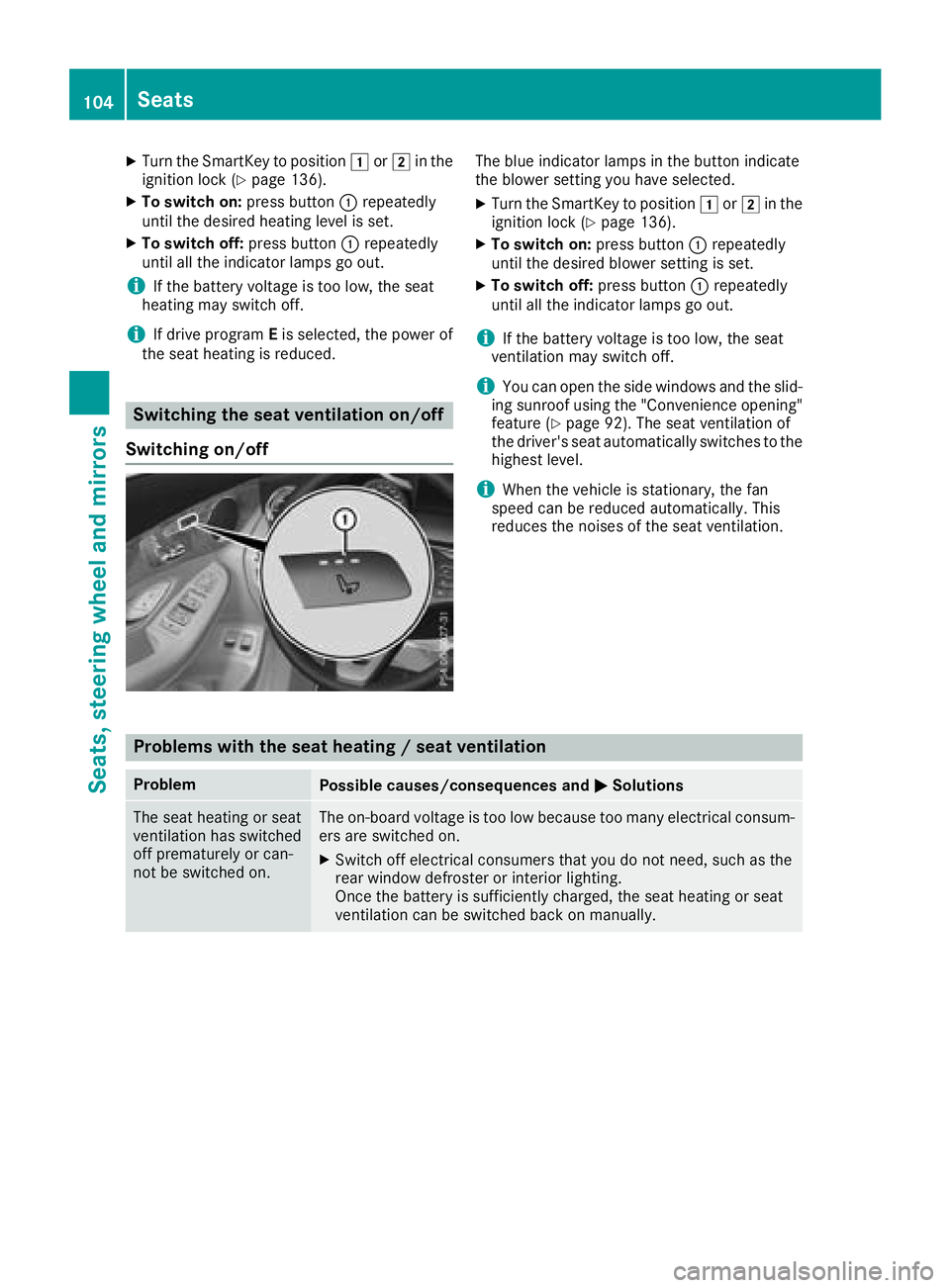
XTurn the SmartKey to position1or2 in the
ignition lock (Ypage 136).
XTo switch on: press button:repeatedly
until the desired heating level is set.
XTo switch off: press button:repeatedly
until all the indicator lamps go out.
iIf the battery voltage is too low, the seat
heating may switch off.
iIf drive program Eis selected, the power of
the seat heating is reduced.
Switching the seat ventilation on/off
Switching on/off
The blue indicator lamps in the button indicate
the blower setting you have selected.
XTurn the SmartKey to position 1or2 in the
ignition lock (Ypage 136).
XTo switch on: press button:repeatedly
until the desired blower setting is set.
XTo switch off: press button:repeatedly
until all the indicator lamps go out.
iIf the battery voltage is too low, the seat
ventilation may switch off.
iYou can open the side windows and the slid-
ing sunroof using the "Convenience opening"
feature (
Ypage 92). The seat ventilation of
the driver's seat automatically switches to the
highest level.
iWhen the vehicle is stationary, the fan
speed can be reduced automatically. This
reduces the noises of the seat ventilation.
Problems with the seat heating / seat ventilation
ProblemPossible causes/consequences and MSolutions
The seat heating or seat
ventilation has switched
off prematurely or can-
not be switched on.The on-board voltage is too low because too many electrical consum-
ers are switched on.
XSwitch off electrical consumers that you do not need, such as the
rear window defroster or interior lighting.
Once the battery is sufficiently charged, the seat heating or seat
ventilation can be switched back on manually.
104Seats
Seats, steering wheel and mirrors
Page 116 of 390
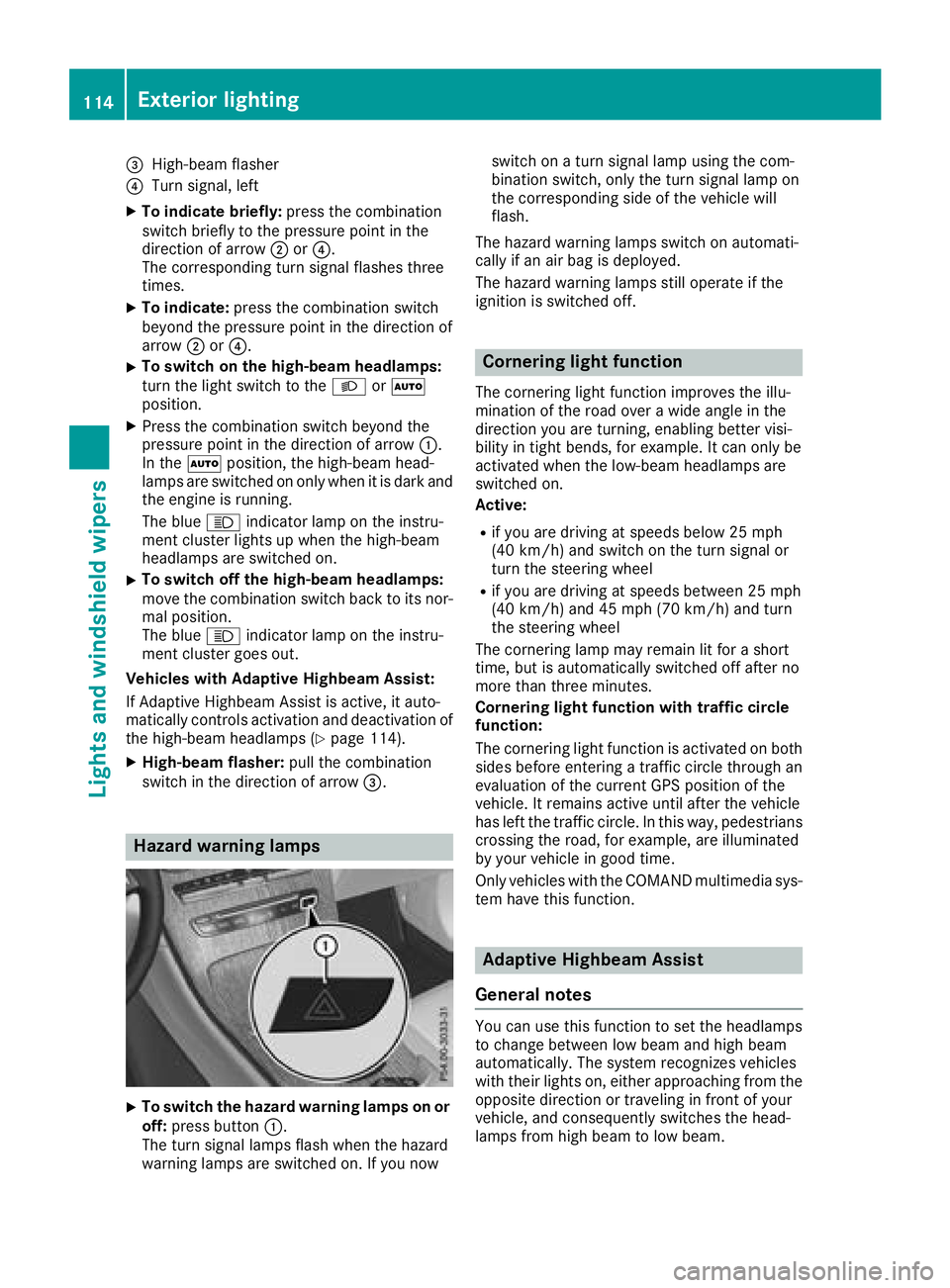
=High-beam flasher
?Turn signal, left
XTo indicate briefly:press the combination
switch briefly to the pressure point in the
direction of arrow ;or?.
The corresponding turn signal flashes three
times.
XTo indicate: press the combination switch
beyond the pressure point in the direction of
arrow ;or?.
XTo switch on the high-beam headlamps:
turn the light switch to the LorÃ
position.
XPress the combination switch beyond the
pressure point in the direction of arrow :.
In the Ãposition, the high-beam head-
lamps are switched on only when it is dark and
the engine is running.
The blue Kindicator lamp on the instru-
ment cluster lights up when the high-beam
headlamps are switched on.
XTo switch off the high-beam headlamps:
move the combination switch back to its nor-
mal position.
The blue Kindicator lamp on the instru-
ment cluster goes out.
Vehicles with Adaptive Highbeam Assist:
If Adaptive Highbeam Assist is active, it auto-
matically controls activation and deactivation of
the high-beam headlamps (
Ypage 114).
XHigh-beam flasher: pull the combination
switch in the direction of arrow =.
Hazard warning lamps
XTo switch the hazard warning lamps on or
off: press button :.
The turn signal lamps flash when the hazard
warning lamps are switched on. If you now switch on a turn signal lamp using the com-
bination switch, only the turn signal lamp on
the corresponding side of the vehicle will
flash.
The hazard warning lamps switch on automati-
cally if an air bag is deployed.
The hazard warning lamps still operate if the
ignition is switched off.
Cornering light function
The cornering light function improves the illu-
mination of the road over a wide angle in the
direction you are turning, enabling better visi-
bility in tight bends, for example. It can only be
activated when the low-beam headlamps are
switched on.
Active:
Rif you are driving at speeds below 25 mph
(40 km/h) and switch on the turn signal or
turn the steering wheel
Rif you are driving at speeds between 25 mph
(40 km/h) and 45 mph (70 km/h) and turn
the steering wheel
The cornering lamp may remain lit for a short
time, but is automatically switched off after no
more than three minutes.
Cornering light function with traffic circle
function:
The cornering light function is activated on both
sides before entering a traffic circle through an
evaluation of the current GPS position of the
vehicle. It remains active until after the vehicle
has left the traffic circle. In this way, pedestrians
crossing the road, for example, are illuminated
by your vehicle in good time.
Only vehicles with the COMAND multimedia sys-
tem have this function.
Adaptive Highbeam Assist
General notes
You can use this function to set the headlamps
to change between low beam and high beam
automatically. The system recognizes vehicles
with their lights on, either approaching from the
opposite direction or traveling in front of your
vehicle, and consequently switches the head-
lamps from high beam to low beam.
114Exterior lighting
Lights and windshield wipers
Page 231 of 390
XConfirmbypressing aon the steering
wheel.
XTo open the media sources list: pressa
brie fly.
The listshows the following media sources,
for example:
RCD or DVD (DVD only in the COMAND mul-
tim edia system)
RSDcard
RMedia Register (only in the COMAND mul-
tim edia system)
RUSB storage device
RBluetooth®capab leaudio device
Please observe further information on media
support and media operation inthe multimedia
system (see the Digital Operator's Manual).
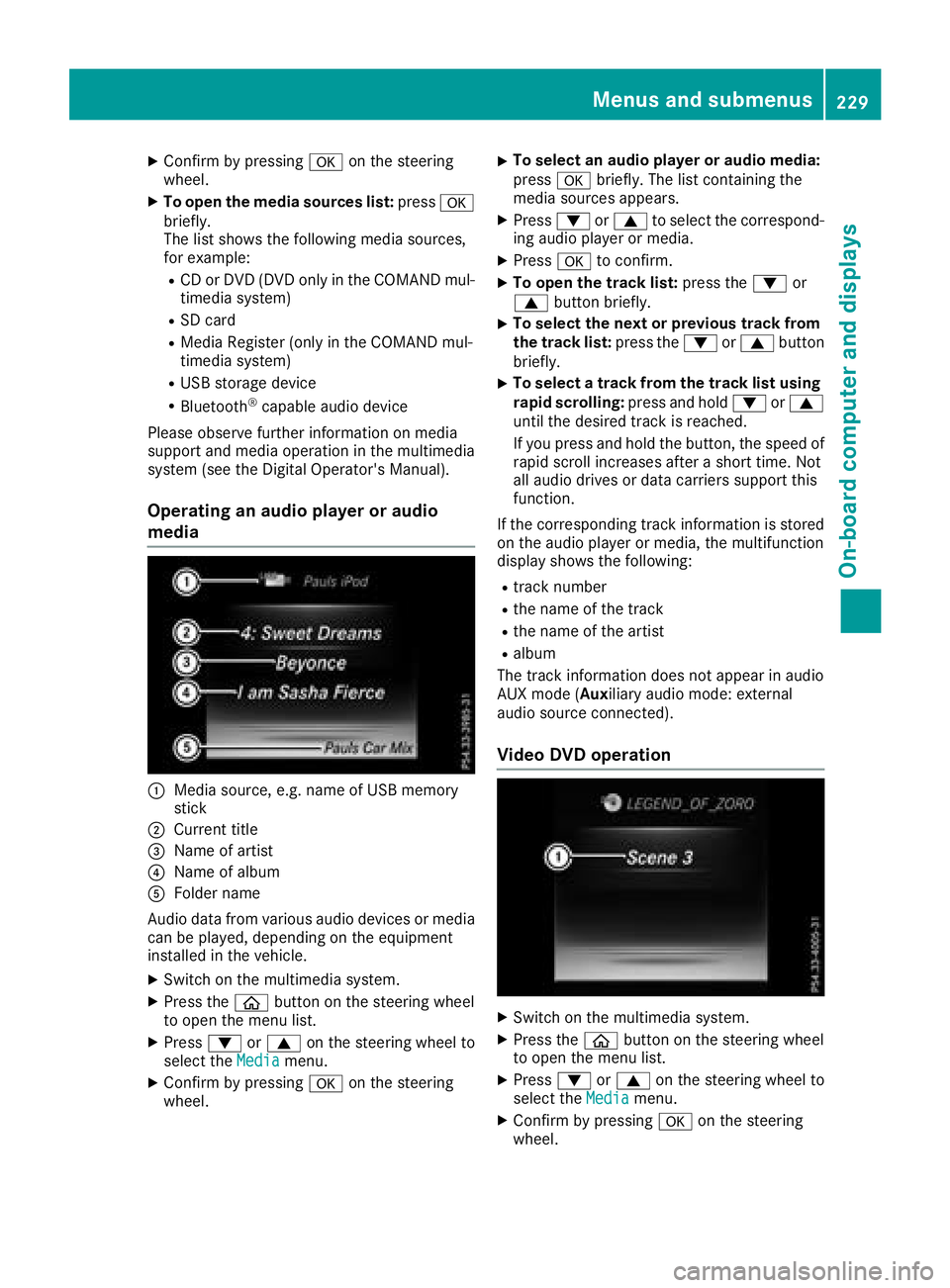
Operating an audio player or audio
media
:Media source, e.g. name of USB memory
stick
;Current tit le
=Name of artist
?Name of album
AFolder name
Aud iodata from various audio devices or media
can beplayed, dependin g on theequipment
installed inthe veh icle.
XSwit ch on the multimed iasystem.
XPress the òbutton on the steering wheel
to open the menu list.
XPress :or9 on the steering wheel to
select the Mediamenu.
XConfirmbypressing aon the steering
wheel.
XTo select an audio player oraudio media:
press abriefly. The list containing the
media sources appears.
XPress :or9 to select the correspond-
ing audio player or media.
XPress ato confirm.
XTo open the track list: press the:or
9 button briefly.
XTo select the next orprevious track fr om
th etr ack list: press the :or9 button
briefly.
XTo select a track fr om the track list using
ra pid scrolling: press and hold :or9
until the desired track isreached.
If you press and hold the button, the speed of
rapid scroll increases after a short time. Not
all audio drives or data carriers support this
function.
If the corresponding track information is stored
on the audio player or media, the multifunction
display shows the following:
Rtrack number
Rthe name of the track
Rthe name of the artist
Ralbum
The track information does not appear inaudio
AUX mode (Aux iliary audio mode: external
audio source connect ed).
Video DVD operation
XSwitch on the multimedia system.
XPress the òbutton on the steering wheel
to open the menu list.
XPress :or9 on the steering wheel to
select the Mediamenu.
XConfirm by pressing aon the steering
wheel.
Menus and submenus229
On-board computer and displays
Z
Page 232 of 390
XTo select a DVD drive or DVD media:press
a briefly. The list containing the media
sources appears.
XPress :or9 to select the correspond-
ing DVD single drive or disc.
XPress ato confirm.
XTo open the scene list: press the:or
9 button briefly.
XTo select the next or previous scene in the
scene list: press the:or9 button
briefly.
XTo select a scene from the scene list using
rapid scrolling: press and hold:or9
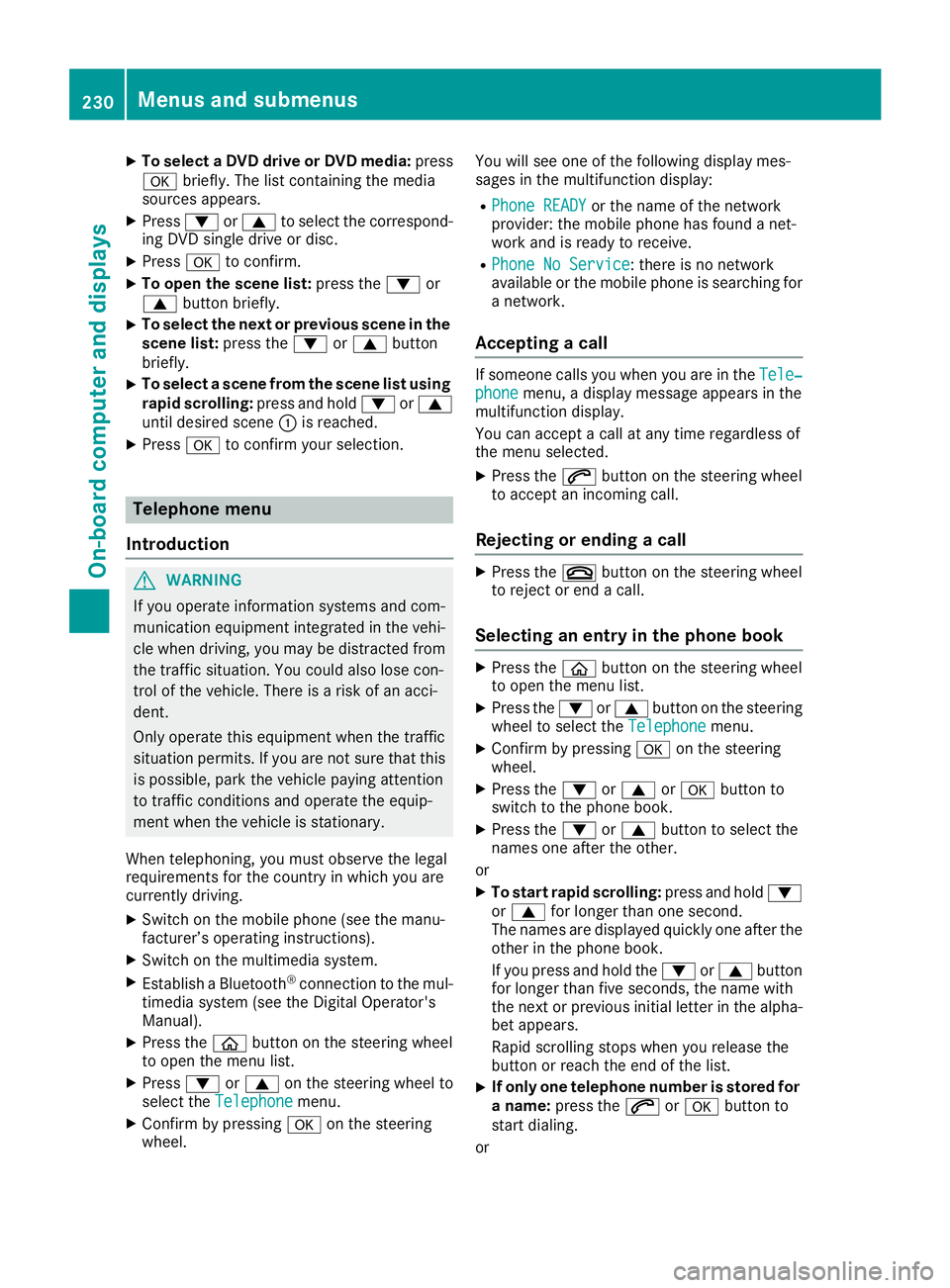
until desired scene :is reached.
XPress ato confirm your selection.
Telephone menu
Introduction
GWARNING
If you operate information systems and com-
munication equipment integrated in the vehi-
cle when driving, you may be distracted from
the traffic situation. You could also lose con-
trol of the vehicle. There is a risk of an acci-
dent.
Only operate this equipment when the traffic
situation permits. If you are not sure that this
is possible, park the vehicle paying attention
to traffic conditions and operate the equip-
ment when the vehicle is stationary.
When telephoning, you must observe the legal
requirements for the country in which you are
currently driving.
XSwitch on the mobile phone (see the manu-
facturer’s operating instructions).
XSwitch on the multimedia system.
XEstablish a Bluetooth®connection to the mul-
timedia system (see the Digital Operator's
Manual).
XPress the òbutton on the steering wheel
to open the menu list.
XPress :or9 on the steering wheel to
select the Telephonemenu.
XConfirm by pressing aon the steering
wheel. You will see one of the following display mes-
sages in the multifunction display:
RPhone READYor the name of the network
provider: the mobile phone has found a net-
work and is ready to receive.
RPhone No Service: there is no network
available or the mobile phone is searching for a network.
Accepting a call
If someone calls you when you are in the Tele‐phonemenu, a display message appears in the
multifunction display.
You can accept a call at any time regardless of
the menu selected.
XPress the 6button on the steering wheel
to accept an incoming call.
Rejecting or ending a call
XPress the ~button on the steering wheel
to reject or end a call.
Selecting an entry in the phone book
XPress the òbutton on the steering wheel
to open the menu list.
XPress the :or9 button on the steering
wheel to select the Telephonemenu.
XConfirm by pressing aon the steering
wheel.
XPress the :or9 ora button to
switch to the phone book.
XPress the :or9 button to select the
names one after the other.
or
XTo start rapid scrolling: press and hold:
or 9 for longer than one second.
The names are displayed quickly one after the
other in the phone book.
If you press and hold the :or9 button
for longer than five seconds, the name with
the next or previous initial letter in the alpha-
bet appears.
Rapid scrolling stops when you release the
button or reach the end of the list.
XIf only one telephone number is stored for
a name: press the 6ora button to
start dialing.
or
230Menus and submenus
On-board computer and displays
Page 237 of 390
XPress:or9 to select the DisplayUnit Speed-/Odometerfunction.
The current setting kmorMilesappears.
XPress the abutton to save the setting.
The selected unit of measurement for distance
applies to:
RDigital speedometer in the Tripmenu
ROdometer and the trip odometer
RTrip computer
RCurrent consumption and the range
RNavigation instructions in the Navimenu
RCruise control
RDistance Pilot DISTRONIC with Steering Pilot
RASSYST PLUS service interval display
Switching the additional speedometer
on/off
If the additional speedometer is switched on,
the speed is shown in the status bar in the mul-
tifunction display instead of the outside tem-
perature.
The speed display is inverse to the speedome-
ter.
XPress theòbutton on the steering wheel
to open the menu list.
XPress the :or9 button on the steering
wheel to select the Settingsmenu.
XConfirm by pressing aon the steering
wheel.
XUse : or9 to select the InstrumentClustersubmenu.
XPressato confirm.
XUsing :or9, select the AdditionalSpeedometer [km/h]function.
The current selection appears.
XTo activate/deactivate: press theabut-
ton again.
Restoring the factory settings
XPress the òbutton on the steering wheel
to open the menu list.
XPress the :or9 button on the steering
wheel to select the Settingsmenu.
XConfirm by pressing aon the steering
wheel.
XUse : or9 to select the FactorySettingssubmenu.
XPressato confirm.
The Reset All Settings?function
appears.
XPress :or9 to select NoorYes.
XPress ato confirm the selection.
If you have selected Yes, the multifunction
display shows a confirmation message.
For safety reasons, the Daytime Running
Lightsfunction in theLightssubmenu is only
reset when the vehicle is stationary.
AMG menu (Mercedes-AMG vehicles)
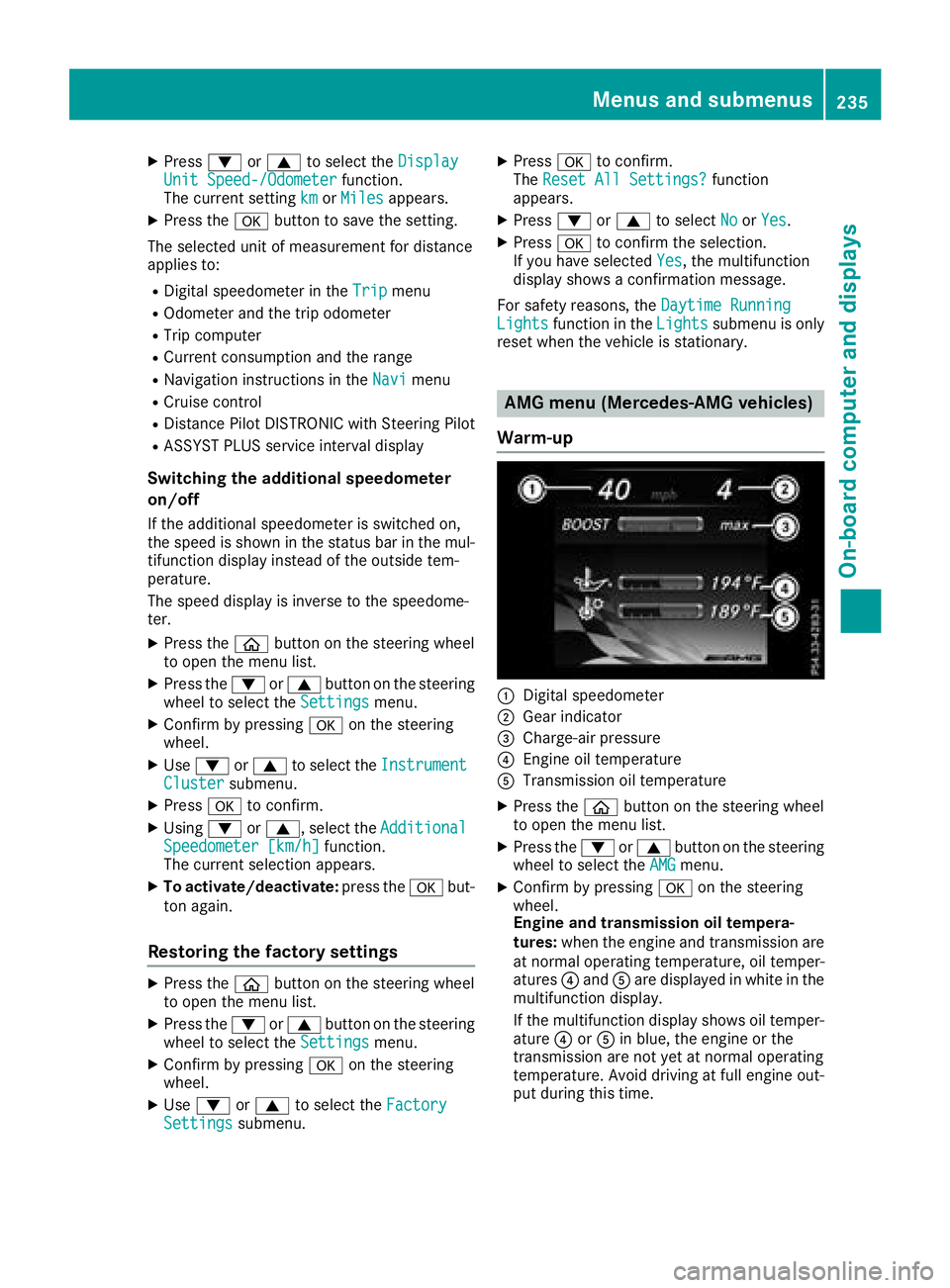
Warm-up
:Digital speedometer
;Gear indicator
=Charge-air pressure
?Engine oil temperature
ATransmission oil temperature
XPress the òbutton on the steering wheel
to open the menu list.
XPress the :or9 button on the steering
wheel to select the AMGmenu.
XConfirm by pressing aon the steering
wheel.
Engine and transmission oil tempera-
tures: when the engine and transmission are
at normal operating temperature, oil temper-
atures ?and Aare displayed in white in the
multifunction display.
If the multifunction display shows oil temper-
ature ?orA in blue, the engine or the
transmission are not yet at normal operating
temperature. Avoid driving at full engine out-
put during this time.
Menus and submenus235
On-board computer and displays
Z
Page 289 of 390
Below this, you will see locations for which
route guidance has already been carried out.
XEnter the city.
TheGsymbol: the location is contained on
the digital map multiple times.
XTo switch to the list: slide the5control-
ler.
XSelect the location.
If available, the ZIP code is shown. If there are
different ZIP codes available for the location,
the corresponding digits are displayed with an
X
.
XEnter the street and house number.
The address is in the menu.
Further options for destination entry:
RFree destination search
The free destination search finds destinations
using fragments of words.
Rselect the last destination
Rselect a contact
Rselect a POI
You can search for a POI by location, name or
telephone number.
Rselect destination on the map
Renter intermediate destination
You can map the route to the destination
yourself with up to four intermediate destina-
tions.
Rselect destinations from Mercedes-Benz
Apps
Rselect geo-coordinates
Calculating the route
Prerequisite: the address has been entered and
is in the menu.
XSelect StartorContinue.
The route is calculated with the selected route
type and the selected route options.
If route guidance has already been activated,
a prompt will appear asking whether you wish
to end the current route guidance.
XSelect YesorSet as Intermediate Des‐tination.
Yescancels the current route guidance and
starts route calculation to the new destina-
tion.
Set as Intermediate Destination
adds
the new destination in addition to the existing destination and opens the intermediate des-
tinations list.
Connecting a mobile phone
Requirements
For telephony via the Bluetooth®interface, you
require at least one Bluetooth®-capable mobile
phone depending on use of one-telephone
mode ortwo-telephone mode. The mobile
phone must support Hands-Free Profile 1.0 or
above.
In two-telephone mode you can use all the
functions of the multimedia system with the
main telephone . With theadditional tele-
phone , you can receive incoming calls.
Multimedia system:
XSelect VehicleQSystem Set‐tingsQActivate Bluetooth.
XActivate Bluetooth®O.
Mobile phone:
XActivate Bluetooth®and, if necessary, Blue-
tooth®visibility for other devices (see the
manufacturer's operating instructions).
The Bluetooth
®device names for all of one man-
ufacturer's products might be identical. To
make it possible to clearly identify your mobile
phone, change the device name (see the man-
ufacturer's operating instructions).
If the mobile phone supports the PBAP ( Phone
Book Access Profile) and MAP ( Message
A ccess Profile) Bluetooth
®profiles, the follow-
ing information will be transmitted after you
connect:
RPhone book
RCall lists
RMessages
iFurther information on suitable mobile
phones can be obtained on the Internet at:
http://www.mercedes-benz.com/
connect
iIn the USA, you can get in touch with the
Mercedes-Benz Customer Assistance Center
on 1-800-FOR-MERCede s(1-800-367-6372).
In Canada, you can get in touch with the Cus-
tomer Relations Center on 1-800-387-0100.
Operating system287
Multimedia system
Z
Page 290 of 390
Searching for and authorizing a mobile
phone
Before using your mobile phone with the multi-
media system for the first time, you will need to
search for the phone and then authorize (con-
nect) it. Depending on the mobile phone, author-
ization either takes place by means of Secure
Simple Pairing or by entering a passkey. The
multimedia system automatically makes the
procedure that is relevant for your mobile phoneavailable. The mobile phone is always connec-
ted automatically after authorization. Further
information on using a mobile phone with the
multimedia system (see the Digital Operator's
Manual).
If the multimedia system does not detect your
mobile phone, this may be due to particular
security settings on your mobile phone (see the
manufacturer's operating instructions).
Only one mobile phone can be connected to the
multimedia system at any one time.
Searching for a mobile phone
COMAND:
XSelect PhoneQConnect DeviceQCon‐nect Another Device.
XOne-telephone mode: selectMain Phone.
XTwo-telephone mode: selectAdditional
Phone (Incoming Calls Only)when a
mobile phone is already connected.
XSelect Start Search.
XSelect mobile phone.
Audio 20:
XSelect Tel/®QConn. DeviceQCon‐nect New DeviceQConnect via Vehi‐cle.
XSelect mobile phone.
XOne-telephone mode: selectConnect as
New Main Phone.
XTwo-telephone mode: selectConnect as
Additional Phone.
Connecting a mobile phone
Authorization via Secure Simple Pairing
XThe code on the multimedia system and
mobile phone are the same: if applicable,
select Yes
on the multimedia system.
XConfirm code on the mobile phone. Depend-
ing on the mobile phone used, confirm the
connection to the multimedia system and for
the PBAP and MAP Bluetooth
®profiles. The prompt to confirm may take up to two
minutes to be displayed (see the manufactur-
er's operating instructions).
XIf the codes are different:
selectNoon the
multimedia system.
The process is canceled.
Repeat authorization.
Authorization via passkey entry (access code)
XChoose a one to sixteen-digit number combi-
nation as a passkey.
XEnter the passkey on the multimedia system.
XPress ¬to confirm.
XEnter and confirm the passkey on the mobile
phone. Depending on the mobile phone used,
confirm the connection to the multimedia sys-
tem and for the PBAP and MAP Bluetooth
®
profiles. The prompt to confirm may take up
to two minutes to be displayed (see the man-
ufacturer's operating instructions).
Media mode
General notes
If you wish to play external media sources, the
appropriate media mode must already be turned
on. Further information on media mode (see the
Digital Operator's Manual).
The following external media sources can be
used:
RApple®devices (e.g. iPhone®)
RUSB devices (e.g. USB stick, MP3 player)
RCD
RDVD (COMAND)
RSD cards
RVia devices connected by Bluetooth®
iInformation on the single DVD drive (see the
Digital Operator's Manual).
Activating media mode
Multimedia system:
XSelect MediaQDevices.
The available media sources will be shown.
XSelect the media source.
Playable files are played.
288Operating system
Multimedia system