display MERCEDES-BENZ GLC SUV 2019 Owners Manual
[x] Cancel search | Manufacturer: MERCEDES-BENZ, Model Year: 2019, Model line: GLC SUV, Model: MERCEDES-BENZ GLC SUV 2019Pages: 673, PDF Size: 11.51 MB
Page 356 of 673
#
Toselect a suggestion: select one ofthe
entri es. #
Ifav ailable, display additional suggestions
with q orr. #
Resume character input. The letters can be
written next toeach other or abo veeach
ot her. #
Toend character entr y:press briefly on
G.
Setting theke yboard forch aracter entry
Multimedia sy stem:
4 Settings 5
System 5
Controls
5 Keyboards and handwriting #
Confirm Select keyboards.
Select theke yboard language in the list. Sy
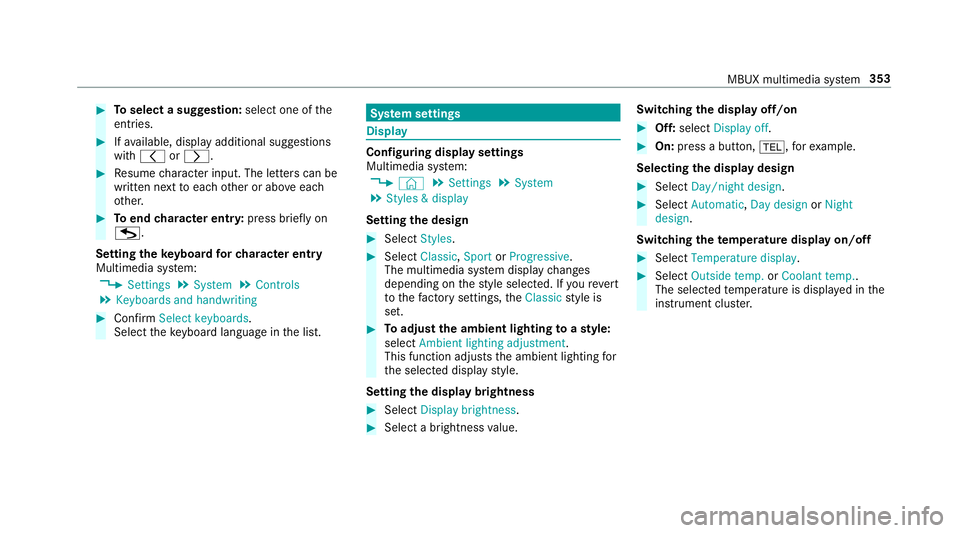
stem settings Display
Configuring display settings
Multimedia sy
stem:
4 © 5
Settings 5
System
5 Styles & display
Setting the design #
Select Styles. #
Select Classic ,Sport orProgressive .
The multimedia sy stem display changes
depending on thest yle selected. If youre ve rt
to thefa ctory settings, theClassic style is
set. #
Toadjust the ambient lighting toastyl e:
select Ambient lighting adjustment.
This function adjusts the ambient lighting for
th e selected display style.
Setting the display brightness #
Select Display brightness . #
Select a brightness value. Switching
the display off/on #
Off: select Display off . #
On: press a button, %,forex ample.
Selecting the display design #
Select Day/night design . #
Select Automatic, Day design orNight
design .
Switching thetemp erature display on/off #
Select Temperature display . #
Select Outside temp. orCoolant temp..
The selec tedte mp erature is displa yed in the
instrument clus ter. MBUX multimedia sy
stem 353
Page 360 of 673
#
Select Connect using WPS PIN input .
The multimedia sy stem generates an eight-
digit PIN. #
Enter this PIN on the device tobe connec ted. #
Confirm the entry.
Connecting using a but ton#
Select the options rofthe desired Wi-Fi
networ k. #
Select Connect via WPS PBC .#
Select "Connect via WPS PBC" in the options
on the device tobe connec ted (see the man‐
ufacturer's operating instructions). #
Press the WPS button on the device tobe
connec ted. #
Select Continue inthe multimedia sy stem.
Ac tivating automatic connection #
Select Connect via Wi-Fi . #
Select the options rofthe desired Wi-Fi
networ k. #
Activate Permanent Internet connection .Connecting with a known
Wi-Fi #
Select Connect via Wi-Fi . #
Select a Wi-Fi networ k.
The connection is es tablished again.
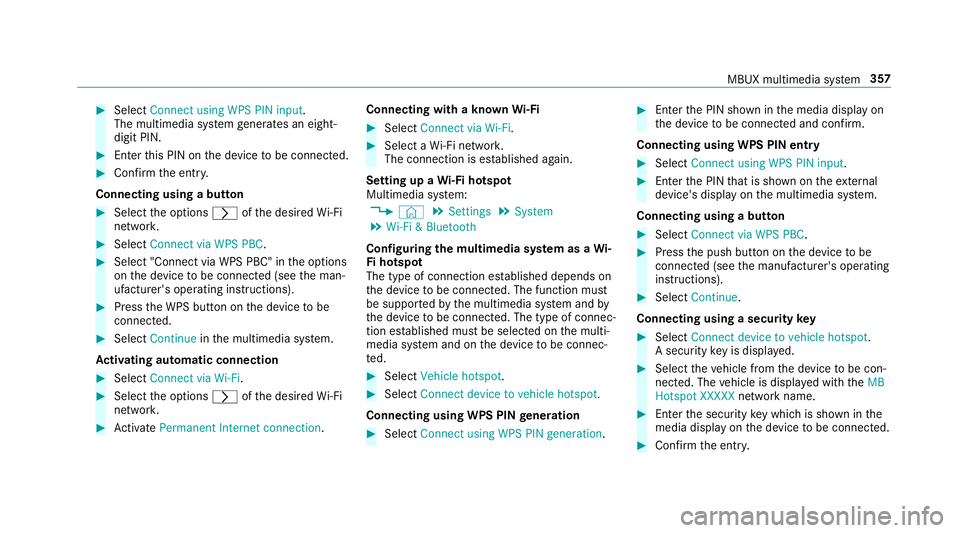
Setting up a Wi-Fi hotspot
Multimedia sy stem:
4 © 5
Settings 5
System
5 Wi-Fi & Bluetooth
Configuring the multimedia sy stem as a Wi-
Fi hotspot
The type of connection es tablished depends on
th e device tobe connec ted. The function must
be suppor tedby the multimedia sy stem and by
th e device tobe connec ted. The type of connec‐
tion es tablished must be selected on the multi‐
media sy stem and on the device tobe connec‐
te d. #
Select Vehicle hotspot. #
Select Connect device to vehicle hotspot .
Connecting using WPS PIN generation #
Select Connect using WPS PIN generation. #
Ente rth e PIN shown in the media display on
th e device tobe connec ted and con firm.
Connecting using WPS PIN entry #
Select Connect using WPS PIN input. #
Enterth e PIN that is shown on theex tern al
device's display on the multimedia sy stem.
Connecting using a button #
Select Connect via WPS PBC. #
Press the push button on the device tobe
connec ted (see the manufacturer's operating
instructions). #
Select Continue.
Connecting using a security key #
Select Connect device to vehicle hotspot .
A secu rity key is displa yed. #
Select theve hicle from the device tobe con‐
nec ted. The vehicle is displa yed with theMB
Hotspot XXXXX network name. #
Ente rth e security key which is shown in the
media display on the device tobe connec ted. #
Confirm the entry. MBUX multimedia sy
stem 357
Page 370 of 673
Re
quirement forth e integration of the sleep
data:
R The GARMIN fitness trac ker is synchronised
with the GARMIN account before the begin‐
ning of the journe y.
% IfAT TENTION ASSIST de term ines an exces‐
sive lack of attention, ENERG IZINGCOACH
makes no fur ther suggestions. Further infor‐
mation about ATTENTION ASSIST
(/ page 267).
Calling up the ENERGIZING CO ACH display
Multimedia sy stem:
4 © 5
Comfort #
Select ENERGIZING COACH.
Yo ur cur rent pulse as well as an evaluation of
yo ur pulse forth e last 30 minutes driving
time are shown.
A cor responding er ror messa geis shown if
th ere is no mobile phone connected or no pulse can be sent
tothe sy stem for an exten‐
ded pe riod.
% Only pulse values in thera nge of
30‑140 bpm are shown on the media displa y.
The pulse values ha veno medical validity but
are only informative in nature and are there‐
fo re also not requ ired tobe accura te. #
Intheeve nt of an er ror messa gemake sure
th at thefo llowing requ irements are fulfilled:
R The fitness trac ker is connected with your
GARMIN account.
R Your GARMIN account is connected with
yo ur Mercedes me account on your
mobile phone.
R The mobile phone is connected as the
main phone tothe multimedia sy stem
(/ page 413). Na
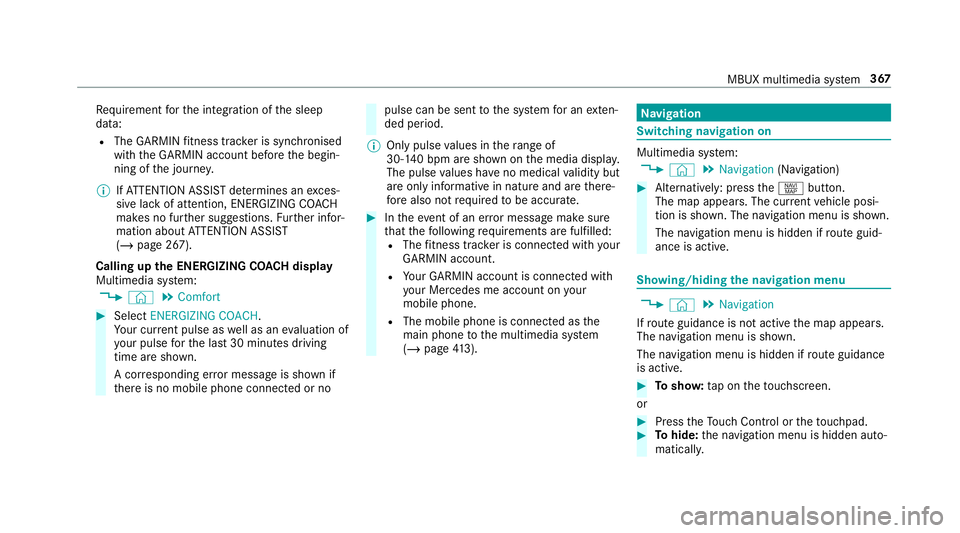
vigation Switching navigation on
Multimedia sy
stem:
4 © 5
Navigation (Navigation) #
Alternatively: press thez button.
The map appears. The cur rent vehicle posi‐
tion is shown. The navigation menu is shown.
The navigation menu is hidden if route guid‐
ance is active. Showing/hiding
the navigation menu 4
© 5
Navigation
If ro ute guidance is not active the map appears.
The navigation menu is shown.
The navigation menu is hidden if route guidance
is active. #
Tosho w:tap on theto uchsc reen.
or #
Press theTo uch Control or theto uchpad. #
Tohide: the navigation menu is hidden auto‐
maticall y. MBUX multimedia sy
stem 367
Page 375 of 673
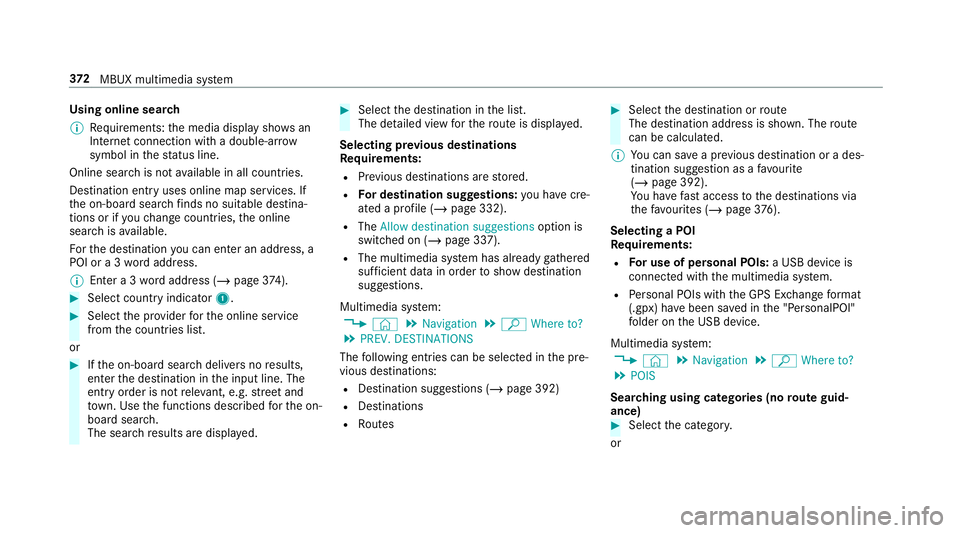
Using online sear
ch
% Requirements: the media display sho wsan
In te rn et connection wi tha double-ar row
symbol in thest atus line.
Online sear chis not available in all countries.
De stination ent ryuses online map services. If
th e on-board sear chfinds no suitable de stina‐
tions or if youch ange countries, the online
sear chisavailable.
Fo rth e destination you can en ter an addre ss, a
POI or a 3 wordaddress.
% Enter a 3 wordaddress (/ page374). #
Select country indica tor1. #
Select the pr ovider forth e online service
from the count ries list.
or #
Ifth e on-board sear chdelivers no results,
enter the destination in the input line. The
entry order is not releva nt, e.g. stre et and
to wn. Use the functions described forth e on-
board sear ch.
The sear chresults are displa yed. #
Select the destination in the list.
The de tailed view forth ero ute is displ ayed.
Selecting pr evious destinations
Re quirements:
R Prev ious destinations are stored.
R For destination sug gestions: you ha vecre‐
ated a profile (/ page 332).
R The Allow destination suggestions option is
switched on (/ page 337).
R The multimedia sy stem has already gathered
suf ficient da tain order toshow destination
suggestions.
Multimedia sy stem:
4 © 5
Navigation 5
ª Where to?
5 PREV. DESTINATIONS
The following ent ries can be selected in the pre‐
vious destinations:
R Destination suggestions (/ page 392)
R Destinations
R Routes #
Select the destination or route
The destination address is shown. The route
can be calculated.
% You can sa vea pr evious destination or a des‐
tination suggestion as a favo urite
(/ page 392).
Yo u ha vefast access tothe destinations via
th efa vo urites (/ page376).
Selec ting a POI
Requ irements:
R For use of personal POIs: a USB device is
connected wi th the multimedia sy stem.
R Personal POIs with the GPS Ex change form at
(.gpx) ha vebeen sa ved in the "PersonalPOI"
fo lder on the USB device.
Multimedia sy stem:
4 © 5
Navigation 5
ª Where to?
5 POIS
Sear ching using categories (no route guid‐
ance) #
Select the categor y.
or 372
MBUX multimedia sy stem
Page 377 of 673
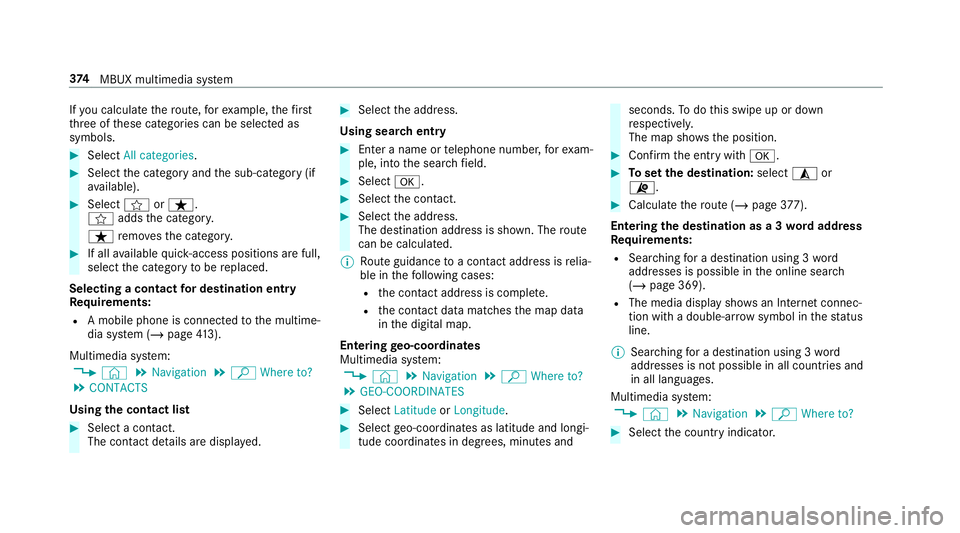
If
yo u calculate thero ute, forex ample, thefirst
th re e of these categories can be selected as
symbols. #
Select All categories. #
Select the category and the sub-category (if
av ailable). #
Select forß.
f addsthe categor y.
ß remo vesth e categor y. #
If all available quick- access positions are full,
select the category tobe replaced.
Selecting a contact for destination entry
Re quirements:
R A mobile phone is connec tedto the multime‐
dia sy stem (/ page413).
Mul timedia sy stem:
4 © 5
Navigation 5
ª Where to?
5 CONTACTS
Using the contact list #
Select a con tact.
The contact de tails are displa yed. #
Select the address.
Using sear chentry #
Enter a name or telephone number, forex am‐
ple, into the sear chfield. #
Select a. #
Select the conta ct. #
Select the address.
The destination address is shown. The route
can be calculated.
% Route guidance toa con tact address is relia‐
ble in thefo llowing cases:
R the conta ct address is compl ete.
R the conta ct datamatches the map data
in the digital map.
Entering geo-coordina tes
Multimedia sy stem:
4 © 5
Navigation 5
ª Where to?
5 GEO-COORDINATES #
Select Latitude orLongitude. #
Select geo-coordinates as latitude and longi‐
tude coordinates in degrees, minutes and seconds.
Todo this swipe up or down
re spectivel y.
The map sho ws the position. #
Confirm the entry witha. #
Toset the destination: select¥or
¦. #
Calculate thero ute (/ page377).
Entering the destination as a 3 wordaddress
Re quirements:
R Sear ching for a destination using 3 word
addresses is possible in the online sear ch
( / page 369).
R The media display sho wsan In tern et connec‐
tion wi tha double-ar rowsymbol in thest atus
line.
% Sear ching for a destination using 3 word
addresses is not possible in all countries and
in all languages.
Multimedia sy stem:
4 © 5
Navigation 5
ª Where to? #
Select the count ryindicator. 374
MBUX multimedia sy stem
Page 379 of 673
#
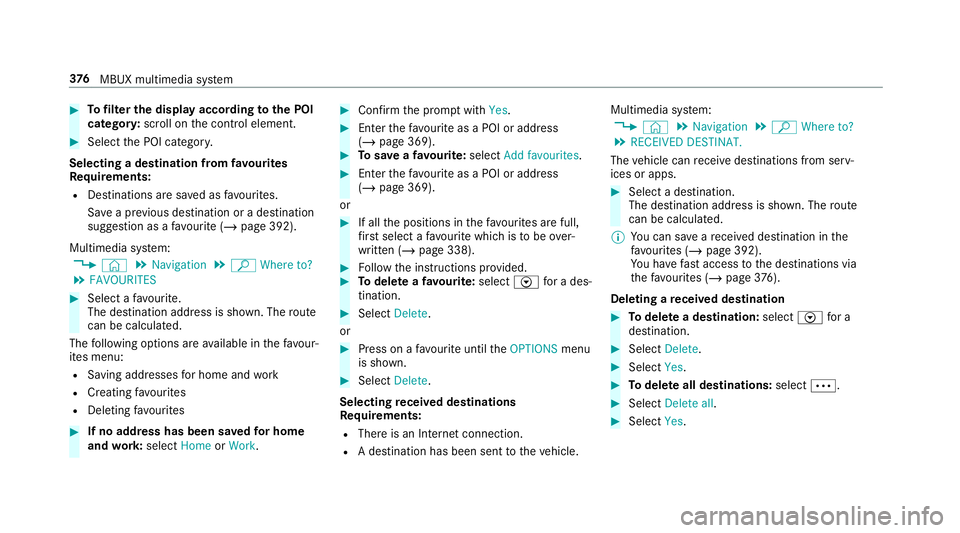
Tofilter the display according tothe POI
categor y:scroll on the control element. #
Select the POI categor y.
Selecting a destination from favo urites
Re quirements:
R Destinations are sa ved as favo urites.
Sa ve a pr evious destination or a destination
suggestion as a favo urite (/ page 392).
Multimedia sy stem:
4 © 5
Navigation 5
ª Where to?
5 FAVOURITES #
Select a favo urite.
The destination address is shown. The route
can be calculated.
The following options are available in thefa vo ur‐
ites menu:
R Saving addresses for home and work
R Creating favo urites
R Deleting favo urites #
If no address has been sa vedfo r home
and work:select HomeorWork. #
Confirm the prom ptwith Yes. #
Enterth efa vo urite as a POI or address
(/ page 369). #
Tosave afa vo urite: select Add favourites. #
Enter thefa vo urite as a POI or address
(/ page 369).
or #
If all the positions in thefa vo urites are full,
fi rs t select a favo urite which is tobe ove r‐
written (/ page 338). #
Follow the instructions pr ovided. #
Todel ete a favo urite: select Vfor a des‐
tination. #
Select Delete.
or #
Press on a favo urite until theOPTIONS menu
is shown. #
Select Delete.
Selecting received destinations
Re quirements:
R There is an Internet connection.
R A destination has been sent totheve hicle. Multimedia sy
stem:
4 © 5
Navigation 5
ª Where to?
5 RECEIVED DESTINAT.
The vehicle can recei vedestinations from serv‐
ices or apps. #
Select a destination.
The destination address is shown. The route
can be calculated.
% You can sa veare cei ved destination in the
fa vo urites (/ page 392).
Yo u ha vefast access tothe destinations via
th efa vo urites (/ page376).
Del eting a received destination #
Todel ete a destination: selectVfor a
destination. #
Select Delete. #
Select Yes. #
Todel ete all destinations: selectÄ. #
Select Delete all. #
Select Yes. 376
MBUX multimedia sy stem
Page 381 of 673
#
Tocall the destination: if atelephone num‐
ber is available, select Call. #
Toshare the destination using NFC or QR
code: select Share via NFC or QR code .#
Hold the NFC area of the mobile phone (see
manufacturer's operating instructions) on the
mat or place the mobile phone on it .
or #
Hold the mobile phone near tothe multime‐
dia sy stem and scan the QR code. #
Tocall up an Internet address: if aweb
address is available, select www. #
Toshow on the map: selectDisplay on the
map .
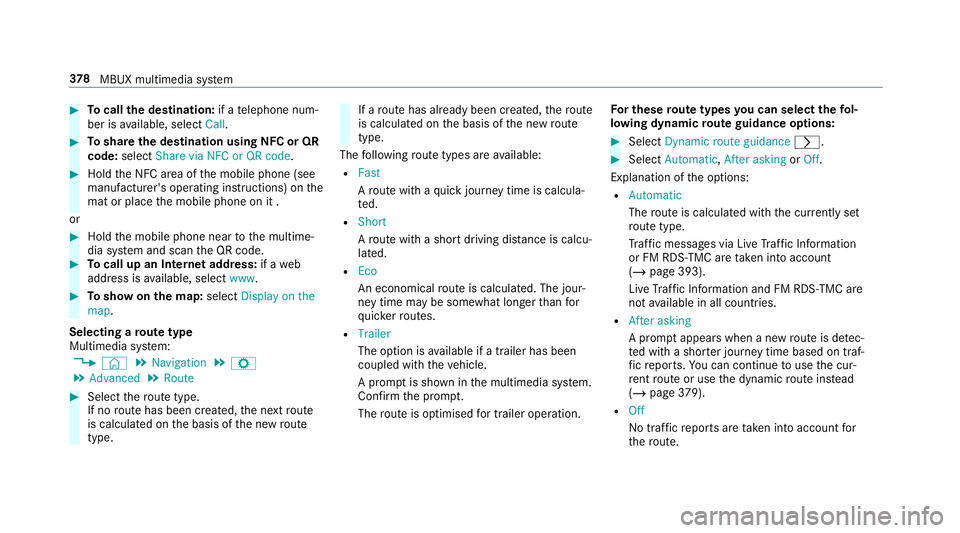
Selecting a route type
Multimedia sy stem:
4 © 5
Navigation 5
Z
5 Advanced 5
Route #
Select thero ute type.
If no route has been created, the next route
is calculated on the basis of the new route
type. If a
route has already been created, thero ute
is calculated on the basis of the new route
type.
The following route types are available:
R Fast
Aro ute with a quick journey time is calcula‐
te d.
R Short
Aro ute with a sho rtdriving dis tance is calcu‐
la te d.
R Eco
An economical route is calculated. The jour‐
ney time may be som ewhat longer than for
qu icke rro utes.
R Trailer
The option is available if a trailer has been
coupled with theve hicle.
A prom ptis shown in the multimedia sy stem.
Confirm the prom pt.
The route is optimised for trailer operation. Fo
r these route types you can select thefo l‐
lowing dynamic route guidance options: #
Select Dynamic route guidance r. #
Select Automatic, After asking orOff.
Explanation of the options:
R Automatic
The route is calculated with the cur rently set
ro ute type.
Tr af fic messages via Live Traf fic Information
or FM RDS-TMC are take n into account
(/ page 393).
Live Traf fic Information and FM RDS-TMC are
not available in all countries.
R After asking
A prom ptappears when a new route is de tec‐
te d with a shor ter journey time based on traf‐
fi c re ports. You can continue touse the cur‐
re nt route or use the dynamic route ins tead
(/ page 379).
R Off
No tr affic re ports are taken into account for
th ero ute. 378
MBUX multimedia sy stem
Page 382 of 673
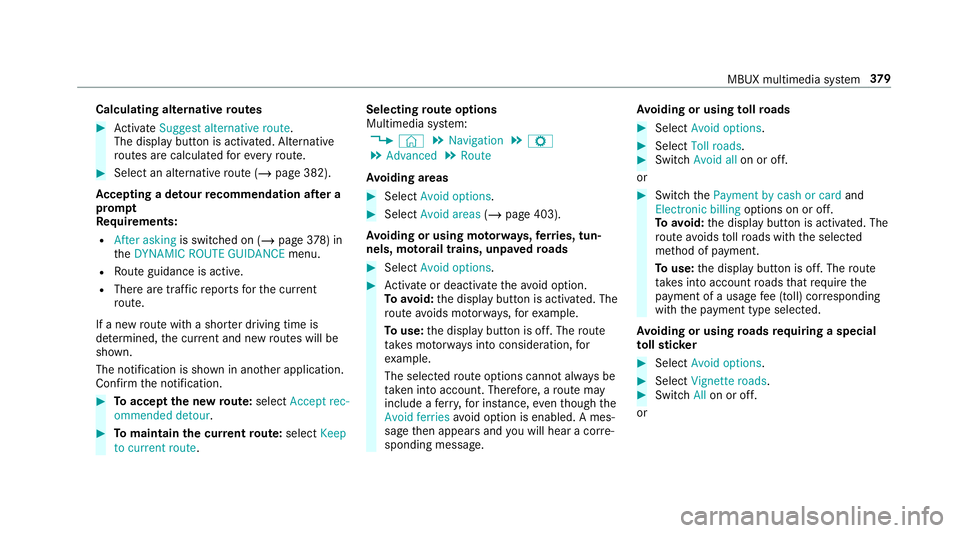
Calculating alternative
routes #
Activate Suggest alternative route.
The display button is acti vated. Alternative
ro utes are calculated foreve ryroute. #
Select an alternative route (/ page 382).
Ac cepting a de tour recommendation af ter a
prom pt
Re quirements:
R After asking is switched on (/ page378) in
th eDYNAMIC ROUTE GUIDANCE menu.
R Route guidance is active.
R There are traf fic re ports forth e cur rent
ro ute.
If a new route with a sho rter driving time is
de term ined, the cur rent and new routes will be
shown.
The notification is shown in ano ther application.
Confirm the notification. #
Toaccept the new route: select Accept rec-
ommended detour. #
Tomaintain the cu rrentroute: select Keep
to current route . Selecting
route options
Multimedia sy stem:
4 © 5
Navigation 5
Z
5 Advanced 5
Route
Av oiding areas #
Select Avoid options. #
Select Avoid areas (/page 403).
Av oiding or using mo torw ays, ferries, tun‐
nels, mo torail trains, unpa vedro ads #
Select Avoid options. #
Activate or deacti vate theavo id option.
To avoid: the display button is activated. The
ro ute avoids mo torw ays, forex ample.
To use: the display button is off. The route
ta ke s mo torw ays into consideration, for
ex ample.
The selec tedro ute options cannot alw ays be
ta ke n into account. The refore , a route may
include a ferry, for ins tance, eventh ough the
Avoid ferries avoid option is enabled. A mes‐
sage then appears and you will hear a co rre‐
sponding message. Av
oiding or using tollro ads #
Select Avoid options. #
Select Toll roads. #
Switch Avoid all on or off.
or #
Switch thePayment by cash or card and
Electronic billing options on or off.
To avoid: the display button is activated. The
ro ute avoids tollro ads with the selected
me thod of payment.
To use: the display button is off. The route
ta ke s into account roads that requ irethe
payment of a usage fee (toll) cor responding
with the payment type selected.
Av oiding or using roads requ iring a special
to llst icker #
Select Avoid options . #
Select Vignette roads . #
Switch Allon or off.
or MBUX multimedia sy
stem 37 9
Page 383 of 673
#
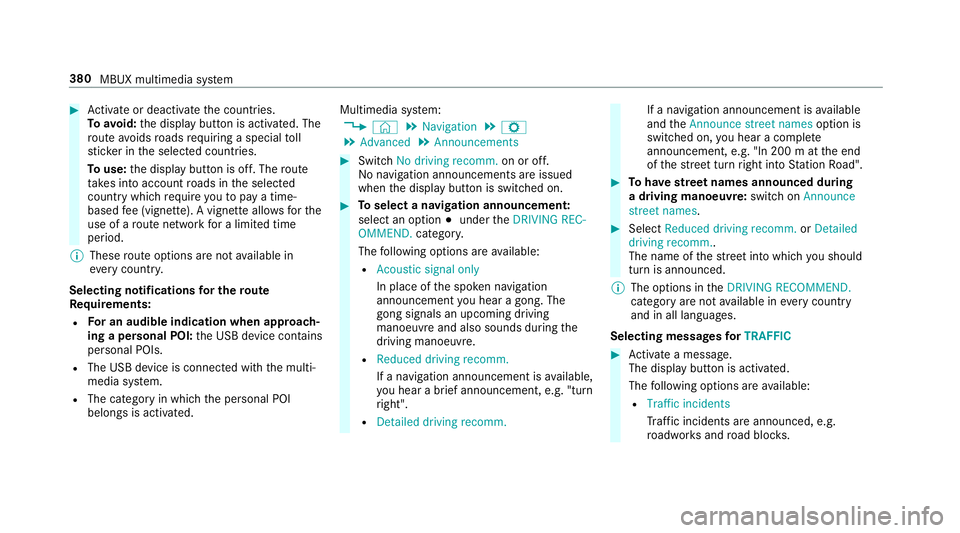
Activate or deacti vate the count ries.
To avoid: the display button is activated. The
ro ute avoids roads requ iring a special toll
st icke r in the selected count ries.
To use: the display button is off. The route
ta ke s into account roads in the selected
count rywhich requireyouto pay a time-
based fee (vignette). A vignette allo wsforthe
use of a route network for a limi ted time
period.
% These route options are not available in
eve rycountr y.
Selecting notifications for the route
Re quirements:
R For an audible indication when approach‐
ing a personal POI: the USB device conta ins
personal POIs.
R The USB device is connec ted with the multi‐
media sy stem.
R The category in which the personal POI
belongs is activated. Multimedia sy
stem:
4 © 5
Navigation 5
Z
5 Advanced 5
Announcements #
Switch No driving recomm. on or off.
No navi gation announcements are issued
when the display button is switched on. #
Toselect a navigation announcement:
select an option #under theDRIVING REC-
OMMEND. category.
The following options are available:
R Acoustic signal only
In place of the spoken navigation
announcement you hear a gong. The
gong signals an upcoming driving
manoeuv reand also sounds during the
driving manoeuvre.
R Reduced driving recomm.
If a navigation announcement is available,
yo u hear a brief announcement, e.g. "turn
ri ght".
R Detailed driving recomm. If a navigation announcement is
available
and theAnnounce street names option is
switched on, you hear a co mplete
announcement, e.g. "In 200 m at the end
of thest re et turn right into Station Road". #
Tohave stre et names announced during
a driving manoeuvre: switch onAnnounce
street names. #
Select Reduced driving recomm. orDetailed
driving recomm..
The name of thest re et into which you should
turn is announced.
% The options in theDRIVING RECOMMEND.
category are not available in everycountry
and in all languages.
Selecting messages forTRAFFIC #
Activate a messa ge.
The display button is activated.
The following options are available:
R Traffic incidents
Traf fic incidents are announced, e.g.
ro adwor ksand road bloc ks. 380
MBUX multimedia sy stem
Page 384 of 673
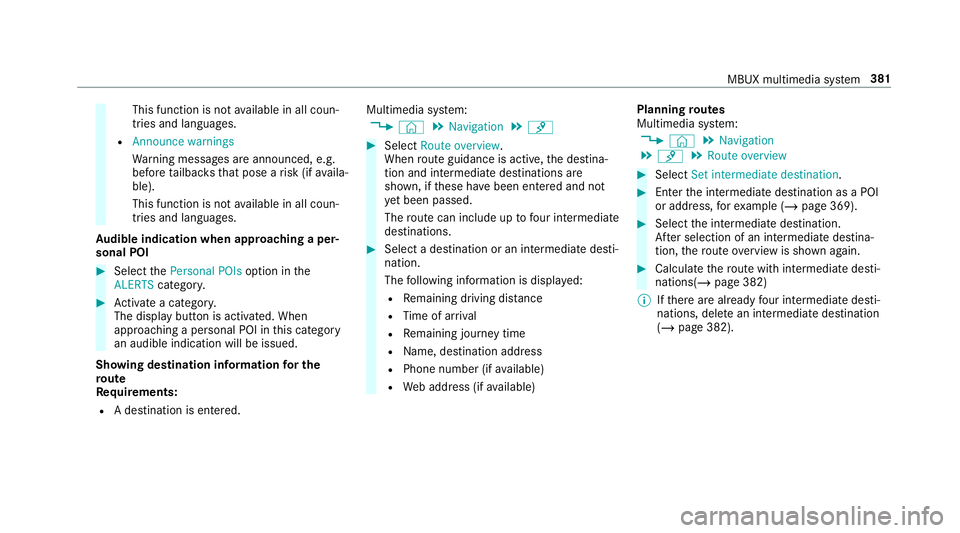
This function is not
available in all coun‐
tries and languages.
R Announce warnings
Warning messages are announced, e.g.
before tailbac ksthat pose a risk (if availa‐
ble).
This function is not available in all coun‐
tries and languages.
Au dible indication when approaching a per‐
sonal POI #
Select thePersonal POIs option inthe
ALERTS category. #
Activate a categor y.
The display button is activated. When
approaching a personal POI in this category
an audible indication will be issued.
Showing destination information for the
ro ute
Re quirements:
R A destination is entered. Multimedia sy
stem:
4 © 5
Navigation 5
¡ #
Select Route overview .
When route guidance is active, the destina‐
tion and intermediate destinations are
shown, if these ha vebeen entered and not
ye t been passed.
The route can include up tofour intermediate
destinations. #
Select a destination or an intermediate desti‐
nation.
The following information is displa yed:
R Remaining driving dis tance
R Time of ar rival
R Remaining journey time
R Name, destination addre ss
R Phone number (if available)
R Web address (if available) Planning
routes
Multimedia sy stem:
4 © 5
Navigation
5 ¡ 5
Route overview #
Select Set intermediate destination. #
Ente rth e intermediate destination as a POI
or address, forex ample (/ page 369). #
Select the intermediate destination.
Af ter selection of an intermediate destina‐
tion, thero ute overview is shown again. #
Calculate thero ute with intermediate desti‐
nations(/ page 382)
% Ifth ere are already four intermediate desti‐
nations, dele tean intermediate destination
(/ page 382). MBUX multimedia sy
stem 381