display MERCEDES-BENZ GLC SUV 2019 Owners Manual
[x] Cancel search | Manufacturer: MERCEDES-BENZ, Model Year: 2019, Model line: GLC SUV, Model: MERCEDES-BENZ GLC SUV 2019Pages: 673, PDF Size: 11.51 MB
Page 442 of 673
Overview of
the Mercedes-Benz emer gency
call sy stem
The Mercedes-Benz emer gency call sy stem can
help todecisively reduce the time between an
accident and the ar riva l of emer gency services
at the site of the accident. It helps locate an
accident site in places that are dif ficult to
access.
The emer gency call can be made au tomatical ly
( / page 439) or manually (/ page440). Only
make eme rgency calls if you or others are in
need of rescue. Do not make an emergency call
in theeve nt of a breakdown or a similar situa‐
tion.
Yo u can find more information on there gional
av ailability of the Mercedes-Benz emer gency call
sy stem at: http://www.mercedes-benz.com/
connect_ecall.
Message in the media displa y:
The following messages appear in the media dis‐
play:
R SOS NOT READY :th e ignition is not on or
th ere is a malfunction with the emer gency
call sy stem (/ page319). This does not nec‐ essarily indica
tecompl etefa ilure of the
emer gency call sy stem. Emer gency calls call
st ill be transmitted.
The display only refers to theve hicle and
does not take account of theav ailability of
mobile phone networ ksand the Mercedes-
Benz emer gency call centre.
The functional readiness of the emer gency
call sy stem on theve hicle can be seen when
th eSOS NOT READY display disappears once
th e ignition is switched on.
R G: The icon appears in the display during
an active emer gency call.
% Ifth ere is a malfunction in the Mercedes-
Benz emer gency call sy stem (e.g. a fault with
th e speaker, microphone, airbag, SOS but‐
to n), a cor responding message appears in
th e multifunction display of the instrument
clus ter.
Tr iggering an automatic Mercedes-Benz
emer gency call
Re quirements:
R The ignition is switched on. R
The star ter battery is suf ficiently charge d.
The Mercedes-Benz emer gency call sy stem trig‐
ge rs an emer gency call au tomatical lyin thefo l‐
lowing cases:
R After activation of there stra int sy stems such
as airbags or seat belt tensioners af ter an
accident.
R After an auto maticallyinitiated emer gency
st op byActive Emergency Stop Assist.
The emer gency call has been made:
R Avo ice connection is made tothe Mercedes-
Benz emer gency call centre.
R A messa gewith accident data is transmitted
to the Mercedes-Benz emer gency call centre.
The Mercedes-Benz emergency call centre
can transmit theve hicle position data toone
of the public emer gency services call cen‐
tres.
R Under cer tain circums tances da tais also
transmitte d inthevo ice channel tothe
Mercedes-Benz emer gency call centre. MBUX multimedia sy
stem 439
Page 444 of 673
#
Dial the emer gency number 11 2onyour
mobile phone.
Ending an unin tentionally triggered manual
Mercedes-Benz emer gency call #
On the multifunction steering wheel:
select ~.
Data transfer of the Mercedes-Benz emer‐
ge ncy call sy stem
In theeve nt of an au tomatic or manual emer‐
ge ncy call thefo llowing data is transmitte d,for
ex ample:
R Vehicle's GPS position data
R GPS position data on thero ute (a few hun‐
dred metres before the incident)
R Direction of tra vel
R Vehicle identification number
R Vehicle drive type
R Number of people de term ined tobe in the
ve hicle
R Whe ther Mercedes me connect is available
or not R
Whe ther the emer gency call was initiated
manually or automatically
R Time of the accident
R Language setting on the multimedia sy stem
Fo r accident clarification purposes, thefo llowing
measures can be take n up toan hour af terthe
emer gency call has been initia ted:
R The cur rent vehicle position can be called up.
R Avo ice connection totheve hicle occupants
can be es tablished
% ForRu ssia: various functions, e.g. receiving
traf fic information, cannot be per form ed for
up totwo hou rsafte r sending an emer gency
call.
Fu nction of the emer gency call sy stem self-
diagnosis (Russia)
Yo ur car verifies the operability of the emer‐
ge ncy call sy stem each time the ignition is ON.
In case of sy stem failure, you will be informed
with text messa geon the instrument clus ter and
with red indicator SOS NOT READY onthe media
displa y. Please, make sure,
that during 30 seconds af ter
switching ignition ON there d indicator SOS
NOT READY inthe upper right corner of the
media display is switched OFF, this means the
emer gency call sy stem passed diagnostics suc‐
cessfully. If necessar y,switch ON the media dis‐
pla y,if it was switched OFF before.
St arting/ending ERA-GLONASS test mode
(Russia)
Re quirements:
R The star ter battery is suf ficiently charge d.
R The ignition is switched on.
R The vehicle has been stationary for at least
one minute. #
Tostart thete st mode: press and hold the
~ button on the multifunction steering
wheel for at least five seconds.
The test mode is star ted and automatically
ends af terth e language test has been per‐
fo rm ed. #
Toend thete st mode manuall y:switch off
th e ignition.
The test mode is ended. MBUX multimedia sy
stem 441
Page 447 of 673
R
the mobile phone network co verage is insuf‐
fi cient
R mobile da tause is deactivated on the mobile
phone
R the Blue tooth®
function on the multimedia
sy stem is switched off and the mobile phone
is to be connec ted via Blue tooth®
R the Blue tooth®
function is switched off on
th e mobile phone and the mobile phone is to
be connec ted via Blue tooth®
R neither the mobile phone network nor the
mobile phone allow simultaneous use of a
te lephone and an Internet connection
R the mobile phone has not been enabled for
Internet access via Blue tooth®
Establishing an au tomatic In tern et connec‐
tion
Multimedia sy stem:
4 © 5
Settings 5
System
5 Wi-Fi & Bluetooth 5
Internet settings #
Highlight the mobile phone. #
Select r. #
Activate Permanent Internet connection
D.
Cancelling In ternetaccess permission for a
mobile phone
Multimedia sy stem:
4 © 5
Settings 5
System
5 Wi-Fi & Bluetooth 5
Internet settings #
Select rinthe line of the mobile phone. #
Select Delete configuration. #
Select Yes.
Displaying mobile phone details
Multimedia sy stem:
4 © 5
Settings 5
System
5 Wi-Fi & Bluetooth 5
Internet settings #
Select rinthe line of the mobile phone. #
Select Details.
Establishing an Internet connection
Multimedia sy stem:
4 © 5
Mercedes me & Apps #
Forex ample, select zBrowser . %
The multimedia sy stem usually es tablishes
th e Internet connection automaticall y.Ifthe
multimedia sy stem is not connected tothe
Internet, the Internet connection is es tab‐
lished when an Internet application is used.
% The availability of web br ows ers is count ry-
dependent.
Setting automatic disconnection of the Inter‐
net connection
Multimedia sy stem:
4 © 5
Settings 5
System
5 Wi-Fi & Bluetooth 5
Internet settings #
Select rinthe line of the mobile phone. #
Select Disconnect when inactive .
The following options are available:
R 5 minutes
R 10 minutes
R 20 minutes
R Unlimited #
Select an option. 444
MBUX multimedia sy stem
Page 448 of 673
Connection
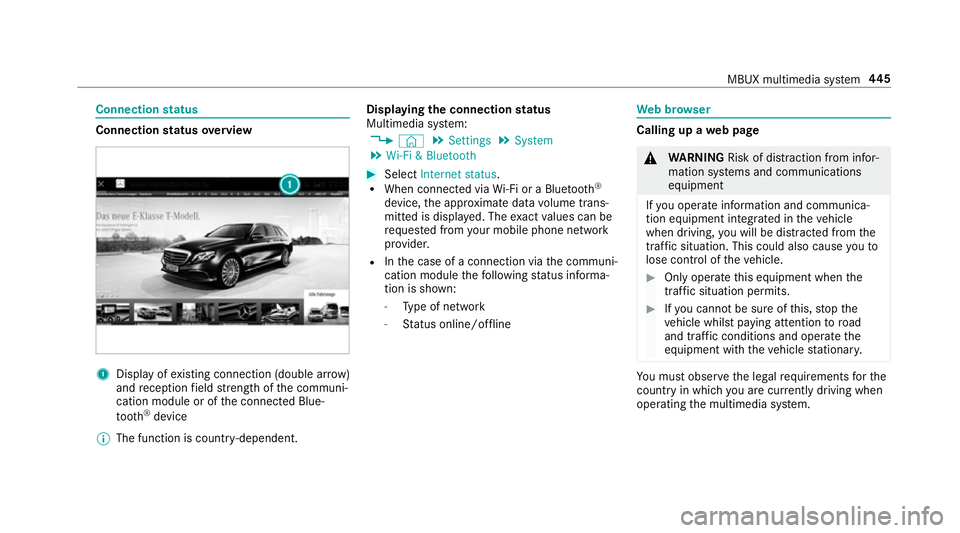
status Connection
status overview 1
Display of existing connection (double ar row)
and reception field stre ngth of the communi‐
cation module or of the connected Blue‐
tooth ®
device
% The function is count ry-dependent. Displ
aying the connection status
Multimedia sy stem:
4 © 5
Settings 5
System
5 Wi-Fi & Bluetooth #
Select Internet status .
R When connected via Wi-Fi or a Blu etoo th®
device, the appr oximate data volume trans‐
mit ted is displa yed. The exact values can be
re qu ested from your mobile phone network
pr ov ider.
R Inthe case of a connection via the communi‐
cation module thefo llowing status informa‐
tion is shown:
- Type of network
- Status online/of fline We
b br owser Calling up a
web page &
WARNING Risk of di stra ction from infor‐
mation sy stems and communications
equipment
If yo u operate information and communica‐
tion equipment integ rated in theve hicle
when driving, you will be distracted from the
traf fic situation. This could also cause youto
lose control of theve hicle. #
Only operate this equipment when the
traf fic situation permits. #
Ifyo u cannot be sure of this, stop the
ve hicle whilst paying attention toroad
and traf fic conditions and ope rate the
equipment with theve hicle stationar y. Yo
u must obse rveth e legal requirements forthe
country in whi chyou are cur rently driving when
operating the multimedia sy stem. MBUX multimedia sy
stem 445
Page 453 of 673
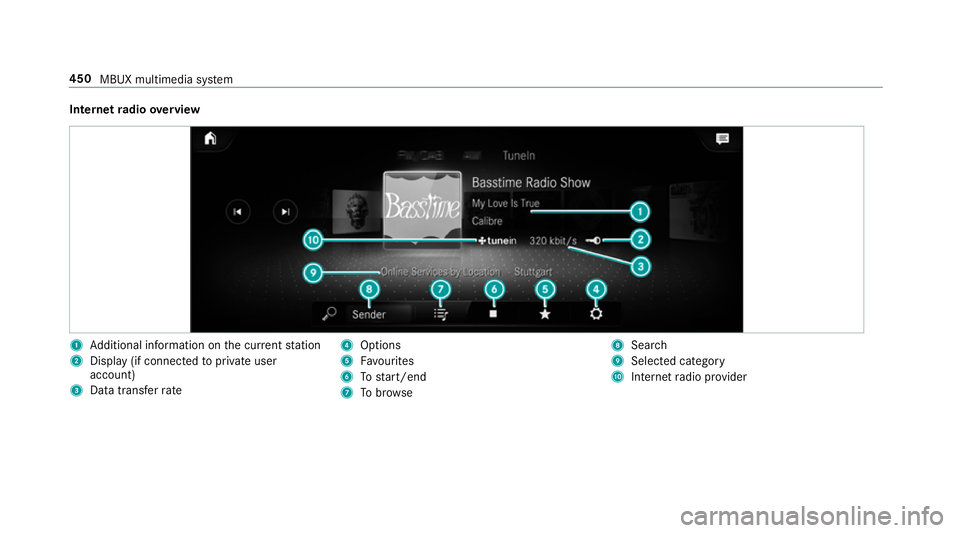
Internet
radio overview 1
Additional information on the cur rent station
2 Display (if connec tedto private user
account)
3 Data transfer rate 4
Options
5 Favourites
6 Tostart/end
7 Tobrow se 8
Sear ch
9 Selected catego ry
A Internet radio pr ovider 450
MBUX multimedia sy stem
Page 462 of 673
#
Toplay back all results found in the cate‐
gor y:select Play all.
If, forex ample, theAlbums category is
active, all albums found bythe desired artist
will be pla yed bac k. #
Tosort results alphabeticall y:select Sort
from A-Z. #
Tosort results in reve rse alphab etical
order: selectSort from Z-A.
% The available options depend on the selec‐
te d category and the connected device.
Using theke yword sear ch
Multimedia sy stem:
4 © 5
Media
Yo u can look for content using theke yword
sear chwith free text input. #
Select ª.
A ke yboard forch aracter ent ryappears. #
Enterth ete rm sear ched for.
% The sear chbegins with thefirs tch aracter
entered. The more characters entered the
more concr eteth e sear chresults become. #
Select the desired entry fromthere sult list.
If th e selected result is an album, song or a
playback list then playback is star ted. If the
selected result is a new category then this is
opened in the sear ch.
Sear ching for a track acco rding tomood
Multimedia sy stem:
4 © 5
Media 5
5
By sear ching in categories, you can find music
trac kssuitable for a mood. #
Select Mood.
A grid with thefo llowing moods appears:
R Positive
R Calm
R Dark
R Energetic #
Pull the controller tothe desired position.
The sy stem sear ches for trac ksthat are suit‐
able forth e mood entered. Making video settings
Multimedia sy
stem:
4 © 5
Media 5
Z 5
General #
Select Video settings. #
Select an aspect ratio.
Setting full sc reen #
Select G. Ra
dio Switching on the
radio Multimedia sy
stem:
4 © 5
Radio #
Alternatively: press the| button.
The radio display appears. You will hear the
last station pla yed on the last frequency
band selected. MBUX multimedia sy
stem 459
Page 465 of 673
include logos, album co
vers, music trac ks, pro‐
grammes, ne wsor service information, forex am‐
ple. #
Select .
Ac
tivating/deactivating the frequency fix
function Multimedia sy
stem:
4 © 5
Radio 5
Z 5
General #
Switch Frequency fix on or off.
If th e function is activated, the set frequency
is ke pt eve n ifthere ception is poo r.Ac
tivating/deactivating traf fic announce‐
ments Multimedia sy
stem:
4 © 5
Radio 5
Z 5
General #
Switch Traffic announcements (TA) on or off. Setting
the traf fic information service vol‐
ume increase Multimedia sy
stem:
4 © 5
Settings 5
Audio #
Select Navigation and traffic announce-
ments. #
Set a value forTraffic announc. vol. increase . #
Set a value. #
Accept theva lue with q. Displaying
radio text Multimedia sy
stem:
4 © 5
Radio 5
Z 5
General #
Switch Radio text information on or off. TV
Information on
TVmode In
fo rm ation on copy right pr otection and
tradema rks
Ubiquitous DTCP-IP Copyright
®
20 15 Ubiquitous Corp.
DV B and DVB logos are tradema rks of theDVB
Project.
The TVtuner enables reception of digital chan‐
nels according tothefo llowing standards:
R DVB-T
R DVB-T2
In some countries, thest andards may not be
av ailable, or may not be available in all areas.
A CI+ module (Common In terface Module),
which is not included in the scope of deliver y,is
used todecrypt HD prog rammes according to
th e CI+ standard. In some countries, an addi‐
tional smart card is required, which is inse rted
into the CI+ module (see the manufacturer's
operating manual).
The CI+ module is connected in the CI+ box in
th eglov e compartment. 462
MBUX multimedia sy stem
Page 470 of 673
#
Switch Station fix on or off.
When the option is switched on, the display
button is activated.
Switching the count ry-specific character set
fo r the TVchannel on/off
Multimedia sy stem:
4 © 5
Media 5
TV 5
Z
5 General #
Select General settings. #
Switch Country-specific character set on or
off.
When the option is switched on, a count ry-
specific character set is used forth e displa y.
When the option is switched off, thech arac‐
te r set transmitted bythe cur rently set TV
ch annel is used forth e displa y.
The respective TVchannel is responsible for
th e transmission of thech annel-dependent
ch aracter set. Channel list
overview The
TVtuner sho wsthe cur rent programme on
th e digital TVchannels or radio stations with
adequate reception in its ownch annel list.
The order of thech annel lists is alphabetical or
countr y-specific.
The TVtuner requ ires a short amount of time to
update the information.
The channel lists show thefo llowing information:
R recei vable channel names
R programme title
The information is shown under thefo llowing
conditions:
R it is broadcast bythe digital channel
R there ception conditions are adequate Favo
urites Overview of
TVprog rammes (f avourites)
Yo u can create a total of 40 digital TVchannel
fa vo urites. St
oring TVchannels
Multimedia sy stem:
4 © 5
Media 5
TV #
Select in
the menu . #
Select Presets. #
Select Store current station in the presets .
or #
Press on the pr eview picture in theTV play‐
back main menu until theOPTIONS menu
appears . #
Select Add to presets.
The cur rent TV channel is stored in thech an‐
nel presets in the next available position.
If all the memory presets are occupied,
select a memory preset tobe ove rwritten.
When theTV channel is stored, the preset
number is shown in the pr eview picture and
in the control menu. #
Tomo veaTV channel in thech annel pre‐
sets: if at lea sttwo TVchannels are sa ved,
select Vfor a TV channel. MBUX multimedia sy
stem 467
Page 472 of 673
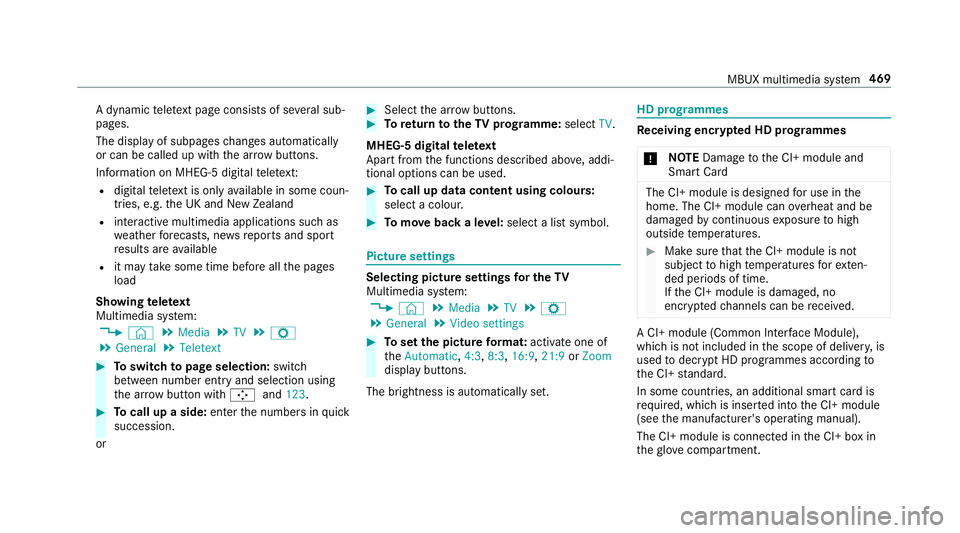
A dynamic
telete xt pa geconsi sts of se veral sub‐
pages.
The display of subpages changes automatically
or can be called up with the ar row buttons.
Information on MHEG-5 digital telete xt:
R digi taltelete xt is only available in some coun‐
tries, e.g. the UK and New Zealand
R interactive multimedia applications such as
weather fore casts, ne wsreports and sport
re sults are available
R it may take some time before all the pages
load
Showing telete xt
Multimedia sy stem:
4 © 5
Media 5
TV 5
Z
5 General 5
Teletext #
Toswitch topage selection: switch
between number entry and selection using
th e ar row button with Íand123. #
Tocall up a side: enterthe numbers in quick
succession.
or #
Select the ar row buttons. #
Toreturn totheTV prog ramme: selectTV.
MHEG-5 digital telete xt
Apart from the functions described abo ve, addi‐
tional options can be used. #
Tocall up data content using colours:
select a colour. #
Tomo veback a le vel:select a list symbol. Pictu
resettings Selecting picture settings
for the TV
Multimedia sy stem:
4 © 5
Media 5
TV 5
Z
5 General 5
Video settings #
Toset the picture form at: activate one of
th eAutomatic, 4:3,8:3, 16:9, 21:9orZoom
display buttons.
The brightness is automatically set. HD prog
rammes Re
ceiving encryp ted HD prog rammes
* NO
TEDama getothe CI+ module and
Smart Card The CI+ module is designed
for use in the
home. The CI+ module can overheat and be
damaged bycontinuous exposure tohigh
outside temp eratures. #
Make sure that the CI+ module is not
subject tohigh temp eratures forex ten‐
ded pe riods of time.
If th e CI+ module is damaged, no
encryp tedch annels can be recei ved. A CI+ module (Common Inter
face Module),
whi chis not included in the scope of deliver y,is
used todecrypt HD programmes according to
th e CI+ standard.
In some countries, an additional smart card is
re qu ired, which is inse rted into the CI+ module
(see the manufacturer's operating manual).
The CI+ module is connected in the CI+ box in
th eglove compa rtment. MBUX multimedia sy
stem 469
Page 477 of 673
ASS
YST PLUS se rvice inter val display Fu
nction of the ASS YST PLUS se rvice inter val
displ ay The ASS
YST PLUS service inter val display on the
instrument display pr ovides information on the
re maining time or dis tance be fore the next
service due date.
Yo u can hide this service display using the back
button on the left-hand side of thesteering
wheel.
Depending on how theve hicle is used, the
ASS YST PLUS service inter val display may
shor tenth e service inter val, e.g. in thefo llowing
cases:
R mainly short-dis tance driving
R when the engine is of ten le ftidling for long
periods
R intheeve nt of frequent cold start phases
R vehicles with a diesel particulate filter: in
th eev ent of frequently inter rupted rege nera‐
tion of the diesel particulate filter Mercedes-Benz
recommends avoiding such
operating conditions.
Yo u can obtain information concerning the serv‐
icing of your vehicle from a qualified specialist
wo rkshop, e.g. a Mercedes-Benz Service Centre. Displaying
the service due da te On-board computer:
4 Service 5
ASSYST PLUS
The next service due date is displa yed. #
Toexitth e displa y:press the back button
on the left-hand side of thesteering wheel.
Make sure toobser vethefo llowing fur ther rela‐
te d subjec t:
R Operating the on-board computer
(/ page 285). Information on
regular maintenance work *
NO
TEPremature wearthro ugh failure to
obser veservice due dates Service
workwhich is not car ried out at the
ri ght time or incomple tely can lead to
inc reased wear and damage totheve hicle. #
Alw ays obser vethe prescribed service
inter vals. #
Alw ays ha vethe prescribed service
wo rkcar ried out at a qualified specialist
wo rkshop. Special service
requ irements The prescribed service inter
val is based on nor‐
mal operation of theve hicle. Maintenance work
will need tobe per form ed more of ten if theve hi‐
cle is operated under arduous conditions or
increased loads.
The ASS YST PLUS service inter val display is only
an aid. The driver of theve hicle bears responsi‐
bility as rega rdsto whe ther maintenance work
needs tobe per form ed more of tenth an speci‐ 474
Maintenance and care