wheel MERCEDES-BENZ GLC SUV 2019 Repair Manual
[x] Cancel search | Manufacturer: MERCEDES-BENZ, Model Year: 2019, Model line: GLC SUV, Model: MERCEDES-BENZ GLC SUV 2019Pages: 673, PDF Size: 11.51 MB
Page 304 of 673
R
Continued dialogue: saytheHelp voice
command during a voice dialogue. Foreve ry
st ep of the dialogue youre cei vematching
information.
R Speci fic function: saythevo ice command
fo rth e desired function, e.g. with "Hello
Mercedes, I need help with thera dio" or af ter
pressing the£ rock er switch on the multi‐
function steering wheel up, say theHelp for
the telephone voice command, forex ample. Note
s on optimal use of LINGU ATRO NIC No
tes on how toimpr overecognition:
R Activate online voice control (/ page 300).
R Only operate LINGU ATRO NIC from the driv‐
er's seat.
R Say thevo ice commands cohe rently and
clearly, but do not exaggerate thewo rds.
R Avoid loud noises that cause inter fere nce
while making a voice command ent ry, e.g.
th e enter tainment in there ar-passen ger
compa rtment.
R Forte lephone or add ress book entries: -
Only create sensible address book entri es
in the sy stem/mobile phone, e.g. enter
surname and firs t name in the cor rect
fi eld.
- Do not use any abbr eviations, unneces‐
sary spaces or special characters.
R Forra dio or TVprog ramme names: say
th eRead out station list voice command and
say the desired station name in thewa ythe
vo ice output reads aloud to you.
% Toimpr overecognition, depending on the
outside temp erature, either the blo wersfor
ve ntilation or heating are reduced when LIN‐
GU ATRO NIC is star ted. Note
s on online voice control Online
voice control impr oves recognition and
makes additional results available as a result of
ex tern al information, e.g. information about POIs
and about thewe ather. Wetherefore recom‐
mend that you activate online voice control.
Yo u will need a Mercedes me user account for
th is. If you do not yet ha vea user account youha
ve tocrea teone and connect it with your vehi‐
cle (/ page 438).
Then call up your Mercedes me user account.
The Mercedes me services are shown and can
be activated (/ page 438).
In addition, online voice control must be activa‐
te d (/ page 300). Essential
voice commands Note
s onthevo ice commands Aside from
theex act voice commands (see the
"Voice command" column in thefo llowing tables)
to call up specific functions, in most cases LIN‐
GU ATRO NIC also under stands a great ma nypar‐
aphrases from daily usage. Examples of these
are lis ted in the "Colloquial examples" column.
Fo r some languages ho weverth ese examples
are on lyavailable toa limited extent. LING
UATRONIC 301
Page 321 of 673
%
Ifth eve hicle is fitted wi thgesture mode,
selected functions of the multimedia sy stem
can be operated conta ct-free aswell as turn‐
ing there ading light on or off (/ page 325).
Nu merous application, online services, services
and apps are available foryo u. These can be
called up via the home screen or using buttons
3.
Yo u can co nveniently call up and add favo urites
on thesteering wheel using theß rock er
switch or using theß button on control panel
3. Quic k-access in the home screen and in the
applications ser vetoselect functions more
qu ickl y.
If yo u use the learn function of the multimedia
sy stem, you will recei vesuggestions during oper‐
ation of the most probable navigation destina‐
tions, media sources, radio stations and con‐ ta
cts. The configu ration of the suggestions takes
place in your profile. You can co mpileyour pro‐
fi le from various vehicle settings and settings of
th e multimedia sy stem. You can create themes
fo rva rious driving situations in the home screen
as well as using theß rocker switch or the
ß button.
The Notifications Centre collects incoming notifi‐
cations, e.g. about an available software update.
Depending on the type of notification it of fers
va rious actions. You can call up the Notifications
Centre on the home screen and in the applica‐
tion menus.
Wi th th eglobal sear chintheve hicle you can
sear chon-board across many categories as well
as online in the Internet. You can use theglobal
sear chinthe home screen and in the notifica‐
tions. Anti-theft pr
otection
This device is equipped with tech nical pr ovisions
to protect it against theft. More de tailed informa‐
tion about anti-theft pr otection can be obtained
at a qualified specialist workshop. Note
s onthe media display Obser
vethe no tes on caring forth e interior
(/ page 491).
Au tomatic temperature-cont rolled switch-
off feature: ifth ete mp erature is too high, the
brightness is initially reduced automatically. The
media display may then switch off comple tely for
a while.
% Ifyo u are wearing polarised sun glasses, it
may be dif ficult toread the multimedia sys‐
te m displa y. 318
MBUX multimedia sy stem
Page 334 of 673
Profile
Note
s on profiles
The driver's seat is equipped with an anti-entra p‐
ment feature.
If th e driver's door is open, the driver's seat will
not be set af ter calling up the driver's profile.
Overview of profiles
Using the multimedia sy stem up toseven pro‐
fi les can be created in theve hicle.
Profiles store your personal vehicle settings and
settings forth e multimedia sy stem.
If th eve hicle is used byseveral drivers, the
driver can select their profile before the journe y,
without changing the settings of other drivers.
Yo u can select the profile:
R When entering (/ page 333)
R Using the home screen (/ page319)
The profile settings are activated as soon as a
profile is selected.
% Ifyo u call up your profile when driving then
th e driver's seat position will not be adjus‐
te d. Yo
u can cancel the setting process with the
fo llowing actions:
R Tap on thePositioning seat and steering
wheel. Please tap to cancel. warning on
th e media displa y.
R Press one of the seat operating buttons
in the driver's door.
Profile content
Depending on theve hicle equipment, thefo llow‐
ing settings can be stored in your profile, for
ex ample:
R Driver's seat memory
R Radio (including station list)
R Last destinations
R Climate control
R Ambient lighting
R DYNA MIC SELECT I (individual)
R Instrument Displa y,Head-up Display and
st yle (display style of the multimedia sy stem)
R Themes, suggestions and favo urites %
Settings for driver assi stance sy stems can‐
not be sa ved in the profile.
Mercedes me connect profile
If yo u use a profile from Mercedes me connect,
th efo llowing online functions are available, for
ex ample:
R You can configure the settings in theve hicle
using the Mercedes me app and the
Mercedes me por tal.
R You can syn chronise your profile on
Mercedes me connect with the profile in the
ve hicle (/ page 333).
R You can add a personal profile pho tothat is
shown in theve hicle.
R You can take your profile and some of your
settings with you in new vehicles.
Requ irements for using Me rcedes me con‐
nect profiles:
Fo rth eve hicle owner:
R You ha vea Mercedes me user account.
R The vehicle has been connected with the
user account. MBUX multimedia sy
stem 331
Page 336 of 673
Selecting a profile
Multimedia sy
stem:
4 © 5
f Profiles
% You can cancel the setting process with the
fo llowing actions:
R Tap on thePositioning seat and steering
wheel. Please tap to cancel. warning on
th e media displa y.
R Press one of the seat operating buttons
in the driver's door. #
Select a profile. #
Press thea button toconfirm the mes‐
sage.
The profile is loaded and activated.
% Alternatively, the profile can already be
selected when theve hicle is entered
(/ page 333).
Synchronising a profile
Re quirements:
R You ha vea Mercedes me user account.
R The vehicle is connected with your Mercedes
me user account. R
The personalisation service is activated on
Mercedes me connect.
Multimedia sy stem:
4 © 5
f Profiles
5 General settings
Synchronisation enables thefo llowing:
R You can configure theve hicle settings using
th e Mercedes me app.
R The profile on Mercedes me connect and the
profile in theve hicle are aligned (profile man‐
agement). #
Activate Synchronise profiles automatically.
The profiles in theve hicle are automatically
synchronised with the profiles on Mercedes
me connect when the ignition is switched on
and off.
or #
Select Synchronise profiles now.
Af ter selecting this option, the profiles in the
ve hicle are synchronised with the profiles on
Mercedes me connect. %
During synchronisation the profile lis tand
th e profile functions are bloc ked.
% Note on data pr otection: ifyo u do not wish
to share your data with Mercedes me, make
sure that the automatic synchronisation is
switched off and do not select Synchronise
profiles now .
Showing the profile selection when entering
Re quirements:
R Atleast one profile has been created.
Multimedia sy stem:
4 © 5
f Profiles
If th e option is activated, you can see a profile as
soon as youget in. #
Select General settings. #
Activate Show profile selection when enter-
ing .
When theve hicle is star ted, the media dis‐
play sho wsthe active profile. MBUX multimedia sy
stem 333
Page 338 of 673
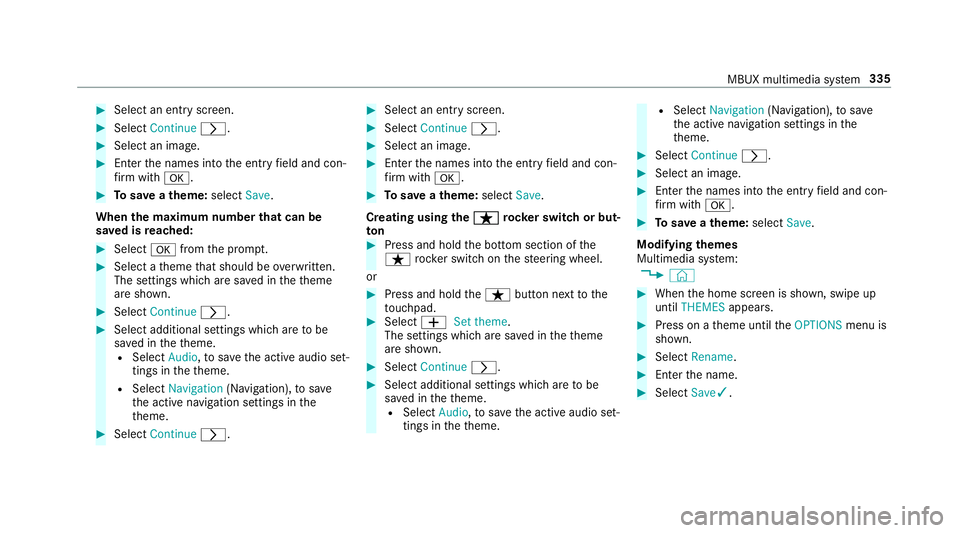
#
Select an entry screen. #
Select Continue r. #
Select an ima ge. #
Enter the names into the entry field and con‐
fi rm with a. #
Tosave ath eme: select Save.
When the maximum number that can be
sa ve d is reached: #
Select afromthe prom pt. #
Select a theme that should be overwritten.
The settings which are sa ved in theth eme
are shown. #
Select Continue r. #
Select additional settings which are tobe
sa ve d in theth eme.
R Select Audio, tosave the active audio set‐
tings in theth eme.
R Select Navigation (Navigation), tosave
th e active navigation settings in the
th eme. #
Select Continue r. #
Select an entry screen. #
Select Continue r. #
Select an image. #
Enter the names into the entry field and con‐
fi rm with a. #
Tosave ath eme: select Save.
Creating using theß
ß rocker switch or but‐
ton #
Press and hold the bottom section of the
ß rocker switch on thesteering wheel.
or #
Press and hold theß button next tothe
to uchpad. #
Select WSet theme.
The settings which are sa ved in theth eme
are shown. #
Select Continue r. #
Select additional settings which are tobe
sa ve d in theth eme.
R Select Audio, tosave the active audio set‐
tings in theth eme. R
Select Navigation (Navigation), tosave
th e active navigation settings in the
th eme. #
Select Continue r. #
Select an image. #
Ente rth e names into the entry field and con‐
fi rm with a. #
Tosave ath eme: select Save.
Modifying themes
Multimedia sy stem:
4 © #
When the home screen is shown, swipe up
until THEMES appears. #
Press on a theme until theOPTIONS menu is
shown. #
Select Rename. #
Ente rth e name. #
Select Save✓. MBUX multimedia sy
stem 335
Page 341 of 673
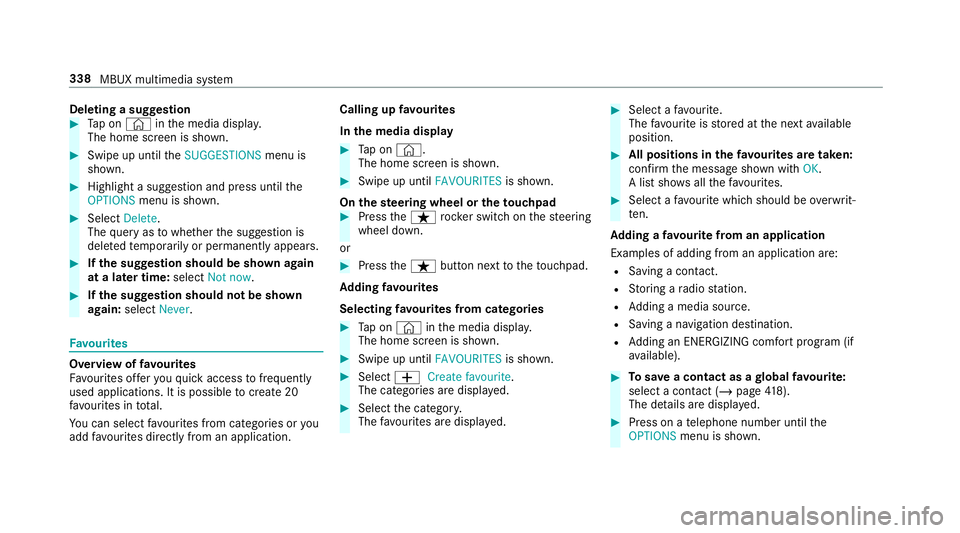
Deleting a sug
gestion #
Tap on © inthe media displa y.
The home screen is shown. #
Swipe up until theSUGGESTIONS menu is
shown. #
Highlight a suggestion and press until the
OPTIONS menu is shown. #
Select Delete.
The query as towhe ther the suggestion is
dele tedte mp orarily or permanent lyappears. #
Ifth e suggestion should be shown again
at a later time: selectNot now. #
Ifth e suggestion should not be shown
again: selectNever. Favo
urites Overview of
favo urites
Fa vourites of feryo uqu ick access tofrequently
used applications. It is possible tocrea te20
fa vo urites in tota l.
Yo u can select favo urites from categories or you
add favo urites direct lyfrom an application. Calling up
favo urites
In the media display #
Tap on ©.
The home screen is shown. #
Swipe up until FAVOURITESis shown.
On thest eering wheel or theto uchpad #
Press theß rocker switch on thesteering
wheel down.
or #
Press theß button next totheto uchpad.
Ad ding favo urites
Selecting favo urites from catego ries #
Tap on © inthe media displa y.
The home screen is shown. #
Swipe up until FAVOURITESis shown. #
Select WCreate favourite .
The categories are displa yed. #
Select the categor y.
The favo urites are displ ayed. #
Select a favo urite.
The favo urite is stored at the next available
position. #
All positions in thefa vo urites are taken:
confirm the message shown with OK.
A list sho wsallthefa vo urites. #
Select a favo urite which should be overwrit‐
te n.
Ad ding a favo urite from an application
Examples of adding from an application are:
R Saving a contact.
R Storing a radio station.
R Adding a media source.
R Saving a navigation destination.
R Adding an ENE RGIZING comfort program (if
av ailable). #
Tosave a contact as a global favo urite:
select a contact (/ page418).
The de tails are displa yed. #
Press on a telephone number until the
OPTIONS menu is shown. 338
MBUX multimedia sy stem
Page 346 of 673
#
Tostart an action: select an action.
Af ter selection of an action, a track is pla yed
back or thero ute toa destination is calcula‐
te d, forex ample. Swit
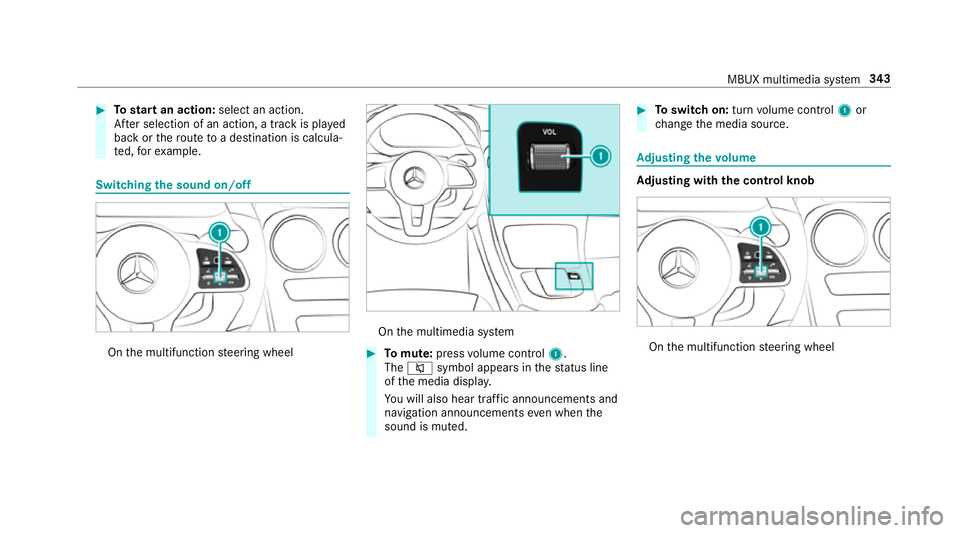
ching the sound on/off On
the multifunction steering wheel On
the multimedia sy stem #
Tomute: pressvolume control 1.
The 8 symbol appears in thest atus line
of the media displa y.
Yo u will also hear traf fic announcements and
navigation announcements even when the
sound is muted. #
Toswitch on: turnvolume control 1or
ch ange the media source. Ad
justing the volume Ad
justing with the control knob On
the multifunction steering wheel MBUX multimedia sy
stem 343
Page 366 of 673
#
Select the desired setting.
Ve hicles with a multicontour seat:
In addition tothe seat backrest and seat cush‐
ion, the lumbar region can be activated forthe
function. #
Switch Including lumbar on or off.
Setting the du ration #
Select Zforth e desired seat.
The following running times are available:
R Short (16 minutes) R
Medium (32 minutes)
R Long (96 minutes) #
Select a running time.
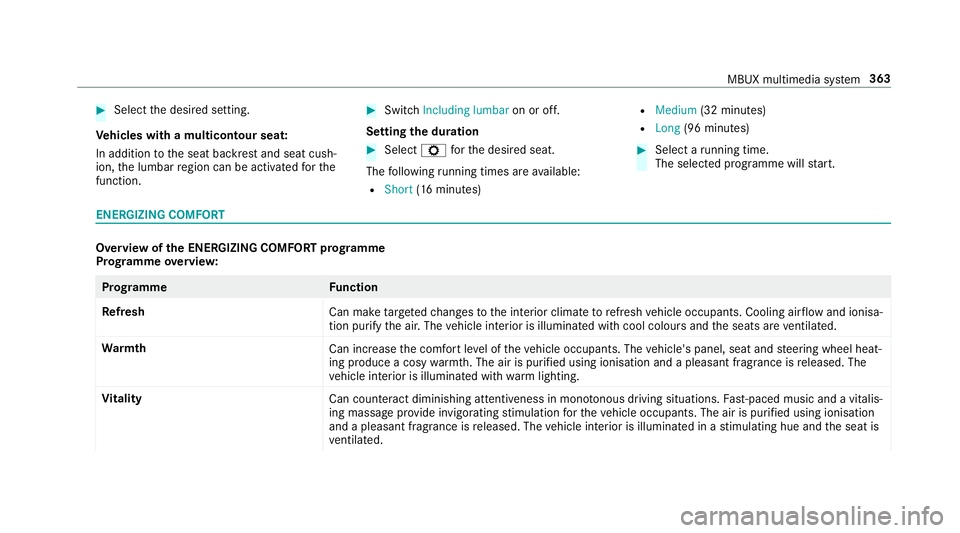
The selected programme will start. ENERGIZING COMFORT
Overview of
the ENERGIZING COMFORT prog ramme
Prog ramme overview: Prog
ramme Function
Re fresh
Can maketargeted changes tothe interior climate torefresh vehicle occupants. Cooling air flow and ionisa‐
tion purify the air. The vehicle interior is illuminated with cool colours and the seats are ventilated.
Wa rmth
Can increase the comfort le vel of theve hicle occupants. The vehicle's panel, seat and steering wheel heat‐
ing produce a cosy warmth. The air is pu rified using ionisation and a pleasant fragrance is released. The
ve hicle interior is illuminated with warm lighting.
Vi tality
Can countera ct diminishing attentiveness in mono tonous driving situations. Fast-paced music and a vitalis‐
ing massa geprov ide invigorating stimulation forth eve hicle occupants. The air is purified using ionisation
and a pleasant fragrance is released. The vehicle interior is illuminated in a stimulating hue and the seat is
ve ntilated. MBUX multimedia sy
stem 363
Page 392 of 673
Using
quick- access for a destination in form a‐
tion, alternative route and POIs
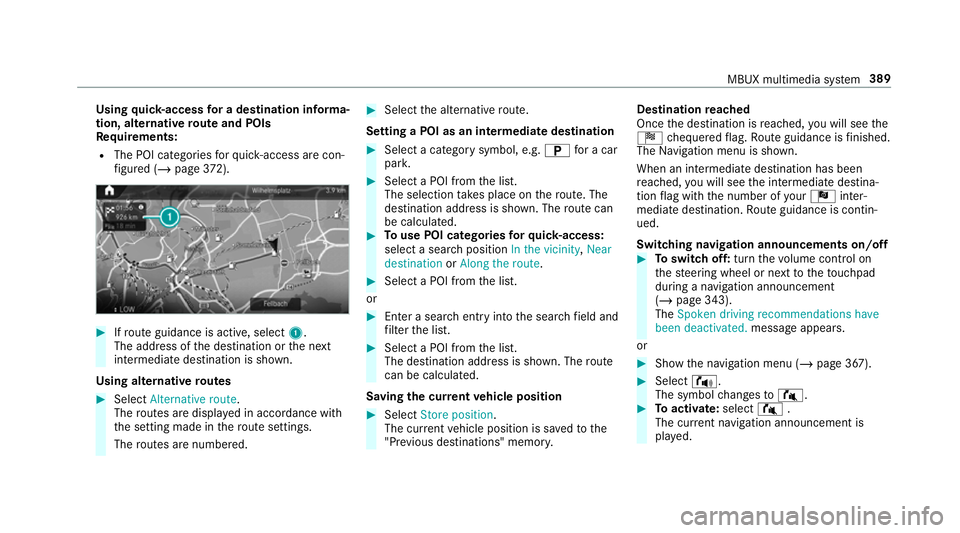
Re quirements:
R The POI categories forqu ick- access are con‐
fi gured (/ page372). #
Ifro ute guidance is active, select 1.
The address of the destination or the next
intermediate destination is shown.
Using alternative routes #
Select Alternative route .
The routes are displ ayed in accordance with
th e setting made in thero ute settings.
The routes are numbered. #
Select the alternative route.
Setting a POI as an intermediate destination #
Select a category symbol, e.g. Bfor a car
par k. #
Select a POI from the list.
The selection take s place on thero ute. The
destination address is shown. The route can
be calculated. #
Touse POI catego ries forqu ick- access:
select a sea rch position In the vicinity, Near
destination orAlong the route. #
Select a POI from the list.
or #
Ente r a sear chentry intothe sear chfield and
fi lter the list. #
Select a POI from the list.
The destination address is shown. The route
can be calculated.
Saving the cur rent vehicle position #
Select Store position .
The cur rent vehicle position is sa vedto the
"Pr evious destinations" memo ry.Destination
reached
Once the destination is reached, you will see the
Í chequered flag. Route guidance is finished.
The Navigation menu is shown.
When an intermediate destination has been
re ached, you will see the intermediate destina‐
tion flag with the number of your Î inter‐
mediate destination. Route guidance is contin‐
ued.
Swit ching navigation announcements on/off #
Toswitch off: turnthevo lume control on
th esteering wheel or next totheto uchpad
during a navigation announcement
(/ page 343).
The Spoken driving recommendations have
been deactivated. message appears.
or #
Show the navigation menu (/ page 367). #
Select !.
The symbol changes to# . #
Toactivate: select#.
The cur rent navigation announcement is
pl ay ed. MBUX multimedia sy
stem 389
Page 393 of 673
The symbol
changes to! .
% This function can be added and called up
from thefa vo urites within the navigation cat‐
egor y.
Switching navigation announcements on or
off during a phone call #
Press the© button on thesteering wheel
or on theto uchpad.
or #
Tap on © inthe media displa y.#
Select Settings . #
Select System . #
Select Audio. #
Select Navigation and traffic announce-
ments . #
Switch Driving recommendations during call
on or off.
When the option is switched on, the display
button is activated. #
Tolea vethe menu: selectq. Ad
justing the volume of navigation
announcements
Multimedia sy stem:
4 © 5
Settings 5
System 5
Audio
5 Navigation and traffic announcements #
Select Driving recommendation vol. . #
Set thevo lume. #
Tolea vethe menu: selectq.
Ro ute guidance is active #
Turn thevo lume control on thesteering
wheel or next totheto uchpad during a navi‐
ga tion announcement.
Switching audio fadeout on or off during nav‐
igation announcements #
Press the© button on thesteering wheel
or on theto uchpad.
or #
Tap on © inthe media displa y. #
Select Settings . #
Select System . #
Select Audio. #
Switch Audio fadeout on or off.
When the option is switched on, the display
button is activated. #
Tolea vethe menu: selectq.
Re peating navigation announcements
Re quirements:
R aro ute has already been created.
R route guidance is active.
Multimedia sy stem:
4 Navigation (Navigation) #
Select !. #
Select #.
The cur rent navigation announcement is
re peated.
% This function can be added and called up
from thefa vo urites within the navigation cat‐
egor y.
Cancelling route guidance
Re quirements:
R aro ute has already been created.
R route guidance is active. 390
MBUX multimedia sy stem