key MERCEDES-BENZ GLE 2019 Owners Manual
[x] Cancel search | Manufacturer: MERCEDES-BENZ, Model Year: 2019, Model line: GLE, Model: MERCEDES-BENZ GLE 2019Pages: 398, PDF Size: 12.25 MB
Page 275 of 398
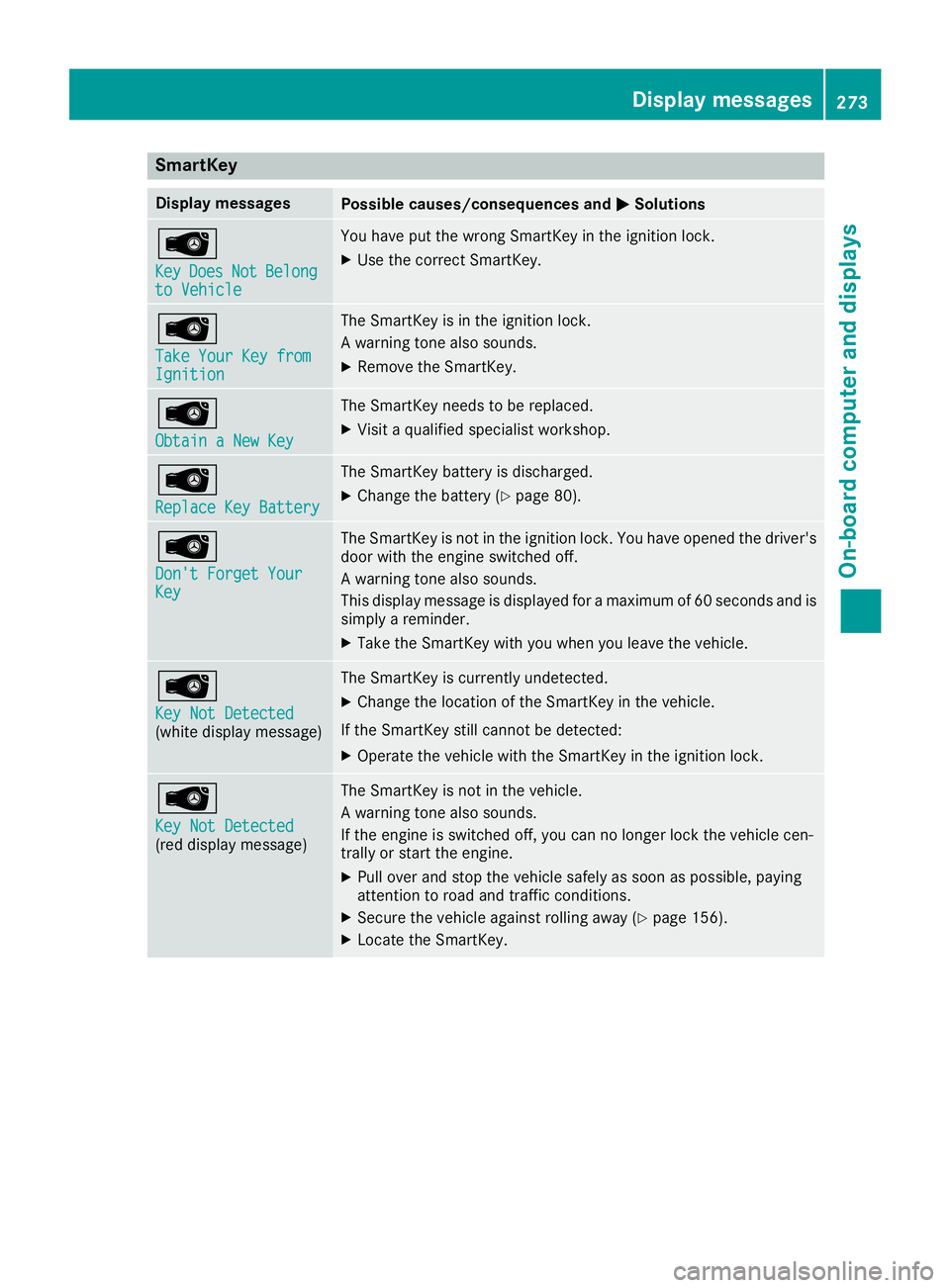
SmartKey
Display messages
Possible causes/consequences and
0050
0050Solutions 00AF
Key Key
Does
Does Not
NotBelong
Belong
to Vehicle
to Vehicle You have put the wrong SmartKey in the ignition lock.
X Use the correct SmartKey. 00AF
Take Your Key from Take Your Key from
Ignition Ignition The SmartKey is in the ignition lock.
A warning tone also sounds.
X Remove the SmartKey. 00AF
Obtain a New Key Obtain a New Key The SmartKey needs to be replaced.
X Visit a qualified specialist workshop. 00AF
Replace Key Battery Replace Key Battery The SmartKey battery is discharged.
X Change the battery (Y page 80).00AF
Don't Forget Your Don't Forget Your
Key Key The SmartKey is not in the ignition lock. You have opened the driver's
door with the engine switched off.
A warning tone also sounds.
This display message is displayed for a maximum of 60 seconds and is
simply a reminder.
X Take the SmartKey with you when you leave the vehicle. 00AF
Key Not Detected Key Not Detected
(white display message) The SmartKey is currently undetected.
X Change the location of the SmartKey in the vehicle.
If the SmartKey still cannot be detected:
X Operate the vehicle with the SmartKey in the ignition lock. 00AF
Key Not Detected Key Not Detected
(red display message) The SmartKey is not in the vehicle.
A warning tone also sounds.
If the engine is switched off, you can no longer lock the vehicle cen-
trally or start the engine.
X Pull over and stop the vehicle safely as soon as possible, paying
attention to road and traffic conditions.
X Secure the vehicle against rolling away (Y page 156).
X Locate the SmartKey. Display messages
273On-board computer and displays Z
Page 276 of 398
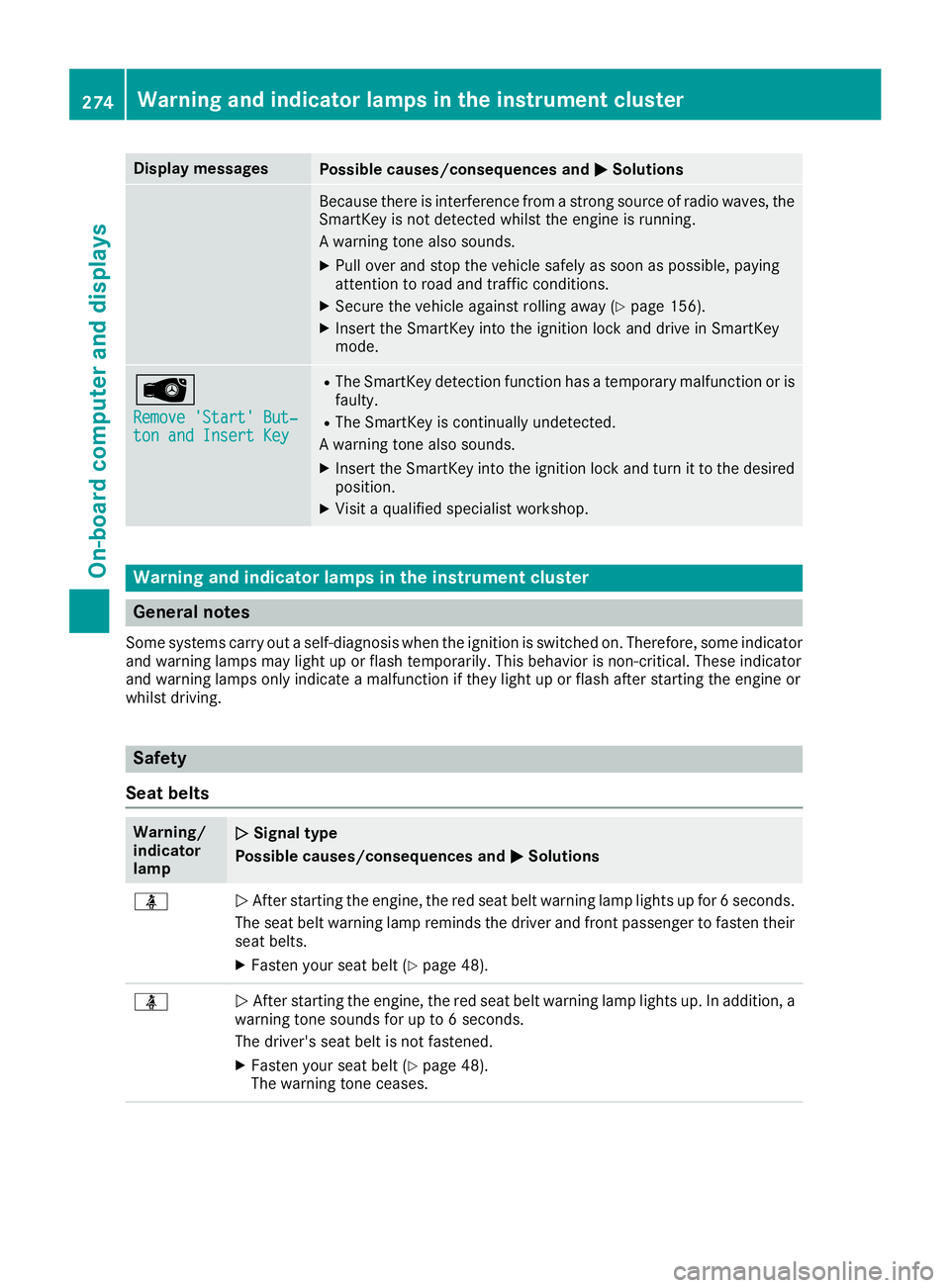
Display messages
Possible causes/consequences and
0050
0050Solutions Because there is interference from a strong source of radio waves, the
SmartKey is not detected whilst the engine is running.
A warning tone also sounds.
X Pull over and stop the vehicle safely as soon as possible, paying
attention to road and traffic conditions.
X Secure the vehicle against rolling away (Y page 156).
X Insert the SmartKey into the ignition lock and drive in SmartKey
mode. 00AF
Remove 'Start' But‐ Remove 'Start' But‐
ton and Insert Key ton and Insert Key R
The SmartKey detection function has a temporary malfunction or is
faulty.
R The SmartKey is continually undetected.
A warning tone also sounds.
X Insert the SmartKey into the ignition lock and turn it to the desired
position.
X Visit a qualified specialist workshop. Warning and indicator lamps in the instrument cluster
General notes
Some systems carry out a self-diagnosis when the ignition is switched on. Therefore, some indicator and warning lamps may light up or flash temporarily. This behavior is non-critical. These indicator
and warning lamps only indicate a malfunction if they light up or flash after starting the engine or
whilst driving. Safety
Seat belts Warning/
indicator
lamp
0051 0051
Signal type
Possible causes/consequences and 0050 0050Solutions 00E9
0051
After starting the engine, the red seat belt warning lamp lights up for 6 seconds.
The seat belt warning lamp reminds the driver and front passenger to fasten their
seat belts.
X Fasten your seat belt (Y page 48).00E9
0051
After starting the engine, the red seat belt warning lamp lights up. In addition, a
warning tone sounds for up to 6 seconds.
The driver's seat belt is not fastened.
X Fasten your seat belt (Y page 48).
The warning tone ceases. 274
Wa
rning and indi cator lamps in the instrument clusterOn-board computer and displays
Page 292 of 398
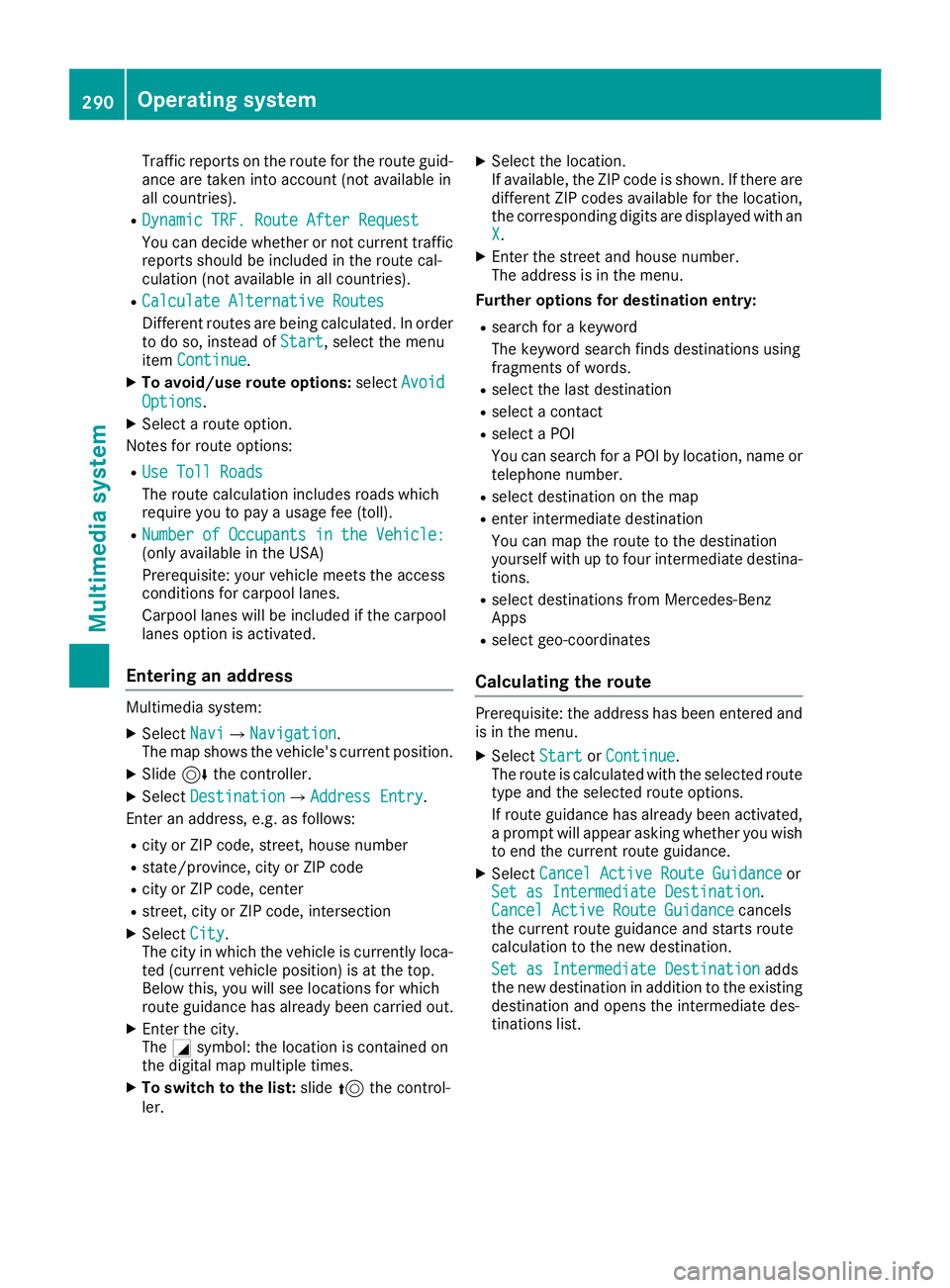
Traffic reports on the route for the route guid-
ance are taken into account (not available in
all countries).
R Dynamic TRF. Route After Request Dynamic TRF. Route After Request
You can decide whether or not current traffic
reports should be included in the route cal-
culation (not available in all countries).
R Calculate Alternative Routes
Calculate Alternative Routes
Different routes are being calculated. In order to do so, instead of Start Start, select the menu
item Continue
Continue.
X To avoid/use route options: selectAvoid
Avoid
Options
Options.
X Select a route option.
Notes for route options:
R Use Toll Roads
Use Toll Roads
The route calculation includes roads which
require you to pay a usage fee (toll).
R Number of Occupants in the Vehicle: Number of Occupants in the Vehicle:
(only available in the USA)
Prerequisite: your vehicle meets the access
conditions for carpool lanes.
Carpool lanes will be included if the carpool
lanes option is activated.
Entering an address Multimedia system:
X Select Navi Navi007BNavigation Navigation.
The map shows the vehicle's current position.
X Slide 6the controller.
X Select Destination
Destination 007BAddress EntryAddress Entry.
Enter an address, e.g. as follows:
R city or ZIP code, street, house number
R state/province, city or ZIP code
R city or ZIP code, center
R street, city or ZIP code, intersection
X Select City
City.
The city in which the vehicle is currently loca-
ted (current vehicle position) is at the top.
Below this, you will see locations for which
route guidance has already been carried out.
X Enter the city.
The 0043symbol: the location is contained on
the digital map multiple times.
X To switch to the list: slide5the control-
ler. X
Select the location.
If available, the ZIP code is shown. If there are different ZIP codes available for the location,
the corresponding digits are displayed with an
X
X.
X Enter the street and house number.
The address is in the menu.
Further options for destination entry:
R search for a keyword
The keyword search finds destinations using
fragments of words.
R select the last destination
R select a contact
R select a POI
You can search for a POI by location, name or
telephone number.
R select destination on the map
R enter intermediate destination
You can map the route to the destination
yourself with up to four intermediate destina-
tions.
R select destinations from Mercedes-Benz
Apps
R select geo-coordinates
Calculating the route Prerequisite: the address has been entered and
is in the menu.
X Select Start StartorContinue
Continue.
The route is calculated with the selected route
type and the selected route options.
If route guidance has already been activated,
a prompt will appear asking whether you wish to end the current route guidance.
X Select Cancel Active Route Guidance Cancel Active Route Guidance or
Set as Intermediate Destination
Set as Intermediate Destination .
Cancel Active Route Guidance
Cancel Active Route Guidance cancels
the current route guidance and starts route
calculation to the new destination.
Set as Intermediate Destination Set as Intermediate Destination adds
the new destination in addition to the existing
destination and opens the intermediate des-
tinations list. 290
Operating systemMultimedia system
Page 293 of 398
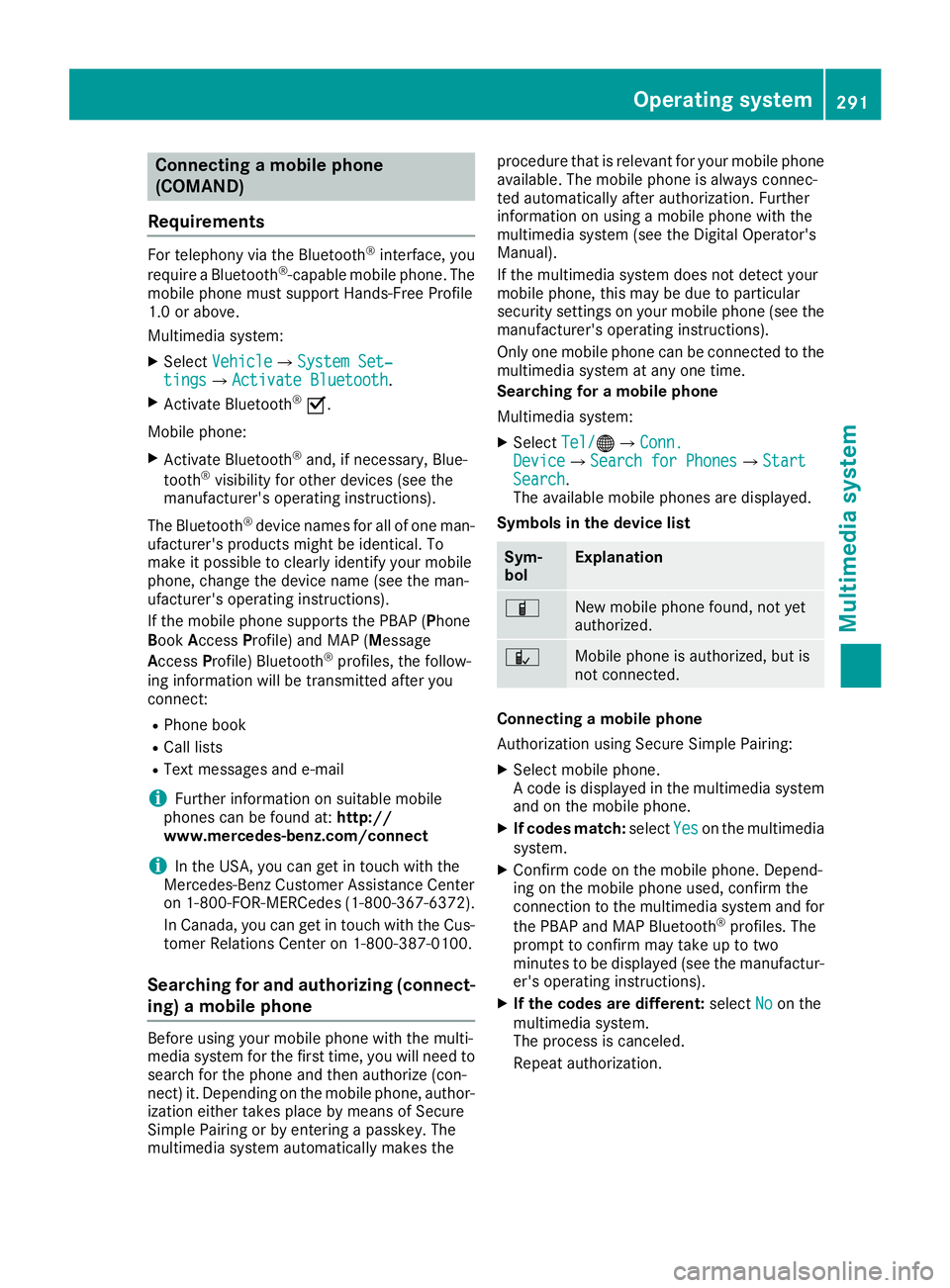
Connecting a mobile phone
(COMAND)
Requirements For telephony via the Bluetooth
®
interface, you
require a Bluetooth ®
-capable mobile phone. The
mobile phone must support Hands-Free Profile
1.0 or above.
Multimedia system:
X Select Vehicle
Vehicle007BSystem Set‐ System Set‐
tings tings007B Activate Bluetooth
Activate Bluetooth .
X Activate Bluetooth ®
0073.
Mobile phone:
X Activate Bluetooth ®
and, if necessary, Blue-
tooth ®
visibility for other devices (see the
manufacturer's operating instructions).
The Bluetooth ®
device names for all of one man-
ufacturer's products might be identical. To
make it possible to clearly identify your mobile
phone, change the device name (see the man-
ufacturer's operating instructions).
If the mobile phone supports the PBAP (Phone
Book Access Profile) and MAP (Message
Access Profile) Bluetooth ®
profiles, the follow-
ing information will be transmitted after you
connect:
R Phone book
R Call lists
R Text messages and e-mail
i Further information on suitable mobile
phones can be found at: http://
www.mercedes-benz.com/connect
i In the USA, you can get in touch with the
Mercedes-Benz Customer Assistance Center
on 1-800-FOR-MERCedes (1-800-367-6372 ).
In Canada, you can get in touch with the Cus-
tomer Relations Center on 1-800-387-0100.
Searching for and authorizing (connect-
ing) a mobile phone Before using your mobile phone with the multi-
media system for the first time, you will need to
search for the phone and then authorize (con-
nect) it. Depending on the mobile phone, author- ization either takes place by means of Secure
Simple Pairing or by entering a passkey. The
multimedia system automatically makes the procedure that is relevant for your mobile phone
available. The mobile phone is always connec-
ted automatically after authorization. Further
information on using a mobile phone with the
multimedia system (see the Digital Operator's
Manual).
If the multimedia system does not detect your
mobile phone, this may be due to particular
security settings on your mobile phone (see the manufacturer's operating instructions).
Only one mobile phone can be connected to the
multimedia system at any one time.
Searching for a mobile phone
Multimedia system:
X Select Tel/ Tel/00A7007BConn. Conn.
Device
Device007BSearch for Phones Search for Phones007BStart Start
Search
Search.
The available mobile phones are displayed.
Symbols in the device list Sym-
bol Explanation
00D3
New mobile phone found, not yet
authorized.
00DC
Mobile phone is authorized, but is
not connected.
Connecting a mobile phone
Authorization using Secure Simple Pairing:
X Select mobile phone.
A code is displayed in the multimedia system
and on the mobile phone.
X If codes match: selectYes Yeson the multimedia
system.
X Confirm code on the mobile phone. Depend-
ing on the mobile phone used, confirm the
connection to the multimedia system and for
the PBAP and MAP Bluetooth ®
profiles. The
prompt to confirm may take up to two
minutes to be displayed (see the manufactur-
er's operating instructions).
X If the codes are different: selectNo Noon the
multimedia system.
The process is canceled.
Repeat authorization. Operating system
291Multimedia system Z
Page 294 of 398
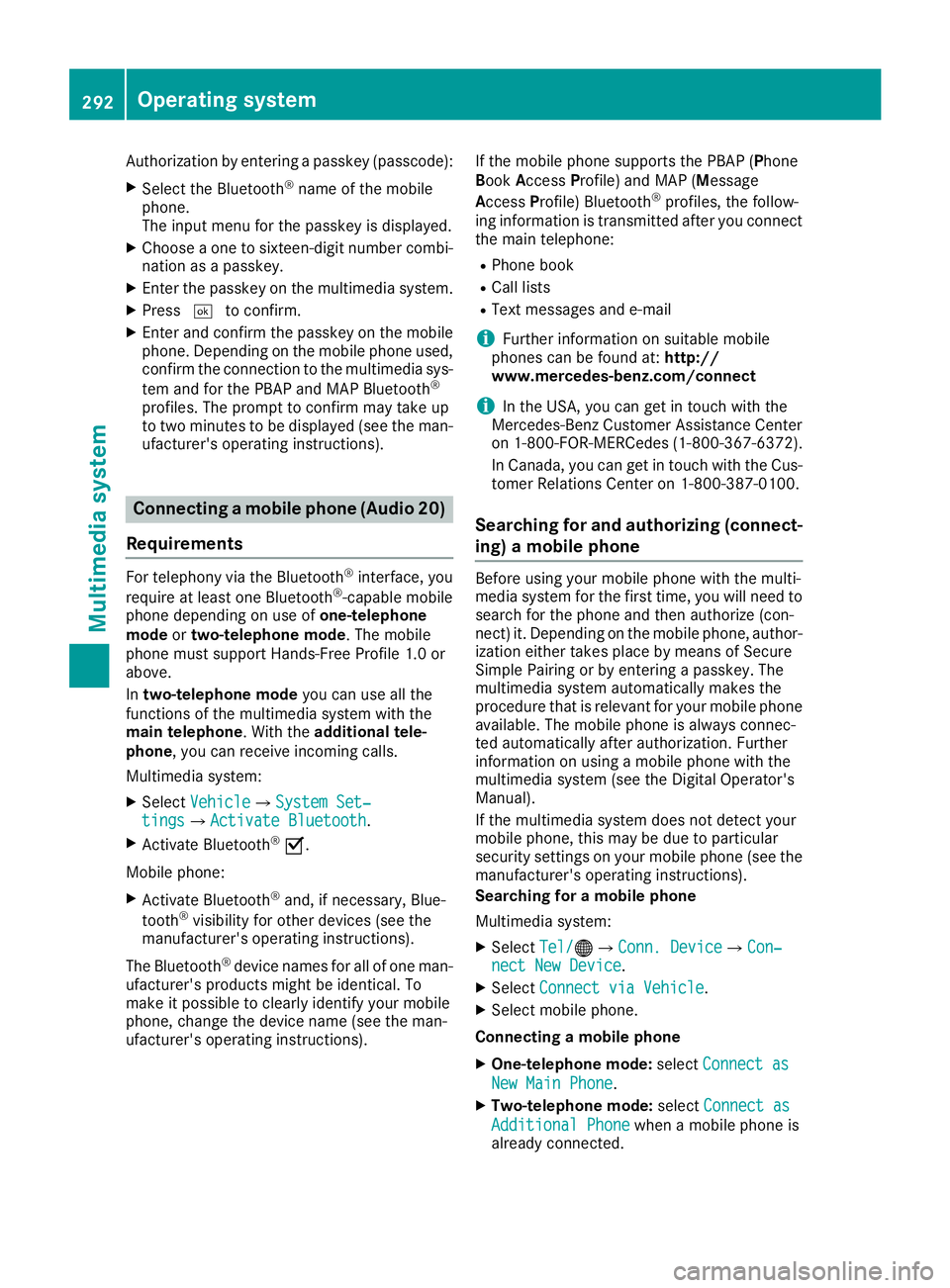
Authorization by entering a passkey (passcode):
X Select the Bluetooth ®
name of the mobile
phone.
The input menu for the passkey is displayed.
X Choose a one to sixteen-digit number combi-
nation as a passkey.
X Enter the passkey on the multimedia system.
X Press 0054to confirm.
X Enter and confirm the passkey on the mobile
phone. Depending on the mobile phone used,
confirm the connection to the multimedia sys-
tem and for the PBAP and MAP Bluetooth ®
profiles. The prompt to confirm may take up
to two minutes to be displayed (see the man- ufacturer's operating instructions). Connecting a mobile phone (Audio 20)
Requirements For telephony via the Bluetooth
®
interface, you
require at least one Bluetooth ®
-capable mobile
phone depending on use of one-telephone
mode ortwo-telephone mode. The mobile
phone must support Hands-Free Profile 1.0 or
above.
In two-telephone mode you can use all the
functions of the multimedia system with the
main telephone. With the additional tele-
phone , you can receive incoming calls.
Multimedia system:
X Select Vehicle
Vehicle007BSystem Set‐ System Set‐
tings tings007B Activate Bluetooth
Activate Bluetooth .
X Activate Bluetooth ®
0073.
Mobile phone:
X Activate Bluetooth ®
and, if necessary, Blue-
tooth ®
visibility for other devices (see the
manufacturer's operating instructions).
The Bluetooth ®
device names for all of one man-
ufacturer's products might be identical. To
make it possible to clearly identify your mobile
phone, change the device name (see the man-
ufacturer's operating instructions). If the mobile phone supports the PBAP (P
hone
Book Access Profile) and MAP (Message
Access Profile) Bluetooth ®
profiles, the follow-
ing information is transmitted after you connect
the main telephone:
R Phone book
R Call lists
R Text messages and e-mail
i Further information on suitable mobile
phones can be found at: http://
www.mercedes-benz.com/connect
i In the USA, you can get in touch with the
Mercedes-Benz Customer Assistance Center
on 1-800-FOR-MERCedes (1-800-367-6372).
In Canada, you can get in touch with the Cus-
tomer Relations Center on 1-800-387-010 0.
Searching for and authorizing (connect- ing) a mobile phone Before using your mobile phone with the multi-
media system for the first time, you will need to
search for the phone and then authorize (con-
nect) it. Depending on the mobile phone, author- ization either takes place by means of Secure
Simple Pairing or by entering a passkey. The
multimedia system automatically makes the
procedure that is relevant for your mobile phone
available. The mobile phone is always connec-
ted automatically after authorization. Further
information on using a mobile phone with the
multimedia system (see the Digital Operator's
Manual).
If the multimedia system does not detect your
mobile phone, this may be due to particular
security settings on your mobile phone (see the manufacturer's operating instructions).
Searching for a mobile phone
Multimedia system:
X Select Tel/ Tel/00A7007BConn. Device Conn. Device007BCon‐ Con‐
nect New Device
nect New Device.
X Select Connect via Vehicle
Connect via Vehicle.
X Select mobile phone.
Connecting a mobile phone X One-telephone mode: selectConnect as
Connect as
New Main Phone
New Main Phone.
X Two-telephone mode: selectConnect as
Connect as
Additional Phone
Additional Phone when a mobile phone is
already connected. 292
Operating systemMultimedia system
Page 295 of 398
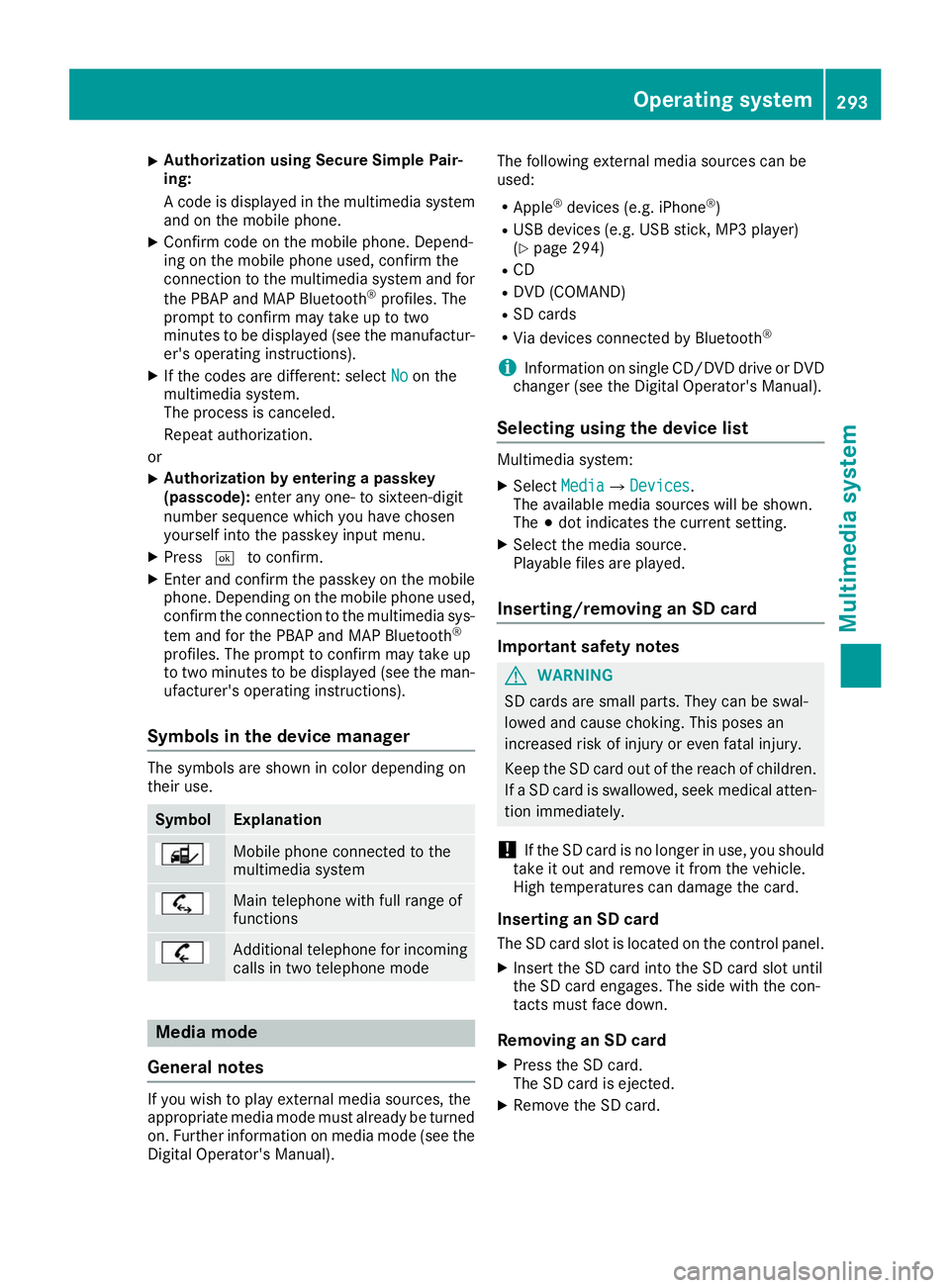
X
Authorization using Secure Simple Pair-
ing:
A code is displayed in the multimedia system
and on the mobile phone.
X Confirm code on the mobile phone. Depend-
ing on the mobile phone used, confirm the
connection to the multimedia system and for
the PBAP and MAP Bluetooth ®
profiles. The
prompt to confirm may take up to two
minutes to be displayed (see the manufactur-
er's operating instructions).
X If the codes are different: select No
No on the
multimedia system.
The process is canceled.
Repeat authorization.
or X Authorization by entering a passkey
(passcode):
enter any one- to sixteen-digit
number sequence which you have chosen
yourself into the passkey input menu.
X Press 0054to confirm.
X Enter and confirm the passkey on the mobile
phone. Depending on the mobile phone used,
confirm the connection to the multimedia sys-
tem and for the PBAP and MAP Bluetooth ®
profiles. The prompt to confirm may take up
to two minutes to be displayed (see the man- ufacturer's operating instructions).
Symbols in the device manager The symbols are shown in color depending on
their use. Symbol Explanation
Mobile phone connected to the
multimedia system
Main telephone with full range of
functions
Additional telephone for incoming
calls in two telephone mode Media mode
General notes If you wish to play external media sources, the
appropriate media mode must already be turned
on. Further information on media mode (see the Digital Operator's Manual). The following external media sources can be
used:
R Apple ®
devices (e.g. iPhone ®
)
R USB devices (e.g. USB stick, MP3 player)
(Y page 294)
R CD
R DVD (COMAND)
R SD cards
R Via devices connected by Bluetooth ®
i Information on single CD/DVD drive or DVD
changer (see the Digital Operator's Manual).
Selecting using the device list Multimedia system:
X Select Media
Media007B Devices Devices.
The available media sources will be shown.
The 003Bdot indicates the current setting.
X Select the media source.
Playable files are played.
Inserting/removing an SD card Important safety notes
G
WARNING
SD cards are small parts. They can be swal-
lowed and cause choking. This poses an
increased risk of injury or even fatal injury.
Keep the SD card out of the reach of children. If a SD card is swallowed, seek medical atten-
tion immediately.
! If the SD card is no longer in use, you should
take it out and remove it from the vehicle.
High temperatures can damage the card.
Inserting an SD card
The SD card slot is located on the control panel. X Insert the SD card into the SD card slot until
the SD card engages. The side with the con-
tacts must face down.
Removing an SD card X Press the SD card.
The SD card is ejected.
X Remove the SD card. Operating system
293Multimedia system Z
Page 298 of 398
R
Always stow objects in such a way that they
cannot be tossed about in these or similar
situations.
R Always make sure that objects do not pro-
trude out of the stowage spaces, luggage
nets or stowage nets.
R Ensure that closable stowage spaces are
shut before beginning your journey.
R Always stow and secure heavy, hard, poin-
ted, sharp-edged, fragile or large objects in
the cargo compartment.
Observe the loading guidelines (Y page 295).
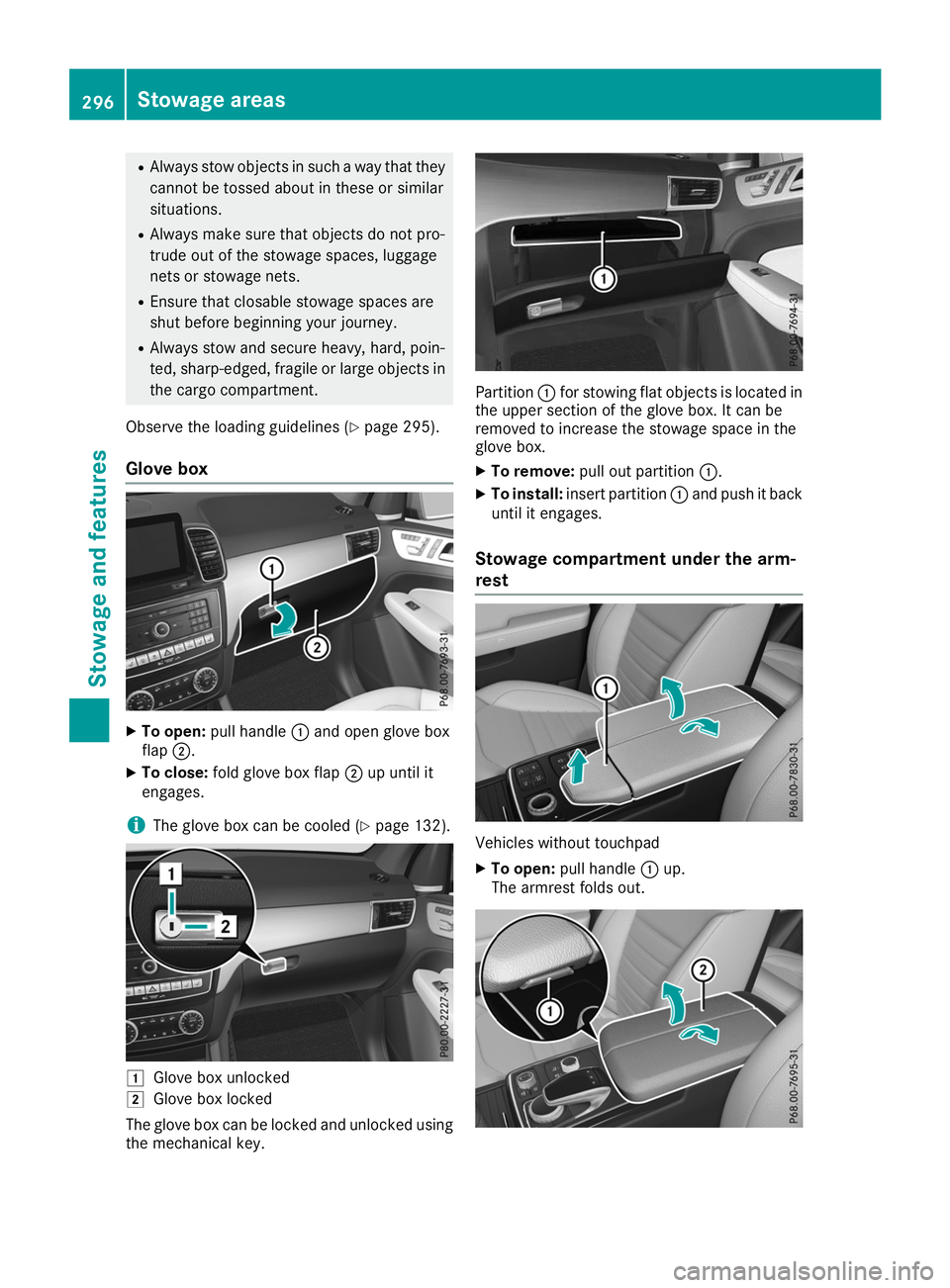
Glove box X
To open: pull handle 0043and open glove box
flap 0044.
X To close: fold glove box flap 0044up until it
engages.
i The glove box can be cooled (Y
page 132).0047
Glove box unlocked
0048 Glove box locked
The glove box can be locked and unlocked using the mechanical key. Partition
0043for stowing flat objects is located in
the upper section of the glove box. It can be
removed to increase the stowage space in the
glove box.
X To remove: pull out partition 0043.
X To install: insert partition 0043and push it back
until it engages.
Stowage compartment under the arm-
rest Vehicles without touchpad
X To open: pull handle 0043up.
The armrest folds out. 296
Stowage areasSto
wage an d features
Page 305 of 398
injury, particularly in the event of sudden
braking or a sudden change in direction.
Always close the cargo compartment floor
before a journey.
The accessory parts of the EASY–PACK load-
securing kit, as well as TIREFIT and the tire-
changing tools are located in the removable
insert in the stowage well.
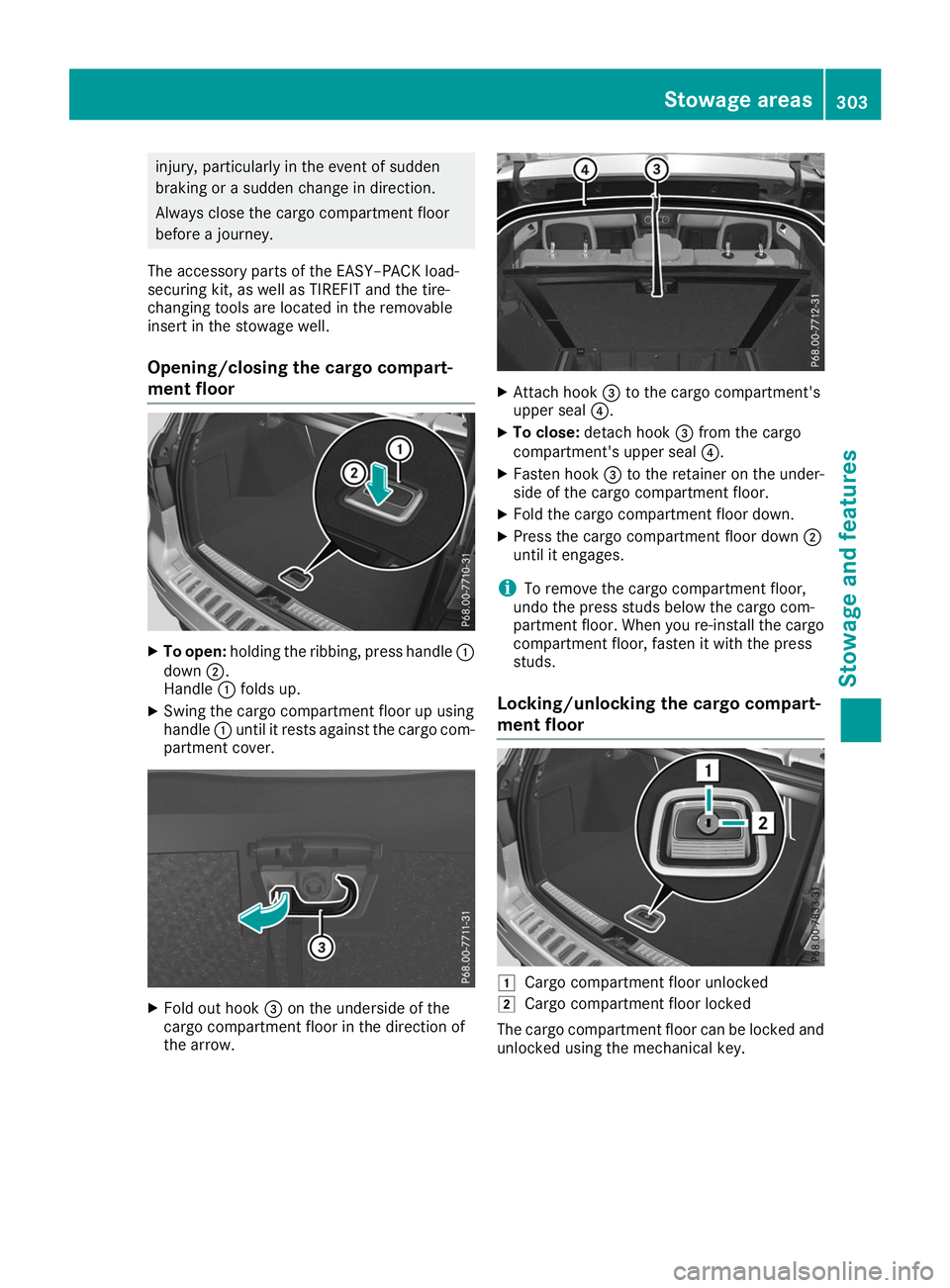
Opening/closing the cargo compart-
ment floor X
To open: holding the ribbing, press handle 0043
down 0044.
Handle 0043folds up.
X Swing the cargo compartment floor up using
handle 0043until it rests against the cargo com-
partment cover. X
Fold out hook 0087on the underside of the
cargo compartment floor in the direction of
the arrow. X
Attach hook 0087to the cargo compartment's
upper seal 0085.
X To close: detach hook 0087from the cargo
compartment's upper seal 0085.
X Fasten hook 0087to the retainer on the under-
side of the cargo compartment floor.
X Fold the cargo compartment floor down.
X Press the cargo compartment floor down 0044
until it engages.
i To remove the cargo compartment floor,
undo the press studs below the cargo com-
partment floor. When you re-install the cargo
compartment floor, fasten it with the press
studs.
Locking/unlocking the cargo compart-
ment floor 0047
Cargo compartment floor unlocked
0048 Cargo compartment floor locked
The cargo compartment floor can be locked and unlocked using the mechanical key. Stowage areas
303Stowage and features Z
Page 306 of 398
Roof carrier
Important safety notes G
WARNING
When you load the roof, the center of gravity
of the vehicle rises and the driving character- istics change. If you exceed the maximum roof
load, the driving characteristics, as well as
steering and braking, will be greatly impaired. There is a risk of an accident.
Never exceed the maximum roof load and
adjust your driving style.
! Mercedes-Benz recommends that you only
use roof carriers that have been tested and
approved for Mercedes-Benz vehicles. This
helps to prevent damage to the vehicle.
Position the load on the roof carrier in such a way that the vehicle will not sustain damage
even when it is in motion.
Depending on the vehicle equipment, ensure
that when the roof carrier is installed you can:
R raise the sliding sunroof fully
R open the panorama roof with power tilt/
sliding panel fully
R open the tailgate fully
You will find information on the maximum roof
load in the "Technical data" section
(Y page 390).
An incorrectly secured roof carrier or roof load
may become detached from the vehicle. You
must therefore ensure that you observe the roof
carrier manufacturer's installation instructions.
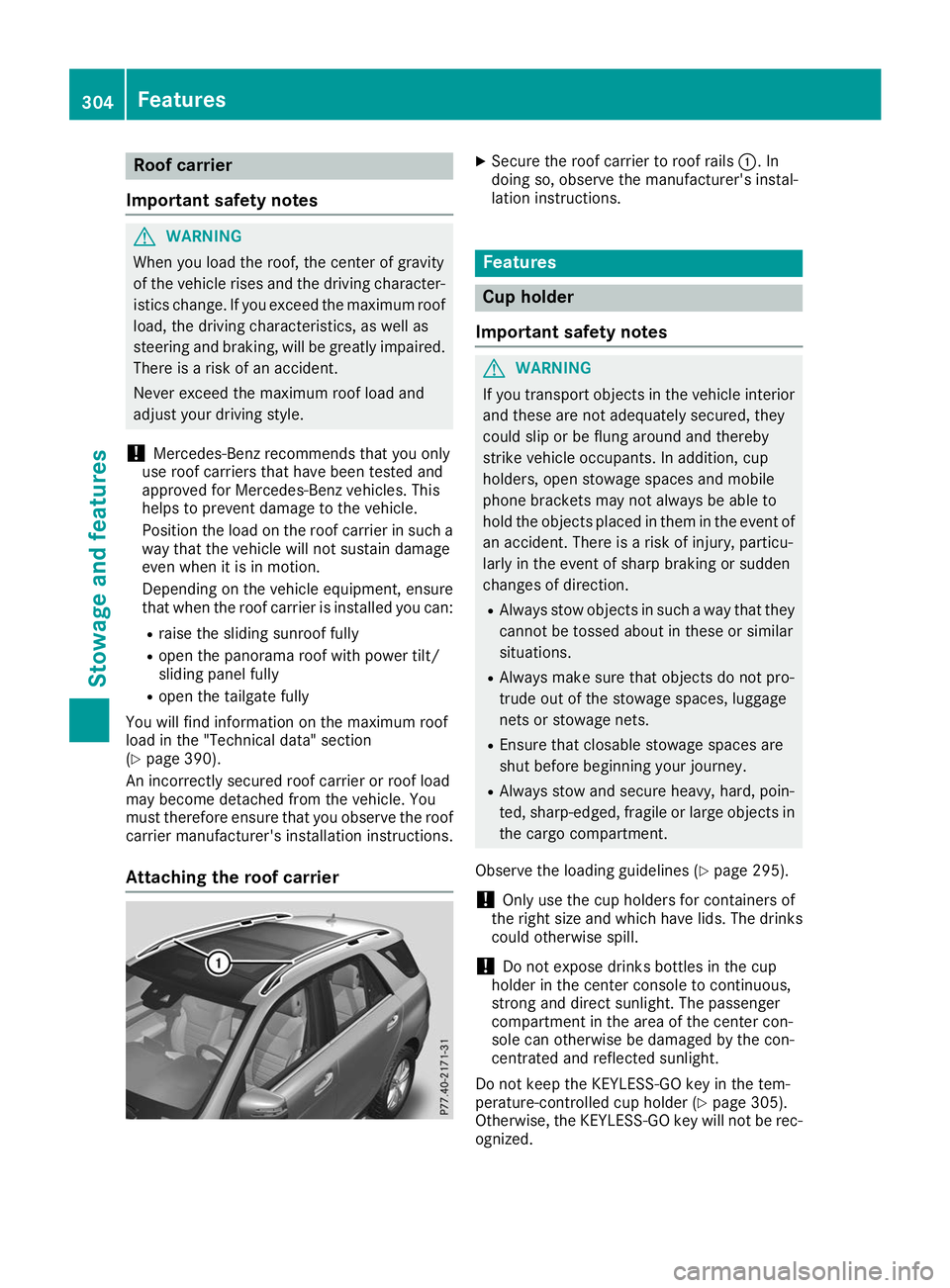
Attaching the roof carrier X
Secure the roof carrier to roof rails 0043. In
doing so, observe the manufacturer's instal-
lation instructions. Features
Cup holder
Important safety notes G
WARNING
If you transport objects in the vehicle interior and these are not adequately secured, they
could slip or be flung around and thereby
strike vehicle occupants. In addition, cup
holders, open stowage spaces and mobile
phone brackets may not always be able to
hold the objects placed in them in the event of an accident. There is a risk of injury, particu-
larly in the event of sharp braking or sudden
changes of direction.
R Always stow objects in such a way that they
cannot be tossed about in these or similar
situations.
R Always make sure that objects do not pro-
trude out of the stowage spaces, luggage
nets or stowage nets.
R Ensure that closable stowage spaces are
shut before beginning your journey.
R Always stow and secure heavy, hard, poin-
ted, sharp-edged, fragile or large objects in
the cargo compartment.
Observe the loading guidelines (Y page 295).
! Only use the cup holders for containers of
the right size and which have lids. The drinks
could otherwise spill.
! Do not expose drinks bottles in the cup
holder in the center console to continuous,
strong and direct sunlight. The passenger
compartment in the area of the center con-
sole can otherwise be damaged by the con-
centrated and reflected sunlight.
Do not keep the KEYLESS-GO key in the tem-
perature-controlled cup holder (Y page 305).
Otherwise, the KEYLESS-GO key will not be rec-
ognized. 304
FeaturesStowage and features
Page 307 of 398
The stowage compartments in the doors provide
space for bottles with a capacity of up to
34 fl. oz. (1.0 l).
The bottles are not secured or prevented from
tipping over. Therefore, do not place any open
drink containers in the stowage compartments.
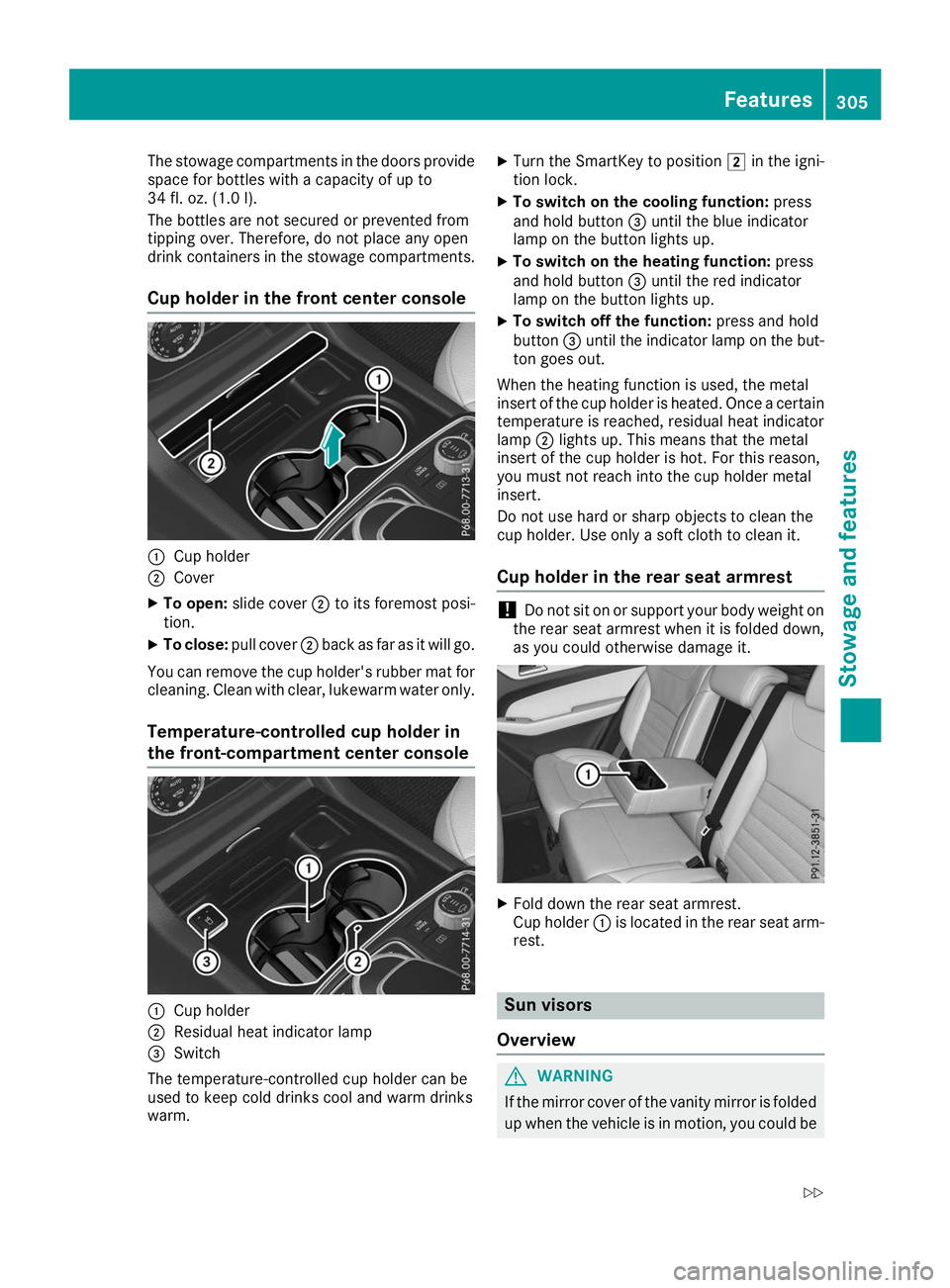
Cup holder in the front center console 0043
Cup holder
0044 Cover
X To open: slide cover 0044to its foremost posi-
tion.
X To close: pull cover 0044back as far as it will go.
You can remove the cup holder's rubber mat for
cleaning. Clean with clear, lukewarm water only.
Temperature-controlled cup holder in
the front-compartment center console 0043
Cup holder
0044 Residual heat indicator lamp
0087 Switch
The temperature-controlled cup holder can be
used to keep cold drinks cool and warm drinks
warm. X
Turn the SmartKey to position 0048in the igni-
tion lock.
X To switch on the cooling function: press
and hold button 0087until the blue indicator
lamp on the button lights up.
X To switch on the heating function: press
and hold button 0087until the red indicator
lamp on the button lights up.
X To switch off the function: press and hold
button 0087until the indicator lamp on the but-
ton goes out.
When the heating function is used, the metal
insert of the cup holder is heated. Once a certain temperature is reached, residual heat indicator
lamp 0044lights up. This means that the metal
insert of the cup holder is hot. For this reason,
you must not reach into the cup holder metal
insert.
Do not use hard or sharp objects to clean the
cup holder. Use only a soft cloth to clean it.
Cup holder in the rear seat armrest !
Do not sit on or support your body weight on
the rear seat armrest when it is folded down,
as you could otherwise damage it. X
Fold down the rear seat armrest.
Cup holder 0043is located in the rear seat arm-
rest. Sun visors
Overview G
WARNING
If the mirror cover of the vanity mirror is folded up when the vehicle is in motion, you could be Features
305Stowage and features
Z