Telephone MERCEDES-BENZ GLE 2019 Owners Manual
[x] Cancel search | Manufacturer: MERCEDES-BENZ, Model Year: 2019, Model line: GLE, Model: MERCEDES-BENZ GLE 2019Pages: 398, PDF Size: 12.25 MB
Page 18 of 398
Pets in the vehicle ........................... 65
PRE-SAFE ®
(anticipatory occu-
pant protection) ...............................58
PRE-SAFE ®
PLUS (anticipatory
occupant protection PLUS) .............. 59
Restraint system warning lamp ........ 45
Seat belt .......................................... 45
OCS
Conditions ....................................... 52
Faults ............................................... 55
Operation ......................................... 52
System self-test ...............................54
Odometer ...........................................2 32
Off-road driving
Approach/departure angle ............ 393
Checklist after driving off-roa d...... 167
Checklist before driving off-road .... 166
Fording depth ................................ 392
General information ....................... 165
Important safety notes .................. 165
Maximum gradient climbing abil-
ity .................................................. 393
Traveling uphill ............................... 168
Off-road lights .................................... 113
Off-Road program (vehicles with-
out Off-Road Engineering package)
Function/note s............................. 215
Off-road programs (vehicles with
Off-Road Engineering package)
Function/note s............................. 216
Off-road drive program .................. 216
Offroad Plus drive progra m............ 217
Off-road programs (vehicles with
the Off-Road Engineering package)
Displays in the COMAND display ... 219
Off-road system
4MATIC .......................................... 214
DSR ............................................... 214
LOW RANGE off-road gear ............. 217
Off-road 4ETS .................................. 70
Off-road ABS .................................... 67
Off-road ESP ®
.................................. 72
Off-Road program (vehicles with-
out Off-Road Engineering pack-
age) ............................................... 215
Off-road programs (vehicles with
Off-Road Engineering package) ...... 216 Oil
see Engine oil
On and Offroad menu (on-board
computer) .......................................... 241
On-board computer
Active Distance Assist
DISTRONIC .................................... 176
AMG menu ..................................... 241
Assistance menu ........................... 237
Audio menu ................................... 235
Convenience submenu .................. 240
Display messages .......................... 244
Displaying a service message ........ 325
Factory settings submenu ............. 241
Important safety notes .................. 229
Instrument cluster submenu .......... 239
Lighting submenu .......................... 239
Menu overview .............................. 232
Message memory .......................... 244
Navigation menu ............................ 233
On and Offroad menu .................... 241
Operation ....................................... 230
RACETIMER ................................... 242
Service menu ................................. 238
Settings menu ............................... 239
Standard display ............................ 232
Telephone menu ............................ 236
Trip menu ...................................... 232
Vehicle submenu ........................... 240
Video DVD operation ..................... 235
Operating safety
Declaration of conformity ................ 30
Important safety notes .................... 30
Operating system
see On-board computer
Operation
Digital Operator's Manua l................ 26
Operator's Manual
Overview .......................................... 28
Vehicle equipment ........................... 28
Outside temperature display ........... 229
Overhead control panel ...................... 42
Override feature
Rear side window s........................... 65 16
Index
Page 23 of 398
Stowage net
....................................... 297
Summer tires
In winter ........................................3 53
Sun visor ............................................ 305
Suspension setting
AIRMATIC ...................................... 183
AMG adaptive sport suspension
system .......................................... .187
Suspension tuning
SETUP (on-board computer,
Mercedes-AMG vehicles) .............. .242
SUV
(Sport Utility Vehicle) ....................... 30
Switching air-recirculation mode
on/off ................................................. 131
Switching on media mode
Via the device lis t.......................... 293 T
Tachometer ........................................ 229
Tailgate
Display message ............................ 271
Emergency unlocking ....................... 88
Important safety notes .................... 84
Limiting the opening angle ............... 88
Opening dimensions ...................... 390
Opening/closing (automatically
from inside) ...................................... 87
Opening/closing (automatically
from outside) ................................... 86
Opening/closing (from outside) ....... 85
Power closing .................................. 84
Tank
see Fuel tank
Tank content
Fuel gauge ....................................... 37
Technical data
Capacities ...................................... 383
Information .................................... 381
Tires/wheels ................................. 376
Trailer loads ................................... 394
Vehicle data ................................... 390
Telephone
Accepting a call (multifunction
steering wheel) .............................. 236
Authorizing a mobile phone (con-
necting) ......................................... 291 Authorizing a mobile phone via the
device manager (connecting) ......... 292
Connecting a mobile phone
(device manager) ........................... 292
Connecting a mobile phone (gen-
eral information) ............................ 291
Display message ............................ 272
Menu (on-board computer) ............ 236
Number from the phone book ........ 236
Redialing ........................................ 236
Rejecting/ending a call ................. 236
see also Digital Operator's Man-
ual .................................................. 287
Temperature
Coolant (display in the instrumentcluster) .......................................... 230
Coolant (on-board computer,
Mercedes-AMG vehicles) ............... 241
Engine oil (on-board computer,
Mercedes-AMG vehicles) ............... 241
Outside temperature ...................... 229
Setting (climate control )................ 128
Transmission oil (on-board com-
puter, Mercedes-AMG vehicles) ..... 241
Through-loading feature ................... 298
Timing (RACETIMER) ......................... 242
Tire pressure
Calling up (on-board computer) ..... 358
Checking manually ........................ 357
Display message ............................ 268
Maximum ....................................... 357
Not reached (TIREFIT) .................... 339
Notes ............................................. 356
Reached (TIREFIT) .......................... 339
Recommended ............................... 354
Tire pressure loss warning system
General notes ................................ 357
Important safety notes .................. 358
Restarting ...................................... 358
Tire pressure monitor
Checking the tire pressure elec-
tronically ........................................ 360
Function/note s............................. 358
General notes ................................ 358
Important safety notes .................. 359
Radio type approval for the tire
pressure monitor ........................... 361
Restarting ...................................... 361 Index
21
Page 44 of 398
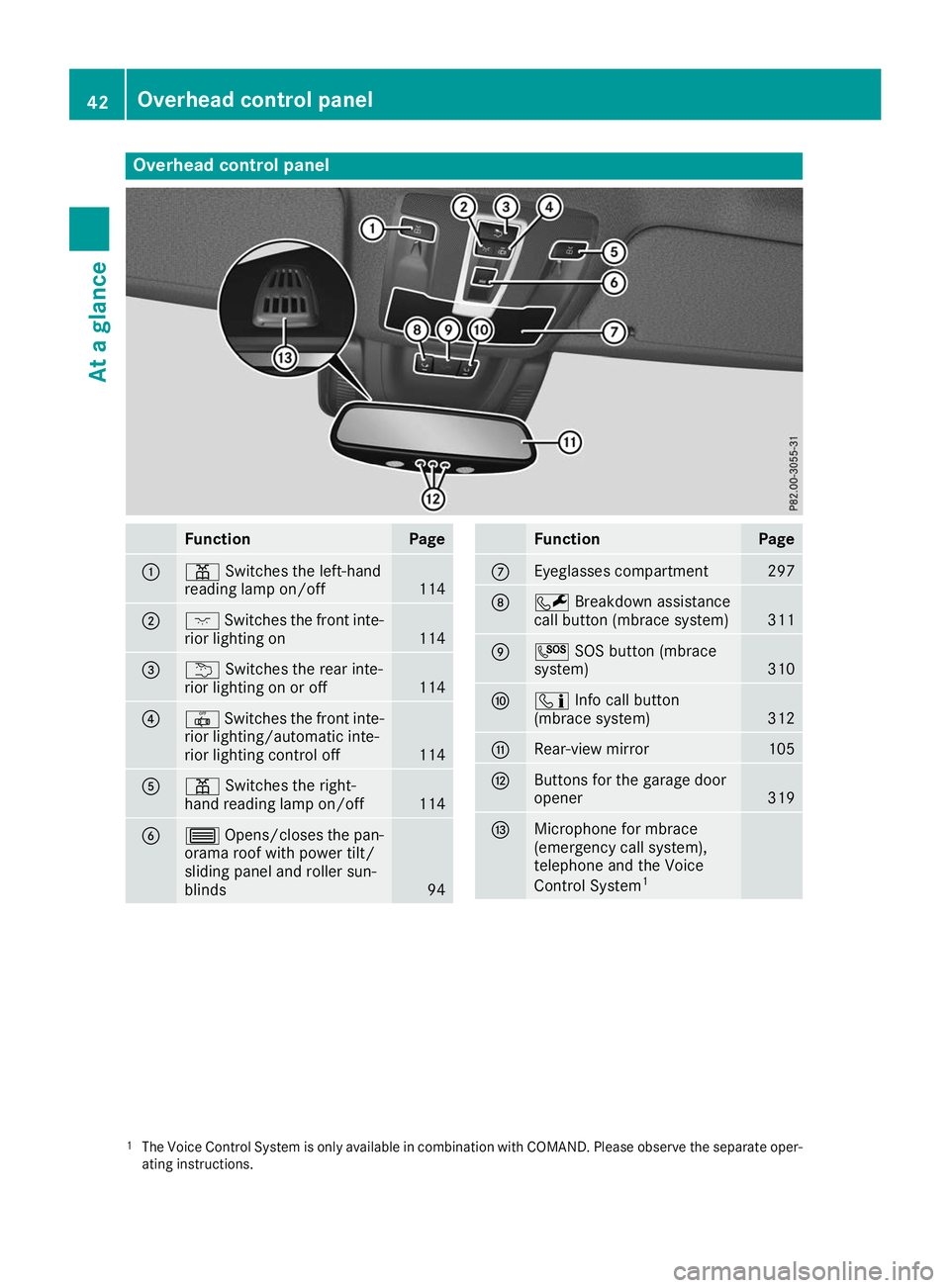
Overhead control panel
Function Page
0043
003D
Switches the left-hand
reading lamp on/off 114
0044
004A
Switches the front inte-
rior lighting on 114
0087
0042
Switches the rear inte-
rior lighting on or off 114
0085
0033
Switches the front inte-
rior lighting/automatic inte-
rior lighting control off 114
0083
003D
Switches the right-
hand reading lamp on/off 114
0084
0057
Opens/closes the pan-
orama roof with power tilt/
sliding panel and roller sun-
blinds 94 Function Page
006B
Eyeglasses compartment 297
006C
0052
Breakdown assistance
call button (mbrace system) 311
006D
0053
SOS button (mbrace
system) 310
006E
00D9
Info call button
(mbrace system) 312
006F
Rear-view mirror 105
0070
Buttons for the garage door
opener
319
0071
Microphone for mbrace
(emergency call system),
telephone and the Voice
Control System
1 1
The Voice Control System is only available in combination with COMAND. Please observe the separate oper-
ating instructions. 42
Overhead control panelAt a glance
Page 161 of 398
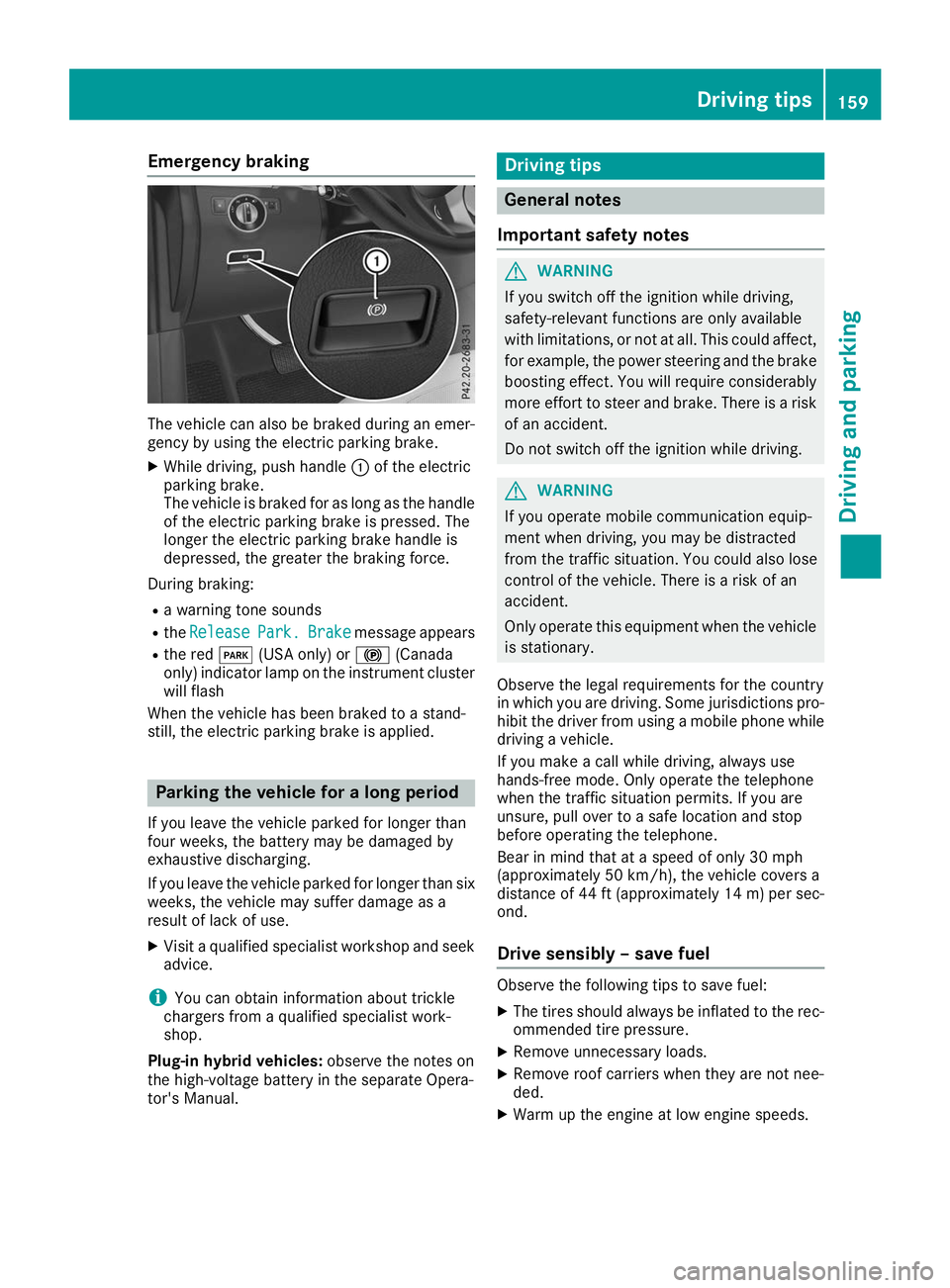
Emergency braking
The vehicle can also be braked during an emer-
gency by using the electric parking brake.
X While driving, push handle 0043of the electric
parking brake.
The vehicle is braked for as long as the handle of the electric parking brake is pressed. The
longer the electric parking brake handle is
depressed, the greater the braking force.
During braking:
R a warning tone sounds
R the Release
Release Park. Park.Brake
Brakemessage appears
R the red 0049(USA only) or 0024(Canada
only) indicator lamp on the instrument cluster will flash
When the vehicle has been braked to a stand-
still, the electric parking brake is applied. Parking the vehicle for a long period
If you leave the vehicle parked for longer than
four weeks, the battery may be damaged by
exhaustive discharging.
If you leave the vehicle parked for longer than six weeks, the vehicle may suffer damage as a
result of lack of use.
X Visit a qualified specialist workshop and seek
advice.
i You can obtain information about trickle
chargers from a qualified specialist work-
shop.
Plug-in hybrid vehicles: observe the notes on
the high-voltage battery in the separate Opera-
tor's Manual. Driving tips
General notes
Important safety notes G
WARNING
If you switch off the ignition while driving,
safety-relevant functions are only available
with limitations, or not at all. This could affect, for example, the power steering and the brake
boosting effect. You will require considerably
more effort to steer and brake. There is a risk of an accident.
Do not switch off the ignition while driving. G
WARNING
If you operate mobile communication equip-
ment when driving, you may be distracted
from the traffic situation. You could also lose
control of the vehicle. There is a risk of an
accident.
Only operate this equipment when the vehicle is stationary.
Observe the legal requirements for the country
in which you are driving. Some jurisdictions pro-
hibit the driver from using a mobile phone while driving a vehicle.
If you make a call while driving, always use
hands-free mode. Only operate the telephone
when the traffic situation permits. If you are
unsure, pull over to a safe location and stop
before operating the telephone.
Bear in mind that at a speed of only 30 mph
(approximately 50 km/h), the vehicle covers a
distance of 44 ft (approximately 14 m)per sec-
ond.
Drive sensibly – save fuel Observe the following tips to save fuel:
X The tires should always be inflated to the rec-
ommended tire pressure.
X Remove unnecessary loads.
X Remove roof carriers when they are not nee-
ded.
X Warm up the engine at low engine speeds. Driving tips
159Driving and parking Z
Page 233 of 398
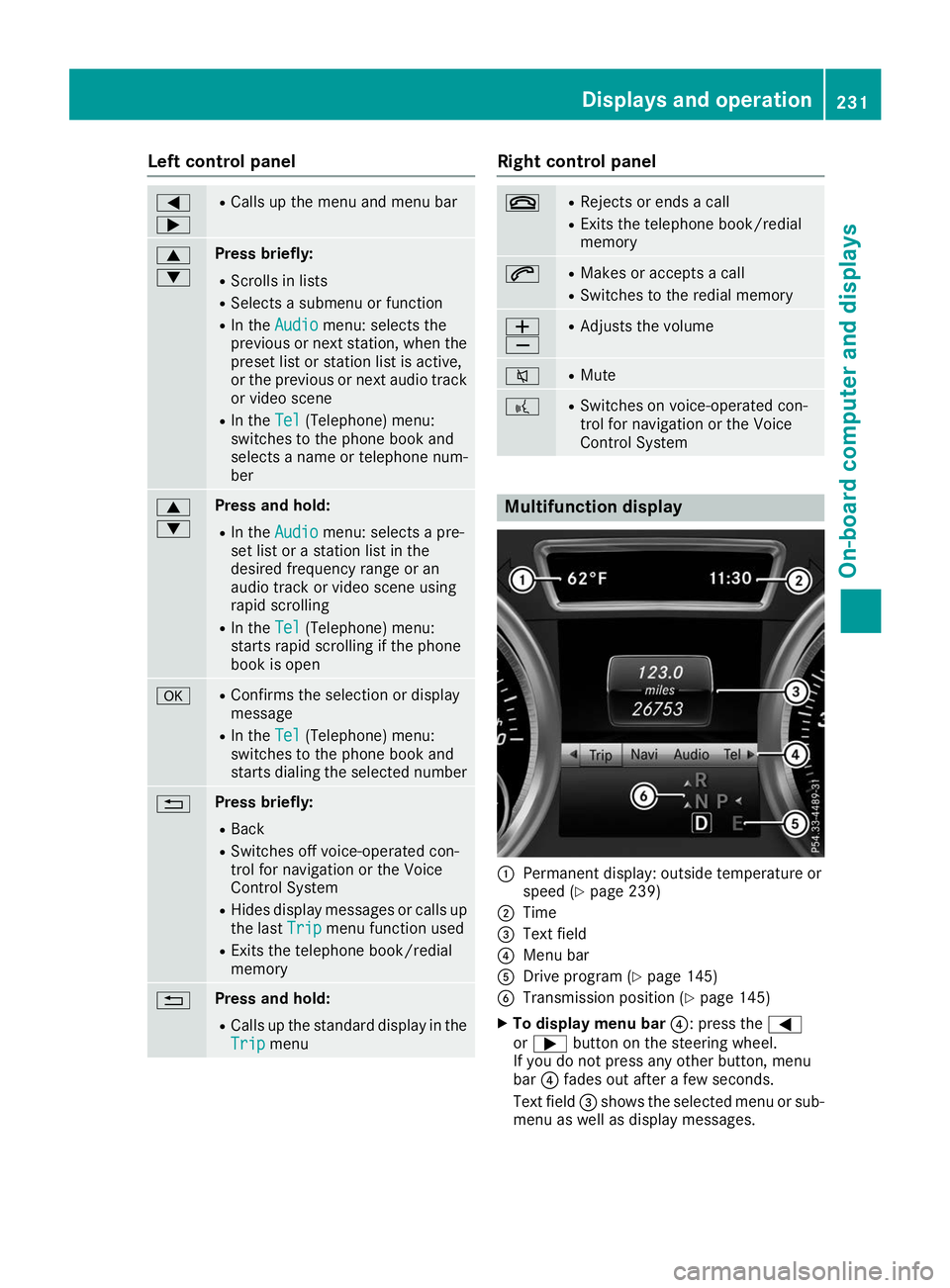
Left control panel
0059
0065 R
Calls up the menu and menu bar 0063
0064 Press briefly:
R Scrolls in lists
R Selects a submenu or function
R In the Audio Audio menu: selects the
previous or next station, when the
preset list or station list is active,
or the previous or next audio track
or video scene
R In the Tel
Tel(Telephone) menu:
switches to the phone book and
selects a name or telephone num-
ber 0063
0064 Press and hold:
R
In the Audio Audio menu: selects a pre-
set list or a station list in the
desired frequency range or an
audio track or video scene using
rapid scrolling
R In the Tel
Tel (Telephone) menu:
starts rapid scrolling if the phone
book is open 0076 R
Confirms the selection or display
message
R In the Tel
Tel (Telephone) menu:
switches to the phone book and
starts dialing the selected number 0038 Press briefly:
R Back
R Switches off voice-operated con-
trol for navigation or the Voice
Control System
R Hides display messages or calls up
the last Trip
Trip menu function used
R Exits the telephone book/redial
memory 0038 Press and hold:
R
Calls up the standard display in the
Trip Trip menu Right control panel
0076 R
Rejects or ends a call
R Exits the telephone book/redial
memory 0061 R
Makes or accepts a call
R Switches to the redial memory 0081
0082 R
Adjusts the volume 0063 R
Mute 0059 R
Switches on voice-operated con-
trol for navigation or the Voice
Control System Multifunction display
0043
Permanent display: outside temperature or
speed (Y page 239)
0044 Time
0087 Text field
0085 Menu bar
0083 Drive program (Y page 145)
0084 Transmission position (Y page 145)
X To display menu bar 0085: press the0059
or 0065 button on the steering wheel.
If you do not press any other button, menu
bar 0085fades out after a few seconds.
Text field 0087shows the selected menu or sub-
menu as well as display messages. Displays and operation
231On-board computer and displays Z
Page 234 of 398
i
Set the time using the multimedia system;
see the Digital Operator's Manual.
Possible displays in the multifunction dis-
play:
R 0097Gearshift recommendation, when shifting
manually (Y page 147)
R 005D Active Parking Assist (Y page 191)
R CRUISE
CRUISE Cruise control (Y page 169)
R 00CE Adaptive Highbeam Assist
(Y page 114)
R 00D6 ECO start/stop function (Y page 139)
R 00D9 HOLD function (Y page 182)
R 004F Active Distance Assist DISTRONIC
Active Steering Assist (Y page 237)
R DSR
DSR Downhill Speed Regulation
(Y page 214) Menus and submenus
Menu overview
Press the 0059or0065 button on the steering
wheel to call up the menu bar and select a menu.
Operating the on-board computer (Y page 230).
Depending on the equipment installed in the
vehicle, you can call up the following menus:
R Trip
Trip menu (Y page 232)
R Navi
Navi menu (navigation instructions)
(Y page 233)
R Audio
Audio menu (Y page 235)
R Tel
Tel menu (telephone) (Y page 236)
R DriveAssist
DriveAssist menu (assistance)
(Y page 237)
R Serv.
Serv. menu (Y page 238)
R Sett.
Sett. menu (settings) (Y page 239)
R ON&OFFROAD
ON&OFFROAD menu (Ypage 241)
R AMG
AMG menu (Mercedes-AMG vehicles)
(Y page 241) Trip menu
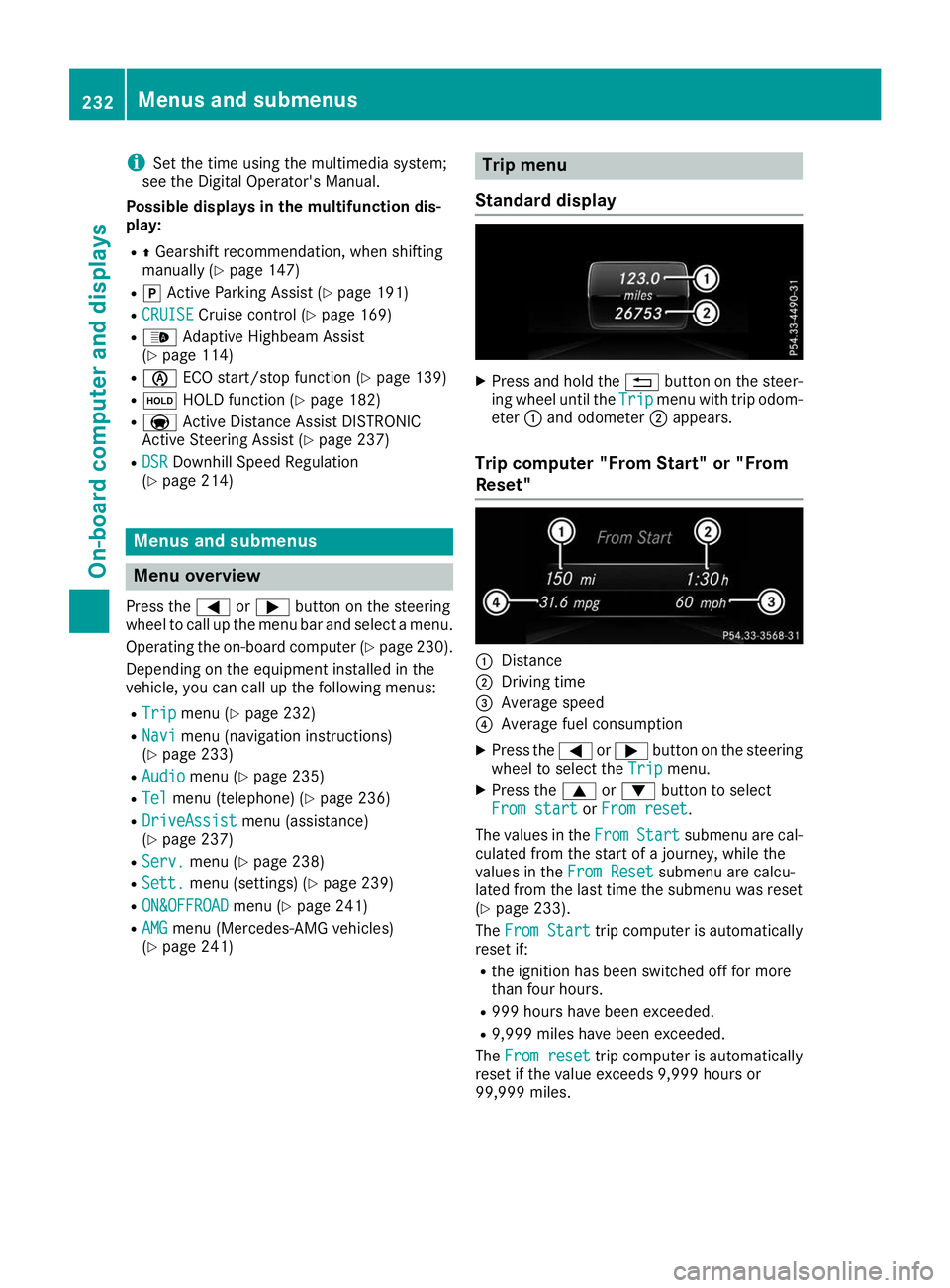
Standard display X
Press and hold the 0038button on the steer-
ing wheel until the Trip
Tripmenu with trip odom-
eter 0043and odometer 0044appears.
Trip computer "From Start" or "From
Reset" 0043
Distance
0044 Driving time
0087 Average speed
0085 Average fuel consumption
X Press the 0059or0065 button on the steering
wheel to select the Trip Tripmenu.
X Press the 0063or0064 button to select
From start
From start orFrom reset
From reset.
The values in the From
FromStart
Start submenu are cal-
culated from the start of a journey, while the
values in the From Reset
From Resetsubmenu are calcu-
lated from the last time the submenu was reset
(Y page 233).
The From Start
From Start trip computer is automatically
reset if:
R the ignition has been switched off for more
than four hours.
R 999 hours have been exceeded.
R 9,999 miles have been exceeded.
The From reset From reset trip computer is automatically
reset if the value exceeds 9,999 hours or
99,999 miles. 232
Menus and submenusOn-board computer and displays
Page 238 of 398
Telephone menu
Introduction G
WARNING
If you operate information systems and com-
munication equipment integrated in the vehi- cle when driving, you may be distracted from
the traffic situation. You could also lose con-
trol of the vehicle. There is a risk of an acci-
dent.
Only operate this equipment when the traffic
situation permits. If you are not sure that this
is possible, park the vehicle paying attention
to traffic conditions and operate the equip-
ment when the vehicle is stationary.
When telephoning, you must observe the legal
requirements for the country in which you are
currently driving.
X Switch on the mobile phone (see the manu-
facturer’s operating instructions).
X Switch on the multimedia system (see the
Digital Operator's Manual)
X Establish a Bluetooth ®
connection to the mul-
timedia system (see the Digital Operator's
Manual).
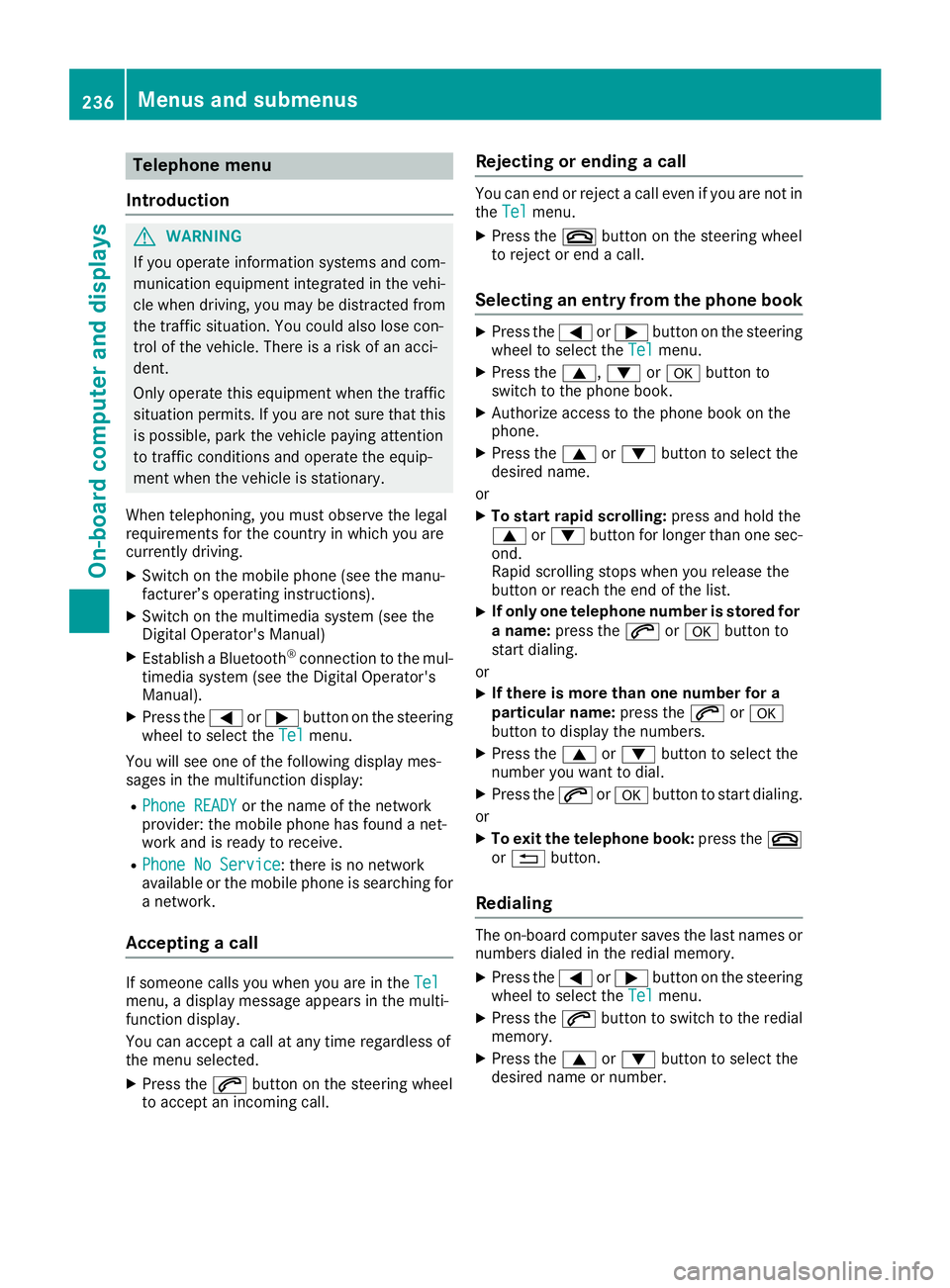
X Press the 0059or0065 button on the steering
wheel to select the Tel Telmenu.
You will see one of the following display mes-
sages in the multifunction display:
R Phone READY Phone READY or the name of the network
provider: the mobile phone has found a net-
work and is ready to receive.
R Phone No Service
Phone No Service: there is no network
available or the mobile phone is searching for
a network.
Accepting a call If someone calls you when you are in the
Tel Tel
menu, a display message appears in the multi-
function display.
You can accept a call at any time regardless of
the menu selected.
X Press the 0061button on the steering wheel
to accept an incoming call. Rejecting or ending a call You can end or reject a call even if you are not in
the Tel Tel menu.
X Press the 0076button on the steering wheel
to reject or end a call.
Selecting an entry from the phone book X
Press the 0059or0065 button on the steering
wheel to select the Tel
Telmenu.
X Press the 0063,0064or0076 button to
switch to the phone book.
X Authorize access to the phone book on the
phone.
X Press the 0063or0064 button to select the
desired name.
or
X To start rapid scrolling: press and hold the
0063 or0064 button for longer than one sec-
ond.
Rapid scrolling stops when you release the
button or reach the end of the list.
X If only one telephone number is stored for
a name: press the 0061or0076 button to
start dialing.
or X If there is more than one number for a
particular name:
press the0061or0076
button to display the numbers.
X Press the 0063or0064 button to select the
number you want to dial.
X Press the 0061or0076 button to start dialing.
or
X To exit the telephone book: press the0076
or 0038 button.
Redialing The on-board computer saves the last names or
numbers dialed in the redial memory.
X Press the 0059or0065 button on the steering
wheel to select the Tel Telmenu.
X Press the 0061button to switch to the redial
memory.
X Press the 0063or0064 button to select the
desired name or number. 236
Menus and submenusOn-board computer and displays
Page 292 of 398
Traffic reports on the route for the route guid-
ance are taken into account (not available in
all countries).
R Dynamic TRF. Route After Request Dynamic TRF. Route After Request
You can decide whether or not current traffic
reports should be included in the route cal-
culation (not available in all countries).
R Calculate Alternative Routes
Calculate Alternative Routes
Different routes are being calculated. In order to do so, instead of Start Start, select the menu
item Continue
Continue.
X To avoid/use route options: selectAvoid
Avoid
Options
Options.
X Select a route option.
Notes for route options:
R Use Toll Roads
Use Toll Roads
The route calculation includes roads which
require you to pay a usage fee (toll).
R Number of Occupants in the Vehicle: Number of Occupants in the Vehicle:
(only available in the USA)
Prerequisite: your vehicle meets the access
conditions for carpool lanes.
Carpool lanes will be included if the carpool
lanes option is activated.
Entering an address Multimedia system:
X Select Navi Navi007BNavigation Navigation.
The map shows the vehicle's current position.
X Slide 6the controller.
X Select Destination
Destination 007BAddress EntryAddress Entry.
Enter an address, e.g. as follows:
R city or ZIP code, street, house number
R state/province, city or ZIP code
R city or ZIP code, center
R street, city or ZIP code, intersection
X Select City
City.
The city in which the vehicle is currently loca-
ted (current vehicle position) is at the top.
Below this, you will see locations for which
route guidance has already been carried out.
X Enter the city.
The 0043symbol: the location is contained on
the digital map multiple times.
X To switch to the list: slide5the control-
ler. X
Select the location.
If available, the ZIP code is shown. If there are different ZIP codes available for the location,
the corresponding digits are displayed with an
X
X.
X Enter the street and house number.
The address is in the menu.
Further options for destination entry:
R search for a keyword
The keyword search finds destinations using
fragments of words.
R select the last destination
R select a contact
R select a POI
You can search for a POI by location, name or
telephone number.
R select destination on the map
R enter intermediate destination
You can map the route to the destination
yourself with up to four intermediate destina-
tions.
R select destinations from Mercedes-Benz
Apps
R select geo-coordinates
Calculating the route Prerequisite: the address has been entered and
is in the menu.
X Select Start StartorContinue
Continue.
The route is calculated with the selected route
type and the selected route options.
If route guidance has already been activated,
a prompt will appear asking whether you wish to end the current route guidance.
X Select Cancel Active Route Guidance Cancel Active Route Guidance or
Set as Intermediate Destination
Set as Intermediate Destination .
Cancel Active Route Guidance
Cancel Active Route Guidance cancels
the current route guidance and starts route
calculation to the new destination.
Set as Intermediate Destination Set as Intermediate Destination adds
the new destination in addition to the existing
destination and opens the intermediate des-
tinations list. 290
Operating systemMultimedia system
Page 294 of 398
Authorization by entering a passkey (passcode):
X Select the Bluetooth ®
name of the mobile
phone.
The input menu for the passkey is displayed.
X Choose a one to sixteen-digit number combi-
nation as a passkey.
X Enter the passkey on the multimedia system.
X Press 0054to confirm.
X Enter and confirm the passkey on the mobile
phone. Depending on the mobile phone used,
confirm the connection to the multimedia sys-
tem and for the PBAP and MAP Bluetooth ®
profiles. The prompt to confirm may take up
to two minutes to be displayed (see the man- ufacturer's operating instructions). Connecting a mobile phone (Audio 20)
Requirements For telephony via the Bluetooth
®
interface, you
require at least one Bluetooth ®
-capable mobile
phone depending on use of one-telephone
mode ortwo-telephone mode. The mobile
phone must support Hands-Free Profile 1.0 or
above.
In two-telephone mode you can use all the
functions of the multimedia system with the
main telephone. With the additional tele-
phone , you can receive incoming calls.
Multimedia system:
X Select Vehicle
Vehicle007BSystem Set‐ System Set‐
tings tings007B Activate Bluetooth
Activate Bluetooth .
X Activate Bluetooth ®
0073.
Mobile phone:
X Activate Bluetooth ®
and, if necessary, Blue-
tooth ®
visibility for other devices (see the
manufacturer's operating instructions).
The Bluetooth ®
device names for all of one man-
ufacturer's products might be identical. To
make it possible to clearly identify your mobile
phone, change the device name (see the man-
ufacturer's operating instructions). If the mobile phone supports the PBAP (P
hone
Book Access Profile) and MAP (Message
Access Profile) Bluetooth ®
profiles, the follow-
ing information is transmitted after you connect
the main telephone:
R Phone book
R Call lists
R Text messages and e-mail
i Further information on suitable mobile
phones can be found at: http://
www.mercedes-benz.com/connect
i In the USA, you can get in touch with the
Mercedes-Benz Customer Assistance Center
on 1-800-FOR-MERCedes (1-800-367-6372).
In Canada, you can get in touch with the Cus-
tomer Relations Center on 1-800-387-010 0.
Searching for and authorizing (connect- ing) a mobile phone Before using your mobile phone with the multi-
media system for the first time, you will need to
search for the phone and then authorize (con-
nect) it. Depending on the mobile phone, author- ization either takes place by means of Secure
Simple Pairing or by entering a passkey. The
multimedia system automatically makes the
procedure that is relevant for your mobile phone
available. The mobile phone is always connec-
ted automatically after authorization. Further
information on using a mobile phone with the
multimedia system (see the Digital Operator's
Manual).
If the multimedia system does not detect your
mobile phone, this may be due to particular
security settings on your mobile phone (see the manufacturer's operating instructions).
Searching for a mobile phone
Multimedia system:
X Select Tel/ Tel/00A7007BConn. Device Conn. Device007BCon‐ Con‐
nect New Device
nect New Device.
X Select Connect via Vehicle
Connect via Vehicle.
X Select mobile phone.
Connecting a mobile phone X One-telephone mode: selectConnect as
Connect as
New Main Phone
New Main Phone.
X Two-telephone mode: selectConnect as
Connect as
Additional Phone
Additional Phone when a mobile phone is
already connected. 292
Operating systemMultimedia system
Page 295 of 398
X
Authorization using Secure Simple Pair-
ing:
A code is displayed in the multimedia system
and on the mobile phone.
X Confirm code on the mobile phone. Depend-
ing on the mobile phone used, confirm the
connection to the multimedia system and for
the PBAP and MAP Bluetooth ®
profiles. The
prompt to confirm may take up to two
minutes to be displayed (see the manufactur-
er's operating instructions).
X If the codes are different: select No
No on the
multimedia system.
The process is canceled.
Repeat authorization.
or X Authorization by entering a passkey
(passcode):
enter any one- to sixteen-digit
number sequence which you have chosen
yourself into the passkey input menu.
X Press 0054to confirm.
X Enter and confirm the passkey on the mobile
phone. Depending on the mobile phone used,
confirm the connection to the multimedia sys-
tem and for the PBAP and MAP Bluetooth ®
profiles. The prompt to confirm may take up
to two minutes to be displayed (see the man- ufacturer's operating instructions).
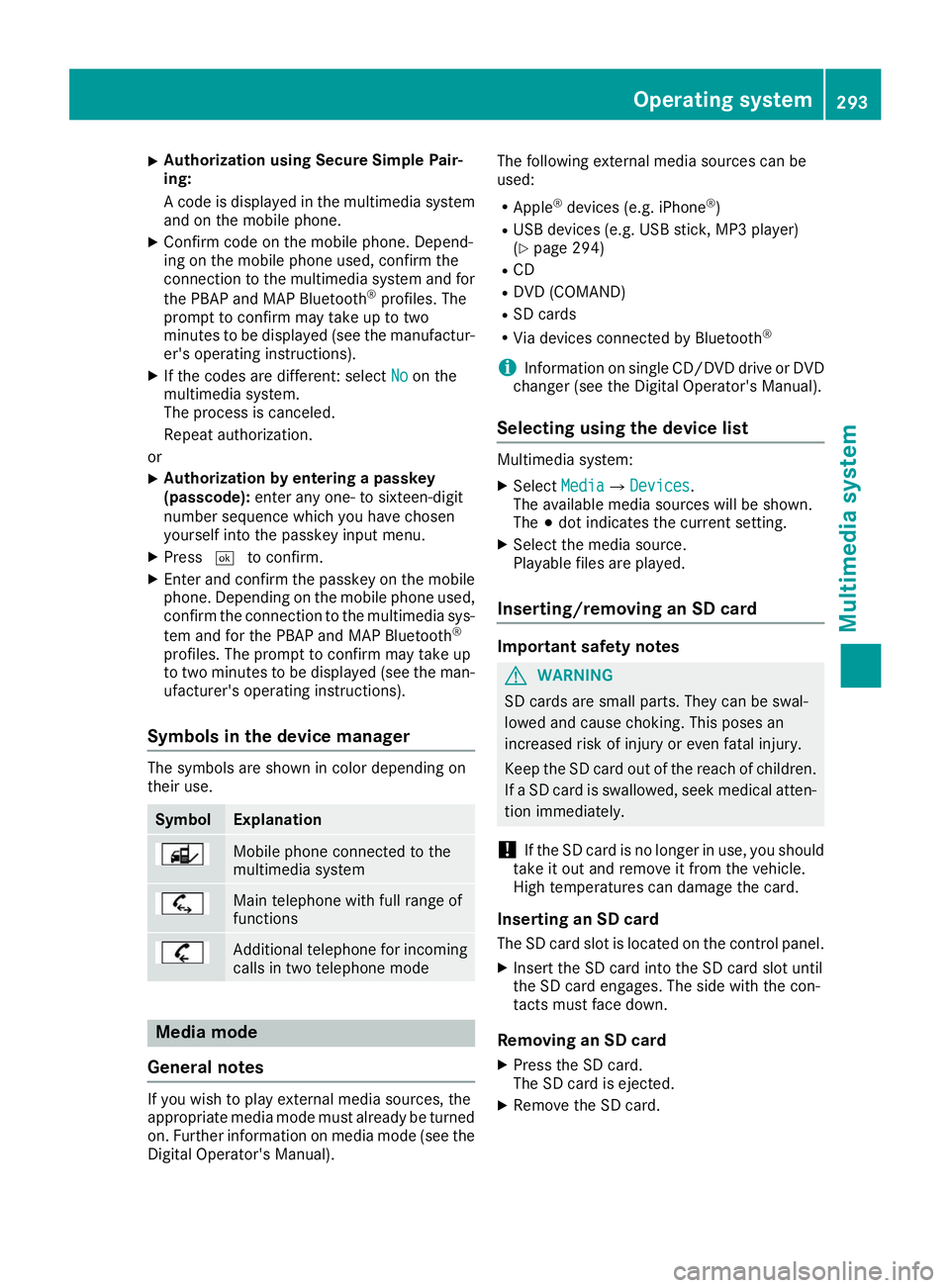
Symbols in the device manager The symbols are shown in color depending on
their use. Symbol Explanation
Mobile phone connected to the
multimedia system
Main telephone with full range of
functions
Additional telephone for incoming
calls in two telephone mode Media mode
General notes If you wish to play external media sources, the
appropriate media mode must already be turned
on. Further information on media mode (see the Digital Operator's Manual). The following external media sources can be
used:
R Apple ®
devices (e.g. iPhone ®
)
R USB devices (e.g. USB stick, MP3 player)
(Y page 294)
R CD
R DVD (COMAND)
R SD cards
R Via devices connected by Bluetooth ®
i Information on single CD/DVD drive or DVD
changer (see the Digital Operator's Manual).
Selecting using the device list Multimedia system:
X Select Media
Media007B Devices Devices.
The available media sources will be shown.
The 003Bdot indicates the current setting.
X Select the media source.
Playable files are played.
Inserting/removing an SD card Important safety notes
G
WARNING
SD cards are small parts. They can be swal-
lowed and cause choking. This poses an
increased risk of injury or even fatal injury.
Keep the SD card out of the reach of children. If a SD card is swallowed, seek medical atten-
tion immediately.
! If the SD card is no longer in use, you should
take it out and remove it from the vehicle.
High temperatures can damage the card.
Inserting an SD card
The SD card slot is located on the control panel. X Insert the SD card into the SD card slot until
the SD card engages. The side with the con-
tacts must face down.
Removing an SD card X Press the SD card.
The SD card is ejected.
X Remove the SD card. Operating system
293Multimedia system Z