CAN MERCEDES-BENZ GLE COUPE 2018 COMAND Manual
[x] Cancel search | Manufacturer: MERCEDES-BENZ, Model Year: 2018, Model line: GLE COUPE, Model: MERCEDES-BENZ GLE COUPE 2018Pages: 190, PDF Size: 4.42 MB
Page 35 of 190
Renaming favorites
XPress the favorites button on the controller.
The favorites are displayed.
XTo select a favorite to be renamed:turn the
controller.
XTo show the menu bar: slide6the con-
troller.
XTo select Rename, turn and press the con-
troller.
XEnter characters using the controller.
XTo finish the entry: selectOK.
The favorite is renamed.
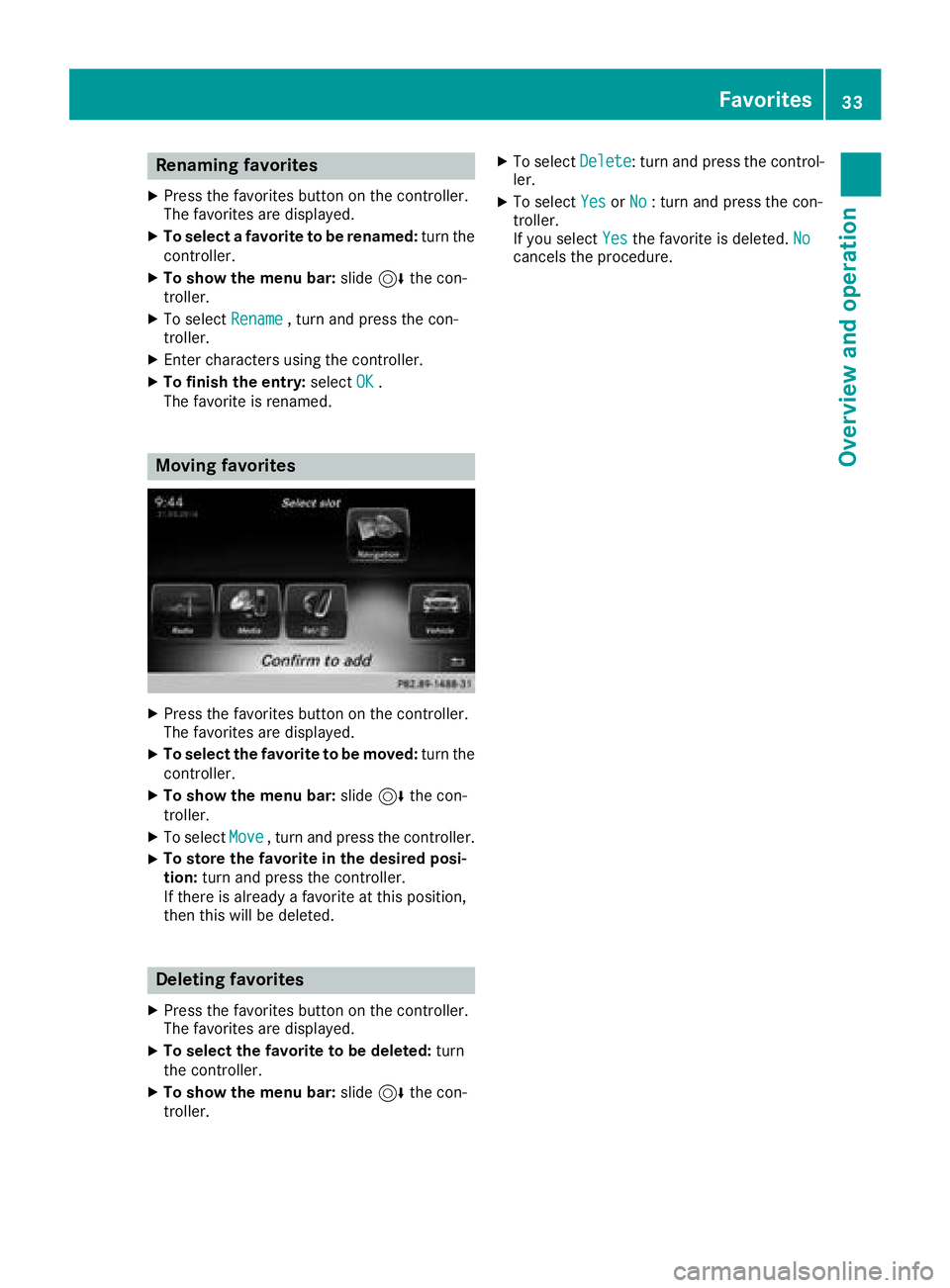
Moving favorites
XPress the favorites button on the controller.
The favorites are displayed.
XTo select the favorite to be moved: turn the
controller.
XTo show the menu bar: slide6the con-
troller.
XTo select Move, turn and press the controller.
XTo store the favorite in the desired posi-
tion:turn and press the controller.
If there is already a favorite at this position,
then this will be deleted.
Deleting favorites
XPress the favorites button on the controller.
The favorites are displayed.
XTo select the favorite to be deleted: turn
the controller.
XTo show the menu bar: slide6the con-
troller.
XTo select Delete: turn and press the control-
ler.
XTo select YesorNo: turn and press the con-
troller.
If you select Yes
the favorite is deleted. Nocancels the procedure.
Favorites33
Overview and operation
Page 36 of 190
Your multimediasyste mequipment
These operatin ginstruction sdescribe all th e
standar dan doptional equipment of your multi-
media system, as available at th etime of going
to press. Country-specifi cdifference sare pos -
sible. Bear in min dthat your vehicle may no t
feature all function sdescribed here. Thi salso
applies to safety-relevan tsystems an dfunc-
tions.
Read th einformation on qualifie dspecialis t
workshop sin th evehicle Operator's Manual.
Important safet ynotes
GWARNING
If you operat emobile communication equip-
men twhen driving, you may be distracted
from th etraffic situation .You could also los e
contro lof th evehicle. There is aris kof an
accident.
Only operat ethis equipment when th evehicle
is stationary.
GWARNING
SD cards are small parts .The ycan be swal -
lowe dan dcause choking. Thi sposes an
increase dris kof injury or eve nfatal injury.
Kee pth eSD car dout of th ereach of children .
If aSD car dis swallowed, see kmedical atten-
tion immediately.
You mus tobserv eth elegal requirements fo rth e
country in whic hyou are currentl ydrivin gwhen
operatin gmobile communication sequipment in
th evehicle.
Display settings
Setting th ebrightness
The brightness detecte dby th edisplay ligh tsen -
sor affects th esetting option sfo rthis function .
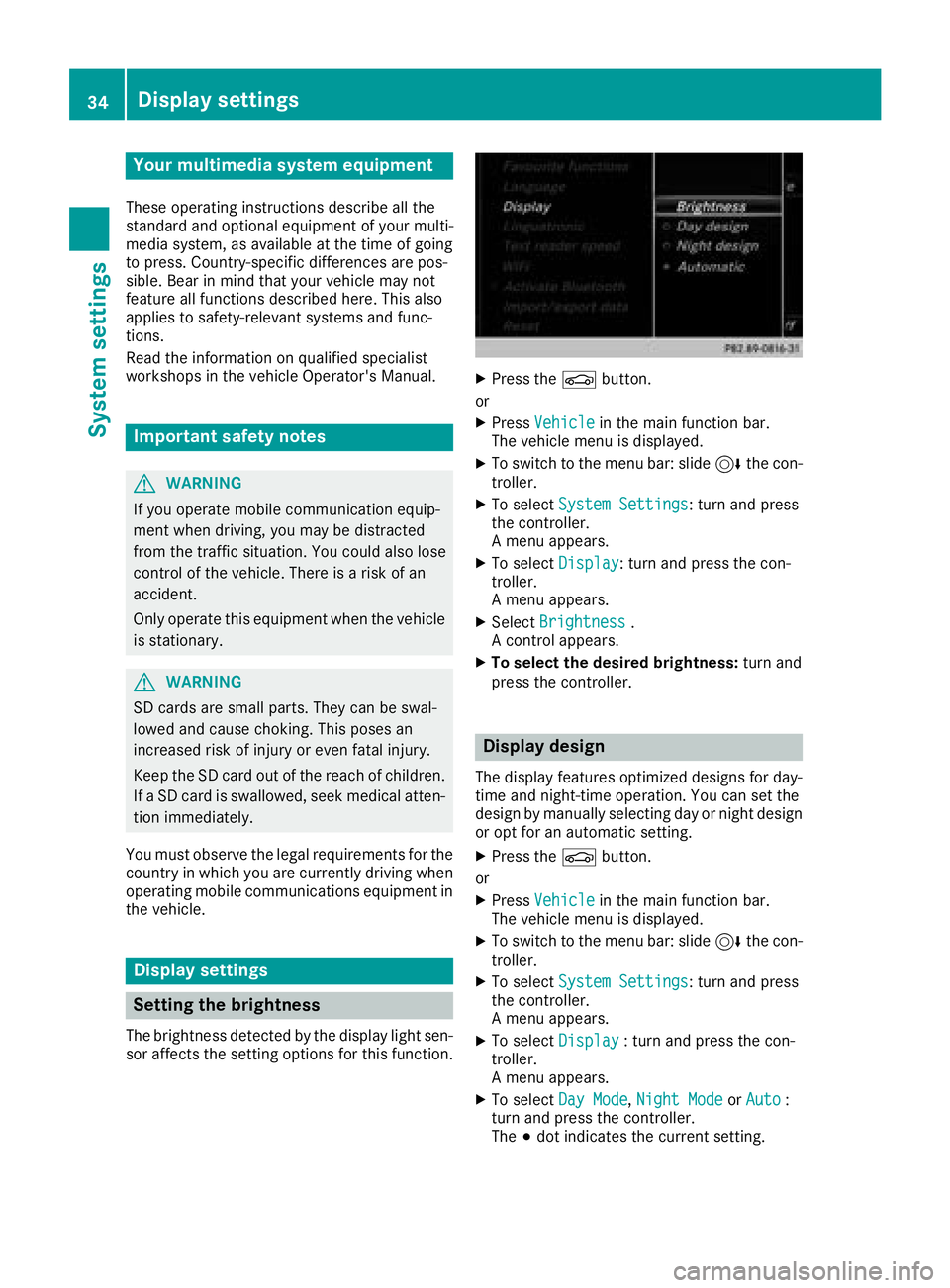
XPress theØ button.
or
XPress Vehicl ein themain function bar .
The vehicle men uis displayed.
XTo switch to th emen ubar :slid e6 thecon-
troller.
XTo selec tSystem Settings:turn an dpress
th econtroller .
A men uappears .
XTo selec tDispla y:turn an dpress th econ-
troller.
A men uappears .
XSelectBrightness.
A contro lappears .
XTo select th edesired brightness: turn and
press th econtroller .
Display design
The display feature soptimize ddesign sfo rday-
time an dnight-time operation .You can set th e
design by manually selecting day or night design
or opt fo ran automatic setting .
XPress theØ button.
or
XPress Vehicl ein themain function bar .
The vehicle men uis displayed.
XTo switch to th emen ubar :slid e6 thecon-
troller.
XTo selec tSystem Settings:turn an dpress
th econtroller .
A men uappears .
XTo selec tDispla y:turn an dpress th econ-
troller.
A men uappears .
XTo selec tDa yMode,Nigh tModeor Auto:
turn an dpress th econtroller .
The #dot indicates th ecurren tsetting .
34Display settings
System settings
Page 37 of 190
DesignExplanation
Day ModeThe display is set perma-
nently to day design .
Night ModeThe display is set perma-
nently to night design .
AutoThe multimedia system
evaluate sth edat aof th e
ligh tsensor and automat -
ically switches ove rth e
display design .
Switching the display on/off
Switchingoff th edispla y
XPress th eØ button.
XTo switch to th emen ubar: slid e6 thecon-
troller.
XTo select DisplayOff:tur nand press th e
controller .
The display goe sout .
XTo switch th edispla yon again: press the
controller .
Time settings
Gene ral inform ation
The multimedia system can automatically set
thetime and date.
The followin gnavigation system function s
require th etime, time zone and summer/stand-
ard time to be set correctl yin order to wor k
properly:
Rrout eguidance on routes wit htime-depend -
en ttraffic guidance
Rcalculation of expecte dtime of arrival
Switching automatic ti me onand off
TheAutomatic Tim eSettingsfunction is
used to activat eor deactivat eth eautomatic
setting of th etime and date. This function is
activated when th evehicl eleaves th efactory.
XPress th eØ button.
or
XPress Vehicl ein themain function bar.
The vehicl emen uis displayed.
XTo switch to th emen ubar: slid e6 thecon-
troller.
XTo select Time:tur nand press th econtroller .
A men uappears.
XTo switch AutomaticTimeSettingsonO
or off ª:press th econtroller .
Setting the ti mezone
To set th etime zone ,th eAutomatic Tim eSettingsfunction mustbe activated.
XPress th eØ button.
or
XPress Vehicl ein themain function bar.
The vehicl emen uis displayed.
XTo switch to th emen ubar: slid e6 thecon-
troller.
XTo select Time:tur nand press th econtroller .
A men uappears.
XTo select TimeZone::tur nand press th e
controller .
A list of countrie sappears. The #dot indi-
cates th ecurren tsetting .
XTo select th ecountr yin which you ar e
currentl ydriving: turnand press th econ-
troller.
The country is accepted. Atime zone list may
also be displayed, depending on th ecountry
selected.
XTo select th edesired time zone: turnand
press th econtroller .
The time zone is accepted.
A list of available option sfor setting summer
time appear s (
Ypage 35).
Setting sum mer and standard ti me
TheDaylight Saving Tim efunction is not
available in all countries.
Using th eDaylight Saving Tim e
function,
you can set th eautomatic changeover to sum -
mer time or switch th esummer time setting son
and off .The changeover to summer time advan -
ce sth etime by on ehour .
XPress th eØ button.
or
XPress Vehicl ein themain function bar.
The vehicl emen uis displayed.
Time settings35
System settings
Z
Page 38 of 190
XTo switch to the menu bar: slide6the con-
troller.
XTo select Time: turn and press the controller.
A menu appears.
XTo select Daylight Saving Time: turn and
press the controller.
A list with options appears.
XTo select Automatic,Onor Off: turn and
press the controller.
SettingFunction
AutomaticThe summer and
standard time are
automatically
changed over.
OnThe clock is advanced
one hour ahead of
standard time.
OffThe standard time for
the chosen time zone
is selected.
Setting the time manually
iUsing the manual time settings, you can set
the time forward or back by up to several
hours.
XPress the Øbutton.
or
XPress Vehiclein the main function bar.
The vehicle menu is displayed.
XTo switch to the menu bar: slide 6the con-
troller.
XTo select Time: turn and press the controller.
A menu appears.
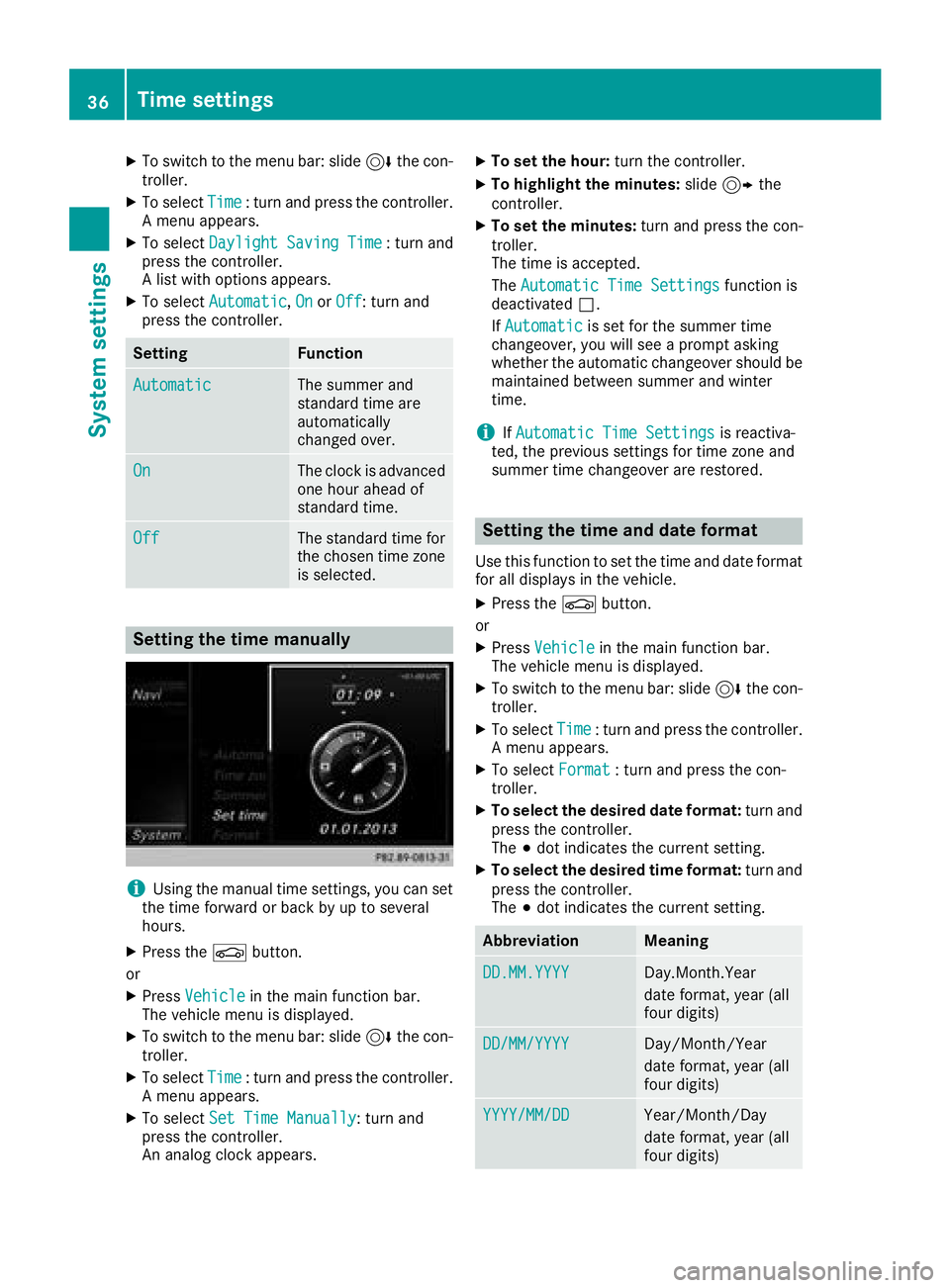
XTo select Set Time Manually: turn and
press the controller.
An analog clock appears.
XTo set the hour: turn the controller.
XTo highlight the minutes: slide9 the
controller.
XTo set the minutes: turn and press the con-
troller.
The time is accepted.
The Automatic Time Settings
function is
deactivated ª.
If Automatic
is set for the summer time
changeover, you will see a prompt asking
whether the automatic changeover should be
maintained between summer and winter
time.
iIf Automatic Time Settingsis reactiva-
ted, the previous settings for time zone and
summer time changeover are restored.
Setting the time and date format
Use this function to set the time and date format for all displays in the vehicle.
XPress the Øbutton.
or
XPress Vehiclein the main function bar.
The vehicle menu is displayed.
XTo switch to the menu bar: slide 6the con-
troller.
XTo select Time: turn and press the controller.
A menu appears.
XTo select Format: turn and press the con-
troller.
XTo select the desired date format: turn and
press the controller.
The #dot indicates the current setting.
XTo select the desired time format: turn and
press the controller.
The #dot indicates the current setting.
AbbreviationMeaning
DD.MM.YYYYDay.Month.Year
date format, year (all
four digits)
DD/MM/YYYYDay/Month/Year
date format, year (all
four digits)
YYYY/MM/DDYear/Month/Day
date format, year (all
four digits)
36Time settings
System settings
Page 39 of 190
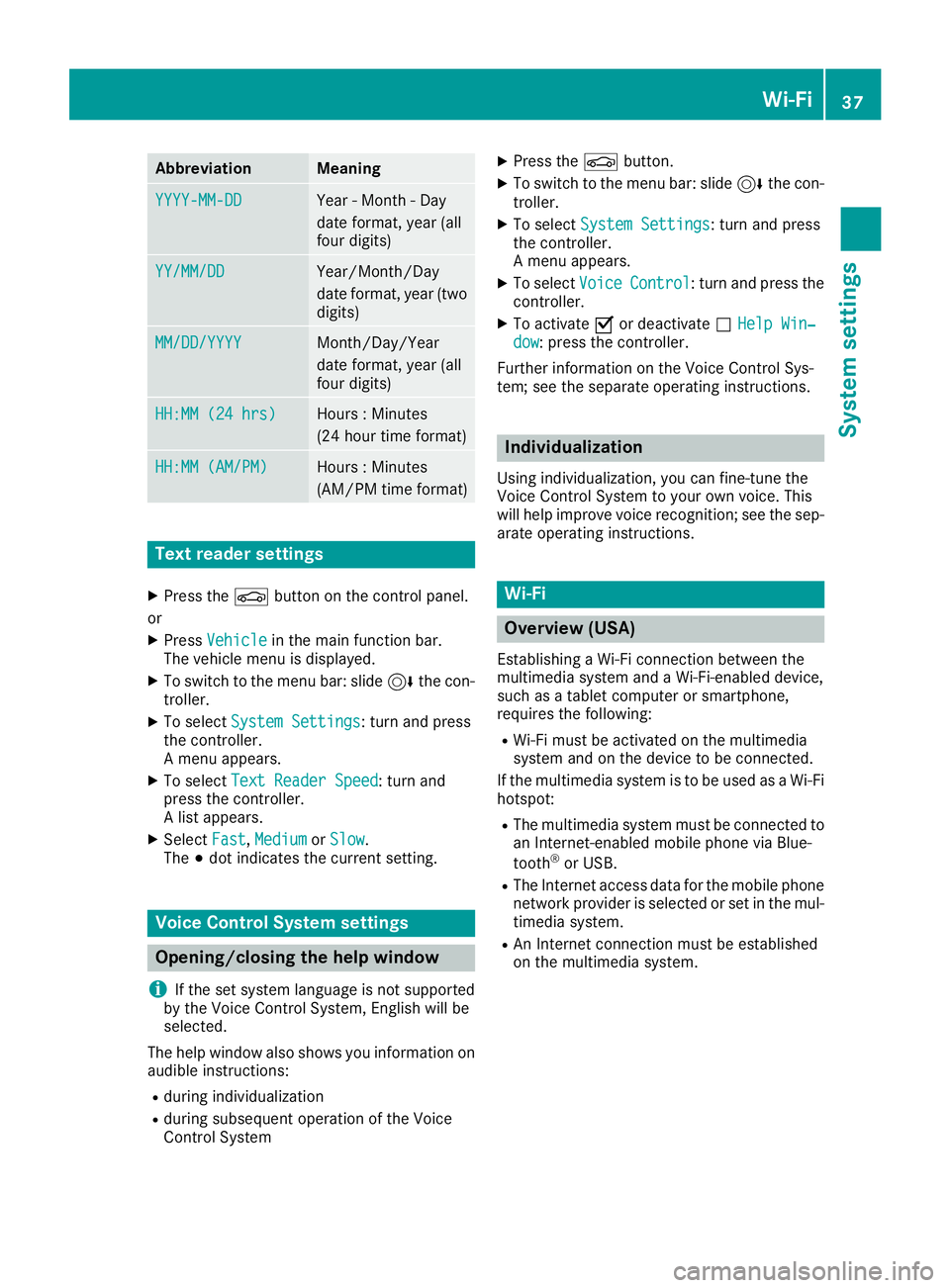
AbbreviationMeaning
YYYY-MM-DDYear - Month - Day
date format, year (all
fourdigits)
YY/MM/DDYear/Month /Day
date format, year (two
digit s)
MM/DD/YYYYMonth /Day/Year
date format, year (all
four digits)
HH:MM (24 hrs)Hours : Minutes
(24 hour time format)
HH:MM (AM/PM)Hours : Minutes
(AM/PM time format)
Text reader settings
XPress the Øbutton on the control panel.
or
XPress Vehicleinthe main function bar.
The veh iclemenu is displ ayed.
XToswit ch to the menu bar: slide6the con-
troller.
XTo select System Settings: turn and press
the controller.
A menu appears.
XTo select Text Reader Speed: turn and
press the controller.
A list appears.
XSelect Fast,Mediumor Slow.
The #dot indicates the current setting.
Voice Control System settings
Opening/closing the help window
i
If the set system language isnot supported
by the Voice Control System, English will be
selected.
The help window also shows you information on
audible instructions:
Rduring individualization
Rduring subsequent operation of the Voice
Control System
XPress the Øbutton.
XToswit ch to the menu bar: slide 6the con-
troller.
XTo select System Settings: turn and press
the controller.
A menu appears.
XTo select VoiceControl: turn and press the
controller.
XTo activate Oor deactivate ªHelp Win‐dow: press the controller.
Further information on the Voice Control Sys-
tem; see the separate operating instructions.
Individualization
Using ind ividualization, you can fine-tune the
Voice Control System to your own voice. This
will help improve voice recognition; see the sep-
arate operating instructions.
Wi-Fi
Overview (USA)
Establishing a Wi-Fi connection between the
multimedia system and a Wi-Fi-enabled device,
such as a tablet computer or smartphone,
requires the foll owing:
RWi-Fi must be activated on the multimedia
system and on the device to be connected.
If the multimedia system isto be used as a Wi-Fi
hotspot:
RThe multimedia system must beconnected to
an Internet-enabled mobile phone via Blue-
tooth
®or USB.
RThe Internet access data for the mobile phone
network provider is selected or set inthe mul-
timedia system.
RAn Internet connection must be established
on the multimedia system.
Wi-Fi37
System settings
Z
Page 40 of 190
Overview (Canada)
The following requirements for establishing a
Wi-Fi connection between the multimedia sys-
tem and a Wi-Fi hotspot of a Wi-Fi-enabled
device, such as a smartphone, or another hot-
spot must be met:
RWi-Fi must be enabled on the multimedia sys-
tem.
RSwitch on Wi-Fi hotspot on the external
device; see the manufacturer's operating
instructions.
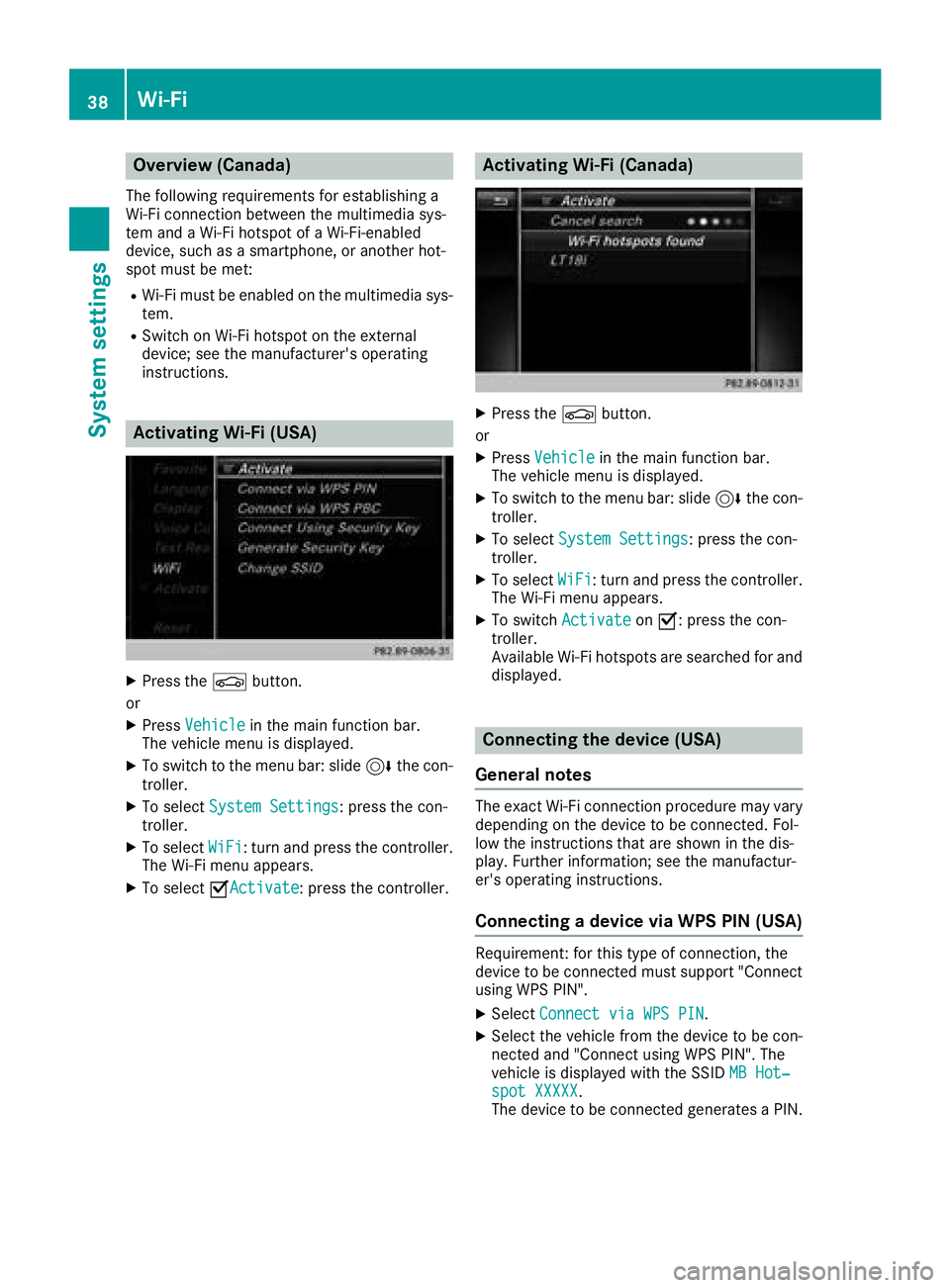
Activating Wi-Fi (USA)
XPress theØbutton.
or
XPress Vehiclein the main function bar.
The vehicle menu is displayed.
XTo switch to the menu bar: slide 6the con-
troller.
XTo select System Settings: press the con-
troller.
XTo select WiFi: turn and press the controller.
The Wi-Fi menu appears.
XTo select OActivate: press the controller.
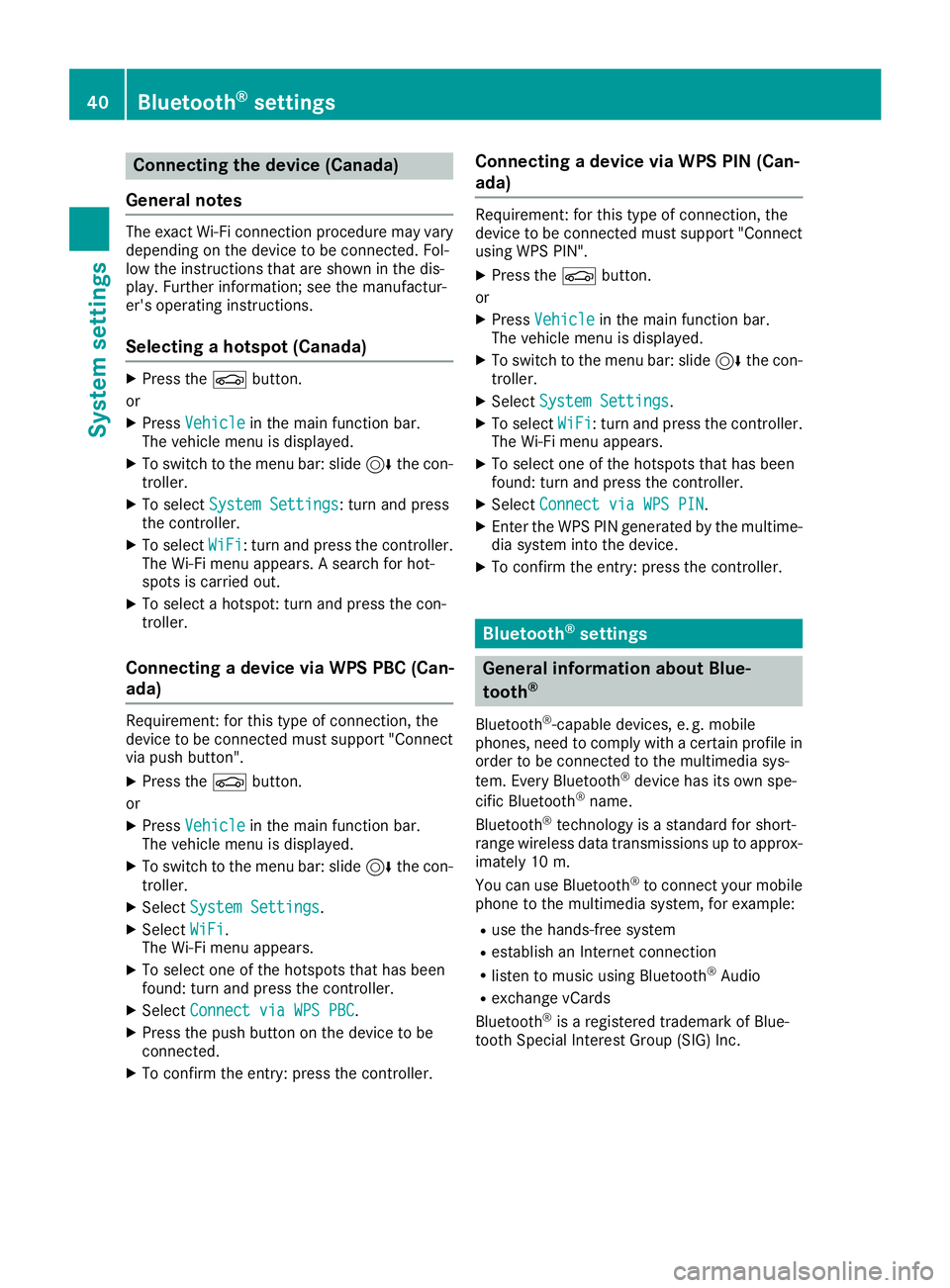
Activating Wi-Fi (Canada)
XPress the Øbutton.
or
XPress Vehiclein the main function bar.
The vehicle menu is displayed.
XTo switch to the menu bar: slide 6the con-
troller.
XTo select System Settings: press the con-
troller.
XTo select WiFi: turn and press the controller.
The Wi-Fi menu appears.
XTo switch ActivateonO: press the con-
troller.
Available Wi-Fi hotspots are searched for and
displayed.
Connecting the device (USA)
General notes
The exact Wi-Fi connection procedure may vary
depending on the device to be connected. Fol-
low the instructions that are shown in the dis-
play. Further information; see the manufactur-
er's operating instructions.
Connecting a device via WPS PIN (USA)
Requirement: for this type of connection, the
device to be connected must support "Connect
using WPS PIN".
XSelect Connect via WPS PIN.
XSelect the vehicle from the device to be con-
nected and "Connect using WPS PIN". The
vehicle is displayed with the SSID MB Hot‐
spot XXXXX.
The device to be connected generates a PIN.
38Wi-Fi
System settings
Page 42 of 190
Connecting the device (Canada)
General notes
The exact Wi-Fi connection procedure may vary
depending on the device to be connected. Fol-
low the instructions that are shown in the dis-
play. Further information; see the manufactur-
er's operating instructions.
Selecting a hotspot (Canada)
XPress the Øbutton.
or
XPress Vehiclein the main function bar.
The vehicle menu is displayed.
XTo switch to the menu bar: slide 6the con-
troller.
XTo select System Settings: turn and press
the controller.
XTo select WiFi: turn and press the controller.
The Wi-Fi menu appears. A search for hot-
spots is carried out.
XTo select a hotspot: turn and press the con-
troller.
Connecting a device via WPS PBC (Can-
ada)
Requirement: for this type of connection, the
device to be connected must support "Connect
via push button".
XPress the Øbutton.
or
XPress Vehiclein the main function bar.
The vehicle menu is displayed.
XTo switch to the menu bar: slide 6the con-
troller.
XSelect System Settings.
XSelectWiFi.
The Wi-Fi menu appears.
XTo select one of the hotspots that has been
found: turn and press the controller.
XSelect Connect via WPS PBC.
XPress the push button on the device to be
connected.
XTo confirm the entry: press the controller.
Connecting a device via WPS PIN (Can-
ada)
Requirement: for this type of connection, the
device to be connected must support "Connect
using WPS PIN".
XPress the Øbutton.
or
XPress Vehiclein the main function bar.
The vehicle menu is displayed.
XTo switch to the menu bar: slide 6the con-
troller.
XSelect System Settings.
XTo select WiFi: turn and press the controller.
The Wi-Fi menu appears.
XTo select one of the hotspots that has been
found: turn and press the controller.
XSelect Connect via WPS PIN.
XEnter the WPS PIN generated by the multime-
dia system into the device.
XTo confirm the entry: press the controller.
Bluetooth®settings
General information about Blue-
tooth®
Bluetooth®-capable devices, e. g. mobile
phones, need to comply with a certain profile in
order to be connected to the multimedia sys-
tem. Every Bluetooth
®device has its own spe-
cific Bluetooth®name.
Bluetooth®technology is a standard for short-
range wireless data transmissions up to approx-
imately 10 m.
You can use Bluetooth
®to connect your mobile
phone to the multimedia system, for example:
Ruse the hands-free system
Restablish an Internet connection
Rlisten to music using Bluetooth®Audio
Rexchange vCards
Bluetooth®is a registered trademark of Blue-
tooth Special Interest Group (SIG) Inc.
40Bluetooth®settings
System settings
Page 43 of 190
Activating/deactivating Bluetooth®
X
Press th eØ button.
or
XPress Vehicl ein themain function bar.
The vehicl emen uis displayed.
XTo switch to th emen ubar: slid e6 thecon-
troller .
XTo select System Settings:tur nand press
th econtroller .
A men uappears.
XTo switch Activate BluetoothonO or off
ª: turnand press th econtroller .
Setting the system language
General inform ation
This function allows you to determine th elan -
guage for th emen udisplays and th enavigation
messages. The selected language affects th e
characters available for entry.
iThe navigation announcements are no t
available in all languages. If alanguage is no t
available, th enavigation announcements will
be in English.
iWhen you set th esystem language ,th elan -
guage of th eVoic eControl Syste mwill
chang eaccordingly. If it is no tsupported by
th eVoic eControl System, Englis hwill be
selected.
Setting the system language
XPress th eØ button.
or
XPress Vehicl ein themain function bar.
The vehicl emen uis displayed.
XTo switch to th emen ubar: slid e6 thecon-
troller .
XTo select System Settings:tur nand press
th econtroller .
A men uappears.
XTo select Language:tur nand press th econ-
troller .
The list of language sappears. The #dot indi-
cates th ecurren tsetting .
XSelectth edesired language .
The multimedia system loads th eselected
language and set sit.
Calling up the favorite functions
The favorite sfunction can be called up as fol -
lows :
Rvia th eSystem Settingsmen u
Rvia th eFavorite sbutto non th econtroller
(Ypage 22)
Rvia th eFavorite sbutto non th etouchpad
(Ypage 23 )
Calling up th eFavorites function via th esys -
tem men u
XPress theØ button.
or
XPress Vehicl ein themain function bar.
The vehicl emen uis displayed.
XTo switch to th emen ubar: slid e6 thecon-
troller .
XTo select System Settings:tur nand press
th econtroller .
A men uappears.
XTo select Favorite Functions:press th e
controller .
The favorite sare displayed.
XTo select th edesired function ,e.g. Phone‐book:tur nand press th econtroller .
A men uappears.
Calling up th eFavorites function using th e
controller
XPress th efavorite sbutto non th econtroller .
The favorite sare displayed.
XTo select th edesired function ,e.g. Phone‐book:tur nand press th econtroller .
Calling up th eFavorites function via th e
touchpad
XPress th efavorite sbutto non th etouchpad.
The favorite sare displayed.
XTo select th edesired function ,e.g. Phone‐book:tur nand press th econtroller .
Calling up the favorite functions41
System settings
Z
Page 44 of 190
Exiting the Favorites function
XPress the Favorites button again.
or
XPress the %button.
Further information on the Favorites function
(
Ypage 32).
Importing/exporting data
General notes
!
Never remove the stick or card when writing
data to the USB stick or the memory card. You may otherwise lose data.
iPlease remember that the NFTS file system
is not supported. The FAT32 file system is
recommended.
Using this function you can do the following with
your personal data:
Rtransfer your data from one multimedia sys-
tem to another multimedia system
(The transfer may be limited or not possible,
depending on the vehicle's equipment.)
Rmake a backup copy of your personal data
(export data) and load it again (import data)
Rprotect your data from unwanted export by
activating a pin prompt (presetting: deactiva-
ted ª)
You can either use an SD card or a USB storage
device (e.g. a USB stick) as temporary storage.
Further information on importing and exporting data can be obtained at a qualified specialist
workshop.
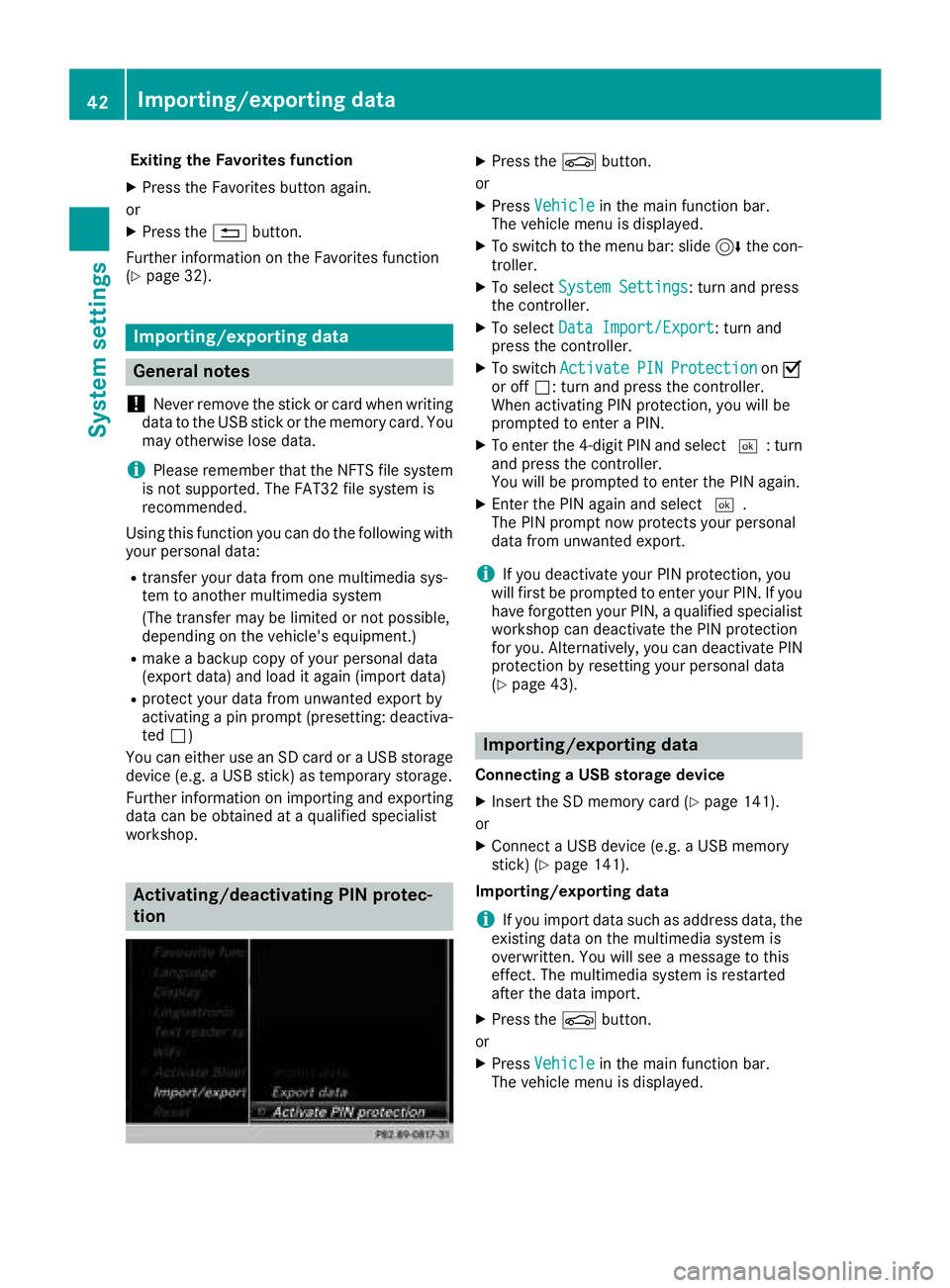
Activating/deactivating PIN protec-
tion
XPress the Øbutton.
or
XPress Vehiclein the main function bar.
The vehicle menu is displayed.
XTo switch to the menu bar: slide 6the con-
troller.
XTo select System Settings: turn and press
the controller.
XTo select Data Import/Export: turn and
press the controller.
XTo switch ActivatePINProtectiononO
or off ª: turn and press the controller.
When activating PIN protection, you will be
prompted to enter a PIN.
XTo enter the 4-digit PIN and select ¬: turn
and press the controller.
You will be prompted to enter the PIN again.
XEnter the PIN again and select ¬.
The PIN prompt now protects your personal
data from unwanted export.
iIf you deactivate your PIN protection, you
will first be prompted to enter your PIN. If you
have forgotten your PIN, a qualified specialist
workshop can deactivate the PIN protection
for you. Alternatively, you can deactivate PIN
protection by resetting your personal data
(
Ypage 43).
Importing/exporting data
Connecting a USB storage device
XInsert the SD memory card (Ypage 141).
or
XConnect a USB device (e.g. a USB memory
stick) (Ypage 141).
Importing/exporting data
iIf you import data such as address data, the
existing data on the multimedia system is
overwritten. You will see a message to this
effect. The multimedia system is restarted
after the data import.
XPress the Øbutton.
or
XPress Vehiclein the main function bar.
The vehicle menu is displayed.
42Importing/exporting data
System settings
Page 45 of 190
XTo switch to the menu bar: slide6the con-
troller.
XTo select System Settings: turn and press
the controller.
A menu appears.
XTo select Data Import/Export: turn and
press the controller.
XSelect Import DataorExport Data.
If PIN protection is activated, a PIN prompt
appears when you select Export Data
.
XTo enter the 4-digit PIN and select ¬: turn
and press the controller.
PIN protection is deactivated.
XTo select MemoryCard,USB 1or USB 2: turn
and press the controller.
This function exports all the data to the selec-
ted disc.
iYou can export address data, bookmarks,
system settings that you have made and radio
station lists, for example.
Mercedes-Benz is not liable for any loss of
data.
Reset function
General information
You can reset the multimedia system to the fac-
tory settings. This includes the deletion of all of
your personal data on the multimedia system.
These include:
RStation presets
REntries in the destination memory
REntries in the list of previous destinations in
the navigation system
REntries in the address book
RAuthorized telephone
In addition, an activated PIN protection, which
you have used to protect your data against
unwanted export, will be deactivated. Resetting
is recommended before selling or transferring
ownership of your vehicle, for example.
Mercedes-Benz is not liable for any loss of data.
Resetting the multimedia system
XPress the Øbutton.
or
XPress Vehiclein the main function bar.
The vehicle menu is displayed.
XTo switch to the menu bar: slide 6the con-
troller.
XTo select System Settings: turn and press
the controller.
XTo select Reset: turn and press the control-
ler.
A prompt appears asking whether you wish to
reset.
XSelect Yes.
A prompt appears again asking whether you
really wish to reset.
XSelect Yes.
The multimedia system is reset to the factory
settings and restarted.
Reset function43
System settings
Z