CAN MERCEDES-BENZ GLE COUPE 2018 COMAND Manual
[x] Cancel search | Manufacturer: MERCEDES-BENZ, Model Year: 2018, Model line: GLE COUPE, Model: MERCEDES-BENZ GLE COUPE 2018Pages: 190, PDF Size: 4.42 MB
Page 46 of 190
Your multimediasyste mequipment
These operatin ginstruction sdescribe all th e
standar dan doptional equipment of your multi-
media system, as available at th etime of going
to press. Country-specifi cdifference sare pos -
sible. Bear in min dthat your vehicle may no t
feature all function sdescribed here. Thi salso
applies to safety-relevan tsystems an dfunc-
tions.
Read th einformation on qualifie dspecialis t
workshop sin th evehicle Operator's Manual.
Important safet ynotes
GWARNING
If you operat emobile communication equip-
men twhen driving, you may be distracted
from th etraffic situation .You could also los e
contro lof th evehicle. There is aris kof an
accident.
Only operat ethis equipment when th evehicle
is stationary.
You mus tobserv eth elegal requirements fo rth e
country in whic hyou are currentl ydrivin gwhen
operatin gmobile communication sequipment in
th evehicle.
Vehicl esettings
Calling up vehicle settings
XPress th eØ button.
or
XPress Vehicl ein themain function bar .
The vehicle men uis displayed.
XTo selec tVehicl eSettings:turn an dpress
th econtroller .
XTo selectth edesire dvehicle setting :turn an d
press th econtroller .
The main are awit hth esetting elemen tis
active .
Selecting adifferent vehicle setting:
XTo activat eth emen ufo rselecting th evehicle
setting :slid e5 thecontroller . Exiting th
evehicle settings :
XTo select& :slid e6 andpress th econ-
troller.
Ambien tlighting
General notes
You can set th efollowin gfo rth eambien tlight-
ing:
RBrightness
Thi ssetting changes th ebrightness of th e
ambien tlighting .
RColor
Thi ssetting changes th ecolor of th eambien t
lighting .
RInteriorwelcom eligh t
Whe nth edriver's doo ris opened, th eambien t
lighting is activated fo r ashort time.
Setting th ebrightness
XCall up VehicleSettings(Ypage 44).
XTo selec tAmbien tLigh tBrightness:turn
an dpress th econtroller .
The setting elemen tis active .
XTo change th ebrightness value: turn an d
press th econtroller .
You can fin dfurther information on th einterio r
lighting in th evehicle Operator's Manual.
Setting th ecolor
XCall up VehicleSettings(Ypage 44).
XTo selec tAmbien tLigh tColo r:turn an d
press th econtroller .
The setting elemen tis active .
XTo selec t acolor :turn an dpress th econtrol-
ler .
You can fin dfurther information on th einterio r
lighting in th evehicle Operator's Manual.
Setting th einterior welcom eligh t
XCall up VehicleSettings(Ypage 44).
XTo selec tInterior Welcom eLigh t:turn
an dpress th econtroller .
XPress thecontroller .
The function is switched on or off, dependin g
on th eprevious status.
44Vehicle settings
Vehicle functions
Page 47 of 190
You can find further information on the interior
lighting in the vehicle Operator's Manual.
Switching locator lighting on/off
When theLocatorLightingfunction is active,
the exterior lighting is activated for 40 seconds
after the vehicle is unlocked. The light switch
must be set to Ã.
When you start the engine, the locator lighting is
switched off and the automatic driving lights are
activated.
You can find further information on the auto-
matic headlamp mode in the vehicle Operator's
Manual.
XCall up Vehicle Settings(Ypage 44).
XTo select LocatorLighting: turn and press
the controller.
XPress the controller.
The function is switched on or off, depending
on the previous status.
You can find further information on the locking
feature in the vehicle Operator's Manual.
iThere may be fewer settings or none
depending on your vehicle's equipment.
Setting the switch-off delay time
Interior lighting switch-off delay time
The interior lighting is activated for the duration
of the switch-off delay time when the SmartKey is removed from the ignition lock.
XCall up Vehicle Settings(Ypage 44).
XTo select Interior Lighting DelayedSwitch-off: turn and press the controller.
The setting element is active.
XTo change the delayed switch-off time: turn
and press the controller.
You can find further information on the interior
lighting in the vehicle Operator's Manual.
Exterior lighting switch-off delay time
If you switch on the Exterior LightingDelayed Switch-offfunction, the exterior
lighting is switched on for a short time after the
engine is switched off. The light switch must be
set to Ã. The exterior lighting remains lit for 60 seconds
after the engine is switched off. If you close all
the doors and the tailgate, the exterior lighting
switches off after the set time.
XCall up
Vehicle Settings(Ypage 44).
XTo select Exterior Lighting DelayedSwitch-off: turn and press the controller.
The setting element is active.
XTo change the delayed switch-off time: turn
and press the controller.
Displaying energy consumption and
generated electrical energy
A bar graph displays the energy consumption
and the generated electrical energy.
XPress Vehiclein the main function bar.
The vehicle menu is displayed.
XTo select Consumption: turn and press the
controller.
The energy consumption and the generated
electrical energy for the last 15 minutes of the
journey is shown.
For further information on energy consumption,
see the vehicle Operator's Manual.
Displaying the fuel consumption
A bar graph displays the fuel consumption.
XPress Vehiclein the main function bar.
The vehicle menu is displayed.
XTo select Consumption: turn and press the
controller.
The fuel consumption for the last 15 minutes
of the journey is shown.
Switching the ionization on/off
The ionization has a cleansing effect on the air in
the vehicle interior. Further information (see the
vehicle Operator's Manual).
XCall up Vehicle Settings(Ypage 44).
XTo select Ionization: turn and press the
controller.
The ionization is switched on or off, depend-
ing on the previous status: press and turn the
controller.
XTo exit the menu: press the%button.
Vehicle settings45
Vehicle functions
Z
Page 48 of 190
Seats
Overview
You can configure the following seat functions in
the menu:
RBackrest side bolsters
RLumbar
RSeat cushion
RMassage
RDynamics
RSeat heating balance
iThere may be fewer settings or none
depending on your vehicle's equipment.
Selecting the adjustment function
and seat
XPress the Øbutton.
or
XTo select Vehiclefrom the main function bar:
turn and press the controller.
The vehicle menu is displayed.
XTo select SeatSettings: turn and press the
controller.
The seat settings menu is shown.
or
XPress the Tbutton on the controller.
The menu for the seat setting appears.
XTo select the required seat function: turn and
press the controller.
XTo switch between DriverandFrontPassenger: slide 1 the controller.
Adjustment functions
Adjusting the backrest side bolsters
XCall up the seat functions (Ypage 46).
XTo select Backrest Sides: turn and press
the controller.
XTo change the setting: turn the controller.
You will see the changes you have made in the settings display.
XTo exit the menu: press the%button.
Adjusting the seat contour in the lum-
bar region of the seat backrest
This function allows you to adjust the air cush-
ions in the lumbar region of the backrest (4-way
lumbar support).
XCall up the seat functions (Ypage 46).
XTo select Lumbar: turn and press the control-
ler.
XTo activate the setting element: press the
controller.
XTo change the setting: slide 4or1
the controller.
The change will be visible in the setting ele-
ment.
XTo exit the menu: press the%button.
Adjusting the seat cushion
XCall up the seat functions (Ypage 46).
XTo select Seat Surface: turn and press the
controller.
XTo select a seat: slide 1the controller.
XTo change the setting: turn the controller.
You will see the changes you have made in the
settings display.
XTo exit the menu: press the%button.
Adjusting the driving dynamics
XCall up the seat functions (Ypage 46).
XTo select Dynamic Multicontour Seat:
turn and press the controller.
XTo select a seat: slide 1the controller.
You can select:
ROFF:
R1: Level 1 (weak)
R2: Level 2 (strong)
XTo select the setting: turn the controller.
XTo exit the menu: press the%button.
Massage programs
Overview
You can select the following massage programs:
RRelaxing Massage
46Seats
Vehicle functions
Page 49 of 190
Massage the entire back, rising waves, sooth-
ing downward movements
RActivating Massage
Mobilizing massage and rising and descend-
ing dynamic waves
RClassic Massage
Single and twin waves moving upwards
across the entire back
RMobilizing Massage
Mobilization via stronger single and twin
waves moving upwards across the entire back
Selecting a massage program
XCall up the seat functions (Ypage 46).
XTo selectMassage: turn and press the con-
troller.
XTo select a seat: slide 1the controller.
XTo select massage programs: turn and press
the controller.
The massage program runs for approximately
15 to 25 minutes, depending on the setting.
XTo exit the menu: press the%button.
Seat heating balance
The balance function controls the distribution of
heat for the seat backrest and seat cushion.
The balance function influences the currently
set heating level of the seat heating (see the
vehicle Operator's Manual).
XCall up the seat functions (Ypage 46).
XTo select Seat Heating Balance: turn and
press the controller.
XTo select a seat: slide 1the controller.
XTo change the setting: turn the controller.
You will see the changes you have made in the
settings display.
The settings represent the following:
R0— the backrest and seat cushion are evenly
heated according to the setting selected with
the seat heating button.
R1to 3increasing — the heat output to the seat
cushion is reduced one level at a time.
R1to 3decreasing — the heat output to the
backrest is reduced one level at a time.
XTo exit the menu: press the%button.
Resetting all adjustments
XCall up the seat functions (Ypage 46).
XTo select Reset: turn and press the controller.
XTo select a seat: slide 1the controller.
XTo reset: press the controller.
A prompt appears.
XTo select YesorNo: turn and press the con-
troller.
If you select No
the process is canceled.
After selecting Yes
all seat adjustments are
reset to the default values (factory setting).
360° camera
General notes
The 360° camera covers the immediate sur-
roundings of the vehicle and assists you, for
instance when parking or at exits with reduced
visibility.
The 360° camera is only an aid. It is not a
replacement for your attention to your immedi-
ate surroundings. You are always responsible
for safe maneuvering and parking. Make sure
that no persons or animals are in the maneu-
vering range.
Further information on the 360°camera can be
found in the vehicle Operator's Manual.
Displaying the 360° camera image
The 360° camera image can be displayed if:
Ryour vehicle is equipped with a 360° camera
Rthe 360°Camerafunction is switched on (see
the vehicle Operator's Manual)
XPress Vehiclein the main function bar.
The vehicle menu is displayed.
XSelect 360° Camera.
The 360° camera image appears in split-
screen mode.
You will see the previous view on the display if,
when the function is switched on:
Rturn the SmartKey to position 1in the igni-
tion lock
Ryou select transmission position P
Rwhen you are driving at moderate speeds
360° camera47
Vehicle functions
Z
Page 50 of 190
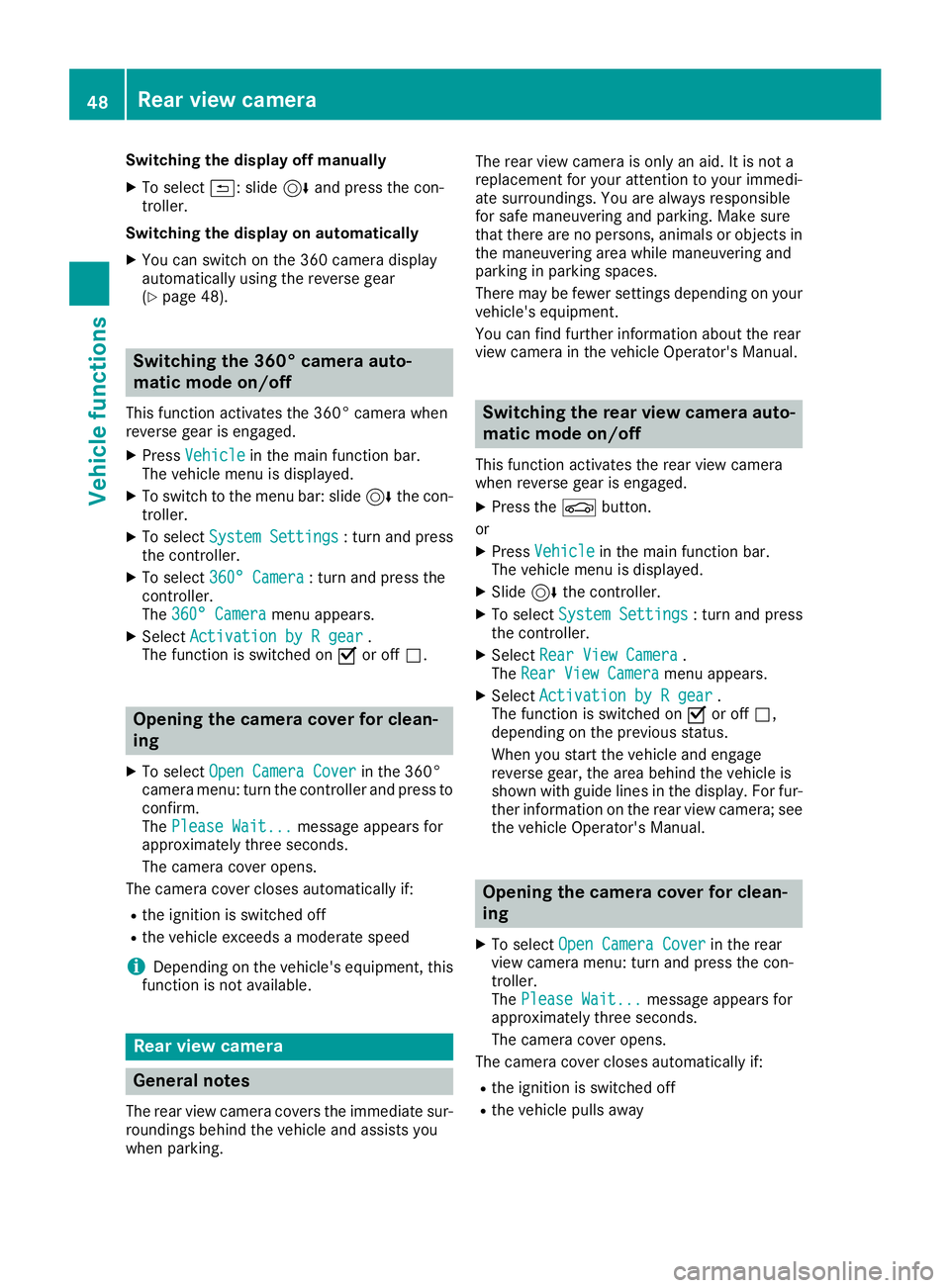
Switching the display off manually
XTo select&: slide 6and press the con-
troller.
Switching the display on automatically
XYou can switch on the 360 camera display
automatically using the reverse gear
(
Ypage 48).
Switching the 360° camera auto-
matic mode on/off
This function activates the 360° camera when
reverse gear is engaged.
XPress Vehiclein the main function bar.
The vehicle menu is displayed.
XTo switch to the menu bar: slide 6the con-
troller.
XTo select System Settings: turn and press
the controller.
XTo select 360° Camera: turn and press the
controller.
The 360° Camera
menu appears.
XSelect Activation by R gear.
The function is switched on Oor off ª.
Opening the camera cover for clean-
ing
XTo select Open Camera Coverin the 360°
camera menu: turn the controller and press to
confirm.
The Please Wait...
message appears for
approximately three seconds.
The camera cover opens.
The camera cover closes automatically if:
Rthe ignition is switched off
Rthe vehicle exceeds a moderate speed
iDepending on the vehicle's equipment, this
function is not available.
Rear view camera
General notes
The rear view camera covers the immediate sur-
roundings behind the vehicle and assists you
when parking. The rear view camera is only an aid. It is not a
replacement for your attention to your immedi-
ate surroundings. You are always responsible
for safe maneuvering and parking. Make sure
that there are no persons, animals or objects in
the maneuvering area while maneuvering and
parking in parking spaces.
There may be fewer settings depending on your
vehicle's equipment.
You can find further information about the rear
view camera in the vehicle Operator's Manual.
Switching the rear view camera auto-
matic mode on/off
This function activates the rear view camera
when reverse gear is engaged.
XPress the
Øbutton.
or
XPress Vehiclein the main function bar.
The vehicle menu is displayed.
XSlide 6the controller.
XTo select System Settings: turn and press
the controller.
XSelect Rear View Camera.
The Rear View Cameramenu appears.
XSelect Activation by R gear.
The function is switched on Oor off ª,
depending on the previous status.
When you start the vehicle and engage
reverse gear, the area behind the vehicle is
shown with guide lines in the display. For fur-
ther information on the rear view camera; see
the vehicle Operator's Manual.
Opening the camera cover for clean-
ing
XTo select Open Camera Coverin the rear
view camera menu: turn and press the con-
troller.
The Please Wait...
message appears for
approximately three seconds.
The camera cover opens.
The camera cover closes automatically if:
Rthe ignition is switched off
Rthe vehicle pulls away
48Rear view camera
Vehicle functions
Page 51 of 190
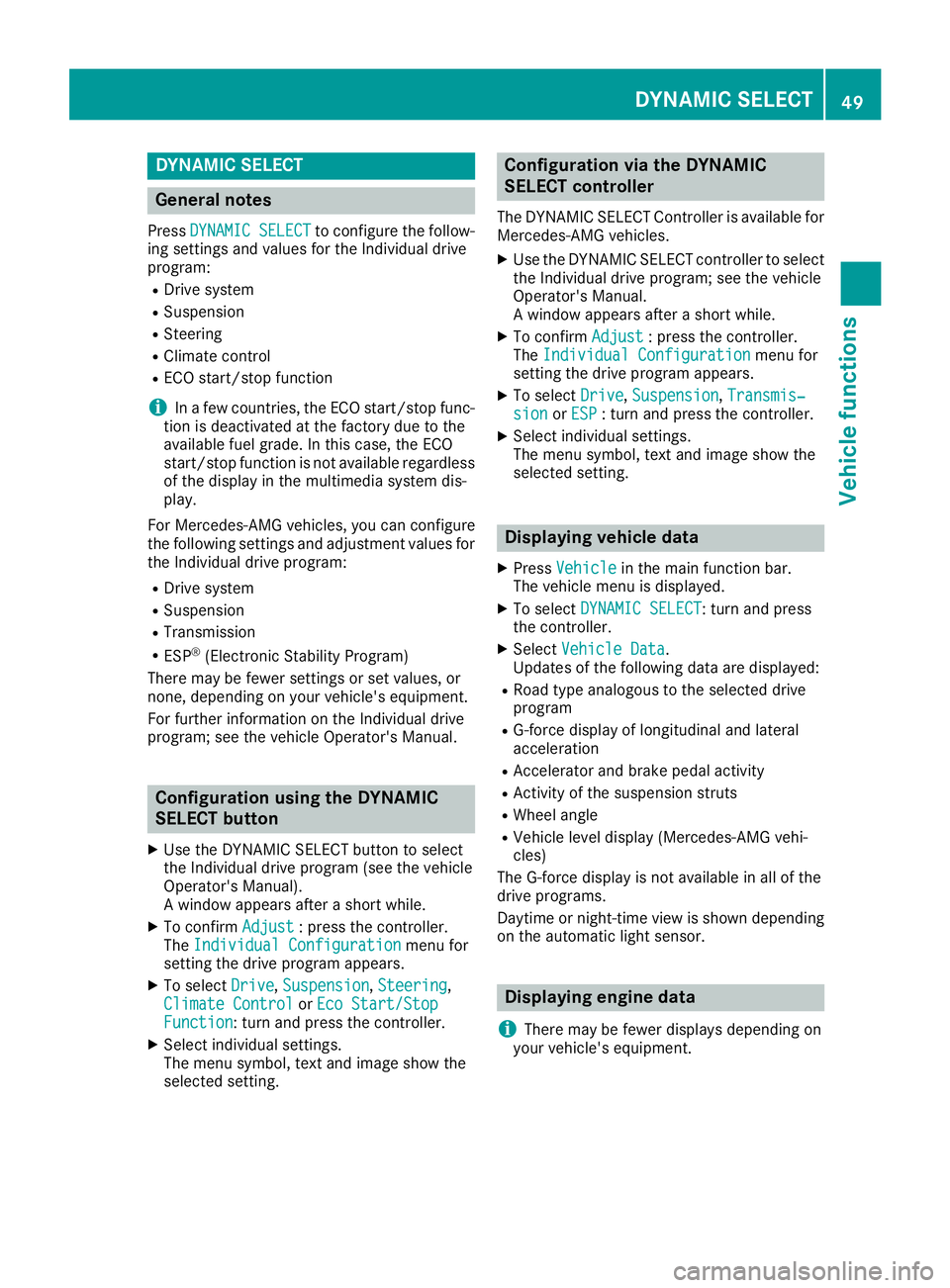
DYNAMIC SELECT
General notes
PressDYNAMI CSELECTto configur eth efollow -
in g setting sand values fo rth eIndividual drive
program:
RDrive syste m
RSuspension
RSteering
RClimatecontro l
RECOstart/sto pfunction
iIn afe w countries, th eEC Ostart/sto pfunc-
tion is deactivated at th efactory due to th e
available fue lgrade. In this case, th eEC O
start/sto pfunction is no tavailable regardles s
of th edisplay in th emultimedia syste mdis -
play.
Fo rMercedes-AMG vehicles ,you can configur e
th efollowin gsetting sand adjustmen tvalues fo r
th eIndividual drive program:
RDrive syste m
RSuspension
RTransmissio n
RESP®(Electronic Stability Program)
There may be fewer setting sor set values, or
none ,dependin gon your vehicle' sequipment.
Fo rfurther information on th eIndividual drive
program; see th evehicle Operator's Manual.
Configuration using th eDYNAMIC
SELECT butto n
XUse theDYNAMI CSELECT butto nto selec t
th eIndividual drive program (se eth evehicle
Operator's Manual).
A window appears after ashort while.
XTo confirm Adjust:press th econtroller .
The Individua lConfiguratio nmenufo r
setting th edrive program appears .
XTo selectDrive,Suspensio n,Steering,
Climat eContro lorEco Start/Sto pFunction:turn and press th econtroller .
XSelectindividual settings.
The men usymbol, text and imag esho wthe
selecte dsetting .
Configuration via th eDYNAMIC
SELECT controller
The DYNAMI CSELECT Controlle ris available fo r
Mercedes-AMG vehicles .
XUse theDYNAMI CSELECT controller to selec t
th eIndividual drive program; see th evehicle
Operator's Manual.
A window appears after ashort while.
XTo confirm Adjust:press th econtroller .
The Individua lConfiguratio nmenufo r
setting th edrive program appears .
XTo selectDrive,Suspensio n,Transmis‐sio norESP:turn and press th econtroller .
XSelectindividual settings.
The men usymbol, text and imag esho wthe
selecte dsetting .
Displaying vehicle data
XPressVehicl ein themain function bar .
The vehicle men uis displayed.
XTo selec tDYNAMI CSELECT:turn and press
th econtroller .
XSelectVehicl eDat a.
Updates of th efollowin gdat aare displayed:
RRoad typ eanalogous to th eselecte ddrive
program
RG-force display of longitudinal and latera l
acceleration
RAccelerator and brake peda lactivity
RActivit yof th esuspensio nstrut s
RWheel angle
RVehicle level display (Mercedes-AM Gvehi-
cles)
The G-force display is no tavailable in all of th e
drive programs .
Daytime or night-time vie wis shown dependin g
on th eautomatic ligh tsensor .
Displaying engin edata
i
There may be fewer displays dependin gon
your vehicle' sequipment.
DYNAMIC SELECT49
Vehicle functions
Z
Page 52 of 190
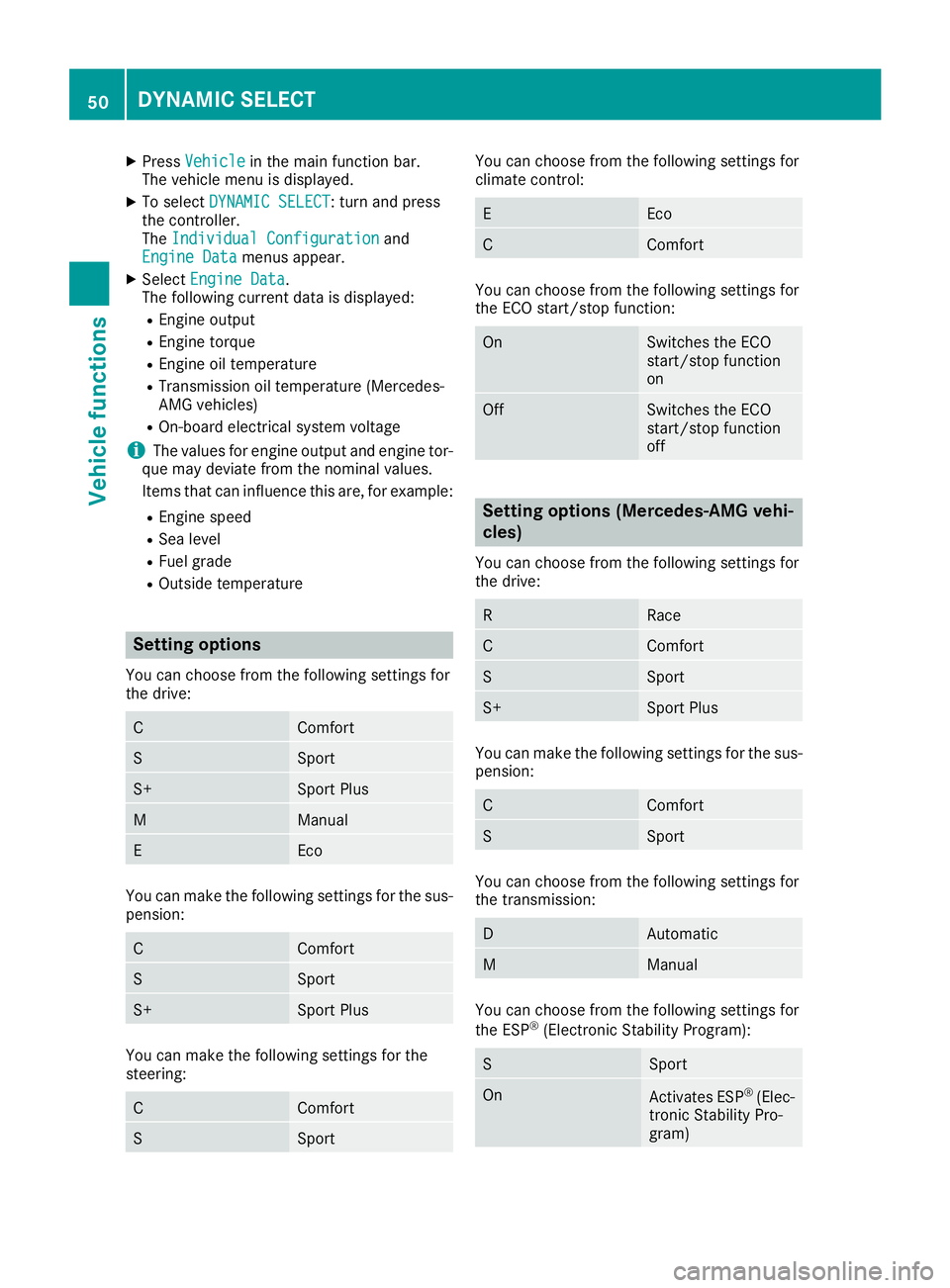
XPressVehiclein the main function bar.
The vehicle menu is displayed.
XTo select DYNAMIC SELECT: turn and press
the controller.
The Individual Configuration
and
Engine Datamenus appear.
XSelect Engine Data.
The following current data is displayed:
REngine output
REngine torque
REngine oil temperature
RTransmission oil temperature (Mercedes-
AMG vehicles)
ROn-board electrical system voltage
iThe values for engine output and engine tor-
que may deviate from the nominal values.
Items that can influence this are, for example:
REngine speed
RSea level
RFuel grade
ROutside temperature
Setting options
You can choose from the following settings for
the drive:
CComfort
SSport
S+Sport Plus
MManual
EEco
You can make the following settings for the sus-
pension:
CComfort
SSport
S+Sport Plus
You can make the following settings for the
steering:
CComfort
SSport
You can choose from the following settings for
climate control:
EEco
CComfort
You can choose from the following settings for
the ECO start/stop function:
OnSwitches the ECO
start/stop function
on
OffSwitches the ECO
start/stop function
off
Setting options (Mercedes-AMG vehi-
cles)
You can choose from the following settings for
the drive:
RRace
CComfort
SSport
S+Sport Plus
You can make the following settings for the sus-
pension:
CComfort
SSport
You can choose from the following settings for
the transmission:
DAutomatic
MManual
You can choose from the following settings for
the ESP®(Electronic Stability Program):
SSport
OnActivates ESP®(Elec-
tronic Stability Pro-
gram)
50DYNAMIC SELECT
Vehicle functions
Page 53 of 190
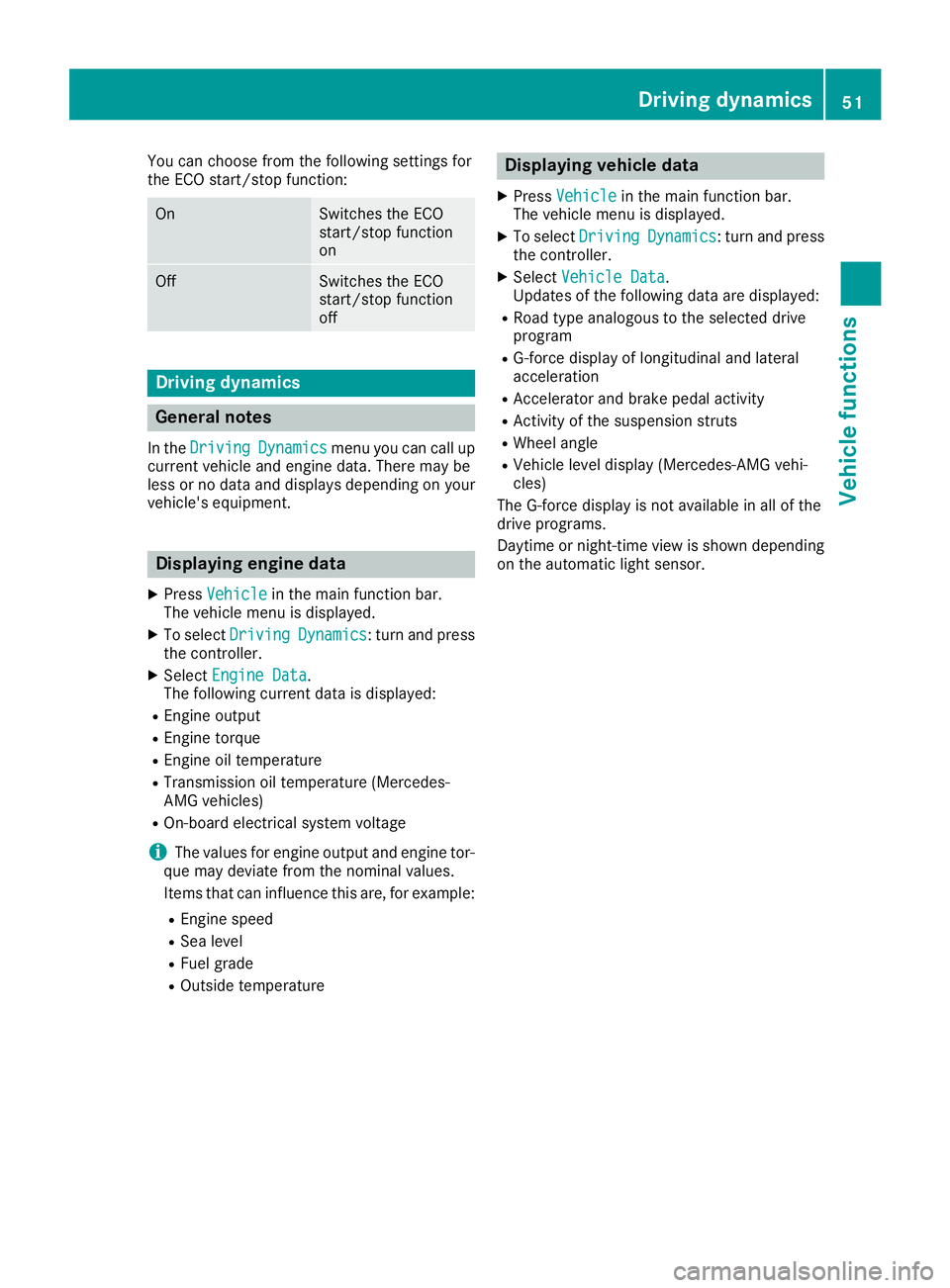
You can choose from the following settings for
the ECO start/stop function:
OnSwitches the ECO
start/stop function
on
OffSwitches the ECO
start/stop function
off
Driving dynamics
General notes
In theDrivingDynamicsmenu you can call up
current vehicle and engine data. There may be
less or no data and displays depending on your
vehicle's equipment.
Displaying engine data
XPress Vehiclein the main function bar.
The vehicle menu is displayed.
XTo select DrivingDynamics: turn and press
the controller.
XSelect Engine Data.
The following current data is displayed:
REngine output
REngine torque
REngine oil temperature
RTransmission oil temperature (Mercedes-
AMG vehicles)
ROn-board electrical system voltage
iThe values for engine output and engine tor-
que may deviate from the nominal values.
Items that can influence this are, for example:
REngine speed
RSea level
RFuel grade
ROutside temperature
Displaying vehicle data
XPress Vehiclein the main function bar.
The vehicle menu is displayed.
XTo select DrivingDynamics: turn and press
the controller.
XSelect Vehicle Data.
Updates of the following data are displayed:
RRoad type analogous to the selected drive
program
RG-force display of longitudinal and lateral
acceleration
RAccelerator and brake pedal activity
RActivity of the suspension struts
RWheel angle
RVehicle level display (Mercedes-AMG vehi-
cles)
The G-force display is not available in all of the
drive programs.
Daytime or night-time view is shown depending
on the automatic light sensor.
Driving dynamics51
Vehicle functions
Z
Page 54 of 190
Your multimediasyste mequipment
These operatin ginstruction sdescribe all th e
standar dan doptional equipment of your multi-
media system, as available at th etime of going
to press. Country-specifi cdifference sare pos -
sible. Bear in min dthat your vehicle may no t
feature all function sdescribed here. Thi salso
applies to safety-relevan tsystems an dfunc-
tions.
Read th einformation on qualifie dspecialis t
workshop sin th evehicle Operator's Manual.
Introduction
Important safet ynotes
GWARNING
If you operat einformation systems an dcom-
munication equipment integrated in th evehi-
cl e when driving, you may be distracted from
th etraffic situation .You could also los econ-
trol of th evehicle. There is aris kof an acci-
dent.
Only operat ethis equipment when th etraffic
situation permits. If you are no tsur ethat this
is possible, par kth evehicle payin gattention
to traffic condition san doperat eth eequip-
men twhen th evehicle is stationary.
You mus tobserv eth elegal requirements fo rth e
country in whic hyou are currentl ydrivin gwhen
operatin gth emultimedia system.
The multimedia syste mcalculates th erout eto
th edestination without taking accoun tof th e
following, fo rexample:
Rtraffic lights
Rstop an dyield signs
Rmergin glanes
Rparking or stoppin gin ano parking/n ostop-
pin gzone
Rother road an dtraffic rule san dregulation s
Rnarrow bridge s
The multimedia syste mmay provid eincorrec t
navigation recommendation sif th eactual
street/traffic situation doe sno tcorrespon d
wit hth edigita lmap's data. Examples of suc
hdeviation sin clu
de:
Ra
diverted rout e
Rachange in th edirection of aone-way stree t
Digital map sdo no tcover all areas no rall routes
in an area.
Fo rthis reason ,you mus talways observ eroad
an dtraffic rule san dregulation sdurin gyour
journey. Road an dtraffic rule san dregulation s
always hav epriorit yover th esystem' sdrivin g
recommendations.
Navigation announcement sare intended to
direc tyou whil edrivin gwithout divertin gyour
attention from th eroad an ddriving.
Please always use this feature instead of con-
sultin gth emap display fo rdirections. Lookin g
at th eicon sor map display can distract you from
traffic condition san ddriving, an dincrease th e
ris kof an accident.
General notes
Operationa lreadines sof th enavigation
syste m
The navigation syste mmus tdetermin eth eposi-
tion of th evehicle befor efirst use or wheneve r
operational status is restored .Therefore, you
may hav eto drive fo r awhil ebefor eprecise
rout eguidance is possible.
GP Sreception
Amon gother things, correc tfunctionin gof th e
navigation syste mdepends on GPS reception .In
certain situations, GPS reception may be
impaired, there may be interferenc eor there
may be no reception at all, e.g. in tunnels or
parking garages .
iUsing roof carriers may impair th ecorrec t
functionin gof aroof antenn a(phone, satellite
radio, GPS).
Entry restriction
Fo rvehicles in certain countries, there is adat a
entr yrestriction .
Entries can be mad ewhen th eselecto rlever is in
position jor th evehicle is stationary.
Whe nth erestriction is active ,certain entries
canno tbe made. Thi swill be indicated by th e
fac tthat certain men uitems are grayed out an d
canno tbe selected.
52Introduction
Navigation
Page 55 of 190
The following entries are not possible, for exam-
ple:
Rentering the destination city and street
RPOI entry via a name search
Rediting and saving of entries
Other entries are however possible, such as a
keyword search and entering POIs in the vicinity of the destination or current position.
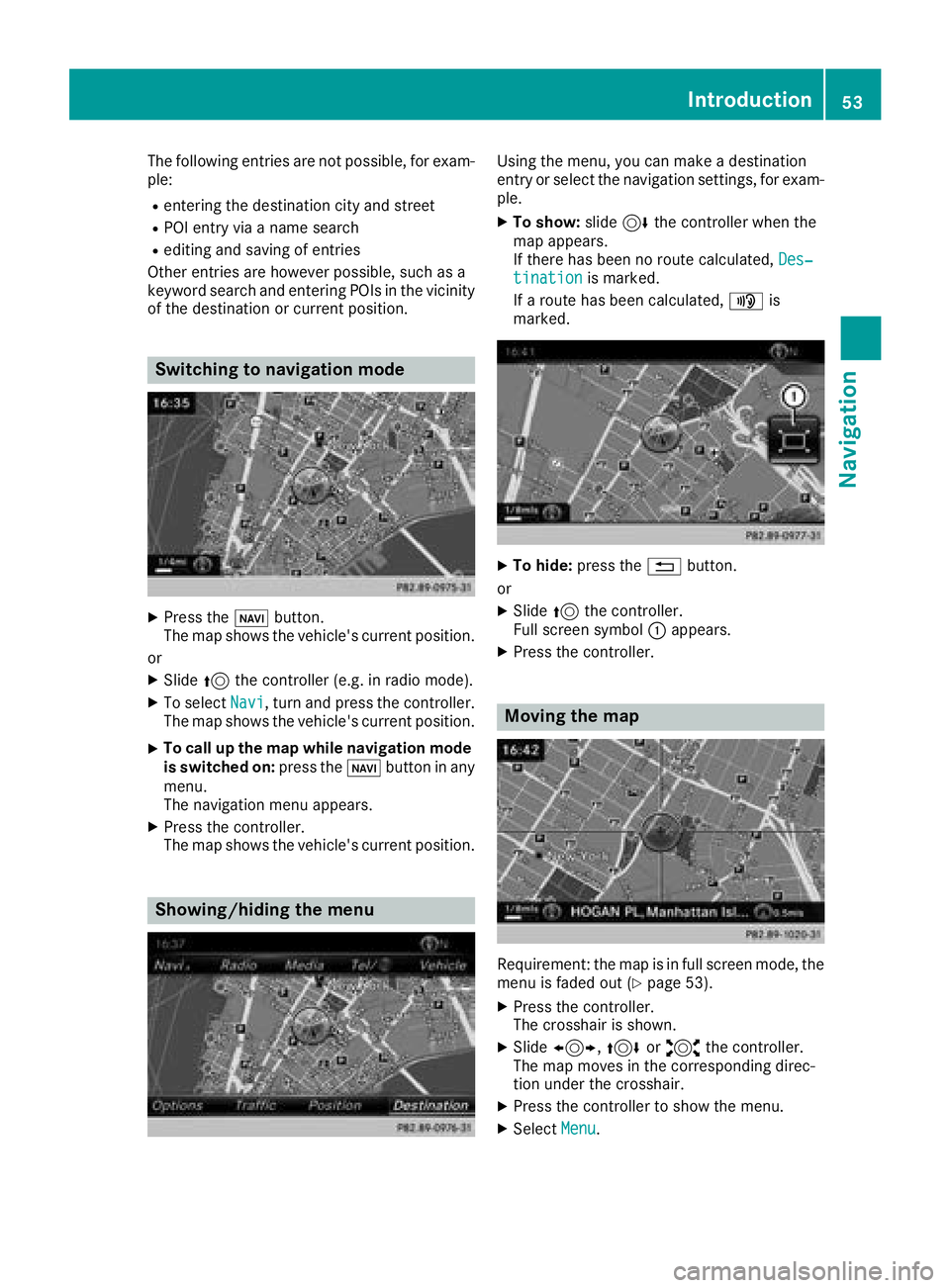
Switching to navigation mode
XPress the ßbutton.
The map shows the vehicle's current position.
or
XSlide 5the controller (e.g. in radio mode).
XTo select Navi, turn and press the controller.
The map shows the vehicle's current position.
XTo call up the map while navigation mode
is switched on: press theßbutton in any
menu.
The navigation menu appears.
XPress the controller.
The map shows the vehicle's current position.
Showing/hiding the menu
Using the menu, you can make a destination
entry or select the navigation settings, for exam-
ple.
XTo show: slide6the controller when the
map appears.
If there has been no route calculated, Des‐
tinationis marked.
If a route has been calculated, yis
marked.
XTo hide: press the %button.
or
XSlide 5the controller.
Full screen symbol :appears.
XPress the controller.
Moving the map
Requirement: the map is in full screen mode, the
menu is faded out (Ypage 53).
XPress the controller.
The crosshair is shown.
XSlide 1, 4or2 the controller.
The map moves in the corresponding direc-
tion under the crosshair.
XPress the controller to show the menu.
XSelect Menu.
Introduction53
Navigation
Z