audio MERCEDES-BENZ GLE COUPE 2019 Owners Manual
[x] Cancel search | Manufacturer: MERCEDES-BENZ, Model Year: 2019, Model line: GLE COUPE, Model: MERCEDES-BENZ GLE COUPE 2019Pages: 697, PDF Size: 11.6 MB
Page 26 of 697
back conditions, please visit
the national
Mercedes-Benz website foryo ur count ry. Mercedes-Benz Genuine
Parts
+ ENVIRONMENTAL
NOTEEnvironmental
dama gecaused bynot using recycled
re conditioned components Daimler
AGoffers recycled reconditioned
components and pa rts with the same quality
as new parts. The same entitlement from the
implied warranty is valid as for new parts. #
Use recycled reconditioned compo‐
nents and pa rts from Daimler AG. *
NO
TEImpairment of the operating ef fi‐
ciency of there stra int sy stems from
ins talling accessory parts or from repairs
or we lding Airbags and seat belt
tensioners, as well as
control units and sensors forth ere stra int
sy stems, may be ins talled in thefo llowing
areas of your vehicle:
R doors
R door pillars
R door sills
R seats
R cockpit
R instrument clus ter
R centre console
R late ra lro of frame #
Do not ins tall accessory parts such as
audio sy stems in these areas. #
Do not car ryout repairs or welding. #
Have accesso ries retrofitted at a quali‐
fi ed specialist workshop. Yo
u could jeopardise the operating saf ety of your
ve hicle if you use parts, tyres and wheels as well
as accessories releva nt tosaf ety which ha venot
been appr ovedby Mercedes-Benz. Saf ety-re le‐
va nt sy stems, e.g. the brake sy stem, may mal‐
function. Only use Mercedes-Benz Genuine Parts
or parts of equal qualit y.Only use tyres, wheels
and accessories that ha vebeen specifically
appr ovedfo ryo ur vehicle model.
Mercedes-Benz tests original parts and con ver‐
sion parts and accessories that ha vebeen spe‐
cifically appr ovedfo ryo ur vehicle model forth eir
re liability, saf ety and suitabilit y.Despite ongoing
ma rket resear ch, Mercedes-Benz is unable to
assess other parts. Mercedes-Benz therefore
accepts no responsibility forth e use of such
parts in Mercedes-Benz vehicles, even if they
ha ve been of ficially appr oved or independently
appr ovedby ate sting centre.
Cer tain parts are only of ficially appr ovedfor
ins tallation or modification if they comply wi th
legal requirements. All Mercedes-Benz Genuine
Pa rts meet the appr oval requ irements. The use
of non-appr oved parts may in validate theve hi‐
cle's general operating pe rmit. General no
tes23
Page 37 of 697
R
entered navigation destinations
R data about the use of internet services
This data can be sa ved locally in theve hicle or it
is located on a device which you ha veconnected
to theve hicle (e.g. a smartphone, USB flash
drive or MP3 pla yer). If this data is stored in the
ve hicle, you can dele teit at any time. This data
is sent tothird parties only at your requ est, par‐
ticular lywhen you use online services in accord‐
ance with the settings that you ha veselected.
Yo u can store or change con venience settings/
individualisations in theve hicle at any time.
Depending on the equipment, this includes, for
ex ample:
R settings forth e seat and steering wheel posi‐
tions
R suspension and climate control settings
R customisations such as interior lighting
If yo ur vehicle is accordingly equipped, you can
connect your smartphone or ano ther mobile end
device totheve hicle. You can cont rolth is by
means of the control elements integrated in the
ve hicle. Images and audio from the smartphone can be output via
the multimedia sy stem. Cer‐
ta in information is simultaneously transfer redto
yo ur smartphone.
Depending on the type of integration, this can
include:
R general vehicle data
R position data
This allo wsyouto use selected apps on your
smartphone, such as navigation or music play‐
bac k.There is no fur ther interaction between the
smartphone and theve hicle; in particular, vehi‐
cle data is not directly accessible. Which type of
fur ther data processing occurs is de term ined by
th e pr ovider of the specific app used. Which set‐
tings you can make, if an y,depends on the spe‐
cific app and the operating sy stem of your
smartphone. Online services
Wire
less network connection
If yo ur vehicle has a wireless network connec‐
tion, it enables data tobe exc hanged between
yo ur vehicle and additional sy stems. The wire‐ less network connection is enabled via
theve hi‐
cle's transmission and reception unit or via con‐
nected mobile end devices (e.g. sma rtphones).
Online functions can be used via the wireless
network connection. This includes online serv‐
ices and applications/apps pr ovided bythe man‐
ufacturer or other pr oviders.
Manu factu rer's se rvices
Re garding online services of the manufacturer,
th e individual functions are described bythe
manufacturer in a suita ble place (e.g. Owner's
Manual, website of the manufacturer) along with
th ere leva nt da taprotection information. Per‐
sonal data may be used forth e pr ovision of
online services. Data is exchanged via a secure
connection, e.g. the manufacturer's designated
IT sy stems. Personal data is collected, pro‐
cessed and used via the pr ovision of services
ex clusively on the basis of legal permissions or
with prior consent.
The services and functions (sometimes subject
to afe e) can usually be activated or deactivated.
In some cases, this also applies tothe entire
ve hicle's data connection. This excludes, in par‐
ticular, legally prescribed functions and services. 34
General no tes
Page 272 of 697
The
vehicle or other objects could oth‐
erwise be damaged. If
th eé symbol is shown in the multifunction
displa y,Pa rking Assist PARKTRONIC is not
active.
Multimedia sy stem:
4 Settings 5
Quick access
5 PARKTRONIC #
Activate or deacti vate the function.
% Parking Assist PARKTRONIC is automatical ly
activated when theve hicle is star ted.
Ad justing the warning tones of Parking
Assist PARKTRONIC
Multimedia sy stem:
4 © 5
Settings 5
Assistance
5 Camera & parking 5
Set warning tone
Ad justing the volume of thewa rning tones #
Select Warning tone volume. #
Set a value. Ad
justing the pitch of the warning tones #
Select Warning tone pitch. #
Set a value.
Specifying thest arting point for the warning
to nes
Yo u can specify whe ther thePa rking Assist
PA RKTRONIC warning tones should commence
when theve hicle is fur ther aw ay from an obs ta‐
cle. #
Select Warn early all-round. #
Activate or deacti vate the function.
Ac tivating/deactivating audio fadeout
Yo u can specify whe ther thevo lume of a media
source in the multimedia sy stem is tobe
re duced when Parking Assist PARKTRONIC
sounds a warning tone. #
Select Audio fadeout during warning tones. #
Activate or deacti vate the function. Fu
nction of Trailer Manoeuvring Assist
* NO
TEDama getotraile rswith a stabilisa‐
tion device against swerving In
the case of trailers with a stabilisation
device against swerving, the trailer or trailer
to w hit chcould be damaged. #
If a trailer coupling wi thTrailer Manoeu‐
vring Assist is used, on lyuse trailers
without a stabilisation device against
swerving. *
NO
TEDama gedue to ov erhanging loads
in front or dr awbar ins tallations The
vehicle and the trailer may be damaged
during manoeuvring due toove rhanging
loads at the front of the trailer or dr awbar
ins tallations. #
Pay attention to overhanging loads or
dr aw bar ins tallations while manoeu‐
vring. Tr
ailer Manoeuv ring Assi stassists you when
re ve rsing with a trailer. By means of a turning Driving and parking
269
Page 311 of 697
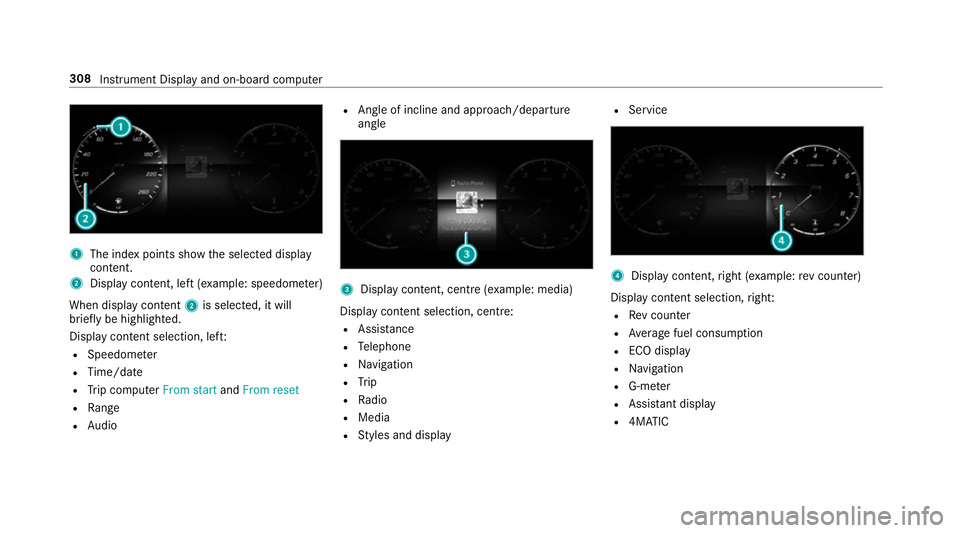
1
The index points show the selected display
conte nt.
2 Display content, le ft(exa mp le: speedom eter)
When display conte nt2 is selected, it will
brie fly be highligh ted.
Display con tent selection, le ft:
R Speedom eter
R Time/date
R Trip computer From startandFrom reset
R Range
R Audio R
Angl e of incline and approach/departure
angle 3
Display conte nt, centre (examp le: media)
Display con tent selection, centre:
R Assi stance
R Telephone
R Navigation
R Trip
R Radio
R Media
R Styles and display R
Service 4
Display conte nt,right (e xamp le:rev counter)
Display content selection, right:
R Rev counter
R Average fuel consum ption
R ECO display
R Navigation
R G-me ter
R Assi stant display
R 4MATIC 308
Instru ment Display and on-board computer
Page 319 of 697
#
Press the left-hand Touch Control.
Yo u may accept or reject the call using the6
or ~ button on thesteering wheel. Setting
the head-up display using the on-
board compu terOn-board computer:
4 HEAD-UP DISPLAY
The following head-up display settings can be
selec ted:
R Position
R Brightness
R Displa ys
R Messages
R Assis tance status
R Telephone
R Audio
R LINGU ATRO NIC #
Tochoose a setting: swipetotheright on
th e left-hand Touch Control.
The Settings menu 5is selected. #
Tocall up the Settings menu: pressthe
left-hand Touch Control. #
Toadjust the position: swipe upwards or
down wards on the left-hand Touch Control. #
Toadjust the brightness: swipetothe left
or right on the left-hand Touch Control. #
Toset messages, assistance status, tele‐
phone, audio and LINGU ATRO NIC: press
th e left-hand Touch Control.
The list of setting options will be displ ayed. #
Swipe upwards or down wards on the left-
hand Touch Control and select a setting by
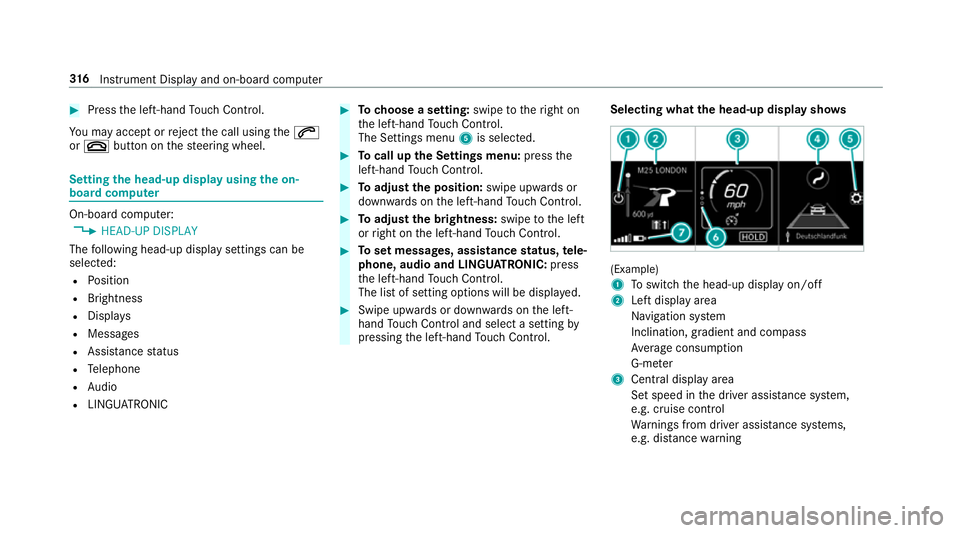
pressing the left-hand Touch Control. Selecting what
the head-up display sho ws (Example)
1
Toswitch the head-up display on/off
2 Left display area
Navigation sy stem
Inclination, gradient and compass
Av erage consum ption
G-me ter
3 Central displ ayarea
Set speed in the driver assis tance sy stem,
e.g. cruise control
Wa rnings from driver assis tance sy stems,
e.g. dis tance warning 316
Instrument Display and on-board computer
Page 320 of 697
4
Right display area
Tr af fic Sign Assi st
Ve hicle le vel
Dif fere ntial
Assi stant display
5 Toadjust the position, brightness and lo wer
display area
6 Index points
7 Lowe r display area
Display areas 2to4 that are not requ ired can
be hidden.
% In audio mode, thest ation name or track will
be shown temp orarily when the audio source
is being actively operated. #
Toselect a displa y:swipe upwards on the
left-hand Touch Control. #
Press the left-hand Touch Control. Head-up Display
Fu
nction of the head-up display The head-up display projects information abo
ve
th e cockpit into the driver's field of vision, e.g.
th e speed of theve hicle, information from the
navigation sy stem or driver assis tance sy stems
and some warning messages.
Depending on theve hicle's equipment, dif fere nt
content can be shown in theth re e display areas
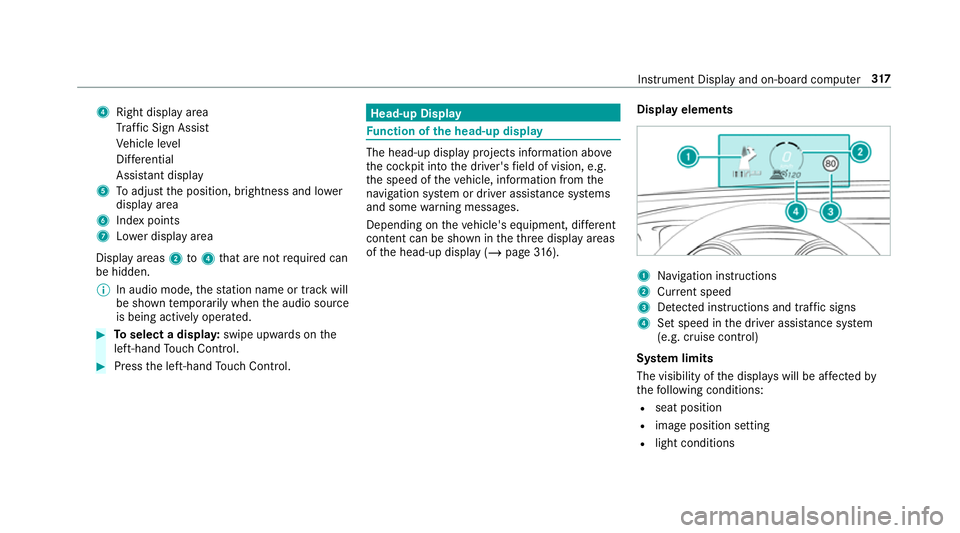
of the head-up display (/ page316). Display elements 1
Navigation instructions
2 Curr ent speed
3 Detected instructions and traf fic signs
4 Set speed in the driver assis tance sy stem
(e.g. cruise control)
Sy stem limits
The visibility of the displa yswill be af fected by
th efo llowing conditions:
R seat position
R image position setting
R light conditions Instrument Display and on-board computer
317
Page 347 of 697
#
Tomo vethe digital map: swipe in any
direction. #
Touse handwriting toenter characters:
write thech aracter with one finger on the
to uchsc reen.
Tw o-finger swipe #
Tozoom in and out of the map: movetwo
fi ngers toget her or apart. #
Toenlar georreduce the size of a section
of a website: movetwo fingers toget her or
apart. #
Toturn the map: turn anti-clockwise or
clockwise using two fingers.
To uching, holding and moving #
Tomo vethe map: touch theto uchsc reen
and mo veyour finger in any di rection. #
Toset thevo lume on a scale: touch the
to uchsc reen and mo vethefinger tothe left
or right. To
uching and holding #
Tosave the destination in the map: touch
th eto uchsc reen and hold until a message is
shown. #
Tocall up a global menu in the applica‐
tions: touch theto uchsc reen and hold until
th eOPTIONS menu appears.
Setting acoustic operation feedba ckfor the
to uchscreen
Multimedia sy stem:
4 © 5
Settings 5
System
5 Controls
The function is suppor tedby the selection in a
list. #
Select Acoustic operating feedback. #
Set Normal, LoudorOff.
If th e function is activated you will hear a
clicking sound when sc rolling in a list. When
th e beginning or end of the list is reached
yo u will hear ano ther clicking sound. To
uchpad Operating
theto uchpad 1
G button
Pressing brief ly:re turns tothe pr evious dis‐
play
2 ~ button
Pressing: calls up the control menu of the
last active audio source 344
MBUX multimedia sy stem
Page 348 of 697
Swiping
tothe left of right across ~:
selects the pr evious or next radio station/
music track
3 © button
Pressing: sho ws the home screen and calls
up applications
4 Touchpad
% Calls up suggestions, themes and favo urites:
when the home screen is shown, swipe
down on touchpad 4.
Yo u can navigate in menus and lists via the
to uch-sensitive sur face of touchpad 4byusing
a single-finger swipe .#
Toselect the menu item or entr y:mo ve
th e selection byswiping up, down, left or
ri ght. #
Confirm the selection bypressing on touch‐
pad 4.
or #
IfTouchpad tap is activated,tapping is suf fi‐
cient (/ page 345). #
Toenter a character: select acharacter on
th eke yboard ( /page 368).
or #
Write a character on theto uchpad with hand‐
writing input. #
Tomo vethe digital map: whenthe digital
map is shown with the navigation menu,
swipe up with one finger. #
Press theto uchpad.
The digital map can be mo ved. #
Swipe in all directions.
Use thefo llowing functions with a two-finger
swipe: #
Tocall up theNo tifications Centre: swipe
down wi thtwo fingers. #
Toclose theNo tifications Centre: swipe
up wi thtwo fingers. #
Tocall up the control menu of the last
active audio source: swipe up with twofin‐
ge rs. #
Tozoom in and out of the map: movetwo
fi ngers toget her or apart. #
Toenlar georreduce the size of a section
of a website: movetwo fingers toget her or
apart.
Setting the sensitivity for the touchpad
Multimedia sy stem:
4 © 5
Settings 5
System
5 Controls 5
Touchpad sensitivity #
Select Fast,Medium orSlow . #
Toset the pressure sensitivit y:switch
Touchpad tap on or off.
If th e function is switched on, a tap on the
to uchpad is enough toselect a menu item.
Switching there ad-aloud function for hand‐
writing recognition on/off
Re quirements:
R The multimedia sy stem is equipped with a
vo ice control sy stem.
R The read-aloud function is available forthe
selected sy stem language. MBUX multimedia sy
stem 345
Page 349 of 697
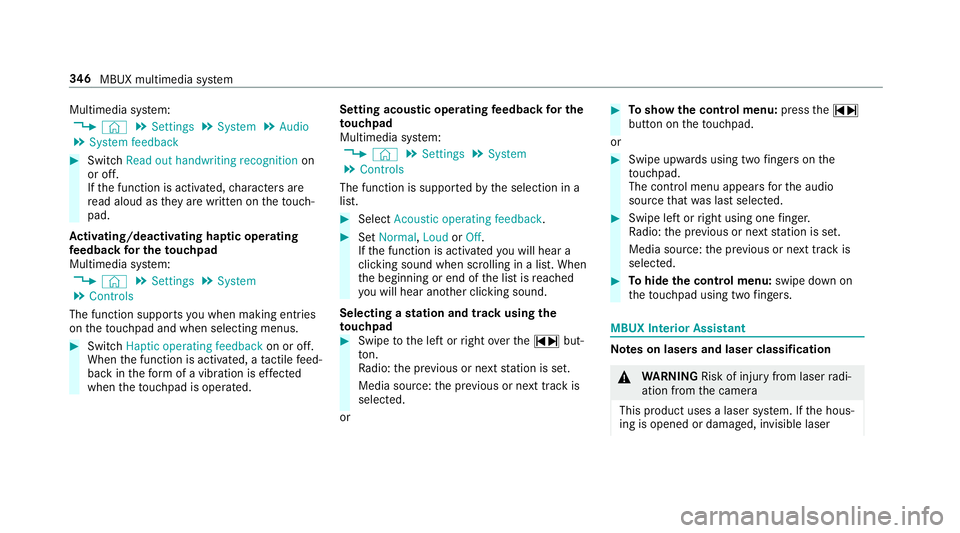
Multimedia sy
stem:
4 © 5
Settings 5
System 5
Audio
5 System feedback #
Switch Read out handwriting recognition on
or off.
If th e function is activated, characters are
re ad aloud as they are written on theto uch‐
pad.
Ac tivating/deactivating haptic ope rating
fe edba ckfor the touchpad
Multimedia sy stem:
4 © 5
Settings 5
System
5 Controls
The function supports you when making entries
on theto uchpad and when selecting menus. #
Swit chHaptic operating feedback on or off.
When the function is activated, a tactile feed‐
back in thefo rm of a vibration is ef fected
when theto uchpad is operated. Setting acou
stic operating feedba ckfor the
to uchpad
Multimedia sy stem:
4 © 5
Settings 5
System
5 Controls
The function is suppor tedby the selection in a
list. #
Select Acoustic operating feedback. #
Set Normal, LoudorOff.
If th e function is activated you will hear a
clicking sound when sc rolling in a list. When
th e beginning or end of the list is reached
yo u will hear ano ther clicking sound.
Selecting a station and track using the
to uchpad #
Swipe tothe left or right over the~ but‐
to n.
Ra dio: the pr evious or next station is set.
Media source: the pr evious or next track is
selec ted.
or #
Toshow the control menu: pressthe~
button on theto uchpad.
or #
Swipe upwards using two fingers on the
to uchpad.
The cont rol menu appears forth e audio
source that wa s last selected. #
Swipe left or right using one finger.
Ra dio: the pr evious or next station is set.
Media source: the pr evious or next track is
selec ted. #
Tohide the control menu: swipe down on
th eto uchpad using two fingers. MBUX In
terior Assistant Note
s on lasers and laser classification &
WARNING Risk of inju ryfrom laser radi‐
ation from the camera
This product uses a laser sy stem. If the hous‐
ing is opened or damaged, invisible laser 346
MBUX multimedia sy stem
Page 360 of 697
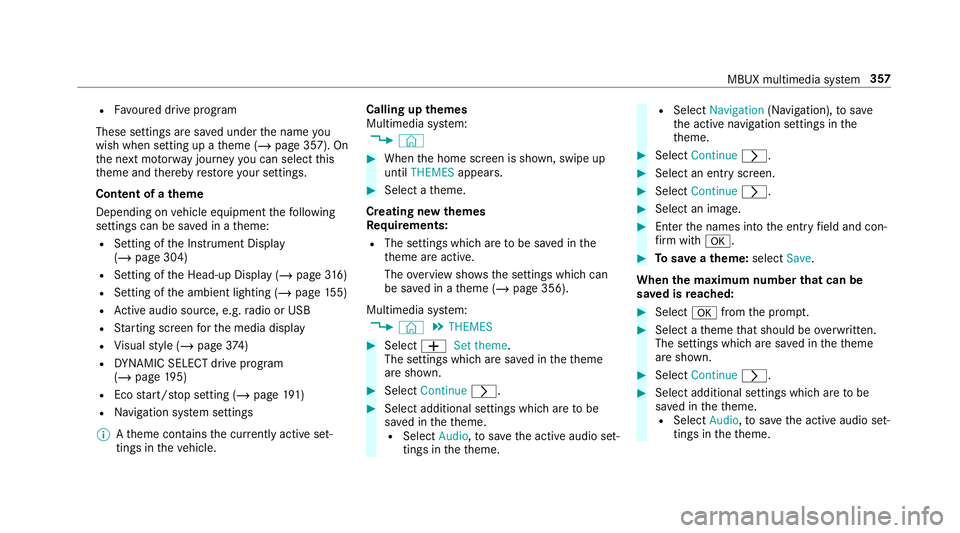
R
Favoured drive program
These settings are sa ved under the name you
wish when setting up a theme (/ page 357). On
th e next mo torw ay jou rney you can select this
th eme and thereby restore your settings.
Content of a theme
Depending on vehicle equipment thefo llowing
settings can be sa ved in a theme:
R Setting of the Instrument Display
(/ page 304)
R Setting of the Head-up Display (/ page316)
R Setting of the ambient lighting (/ page155)
R Active audio sou rce, e.g. radio or USB
R Starting sc reen forth e media display
R Visual style (/ page374)
R DYNA MIC SELECT drive program
(/ page 195)
R Eco start/ stop setting (/ page191)
R Navigation sy stem settings
% Atheme conta insthe cur rently acti veset‐
tings in theve hicle. Calling up
themes
Multimedia sy stem:
4 © #
When the home screen is shown, swipe up
until THEMES appears. #
Select a theme.
Creating new themes
Re quirements:
R The settings which are tobe sa ved in the
th eme are active.
The overview sho wsthe settings which can
be sa ved in a theme (/ page 356).
Multimedia sy stem:
4 © 5
THEMES #
Select WSet theme.
The settings which are sa ved in theth eme
are shown. #
Select Continue r. #
Select additional settings which are tobe
sa ve d in theth eme.
R Select Audio, tosave the active audio set‐
tings in theth eme. R
Select Navigation (Navigation), tosave
th e active navigation settings in the
th eme. #
Select Continue r. #
Select an entry screen. #
Select Continue r. #
Select an image. #
Enter the names into the entry field and con‐
fi rm with a. #
Tosave ath eme: select Save.
When the maximum number that can be
sa ve d is reached: #
Select afromthe prom pt. #
Select a theme that should be overwritten.
The settings which are sa ved in theth eme
are shown. #
Select Continue r. #
Select additional settings which are tobe
sa ve d in theth eme.
R Select Audio, tosave the active audio set‐
tings in theth eme. MBUX multimedia sy
stem 357