language MERCEDES-BENZ GLE SUV 2018 COMAND Manual
[x] Cancel search | Manufacturer: MERCEDES-BENZ, Model Year: 2018, Model line: GLE SUV, Model: MERCEDES-BENZ GLE SUV 2018Pages: 190, PDF Size: 4.42 MB
Page 80 of 190
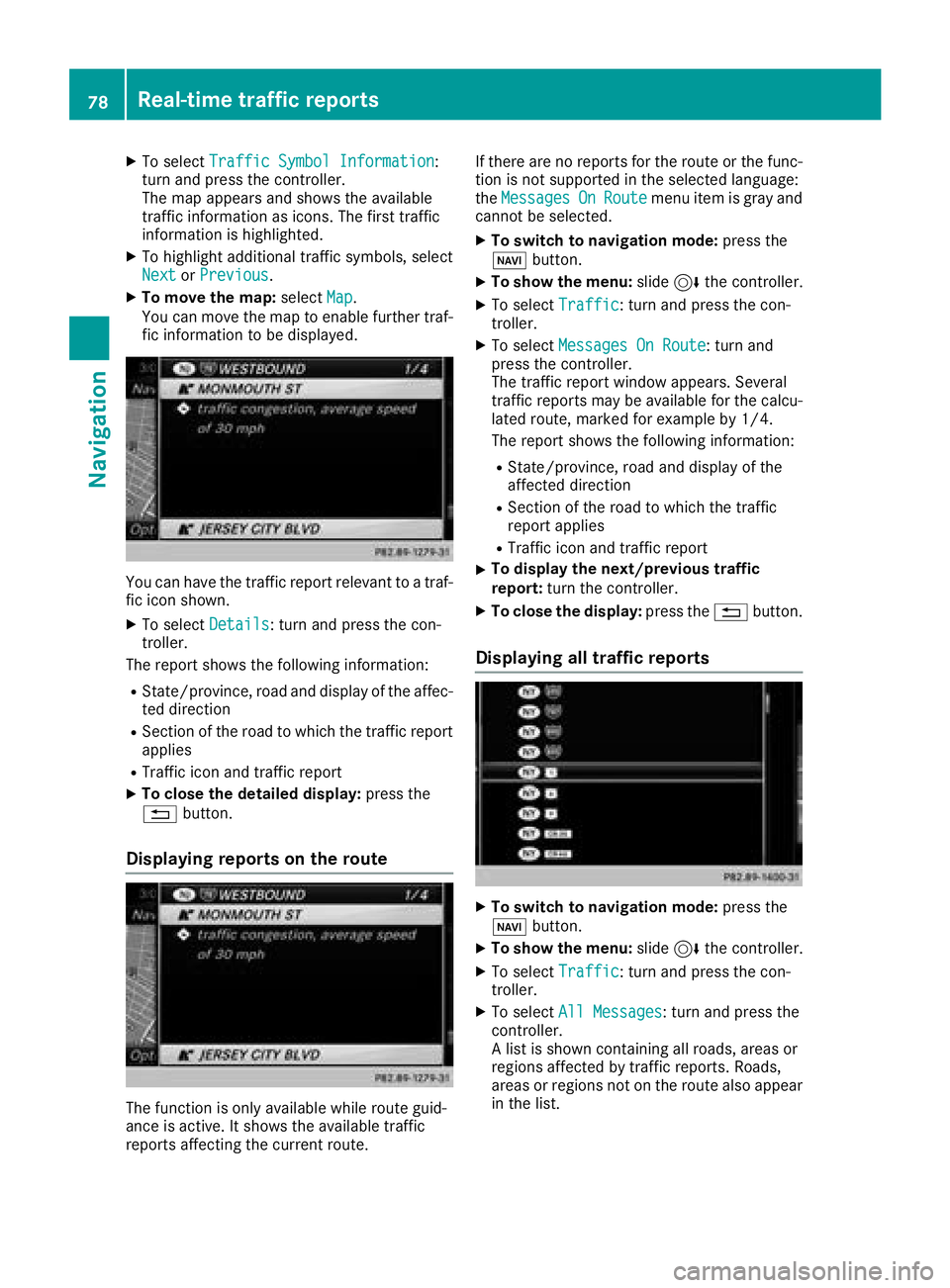
XTo selectTraffic Symbol Information:
turn and press the controller.
The map appears and shows the available
traffic information as icons. The first traffic
information is highlighted.
XTo highlight additional traffic symbols, select
Nextor Previous.
XTo move the map: selectMap.
You can move the map to enable further traf-
fic information to be displayed.
You can have the traffic report relevant to a traf-
fic icon shown.
XTo select Details: turn and press the con-
troller.
The report shows the following information:
RState/province, road and display of the affec-
ted direction
RSection of the road to which the traffic report applies
RTraffic icon and traffic report
XTo close the detailed display: press the
% button.
Displaying reports on the route
The function is only available while route guid-
ance is active. It shows the available traffic
reports affecting the current route. If there are no reports for the route or the func-
tion is not supported in the selected language:
the
Messages
OnRoutemenu item is gray and
cannot be selected.
XTo switch to navigation mode: press the
Ø button.
XTo show the menu: slide6the controller.
XTo select Traffic: turn and press the con-
troller.
XTo select Messages On Route: turn and
press the controller.
The traffic report window appears. Several
traffic reports may be available for the calcu-
lated route, marked for example by 1/4.
The report shows the following information:
RState/province, road and display of the
affected direction
RSection of the road to which the traffic
report applies
RTraffic icon and traffic report
XTo display the next/previous traffic
report: turn the controller.
XTo close the display: press the%button.
Displaying all traffic reports
XTo switch to navigation mode: press the
Ø button.
XTo show the menu: slide6the controller.
XTo select Traffic: turn and press the con-
troller.
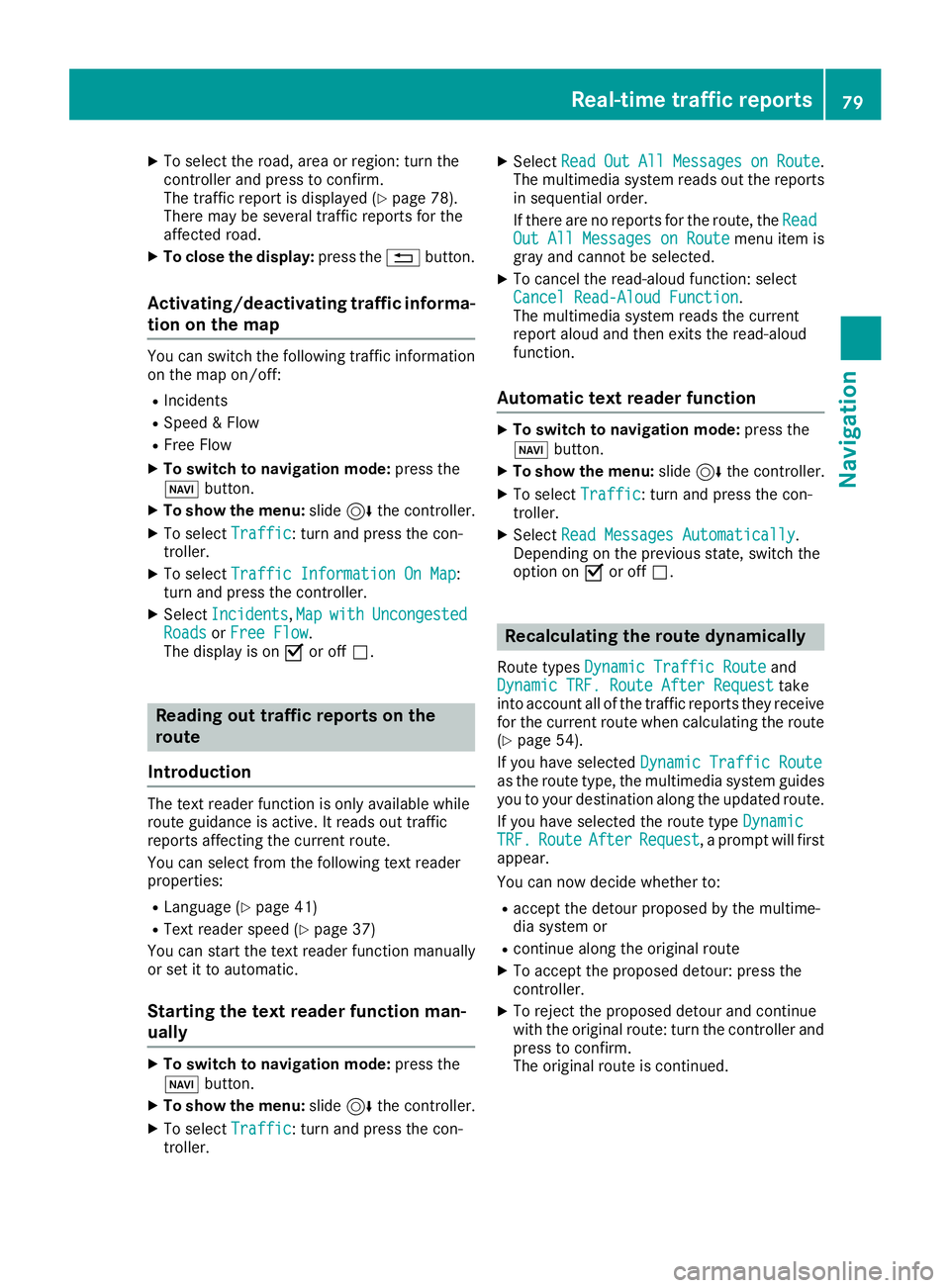
XTo select All Messages: turn and press the
controller.
A list is shown containing all roads, areas or
regions affected by traffic reports. Roads,
areas or regions not on the route also appear
in the list.
78Real-time traffic reports
Navigation
Page 81 of 190
XTo select the road, area or region: turn the
controller and press to confirm.
The traffic report is displayed (
Ypage 78).
There may be several traffic reports for the
affected road.
XTo close the display: press the%button.
Activating/deactivating traffic informa-
tion on the map
You can switch the following traffic information
on the map on/off:
RIncidents
RSpeed & Flow
RFree Flow
XTo switch to navigation mode: press the
Ø button.
XTo show the menu: slide6the controller.
XTo select Traffic: turn and press the con-
troller.
XTo select Traffic Information On Map:
turn and press the controller.
XSelect Incidents,MapwithUncongestedRoadsor Free Flow.
The display is on Oor off ª.
Reading out traffic reports on the
route
Introduction
The text reader function is only available while
route guidance is active. It reads out traffic
reports affecting the current route.
You can select from the following text reader
properties:
RLanguage (Ypage 41)
RText reader speed (Ypage 37)
You can start the text reader function manually
or set it to automatic.
Starting the text reader function man-
ually
XTo switch to navigation mode: press the
Ø button.
XTo show the menu: slide6the controller.
XTo select Traffic: turn and press the con-
troller.
XSelect ReadOutAllMessagesonRoute.
The multimedia system reads out the reports in sequential order.
If there are no reports for the route, the Read
Out All Messages on Routemenu item is
gray and cannot be selected.
XTo cancel the read-aloud function: select
Cancel Read-Aloud Function.
The multimedia system reads the current
report aloud and then exits the read-aloud
function.
Automatic text reader function
XTo switch to navigation mode: press the
Ø button.
XTo show the menu: slide6the controller.
XTo select Traffic: turn and press the con-
troller.
XSelect Read Messages Automatically.
Depending on the previous state, switch the
option on Oor off ª.
Recalculating the route dynamically
Route types Dynamic Traffic Routeand
Dynamic TRF. Route After Requesttake
into account all of the traffic reports they receive for the current route when calculating the route
(
Ypage 54).
If you have selected Dynamic Traffic Route
as the route type, the multimedia system guides
you to your destination along the updated route.
If you have selected the route type Dynamic
TRF.RouteAfterRequest, a prompt will first
appear.
You can now decide whether to:
Raccept the detour proposed by the multime-
dia system or
Rcontinue along the original route
XTo accept the proposed detour: press the
controller.
XTo reject the proposed detour and continue
with the original route: turn the controller and
press to confirm.
The original route is continued.
Real-time traffic reports79
Navigation
Z
Page 95 of 190
XTo selectSearch for Phones: turn and
press the controller.
A message is displayed that Bluetooth
®must
be activated on the mobile phone and must be
made visible to other devices.
XTo select StartSearch: press the controller.
The available mobile phones are displayed in
the device list.
The duration of the search depends on the num- ber of Bluetooth
®telephones within range and
their characteristics.
If a new phone is found, it appears in the device list with the Ïsymbol. You can now author-
ize (connect) the mobile phone found
(
Ypage 93).
If the maximum number of authorized devices in
the device list is reached, you will be requested
to de-authorize a mobile phone (
Ypage 95).
When you call up the device list again, de-
authorized devices will be removed from the list.
To update the device list, start the search again.
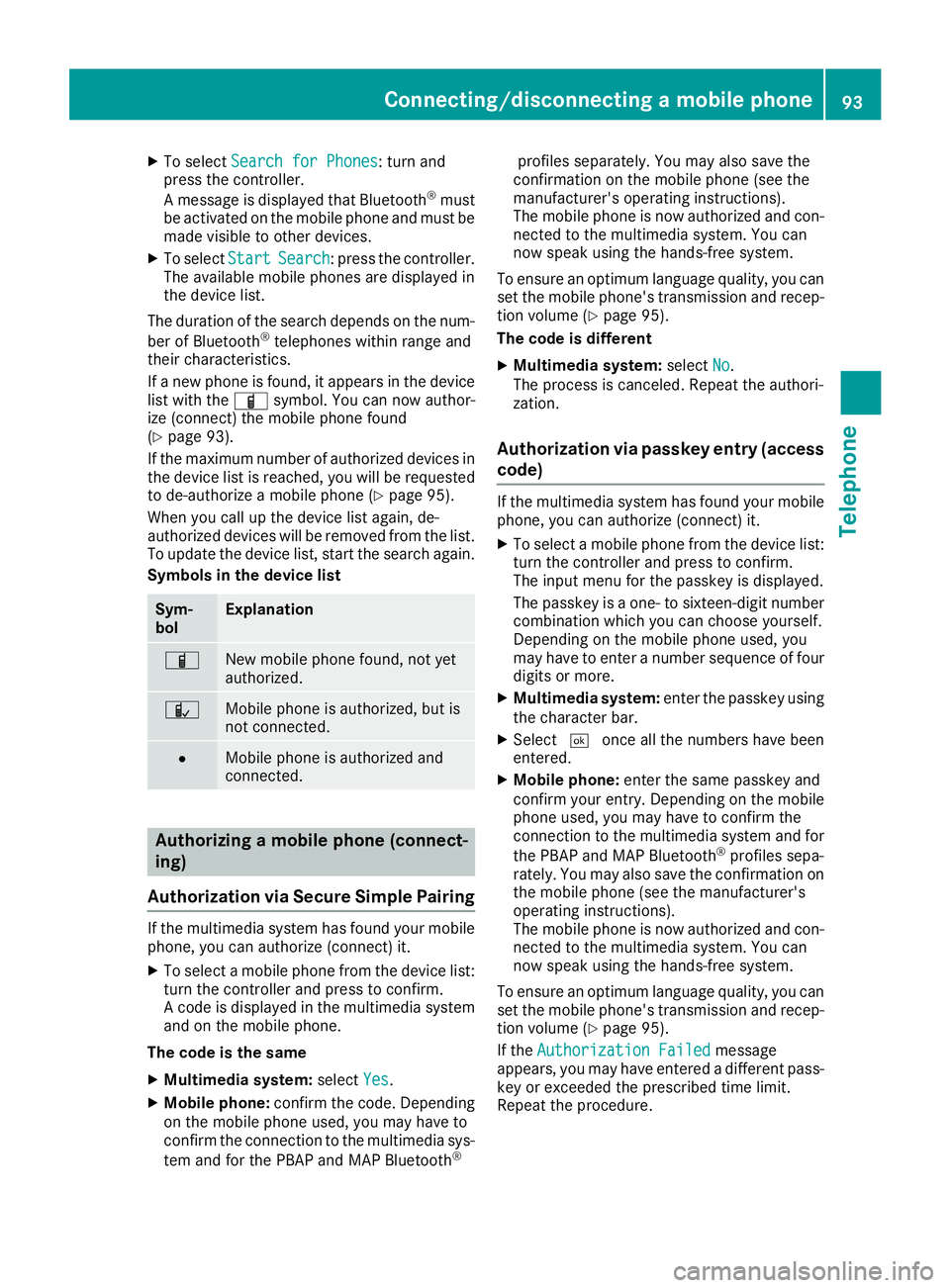
Symbols in the device list
Sym-
bolExplanation
ÏNew mobile phone found, not yet
authorized.
ÑMobile phone is authorized, but is
not connected.
#Mobile phone is authorized and
connected.
Authorizing a mobile phone (connect-
ing)
Authorization via Secure Simple Pairing
If the multimedia system has found your mobile
phone, you can authorize (connect) it.
XTo select a mobile phone from the device list: turn the controller and press to confirm.
A code is displayed in the multimedia system
and on the mobile phone.
The code is the same
XMultimedia system: selectYes.
XMobile phone: confirm the code. Depending
on the mobile phone used, you may have to
confirm the connection to the multimedia sys-
tem and for the PBAP and MAP Bluetooth
®
profiles separately. You may also save the
confirmation on the mobile phone (see the
manufacturer's operating instructions).
The mobile phone is now authorized and con-
nected to the multimedia system. You can
now speak using the hands-free system.
To ensure an optimum language quality, you can
set the mobile phone's transmission and recep-
tion volume (
Ypage 95).
The code is different
XMultimedia system: selectNo.
The process is canceled. Repeat the authori-
zation.
Authorization via passkey entry (access code)
If the multimedia system has found your mobile
phone, you can authorize (connect) it.
XTo select a mobile phone from the device list:
turn the controller and press to confirm.
The input menu for the passkey is displayed.
The passkey is a one- to sixteen-digit number
combination which you can choose yourself.
Depending on the mobile phone used, you
may have to enter a number sequence of fourdigits or more.
XMultimedia system: enter the passkey using
the character bar.
XSelect ¬once all the numbers have been
entered.
XMobile phone: enter the same passkey and
confirm your entry. Depending on the mobile
phone used, you may have to confirm the
connection to the multimedia system and for
the PBAP and MAP Bluetooth
®profiles sepa-
rately. You may also save the confirmation on
the mobile phone (see the manufacturer's
operating instructions).
The mobile phone is now authorized and con-
nected to the multimedia system. You can
now speak using the hands-free system.
To ensure an optimum language quality, you can
set the mobile phone's transmission and recep-
tion volume (
Ypage 95).
If the Authorization Failed
message
appears, you may have entered a different pass-
key or exceeded the prescribed time limit.
Repeat the procedure.
Connecting/disconnecting a mobile phone93
Telephone
Z
Page 96 of 190
iIf you wish to re-authorize the mobile phone
after de-authorizing it, you can choose
another passkey for it.
iMercedes-Benz recommends de-authoriza-
tion in the multimedia system as well as on
the mobile phone (
Ypage 95). Subsequent
authorization may otherwise fail.
Establishing the connection from the
mobile phone
The Bluetooth®device name of the multimedia
system is MB Bluetooth.
XMultimedia system: call up the telephone
menu.
XTo switch to the menu bar: slide 6the con-
troller.
XTo select Conn. Device: turn and press the
controller.
The device list is displayed.
XTo select Connect via Phone: turn and
press the controller.
A message is displayed, stating that you can
start the search on your mobile phone.
XMobile phone: start the search for a Blue-
tooth®device (see manufacturer's operating
instructions).
The multimedia system is displayed with the
name MB Bluetooth
in the mobile phone's
device list.
XSelect MB Bluetooth.
A prompt appears in the multimedia system's
display asking if the mobile phone should be
authorized.
XMultimedia system: selectYes.
If No
is selected, the procedure is canceled.
If your mobile phone supports Secure Simple
Pairing, a code is now displayed on both devi-
ces.
The code is the same
XMultimedia system: selectYes.
XMobile phone: confirm the code. Depending
on the mobile phone used, you may have to
confirm the connection to the multimedia sys-
tem and for the PBAP and MAP Bluetooth
®
profiles separately. You may also save the confirmation on the mobile phone (see the
manufacturer's operating instructions).
The mobile phone is now authorized and con-
nected to the multimedia system. You can
now speak using the hands-free system.
To ensure an optimum language quality, you
can set the mobile phone's transmission and
reception volume (
Ypage 95).
The code is different
XMultimedia system: selectNo.
The process is canceled. Repeat the proce-
dure.
If your mobile phone does not support Secure
Simple Pairing, an input menu is displayed for
the passkey. The passkey is a one- to sixteen-
digit number combination which you can choose
yourself. Enter the same passkey in both the
multimedia system and on the mobile phone and
confirm. Depending on the mobile phone used,
you may have to confirm the connection to the
multimedia system and for the PBAP and MAP
Bluetooth
®profiles.
Reconnecting automatically
The multimedia system always searches for the
last connected mobile phone.
If no connection can be made to the most
recently connected mobile phone, the system
searches for the mobile phone that was con-
nected before that one.
Switching between mobile phones
If you have authorized more than one mobile
phone, you can switch between the individual
phones.
XTo call up the telephone menu: press the
% button.
XTo switch to the menu bar: slide 6the con-
troller.
XTo select Conn. Device: turn and press the
controller.
The device list is displayed.
XTo select the desired mobile phone: turn and press the controller.
The selected mobile phone is connected if it is
within Bluetooth
®range and if Bluetooth®is
activated.
94Connecting/disconnecting a mobile phone
Telephone
Page 116 of 190
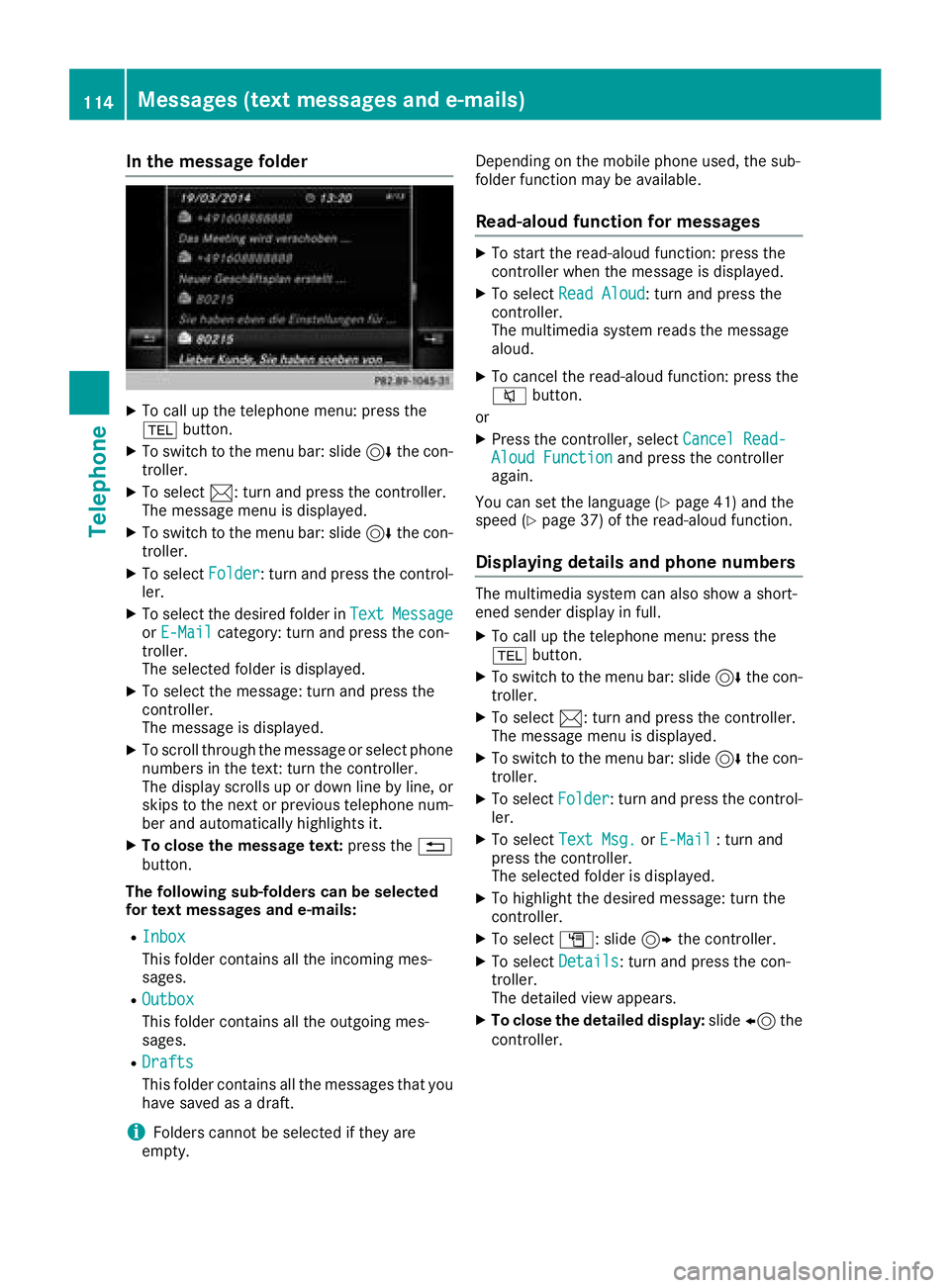
In the message folder
XTo call up thetelephon emenu: press th e
% button.
XTo switch to th emen ubar: slide 6thecon-
troller .
XTo select 1:turnand press th econtroller .
The message men uis displayed.
XTo switch to th emen ubar: slide 6thecon-
troller .
XTo select Folder:tur nand press th econtrol -
ler.
XTo select th edesired folder in TextMessag eorE-Mailcategory: tur nand press th econ-
troller .
The selected folder is displayed.
XTo select th emessage :tur nand press th e
controller.
The message is displayed.
XTo scrol lthroug hth emessage or select phon e
number sin th etext :tur nth econtroller .
The display scrolls up or down lin eby line, or
skips to th enext or previous telephon enum -
ber and automatically highlights it .
XTo close themessag etext: press th e%
button.
Th efollowing sub-folders can be selected
for tex tmessages and e-mails :
RInbox
This folder containsall th eincoming mes -
sages.
ROutbox
This folder contain sall th eoutgoin gmes -
sages.
RDrafts
This folder contain sall th emessage sthat you
hav esaved as adraft.
iFolder scanno tbe selected if they are
empty. Dependin
gon th emobile phon eused, th esub-
folder function may be available.
Read-aloud function for messages
XTo start th eread-aloud function :press th e
controller when th emessage is displayed.
XTo select ReadAloud:tur nand press th e
controller .
The multimedia system read sth emessage
aloud.
XTo cance lth eread-aloud function :press th e
8 button.
or
XPress th econtroller ,select Cancel Read-Aloud Functionand press th econtroller
again .
You can set th elanguage (
Ypage 41) and th e
spee d (Ypage 37) of th eread-aloud function .
Displaying details and phone numbers
The multimedia system can also sho w ashort -
ened sender display in full.
XTo call up th etelephon emenu: press th e
% button.
XTo switch to th emen ubar: slide 6thecon-
troller .
XTo select 1:turnand press th econtroller .
The message men uis displayed.
XTo switch to th emen ubar: slide 6thecon-
troller .
XTo select Folder:tur nand press th econtrol -
ler .
XTo select TextMsg .orE-Mail:tur nand
press th econtroller .
The selected folder is displayed.
XTo highligh tth edesired message :tur nth e
controller .
XTo select G:slide9 thecontroller .
XTo select Details:tur nand press th econ-
troller .
The detailed vie wappears.
XTo close th edetailed display: slide8 the
controller .
114Messages (text messages and e-mails)
Telephone
Page 125 of 190
Detailed connection status
XTo callup th etelephon emenu: press th e
% button.
XTo switch to th emain function bar :slid e5
th econtroller .
XTo selectTel /®: press th econtroller .
XTo selectInternet:turn and press th econ-
troller.
The men uwit hth eInternet function sis dis -
played.
XTo switch to th emen ubar :slid e6 thecon-
troller.
XTo selec tSettings:turn and press th econ-
troller.
XTo selec tConnectio nStatus:turn and
press th econtroller .
The followin ginformation is displayed:
Rth evolume of transferred dat a
Rconnection status
Ending theconnection
You canno tcance lth econnection yourself. The
Internet connection is automatically terminated
if th esyste mdoe sno trecogniz eany user input
within afive-minut etime period.
Mercedes-Benz App s
General notes
To be able to use Mercedes-Ben zApps, you hav e
to register and confirm th eterm sand condi-
tions.
Calling up Mercedes-Benz App s
XTo callup th etelephon emenu: press th e
% button.
XTo switch to th emain function bar :slid e5
th econtroller .
XTo selectTel /®: press th econtroller .
XTo selectInternet:turn and press th econ-
troller.
XTo selec tMercedes-Ben zApp s:turn and
press th econtroller .
XTo callup th eapp: turn and press th econ-
troller. You can fin
dfurther Mercedes-Ben zApps and
information under:
http://apps.mercedes-benz.com/apps /
iThe available featuresare country-depend -
ent.
License fees may be applicable.
Voice-operate dcontro lof Mercedes-
Benz App s
If voice-operated contro lof aMercedes-Ben z
app is available ,this is shown by th eo sym-
bol in th eapp.
XCall up aMercedes-Ben zapp (Ypage 123).
XTo use voice-operated control: selec to.
XSay th equestion or prompt .
iThe voice-operated contro lsystem is no t
available in all countrie sor all languages.
Web browser
Calling up awebsite
Function restrictions
Internet page scanno tbe shown whil eth evehi-
cl e is in motion .
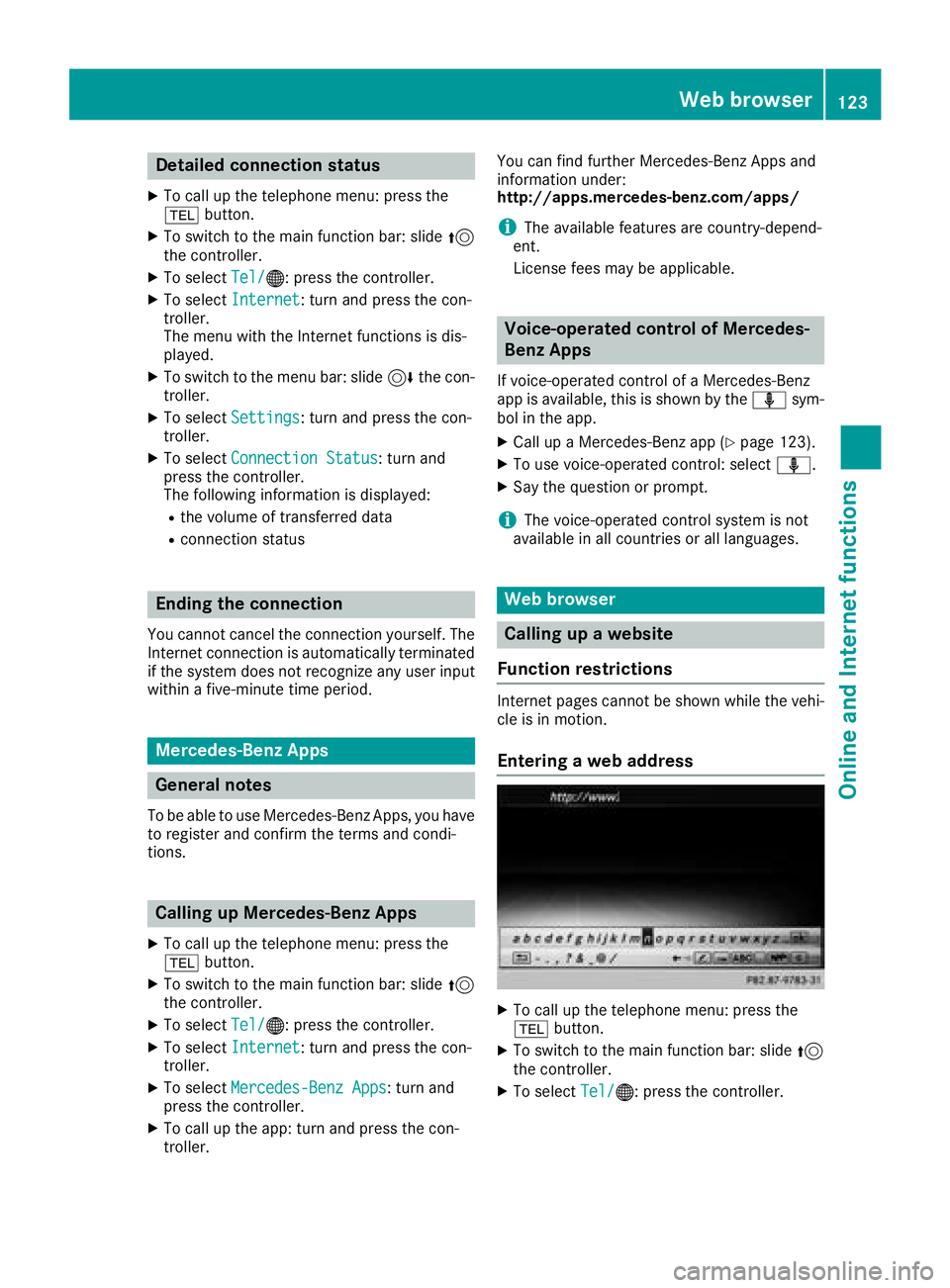
Enteringaweb address
XTo cal lup th etelephon emenu: press th e
% button.
XTo switch to th emain function bar :slid e5
th econtroller .
XTo selectTel /®: press th econtroller .
Web browser123
Online and Internet functions
Z
Page 154 of 190
General notes
Notes on discs
!Do not affix stickers or labels to the discs.
They could peel off and damage the drive.
The drive is designed to receive EN 60908 standard discs. Therefore, you can
only use discs with a maximum thickness of
1.3 mm.
If you insert thicker discs, e.g. those that con-
tain data on both sides (DVD on one side and
audio data on the other), they cannot be ejec-
ted and can damage the drive.
Do not use discs with an 8 cm diameter, even
when using an adapter. Only use round discs
with a 12 cm diameter.
The variety of discs, burners and burn software
available means there is no guarantee that the
multimedia system will be able to play discs that
you have burned yourself.
DVD playback conditions
The multimedia system can play back video
DVDs produced according to the following
standards:
RRegion code 1 or region code 0 (no region
code)
RPAL or NTSC standard
You will generally find the relevant details either
on the DVD itself or on the DVD case.
With DVDs that do not meet the standard
requirements, you may encounter playback
problems.
iObserve the following notes:
RThe multimedia system is set to region
code 1 at the factory. This setting can be
changed at a qualified specialist workshop.
The region code can be changed up to five
times.
RIf the region code is changed at the work-
shop, video DVDs with another region code
can also be played. If you insert a video
DVD with a different region code, a mes-
sage to this effect appears.
RIf a DVD cannot be played back according
to national color transfer methods (PAL or
NTSC standards), problems with the image,
sound or playback may occur.
Control options
There are various control menus available in
DVD video mode.
Most DVDs have their own control menu.
The DVD's control menu is operated directly
using the controller or DVD functions.
Control menu and
functionOperation
RDVD's control
menu
Selection of title,
scene, language,
subtitles ...Operation with the
controller
RMenu Options
Selection of bright-
ness, contrast,
color, format
Operation using the
menu bar Options,
video settings
RVideo menu
Selection of scene,
fast forward or
rewindIn full-screen mode,
slide 6the control-
ler
RDVD functions
Selection of title,
scene, language,
subtitles ...In full-screen mode,
press the controller
Function restrictions
Depending on the DVD, certain functions or
actions may not function at all. The symbol K
appears in the display.
Switching on video DVD mode
XInsert a DVD into the single DVD drive
(Ypage 139).
XInsert a DVD into the DVD changer
(Ypage 139).
Further options for switching on:
RUsing the number keypad (Ypage 137)
RUsing the main function bar (Ypage 136)
RUsing the device list (Ypage 137)
RUsing the Õbutton (Ypage 136)
152Video DVD mode
Media
Page 156 of 190
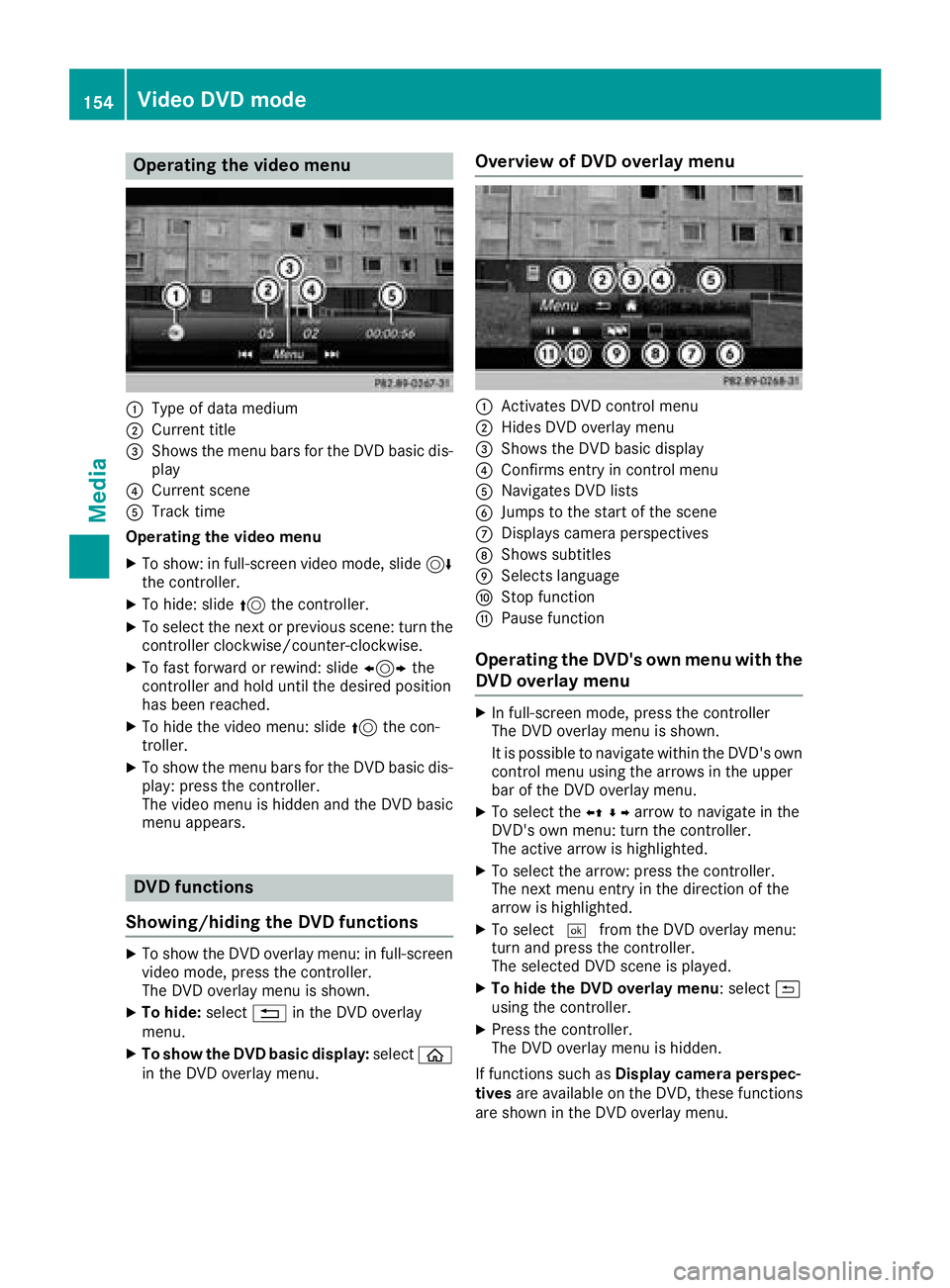
Operating the video menu
:Type of data medium
;Current title
=Shows the menu bars for the DVD basic dis-play
?Current scene
ATrack time
Operating the video menu
XTo show: in full-screen video mode, slide 6
the controller.
XTo hide: slide 5the controller.
XTo select the next or previous scene: turn the
controller clockwise/counter-clockwise.
XTo fast forward or rewind: slide 1the
controller and hold until the desired position
has been reached.
XTo hide the video menu: slide 5the con-
troller.
XTo show the menu bars for the DVD basic dis- play: press the controller.
The video menu is hidden and the DVD basic
menu appears.
DVD functions
Showing/hiding the DVD functions
XTo show the DVD overlay menu: in full-screen
video mode, press the controller.
The DVD overlay menu is shown.
XTo hide: select%in the DVD overlay
menu.
XTo show the DVD basic display: selectò
in the DVD overlay menu.
Overview of DVD overlay menu
:Activates DVD control menu
;Hides DVD overlay menu
=Shows the DVD basic display
?Confirms entry in control menu
ANavigates DVD lists
BJumps to the start of the scene
CDisplays camera perspectives
DShows subtitles
ESelects language
FStop function
GPause function
Operating the DVD's own menu with the DVD overlay menu
XIn full-screen mode, press the controller
The DVD overlay menu is shown.
It is possible to navigate within the DVD's owncontrol menu using the arrows in the upper
bar of the DVD overlay menu.
XTo select the XZ¬Yarrow to navigate in the
DVD's own menu: turn the controller.
The active arrow is highlighted.
XTo select the arrow: press the controller.
The next menu entry in the direction of the
arrow is highlighted.
XTo select ¬from the DVD overlay menu:
turn and press the controller.
The selected DVD scene is played.
XTo hide the DVD overlay menu: select &
using the controller.
XPress the controller.
The DVD overlay menu is hidden.
If functions such as Display camera perspec-
tives are available on the DVD, these functions
are shown in the DVD overlay menu.
154Video DVD mode
Media
Page 176 of 190
Using the main loudspeakers
This function is available in conjunction with the
multimedia system.
You can use the vehicle loudspeakers to listen to
a disc inserted in the rear-compartment drive.
To do so, disc mode (audio CD/audio DVD/
MP3) must be activated on at least one rear
screen.
The volume setting of the headphones does not
affect the main loudspeakers.
XTo set on the multimedia system:press the
$ button, for example, to switch on an
audio mode.
XTo select Information6slide and press
the controller.
A menu appears.
XTurn the controller until Rear Seat Enter‐tainment System: Audiois brought to the
front.
XPress the controller.
Selecting sound settings
You can select sound settings in the following
operating modes:
RAudio CD/MP3
RVideo DVD
RRadio (active media source in COMAND)
RAUX
XSwitch on an operating mode (e.g. CD mode)
(Ypage 175).
XSelect TrebleorBassusing
the :=; buttons on the remote
control and press the 9button to confirm.
An adjustment scale appears.
XSelect a setting using the 9:buttons
and press the 9button to confirm.
Multiple users
Simultaneous use of the rear-compart-
ment disc drive
The two rear-compartment screens can be oper- ated almost entirely independently from one
another. However, a conflict may occur in some
menus if the two screens are used simultane-
ously. The following functions affect both screens:
Rchanging playback options
Rselecting a track (from a track list or folder)
Rusing the play, pause and stop functions
Rfast forward and rewind or scrolling
Rcalling up the DVD menu and navigating
within it
Rsetting the language, subtitles and camera
angle
Rcalling up interactive DVD content
The following functions affect only one screen:
Rfunctions in audio and video mode
Rchanging picture settings
Rswitching between full screen and the menu
Switching between operating modes
When you exit an operating mode (e.g. CD
mode), the current setting is saved. If you call up
this operating mode again later, there are two
possibilities:
Rthe operating mode has been changed on the
other screen.
Rthe operating mode has not been changed.
In the first case, the operating mode appears as it is on the other screen.
In the second case, the setting appears on the
screen as it was when you last exited the oper-
ating mode.
Picture settings
Overview
You can select the picture settings in DVD and
AUX mode (Ypage 184).
Adjusting the brightness, contrast and
color
XSwitch to DVD mode (Ypage 179).
XTo show the menu: press the9button on
the remote control.
174Basic functions
Rear Seat Entertainment System
Page 177 of 190
XSelectDVD-Videousing the :=;
buttons and press the 9button to confirm.
XSelect Brightness,Contrastor Colorusing the 9: buttons and press the 9
button to confirm.
A scale appears.
XSelect a setting using the 9:buttons
and press the 9button to confirm.
Changing the picture format
XTo show the menu: press the9button on
the remote control.
XSelect DVD-Videousing the :=;
buttons and press the 9button to confirm.
The dot in front of one of the menu items
16:9
, 4:3or Zoomshows the currently set
picture format.
XSelect a format using the 9:buttons
and press the 9button to confirm.
System settings
Note
You can adjust all system settings individually
for each rear screen without affecting the other
screen.
Selecting the display language
XSelect Systemusing the 9=; but-
tons on the remote control and press 9to
confirm.
You see the system menu on the selected rear screen.
XSelect Settingsusing the :button and
press 9to confirm.
XPress the 9button to confirm Language.
The list of languages appears. The #dot indi-
cates the current setting.
XSelect a language using the 9:but-
tons and press the 9button to confirm.
The Rear Seat Entertainment System sets the
selected language.
Switching the display design
XSelect Settingsusing the :button and
press 9to confirm.
XSelect Day Mode,Night Modeor Automaticwith the 9: buttons and confirm with
the 9button.
The dot indicates the current setting.
DesignExplanation
Day ModeThe display is set perma-
nently to day design.
Night ModeThe display is set perma-
nently to night design.
AutomaticThe display design
changes depending on
the vehicle instrument
cluster illumination.
Setting the brightness
XSelect Settingsusing the :button and
press 9to confirm.
XSelect Brightnesswith the 9: but-
tons and confirm with the 9button.
A scale appears.
XAdjust the brightness using the 9:
buttons and press the 9button to confirm.
The bar moves up or down. The picture
becomes lighter or darker.
Showing/hiding the picture
XTo hide the picture: selectDisplayin the
system menu using the :;buttons on
the remote control and press the 9button to
confirm.
The picture is hidden.
XTo display the picture: press the9button.
Audio CD/DVD and MP3 mode
Important safety notes
GWARNING
The CD/DVD drive is a class 1 laser product.
If you open the housing of the CD/DVD drive,
there is a risk of exposure to invisible laser
Audio CD/DVD and MP3 mode175
Rear Seat Entertainment System
Z