language MERCEDES-BENZ GLE SUV 2018 COMAND Manual
[x] Cancel search | Manufacturer: MERCEDES-BENZ, Model Year: 2018, Model line: GLE SUV, Model: MERCEDES-BENZ GLE SUV 2018Pages: 190, PDF Size: 4.42 MB
Page 183 of 190
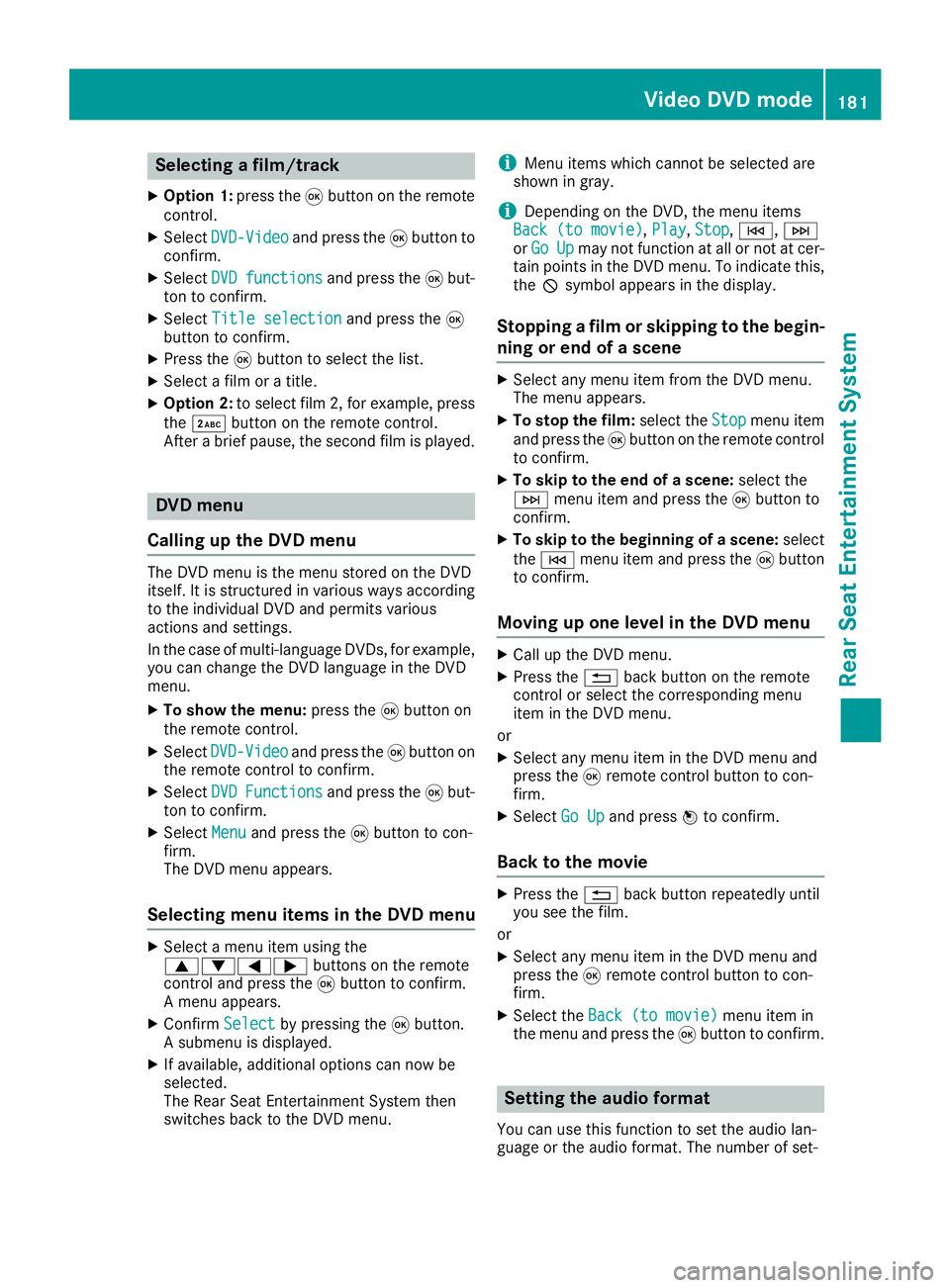
Selecting a film/track
XOption 1:press the9button on the remote
control.
XSelect DVD-Videoand press the 9button to
confirm.
XSelect DVDfunctionsand press the 9but-
ton to confirm.
XSelect Title selectionand press the 9
button to confirm.
XPress the 9button to select the list.
XSelect a film or a title.
XOption 2: to select film 2, for example, press
the · button on the remote control.
After a brief pause, the second film is played.
DVD menu
Calling up the DVD menu
The DVD menu is the menu stored on the DVD
itself. It is structured in various ways according
to the individual DVD and permits various
actions and settings.
In the case of multi-language DVDs, for example,
you can change the DVD language in the DVD
menu.
XTo show the menu: press the9button on
the remote control.
XSelect DVD-Videoand press the 9button on
the remote control to confirm.
XSelect DVDFunctionsand press the 9but-
ton to confirm.
XSelect Menuand press the 9button to con-
firm.
The DVD menu appears.
Selecting menu items in the DVD menu
XSelect a menu item using the
9:=; buttons on the remote
control and press the 9button to confirm.
A menu appears.
XConfirm Selectby pressing the 9button.
A submenu is displayed.
XIf available, additional options can now be
selected.
The Rear Seat Entertainment System then
switches back to the DVD menu.
iMenu items which cannot be selected are
shown in gray.
iDepending on the DVD, the menu items
Back (to movie), Play,Stop,E, F
or GoUpmay not function at all or not at cer-
tain points in the DVD menu. To indicate this,
the Ksymbol appears in the display.
Stopping a film or skipping to the begin-
ning or end of a scene
XSelect any menu item from the DVD menu.
The menu appears.
XTo stop the film: select theStopmenu item
and press the 9button on the remote control
to confirm.
XTo skip to the end of a scene: select the
F menu item and press the 9button to
confirm.
XTo skip to the beginning of a scene: select
the E menu item and press the 9button
to confirm.
Moving up one level in the DVD menu
XCall up the DVD menu.
XPress the %back button on the remote
control or select the corresponding menu
item in the DVD menu.
or
XSelect any menu item in the DVD menu and
press the 9remote control button to con-
firm.
XSelect Go Upand press Wto confirm.
Back to the movie
XPress the %back button repeatedly until
you see the film.
or
XSelect any menu item in the DVD menu and
press the 9remote control button to con-
firm.
XSelect the Back (to movie)menu item in
the menu and press the 9button to confirm.
Setting the audio format
You can use this function to set the audio lan-
guage or the audio format. The number of set-
Video DVD mode181
Rear Seat Entertainment System
Z
Page 184 of 190
tings is determined by the DVD content. It may
also be possible to access the settings from the
DVD menu. This function is not available on all
DVDs.
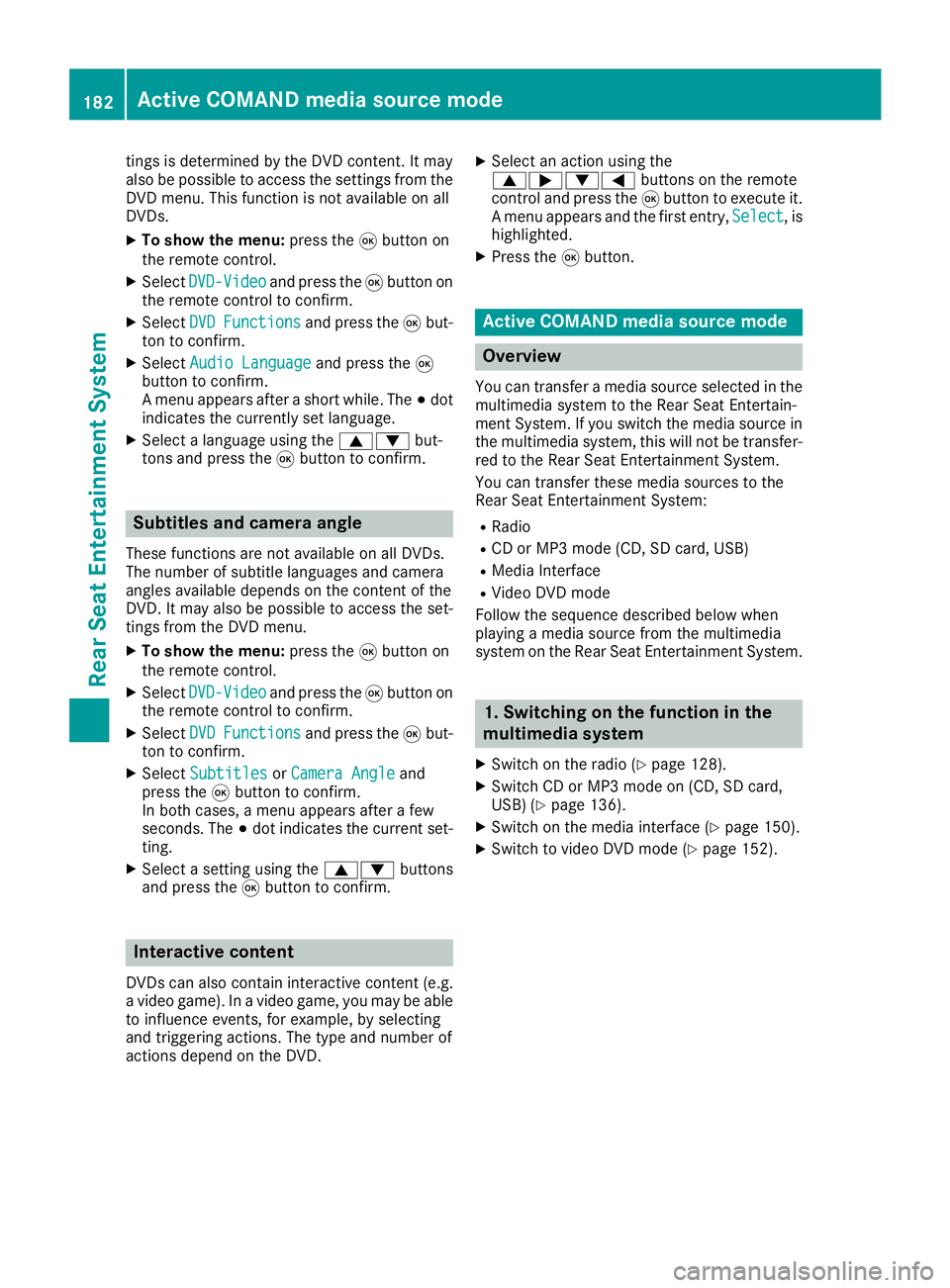
XTo show the menu:press the9button on
the remote control.
XSelect DVD-Videoand press the 9button on
the remote control to confirm.
XSelect DVDFunctionsand press the 9but-
ton to confirm.
XSelect Audio Languageand press the 9
button to confirm.
A menu appears after a short while. The #dot
indicates the currently set language.
XSelect a language using the 9:but-
tons and press the 9button to confirm.
Subtitles and camera angle
These functions are not available on all DVDs.
The number of subtitle languages and camera
angles available depends on the content of the
DVD. It may also be possible to access the set-
tings from the DVD menu.
XTo show the menu: press the9button on
the remote control.
XSelect DVD-Videoand press the 9button on
the remote control to confirm.
XSelect DVDFunctionsand press the 9but-
ton to confirm.
XSelect SubtitlesorCamera Angleand
press the 9button to confirm.
In both cases, a menu appears after a few
seconds. The #dot indicates the current set-
ting.
XSelect a setting using the 9:buttons
and press the 9button to confirm.
Interactive content
DVDs can also contain interactive content (e.g.
a video game). In a video game, you may be able
to influence events, for example, by selecting
and triggering actions. The type and number of
actions depend on the DVD.
XSelect an action using the
9;:= buttons on the remote
control and press the 9button to execute it.
A menu appears and the first entry, Select
, is
highlighted.
XPress the 9button.
Active COMAND media source mode
Overview
You can transfer a media source selected in the
multimedia system to the Rear Seat Entertain-
ment System. If you switch the media source in
the multimedia system, this will not be transfer-
red to the Rear Seat Entertainment System.
You can transfer these media sources to the
Rear Seat Entertainment System:
RRadio
RCD or MP3 mode (CD, SD card, USB)
RMedia Interface
RVideo DVD mode
Follow the sequence described below when
playing a media source from the multimedia
system on the Rear Seat Entertainment System.
1. Switching on the function in the
multimedia system
XSwitch on the radio (Ypage 128).
XSwitch CD or MP3 mode on (CD, SD card,
USB) (Ypage 136).
XSwitch on the media interface (Ypage 150).
XSwitch to video DVD mode (Ypage 152).
182Active COMAND media source mode
Rear Seat Entertainment System