navigation system MERCEDES-BENZ GLE SUV 2018 COMAND Manual
[x] Cancel search | Manufacturer: MERCEDES-BENZ, Model Year: 2018, Model line: GLE SUV, Model: MERCEDES-BENZ GLE SUV 2018Pages: 190, PDF Size: 4.42 MB
Page 32 of 190
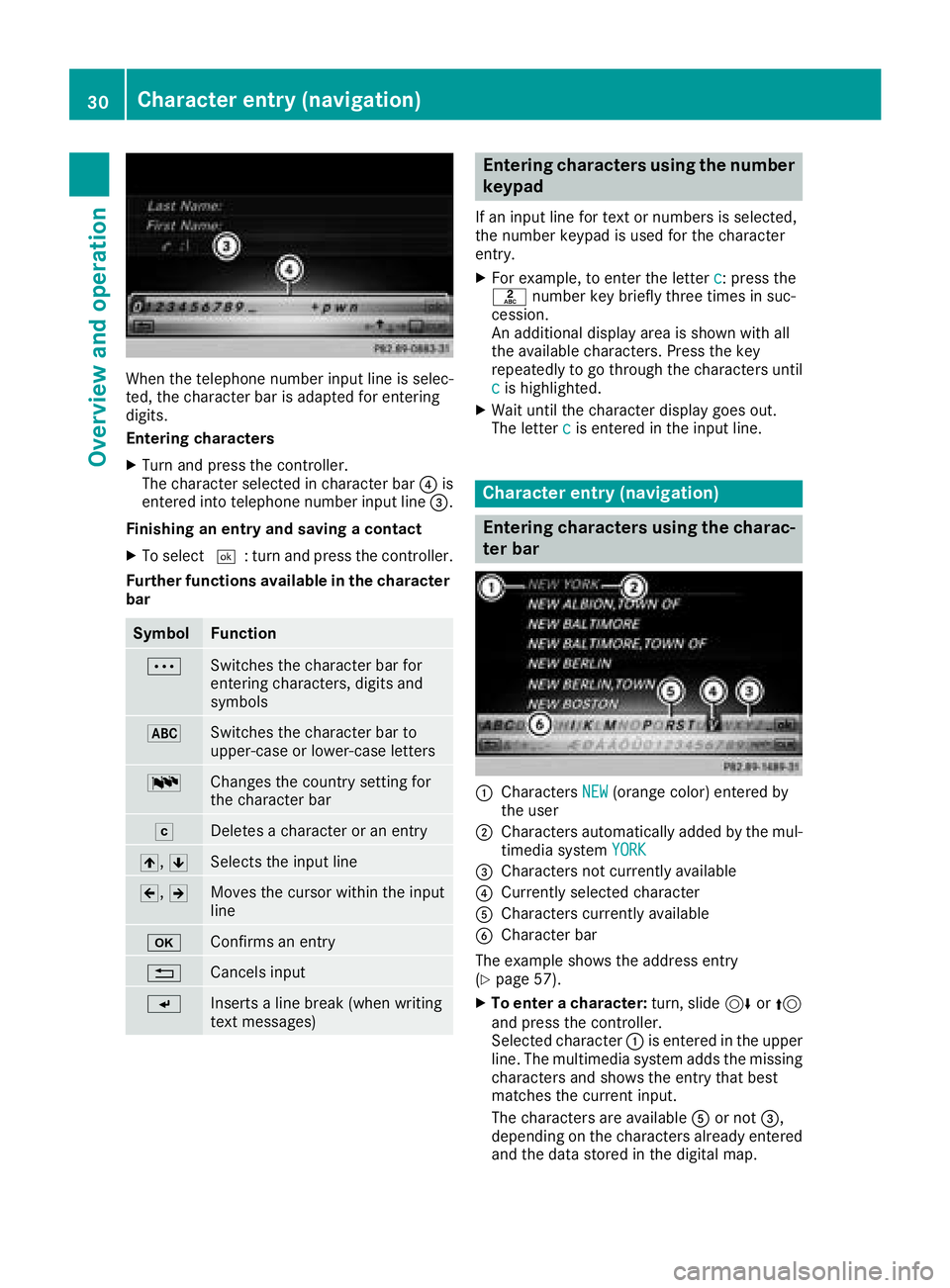
When the telephone number input line is selec-
ted, the character bar is adapted for entering
digits.
Entering characters
XTurn and press the controller.
The character selected in character bar?is
entered into telephone number input line =.
Finishing an entry and saving a contact
XTo select ¬: turn and press the controller.
Further functions available in the character bar
SymbolFunction
ÄSwitches the character bar for
entering characters, digits and
symbols
*Switches the character bar to
upper-case or lower-case letters
BChanges the country setting for
the character bar
FDeletes a character or an entry
4, 5Selects the input line
2,3Moves the cursor within the input
line
bConfirms an entry
%Cancels input
SInserts a line break (when writing
text messages)
Entering characters using the number
keypad
If an input line for text or numbers is selected,
the number keypad is used for the character
entry.
XFor example, to enter the letter c: press the
l number key briefly three times in suc-
cession.
An additional display area is shown with all
the available characters. Press the key
repeatedly to go through the characters until
c
is highlighted.
XWait until the character display goes out.
The letter cis entered in the input line.
Character entry (navigation)
Entering characters using the charac-
ter bar
:Characters NEW(orange color) entered by
the user
;Characters automatically added by the mul-
timedia system YORK
=Characters not currently available
?Currently selected character
ACharacters currently available
BCharacter bar
The example shows the address entry
(
Ypage 57).
XTo enter a character: turn, slide6or5
and press the controller.
Selected character :is entered in the upper
line. The multimedia system adds the missing
characters and shows the entry that best
matches the current input.
The characters are available Aor not =,
depending on the characters already entered
and the data stored in the digital map.
30Character entry (navigation)
Overview and operation
Page 37 of 190
DesignExplanation
Day ModeThe display is set perma-
nently to day design .
Night ModeThe display is set perma-
nently to night design .
AutoThe multimedia system
evaluate sth edat aof th e
ligh tsensor and automat -
ically switches ove rth e
display design .
Switching the display on/off
Switchingoff th edispla y
XPress th eØ button.
XTo switch to th emen ubar: slid e6 thecon-
troller.
XTo select DisplayOff:tur nand press th e
controller .
The display goe sout .
XTo switch th edispla yon again: press the
controller .
Time settings
Gene ral inform ation
The multimedia system can automatically set
thetime and date.
The followin gnavigation system function s
require th etime, time zone and summer/stand-
ard time to be set correctl yin order to wor k
properly:
Rrout eguidance on routes wit htime-depend -
en ttraffic guidance
Rcalculation of expecte dtime of arrival
Switching automatic ti me onand off
TheAutomatic Tim eSettingsfunction is
used to activat eor deactivat eth eautomatic
setting of th etime and date. This function is
activated when th evehicl eleaves th efactory.
XPress th eØ button.
or
XPress Vehicl ein themain function bar.
The vehicl emen uis displayed.
XTo switch to th emen ubar: slid e6 thecon-
troller.
XTo select Time:tur nand press th econtroller .
A men uappears.
XTo switch AutomaticTimeSettingsonO
or off ª:press th econtroller .
Setting the ti mezone
To set th etime zone ,th eAutomatic Tim eSettingsfunction mustbe activated.
XPress th eØ button.
or
XPress Vehicl ein themain function bar.
The vehicl emen uis displayed.
XTo switch to th emen ubar: slid e6 thecon-
troller.
XTo select Time:tur nand press th econtroller .
A men uappears.
XTo select TimeZone::tur nand press th e
controller .
A list of countrie sappears. The #dot indi-
cates th ecurren tsetting .
XTo select th ecountr yin which you ar e
currentl ydriving: turnand press th econ-
troller.
The country is accepted. Atime zone list may
also be displayed, depending on th ecountry
selected.
XTo select th edesired time zone: turnand
press th econtroller .
The time zone is accepted.
A list of available option sfor setting summer
time appear s (
Ypage 35).
Setting sum mer and standard ti me
TheDaylight Saving Tim efunction is not
available in all countries.
Using th eDaylight Saving Tim e
function,
you can set th eautomatic changeover to sum -
mer time or switch th esummer time setting son
and off .The changeover to summer time advan -
ce sth etime by on ehour .
XPress th eØ button.
or
XPress Vehicl ein themain function bar.
The vehicl emen uis displayed.
Time settings35
System settings
Z
Page 43 of 190
Activating/deactivating Bluetooth®
X
Press th eØ button.
or
XPress Vehicl ein themain function bar.
The vehicl emen uis displayed.
XTo switch to th emen ubar: slid e6 thecon-
troller .
XTo select System Settings:tur nand press
th econtroller .
A men uappears.
XTo switch Activate BluetoothonO or off
ª: turnand press th econtroller .
Setting the system language
General inform ation
This function allows you to determine th elan -
guage for th emen udisplays and th enavigation
messages. The selected language affects th e
characters available for entry.
iThe navigation announcements are no t
available in all languages. If alanguage is no t
available, th enavigation announcements will
be in English.
iWhen you set th esystem language ,th elan -
guage of th eVoic eControl Syste mwill
chang eaccordingly. If it is no tsupported by
th eVoic eControl System, Englis hwill be
selected.
Setting the system language
XPress th eØ button.
or
XPress Vehicl ein themain function bar.
The vehicl emen uis displayed.
XTo switch to th emen ubar: slid e6 thecon-
troller .
XTo select System Settings:tur nand press
th econtroller .
A men uappears.
XTo select Language:tur nand press th econ-
troller .
The list of language sappears. The #dot indi-
cates th ecurren tsetting .
XSelectth edesired language .
The multimedia system loads th eselected
language and set sit.
Calling up the favorite functions
The favorite sfunction can be called up as fol -
lows :
Rvia th eSystem Settingsmen u
Rvia th eFavorite sbutto non th econtroller
(Ypage 22)
Rvia th eFavorite sbutto non th etouchpad
(Ypage 23 )
Calling up th eFavorites function via th esys -
tem men u
XPress theØ button.
or
XPress Vehicl ein themain function bar.
The vehicl emen uis displayed.
XTo switch to th emen ubar: slid e6 thecon-
troller .
XTo select System Settings:tur nand press
th econtroller .
A men uappears.
XTo select Favorite Functions:press th e
controller .
The favorite sare displayed.
XTo select th edesired function ,e.g. Phone‐book:tur nand press th econtroller .
A men uappears.
Calling up th eFavorites function using th e
controller
XPress th efavorite sbutto non th econtroller .
The favorite sare displayed.
XTo select th edesired function ,e.g. Phone‐book:tur nand press th econtroller .
Calling up th eFavorites function via th e
touchpad
XPress th efavorite sbutto non th etouchpad.
The favorite sare displayed.
XTo select th edesired function ,e.g. Phone‐book:tur nand press th econtroller .
Calling up the favorite functions41
System settings
Z
Page 45 of 190
XTo switch to the menu bar: slide6the con-
troller.
XTo select System Settings: turn and press
the controller.
A menu appears.
XTo select Data Import/Export: turn and
press the controller.
XSelect Import DataorExport Data.
If PIN protection is activated, a PIN prompt
appears when you select Export Data
.
XTo enter the 4-digit PIN and select ¬: turn
and press the controller.
PIN protection is deactivated.
XTo select MemoryCard,USB 1or USB 2: turn
and press the controller.
This function exports all the data to the selec-
ted disc.
iYou can export address data, bookmarks,
system settings that you have made and radio
station lists, for example.
Mercedes-Benz is not liable for any loss of
data.
Reset function
General information
You can reset the multimedia system to the fac-
tory settings. This includes the deletion of all of
your personal data on the multimedia system.
These include:
RStation presets
REntries in the destination memory
REntries in the list of previous destinations in
the navigation system
REntries in the address book
RAuthorized telephone
In addition, an activated PIN protection, which
you have used to protect your data against
unwanted export, will be deactivated. Resetting
is recommended before selling or transferring
ownership of your vehicle, for example.
Mercedes-Benz is not liable for any loss of data.
Resetting the multimedia system
XPress the Øbutton.
or
XPress Vehiclein the main function bar.
The vehicle menu is displayed.
XTo switch to the menu bar: slide 6the con-
troller.
XTo select System Settings: turn and press
the controller.
XTo select Reset: turn and press the control-
ler.
A prompt appears asking whether you wish to
reset.
XSelect Yes.
A prompt appears again asking whether you
really wish to reset.
XSelect Yes.
The multimedia system is reset to the factory
settings and restarted.
Reset function43
System settings
Z
Page 54 of 190
Your multimediasyste mequipment
These operatin ginstruction sdescribe all th e
standar dan doptional equipment of your multi-
media system, as available at th etime of going
to press. Country-specifi cdifference sare pos -
sible. Bear in min dthat your vehicle may no t
feature all function sdescribed here. Thi salso
applies to safety-relevan tsystems an dfunc-
tions.
Read th einformation on qualifie dspecialis t
workshop sin th evehicle Operator's Manual.
Introduction
Important safet ynotes
GWARNING
If you operat einformation systems an dcom-
munication equipment integrated in th evehi-
cl e when driving, you may be distracted from
th etraffic situation .You could also los econ-
trol of th evehicle. There is aris kof an acci-
dent.
Only operat ethis equipment when th etraffic
situation permits. If you are no tsur ethat this
is possible, par kth evehicle payin gattention
to traffic condition san doperat eth eequip-
men twhen th evehicle is stationary.
You mus tobserv eth elegal requirements fo rth e
country in whic hyou are currentl ydrivin gwhen
operatin gth emultimedia system.
The multimedia syste mcalculates th erout eto
th edestination without taking accoun tof th e
following, fo rexample:
Rtraffic lights
Rstop an dyield signs
Rmergin glanes
Rparking or stoppin gin ano parking/n ostop-
pin gzone
Rother road an dtraffic rule san dregulation s
Rnarrow bridge s
The multimedia syste mmay provid eincorrec t
navigation recommendation sif th eactual
street/traffic situation doe sno tcorrespon d
wit hth edigita lmap's data. Examples of suc
hdeviation sin clu
de:
Ra
diverted rout e
Rachange in th edirection of aone-way stree t
Digital map sdo no tcover all areas no rall routes
in an area.
Fo rthis reason ,you mus talways observ eroad
an dtraffic rule san dregulation sdurin gyour
journey. Road an dtraffic rule san dregulation s
always hav epriorit yover th esystem' sdrivin g
recommendations.
Navigation announcement sare intended to
direc tyou whil edrivin gwithout divertin gyour
attention from th eroad an ddriving.
Please always use this feature instead of con-
sultin gth emap display fo rdirections. Lookin g
at th eicon sor map display can distract you from
traffic condition san ddriving, an dincrease th e
ris kof an accident.
General notes
Operationa lreadines sof th enavigation
syste m
The navigation syste mmus tdetermin eth eposi-
tion of th evehicle befor efirst use or wheneve r
operational status is restored .Therefore, you
may hav eto drive fo r awhil ebefor eprecise
rout eguidance is possible.
GP Sreception
Amon gother things, correc tfunctionin gof th e
navigation syste mdepends on GPS reception .In
certain situations, GPS reception may be
impaired, there may be interferenc eor there
may be no reception at all, e.g. in tunnels or
parking garages .
iUsing roof carriers may impair th ecorrec t
functionin gof aroof antenn a(phone, satellite
radio, GPS).
Entry restriction
Fo rvehicles in certain countries, there is adat a
entr yrestriction .
Entries can be mad ewhen th eselecto rlever is in
position jor th evehicle is stationary.
Whe nth erestriction is active ,certain entries
canno tbe made. Thi swill be indicated by th e
fac tthat certain men uitems are grayed out an d
canno tbe selected.
52Introduction
Navigation
Page 56 of 190
Basic settings
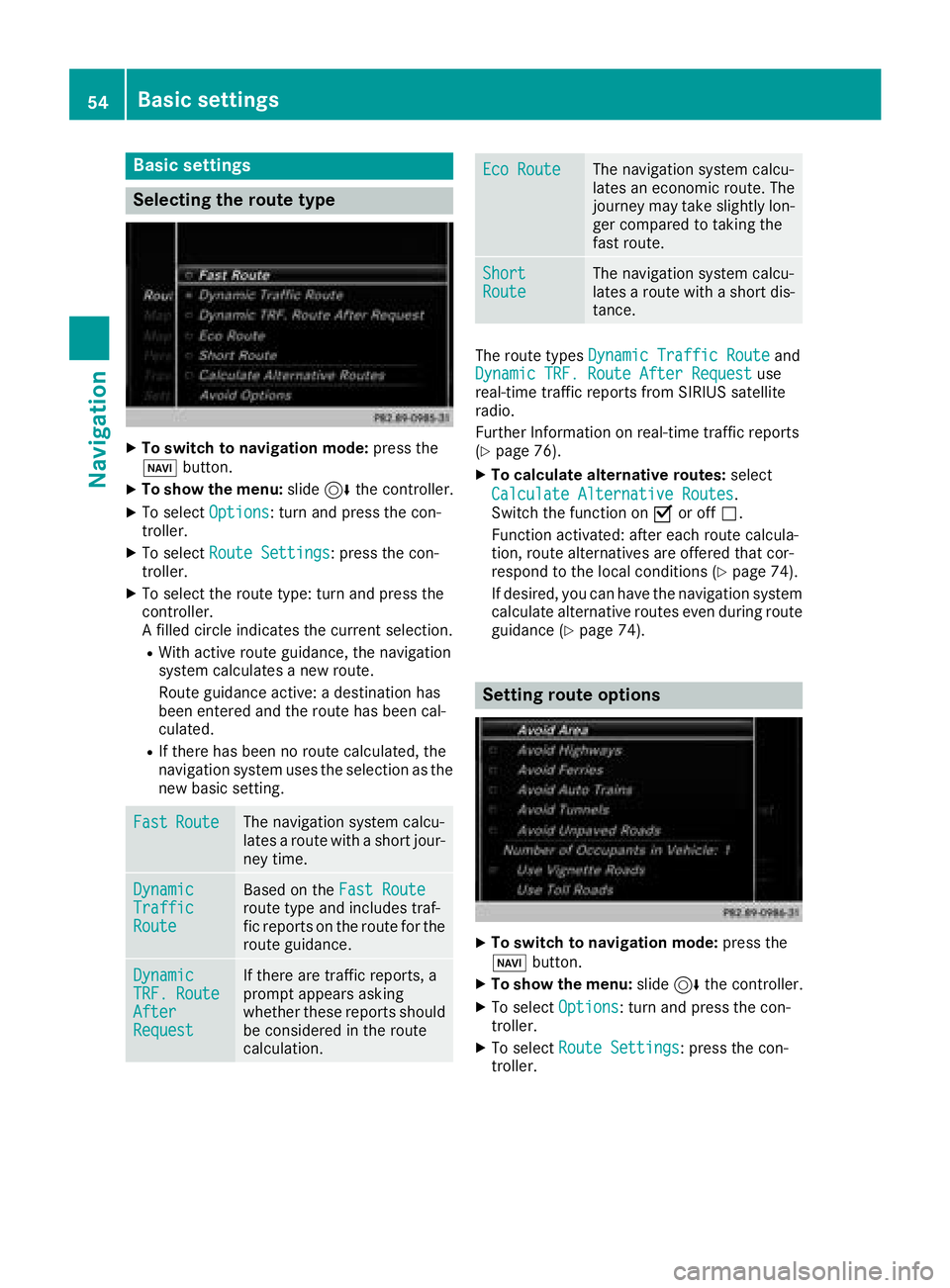
Selecting the route type
XTo switch to navigation mode:press the
Ø button.
XTo show the menu: slide6the controller.
XTo select Options: turn and press the con-
troller.
XTo select Route Settings: press the con-
troller.
XTo select the route type: turn and press the
controller.
A filled circle indicates the current selection.
RWith active route guidance, the navigation
system calculates a new route.
Route guidance active: a destination has
been entered and the route has been cal-
culated.
RIf there has been no route calculated, the
navigation system uses the selection as the
new basic setting.
FastRouteThe navigation system calcu-
lates a route with a short jour-
ney time.
DynamicTrafficRoute
Based on the Fast Routeroute type and includes traf-
fic reports on the route for the
route guidance.
DynamicTRF.RouteAfterRequest
If there are traffic reports, a
prompt appears asking
whether these reports should
be considered in the route
calculation.
Eco RouteThe navigation system calcu-
lates an economic route. The
journey may take slightly lon-
ger compared to taking the
fast route.
ShortRouteThe navigation system calcu-
lates a route with a short dis-
tance.
The route types Dynamic Traffic Routeand
Dynamic TRF. Route After Requestuse
real-time traffic reports from SIRIUS satellite
radio.
Further Information on real-time traffic reports
(
Ypage 76).
XTo calculate alternative routes: select
Calculate Alternative Routes
.
Switch the function on Oor off ª.
Function activated: after each route calcula-
tion, route alternatives are offered that cor-
respond to the local conditions (
Ypage 74).
If desired, you can have the navigation system
calculate alternative routes even during route
guidance (
Ypage 74).
Setting route options
XTo switch to navigation mode: press the
Ø button.
XTo show the menu: slide6the controller.
XTo select Options: turn and press the con-
troller.
XTo select Route Settings: press the con-
troller.
54Basic settings
Navigation
Page 57 of 190
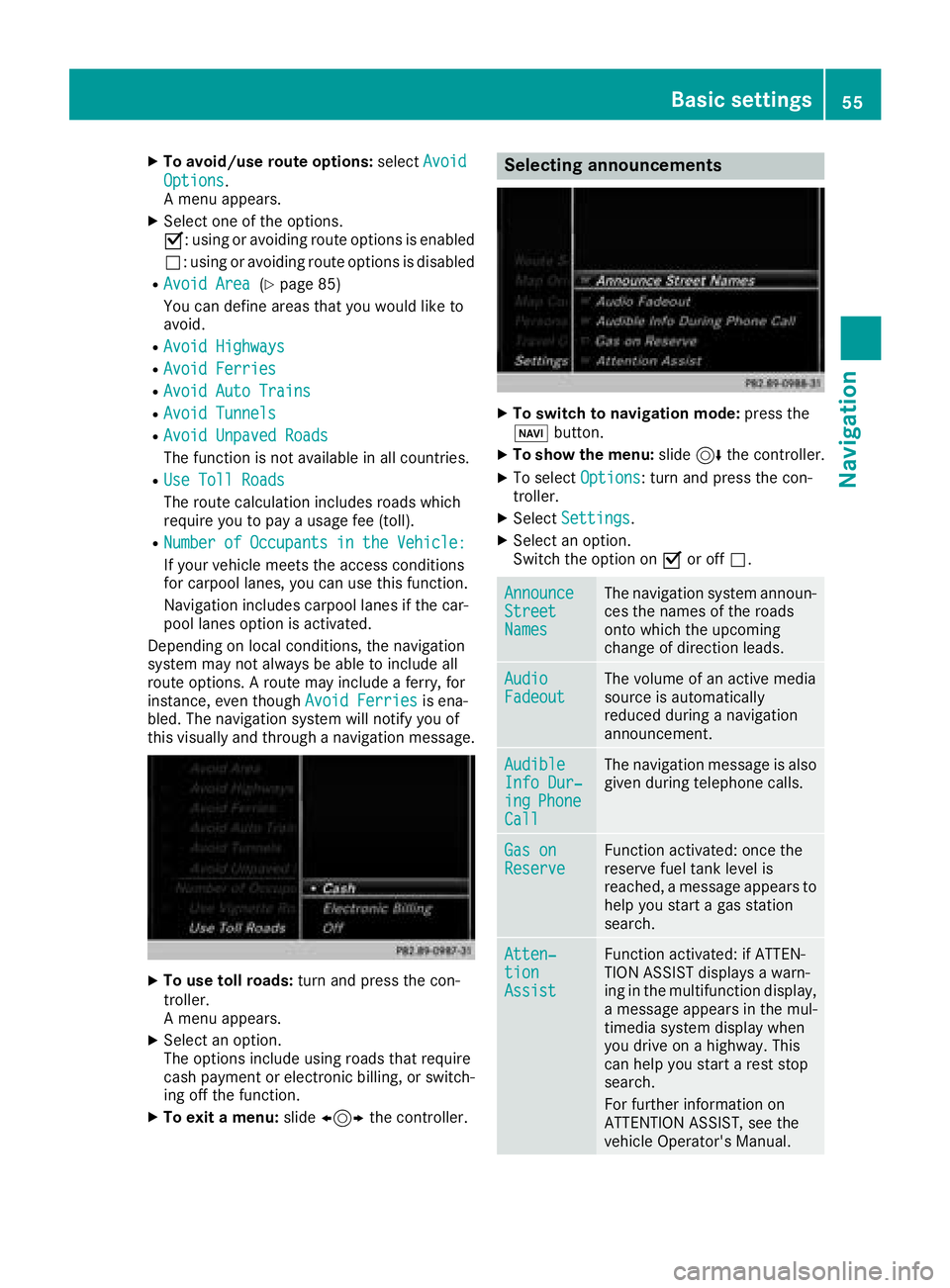
XTo avoid/use route options:selectAvoid
Options.
A menu appears.
XSelect one of the options.
O: using or avoiding route options is enabled
ª: using or avoiding route options is disabled
RAvoid Area(Ypage 85)
You can define areas that you would like to
avoid.
RAvoid Highways
RAvoid Ferries
RAvoid Auto Trains
RAvoid Tunnels
RAvoid Unpaved Roads
The function is not available in all countries.
RUse Toll Roads
The route calculation includes roads which
require you to pay a usage fee (toll).
RNumberofOccupantsintheVehicle:
If your vehicle meets the access conditions
for carpool lanes, you can use this function.
Navigation includes carpool lanes if the car-
pool lanes option is activated.
Depending on local conditions, the navigation
system may not always be able to include all
route options. A route may include a ferry, for
instance, even though Avoid Ferries
is ena-
bled. The navigation system will notify you of
this visually and through a navigation message.
XTo use toll roads: turn and press the con-
troller.
A menu appears.
XSelect an option.
The options include using roads that require
cash payment or electronic billing, or switch-
ing off the function.
XTo exit a menu: slide1 the controller.
Selecting announcements
XTo switch to navigation mode: press the
Ø button.
XTo show the menu: slide6the controller.
XTo select Options: turn and press the con-
troller.
XSelect Settings.
XSelect an option.
Switch the option on Oor off ª.
AnnounceStreetNames
The navigation system announ-
ces the names of the roads
onto which the upcoming
change of direction leads.
AudioFadeoutThe volume of an active media
source is automatically
reduced during a navigation
announcement.
AudibleInfo Dur‐ingPhoneCall
The navigation message is also
given during telephone calls.
Gas onReserveFunction activated: once the
reserve fuel tank level is
reached, a message appears to
help you start a gas station
search.
Atten‐tionAssist
Function activated: if ATTEN-
TION ASSIST displays a warn-
ing in the multifunction display,
a message appears in the mul-
timedia system display when
you drive on a highway. This
can help you start a rest stop
search.
For further information on
ATTENTION ASSIST, see the
vehicle Operator's Manual.
Basic settings55
Navigation
Z
Page 58 of 190
Using car pool lanes
You can include carpool lanes (HOV or car shar-
ing lanes) in the route calculation.
If you use HOV or carpool lanes, please observe
the applicable laws as well as the local and time
limitation conditions.
Carpool lanes may only be used under certain
conditions. They can normally be used when
there are two people in the vehicle. However,
there are also carpool lanes which can only be
used when there are three or more people in the
vehicle. In California, single drivers may also use
the carpool lanes if the vehicle's emission or
consumption values are below the prescribed
levels.
Carpool lanes may be reserved for specific
times (e.g. during the peak period).
Carpool lanes are indicated by a diamond sym-
bol on specific road signs and on the road sur-
face. The road signs may also include the des-
ignation CARPOOL. The lanes are arranged as a
separate lane next to the others or are built as a
physically separate lane.
Depending on the setting underNumber of
Occupants in the Vehicle:, the navigation
system uses carpool lanes when calculating the
route. During route guidance, visual and audible
driving directions provide guidance into and out
of carpool lanes.
XTo switch to navigation mode: press the
ß button.
XTo show the menu: slide6the controller.
XTo select Options: turn and press the con-
troller.
XSelect Route Settings.
XSelectAvoid Options.
XSelectNumber of Occupants in theVehicle:.
A menu appears. The #dot indicates the cur-
rent setting.
XTo select the number: turn and press the con- troller.
Destination entry
Important safety notes
GWARNING
If you operate information systems and com-
munication equipment integrated in the vehi-
cle when driving, you may be distracted from
the traffic situation. You could also lose con-
trol of the vehicle. There is a risk of an acci-
dent.
Only operate this equipment when the traffic
situation permits. If you are not sure that this
is possible, park the vehicle paying attention
to traffic conditions and operate the equip-
ment when the vehicle is stationary.
You must observe the legal requirements for the
country in which you are currently driving when
operating the multimedia system.
Destination entry may be blocked while driving,
depending on the country specifications.
Using an address
Calling up the address entry menu
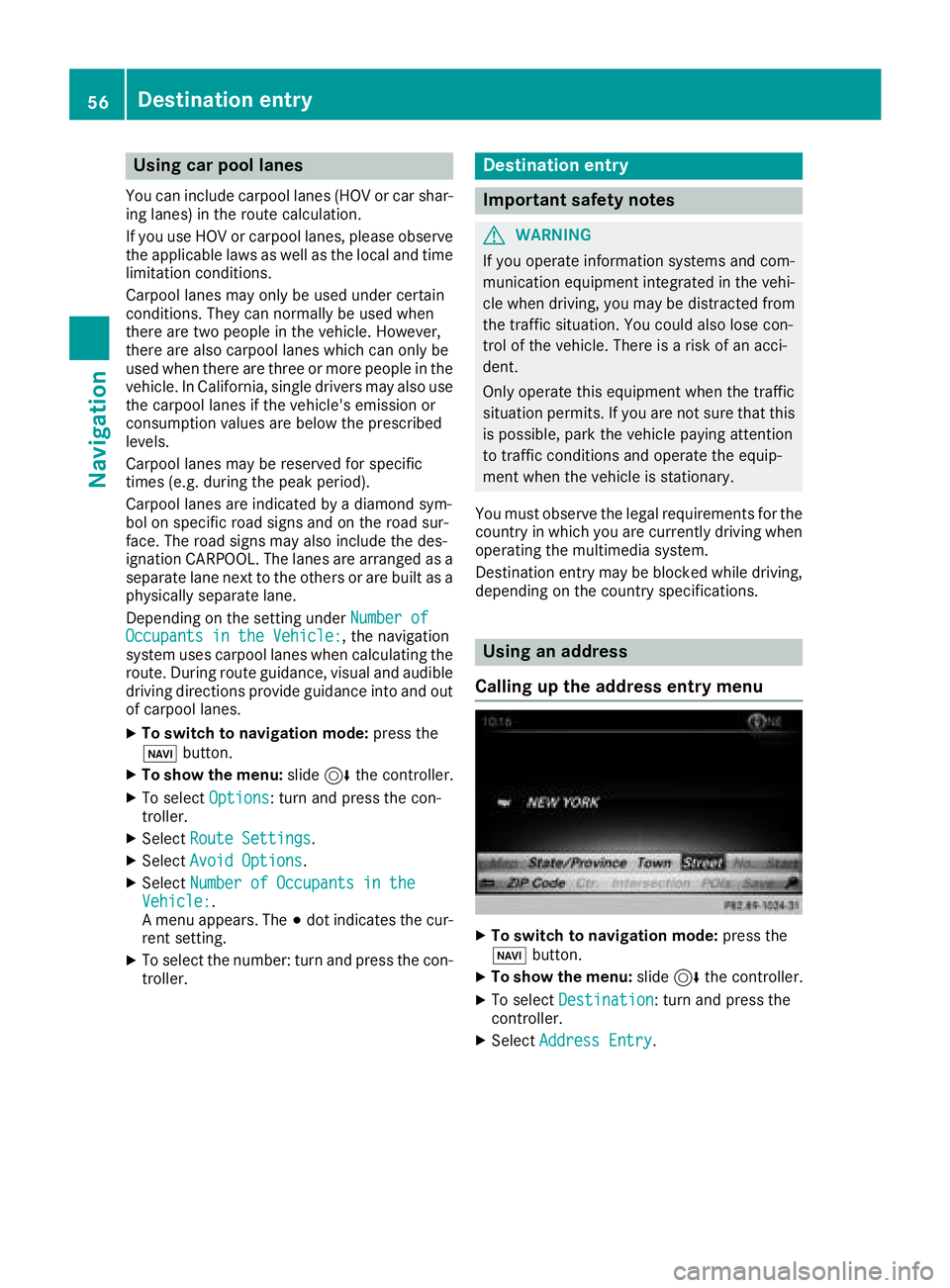
XTo switch to navigation mode: press the
Ø button.
XTo show the menu: slide6the controller.
XTo select Destination: turn and press the
controller.
XSelect Address Entry.
56Destination entry
Navigation
Page 60 of 190
Entering a center will delete a previously
entered street.
RIntersection
Entering an intersection will delete a previ-
ously entered house number.
XSelect the address entry menu (Ypage 56).
XTo selectState/Province,ZIP Code,Ctr.or Intersection: turn, slide 6and press
the controller.
XSelect an entry (Ypage 57).
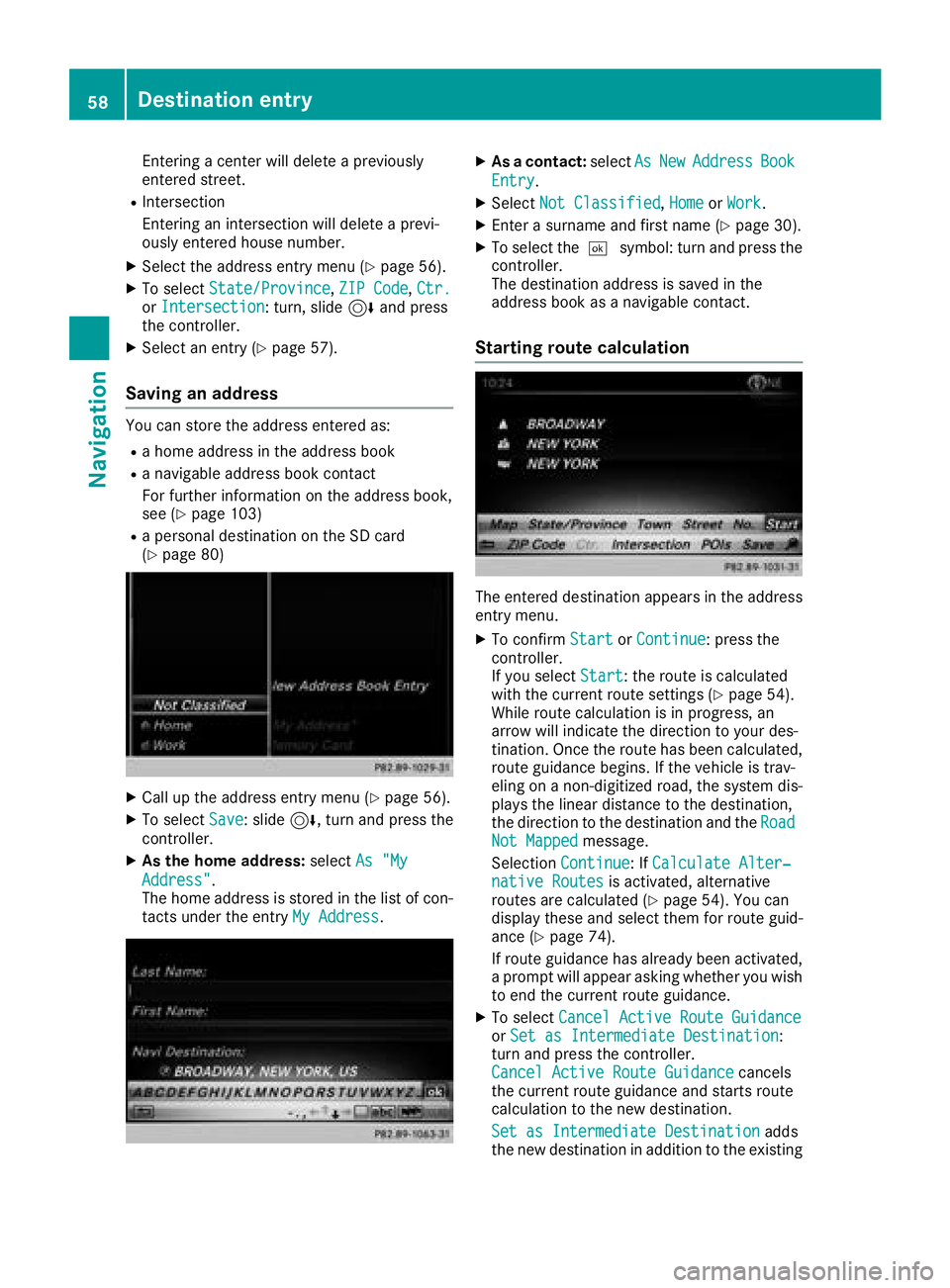
Saving an address
You can store the address entered as:
Ra home address in the address book
Ra navigable address book contact
For further information on the address book,
see (
Ypage 103)
Ra personal destination on the SD card
(Ypage 80)
XCall up the address entry menu (Ypage 56).
XTo select Save: slide6, turn and press the
controller.
XAs the home address: selectAs "My
Address".
The home address is stored in the list of con-
tacts under the entry My Address
.
XAs a contact:selectAsNewAddressBook
Entry.
XSelect Not Classified,Homeor Work.
XEnter a surname and first name (Ypage 30).
XTo select the ¬symbol: turn and press the
controller.
The destination address is saved in the
address book as a navigable contact.
Starting route calculation
The entered destination appears in the address
entry menu.
XTo confirm StartorContinue: press the
controller.
If you select Start
: the route is calculated
with the current route settings (Ypage 54).
While route calculation is in progress, an
arrow will indicate the direction to your des-
tination. Once the route has been calculated,
route guidance begins. If the vehicle is trav-
eling on a non-digitized road, the system dis-
plays the linear distance to the destination,
the direction to the destination and the Road
Not Mappedmessage.
Selection Continue
: IfCalculate Alter‐native Routesis activated, alternative
routes are calculated (Ypage 54). You can
display these and select them for route guid-
ance (
Ypage 74).
If route guidance has already been activated,
a prompt will appear asking whether you wish
to end the current route guidance.
XTo select Cancel Active Route GuidanceorSet as Intermediate Destination:
turn and press the controller.
Cancel Active Route Guidance
cancels
the current route guidance and starts route
calculation to the new destination.
Set as Intermediate Destination
adds
the new destination in addition to the existing
58Destina tion entry
Navigation
Page 61 of 190
destination and opens the intermediate des-
tinations list.
iThe route is calculated using the digital map
data. The calculation time depends on the
distance from the destination, for example.
The route may differ from the ideal route, e.g. due to incomplete map data. Please also refer
to the notes about the digital map
(
Ypage 87).
Keyword search
Entering keywords
The keyword search is used to help find desti-
nations using fragments of words. If you enable
the appropriate setting in the search options,
the keyword search is tolerant of errors
(
Ypage 60).
It can be used for an address or a POI. For exam-
ple, you can search for the Empire State Building
in New York.
The keyword search finds geographically toler-
ant hits. If, for example, you are searching for a
street located on the edge of a major city, the
search will also cover adjacent smaller cities.
The keyword search supports the character sets
of the system languages available.
XTo switch to navigation mode: press the
Ø button.
XTo show the menu: slide6the controller.
XTo select Destination: turn and press the
controller.
XSelect Keyword Search.
XEnter the first few letters of the city and
street, e.g. NEWandEMP.
While entering the information, the number of
exact matches and total number of matches
is shown. ---/---
is displayed if fewer than three char-
acters have been entered.
999+
is displayed if there are too many hits.
XSelect the ¬symbol.
The search results are displayed
(
Ypage 59).
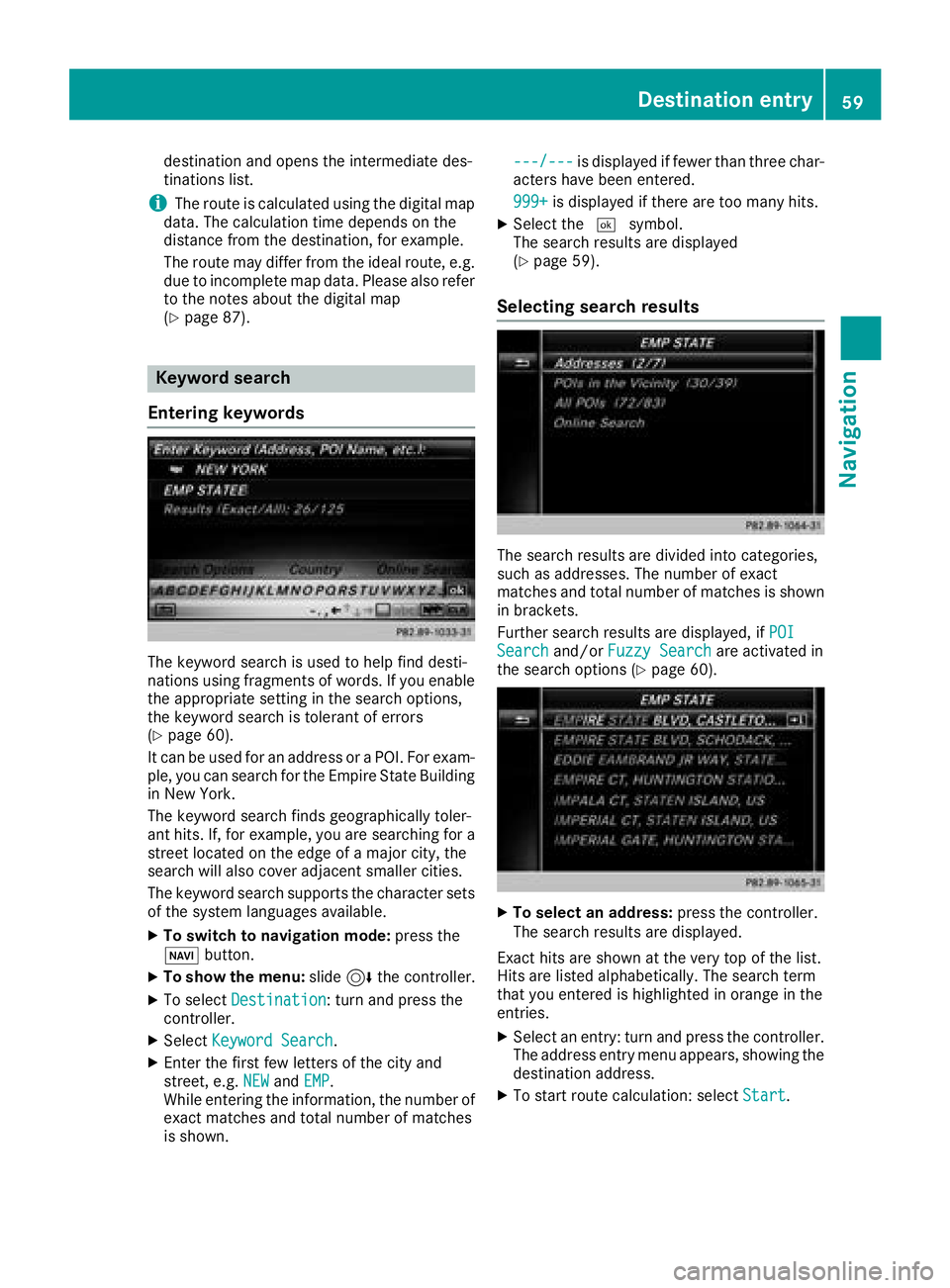
Selecting search results
The search results are divided into categories,
such as addresses. The number of exact
matches and total number of matches is shown
in brackets.
Further search results are displayed, if POI
Searchand/orFuzzy Searchare activated in
the search options (Ypage 60).
XTo select an address: press the controller.
The search results are displayed.
Exact hits are shown at the very top of the list.
Hits are listed alphabetically. The search term
that you entered is highlighted in orange in the
entries.
XSelect an entry: turn and press the controller.
The address entry menu appears, showing the
destination address.
XTo start route calculation: select Start.
Destination entry59
Navigation
Z