navigation system MERCEDES-BENZ GLE SUV 2018 COMAND Manual
[x] Cancel search | Manufacturer: MERCEDES-BENZ, Model Year: 2018, Model line: GLE SUV, Model: MERCEDES-BENZ GLE SUV 2018Pages: 190, PDF Size: 4.42 MB
Page 76 of 190
Canceling/continuing route guidance
Canceling route guidance
XSlide 6the controller.
The menu is shown.
XTo select Destination, turn and press the
controller.
XSelect Cancel Route Guidance.
The blue route line is no longer shown on the
map.
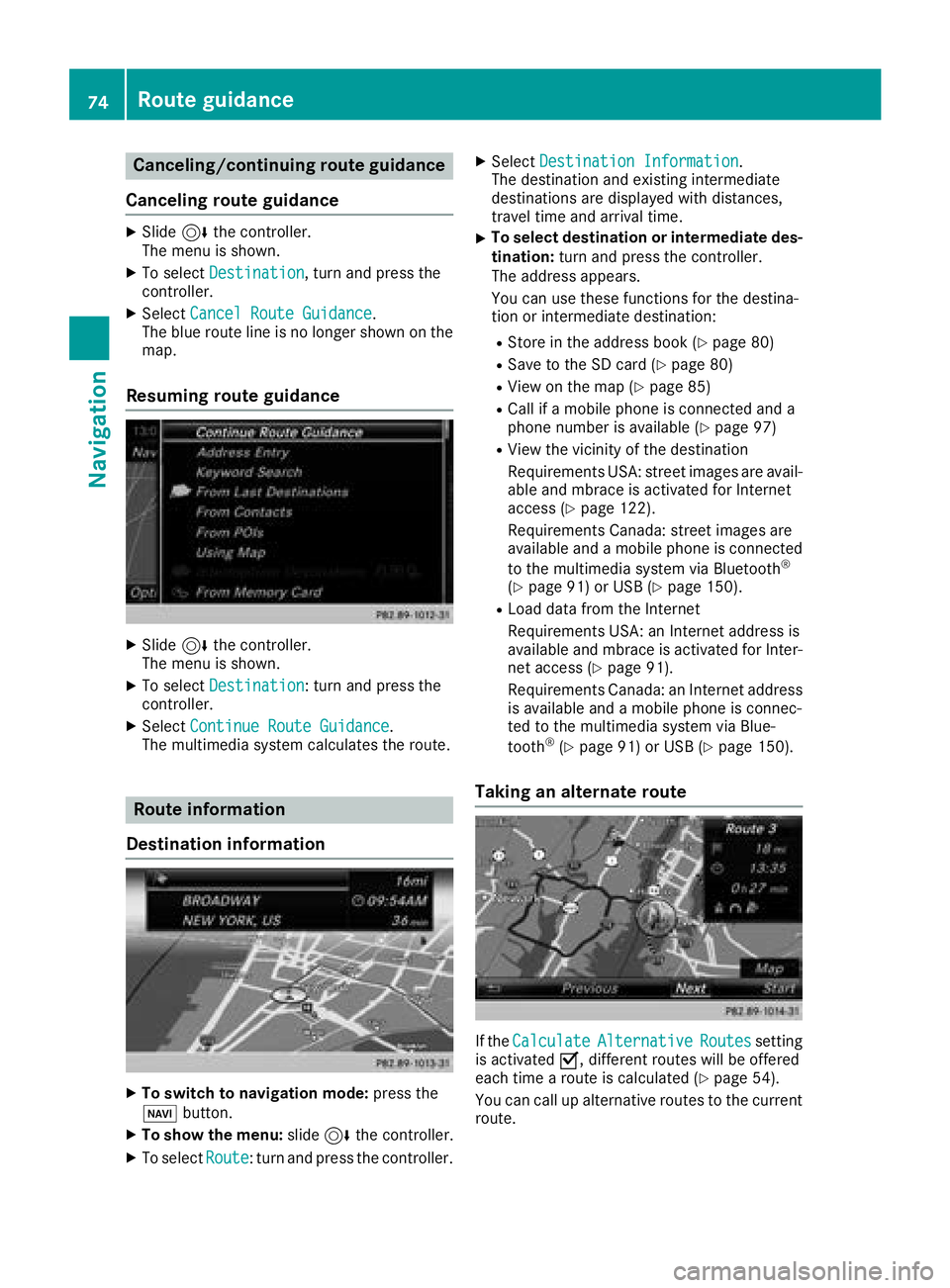
Resuming route guidance
XSlide 6the controller.
The menu is shown.
XTo select Destination: turn and press the
controller.
XSelect Continue Route Guidance.
The multimedia system calculates the route.
Route information
Destination information
XTo switch to navigation mode: press the
Ø button.
XTo show the menu: slide6the controller.
XTo select Route: turn and press the controller.
XSelectDestination Information.
The destination and existing intermediate
destinations are displayed with distances,
travel time and arrival time.
XTo select destination or intermediate des-
tination: turn and press the controller.
The address appears.
You can use these functions for the destina-
tion or intermediate destination:
RStore in the address book (Ypage 80)
RSave to the SD card (Ypage 80)
RView on the map (Ypage 85)
RCall if a mobile phone is connected and a
phone number is available (Ypage 97)
RView the vicinity of the destination
Requirements USA: street images are avail-
able and mbrace is activated for Internet
access (
Ypage 122).
Requirements Canada: street images are
available and a mobile phone is connected
to the multimedia system via Bluetooth
®
(Ypage 91) or USB (Ypage 150).
RLoad data from the Internet
Requirements USA: an Internet address is
available and mbrace is activated for Inter-
net access (
Ypage 91).
Requirements Canada: an Internet address
is available and a mobile phone is connec-
ted to the multimedia system via Blue-
tooth
®(Ypage 91) or USB (Ypage 150).
Taking an alternate route
If the CalculateAlternativeRoutessetting
is activated O, different routes will be offered
each time a route is calculated (
Ypage 54).
You can call up alternative routes to the current
route.
74Route guidance
Navigation
Page 78 of 190
XTo specify the end of a traffic jam section:
select End
.
The next possible traffic jam section end point
is marked.
XTurn the controller.
The marking moves along the route to the
next end position.
XPress the controller.
The end of the traffic jam is determined.
XTo calculate the detour: selectStart.
Off-road
General notes
The multimedia system may guide you to off-
road routes that your vehicle cannot drive on
without causing damage to the tires and wheels,
or the vehicle itself. It is the driver’s sole respon-
sibility to determine the suitability of the route.
The state and navigability of off-road routes may
be influenced, for example, by factors such as
time of day, time of year and current weather
conditions. The multimedia system cannot
judge these factors or take them into account
for route guidance.
Route guidance to an off-road destina-
tion
The multimedia system can guide you to desti-
nations which are within the area of the digital
map, but which are not themselves on the map.
These destinations are known as off-road des-
tinations, which you can enter using the map, for
example. In these cases, the multimedia system
guides you for as long as possible with naviga-
tion announcements and displays on roads
known to the system.
If the vehicle reaches an area which is not part of the digital map, the display appears as a split-
screen view. On the right, an arrow appears that
points to the off-road destination. You hear the
announcement: "Please follow the arrow on the
display". As the vehicle approaches the desti-
nation, you will see a display to this effect.
Route guidance from an off-road loca-
tion to a destination
Off-road location: the vehicle's position is on the
digital map, but the map does not contain any
information about that location. The multimedia system is able to guide you to a destination even
from an off-road location.
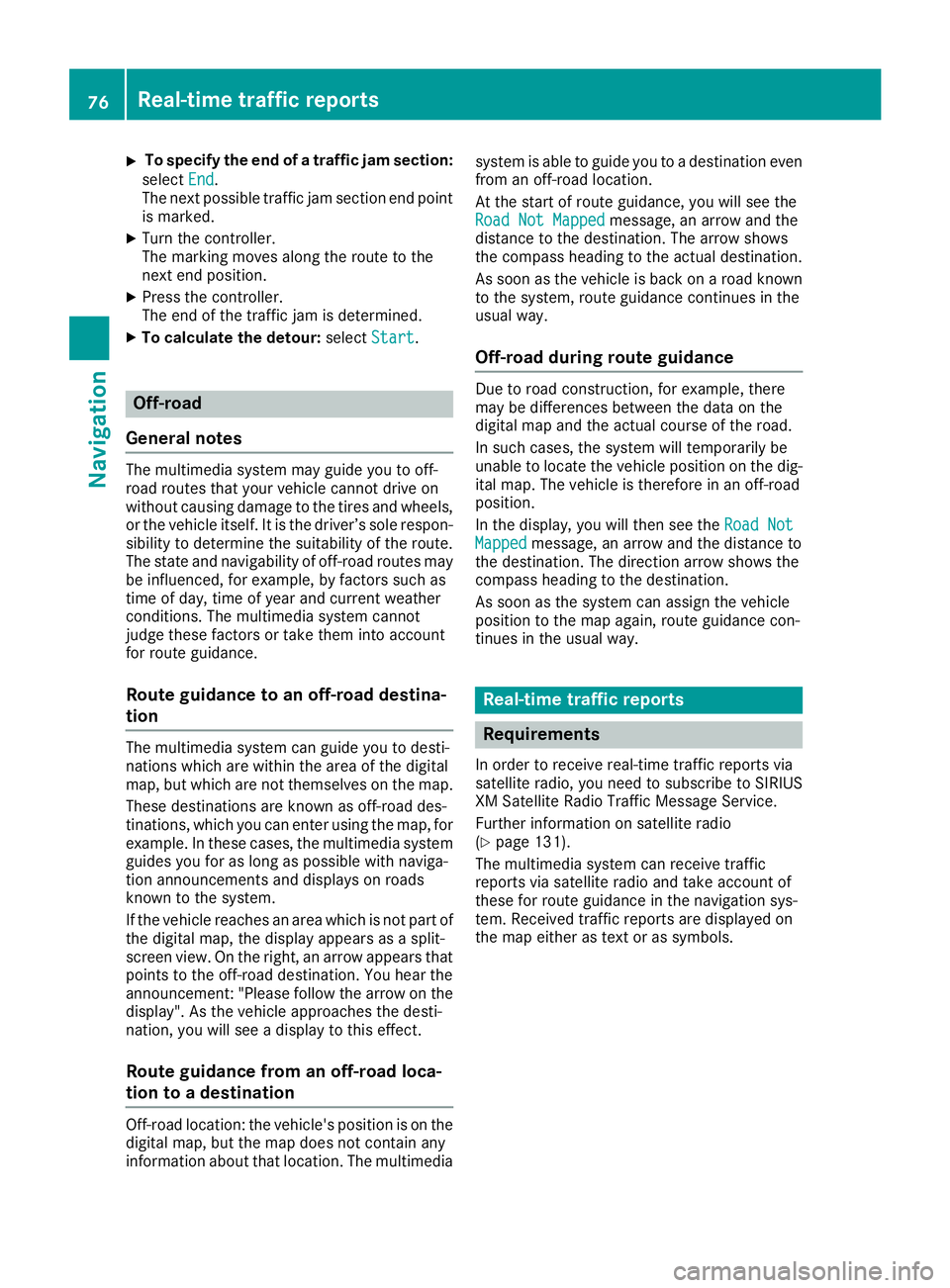
At the start of route guidance, you will see the
Road Not Mapped
message, an arrow and the
distance to the destination. The arrow shows
the compass heading to the actual destination.
As soon as the vehicle is back on a road known
to the system, route guidance continues in the
usual way.
Off-road during route guidance
Due to road construction, for example, there
may be differences between the data on the
digital map and the actual course of the road.
In such cases, the system will temporarily be
unable to locate the vehicle position on the dig-
ital map. The vehicle is therefore in an off-road
position.
In the display, you will then see the Road Not
Mappedmessage, an arrow and the distance to
the destination. The direction arrow shows the
compass heading to the destination.
As soon as the system can assign the vehicle
position to the map again, route guidance con-
tinues in the usual way.
Real-time traffic reports
Requirements
In order to receive real-time traffic reports via
satellite radio, you need to subscribe to SIRIUS
XM Satellite Radio Traffic Message Service.
Further information on satellite radio
(
Ypage 131).
The multimedia system can receive traffic
reports via satellite radio and take account of
these for route guidance in the navigation sys-
tem. Received traffic reports are displayed on
the map either as text or as symbols.
76Real-time traffic reports
Navigation
Page 81 of 190
XTo select the road, area or region: turn the
controller and press to confirm.
The traffic report is displayed (
Ypage 78).
There may be several traffic reports for the
affected road.
XTo close the display: press the%button.
Activating/deactivating traffic informa-
tion on the map
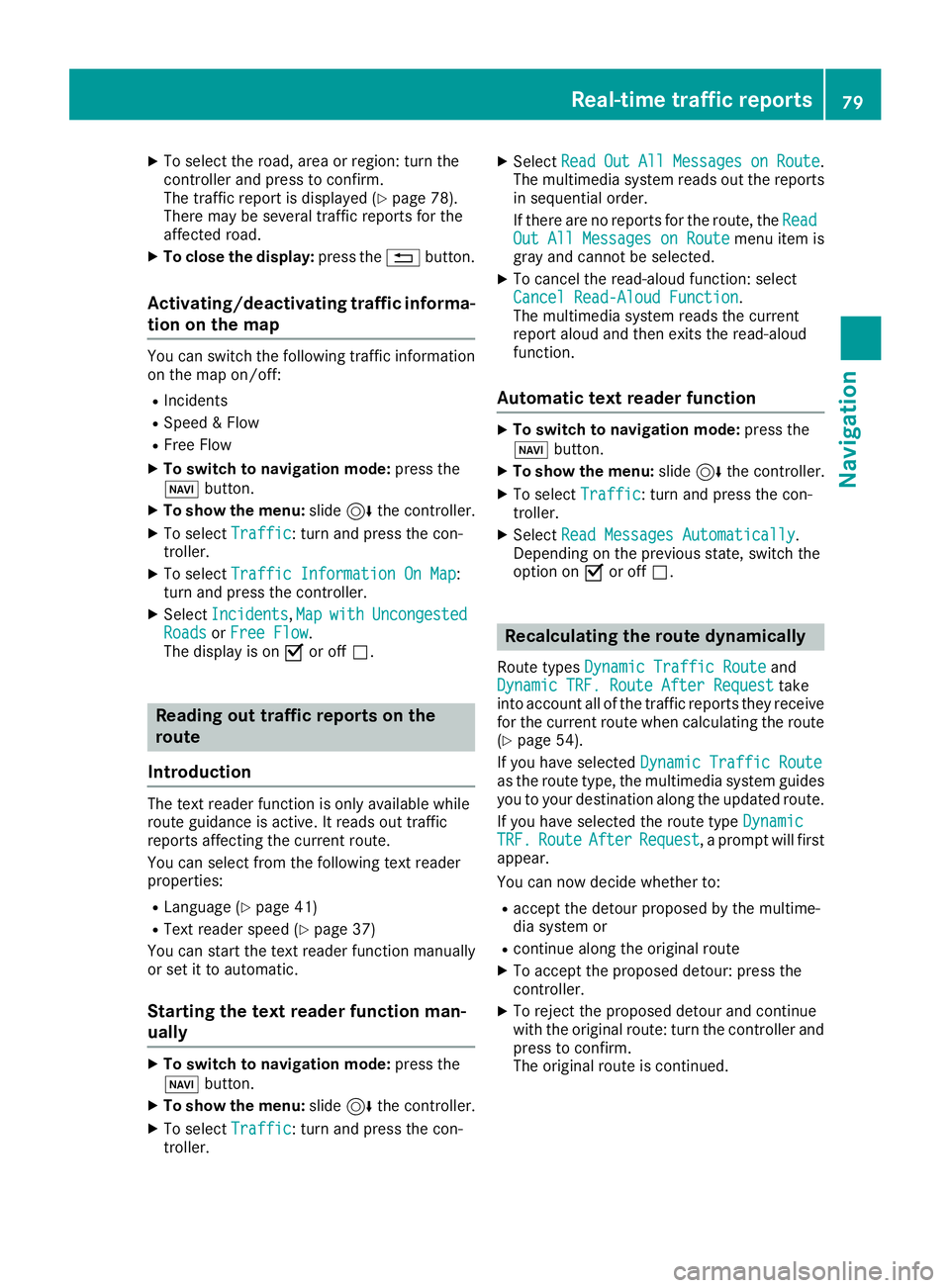
You can switch the following traffic information
on the map on/off:
RIncidents
RSpeed & Flow
RFree Flow
XTo switch to navigation mode: press the
Ø button.
XTo show the menu: slide6the controller.
XTo select Traffic: turn and press the con-
troller.
XTo select Traffic Information On Map:
turn and press the controller.
XSelect Incidents,MapwithUncongestedRoadsor Free Flow.
The display is on Oor off ª.
Reading out traffic reports on the
route
Introduction
The text reader function is only available while
route guidance is active. It reads out traffic
reports affecting the current route.
You can select from the following text reader
properties:
RLanguage (Ypage 41)
RText reader speed (Ypage 37)
You can start the text reader function manually
or set it to automatic.
Starting the text reader function man-
ually
XTo switch to navigation mode: press the
Ø button.
XTo show the menu: slide6the controller.
XTo select Traffic: turn and press the con-
troller.
XSelect ReadOutAllMessagesonRoute.
The multimedia system reads out the reports in sequential order.
If there are no reports for the route, the Read
Out All Messages on Routemenu item is
gray and cannot be selected.
XTo cancel the read-aloud function: select
Cancel Read-Aloud Function.
The multimedia system reads the current
report aloud and then exits the read-aloud
function.
Automatic text reader function
XTo switch to navigation mode: press the
Ø button.
XTo show the menu: slide6the controller.
XTo select Traffic: turn and press the con-
troller.
XSelect Read Messages Automatically.
Depending on the previous state, switch the
option on Oor off ª.
Recalculating the route dynamically
Route types Dynamic Traffic Routeand
Dynamic TRF. Route After Requesttake
into account all of the traffic reports they receive for the current route when calculating the route
(
Ypage 54).
If you have selected Dynamic Traffic Route
as the route type, the multimedia system guides
you to your destination along the updated route.
If you have selected the route type Dynamic
TRF.RouteAfterRequest, a prompt will first
appear.
You can now decide whether to:
Raccept the detour proposed by the multime-
dia system or
Rcontinue along the original route
XTo accept the proposed detour: press the
controller.
XTo reject the proposed detour and continue
with the original route: turn the controller and
press to confirm.
The original route is continued.
Real-time traffic reports79
Navigation
Z
Page 84 of 190
XTo selectDeleteorDelete All: turn and
press the controller.
A prompt appears.
XSelect YesorNo.
Selecting Yesdeletes the selected destina-
tion or all destinations.
Map functions
General notes
Company logos displayed on the map are trade- marks of the respective companies and used
solely for the purpose of indicating the locations
of these companies. The use of such logos on
the map does not indicate approval of, support
of or advertising by these companies for the
navigation system itself.
Map settings
Setting the map scale
Requirement: the map is in full screen mode, the
menu is faded out (Ypage 53).
The lower left-hand section of the map shows
the currently set map scale and compass nee-
dle.
Right-hand-drive vehicles: the currently set map
scale and compass needle are displayed in the
lower right-hand section of the map.
XTo show the map in full screen mode: to
hide the menu, push the %button.
or
XSlide the controller to the center of the map
and press to confirm.
XTo set the map scale: as soon as you turn the
controller, the scale bar appears on the bot-
tom of the display.
XTurn the controller until the needle points to
the desired map scale.
Once you are finished selecting a map scale,
the new map scale will be shown.
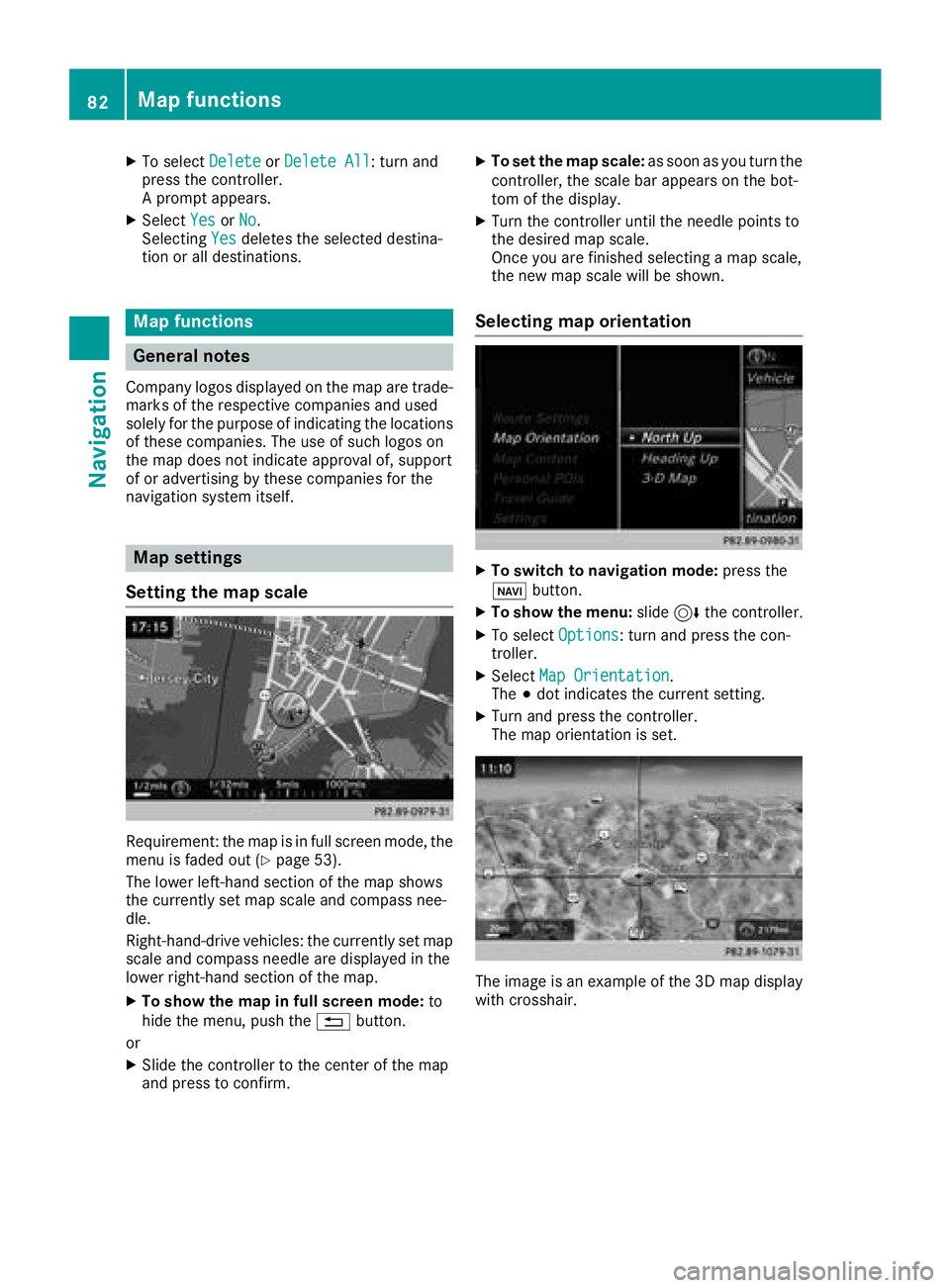
Selecting map orientation
XTo switch to navigation mode: press the
ß button.
XTo show the menu: slide6the controller.
XTo select Options: turn and press the con-
troller.
XSelect Map Orientation.
The #dot indicates the current setting.
XTurn and press the controller.
The map orientation is set.
The image is an example of the 3D map display
with crosshair.
82Map functions
Navigation
Page 87 of 190
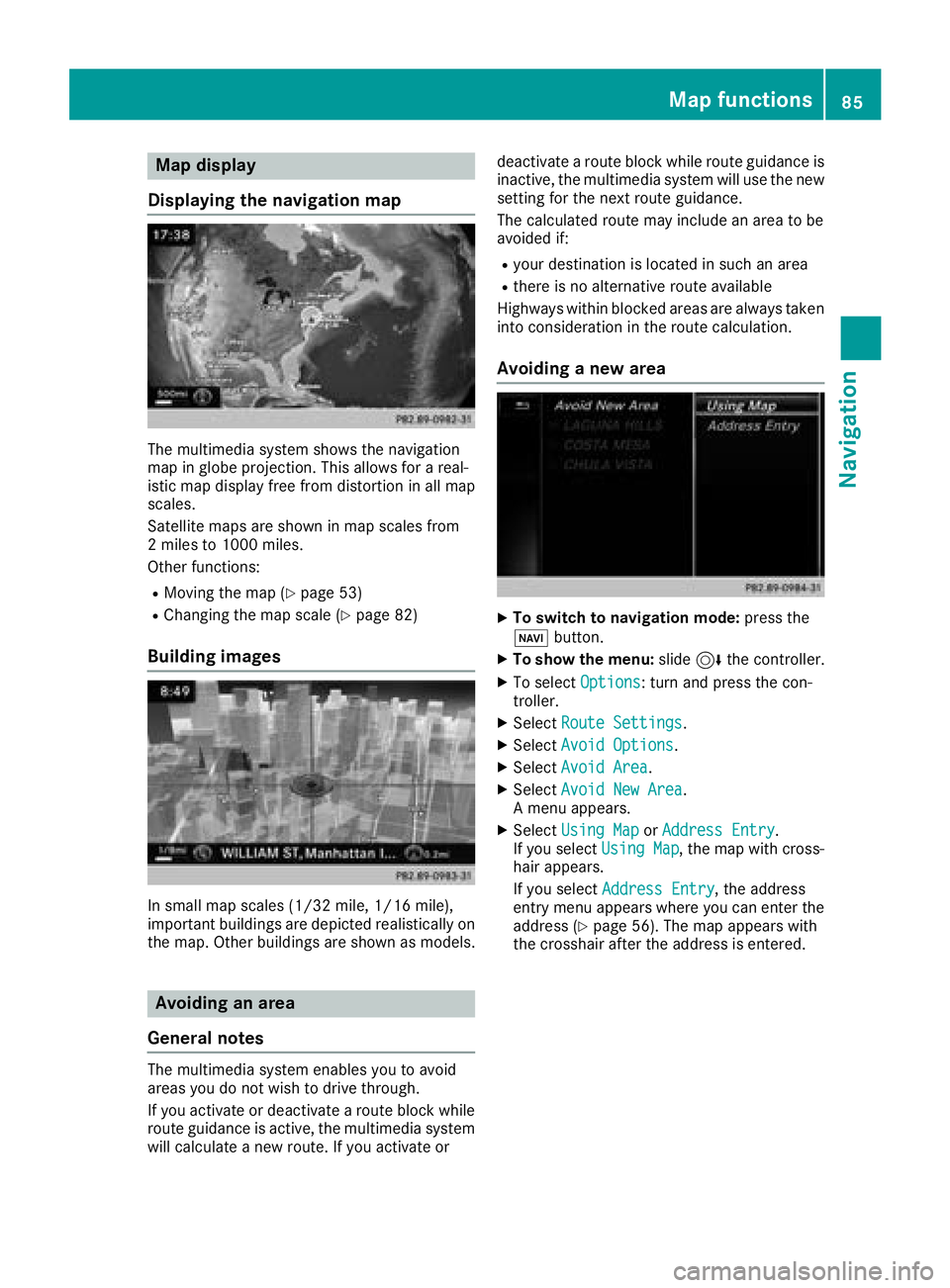
Map display
Displaying the navigation map
The multimedia system shows the navigation
map in globe projection. This allows for a real-
istic map display free from distortion in all map
scales.
Satellite maps are shown in map scales from
2 miles to 1000 miles.
Other functions:
RMoving the map (Ypage 53)
RChanging the map scale (Ypage 82)
Building images
In small map scales (1/32 mil e,1/16 mile),
important buildings are depicted realistically on
the map. Other buildings are shown as models.
Avoiding an area
General notes
The multimedia system enables you to avoid
areas you do not wish to drive through.
If you activate or deactivate a route block while
route guidance is active, the multimedia system
will calculate a new route. If you activate or deactivate a route block while route guidance is
inactive, the multimedia system will use the new setting for the next route guidance.
The calculated route may include an area to be
avoided if:
Ryour destination is located in such an area
Rthere is no alternative route available
Highways within blocked areas are always taken
into consideration in the route calculation.
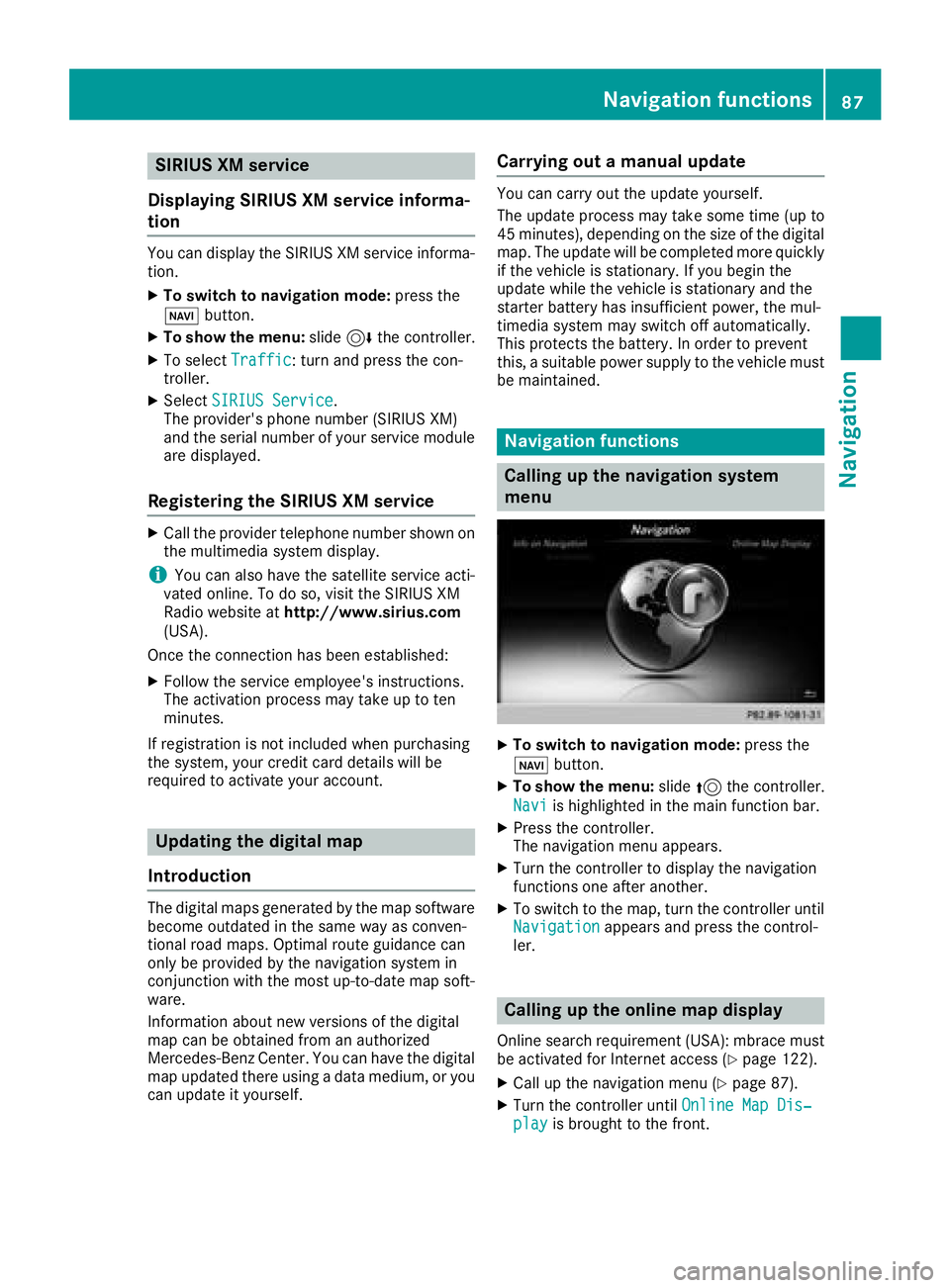
Avoiding a new area
XTo switch to navigation mode: press the
Ø button.
XTo show the menu: slide6the controller.
XTo select Options: turn and press the con-
troller.
XSelect Route Settings.
XSelectAvoid Options.
XSelectAvoid Area.
XSelectAvoid New Area.
A menu appears.
XSelect Using MaporAddress Entry.
If you select Using Map, the map with cross-
hair appears.
If you select Address Entry
, the address
entry menu appears where you can enter the
address (
Ypage 56). The map appears with
the crosshair after the address is entered.
Map functions85
Navigation
Z
Page 89 of 190
SIRIUS XM service
Displaying SIRIUS XM service informa-
tion
You can display the SIRIUS XM service informa-
tion.
XTo switch to navigation mode: press the
Ø button.
XTo show the menu: slide6the controller.
XTo select Traffic: turn and press the con-
troller.
XSelect SIRIUS Service.
The provider's phone number (SIRIUS XM)
and the serial number of your service module
are displayed.
Registering the SIRIUS XM service
XCall the provider telephone number shown on
the multimedia system display.
iYou can also have the satellite service acti-
vated online. To do so, visit the SIRIUS XM
Radio website at http://www.sirius.com
(USA).
Once the connection has been established:
XFollow the service employee's instructions.
The activation process may take up to ten
minutes.
If registration is not included when purchasing
the system, your credit card details will be
required to activate your account.
Updating the digital map
Introduction
The digital maps generated by the map software
become outdated in the same way as conven-
tional road maps. Optimal route guidance can
only be provided by the navigation system in
conjunction with the most up-to-date map soft-
ware.
Information about new versions of the digital
map can be obtained from an authorized
Mercedes-Benz Center. You can have the digital
map updated there using a data medium, or you
can update it yourself.
Carrying out a manual update
You can carry out the update yourself.
The update process may take some time (up to
45 minutes), depending on the size of the digital
map. The update will be completed more quickly
if the vehicle is stationary. If you begin the
update while the vehicle is stationary and the
starter battery has insufficient power, the mul-
timedia system may switch off automatically.
This protects the battery. In order to prevent
this, a suitable power supply to the vehicle must
be maintained.
Navigation functions
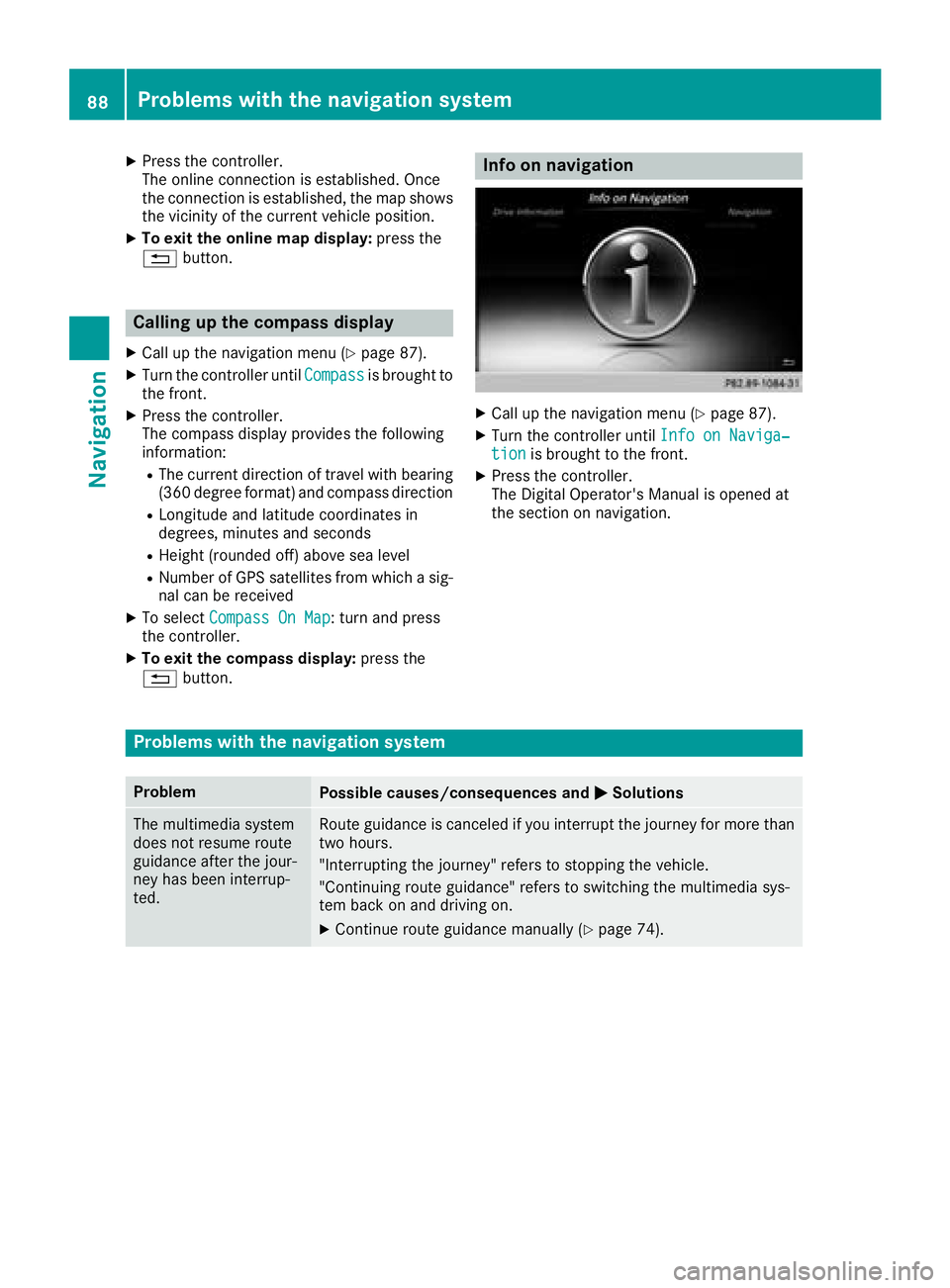
Calling up the navigation system
menu
XTo switch to navigation mode: press the
ß button.
XTo show the menu: slide5the controller.
Navi
is highlighted in the main function bar.
XPress the controller.
The navigation menu appears.
XTurn the controller to display the navigation
functions one after another.
XTo switch to the map, turn the controller until
Navigationappears and press the control-
ler.
Calling up the online map display
Online search requirement (USA): mbrace must
be activated for Internet access (Ypage 122).
XCall up the navigation menu (Ypage 87).
XTurn the controller until Online Map Dis‐playis brought to the front.
Navigation functions87
Navigation
Z
Page 90 of 190
XPress the controller.
The online connection is established. Once
the connection is established, the map shows
the vicinity of the current vehicle position.
XTo exit the online map display:press the
% button.
Calling up the compass display
XCall up the navigation menu (Ypage 87).
XTurn the controller until Compassis brought to
the front.
XPress the controller.
The compass display provides the following
information:
RThe current direction of travel with bearing
(360 degree format) and compass direction
RLongitude and latitude coordinates in
degrees, minutes and seconds
RHeight (rounded off) above sea level
RNumber of GPS satellites from which a sig- nal can be received
XTo select Compass On Map: turn and press
the controller.
XTo exit the compass display: press the
% button.
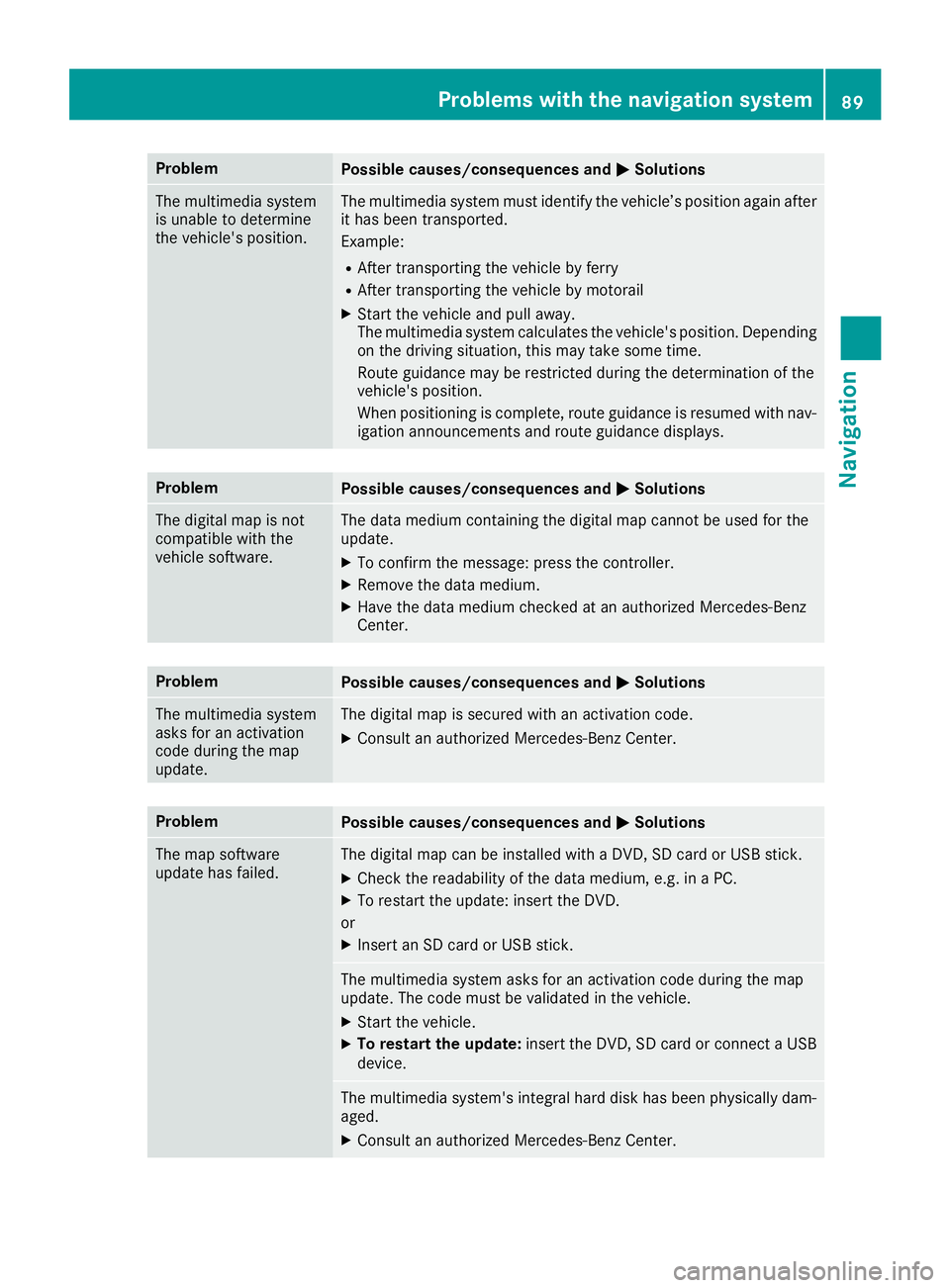
Info on navigation
XCall up the navigation menu (Ypage 87).
XTurn the controller until Info on Naviga‐tionis brought to the front.
XPress the controller.
The Digital Operator's Manual is opened at
the section on navigation.
Problems with the navigation system
ProblemPossible causes/consequences and MSolutions
The multimedia system
does not resume route
guidance after the jour-
ney has been interrup-
ted.Route guidance is canceled if you interrupt the journey for more than
two hours.
"Interrupting the journey" refers to stopping the vehicle.
"Continuing route guidance" refers to switching the multimedia sys-
tem back on and driving on.
XContinue route guidance manually (Ypage 74).
88Problems with the navigation system
Navigation
Page 91 of 190
ProblemPossible causes/consequences andMSolutions
The multimedia system
is unable to determine
the vehicle's position.The multimedia system must identify the vehicle’s position again after
it has been transported.
Example:
RAfter transporting the vehicle by ferry
RAfter transporting the vehicle by motorail
XStart the vehicle and pull away.
The multimedia system calculates the vehicle's position. Depending
on the driving situation, this may take some time.
Route guidance may be restricted during the determination of the
vehicle's position.
When positioning is complete, route guidance is resumed with nav-
igation announcements and route guidance displays.
ProblemPossible causes/consequences andMSolutions
The digital map is not
compatible with the
vehicle software.The data medium containing the digital map cannot be used for the
update.
XTo confirm the message: press the controller.
XRemove the data medium.
XHave the data medium checked at an authorized Mercedes-Benz
Center.
ProblemPossible causes/consequences andMSolutions
The multimedia system
asks for an activation
code during the map
update.The digital map is secured with an activation code.
XConsult an authorized Mercedes-Benz Center.
ProblemPossible causes/consequences andMSolutions
The map software
update has failed.The digital map can be installed with a DVD, SD card or USB stick.
XCheck the readability of the data medium, e.g. in a PC.
XTo restart the update: insert the DVD.
or
XInsert an SD card or USB stick.
The multimedia system asks for an activation code during the map
update. The code must be validated in the vehicle.
XStart the vehicle.
XTo restart the update: insert the DVD, SD card or connect a USB
device.
The multimedia system's integral hard disk has been physically dam-
aged.
XConsult an authorized Mercedes-Benz Center.
Problems with the navigation system89
Navigation
Z
Page 105 of 190
otherwise become involved in an accident in
which you or others could be injured.
The address book displays all the contacts from
the various sources (mobile phone, memory
card, USB device, the phone book of the multi-
media system, navigation).
You can use the contacts to make telephone
calls, navigate and to write messages.
If a mobile phone is connected to the multimedia
system and automatic calling up is activated
(
Ypage 107), the mobile phone's contacts are
displayed in the address book. If you disconnect
the mobile phone from the multimedia system,
these contacts are no longer displayed in the
address book.
When you import, save, edit or add contacts,
they will be saved in the multimedia system.
These contacts will remain available even when
you connect the multimedia system to a differ-
ent mobile phone. You can view these contacts
even without a mobile phone.
iThe address book can store a total of 5000
contacts.
R2000 entries are reserved for permanently
saved contacts
R3000 entries are reserved for contacts that
you can load from the mobile phone
iBefore selling your vehicle, delete the con-
tacts saved in the multimedia system using
the reset function (
Ypage 43).
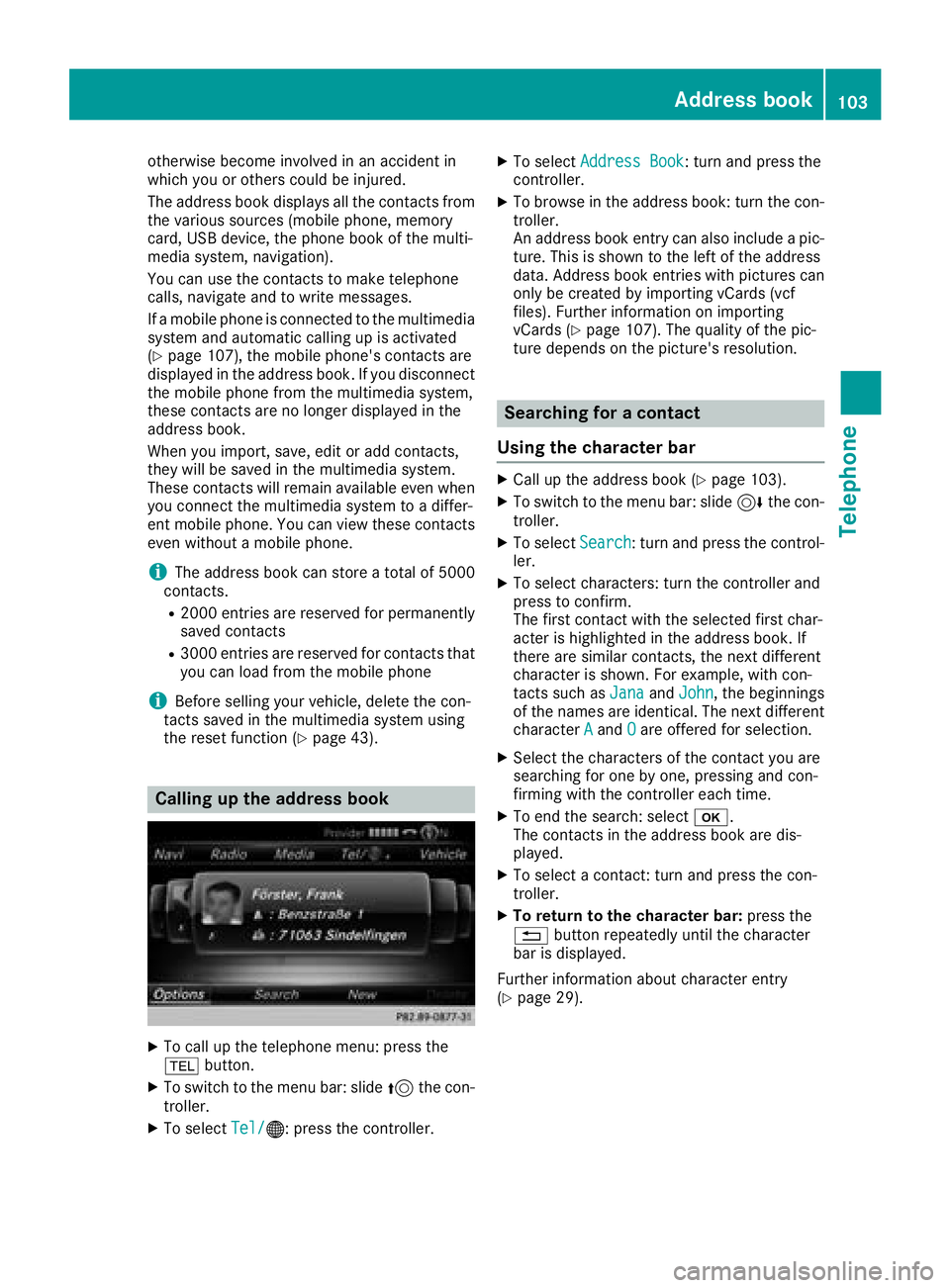
Calling up the address book
XTo call up the telephone menu: press the
% button.
XTo switch to the menu bar: slide 5the con-
troller.
XTo select Tel/®: press the controller.
XTo selectAddress Book: turn and press the
controller.
XTo browse in the address book: turn the con- troller.
An address book entry can also include a pic-
ture. This is shown to the left of the address
data. Address book entries with pictures can
only be created by importing vCards (vcf
files). Further information on importing
vCards (
Ypage 107). The quality of the pic-
ture depends on the picture's resolution.
Searching for a contact
Using the character bar
XCall up the address book (Ypage 103).
XTo switch to the menu bar: slide 6the con-
troller.
XTo select Search: turn and press the control-
ler.
XTo select characters: turn the controller and
press to confirm.
The first contact with the selected first char-
acter is highlighted in the address book. If
there are similar contacts, the next different
character is shown. For example, with con-
tacts such as Jana
andJohn, the beginnings
of the names are identical. The next different
character A
andOare offered for selection.
XSelect the characters of the contact you are
searching for one by one, pressing and con-
firming with the controller each time.
XTo end the search: select b.
The contacts in the address book are dis-
played.
XTo select a contact: turn and press the con-
troller.
XTo return to the character bar: press the
% button repeatedly until the character
bar is displayed.
Further information about character entry
(
Ypage 29).
Address book103
Telephone
Z
Page 106 of 190
Using the number keypad
You determine the first letter of the contact you
are looking for with the first character you enter.
XFor example, to enter the letterC: press the
l number key briefly three times in suc-
cession.
The character appears the first time the key is
pressed and shows all the available charac-
ters. It switches to the next character each
time the key is pressed.
Using the touchpad
You determine the first letter of the contact you
are looking for with the first character you enter.
XDraw the letter on the touchpad surface.
The first contact with the selected first char-
acter is highlighted in the address book.
Further information on handwriting recogni-
tion on the touchpad (
Ypage 25).
XDraw additional letters on the touchpad sur-
face one after another.
XTo complete the search and return to the
address book: press the touchpad.
XTo select and call the contact: glide up or
down and press.
Adding a new contact
You can enter address data directly into the
address book. If you store telephone numbers in the phone book of the multimedia system, these
are also saved in the address book. If you store
a navigation destination, the multimedia system
creates an address book entry that includes the
complete navigable address data.
XCall up the address book (Ypage 103).
XTo switch to the menu bar: slide 6the con-
troller.
XTo select New: turn and press the controller.
The surname and first name input lines are
displayed.
XEnter characters using the controller
(Ypage 29) or the number keypad, for exam-
ple.
XTo save the surname and first name: select
b.
The details for the contact are displayed.
XTo add a desired entry: turn and press the
controller.
Depending on the type of entry, the corre-
sponding input menu appears.
XEnter characters using the controller
(Ypage 29) or the number keypad, for exam-
ple.
XTo finish and save an entry: select b.
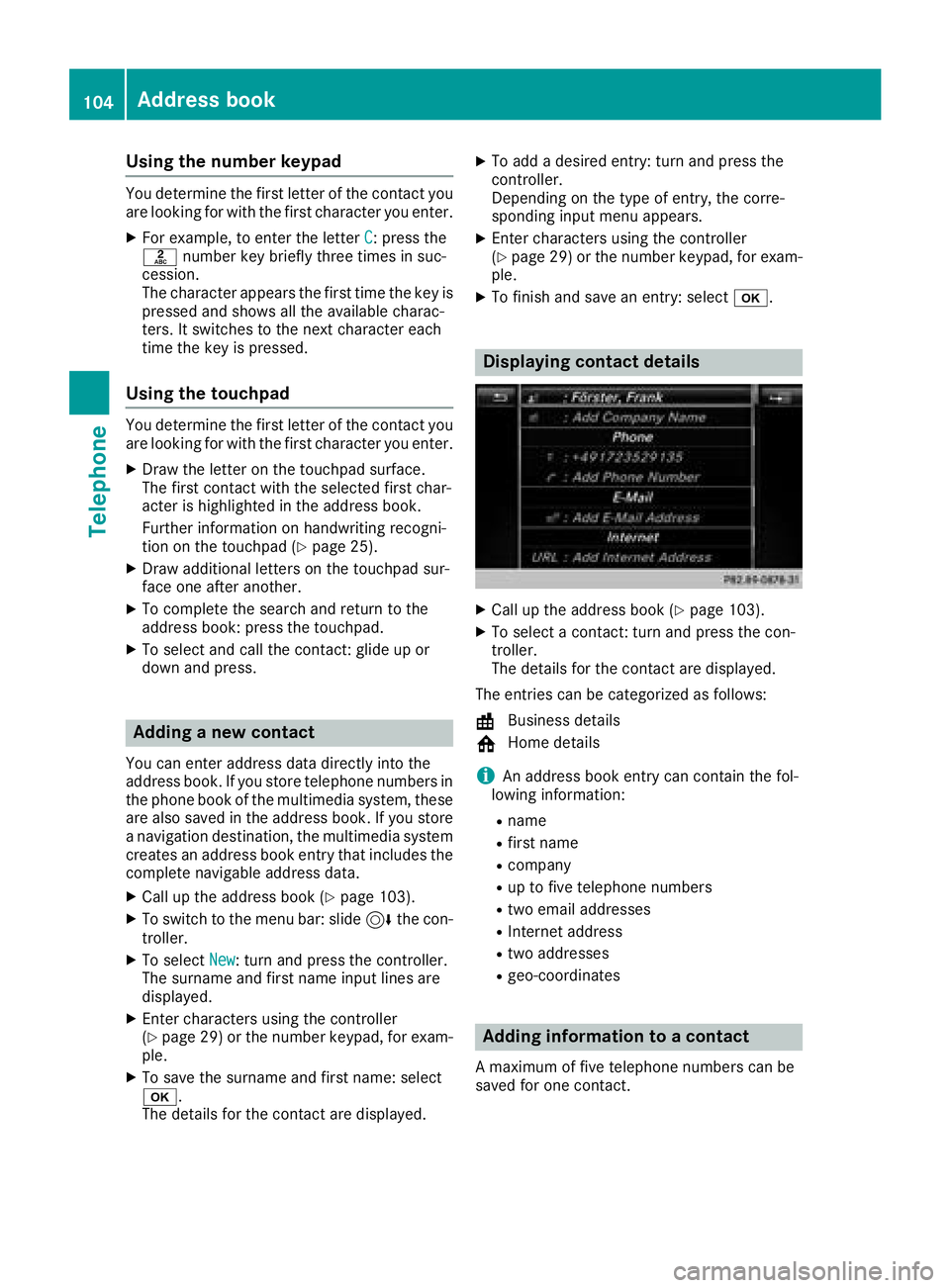
Displaying contact details
XCall up the address book (Ypage 103).
XTo select a contact: turn and press the con-
troller.
The details for the contact are displayed.
The entries can be categorized as follows:
\ Business details
6 Home details
iAn address book entry can contain the fol-
lowing information:
Rname
Rfirst name
Rcompany
Rup to five telephone numbers
Rtwo email addresses
RInternet address
Rtwo addresses
Rgeo-coordinates
Adding information to a contact
A maximum of five telephone numbers can be
saved for one contact.
104Address book
Telephone