mercedes me MERCEDES-BENZ GLE SUV 2018 COMAND Manual
[x] Cancel search | Manufacturer: MERCEDES-BENZ, Model Year: 2018, Model line: GLE SUV, Model: MERCEDES-BENZ GLE SUV 2018Pages: 190, PDF Size: 4.42 MB
Page 124 of 190
Your multimediasyste mequipment
These operatin ginstruction sdescribe all th e
standar dan doptional equipment of your multi-
media system, as available at th etime of going
to press. Country-specifi cdifference sare pos -
sible. Bear in min dthat your vehicle may no t
feature all function sdescribed here. Thi salso
applies to safety-relevan tsystems an dfunc-
tions.
Read th einformation on qualifie dspecialis t
workshop sin th evehicle Operator's Manual.
Important safet ynotes
GWARNING
If you operat einformation systems an dcom-
munication equipment integrated in th evehi-
cl e when driving, you may be distracted from
th etraffic situation .You could also los econ-
trol of th evehicle. There is aris kof an acci-
dent.
Only operat ethis equipment when th etraffic
situation permits. If you are no tsur ethat this
is possible, par kth evehicle payin gattention
to traffic condition san doperat eth eequip-
men twhen th evehicle is stationary.
You mus tobserv eth elegal requirements fo rth e
country in whic hyou are drivin gwhen operatin g
th esystem.
Conditions for access
USA: to use Mercedes-Ben zApps an dInternet
access ,mbrace mus tbe activated an dopera-
tional. Furthermore, mbrace mus tbe activated
fo rMercedes-Ben zApps an dInternet access .
Canada: to use Mercedes-Ben zApps an dInter-
ne taccess ,Mercedes me connec tmus tbe acti-
vated an doperational. Furthermore, Mercedes
me connec tmus tbe activated fo rMercedes -
Benz Apps an dInternet access .
Tak enote of th econnection priorities .An emer-
gency cal lhas th ehighes tpriority. Whe n aser-
vic ecall, e.g. abreakdown servic ecal lor th eMB
Info Call, is active ,an emergency cal lcan still be
initiated. Aservic ecall, on th eother hand, has priorit
yover acurren tInternet connection .
Therefore, you canno testablis han Internet con-
nection durin g aservic ecall.
The term sof use are shown when th esyste mis
used fo rth efirst time an dthen once ayear
thereafter. Only rea dan daccept th eterm sof
use when th evehicle is stationary.
The driver is no tpermitte dto cal lup websites
whil edrivin gan duse of th eMercedes-Ben z
Apps is res tri
cted.
iThe availabilit
yof individual Mercedes-Ben z
Apps may var ydependin gon th ecountry.
Establishing/ending th econnection
Establishing aconnection
Read th econdition sfo restablishin g aconnec -
tion (Ypage 122).
A connection can be established ,fo rexample
by:
Renterin g aweb address
Rcallin gup aMercedes-Ben zAp p
Rcallin gup afavorit e
Ending th econnection
XPress Cancelin theconnection swindow.
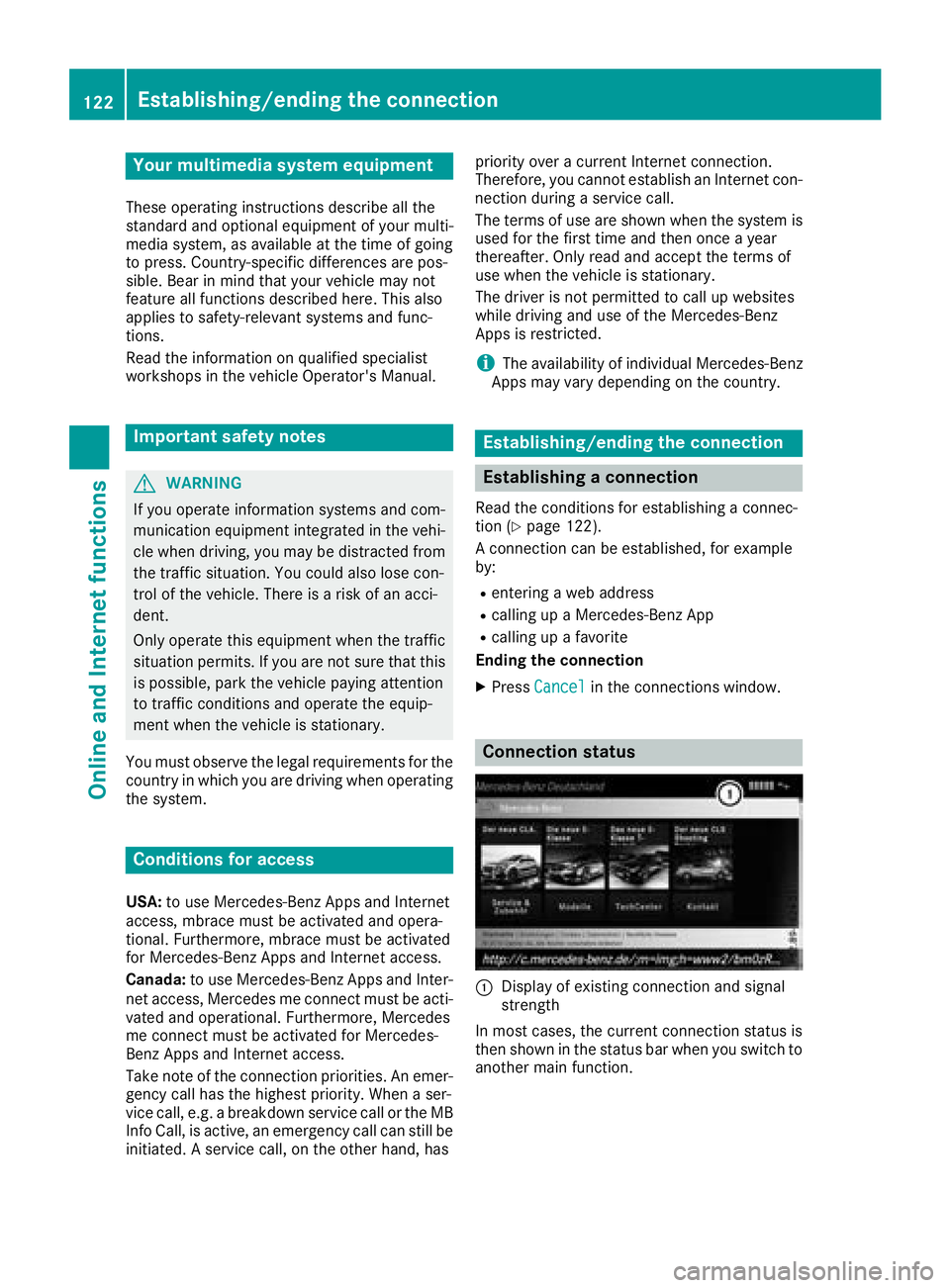
Connection status
:Display of existin gconnection an dsigna l
strengt h
In most cases, th ecurren tconnection status is
then shown in th estatus bar when you switch to
another main function .
122Establishing/ending the connection
Online and Internet functions
Page 125 of 190
Detailed connection status
XTo callup th etelephon emenu: press th e
% button.
XTo switch to th emain function bar :slid e5
th econtroller .
XTo selectTel /®: press th econtroller .
XTo selectInternet:turn and press th econ-
troller.
The men uwit hth eInternet function sis dis -
played.
XTo switch to th emen ubar :slid e6 thecon-
troller.
XTo selec tSettings:turn and press th econ-
troller.
XTo selec tConnectio nStatus:turn and
press th econtroller .
The followin ginformation is displayed:
Rth evolume of transferred dat a
Rconnection status
Ending theconnection
You canno tcance lth econnection yourself. The
Internet connection is automatically terminated
if th esyste mdoe sno trecogniz eany user input
within afive-minut etime period.
Mercedes-Benz App s
General notes
To be able to use Mercedes-Ben zApps, you hav e
to register and confirm th eterm sand condi-
tions.
Calling up Mercedes-Benz App s
XTo callup th etelephon emenu: press th e
% button.
XTo switch to th emain function bar :slid e5
th econtroller .
XTo selectTel /®: press th econtroller .
XTo selectInternet:turn and press th econ-
troller.
XTo selec tMercedes-Ben zApp s:turn and
press th econtroller .
XTo callup th eapp: turn and press th econ-
troller. You can fin
dfurther Mercedes-Ben zApps and
information under:
http://apps.mercedes-benz.com/apps /
iThe available featuresare country-depend -
ent.
License fees may be applicable.
Voice-operate dcontro lof Mercedes-
Benz App s
If voice-operated contro lof aMercedes-Ben z
app is available ,this is shown by th eo sym-
bol in th eapp.
XCall up aMercedes-Ben zapp (Ypage 123).
XTo use voice-operated control: selec to.
XSay th equestion or prompt .
iThe voice-operated contro lsystem is no t
available in all countrie sor all languages.
Web browser
Calling up awebsite
Function restrictions
Internet page scanno tbe shown whil eth evehi-
cl e is in motion .
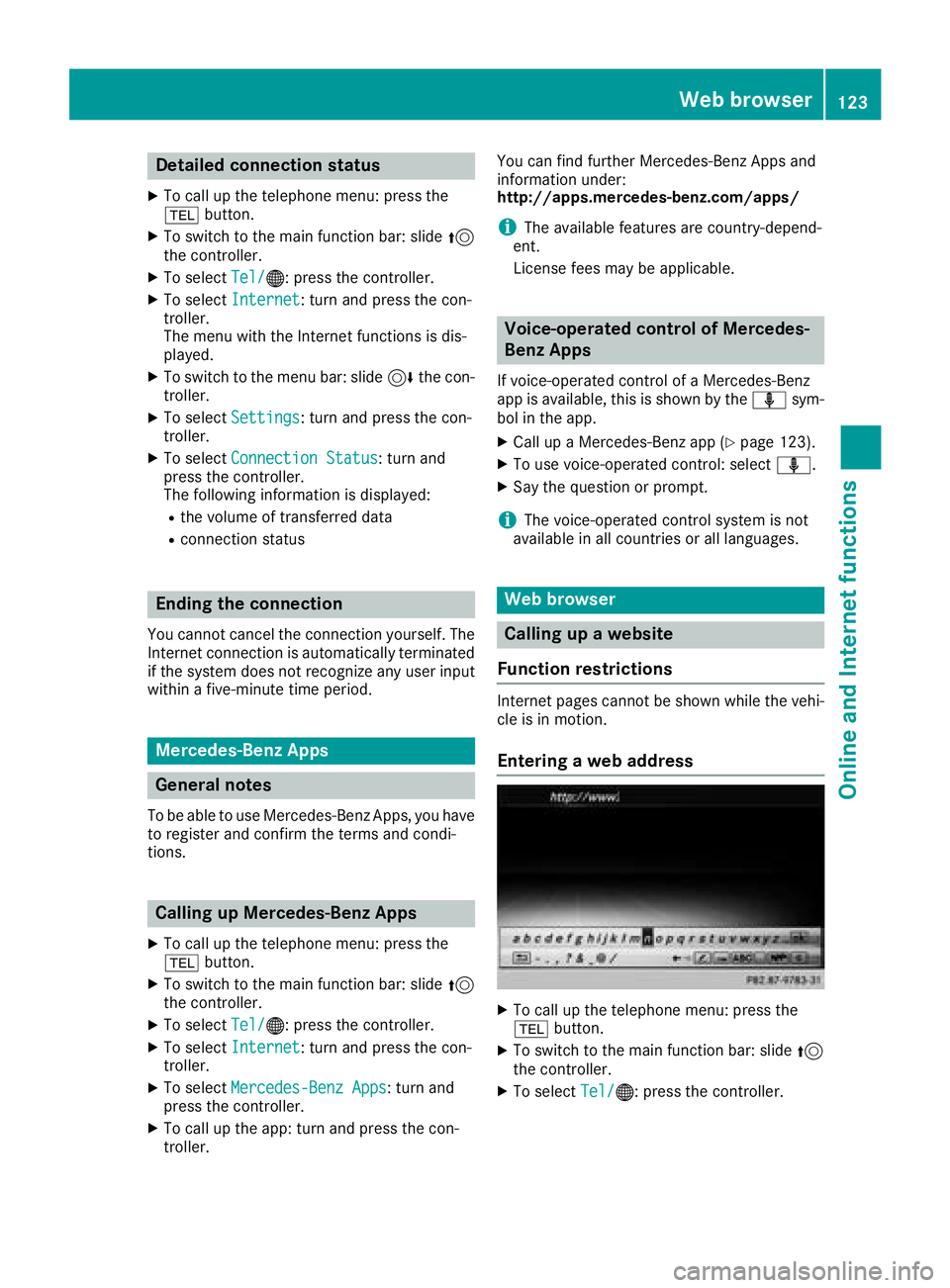
Enteringaweb address
XTo cal lup th etelephon emenu: press th e
% button.
XTo switch to th emain function bar :slid e5
th econtroller .
XTo selectTel /®: press th econtroller .
Web browser123
Online and Internet functions
Z
Page 133 of 190
Rthe channel abbreviation
Rthe logo of the station or Artist Experience®
Returning to the radio menu:
XTo selectInformation: slide6and press
the controller.
or
XPress the %button.
Satellite radio
General notes
The satellite radio mode requires satellite radio
equipment and registration with a satellite radio
provider.
Note that the categories and channels shown in
the illustrations depend on the program content
offered by the provider. The illustrations and
descriptions in these operating instructions may
therefore differ from the channels and catego-
ries offered by the provider.
Satellite radio mode may be temporarily unavail-
able or interrupted for a variety of reasons.
These include environmental or topographical
conditions as well as other factors beyond the
control of Mercedes-Benz USA, LLC. This means
operation may not be possible in certain areas.
These include:
Rtunnels
Rparking garages
Rlocations inside or next to buildings
Rlocations in the vicinity of other structures
Sirius XM®Satellite Radio offers more than 140
digital-quality radio channels, providing 100%
commercial-free music, sports, news and enter-
tainment.
Sirius XM
®Satellite Radio uses a fleet of high-
performance satellites to broadcast around the
clock throughout the USA and Canada.
The satellite radio program is available for a
monthly fee. De
tails are available from the SIR-
IUS XM®Service Center and at
http://www.siriusxm.com (USA) or
http://www.siriusxm.ca (Canada).
Your new Mercedes-Benz vehicle comes with
Sirius XM
®Satellite Radio pre-installed at the
factory. This service is free for a six-month trial
period. About a month before the trial period
ends, information will be provided on how to
extend this subscription. An acoustic signal sounds and a message is shown, describing how
the subscription can be extended.
iSirius, XM and all related marks and logos
are trademarks of Sirius XM Radio Inc. and its
subsidiaries. All other marks, channel names
and logos are the property of their respective owners. All rights reserved.
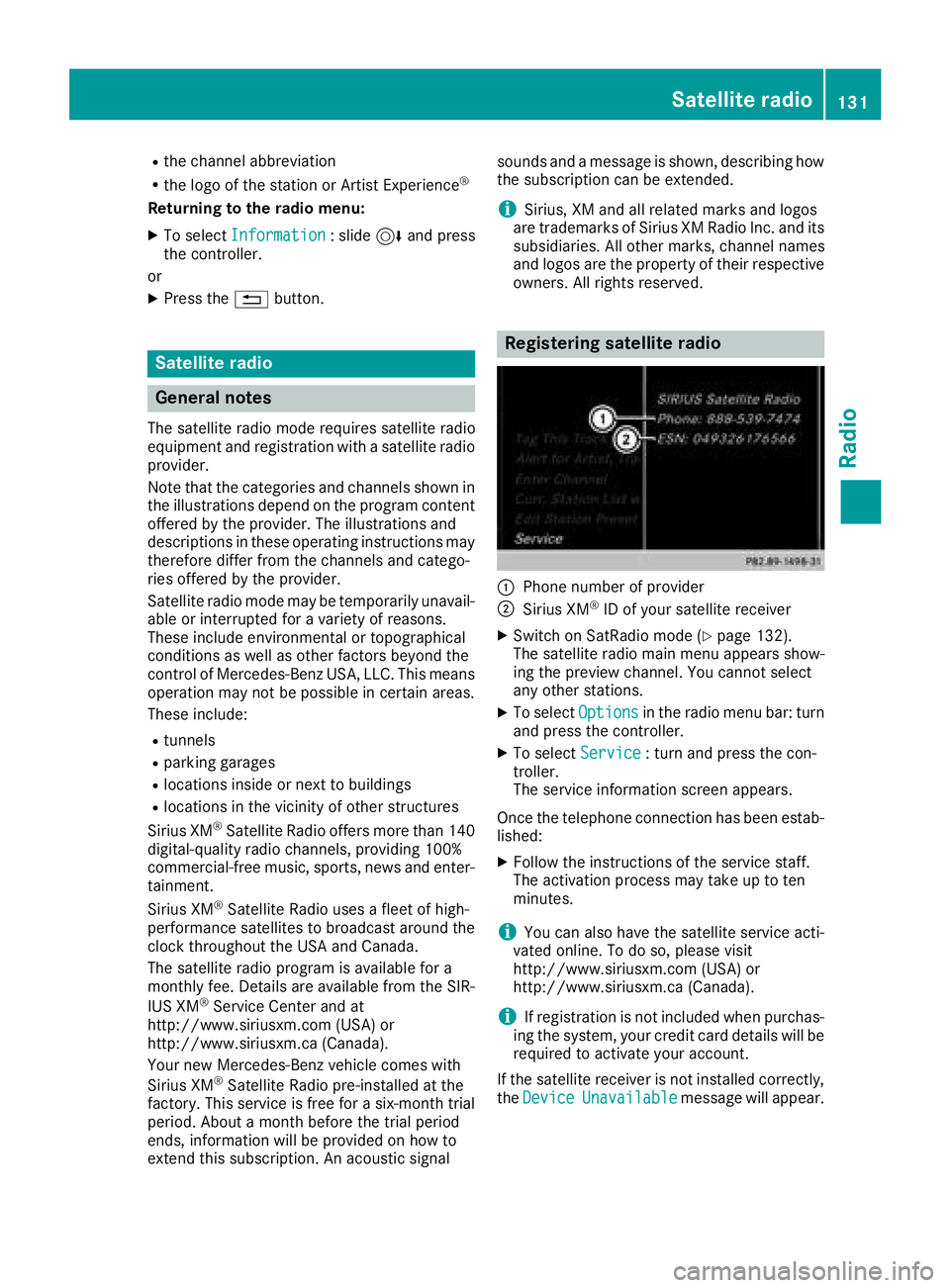
Registering satellite radio
:Phone number of provider
;Sirius XM®ID of your satellite receiver
XSwitch on SatRadio mode (Ypage 132).
The satellite radio main menu appears show-
ing the preview channel. You cannot select
any other stations.
XTo select Optionsin the radio menu bar: turn
and press the controller.
XTo select Service: turn and press the con-
troller.
The service information screen appears.
Once the telephone connection has been estab-
lished:
XFollow the instructions of the service staff.
The activation process may take up to ten
minutes.
iYou can also have the satellite service acti-
vated online. To do so, please visit
http://www.siriusxm.com (USA) or
http://www.siriusxm.ca (Canada).
iIf registration is not included when purchas-
ing the system, your credit card details will be
required to activate your account.
If the satellite receiver is not installed correctly, the Device
Unavailablemessage will appear.
Satellite radio131
Radio
Page 145 of 190
Saving audio CDs
General notes
iStore your audio CDs in a safe place. Any
malfunction in the multimedia system may
result in the loss of stored files. Mercedes-
Benz is not liable for any loss of data.
No individual music tracks can be stored or
deleted, only a maximum of twelve complete
audio CDs.
If twelve audio CDs are stored, the REC
option in
the Media menu bar is grayed out and has no
function. One audio CD must be deleted before
a new audio CD can be copied.
Copying an audio CD
XInsert an audio CD.
XIn media mode, slide 6the controller.
The media menu bar appears.
XTo start the copying process: selectRECby
turning and pressing the controller.
XTo select Start: press the controller.
The copying procedure starts and is shown in
the progress bar. It may take some time for
the copying process to be completed,
depending on the amount of data. Once the
copying process is completed, a message
appears.
XTo cancel copying: selectCancel.
The files copied up to the point of cancellation
are lost.
iDuring the copying process, you can switch
to another function (e.g. radio) or to another
media source (e.g. USB). The copying proce-
dure continues in the background. It is how-
ever not possible to select another CD in the
CD changer.
Playing stored audio CDs
XIn Media mode, slide 6the controller.
The media menu bar appears.
XTo select Search: turn and press the control-
ler.
The category list appears.
XTo select StoredAudioCDsin the category
list: turn and press the controller.
A selection list for the copied audio CDs is
displayed.
XTo select the desired audio CD: turn and press
the controller.
The track list is displayed.
XTo select a track: turn the controller and press
to confirm.
The tracks on the stored audio CDs can also be
found and played using other media search
functions (
Ypage 143).
Deleting stored audio CDs
If music is being played from the saved audio
CDs, the function for deleting audio CDs is avail-
able.
XIn media mode, slide 6the controller.
The media menu bar appears.
XTo select Options: turn and press the con-
troller.
XTo select DeleteStoredAudioCDs: press
the controller.
A selection list for the stored audio CDs is
displayed.
XTo select the desired audio CD: turn and press
the controller.
The audio CD is deleted.
Media search
General notes
The multimedia system plays back files from the following data media:
RDisc (CD/DVD)
RMemory card
RUSB storage device
RApple®devices
The categories are displayed according to the
data available. A database is created for the
iPod
®and a database is created for all of the
other media sources (CD, USB, SD card). During
the search the relevant database is accessed
depending on the active media source.
Starting the media search
XIn Media mode, slide 6the controller.
Media search143
Media
Z
Page 147 of 190
The input field appears.
XTo select the required characters: turn and
press the controller for each one (Ypage 29).
Entering just part of the name of a track or
artist is enough. The search result then dis-
plays the entire text.
XSelect ¬.
The search results are displayed.
The numbers behind the results, for example
Artists
(1/0), mean: 1 result that contains
the exact keyword searched for and 0 results
are similar.
XSelect one of the results.
Keywords that have already been searched
for are displayed in the "Search history" with- out having to enter them completely. They
can be accepted directly and displayed in the
search result.
XSelect one entry, e.g. Artists.
The tracks are listed.
XSelect a track.
Playback starts.
iIf available, the album list and covers are
shown.
iThere is a database for iPod®and for each of
the other media sources (CD, USB, SD card).
During the search the relevant database is
accessed depending on the active media
source.
Bluetooth®audio mode
Requirements
The Bluetooth®function must be activated in
the multimedia system (Ypage 41).
Bluetooth®audio mode requires a Bluetooth®-
capable audio device.
Check your Bluetooth
®audio device for the fol-
lowing; see the manufacturer's operating
instructions:
RBluetooth®audio profile
The Bluetooth®audio device must support
the A2DP and AVRCP Bluetooth®audio pro-
files.
RBluetooth®visibility
Certain Bluetooth®audio devices do not just
require activation of the Bluetooth®function. In addition, your device must be made "visi-
ble" to other devices.
RBluetooth®device name
This device name is predetermined but can
usually be changed. For a clear selection of
the Bluetooth device, we recommend that you
customize the device name.
iA2DP ( Advanced AudioDistribution Profile):
Bluetooth®audio profile for audio data trans-
mission
AVRCP (A udioVideo Remote ControlProfile):
Bluetooth
®audio profile for audio data play-
back
iThe Bluetooth®device must be visible to the
multimedia system for authorization. After
authorization, the multimedia system even
finds the Bluetooth
®device when it is not
visible.
General notes
Before using your Bluetooth®audio device with
the multimedia system for the first time, you will
need to authorize it.
When you authorize a new Bluetooth
®audio
device, it is connected automatically. Connec-
tion involves first searching for a Bluetooth
®
audio device and then authorizing it.
You can authorize up to 15 Bluetooth®devices.
iIf you authorize a mobile phone that sup-
ports Bluetooth®audio, the A2DP and AVRCP
Bluetooth®audio profiles are connected
automatically.
The mobile phone is then entered:
Rin the Bluetooth®telephone list
(Ypage 92)
Rin the Bluetooth®audio device list
(Ypage 146)
Mercedes-Benz recommends authorizing a
mobile phone in Bluetooth
®telephony
(Ypage 93).
Bluetooth®audio mode145
Media
Z
Page 152 of 190
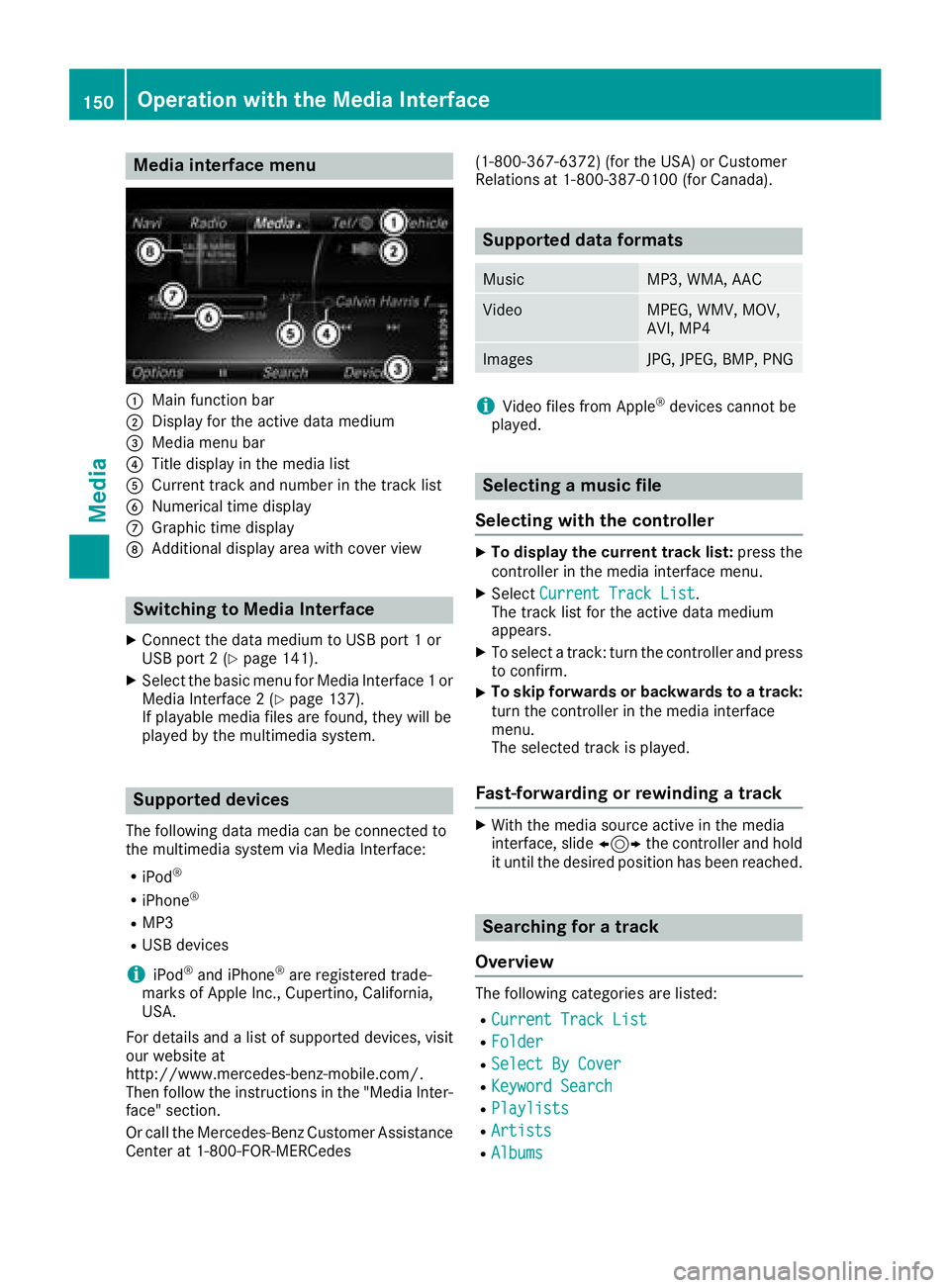
Media interface menu
:Main function bar
;Display for the active data medium
=Media menu bar
?Title display in the media list
ACurrent track and number in the track list
BNumerical time display
CGraphic time display
DAdditional display area with cover view
Switching to Media Interface
XConnect the data medium to USB port 1 or
USB port 2 (Ypage 141).
XSelect the basic menu for Media Interface 1 or
Media Interface 2 (Ypage 137).
If playable media files are found, they will be
played by the multimedia system.
Supported devices
The following data media can be connected to
the multimedia system via Media Interface:
RiPod®
RiPhone®
RMP3
RUSB devices
iiPod®and iPhone®are registered trade-
marks of Apple Inc., Cupertino, California,
USA.
For details and a list of supported devices, visit
our website at
http://www.mercedes-benz-mobile.com/.
Then follow the instructions in the "Media Inter-
face" section.
Or call the Mercedes-Benz Customer Assistance
Center at 1-800-FOR-MERCedes (1-800-367-6372) (for the USA) or Customer
Relations at 1-800-387-0100 (for Canada).
Supported data formats
MusicMP3, WMA, AAC
VideoMPEG, WMV, MOV,
AVI, MP4
ImagesJPG, JPEG, BMP, PNG
iVideo files from Apple®devices cannot be
played.
Selecting a music file
Selecting with the controller
XTo display the current track list: press the
controller in the media interface menu.
XSelect Current Track List.
The track list for the active data medium
appears.
XTo select a track: turn the controller and press
to confirm.
XTo skip forwards or backwards to a track:
turn the controller in the media interface
menu.
The selected track is played.
Fast-forwarding or rewinding a track
XWith the media source active in the media
interface, slide 1the controller and hold
it until the desired position has been reached.
Searching for a track
Overview
The following categories are listed:
RCurrent Track List
RFolder
RSelect By Cover
RKeyword Search
RPlaylists
RArtists
RAlbums
150Operation with the Media Interface
Media
Page 171 of 190
Your multimediasyste mequipment
These operatin ginstruction sdescribe all th e
standar dan doptional equipment of your multi-
media system, as available at th etime of going
to press. Country-specifi cdifference sare pos -
sible. Bear in min dthat your vehicle may no t
feature all function sdescribed here. Thi salso
applies to safety-relevan tsystems an dfunc-
tions.
Read th einformation on qualifie dspecialis t
workshop sin th evehicle Operator's Manual.
Overview
Important safet ynotes
GWARNING
The CD/DVD drive is aclass 1lase rproduct.
If you ope nth ehousin gof th eCD/DVD drive,
there is aris kof exposure to invisible lase r
radiation .Thi slase rradiation could damage
your retina. There is aris kof injury.
Never ope nth ehousing. Always hav emain -
tenanc ean drepair wor kcarrie dout at aquali -
fie dspecialis tworkshop .
GWARNING
If objects suc has headphones/headset sor
external audio/video sources are no tsecure d
in th epassenger compartment, they can be
flun garound an dhit vehicle occupants .There
is aris kof injury, fo rexample in th eevent of
sudden braking or asudden change in direc -
tion .
Always stow these items or similar objects
carefully so that they canno tbe flung around ,
fo rexample in alockable vehicle stowag e
compartment.
Equipment
Observ ethat arange of Rear Seat Entertain -
men tSystems are available fo rMercedes-Ben z
vehicles .In this Operator's Manual, th eRear
Seat Entertainmen tSyste mCode 86 4is used
fo rillustration purposes. If you hav e adifferen t
Rear Seat Entertainmen tSyste min your vehicle,
please refer to th emanufacturer's operatin g
instructions.
Component s
The Rear Seat Entertainmen tSyste mincludes :
Rtwoscreens fo rth erea rbehin dth efront-seat
head restraints
Rtw oremot econtrols
Rasingle drive (rear-compartmen tdrive)
RAU Xjack son bot hrea rscreens (AUX display)
RAU Xjack son th erea rdrive (AUX drive)
Rheadphone sfo reac hrea rscree n
Rtwoset sof cordless headphone s
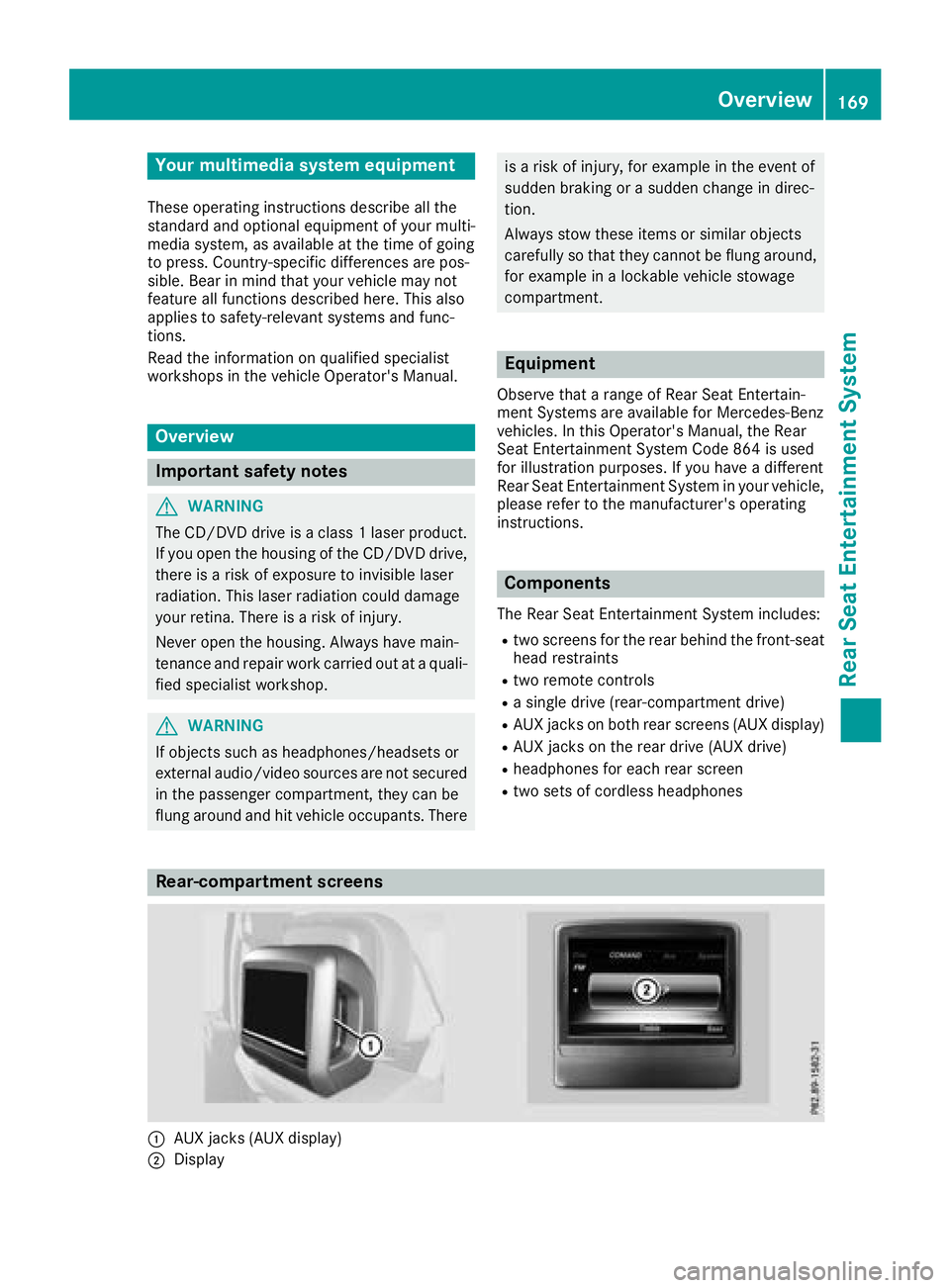
Rear-compartment screens
:AUXjack s(AUX display)
;Display
Overview169
Rear Seat Entertainment System
Z
Page 186 of 190
Additional setting option:
XAdjust the sound settings (Ypage 174).
MP3 mode functions
XTo select a track by skipping to a track:
press the=or; button on the remote
control.
or
XPress the EorF button.
The skip forward function skips to the next
track.
If the elapsed track time has exceeded 8 sec-
onds, the function skips back to the beginning
of the track.
If the elapsed track time is less than 8 sec-
onds, the function skips back to the beginning of the previous track.
Additional setting option:
XAdjust the sound settings (Ypage 174).
DVD video mode functions
Hiding the menu:
XPress the 9or: button on the remote
control.
or
XWait about eight seconds.
The menu is hidden.
Additional setting options:
XAdjust the brightness, contrast and color
(Ypage 174).
XChange the picture format (Ypage 175).
XAdjust the sound settings (Ypage 174).
AUX mode
Introduction
You can connect external video sources with a
sound and video signal to the Rear Seat Enter-
tainment System:
Rone external video source to each of the rear screens (AUX display)
Rone external video source to the rear-com-
partment disc drive (AUX drive) Operating the external video source; see the
manufacturer's operating instructions.
For further details about external video sources,
please consult an authorized Mercedes-Benz
Center.
Connecting AUX equipment
AUX drive jacks
The AUX drive jacks are located on the rear-
compartment drive to the right of the þ
(
Ypage 171) button.
AUX display jacks
The AUX display jacks are on the side of the two
rear screens (Ypage 169).
Connecting audio and video cables
XInsert the audio plugs for the left and right
signals into the corresponding Land Rjacks.
XInsert the video plug into the Vjack.
Activating AUX mode
AUX drive
Requirements: the external video source is con-
nected to the rear-compartment drive and play-
back is selected.
XSelect Auxin the menu using the
9=; buttons on the remote con-
trol and press the 9button to confirm.
The AUX menu appears.
XSelect Sourcefrom the AUX menu and press
the 9button to confirm.
XSelect Disc drive Auxand press the 9
button to confirm.
Playback starts. If an external video source
does not provide a video picture, an audio
menu appears.
Displaying AUX
Requirements: the external video source is con-
nected to the rear-compartment screen and
playback is selected.
XSelect a screen using the thumbwheel on the
remote control (Ypage 170) until " LREAR"
184AUX mode
Rear Seat Entertainment System