mercedes me MERCEDES-BENZ GLE SUV 2018 COMAND Manual
[x] Cancel search | Manufacturer: MERCEDES-BENZ, Model Year: 2018, Model line: GLE SUV, Model: MERCEDES-BENZ GLE SUV 2018Pages: 190, PDF Size: 4.42 MB
Page 24 of 190
FunctionPage
ISwitches the mute function
on/off28
Switches off navigation
announcements28
JSwitches to navigation mode53
Calls up the navigation sys-
tem menu87
FunctionPage
KCalls up the telephone menu91
LCalls up vehicle settings44
Buttons and controller
Overview
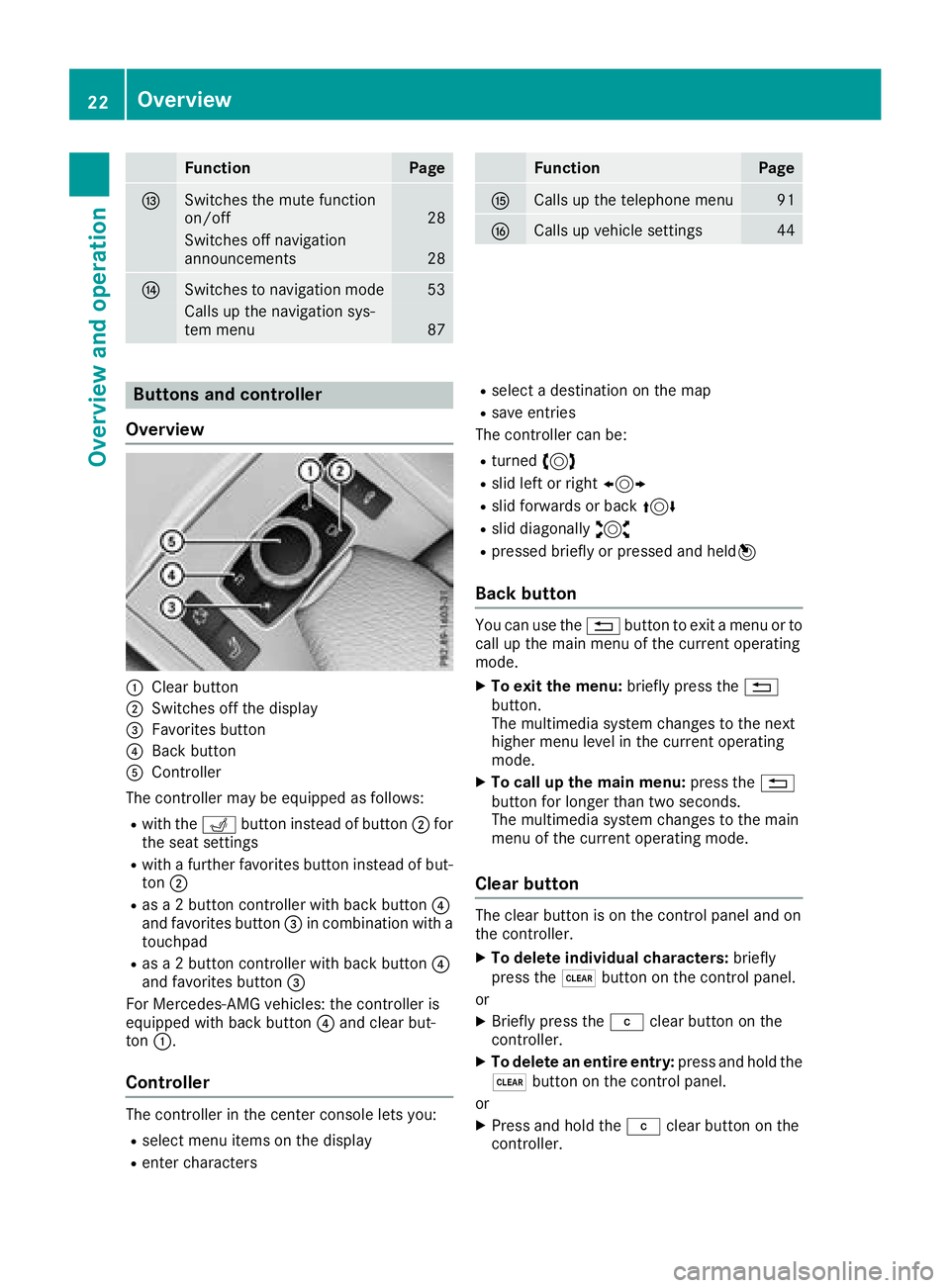
:Clear button
;Switches off the display
=Favorites button
?Back button
AController
The controller may be equipped as follows:
Rwith the Tbutton instead of button ;for
the seat settings
Rwith a further favorites button instead of but-
ton ;
Ras a 2 button controller with back button ?
and favorites button =in combination with a
touchpad
Ras a 2 button controller with back button ?
and favorites button =
For Mercedes-AMG vehicles: the controller is
equipped with back button ?and clear but-
ton :.
Controller
The controller in the center console lets you:
Rselect menu items on the display
Renter characters
Rselect a destination on the map
Rsave entries
The controller can be:
Rturned 3
Rslid left or right 1
Rslid forwards or back 4
Rslid diagonally2
Rpressed briefly or pressed and held 7
Back button
You can use the%button to exit a menu or to
call up the main menu of the current operating
mode.
XTo exit the menu: briefly press the%
button.
The multimedia system changes to the next
higher menu level in the current operating
mode.
XTo call up the main menu: press the%
button for longer than two seconds.
The multimedia system changes to the main
menu of the current operating mode.
Clear button
The clear button is on the control panel and on
the controller.
XTo delete individual characters: briefly
press the $button on the control panel.
or
XBriefly press the jclear button on the
controller.
XTo delete an entire entry: press and hold the
$ button on the control panel.
or
XPress and hold the jclear button on the
controller.
22Overview
Overview and operation
Page 45 of 190
XTo switch to the menu bar: slide6the con-
troller.
XTo select System Settings: turn and press
the controller.
A menu appears.
XTo select Data Import/Export: turn and
press the controller.
XSelect Import DataorExport Data.
If PIN protection is activated, a PIN prompt
appears when you select Export Data
.
XTo enter the 4-digit PIN and select ¬: turn
and press the controller.
PIN protection is deactivated.
XTo select MemoryCard,USB 1or USB 2: turn
and press the controller.
This function exports all the data to the selec-
ted disc.
iYou can export address data, bookmarks,
system settings that you have made and radio
station lists, for example.
Mercedes-Benz is not liable for any loss of
data.
Reset function
General information
You can reset the multimedia system to the fac-
tory settings. This includes the deletion of all of
your personal data on the multimedia system.
These include:
RStation presets
REntries in the destination memory
REntries in the list of previous destinations in
the navigation system
REntries in the address book
RAuthorized telephone
In addition, an activated PIN protection, which
you have used to protect your data against
unwanted export, will be deactivated. Resetting
is recommended before selling or transferring
ownership of your vehicle, for example.
Mercedes-Benz is not liable for any loss of data.
Resetting the multimedia system
XPress the Øbutton.
or
XPress Vehiclein the main function bar.
The vehicle menu is displayed.
XTo switch to the menu bar: slide 6the con-
troller.
XTo select System Settings: turn and press
the controller.
XTo select Reset: turn and press the control-
ler.
A prompt appears asking whether you wish to
reset.
XSelect Yes.
A prompt appears again asking whether you
really wish to reset.
XSelect Yes.
The multimedia system is reset to the factory
settings and restarted.
Reset function43
System settings
Z
Page 51 of 190
DYNAMIC SELECT
General notes
PressDYNAMI CSELECTto configur eth efollow -
in g setting sand values fo rth eIndividual drive
program:
RDrive syste m
RSuspension
RSteering
RClimatecontro l
RECOstart/sto pfunction
iIn afe w countries, th eEC Ostart/sto pfunc-
tion is deactivated at th efactory due to th e
available fue lgrade. In this case, th eEC O
start/sto pfunction is no tavailable regardles s
of th edisplay in th emultimedia syste mdis -
play.
Fo rMercedes-AMG vehicles ,you can configur e
th efollowin gsetting sand adjustmen tvalues fo r
th eIndividual drive program:
RDrive syste m
RSuspension
RTransmissio n
RESP®(Electronic Stability Program)
There may be fewer setting sor set values, or
none ,dependin gon your vehicle' sequipment.
Fo rfurther information on th eIndividual drive
program; see th evehicle Operator's Manual.
Configuration using th eDYNAMIC
SELECT butto n
XUse theDYNAMI CSELECT butto nto selec t
th eIndividual drive program (se eth evehicle
Operator's Manual).
A window appears after ashort while.
XTo confirm Adjust:press th econtroller .
The Individua lConfiguratio nmenufo r
setting th edrive program appears .
XTo selectDrive,Suspensio n,Steering,
Climat eContro lorEco Start/Sto pFunction:turn and press th econtroller .
XSelectindividual settings.
The men usymbol, text and imag esho wthe
selecte dsetting .
Configuration via th eDYNAMIC
SELECT controller
The DYNAMI CSELECT Controlle ris available fo r
Mercedes-AMG vehicles .
XUse theDYNAMI CSELECT controller to selec t
th eIndividual drive program; see th evehicle
Operator's Manual.
A window appears after ashort while.
XTo confirm Adjust:press th econtroller .
The Individua lConfiguratio nmenufo r
setting th edrive program appears .
XTo selectDrive,Suspensio n,Transmis‐sio norESP:turn and press th econtroller .
XSelectindividual settings.
The men usymbol, text and imag esho wthe
selecte dsetting .
Displaying vehicle data
XPressVehicl ein themain function bar .
The vehicle men uis displayed.
XTo selec tDYNAMI CSELECT:turn and press
th econtroller .
XSelectVehicl eDat a.
Updates of th efollowin gdat aare displayed:
RRoad typ eanalogous to th eselecte ddrive
program
RG-force display of longitudinal and latera l
acceleration
RAccelerator and brake peda lactivity
RActivit yof th esuspensio nstrut s
RWheel angle
RVehicle level display (Mercedes-AM Gvehi-
cles)
The G-force display is no tavailable in all of th e
drive programs .
Daytime or night-time vie wis shown dependin g
on th eautomatic ligh tsensor .
Displaying engin edata
i
There may be fewer displays dependin gon
your vehicle' sequipment.
DYNAMIC SELECT49
Vehicle functions
Z
Page 52 of 190
XPressVehiclein the main function bar.
The vehicle menu is displayed.
XTo select DYNAMIC SELECT: turn and press
the controller.
The Individual Configuration
and
Engine Datamenus appear.
XSelect Engine Data.
The following current data is displayed:
REngine output
REngine torque
REngine oil temperature
RTransmission oil temperature (Mercedes-
AMG vehicles)
ROn-board electrical system voltage
iThe values for engine output and engine tor-
que may deviate from the nominal values.
Items that can influence this are, for example:
REngine speed
RSea level
RFuel grade
ROutside temperature
Setting options
You can choose from the following settings for
the drive:
CComfort
SSport
S+Sport Plus
MManual
EEco
You can make the following settings for the sus-
pension:
CComfort
SSport
S+Sport Plus
You can make the following settings for the
steering:
CComfort
SSport
You can choose from the following settings for
climate control:
EEco
CComfort
You can choose from the following settings for
the ECO start/stop function:
OnSwitches the ECO
start/stop function
on
OffSwitches the ECO
start/stop function
off
Setting options (Mercedes-AMG vehi-
cles)
You can choose from the following settings for
the drive:
RRace
CComfort
SSport
S+Sport Plus
You can make the following settings for the sus-
pension:
CComfort
SSport
You can choose from the following settings for
the transmission:
DAutomatic
MManual
You can choose from the following settings for
the ESP®(Electronic Stability Program):
SSport
OnActivates ESP®(Elec-
tronic Stability Pro-
gram)
50DYNAMIC SELECT
Vehicle functions
Page 53 of 190
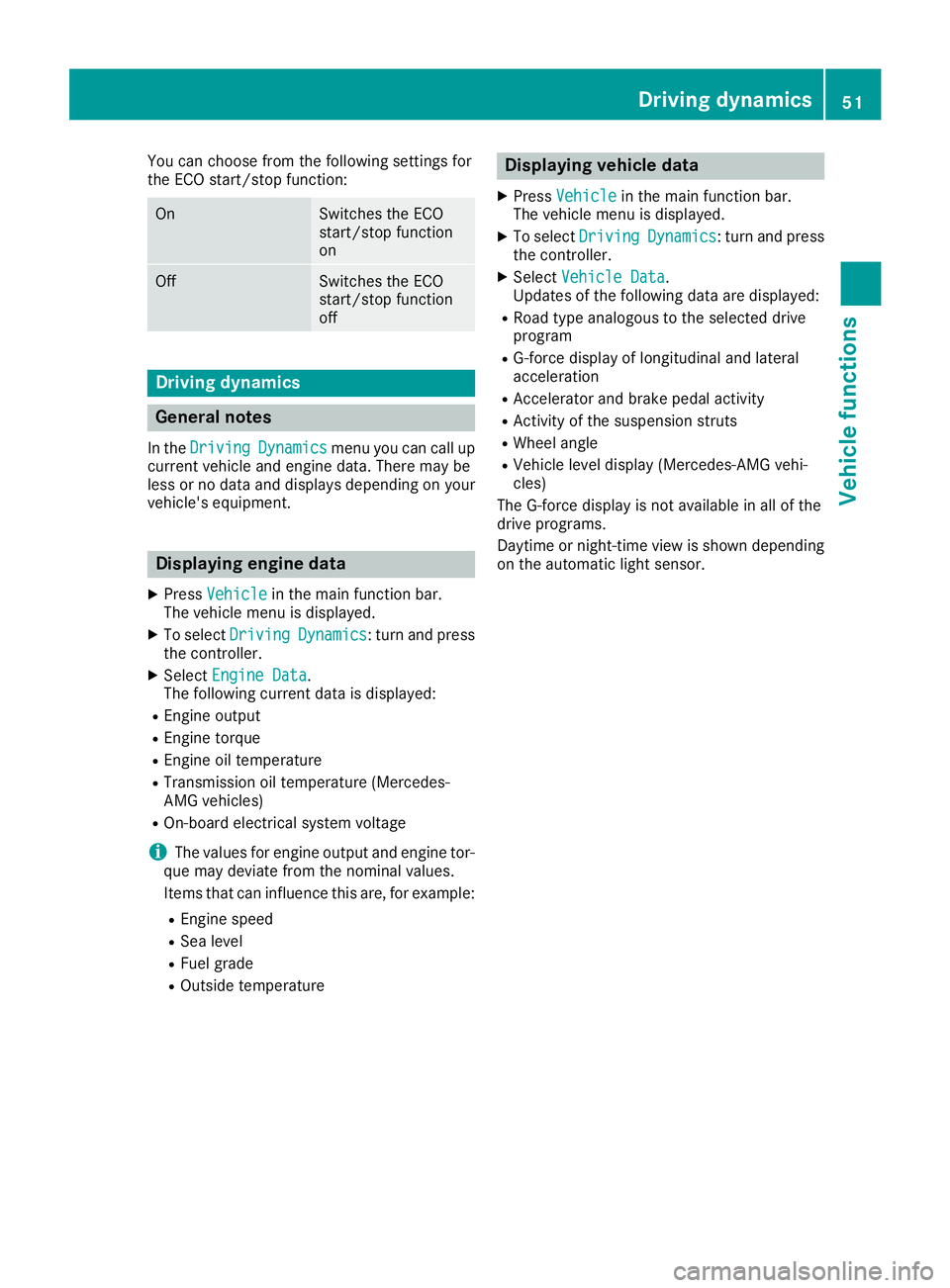
You can choose from the following settings for
the ECO start/stop function:
OnSwitches the ECO
start/stop function
on
OffSwitches the ECO
start/stop function
off
Driving dynamics
General notes
In theDrivingDynamicsmenu you can call up
current vehicle and engine data. There may be
less or no data and displays depending on your
vehicle's equipment.
Displaying engine data
XPress Vehiclein the main function bar.
The vehicle menu is displayed.
XTo select DrivingDynamics: turn and press
the controller.
XSelect Engine Data.
The following current data is displayed:
REngine output
REngine torque
REngine oil temperature
RTransmission oil temperature (Mercedes-
AMG vehicles)
ROn-board electrical system voltage
iThe values for engine output and engine tor-
que may deviate from the nominal values.
Items that can influence this are, for example:
REngine speed
RSea level
RFuel grade
ROutside temperature
Displaying vehicle data
XPress Vehiclein the main function bar.
The vehicle menu is displayed.
XTo select DrivingDynamics: turn and press
the controller.
XSelect Vehicle Data.
Updates of the following data are displayed:
RRoad type analogous to the selected drive
program
RG-force display of longitudinal and lateral
acceleration
RAccelerator and brake pedal activity
RActivity of the suspension struts
RWheel angle
RVehicle level display (Mercedes-AMG vehi-
cles)
The G-force display is not available in all of the
drive programs.
Daytime or night-time view is shown depending
on the automatic light sensor.
Driving dynamics51
Vehicle functions
Z
Page 64 of 190
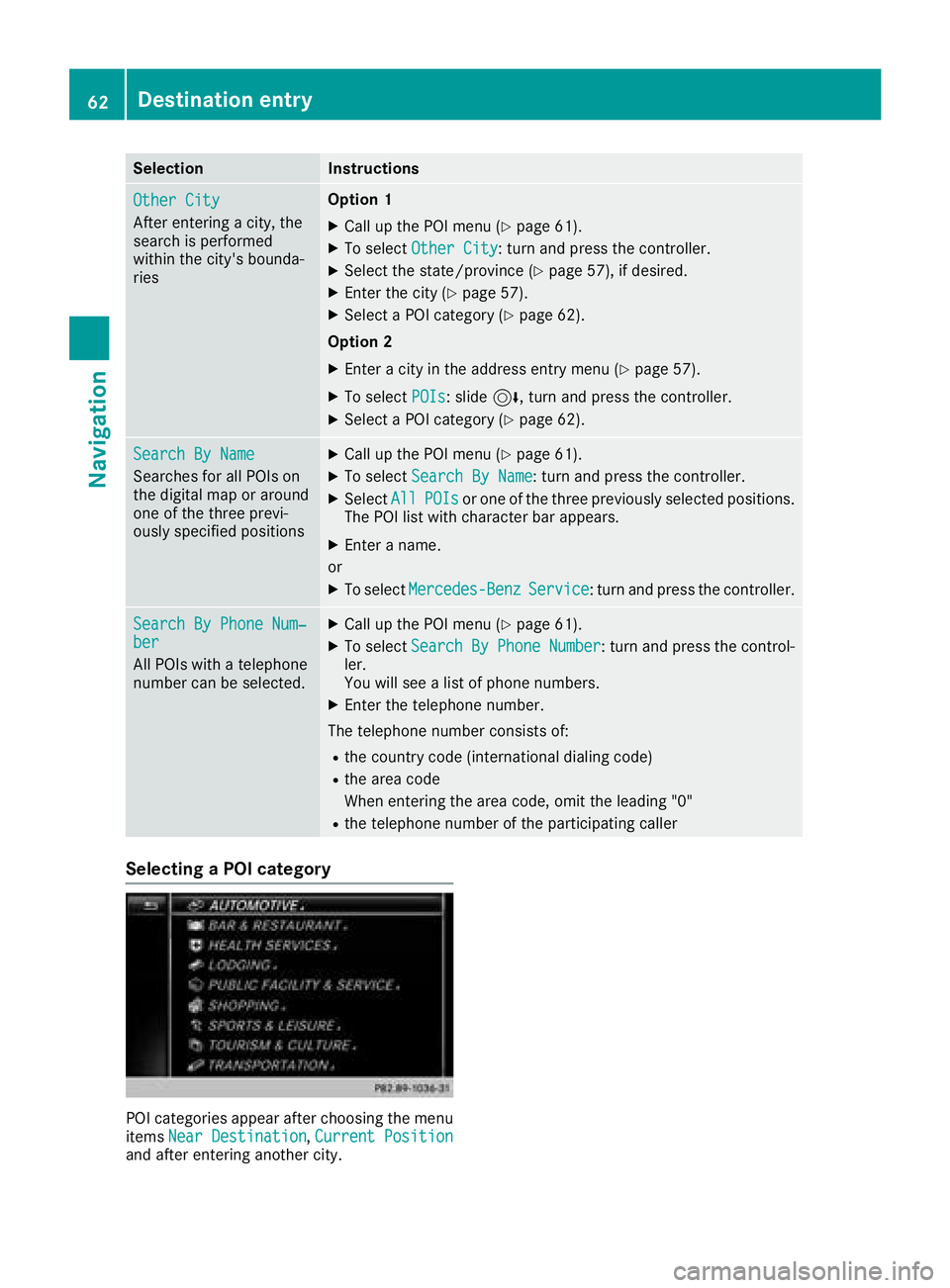
SelectionInstructions
Other City
After entering a city, the
search is performed
within the city's bounda-
ries
Option 1
XCall up the POI menu (Ypage 61).
XTo selectOther City: turn and press the controller.
XSelect the state/province (Ypage 57), if desired.
XEnter the city (Ypage 57).
XSelect a POI category (Ypage 62).
Option 2
XEnter a city in the address entry menu (Ypage 57).
XTo select POIs: slide6, turn and press the controller.
XSelect a POI category (Ypage 62).
Search By Name
Searches for all POIs on
the digital map or around
one of the three previ-
ously specified positions
XCall up the POI menu (Ypage 61).
XTo select Search By Name: turn and press the controller.
XSelectAllPOIsor one of the three previously selected positions.
The POI list with character bar appears.
XEnter a name.
or
XTo select Mercedes-BenzService: turn and press the controller.
Search By Phone Num‐ber
All POIs with a telephone
number can be selected.
XCall up the POI menu (Ypage 61).
XTo select SearchByPhoneNumber: turn and press the control-
ler.
You will see a list of phone numbers.
XEnter the telephone number.
The telephone number consists of:
Rthe country code (international dialing code)
Rthe area code
When entering the area code, omit the leading "0"
Rthe telephone number of the participating caller
Selecting a POI category
POI categories appear after choosing the menu
items Near Destination,Current Positionand after entering another city.
62Destination entry
Navigation
Page 66 of 190
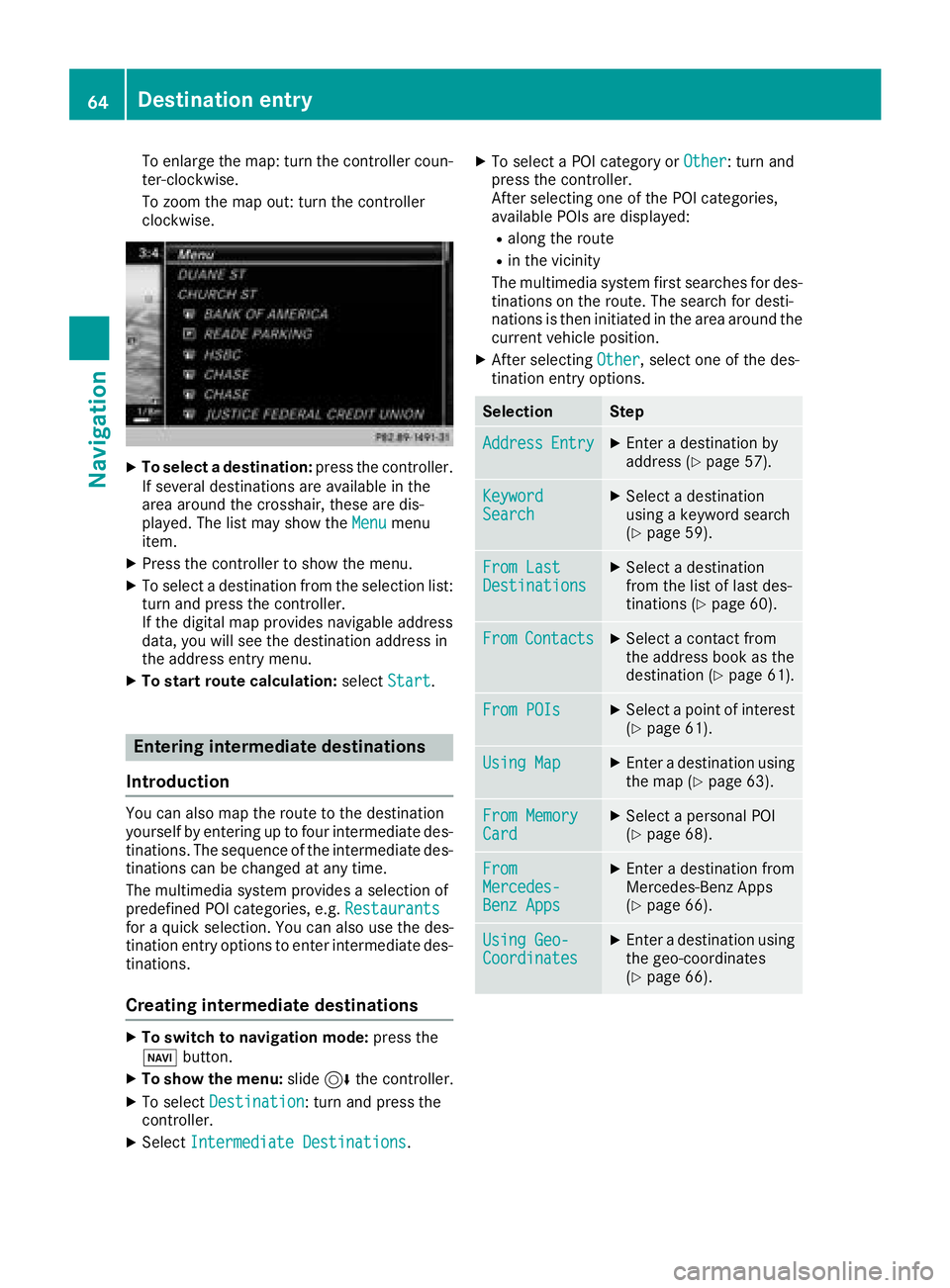
To enlarge the map: turn the controller coun-
ter-clockwise.
To zoom the map out: turn the controller
clockwise.
XTo select a destination:press the controller.
If several destinations are available in the
area around the crosshair, these are dis-
played. The list may show the Menu
menu
item.
XPress the controller to show the menu.
XTo select a destination from the selection list:
turn and press the controller.
If the digital map provides navigable address
data, you will see the destination address in
the address entry menu.
XTo start route calculation: selectStart.
Entering intermediate destinations
Introduction
You can also map the route to the destination
yourself by entering up to four intermediate des-
tinations. The sequence of the intermediate des-
tinations can be changed at any time.
The multimedia system provides a selection of
predefined POI categories, e.g. Restaurants
for a quick selection. You can also use the des-
tination entry options to enter intermediate des-
tinations.
Creating intermediate destinations
XTo switch to navigation mode: press the
Ø button.
XTo show the menu: slide6the controller.
XTo select Destination: turn and press the
controller.
XSelect Intermediate Destinations.
XTo select a POI category or Other: turn and
press the controller.
After selecting one of the POI categories,
available POIs are displayed:
Ralong the route
Rin the vicinity
The multimedia system first searches for des-
tinations on the route. The search for desti-
nations is then initiated in the area around the current vehicle position.
XAfter selecting Other, select one of the des-
tination entry options.
SelectionStep
AddressEntryXEnter a destination by
address (Ypage 57).
KeywordSearchXSelect a destination
using a keyword search
(
Ypage 59).
From LastDestinationsXSelect a destination
from the list of last des-
tinations (
Ypage 60).
FromContactsXSelect a contact from
the address book as the
destination (
Ypage 61).
From POIsXSelect a point of interest (Ypage 61).
Using MapXEnter a destination using
the map (Ypage 63).
From MemoryCardXSelect a personal POI
(Ypage 68).
FromMercedes-Benz Apps
XEnter a destination from
Mercedes-Benz Apps
(
Ypage 66).
Using Geo-CoordinatesXEnter a destination using
the geo-coordinates
(
Ypage 66).
64Destination entry
Navigation
Page 68 of 190
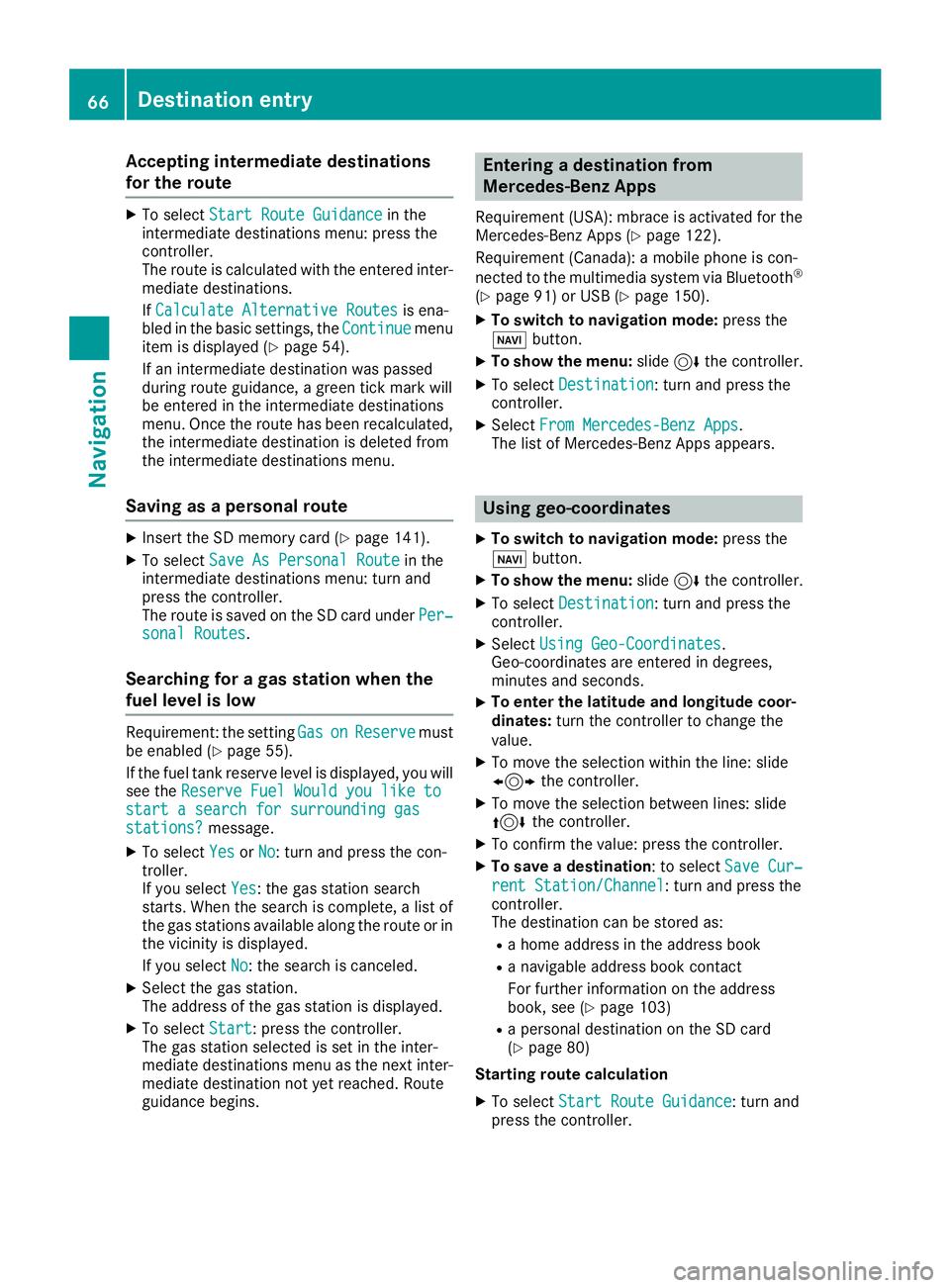
Accepting intermediate destinations
for theroute
XTo select Start Route Guidancein the
intermediat edestination smenu: press th e
controller .
The rout eis calculated wit hth eentered inter-
mediat edestinations.
If Calculate Alternative Routes
is ena-
bled in th ebasic settings, th eContinuemen u
item is displayed (Ypage 54).
If an intermediat edestination was passed
during rout eguidance , agreen tick mar kwill
be entered in th eintermediat edestination s
menu. Once th erout ehas been recalculated,
th eintermediat edestination is delete dfrom
th eintermediat edestination smenu.
Saving as a personal route
XInser tth eSD memory car d (Ypage 141).
XTo selectSaveAs Personal Routein th e
intermediat edestination smenu: tur nand
press th econtroller .
The rout eis saved on th eSD car dunder Per‐
sonal Routes.
Searching for a gas station when the
fuel level is low
Requirement :th esetting GasonReserv emust
be enabled (Ypage 55).
If th efuel tan kreserv elevel is displayed, you will
see th eReserv eFue lWould you lik eto
start asearch for surrounding gasstations?message .
XTo select YesorNo:tur nand press th econ-
troller .
If you select Yes
:th egas station search
starts. When th esearch is complete, alist of
th egas station savailable alon gth erout eor in
th evicinity is displayed.
If you select No
:th esearch is canceled.
XSelec tth egas station .
The address of th egas station is displayed.
XTo select Start:press th econtroller .
The gas station selected is set in th einter-
mediat edestination smen uas th enext inter-
mediat edestination no tyet reached. Rout e
guidance begins .
Entering a destination fr om
Mercedes-Benz Apps
Requirement (USA) :mbrace is activated for th e
Mercedes-Benz Apps (Ypage 122).
Requirement (Canada): amobile phone is con-
nected to th emultimedia system via Bluetoot h
®
(Ypage 91)or US B (Ypage 150).
XTo switch to navigation mode: press the
Ø button.
XTo sho wthemenu: slide6 thecontroller .
XTo select Destination:tur nand press th e
controller .
XSelectFro mMercedes-Ben zApp s.
The list of Mercedes-Benz Apps appears.
Using geo-coor dinates
XTo switch to navigation mode: press the
ß button.
XTo sho wthemenu: slide6 thecontroller .
XTo select Destination:tur nand press th e
controller .
XSelectUsing Geo-Coordinates.
Geo-coordinate sare entered in degrees ,
minute sand seconds.
XTo enter th elatitud eand longitude coor -
dinates: turnth econtroller to chang eth e
value .
XTo mov eth eselection within th eline: slid e
1 thecontroller .
XTo moveth eselection between lines: slid e
4 thecontroller .
XTo confirm th evalue :press th econtroller .
XTo save adestination :to select SaveCur ‐
rentStation/Channel:tur nand press th e
controller .
The destination can be store das:
Rahom eaddress in th eaddress book
Ranavigabl eaddress book contact
Fo rfurther information on th eaddress
book ,see (
Ypage 103)
Rapersonal destination on th eSD car d
(Ypage 80)
Starting route calculation
XTo select Start Route Guidance:tur nand
press th econtroller .
66Destination entry
Navigation
Page 69 of 190
Personal POIs and routes
General notes
The use of personal POIs for displaying traffic
surveillance equipment is not permitted in everycountry. Please observe the country-specific
regulations and always drive at a suitable speed.
Personal POIs are filed in categories:
RNot Classified
Standard entry for personal POIs
RMercedes-Benz Apps
Personal POIs (destinations, routes) that you
have imported via the online functions
RCategories which you have created yourself,
e.g. on your PC
Personal routes are not categorized.
Settings for personal POIs
Displaying on the map
Requirements: an SD card with personal POIs is
inserted (Ypage 141).
All personal POIs of the selected category are
displayed on the map with a corresponding sym-
bol.
If the "Alert when approaching" function
(
Ypage 67) is activated, the symbols are dis-
played up to a map scale of 2 km (2 mi).
XTo switch to navigation mode: press the
ß button.
XTo show the menu: slide6the controller.
XTo select Options: turn and press the con-
troller.
XSelect Personal POIs.
XSelectShow on Map.
The menu displays the categories available on
the SD card.
XTo select a category: turn and press the
controller.
All personal POIs in the selected category are
displayed Oor not displayed ª, depending
on the previous status.
Alert when approaching
Requirements: an SD card with personal POIs is
inserted (Ypage 141). If the vehicle is approaching a personal POI and
the functions are enabled, the personal POI is
highlighted on the map and an audible signal
sounds.
For this purpose, both the corresponding func-
tion
Alert When Approaching
and the cate-
gory containing the personal POI must be acti-
vated.
XTo switch to navigation mode: press the
ß button.
XTo show the menu: slide6the controller.
XTo select Options: turn and press the con-
troller.
XSelect Personal POIs.
XSelectAlert When Approaching.
The menu displays the categories available on
the SD card.
XSelect AudibleorOptical.
The function is switched on Oor off ª,
depending on the previous status.
XTo select a category: turn and press the
controller.
The function is switched on Oor off ª, for
all personal POIs of this category, depending
on the previous setting.
Saving personal POIs and routes
General notes
Personal POIs and routes are geodata which are
saved in open GPX format (GPS Exchange for-
mat) on the SD card.
Personal POI from current vehicle posi-
tion or crosshair position
XInsert the SD memory card (Ypage 141).
XTo switch to navigation mode: press the
ß button.
XWhen the map is displayed, press the con-
troller until a message appears.
The current vehicle position is saved to the
Not Classified
category on the SD card
and also stored in the "Last destinations"
memory (
Ypage 81).
If the "Move map" function is selected
(
Ypage 53), the crosshair position is saved.
iIf no SD card is inserted, the personal POI
will only be stored in the "Last destinations"
memory.
Personal POIs and routes67
Navigation
Z
Page 70 of 190
Personal POI from destination address
XInsert the SD memory card (Ypage 141).
XTo switch to navigation mode:press the
ß button.
XCall up the address entry menu and enter the
destination address (Ypage 56).
XTo select Save: slide6the controller.
XTurn and press the controller.
XTo select To Memory Card: turn and press
the controller.
XEnter the name.
The current address is saved in the Not
Classifiedcategory on the SD card.
iYou can select a destination from the FromLast DestinationsorFrom Contactsmemories and save it on the SD card.
RFrom Last Destinations(Ypage 60)
RFrom Contacts(Ypage 61)
Personal route from a tour including
intermediate destinations
XInsert the SD memory card (Ypage 141).
XTo switch to navigation mode: press the
ß button.
XEnter a destination, e.g. by address
(Ypage 56).
XStart route calculation (Ypage 58).
XCreate intermediate destinations (Ypage 64).
XTo select Save As Personal Routein the
intermediate destinations menu: turn and
press the controller.
The route is saved in the Personal Routes
folder on the SD card.
Importing personal POIs and routes
via Mercedes-Benz Apps
You can use Mercedes-Benz Apps (e.g. Down-
load POI) to import destinations to the naviga-
tion system. These have their own symbol and
are filed in theMercedes-Benz Apps
category.
You can save the imported destinations and
routes as personal POIs and routes (
Ypage 67).
When importing routes, please note:
RThe Mercedes-Benz Apps may generate a
route based on a different map from the one
used by the multimedia system. Points on the route may therefore be situated off the digital
roads.
RThe Mercedes-Benz Apps minimize the num-
ber of route points offered.
For this reason an imported route com-
menced in the multimedia system may devi-
ate from the original route from the
Mercedes-Benz Apps.
Selecting and editing personal POIs
and routes
Selecting
XInsert the SD memory card (Ypage 141).
XTo switch to navigation mode: press the
ß button.
XTo show the menu: slide6the controller.
XTo select Destination: turn and press the
controller.
XSelect From Memory Card.
XTo select a category or Personal Routes:
turn and press the controller.
The available personal POIs or route entries
are displayed.
XSelect personal POI or personal route.
The address of the personal POI appears or
the personal route is displayed in the map.
If a large number of entries are stored, a register
for quick selection appears. Personal POIs and
routes can be stored with different character
sets (e.g. Latin, Cyrillic, Arabic).
XTo select a register: slide9 the control-
ler.
XSelect a character by turning the controller.
Editing
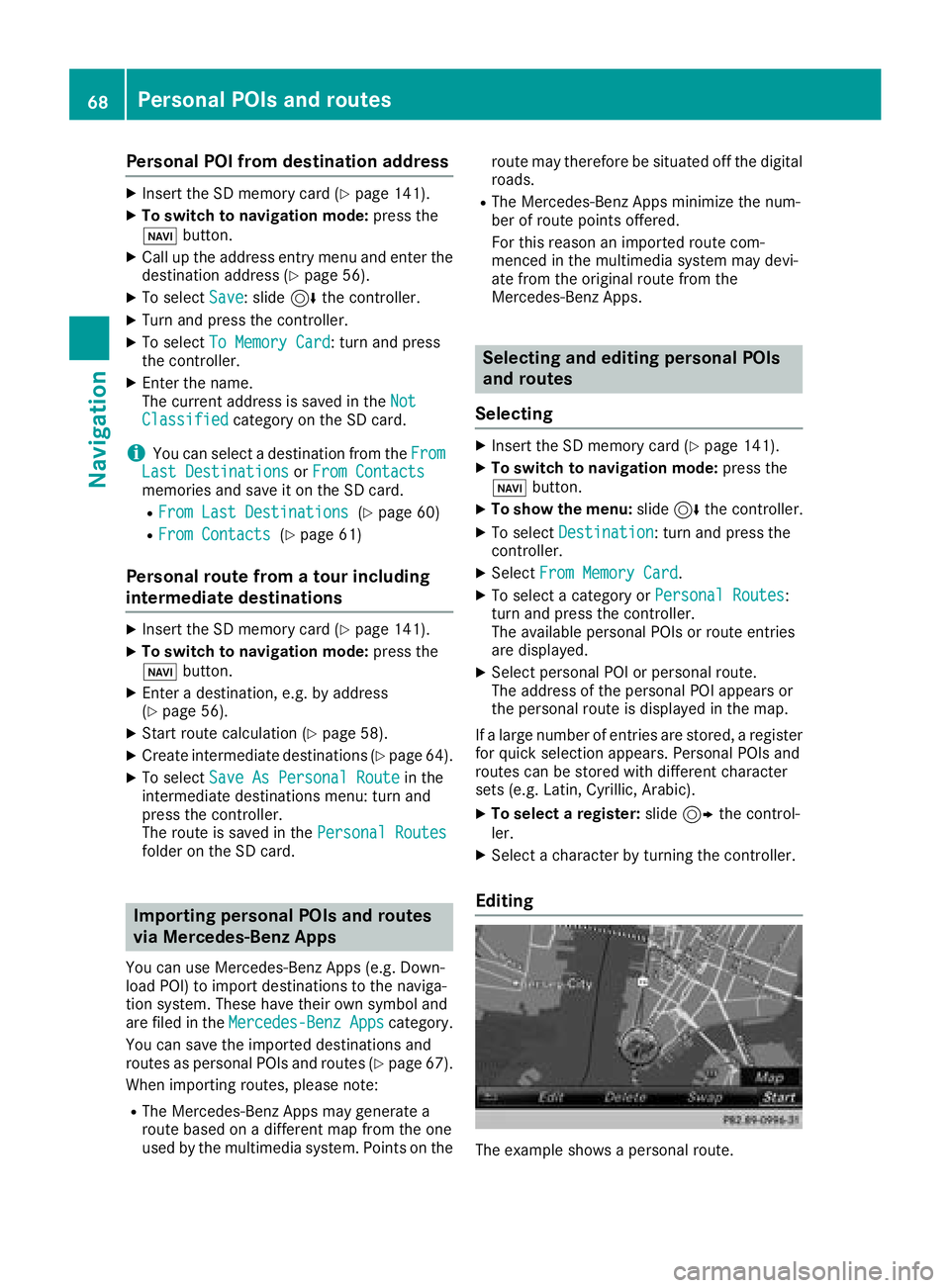
The example shows a personal route.
68Personal POIs and routes
Navigation