change time MERCEDES-BENZ GLE SUV 2019 Owner's Manual
[x] Cancel search | Manufacturer: MERCEDES-BENZ, Model Year: 2019, Model line: GLE SUV, Model: MERCEDES-BENZ GLE SUV 2019Pages: 681, PDF Size: 11.7 MB
Page 282 of 681
&
WARNING Risk of accident due tovehi‐
cle swinging out while parking or pulling
out of a parking space
While parking or exiting a parking space, the
ve hicle swings out and can drive onto areas
of the oncoming lane.
This could cause youto collide wi thobjects
or other road users. #
Pay attention toobjects and other road
users. #
Where necessar y,stop theve hicle or
cancel the parking procedure with
Ac tive Parking Assist. #
If,forex ample, theEngage forward gear mes‐
sage appears in the multimedia sy stem dis‐
play: select the cor responding transmission
position.
The vehicle mo ves out of the parking space. Example:
vehicles with 360° Camera
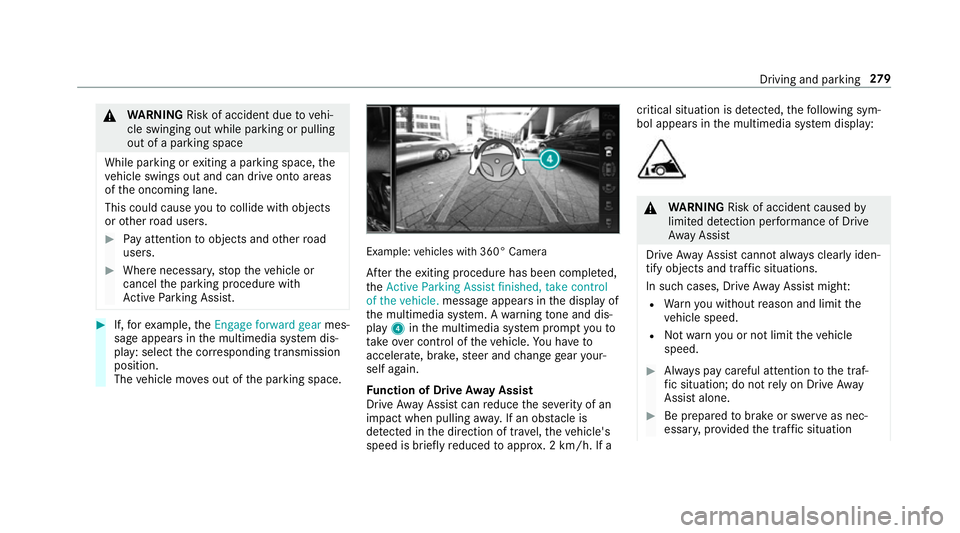
Af terth eex iting procedure has been comple ted,
th eActive Parking Assist finished, take control
of the vehicle. message appears in the display of
th e multimedia sy stem. A warning tone and dis‐
pl ay 4 inthe multimedia sy stem prom ptyouto
ta ke over control of theve hicle. You ha veto
accelerate, brake, steer and change gear your‐
self again.
Fu nction of Drive Away Assist
Drive AwayAssi stcan reduce the se verity of an
impact when pulling away. If an obs tacle is
de tected in the direction of tra vel,th eve hicle's
speed is briefly reduced toappr ox. 2 km/h. If a critical situation is de
tected, thefo llowing sym‐
bol appears in the multimedia sy stem display: &
WARNING Risk of accident caused by
limited de tection per form ance of Drive
Aw ayAssi st
Drive AwayAssi stcannot al ways clearly iden‐
tify objects and traf fic situations.
In su chcases, Drive AwayAssi stmight:
R Warnyou without reason and limit the
ve hicle speed.
R Not warnyou or not limit theve hicle
speed. #
Alw ays pay careful attention tothe traf‐
fi c situation; do not rely on Drive Away
Assi stalone. #
Be prepared tobrake or swer veas nec‐
essar y,prov ided the tra ffic situation Driving and parking
279
Page 283 of 681
permits and
that it is safe totake eva‐
sive action. Drive
AwayAssi stis only an aid. It is not a sub‐
st itute foryo ur attention tothe sur roundings.
The responsibility for safe manoeuvring and
parking remains with you. Make sure that no
persons, animals or objects etc. are in the
manoeuvring range.
A risk of a collision may arise in thefo llowing sit‐
uations, forex ample:
R Ifth e driver mixes up the accelera tor and
brake pedals.
R Ifth e wrong gear is selec ted.
The Drive AwayAssi stfunction is active under
th efo llowing conditions:
R IfPa rking Assist PARKTRONIC is activated.
R Every time thege ar is changed tok orh
when theve hicle is at a standstill.
R Ifth e de tected obs tacle is less than appr ox.
1. 0 m away.
R Ifth e manoeuvring assis tance function is
acti vated in the multimedia sy stem. Sy
stem limitations
Drive AwayAssi stis not available on inclines and
when driving with a trailer.
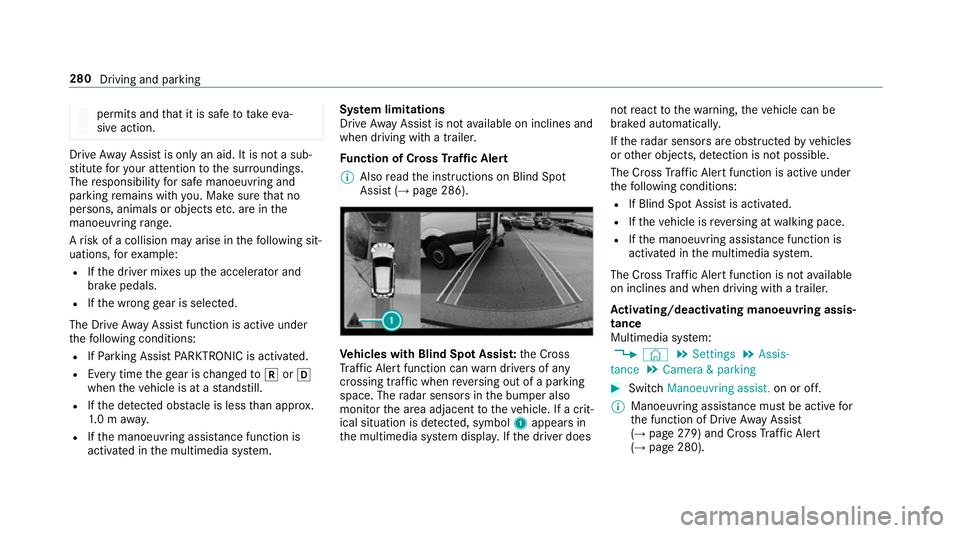
Fu nction of Cross Traf fic Alert
% Also read the instructions on Blind Spot
Assist (→ page 286). Ve
hicles with Blind Spot Assis t:the Cross
Tr af fic Alert function can warndrivers of any
crossing traf fic when reve rsing out of a parking
space. The radar sensors in the bumper also
monitor the area adjacent totheve hicle. If a crit‐
ical situation is de tected, symbol 1appea rsin
th e multimedia sy stem displa y.Ifth e driver does not
react tothewa rning, theve hicle can be
braked automatically.
If th era dar sensors are obstructed byvehicles
or other objects, de tection is not possible.
The Cross Traf fic Alert function is acti veunder
th efo llowing conditions:
R If Blind Spot Assist is activated.
R Ifth eve hicle is reve rsing at walking pace.
R Ifth e manoeuvring assis tance function is
acti vated in the multimedia sy stem.
The Cross Traf fic Alert function is not available
on inclines and when driving with a trailer.
Ac tivating/deactivating manoeuv ring assis‐
tance
Multimedia sy stem:
, © .
Settings .
Assis-
tance .
Camera & parking #
Switch Manoeuvring assist. on or off.
% Manoeuvring assis tance mu stbe active for
th e function of Drive AwayAssi st
( → page 279) and Cross Traf fic Alert
(→ page 280). 280
Driving and parking
Page 294 of 681
The sy
stem may be impaired or may not function
in thefo llowing situations:
R Ifth ere is poor visibility, e.g. due toinsuf fi‐
cient illumination of thero ad, if there are
highly variable shade conditions or in rain,
sno w,fog or heavy spr ay.
R Ifth ere is glare, e.g. from oncoming traf fic,
th e sun or reflections.
R Ifth e windscreen in the area of the multi‐
function camera is dirty, or if the camera is
mis ted up, damaged or co vered.
R Ifth ere are no lane markings, or se veral
unclear lane markings are present for one
lane, e.g. around roadwor ks.
R Ifth e lane markings are worn, dark or cov‐
ered.
R Ifth e dis tance totheve hicle in front is too
short and thus the lane markings cann otbe
de tected.
R Ifth e lane markings change quickl y,e.g.
lanes branch off, cross one ano ther or
mer ge. R
Ifth e car riag ewa y is very nar row and wind‐
ing.
Ve hicles with Driving Assistance pac kage or
Driving Assistance Plus pa ckage: Active Lane
Ke eping Assist uses radar sensors tomonitor
se veral areas around theve hicle. If thera dar
sensors in there ar bumper are dirty or co vered
with sn ow,th e sy stem may be impaired or may
not function. If an obs tacle in the lane in which
yo u are driving has been de tected, no lane-cor‐
re cting brake application occu rs.
Ac tivating/deactivating Active Lane Keeping
Assist
Multimedia sy stem:
, © .
Settings .
Schnellzugriff
(Quick access) .
Active Lane Keeping Assist #
Activate or deacti vate the function. Setting
Active Lane Keeping Assist
Multimedia sy stem:
, © .
Settings .
Assistance .
Act.
Lane Keep. Assist
Setting the sensitivity
% The availability of this function is dependent
on the count ry. #
Select Standard ,Sensitive orOff.
Ac tivating/deactivating the haptic warning #
Select Warning.
Ac tivate or deacti vate the function. Tr
ailer hitch Tr
ailer operation no tes Obser
vethefo llowing no tes on theto ngue
we ight:
R do not use a tongue weight that exceeds or
fa lls below the permissible tongue weight
R use a tongue weight as close as possible to
th e maximum tongue weight Driving and parking
291
Page 310 of 681
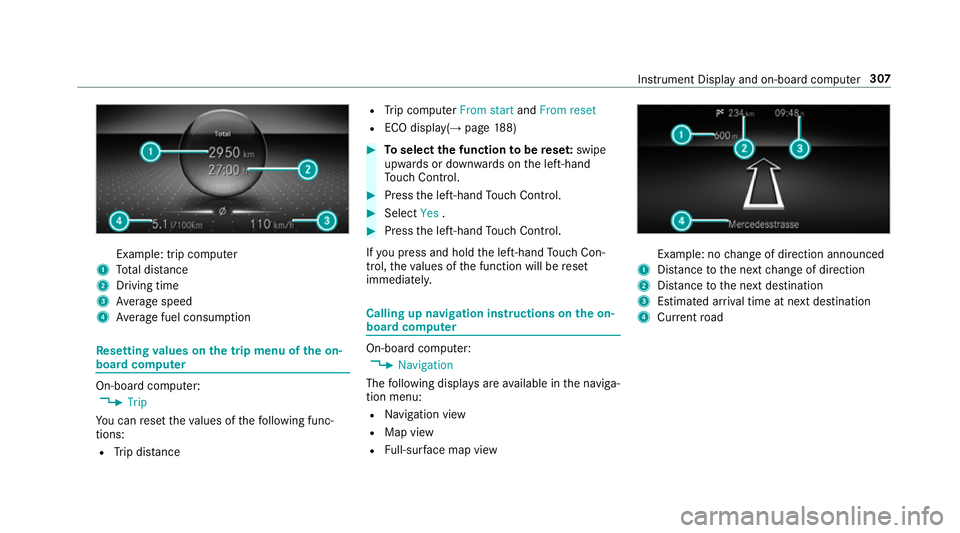
Example: trip computer
1 Total dis tance
2 Driving time
3 Average speed
4 Average fuel consum ption Re
setting values on the trip menu of the on-
board compu ter On-board computer:
, Trip
Yo u can reset theva lues of thefo llowing func‐
tions:
R Trip dis tance R
Trip computer From startandFrom reset
R ECO displa y(→ page 188) #
Toselect the function tobe rese t:swipe
upwards or down wards on the left-hand
To uch Control. #
Press the left-hand Touch Control. #
Select Yes. #
Press the left-hand Touch Control.
If yo u press and hold the left-hand Touch Con‐
trol, theva lues of the function will be reset
immediatel y. Calling up navigation instructions on
the on-
board compu ter On-board computer:
, Navigation
The following displa ysare available in the naviga‐
tion menu:
R Navigation view
R Map view
R Full-sur face map view Example: no
change of direction announced
1 Distance tothe next change of direction
2 Distance tothe next destination
3 Estimated ar riva l time at next destination
4 Current road In
stru ment Display and on-board computer 307
Page 311 of 681
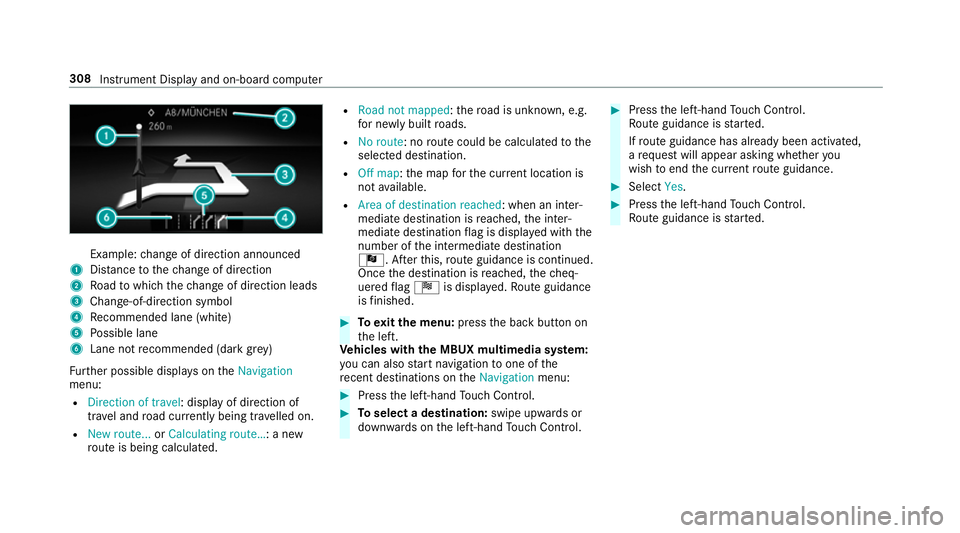
Example:
change of direction announced
1 Distance tothech ange of direction
2 Road towhich thech ange of direction leads
3 Chan ge-of-direction symbol
4 Recommended lane (white)
5 Possible lane
6 Lane not recommended (da rkgrey)
Fu rther possible displa yson theNavigation
menu:
R Direction of travel: display of direction of
tra vel and road cur rently being tr avelled on.
R New route... orCalculating route… : a new
ro ute is being calculated. R
Road not mapped :th ero ad is unknown, e.g.
fo r newly built roads.
R No route: no route could be calculated tothe
selected destination.
R Off map: the map forth e cur rent location is
not available.
R Area of destination reached: when an inter‐
mediate destination is reached, the inter‐
mediate destination flag is displa yed with the
number of the intermediate destination
Î. Af terth is, route guidance is continued.
Once the destination is reached, thech eq‐
uered flag Í is displa yed. Ro ute guidance
is finished. #
Toexitth e menu: pressthe back button on
th e left.
Ve hicles with the MBUX multimedia sy stem:
yo u can also start navigation toone of the
re cent destinations on theNavigation menu: #
Press the left-hand Touch Control. #
Toselect a destination: swipe upwards or
down wards on the left-hand Touch Control. #
Press the left-hand Touch Control.
Ro ute guidance is star ted.
If ro ute guidance has already been activated,
a re qu est will appear asking whe ther you
wish toend the cur rent route guidance. #
Select Yes. #
Press the left-hand Touch Control.
Ro ute guidance is star ted. 308
Instrument Display and on-board computer
Page 318 of 681
#
Tointer rupt avo ice output: speak inthe
middle of a voice dialogue when the sy stem
is still answering.
The voice output is shor tened and the con‐
clusion is reached more quickl y.
% The Voice barge-in option must be switched
on in the multimedia sy stem forth is
(→ page 315). Overvi
ewofthe LINGU ATRO NIC ope rable
functions Yo
u can use the LINGU ATRO NIC voice control
sy stem tooperate thefo llowing functions
depending on theve hicle equipment:
R Telephone
R Text messa geand e-mail
R Navigation
R Address book
R Radio
R Media
R TV
R Vehicle functions R
Weather
Fu ll functionality is only available foryo u with
activation of online voice control (→ page315). Note
s on the language setting Yo
u can change the language of LINGU ATRO NIC
via the sy stem language settings. If the set sys‐
te m language is not suppor tedby LINGUA‐
TRONIC, English will be selected.
LINGU ATRO NIC is available in thefo llowing lan‐
guages:
R German
R English
R French
R Italian
R Dutch
R Polish
R Portuguese
R Russian
R Swedish
R Spanish R
Czech
R Turkish Setting LINGU
ATRO NIC (multimedia sy stem) Requ
irements:
Fo r online voice control:
R Your vehicle is connected with your
Mercedes me user account (→ page448).
R There is an In tern et connection
(→ page 456).
Fo r activation of contacts for online use:
R Online voice control is activated.
Multimedia sy stem:
, © .
Settings .
System .
LIN-
GUATRONIC
Switching voice activation of LINGU ATRO NIC
on/o ff #
Select Voice activation "Hi Mercedes".
Depending on the pr evious status, the func‐
tion is activated or deactivated. LINGU
ATRO NIC 315
Page 363 of 681
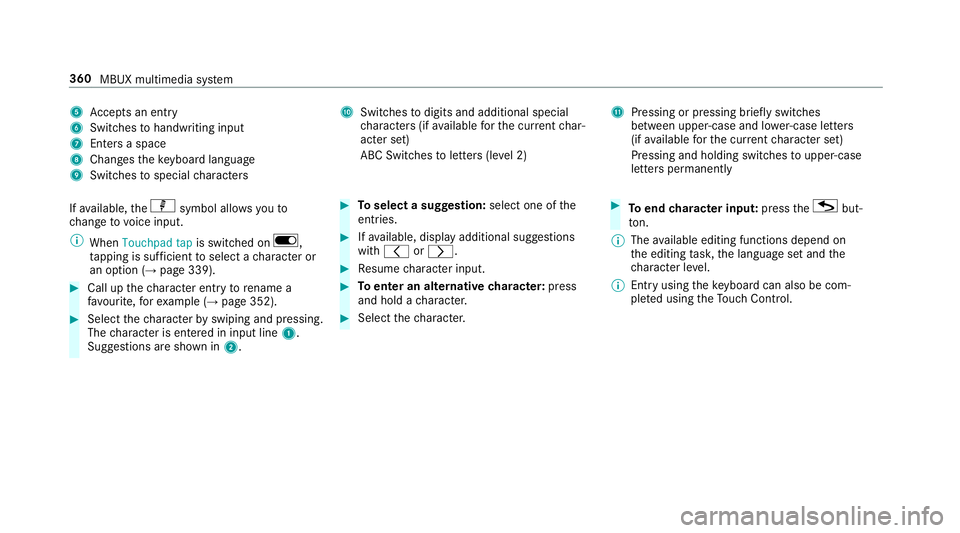
5
Accepts an entry
6 Switches tohandwriting input
7 Enters a space
8 Changes theke yboard language
9 Switches tospecial characters A
Swit ches todigits and additional special
ch aracters (if available forth e cur rent char‐
acter set)
ABC Swit ches toletters (le vel 2) B
Pressing or pressing brief lyswitches
between upper-case and lo wer-case letters
(if available forth e cur rent character set)
Pressing and holding swit ches toupper-case
letters permanently
If av ailable, thep symbol allo wsyouto
ch ange tovoice input.
% When Touchpad tap is switched on D,
ta pping is suf ficient toselect a character or
an option (→ page 339).#
Call up thech aracter ent ryto rename a
fa vo urite, forex ample (→ page 352). #
Select thech aracter byswiping and pressing.
The character is entered in input line 1.
Suggestions are shown in 2. #
Toselect a suggestion: select one ofthe
entri es. #
Ifav ailable, display additional suggestions
with q orr. #
Resume character input. #
Toenter an alternative character: press
and hold a character. #
Select thech aracter. #
Toend character input: presstheG but‐
to n.
% The available editing functions depend on
th e editing task, the language set and the
ch aracter le vel.
% Entry using theke yboard can also be com‐
ple ted using theTo uch Control. 360
MBUX multimedia sy stem
Page 366 of 681
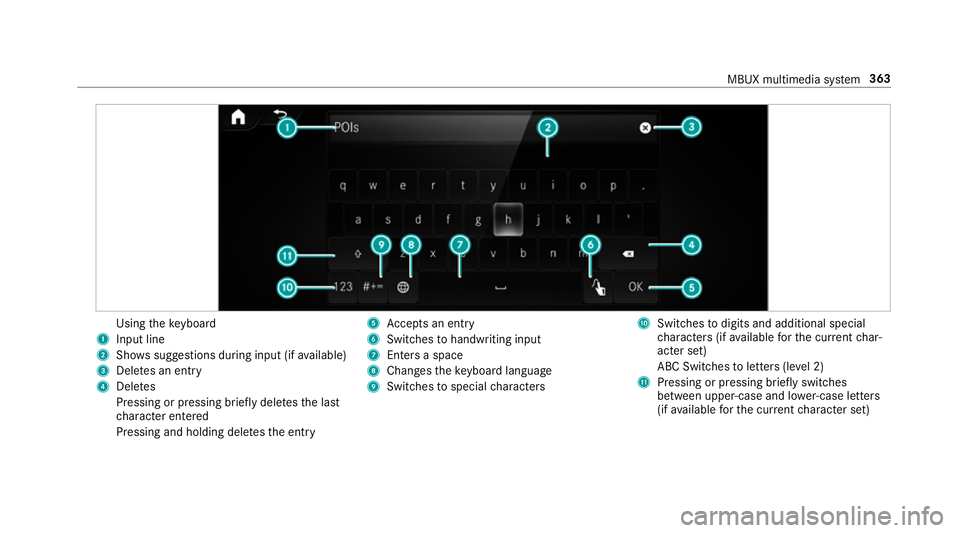
Using
theke yboard
1 Input line
2 Shows suggestions during input (if available)
3 Dele tes an entry
4 Dele tes
Pressing or pressing brief lydele testh e last
ch aracter entered
Pressing and holding dele testh e entry 5
Accepts an entry
6 Switches tohandwriting input
7 Enters a space
8 Changes theke yboard language
9 Switches tospecial characters A
Swit ches todigits and additional special
ch aracters (if available forth e cur rent char‐
acter set)
ABC Swit ches toletters (le vel 2)
B Pressing or pressing brief lyswitches
between upper-case and lo wer-case letters
(if available forth e cur rent character set) MBUX multimedia sy
stem 363
Page 369 of 681
#
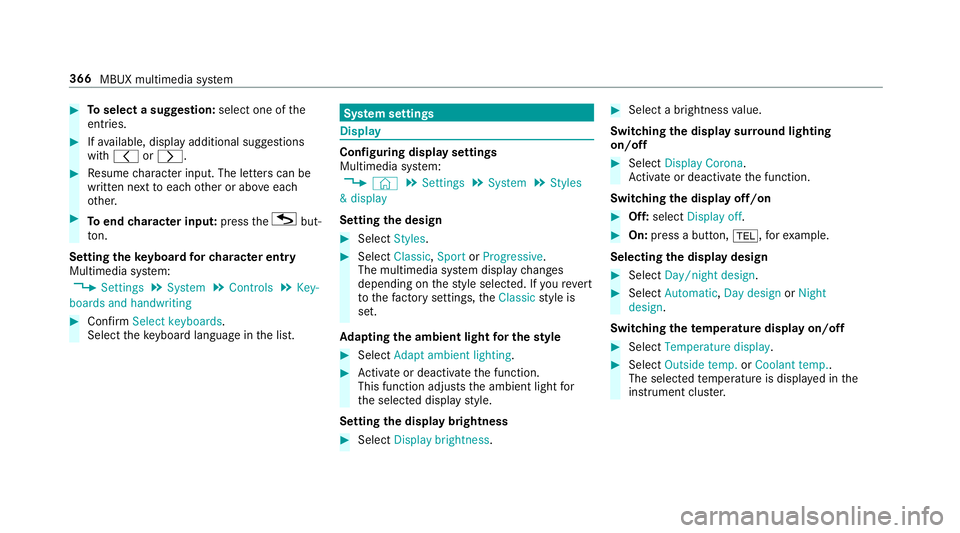
Toselect a suggestion: select one ofthe
entri es. #
Ifav ailable, display additional suggestions
with q orr. #
Resume character input. The letters can be
written next toeach other or abo veeach
ot her. #
Toend character input: presstheG but‐
to n.
Setting the keyboard forch aracter entry
Multimedia sy stem:
, Settings .
System .
Controls .
Key-
boards and handwriting #
Confirm Select keyboards.
Select theke yboard language in the list. Sy
stem settings Display
Configuring display settings
Multimedia sy
stem:
, © .
Settings .
System .
Styles
& display
Setting the design #
Select Styles. #
Select Classic ,Sport orProgressive .
The multimedia sy stem display changes
depending on thest yle selected. If youre ve rt
to thefa ctory settings, theClassic style is
set.
Ad apting the ambient light for the style #
Select Adapt ambient lighting. #
Activate or deacti vate the function.
This function adjusts the ambient light for
th e selected display style.
Setting the display brightness #
Select Display brightness . #
Select a brightness value.
Switching the display sur round lighting
on/off #
Select Display Corona.
Ac tivate or deacti vate the function.
Switching the display off/on #
Off: select Display off . #
On: press a button, %,forex ample.
Selecting the display design #
Select Day/night design . #
Select Automatic, Day design orNight
design .
Switching thetemp erature display on/off #
Select Temperature display . #
Select Outside temp. orCoolant temp..
The selec tedte mp erature is displa yed in the
instrument clus ter. 366
MBUX multimedia sy stem
Page 376 of 681
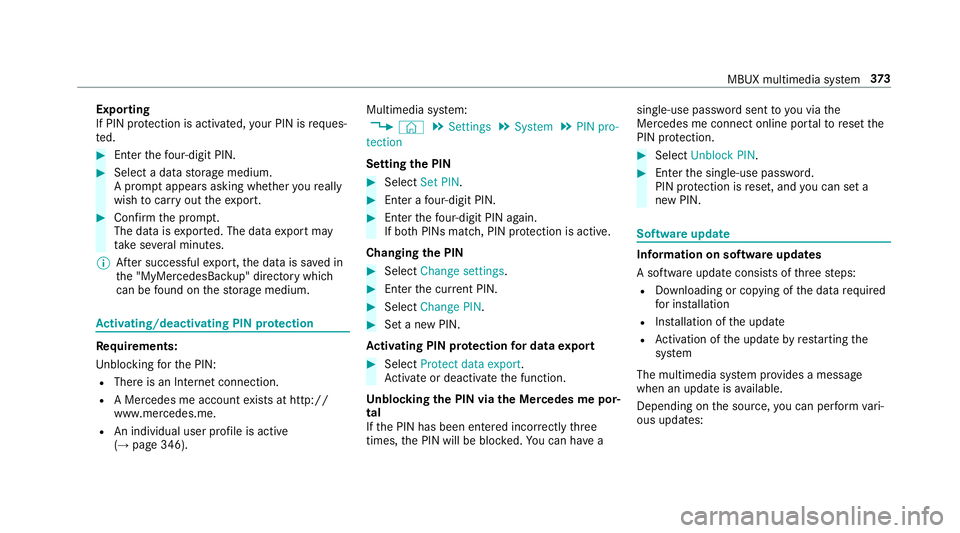
Exporting
If PIN pr
otection is activated, your PIN is reques‐
te d. #
Ente rth efo ur-digit PIN. #
Select a data storage medium.
A prom ptappears asking whe ther youre ally
wish tocar ryout theex port. #
Confirm the prom pt.
The data is expor ted. The data export may
ta ke several minutes.
% After successful export, the data is sa ved in
th e "MyMercedesBac kup" directory which
can be found on thestorage medium. Ac
tivating/deactivating PIN pr otection Re
quirements:
Unb locking forth e PIN:
R There is an Internet connection.
R A Mercedes me account exists at http://
www.me rcedes.me.
R An individual user profile is active
(→ page 346). Multimedia sy
stem:
, © .
Settings .
System .
PIN pro-
tection
Setting the PIN #
Select Set PIN. #
Enter a four-digit PIN. #
Enterth efo ur-digit PIN again.
If bo thPINs match, PIN pr otection is active.
Changing the PIN #
Select Change settings. #
Enterth e cur rent PIN. #
Select Change PIN . #
Set a new PIN.
Ac tivating PIN pr otection for data export #
Select Protect data export .
Ac tivate or deacti vate the function.
Un blocking the PIN via the Mercedes me por‐
tal
If th e PIN has been entered incor rectly three
times, the PIN will be bloc ked. You can ha ve a single-use password sent
to you via the
Mercedes me connect online por talto reset the
PIN pr otection. #
Select Unblock PIN. #
Ente rth e single-use password.
PIN pr otection is reset, and you can set a
new PIN. Software upda
te Information on software upda
tes
A software upda teconsi sts of thre esteps:
R Downloading or copying of the data requ ired
fo r ins tallation
R Installation of the update
R Activation of the update byrestarting the
sy stem
The multimedia sy stem pr ovides a message
when an update is available.
Depending on the source, you can per form vari‐
ous updates: MBUX multimedia sy
stem 373