USB port MERCEDES-BENZ GLE SUV 2019 Owners Manual
[x] Cancel search | Manufacturer: MERCEDES-BENZ, Model Year: 2019, Model line: GLE SUV, Model: MERCEDES-BENZ GLE SUV 2019Pages: 681, PDF Size: 11.7 MB
Page 34 of 681
Depending on
the selected equipment, you can
import data into vehicle con venience and info‐
ta inment functions yourself.
This includes, forex ample:
R multimedia data such as music, films or pho‐
to sfo r playback in an integrated multimedia
sy stem
R address book data for use in connection with
an integrated hands-free sy stem or an inte‐
grated navigation sy stem
R entered navigation destinations
R data about the use of Internet services
This data can be sa ved locally in theve hicle or it
is located on a device which you ha veconnected
to theve hicle (e.g. smartphone, USB flash drive
or MP3 pla yer). If this data is stored in theve hi‐
cle, you can dele teit at any time. This data is
sent tothird parties only at your requ est, partic‐
ular lywhen you use online services in accord‐
ance with the settings that you ha veselected.
Yo u can store or change con venience settings/
individualisations in theve hicle at any time. Depending on
the equipment, this includes, for
ex ample:
R settings forth e seat and steering wheel posi‐
tions
R suspension and climate control settings
R customisations such as interior lighting
If yo ur vehicle is accordingly equipped, you can
connect your smartphone or ano ther mobile end
device totheve hicle. You can cont rolth is by
means of the control elements integrated in the
ve hicle. Images and audio from the smartphone
can be output via the multimedia sy stem. Cer‐
ta in information is simultaneously transfer redto
yo ur smartphone.
Depending on the type of integration, this can
include:
R general vehicle data
R position data
This allo wsyouto use selected apps on your
smartphone, such as navigation or music play‐
bac k.There is no fur ther interaction between the
smartphone and theve hicle; in particular, vehi‐
cle data is not directly accessible. Which type of fur
ther data processing occurs is de term ined by
th e pr ovider of the specific app used. Which set‐
tings you can make, if an y,depends on the spe‐
cific app and the operating sy stem of your
smartphone. Online services
Wire
less network connection
If yo ur vehicle has a wireless network connec‐
tion, it enables data tobe exc hanged between
yo ur vehicle and additional sy stems. The wire‐
less network connection is enabled via theve hi‐
cle's transmission and reception unit or via con‐
nected mobile end devices (e.g. sma rtphones).
Online functions can be used via the wireless
network connection. This includes online serv‐
ices and applications/apps pr ovided bythe man‐
ufacturer or other pr oviders.
Manu factu rer's se rvices
Re garding online services of the manufacturer,
th e individual functions are described bythe
manufacturer in a suita ble place (e.g. Owner's
Manual, website of the manufacturer) along with
th ere leva nt da taprotection information. Per‐ General no
tes31
Page 127 of 681
R
secure the load using the tie-down eyes and
distribute the load evenly. St
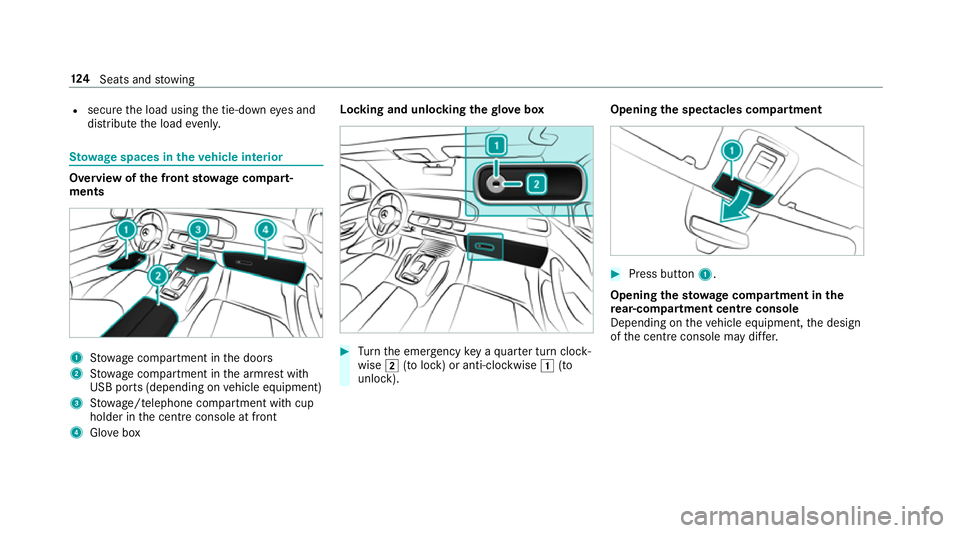
ow age spaces in theve hicle interior Overview of
the front stowage compa rt‐
ments 1
Stow age compartment in the doors
2 Stow age compartment in the armrest with
USB ports (depending on vehicle equipment)
3 Stow age/telephone compartment with cup
holder in the cent reconsole at front
4 Glove box Locking and unlocking
thegl ove box #
Turn the emer gency key a quarter turn clock‐
wise 2(to lock) or anti-clockwise 1(to
unlock). Opening
the spectacles compa rtment #
Press button 1.
Opening the stowage compa rtment in the
re ar-co mpartment centre console
Depending on theve hicle equipment, the design
of the cent reconsole may di ffer. 124
Seats and stowing
Page 146 of 681
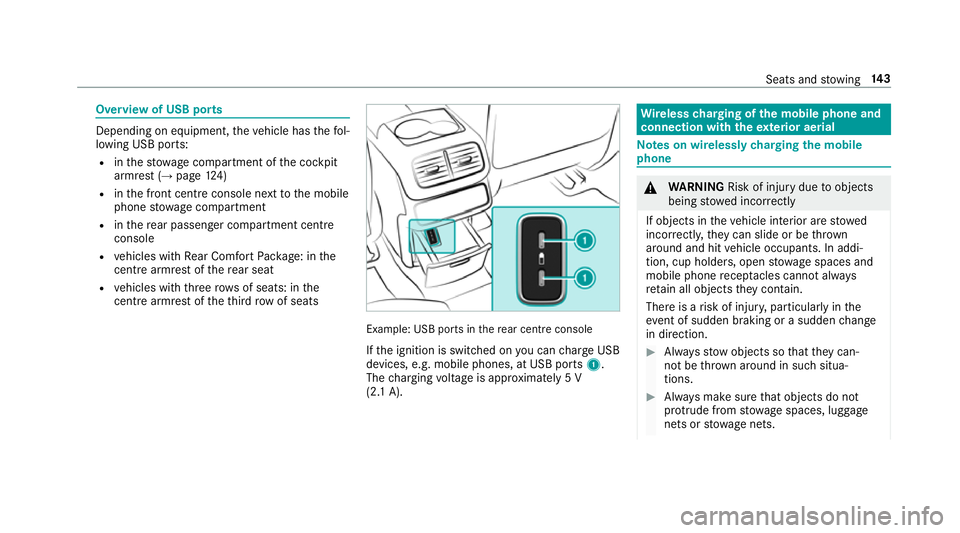
Overview of USB ports
Depending on equipment,
theve hicle has thefo l‐
lowing USB ports:
R inthestow age compartment of the cockpit
armrest (→ page124)
R inthe front cent reconsole next tothe mobile
phone stowage compartment
R inthere ar passenger compartment centre
console
R vehicles with Rear Comfort Package: in the
centre armrest of there ar seat
R vehicles with thre erow s of seats: in the
centre armrest of theth ird row of seats Example: USB ports in
there ar centre console
If th e ignition is switched on you can charge USB
devices, e.g. mobile phones, at USB ports 1.
The charging voltage is appr oximately 5 V
(2.1 A). Wire
lesscharging of the mobile phone and
connection with theex terior aerial Note
s on wirelessly charging the mobile
phone &
WARNING Risk of inju rydue toobjects
being stowed inco rrectly
If objects in theve hicle interior are stowed
incor rectly, they can slide or be thrown
around and hit vehicle occupants. In addi‐
tion, cup holders, open stowage spaces and
mobile phone recep tacles cannot al ways
re tain all objects they contain.
The reis a risk of injur y,particularly in the
ev ent of sudden braking or a sudden change
in direction. #
Alw aysstow objects so that they can‐
not be throw n around in su chsitua‐
tions. #
Alw ays make sure that objects do not
pr otru de from stowage spaces, luggage
nets or stowage nets. Seats and
stowing 14 3
Page 436 of 681
Overview of importing contacts
Contacts from
various sources Source
Requirements:
ò USB device The USB device is
connected with the
USB port.
ñ Bluetooth ®
con‐
nection If
th e sending of
vCards via Blue tooth®
is suppor ted, vCards
can be recei ved on
mobile phones or net‐
books, forex ample.
Blue tooth ®
is activa‐
te d in the multimedia
sy stem and on the
re spective device
(see the manufactur‐
er's operating instruc‐
tions). Importing contacts into
the contacts menu
Multimedia sy stem:
, © .
Phone .
Z .
Gen-
eral .
Import contacts #
Select an option.
Saving a mobile phone contact
Multimedia sy stem:
, © .
Phone .
g #
Select órinthe line of the mobile
phone conta ct. #
Select Ä. #
Select Save in vehicle . #
Select Yes.
The contact sa ved in the multimedia sy stem
is identified bytheq symbol.
Calling a contact
Multimedia sy stem:
, © .
Phone .
g #
Select ªSearch contacts . #
Ente rch aracters into the sear chfield. #
Select the conta ct. #
Select thete lephone number.
The number is dialled.
Selecting fur ther options in the contacts
menu
Multimedia sy stem:
, © .
Phone .
g #
Select rinthe line of the conta ct. #
Select Ä.
Depending on thestored data, thefo llowing
options are available:
R Add voice tag /Delete voice tag
R Set relation /Remove relation
R Send DTMF tones (for a number with DTMF
to nes)
The function is available when a call is active. #
Select an option. MBUX multimedia sy
stem 433
Page 444 of 681
R
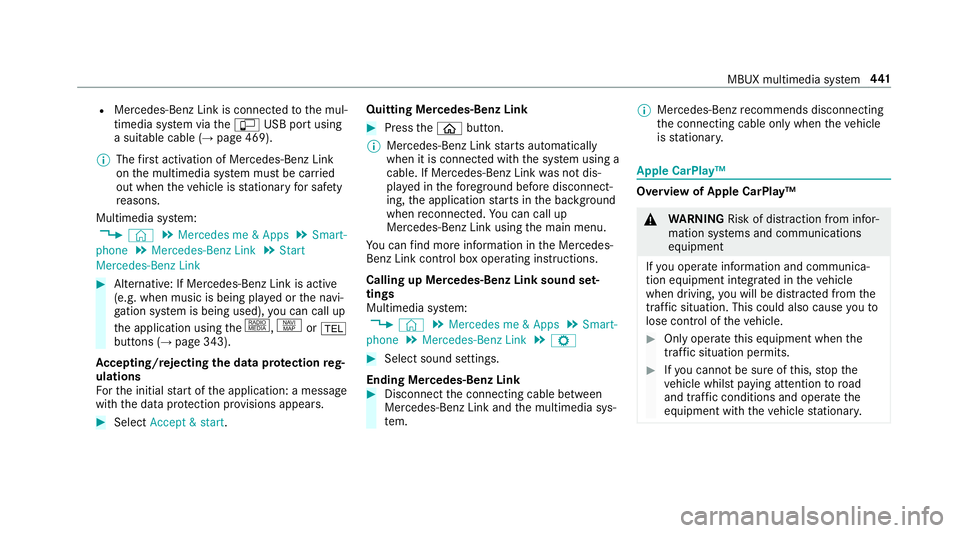
Mercedes-Benz Link is connected tothe mul‐
timedia sy stem via theç USB port using
a suitable cable (→ page 469).
% The firs t acti vation of Me rcedes-Benz Link
on the multimedia sy stem must be car ried
out when theve hicle is stationary for saf ety
re asons.
Multimedia sy stem:
, © .
Mercedes me & Apps .
Smart-
phone .
Mercedes-Benz Link .
Start
Mercedes-Benz Link #
Alternative: If Mercedes-Benz Link is active
(e.g. when music is being pla yed or the navi‐
ga tion sy stem is being used), you can call up
th e application using the|, zor%
buttons (→ page 343).
Ac cepting/rejecting the data pr otection reg‐
ulations
Fo rth e initial start of the application: a message
with the data pr otection pr ovisions appears. #
Select Accept & start . Quitting Mercedes-Benz Link #
Press theò button.
% Mercedes-Benz Link starts automatically
when it is connec ted with the sy stem using a
cable. If Mercedes-Benz Link was not dis‐
pla yed in thefo re ground before disconnect‐
ing, the application starts in the bac kground
when reconnected. You can call up
Mercedes-Benz Link using the main menu.
Yo u can find more information in the Mercedes-
Benz Link control box operating instructions.
Calling up Mercedes-Benz Link sound set‐
tings
Multimedia sy stem:
, © .
Mercedes me & Apps .
Smart-
phone .
Mercedes-Benz Link .
Z #
Select sound settings.
Ending Mercedes-Benz Link #
Disconnect the connecting cable between
Mercedes-Benz Link and the multimedia sys‐
te m. %
Mercedes-Benz recommends disconnecting
th e connecting cable only when theve hicle
is stationar y. Apple CarPlay™
Overview of Apple CarPlay™
&
WARNING Risk of di stra ction from infor‐
mation sy stems and communications
equipment
If yo u operate information and communica‐
tion equipment integ rated in theve hicle
when driving, you will be distracted from the
traf fic situation. This could also cause youto
lose control of theve hicle. #
Only operate this equipment when the
traf fic situation permits. #
Ifyo u cannot be sure of this, stop the
ve hicle whilst paying attention toroad
and traf fic conditions and ope rate the
equipment with theve hicle stationar y. MBUX multimedia sy
stem 441
Page 445 of 681
Yo
u must obse rveth e legal requirements forthe
country in whi chyou are cur rently driving when
operating the multimedia sy stem.
iPhone ®
functions can be used via the multime‐
dia sy stem using Apple CarPlay™. They are oper‐
ated using theto uchsc reen, touchpad, Touch
Control or the Siri ®
vo ice-operated control sys‐
te m. You can activate thevo ice-opera ted control
sy stem bypressing and holding the£ button
on the multifunction steering wheel.
When using Apple CarPlay™ via thevo ice-oper‐
ated control sy stem, the multimedia sy stem can
st ill be operated via LINGU ATRO NIC
(→ page 313).
On ly one mobile phone at a time can be connec‐
te d via Apple CarPlay™ tothe multimedia sys‐
te m.
Also for use of Apple CarPlay™ with two phone
mode, only one additional mobile phone can be
connected using Blue tooth®
with the multimedia
sy stem.
The availability of Apple CarPlay™ may vary
according tothe count ry. The service pr
ovider is responsible forth is appli‐
cation and the services and conte nt connected
to it.
Information on Apple CarPlay™
When Apple CarPlay™ is being used, the iPod ®
media source is not available forth ere spective
iPhone ®
.
Only one route guidance can be active at a time.
If ro ute guidance is active on the multimedia sys‐
te m, it is closed when route guidance is star ted
on the mobile phone.
Connecting an iPhone ®
via Apple CarPlay™
(cable)
Re quirements:
R The cur rent version of your device's operat‐
ing sy stem is being used (see the manufac‐
turer's operating instructions).
R There is an Internet connection forth e full
ra nge of functions for Apple CarPlay™.
R The iPhone ®
is connected tothe multimedia
sy stem via the USB port çusing a suita‐
ble cable (→ page 469). Multimedia sy
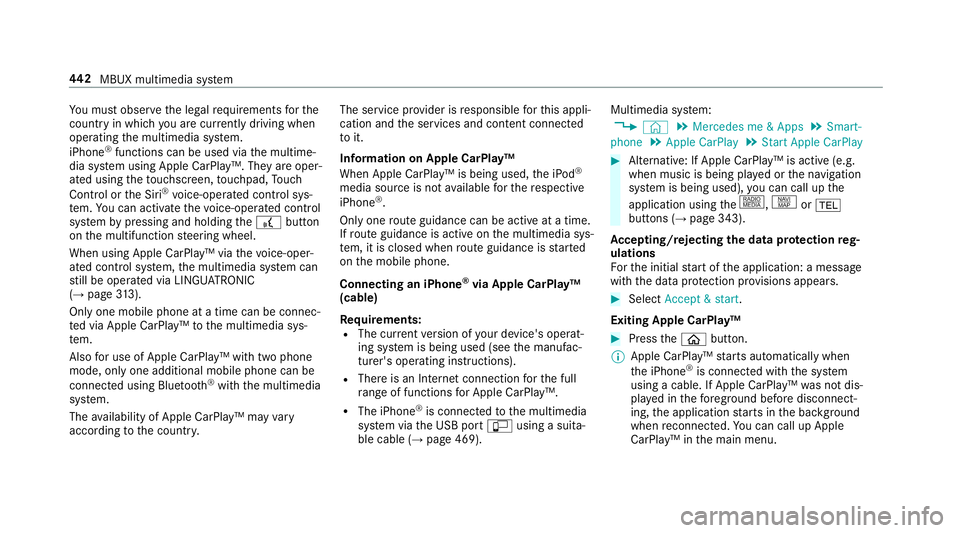
stem:
, © .
Mercedes me & Apps .
Smart-
phone .
Apple CarPlay .
Start Apple CarPlay #
Alternative: If Apple CarPlay™ is active (e.g.
when music is being pla yed or the navigation
sy stem is being used), you can call up the
application using the|, zor%
buttons (→ page 343).
Ac cepting/rejecting the data pr otection reg‐
ulations
Fo rth e initial start of the application: a message
with the data pr otection pr ovisions appears. #
Select Accept & start .
Exiting Apple CarPlay™ #
Press theò button.
% Apple CarPlay™ starts automatically when
th e iPhone ®
is connected with the sy stem
using a cable. If Apple CarPlay™ was not dis‐
pla yed in thefo re ground before disconnect‐
ing, the application starts in the bac kground
when reconnected. You can call up Apple
CarPlay™ in the main menu. 442
MBUX multimedia sy stem
Page 446 of 681
Calling up Apple CarPlay™ sound settings
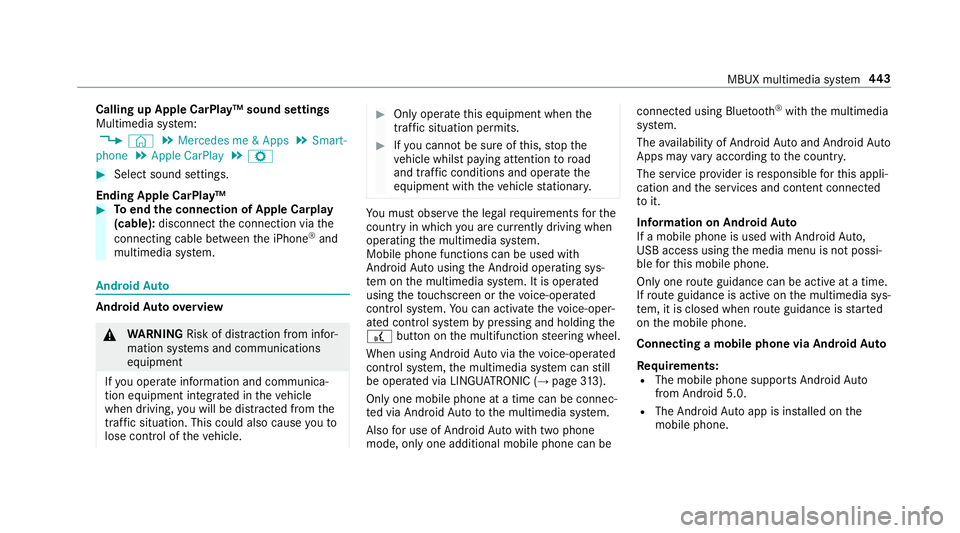
Multimedia sy
stem:
, © .
Mercedes me & Apps .
Smart-
phone .
Apple CarPlay .
Z #
Select sound settings.
Ending Apple CarPlay™ #
Toend the connection of Apple Carplay
(cable): disconnect the connection via the
connecting cable between the iPhone ®
and
multimedia sy stem. Android
Auto Android
Autoove rview &
WARNING Risk of di stra ction from infor‐
mation sy stems and communications
equipment
If yo u operate information and communica‐
tion equipment integ rated in theve hicle
when driving, you will be distracted from the
traf fic situation. This could also cause youto
lose control of theve hicle. #
Only operate this equipment when the
traf fic situation permits. #
Ifyo u cannot be sure of this, stop the
ve hicle whilst paying attention toroad
and traf fic conditions and ope rate the
equipment with theve hicle stationar y. Yo
u must obse rveth e legal requirements forthe
country in whi chyou are cur rently driving when
operating the multimedia sy stem.
Mobile phone functions can be used with
Android Autousing the Android operating sys‐
te m on the multimedia sy stem. It is operated
using theto uchsc reen or thevo ice-opera ted
control sy stem. You can activate thevo ice-oper‐
ated control sy stem bypressing and holding the
£ button on the multifunction steering wheel.
When using Android Autovia thevo ice-opera ted
control sy stem, the multimedia sy stem can still
be opera ted via LINGU ATRO NIC (→ page313).
On ly one mobile phone at a time can be connec‐
te d via Android Auto to the multimedia sy stem.
Also for use of Android Autowith two phone
mode, only one additional mobile phone can be connec
ted using Blue tooth®
with the multimedia
sy stem.
The availability of Android Autoand Android Auto
Apps may vary according tothe count ry.
The service pr ovider is responsible forth is appli‐
cation and the services and conte nt connected
to it.
Information on Android Auto
If a mobile phone is used with Android Auto,
USB access using the media menu is not possi‐
ble forth is mobile phone.
Only one route guidance can be active at a time.
If ro ute guidance is active on the multimedia sys‐
te m, it is closed when route guidance is star ted
on the mobile phone.
Connecting a mobile phone via Android Auto
Requ irements:
R The mobile phone supports Android Auto
from Android 5.0.
R The Android Autoapp is ins talled on the
mobile phone. MBUX multimedia sy
stem 443
Page 447 of 681
R
In order touse thete lephone functions, the
mobile phone must be connected tothe mul‐
timedia sy stem via Blue tooth®
(→ page 426).
If th ere was no prior Internet connection, this
is es tablished with the use of the mobile
phone with Android Auto.
R The mobile phone is connected tothe multi‐
media sy stem via the USB port çusing a
suitable cable (→ page 469).
R There is an Internet connection forth e full
ra nge of functions for Android Auto.
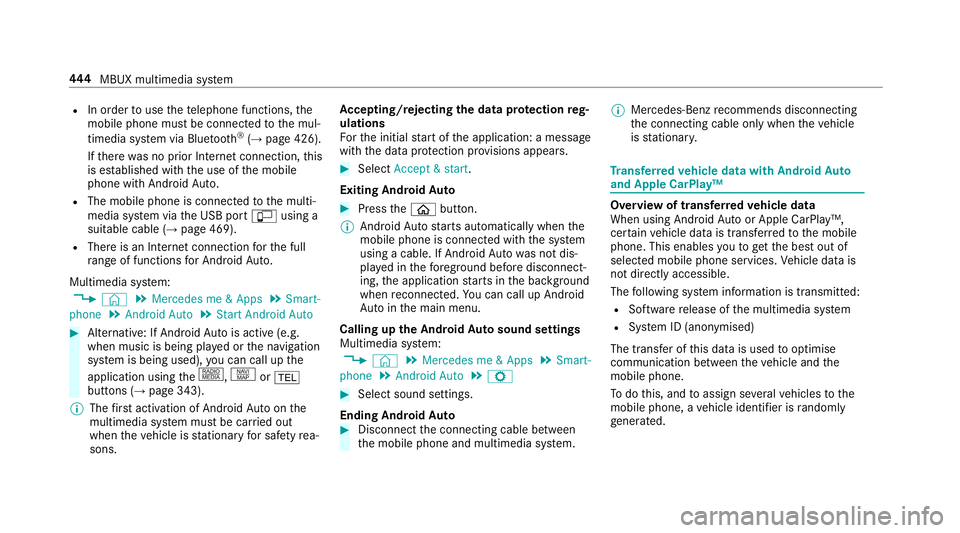
Multimedia sy stem:
, © .
Mercedes me & Apps .
Smart-
phone .
Android Auto .
Start Android Auto #
Alternative: If Android Autois active (e.g.
when music is being pla yed or the navigation
sy stem is being used), you can call up the
application using the|, zor%
buttons (→ page 343).
% The firs t acti vation of Android Autoon the
multimedia sy stem must be car ried out
when theve hicle is stationary for saf etyre a‐
sons. Ac
cepting/rejecting the data pr otection reg‐
ulations
Fo rth e initial start of the application: a message
with the data pr otection pr ovisions appears. #
Select Accept & start .
Exiting Android Auto #
Press theò button.
% Android Autostarts automatically when the
mobile phone is connected with the sy stem
using a cable. If Android Autowa s not dis‐
pla yed in thefo re ground before disconnect‐
ing, the application starts in the bac kground
when reconnected. You can call up Android
Au tointhe main menu.
Calling up the Android Autosound settings
Multimedia sy stem:
, © .
Mercedes me & Apps .
Smart-
phone .
Android Auto .
Z #
Select sound settings.
Ending Android Auto #
Disconnect the connecting cable between
th e mobile phone and multimedia sy stem. %
Mercedes-Benz recommends disconnecting
th e connecting cable only when theve hicle
is stationar y. Tr
ansfer redve hicle data with Android Auto
and Apple CarPlay™ Overview of transfer
redve hicle data
When using Android Autoor Apple CarPlay™,
cer tain vehicle data is transfer redto the mobile
phone. This enables youto getth e best out of
selected mobile phone services. Vehicle data is
not directly accessible.
The following sy stem information is transmit ted:
R Software release of the multimedia sy stem
R System ID (anonymised)
The transfer of this data is used tooptimise
communication between theve hicle and the
mobile phone.
To do this, and toassign se veralve hicles tothe
mobile phone, a vehicle identifier is randomly
ge nerated. 444
MBUX multimedia sy stem
Page 469 of 681
The multimedia sy
stem supports thefo llow‐
ing form ats and data media:
Pe rm issible
fi le sy stems FA
T32, exFA T,NTFS
Pe rm issible
data car riers USB devices, iPod
®
/iPhone ®
,
MTP devices, Blue tooth®
audio equipment
Suppor ted
audio form ats MP3, WMA, AAC,
WAV,FLAC,
AL AC
Suppor ted
video form ats MPEG,
AVI, DivX, MKV, MP4,
M4V, WMV %
Obser vethefo llowing no tes:
R The multimedia sy stem supports a total
of up to50,000 files.
R Data storage media up to2 TB are sup‐
por ted (32‑bit address space).
R Due tothe large variet y of available
music and video files rega rding encod‐
ers, sampling rates and data transfer
ra tes, playback cannot be guaranteed. R
Due tothe wide range of USB devices
av ailable on the mar ket, pl ayback cann ot
be guaranteed for all USB devices.
R Videos up toFullHD (1920x1080) are
suppor ted.
R Cop y-pr otected music and video files or
DRM (Digital Rights Management)
enc rypte dfiles cannot be pla yed bac k.
R MP3 pla yers must support Media Trans‐
fe r Pr otocol (MTP).
In fo rm ation on copy right pr otection and
tradema rks
Au dio files which you create yourself (e.g. copies
of data storage media you make yourself) are
ge neral lysubject tocopyright pr otection. In
many count ries, reproductions are not permitted
without the prior consent of the copyright
holder, evenfo r private use. Make sure that you
know about the applicable copyright regulations
and that you co mply wi th th ese. Manufactured under licence from Dolby Laborato‐
ri
es. Dolb y,Dol byAudio and the double-D symbol
are trademar ksof Dolby Laboratories. 466
MBUX multimedia sy stem
Page 472 of 681
Connecting
the data storage medium tothe
mu ltimedia sy stem Connecting USB devices
* NO
TEDama gecaused byhigh temp era‐
tures High
temp eratures can damage USB devices. #
Remo vethe USB device af ter use and
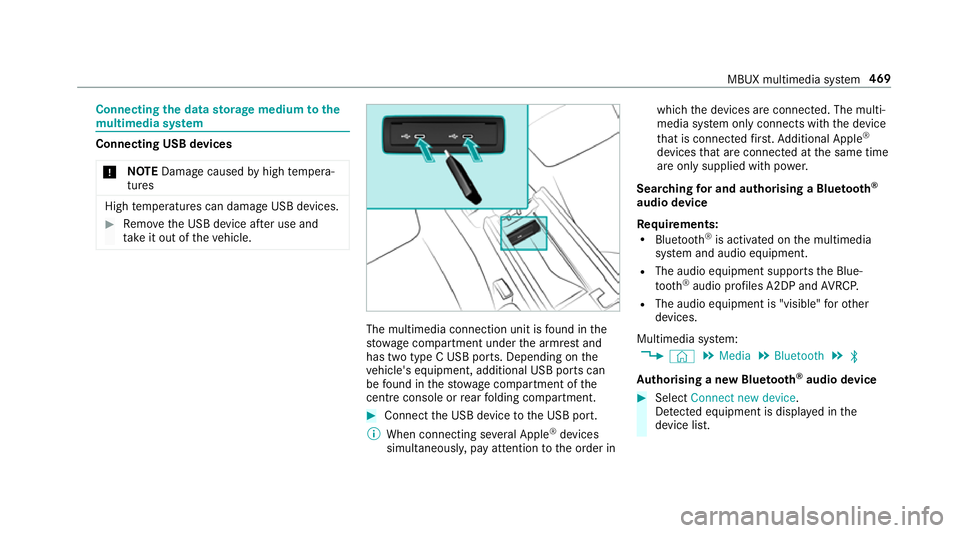
ta ke it out of theve hicle. The multimedia connection unit is
found in the
stow age compartment under the armrest and
has two type C USB ports. Depending on the
ve hicle's equipment, additional USB ports can
be found in thestow age compartment of the
centre console or rear folding compartment. #
Connect the USB device tothe USB port.
% When connecting se veral Apple ®
devices
simultaneousl y,pay attention tothe order in which
the devices are connected. The multi‐
media sy stem only connects with the device
th at is connec tedfirs t. Ad ditional Apple ®
devices that are connec ted at the same time
are only supplied with po wer.
Sear ching for and authorising a Blue tooth ®
audio device
Requ irements:
R Blue tooth ®
is activated on the multimedia
sy stem and audio equipment.
R The audio equipment supports the Blue‐
tooth ®
audio profiles A2DP and AVRC P.
R The audio equipment is "visible" forot her
devices.
Multimedia sy stem:
, © .
Media .
Bluetooth .
ª
Au thorising a new Blu etoo th®
audio device #
Select Connect new device .
De tected equipment is displ ayed in the
device list. MBUX multimedia sy
stem 469