sat nav MERCEDES-BENZ GLE SUV 2019 Owners Manual
[x] Cancel search | Manufacturer: MERCEDES-BENZ, Model Year: 2019, Model line: GLE SUV, Model: MERCEDES-BENZ GLE SUV 2019Pages: 681, PDF Size: 11.7 MB
Page 34 of 681
Depending on
the selected equipment, you can
import data into vehicle con venience and info‐
ta inment functions yourself.
This includes, forex ample:
R multimedia data such as music, films or pho‐
to sfo r playback in an integrated multimedia
sy stem
R address book data for use in connection with
an integrated hands-free sy stem or an inte‐
grated navigation sy stem
R entered navigation destinations
R data about the use of Internet services
This data can be sa ved locally in theve hicle or it
is located on a device which you ha veconnected
to theve hicle (e.g. smartphone, USB flash drive
or MP3 pla yer). If this data is stored in theve hi‐
cle, you can dele teit at any time. This data is
sent tothird parties only at your requ est, partic‐
ular lywhen you use online services in accord‐
ance with the settings that you ha veselected.
Yo u can store or change con venience settings/
individualisations in theve hicle at any time. Depending on
the equipment, this includes, for
ex ample:
R settings forth e seat and steering wheel posi‐
tions
R suspension and climate control settings
R customisations such as interior lighting
If yo ur vehicle is accordingly equipped, you can
connect your smartphone or ano ther mobile end
device totheve hicle. You can cont rolth is by
means of the control elements integrated in the
ve hicle. Images and audio from the smartphone
can be output via the multimedia sy stem. Cer‐
ta in information is simultaneously transfer redto
yo ur smartphone.
Depending on the type of integration, this can
include:
R general vehicle data
R position data
This allo wsyouto use selected apps on your
smartphone, such as navigation or music play‐
bac k.There is no fur ther interaction between the
smartphone and theve hicle; in particular, vehi‐
cle data is not directly accessible. Which type of fur
ther data processing occurs is de term ined by
th e pr ovider of the specific app used. Which set‐
tings you can make, if an y,depends on the spe‐
cific app and the operating sy stem of your
smartphone. Online services
Wire
less network connection
If yo ur vehicle has a wireless network connec‐
tion, it enables data tobe exc hanged between
yo ur vehicle and additional sy stems. The wire‐
less network connection is enabled via theve hi‐
cle's transmission and reception unit or via con‐
nected mobile end devices (e.g. sma rtphones).
Online functions can be used via the wireless
network connection. This includes online serv‐
ices and applications/apps pr ovided bythe man‐
ufacturer or other pr oviders.
Manu factu rer's se rvices
Re garding online services of the manufacturer,
th e individual functions are described bythe
manufacturer in a suita ble place (e.g. Owner's
Manual, website of the manufacturer) along with
th ere leva nt da taprotection information. Per‐ General no
tes31
Page 315 of 681
Head-up Display
Fu
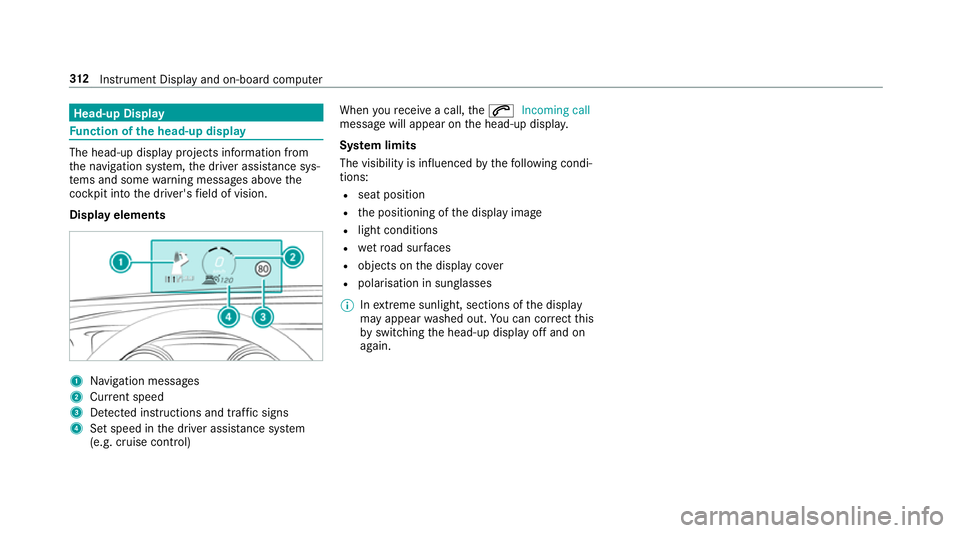
nction of the head-up display The head-up display projects information from
th e navigation sy stem, the driver assis tance sys‐
te ms and some warning messages abo vethe
cockpit into the driver's field of vision.
Display elements 1
Navigation messa ges
2 Current speed
3 Detected instructions and traf fic signs
4 Set speed in the driver assis tance sy stem
(e.g. cruise control) When
youre cei vea call, the6 Incoming call
message will appear on the head-up displa y.
Sy stem limits
The visibility is influenced bythefo llowing condi‐
tions:
R seat position
R the positioning of the display image
R light conditions
R wetro ad sur faces
R objects on the display co ver
R polarisation in sunglasses
% Inextreme sunlight, sections of the display
may appear washed out. You can co rrect this
by switching the head-up display off and on
again. 312
Instrument Display and on-board computer
Page 354 of 681
Before
the time runs out, a messa geis
shown that the multimedia sy stem will con‐
tinue the learn function shortl y.
Example: if the option is switched on and a
ro ute toa new destination has been calcula‐
te d, this destination would not be take n into
account forth e learn function. #
Toreset the suggestion his tory:select
Reset suggestion history.
% This process cannot be reve rsed. #
Select Yes. #
Toprotect settings with a PIN: switchon
PIN protection.
If PIN pr otection is switched on, you must
en terth e Mercedes me PIN toset the sug‐
ge stions. This PIN will be set in the Mercedes
me por talfo rth e personalisation service to
pr otect your personal settings.
Re naming suggestions
Only navigation destinations can be renamed. #
Tap on the© symbol in the media displa y.
The home screen is shown. #
Swipe up until theSUGGESTIONS menu is
shown. #
Highlight a navigation destination and press
until theOPTIONS menu is shown. #
Select Rename. #
Ente rth e name. #
Toconfirm the entr y:select Yes.
Deleting a suggestion #
Tap on © inthe media displa y.
The home screen is shown. #
Swipe up until theSUGGESTIONS menu is
shown. #
Highlight a suggestion and press until the
OPTIONS menu is shown. #
Select Delete.
Deleting suggestions in the applications
Yo u can dele tesuggestions, forex ample in the
pr ev ious destinations, in thera dio station list
and in the conta cts. #
Select :for a suggestion. #
Select Do not suggest . #
Todel eteth e suggestion from the cur‐
re nt lis t:select Not now.
The suggestion will be shown again at a later
time in the list. #
Todel ete a suggestion permanent ly:
select Never. #
Select Yes.
The suggestion will not be shown again in
future. #
Tocancel the function: selectCancel. Favo
urites Overview of
favo urites
Fa vourites of feryo uqu ick access tofrequently
used applications. It is possible tocrea te20
fa vo urites in tota l.
Yo u can select favo urites from categories or you
add favo urites direct lyfrom an application. MBUX multimedia sy
stem 351
Page 356 of 681
#
Swipe up until FAVOURITESis shown. #
Press on a favo urite until theOPTIONS menu
is shown. #
Select Move. #
Movethefa vo urite tothe new position. #
Tap on ø.
Moving thefa vo urites menu in the personali‐
sation #
Tap on © inthe media displa y.
The home screen is shown. #
Swipe up until Set new orderis shown. #
Select Set new order. #
MoveFavourites tothe new position. #
Tap on ø. #
Toclose the menu: selectClose.
Deleting favo urites #
Tap on © inthe media displa y.
The home screen is shown. #
Swipe up until FAVOURITESis shown. #
Press on a favo urite until theOPTIONS menu
is shown. #
Select Delete. #
Select Yes. No
tifications Centre Overvi
ewoftheNo tifications Centre
The following communications are collec ted in
th e Notifications Centre:
R Communications which are generated bythe
ve hicle or from multimedia sy stem.
R Communications which are recei vedth ro ugh
th e use of services.
The following notification types are available for
yo u:
R Navigable destinations and routes
R Messages (t ext messa ges)
R Calendar entries and reminders, e.g. from In
Car Of fice
This function is not available in all countries. R
System information, e.g. Important software
update available.
R Other notifications, e.g. from additional
online services that can be subsc ribed to
The j Notifications Centre can be found on
th e home screen, in menus and at theto pright
of the navigation map (→ page 334).
A star in thej symbol informs you of new
notifications.
Noti fications are normally brie fly shown as they
are recei ved. This occurs for near lyevery appli‐
cation that you are cur rently using. If youta ke
no action, these are stored for future access in
th e Notifications Centre.
The notifications are sor tedchro nologically. The
most recent notifications are at theto p. MBUX multimedia sy
stem 353
Page 414 of 681
AG
. The da taisthen immediately pseudony‐
mised byDaimler AG. The vehicle data is dele ted
af te r an appro priate amount of time has elapsed
(se veralwe eks) and is not stored permanent ly.
% Data which ser ves as identification is
re placed during the pseudonymisation proc‐
ess. In this wa y,yo ur identity is pr otected
against access byunauthorised third parties.
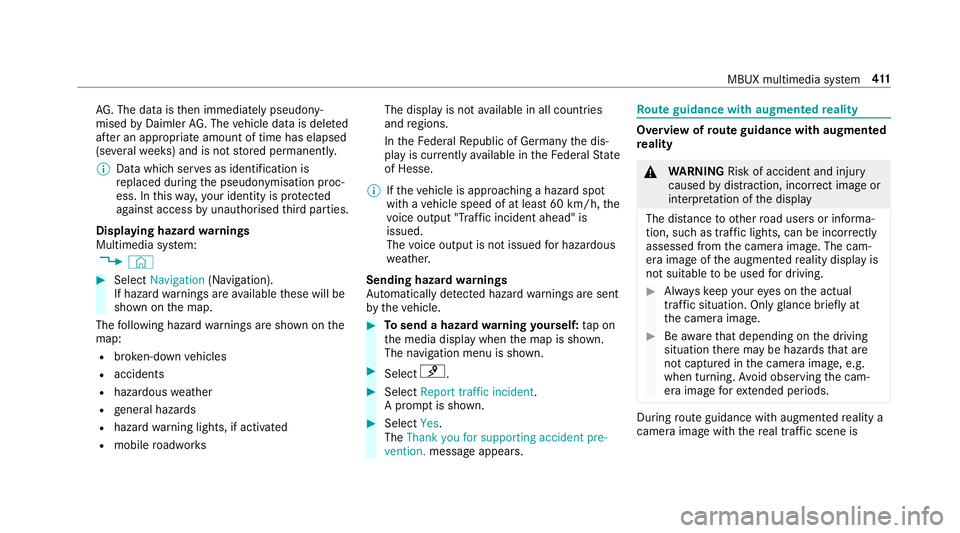
Displaying hazard warnings
Multimedia sy stem:
, © #
Select Navigation (Navigation).
If hazard warnings are available these will be
shown on the map.
The following hazard warnings are shown on the
map:
R broken-down vehicles
R accidents
R hazardous weather
R general hazards
R hazard warning lights, if activated
R mobile roadwor ks The display is not
available in all countries
and regions.
In theFe deral Republic of Germany the dis‐
play is cur rently available in theFe deral State
of Hesse.
% Ifth eve hicle is approaching a hazard spot
with a vehicle speed of at least 60 km/h, the
vo ice output "T raffic incident ahead" is
issued.
The voice output is not issued for hazardous
we ather.
Sending haza rdwa rnings
Au tomatically de tected hazard warnings are sent
by theve hicle. #
Tosend a haza rdwa rning yourself: tap on
th e media display when the map is shown.
The navigation menu is shown. #
Select ¡. #
Select Report traffic incident.
A prom ptis shown. #
Select Yes.
The Thank you for supporting accident pre-
vention. message appears. Ro
ute guidance with augmented reality Overview of
route guidance with augmented
re ality &
WARNING Risk of accident and inju ry
caused bydistraction, inco rrect image or
interpr etation of the display
The dis tance to ot herroad users or informa‐
tion, such as traf fic lights, can be incor rectly
assessed from the camera image. The cam‐
era image of the augmented reality display is
not suitable tobe used for driving. #
Alw ayske ep your eyes on the actual
tra ffic situation. Only glance brief lyat
th e camera image. #
Beaware that depending on the driving
situation there may be hazards that are
not captured in the camera image, e.g.
when turning. Avoid observing the cam‐
era image forex tended pe riods. During
route guidance with augmented reality a
camera image with there al traf fic scene is MBUX multimedia sy
stem 411
Page 422 of 681
If
th e map data on your vehicle has been ins tal‐
led at thefa ctory and you wish toreins tall it, you
do not need toenter the activation code.
Fo r map data that you ha vepur chased in the
fo rm of a data storage medium, you must en ter
th e accompanying activation code.
% Ifyo u sa vethe map data on a data storage
medium with the online map update service,
no entry isrequ ired. The activation code is
st ored on the data storage medium during
th e downloading process.
Obser vethefo llowing when entering the activa‐
tion code:
R The activation code can be used for one vehi‐
cle
R The activation code is not transferable
R The activation code has six digits
In theeve nt of thefo llowing problems, please
con tact a Mercedes-Benz service centre:
R The multimedia sy stem does not accept the
activation code
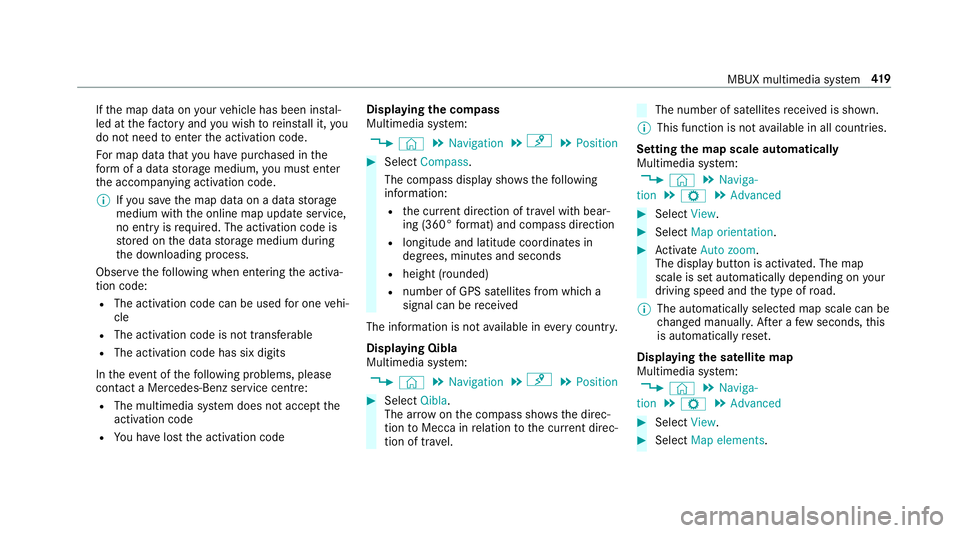
R You ha velost the activation code Displaying
the compass
Multimedia sy stem:
, © .
Navigation .
¡ .
Position #
Select Compass.
The compass display sho wsthefo llowing
information:
R the cur rent di rection of tr avel with bear‐
ing (360° form at) and compass direction
R longitude and latitude coo rdinates in
degrees, minutes and seconds
R height (rounded)
R number of GPS satellites from which a
signal can be recei ved
The information is not available in every count ry.
Displaying Qibla
Multimedia sy stem:
, © .
Navigation .
¡ .
Position #
Select Qibla.
The ar rowonthe compass sho wsthe direc‐
tion toMecca in relation tothe cur rent di rec‐
tion of tr avel. The number of satellites
recei ved is shown.
% This function is not available in all countries.
Setting the map scale automatically
Multimedia sy stem:
, © .
Naviga-
tion .
Z .
Advanced #
Select View. #
Select Map orientation. #
Activate Auto zoom.
The display button is acti vated. The map
scale is set automatically depending on your
driving speed and the type of road.
% The automatically selec ted map scale can be
ch anged manuall y.After a few seconds, this
is automatically reset.
Displaying the satellite map
Multimedia sy stem:
, © .
Naviga-
tion .
Z .
Advanced #
Select View. #
Select Map elements. MBUX multimedia sy
stem 419
Page 423 of 681
#
Switch Satellite map on or off.
If th e display button is activated, satellite
maps are displa yed in map scales from 2 km.
If th e display button is deactivated, satellite
maps are not displa yed in map scales from
2 km to20 km.
% The satellite maps forth ese map scales are
not available in all countries.
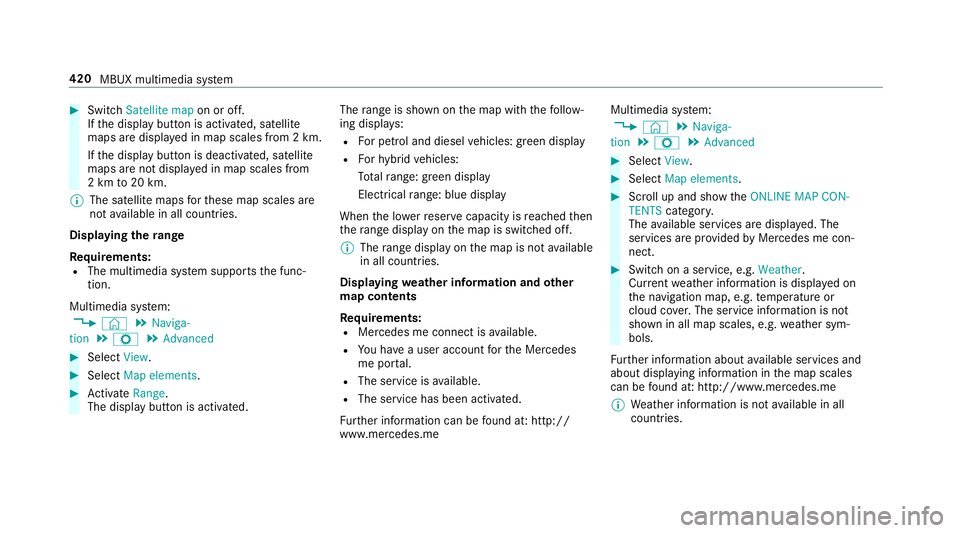
Displ aying thera nge
Re quirements:
R The multimedia sy stem supports the func‐
tion.
Multimedia sy stem:
, © .
Naviga-
tion .
Z .
Advanced #
Select View. #
Select Map elements. #
Activate Range.
The display button is acti vated. The
range is shown on the map with thefo llow‐
ing displa ys:
R For petrol and diesel vehicles: green display
R Forhy brid vehicles:
To talra nge: green displ ay
Electrical range: blue displ ay
When the lo werre ser vecapacity is reached then
th era nge displ ayon the map is switched off.
% The range displ ayon the map is not available
in all countries.
Displ aying weather information and other
map contents
Re quirements:
R Mercedes me connect is available.
R You ha vea user account forth e Mercedes
me por tal.
R The service is available.
R The service has been activated.
Fu rther information can be found at: http://
www.mercedes.me Multimedia sy
stem:
, © .
Naviga-
tion .
Z .
Advanced #
Select View. #
Select Map elements. #
Scroll up and show theONLINE MAP CON-
TENTS categor y.
The available services are displa yed. The
services are pr ovided byMercedes me con‐
nect. #
Switch on a service, e.g. Weather.
Cur rent we ather information is displa yed on
th e navigation map, e.g. temp erature or
cloud co ver.The service information is not
shown in all map scales, e.g. weather sym‐
bols.
Fu rther information about available services and
about displaying information in the map scales
can be found at: http://www.mercedes.me
% Weather information is not available in all
countries. 420
MBUX multimedia sy stem
Page 570 of 681
Saf
ety sy stems Display messages
Possible causes/consequences and M
MSolutions
÷ currently unavailable See
Owner's Manual *
ESP ®
is temp orarily una vailable.
Other drive sy stems and driving saf ety sy stems may also be malfunctioning. &
WARNING Risk of skidding if ESP ®
is malfunctioning
If ESP ®
is malfunctioning, ESP ®
cannot car ryout vehicle stabilisation. In addition, other driving saf ety sy stems
are switched off. #
Drive on carefull y. #
Have ESP ®
ch ecked at a qualified specialist workshop. #
Carefully drive on a suitable stre tch of road, making slight steering mo vements at a speed abo ve30 km/h. #
Ifth e display message does not disappear, consult a qualified specialist workshop immediately. Drive carefully.
!
Turn on the ignition to
release the parking brake *
The red! indicator lamp is lit.
Yo u ha veattem ptedto release the electric parking brake with the ignition switched off. #
Switch the ignition on. Display messages and
warning/indicator lamps 567
Page 575 of 681
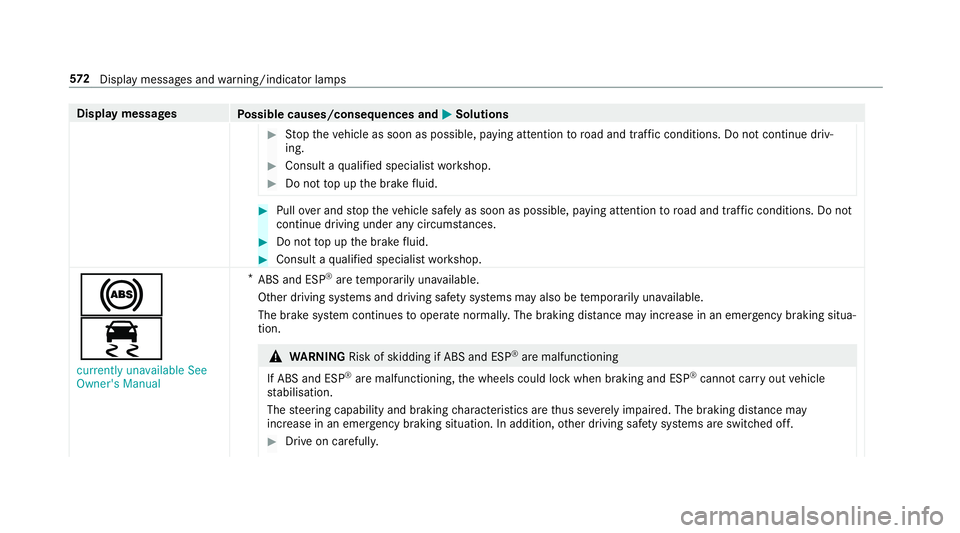
Display messages
Possible causes/consequences and M
MSolutions #
Stop theve hicle as soon as possible, paying attention toroad and traf fic conditions. Do not continue driv‐
ing. #
Consult a qualified specialist workshop. #
Do not top up the brake fluid. #
Pull over and stop theve hicle safely as soon as possible, paying attention toroad and traf fic conditions. Do not
continue driving under any circums tances. #
Do not top up the brake fluid. #
Consult a qualified specialist workshop.
!
÷ currently unavailable See
Owner's Manual *
ABS and ESP ®
are temp orarily una vailable.
Other driving sy stems and driving saf ety sy stems may also be temp orarily una vailable.
The brake sy stem continues tooperate normally. The braking dis tance may increase in an emergency braking situa‐
tion. &
WARNING Risk of skidding if ABS and ESP ®
are malfunctioning
If ABS and ESP ®
are malfunctioning, the wheels could lock when braking and ESP ®
cann otcar ryout vehicle
st abilisation.
The steering capability and braking characteristics are thus se verely impaired. The br aking distance may
increase in an emergency braking situation. In addition, other driving saf ety sy stems are switched off. #
Drive on carefull y.572
Displaymessa ges and warning/indicator lamps