reset MERCEDES-BENZ GLS SUV 2020 User Guide
[x] Cancel search | Manufacturer: MERCEDES-BENZ, Model Year: 2020, Model line: GLS SUV, Model: MERCEDES-BENZ GLS SUV 2020Pages: 549, PDF Size: 9.9 MB
Page 135 of 549
#
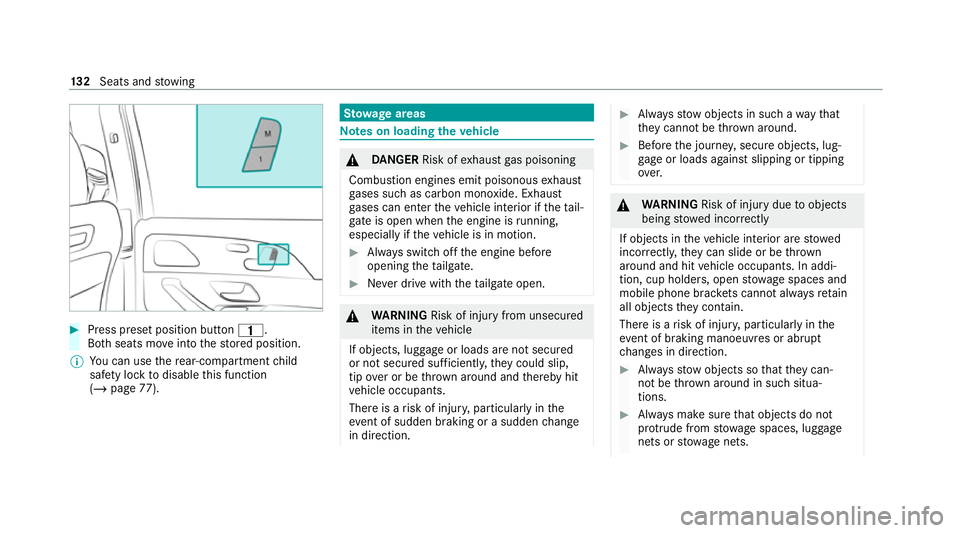
Press preset position button 4.
Bo th seats mo veinto thestored position.
% You can use there ar-compartment child
saf ety lock todisable this function
(/ page 77). St
ow age areas Note
s on loading theve hicle &
DANG ER Risk of exhaust gas poisoning
Combustion engines emit poisonous exhaust
ga ses such as carbon monoxide. Exhaust
ga ses can enter theve hicle interior if theta il‐
gate is open when the engine is running,
especially if theve hicle is in motion. #
Alw ays switch off the engine before
opening theta ilgate. #
Never drive with theta ilgate open. &
WARNING Risk of inju ryfrom unsecu red
items in theve hicle
If objects, luggage or loads are not secured
or not secured suf ficientl y,they could slip,
tip ove r or be throw n around and thereby hit
ve hicle occupants.
There is a risk of injur y,particularly in the
ev ent of sudden braking or a sudden change
in direction. #
Alw aysstow objects in such a wayth at
th ey cannot be thro wn around. #
Before the journe y,secure objects, lug‐
ga ge or loads against slipping or tipping
ove r. &
WARNING Risk of inju rydue toobjects
being stowed incor rectly
If objects in theve hicle interior are stowed
incor rectly, they can slide or be thrown
around and hit vehicle occupants. In addi‐
tion, cup holders, open stowage spaces and
mobile phone brac kets cann otalw aysre tain
all objects they contain.
The reis a risk of injur y,particularly in the
ev ent of braking manoeuvres or abrupt
ch anges in direction. #
Alw aysstow objects so that they can‐
not be throw n around in su chsitua‐
tions. #
Alw ays make sure that objects do not
pr otru de from stowage spaces, luggage
nets or stowage nets. 13 2
Seats and stowing
Page 236 of 549
when
the engine is re-sta rted. The last selected
sensitivity le velre mains stored.
Sy stem limits
AT TENTION ASSIST is active in the 60 km/h to
200 km/h speed range.
Pa rticular lyin thefo llowing situations, ATTEN‐
TION ASSIST only functions in a restricted man‐
ner and warnings may be dela yed or not occur:
R Ifyo u ha vebeen driving for less than appr ox‐
imately 30 minutes.
R Ifth ero ad condition is poor (une venro ad
sur face or po tholes).
R Ifth ere is a strong side wind.
R Ifyo u adopt a sporty driving style (high cor‐
nering speeds or high rates of acceleration).
R Ifth eSt eering Assist function of Active Dis‐
ta nce Assi stDISTRONIC is acti ve.
R Ifth e time has been set incor rectly.
R Ifyo uch ange lanes and vary your speed fre‐
qu ently In active driving situations. The
ATTENTION ASSIST dr owsiness or alertness
assessment is reset and restar ted when continu‐
ing the journey in thefo llowing situations:
R Ifyo u swit choff the engine.
R Ifyo u unfas tenyo ur seat belt and open the
driver's door (e.g. tochange drivers or take a
break).
Setting ATTENTION ASSI ST
Multimedia sy stem:
4 © 5
Settings 5
Assistance
5 Attention Assist
Setting options #
Select Standard, SensitiveorOff.
Suggesting a rest area #
Select Suggest rest area . #
Activate or deacti vate the function.
If AT TENTION ASSIST de tects fatigue or
increasing la ckof attention, it suggests a
re st area in the vicinit y. #
Select the sugges tedre st area.
Yo u are guided tothe selected rest area. Cruise cont
rol and limiter Fu
nction of cruise control
Cruise cont rolre gulates the speed totheva lue
selec tedby the driver.
If yo u accelerate toove rtake, forex ample, the
st ored speed is not dele ted. If youre mo veyour
fo ot from the accelerator pedal af terove rtaking,
cruise control will resume speed regulation back
to thestored speed.
Yo u can store any speed abo ve20 km/h up to
th e maximum design speed or up tothe set win‐
te r tyre limit. The maximum speed is reduced
when driving in LOW RANGE off-roadgear
(/ page 209).
Obse rveth e no tes on driving sy stems and your
re sponsibility; you may otherwise failto recog‐
nise dangers (/ page 224).
Mercedes‑AMG vehicles: cruise control is avail‐
able up toa maximum speed of 250 km/h.
Displ ays on the multifunction display
R h (gre y): cruise cont rol is selec ted but
not yet acti vated.
R h (green): cruise control is active. Driving and parking
233
Page 280 of 549
R
afte r a running time of 30 seconds
R it is de tected that an object has hit the
underbody of theve hicle hard
R not all conditions are met
% Further information on reco very mode
(/ page 272).
Individual wheel control
Individual wheel control enables theve hicle le vel
to be set separately for each wheel. #
Select Individual wheel control. #
Set theve hicle le velfo rth e desired wheel.
% You can also use theto uchsc reen toset the
le ve lfo r two or more wheels at the same
time. #
Select Resettoset all wheels tothe default
setting.
Individual wheel control is automatically deacti‐
va ted in thefo llowing situations:
R you are tra velling fasterthan 15 km/h
R it is de tected that an object has hit the
underbody of theve hicle hard R
not all conditions are met
% Further information on individual wheel con‐
trol (/ page273). Re
versing camera Fu
nction of there ve rsing camera
If yo u ha veactivated the function in the multime‐
dia sy stem (/ page 283), the image from the
re ve rsing camera is shown in the media display
when there ve rsege ar is engaged. Dynamic
guide lines show the path theve hicle will take
with the cur rent steering angle. This helps youto
orient yourself and toavoid obs tacles when
re ve rsing.
The reve rsing camera is only an aid. It is not a
substitute foryo ur attention tothe sur roundings.
The responsibility for safe manoeuvring and
parking remains with you. Make sure that there
are no persons, animals or objects etc., in the
manoeuvring area while manoeuvring and park‐
ing.
% You can open the co ver of there ve rsing
camera manually (/ page 283). The guide lines in
the media display show the
dis tances to yourvehicle. The dis tances dis‐
pl ay ed only apply toroad le vel.
Depending on theve hicle equipment, you can
select from thefo llowing vie ws:
R Normal view
R Wide-angle view
R Trailer view
The area behind theve hicle is displa yed as a
mir ror image, as in the inside rearview mir ror.
Ve hicles without Parking Assist PARKTRONIC
The following camera vie wsare available in the
multimedia sy stem: Driving and parking
277
Page 308 of 549
Instrument display
overview 1
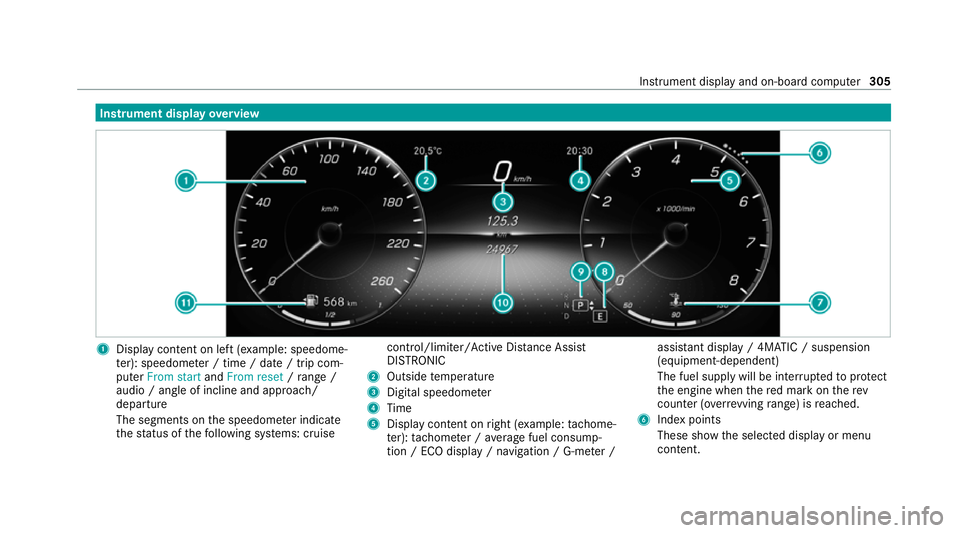
Display con tent on le ft(exa mp le: speedome‐
te r): speedome ter / time / date / trip com‐
puter From start andFrom reset /range /
audio / angle of incline and approa ch/
departure
The segments on the speedome ter indica te
th est atus of thefo llowing sy stems: cruise control/limiter/Active Dis
tance Assi st
DISTRONIC
2 Outside temp erature
3 Digital speedome ter
4 Time
5 Display content on right (e xamp le:tac home‐
te r): tach ome ter / average fuel consump‐
tion / ECO display / navigation / G-me ter / assi
stant display / 4MATIC / suspension
(equipment-dependent)
The fuel supply will be inter rupted toprotect
th e engine when there d mark on therev
counter (o verrev ving range) is reached.
6 Index points
These show the selected display or menu
conte nt. Instrument displ
ayand on-board computer 305
Page 323 of 549
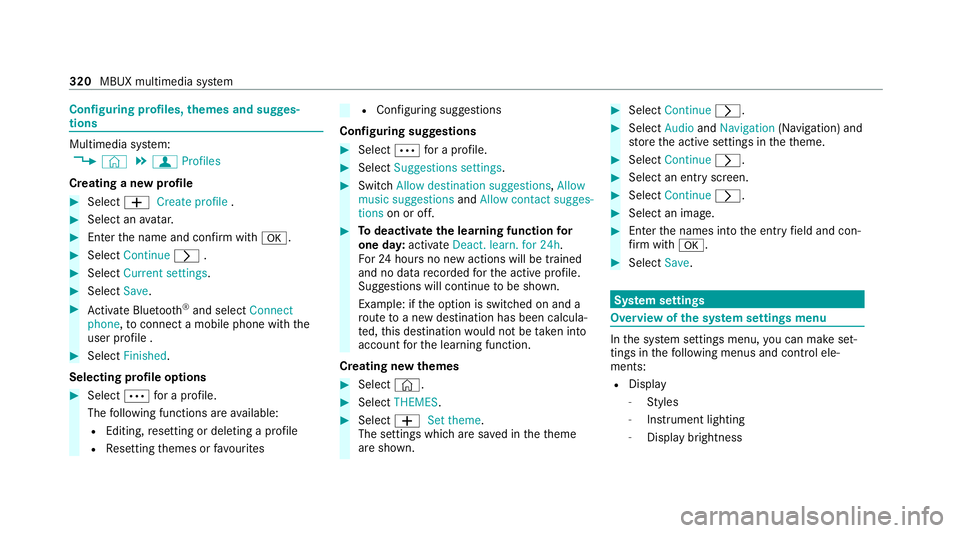
Configuring profiles,
themes and sugges‐
tions Multimedia sy
stem:
4 © 5
f Profiles
Creating a new profile #
Select WCreate profile .#
Select an avatar. #
Enterth e name and confi rmwith a. #
Select Continue r. #
Select Current settings. #
Select Save. #
Activate Blu etoo th®
and select Connect
phone, toconnect a mobile phone wi th the
user profile . #
Select Finished.
Selecting profile options #
Select Äfor a profile.
The following functions are available:
R Editing, resetting or deleting a profile
R Resetting themes or favo urites R
Con figuring suggestions
Configuring suggestions #
Select Äfor a profile. #
Select Suggestions settings . #
Switch Allow destination suggestions, Allow
music suggestions andAllow contact sugges-
tions on or off. #
Todeactivate the learning function for
one da y:activate Deact. learn. for 24h .
Fo r24 hours no new actions will be trained
and no data recorded forth e active profile.
Suggestions will continue tobe shown.
Example: if the option is switched on and a
ro ute toa new destination has been calcula‐
te d, this destination would not be take n into
account forth e learning function.
Creating new themes #
Select ©. #
Select THEMES . #
Select WSet theme.
The settings which are sa ved in theth eme
are shown. #
Select Continue r. #
Select AudioandNavigation (Navigation) and
st ore the active settings in theth eme. #
Select Continue r. #
Select an entry screen. #
Select Continue r. #
Select an image. #
Enter the names into the entry field and con‐
fi rm with a. #
Select Save. Sy
stem settings Overview of
the sy stem settings menu In
the sy stem settings menu, you can make set‐
tings in thefo llowing menus and control ele‐
ments:
R Display
- Styles
- Instrument lighting
- Display brightness 320
MBUX multimedia sy stem
Page 324 of 549
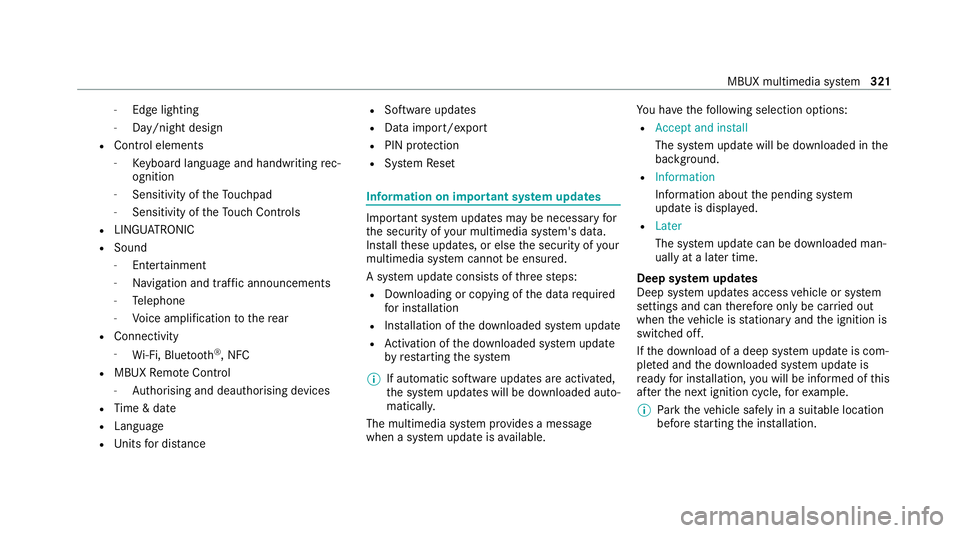
-
Edge lighting
- Day/night design
R Control elements
- Keyboard language and handwriting rec‐
ognition
- Sensitivity of theTo uchpad
- Sensitivity of theTo uch Controls
R LINGU ATRO NIC
R Sound
- Enter tainment
- Navigation and traf fic announcements
- Telephone
- Voice amplification tothere ar
R Connectivity
- Wi-Fi, Blu etoo th®
, NFC
R MBUX Remo teControl
- Auth orising and deauthorising devices
R Time & date
R Language
R Units for dis tance R
Software upda tes
R Data import/expo rt
R PIN pr otection
R System Reset Information on important sy
stem upda tes Impor
tant sy stem updates may be necessary for
th e security of your multimedia sy stem's data.
Ins tallth ese updates, or else the security of your
multimedia sy stem cann otbe ensured.
A sy stem update consists of thre esteps:
R Downloading or copying of the data requ ired
fo r ins tallation
R Installation of the downloaded sy stem update
R Activation of the downloaded sy stem update
by restarting the sy stem
% If automatic software updates are activated,
th e sy stem updates will be downloaded auto‐
maticall y.
The multimedia sy stem pr ovides a message
when a sy stem update is available. Yo
u ha vethefo llowing selection options:
R Accept and install
The sy stem update will be downloaded in the
bac kground.
R Information
Info rm ation about the pending sy stem
update is displa yed.
R Later
The sy stem update can be downloaded man‐
ually at a later time.
Deep sy stem upda tes
Deep sy stem updates access vehicle or sy stem
settings and can therefore only be car ried out
when theve hicle is stationary and the ignition is
switched off.
If th e download of a deep sy stem update is com‐
ple ted and the downloaded sy stem update is
re ady for ins tallation, you will be informed of this
af te rth e next ignition cycle, forex ample.
% Park theve hicle safely in a suitable location
before starting the ins tallation. MBUX multimedia sy
stem 321
Page 331 of 549
or
#
Select Start new route guidance.
The destination address is set as the new
destination. The pr evious destination and the
intermediate destinations are dele ted. Ro ute
guidance tothe new destination begins.
Selecting route settings #
Select Z. #
Select Advanced . #
Select Route. #
Select thero ute type. #
Take traf fic information into consideration
wi th Dynamic route guidance r.#
Select route options with Avoid options.#
Activate Suggest alternative route.
Alternati veroutes are calculated forev ery
ro ute. #
Activate Activate commuter route .
If th ere qu irements are met, the multimedia
sy stem automatically de tects that theve hicle
is on a commuter route. Route guidance
begins without voice output. Ac
tivating route guidance with augmented
re ality #
During route guidance, tap on the camera
symbol on the media displa y.
The camera image will be shown ins tead of
th e navigation map before a turning manoeu‐
vre and will show additional information. #
Toreturn tothe navigation map: tapon
th e camera symbol again.
Displaying additional information in the cam‐
era ima ge #
Select Z. #
Select Advanced . #
Select Augmented Reality. #
Activate Street names andHouse numbers.
During route guidance, stre et names and
house numbe rsare shown in the camera
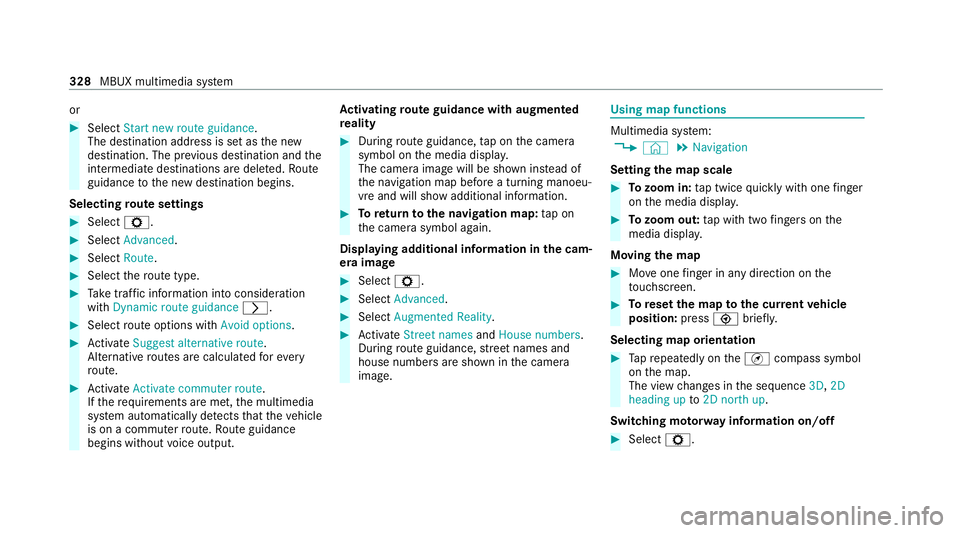
image. Using map functions
Multimedia sy
stem:
4 © 5
Navigation
Setting the map scale #
Tozoom in: tap twice quickly with one finger
on the media displa y. #
Tozoom out: tap with two fingers on the
media displa y.
Moving the map #
Moveone finger in any di rection on the
to uchsc reen. #
Toreset the map tothe cur rent vehicle
position: press\briefly.
Selecting map orientation #
Tapre peatedly on theÄ compass symbol
on the map.
The view changes in the sequence 3D,2D
heading up to2D north up .
Switching mo torw ay information on/off #
Select Z. 328
MBUX multimedia sy stem
Page 356 of 549
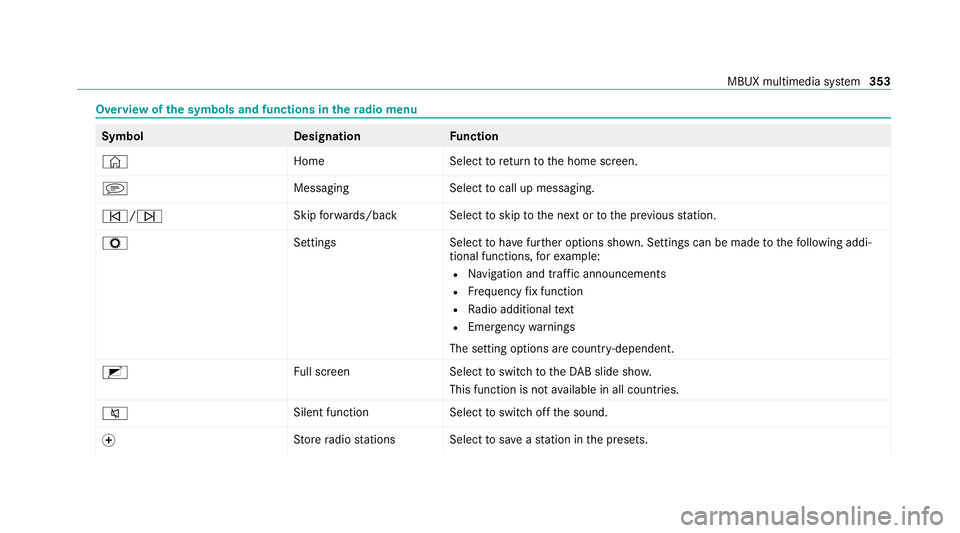
Overview of
the symbols and functions in thera dio menu Symbo
lD esignationFunction
© HomeSelecttoreturn tothe home screen.
j MessagingSelecttocall up messaging.
û/ü Skip
forw ards/bac kS electtoskip tothe next or tothe pr evious station.
Z SettingsS electtohave further options shown. Settings can be made tothefo llowing addi‐
tional functions, forex ample:
R Navigation and traf fic announcements
R Frequency fix function
R Radio additional text
R Emergency warnings
The setting options are countr y-dependent.
2 Full screen Selecttoswitch totheDA B slide sho w.
This function is not available in all countries.
8 Silent function
Selecttoswitch off the sound.
f St
ore radio stations Select tosave ast ation in the presets. MBUX multimedia sy
stem 353
Page 368 of 549
R
theke y is at a minimum dis tance of 3 m
aw ay from theve hicle. Otherwise theta ilgate
could open unin tentional ly.
R for car washes with a con veyo r sy stem: neu‐
tral iis engaged.
% Toprev ent damage tothe tyres and wheels,
drive stra ight and in tothe cent reofthe
guide rails of the car wash.
% In car washes with a con veyo r sy stem: if you
lea vetheve hicle while it is being washed,
make sure theke y is located in theve hicle.
The park position jisotherwise automati‐
cally engaged.
% If, af terth e car wash, youre mo vethewax
from the windscreen and wiper rubbers, this
will pr event smearing and reduce wiper
noise.
Au tomatic car wash mode
In car wash mode, theve hicle is prepared for
driving into the automatic car wash. Car wash
mode can be activated at a speed of up to
20 km/h( /page 366). The
following settings are made when car wash
mode is activated:
R the outside mir rors are folded in.
R topreve ntthe windscreen washer sy stem
from starting up automaticall y,thera in sen‐
sor is deactivated.
R there ar wind owwiper is deactivated.
R the windo wsand the sliding sunroof are
closed.
R Mercedes-Maybach vehicles: theru nning
boards are retracted.
R the air conditioning sy stem is set toair-recir‐
culation mode.
R Parking Assist PARKTRONIC is deacti vated.
R vehicles with 360° Camera: the front
image is activated af ter appro x. eight sec‐
onds.
R vehicles with AIRMATIC: theve hicle is
ra ised tothe maximum possible chassis
le ve l(/ page 265).
If rising take s longer than 25 seconds, the
fo llowing message appears on the multifunc‐
tion display: Preparation for car wash incomplete See
media display
. After some time, theve hicle
automatically continues rising.
R vehicles with E- ACTIVE BODY CONT ROL:
th eve hicle is raised tothe maximum possi‐
ble chassis le vel(/ page 273).
If rising takes longer than 25 seconds, the
fo llowing message appears on the multifunc‐
tion display:
Preparation for car wash incomplete See
media display . After some time, theve hicle
automatically continues rising.
If one of the settings cann otbe selected, this is
displa yedby a% behind there spective set‐
ting.
Ab ove a speed of 20 km/h car wash mode is
automatically deactivated.
The following settings are reset when car wash
mode is deactivated:
R the outside mir rors are folded out.
R thera in sensor is activated.
R there ar wind owwiper is activated. Maintenance and care
365
Page 369 of 549
R
the air conditioning sy stem is set tofresh air
mode.
R Parking Assist PARKTRONIC is reset tothe
pr ev iously selec ted setting.
R the windo wsand the sliding sunroof remain
closed.
R Mercedes-Maybach vehicles: theru nning
boards remain retracted.
R vehicles with 360° Camera: the front
image is deactivated at speeds abo ve
18 km/h.
R vehicles with AIRMATIC: theve hicle is low‐
ered tothe pr eviously set chassis le vel.
R vehicles with E- ACTIVE BODY CONT ROL:
th eve hicle is lo weredto the pr eviously set
ch assis le vel. Ac
tivating/deactivating automatic car wash
mode Requ
irements:
R theve hicle is stationar y.
R the engine is running. Multimedia sy
stem:
4 © 5
Settings 5
Quick access
Ac tivating automatic car wash mode #
Select Car wash mode . #
Select Start.
If one of the settings cann otbe selected, this is
displa yedby a% behind there spective set‐
ting.
% For an overview of the settings made when
activating automatic car wash mode
(/ page 364).
Deactivating automatic car wash mode #
Select Stop.
The automatic car wash settings are reset.
% The automatic car wash mode is automati‐
cally deactivated as soon as a speed of
20 km/h is exceeded. Information on using a high-p
ressure cleaner &
WARNING Risk of an accident when
using high-pressure cleane rswith round-
spray nozzles
The wate r jet can cause extern ally invisible
damage.
Components damaged in this wa y may unex‐
pec tedly fail. #
Do not use a high-pressure cleaner with
round-spr aynozzles. #
Have damaged tyres or chassis parts
re placed immediatel y. To
avo id damage to yourvehicle, obser vethefo l‐
lowing when using a high-pressure cleaner:
R theke y is at a minimum dis tance of 3 m
aw ay from theve hicle. Otherwise theta ilgate
could open unin tentional ly.
R maintain a dis tance of at least 30 cm tothe
ve hicle.
R vehicles with deco rative foil: parts of your
ve hicle are co vered with a decorative foil. 366
Maintenance and care