light MERCEDES-BENZ M-Class 2001 W163 Comand Manual
[x] Cancel search | Manufacturer: MERCEDES-BENZ, Model Year: 2001, Model line: M-Class, Model: MERCEDES-BENZ M-Class 2001 W163Pages: 164, PDF Size: 2.2 MB
Page 67 of 164
65
Introduction AudioTe l e p h o n eNavigation Index
S y s te m s e ttin g s
1Unlock code menu, page 66
2Main telephone menu
3S: Signal, page 67
R: Roaming, page 67
R (highlighted): Roaming on non-home type system
4Reception indicator, page 695Incoming call, page 68
6Alphanumeric phone book, page 70
7Numeric phone book, page 72
8Info Service, page 79
Telephone
Page 75 of 164
73
Introduction AudioTe l e p h o n eNavigation Index
S y s te m s e ttin g s
By pushing the joystick up or down you can select the
desired name. The selected name will be highlighted.
By pushing the joystick to the left or the right you can
jump to the next or previous page of the list.
You also can jump to the numeric scroll menu by press-
ing softkey “NUM”.
Begin dialing:
If you have found the right name press . When the
call is initiated, the call time will appear in the display.
End the call:
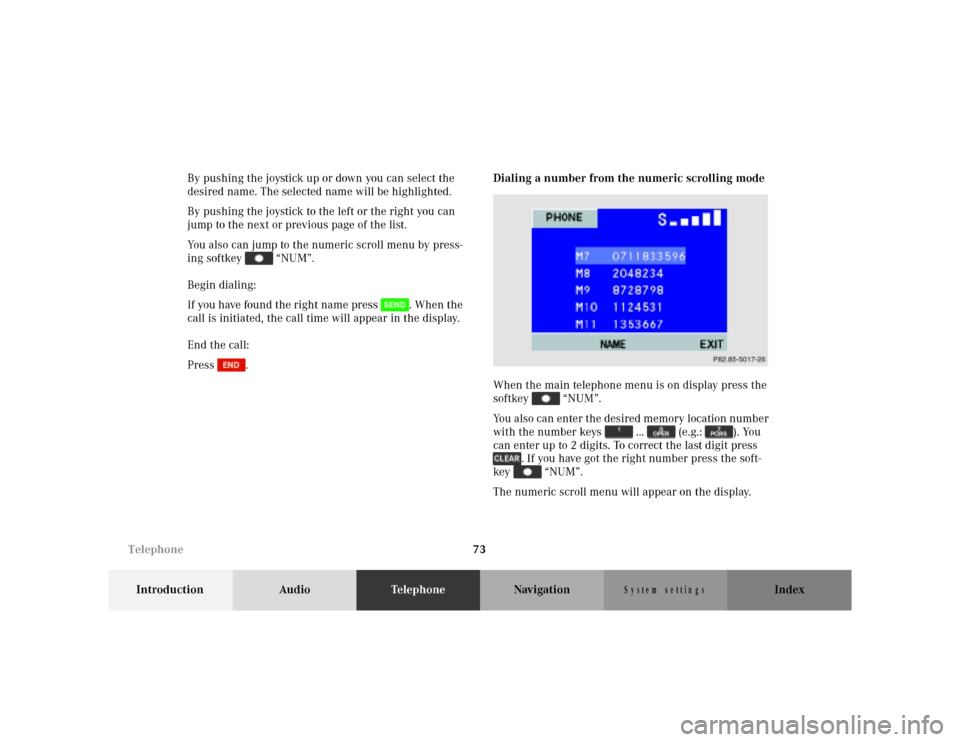
Press .Dialing a number from the numeric scrolling mode
When the main telephone menu is on display press the
softkey “NUM”.
You also can enter the desired memory location number
with the number keys ... (e.g.: ). You
can enter up to 2 digits. To correct the last digit press
. If you have got the right number press the soft-
key “NUM”.
The numeric scroll menu will appear on the display.
P82.85-5017-26
Telephone
Page 76 of 164
74
Introduction AudioTe l e p h o n eNavigation Index
S y s te m s e ttin g s
By pushing the joystick up or down you can select the
desired number. The selected number will be high-
lighted.
By pushing the joystick to the left or the right you can
jump to the next or previous page of the list.
You also can jump to the alphanumeric scroll menu by
pressing the softkey “NAME”.
Begin dialing:
If you have found the right number press . When
the call is initiated, the call time will appear in the dis-
play.
End the call:
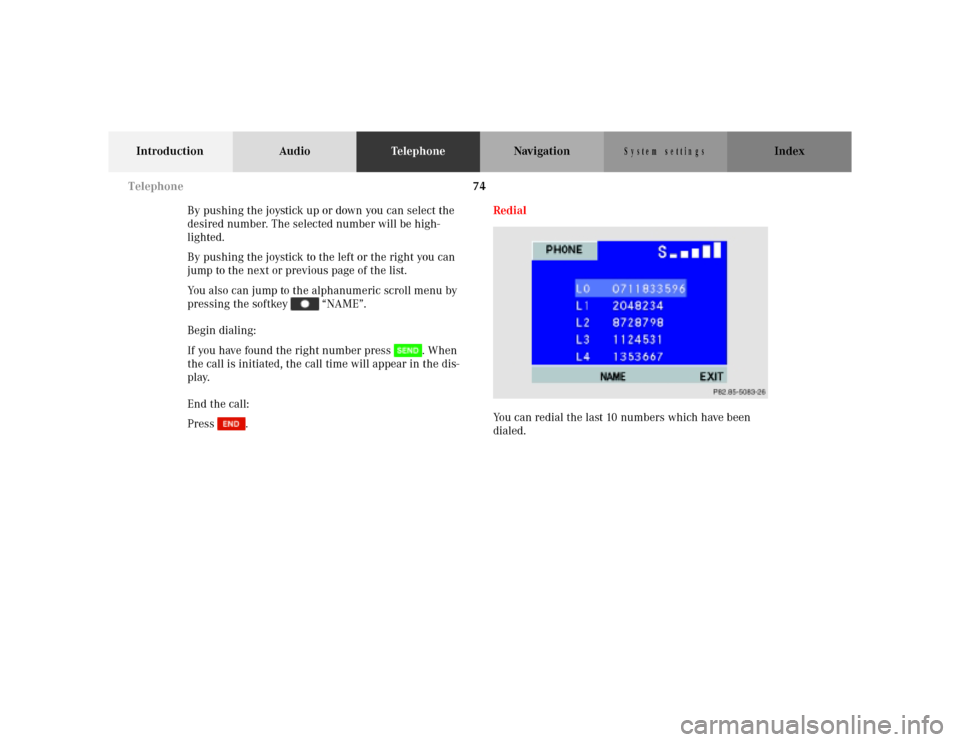
Press .Redial
You can redial the last 10 numbers which have been
dialed.
P82.85-5083-26
Telephone
Page 77 of 164
75
Introduction AudioTe l e p h o n eNavigation Index
S y s te m s e ttin g s
Select number:
Press . The number list will appear on the display.
By pushing the joystick up or down you can select the
desired number. The selected number will be high-
lighted.
By pushing the joystick to the left or the right you can
jump to the next or previous 5 numbers in the list.
If there are no numbers stored “LAST NUMBERS MEM-
ORY EMPTY” will appear on the screen.
Begin dialing:
If you have found the right number press . When
the call is initiated, the call time will appear in the dis-
play.
End the call:
Press .Speed-dialing
When the main telephone menu is displayed enter the
memory location desired with the number keys ...
. You can enter up to 2 digits.
To correct the last digit press .
Press . The phone number stored at this memory
location will appear on the screen.
When the call is initiated, the call time will appear in
the display.
End the call:
Press .
Telephone
Page 84 of 164
82
Introduction Audio TelephoneNavigationIndex
S y s te m s e ttin g s
Before you use the navigation systemG
Wa r n i n g !
During route guidance, you will not receive any
information on traffic lights, stop or yield signs, no
parking or no stopping zones, one-way streets, nar-
row bridges and similar traffic regulation data.
Please always strictly observe traffic regulations
while driving. Traffic regulations always have pri-
ority over any route recommendations given. Study
the manual and select route before driving, do not
watch display screen or operate buttons while the
vehicle is in motion - let voice notifications guide
you. Stop at a safe location before using buttons or
correcting screen. Drive carefully and always obey
traffic laws and road signs even if they contradict
system instructions.
For your safety you should only enter destinations
when the vehicle is stationary. When the vehicle is
in motion, a passenger should enter the destina-
tion.
G
Wa r n i n g !
The CD reader contains a Class 1 laser product.
There is a danger of invisible laser radiation if the
cover is opened or damaged.
Do not remove the cover. The CD reader does not
contain any parts which can be serviced by the
user. For safety reasons, have any service work
which may be necessary performed only by quali-
fied personnel. Notes
Page 108 of 164
106
Introduction Audio TelephoneNavigationIndex
S y s te m s e ttin g s
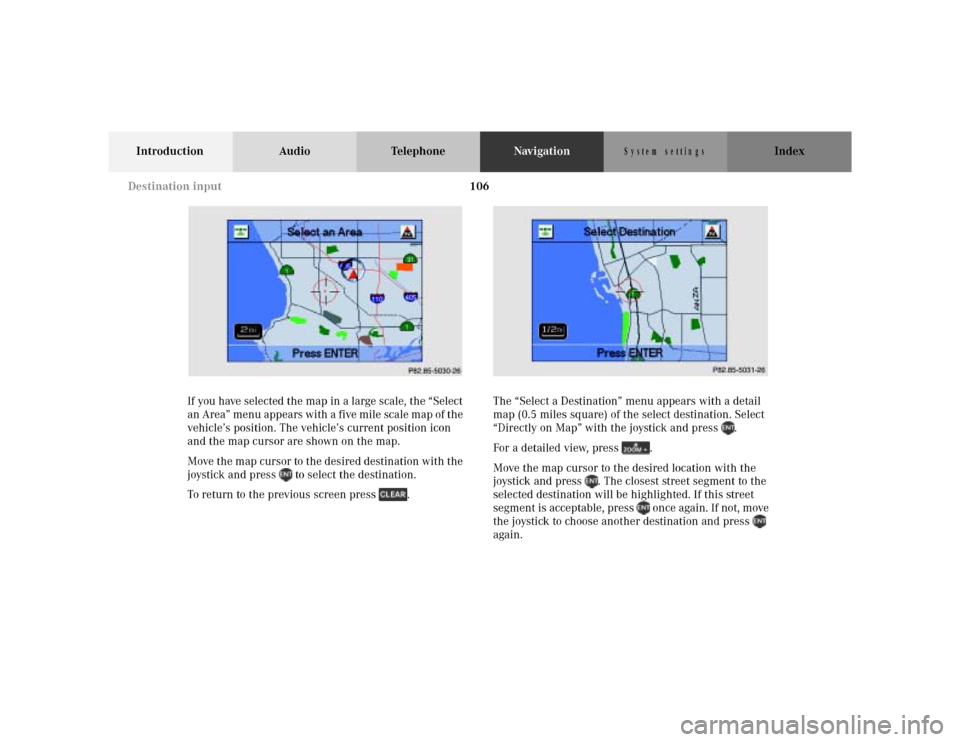
If you have selected the map in a large scale, the “Select
an Area” menu appears with a five mile scale map of the
vehicle’s position. The vehicle’s current position icon
and the map cursor are shown on the map.
Move the map cursor to the desired destination with the
joystick and press to select the destination.
To return to the previous screen press .The “Select a Destination” menu appears with a detail
map (0.5 miles square) of the select destination. Select
“Directly on Map” with the joystick and press .
For a detailed view, press .
Move the map cursor to the desired location with the
joystick and press . The closest street segment to the
selected destination will be highlighted. If this street
segment is acceptable, press once again. If not, move
the joystick to choose another destination and press
again.P82.85-5030-26
P82.85-5031-26
Destination input
Page 118 of 164
116
Introduction Audio TelephoneNavigationIndex
S y s te m s e ttin g s
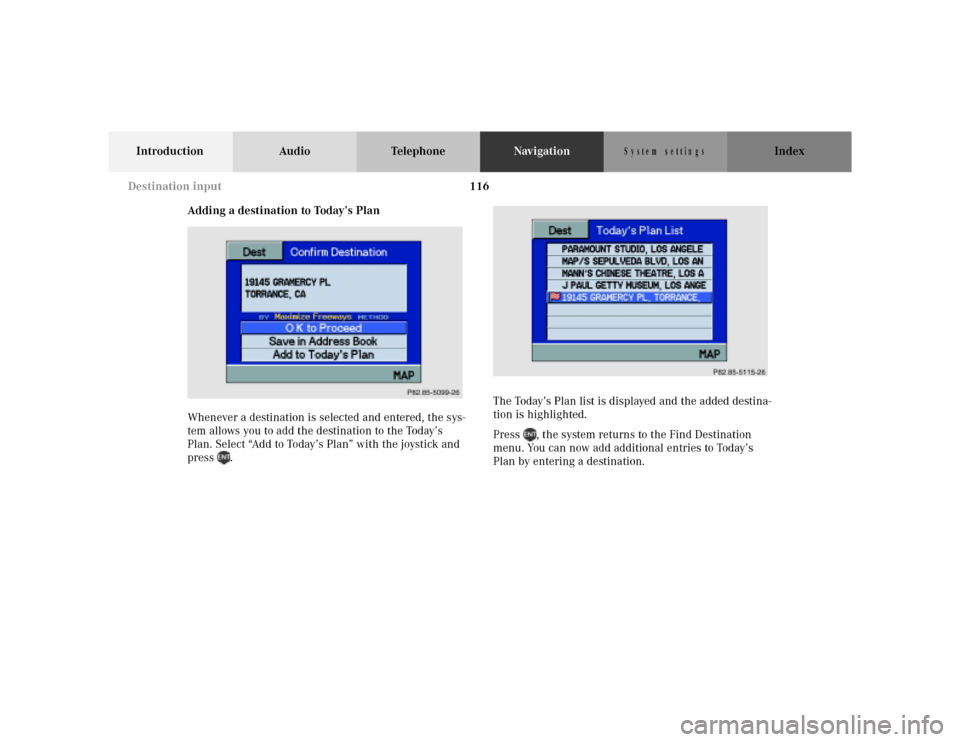
Adding a destination to Today’s Plan
Whenever a destination is selected and entered, the sys-
tem allows you to add the destination to the Today’s
Plan. Select “Add to Today’s Plan” with the joystick and
press .The Today’s Plan list is displayed and the added destina-
tion is highlighted.
Press , the system returns to the Find Destination
menu. You can now add additional entries to Today’s
Plan by entering a destination.
P82.85-5099-26
P82.85-5115-26
Destination input
Page 126 of 164
124
Introduction Audio TelephoneNavigationIndex
S y s te m s e ttin g s
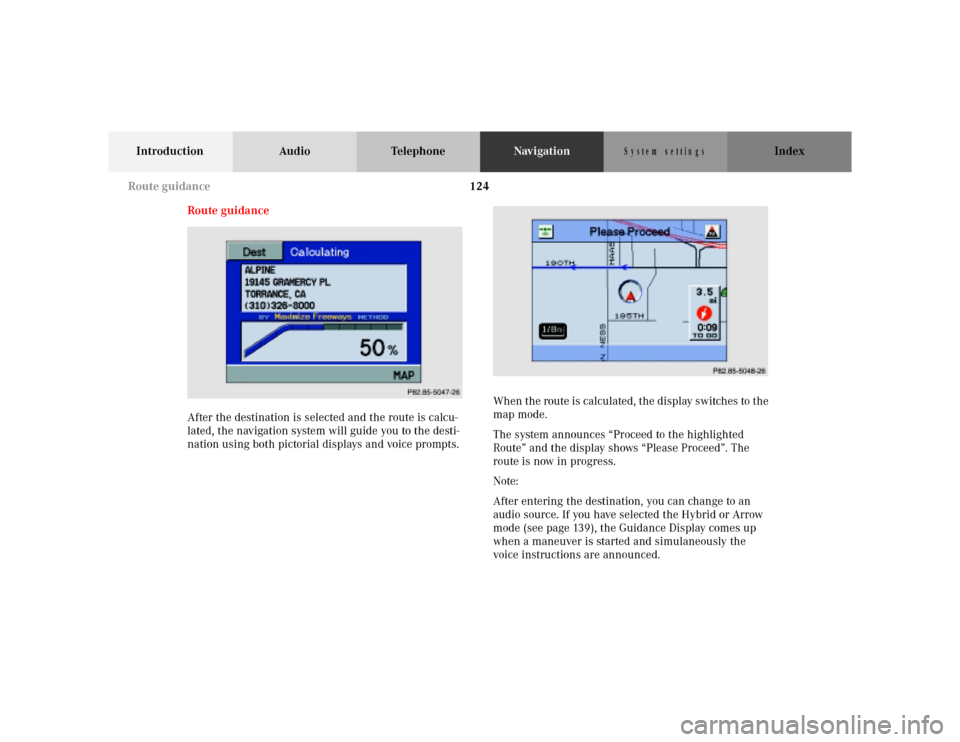
Route guidance
After the destination is selected and the route is calcu-
lated, the navigation system will guide you to the desti-
nation using both pictorial displays and voice prompts.When the route is calculated, the display switches to the
map mode.
The system announces “Proceed to the highlighted
Route” and the display shows “Please Proceed”. The
route is now in progress.
Note:
After entering the destination, you can change to an
audio source. If you have selected the Hybrid or Arrow
mode (see page 139), the Guidance Display comes up
when a maneuver is started and simulaneously the
voice instructions are announced.
P82.85-5047-26
P82.85-5048-26
Route guidance
Page 127 of 164
125
Introduction Audio TelephoneNavigationIndex
S y s te m s e ttin g s
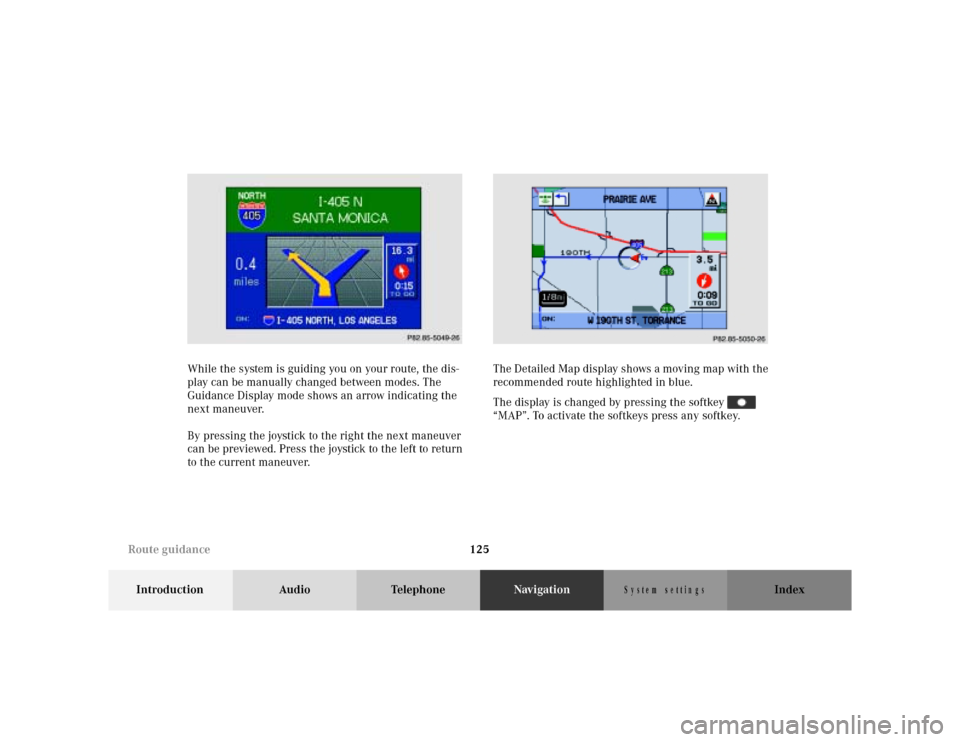
While the system is guiding you on your route, the dis-
play can be manually changed between modes. The
Guidance Display mode shows an arrow indicating the
next maneuver.
By pressing the joystick to the right the next maneuver
can be previewed. Press the joystick to the left to return
to the current maneuver.The Detailed Map display shows a moving map with the
recommended route highlighted in blue.
The display is changed by pressing the softkey
“MAP”. To activate the softkeys press any softkey. P882.85-5049-26
P82.85-5050-26
Route guidance
Page 129 of 164
127
Introduction Audio TelephoneNavigationIndex
S y s te m s e ttin g s
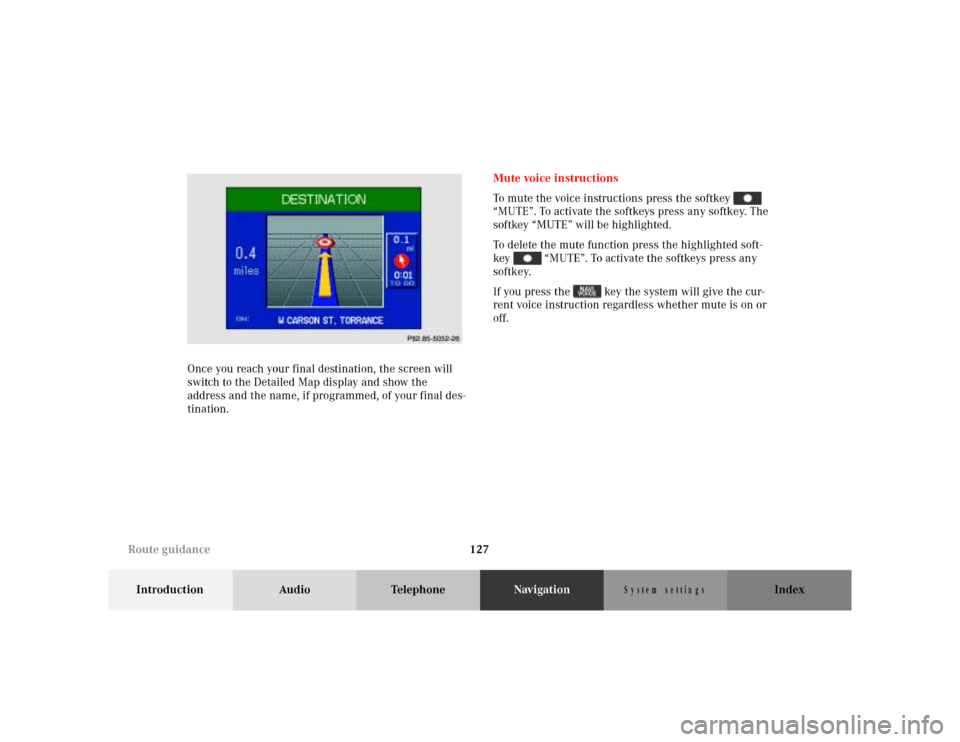
Once you reach your final destination, the screen will
switch to the Detailed Map display and show the
address and the name, if programmed, of your final des-
tination.Mute voice instructions
To mute the voice instructions press the softkey
“MUTE”. To activate the softkeys press any softkey. The
softkey “MUTE” will be highlighted.
To delete the mute function press the highlighted soft-
key “MUTE”. To activate the softkeys press any
softkey.
If you press the key the system will give the cur-
rent voice instruction regardless whether mute is on or
off.P82.85-5052-26
Route guidance