camera MERCEDES-BENZ M-Class 2014 W166 Comand Manual
[x] Cancel search | Manufacturer: MERCEDES-BENZ, Model Year: 2014, Model line: M-Class, Model: MERCEDES-BENZ M-Class 2014 W166Pages: 270, PDF Size: 5.76 MB
Page 6 of 270
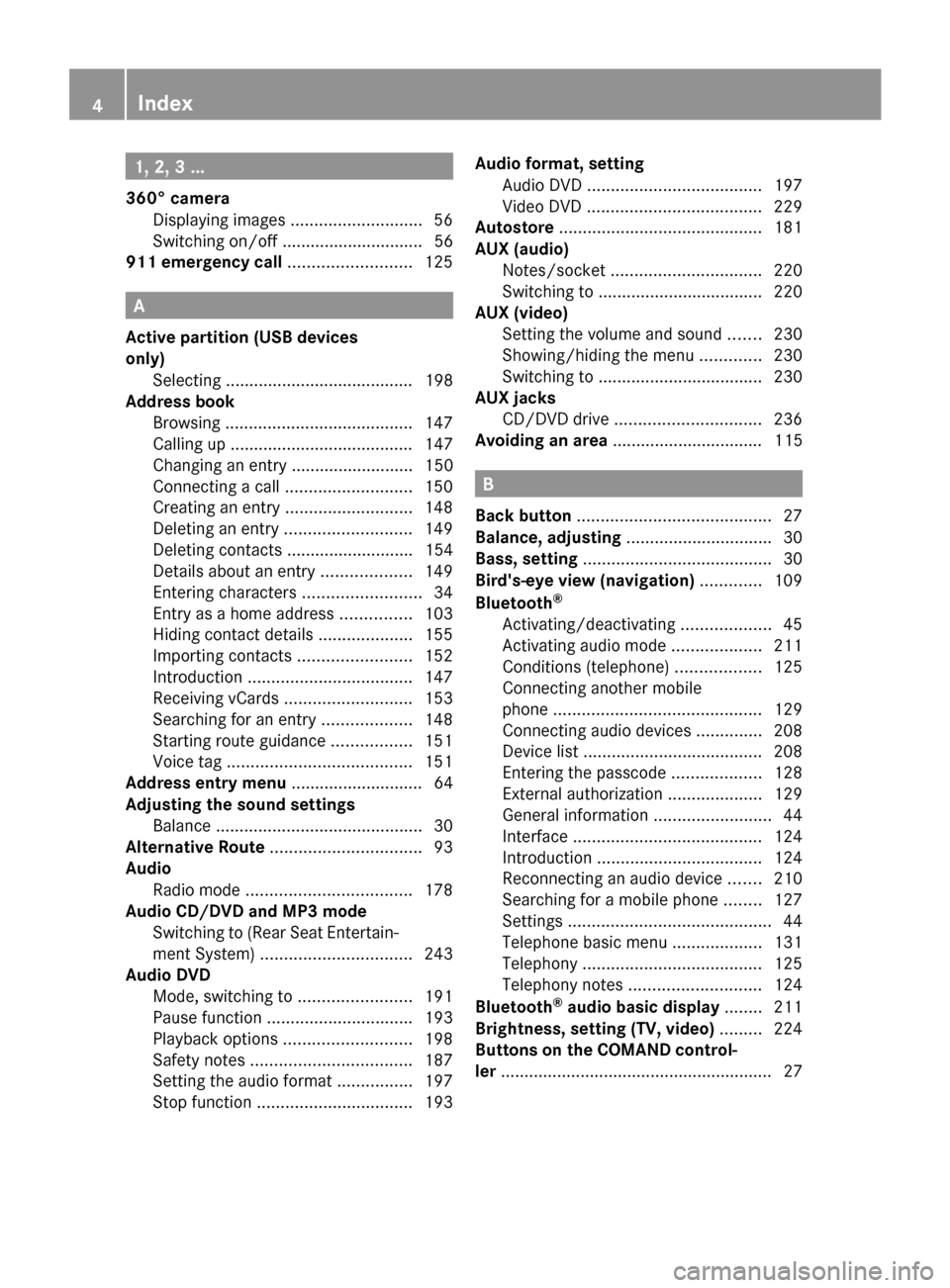
1, 2, 3 ...
360° camera Displaying images ............................ 56
Switching on/off .............................. 56
911 emergency call ..........................125A
Active partition (USB devices
only) Selecting ........................................ 198
Address book
Browsing ........................................ 147
Calling up ....................................... 147
Changing an entry .......................... 150
Connecting a call ........................... 150
Creating an entry ........................... 148
Deleting an entry ........................... 149
Deleting contacts ........................... 154
Details about an entry ...................149
Entering characters .........................34
Entry as a home address ...............103
Hiding contact details ....................155
Importing contacts ........................152
Introduction ................................... 147
Receiving vCards ........................... 153
Searching for an entry ...................148
Starting route guidance .................151
Voice tag ....................................... 151
Address entry menu ............................ 64
Adjusting the sound settings Balance ............................................ 30
Alternative Route ................................ 93
Audio Radio mode ................................... 178
Audio CD/DVD and MP3 mode
Switching to (Rear Seat Entertain-
ment System) ................................ 243
Audio DVD
Mode, switching to ........................191
Pause function ............................... 193
Playback options ........................... 198
Safety notes .................................. 187
Setting the audio format ................197
Stop function ................................. 193Audio format, setting
Audio DVD ..................................... 197
Video DVD ..................................... 229
Autostore ........................................... 181
AUX (audio) Notes/socket ................................ 220
Switching to ................................... 220
AUX (video)
Setting the volume and sound .......230
Showing/hiding the menu .............230
Switching to ................................... 230
AUX jacks
CD/DVD drive ............................... 236
Avoiding an area ................................ 115 B
Back button ......................................... 27
Balance, adjusting ............................... 30
Bass, setting ........................................ 30
Bird's-eye view (navigation) .............109
Bluetooth ®
Activating/deactivating ...................45
Activating audio mode ...................211
Conditions (telephone) ..................125
Connecting another mobile
phone ............................................ 129
Connecting audio devices ..............208
Device list ...................................... 208
Entering the passcode ...................128
External authorization ....................129
General information .........................44
Interface ........................................ 124
Introduction ................................... 124
Reconnecting an audio device .......210
Searching for a mobile phone ........127
Settings ........................................... 44
Telephone basic menu ...................131
Telephony ...................................... 125
Telephony notes ............................ 124
Bluetooth ®
audio basic display ........211
Brightness, setting (TV, video) .........224
Buttons on the COMAND control-
ler .......................................................... 27 4
Index
Page 12 of 270
Rear Seat Entertainment System
Active COMAND source .................250
Adjusting sound settings ...............240
Adjusting the brightness ................241
Adjusting the color ........................241
Adjusting the contrast ...................241
AUX mode ...................................... 252
CD/DVD audio and MP3 mode ...... 242
Changing the batteries ..................238
Changing the picture format ..........241
Cordless headphones ....................237
Multiple users ................................ 240
Operating with the headphones .....240
Picture settings .............................. 241
System settings ............................. 241
Using the main loudspeaker ..........240
Video DVD mode ........................... 246
Rear view camera
Displaying the image ........................ 55
Receiving vCards ............................... 153
Redialing (telephone) ........................133
Remote control Button lighting ............................... 236
Rear Seat Entertainment System ...235
Reset function ..................................... 47
Resetting (factory settings) ...............47
Route Estimated time of arrival ..................94
Route (navigation)
Calling up the "Routes" menu ..........96
Displaying the distance to the des-
tination ............................................ 94
Recording ........................................ 95
Route overview ................................ 94
Selecting an alternative route ..........93
Setting route options (avoiding:
highways, toll roads, tunnels, fer-
ries) ................................................. 62
Setting the route type (short
route, fast route, dynamic route or
economic route) ............................... 62
Starting calculation ..........................69
Route demonstration ..........................95
Route guidance Canceling ......................................... 92
Continuing ....................................... 92
Destination reached ......................... 92
General notes .................................. 87Lane recommendations
...................90
Off-road ........................................... 97
Traffic reports .................................. 99 S
Safety notes Audio CD/DVD and MP3 mode .....187
Using the telephone ....................... 124
Video DVD mode ........................... 224
SatRadio
Displaying information ...................187
Notes ............................................. 182
Registering .................................... 183
Selecting a category ......................184
Switching to ................................... 183
Saving the crosshair position ..........109
Screen Selecting for remote operation ......235
SD memory card
Ejecting .......................................... 191
Inserting ........................................ 191
Search & Send ...................................... 86
Seats Active multicontour sea t.................. 52
Adjusting the lumbar support
(COMAND) ....................................... 53
Balance (seat heating) .....................54
Multicontour seat ............................ 52
Resetting settings ............................ 55
Seat functions (COMAND) ...............52
Selecting for adjustment
(COMAND) ....................................... 52
Selecting a province ...........................64
Selecting a state .................................. 64
Selecting stations Radio ............................................. 180
Sending DTMF tones .........................134
Settings Menu overview ................................. 22
Picture (COMAND) .........................224
Sound settings ................................. 30
Setting the audio format
Rear Seat Entertainment System ...249
Setting the language
COMAND ......................................... 45
Rear Seat Entertainment System ...249
Setting the night design .....................4210
Index
Page 25 of 270
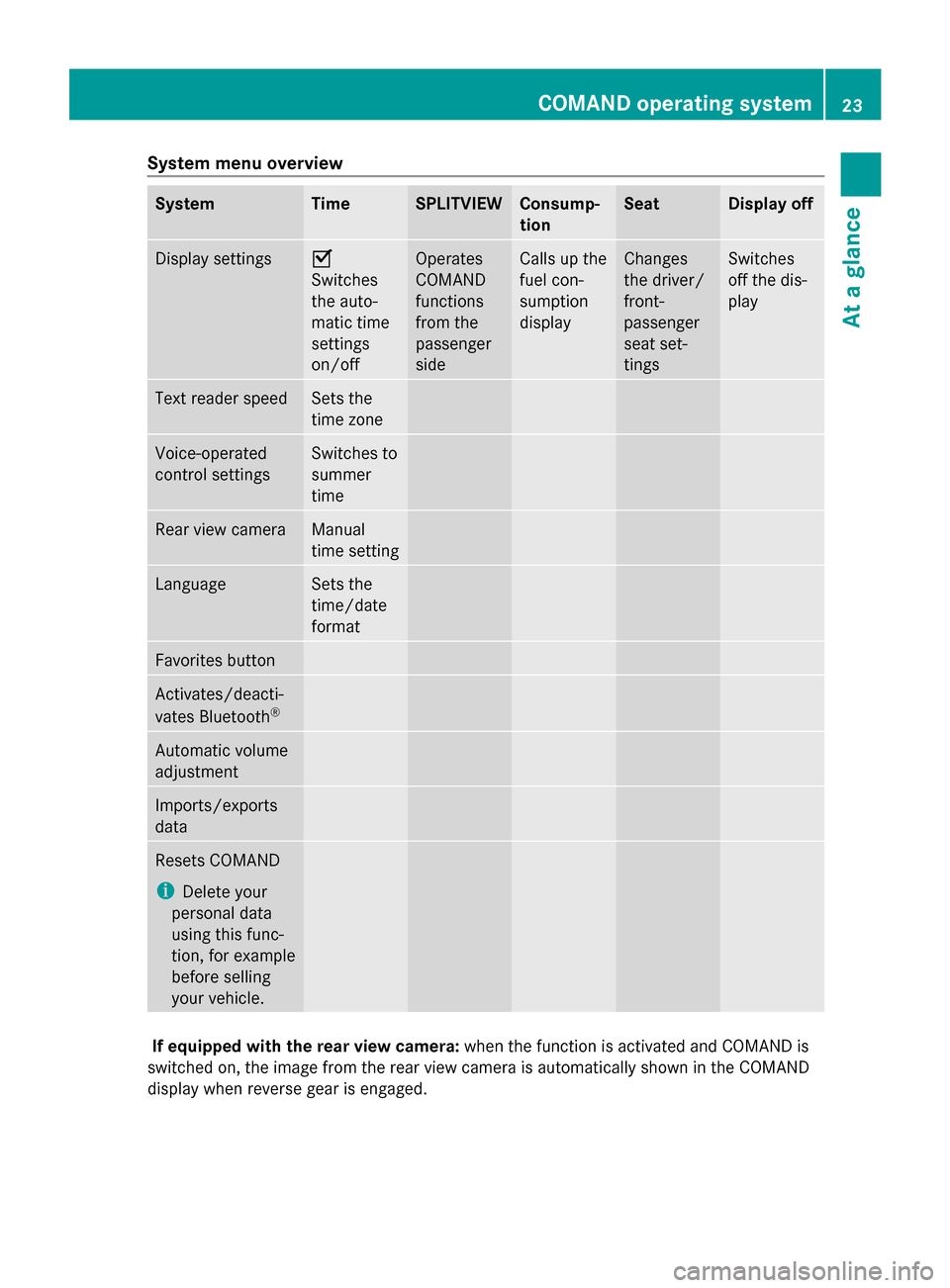
System menu overview
System Time SPLITVIEW Consump-
tion Seat Display off
Display settings 0073
Switches
the auto-
matic time
settings
on/off
Operates
COMAND
functions
from the
passenger
side Calls up the
fuel con-
sumption
display Changes
the driver/
front-
passenger
seat set-
tings Switches
off the dis-
play
Text reader speed Sets the
time zone
Voice-operated
control settings Switches to
summer
time
Rear view camera Manual
time setting
Language Sets the
time/date
format
Favorites button
Activates/deacti-
vates Bluetooth
® Automatic volume
adjustment
Imports/exports
data
Resets COMAND
i
Delete your
personal data
using this func-
tion, for example
before selling
your vehicle. If equipped with the rear view camera:
when the function is activated and COMAND is
switched on, the image from the rear view camera is automatically shown in the COMAND
display when reverse gear is engaged. COMAND operating system
23At a glance
Page 26 of 270
i
If the 360° Camera
360° Camera menu item is displayed, Display Off
Display Offcan be called up under Sys‐
Sys‐
tem
tem.
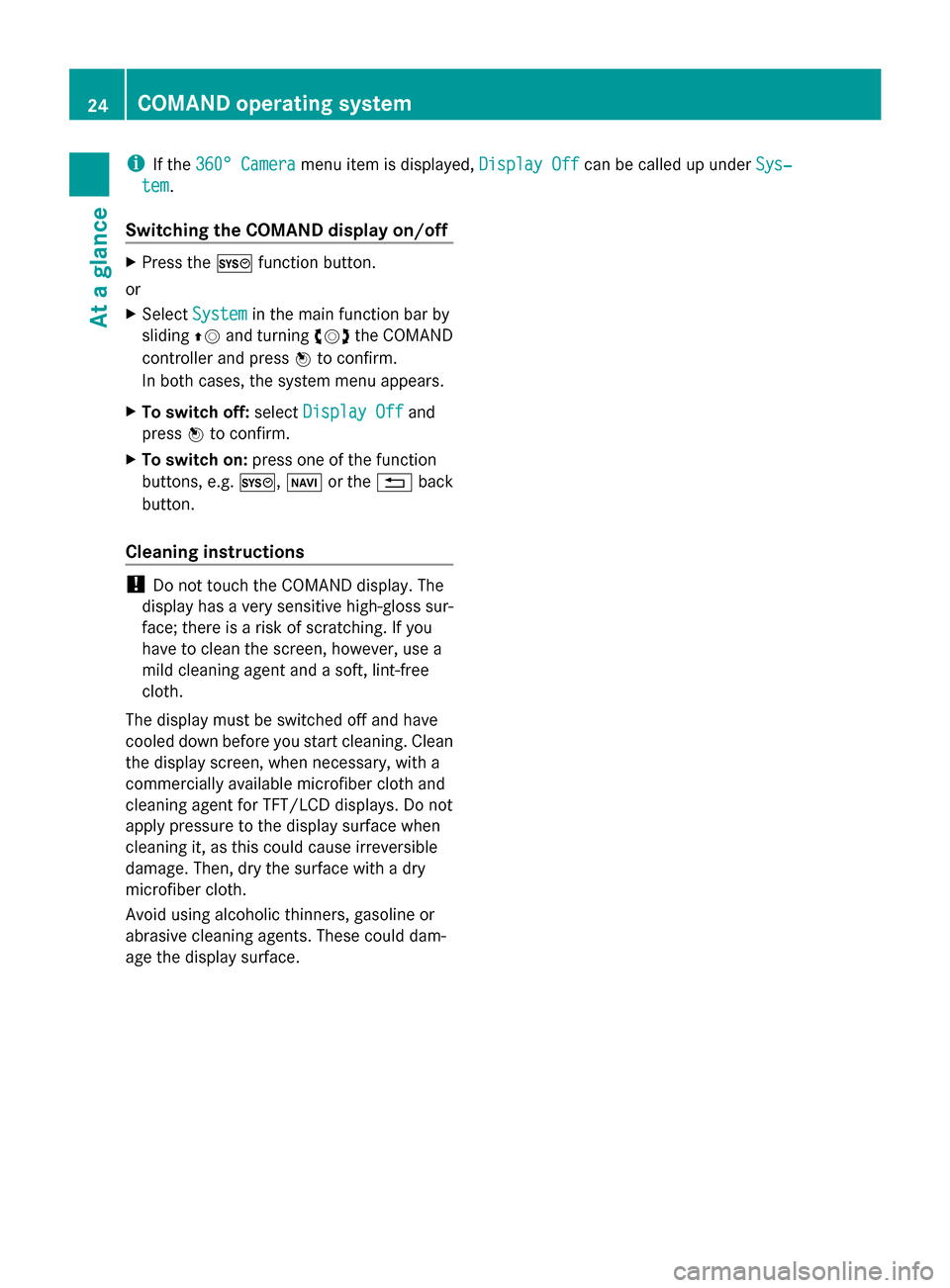
Switching the COMAND display on/off X
Press the 0066function button.
or
X Select System System in the main function bar by
sliding 00970052and turning 00790052007Athe COMAND
controller and press 0098to confirm.
In both cases, the system menu appears.
X To switch off: selectDisplay Off
Display Off and
press 0098to confirm.
X To switch on: press one of the function
buttons, e.g. 0066,00BEor the 0038back
button.
Cleaning instructions !
Do not touch the COMAND display. The
display has a very sensitive high-gloss sur-
face; there is a risk of scratching. If you
have to clean the screen, however, use a
mild cleaning agent and a soft, lint-free
cloth.
The display must be switched off and have
cooled down before you start cleaning. Clean
the display screen, when necessary, with a
commercially available microfiber cloth and
cleaning agent for TFT/LCD displays. Do not
apply pressure to the display surface when
cleaning it, as this could cause irreversible
damage. Then, dry the surface with a dry
microfiber cloth.
Avoid using alcoholic thinners, gasoline or
abrasive cleaning agents. These could dam-
age the display surface. 24
COMAND operating systemAt a glance
Page 47 of 270
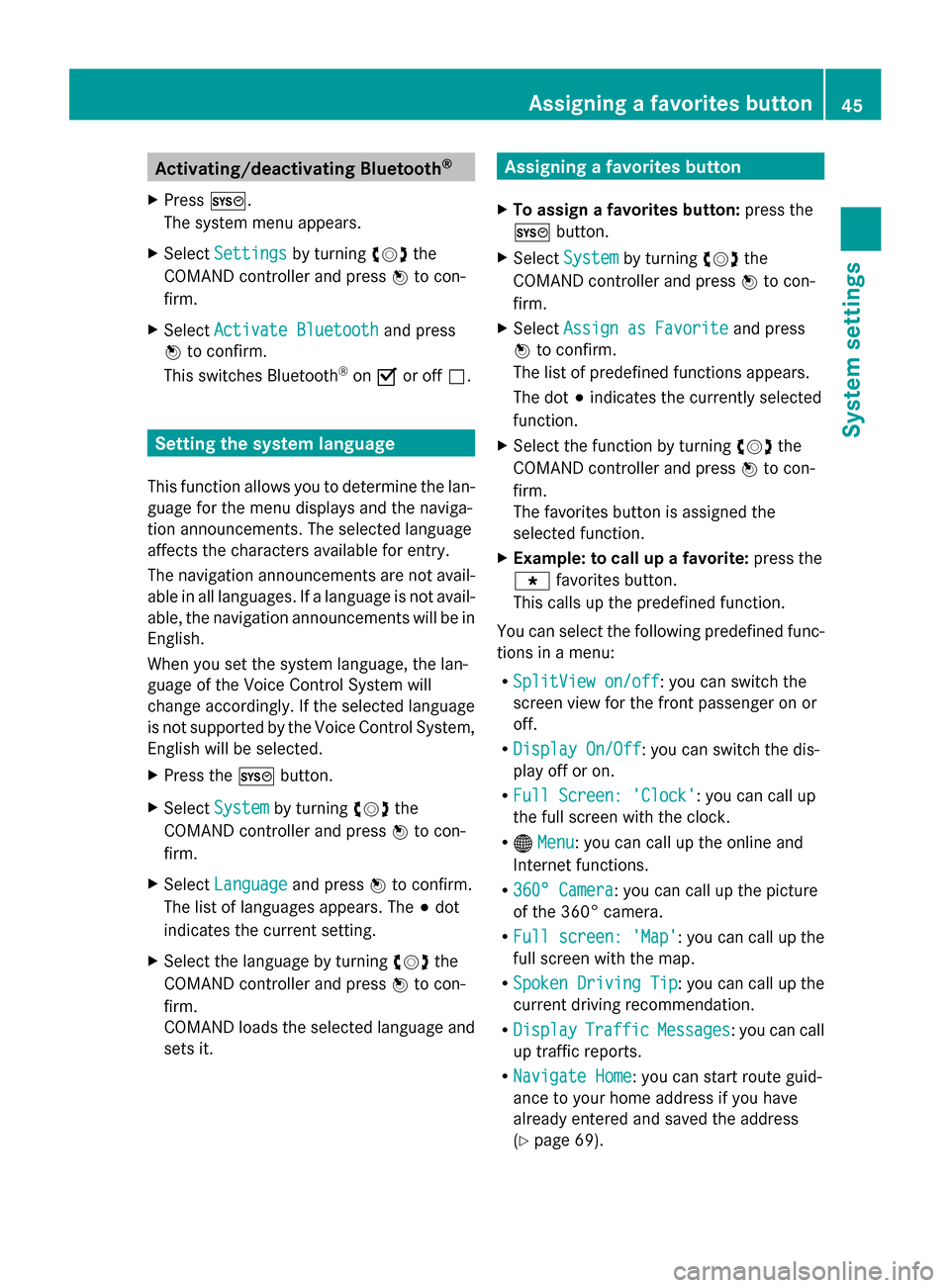
Activating/deactivating Bluetooth
®
X Press 0066.
The system menu appears.
X Select Settings
Settings by turning 00790052007Athe
COMAND controller and press 0098to con-
firm.
X Select Activate Bluetooth
Activate Bluetooth and press
0098 to confirm.
This switches Bluetooth ®
on 0073 or off 0053. Setting the system language
This function allows you to determine the lan-
guage for the menu displays and the naviga-
tion announcements. The selected language
affects the characters available for entry.
The navigation announcements are not avail-
able in all languages. If a language is not avail-
able, the navigation announcements will be in
English.
When you set the system language, the lan-
guage of the Voice Control System will
change accordingly. If the selected language
is not supported by the Voice Control System,
English will be selected.
X Press the 0066button.
X Select System
System by turning 00790052007Athe
COMAND controller and press 0098to con-
firm.
X Select Language Language and press0098to confirm.
The list of languages appears. The 003Bdot
indicates the current setting.
X Select the language by turning 00790052007Athe
COMAND controller and press 0098to con-
firm.
COMAND loads the selected language and
sets it. Assigning a favorites button
X To assign a favorites button: press the
0066 button.
X Select System System by turning 00790052007Athe
COMAND controller and press 0098to con-
firm.
X Select Assign as Favorite
Assign as Favorite and press
0098 to confirm.
The list of predefined functions appears.
The dot 003Bindicates the currently selected
function.
X Select the function by turning 00790052007Athe
COMAND controller and press 0098to con-
firm.
The favorites button is assigned the
selected function.
X Example: to call up a favorite: press the
007D favorites button.
This calls up the predefined function.
You can select the following predefined func-
tions in a menu:
R SplitView on/off SplitView on/off : you can switch the
screen view for the front passenger on or
off.
R Display On/Off Display On/Off : you can switch the dis-
play off or on.
R Full Screen: 'Clock'
Full Screen: 'Clock': you can call up
the full screen with the clock.
R 00A7 Menu Menu: you can call up the online and
Internet functions.
R 360° Camera
360° Camera : you can call up the picture
of the 360° camera.
R Full screen: 'Map'
Full screen: 'Map' : you can call up the
full screen with the map.
R Spoken Driving Tip
Spoken Driving Tip : you can call up the
current driving recommendation.
R Display
Display Traffic
TrafficMessages
Messages : you can call
up traffic reports.
R Navigate Home
Navigate Home: you can start route guid-
ance to your home address if you have
already entered and saved the address
(Y page 69). Assigning a favorites button
45System settings
Page 51 of 270
Your COMAND equipment
..................50
Climate control status display ...........50
Fuel consumption indicator ...............50
ON&OFFROAD display .........................51
Driving conditions menu (Active
Body Control) ....................................... 51
Seat functions ..................................... 52
Rear view camera ............................... 55
Night View Assist Plus .......................56
360° camera ....................................... 56 49Vehicle functions
Page 57 of 270

X
Turn 00790052007A or slide 009700520064the COMAND con-
troller and press 0098to confirm.
The massage function runs for approx-
imately 15 to 25 minutes, depending on the
setting.
X To exit the menu: press the003Dback
button.
Adjusting the driving dynamics This function is available on vehicle model
series with a dynamic multicontour seat. X
Select the seat (Y page 52).
X Select Dynamic Seat
Dynamic Seat by turning00790052007Athe
COMAND controller and press 0098to con-
firm.
A scale appears.
You can select:
R 0 0: Off
R 1
1: level 1 (medium setting)
R 2
2: level 2 (high setting)
X Turn 00790052007A or slide 009700520064the COMAND con-
troller and press 0098to confirm.
X To exit the menu: press the003Dback
button. Resetting all adjustments
X
Select the seat (Y page 52).
X Select Reset All
Reset All by turning00790052007Athe
COMAND controller and press 0098to con-
firm.
A prompt appears.
X Select Yes YesorNo
No and press 0098to confirm.
If you select No
No, the process will be can-
celed.
After you select Yes Yes, all seat adjustments
are reset to the default values (factory set-
ting). Rear view camera
The rear view camera is only an aid. It is not
a replacement for your attention to your
immediate surroundings. You are always
responsible for safe maneuvering and park-
ing. When maneuvering or parking, make sure
that there are no persons, animals or objects
in the area in which you are maneuvering.
The image from the rear view camera is
shown in the COMAND display when reverse
gear is engaged if:
R your vehicle is equipped with a rear view
camera.
R COMAND is switched on
R the Activation by R gear Activation by R gear function is
activated.
If the function is activated, the COMAND dis-
play will automatically switch back to the pre- Rear view camera
55Vehicle functions
Page 58 of 270
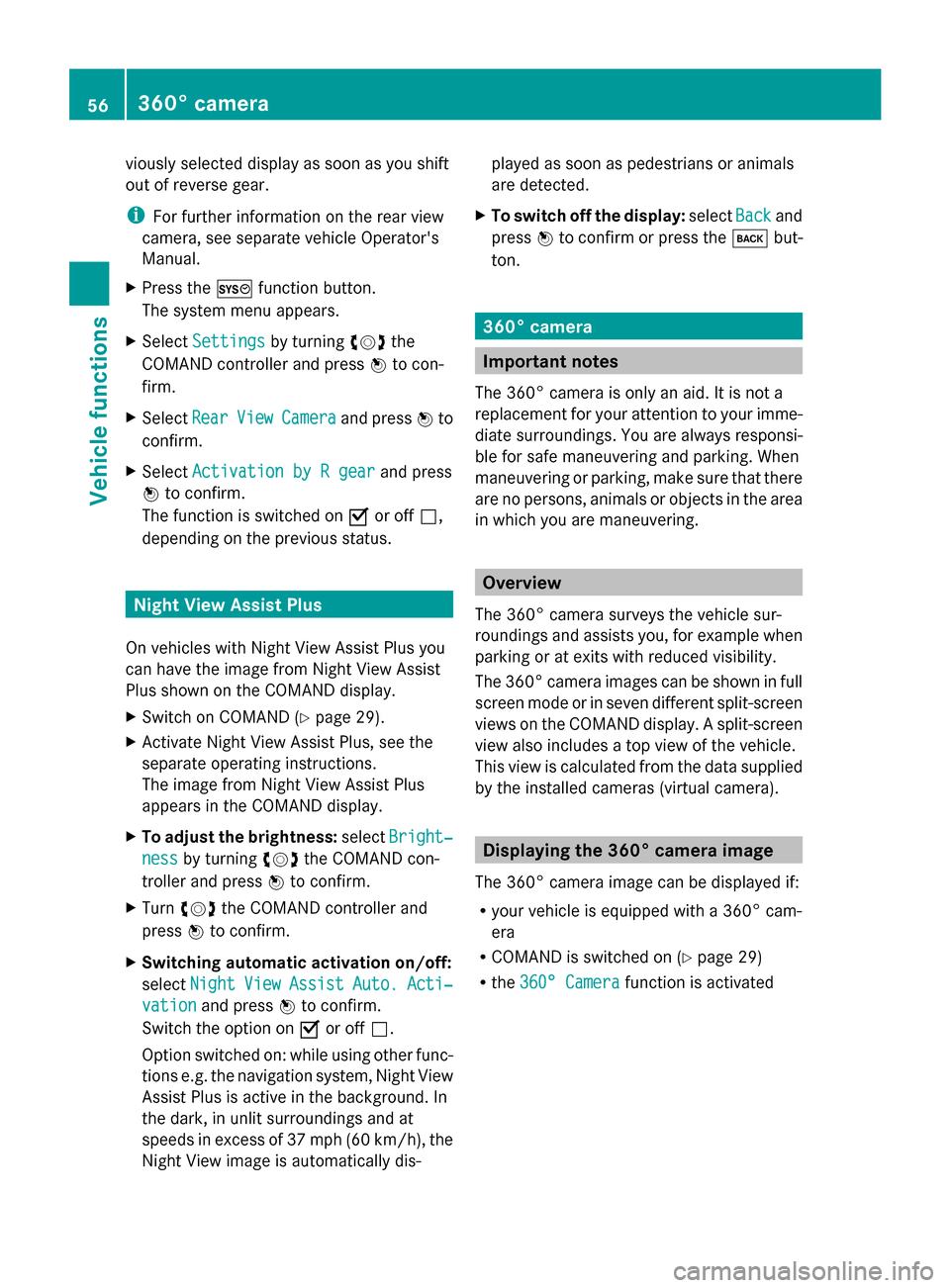
viously selected display as soon as you shift
out of reverse gear.
i For further information on the rear view
camera, see separate vehicle Operator's
Manual.
X Press the 0066function button.
The system menu appears.
X Select Settings
Settings by turning 00790052007Athe
COMAND controller and press 0098to con-
firm.
X Select Rear
Rear View
ViewCamera
Camera and press 0098to
confirm.
X Select Activation by R gear
Activation by R gear and press
0098 to confirm.
The function is switched on 0073or off 0053,
depending on the previous status. Night View Assist Plus
On vehicles with Night View Assist Plus you
can have the image from Night View Assist
Plus shown on the COMAND display.
X Switch on COMAND (Y page 29).
X Activate Night View Assist Plus, see the
separate operating instructions.
The image from Night View Assist Plus
appears in the COMAND display.
X To adjust the brightness: selectBright‐
Bright‐
ness ness by turning 00790052007Athe COMAND con-
troller and press 0098to confirm.
X Turn 00790052007A the COMAND controller and
press 0098to confirm.
X Switching automatic activation on/off:
select Night
Night View
ViewAssist
Assist Auto.
Auto.Acti‐
Acti‐
vation
vation and press 0098to confirm.
Switch the option on 0073or off 0053.
Option switched on: while using other func-
tions e.g. the navigation system, Night View
Assist Plus is active in the background. In
the dark, in unlit surroundings and at
speeds in excess of 37 mph (60 km/h), the
Night View image is automatically dis- played as soon as pedestrians or animals
are detected.
X To switch off the display: selectBack Backand
press 0098to confirm or press the 003Dbut-
ton. 360° camera
Important notes
The 360° camera is only an aid. It is not a
replacement for your attention to your imme-
diate surroundings. You are always responsi-
ble for safe maneuvering and parking. When
maneuvering or parking, make sure that there
are no persons, animals or objects in the area
in which you are maneuvering. Overview
The 360° camera surveys the vehicle sur-
roundings and assists you, for example when
parking or at exits with reduced visibility.
The 360° camera images can be shown in full
screen mode or in seven different split-screen
views on the COMAND display. A split-screen
view also includes a top view of the vehicle.
This view is calculated from the data supplied
by the installed cameras (virtual camera). Displaying the 360° camera image
The 360° camera image can be displayed if:
R your vehicle is equipped with a 360° cam-
era
R COMAND is switched on (Y page 29)
R the 360° Camera 360° Camera function is activated56
360° cameraVehicle functions
Page 59 of 270
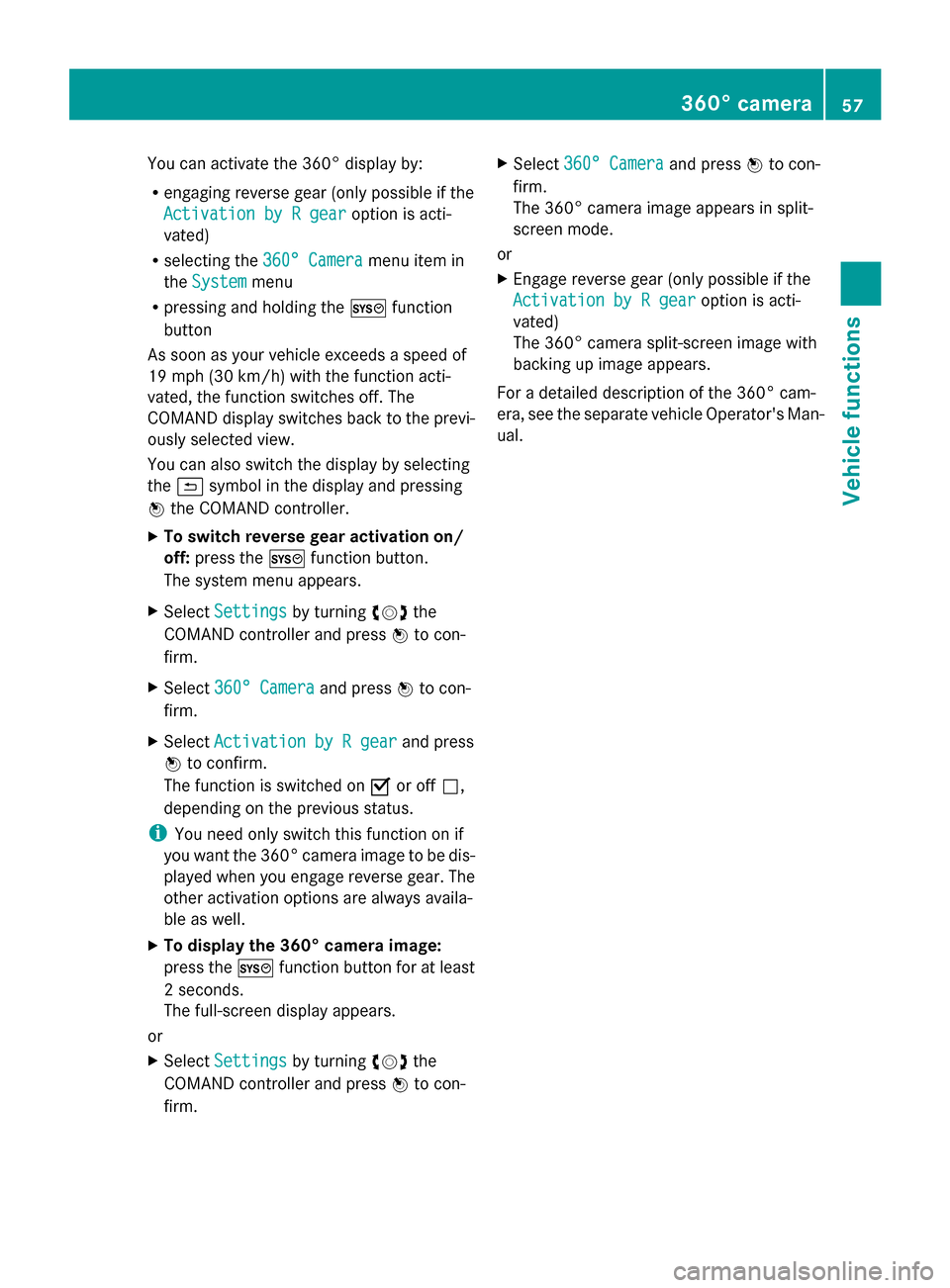
You can activate the 360° display by:
R engaging reverse gear (only possible if the
Activation by R gear
Activation by R gear option is acti-
vated)
R selecting the 360° Camera
360° Camera menu item in
the System
System menu
R pressing and holding the 0066function
button
As soon as your vehicle exceeds a speed of
19 mph (30 km/h) with the function acti-
vated, the function switches off. The
COMAND display switches back to the previ-
ously selected view.
You can also switch the display by selecting
the 0039 symbol in the display and pressing
0098 the COMAND controller.
X To switch reverse gear activation on/
off: press the 0066function button.
The system menu appears.
X Select Settings
Settings by turning 00790052007Athe
COMAND controller and press 0098to con-
firm.
X Select 360° Camera
360° Camera and press0098to con-
firm.
X Select Activation by R gear Activation by R gear and press
0098 to confirm.
The function is switched on 0073or off 0053,
depending on the previous status.
i You need only switch this function on if
you want the 360° camera image to be dis-
played when you engage reverse gear. The
other activation options are always availa-
ble as well.
X To display the 360° camera image:
press the 0066function button for at least
2 seconds.
The full-screen display appears.
or
X Select Settings
Settings by turning 00790052007Athe
COMAND controller and press 0098to con-
firm. X
Select 360° Camera 360° Camera and press0098to con-
firm.
The 360° camera image appears in split-
screen mode.
or
X Engage reverse gear (only possible if the
Activation by R gear
Activation by R gear option is acti-
vated)
The 360° camera split-screen image with
backing up image appears.
For a detailed description of the 360° cam-
era, see the separate vehicle Operator's Man-
ual. 360° camera
57Vehicle functions
Page 231 of 270
Make a selection from the further options,
if necessary.
COMAND then switches back to the DVD
menu.
i Menu items which cannot be selected are
shown in gray.
i Depending on the DVD, the menu items:
Back Back (to
(tothe
the movie)
movie) ,Play
Play, Stop
Stop,004E,
004F orGo up
Go up may either not function at
all or may not function at certain points in
the DVD menu. To indicate this, the 0047
symbol appears in the display.
Moving up one level in the DVD menu X
Show the DVD menu (Y page 228).
X Select the corresponding menu item in the
DVD menu and press 0098the COMAND con-
troller to confirm.
or
X Select any menu item in the DVD menu and
press 0098the COMAND controller to con-
firm.
X Select Go Up Go Upand press 0098to confirm.
Back to the movie X
Press the 003Dback button repeatedly
until you see the movie.
or
X Select the corresponding menu item from
the DVD menu.
X Select the Back Back(to (tomovie)
movie) menu item in
the menu and press 0098to confirm. Setting the language and audio for-
mat
This function is not available on all DVDs. If it
is available, you can set the DVD menu lan-
guage, the audio language or the audio for-
mat. The number of settings is determined by
the DVD content. It is possible that the set-
tings may also be accessed in the DVD menu
(Y page 228). X
Show the DVD menu (Y page 228).
X In full-screen mode, press 0098the COMAND
controller to show the menu.
X Select DVD-Video DVD-Video in the menu by turning
00790052007A the COMAND controller and press
0098 to confirm.
X Select DVD Functions
DVD Functions and press0098to
confirm.
X Select Menu Language Menu Language orAudio Lan‐ Audio Lan‐
guage
guage and press 0098to confirm.
In both cases, a menu appears after a few
seconds. The 003Bdot in front of an entry indi-
cates the currently selected language.
X Select a setting by turning 00790052007Athe
COMAND controller and press 0098to con-
firm. Subtitles and camera angle
These functions are not available on all DVDs.
The number of subtitle languages and camera
angles available depends on the content of
the DVD. It may also be possible to access
the settings from the DVD menu.
X Show the DVD menu (Y page 228).
X Select DVD-Video DVD-Video in the menu by turning
00790052007A the COMAND controller and press
0098 to confirm.
X Select DVD Functions
DVD Functions and press0098to
confirm.
X Select Subtitles
Subtitles orCamera Angle
Camera Angle and
press 0098to confirm.
In both cases, a menu appears. The 003Bdot
in front of an entry indicates the current
setting.
X Select a setting by turning 00790052007Athe
COMAND controller and press 0098to con-
firm. Interactive content
DVDs can contain interactive content (e.g. a
video game). In a video game, for example, Video DVD mode
229Video Z