camera MERCEDES-BENZ M-Class 2014 W166 Comand Manual
[x] Cancel search | Manufacturer: MERCEDES-BENZ, Model Year: 2014, Model line: M-Class, Model: MERCEDES-BENZ M-Class 2014 W166Pages: 270, PDF Size: 5.76 MB
Page 232 of 270
you may be able to influence events by select-
ing and triggering actions. The type and num-
ber of actions depend on the DVD.
X Select an action by sliding 009700520064or009500520096 the
COMAND controller and press 0098to exe-
cute it.
A menu appears and the first entry,
Select
Select , is highlighted.
X Press 0098the COMAND controller. AUX video mode
Connecting external video sources
External video sources may have different
volumes, which can mean that system mes-
sages such as traffic announcements and
navigation system announcements are much
louder. If necessary, deactivate the system
messages or adjust their volume manually.
If your vehicle is equipped with Media Inter-
face, you can connect an external video
source (AUX video) ( Ypage 213).
The 1/8 inch audio/video jacks are in the
center console stowage compartment.
i In vehicles with a rear view camera, the
AUX video jack cannot be used for external
video sources. Switching to AUX video mode
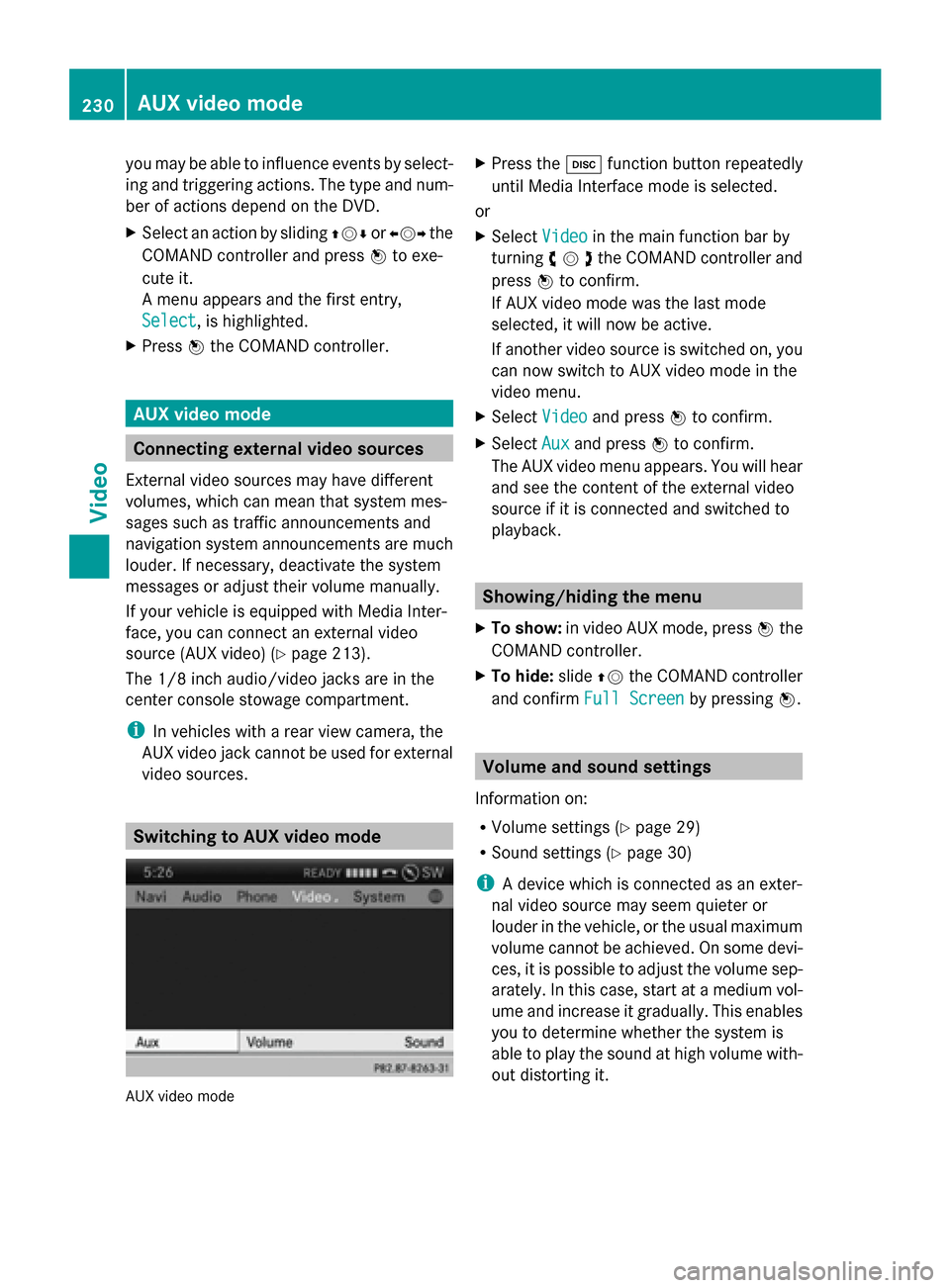
AUX video mode X
Press the 003Afunction button repeatedly
until Media Interface mode is selected.
or
X Select Video
Video in the main function bar by
turning 00790052007Athe COMAND controller and
press 0098to confirm.
If AUX video mode was the last mode
selected, it will now be active.
If another video source is switched on, you
can now switch to AUX video mode in the
video menu.
X Select Video Videoand press 0098to confirm.
X Select Aux
Auxand press 0098to confirm.
The AUX video menu appears. You will hear
and see the content of the external video
source if it is connected and switched to
playback. Showing/hiding the menu
X To show: in video AUX mode, press 0098the
COMAND controller.
X To hide: slide00970052the COMAND controller
and confirm Full Screen Full Screen by pressing0098. Volume and sound settings
Information on:
R Volume settings (Y page 29)
R Sound settings ( Ypage 30)
i A device which is connected as an exter-
nal video source may seem quieter or
louder in the vehicle, or the usual maximum
volume cannot be achieved. On some devi-
ces, it is possible to adjust the volume sep-
arately. In this case, start at a medium vol-
ume and increase it gradually. This enables
you to determine whether the system is
able to play the sound at high volume with-
out distorting it. 230
AUX video modeVideo
Page 242 of 270
Basic functions
Using headphones
You can use the cordless headphones sup-
plied and/or up to two sets of corded head-
phones connected to the corresponding jack
of the rear-compartment screens
(Y page 235).
Information on the cordless headphones
(Y page 237). Using the main loudspeakers
This function is available in conjunction with
COMAND.
You can use the vehicle loudspeakers to lis-
ten to a disc inserted in the rear-compartment
drive. To do so, at least one of the rear-com-
partment screens must be set to disc mode.
X To set on COMAND: press the002Afunc-
tion button to switch on an audio mode.
X Select Audio
Audio by sliding 00970052the COMAND
controller and press 0098to confirm.
The Audio menu appears.
X Select Rear
Rear by turning 00790052007Athe COMAND
controller and press 0098to confirm.
i The headphones' volume setting does not
affect the main loudspeakers. Selecting sound settings
You can select the sound settings in the CD/
audio DVD/MP3, video DVD and AUX modes.
X Switch on an operating mode (e.g. audio
CD mode) (Y page 242).
X Select Treble
Treble orBass Bass using
the 006400590065 buttons on the remote
control and press the 008Bbutton to confirm.
An adjustment scale appears.
X Select a setting using the 00630064but-
tons and press the 008Bbutton to confirm. Multiple users
Simultaneous use of the rear-compart-
ment disc drive The two rear-compartment screens can be
operated almost entirely independently from
one another. However, there can be a conflict
in some menus if the two screens are used
simultaneously.
If the rear-compartment disc drive is being
used for both screens simultaneously, select-
ing certain menus or settings on one of the
screens also affects the other screen.
The following functions affect both screens:
R changing playback options
R selecting a track (from a track list or folder)
R using the play, pause and stop functions
R fast forwarding/rewinding or scrolling
R calling up the DVD menu and navigating
within it
R setting the language, subtitles and camera
angle
R calling up interactive DVD content
The following functions affect only one
screen:
R audio and video functions as well as picture
settings
R switching between full screen and the
menu
Switching between operating modes When you exit an operating mode (e.g. audio
CD mode), the current setting is saved. If you
call up this operating mode again later, there
are two possibilities:
R the operating mode has been changed on
the other screen.
R the operating mode has not been changed.
In the first case, the operating mode appears
as it is on the other screen.
In the second case, the setting appears on the
screen as it was when you last exited the
operating mode. 240
Basic functionsRear Seat Entertainment System
Page 252 of 270
X
Select Audio Language
Audio Language and press the008B
button to confirm.
A menu appears after a short while.
The 0036dot in front of an entry indicates the
currently selected language.
X Select a language using the 00630064but-
tons and press the 008Bbutton to confirm.
X To exit the menu: press the0059
or 0065 button. Subtitles and camera angle
These functions are not available on all DVDs.
The number of subtitle languages and camera
angles available depends on the content of
the DVD. It may also be possible to access
the settings from the DVD menu.
X Press the 008Bbutton on the remote control
and show the menu.
X Select DVD-Video DVD-Video and press the 008Bbutton
on the remote control to confirm.
X Select DVD Functions
DVD Functions and press the008B
button to confirm.
X Select Subtitles
Subtitles orCamera Angle
Camera Angle and
press the 008Bbutton to confirm.
In both cases, a menu appears after a few
seconds. The 0036dot in front of an entry
indicates the current setting.
X Select a setting using the 00630064but-
tons and press the 008Bbutton to confirm.
X To exit the menu: press the0059
or 0065 button. Interactive content
DVDs can also contain interactive content
(e.g. a video game). In a video game, you may
be able to influence events by selecting and
triggering actions. The type and number of
actions depend on the DVD.
X Select an action using the
006300650064 buttons on the remote control and press the
008Bbutton to
execute it.
A menu appears and the first entry,
Select
Select , is highlighted.
X Press the 008Bbutton. Operation with an active COMAND
source
Switching the function on/off in
COMAND
You can transfer an audio or video source
selected in COMAND to the Rear Seat Enter-
tainment System. If you subsequently switch
modes in COMAND, the new source will not
be transmitted to the Rear Seat Entertain-
ment System.
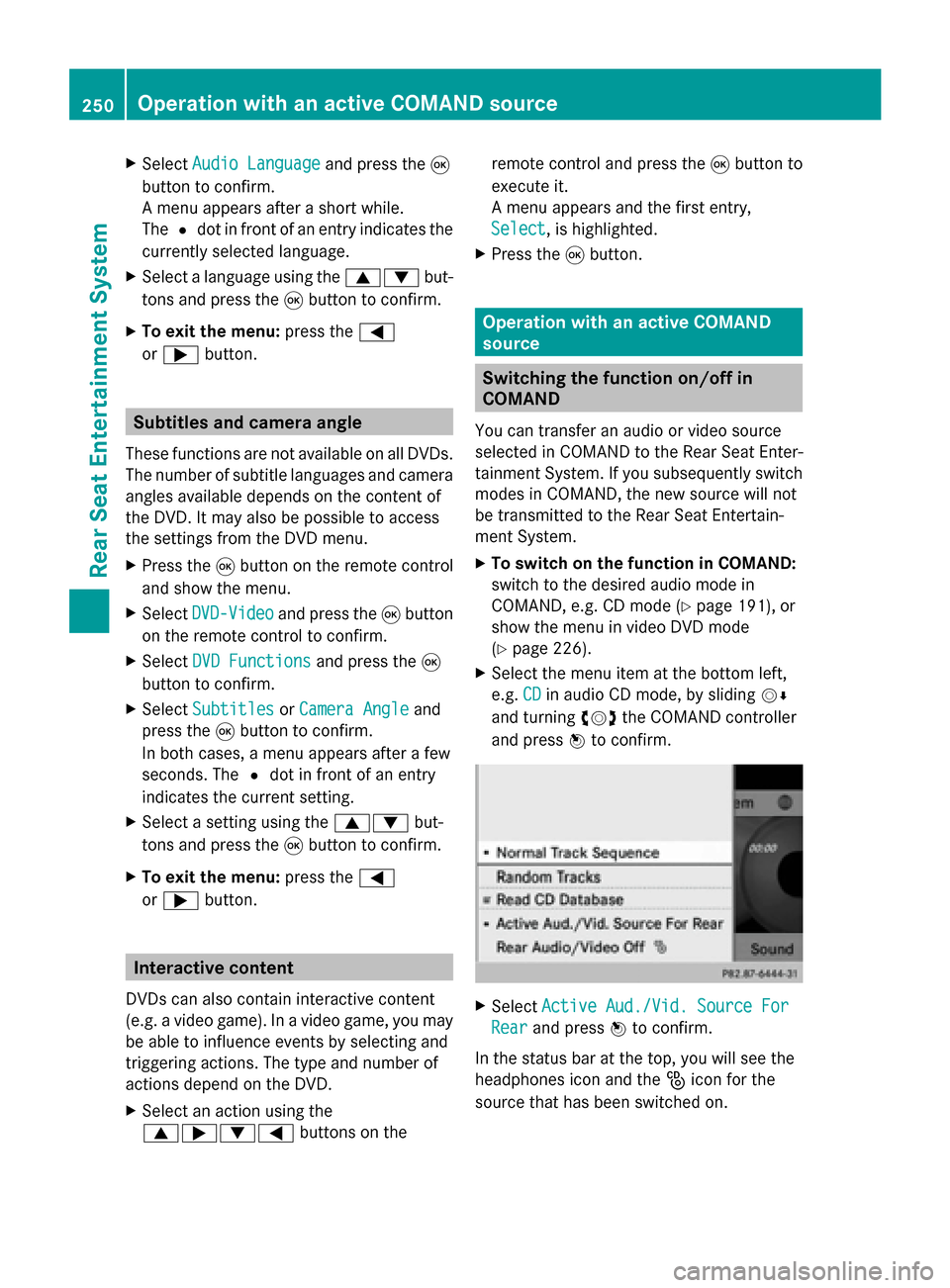
X To switch on the function in COMAND:
switch to the desired audio mode in
COMAND, e.g. CD mode (Y page 191), or
show the menu in video DVD mode
(Y page 226).
X Select the menu item at the bottom left,
e.g. CD CDin audio CD mode, by sliding 00520064
and turning 00790052007Athe COMAND controller
and press 0098to confirm. X
Select Active Aud./Vid. Source For
Active Aud./Vid. Source For
Rear
Rear and press 0098to confirm.
In the status bar at the top, you will see the
headphones icon and the _icon for the
source that has been switched on. 250
Operation with an active COMAND sourceRear Seat Entertainment System