audio MERCEDES-BENZ M-CLASS SUV 2011 User Guide
[x] Cancel search | Manufacturer: MERCEDES-BENZ, Model Year: 2011, Model line: M-CLASS SUV, Model: MERCEDES-BENZ M-CLASS SUV 2011Pages: 389, PDF Size: 9.22 MB
Page 238 of 389
or on bridges. If you do not adapt your driving
style to the conditions, the vehicle coul dskid.
For this reason, adapt your driving style and
speed to the weather conditions.
Changes in the outside temperature are dis-
playe dafter ashort delay. Speedometer wit
hsegments
The segment sinthe speedometer indicate
whic hspeed range is available.
Cruise control (Y page 170) activated:
The segment slight up from the stored speed
to the maximum speed.
Variable SPEEDTRONI C(Ypage 172) activa-
ted:
The segment slight up from the start of the
scale to the selected limit speed.
DISTRONIC PLU S(Ypage 174) activated:
One or two segment sinthe set speed range
light up.
DI ST RONIC PLUS detects avehicle in front:
The segment sbetween the speed of the vehi-
cle in front and the stored speed light up. Opera
ting th eon-board computer
Overview The on-board computer is activated as soon
as you tur nthe key to position 1in the ignition
lock.
You can con trol the multifunc tion display and
the settings in the on-boar dcomputer using
the button sonthe multifunc tion steering
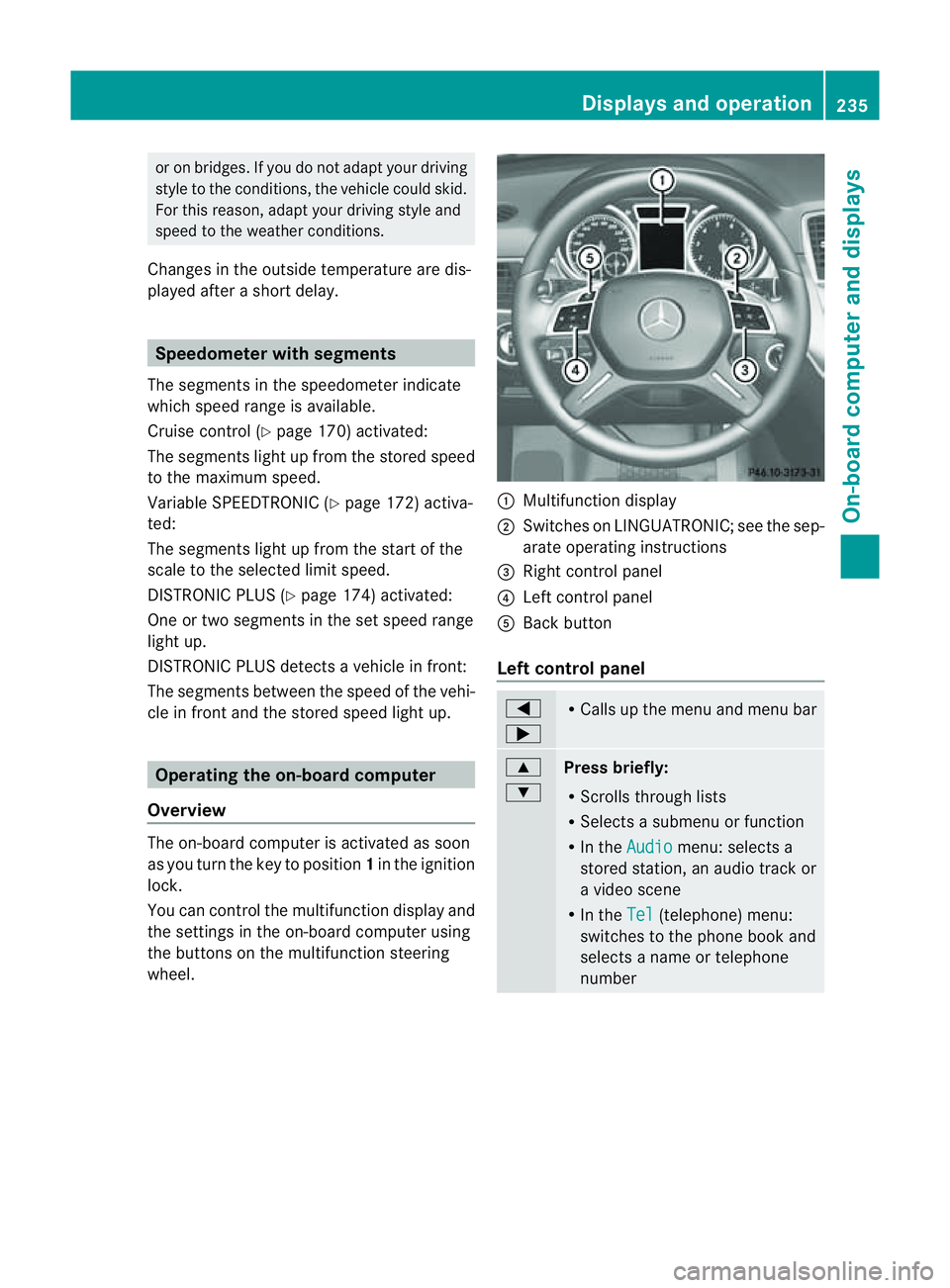
wheel. :
Multifunc tion display
; Switches on LINGUATRONIC ;see the sep-
arate operating instructions
= Right control panel
? Leftcontrol panel
A Bac kbutton
Left control panel =
; R
Call supt he men uand menu bar 9
:
Pres
sbriefly:
R Scrolls throug hlists
R Select sasubmenu or function
R In the Audio menu: selects a
stored station, an audio track or
av ideo scene
R In the Tel (telephone) menu:
switches to the phone book and
selects aname or telephone
number Displays and operation
235On-boardcomputer and displays Z
Page 239 of 389
9
:
Press and hold:
R
In the Audio menu: select
sthe
previous/next station or selects
an audio track or avideo scene
using rapid scrolling
R In the Tel (telephone) menu:
starts rapid scrolling through the
phone book a R
Confirms selection/display mes-
sage
R In the Tel (telephone) menu:
switches to the telephone book
and starts dialling the selected
number
R In the Audio menu: stops the
station search func tion at the
desire dstation Right control panel
~ R
Rejects or ends acall
R Exit stelephone book/redial
memory 6 R
Makes or accepts acall
R Switches to the redial memory W
X R
Adjusts the volume 8 R
Mute Back button
%
Press briefly:
R
Back
R Switches off LINGUATRONIC
R Hides display message sorcalls
up the last Trip menu function
used
R Exit sthe telephone book/redial
memory %
Press and hold:
R
Calls up the standar ddisplay in
the Trip menu
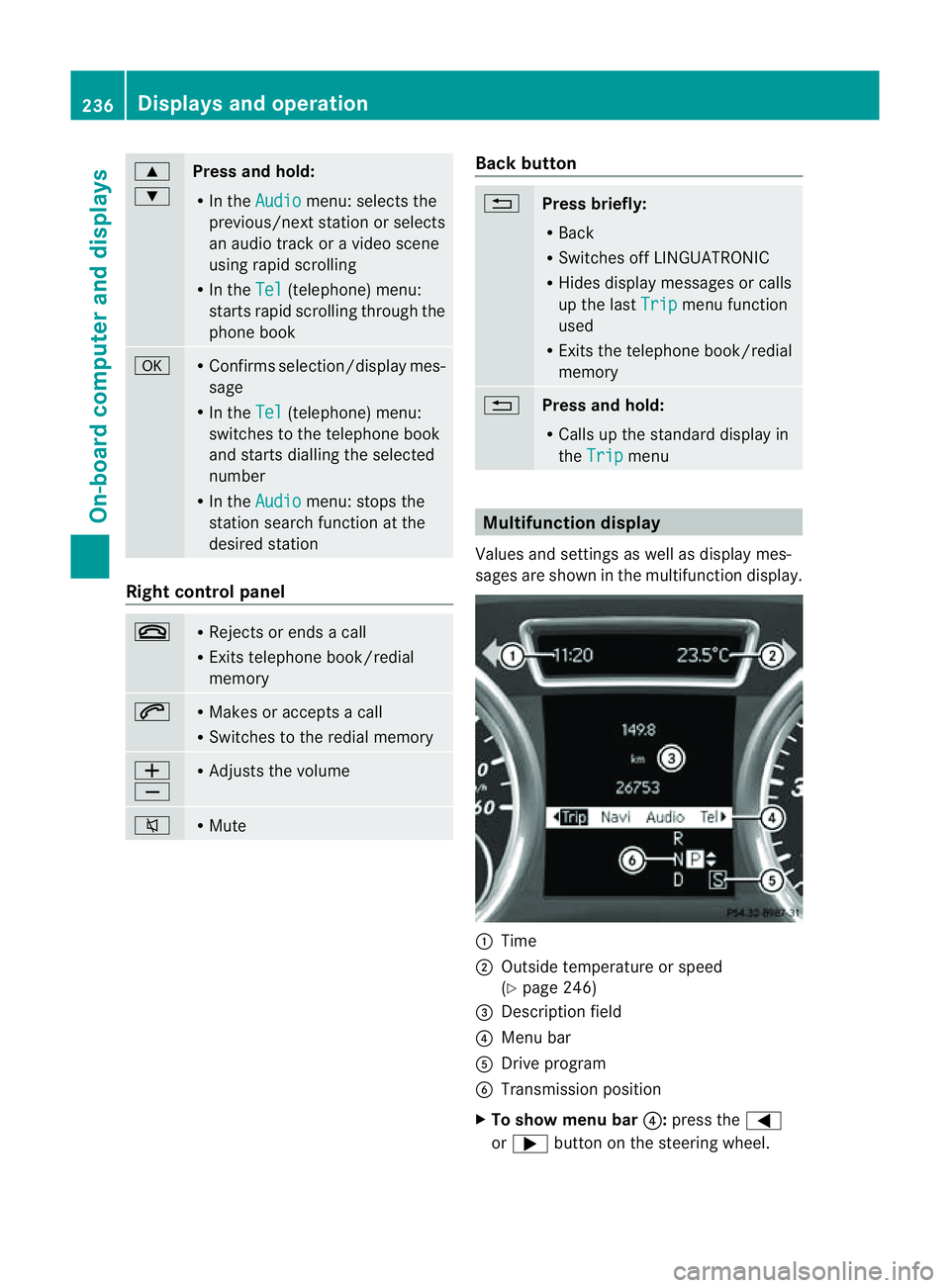
Multifunction display
Values and settings as well as display mes-
sages are shown in the multifunction display. :
Time
; Outside temperature or speed
(Ypage 246)
= Description field
? Menu bar
A Driv eprogram
B Transmission position
X To sho wmenu bar ?:press the =
or ; button on the steering wheel. 236
Displays and operationOn-board computer and displays
Page 241 of 389
Menus and submenus
Men
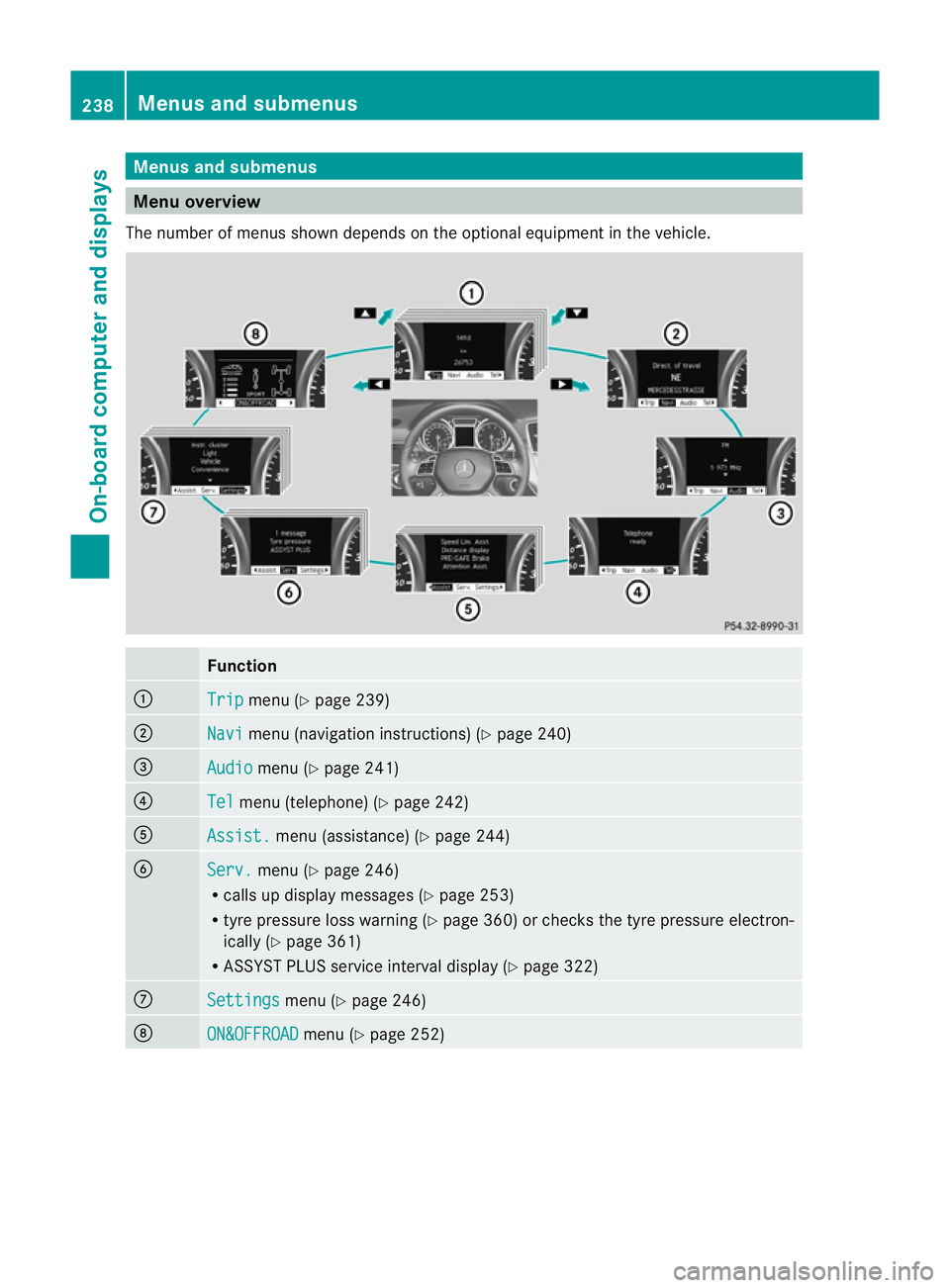
uoverview
The number of menu sshown depends on the optional equipment in the vehicle. Function
:
Trip menu (Y
page 239) ;
Navi menu (navigation instructions) (Y
page 240)=
Audio menu (Y
page 241) ?
Tel menu (telepho
ne)(Y page 24 2) A
Assist. me
nu (assistance) (Y page244) B
Serv. menu (Y
page246)
R call supd isplay messages (Y page 253)
R tyre pressure loss warnin g(Ypage 36 0)or checks the tyr epressure elect ron-
ically (Y page361)
R ASSYST PLUS service interval display (Y page322) C
Settin
gs menu (Y
page 246) D
ON&OFFROAD menu (Y
page 252) 238
Menus an
dsubmenusOn-board computer and displays
Page 242 of 389
The
Audio ,
Navi and
Tel menus differ slightly in vehicles with an audio system and vehicles
with COMAN DOnline. The example sgiven in this Owner' sManual apply to vehicles equipped
with COMAND Online. Trip menu
Standard display X
Press and hold the %button on the
steering wheel until the Trip menu with
total distance recorder :and trip
meter ;is shown.
Trip computer "From start" or "From
reset" The values in the
From start submenu are
calculated from the start of ajourney, whilst
the values in the From reset submenu are
calculated from the last tim ethe submenu
was reset (Y page 240).
X Press the =or; button on the steer-
ing wheel to selec tthe Trip menu.
X Press 9or: to select From start or
From reset .
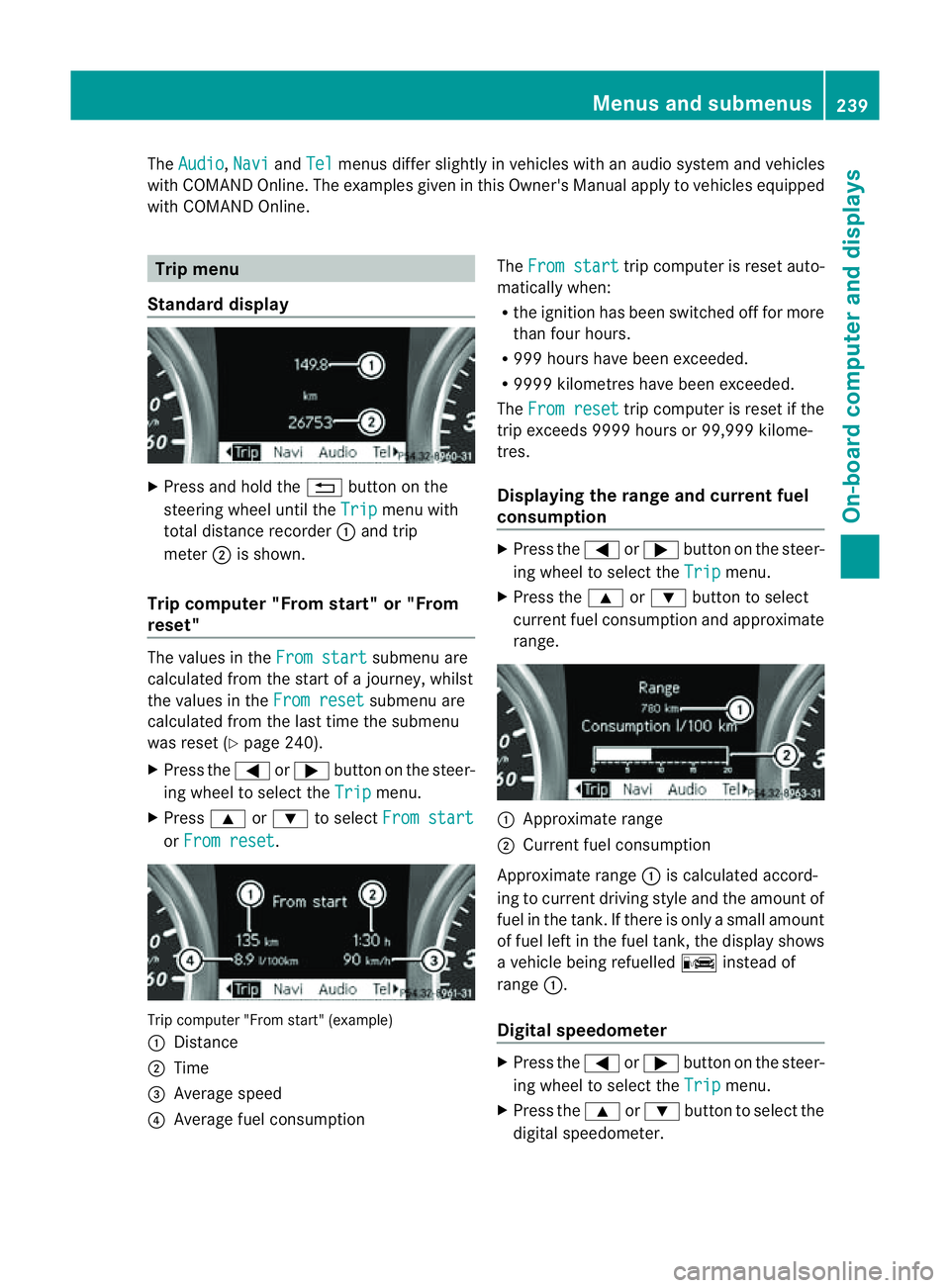
Tri
pc omputer "From star t"(example)
: Distance
; Time
= Average speed
? Average fuel consumption The
From start trip computer is reset auto-
matically when:
R the ignition has been switched off for more
than four hours.
R 999 hours have been exceeded.
R 999 9kilometres have been exceeded.
The From reset trip computer is reset if the
trip exceeds 999 9hour sor9 9,999 kilome-
tres.
Displaying the rang eand cur rent fuel
consumption X
Press the =or; button on the steer-
ing wheel to select the Trip menu.
X Press the 9or: button to select
curren tfuel consumption and approximate
range. :
Approximate range
; Current fuel consumption
Approximate range :is calculated accord-
ing to curren tdriving style and th eamount of
fue lint he tank. If ther eisonlyasmal lamount
of fue lleft in the fuel tank ,the display shows
av ehicle being refuelled Cinstead of
range :.
Digital speedometer X
Press the =or; button on the steer-
ing whee ltoselect the Trip menu.
X Press the 9or: button to select the
digital speedometer. Menus and submenus
239On-boardcomputer and displays Z
Page 243 of 389
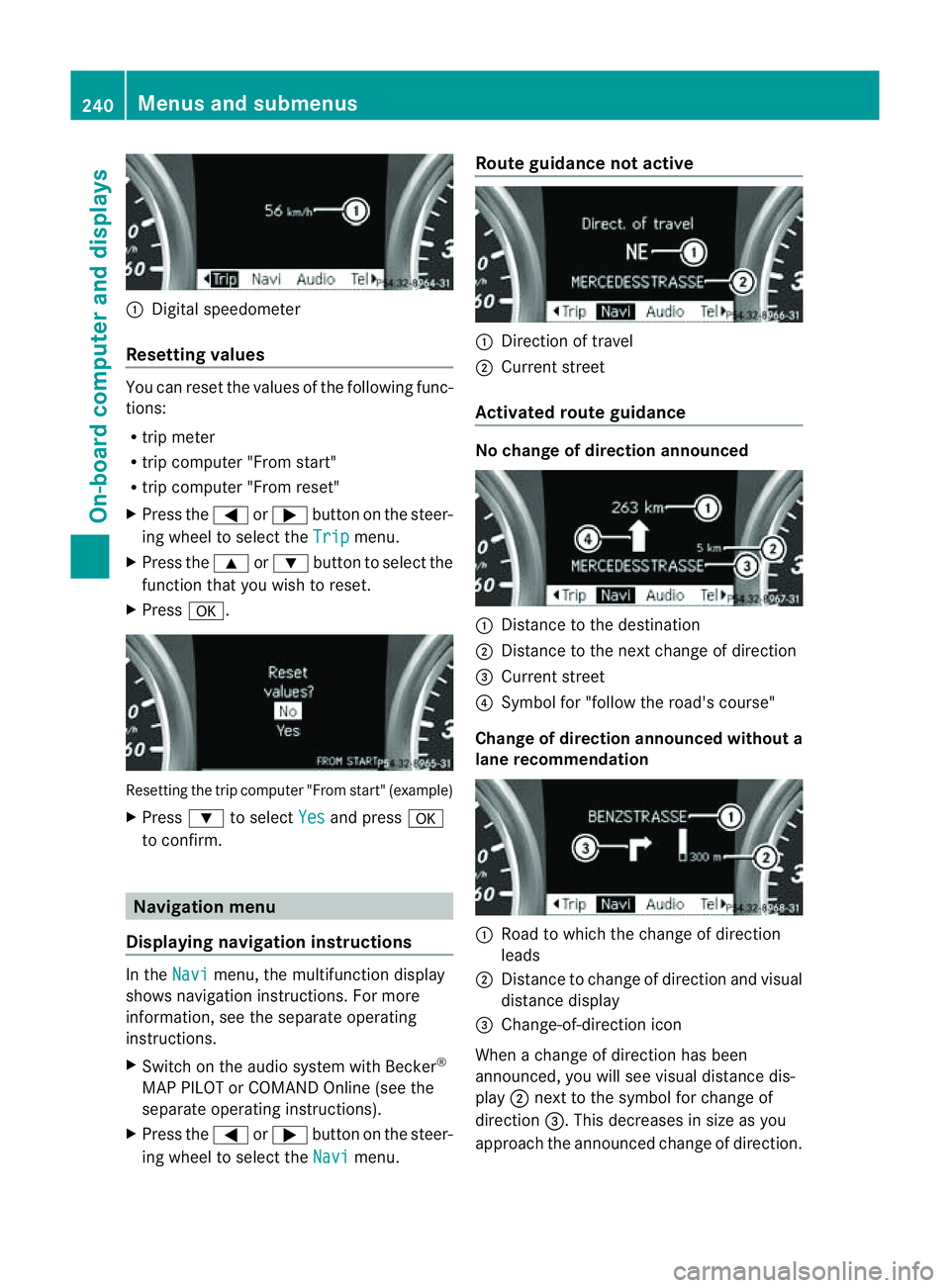
:
Digita lspeedom eter
Resetting values Yo
uc an reset the values of the following func-
tions:
R trip meter
R trip compute r"From start"
R trip co mputer"From reset"
X Press the =or; buttononthe steer-
ing whee ltoselect theTrip menu.
X Press the 9or: button to select the
functio nthat you wish to reset.
X Press a. Resettin
gthe trip computer "From start" (example)
X Press :to select Yes and press
a
to confirm. Naviga
tion menu
Displaying navigation instructions In the
Navi menu, the multifunction display
shows navigation instruc tions. For more
information ,see the separate operating
instructions.
X Switch on the audio system with Becker ®
MAP PILOT or COMAN DOnline (se ethe
separate operating instructions).
X Press the =or; button on the steer-
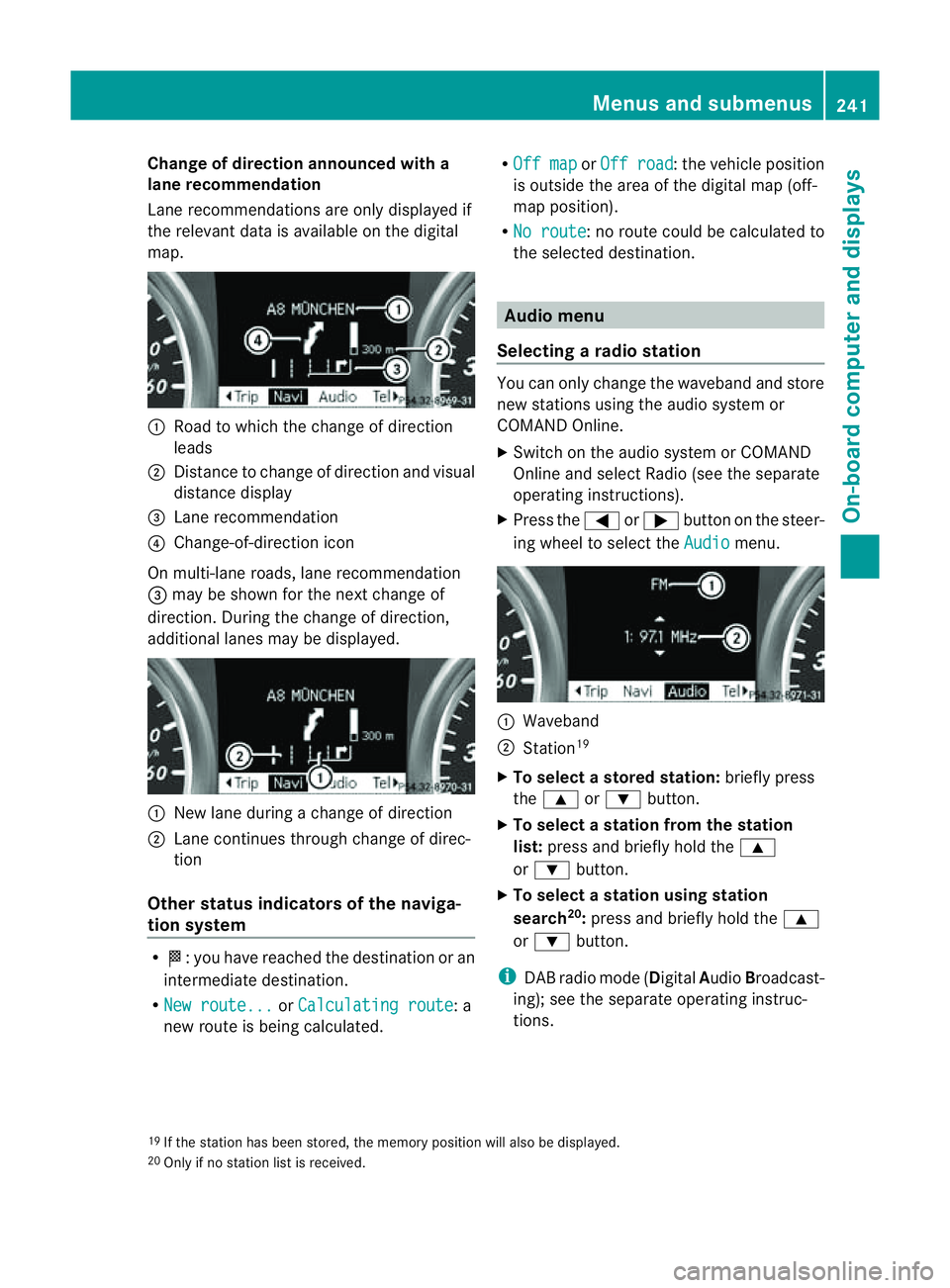
ing wheel to selec tthe Navi menu.Route guidance not active
:
Direction of travel
; Curren tstreet
Activated route guidance No change of direction announced
:
Distance to the destination
; Distance to the next change of direction
= Current street
? Symbol for "follo wthe road' scourse"
Change of direction announced without a
lane recommenda tion :
Road to which the change of direction
leads
; Distanc etochange of direction and visual
distanc edisplay
= Change-of-direction icon
When achange of direction has been
announced, you will see visual distanc edis-
play ;next to the symbol for change of
direction =.This decreases in size as you
approach the announced change of direction. 240
Menu
sand submenusOn-board computer and displays
Page 244 of 389
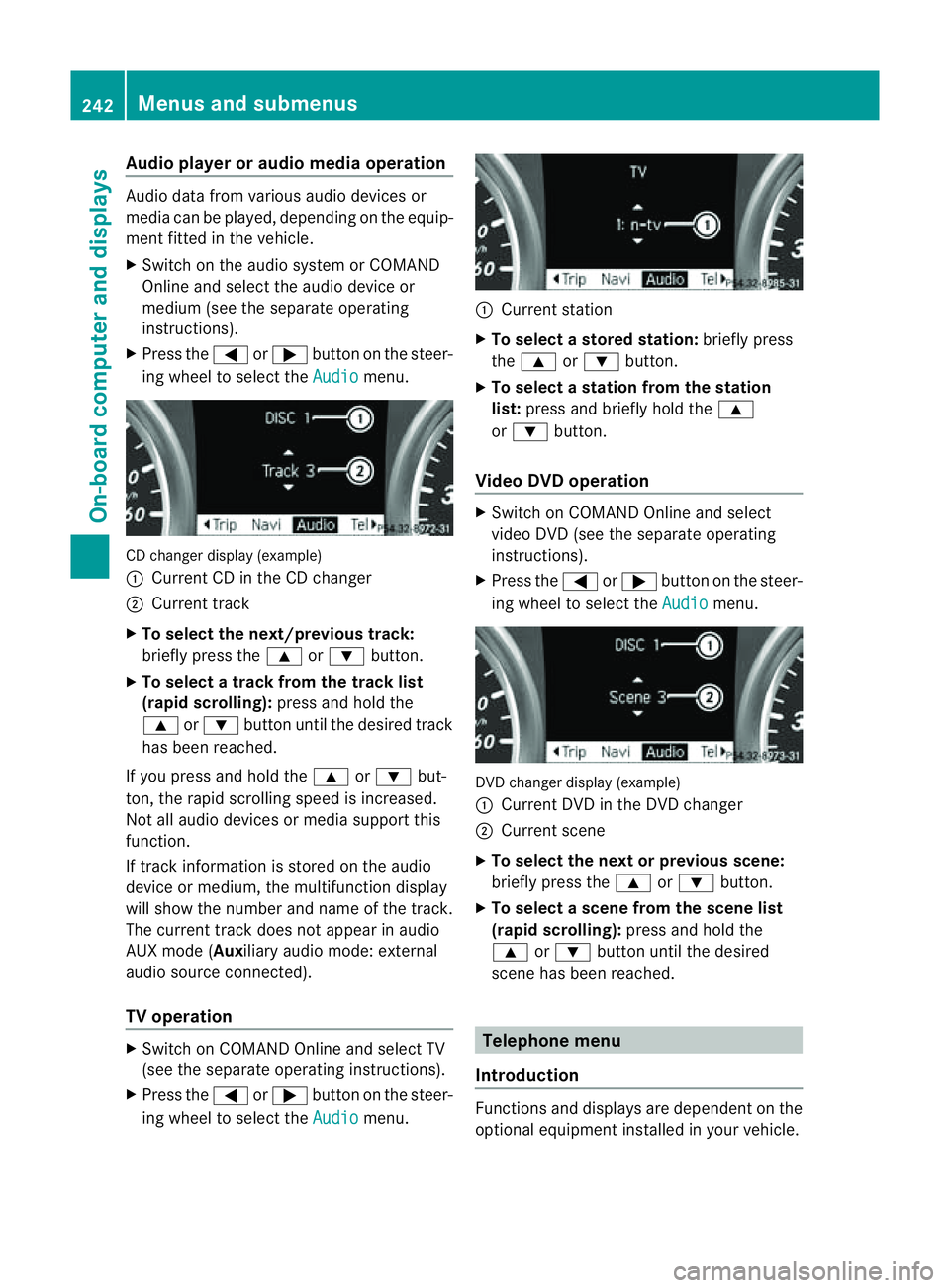
Change of direction announced with a
lane recommend
ation
Lan erecommendations are only displaye dif
the relevan tdata is available on thed igital
map. :
Road to which the change of direction
leads
; Distanc etochange of direction and visual
distanc edisplay
= Lane recommendation
? Change-of-direction icon
On multi-lane roads, lane recommendation
= may be shown for the next change of
direction. Durin gthe change of direction,
additiona llanes may be displ ayed. :
New lane durin gachange of direction
; Lane con tinues throug hchange of direc-
tion
Other sta tusindicators of the naviga-
tion system R
O:y ou have reached the destination or an
intermediate destination.
R Ne wr oute... or
Calculating route :a
new route is being calculated. R
Off map or
Off road :t
he vehicle position
is outside the area of the digital ma p(off-
ma pp osition).
R No route :nor
oute coul dbecalculated to
the selected destination. Audio menu
Selectin garadio station Yo
uc an only change the waveband and store
new stations using the audio system or
COMAND Online.
X Switch on the audio system or COMAND
Online and select Radio (se ethe separate
operating instructions).
X Press the =or; button on the steer-
ing wheel to select the Audio menu.
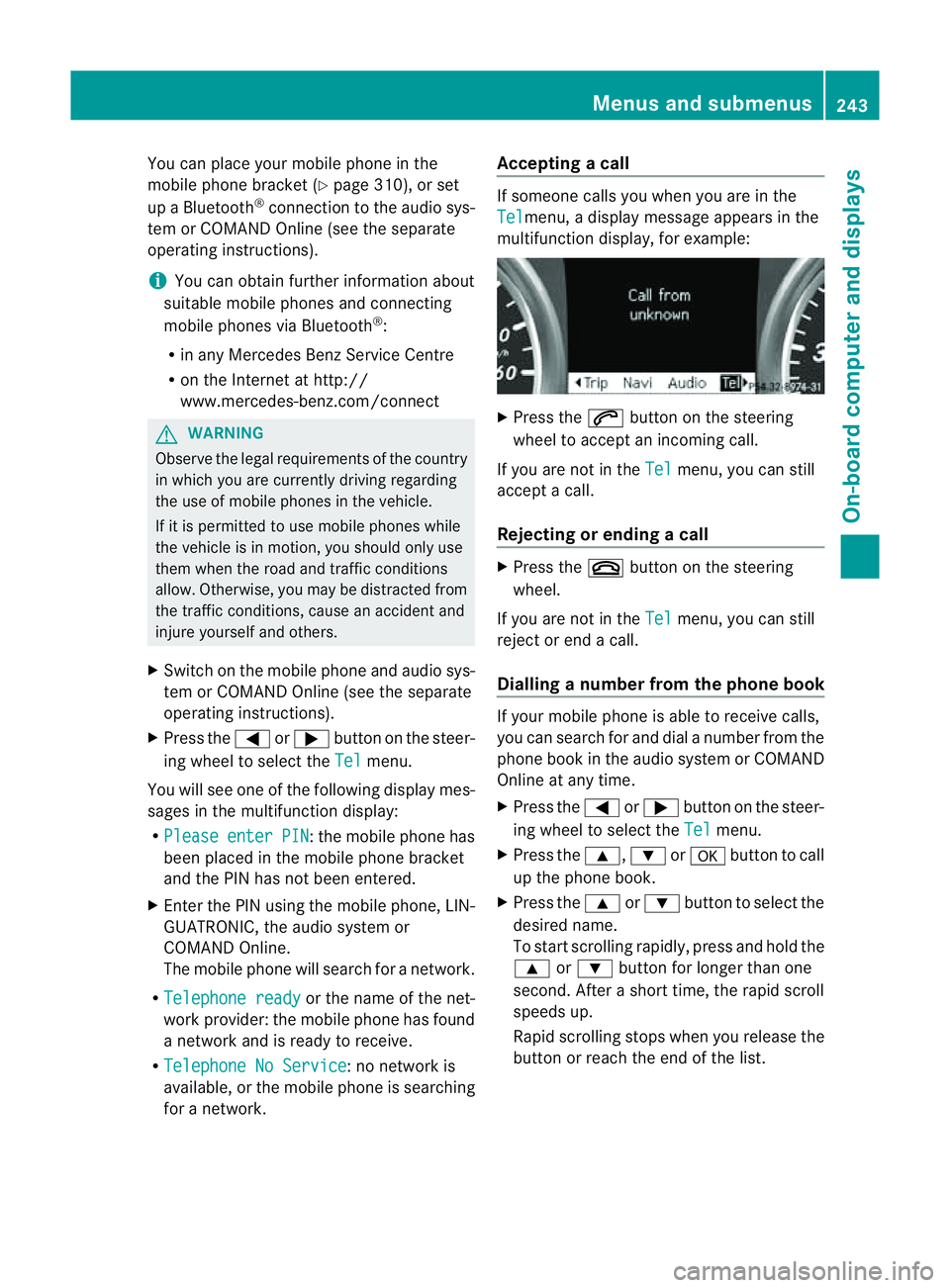
:
Wav eband
; Station 19
X To selec tastoredstation: brieflypress
the 9 or: button.
X To select astation from the station
list: press and briefl yholdt he 9
or : button.
X To select astatio nusing station
search 20
:press and briefl yholdt he 9
or : button.
i DAB radio mode ( DigitalAudioBroadc ast-
ing); see the separate operating instruc-
tions.
19 If the statio nhas been stored ,the memory po sition will also be displayed.
20 Onl yifnos tation list is received. Menus and submenus
241On-boardcomputer and displays Z
Page 245 of 389
Audio player or audio media operation
Audio dat
afromv arious audio device sor
media can be played, depending on the equip-
ment fitted in the vehicle.
X Switch on the audio system or COMAND
Online and select the audio de vice or
medium (see the separat eoperating
instructions).
X Press the =or; buttononthe steer-
ing wheel to selec tthe Audio menu.
CD changer display (example)
:
Curren tCDint he CD changer
; Curren ttrack
X To sele ctthe next/previous track:
bri efly press the 9or: button.
X To select atrack from the track list
(rapid scrolling): press and holdthe
9 or: button until the desired track
has been reached.
If you press and hold the 9or: but-
ton ,the rapi dscrolling spee disincreased.
Not al laudi od evices or media support this
function.
If track information is stored on the audio
device or medium, the multifunction display
will show the numbe rand name of the track.
The current track does no tappear in audio
AU Xm ode (Auxiliar yaudio mode: external
audio source connected).
TV operation X
Switch on COMAND Online and select TV
(see the separate operating instructions).
X Press the =or; button on the steer-
ing wheel to select the Audio menu. :
Current station
X To select astore dstation: brieflypress
the 9 or: button.
X To select astation from the station
list: press and briefl yholdt he 9
or : button.
Vid eoDVD operation X
Switch on COMAND Online and select
video DVD (see the separate operating
instructions).
X Press the =or; button on the steer-
ing whee ltoselect the Audio men
u. DVD change
rdisplay (example)
: Curren tDVD in th eDVD changer
; Current scene
X To select the next or previous scene:
briefl ypres sthe 9 or: button.
X To selec tascene from th escene list
(rapid scrolling): press and hold the
9 or: button until th edesired
scene ha sbeenr eached. Telephon
emenu
Introdu ction Functions and display
sare dependen tonthe
optional equipmen tinstalled in your vehicle. 242
Menus and submenusOn-board computer and displays
Page 246 of 389
You can place your mobile phone in the
mobile phone bracket (Y
page 310), or set
up aB luetooth ®
connection to the audio sys-
tem or COMAN DOnline(see the separate
operating instructions).
i You ca nobtain fur ther information about
suitabl emobile phones and connecting
mobile phones via Bluetooth ®
:
R in any Mercedes Ben zServic eCentre
R on the Internet at http://
www.mercedes-benz.com/connect G
WAR
NING
Observe the lega lrequir ements of the country
in which you are cur rently drivin gregarding
the use of mobile phones in the vehicle.
If it is permitted to use mobile phones while
the vehicle is in motion, you should only use
the mw hen the roa dand traffic conditio ns
allow. Otherwise, you may be distrac tedf rom
th et raffic conditions, caus eanaccident and
injure yourself and others.
X Switch on the mobile phone and audi osys-
tem or COMAND Online (see the separate
operating instructions).
X Press the =or; button on the steer-
ing whee ltoselect the Tel men
u.
Yo uw ills ee one of the following display mes-
sage sint he multifunction display:
R Please enter PIN :t
he mobile phone has
been placed in the mobile phone bracket
and the PIN has not been entered.
X Enter the PIN usin gthe mobile phone, LIN-
GUATRONIC ,the audio system or
COMAN DOnline.
The mobil ephone will search for anetwor k.
R Telephon eready or th
ename of the net-
work provider: the mobile phone has found
an etwor kand is ready to receive.
R Telephone No Service :non
etwor kis
available, or the mobile phone is searching
for anetwor k. Accepting
acall If someone call
syou when you are in the
Tel menu,
adisplay message appears in the
multifunction display ,for example: X
Press the 6button on the steering
wheel to accept an incomin gcall.
If you are not in the Tel menu, you can still
accept acall.
Rejecting or ending acall X
Press the ~buttonont he steer ing
wheel.
If you are not in the Tel menu, you can still
reject or end acall.
Dialling anumbe rfrom the phone book If you
rmobile phone is able to receive calls,
you can search for and dial anumber from the
phone book in the audio system or COMAND
Online at any time.
X Press the =or; button on the steer-
ing wheel to select the Tel menu.
X Press the 9,:ora button to call
up the phone book.
X Press the 9or: button to select the
desired name.
To start scrolling rapidly ,pres sand hol dthe
9 or: button for longer than one
second. After ashort time, the rapid scroll
speeds up.
Rapid scrolling stops when you release the
button or reach the end of the list. Menu
sand submenus
243On-boardcomput er anddisplays Z
Page 314 of 389
healt
hofothers. Using an exterior aerial takes
into account current scientific discussions
relating to the possibl ehealth risk posed by
electromagnetic fields.
Mercedes-Ben zrecom mends the use of an
approved exterior aerial .This ensures:
R optimal mobile phone reception quality in
the vehicle
R mutua linfluences between the vehicle
electronics and mobil ephones ar emini-
mised
An exterior aerial has the following advan-
tages:
R it conducts the electromagnetic fields gen-
erated by awireless device to the exterior.
R the field strengt hinthe vehicle interior is
lower than in avehicle that does not have
an exterior aerial.
i There are various mobile phone brac kets
that may be fitted to your vehicle ;insome
cases, these ar ecountry-specific.
i Even if your vehicle is equipped with con-
venience telephony, you can connec ta
Blueto oth®
capable mobil ephone to Audio
20 or COMAND Online via the Bluetooth ®
interfac e.
More information on suitabl emobilephones,
mobile phone brackets and on connecting
Bluetooth ®
capable mobile phones to Audio
20 or COMAND Online can be obtained:
R at your Merc edes-Ben zServ iceC entre
R on the Internet at http://www.mercedes-
benz.com/connect
i The functions and service savailab lewhen
you use the phone depend on you rmobile
phone model and service provider. Inserting th
emobile phone X
Open the telephone compartment
(Y page 298).
X If required by the design of the mobile
phone bracket ,instal lthe slidin gadapter
(Y page 312).
X Insert the mobile phone into the mobile
phone bracket (see the separat emobile
phone bracke tinstallatio ninstructions).
If the mobil ephone is inser tedint he mobile
phone bracket ,you can speak to the person
you ar ecalling using the hands-free system.
i On some mobile phone brackets, you first
have to connect the mobile phone via Blue-
tooth ®
to am obile phone bracke t(see the
separate operating inst ructions for the
mobile phone bracke t).
On these mobile phone brackets, the
mobile phone does not hav etobeinserted
into the bracket for you to be able to use
the telephone functions .Inthis case ,the
charging func tion and aerial func tion are
not available.
Operating th emobile phone You can operate the telephone using the
6 and~ button sonthe multifunc tion
steering wheel. You can operate other mobile
phone func tions via the on-boar dcomputer
(Y page 242).
If you tak ethe key out of the ignition lock ,the
mobile phone stay sonb ut you can no longer
use the hands-free system.
If you are making acall and you would like to
take the key out of the ignition lock, first
remove the mobile phone from the bracket.
Otherwise, the call will be ended.
i When amobile phone bracke tisu sed that
is con nected to the mobile phone via Blue-
tooth ®
:ify ou wan ttocontinue acall in
"Private mode", you have to perform the
necessary steps on the mobile phone (see Features
311Stowingandfeatures Z
Page 373 of 389
Usefu
linfor mati on
i This Owner's Manual describes all models
and all standard and optional equipment
available to your vehicle at the time of pub-
lication of the Owner's Manual. Country-
specific deviation sare possible .Please
not ethat your vehicle ma ynot be equipped
with all featur es described. This also
applies to safety-releva ntsystems and
functions.
i Please read the information on qualified
specialist workshops (Y page 24).Note
sont hetechnical data
You can fin dtechnica ldatao nthe Internet at:
http://www.mercedes-benz.com
i The technical dat awas determined in
accordance wit hECDirectives. All data
applies to th evehicle's standard equip-
ment. Therefore, th edatam ay differ for
vehicles wit hoptional equipment. You can
obtain further information from a
Mercedes- BenzService Centre. Genuine Mercedes-Ben
zparts
Mercedes-Ben ztests genuin eparts and con-
version parts and accessories which have
been specifically approved for your vehicle for
their reliability, safety and suitability. Despite
ongoing market research, Mercedes -Benz is
unabl etoe valuat eother parts. Mercedes-
Benz therefore accepts no responsibility for
the use of such parts in Mercedes-Ben zvehi-
cles, even if they have been independently or
officially approved.
In Germany and some other coun tries, certain
parts are only officially approved for installa-
tion or modification if they comply with legal
requirements. All genuine Mercedes-Benz
parts meet this requirement .The use of non- approved parts ma
yinvalidat ethe vehicle's
general operating permit. This is the case if:
R they cause achange of the vehicle type
from that for whic hthe vehicle' sgeneral
operating permit was granted.
R other road users could be endangered.
R the emission or noise levels are adversely
affected. G
WARNING
Drivin gsafety may be impaired if non-
approved parts, tyres and wheels or safety-
relevant accessories are used.
This could lead to malfunctions in safety-rel-
evant systems, e.g. the brake system. This
could cause you to lose control of your vehicle
and cause an accident.
For this reason, Mercedes-Benz recommends
that you use genuine Mercedes-Benz parts or
parts of equal quality. Only use tyres, wheels
and accessories that have been specifically
approved for your vehicle.
! Airbags and sea tbelt tensioners, as well
as control unit sand sensors for these
restraint systems may be installed in the
following areas of your vehicle:
R doors
R doo rpillars
R door sills
R seats
R dashboard
R instrument cluster
R centre console
Do not install accessories such as audio
systems in these areas. Do not carr yout
repairs or welding .You coul dimpair the
operating efficie ncyoft he restraint sys-
tems.
Hav eaftermarket accessories installe dat
aq ualified specialist workshop. Mercedes-
Benz recommends that you use a
Mercedes -Benz Ser vice Centre for thi spur-
pose. 370
Genuine Mercedes-Benz partsTechnical data