USB MERCEDES-BENZ METRIS 2016 MY16 Audio Manual
[x] Cancel search | Manufacturer: MERCEDES-BENZ, Model Year: 2016, Model line: METRIS, Model: MERCEDES-BENZ METRIS 2016Pages: 54, PDF Size: 1.33 MB
Page 8 of 54
Selecting playback options .............. 44
Switching folders ............................. 43
SD memory card
Ejecting ............................................ 41
Inserting .......................................... 40
Selecting active partition ................... 44
Setting
Stations ........................................... 38
Volume ............................................ 14
Settings
Adjusting the display ....................... 18
Brightness ........................................ 18
Display design ................................. 18
Language ......................................... 25
Sound settings ................................. 19
Time format ..................................... 18
Specialist workshop .............................. 8
Speed dial
Calling a number .............................. 36
Station list ............................................ 39
Station search ..................................... 38
Stations
Calling up ......................................... 39
Selecting .......................................... 38
Setting manually .............................. 38
Storing ............................................. 39
Storing automatically ....................... 39
Storing manually .............................. 39
Steering wheel with buttons
Overview .......................................... 13
Switching on/off ................................. 14
Switching wavebands (radio) ............. 40
T
Telephone
911 emergency call ......................... 30
Accepting/ending a call ................... 30
Entering phone numbers .................. 31
Important safety notes .................... 30
Making a call .................................... 31
Making a call from a call list ............ 34
Redialing .......................................... 32
Rejecting a call ................................ 31
Rejecting or accepting a waiting
call ................................................... 33
Selecting .......................................... 30 Setting the reception and trans-
mission volume ................................ 33
Switching hands-free system on/
off .................................................... 32
Telephone book
Editing an entry ................................ 36
Time
Setting the format ............................ 18
Tone settings
Balance and fader ............................ 20
Treble and bass ............................... 20
Track
Selecting by skipping to a track ....... 42
Selecting by track number ............... 42
Selecting from a track list ................ 42
Track information ................................ 45
Track list .............................................. 42
Treble
Setting ............................................. 20
U
Unpairing ............................................. 25
USB (Audio)
Connecting a device ........................ 41
Displaying metadata ........................ 44
Displaying track information ............ 45
File structure ................................... 50
Requirements .................................. 50
Selecting .......................................... 41
Selecting a track .............................. 42
Selecting playback options .............. 44
Switching folders ............................. 43
V
VolumeSetting ............................................. 14
6Index
Page 12 of 54
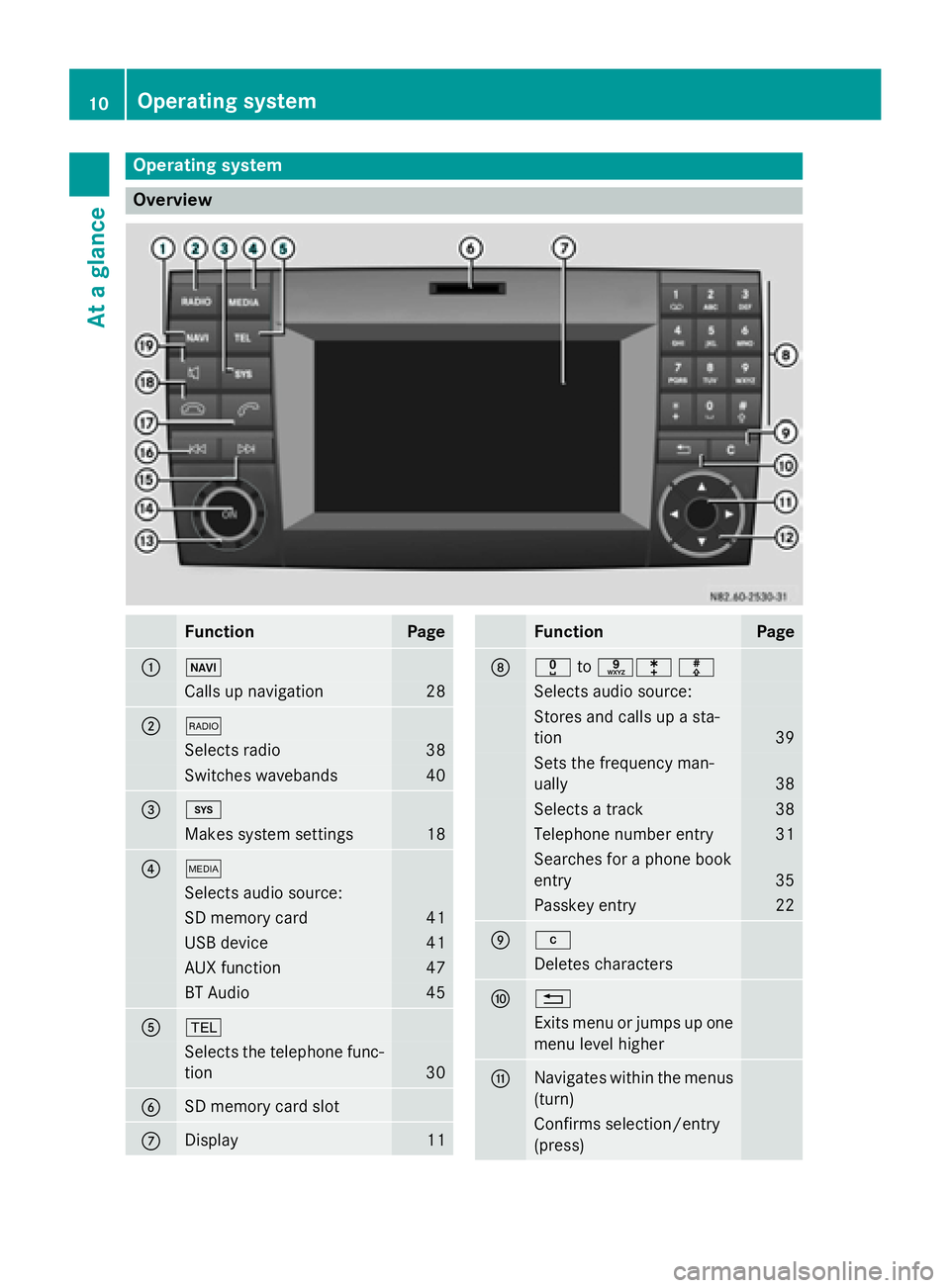
Operating system
Overview
FunctionPage
:Ø
Calls up navigation28
;$
Selects radio38
Switches wavebands40
=i
Makes system settings18
?Õ
Selects audio source:
SD memory card41
USB device41
AUX function47
BT Audio45
A%
Selects the telephone func-
tion
30
BSD memory card slot
CDisplay11
FunctionPage
Dxtoslm
Selects audio source:
Stores and calls up a sta-
tion
39
Sets the frequency man-
ually
38
Selects a track38
Telephone number entry31
Searches for a phone book
entry
35
Passkey entry22
Ej
Deletes characters
F%
Exits menu or jumps up one
menu level higher
GNavigates within the menus
(turn)
Confirms selection/entry
(press)
10Operating system
At a glance
Page 13 of 54
FunctionPage
H9:=;
Navigates within the menus
Station search38
Skip42
Fast forward/rewind43
Io
Sets the volume14
Jq
Switches on/off14
KF
Station search38
Skips forward42
Fast forward43
LE
Station search38
Skips back42
Rewind43
FunctionPage
M6
Accepts a call30
Makes a call31
Redials32
Accepts a waiting call33
N~
Ends a call30
Rejects a call31
Rejects a waiting call33
O8
Mutes audio source14
Pauses SD memory
card/USB device
Switches the hands-free
system on/off
32
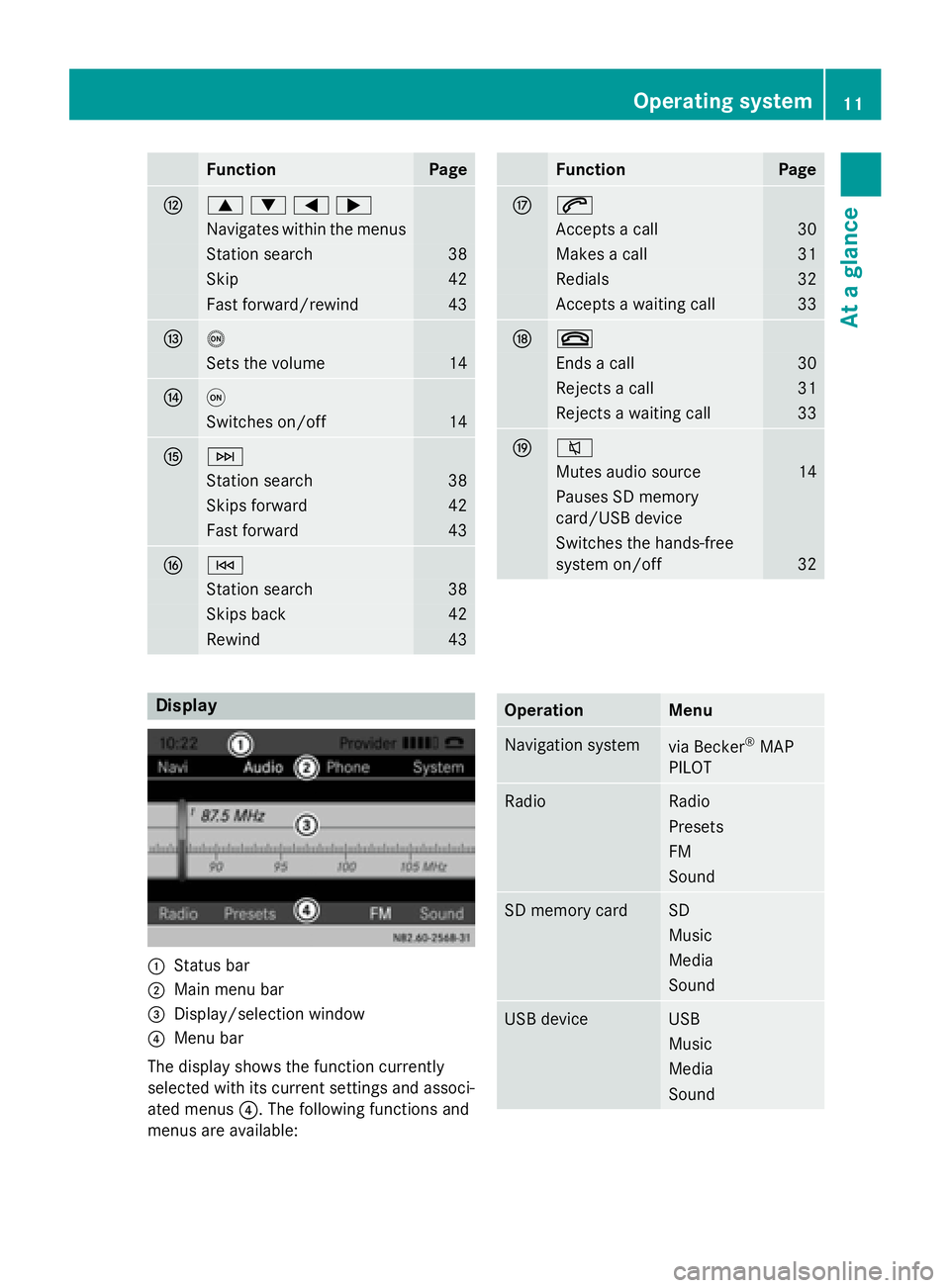
Display
:Status bar
;Main menu bar
=Display/selection window
?Menu bar
The display shows the function currently
selected with its current settings and associ-
ated menus ?. The following functions and
menus are available:
OperationMenu
Navigation systemvia Becker®MAP
PILOT
RadioRadio
Presets
FM
Sound
SD memory cardSD
Music
Media
Sound
USB deviceUSB
Music
Media
Sound
Operating system11
At a glance
Page 16 of 54
Display overview of theon-board com -
pute r
The display of th eon-boar dcompute rshows
th efollowing menus and function sof Audio
15 :
Men uFunction
Naviga-
tion sys-
temRout eguidanc e
RadioSelects th estored station son
th ecurren twaveban d
SD/USBSelects track sin th ecurren t
folder
Tele -
phoneAccept s acall
Ends/rejects acal l
Perform scalls via th ephone
boo kmen u
Perform scalls via cal llist s
BT AudioSelects atrack
iThe operation of certain function sis
described in th esection son basi cfunc-
tions, radio, SD memor ycard, US Bdevic e
and Bluetoot h
®.
Basic functions
Switchingon/of f
XPress th eq on/off button.
Once switched on ,Audio 15 calls up th e
most recentl yactive function .
iAudio 15 switches itsel fof fautomatically
when you remov eth eignition key.
iAudio 15 switches itsel fof fautomatically
when th econdition of charg eof th ebattery
is low.
iIf Audio 15 is on whil eth eignition is
switched off, it will switch itsel fof fauto-
matically after approximately 30 minutes
to sav eth evehicle battery.
Setting th evolume
XTur nth evolume contro lo durin gplay-
back.
or
XPress th eW orX buttonon th esteer -
in g wheel.
Activating/deactivating th emute
function
XPress th e8 button.
The soun dfrom th eaudio source is
switched on or off. Whe nth esoun dhas
been muted, th ex symbol is shown in
th estatus bar .
iIf you chang eth eaudio source or adjust
th evolume ,th esoun dswitches on again
automatically.
iWhe nth emut efunction is active ,play-
bac kfrom th eSD memor ycard, US Bdevic e
and BT audio is paused. Whe nyou deacti -
vat eth emut efunction ,playback will
resume from th eposition wher eit was
paused.
Sprinter rear view camer a
Important safet ynotes
!Objects that are no tat groun dlevel
appear further away than they actually are ,
fo rexample:
Rth ebumper of th evehicle parke dbehin d
Rthedrawbar of atrailer
Rth eball couplin gof atrailer to whitch
Rthetail-en dof atruck
Rslante dposts
Only use th ecamera guid elines fo rorien -
tation .Do no tget any close rto objects than
th elowest horizonta lguid eline. You may
otherwise damage your vehicle and/o rth e
object.
14Basic functions
At a glance
Page 21 of 54
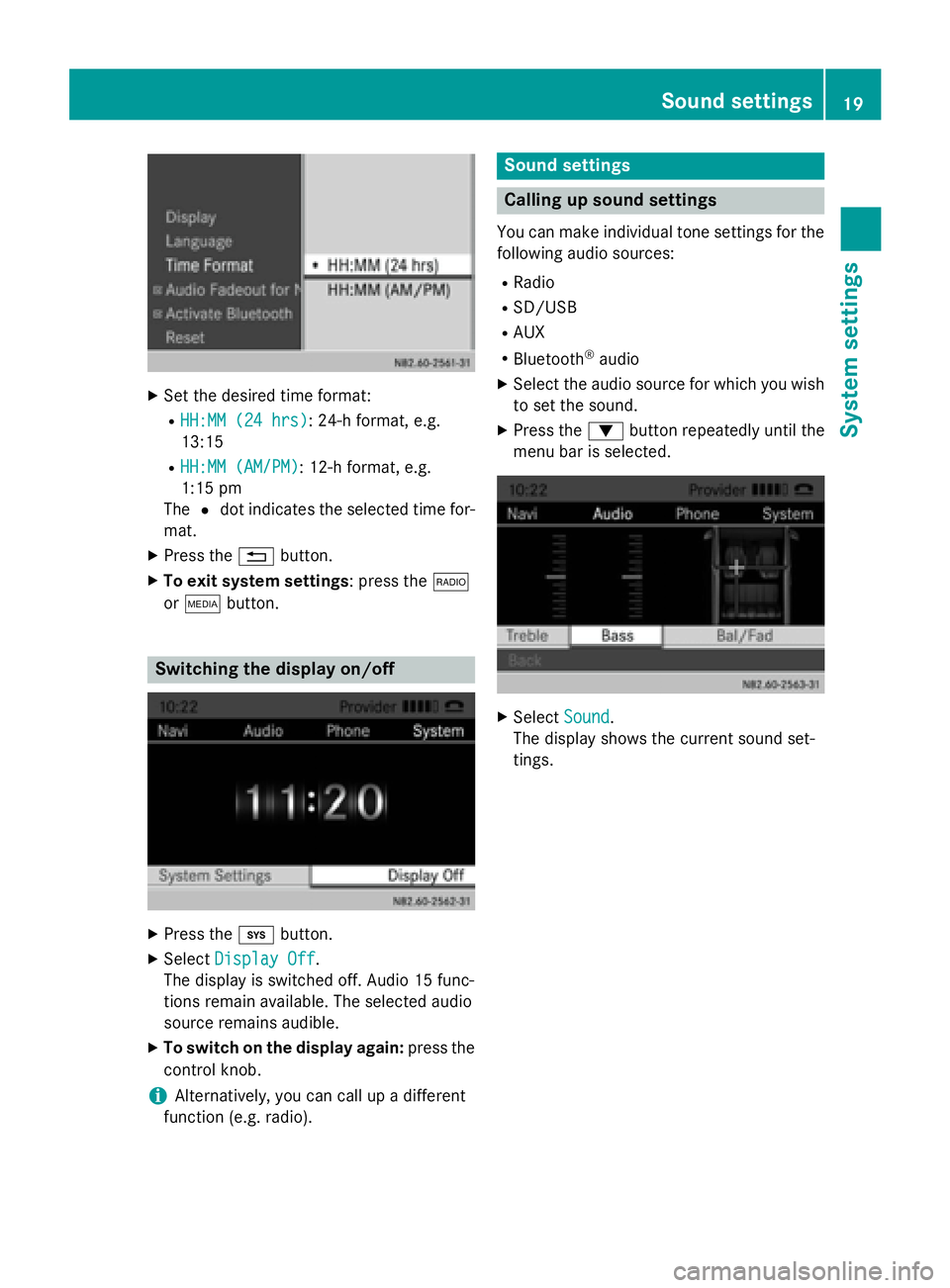
XSet the desired time format:
RHH:MM (24 hrs): 24-h format, e.g.
13:15
RHH:MM (AM/PM): 12-h format, e.g.
1:15 pm
The #dot indicates the selected time for-
mat.
XPress the %button.
XTo exit system settings : press the$
or Õ button.
Switching the display on/off
XPress the ibutton.
XSelect Display Off.
The display is switched off. Audio 15 func-
tions remain available. The selected audio
source remains audible.
XTo switch on the display again: press the
control knob.
iAlternatively, you can call up a different
function (e.g. radio).
Sound settings
Calling up sound settings
You can make individual tone settings for the
following audio sources:
RRadio
RSD/USB
RAUX
RBluetooth®audio
XSelect the audio source for which you wish to set the sound.
XPress the :button repeatedly until the
menu bar is selected.
XSelect Sound.
The display shows the current sound set-
tings.
Sound settings19
System settings
Page 39 of 54
Important safety notes.......................38
Radio mode .......................................... 38
SD memory card and USB device ......40
Bluetooth
®audio ................................. 45
AUX function ....................................... 47
37
Audio
Page 42 of 54
Calling up stations using the station list
XPress the$button to select the wave-
band.
XPress the :button repeatedly until the
menu bar is selected.
XSelect Presets.
The display shows a list of the stored sta-
tions. The #dot indicates the current sta-
tion.
XSelect the desired station.
You will hear the station stored in the selec-
ted preset, if it is receivable.
Calling up a station using the control knob
XPress the $button to select the wave-
band.
XSelect display/selection window.
XSelect the desired stored station using the
control knob.
You will hear the station stored in the selec- ted preset, if it is receivable.
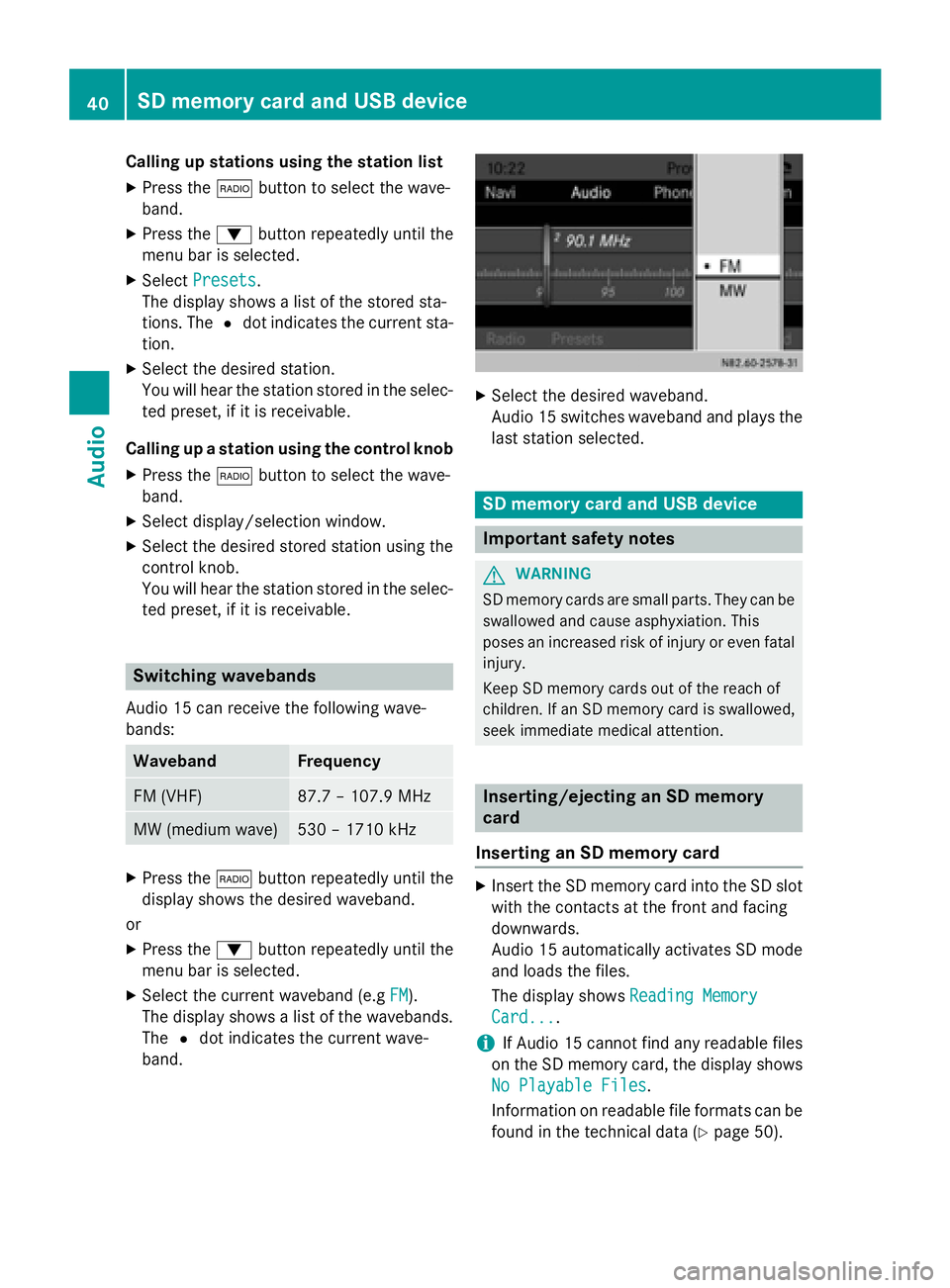
Switching wavebands
Audio 15 can receive the following wave-
bands:
WavebandFrequency
FM (VHF)87.7 – 107.9 MHz
MW (medium wave)530 – 1710 kHz
XPress the $button repeatedly until the
display shows the desired waveband.
or
XPress the :button repeatedly until the
menu bar is selected.
XSelect the current waveband (e.g FM).
The display shows a list of the wavebands.
The #dot indicates the current wave-
band.
XSelect the desired waveband.
Audio 15 switches waveband and plays the last station selected.
SD memory card and USB device
Important safety notes
GWARNING
SD memory cards are small parts. They can be
swallowed and cause asphyxiation. This
poses an increased risk of injury or even fatal injury.
Keep SD memory cards out of the reach of
children. If an SD memory card is swallowed,
seek immediate medical attention.
Inserting/ejecting an SD memory
card
Inserting an SD memory card
XInsert the SD memory card into the SD slot with the contacts at the front and facing
downwards.
Audio 15 automatically activates SD mode
and loads the files.
The display shows Reading Memory
Card....
iIf Audio 15 cannot find any readable files
on the SD memory card, the display shows
No Playable Files
.
Information on readable file formats can be
found in the technical data (
Ypage 50).
40SD memory card and USB device
Audio
Page 43 of 54
Ejecting an SD memory card
XPress the SD memory card.
Audio 15 ejects the SD memory card.
XRemove the SD memory card.
Connecting a USB device
The port for USB devices is located in the
stowage compartment on the driver's side of
the instrument panel.
XConnect the USB device to the USB port in
the correct position.
Audio 15 automatically activates USB
mode and loads the files.
The display shows Reading USB
device...
iIf Audio 15 cannot find any readable files
on the USB device, the display shows No
Playable Files.
Information on readable file formats can be
found in the technical data (
Ypage 50).
iDue to the wide range of USB devices
available on the market, playback cannot
be guaranteed for all USB device brands.
Information about suitable USB devices
can be obtained from an authorized
Mercedes-Benz Center.
Selecting the SD/USB function
XPress the Õbutton repeatedly, until the
display in the menu bar shows SD
/USB.
Playback starts.
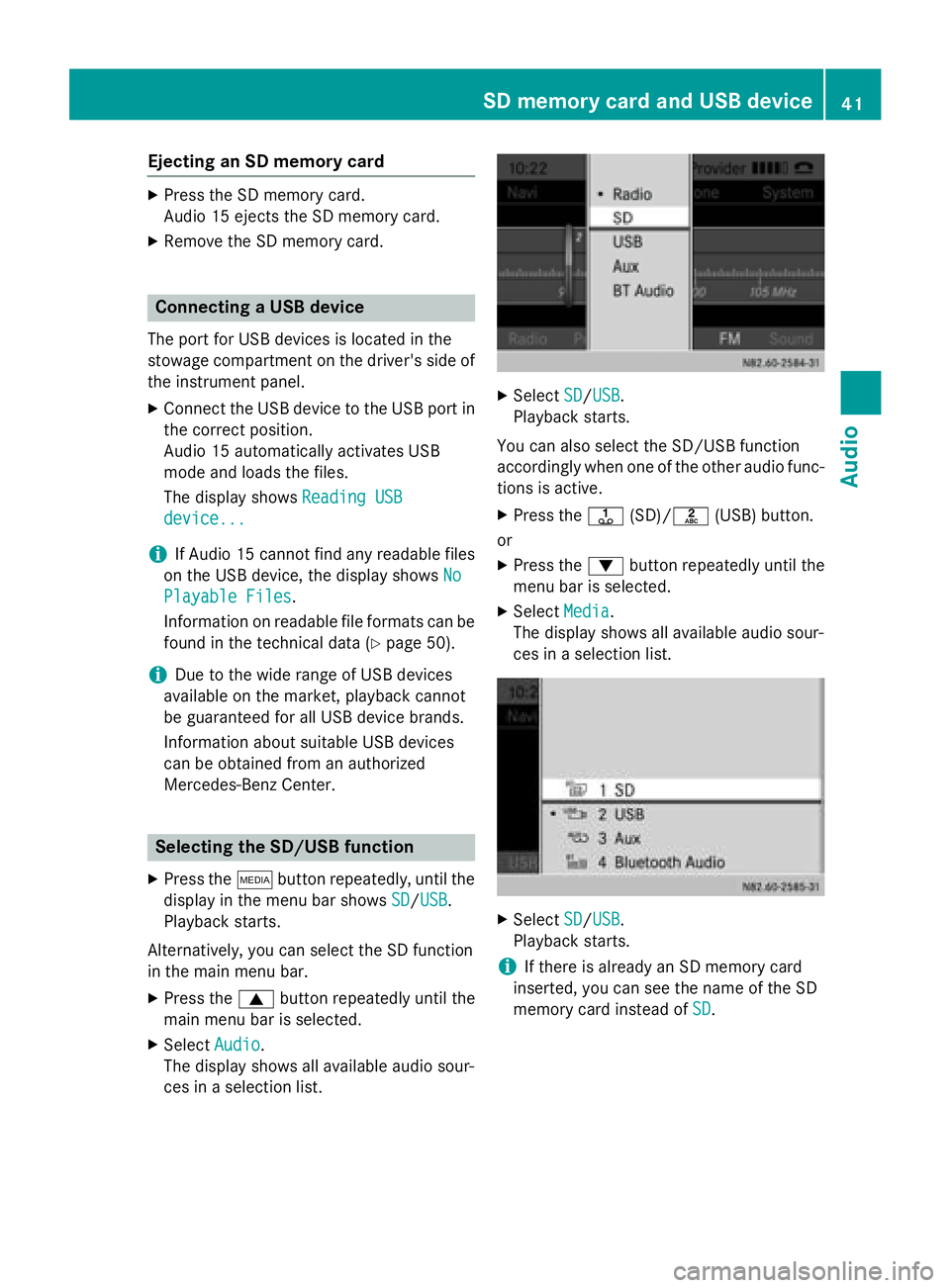
Alternatively, you can select the SD function
in the main menu bar.
XPress the 9button repeatedly until the
main menu bar is selected.
XSelect Audio.
The display shows all available audio sour-
ces in a selection list.
XSelect SD/USB.
Playback starts.
You can also select the SD/USB function
accordingly when one of the other audio func-
tions is active.
XPress the j(SD)/l (USB) button.
or
XPress the :button repeatedly until the
menu bar is selected.
XSelect Media.
The display shows all available audio sour-
ces in a selection list.
XSelect SD/USB.
Playback starts.
iIf there is already an SD memory card
inserted, you can see the name of the SD
memory card instead of SD
.
SD memory card and USB device41
Audio
Z
Page 44 of 54
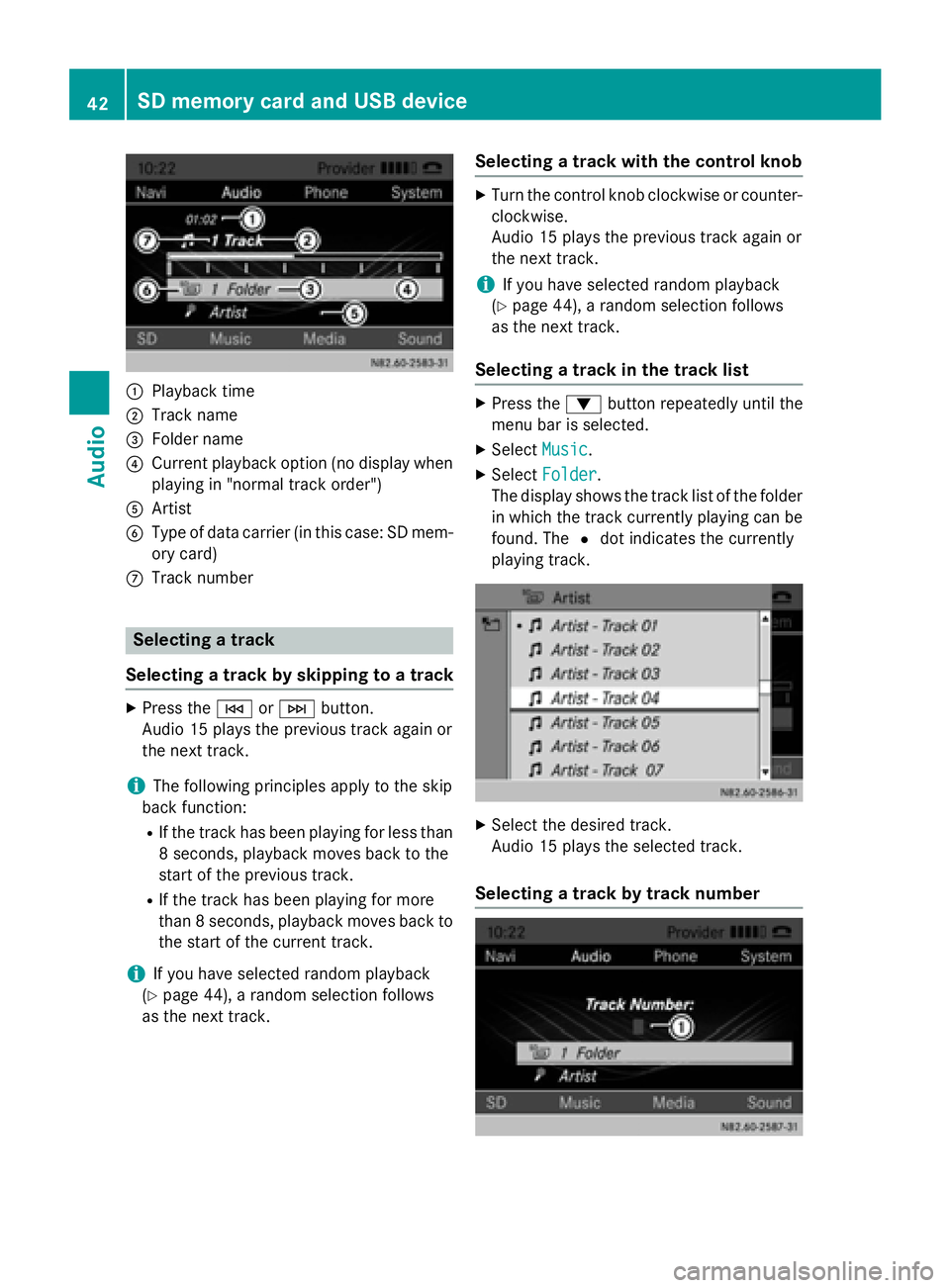
:Playback time
;Track name
=Folder name
?Current playback option (no display when
playing in "normal track order")
AArtist
BType of data carrier (in this case: SD mem-
ory card)
CTrack number
Selecting a track
Selecting a track by skipping to a track
XPress the EorF button.
Audio 15 plays the previous track again or
the next track.
iThe following principles apply to the skip
back function:
RIf the track has been playing for less than
8 seconds, playback moves back to the
start of the previous track.
RIf the track has been playing for more
than 8 seconds, playback moves back to the start of the current track.
iIf you have selected random playback
(
Ypage 44), a random selection follows
as the next track.
Selecting a track with the control knob
XTurn the control knob clockwise or counter-
clockwise.
Audio 15 plays the previous track again or
the next track.
iIf you have selected random playback
(
Ypage 44), a random selection follows
as the next track.
Selecting a track in the track list
XPress the :button repeatedly until the
menu bar is selected.
XSelect Music.
XSelectFolder.
The display shows the track list of the folder
in which the track currently playing can be
found. The #dot indicates the currently
playing track.
XSelect the desired track.
Audio 15 plays the selected track.
Selecting a track by track number
42SD memory card and USB device
Audio
Page 45 of 54
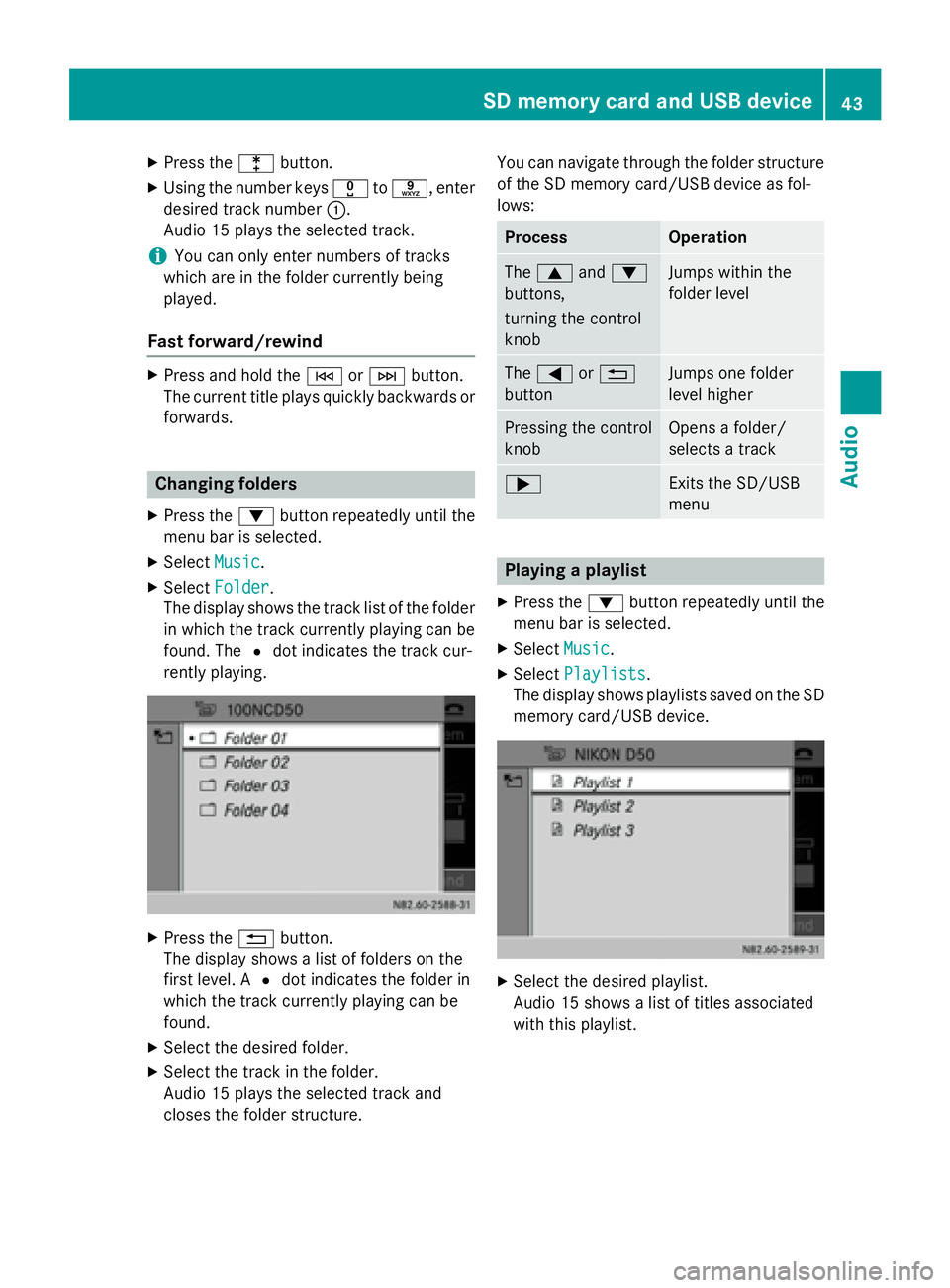
XPress thelbutton.
XUsing the number keys xtos, enter
desired track number :.
Audio 15 plays the selected track.
iYou can only enter numbers of tracks
which are in the folder currently being
played.
Fast forward/rewind
XPress and hold the EorF button.
The current title plays quickly backwards or
forwards.
Changing folders
XPress the :button repeatedly until the
menu bar is selected.
XSelect Music.
XSelectFolder.
The display shows the track list of the folder
in which the track currently playing can be
found. The #dot indicates the track cur-
rently playing.
XPress the %button.
The display shows a list of folders on the
first level. A #dot indicates the folder in
which the track currently playing can be
found.
XSelect the desired folder.
XSelect the track in the folder.
Audio 15 plays the selected track and
closes the folder structure. You can navigate through the folder structure
of the SD memory card/USB device as fol-
lows:
ProcessOperation
The
9 and:
buttons,
turning the control
knobJumps within the
folder level
The = or%
buttonJumps one folder
level higher
Pressing the control
knobOpens a folder/
selects a track
;Exits the SD/USB
menu
Playing a playlist
XPress the :button repeatedly until the
menu bar is selected.
XSelect Music.
XSelectPlaylists.
The display shows playlists saved on the SD
memory card/USB device.
XSelect the desired playlist.
Audio 15 shows a list of titles associated
with this playlist.
SD memory card and USB device43
Audio
Z