audio MERCEDES-BENZ METRIS 2017 MY17 Operator’s Manual
[x] Cancel search | Manufacturer: MERCEDES-BENZ, Model Year: 2017, Model line: METRIS, Model: MERCEDES-BENZ METRIS 2017Pages: 318, PDF Size: 5.01 MB
Page 161 of 318
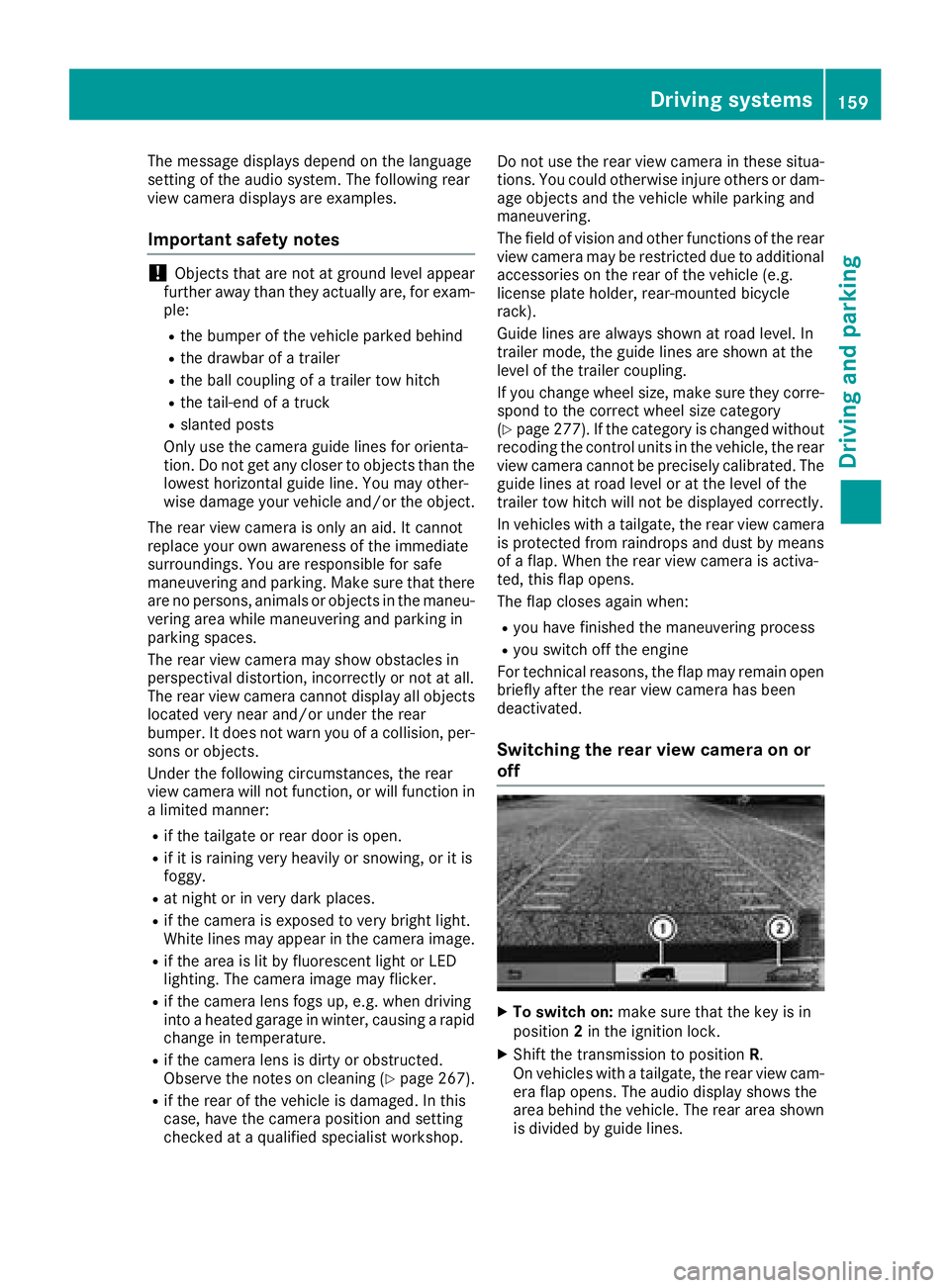
The message displays depend on the language
setting of the audio system. The following rear
view camera displays are examples.
Important safety notes
!Objects that are not at ground level appear
further away than they actually are, for exam-
ple:
Rthe bumper of the vehicle parked behind
Rthe drawbar of a trailer
Rthe ball coupling of a trailer tow hitch
Rthe tail-end of a truck
Rslanted posts
Only use the camera guide lines for orienta-
tion. Do not get any closer to objects than the
lowest horizontal guide line. You may other-
wise damage your vehicle and/or the object.
The rear view camera is only an aid. It cannot
replace your own awareness of the immediate
surroundings. You are responsible for safe
maneuvering and parking. Make sure that there
are no persons, animals or objects in the maneu- vering area while maneuvering and parking in
parking spaces.
The rear view camera may show obstacles in
perspectival distortion, incorrectly or not at all.
The rear view camera cannot display all objects
located very near and/or under the rear
bumper. It does not warn you of a collision, per-
sons or objects.
Under the following circumstances, the rear
view camera will not function, or will function in
a limited manner:
Rif the tailgate or rear door is open.
Rif it is raining very heavily or snowing, or it is
foggy.
Rat night or in very dark places.
Rif the camera is exposed to very bright light.
White lines may appear in the camera image.
Rif the area is lit by fluorescent light or LED
lighting. The camera image may flicker.
Rif the camera lens fogs up, e.g. when driving
into a heated garage in winter, causing a rapid
change in temperature.
Rif the camera lens is dirty or obstructed.
Observe the notes on cleaning (Ypage 267).
Rif the rear of the vehicle is damaged. In this
case, have the camera position and setting
checked at a qualified specialist workshop. Do not use the rear view camera in these situa-
tions. You could otherwise injure others or dam-
age objects and the vehicle while parking and
maneuvering.
The field of vision and other functions of the rear view camera may be restricted due to additional
accessories on the rear of the vehicle (e.g.
license plate holder, rear-mount
ed bicycle
rack).
Guide lines are always shown at road level. In
trailer mode, the guide lines are shown at the
level of the trailer coupling.
If you change wheel size, make sure they corre- spond to the correct wheel size category
(
Ypage 277). If the category is changed without
recoding the control units in the vehicle, the rear
view camera cannot be precisely calibrated. The
guide lines at road level or at the level of the
trailer tow hitch will not be displayed correctly.
In vehicles with a tailgate, the rear view camera
is protected from raindrops and dust by means
of a flap. When the rear view camera is activa-
ted, this flap opens.
The flap closes again when:
Ryou have finished the maneuvering process
Ryou switch off the engine
For technical reasons, the flap may remain open
briefly after the rear view camera has been
deactivated.
Switching the rear view camera on or
off
XTo switch on: make sure that the key is in
position 2in the ignition lock.
XShift the transmission to position R.
On vehicles with a tailgate, the rear view cam-
era flap opens. The audio display shows the
area behind the vehicle. The rear area shown
is divided by guide lines.
Driving systems159
Driving and parking
Z
Page 162 of 318
In vehicles with a trailer coupling installed, the
function mode of the rear view camera can be
switched over when the trailer is reached. The
rear view camera then changes the viewing
angle and shows a locating aid for the ball cou-
pling of the trailer tow hitch to help reach the
drawbar.
XTo switch function mode:select and con-
firm "Reverse parking" function :or "Cou-
pling up a trailer“ function ;using the audio
system control knob.
Information on the audio system control knob
can be found in the separate operating
instructions.
The symbol of the selected function is high-
lighted.
XTo switch off: shift the transmission to posi-
tion Nor D.
The dynamic guide lines are hidden and after
about 15 seconds the rear view camera
switches itself off.
or
XDrive forwards more than about 30 ft (10 m).
or
XDrive forwards faster than 6 mph (10 km/h) .
or
XShift the automatic transmission to P.
In vehicles with Active Parking Assist, the rear
view camera remains switched on after the ini-
tial shift to reverse gear for the whole duration of active parking assistance. You can find informa-
tion on active parking assistance under "Active
Parking Assist“ (
Ypage 154).
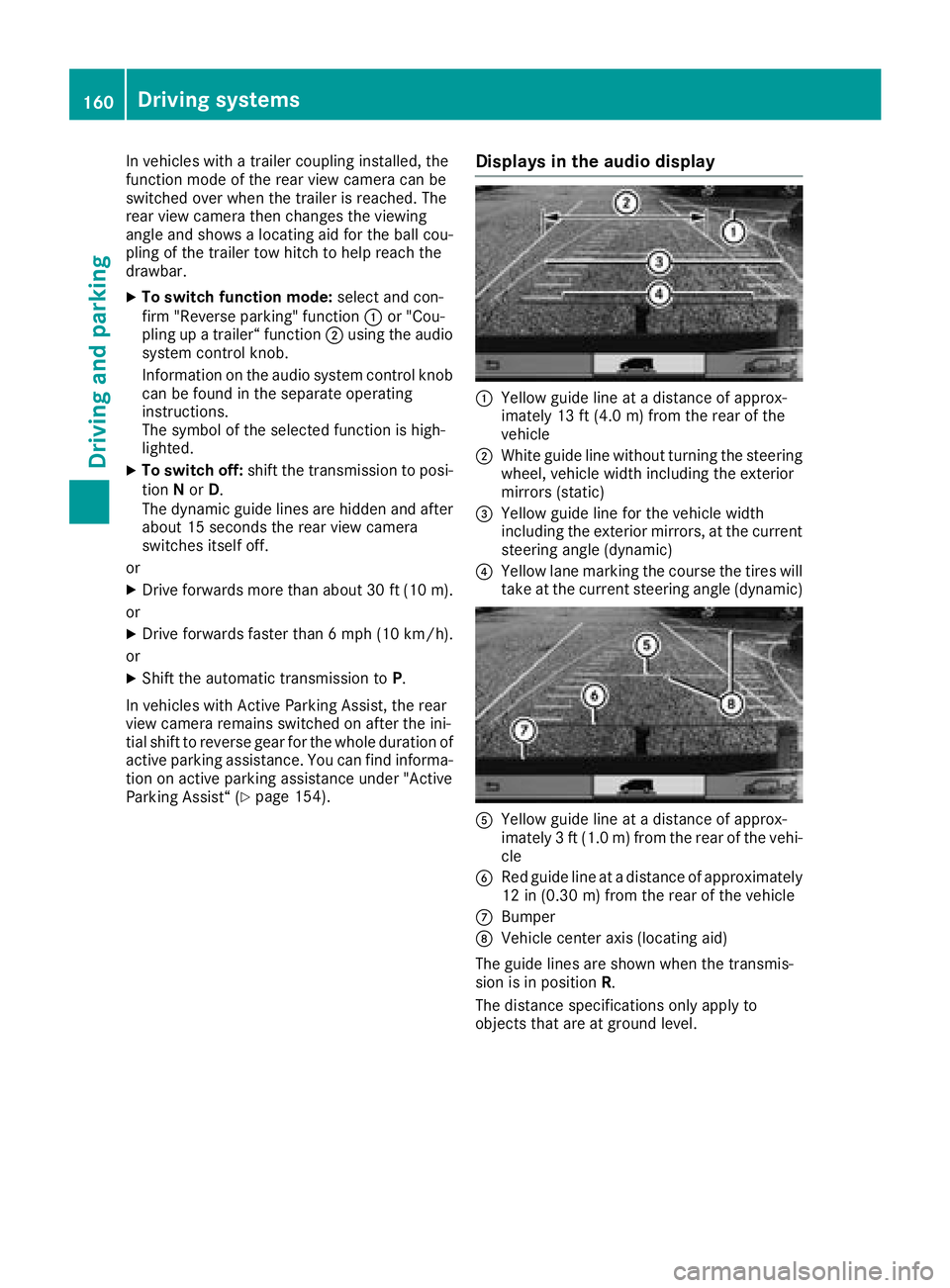
Displays in the audio display
:Yellow guide line at a distance of approx-
imately 13 ft (4.0 m) from the rear of the
vehicle
;White guide line without turning the steering
wheel, vehicle width including the exterior
mirrors (static)
=Yellow guide line for the vehicle width
including the exterior mirrors, at the current
steering angle (dynamic)
?Yellow lane marking the course the tires will
take at the current steering angle (dynamic)
AYellow guide line at a distance of approx-
imately 3 ft (1.0 m) from the rear of the vehi-
cle
BRed guide line at a distance of approximately
12 in (0.30 m) from the rear of the vehicle
CBumper
DVehicle center axis (locating aid)
The guide lines are shown when the transmis-
sion is in position R.
The distance specifications only apply to
objects that are at ground level.
160Driving systems
Driving and parking
Page 164 of 318
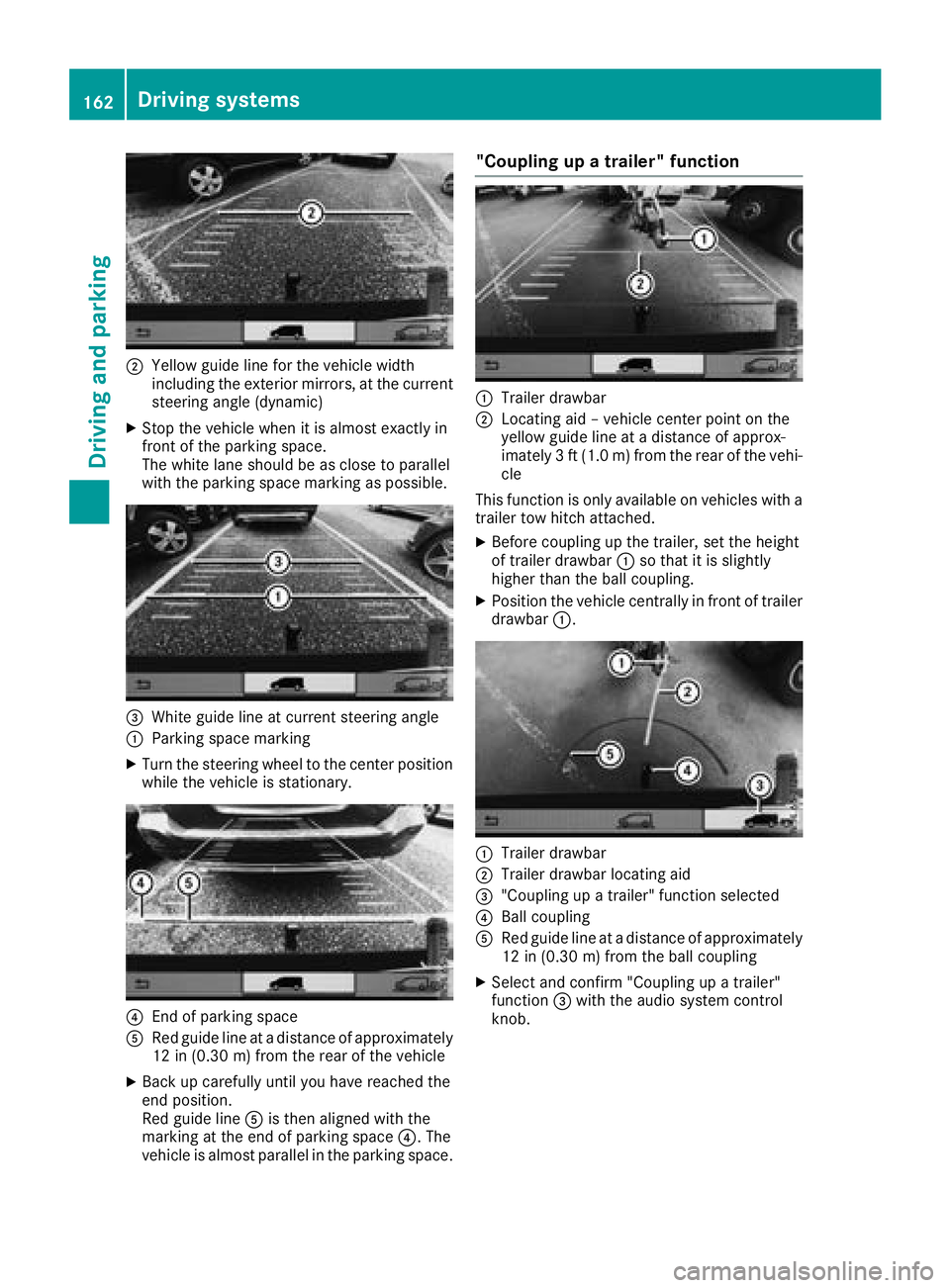
;Yellow guide line for the vehicle width
including the exterior mirrors, at the current
steering angle (dynamic)
XStop the vehicle when it is almost exactly in
front of the parking space.
The white lane should be as close to parallel
with the parking space marking as possible.
=White guide line at current steering angle
:Parking space marking
XTurn the steering wheel to the center positionwhile the vehicle is stationary.
?End of parking space
ARed guide line at a distance of approximately
12 in (0.30 m) from the rear of the vehicle
XBack up carefully until you have reached the
end position.
Red guide line Ais then aligned with the
marking at the end of parking space ?. The
vehicle is almost parallel in the parking space.
"Coupling up a trailer" function
:Trailer drawbar
;Locating aid – vehicle center point on the
yellow guide line at a distance of approx-
imately 3 ft (1.0 m) from the rear of the vehi-
cle
This function is only available on vehicles with a
trailer tow hitch attached.
XBefore coupling up the trailer, set the height
of trailer drawbar :so that it is slightly
higher than the ball coupling.
XPosition the vehicle centrally in front of trailer
drawbar :.
:Trailer drawbar
;Trailer drawbar locating aid
="Coupling up a trailer" function selected
?Ball coupling
ARed guide line at a distance of approximately
12 in (0.30 m) from the ball coupling
XSelect and confirm "Coupling up a trailer"
function =with the audio system control
knob.
162Driving systems
Driving and parking
Page 165 of 318
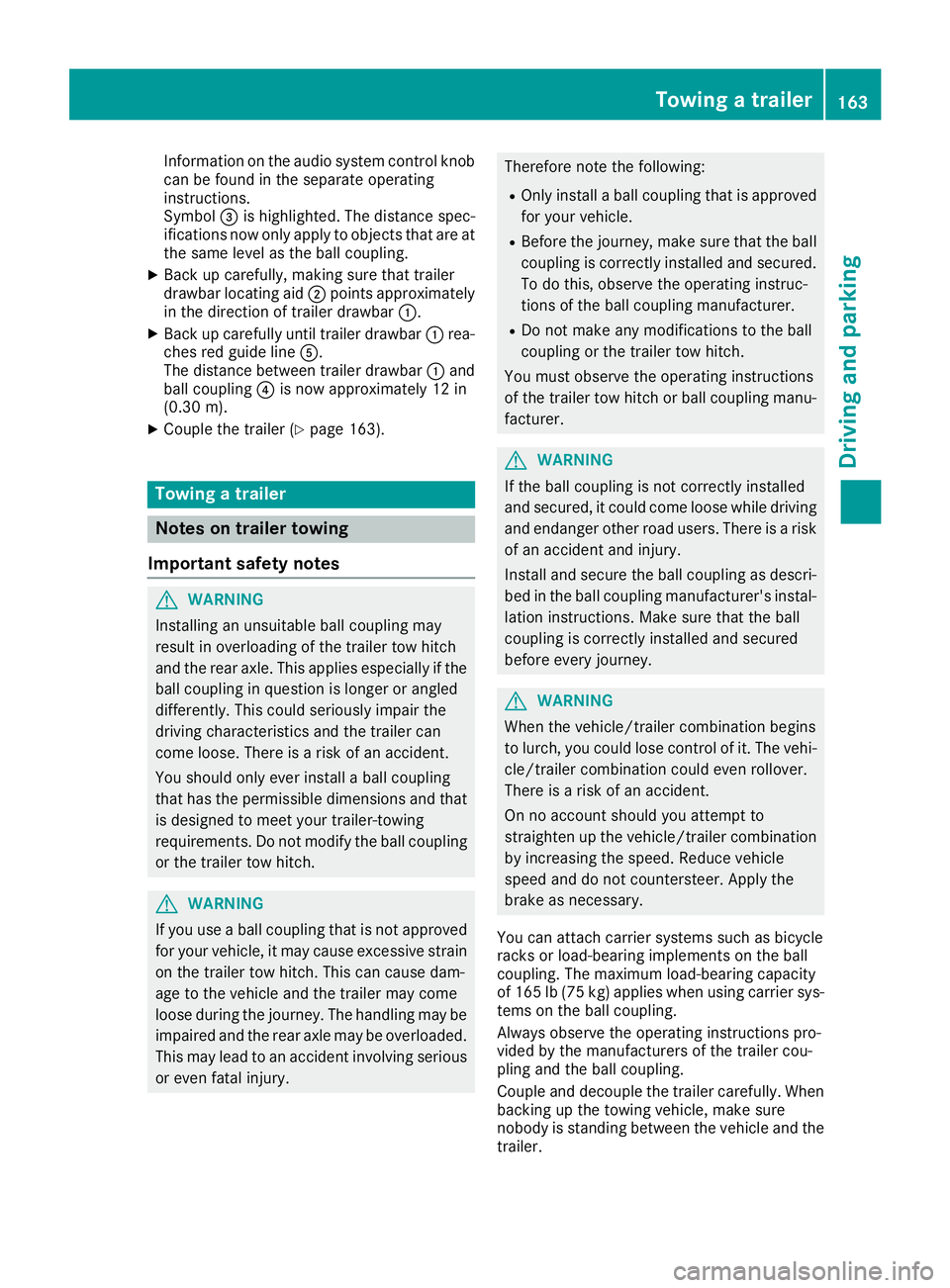
Information on the audio system control knob
can be found in the separate operating
instructions.
Symbol=is highlighted. The distance spec-
ifications now only apply to objects that are at
the same level as the ball coupling.
XBack up carefully, making sure that trailer
drawbar locating aid ;points approximately
in the direction of trailer drawbar :.
XBack up carefully until trailer drawbar :rea-
ches red guide line A.
The distance between trailer drawbar :and
ball coupling ?is now approximately 12 in
(0.30 m).
XCouple the trailer (Ypage 163).
Towing a trailer
Notes on trailer towing
Important safety notes
GWARNING
Installing an unsuitable ball coupling may
result in overloading of the trailer tow hitch
and the rear axle. This applies especially if the ball coupling in question is longer or angled
differently. This could seriously impair the
driving characteristics and the trailer can
come loose. There is a risk of an accident.
You should only ever install a ball coupling
that has the permissible dimensions and that
is designed to meet your trailer-towing
requirements. Do not modify the ball coupling
or the trailer tow hitch.
GWARNING
If you use a ball coupling that is not approved
for your vehicle, it may cause excessive strain
on the trailer tow hitch. This can cause dam-
age to the vehicle and the trailer may come
loose during the journey. The handling may be
impaired and the rear axle may be overloaded.
This may lead to an accident involving serious
or even fatal injury.
Therefore note the following:
ROnly install a ball coupling that is approved
for your vehicle.
RBefore the journey, make sure that the ball
coupling is correctly installed and secured.
To do this, observe the operating instruc-
tions of the ball coupling manufacturer.
RDo not make any modifications to the ball
coupling or the trailer tow hitch.
You must observe the operating instructions
of the trailer tow hitch or ball coupling manu-
facturer.
GWARNING
If the ball coupling is not correctly installed
and secured, it could come loose while driving and endanger other road users. There is a risk
of an accident and injury.
Install and secure the ball coupling as descri-
bed in the ball coupling manufacturer's instal-
lation instructions. Make sure that the ball
coupling is correctly installed and secured
before every journey.
GWARNING
When the vehicle/trailer combination begins
to lurch, you could lose control of it. The vehi- cle/trailer combination could even rollover.
There is a risk of an accident.
On no account should you attempt to
straighten up the vehicle/trailer combination
by increasing the speed. Reduce vehicle
speed and do not countersteer. Apply the
brake as necessary.
You can attach carrier systems such as bicycle
racks or load-bearing implements on the ball
coupling. The maximum load-bearing capacity
of 165 lb (75 kg) applies when using carrier sys-
tems on the ball coupling.
Always observe the operating instructions pro-
vided by the manufacturers of the trailer cou-
pling and the ball coupling.
Couple and decouple the trailer carefully. When
backing up the towing vehicle, make sure
nobody is standing between the vehicle and the trailer.
Towing a trailer163
Driving and parking
Z
Page 178 of 318
Setting the time and date
The vehicle must be stationary. Use the buttonsin the instrument cluster.
XPress Èto select the Settingsmenu.
XPress3to select the time and date display.
XPress forg to set the hours and press 3
to confirm.
XPress forg to set the minutes and press
3 to confirm.
XPress forg to set the day and press 3to
confirm.
XPress forg to set the month and press 3
to confirm.
XPress forg to set the year and press 3to
confirm.
The display shows the Settings
menu again.
On-board computer (vehicles with
steering wheel buttons)
Operating the on-board computer
Overview
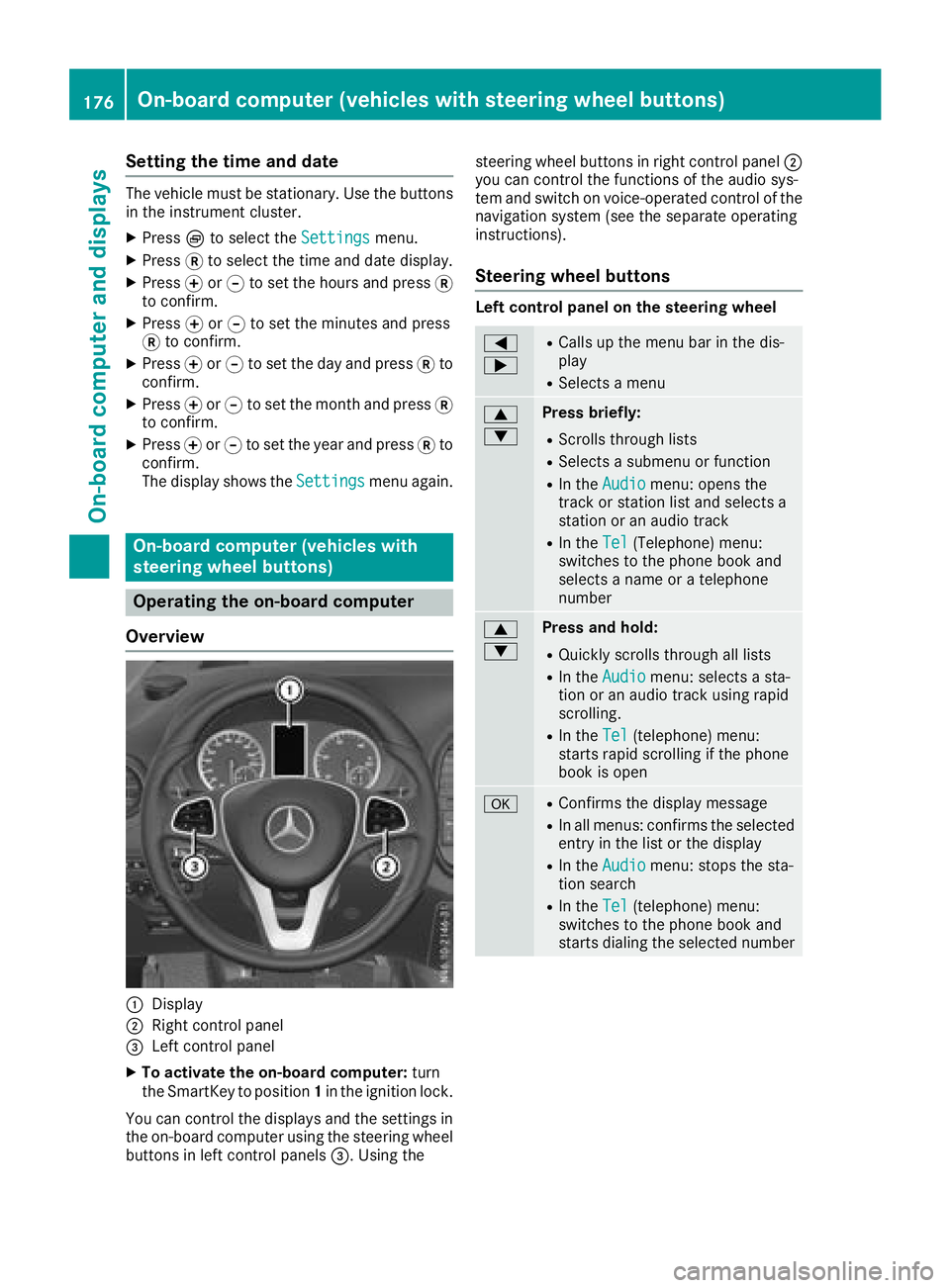
:Display
;Right control panel
=Left control panel
XTo activate the on-board computer: turn
the SmartKey to position 1in the ignition lock.
You can control the displays and the settings in the on-board computer using the steering wheel
buttons in left control panels =. Using thesteering wheel buttons in right control panel
;
you can control the functions of the audio sys-
tem and switch on voice-operated control of the
navigation system (see the separate operating
instructions).
Steering wheel buttons
Left control panel on the steering wheel
=
;RCalls up the menu bar in the dis-
play
RSelects a menu
9
:Press briefly:
RScrolls through lists
RSelects a submenu or function
RIn the Audiomenu: opens the
track or station list and selects a
station or an audio track
RIn the Tel(Telephone) menu:
switches to the phone book and
selects a name or a telephone
number
9
:Press and hold:
RQuickly scrolls through all lists
RIn the Audiomenu: selects a sta-
tion or an audio track using rapid
scrolling.
RIn the Tel(telephone) menu:
starts rapid scrolling if the phone
book is open
aRConfirms the display message
RIn all menus: confirms the selected
entry in the list or the display
RIn the Audiomenu: stops the sta-
tion search
RIn the Tel(telephone) menu:
switches to the phone book and
starts dialing the selected number
176On-board computer (vehicles with steering wheel buttons)
On-board computer and displays
Page 179 of 318
%Press briefly:
RBack
RIn theAudiomenu: exits the track
or station list
RHides display messages
RExits the telephone book/redial
memory
RVehicles with a navigation system:
switches off voice-operated con-
trol of the navigation system (see
the manufacturer's operating
instructions)
%Press and hold:
RCalls up the standard display in the
Tripmenu
Right control panel on the steering wheel
6RMakes or accepts a call
RSwitches to the redial memory
~RRejects or ends a call
RExits the telephone book/redial
memory
W
XRAdjusts the volume
óRVehicles with a navigation system:
switches on voice-operated con-
trol of the navigation system (see
the manufacturer's operating
instructions)
8RMute
iThe audio devices, telephone and voice-
operated control using the steering wheel
buttons in the right control panel only func-
tion with a Mercedes-Benz audio or naviga-
tion system. If you are using an audio or nav-
igation system from another manufacturer,
the described functions may be restricted or
not available at all.
Display
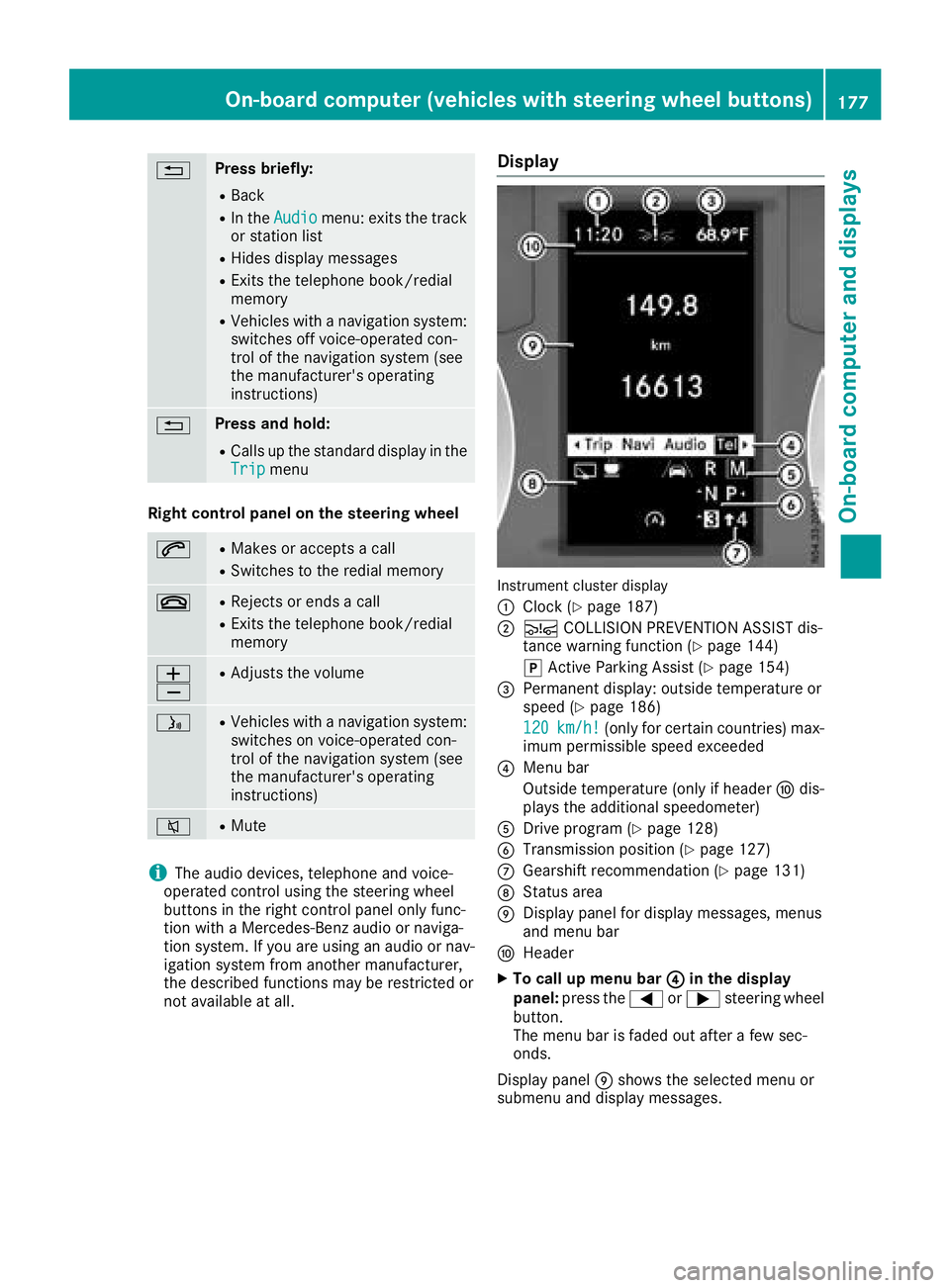
Instrument cluster display
:
Clock (Ypage 187)
;Ä COLLISION PREVENTION ASSIST dis-
tance warning function (Ypage 144)
j Active Parking Assist (
Ypage 154)
=Permanent display: outside temperature or
speed (Ypage 186)
120
km/h!(only for certain countries) max-
imum permissible speed exceeded
?Menu bar
Outside temperature (only if header Fdis-
plays the additional speedometer)
ADrive program (Ypage 128)
BTransmission position (Ypage 127)
CGearshift recommendation (Ypage 131)
DStatus area
EDisplay panel for display messages, menus
and menu bar
FHeader
XTo call up menu bar ?in the display
panel: press the =or; steering wheel
button.
The menu bar is faded out after a few sec-
onds.
Display panel Eshows the selected menu or
submenu and display messages.
On-board computer (vehicles with steering wheel buttons)177
On-board computer and displays
Z
Page 180 of 318
In status areaD, the display can show the sta-
tus of the following driving systems:
À ATTENTION ASSIST (
Ypage 150)
à Lane Keeping Assist (
Ypage 148)
V Cruise control (
Ypage 142)
è Rear window wiper (
Ypage 104)
è ECO start/stop function (
Ypage 123)
Menu overview
You can think of the order of the menus as a
circle. Use the =or; steering wheel
buttons to show the menu bar and scroll through
the menus. Use the :or9 steering
wheel buttons to scroll through their submenus and functions.
Operation information can be found under
"Operating the on-board computer"
(
Ypage 176).
Depending on the vehicle equipment, you can
call up the following menus:
RTripmenu (Ypage 178)
RNavimenu (navigation instructions)
(Ypage 180)
RAudiomenu (Ypage 181)
RTel(telephone) menu (Ypage 182)
RAssist.(assistance) menu (Ypage 183)
RServicemenu (Ypage 185)
RSettingsmenu (Ypage 186)
Trip menu
Standard display
Odometer
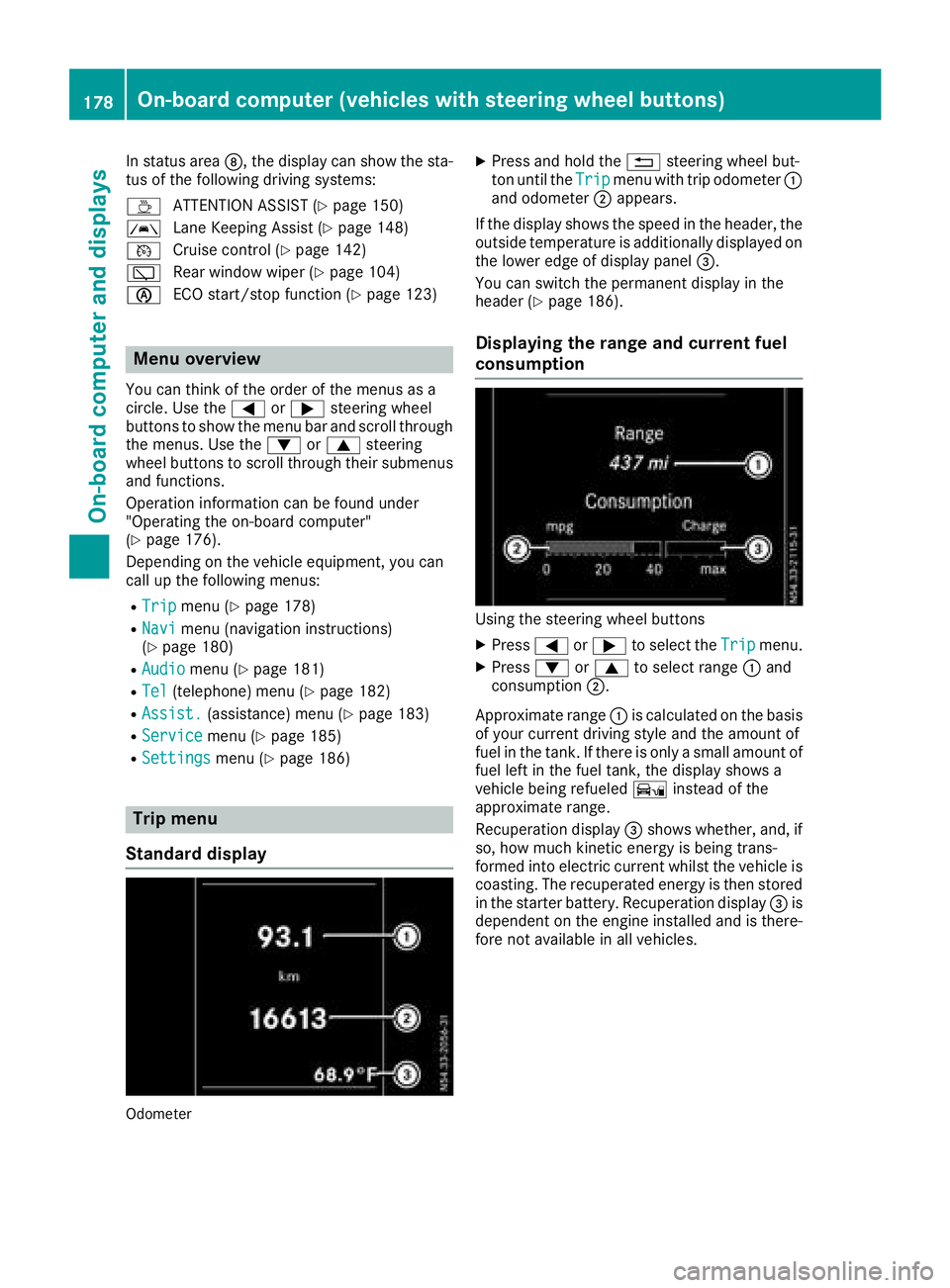
XPress and hold the %steering wheel but-
ton until the Tripmenu with trip odometer :
and odometer ;appears.
If the display shows the speed in the header, the
outside temperature is additionally displayed on
the lower edge of display panel =.
You can switch the permanent display in the
header (
Ypage 186).
Displaying the range and current fuel
consumption
Using the steering wheel buttons
XPress =or; to select the Tripmenu.
XPress:or9 to select range :and
consumption ;.
Approximate range :is calculated on the basis
of your current driving style and the amount of
fuel in the tank. If there is only a small amount of
fuel left in the fuel tank, the display shows a
vehicle being refueled Ïinstead of the
approximate range.
Recuperation display =shows whether, and, if
so, how much kinetic energy is being trans-
formed into electric current whilst the vehicle is
coasting. The recuperated energy is then stored
in the starter battery. Recuperation display =is
dependent on the engine installed and is there-
fore not available in all vehicles.
178On-board computer (vehicles with steering wheel buttons)
On-board computer and displays
Page 182 of 318
Navigation menu
Displaying navigation instructions
In the Navimenu, the display shows the navi-
gation instructions from the audio system and or the navigation system. Further information on
the audio and/or navigation system can be
found in the separate operating instructions.
Using the steering wheel buttons
XActivate the audio and/or navigation system
(see separate operating instructions).
XPress =or; to select the Navimenu.
XPressato confirm.
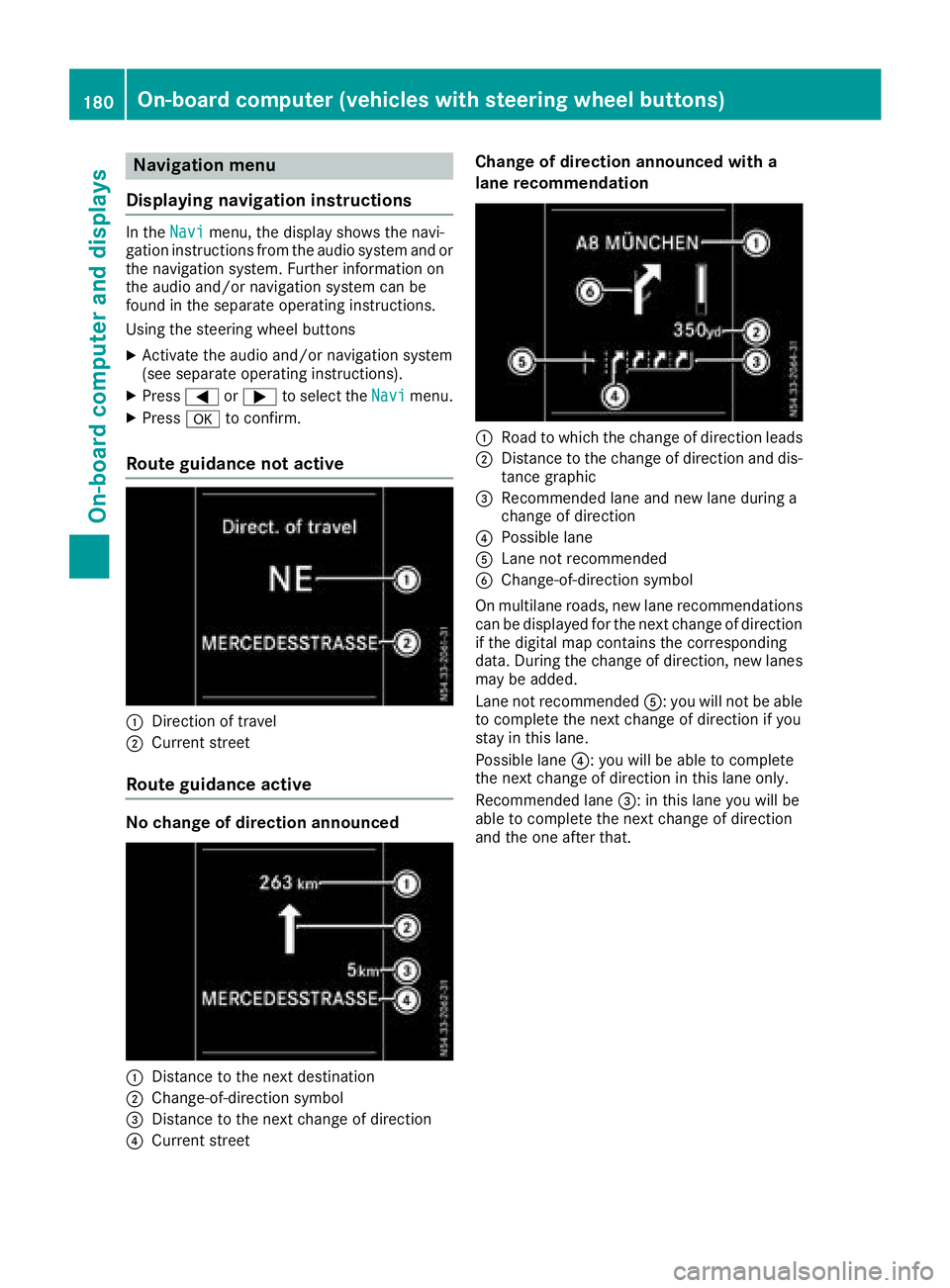
Route guidance not active
:Direction of travel
;Current street
Route guidance active
No change of direction announced
:Distance to the next destination
;Change-of-direction symbol
=Distance to the next change of direction
?Current street
Change of direction announced with a
lane recommendation
:Road to which the change of direction leads
;Distance to the change of direction and dis-
tance graphic
=Recommended lane and new lane during a
change of direction
?Possible lane
ALane not recommended
BChange-of-direction symbol
On multilane roads, new lane recommendations can be displayed for the next change of direction
if the digital map contains the corresponding
data. During the change of direction, new lanes
may be added.
Lane not recommended A: you will not be able
to complete the next change of direction if you
stay in this lane.
Possible lane ?: you will be able to complete
the next change of direction in this lane only.
Recommended lane =: in this lane you will be
able to complete the next change of direction
and the one after that.
180On-board computer (vehicles withsteering whee lbu ttons)
On-board computer and displays
Page 183 of 318
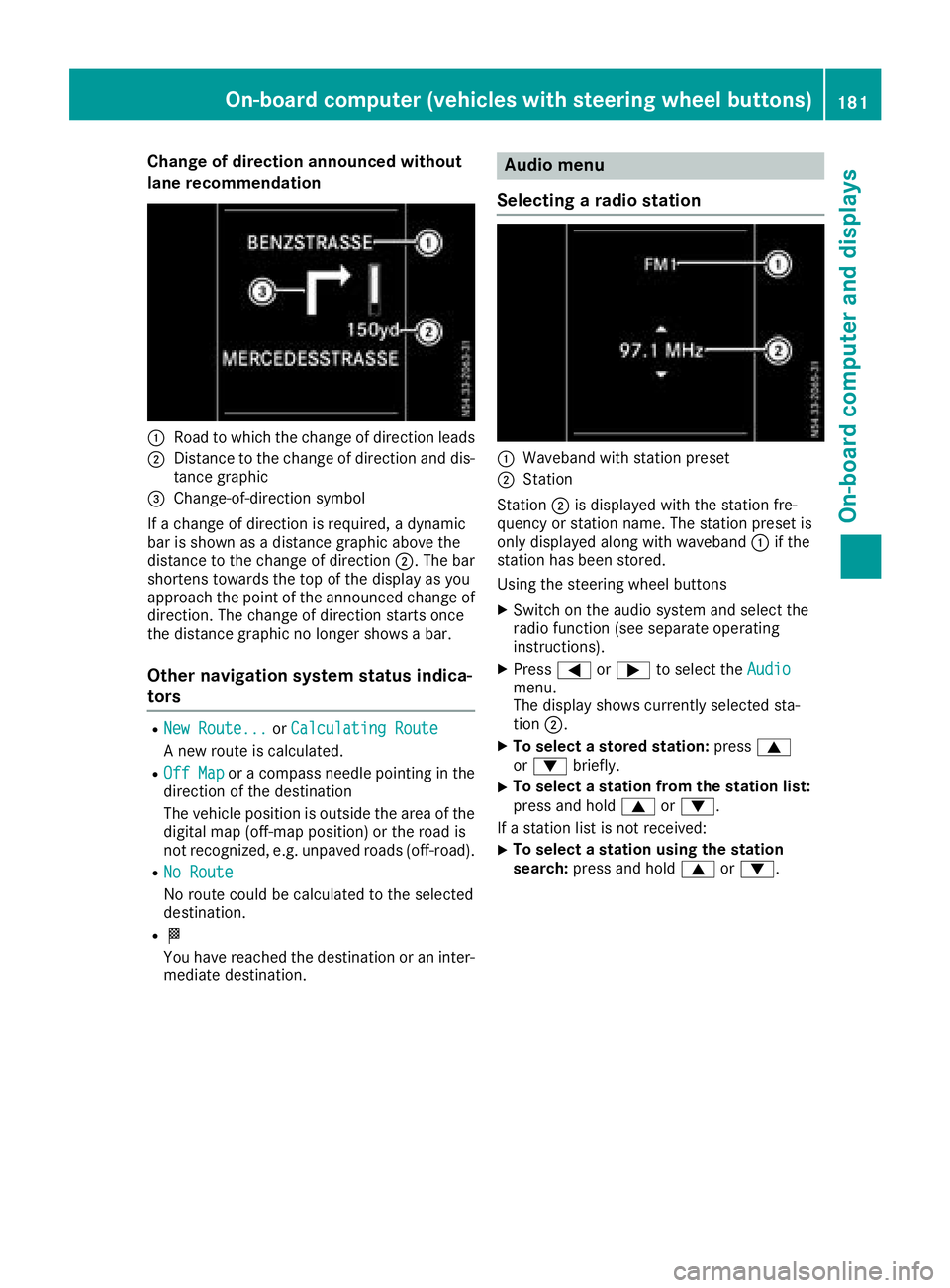
Change of direction announced without
lane recommendation
:Road to which the change of direction leads
;Distance to the change of direction and dis-
tance graphic
=Change-of-direction symbol
If a change of direction is required, a dynamic
bar is shown as a distance graphic above the
distance to the change of direction ;. The bar
shortens towards the top of the display as you
approach the point of the announced change of
direction. The change of direction starts once
the distance graphic no longer shows a bar.
Other navigation system status indica-
tors
RNew Route...or Calculating Route
A new route is calculated.
ROff Mapor a compass needle pointing in the
direction of the destination
The vehicle position is outside the area of the
digital map (off-map position) or the road is
not recognized, e.g. unpaved roads (off-road).
RNo Route
No route could be calculated to the selected
destination.
RO
You have reached the destination or an inter-
mediate destination.
Audio menu
Selecting a radio station
:Waveband with station preset
;Station
Station ;is displayed with the station fre-
quency or station name. The station preset is
only displayed along with waveband :if the
station has been stored.
Using the steering wheel buttons
XSwitch on the audio system and select the
radio function (see separate operating
instructions).
XPress =or; to select the Audiomenu.
The display shows currently selected sta-
tion;.
XTo select a stored station: press9
or : briefly.
XTo select a station from the station list:
press and hold 9or:.
If a station list is not received:
XTo select a station using the station
search: press and hold 9or:.
On-board computer (vehicles with steering wheel buttons)181
On-board computer and displays
Z
Page 184 of 318
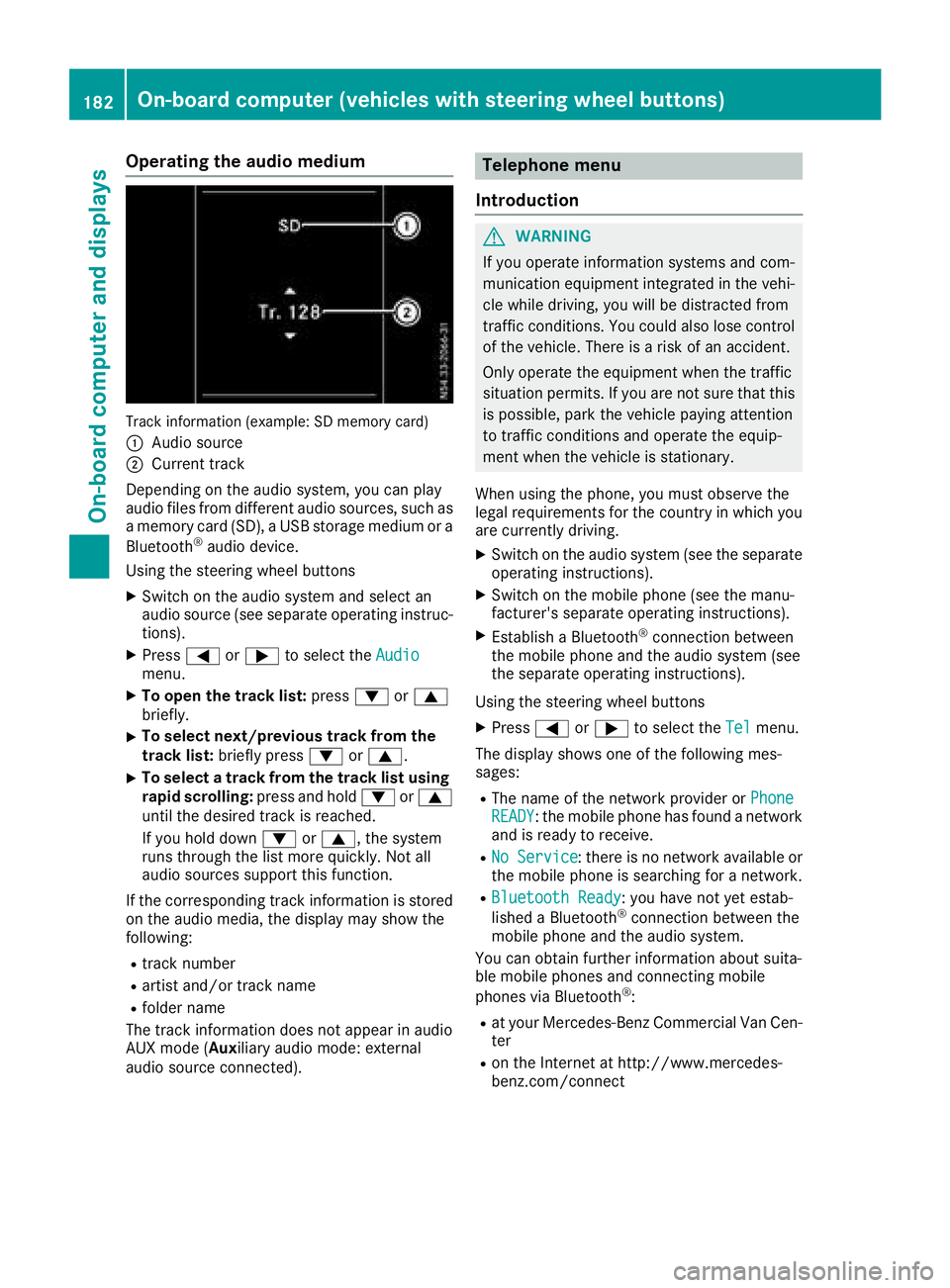
Operating the audio medium
Track information (example: SD memory card)
:
Audio source
;Current track
Depending on the audio system, you can play
audio files from different audio sources, such as
a memory card (SD), a USB storage medium or a
Bluetooth
®audio device.
Using the steering wheel buttons
XSwitch on the audio system and select an
audio source (see separate operating instruc-
tions).
XPress =or; to select the Audiomenu.
XTo open the track list: press:or9
briefly.
XTo select next/previous track from the
track list: briefly press :or9.
XTo select a track from the track list using
rapid scrolling: press and hold:or9
until the desired track is reached.
If you hold down :or9, the system
runs through the list more quickly. Not all
audio sources support this function.
If the corresponding track information is stored
on the audio media, the display may show the
following:
Rtrack number
Rartist and/or track name
Rfolder name
The track information does not appear in audio
AUX mode (Aux iliary audio mode: external
audio source connected).
Telephone menu
Introduction
GWARNING
If you operate information systems and com-
munication equipment integrated in the vehi-
cle while driving, you will be distracted from
traffic conditions. You could also lose control
of the vehicle. There is a risk of an accident.
Only operate the equipment when the traffic
situation permits. If you are not sure that this
is possible, park the vehicle paying attention
to traffic conditions and operate the equip-
ment when the vehicle is stationary.
When using the phone, you must observe the
legal requirements for the country in which you
are currently driving.
XSwitch on the audio system (see the separate
operating instructions).
XSwitch on the mobile phone (see the manu-
facturer's separate operating instructions).
XEstablish a Bluetooth®connection between
the mobile phone and the audio system (see
the separate operating instructions).
Using the steering wheel buttons
XPress =or; to select the Telmenu.
The display shows one of the following mes-
sages:
RThe name of the network provider or PhoneREADY: the mobile phone has found a network
and is ready to receive.
RNo Service: there is no network available or
the mobile phone is searching for a network.
RBluetooth Ready: you have not yet estab-
lished a Bluetooth®connection between the
mobile phone and the audio system.
You can obtain further information about suita-
ble mobile phones and connecting mobile
phones via Bluetooth
®:
Rat your Mercedes-Benz Commercial Van Cen-
ter
Ron the Internet at http://www.mercedes-
benz.com/connect
182On-board computer (vehicles with steering wheel buttons)
On-board computer and displays