reset MERCEDES-BENZ METRIS 2018 MY18 Operator’s Manual
[x] Cancel search | Manufacturer: MERCEDES-BENZ, Model Year: 2018, Model line: METRIS, Model: MERCEDES-BENZ METRIS 2018Pages: 318, PDF Size: 5.07 MB
Page 86 of 318
body could be trapped in the closing area in the process. This poses an increased risk of injury oreven fatal injury.
Make sure that no parts of the body are in the closing area. To stop the closing process, release
the switch or push the switch again to reopen the side window.
ProblemPossible causes/consequences and MSolutions
You cannot completely
open or close a side win-
dow.If there are no objects or leaves in the window guide that prevent the
sliding sunroof from closing, there has been a malfunction or the on-
board voltage has been interrupted.
XReset the side window (Ypage 83).
84Side windows
Opening and closing
Page 97 of 318
ferent people. The position of the seat, seat
backrest and head restraint are stored as a sin-
gle memory preset.
Important safety notes
GWARNING
If you use the memory function on the driver's side while driving, you could lose control of
the vehicle as a result of the adjustments
being made. There is a risk of an accident.
Only use the memory function on the driver's
side when the vehicle is stationary.
GWARNING
When the memory function adjusts the seat,
you and other vehicle occupants – particularly
children – could become trapped. There is a
risk of injury.
While the memory function is making adjust-
ments, make sure that no one has any body
parts in the sweep of the seat. If somebody
becomes trapped, immediately release the
memory function position button. The adjust-
ment process is stopped.
GWARNING
Children could become trapped if they acti-
vate the memory function, particularly when
unattended. There is a risk of injury.
When leaving the vehicle, always take the
SmartKey with you and lock the vehicle. Never
leave children unsupervised in the vehicle.
The memory function can be used at any time,
for example even when the SmartKey has been
removed from the ignition lock.
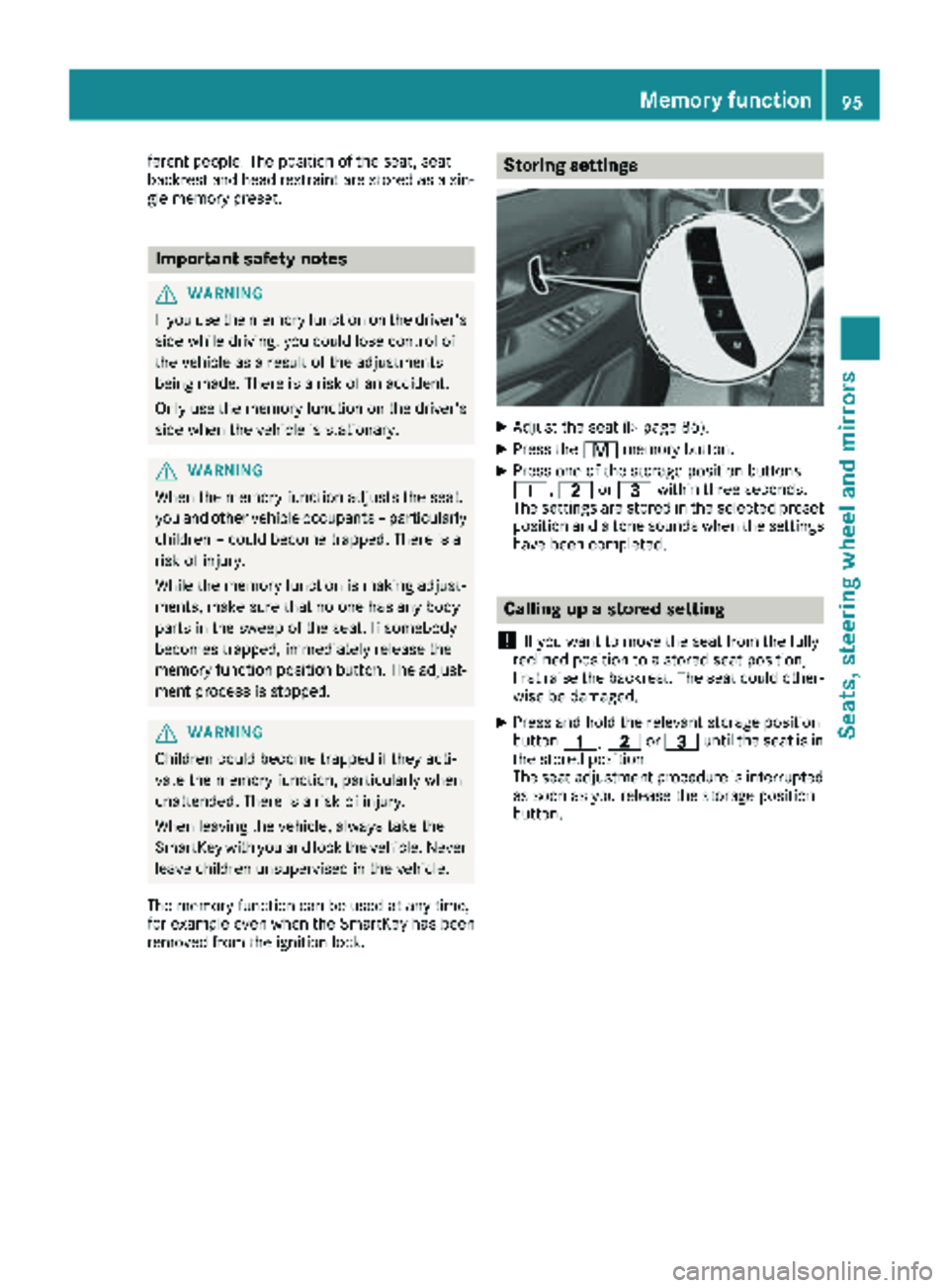
Storing settings
XAdjust the seat (Ypage 86).
XPress the rmemory button.
XPress one of the storage position buttons
4, 5or= within three seconds.
The settings are stored in the selected preset
position and a tone sounds when the settings
have been completed.
Calling up a stored setting
!
If you want to move the seat from the fully
reclined position to a stored seat position,
first raise the backrest. The seat could other-
wise be damaged.
XPress and hold the relevant storage position
button 4,5or= until the seat is in
the stored position.
The seat adjustment procedure is interrupted
as soon as you release the storage position
button.
Memory function95
Seats, steering wheel and mirrors
Z
Page 154 of 318
ready for use, the lane markings in the symbol
are shown as solid lines;.
Setting the sensitivity of Lane Keeping
Assist
XIn theAssist.menu on the on-board com-
puter, select the Lane Keeping Assist:
function (Ypage 187).
XSelectStandardorAdaptive.
In the setting Standard
, no warning vibration
occurs if:
Ryou operate the turn signal in the correspond-
ing direction. In this event, the warnings are
suppressed for a certain period of time.
Ra driving safety system, such as ABS, BAS or
ESP®, intervenes or performs a control
action.
When Adaptive
is selected, there is also no
warning vibration when:
Ryou accelerate hard, e.g. kickdown.
Rbrake sharply.
Ryou steer actively, e.g. swerve to avoid an
obstacle or change lanes quickly.
Ryou cut the corner on a sharp bend.
In order that you are warned only when neces-
sary and in good time if you cross the lane mark-
ing, the system differentiates between various
conditions and warns you accordingly.
The warning vibration occurs earlier if:
Ryou approach the outer lane marking on a
bend.
Rthe road has very wide lanes, such as a high-
way.
Rthe system detects solid lane markings.
The warning vibration occurs later if:
Rthe road has narrow lanes.
Ryou cut the corner on a bend.
Alertness Assistant ATTENTION
ASSIST
General notes
ATTENTION ASSIST helps you during long,
monotonous journeys such as on freeways and
interstate highways. It is active in the 40 mph
(60 km/h) to 125 mph (200 km/h) range. If
ATTENTION ASSIST detects typical indicators of fatigue or increasing lapses in concentration on
the part of the driver, it suggests taking a break.
Important safety notes
ATTENTION ASSIST is only an aid. The system
may not always detect fatigue or lapses in con-
centration until too late, or may not detect them
at all. ATTENTION ASSIST is not a substitute for
a well-rested and attentive driver.
The functionality of ATTENTION ASSIST is
restricted, and warnings may be delayed or not
occur at all:
Rif the length of the journey is less than approx-
imately 30 minutes
Rif the road condition is poor, e.g. if the surface
is uneven or if there are potholes
Rif there is a strong side wind
Rif you have adopted a sporty driving style with
high cornering speeds or high rates of accel-
eration
Rif you are predominantly driving at a speed
below 40 mph (60 km/h) or above 125 mph
(200 km/h)
Rif the time has been set incorrectly
Rin active driving situations, such as when you
change lanes or change your speed
ATTENTION ASSIST is reset and starts assessing
your attention again when you continue your
journey if:
Ryou switch off the engine
Ryou take off your seat belt and open the driv-
er's door, e.g. for a change of drivers or to
take a break
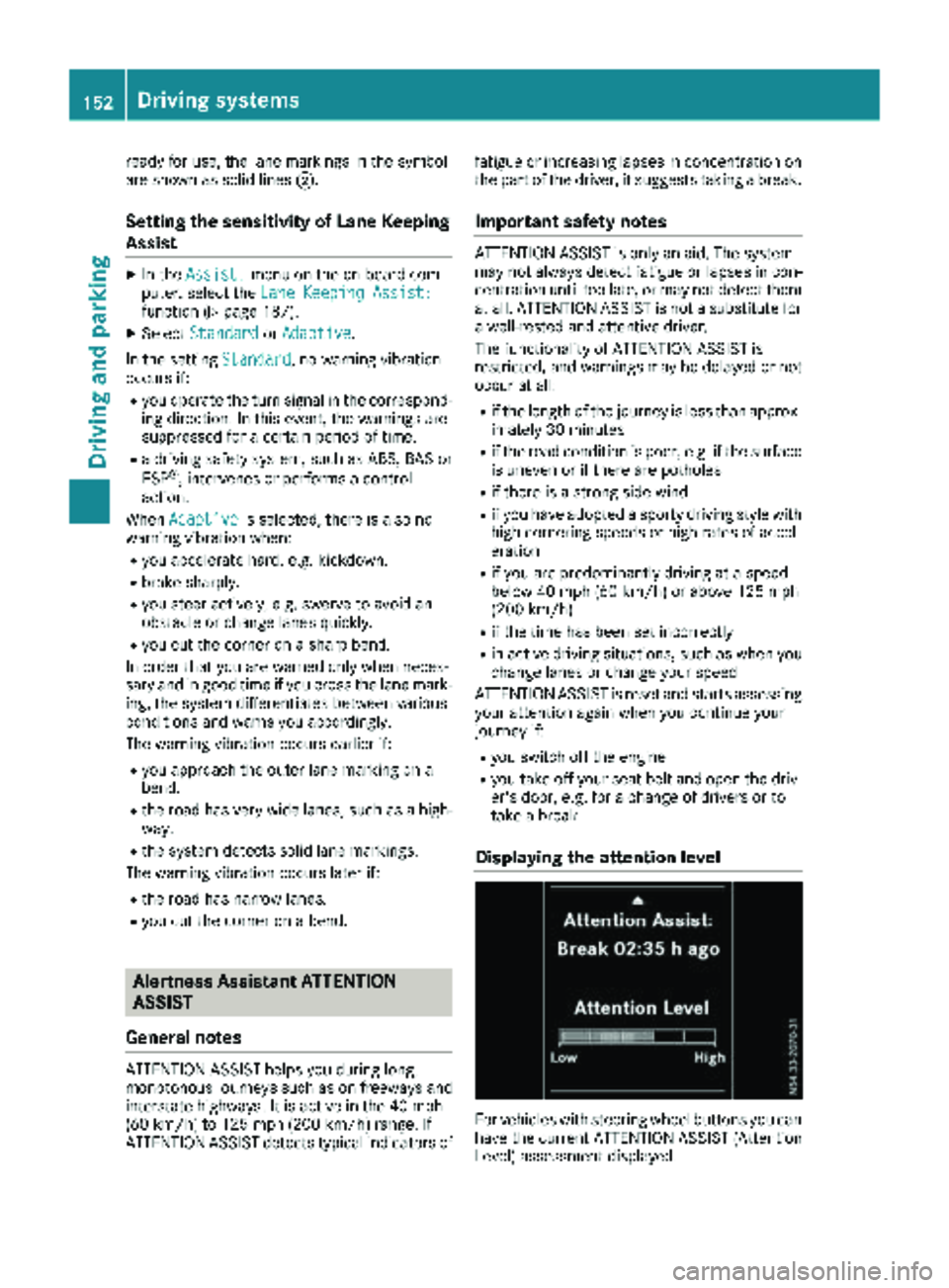
Displaying the attention level
For vehicles with steering wheel buttons you can
have the current ATTENTION ASSIST (Attention
Level) assessment displayed.
152Driving systems
Driving and parking
Page 175 of 318
On-board computer (vehicles without
steering wheel buttons)
Operating the on-board computer
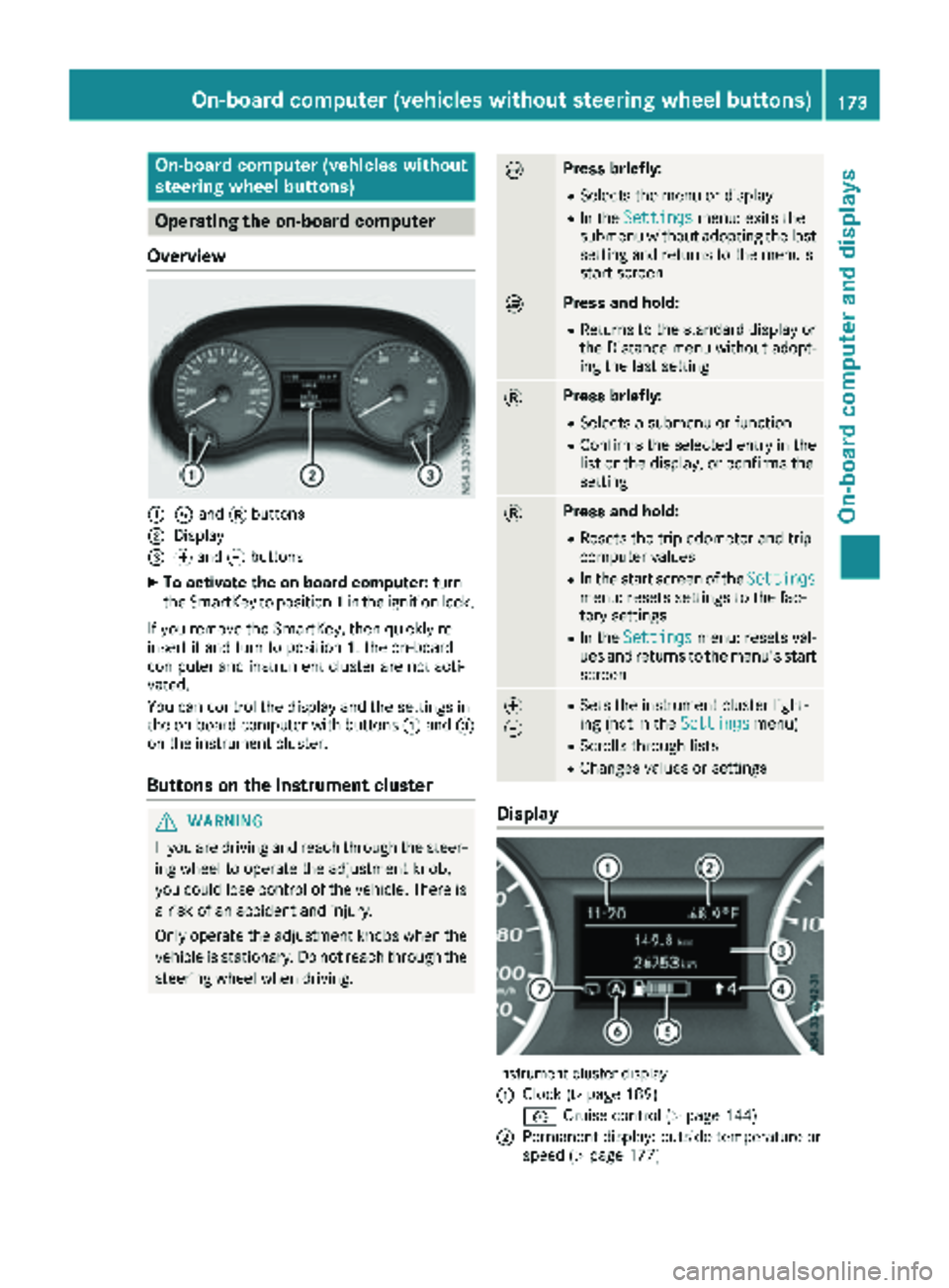
Overview
:È and 3buttons
;Display
=f and gbuttons
XTo activate the on-board computer: turn
the SmartKey to position 1in the ignition lock.
If you remove the SmartKey, then quickly re-
insert it and turn to position 1, the on-board
computer and instrument cluster are not acti-
vated.
You can control the display and the settings in
the on-board computer with buttons :and =
on the instrument cluster.
Buttons on the instrument cluster
GWARNING
If you are driving and reach through the steer- ing wheel to operate the adjustment knob,
you could lose control of the vehicle. There is
a risk of an accident and injury.
Only operate the adjustment knobs when thevehicle is stationary. Do not reach through the
steering wheel when driving.
ÈPress briefly:
RSelects the menu or display
RIn the Settingsmenu: exits the
submenu without adopting the last
setting and returns to the menu's
start screen
ÈPress and hold:
RReturns to the standard display or the Distance menu without adopt-
ing the last setting
3Press briefly:
RSelects a submenu or function
RConfirms the selected entry in the
list or the display, or confirms the
setting
3Press and hold:
RResets the trip odometer and trip
computer values
RIn the start screen of the Settingsmenu: resets settings to the fac-
tory settings
RIn theSettingsmenu: resets val-
ues and returns to the menu's start
screen
f
gRSets the instrument cluster light-
ing (not in the Settingsmenu)
RScrolls through lists
RChanges values or settings
Display
Instrument cluster display
:
Clock (Ypage 189)
V Cruise control (
Ypage 144)
;Permanent display: outside temperature or
speed (Ypage 177)
On-board computer (vehicles without steering wheel buttons)173
On-board computer and displays
Z
Page 176 of 318
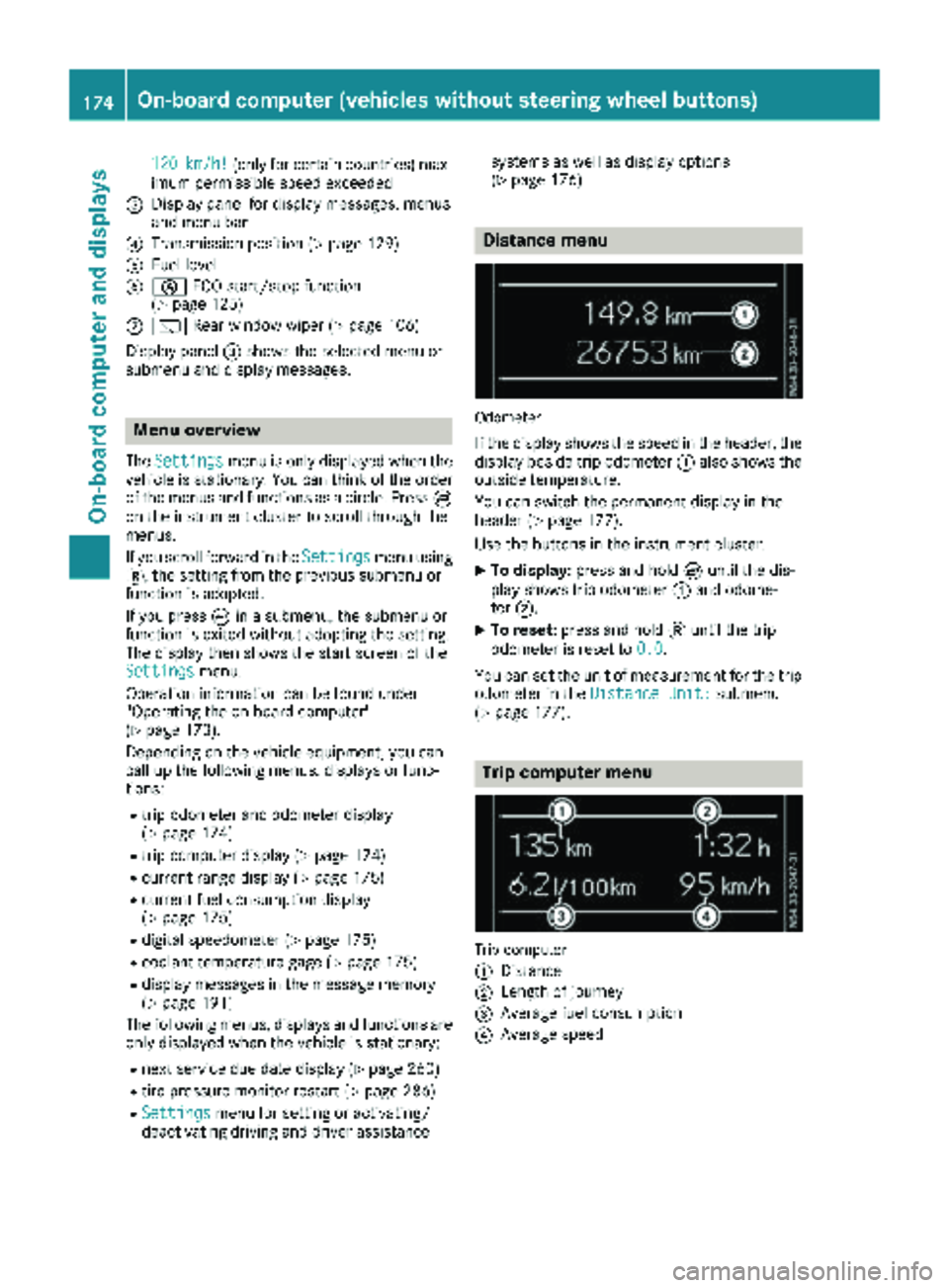
120km/h!(only for certain countries) max-
imum permissible speed exceeded
=Display panel for display messages, menus
and menu bar
?Transmission position (Ypage 129)
AFuel level
Bè ECO start/stop function
(Ypage 125)
Cè Rear window wiper (Ypage 106)
Display panel =shows the selected menu or
submenu and display messages.
Menu overview
The Settingsmenu is only displayed when the
vehicle is stationary. You can think of the order
of the menus and functions as a circle. Press È
on the instrument cluster to scroll through the
menus.
If you scroll forward in the Settings
menu using
3, the setting from the previous submenu or
function is adopted.
If you press Èin a submenu, the submenu or
function is exited without adopting the setting.
The display then shows the start screen of the
Settings
menu.
Operation information can be found under
"Operating the on-board computer"
(
Ypage 173).
Depending on the vehicle equipment, you can
call up the following menus, displays or func-
tions:
Rtrip odometer and odometer display
(Ypage 174)
Rtrip computer display (Ypage 174)
Rcurrent range display (Ypage 175)
Rcurrent fuel consumption display
(Ypage 175)
Rdigital speedometer (Ypage 175)
Rcoolant temperature gage (Ypage 175)
Rdisplay messages in the message memory
(Ypage 191)
The following menus, displays and functions are only displayed when the vehicle is stationary:
Rnext service due date display (Ypage 260)
Rtire pressure monitor restart (Ypage 286)
RSettingsmenu for setting or activating/
deactivating driving and driver assistance systems as well as display options
(
Ypage 176)
Distance menu
Odometer
If the display shows the speed in the header, the
display beside trip odometer
:also shows the
outside temperature.
You can switch the permanent display in the
header (
Ypage 177).
Use the buttons in the instrument cluster.
XTo display: press and hold Èuntil the dis-
play shows trip odometer :and odome-
ter ;.
XTo reset: press and hold 3until the trip
odometer is reset to 0.0
.
You can set the unit of measurement for the trip odometer in the Distance Unit:
submenu
(Ypage 177).
Trip computer menu
Trip computer
:
Distance
;Length of journey
=Average fuel consumption
?Average speed
174On-board computer (vehicles without steering wheel buttons)
On-board computer and displays
Page 177 of 318
Use the buttons in the instrument cluster.
XTo display:pressÈto select the trip com-
puter display.
The values displayed relate to those meas-
ured since the trip computer was last reset.
XTo reset values: press and hold3until all
values are reset.
The trip computer is automatically reset if the
value exceeds 9,999 hours or 99,999 miles.
You can set the unit of measurement for con-
sumption and distance in the Distance Unit:
submenu (Ypage 177).
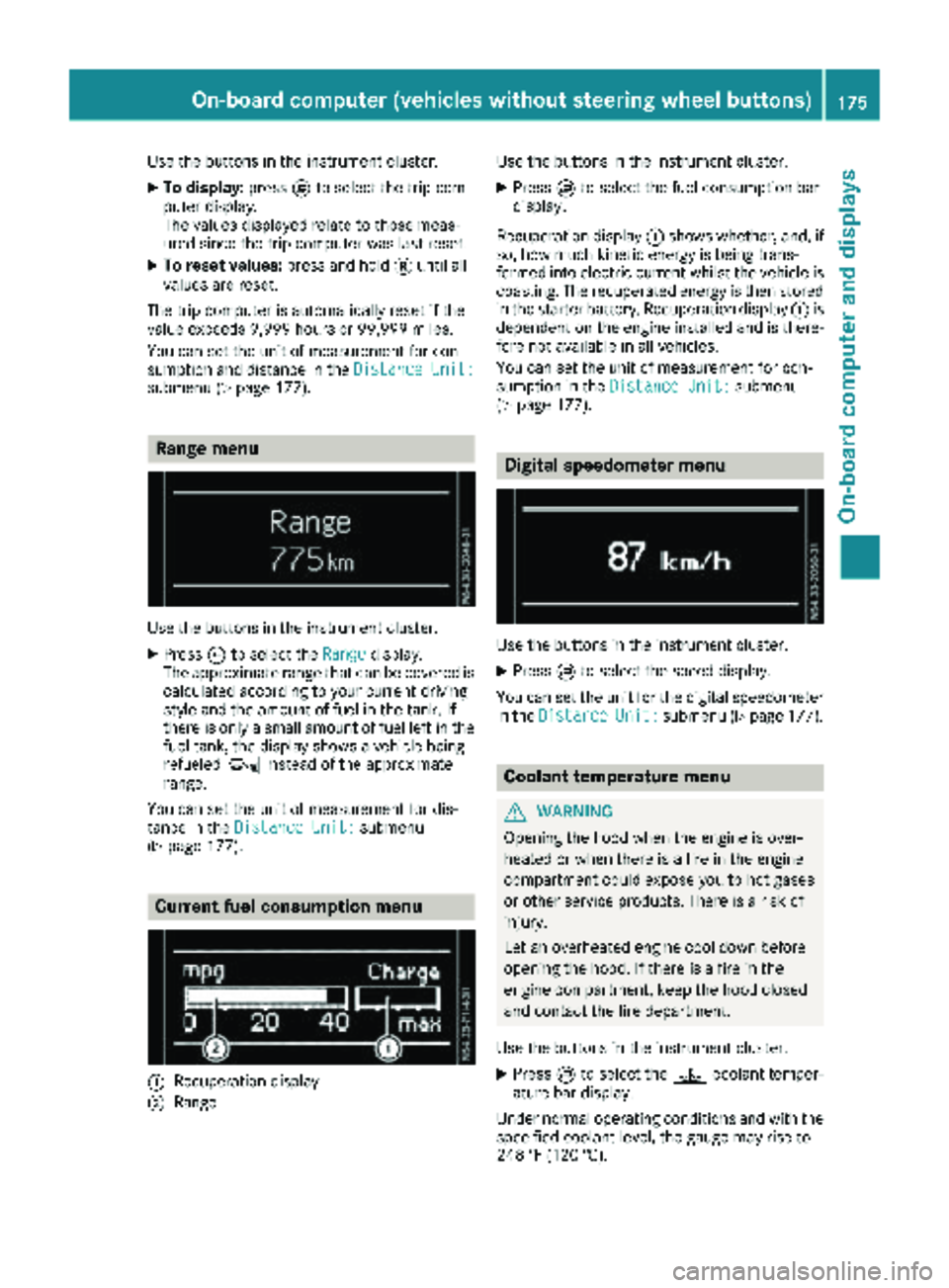
Range menu
Use the buttons in the instrument cluster.
XPressÈto select the Rangedisplay.
The approximate range that can be covered is calculated according to your current driving
style and the amount of fuel in the tank. If
there is only a small amount of fuel left in the
fuel tank, the display shows a vehicle being
refueled Ïinstead of the approximate
range.
You can set the unit of measurement for dis-
tance in the Distance Unit:
submenu
(Ypage 177).
Current fuel consumption menu
:Recuperation display
;Range Use the buttons in the instrument cluster.
XPress
Èto select the fuel consumption bar
display.
Recuperation display :shows whether, and, if
so, how much kinetic energy is being trans-
formed into electric current whilst the vehicle is
coasting. The recuperated energy is then stored in the starter battery. Recuperation display :is
dependent on the engine installed and is there-
fore not available in all vehicles.
You can set the unit of measurement for con-
sumption in the Distance Unit:
submenu
(Ypage 177).
Digital speedometer menu
Use the buttons in the instrument cluster.
XPress Èto select the speed display.
You can set the unit for the digital speedometer
in the Distance
Unit:submenu (Ypage 177).
Coolant temperature menu
GWARNING
Opening the hood when the engine is over-
heated or when there is a fire in the engine
compartment could expose you to hot gases
or other service products. There is a risk of
injury.
Let an overheated engine cool down before
opening the hood. If there is a fire in the
engine compartment, keep the hood closed
and contact the fire department.
Use the buttons in the instrument cluster.
XPress Èto select the ?coolant temper-
ature bar display.
Under normal operating conditions and with the
specified coolant level, the gauge may rise to
248 ‡ (120 †).
On-board computer (vehicles without steering wheel buttons)175
On-board computer and displays
Z
Page 178 of 318
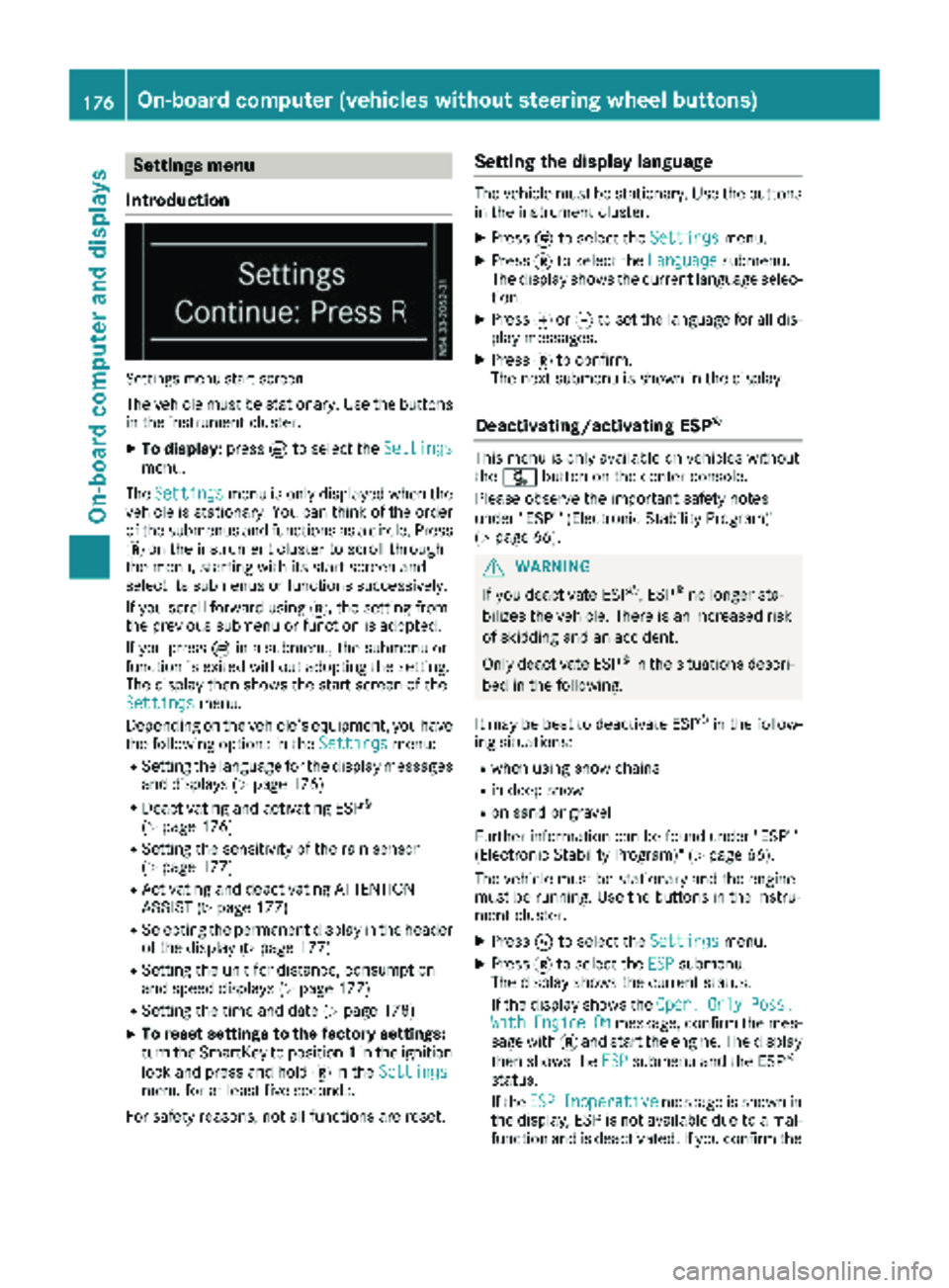
Settings menu
Introduction
Settings menu start screen
The vehicle must be stationary. Use the buttons
in the instrument cluster.
XTo display: pressÈto select the Settingsmenu.
The Settings
menu is only displayed when the
vehicle is stationary. You can think of the order
of the submenus and functions as a circle. Press
3 on the instrument cluster to scroll through
the menu, starting with its start screen and
select its submenus or functions successively.
If you scroll forward using 3, the setting from
the previous submenu or function is adopted.
If you press Èin a submenu, the submenu or
function is exited without adopting the setting.
The display then shows the start screen of the
Settings
menu.
Depending on the vehicle’s equipment, you have the following options in the Settings
menu:
RSetting the language for the display messages
and displays (Ypage 176)
RDeactivating and activating ESP®
(Ypage 176)
RSetting the sensitivity of the rain sensor
(Ypage 177)
RActivating and deactivating ATTENTION
ASSIST (Ypage 177)
RSelecting the permanent display in the header
of the display (Ypage 177)
RSetting the unit for distance, consumption
and speed displays (Ypage 177)
RSetting the time and date (Ypage 178)
XTo reset settings to the factory settings:
turn the SmartKey to position 1in the ignition
lock and press and hold 3in the Settings
menu for at least five seconds.
For safety reasons, not all functions are reset.
Setting the display language
The vehicle must be stationary. Use the buttons
in the instrument cluster.
XPress Èto select the Settingsmenu.
XPress3to select the Languagesubmenu.
The display shows the current language selec- tion.
XPress forg to set the language for all dis-
play messages.
XPress 3to confirm.
The next submenu is shown in the display.
Deactivating/activating ESP®
This menu is only available on vehicles without
the å button on the center console.
Please observe the important safety notes
under "ESP
®(Electronic Stability Program)"
(Ypage 66).
GWARNING
If you deactivate ESP
®, ESP®no longer sta-
bilizes the vehicle. There is an increased risk
of skidding and an accident.
Only deactivate ESP
®in the situations descri-
bed in the following.
It may be best to deactivate ESP
®in the follow-
ing situations:
Rwhen using snow chains
Rin deep snow
Ron sand or gravel
Further information can be found under "ESP®
(Electronic Stability Program)" (Ypage 66).
The vehicle must be stationary and the engine
must be running. Use the buttons in the instru-
ment cluster.
XPress Èto select the Settingsmenu.
XPress3to select the ESPsubmenu.
The display shows the current status.
If the display shows the Oper.
OnlyPoss.WithEngineOnmessage, confirm the mes-
sage with 3and start the engine. The display
then shows the ESP
submenu and the ESP®
status.
If theESP
Inoperativemessage is shown in
the display, ESP is not available due to a mal-
function and is deactivated. If you confirm the
176On-board computer (vehicles without steering wheel buttons)
On-board computer and displays
Page 183 of 318
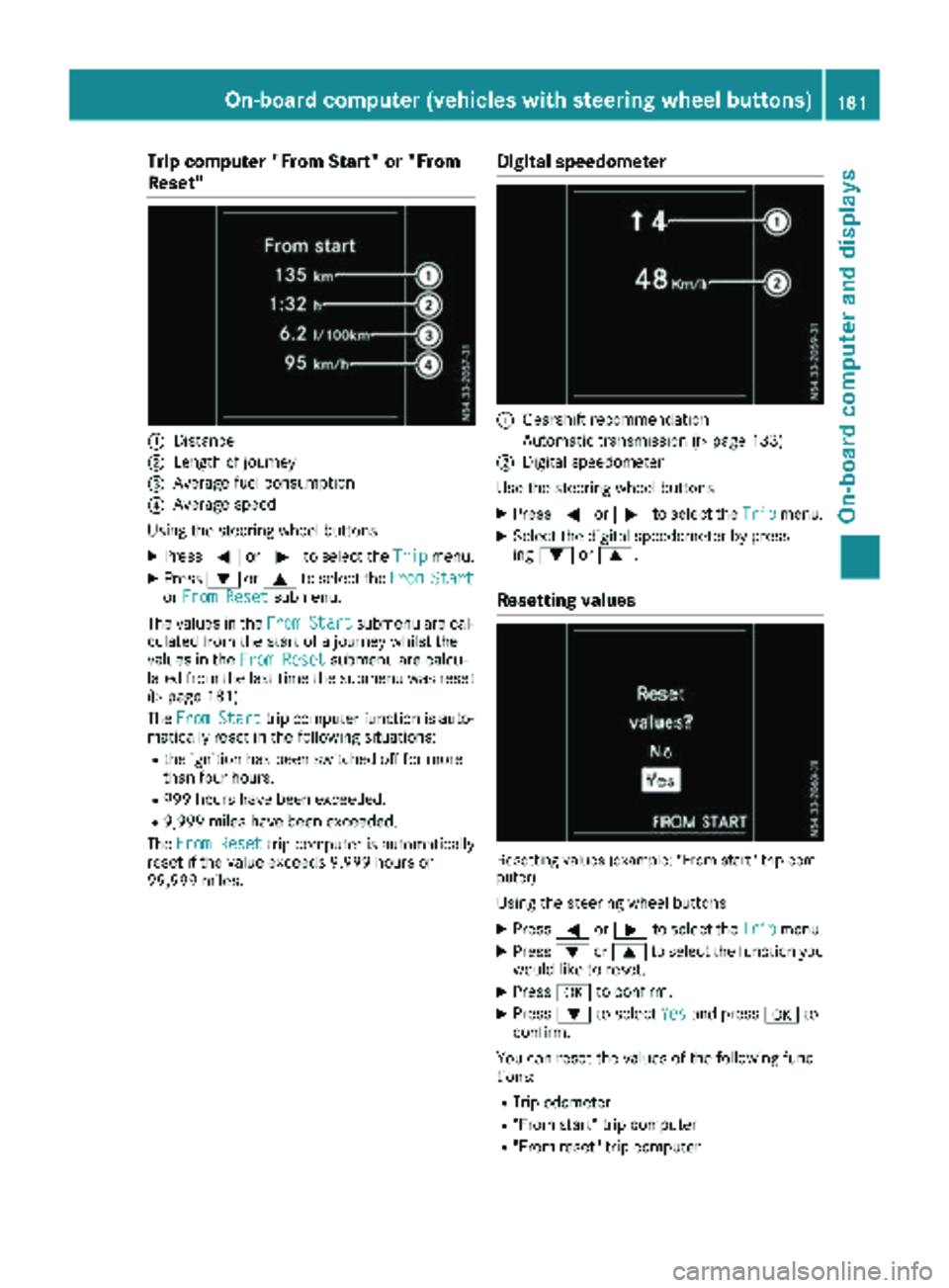
Trip computer "From Start" or "From
Reset"
:Distance
;Length of journey
=Average fuel consumption
?Average speed
Using the steering wheel buttons
XPress =or; to select the Tripmenu.
XPress:or9 to select the FromStartorFrom Resetsubmenu.
The values in the From
Startsubmenu are cal-
culated from the start of a journey whilst the
values in the From Reset
submenu are calcu-
lated from the last time the submenu was reset
(
Ypage 181).
The From
Starttrip computer function is auto-
matically reset in the following situations:
Rthe ignition has been switched off for more
than four hours.
R999 hours have been exceeded.
R9,999 miles have been exceeded.
The From Reset
trip computer is automatically
reset if the value exceeds 9,999 hours or
99,999 miles.
Digital speedometer
:Gearshift recommendation
Automatic transmission (
Ypage 133)
;Digital speedometer
Use the steering wheel buttons.
XPress =or; to select the Tripmenu.
XSelect the digital speedometer by press-
ing: or9.
Resetting values
Resetting values (example: "From start" trip com-
puter)
Using the steering wheel buttons
XPress =or; to select the Tripmenu.
XPress:or9 to select the function you
would like to reset.
XPress ato confirm.
XPress :to select Yesand press ato
confirm.
You can reset the values of the following func-
tions:
RTrip odometer
R"From start" trip computer
R"From reset" trip computer
On-board computer (vehicles withsteering whee lbu ttons)181
On-board computer and displays
Z
Page 185 of 318
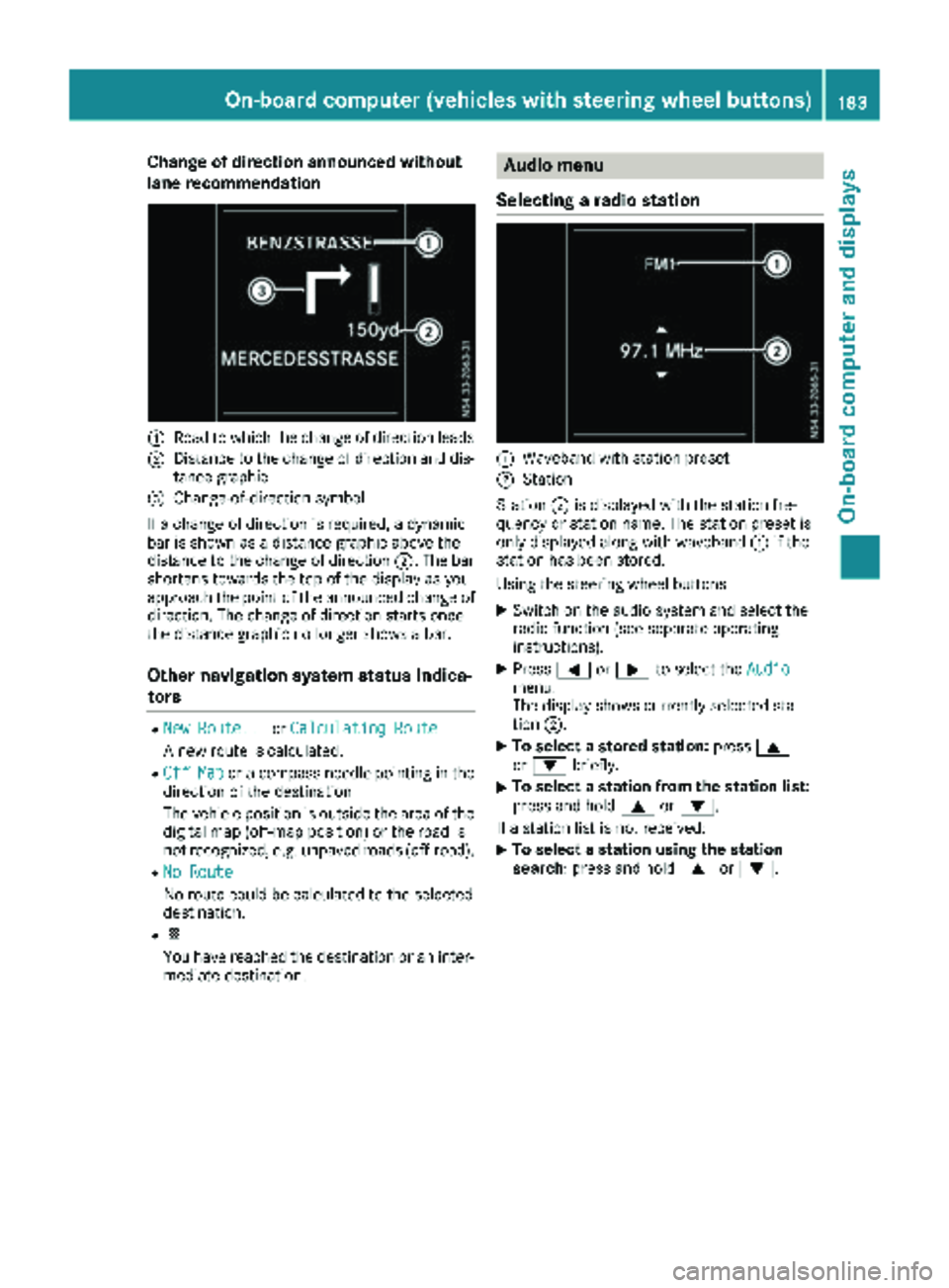
Change of direction announced without
lane recommendation
:Road to which the change of direction leads
;Distance to the change of direction and dis-
tance graphic
=Change-of-direction symbol
If a change of direction is required, a dynamic
bar is shown as a distance graphic above the
distance to the change of direction ;. The bar
shortens towards the top of the display as you
approach the point of the announced change of
direction. The change of direction starts once
the distance graphic no longer shows a bar.
Other navigation system status indica-
tors
RNew Route...or Calculating Route
A new route is calculated.
ROff Mapor a compass needle pointing in the
direction of the destination
The vehicle position is outside the area of the
digital map (off-map position) or the road is
not recognized, e.g. unpaved roads (off-road).
RNo Route
No route could be calculated to the selected
destination.
RO
You have reached the destination or an inter-
mediate destination.
Audio menu
Selecting a radio station
:Waveband with station preset
;Station
Station ;is displayed with the station fre-
quency or station name. The station preset is
only displayed along with waveband :if the
station has been stored.
Using the steering wheel buttons
XSwitch on the audio system and select the
radio function (see separate operating
instructions).
XPress =or; to select the Audiomenu.
The display shows currently selected sta-
tion;.
XTo select a stored station: press9
or : briefly.
XTo select a station from the station list:
press and hold 9or:.
If a station list is not received:
XTo select a station using the station
search: press and hold 9or:.
On-board computer (vehicles with steering wheel buttons)183
On-board computer and displays
Z
Page 190 of 318
Depending on the vehicle’s equipment, you have
the following options in theServicemenu:
RCalling up display messages in the message
memory (Ypage 205)
RRestarting the tire pressure loss warning sys-
tem or checking the tire pressure electroni-
cally (
Ypage 286)
RCalling up the service due date (ASSYST
PLUS) (Ypage 260)
Settings menu
Introduction
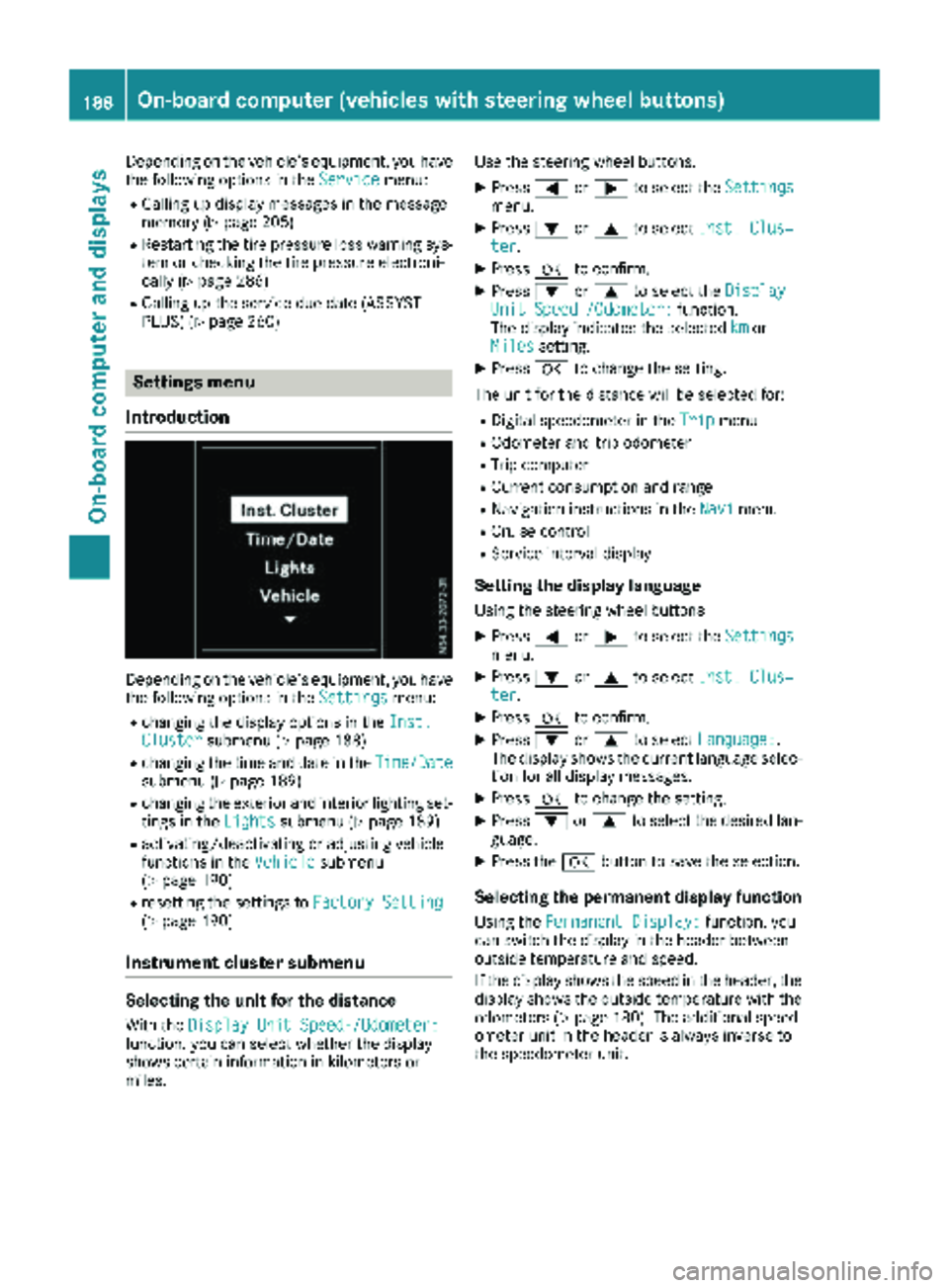
Depending on the vehicle’s equipment, you have
the following options in the Settingsmenu:
Rchanging the display options in the Inst.Clustersubmenu (Ypage 188)
Rchanging the time and date in theTime/Datesubmenu (Ypage 189)
Rchanging the exterior and interior lighting set-
tings in theLightssubmenu (Ypage 189)
Ractivating/deactivating or adjusting vehicle
functions in the Vehiclesubmenu
(Ypage 190)
Rresetting the settings to Factory Setting(Ypage 190)
Instrument cluster submenu
Selecting the unit for the distance
With theDisplay Unit Speed-/Odometer:function, you can select whether the display
shows certain information in kilometers or
miles. Use the steering wheel buttons.
XPress
=or; to select the Settingsmenu.
XPress:or9 to select Inst. Clus‐ter.
XPressato confirm.
XPress :or9 to select the DisplayUnit Speed-/Odometer:function.
The display indicates the selected kmor
Milessetting.
XPress ato change the setting.
The unit for the distance will be selected for:
RDigital speedometer in the Tripmenu
ROdometer and trip odometer
RTrip computer
RCurrent consumption and range
RNavigation instructions in the Navimenu
RCruise control
RService interval display
Setting the display language
Using the steering wheel buttons
XPress=or; to select the Settingsmenu.
XPress:or9 to select Inst. Clus‐ter.
XPressato confirm.
XPress :or9 to select Language:.
The display shows the current language selec-
tion for all display messages.
XPress ato change the setting.
XPress :or9 to select the desired lan-
guage.
XPress the abutton to save the selection.
Selecting the permanent display function
Using the Permanent Display:function, you
can switch the display in the header between
outside temperature and speed.
If the display shows the speed in the header, the
display shows the outside temperature with the
odometers (
Ypage 180). The additional speed-
ometer unit in the header is always inverse to
the speedometer unit.
188On-board computer (vehicles withsteering whee lbu ttons)
On-board computer and displays