audio MERCEDES-BENZ METRIS 2018 MY18 Operator’s Manual
[x] Cancel search | Manufacturer: MERCEDES-BENZ, Model Year: 2018, Model line: METRIS, Model: MERCEDES-BENZ METRIS 2018Pages: 318, PDF Size: 5.07 MB
Page 234 of 318
Introduction
Important safety notes
GWARNING
If you operate information systems and com-
munication equipmen tintegrate din th evehi-
cle when driving ,you may be distracte dfrom
th etraffic situation .You could also lose con-
trol of th evehicle. Ther eis aris kof an acci-
dent.
Only operate this equipmen twhen th etraffic
situation permits. If you are no tsur ethat this
is possible ,park th evehicl epayin gattention
to traffic condition sand operate th eequip-
men twhen th evehicl eis stationary.
Observ eth elegal requirements for th ecountry
you are in.
GWARNIN G
If you operate information and communica-
tion device swhile driving ,you may be dis-
tracted from th etraffic conditions. You could
eve nlose control of th evehicle. Ther eis aris k
of an accident.
Only operate these device swhen th evehicl e
is stationary.
GWARNIN G
Operating or handlin gmobile audio/vide o
source swhile driving could distrac tyou from
traffic conditions. You could also lose control
of th evehicle. Ther eis aris kof an accident.
Operate or handle mobile audio/vide osour -
ce sonly when th evehicl eis stationary.
Only operate mobile audio/vide osource svia
th ecommunication sequipmen tintegrate din
th evehicle, and if road traffic condition sper -
mit .If this is no tth ecase, pull ove rto asaf e
location and mak eentries only while th evehi-
cle is stationary.
GWARNIN G
If you handle adisc while driving ,you may be
distracte dfrom th etraffic situation .You could
also lose control of th evehicle. Ther eis aris k
of an accident.
Only handle adisc when th evehicl eis sta-
tionary.
Bea rin min dthat at aspee dof jus t30 mph
(approximately 50 km/h), your vehicl eis cover -
ing adistanc eof 44 fee t(approximately 14 m)
per second.
GWARNIN G
SD cards are small parts. They can be swal-
lowed and caus echoking .This poses an
increased ris kof injury or eve nfatal injury.
Kee pth eSD car dout of th ereac hof children .
If aSD car dis swallowed, seek medical atten -
tion immediately.
GWARNIN G
Modification sto electronic components, their
software as well as wirin gcan impair their
function and/o rth efunction of other net-
worke dcomponents. In particular, systems
relevan tto safet ycould also be affected. As a
result ,these may no longer function as inten -
ded and/o rjeopardiz eth eoperating safet yof
th evehicle. Ther eis an increased ris kof an
acciden tand injury.
Never tamper wit hth ewirin gas well as elec -
tronic component sor their software. You
should hav eall wor kto electrical and elec -
tronic equipmen tcarrie dout at aqualified
specialist workshop.
GWARNIN G
If you incorrectl yoperate two-way radios in
th evehicle, th eelectromagneti cradiation
may interfere wit hth evehicl eelectronics ,for
exampl eif:
Rth etwo-way radi ois no tconnecte dto an
exterio rantenna
Rth eexterio rantenna is no tcorrectl ymoun -
te dor is no tlow-reflection
This could jeopardiz eth eoperating safet yof
th evehicle. Ther eis aris kof an accident.
Hav eth elow-reflection exterio rantenna
installed at aqualified specialist workshop.
Always connec ttwo-way radios to th elow-
232Introduction
Multimedia systems in brief
Page 236 of 318
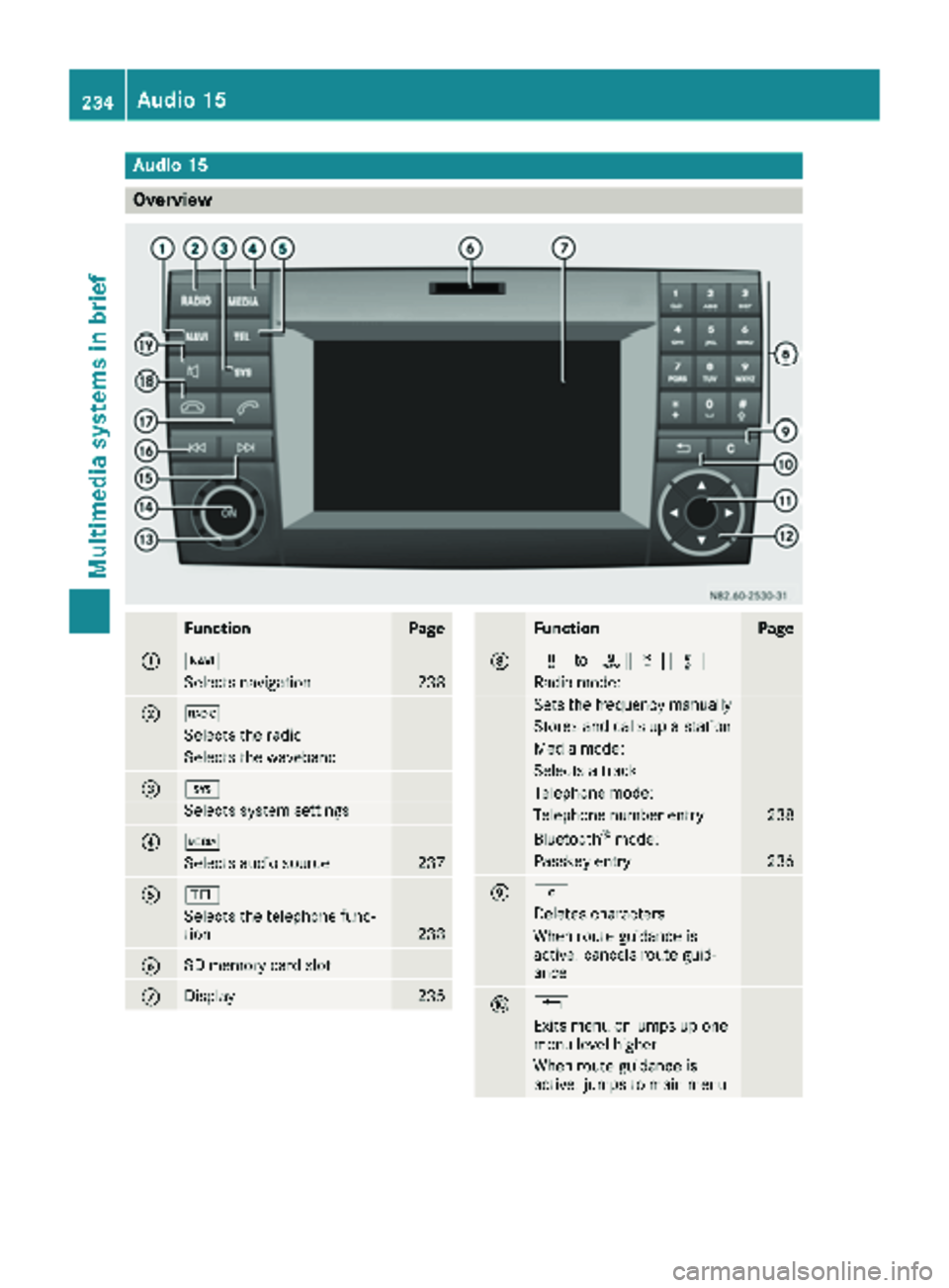
Audio15
Overview
FunctionPage
:Ø
Selects navigation238
;$
Selects th eradi o
Selects th ewaveban d
=i
Selects system setting s
?Õ
Selects audio source237
A%
Selects th etelephon efunc-
tion23 8
BSD memory car dslot
CDisplay23 5
FunctionPage
Dx toslm
Radio mode:
Sets th efrequency manually
Store sand call sup astation
Medi amode:
Selects atrack
Telephon emode:
Telephon enumber entr y238
Bluetoot h®mode:
Passkeyentr y236
Ej
Deletes characters
When rout eguidance is
active :cancels rout eguid-
anc e
F%
Exit smen uor jumps up on e
men ulevel higher
When rout eguidance is
active :jumps to main men u
234Audio 15
Multimedia systems in brief
Page 237 of 318
FunctionPage
GControl knob
Turn: selects menus and
entries
Press: confirms selection/
entry
H9/:
Selects the previous/next
line in the menu
= /;
Within a menu:
Jumps one entry to the left/
right
Jumps up one menu level
higher/jumps back to the
main menu
Shows other editing
options/menus
Io Turn:
Sets the volume
JqPress:
Switches on/off
KF
Radio mode:
Press briefly: station search
Press and hold: sets a station
Media mode:
Press briefly: skips forward
Press and hold: fast forwards
FunctionPage
LE
Radio mode:
Press briefly: station search
Press and hold: sets a station
Media mode:
Press briefly: skips back
Press and hold: rewinds
M6
Accepts a call
Makes a call238
N~
Ends a call
Rejects a call
O8
Mute
Pauses SD memory
card/USB device
Switches the hands-free sys-
tem on/off
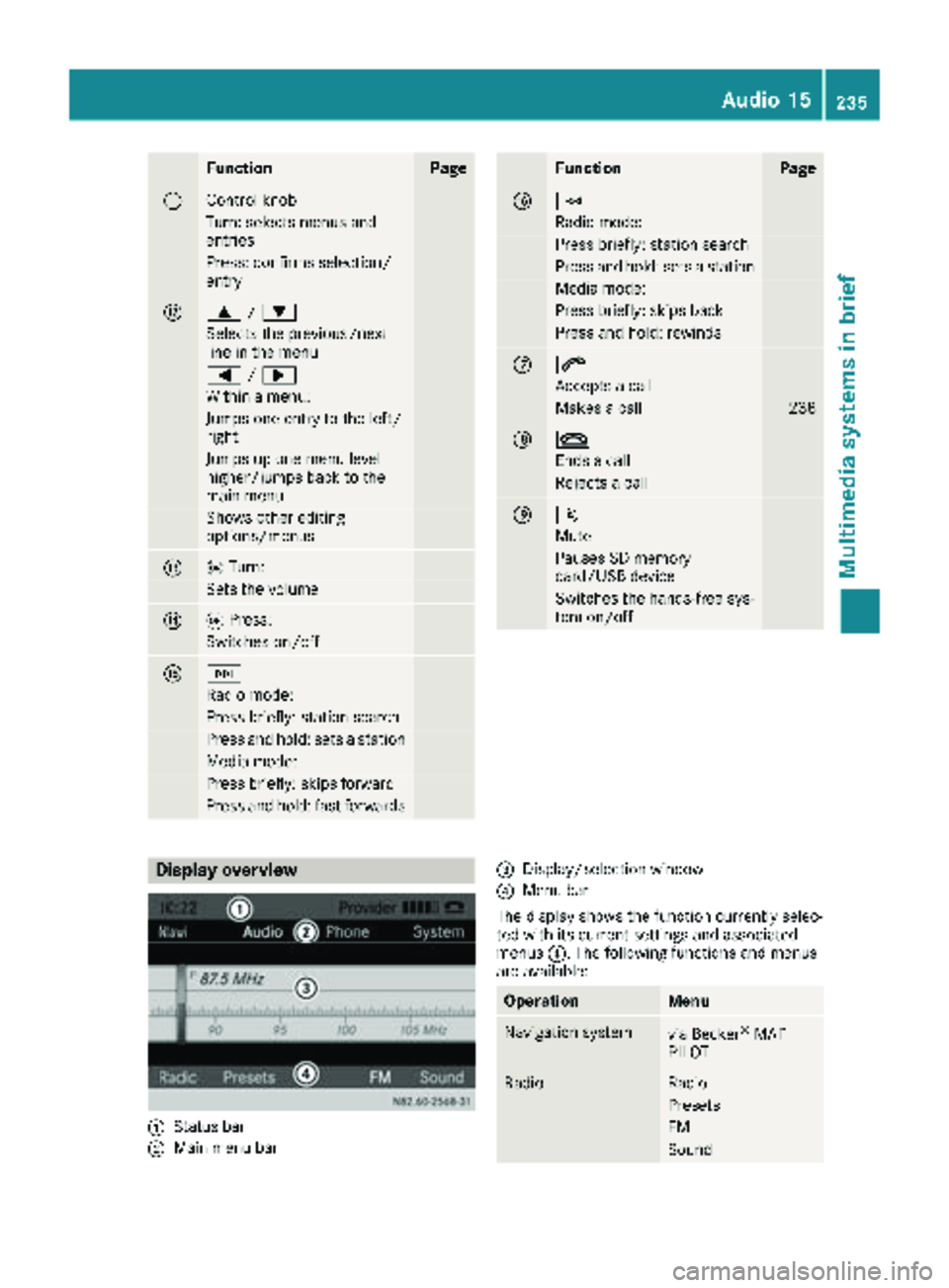
Display overview
:Status bar
;Main menu bar
=Display/selection window
?Menu bar
The display shows the function currently selec-
ted with its current settings and associated
menus ?. The following functions and menus
are available:
OperationMenu
Navigation systemvia Becker®MAP
PILOT
RadioRadio
Presets
FM
Sound
Audio 15235
Multimedia systems in brief
Z
Page 238 of 318
OperationMenu
SD memory cardSD
Music
Media
Sound
USB deviceUSB
Music
Media
Sound
AUXAUX
Volume
Sound
BT AudioBT Audio
Media
Sound
TelephoneTelephone
Call lists
SystemSettings
Display off
Bluetooth®settings
Requirements for a Bluetooth
®connec-
tion
You can connect Bluetooth®-compatible mobile
phones and other audio equipment to the mul-
timedia system.
To do so, the following conditions must be met:
RThe Bluetooth®device must be located inside
the vehicle in the vicinity of the multimedia
system.
RBluetooth®must be activated on both the
multimedia system and on the respective
Bluetooth
®device.
Rthe Bluetooth®device must be visible for the
multimedia system.
iYou can obtain further information about
suitable mobile phones and connecting
mobile phones via Bluetooth
®at any qualified
specialist workshop.
iYou can obtain further information about
suitable mobile phones and connecting mobile phones via Bluetooth
®at any author-
ized Sprinter Dealer.
Activating/deactivating the Bluetooth®
function
XPress the ibutton.
XPress the :button repeatedly until the
menu bar is selected.
XSelect Settings.
XSelectActivate Bluetooth.
XActivate or deactivate the Bluetooth®func-
tion using the control knob.
A tick in front of the Activate Bluetooth
message indicates that the Bluetooth®func-
tion is activated.
iThe Bluetooth®function will remain
switched on until you switch it off again.
Searching for and pairing with a Blue-
tooth®device
XPress the %button.
or
XSelect the Bluetooth®audio function.
XPress the :button repeatedly until the
menu bar is selected.
XSelect Telephone/BT Audio.
XBluetooth telephones/Bluetoothdevice list.
XSelectUpdate.
The multimedia system searches for Blue-
tooth
®devices within range for a certain
period of time.
If at least one Bluetooth
®device is found, the
display shows the Bluetooth®name of the
device.
If the multimedia system does not find a Blue-
tooth
®device, the SearchforBluetoothdevices failed.message is shown in the
display.
XTo search again: select Update.
XTo select a Bluetooth®device:select the
desired Bluetooth®device using the control
knob.
The display shows the input menu for the
passkey.
236Audio 15
Multimedia systems in brief
Page 239 of 318
XTo enter the passkey:enter an easy to
remember, four-digit number using the x
to s number keys.
XTo confirm the entry: select OK.
The Bluetooth®device is authorized.
XSelect Bluetooth®device name MB Blue-
tooth on the device.
XEnter the four-digit number selected previ-
ously on the Bluetooth®device, and confirm.
XConfirm possible prompts using the Blue-
tooth®device.
The Authorization successful.message
is shown in the display. You will see the Blue-
tooth
®name of the Bluetooth®device in the
display/selection window.
iWhen the Authorization failed.mes-
sage is displayed, you may have exceeded the
prescribed time period. Repeat the proce-
dure.
If the pairing process was successful, the
Bluetooth
®device is automatically connected
to the multimedia system.
Unpairing a Bluetooth®device
XPress the %button.
or
XSelect the Bluetooth®audio function.
XPress the :button repeatedly until the
menu bar is selected.
XSelect Telephone/BT Audio.
XBluetooth telephones/Bluetoothdevice list.
The display shows all paired Bluetooth®devi-
ces. The current Bluetooth®device is identi-
fied by the #dot.
XSelect the Bluetooth®device to be unpaired.
XSelect the list symbol next to the entry using
the ; button.
XSelect De-authorize.
A prompt appears in the display asking
whether the Bluetooth
®device should be de-
authorized.
XTo unpair: select Yes.
The Bluetooth®device is unpaired and
deleted from the device list.
XTo cancel the unpairing process : selectNo.
The Bluetooth®device is not unpaired from
the multimedia system. You have canceled
the process.
Ending a Bluetooth®connection
iIf you end the Bluetooth®connection, the
Bluetooth®device is not deleted from the
multimedia system memory.
A Bluetooth
®connection can be ended in the
following ways:
Rdeactivate the Bluetooth®function of the
multimedia system.
Rdeactivate the Bluetooth®function of your
Bluetooth®device.
Rswitch off the multimedia system.
Rswitch off the Bluetooth®device.
Media mode
Memory card audio playback
XTo insert the SD memory card: insert the
SD memory card into the SD slot with the
contacts at the front and facing downwards.
XPress the Õbutton repeatedly, until the
display in the menu bar shows SD.
Playback starts.
iIf the multimedia system cannot find any
readable files on the SD memory card, the
display shows No Playable Files
.
XTo remove the SD memory card: press the
SD memory card.
The multimedia system ejects the SD memory
card.
USB device audio playback
The connection for USB devices is located in the
left-hand stowage compartment, next to the
multimedia system.
Audio 15237
Multimedia systems in brief
Z
Page 240 of 318
XConnect the USB device to the USB portinthe
correct position.
XPress the Õbutton repeatedly, unt ilthe
displ ayinthe menu bar shows USB.
Playback starts.
iDue to the widerange of USB devices avail-
able on the market, playback cannot beguar-
anteed for all USB device brands.
Audio playback from a Bluetooth®
device
Requir ement: the Bluetooth®audio device is
paired and connected to the multimedia system.
XPress theÕbutton repeatedly untilBTAudiois shown in thedispl ay.
XPress the :button repeatedly untilthe
menu bar isselected.
XTo start playback: selectMinthe menu bar.
Playback starts.
XTo stop playback: select¯inthe menu bar.
Playback stops.
Audio playback via the AUX jack
XConnect an external device to the AUX jack.
XPress the Õbutton repeatedly untilthe
displ ay shows Aux.
The multimedia system plays the external
device and produces sound through the loud-
speakers again.
Telephone mode
"999" or "112" emergency call
Making emergency calls without entering a PIN
is only possible using the mob ilephone.
The 999 or112 emergency call number isa
public service. Any misuse ispunishable by law.
Making a call
XPress the%button.
XEnter the desired phone number using the
xtos number keys and the lbut-
ton.
XTo delete individual digits: press theí
button.
XTo delete the entire numerical sequence:
press and hold the íbutton until the
entire numerical sequence isdeleted.
XTo make a call: press the6button.
This initiates dialing.
XTo cancel dialing: press the~button
when dialing.
Navigation system
Important safety notes
GWARNING
If you operate information systems and com-
munication equipment integrated in the veh i-
cle while driving, you will be distracted from
traffic conditions. You could also lose control
of the vehicle. There is a risk of an accident.
Only operate the equipment when the traffic
situation permits. If you are not sure that this
is possible, park the vehicle paying attention
to traff icconditions and operate the equip-
ment when the vehicle isstationary.
Observe the legal requirements for the country
you are in.
The multimedia system calculates the route to
the destination without taking account of the
following, for example:
Rtraff iclights
Rstop and giveway signs
Rparking or stopping restrictions
Rroad narrowing
Rother road and traffic rules and regulations
The multimedia system may provide incorrect
navigation announcements if the surroundings
do not correspond to the data on the digital
map. For example, a route may have been diver-
ted or the direction of a one-way street may have
changed.
For this reason, you must always observe road
and traffic rules and regulations during your
jo urney. Road and traffic rules and regulations
always have priority over the system's driving
recommendations.
238Audio 15
Multimedia systems in brief
Page 241 of 318
GPS reception
Correct functioning of the navigation system
depends, amongst other aspects, on GPS recep-
tion. In certain situations, GPS reception may be
impaired, there may be interference or there
may be no reception at all, e.g. in tunnels or
parking garages.
Preparing navigation
Inserting the navigation module
iSwitch off the ignition before removing or
inserting the navigation module.
XOpen the glove box.
XInsert the navigation module into the device
holder.
The battery built into the navigation module
starts charging when the vehicle ignition is
switched on.
XRemove the catch on the front side of the
device holder.
This way, the navigation module is secured, as
well as protected against theft.
XClose the glove box.
Switching on the navigation system
XPress the ßbutton.
or
XPress the 9button repeatedly until the
main menu bar is selected.
XSelect Navi.
The display shows the main menu of the nav- igation system.
iIf the battery was completely discharged, it
takes up to 1 minute before the navigation
system is ready.
Audio 15239
Multimedia systems in brief
Z
Page 277 of 318
!Vehicles with a gasoline engine:avoid
repeated and lengthy starting attempts. Oth-
erwise, the catalytic converter could be dam-
aged by non-combusted fuel.
If the indicator and warning lamps in the instru-
ment cluster do not light up at low tempera-
tures, the discharged battery may have frozen.
In this case you may neither charge the battery
nor jump-start the vehicle. The service life of a
thawed battery may be shorter. Start-up behav-
ior may deteriorate, in particular at low temper-
atures. Have the thawed battery checked at a
qualified specialist workshop.
Do not use a rapid charging device to start the
vehicle. If your vehicle's battery is discharged,
the engine can be jump-started from another
vehicle or from a donor battery using jumper
cables. For this purpose, the vehicle has a jump-
starting connection point in the engine com-
partment.
When jump-starting, observe the following
points:
RThe battery is not accessible in all vehicles. If
the other vehicle's battery is not accessible,
jump-start the vehicle using a donor battery
or a jump-starting device.
RYou may only jump-start the vehicle when the
engine and exhaust system are cold.
Rdo not start the engine if the battery is frozen.
Let the battery thaw first.
Rjump-starting may only be performed from
batteries with a nominal voltage of 12 V.
Ronly use jumper cables that have a sufficient
cross-section and insulated terminal clamps.
Rif the battery is fully discharged, attach the
battery of another vehicle for a few minutes
before attempting to start. This charges the
empty battery a little.
Rmake sure that the two vehicles do not touch.
Make sure that:
Rthe jumper cables are not damaged.
Rbare parts of the terminal clamps do not come into contact with other metal parts while the
jumper cables are connected to the battery.
Rthe jumper cables cannot come into contact
with parts such as the V-belt pulley or the fan.
These parts move when the engine is started
and while it is running.
Jumper cables and further information regarding
jump starting can be obtained at any qualified
specialist workshop.
Before connecting the jumper cables
XApply the parking brake.
XShift the transmission to position P.
XSwitch off all electrical consumers, e.g. audio
equipment, blower.
XTurn the key to position 0in the ignition lock
and remove it.
XOpen the hood (Ypage 253).
Connecting the jumper cable
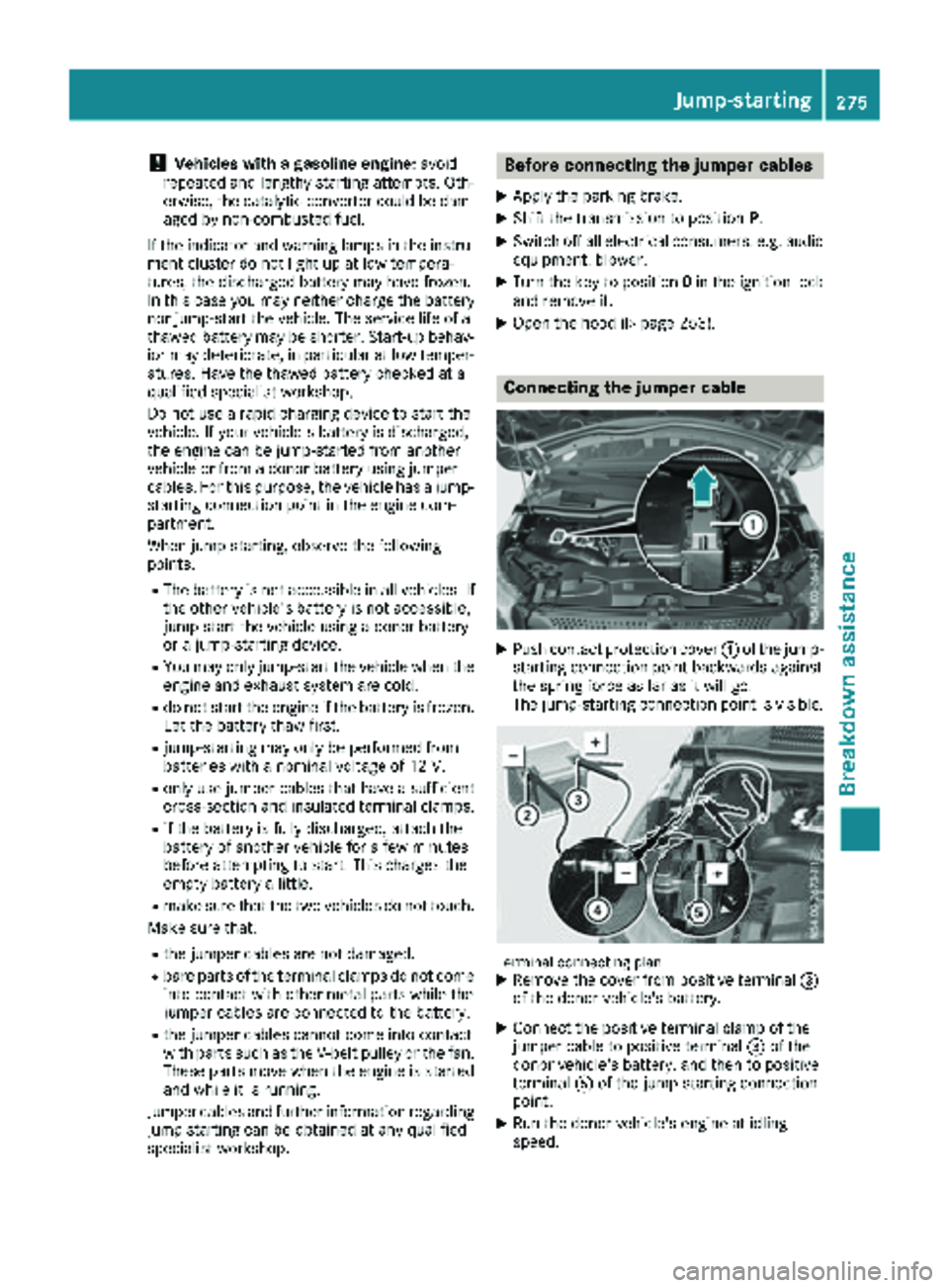
XPush contact protection cover :of the jump-
starting connection point backwards against
the spring force as far as it will go.
The jump-starting connection point is visible.
Terminal connecting planXRemove the cover from positive terminal =
of the donor vehicle's battery.
XConnect the positive terminal clamp of the
jumper cable to positive terminal =of the
donor vehicle's battery, and then to positive
terminal Aof the jump-starting connection
point.
XRun the donor vehicle's engine at idling
speed.
Jump-starting275
Breakdown assistance
Z