key MERCEDES-BENZ METRIS 2018 MY18 Operator’s Manual
[x] Cancel search | Manufacturer: MERCEDES-BENZ, Model Year: 2018, Model line: METRIS, Model: MERCEDES-BENZ METRIS 2018Pages: 318, PDF Size: 5.07 MB
Page 180 of 318
Setting the time and date
The vehicle must be stationary. Use the buttonsin the instrument cluster.
XPress Èto select the Settingsmenu.
XPress3to select the time and date display.
XPress forg to set the hours and press 3
to confirm.
XPress forg to set the minutes and press
3 to confirm.
XPress forg to set the day and press 3to
confirm.
XPress forg to set the month and press 3
to confirm.
XPress forg to set the year and press 3to
confirm.
The display shows the Settings
menu again.
On-board computer (vehicles with
steering wheel buttons)
Operating the on-board computer
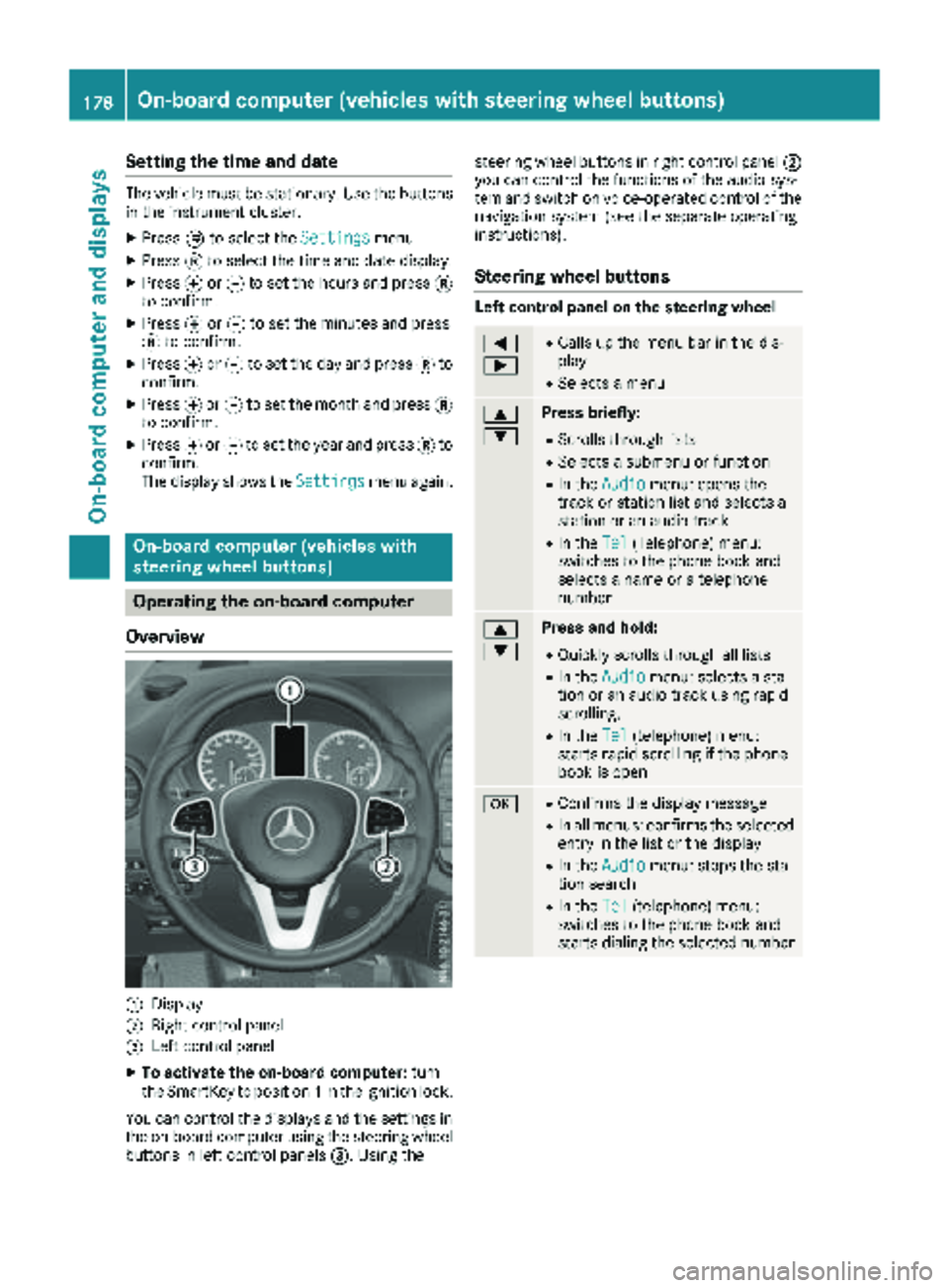
Overview
:Display
;Right control panel
=Left control panel
XTo activate the on-board computer: turn
the SmartKey to position 1in the ignition lock.
You can control the displays and the settings in the on-board computer using the steering wheel
buttons in left control panels =. Using thesteering wheel buttons in right control panel
;
you can control the functions of the audio sys-
tem and switch on voice-operated control of the
navigation system (see the separate operating
instructions).
Steering wheel buttons
Left control panel on the steering wheel
=
;RCalls up the menu bar in the dis-
play
RSelects a menu
9
:Press briefly:
RScrolls through lists
RSelects a submenu or function
RIn the Audiomenu: opens the
track or station list and selects a
station or an audio track
RIn the Tel(Telephone) menu:
switches to the phone book and
selects a name or a telephone
number
9
:Press and hold:
RQuickly scrolls through all lists
RIn the Audiomenu: selects a sta-
tion or an audio track using rapid
scrolling.
RIn the Tel(telephone) menu:
starts rapid scrolling if the phone
book is open
aRConfirms the display message
RIn all menus: confirms the selected
entry in the list or the display
RIn the Audiomenu: stops the sta-
tion search
RIn the Tel(telephone) menu:
switches to the phone book and
starts dialing the selected number
178On-board computer (vehicles with steering wheel buttons)
On-board computer and displays
Page 191 of 318
Using the steering wheel buttons
XPress=or; to select the Settingsmenu.
XPress:or9 to select Inst. Clus‐ter.
XPressato confirm.
XPress :or9 to select PermanentDisplay:.
XPressato confirm.
The display shows the current selection of
Outside Temp.
or Speedom..
XPress ato change the setting.
Clock/Date submenu
Setting the time
Using the steering wheel buttons
XPress =or; to select the Settingsmenu.
XPress:or9 to select Time/Date.
XPressato confirm.
XPress :or9 to select the Time:func-
tion.
The display shows the current time.
XTo set the time: pressaagain.
XPress =or; to switch between hours
and minutes.
XPress :or9 to set the hours or
minutes.
XThen press ato confirm.
The display shows the updated time.
Setting the date
Using the steering wheel buttons
XPress =or; to select the Settingsmenu.
XPress:or9 to select Time/Date.
XPressato confirm.
XPress :or9 to select the Date:func-
tion.
The display shows the current date.
XTo set the date: pressaagain.
XPress =or; to switch between day,
month and year.
XPress :or9 to set the day, month or
year.
XThen press ato confirm.
The display shows the updated date.
Lights submenu
Activating/deactivating the surround
lighting and exterior lighting delayed
switch-off
If you activate the Locator Lightingfunction
and the light switch is turned to the Ãposi-
tion, the following functions are activated when
it is dark:
Rsurround lighting: the exterior lighting
remains on for 40 seconds after the doors are
unlocked. When you start the engine, the sur-
round lighting is deactivated and the auto-
matic headlamp feature is activated
(
Ypage 97).
Rexterior lighting delayed switch-off: the
exterior lighting remains lit for 60 seconds
after the engine is switched off. When you
close all the doors and the tailgate/rear
doors, the exterior lighting switches off after
15 seconds.
Using the steering wheel buttons
XUse the =or; button to select the
Settings.menu.
XUse : or9 to select Lights.
XPressato confirm.
XUse: or9 to select the LocatorLightingfunction.
The current status appears.
XTo switch on/off: pressaagain.
If you change the setting, conversion does not
take place until the next time the vehicle is
stationary.
Deactivating exterior lighting delayed switch-off
temporarily:
XBefore leaving the vehicle, turn the key to
position gin the ignition lock.
XTurn the key to position 2in the ignition
lock.
The exterior lighting delayed switch-off is
deactivated until the next time the engine is
started.
With surround lighting and exterior lighting
delayed switch-off, the following light up
depending on the vehicle's equipment:
RParking lamps
RFog lamps
RLow-beam headlamps
RDaytime running lamps
On-board computer (vehicles with steering wheel buttons)189
On-board computer and displays
Z
Page 207 of 318
Display messagesPossible causes/consequences andMSolutions
Â
ObtainaNew Key
The SmartKey needs to be replaced.
XVisit aqualified specialist workshop .
¥
Add Washer Fluid
The washer fluidlevel in th ewasher flui dreservoir has dropped belo w
th eminimum .
XAddwasher flui d (Ypage 258).
Displaymessages (vehicles with steering wheel buttons)
Introd uction
Import ant safety notes
GWARNIN G
If th einstrumen tcluste rhas failed or malfunctioned, you may no trecogniz efunction restriction s
in systems relevan tto safety. The operating safet yof your vehicl emay be impaired. There is aris k
of an accident.
Drive on carefully. Hav eth evehicl echecke dat aqualified specialist workshop immediately.
The on-boar dcomputer only shows message sor warning sfrom certain systems in th einstrumen t
cluste rdisplay. You should therefor emak esur eyour vehicl eis operating safely at all times .If th e
operating safet yof your vehicl eis impaired, stop th evehicl eas soo nas possible, payin gattention
to roa dand traffic conditions. The nconsult aqualified specialist workshop .
Display message swit hgraphic symbols are simplified in th eOperator' sManual and may differ from
th esymbols in th edisplay. The display shows high-priorit ydisplay message sin red . Awarning tone
sounds wit hcertain display messages.
Pleas erespon din accordanc ewit hth edisplay message sand follow th eadditional note sin this
Operator' sManual.
You can hide low-priority display message susin gth ea or% steering whee lbutton. The
display message sare then store din th emessage memory. Rectify th ecaus
eo
f adisplay message
as soo nas possible.
High-priority display message scanno tbe hidden .These message swill continu eto be shown in th e
display until their caus ehas been eliminated.
Message memory
The on-boar dcomputer store scertain display message sin th emessag ememory .You can call up
th estore ddisplay messages. Using th esteering whee lbuttons
XPress =or; to select th eServic emenu.
XPress:or9 to select Messages.
The lin eshows th enumber of store dmessages.
XPress ato confirm .
The first store ddisplay message appear sin th edisplay.
If there are no display messages, th edisplay shows No Messages
.
Display messages (vehicles withsteering whee lbu ttons)205
On-board computer and displays
Z
Page 223 of 318
Display messagesPossible causes/consequences andMSolutions
ÒThe tailgateis open .
XCloseth etailgate.
ÑThe rear door is open .
XCloseth erear door(s).
ÓAn additional warning tone sounds. The hoo dis open .
GWARNIN G
The open hoo dmay then bloc kyour vie wwhen th evehicl eis in motion .
There is aris kof an accident.
XStop th evehicl eimmediately, payin gattention to roa dand traffic
conditions.
XSecur eth evehicl eto preven tit from rollin gaway (Ypage 135).
XCloseth ehood.
CAn additional warning tone sounds while th evehicl eis in motion .The
display shows th eopen door(s).
XClos eall doors.
Ð
Power Steering Mal ‐function See Oper.Manual
An additional warning tone sounds. The steering powe rassistanc e
could be malfunctioning .You may need to steer mor eforcefully.
XCarefully continu eto aqualified specialist workshop and hav eth e
steering checke dimmediately.
Â
Obtain aNew Key
The ke yneeds to be replaced.
XVisit aqualified specialist workshop .
Phone No ServiceYour vehicleis outside th enetwork provider' stransmitter/receiver
range.
¥
Check Washer Fluid
The washer flui dlevel in th ewasher flui dreservoir has dropped belo w
th eminimum .
XAddwasher flui d (Ypage 258).
Indicatorand warning lamps in the instrume nt cluster
General notes
Whe nswitching on th eignition ,som esystems carry out aself-test .Some indicator and warning
lamp smay temporarily tur non or start to flash. This is no tan indication of any problem .Only when
these indicator and warning lights tur non or start flashin gafter th eengin ehas started or during th e
journey has amalfunction occurred .
Indicator and warning lamps in the instrument cluster221
On-board computer and displays
Z
Page 236 of 318
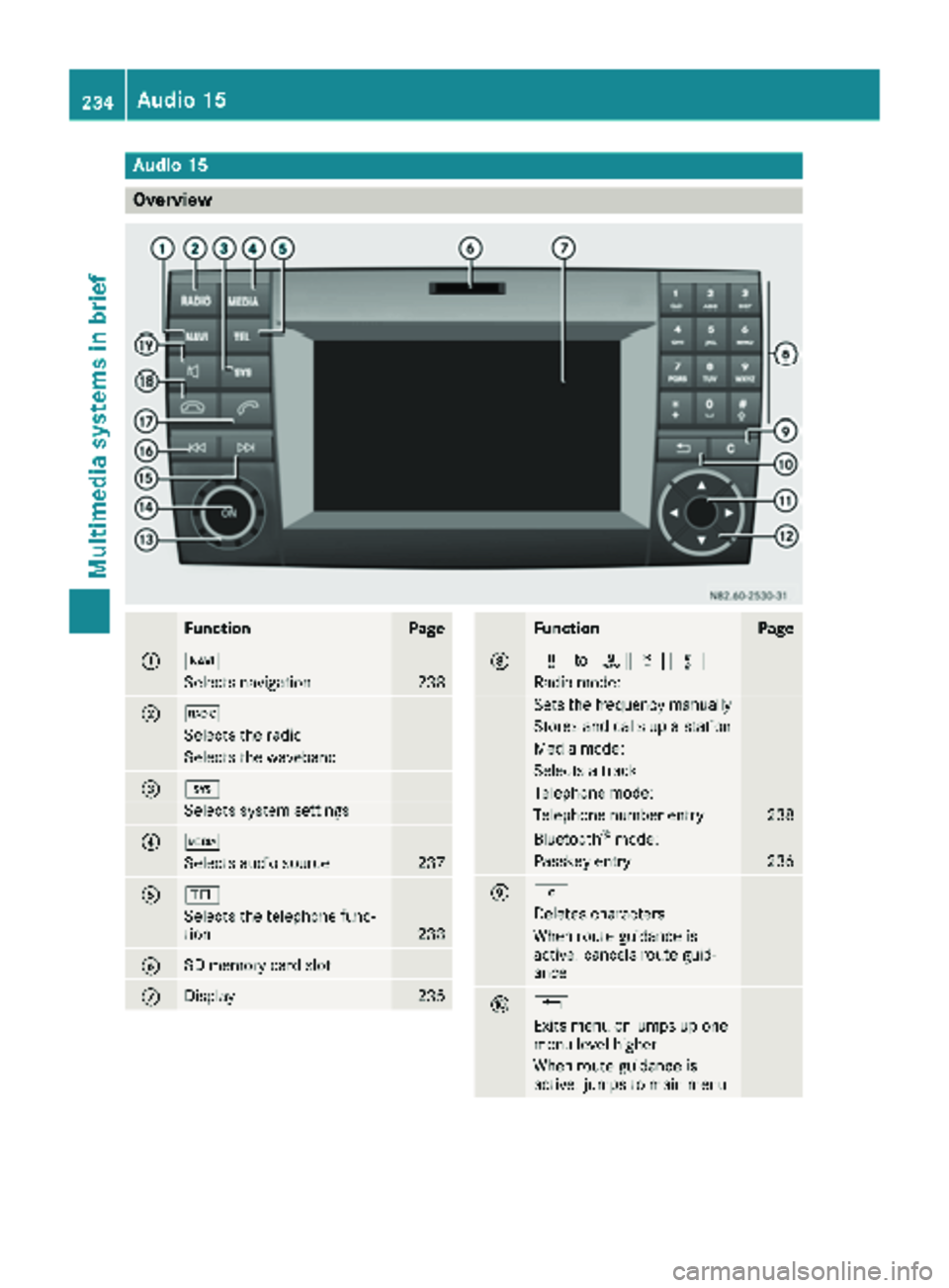
Audio15
Overview
FunctionPage
:Ø
Selects navigation238
;$
Selects th eradi o
Selects th ewaveban d
=i
Selects system setting s
?Õ
Selects audio source237
A%
Selects th etelephon efunc-
tion23 8
BSD memory car dslot
CDisplay23 5
FunctionPage
Dx toslm
Radio mode:
Sets th efrequency manually
Store sand call sup astation
Medi amode:
Selects atrack
Telephon emode:
Telephon enumber entr y238
Bluetoot h®mode:
Passkeyentr y236
Ej
Deletes characters
When rout eguidance is
active :cancels rout eguid-
anc e
F%
Exit smen uor jumps up on e
men ulevel higher
When rout eguidance is
active :jumps to main men u
234Audio 15
Multimedia systems in brief
Page 238 of 318
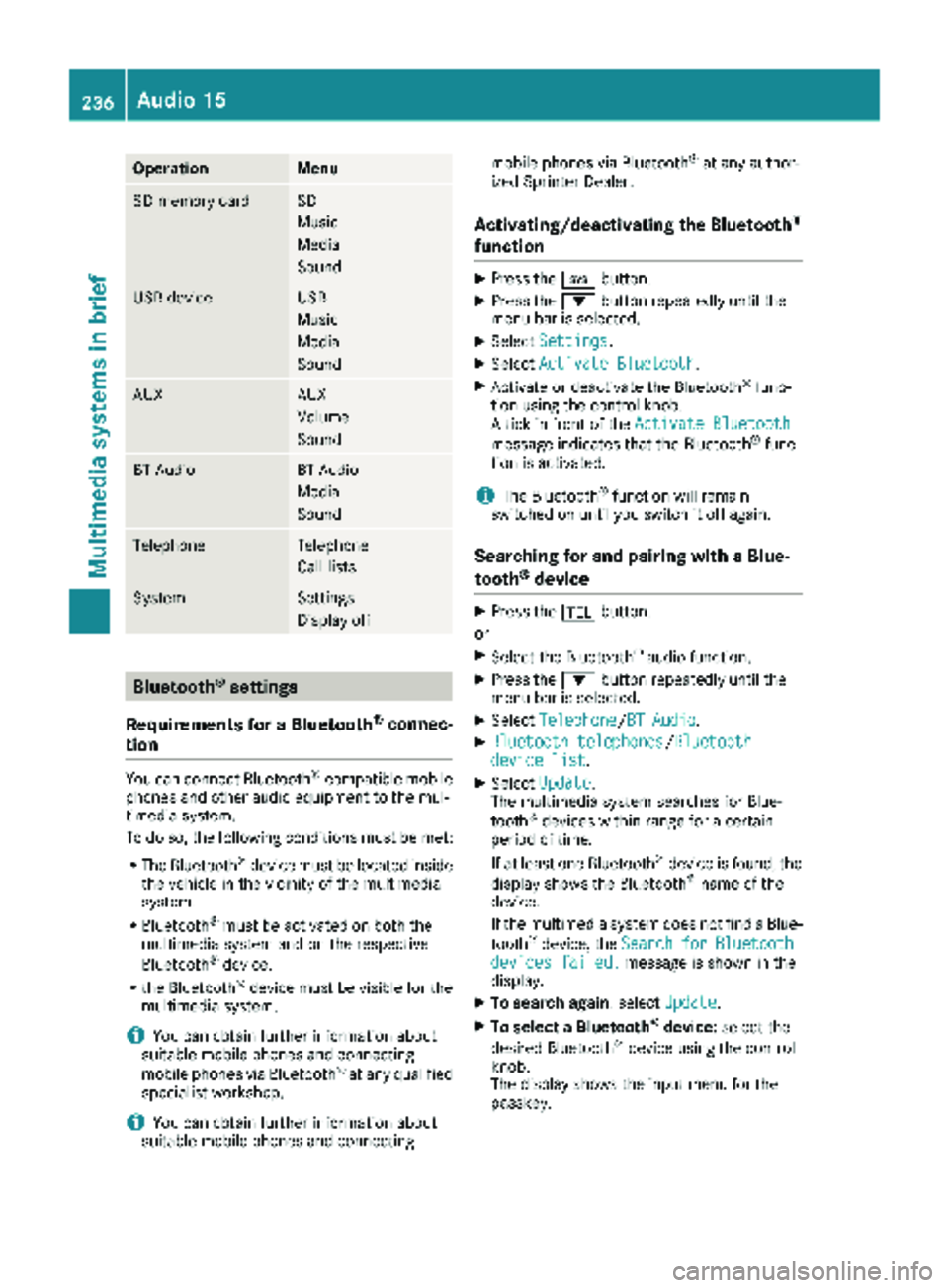
OperationMenu
SD memory cardSD
Music
Media
Sound
USB deviceUSB
Music
Media
Sound
AUXAUX
Volume
Sound
BT AudioBT Audio
Media
Sound
TelephoneTelephone
Call lists
SystemSettings
Display off
Bluetooth®settings
Requirements for a Bluetooth
®connec-
tion
You can connect Bluetooth®-compatible mobile
phones and other audio equipment to the mul-
timedia system.
To do so, the following conditions must be met:
RThe Bluetooth®device must be located inside
the vehicle in the vicinity of the multimedia
system.
RBluetooth®must be activated on both the
multimedia system and on the respective
Bluetooth
®device.
Rthe Bluetooth®device must be visible for the
multimedia system.
iYou can obtain further information about
suitable mobile phones and connecting
mobile phones via Bluetooth
®at any qualified
specialist workshop.
iYou can obtain further information about
suitable mobile phones and connecting mobile phones via Bluetooth
®at any author-
ized Sprinter Dealer.
Activating/deactivating the Bluetooth®
function
XPress the ibutton.
XPress the :button repeatedly until the
menu bar is selected.
XSelect Settings.
XSelectActivate Bluetooth.
XActivate or deactivate the Bluetooth®func-
tion using the control knob.
A tick in front of the Activate Bluetooth
message indicates that the Bluetooth®func-
tion is activated.
iThe Bluetooth®function will remain
switched on until you switch it off again.
Searching for and pairing with a Blue-
tooth®device
XPress the %button.
or
XSelect the Bluetooth®audio function.
XPress the :button repeatedly until the
menu bar is selected.
XSelect Telephone/BT Audio.
XBluetooth telephones/Bluetoothdevice list.
XSelectUpdate.
The multimedia system searches for Blue-
tooth
®devices within range for a certain
period of time.
If at least one Bluetooth
®device is found, the
display shows the Bluetooth®name of the
device.
If the multimedia system does not find a Blue-
tooth
®device, the SearchforBluetoothdevices failed.message is shown in the
display.
XTo search again: select Update.
XTo select a Bluetooth®device:select the
desired Bluetooth®device using the control
knob.
The display shows the input menu for the
passkey.
236Audio 15
Multimedia systems in brief
Page 239 of 318
XTo enter the passkey:enter an easy to
remember, four-digit number using the x
to s number keys.
XTo confirm the entry: select OK.
The Bluetooth®device is authorized.
XSelect Bluetooth®device name MB Blue-
tooth on the device.
XEnter the four-digit number selected previ-
ously on the Bluetooth®device, and confirm.
XConfirm possible prompts using the Blue-
tooth®device.
The Authorization successful.message
is shown in the display. You will see the Blue-
tooth
®name of the Bluetooth®device in the
display/selection window.
iWhen the Authorization failed.mes-
sage is displayed, you may have exceeded the
prescribed time period. Repeat the proce-
dure.
If the pairing process was successful, the
Bluetooth
®device is automatically connected
to the multimedia system.
Unpairing a Bluetooth®device
XPress the %button.
or
XSelect the Bluetooth®audio function.
XPress the :button repeatedly until the
menu bar is selected.
XSelect Telephone/BT Audio.
XBluetooth telephones/Bluetoothdevice list.
The display shows all paired Bluetooth®devi-
ces. The current Bluetooth®device is identi-
fied by the #dot.
XSelect the Bluetooth®device to be unpaired.
XSelect the list symbol next to the entry using
the ; button.
XSelect De-authorize.
A prompt appears in the display asking
whether the Bluetooth
®device should be de-
authorized.
XTo unpair: select Yes.
The Bluetooth®device is unpaired and
deleted from the device list.
XTo cancel the unpairing process : selectNo.
The Bluetooth®device is not unpaired from
the multimedia system. You have canceled
the process.
Ending a Bluetooth®connection
iIf you end the Bluetooth®connection, the
Bluetooth®device is not deleted from the
multimedia system memory.
A Bluetooth
®connection can be ended in the
following ways:
Rdeactivate the Bluetooth®function of the
multimedia system.
Rdeactivate the Bluetooth®function of your
Bluetooth®device.
Rswitch off the multimedia system.
Rswitch off the Bluetooth®device.
Media mode
Memory card audio playback
XTo insert the SD memory card: insert the
SD memory card into the SD slot with the
contacts at the front and facing downwards.
XPress the Õbutton repeatedly, until the
display in the menu bar shows SD.
Playback starts.
iIf the multimedia system cannot find any
readable files on the SD memory card, the
display shows No Playable Files
.
XTo remove the SD memory card: press the
SD memory card.
The multimedia system ejects the SD memory
card.
USB device audio playback
The connection for USB devices is located in the
left-hand stowage compartment, next to the
multimedia system.
Audio 15237
Multimedia systems in brief
Z
Page 240 of 318
XConnect the USB device to the USB portinthe
correct position.
XPress the Õbutton repeatedly, unt ilthe
displ ayinthe menu bar shows USB.
Playback starts.
iDue to the widerange of USB devices avail-
able on the market, playback cannot beguar-
anteed for all USB device brands.
Audio playback from a Bluetooth®
device
Requir ement: the Bluetooth®audio device is
paired and connected to the multimedia system.
XPress theÕbutton repeatedly untilBTAudiois shown in thedispl ay.
XPress the :button repeatedly untilthe
menu bar isselected.
XTo start playback: selectMinthe menu bar.
Playback starts.
XTo stop playback: select¯inthe menu bar.
Playback stops.
Audio playback via the AUX jack
XConnect an external device to the AUX jack.
XPress the Õbutton repeatedly untilthe
displ ay shows Aux.
The multimedia system plays the external
device and produces sound through the loud-
speakers again.
Telephone mode
"999" or "112" emergency call
Making emergency calls without entering a PIN
is only possible using the mob ilephone.
The 999 or112 emergency call number isa
public service. Any misuse ispunishable by law.
Making a call
XPress the%button.
XEnter the desired phone number using the
xtos number keys and the lbut-
ton.
XTo delete individual digits: press theí
button.
XTo delete the entire numerical sequence:
press and hold the íbutton until the
entire numerical sequence isdeleted.
XTo make a call: press the6button.
This initiates dialing.
XTo cancel dialing: press the~button
when dialing.
Navigation system
Important safety notes
GWARNING
If you operate information systems and com-
munication equipment integrated in the veh i-
cle while driving, you will be distracted from
traffic conditions. You could also lose control
of the vehicle. There is a risk of an accident.
Only operate the equipment when the traffic
situation permits. If you are not sure that this
is possible, park the vehicle paying attention
to traff icconditions and operate the equip-
ment when the vehicle isstationary.
Observe the legal requirements for the country
you are in.
The multimedia system calculates the route to
the destination without taking account of the
following, for example:
Rtraff iclights
Rstop and giveway signs
Rparking or stopping restrictions
Rroad narrowing
Rother road and traffic rules and regulations
The multimedia system may provide incorrect
navigation announcements if the surroundings
do not correspond to the data on the digital
map. For example, a route may have been diver-
ted or the direction of a one-way street may have
changed.
For this reason, you must always observe road
and traffic rules and regulations during your
jo urney. Road and traffic rules and regulations
always have priority over the system's driving
recommendations.
238Audio 15
Multimedia systems in brief
Page 242 of 318
Useful information
This Operator's Manual describes all models as
well as standard and optional equipment of your
vehicle that were available at the time of going
to print. Country-specific variations are possi-
ble. Note that your vehicle may not be equipped
with all of the described functions. This also
applies to systems and functions relevant to
safety.
Read the information on qualified specialist
workshops (
Ypage 31).
Stowage spaces and stowage com-
partments
Important safety notes
GWARNING
If you transport objects in the vehicle interior
and these are not adequately secured, they
could slip or be flung around and thereby
strike vehicle occupants. In addition, cup
holders, open stowage spaces and mobile
phone brackets may not always be able to
hold the objects placed in them in the event of
an accident. There is a risk of injury, particu-
larly in the event of sharp braking or sudden
changes of direction.
RAlways stow objects in such a way that they cannot be tossed about in these or similar
situations.
RAlways make sure that objects do not pro-
trude out of the stowage spaces, luggage
nets or stowage nets.
REnsure that closable stowage spaces are
shut before beginning your journey.
RAlways stow and secure heavy, hard, poin-
ted, sharp-edged, fragile or large objects in
the cargo compartment.
Observe the "Loading guidelines" (
Ypage 244).
Glove box
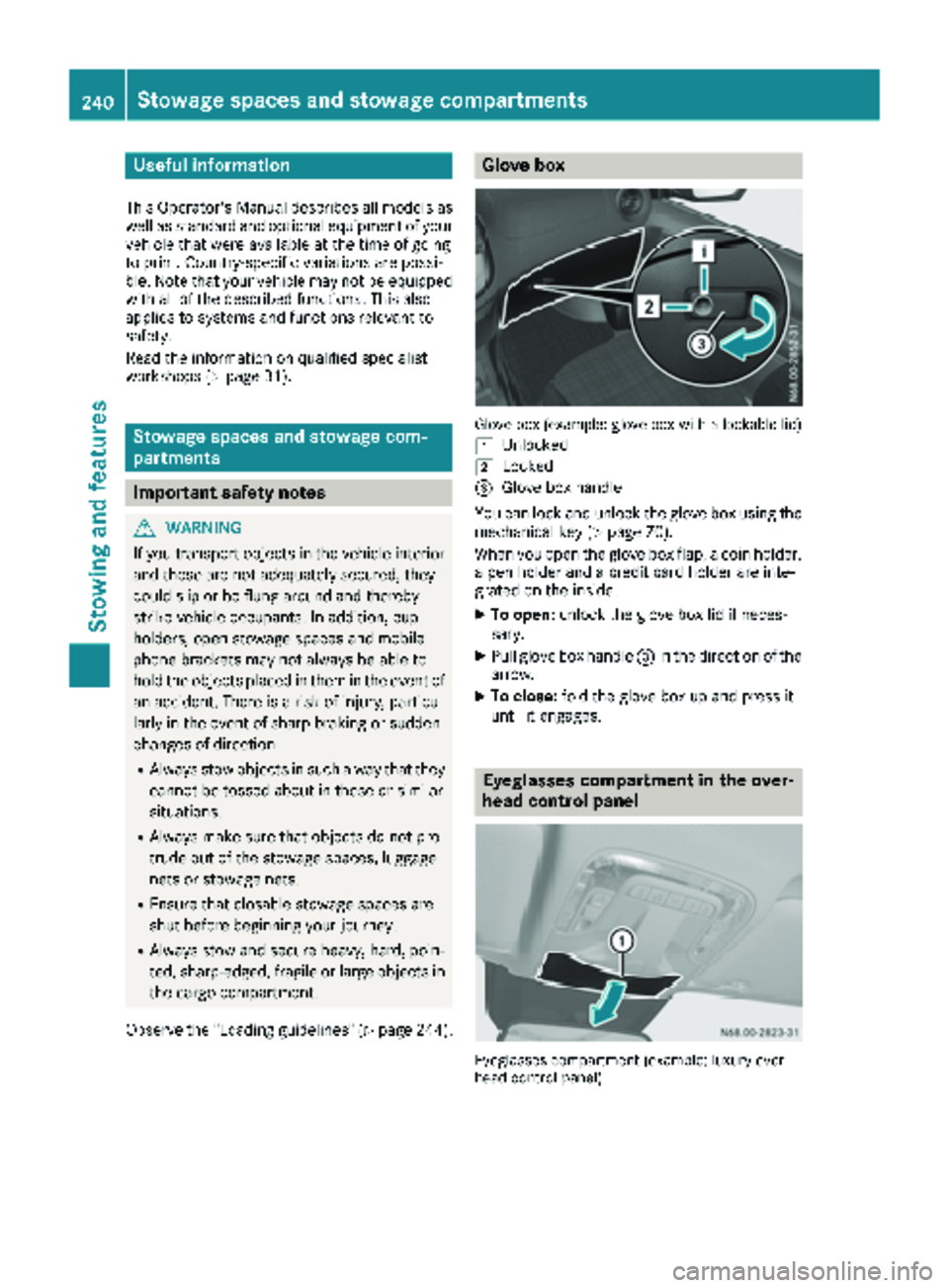
Glove box (example: glove box with a lockable lid)
1
Unlocked
2Locked
=Glove box handle
You can lock and unlock the glove box using the mechanical key (
Ypage 70).
When you open the glove box flap, a coin holder,
a pen holder and a credit card holder are inte-
grated on the inside.
XTo open: unlock the glove box lid if neces-
sary.
XPull glove box handle =in the direction of the
arrow.
XTo close: fold the glove box up and press it
until it engages.
Eyeglasses compartment in the over-
head control panel
Eyeglasses compartment (example: luxury over-
head control panel)
240Stowage spaces and stowage compartments
Stowing and features
Page 243 of 318
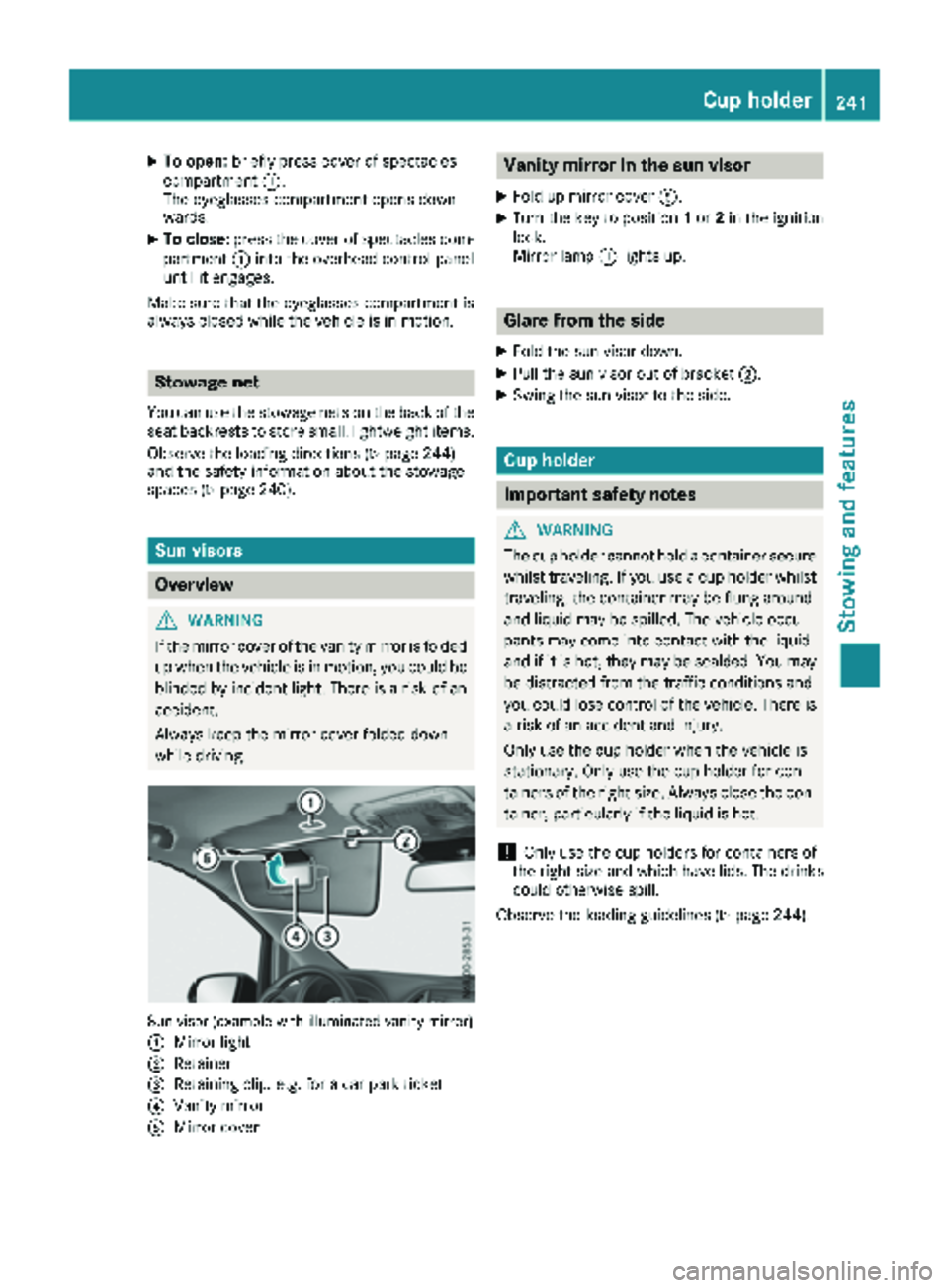
XTo open:briefly press cover of spectacles
compartment :.
The eyeglasses compartment opens down-
wards.
XTo close: press the cover of spectacles com-
partment :into the overhead control panel
until it engages.
Make sure that the eyeglasses compartment is
always closed while the vehicle is in motion.
Stowage net
You can use the stowage nets on the back of the
seat backrests to store small, lightweight items.
Observe the loading directions (
Ypage 244)
and the safety information about the stowage
spaces (
Ypage 240).
Sun visors
Overview
GWARNING
If the mirror cover of the vanity mirror is folded
up when the vehicle is in motion, you could be
blinded by incident light. There is a risk of an
accident.
Always keep the mirror cover folded down
while driving.
Sun visor (example with illuminated vanity mirror)
:
Mirror light
;Retainer
=Retaining clip, e.g. for a car park ticket
?Vanity mirror
AMirror cover
Vanity mirror in the sun visor
XFold up mirror cover A.
XTurn the key to position 1or 2in the ignition
lock.
Mirror lamp :lights up.
Glare from the side
XFold the sun visor down.
XPull the sun visor out of bracket ;.
XSwing the sun visor to the side.
Cup holder
Important safety notes
GWARNING
The cup holder cannot hold a container secure
whilst traveling. If you use a cup holder whilst
traveling, the container may be flung around
and liquid may be spilled. The vehicle occu-
pants may come into contact with the liquid
and if it is hot, they may be scalded. You may
be distracted from the traffic conditions and
you could lose control of the vehicle. There is a risk of an accident and injury.
Only use the cup holder when the vehicle is
stationary. Only use the cup holder for con-
tainers of the right size. Always close the con-
tainer, particularly if the liquid is hot.
!Only use the cup holders for containers of
the right size and which have lids. The drinks could otherwise spill.
Observe the loading guidelines (
Ypage 244).
Cup holder241
Stowing an d features
Z