change wheel MERCEDES-BENZ METRIS 2019 MY19 Operator’s Manual
[x] Cancel search | Manufacturer: MERCEDES-BENZ, Model Year: 2019, Model line: METRIS, Model: MERCEDES-BENZ METRIS 2019Pages: 318, PDF Size: 5.07 MB
Page 150 of 318
In such cases, Adaptive Brake Assist can:
Rintervene unnecessarily
Rnot intervene
There is a risk of an accident.
Always pay careful attention to the traffic sit- uation and be ready to brake. Terminate the
intervention in a non-critical driving situation.
In particular, the detection of obstacles can be
impaired in the case of:
Rdirt on the sensors or anything else covering
the sensors
Rsnow or heavy rain
Rinterference from other radar sources
Rstrong radar reflections, for example, in park-
ing garages
Ra narrow vehicle traveling in front, e.g. a
motorbike
Ra vehicle traveling in front on a different line
Due to the nature of the system, particularly
complicated but non-critical driving conditions
may also cause Adaptive Brake Assist to inter-
vene.
If you fail to adapt your driving style, Adaptive
Brake Assist can neither reduce the risk of acci-
dent nor override the laws of physics. Adaptive
Brake Assist cannot take into account road,
weather or traffic conditions. Adaptive Brake
Assist is only an aid. You are responsible for the
distance to the vehicle in front, for vehicle
speed, braking in good time and for staying in
your lane.
Following damage to the front end of the vehicle,
have the configuration and operation of the
radar sensor checked at a qualified specialist
workshop. This also applies to collisions at slow
speeds where there is no visible damage to the
front of the vehicle.
If you change wheel size, make sure they corre- spond to the correct wheel size category
(
Ypage 279). If the category is changed without
recoding the control units in the vehicle, the
functioning of Adaptive Brake Assist may be
impaired. COLLISION PREVENTION ASSIST may
then detect a malfunction and switch itself off.
If Adaptive Brake Assist is not available due to a
malfunction in the radar sensor system, the
brake system remains available with full brake
boosting effect and BAS.
Operation
With the help of the radar sensor system, Adap-
tive Brake Assist can detect obstacles that have been in the path of your vehicle for an extended
period of time. Ada
ptive Brake Assist does not
react to stationary obstacles. If Adaptive Brake
Assist detects a risk of collision with a vehicle
traveling in front or with a stationary obstacle,
the system calculates the braking force neces-
sary to avoid this collision. If you apply the
brakes forcefully, Adaptive Brake Assist will
automatically increase the braking force to a
level suitable for the traffic conditions.
XBrake until the distance to the obstacle
increases and the risk of a collision passes.
ABS prevents the wheels from locking.
The brakes function as usual again if:
Ryou release the brake pedal
Rthere is no longer any danger of a collision
Rno obstacle is detected in front of your vehicle
Braking assistance is then ended.
Blind Spot Assist
General notes
Blind Spot Assist monitors the areas on either
side of the vehicle that are not visible to the
driver with two lateral, rear-facing radar sensors
in the bumper. It supports you from speeds of
approximately 20 mph (30 km/h). A warning
display in the exterior mirrors draws your atten-
tion to vehicles detected in the monitored area.
If you then switch on the corresponding turn
signal to change lane, you will also receive an
optical and audible collision warning.
Important safety notes
GWARNING
Blind Spot Assist does not react to:
Rvehicles overtaken too closely on the side,
placing them in the blind spot area
Rvehicles which approach with a large speed
differential and overtake your vehicle
As a result, Blind Spot Assist may not give
warnings in such situations. There is a risk of
an accident.
148Driving systems
Driving and parking
Page 153 of 318
intermittent vibration through the steering
wheel for up to 1.5 seconds.
Important safety notes
GWARNING
Lane Keeping Assist may not always clearly
recognize lane markings.
In this case, Lane Keeping Assist may:
Rgive an unnecessary warning
Rnot give a warning
There is a risk of an accident.
Always pay particular attention to the traffic
situation and stay in lane, in particular if
warned by Lane Keeping Assist.
GWARNING
The Lane Keeping Assist warning does not
return the vehicle to the original lane. There is
a risk of an accident.
You should always steer, brake or accelerate
yourself, in particular if warned by Lane Keep-
ing Assist.
If you fail to adapt your driving style, Lane Keep-
ing Assist can neither reduce the risk of accident
nor override the laws of physics. Lane Keeping
Assist cannot take into account road, weather or traffic conditions. Lane Keeping Assist is only an
aid. You are responsible for the distance to the
vehicle in front, for vehicle speed, braking in
good time and for staying in your lane.
Lane Keeping Assist does not keep your vehicle
in its lane.
The system may be impaired or may not function
if:
Rthere is poor visibility, e.g. due to insufficient
illumination of the road, or due to snow, rain,
fog or spray
Rthere is glare, e.g. from oncoming traffic, the
sun or reflection from other vehicles (e.g. if
the road surface is wet)
Rthe windshield is dirty, fogged up, damaged or
covered, for instance by a sticker, in the vicin-
ity of the camera
Rthere are no lane markings, or several unclear
lane markings for one lane, e.g. around con-
struction sites
Rthe lane markings are worn away, dark or cov-
ered up, e.g. by dirt or snow
Rthe distance to the vehicle in front is too short
and thus the lane markings cannot be detec-
ted
Rthe lane markings change quickly, e.g. lanes
branch off, cross one another or merge
Rthe road is narrow and winding
Rthere are highly variable shade conditions onthe road
Deactivating and activating Lane Keep -
ing Assist
XPress the Çbutton.
If the indicator lamp in the button lights up
and the display shows the Çsymbol in the
status area, Lane Keeping Assist is switched
on but not ready for use.
If you are driving with Lane Keeping Assist
activated at speeds above 40 mph (60 km/h)
and lane markings are detected, the display
shows the Çsymbol highlighted in the
status area. Lane Keeping Assist is then ready
for use.
Status indicators in the status overview submenu
The display in the Status Overviewsubmenu
of the on-board computer also shows the status
of Lane Keeping Assist (
Ypage 186). If Lane
Keeping Assist is activated but not ready for use,
the display shows the lane markings in the sym-
bol as broken lines :. If Lane Keeping Assist is
Driving systems151
Driving and parking
Z
Page 154 of 318
ready for use, the lane markings in the symbol
are shown as solid lines;.
Setting the sensitivity of Lane Keeping
Assist
XIn theAssist.menu on the on-board com-
puter, select the Lane Keeping Assist:
function (Ypage 187).
XSelectStandardorAdaptive.
In the setting Standard
, no warning vibration
occurs if:
Ryou operate the turn signal in the correspond-
ing direction. In this event, the warnings are
suppressed for a certain period of time.
Ra driving safety system, such as ABS, BAS or
ESP®, intervenes or performs a control
action.
When Adaptive
is selected, there is also no
warning vibration when:
Ryou accelerate hard, e.g. kickdown.
Rbrake sharply.
Ryou steer actively, e.g. swerve to avoid an
obstacle or change lanes quickly.
Ryou cut the corner on a sharp bend.
In order that you are warned only when neces-
sary and in good time if you cross the lane mark-
ing, the system differentiates between various
conditions and warns you accordingly.
The warning vibration occurs earlier if:
Ryou approach the outer lane marking on a
bend.
Rthe road has very wide lanes, such as a high-
way.
Rthe system detects solid lane markings.
The warning vibration occurs later if:
Rthe road has narrow lanes.
Ryou cut the corner on a bend.
Alertness Assistant ATTENTION
ASSIST
General notes
ATTENTION ASSIST helps you during long,
monotonous journeys such as on freeways and
interstate highways. It is active in the 40 mph
(60 km/h) to 125 mph (200 km/h) range. If
ATTENTION ASSIST detects typical indicators of fatigue or increasing lapses in concentration on
the part of the driver, it suggests taking a break.
Important safety notes
ATTENTION ASSIST is only an aid. The system
may not always detect fatigue or lapses in con-
centration until too late, or may not detect them
at all. ATTENTION ASSIST is not a substitute for
a well-rested and attentive driver.
The functionality of ATTENTION ASSIST is
restricted, and warnings may be delayed or not
occur at all:
Rif the length of the journey is less than approx-
imately 30 minutes
Rif the road condition is poor, e.g. if the surface
is uneven or if there are potholes
Rif there is a strong side wind
Rif you have adopted a sporty driving style with
high cornering speeds or high rates of accel-
eration
Rif you are predominantly driving at a speed
below 40 mph (60 km/h) or above 125 mph
(200 km/h)
Rif the time has been set incorrectly
Rin active driving situations, such as when you
change lanes or change your speed
ATTENTION ASSIST is reset and starts assessing
your attention again when you continue your
journey if:
Ryou switch off the engine
Ryou take off your seat belt and open the driv-
er's door, e.g. for a change of drivers or to
take a break
Displaying the attention level
For vehicles with steering wheel buttons you can
have the current ATTENTION ASSIST (Attention
Level) assessment displayed.
152Driving systems
Driving and parking
Page 161 of 318
XBring the vehicle safely to a stop when the
parking symbol shows the desired parking
space in the instrument cluster.
XShift the transmission to positionR.
The display shows the Start
ParkAssist?Yes: OKNo:%message and the location
of the parking space.
XTo cancel the process: press the%but-
ton on the steering wheel or drive off.
or
XTo park using active parking assistance:
press the abutton on the steering wheel.
The display shows the Park Assist
Active: Accelerate and BrakeObs.Surroundingsmessage.
XLet go of the steering wheel.
XReverse the vehicle, being ready to brake at
all times. Exit the parking space slowly and do
not drive faster than 6 mph (10 km/h). Oth-
erwise parking assistance is canceled and
Active Parking Assist is stopped.
Active Parking Assist brakes the vehicle to a
standstill when the vehicle approaches the
rear border of the parking space.
Maneuvering may be required in tight parking
spaces. The display shows the Park Assist
Active: Select DObs. Surroundingsmes-
sage.
XWhile the vehicle is stationary, shift the trans-
mission to position D.
Active Parking Assist immediately steers in
the other direction. The display shows the
Park Assist Active: Accelerate and
BrakeObs. Surroundingsmessage.
iYou will achieve the best results by waiting
for the steering procedure to complete before
pulling away.
XDrive forwards and be ready to brake at all
times.
Active Parking Assist brakes the vehicle to a
standstill.
The display shows the Park
AssistActive:Select RObs. Surroundingsmessage.
As soon as the parking procedure is complete,
the Park Assist Finished
message appears
in the display and a tone sounds. The parking
assistance function of Active Parking Assist is
stopped. The vehicle is parked and kept station-
ary without the driver having to depress the
brake pedal. The braking effect is canceled
when you depress the accelerator pedal. Active Parking Assist no longer supports you
with steering interventions and brake applica-
tions. Once active parking assistance has been
stopped, you must steer and brake again your-
self. PARKTRONIC is still available.
Parking tips:
RThe way your vehicle is positioned in the park-
ing space after parking is dependent on vari-
ous factors. These include the position and
shape of the vehicles parked in front and
behind it and the conditions of the location. It
may be the case that Active Parking Assist
guides you too far into a parking space, or not
far enough into it. In some cases, it may also
lead you across or onto the curb. In this case, cancel the active parking assistance.
RYou can also select transmission position D
prematurely. The vehicle redirects and does
not drive as far into the parking space. If you
change direction too early, parking assis-
tance is canceled and Active Parking Assist is
stopped. It is then not possible to achieve a
sensible parking position from the current
position.
Exiting a parking space
In order that Active Parking Assist can assist you
when exiting the parking space:
Rthe border of the parking space must be high enough at the front and the rear. A curb stone
is too small, for example.
Rthe border of the parking space must not be
too wide. Your vehicle can be maneuvered
into a position at a maximum of 45° to the
starting position in the parking space.
Ra maneuvering distance of at least 3.3 ft
(1.0 m) must be available .
Active Parking Assist can only assist you with
exiting a parking space if you have parked the
vehicle parallel to the direction of travel using
Active Parking Assist.
If PARKTRONIC detects obstacles, Active Park-
ing Assist brakes automatically when exiting
from the parking space. You are responsible for braking in good time.
XStart the engine.
XSwitch on the turn signal in the direction in
which you are pulling away.
XShift the transmission to position hork.
The display shows the StartParkAssist?Yes: OKNo:%message.
Driving systems159
Driving an d parking
Z
Page 163 of 318
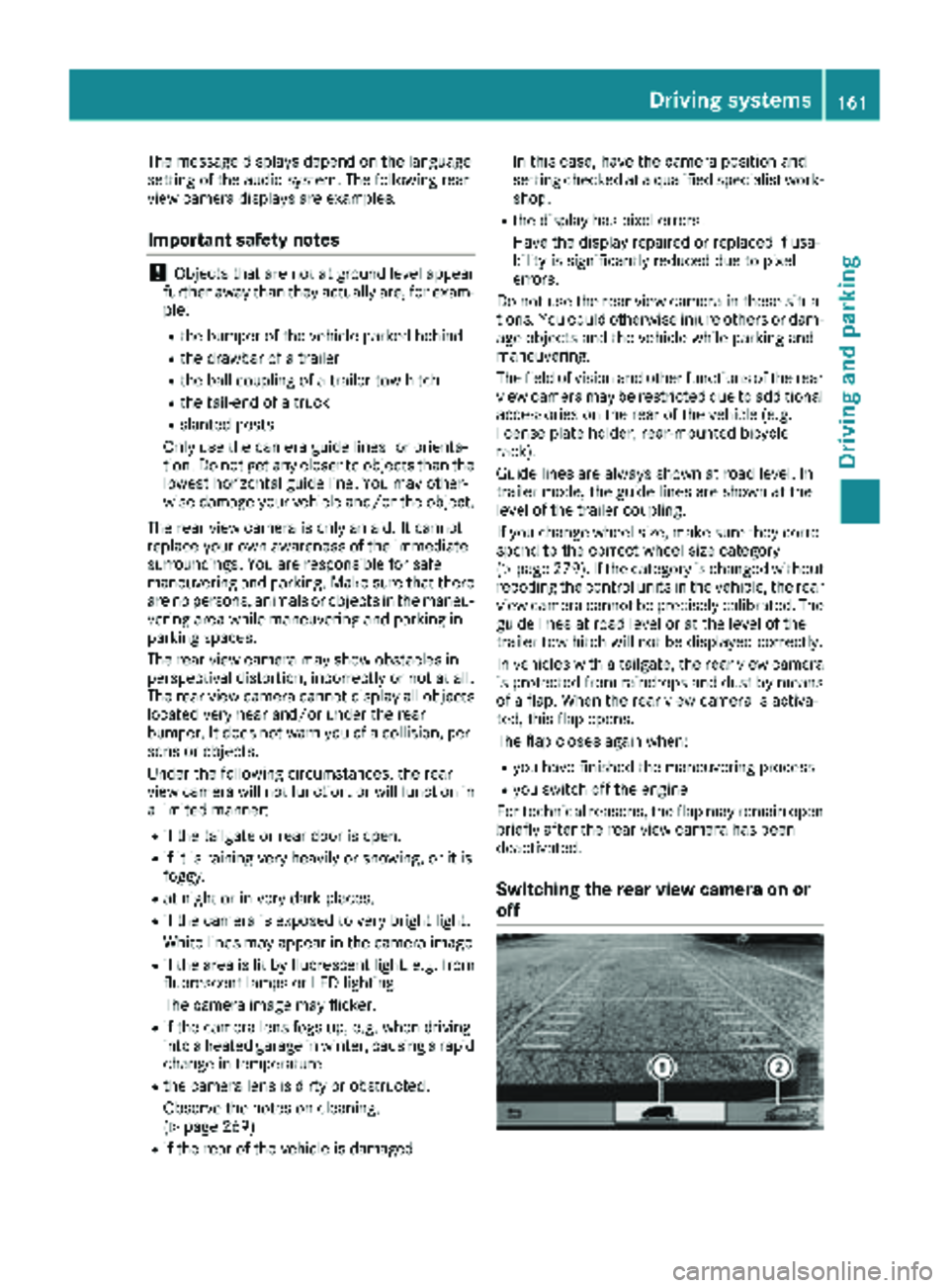
The message displays depend on the language
setting of the audio system. The following rear
view camera displays are examples.
Important safety notes
!Objects that are not at ground level appear
further away than they actually are, for exam-
ple:
Rthe bumper of the vehicle parked behind
Rthe drawbar of a trailer
Rthe ball coupling of a trailer tow hitch
Rthe tail-end of a truck
Rslanted posts
Only use the camera guide lines for orienta-
tion. Do not get any closer to objects than the
lowest horizontal guide line. You may other-
wise damage your vehicle and/or the object.
The rear view camera is only an aid. It cannot
replace your own awareness of the immediate
surroundings. You are responsible for safe
maneuvering and parking. Make sure that there
are no persons, animals or objects in the maneu- vering area while maneuvering and parking in
parking spaces.
The rear view camera may show obstacles in
perspectival distortion, incorrectly or not at all.
The rear view camera cannot display all objects
located very near and/or under the rear
bumper. It does not warn you of a collision, per-
sons or objects.
Under the following circumstances, the rear
view camera will not function, or will function in
a limited manner:
Rif the tailgate or rear door is open.
Rif it is raining very heavily or snowing, or it is
foggy.
Rat night or in very dark places.
Rif the camera is exposed to very bright light.
White lines may appear in the camera image
Rif the area is lit by fluorescent light, e.g. from fluorescent lamps or LED lighting.
The camera image may flicker.
Rif the camera lens fogs up, e.g. when driving
into a heated garage in winter, causing a rapid
change in temperature.
Rthe camera lens is dirty or obstructed.
Observe the notes on cleaning.
(
Ypage 269)
Rif the rear of the vehicle is damaged. In this case, have the camera position and
setting checked at a qualified specialist work-
shop.
Rthe display has pixel errors.
Have the display repaired or replaced if usa-
bility is significantly reduced due to pixel
errors.
Do not use the rear view camera in these situa-
tions. You could otherwise injure others or dam-
age objects and the vehicle while parking and
maneuvering.
The field of vision and ot
her functions of the rear
view camera may be restricted due to additional accessories on the rear of the vehicle (e.g.
license plate holder, rear-mounted bicycle
rack).
Guide lines are always shown at road level. In
trailer mode, the guide lines are shown at the
level of the trailer coupling.
If you change wheel size, make sure they corre-
spond to the correct wheel size category
(
Ypage 279). If the category is changed without
recoding the control units in the vehicle, the rear
view camera cannot be precisely calibrated. The
guide lines at road level or at the level of the
trailer tow hitch will not be displayed correctly.
In vehicles with a tailgate, the rear view camera
is protected from raindrops and dust by means
of a flap. When the rear view camera is activa-
ted, this flap opens.
The flap closes again when:
Ryou have finished the maneuvering process
Ryou switch off the engine
For technical reasons, the flap may remain open briefly after the rear view camera has been
deactivated.
Switching the rear view camera on or
off
Driving systems161
Driving and parking
Z
Page 164 of 318
XTo activate:make sure that the key is in
position 2in the ignition lock.
XShift the transmission to position k.
On vehicles with a tailgate, the rear view cam-
era flap opens. The audio display shows the
area behind the vehicle. The rear area shown
is divided by guide lines.
In vehicles with a trailer coupling installed, the
function mode of the rear view camera can be
switched over when the trailer is reached. The
rear view camera then changes the viewing
angle and shows a locating aid for the ball cou-
pling of the trailer tow hitch to help reach the
drawbar.
XTo switch function mode: select and con-
firm "Reverse parking" function :or "Cou-
pling up a trailer“ function ;using the audio
system control knob.
Information on the audio system control knob
can be found in the separate operating
instructions.
The symbol of the selected function is high-
lighted.
XTo switch off: shift the transmission to posi-
tion iorh.
The dynamic guide lines are hidden and after
about 15 seconds the rear view camera
switches itself off.
or
XDrive forwards more than about 30 ft (10 m).
or
XDrive forwards faster than 6 mph (10 km/h) .
or
XShift the automatic transmission to position
j.
In vehicles wit
h Active Parking Assist, the rear
view camera remains switched on after the ini-
tial shift to reverse gear for the whole duration of
active parking assistance. You can find informa-
tion on active parking assistance under "Active
Parking Assist“ (
Ypage 156).
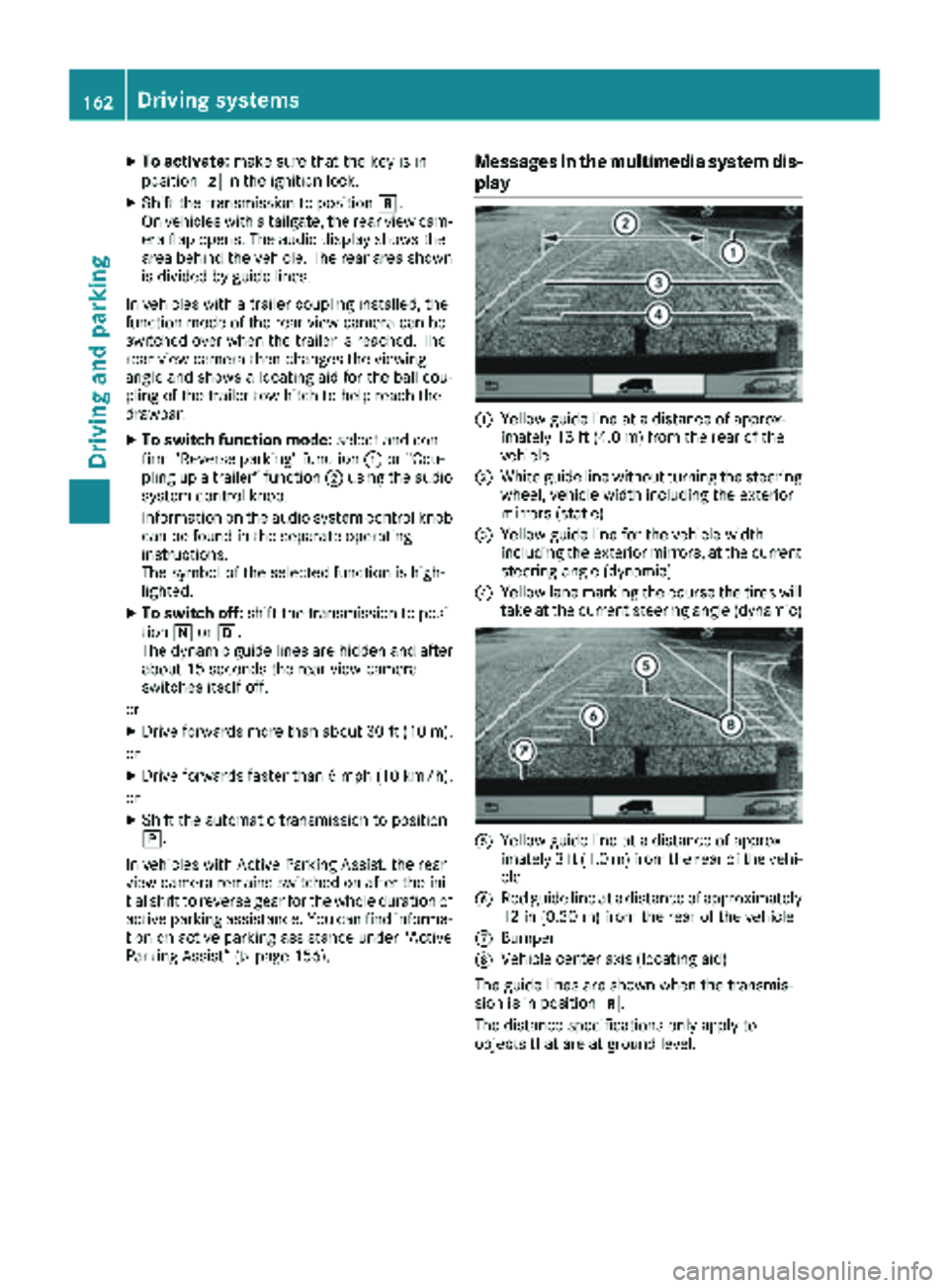
Messages in the multimedia system dis-
play
:Yellow guide line at a distance of approx-
imately 13 ft (4.0 m) from the rear of the
vehicle
;White guide line without turning the steering
wheel, vehicle width including the exterior
mirrors (static)
=Yellow guide line for the vehicle width
including the exterior mirrors, at the current
steering angle (dynamic)
?Yellow lane marking the course the tires will
take at the current steering angle (dynamic)
AYellow guide line at a distance of approx-
imately 3 ft (1.0 m) from the rear of the vehi-
cle
BRed guide line at a distance of approximately
12 in (0.30 m) from the rear of the vehicle
CBumper
DVehicle center axis (locating aid)
The guide lines are shown when the transmis-
sion is in position k.
The distance specifications only apply to
objects that are at ground level.
162Driving systems
Driving and parking
Page 173 of 318
Useful information
This Operator's Manual describes all models as
well as standard and optional equipment of your
vehicle that were available at the time of going
to print. Country-specific variations are possi-
ble. Note that your vehicle may not be equipped
with all of the described functions. This also
applies to systems and functions relevant to
safety.
Read the information on qualified specialist
workshops (
Ypage 31).
Important safety notes
GWARNING
If you operate information systems and com-
munication equipment integrated in the vehi-
cle while driving, you will be distracted from
traffic conditions. You could also lose control
of the vehicle. There is a risk of an accident.
Only operate the equipment when the traffic
situation permits. If you are not sure that this
is possible, park the vehicle paying attention
to traffic conditions and operate the equip-
ment when the vehicle is stationary.
GWARNING
If you are driving and reach through the steer- ing wheel to operate the adjustment knob,
you could lose control of the vehicle. There is
a risk of an accident and injury.
Only operate the adjustment knobs when thevehicle is stationary. Do not reach through the
steering wheel when driving.
You must observe the legal requirements for the
country in which you are currently driving when
operating the on-board computer.
GWARNING
If the instrument cluster has failed or mal-
functioned, you may not recognize function
restrictions in systems relevant to safety. The
operating safety of your vehicle may be
impaired. There is a risk of an accident.
Drive on carefully. Have the vehicle checked
at a qualified specialist workshop immedi-
ately.
The on-board computer display only shows mes-
sages and warnings from certain systems. You
should therefore make sure your vehicle is oper-
ating safely at all times. If the operating safety of
your vehicle is impaired, stop the vehicle as
soon as possible, paying attention to road and
traffic conditions. Then consult a qualified spe-
cialist workshop.
The accuracy of the speedometer and odometer
displays is legally prescribed. Determining the
speed is dependent on the wheel size or the
rolling circumference of the wheels. If you
change the wheel size on your vehicle, make
sure it is assigned to the correct wheel size cat-
egory (
Ypage 279). If you change wheel size
category without recoding the control unit, the
speedometer indication will be inaccurate. Driv-
ing safety and driving systems may be impaired
or detect a malfunction and shut down.
An overview of the instrument cluster can be
found under "Instrument cluster":
Rfor vehicles without steering wheel buttons
(Ypage 37)
Rfor vehicles with steering wheel buttons
(Ypage 39)
Display and operation
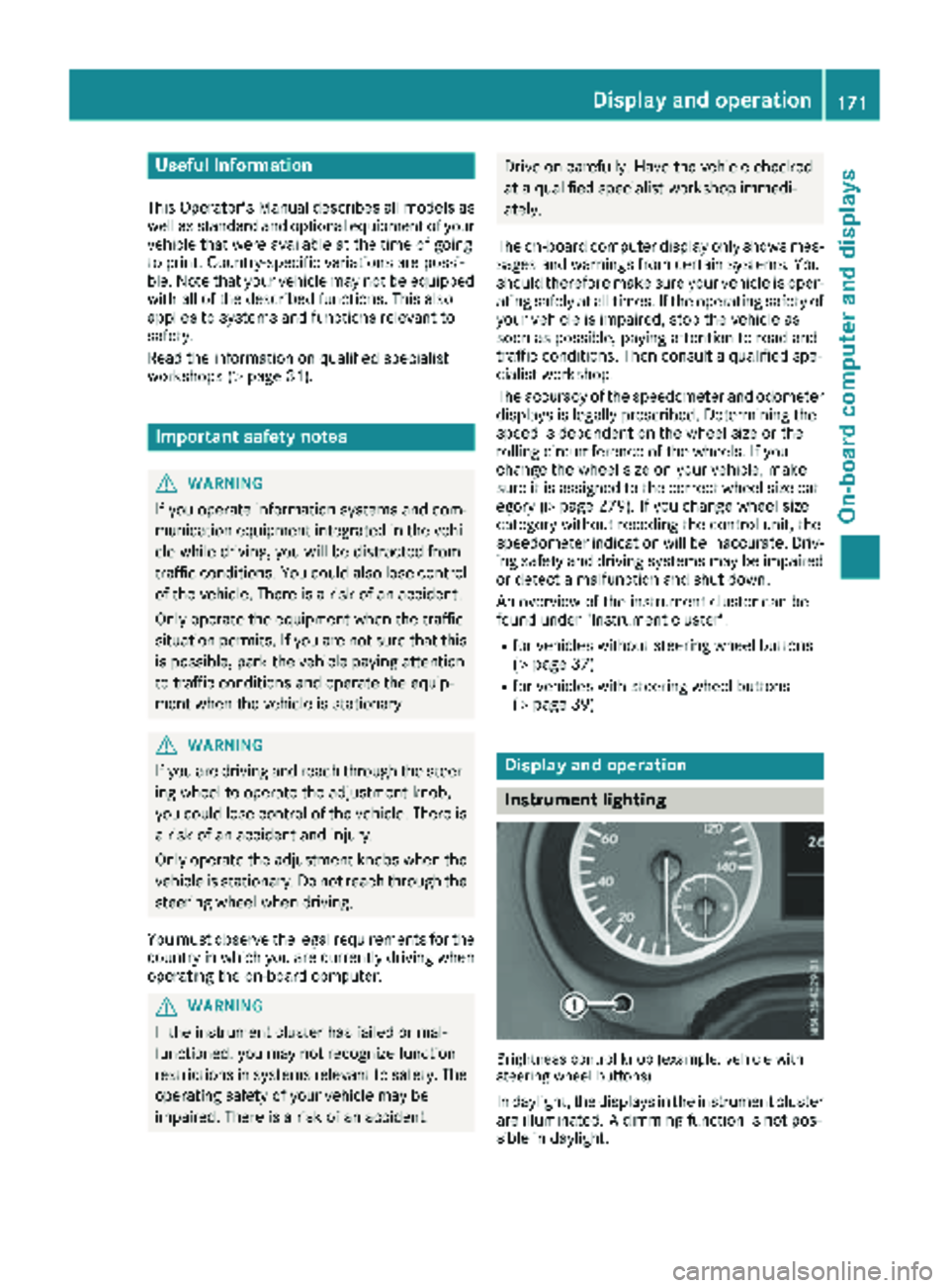
Instrument lighting
Brightness control knob (example: vehicle with
steering wheel buttons)
In daylight, the displays in the instrument cluster
are illuminated. A dimming function is not pos-
sible in daylight.
Display and operation171
On-board computer and displays
Z
Page 174 of 318
On vehicles with steering wheel buttons, the
light sensor in the instrument cluster automati-
cally controls the brightness of the display light-
ing.
While the lights are on, the brightness is depend-
ent upon the brightness of the ambient light.
You can also adjust the brightness of the instru-
ment lighting and the display lighting
Rby pressing thefand gbuttons on the
instrument cluster on vehicles without steer-
ing wheel buttons (not in the Settings
menu)
Rby turning brightness control knob :on vehi-
cles with steering wheel buttons
Speedometer
If you change the wheel size on your vehicle,
make sure it is assigned to the correct wheel
size category (
Ypage 279). If you change wheel
size category without recoding the control unit,
the speedometer indication will be inaccurate.
The current vehicle speed may then be higher
than the speed displayed in the speedometer.
The speed can also be shown in the display in
the form of a digital speedometer:
ROn vehicles without steering wheel buttons
(Ypage 175)
ROn vehicles with steering wheel buttons
(Ypage 181)
iIn some countries, a warning sounds and/or
the display shows a message when the vehi-
cle reaches the maximum legally permissible speed limit, e.g. at 75 mph (120 km/h).
Tachometer
!
Do not drive in the overrevving range, as this
could damage the engine.
HEnvironmental note
Avoid driving at high engine speeds. This
unnecessarily increases the fuel consumption
of your vehicle and harms the environment as
a result of increased emissions.
The red band in the tachometer indicates the
engine's overrevving range.
To protect the engine, the fuel supply is inter-
rupted when the red band is reached.
Outside temperature display
You should pay special attention to road condi-
tions when temperatures are around freezing
point.
Please bear in mind that the outside tempera-
ture display shows the air temperature meas-
ured and not the road temperature.
The display shows the outside temperature in
the header:
Ron vehicles without steering wheel buttons
(Ypage 173)
Ron vehicles with steering wheel buttons
(Ypage 179)
Changes in the outside temperature are dis-
played after a short delay.
Coolant temperature gauge
GWARNING
Opening the hood when the engine is over-
heated or when there is a fire in the engine
compartment could expose you to hot gases
or other service products. There is a risk of
injury.
Let an overheated engine cool down before
opening the hood. If there is a fire in the
engine compartment, keep the hood closed
and contact the fire department.
On vehicles without steering wheel buttons, you
can have the coolant temperature shown in the
display (
Ypage 175).
On vehicles with steering wheel buttons, an ana-
log coolant temperature gage is located in the
tachometer in the instrument cluster
(
Ypage 39).
Under normal operating conditions and with the
specified coolant level, the gauge may rise to
248 ‡ (120 †).
172Display and operation
On-board computer and displays
Page 175 of 318
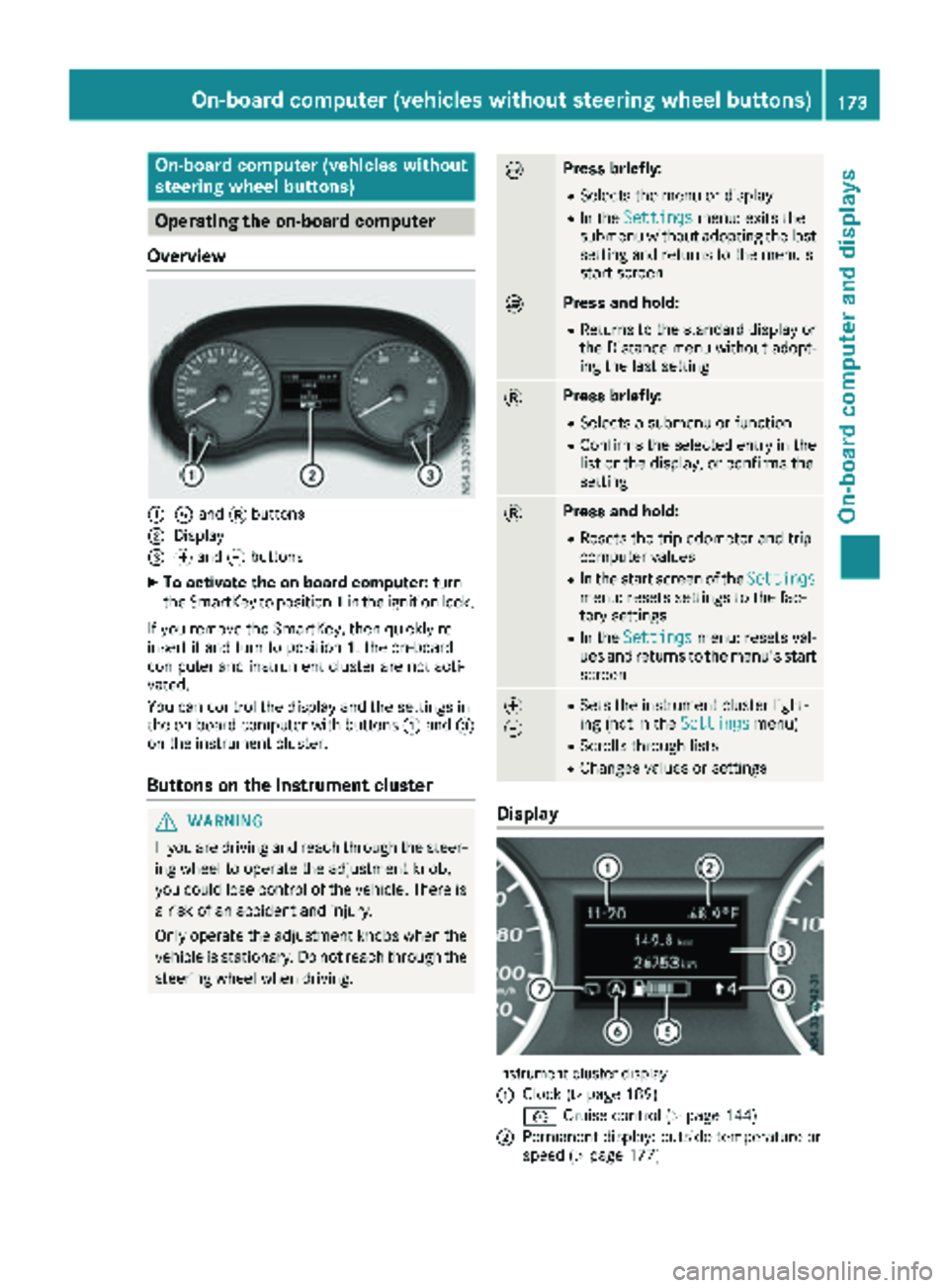
On-board computer (vehicles without
steering wheel buttons)
Operating the on-board computer
Overview
:È and 3buttons
;Display
=f and gbuttons
XTo activate the on-board computer: turn
the SmartKey to position 1in the ignition lock.
If you remove the SmartKey, then quickly re-
insert it and turn to position 1, the on-board
computer and instrument cluster are not acti-
vated.
You can control the display and the settings in
the on-board computer with buttons :and =
on the instrument cluster.
Buttons on the instrument cluster
GWARNING
If you are driving and reach through the steer- ing wheel to operate the adjustment knob,
you could lose control of the vehicle. There is
a risk of an accident and injury.
Only operate the adjustment knobs when thevehicle is stationary. Do not reach through the
steering wheel when driving.
ÈPress briefly:
RSelects the menu or display
RIn the Settingsmenu: exits the
submenu without adopting the last
setting and returns to the menu's
start screen
ÈPress and hold:
RReturns to the standard display or the Distance menu without adopt-
ing the last setting
3Press briefly:
RSelects a submenu or function
RConfirms the selected entry in the
list or the display, or confirms the
setting
3Press and hold:
RResets the trip odometer and trip
computer values
RIn the start screen of the Settingsmenu: resets settings to the fac-
tory settings
RIn theSettingsmenu: resets val-
ues and returns to the menu's start
screen
f
gRSets the instrument cluster light-
ing (not in the Settingsmenu)
RScrolls through lists
RChanges values or settings
Display
Instrument cluster display
:
Clock (Ypage 189)
V Cruise control (
Ypage 144)
;Permanent display: outside temperature or
speed (Ypage 177)
On-board computer (vehicles without steering wheel buttons)173
On-board computer and displays
Z
Page 179 of 318
message with3, the display shows the next
submenu.
XPress forg to activate or deactivate ESP.
XPress 3to confirm.
The next submenu is shown in the display.
If the å warning lamp in the instrument
cluster lights up when the vehicle is ready to
drive, ESP
®is deactivated.
Observe the information on warning lamps
(
Ypage 224) and display messages
(Ypage 196).
Setting the sensitivity of the rain sensor
The vehicle must be stationary. Use the buttons
in the instrument cluster.
XPress Èto select the Settingsmenu.
XPress3to select the Rain Sensorsub-
menu.
The display shows the current sensitivity set-
ting.
XPress forg to select the Low,Standardor
Sensitivesetting. This setting controls the
rain sensor's sensitivity to precipitation. The
windshield wiper will then wipe more or less
frequently at the same precipitation intensity.
XPress 3to confirm.
The next submenu is shown in the display.
You can find further information under "Wind-
shield wiper" (
Ypage 106).
Activating/deactivating ATTENTION
ASSIST
The vehicle must be stationary. Use the buttons in the instrument cluster.
XPress Èto select the Settingsmenu.
XPress3to select the Attention Assistsubmenu.
The display shows the current status.
If theAttention Assist Inoperative
message is shown in the display, ATTENTION
ASSIST is not available due to a malfunction
and is deactivated. If you confirm the mes-
sage with 3, the display shows the next sub-
menu.
XPress forg to activate or deactivate
ATTENTION ASSIST.
XPress 3to confirm.
The next submenu is shown in the display. Further information can be found under "ATTEN-
TION ASSIST" (
Ypage 152).
Selecting the permanent display func-
tion
With the
Permanent Display:function, you
can switch the display in the header between
outside temperature and speed.
If the display shows the speed in the header, the
outside temperature is shown with the odome-
ters (
Ypage 174).
The additional speedometer unit in the header is
always inverse to the speedometer unit.
The vehicle must be stationary. Use the buttons
in the instrument cluster.
XUsing Èselect the Settingsmenu.
XUsing3select the Permanent Display:submenu.
The display indicates the selected setting of
Outside Temp.
orSpeedometer.
XChange the setting by pressing forg.
XPress 3to confirm.
The next submenu is shown in the display.
Selecting the unit for the distance
In the Distance Unit:submenu, you can
select whether the display shows certain infor-
mation in kilometers or miles.
The vehicle must be stationary. Use the buttons
in the instrument cluster.
XPress Èto select the Settingsmenu.
XPress3to select the Distance Unit:sub-
menu.
The display indicates the selected setting of
km
or Miles.
XChange the setting by pressing forg.
XPress 3to confirm.
The display shows the next submenu or the
Settings
menu again.
The selected distance units are used for the dis- plays:
RDigital speedometer
ROdometer and trip odometer
RTrip computer
RRange
RCurrent consumption
RCruise control
RService intervals
On-board computer (vehicles without steering wheel buttons)177
On-board computer and displays
Z