audio MERCEDES-BENZ METRIS 2020 MY20 Operator’s Manual
[x] Cancel search | Manufacturer: MERCEDES-BENZ, Model Year: 2020, Model line: METRIS, Model: MERCEDES-BENZ METRIS 2020Pages: 320, PDF Size: 26.38 MB
Page 170 of 320
Information on the audio system control
knob can be found in the separate operating
instructions.
Symbol
= is highlighted. The distance
specifications now only apply to objects that
are at the same level as the ball coupling.
X Back up carefully, making sure that trailer
drawbar locating aid ; points approx-
imately in the direction of trailer draw-
bar :.
X Back up carefully until trailer drawbar :
reaches red guide line A.
The distance between trailer drawbar :
and ball coupling ? is now approximately
12 in (0.30 m
).
X Couple the trailer (Y page
168).Towing a trailer
Notes on trailer towing
Important safety notes G
WARNING
Installing an unsuitable ball coupling may
overload the trailer tow hitch and the rear
axle. This is particularly likely in the case of
longer or differently angled ball couplings.
Consequently, the driving characteristics
may be significantly impaired and the trailer
may detach. This presents the risk of an
accident or even fatal injuries!
Install only a ball coupling that adheres to
the permissible dimensions and is designed
for your intended purpose for towing a
trailer. Do not make any changes to the ball
coupling or the trailer tow hitch. G
WARNING
If you install a ball coupling other than the
one delivered with the vehicle, the trailer
tow hitch and the rear axle may be overloa-
ded. This applies especially if the ball cou-
pling in question is longer or angled differ-
ently. This could seriously impair the driving
characteristics and the trailer can come
loose. There is a risk of an accident. Only install the ball coupling delivered with
the vehicle or a ball coupling that is
designed to meet your trailer towing require-
ments. Do not modify the ball coupling or
the trailer tow hitch.
G
WARNING
If the ball coupling is not correctly installed
and secured, it could come loose while driv-
ing and endanger other road users. There is
a risk of accident and injury, possibly even
fatal injuries.
Install and secure the ball coupling as
described in the ball coupling manufactur-
er's installation instructions. Make sure that
the ball coupling is correctly installed and
secured before every journey. G
WARNING
When the vehicle/trailer combination begins
to lurch, you could lose control of it. The
vehicle/trailer combination could even roll-
over. There is a risk of an accident.
On no account should you attempt to
straighten up the vehicle/trailer combina-
tion by increasing the speed. Reduce vehicle
speed and do not countersteer. Apply the
brake as necessary.
You can attach carrier systems such as bicycle
racks or load-bearing implements on the ball
coupling. The maximum load-bearing capacity
of 165 lb (75 kg
) applies when using carrier
systems on the ball coupling.
Always observe the operating instructions pro-
vided by the manufacturers of the trailer cou-
pling and the ball coupling.
Couple and decouple the trailer carefully.
When backing up the towing vehicle, make
sure nobody is standing between the vehicle
and the trailer.
A trailer which is incorrectly coupled to the
towing vehicle could break away. A correctly
coupled trailer must be positioned horizontally
behind the towing vehicle. 168
Towing a trailer
Driving and parking
Page 183 of 320
The vehicle must be stationary. Use the but-
tons in the instrument cluster.
X Press È to select the Settings menu.
X Press 3 to select the Distance Unit:
submenu.
The display indicates the selected setting of
km or Miles.
X Change the setting by pressing f or g.
X Press 3 to confirm.
The display shows the next submenu or the
Settings menu again.
The selected distance units are used for the
displays:
R Digital speedometer
R Odometer and trip odometer
R Trip computer
R Range
R Current consumption
R Cruise control
R Service intervals
Setting the time and date The vehicle must be stationary. Use the but-
tons in the instrument cluster.
X Press È to select the Settings menu.
X Press 3 to select the time and date display.
X Press f or g to set the hours and press
3 to confirm.
X Press f or g to set the minutes and press
3 to confirm.
X Press f or g to set the day and press 3
to confirm.
X Press f or g to set the month and press
3 to confirm.
X Press f or g to set the year and press 3
to confirm.
The display shows the Settings menu
again. On-board computer (vehicles with
steering wheel buttons)
Operating the on-board computer
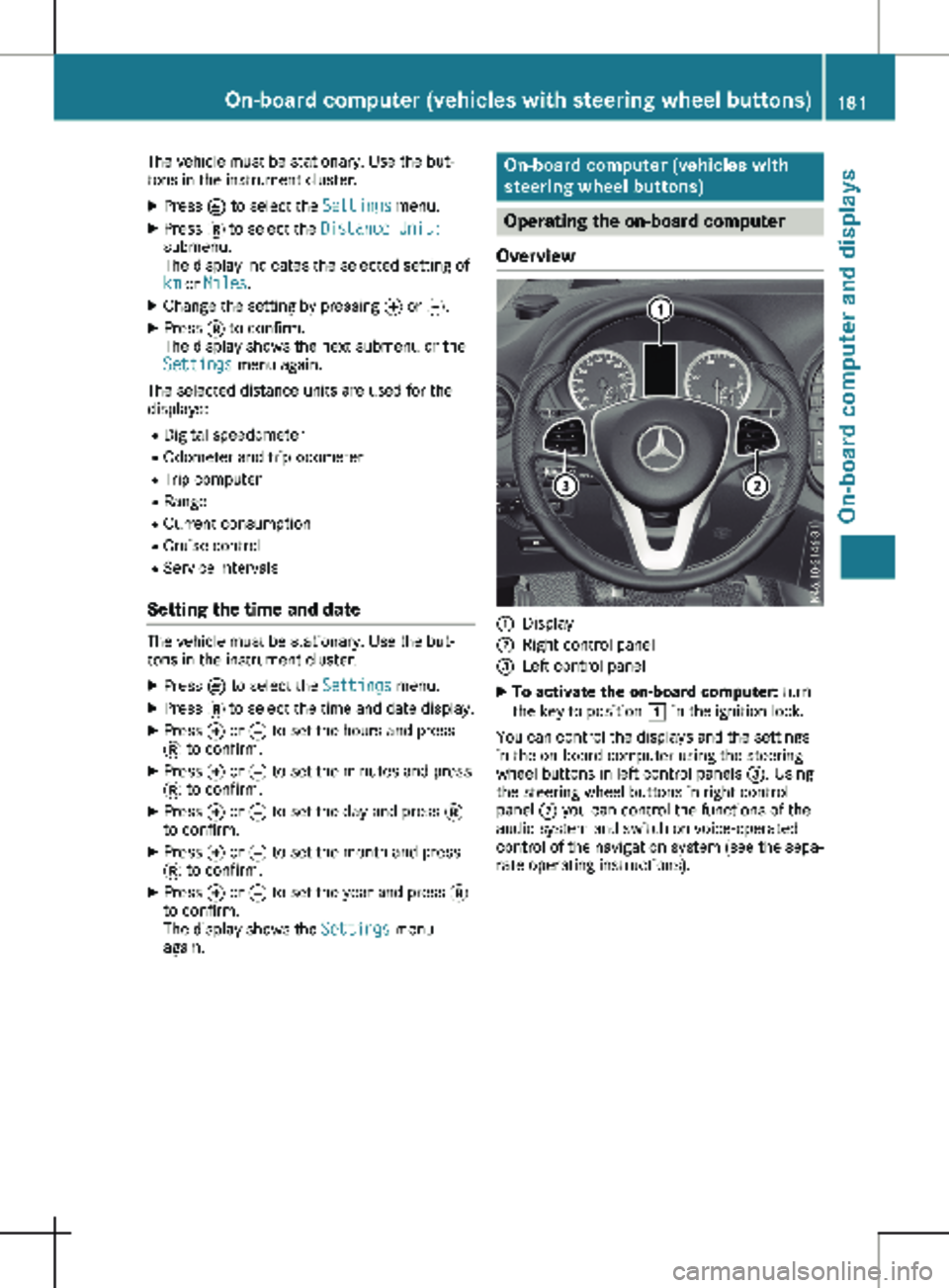
Overview :
Display
; Right control panel
= Left control panel
X To activate the on-board computer: turn
the key to position 1 in the ignition lock.
You can control the displays and the settings
in the on-board computer using the steering
wheel buttons in left control panels =. Using
the steering wheel buttons in right control
panel ; you can control the functions of the
audio system and switch on voice-operated
control of the navigation system (see the sepa-
rate operating instructions). On-board computer (vehicles with steering wheel buttons)
181On-board computer and displays Z
Page 184 of 320
Steering wheel buttons
Left control panel on the steering wheel
=
; R
Calls up the menu bar in the dis-
play
R Selects a menu 9
: Press briefly:
R Scrolls through lists
R Selects a submenu or function
R In the Audio menu: opens the
track or station list and selects a
station or an audio track
R In the Tel (Telephone) menu:
switches to the phone book and
selects a name or a telephone
number 9
: Press and hold:
R
Quickly scrolls through all lists
R In the Audio menu: selects a sta-
tion or an audio track using rapid
scrolling.
R In the Tel (telephone) menu:
starts rapid scrolling if the phone
book is open a R
Confirms the display message
R In all menus: confirms the selec-
ted entry in the list or the display
R In the Audio menu: stops the sta-
tion search
R In the Tel (telephone) menu:
switches to the phone book and
starts dialing the selected num-
ber % Press briefly:
R Back
R In the Audio menu: exits the
track or station list
R Hides display messages
R Exits the telephone book/redial
memory
R Vehicles with a navigation sys-
tem: switches off voice-operated
control of the navigation system
(see the manufacturer's operat-
ing instructions) % Press and hold:
R
Calls up the standard display in
the Trip menu Right control panel on the steering wheel
6 R
Makes or accepts a call
R Switches to the redial memory ~ R
Rejects or ends a call
R Exits the telephone book/redial
memory W
X R
Adjusts the volume ó R
Vehicles with a navigation sys-
tem: switches on voice-operated
control of the navigation system
(see the manufacturer's operat-
ing instructions) 8 R
Mute i
The audio devices, telephone and voice-
operated control using the steering wheel
buttons in the right control panel only func-
tion with a Mercedes-Benz audio or naviga-
tion system. If you are using an audio or
navigation system from another manufac-
turer, the described functions may be
restricted or not available at all. 182
On-board computer (vehicles with steering wheel buttons)On-board computer and displays
Page 185 of 320
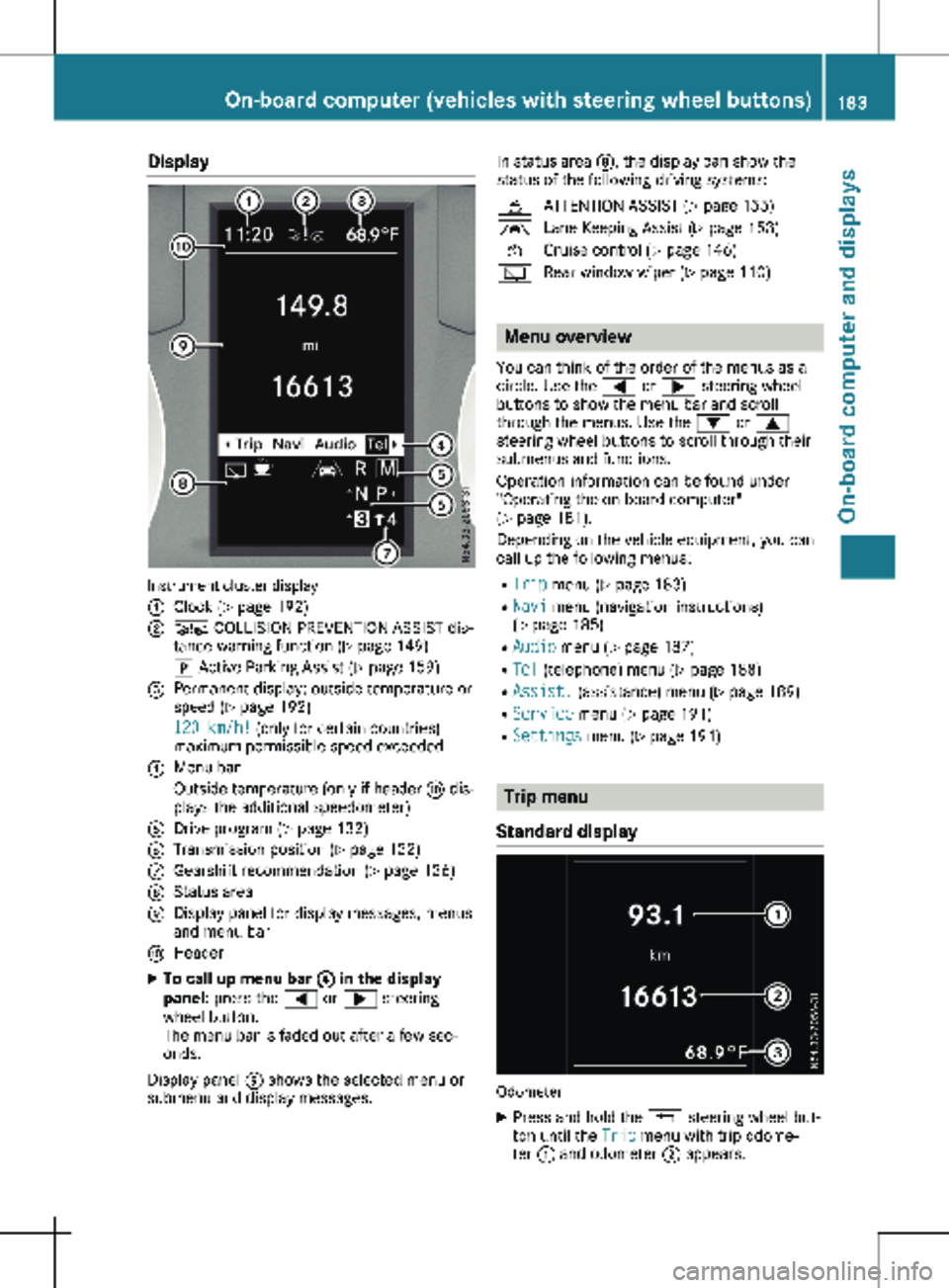
Display
Instrument cluster display
:
Clock (Y page 192)
; Ä COLLISION PREVENTION ASSIST dis-
tance warning function
(Y page 149)
j Active Parking Assist
(Y page 159)
= Permanent display: outside temperature or
speed ( Y page
192)
120 km/h! (only for certain countries)
maximum permissible speed exceeded
? Menu bar
Outside temperature (only if header F dis-
plays the additional speedometer)
A Drive program ( Y page 132)
B Transmission position ( Y page
132)
C Gearshift recommendation ( Y page
136)
D Status area
E Display panel for display messages, menus
and menu bar
F Header
X To call up menu bar ? in the display
panel: press the = or ; steering
wheel button.
The menu bar is faded out after a few sec-
onds.
Display panel E shows the selected menu or
submenu and display messages. In status area D, the display can show the
status of the following driving systems:
À ATTENTION ASSIST ( Y page
155)
à Lane Keeping Assist ( Y page
153)
V Cruise control (Y page
146)
è Rear window wiper (Y page
110) Menu overview
You can think of the order of the menus as a
circle. Use the = or ; steering wheel
buttons to show the menu bar and scroll
through the menus. Use the : or 9
steering wheel buttons to scroll through their
submenus and functions.
Operation information can be found under
"Operating the on-board computer"
(Y page
181).
Depending on the vehicle equipment, you can
call up the following menus:
R Trip menu (Y page 183)
R Navi menu (navigation instructions)
(Y page 185)
R Audio menu ( Y page 187)
R Tel (telephone) menu (Y page 188)
R Assist. (assistance) menu ( Y page 189)
R Service menu (Y page 191)
R Settings menu (Y page 191) Trip menu
Standard display Odometer
X Press and hold the % steering wheel but-
ton until the Trip menu with trip odome-
ter : and odometer ; appears. On-board computer (vehicles with steering wheel buttons)
183
On-board computer and displays Z
Page 187 of 320
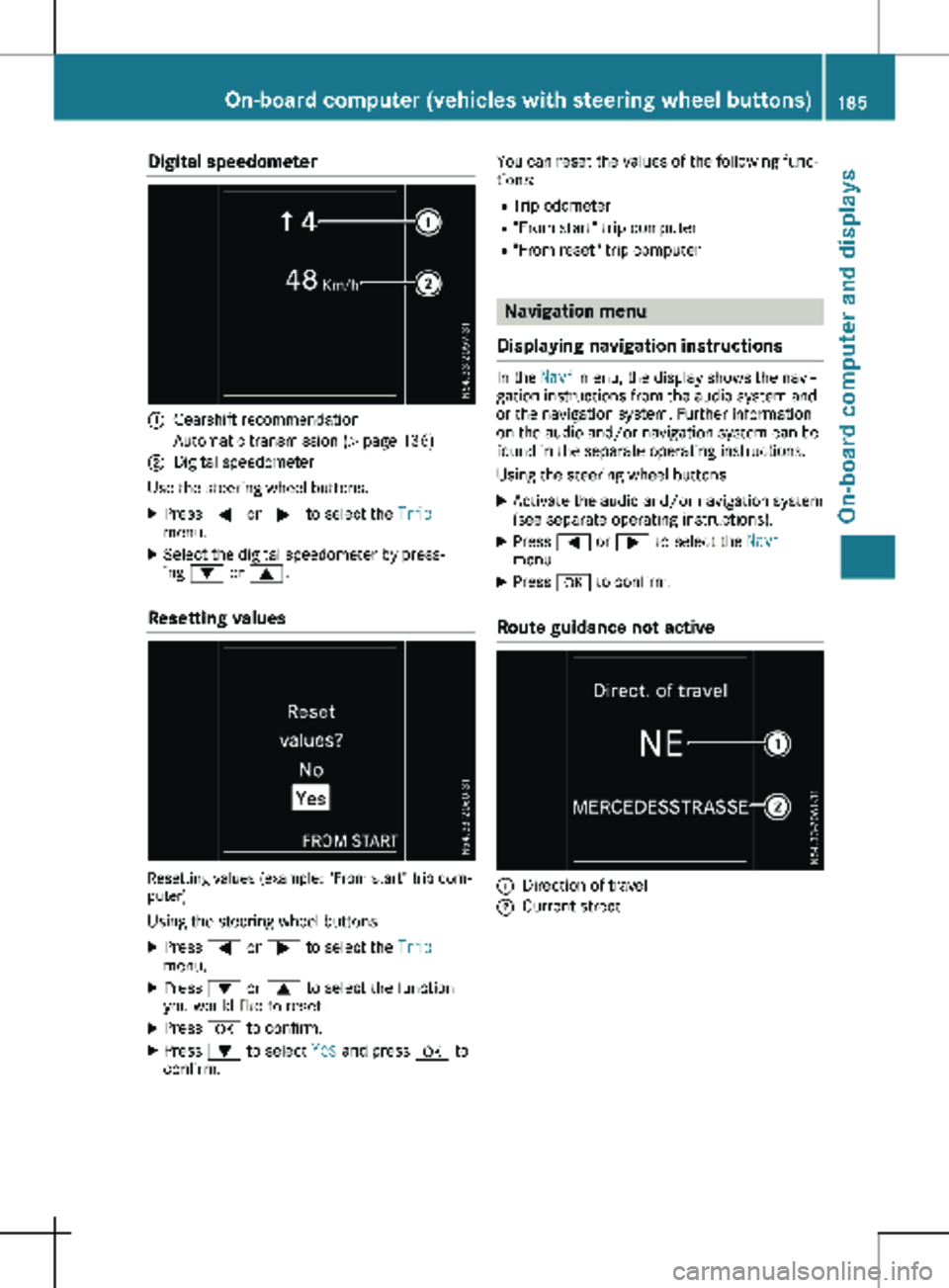
Digital speedometer
:
Gearshift recommendation
Automatic transmission (Y page 136)
; Digital speedometer
Use the steering wheel buttons.
X Press = or ; to select the Trip
menu.
X Select the digital speedometer by press-
ing : or 9.
Resetting values Resetting values (example: "From start" trip com-
puter)
Using the steering wheel buttons
X Press = or ; to select the Trip
menu.
X Press : or 9 to select the function
you would like to reset.
X Press a to confirm.
X Press : to select Yes and press a to
confirm. You can reset the values of the following func-
tions:
R Trip odometer
R "From start" trip computer
R "From reset" trip computer Navigation menu
Displaying navigation instructions In the
Navi menu, the display shows the navi-
gation instructions from the audio system and
or the navigation system. Further information
on the audio and/or navigation system can be
found in the separate operating instructions.
Using the steering wheel buttons
X Activate the audio and/or navigation system
(see separate operating instructions).
X Press = or ; to select the Navi
menu.
X Press a to confirm.
Route guidance not active :
Direction of travel
; Current street On-board computer (vehicles with steering wheel buttons)
185
On-board computer and displays Z
Page 189 of 320
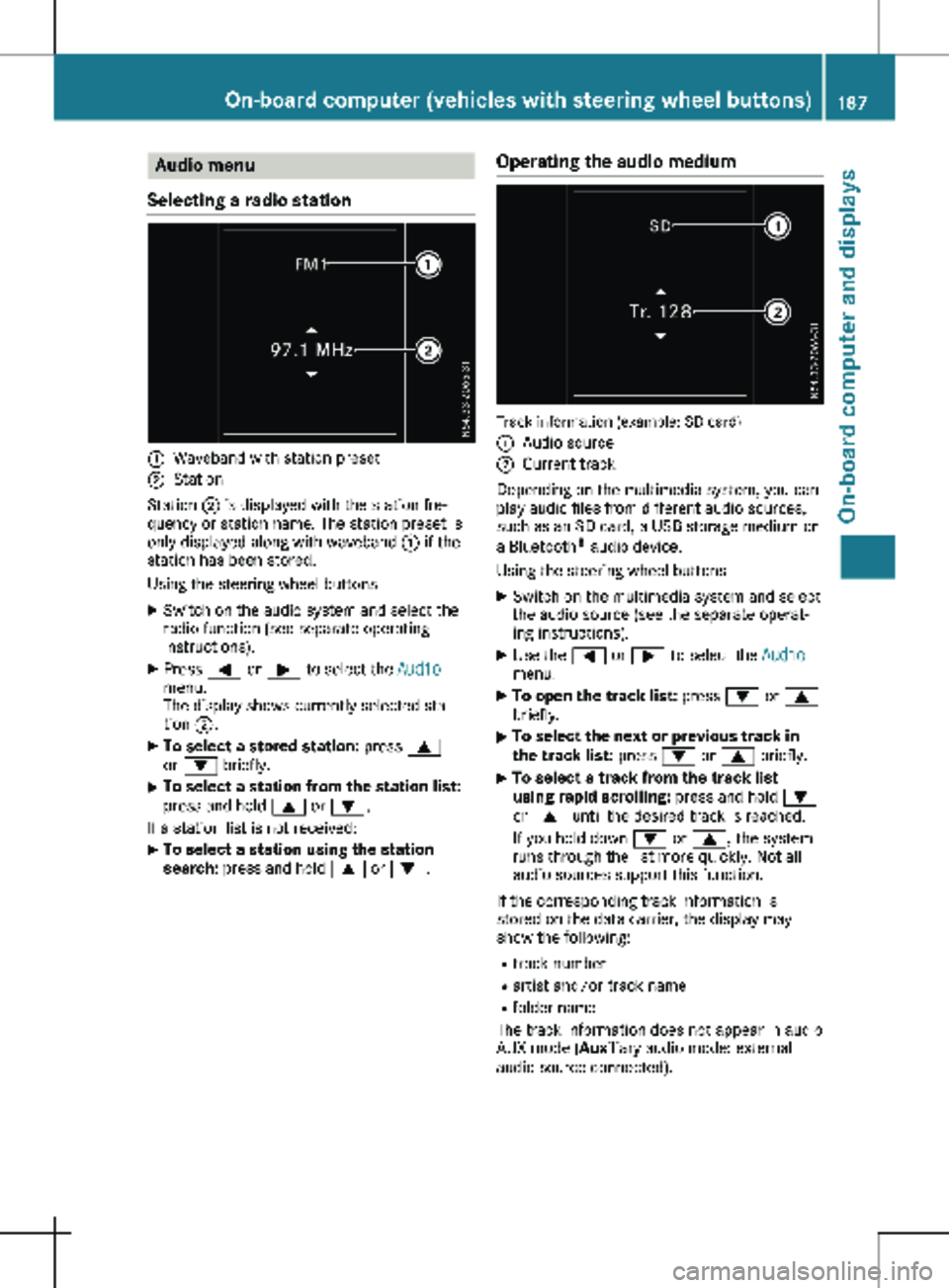
Audio menu
Selecting a radio station :
Waveband with station preset
; Station
Station ; is displayed with the station fre-
quency or station name. The station preset is
only displayed along with waveband : if the
station has been stored.
Using the steering wheel buttons
X Switch on the audio system and select the
radio function (see separate operating
instructions).
X Press = or ; to select the Audio
menu.
The display shows currently selected sta-
tion ;.
X To select a stored station: press 9
or : briefly.
X To select a station from the station list:
press and hold
9 or :.
If a station list is not received: X To select a station using the station
search: press and hold 9 or :. Operating the audio medium Track information (example: SD card)
:
Audio source
; Current track
Depending on the multimedia system, you can
play audio files from different audio sources,
such as an SD card, a USB storage medium or
a Bluetooth ®
audio device.
Using the steering wheel buttons
X Switch on the multimedia system and select
the audio source (see the separate operat-
ing instructions).
X Use the = or ; to select the Audio
menu.
X To open the track list: press : or 9
briefly.
X To select the next or previous track in
the track list:
press : or 9 briefly.
X To select a track from the track list
using rapid scrolling: press and hold
:
or 9 until the desired track is reached.
If you hold down : or 9, the system
runs through the list more quickly. Not all
audio sources support this function.
If the corresponding track information is
stored on the data carrier, the display may
show the following:
R track number
R artist and/or track name
R folder name
The track information does not appear in audio
AUX mode (Aux iliary audio mode: external
audio source connected). On-board computer (vehicles with steering wheel buttons)
187On-board computer and displays Z
Page 190 of 320

Telephone menu
Introduction G
WARNING
If you operate information systems and com-
munication equipment integrated in the
vehicle when driving, you may be distracted
from the traffic situation. You could also
lose control of the vehicle. There is a risk of
an accident.
Only operate this equipment when the traffic
situation permits. If you are not sure that
this is possible, park the vehicle paying
attention to traffic conditions and operate
the equipment when the vehicle is station-
ary.
When using the phone, you must observe the
legal requirements for the country in which
you are currently driving.
X Switch on the audio system (see the sepa-
rate operating instructions).
X Switch on the mobile phone (see the manu-
facturer's separate operating instructions).
X Establish a Bluetooth ®
connection between
the mobile phone and the audio system (see
the separate operating instructions).
Using the steering wheel buttons
X Press = or ; to select the Tel menu.
The display shows one of the following mes-
sages:
R The name of the network provider or Phone
READY: the mobile phone has found a net-
work and is ready to receive.
R No Service: there is no network available
or the mobile phone is searching for a net-
work.
R Bluetooth Ready: you have not yet estab-
lished a Bluetooth ®
connection between the
mobile phone and the audio system.
You can obtain further information about suita-
ble mobile phones and connecting mobile
phones via Bluetooth ®
:
R at a Mercedes-Benz Commercial Van Center
R on the Internet at
http://www.mercedes-
benz.com/connect Accepting a call
X
Press the 6 button to answer a call.
If someone calls you when you are in the Tel
menu, a corresponding display message
appears in the multifunction display.
Rejecting or ending a call X
Press the ~ steering wheel button.
Dialing a number from the phone book Using the steering wheel buttons
X Press = or ; to select the Tel menu.
X Press :, 9 or a to switch to the
phone book.
X Press : or 9 to select names succes-
sively.
If you press and hold the button for longer
than one second, the names in the phone
book are shown rapidly one after another.
or
X Press and hold : or 9 for longer than
five seconds.
Rapid scrolling — the name that starts with
the next letter or the previous letter in the
alphabet is displayed. Rapid scrolling stops
when you release the button or reach the
end of the list.
X If only one telephone number is stored
for a name:
press 6 or a to start
dialing.
or X If there is more than one number for a
particular name:
press the 6 or a
button to display the numbers.
X Press : or 9 to select a telephone
number. 188
On-board computer (vehicles with steering wheel buttons)
On-board computer and displays
Page 275 of 320
G
WARNING
Battery acid is caustic. There is a risk of
injury.
Avoid contact with skin, eyes or clothing. Do
not inhale any battery gases. Do not lean
over the battery. Keep children away from
batteries. Wash away battery acid immedi-
ately with plenty of clean water and seek
medical attention. G
WARNING
A discharged battery can freeze at tempera-
tures below freezing point. When jump-start-
ing the vehicle or charging the battery,
gases can escape from the battery. There is
a risk of an explosion.
Allow the frozen battery to thaw out before
charging it or jump-starting.
! Vehicles with a gasoline engine:
avoid
repeated and lengthy starting attempts. Oth-
erwise, the catalytic converter could be
damaged by non-combusted fuel.
If the indicator and warning lamps in the
instrument cluster do not light up at low tem-
peratures, the discharged battery may have
frozen. In this case you may neither charge the
battery nor jump-start the vehicle. The service
life of a thawed battery may be shorter. Start-
up behavior may deteriorate, in particular at
low temperatures. Have the thawed battery
checked at a qualified specialist workshop.
Do not use a rapid charging device to start the
vehicle. If your vehicle's battery is discharged,
the engine can be jump-started from another
vehicle or from a donor battery using jumper
cables. For this purpose, the vehicle has a
jump-starting connection point in the engine
compartment.
When jump-starting, observe the following
points:
R The battery is not accessible in all vehicles.
If the other vehicle's battery is not accessi-
ble, jump-start the vehicle using a donor
battery or a jump-starting device.
R You may only jump-start the vehicle when
the engine and exhaust system are cold.
R Do not start the engine if the battery is fro-
zen. Let the battery thaw first. R
Jump-starting may only be performed from
batteries with a nominal voltage of 12 V.
R Only use jumper cables that have a suffi-
cient cross-section and insulated terminal
clamps.
R If the battery is fully discharged, attach the
battery of another vehicle for a few minutes
before attempting to start. This charges the
empty battery a little.
R Make sure that the two vehicles do not
touch.
Make sure that:
R The jumper cables are not damaged.
R Bare parts of the terminal clamps do not
come into contact with other metal parts
while the jumper cables are connected to
the battery.
R The jumper cables cannot come into contact
with parts such as the V-belt pulley or the
fan. These parts move when the engine is
started and while it is running.
Jumper cables and further information regard-
ing jump starting can be obtained at any quali-
fied specialist workshop. Before connecting the jumper cables
X Apply the parking brake.
X Shift the transmission to position j.
X Switch off all electrical consumers, e.g.
audio equipment, blower.
X Turn the key to position u in the ignition
lock and remove it .
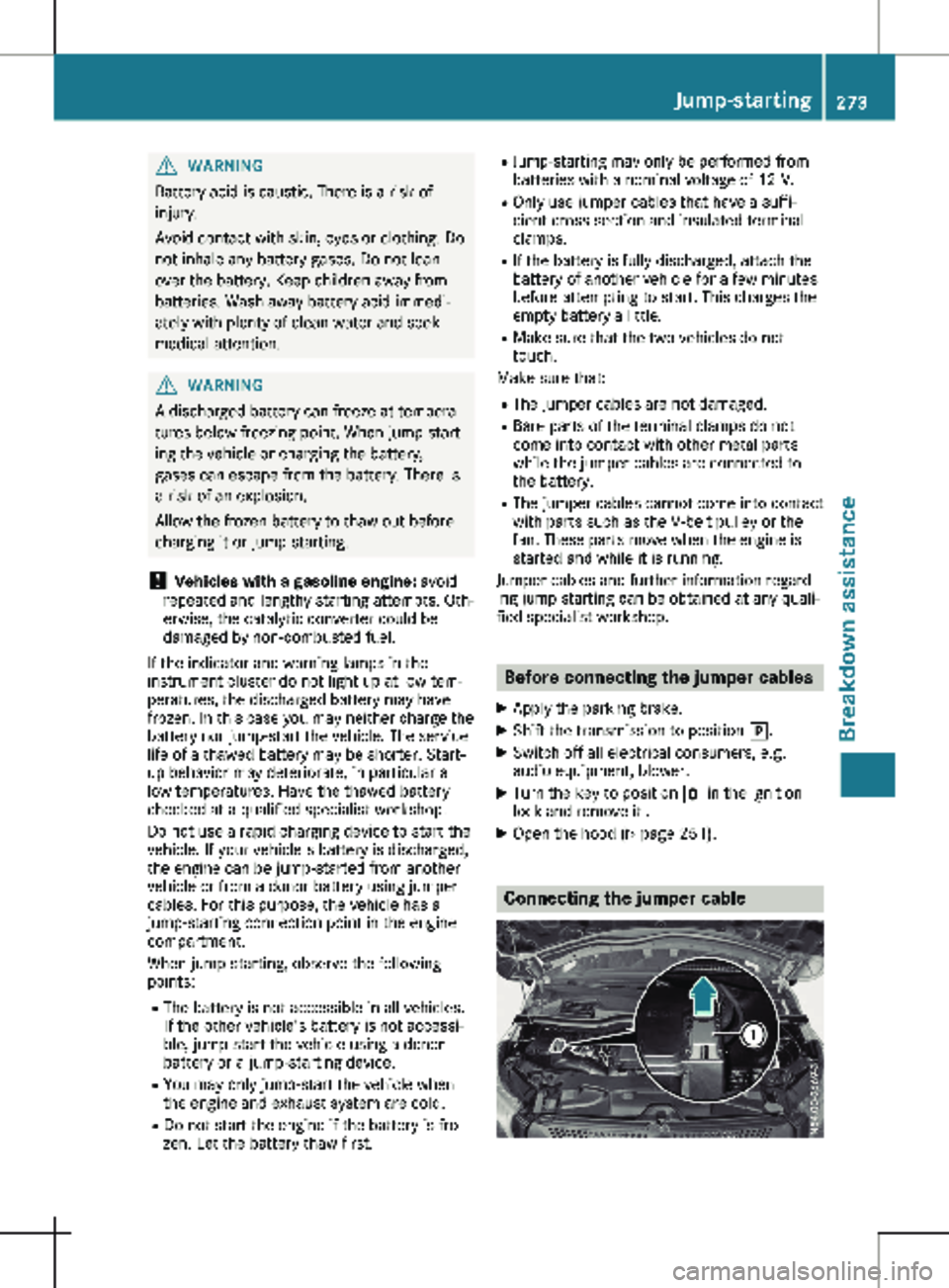
X Open the hood (Y page 251). Connecting the jumper cable Jump-starting
273
Breakdown assistance Z