reset MERCEDES-BENZ METRIS 2020 MY20 Operator’s Manual
[x] Cancel search | Manufacturer: MERCEDES-BENZ, Model Year: 2020, Model line: METRIS, Model: MERCEDES-BENZ METRIS 2020Pages: 320, PDF Size: 26.38 MB
Page 99 of 320
Exterior mirrors
Adjusting manually X
Before starting off, manually adjust the exte-
rior mirrors in such a way that you can get a
good overview of road and traffic conditions.
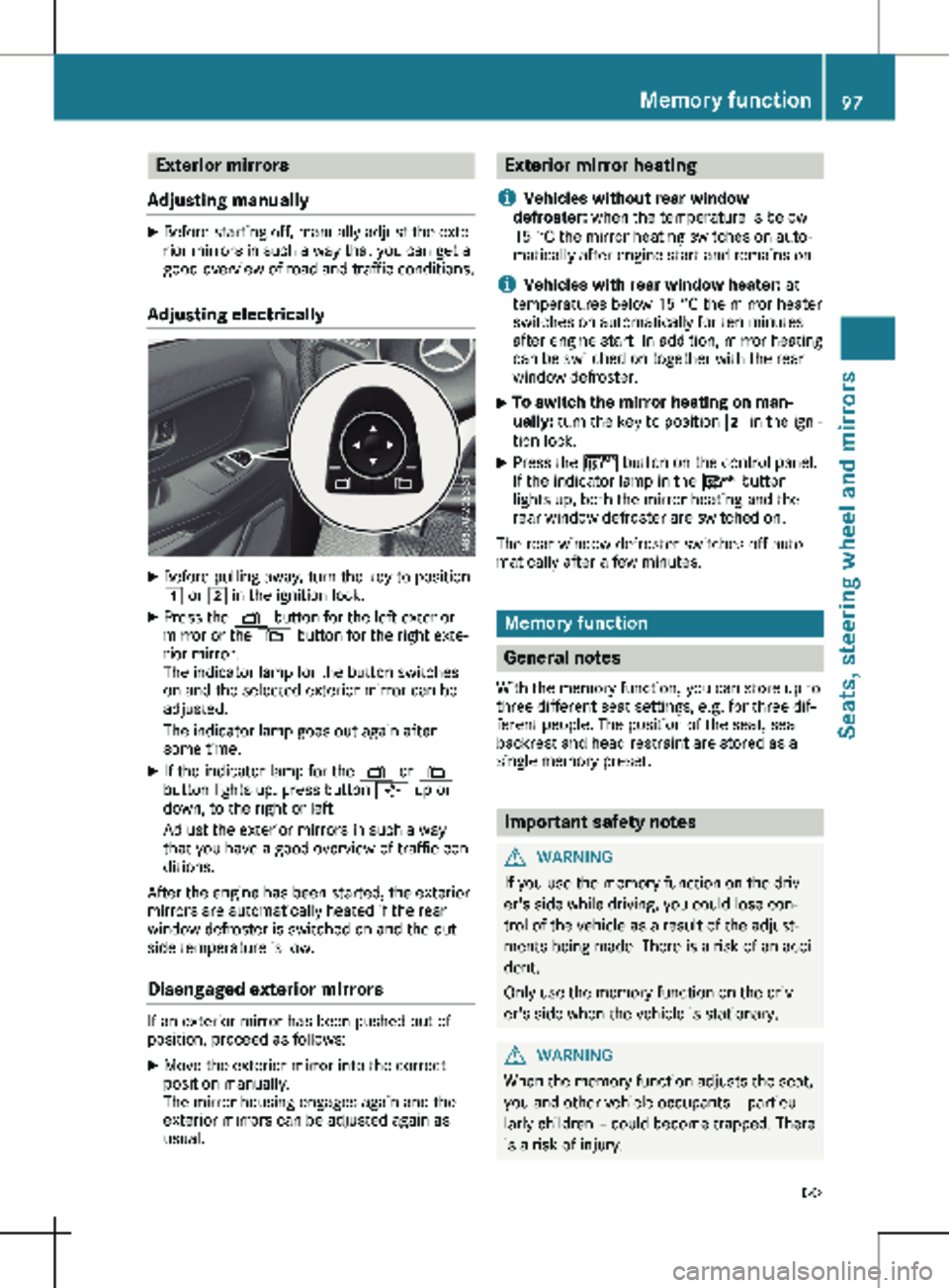
Adjusting electrically X
Before pulling away, turn the key to position
1 or 2 in the ignition lock.
X Press the Z button for the left exterior
mirror or the \ button for the right exte-
rior mirror.
The indicator lamp for the button switches
on and the selected exterior mirror can be
adjusted.
The indicator lamp goes out again after
some time.
X If the indicator lamp for the Z or \
button lights up, press button 7 up or
down, to the right or left.
Adjust the exterior mirrors in such a way
that you have a good overview of traffic con-
ditions.
After the engine has been started, the exterior
mirrors are automatically heated if the rear
window defroster is switched on and the out-
side temperature is low.
Disengaged exterior mirrors If an exterior mirror has been pushed out of
position, proceed as follows:
X
Move the exterior mirror into the correct
position manually.
The mirror housing engages again and the
exterior mirrors can be adjusted again as
usual. Exterior mirror heating
i Vehicles without rear window
defroster: when the temperature is below
15 °C the mirror heating switches on auto-
matically after engine start and remains on.
i Vehicles with rear window heater: at
temperatures below
15 °C the mirror heater
switches on automatically for ten minutes
after engine start. In addition, mirror heating
can be switched on together with the rear
window defroster.
X To switch the mirror heating on man-
ually:
turn the key to position 2 in the igni-
tion lock.
X Press the ¤ button on the control panel.
If the indicator lamp in the ¤ button
lights up, both the mirror heating and the
rear window defroster are switched on.
The rear window defroster switches off auto-
matically after a few minutes. Memory function
General notes
With the memory function, you can store up to
three different seat settings, e.g. for three dif-
ferent people. The position of the seat, seat
backrest and head restraint are stored as a
single memory preset. Important safety notes
G
WARNING
If you use the memory function on the driv-
er's side while driving, you could lose con-
trol of the vehicle as a result of the adjust-
ments being made. There is a risk of an acci-
dent.
Only use the memory function on the driv-
er's side when the vehicle is stationary. G
WARNING
When the memory function adjusts the seat,
you and other vehicle occupants – particu-
larly children – could become trapped. There
is a risk of injury. Memory function
97
Seats, steering wheel and mirrors
Z
Page 100 of 320
While the memory function is making adjust-
ments, make sure that no one has any body
parts in the sweep of the seat. If somebody
becomes trapped, immediately release the
memory function position button. The
adjustment process is stopped. G
WARNING
Children could become trapped if they acti-
vate the memory function, particularly when
unattended. There is a risk of injury.
When leaving the vehicle, always take the
SmartKey with you and lock the vehicle.
Never leave children unsupervised in the
vehicle.
The memory function can be used at any time,
for example even when the key has been
removed from the ignition lock. Storing settings
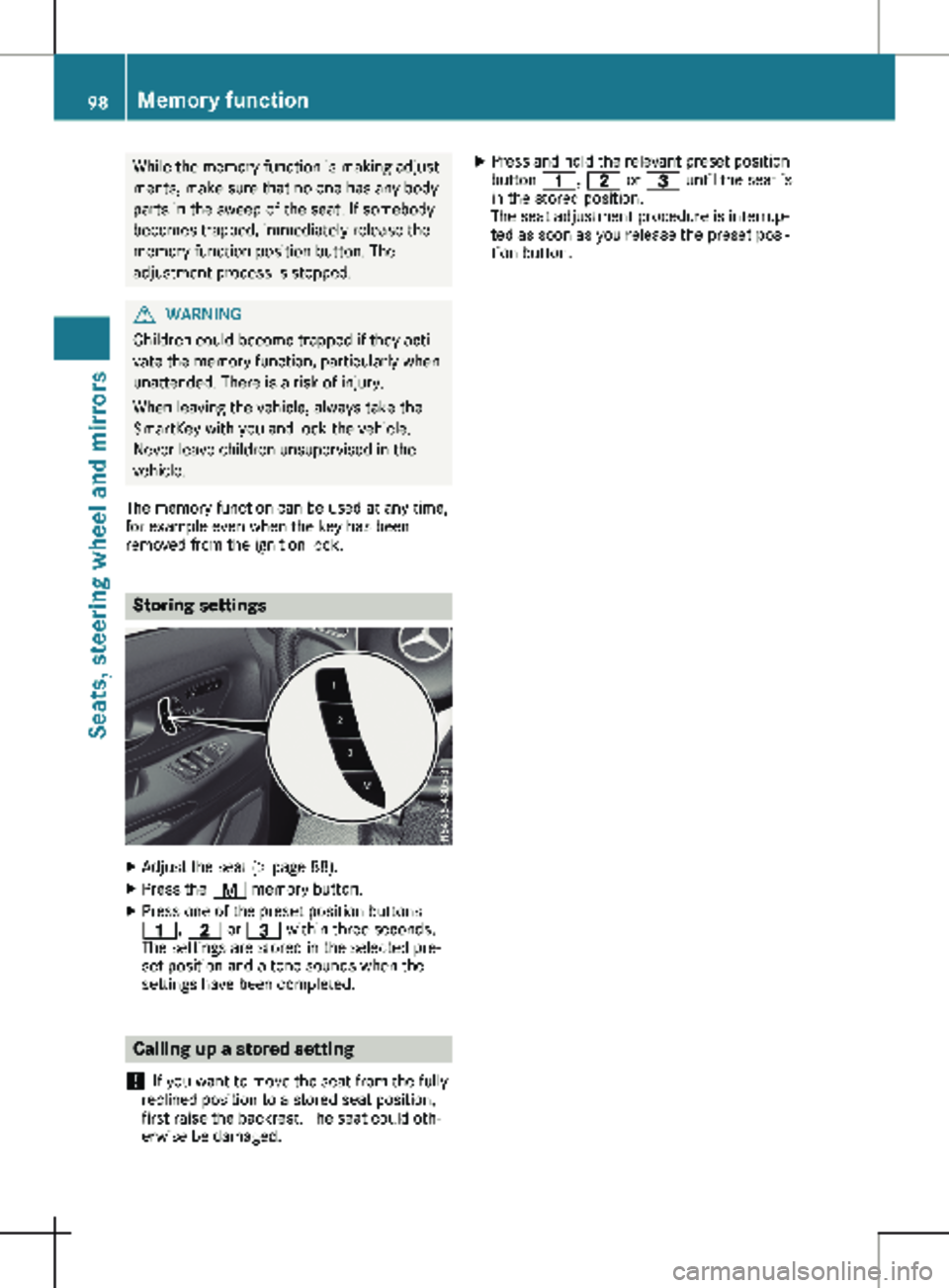
X
Adjust the seat (Y page 88).
X Press the r memory button.
X Press one of the preset position buttons
4, 5 or = within three seconds.
The settings are stored in the selected pre-
set position and a tone sounds when the
settings have been completed. Calling up a stored setting
! If you want to move the seat from the fully
reclined position to a stored seat position,
first raise the backrest. The seat could oth-
erwise be damaged. X
Press and hold the relevant preset position
button 4, 5 or = until the seat is
in the stored position.
The seat adjustment procedure is interrup-
ted as soon as you release the preset posi-
tion button. 98
Memory function
Seats, steering wheel and mirrors
Page 157 of 320
Assist is ready for use, the lane markings in
the symbol are shown as solid lines
;.
Setting the sensitivity of Lane Keeping
Assist X
In the Assist. menu on the on-board com-
puter, select the Lane Keeping Assist:
function
(Y page 191).
X Select Standard or Adaptive.
In the Standard setting, no warning vibration
occurs if:
R you operate the turn signal in the corre-
sponding direction. In this event, the warn-
ings are suppressed for a certain period of
time.
R a driving safety system, such as ABS, BAS or
ESP ®
, intervenes or performs a control
action.
When Adaptive is selected, there is also no
warning vibration when: R you accelerate hard, e.g. kickdown.
R brake sharply.
R you steer actively, e.g. swerve to avoid an
obstacle or change lanes quickly.
R you cut the corner on a sharp bend.
In order that you are warned only when neces-
sary and in good time if you cross the lane
marking, the system differentiates between
various conditions and warns you accordingly.
The warning vibration occurs earlier if:
R you approach the outer lane marking on a
bend.
R the road has very wide lanes, such as a
highway.
R the system detects solid lane markings.
The warning vibration occurs later if:
R the road has narrow lanes.
R you cut the corner on a bend. Alertness Assistant ATTENTION
ASSIST
General notes ATTENTION ASSIST helps you during long,
monotonous journeys such as on freeways and
interstate highways. It is active in the 40 mph
(
60 km/h) to 125 mph (200 km/h) range. If
ATTENTION ASSIST detects typical indicators of fatigue or increasing lapses in concentration
on the part of the driver, it suggests taking a
break.
Important safety notes ATTENTION ASSIST is only an aid. The system
may not always detect fatigue or lapses in
concentration until too late, or may not detect
them at all. ATTENTION ASSIST is not a substi-
tute for a well-rested and attentive driver.
The functionality of ATTENTION ASSIST is
restricted, and warnings may be delayed or
not occur at all:
R if the length of the journey is less than
approximately
30 minutes
R if the road condition is poor, e.g. if the sur-
face is uneven or if there are potholes
R if there is a strong side wind
R if you have adopted a sporty driving style
with high cornering speeds or high rates of
acceleration
R if you are predominantly driving at a speed
below 40 mph (60 km/h) or above 125 mph
(200 km/h)
R if the time has been set incorrectly
R in active driving situations, such as when
you change lanes or change your speed
ATTENTION ASSIST is reset and starts assess-
ing your attention again when you continue
your journey if:
R you switch off the engine
R you take off your seat belt and open the
driver's door, e.g. for a change of drivers or
to take a break
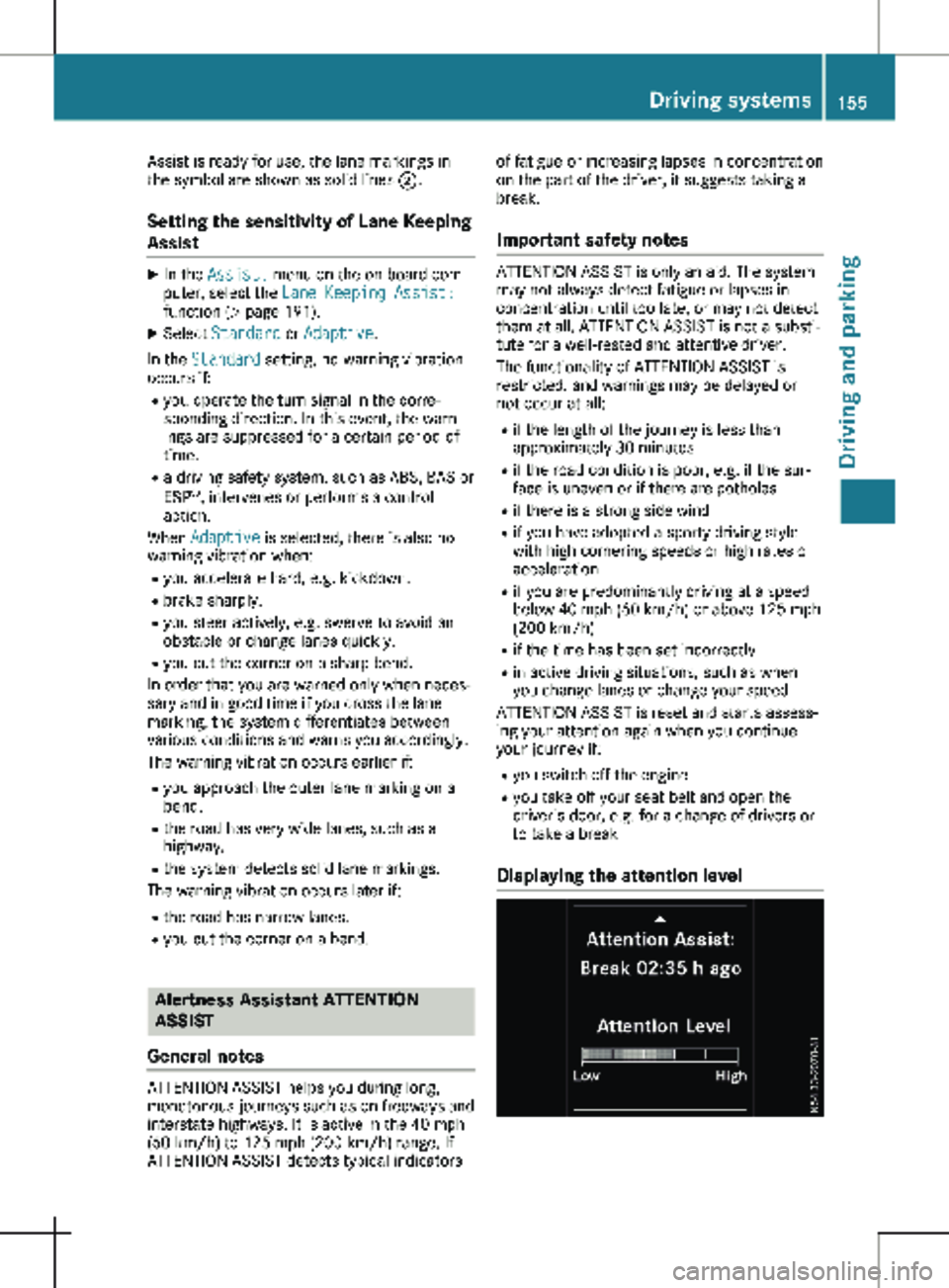
Displaying the attention level Driving systems
155
Driving and parking Z
Page 178 of 320
On-board computer (vehicles with-
out steering wheel buttons)
Operating the on-board computer
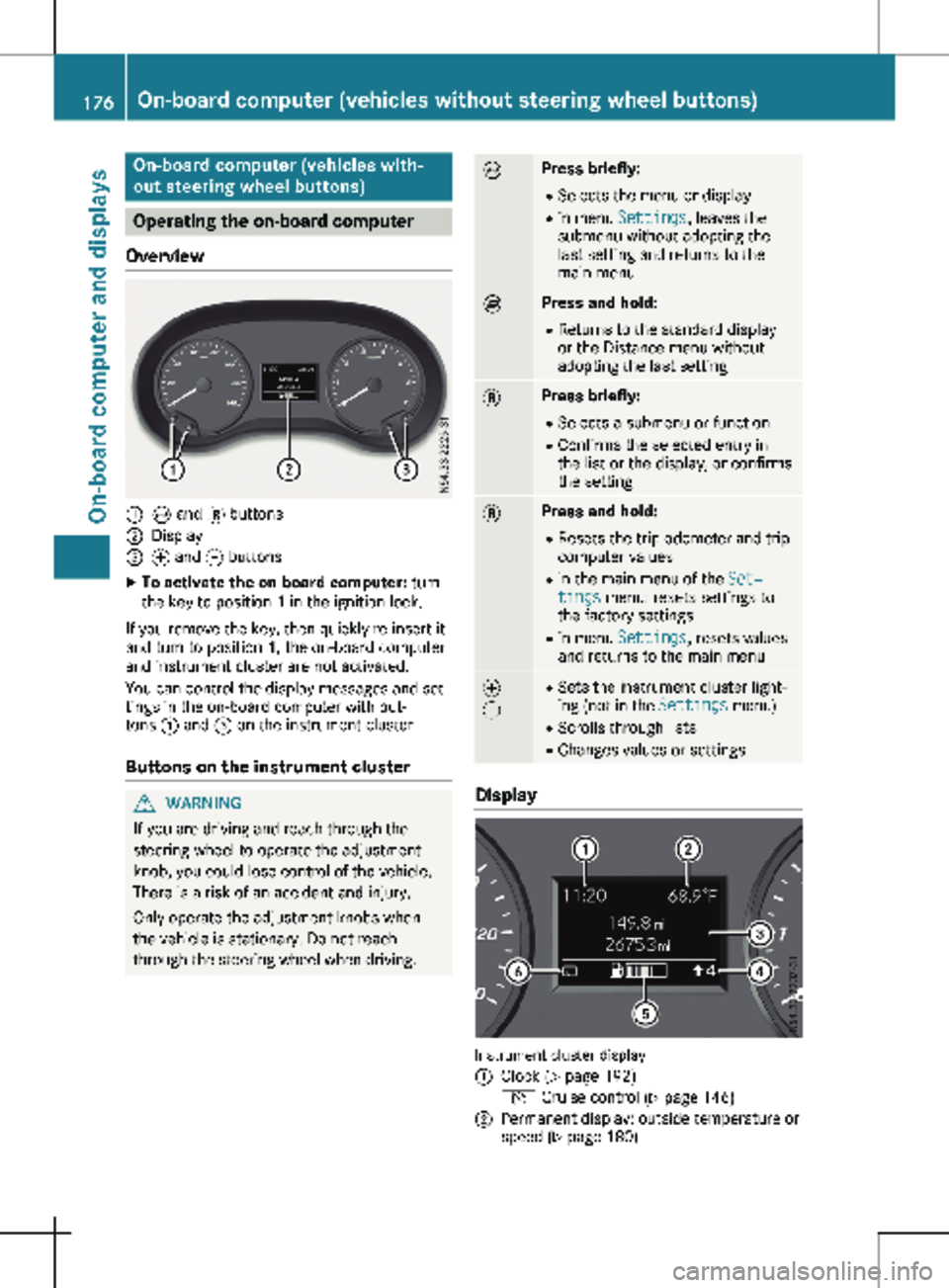
Overview :
È and 3 buttons
; Display
= f and g buttons
X To activate the on-board computer: turn
the key to position 1 in the ignition lock.
If you remove the key, then quickly re-insert it
and turn to position 1, the on-board computer
and instrument cluster are not activated.
You can control the display messages and set-
tings in the on-board computer with but-
tons : and = on the instrument cluster.
Buttons on the instrument cluster G
WARNING
If you are driving and reach through the
steering wheel to operate the adjustment
knob, you could lose control of the vehicle.
There is a risk of an accident and injury.
Only operate the adjustment knobs when
the vehicle is stationary. Do not reach
through the steering wheel when driving. È Press briefly:
R Selects the menu or display
R in menu Settings, leaves the
submenu without adopting the
last setting and returns to the
main menu È Press and hold:
R
Returns to the standard display
or the Distance menu without
adopting the last setting 3 Press briefly:
R Selects a submenu or function
R Confirms the selected entry in
the list or the display, or confirms
the setting 3 Press and hold:
R
Resets the trip odometer and trip
computer values
R in the main menu of the Set‐
tings menu: resets settings to
the factory settings
R in menu Settings, resets values
and returns to the main menu f
g R
Sets the instrument cluster light-
ing (not in the Settings menu)
R Scrolls through lists
R Changes values or settings Display
Instrument cluster display
:
Clock (Y page 192)
V Cruise control (Y page
146)
; Permanent display: outside temperature or
speed
(Y page 180)176
On-board computer (vehicles without steering wheel buttons)
On-board computer and displays
Page 179 of 320
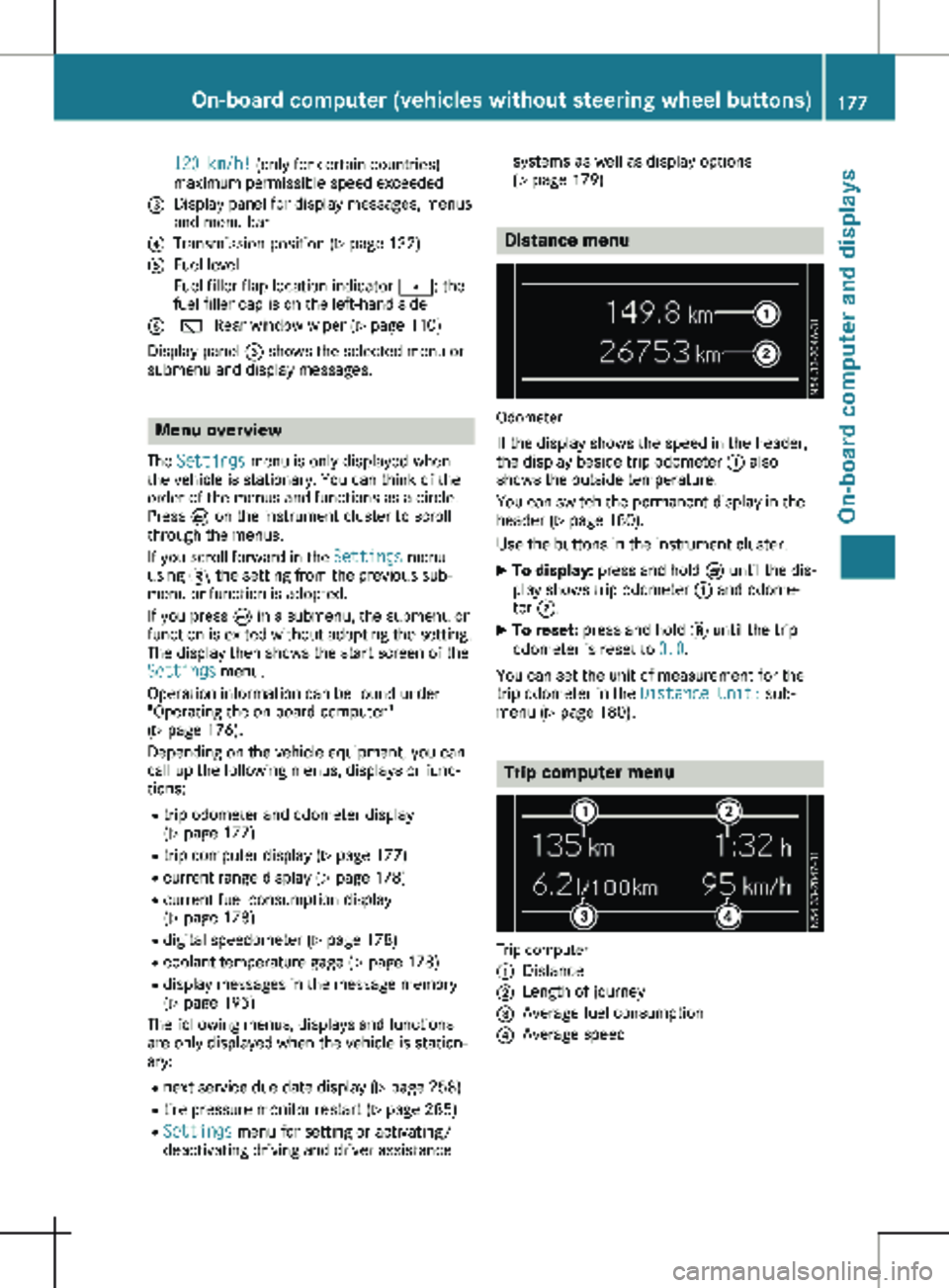
120 km/h! (only for certain countries)
maximum permissible speed exceeded
= Display panel for display messages, menus
and menu bar
? Transmission position (Y page 132)
A Fuel level
Fuel filler flap location indicator t: the
fuel filler cap is on the left-hand side
B è Rear window wiper
(Y page 110)
Display panel = shows the selected menu or
submenu and display messages. Menu overview
The Settings menu is only displayed when
the vehicle is stationary. You can think of the
order of the menus and functions as a circle.
Press È on the instrument cluster to scroll
through the menus.
If you scroll forward in the Settings menu
using 3, the setting from the previous sub-
menu or function is adopted.
If you press È in a submenu, the submenu or
function is exited without adopting the setting.
The display then shows the start screen of the
Settings menu.
Operation information can be found under
"Operating the on-board computer"
(Y page
176).
Depending on the vehicle equipment, you can
call up the following menus, displays or func-
tions:
R trip odometer and odometer display
(Y page 177)
R trip computer display (Y page 177)
R current range display (Y page 178)
R current fuel consumption display
(Y page 178)
R digital speedometer ( Y page 178)
R coolant temperature gage (Y page 178)
R display messages in the message memory
(Y page 195)
The following menus, displays and functions
are only displayed when the vehicle is station-
ary:
R next service due date display ( Y page 258)
R tire pressure monitor restart (Y page 285)
R Settings menu for setting or activating/
deactivating driving and driver assistance systems as well as display options
(Y page
179) Distance menu
Odometer
If the display shows the speed in the header,
the display beside trip odometer : also
shows the outside temperature.
You can switch the permanent display in the
header
(Y page 180).
Use the buttons in the instrument cluster.
X To display: press and hold È until the dis-
play shows trip odometer : and odome-
ter ;.
X To reset: press and hold 3 until the trip
odometer is reset to 0.0.
You can set the unit of measurement for the
trip odometer in the Distance Unit: sub-
menu (Y page
180). Trip computer menu
Trip computer
:
Distance
; Length of journey
= Average fuel consumption
? Average speed On-board computer (vehicles without steering wheel buttons)
177
On-board computer and displays Z
Page 180 of 320
Use the buttons in the instrument cluster.
X To display: press È to select the trip com-
puter display.
The values displayed relate to those meas-
ured since the trip computer was last reset.
X To reset values: press and hold 3 until all
values are reset.
The trip computer is automatically reset if the
value exceeds 9,999 hours or 99,999 miles.
You can set the unit of measurement for con-
sumption and distance in the Distance
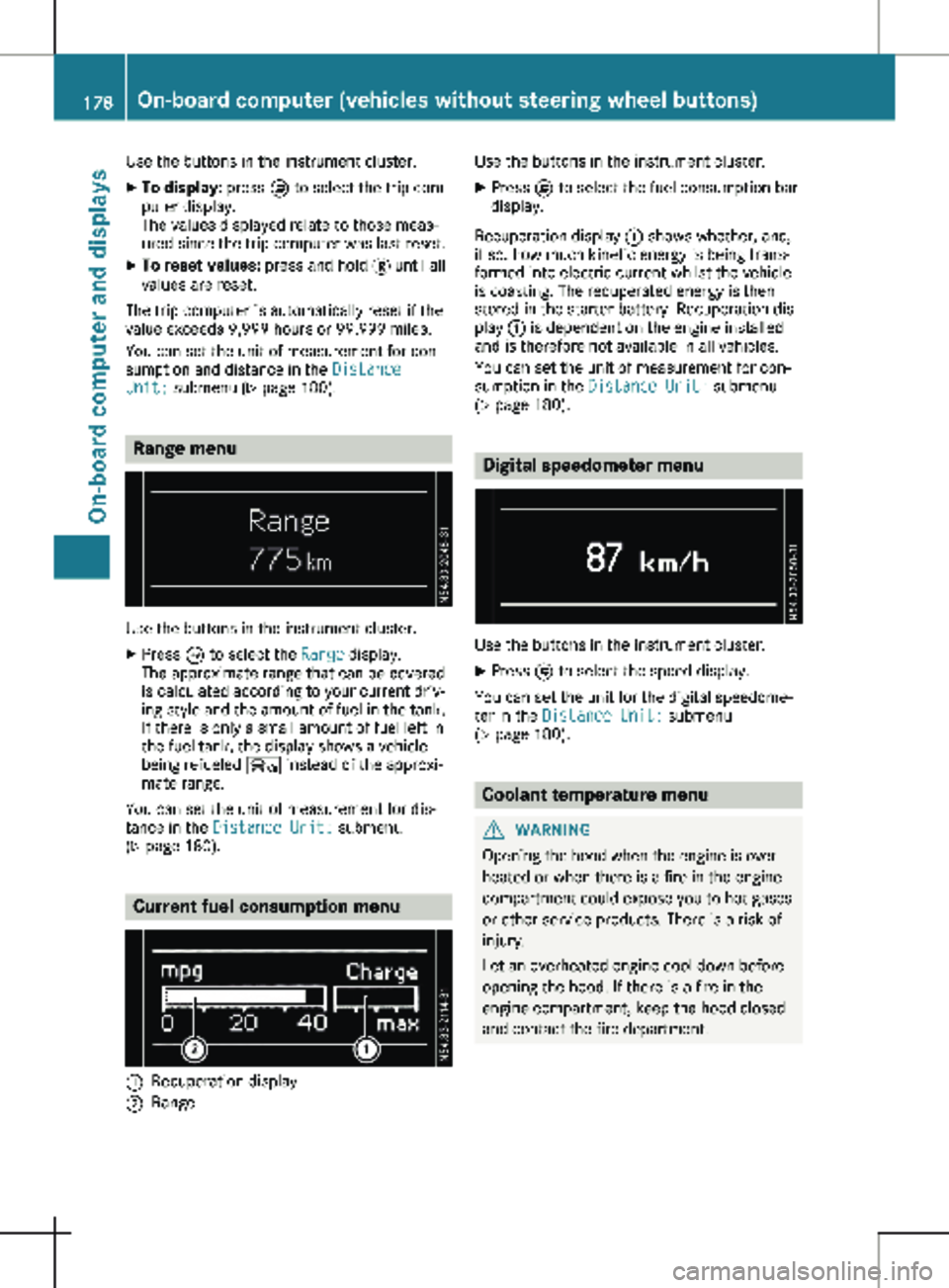
Unit: submenu ( Y page 180).Range menu
Use the buttons in the instrument cluster.
X Press È to select the Range display.
The approximate range that can be covered
is calculated according to your current driv-
ing style and the amount of fuel in the tank.
If there is only a small amount of fuel left in
the fuel tank, the display shows a vehicle
being refueled Ï instead of the approxi-
mate range.
You can set the unit of measurement for dis-
tance in the Distance Unit: submenu
(Y page
180). Current fuel consumption menu
:
Recuperation display
; Range Use the buttons in the instrument cluster.
X Press È to select the fuel consumption bar
display.
Recuperation display : shows whether, and,
if so, how much kinetic energy is being trans-
formed into electric current whilst the vehicle
is coasting. The recuperated energy is then
stored in the starter battery. Recuperation dis-
play : is dependent on the engine installed
and is therefore not available in all vehicles.
You can set the unit of measurement for con-
sumption in the Distance Unit: submenu
(Y page
180). Digital speedometer menu
Use the buttons in the instrument cluster.
X Press È to select the speed display.
You can set the unit for the digital speedome-
ter in the Distance Unit: submenu
(Y page
180). Coolant temperature menu
G
WARNING
Opening the hood when the engine is over-
heated or when there is a fire in the engine
compartment could expose you to hot gases
or other service products. There is a risk of
injury.
Let an overheated engine cool down before
opening the hood. If there is a fire in the
engine compartment, keep the hood closed
and contact the fire department. 178
On-board computer (vehicles without steering wheel buttons)
On-board computer and displays
Page 181 of 320
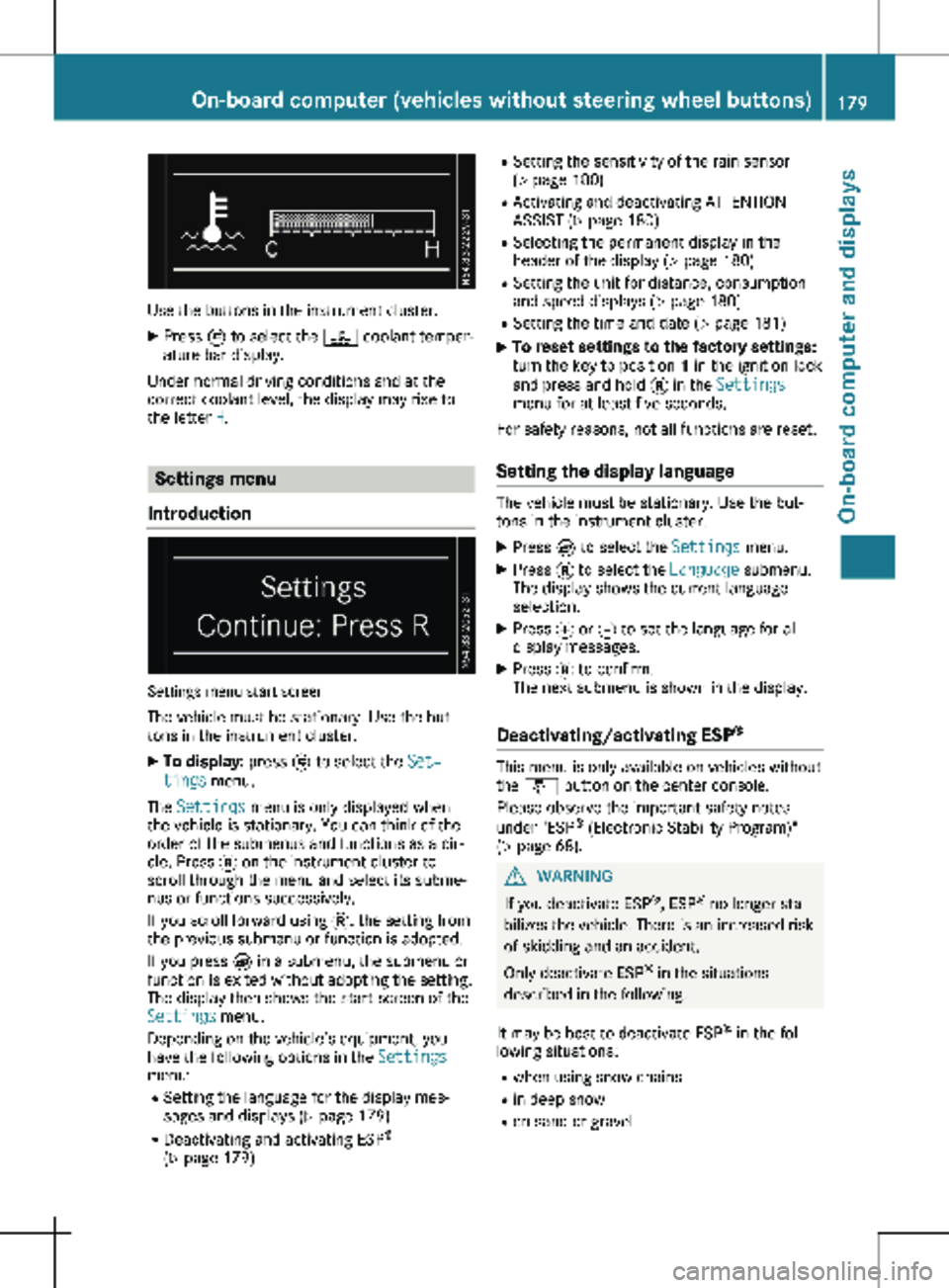
Use the buttons in the instrument cluster.
X Press È to select the ? coolant temper-
ature bar display.
Under normal driving conditions and at the
correct coolant level, the display may rise to
the letter H. Settings menu
Introduction Settings menu start screen
The vehicle must be stationary. Use the but-
tons in the instrument cluster. X To display: press È to select the Set‐
tings menu.
The Settings menu is only displayed when
the vehicle is stationary. You can think of the
order of the submenus and functions as a cir-
cle. Press 3 on the instrument cluster to
scroll through the menu and select its subme-
nus or functions successively.
If you scroll forward using 3, the setting from
the previous submenu or function is adopted.
If you press È in a submenu, the submenu or
function is exited without adopting the setting.
The display then shows the start screen of the
Settings menu.
Depending on the vehicle’s equipment, you
have the following options in the Settings
menu:
R Setting the language for the display mes-
sages and displays
(Y page 179)
R Deactivating and activating ESP ®
( Y page 179) R
Setting the sensitivity of the rain sensor
( Y page
180)
R Activating and deactivating ATTENTION
ASSIST (Y page 180)
R Selecting the permanent display in the
header of the display ( Y page 180)
R Setting the unit for distance, consumption
and speed displays (Y page 180)
R Setting the time and date ( Y page 181)
X To reset settings to the factory settings:
turn the key to position 1 in the ignition lock
and press and hold 3 in the Settings
menu for at least five seconds.
For safety reasons, not all functions are reset.
Setting the display language The vehicle must be stationary. Use the but-
tons in the instrument cluster.
X Press È to select the Settings menu.
X Press 3 to select the Language submenu.
The display shows the current language
selection.
X Press f or g to set the language for all
display messages.
X Press 3 to confirm.
The next submenu is shown in the display.
Deactivating/activating ESP ® This menu is only available on vehicles without
the å button on the center console.
Please observe the important safety notes
under "ESP ®
(Electronic Stability Program)"
(Y page
68). G
WARNING
If you deactivate ESP ®
, ESP ®
no longer sta-
bilizes the vehicle. There is an increased risk
of skidding and an accident.
Only deactivate ESP ®
in the situations
described in the following.
It may be best to deactivate ESP ®
in the fol-
lowing situations:
R when using snow chains
R in deep snow
R on sand or gravel On-board computer (vehicles without steering wheel buttons)
179
On-board computer and displays Z
Page 186 of 320
If the display shows the speed in the header,
the outside temperature is additionally dis-
played on the lower edge of display panel
=.
You can switch the permanent display in the
header
(Y page 192).
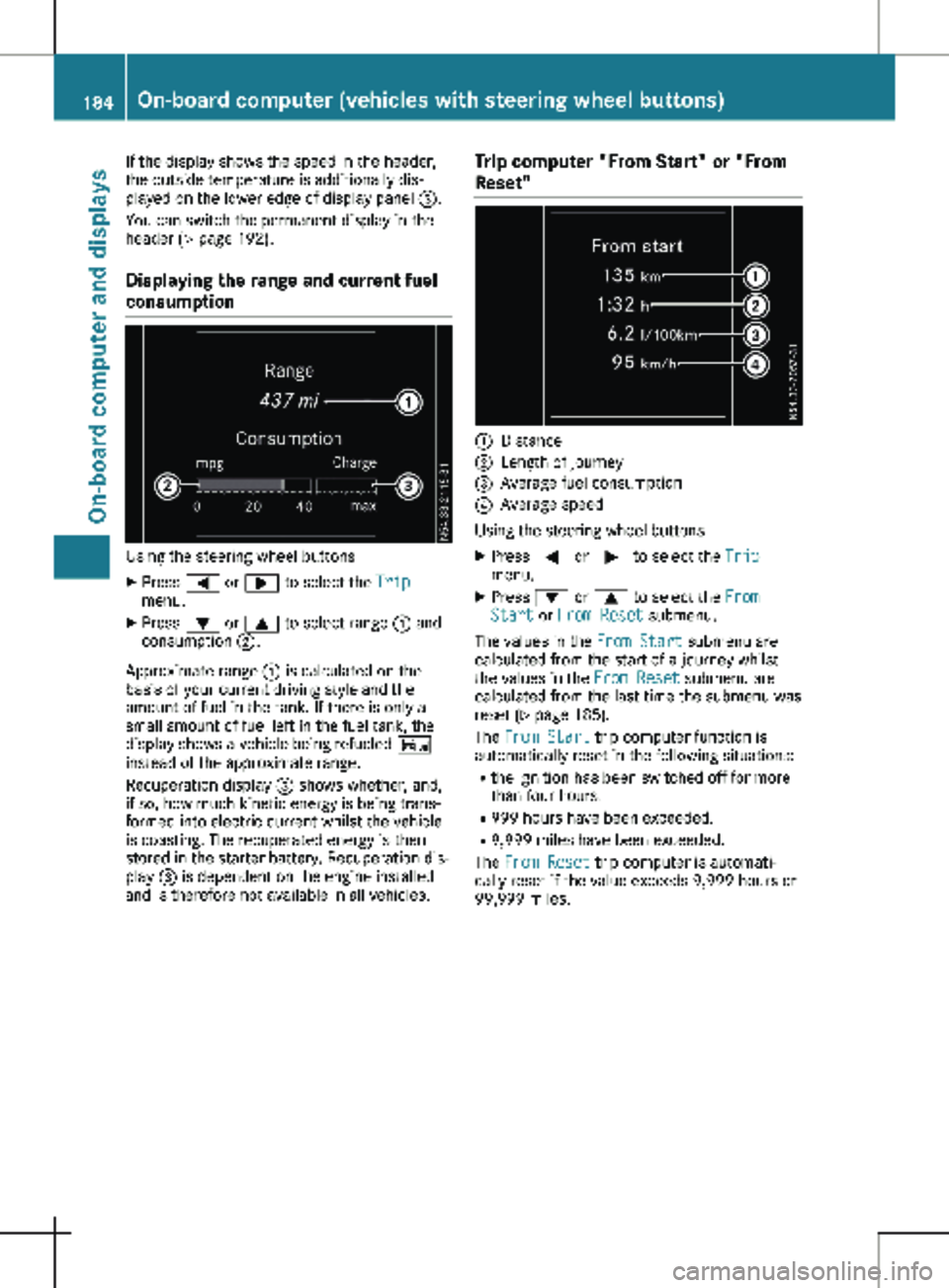
Displaying the range and current fuel
consumption Using the steering wheel buttons
X Press = or ; to select the Trip
menu.
X Press : or 9 to select range : and
consumption ;.
Approximate range : is calculated on the
basis of your current driving style and the
amount of fuel in the tank. If there is only a
small amount of fuel left in the fuel tank, the
display shows a vehicle being refueled Ï
instead of the approximate range.
Recuperation display = shows whether, and,
if so, how much kinetic energy is being trans-
formed into electric current whilst the vehicle
is coasting. The recuperated energy is then
stored in the starter battery. Recuperation dis-
play = is dependent on the engine installed
and is therefore not available in all vehicles. Trip computer "From Start" or "From
Reset" :
Distance
; Length of journey
= Average fuel consumption
? Average speed
Using the steering wheel buttons
X Press = or ; to select the Trip
menu.
X Press : or 9 to select the From
Start or From Reset submenu.
The values in the From Start submenu are
calculated from the start of a journey whilst
the values in the From Reset submenu are
calculated from the last time the submenu was
reset (Y page
185).
The From Start trip computer function is
automatically reset in the following situations:
R the ignition has been switched off for more
than four hours.
R 999 hours have been exceeded.
R 9,999 miles have been exceeded.
The From Reset trip computer is automati-
cally reset if the value exceeds 9,999 hours or
99,999 miles. 184
On-board computer (vehicles with steering wheel buttons)
On-board computer and displays
Page 187 of 320
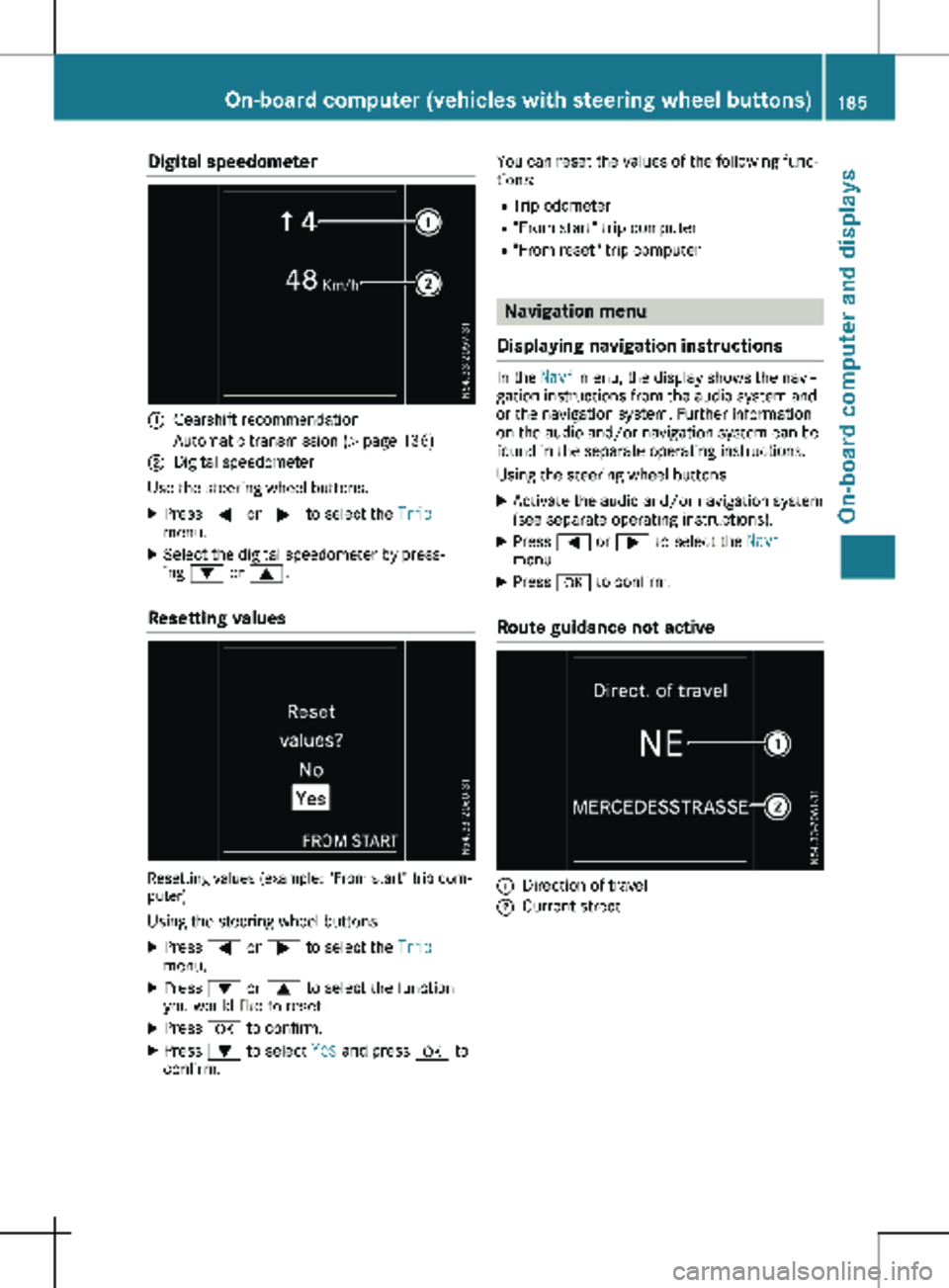
Digital speedometer
:
Gearshift recommendation
Automatic transmission (Y page 136)
; Digital speedometer
Use the steering wheel buttons.
X Press = or ; to select the Trip
menu.
X Select the digital speedometer by press-
ing : or 9.
Resetting values Resetting values (example: "From start" trip com-
puter)
Using the steering wheel buttons
X Press = or ; to select the Trip
menu.
X Press : or 9 to select the function
you would like to reset.
X Press a to confirm.
X Press : to select Yes and press a to
confirm. You can reset the values of the following func-
tions:
R Trip odometer
R "From start" trip computer
R "From reset" trip computer Navigation menu
Displaying navigation instructions In the
Navi menu, the display shows the navi-
gation instructions from the audio system and
or the navigation system. Further information
on the audio and/or navigation system can be
found in the separate operating instructions.
Using the steering wheel buttons
X Activate the audio and/or navigation system
(see separate operating instructions).
X Press = or ; to select the Navi
menu.
X Press a to confirm.
Route guidance not active :
Direction of travel
; Current street On-board computer (vehicles with steering wheel buttons)
185
On-board computer and displays Z
Page 189 of 320
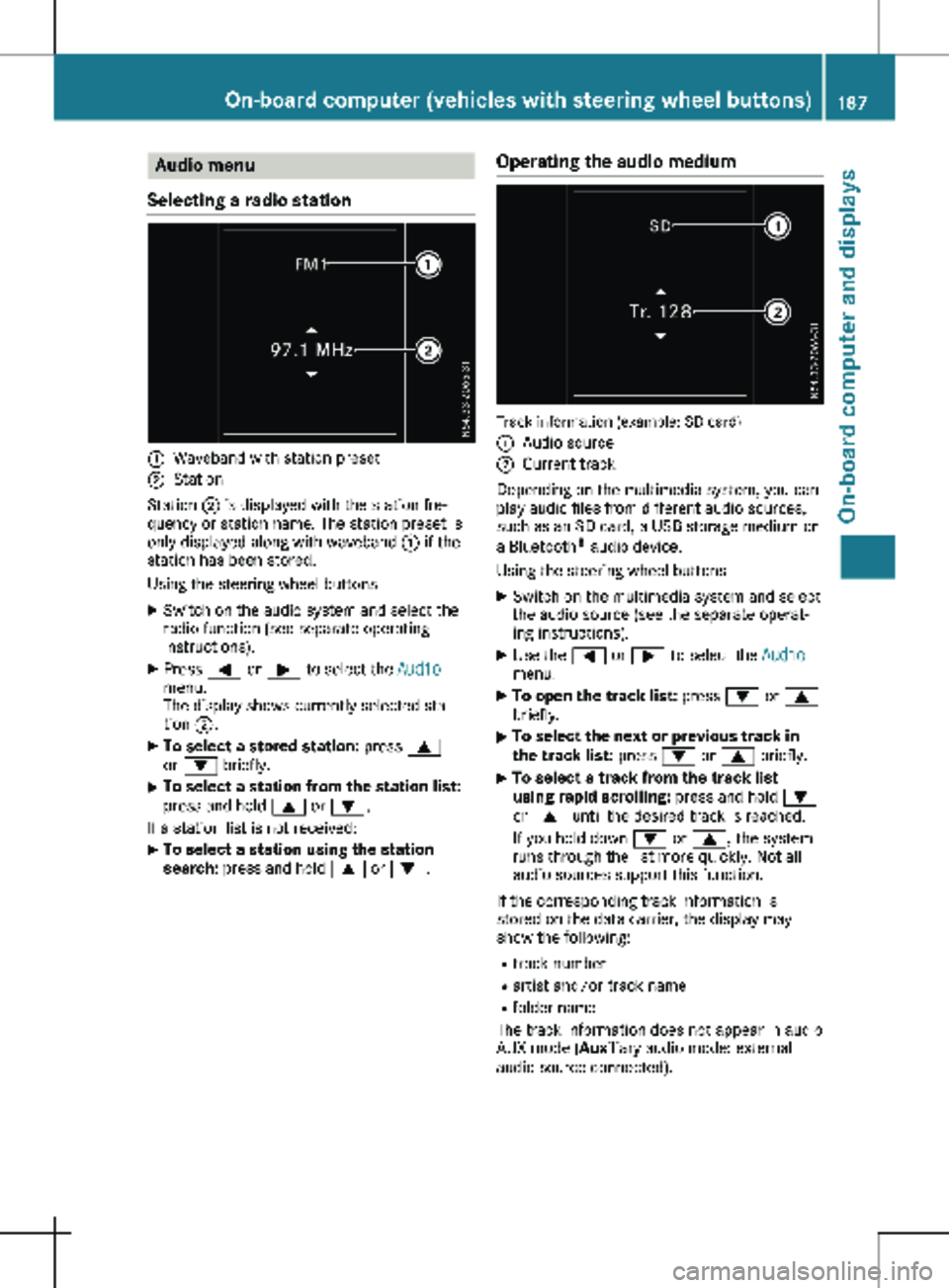
Audio menu
Selecting a radio station :
Waveband with station preset
; Station
Station ; is displayed with the station fre-
quency or station name. The station preset is
only displayed along with waveband : if the
station has been stored.
Using the steering wheel buttons
X Switch on the audio system and select the
radio function (see separate operating
instructions).
X Press = or ; to select the Audio
menu.
The display shows currently selected sta-
tion ;.
X To select a stored station: press 9
or : briefly.
X To select a station from the station list:
press and hold
9 or :.
If a station list is not received: X To select a station using the station
search: press and hold 9 or :. Operating the audio medium Track information (example: SD card)
:
Audio source
; Current track
Depending on the multimedia system, you can
play audio files from different audio sources,
such as an SD card, a USB storage medium or
a Bluetooth ®
audio device.
Using the steering wheel buttons
X Switch on the multimedia system and select
the audio source (see the separate operat-
ing instructions).
X Use the = or ; to select the Audio
menu.
X To open the track list: press : or 9
briefly.
X To select the next or previous track in
the track list:
press : or 9 briefly.
X To select a track from the track list
using rapid scrolling: press and hold
:
or 9 until the desired track is reached.
If you hold down : or 9, the system
runs through the list more quickly. Not all
audio sources support this function.
If the corresponding track information is
stored on the data carrier, the display may
show the following:
R track number
R artist and/or track name
R folder name
The track information does not appear in audio
AUX mode (Aux iliary audio mode: external
audio source connected). On-board computer (vehicles with steering wheel buttons)
187On-board computer and displays Z