reset MERCEDES-BENZ S CLASS 2000 User Guide
[x] Cancel search | Manufacturer: MERCEDES-BENZ, Model Year: 2000, Model line: S CLASS, Model: MERCEDES-BENZ S CLASS 2000Pages: 421, PDF Size: 20.37 MB
Page 118 of 421
115 Instrument cluster
Te ch n ica l
data Instruments
and controlsOperationDrivingInstrument
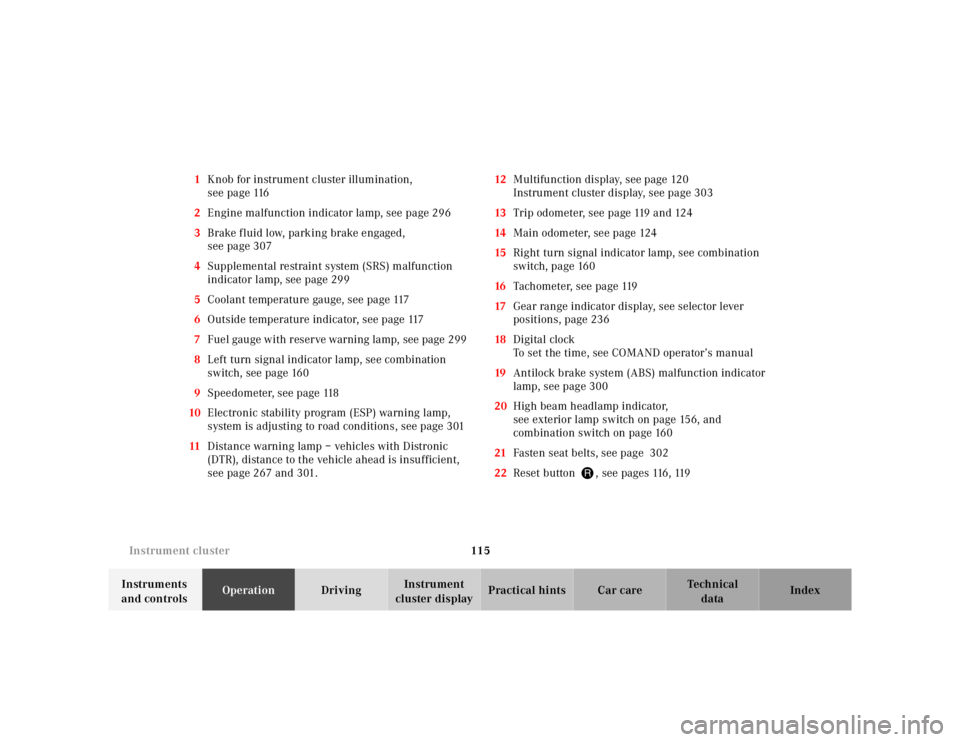
cluster displayPractical hints Car care Index 1Knob for instrument cluster illumination,
s e e p a g e 116
2Engine malfunction indicator lamp, see page 296
3Brake f luid low, parking brake engaged,
see page 307
4Supplemental restraint system (SRS) malfunction
indicator lamp, see page 299
5Coolant temperature gauge, see page 117
6Outside temperature indicator, see page 117
7Fuel gauge with reserve warning lamp, see page 299
8Left turn signal indicator lamp, see combination
switch, see page 160
9Speedometer, see page 118
10Electronic stability program (ESP) warning lamp,
system is adjusting to road conditions, see page 301
11Distance warning lamp – vehicles with Distronic
(DTR), distance to the vehicle ahead is insufficient,
see page 267 and 301.12Multifunction display, see page 120
Instrument cluster display, see page 303
13Trip odometer, see page 119 and 124
14Main odometer, see page 124
15Right turn signal indicator lamp, see combination
switch, page 160
16Tachometer, see page 119
17Gear range indicator display, see selector lever
positions, page 236
18Digital clock
To set the time, see COMAND operator’s manual
19Antilock brake system (ABS) malfunction indicator
lamp, see page 300
20High beam headlamp indicator,
see exterior lamp switch on page 156, and
combination switch on page 160
21Fasten seat belts, see page 302
22Reset button J, see pages 116, 119
Page 122 of 421
119 Instrument cluster
Te ch n ica l
data Instruments
and controlsOperationDrivingInstrument
cluster displayPractical hints Car care Index Trip odometer (13)
To reset to “0” miles / km:
Activate the instrument cluster if it is not already
activated by pressing theJbutton on the instrument
cluster.
Press the è or ÿ button on the multifunction
steering wheel repeatedly until the trip odometer
appears if it is not displayed. See page 124.
Press button Jon the instrument cluster.Tachometer (16)
The red marking on the tachometer denotes excessive
engine speed.
Avoid this engine speed, as it may result in serious
engine damage that is not covered by the
Mercedes-Benz Limited Warranty.
To help protect the engine, the fuel supply is interrupted
if the engine is operated within the red marking.
Page 124 of 421
121 Multifunction steering wheel, multifunction display
Te ch n ica l
data Instruments
and controlsOperationDrivingInstrument
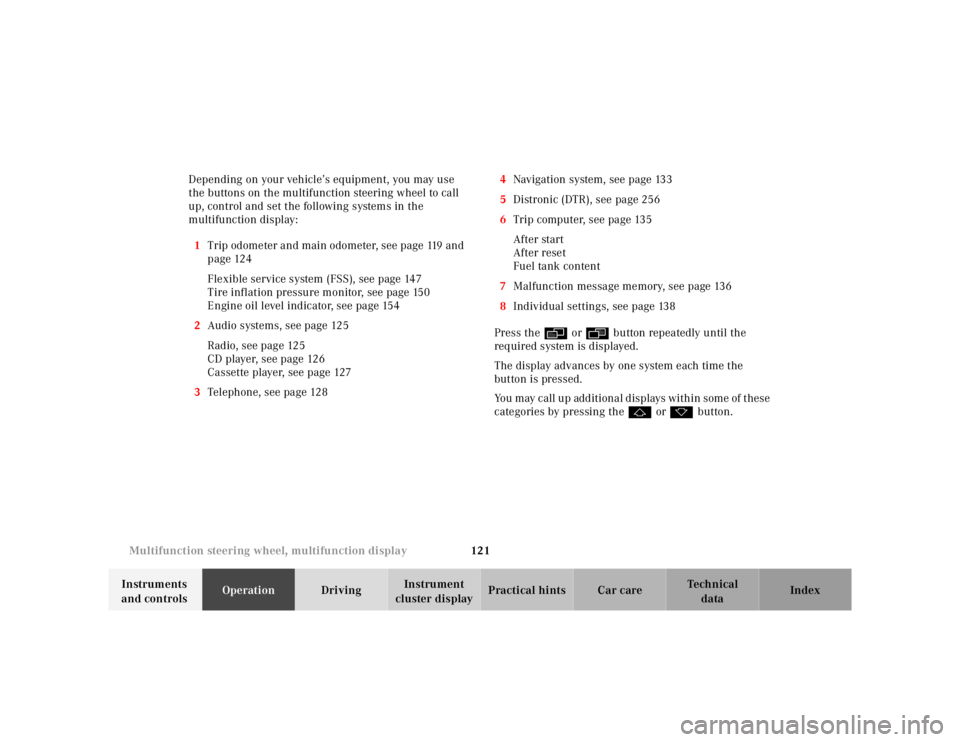
cluster displayPractical hints Car care Index Depending on your vehicle’s equipment, you may use
the buttons on the multifunction steering wheel to call
up, control and set the following systems in the
multifunction display:
1Trip odometer and main odometer, see page 119 and
page 124
Flexible service system (FSS), see page 147
Tire inflation pressure monitor, see page 150
Engine oil level indicator, see page 154
2Audio systems, see page 125
Radio, see page 125
CD player, see page 126
Cassette player, see page 127
3Telephone, see page 1284Navigation system, see page 133
5Distronic (DTR), see page 256
6Trip computer, see page 135
After start
After reset
Fuel tank content
7Malfunction message memory, see page 136
8Individual settings, see page 138
Press the è or ÿ button repeatedly until the
required system is displayed.
The display advances by one system each time the
button is pressed.
You may call up additional displays within some of these
categories by pressing the j or k button.
Page 127 of 421
124 Multifunction steering wheel, multifunction display
Te ch n ica l
data Instruments
and controlsOperationDrivingInstrument
cluster displayPractical hints Car care Index
Trip and main odometer, FSS, tire inflation pressure
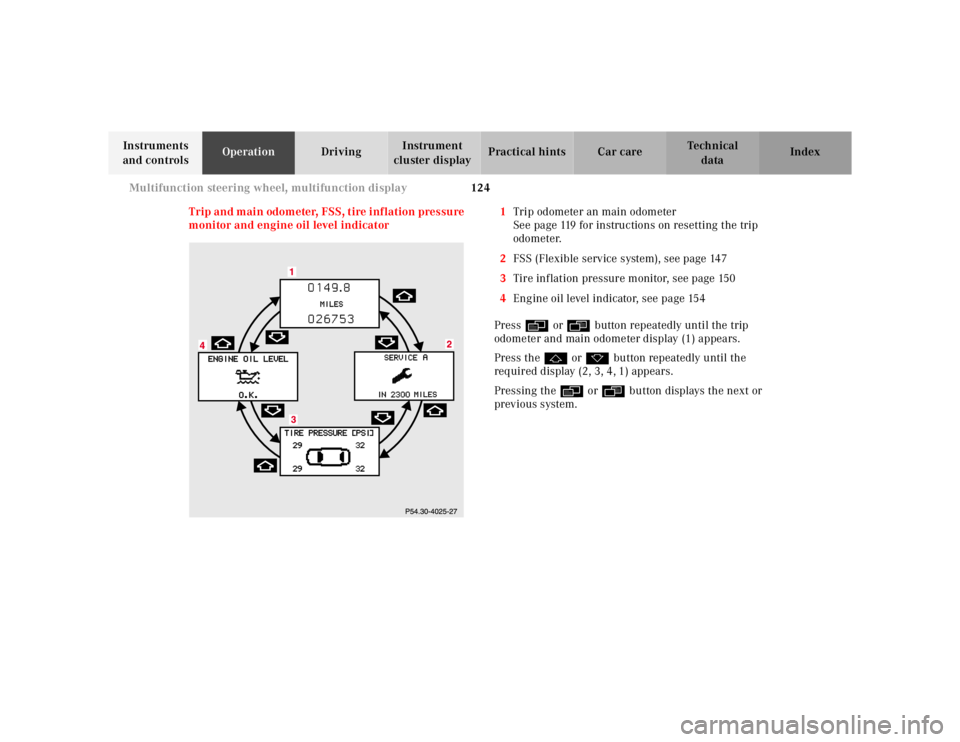
monitor and engine oil level indicator1Trip odometer an main odometer
See page 119 for instructions on resetting the trip
odometer.
2FSS (Flexible service system), see page 147
3Tire inflation pressure monitor, see page 150
4Engine oil level indicator, see page 154
Press è or ÿ button repeatedly until the trip
odometer and main odometer display (1) appears.
Press the j or k button repeatedly until the
required display (2, 3, 4, 1) appears.
Pressing the è or ÿ button displays the next or
previous system.
Page 138 of 421
135 Multifunction steering wheel, multifunction display
Te ch n ica l
data Instruments
and controlsOperationDrivingInstrument
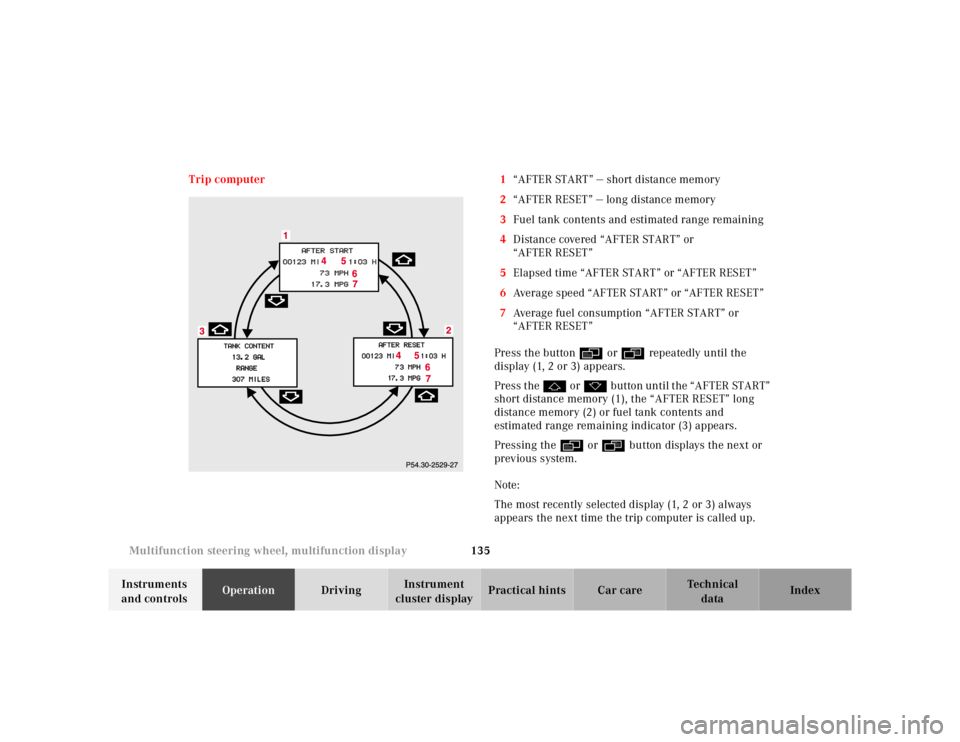
cluster displayPractical hints Car care Index Trip computer 1“AFTER START” — short distance memory
2“AFTER RESET” — long distance memory
3Fuel tank contents and estimated range remaining
4Distance covered “AFTER START” or
“AFTER RESET”
5Elapsed time “AFTER START” or “AFTER RESET”
6Average speed “AFTER START” or “AFTER RESET”
7Average fuel consumption “AFTER START” or
“AFTER RESET”
Press the button è or ÿ repeatedly until the
display (1, 2 or 3) appears.
Press the j or k button until the “AFTER START”
short distance memory (1), the “AFTER RESET” long
distance memory (2) or fuel tank contents and
estimated range remaining indicator (3) appears.
Pressing the è or ÿ button displays the next or
previous system.
Note:
The most recently selected display (1, 2 or 3) always
appears the next time the trip computer is called up.
Page 139 of 421
136 Multifunction steering wheel, multifunction display
Te ch n ica l
data Instruments
and controlsOperationDrivingInstrument
cluster displayPractical hints Car care Index
Transferring values from the previous journey to the
“AFTER START” short distance memory (1):
The “AFTER START” display will flash until a distance of
approximately 1 mile (1.6 km) has been covered or two
minutes have elapsed since the engine was restarted.
During this period you can incorporate the values for
the previous journey by pressing button Jin the
instrument cluster.
To reset the short “AFTER START” (1) or long
“AFTER RESET” distance memory (2):
Call up the relevant display (1 or 2) using the j or
k button and press the Jbutton in the
instrument cluster until the values are reset to “0”.Malfunction /warning message memory
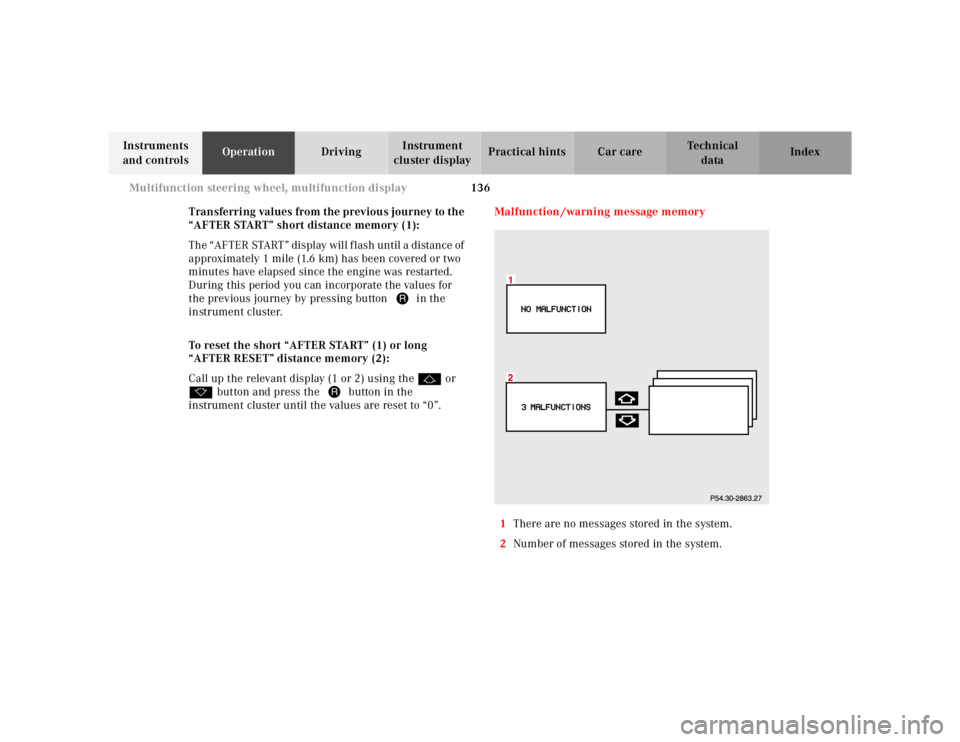
1There are no messages stored in the system.
2Number of messages stored in the system.
Page 142 of 421
139 Multifunction steering wheel, multifunction display
Te ch n ica l
data Instruments
and controlsOperationDrivingInstrument
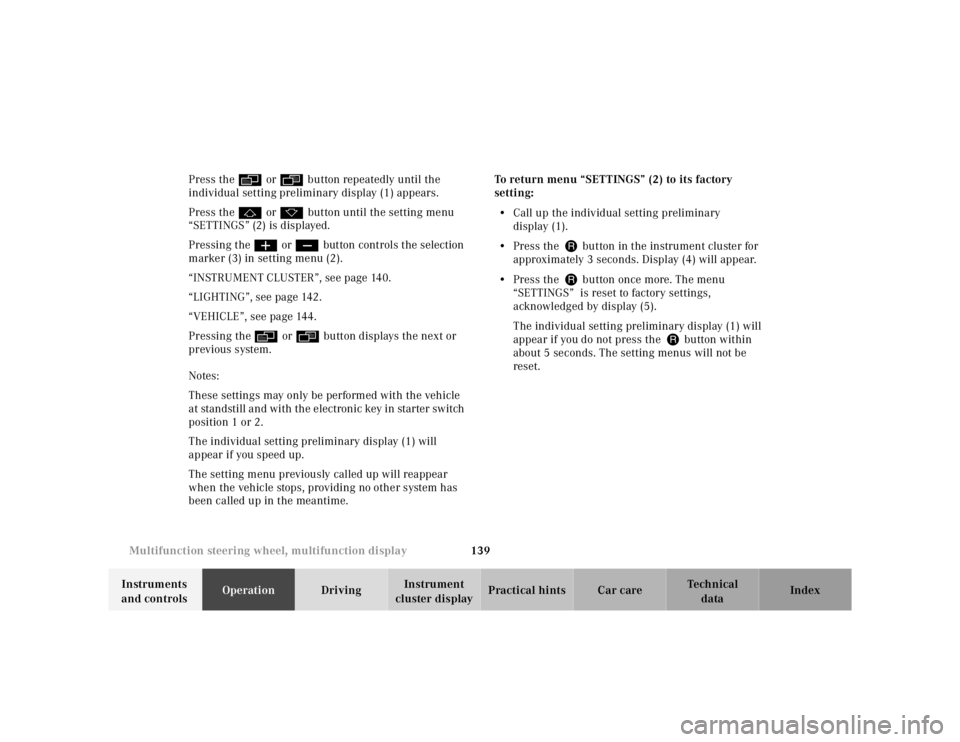
cluster displayPractical hints Car care Index Press the è or ÿ button repeatedly until the
individual setting preliminary display (1) appears.
Press the j or k button until the setting menu
“SETTINGS” (2) is displayed.
Pressing the æ or ç button controls the selection
marker (3) in setting menu (2).
“INSTRUMENT CLUSTER”, see page 140.
“LIGHTING”, see page 142.
“VEHICLE”, see page 144.
Pressing the è or ÿ button displays the next or
previous system.
Notes:
These settings may only be performed with the vehicle
at standstill and with the electronic key in starter switch
position 1 or 2.
The individual setting preliminary display (1) will
appear if you speed up.
The setting menu previously called up will reappear
when the vehicle stops, providing no other system has
been called up in the meantime.To return menu “SETTINGS” (2) to its factory
setting:
•Call up the individual setting preliminary
display (1).
•Press the Jbutton in the instrument cluster for
approximately 3 seconds. Display (4) will appear.
•Press the Jbutton once more. The menu
“SETTINGS” is reset to factory settings,
acknowledged by display (5).
The individual setting preliminary display (1) will
appear if you do not press the Jbutton within
about 5 seconds. The setting menus will not be
reset.
Page 144 of 421
141 Multifunction steering wheel, multifunction display
Te ch n ica l
data Instruments
and controlsOperationDrivingInstrument
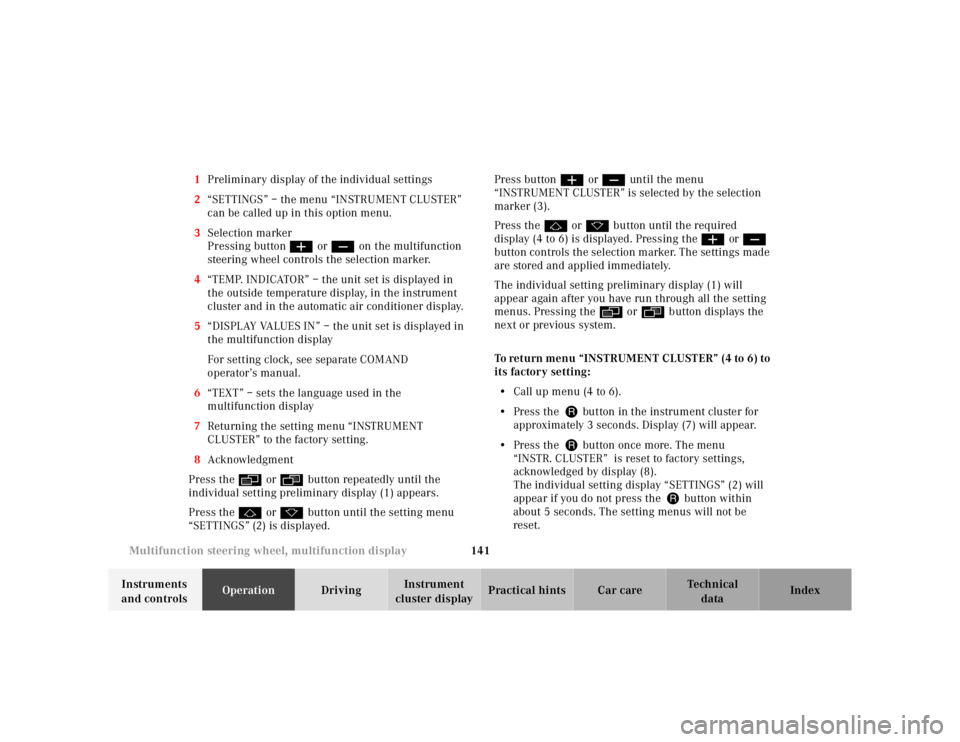
cluster displayPractical hints Car care Index 1Preliminary display of the individual settings
2“SETTINGS” – the menu “INSTRUMENT CLUSTER”
can be called up in this option menu.
3Selection marker
Pressing buttonæ orç on the multifunction
steering wheel controls the selection marker.
4“TEMP. INDICATOR” – the unit set is displayed in
the outside temperature display, in the instrument
cluster and in the automatic air conditioner display.
5“DISPLAY VALUES IN” – the unit set is displayed in
the multifunction display
For setting clock, see separate COMAND
operator’s manual.
6“TEXT” – sets the language used in the
multifunction display
7Returning the setting menu “INSTRUMENT
CLUSTER” to the factory setting.
8Acknowledgment
Press the è or ÿ button repeatedly until the
individual setting preliminary display (1) appears.
Press the j or k button until the setting menu
“SETTINGS” (2) is displayed.Press buttonæ orç until the menu
“INSTRUMENT CLUSTER” is selected by the selection
marker (3).
Press the j or k button until the required
display (4 to 6) is displayed. Pressing the æ orç
button controls the selection marker. The settings made
are stored and applied immediately.
The individual setting preliminary display (1) will
appear again after you have run through all the setting
menus. Pressing the è or ÿ button displays the
next or previous system.
To return menu “INSTRUMENT CLUSTER” (4 to 6) to
its factory setting:
•Call up menu (4 to 6).
•Press the Jbutton in the instrument cluster for
approximately 3 seconds. Display (7) will appear.
•Press the Jbutton once more. The menu
“INSTR. CLUSTER” is reset to factory settings,
acknowledged by display (8).
The individual setting display “SETTINGS” (2) will
appear if you do not press the Jbutton within
about 5 seconds. The setting menus will not be
reset.
Page 146 of 421
143 Multifunction steering wheel, multifunction display
Te ch n ica l
data Instruments
and controlsOperationDrivingInstrument
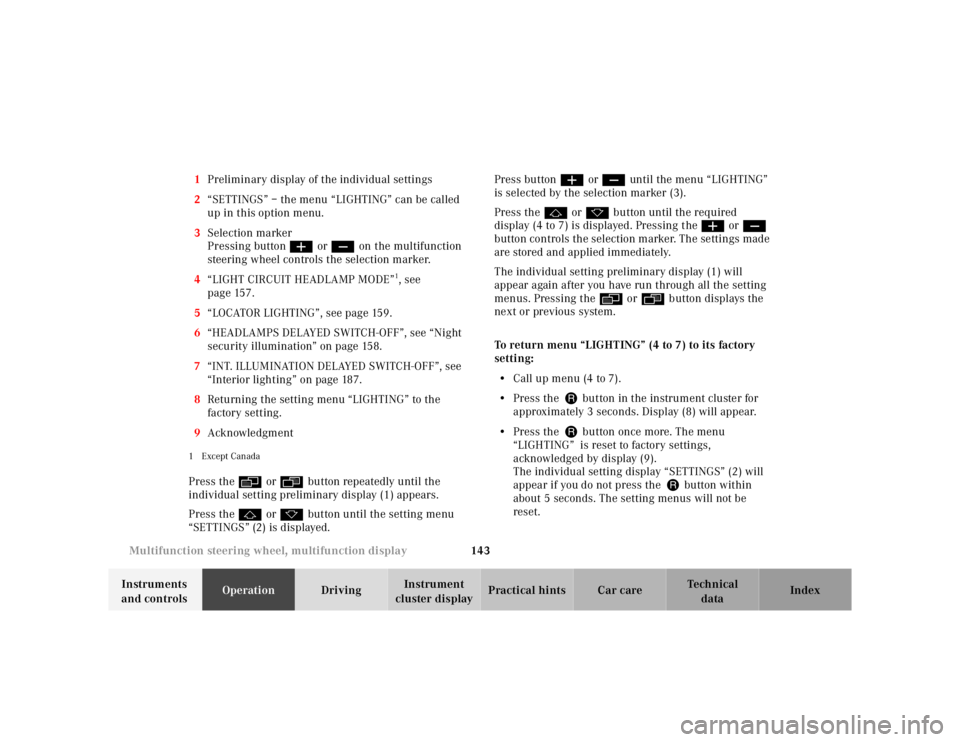
cluster displayPractical hints Car care Index 1Preliminary display of the individual settings
2“SETTINGS” – the menu “LIGHTING” can be called
up in this option menu.
3Selection marker
Pressing buttonæ orç on the multifunction
steering wheel controls the selection marker.
4“LIGHT CIRCUIT HEADLAMP MODE”
1, see
page 157.
5“LOCATOR LIGHTING”, see page 159.
6“HEADLAMPS DELAYED SWITCH-OFF”, see “Night
security illumination” on page 158.
7“INT. ILLUMINATION DELAYED SWITCH-OFF”, see
“Interior lighting” on page 187.
8Returning the setting menu “LIGHTING” to the
factory setting.
9Acknowledgment
1Except CanadaPress the è or ÿ button repeatedly until the
individual setting preliminary display (1) appears.
Press the j or k button until the setting menu
“SETTINGS” (2) is displayed.Press buttonæ orç until the menu “LIGHTING”
is selected by the selection marker (3).
Press the j or k button until the required
display (4 to 7) is displayed. Pressing the æ orç
button controls the selection marker. The settings made
are stored and applied immediately.
The individual setting preliminary display (1) will
appear again after you have run through all the setting
menus. Pressing the è or ÿ button displays the
next or previous system.
To return menu “LIGHTING” (4 to 7) to its factory
setting:
•Call up menu (4 to 7).
•Press the Jbutton in the instrument cluster for
approximately 3 seconds. Display (8) will appear.
•Press the Jbutton once more. The menu
“LIGHTING” is reset to factory settings,
acknowledged by display (9).
The individual setting display “SETTINGS” (2) will
appear if you do not press the Jbutton within
about 5 seconds. The setting menus will not be
reset.
Page 148 of 421
145 Multifunction steering wheel, multifunction display
Te ch n ica l
data Instruments
and controlsOperationDrivingInstrument
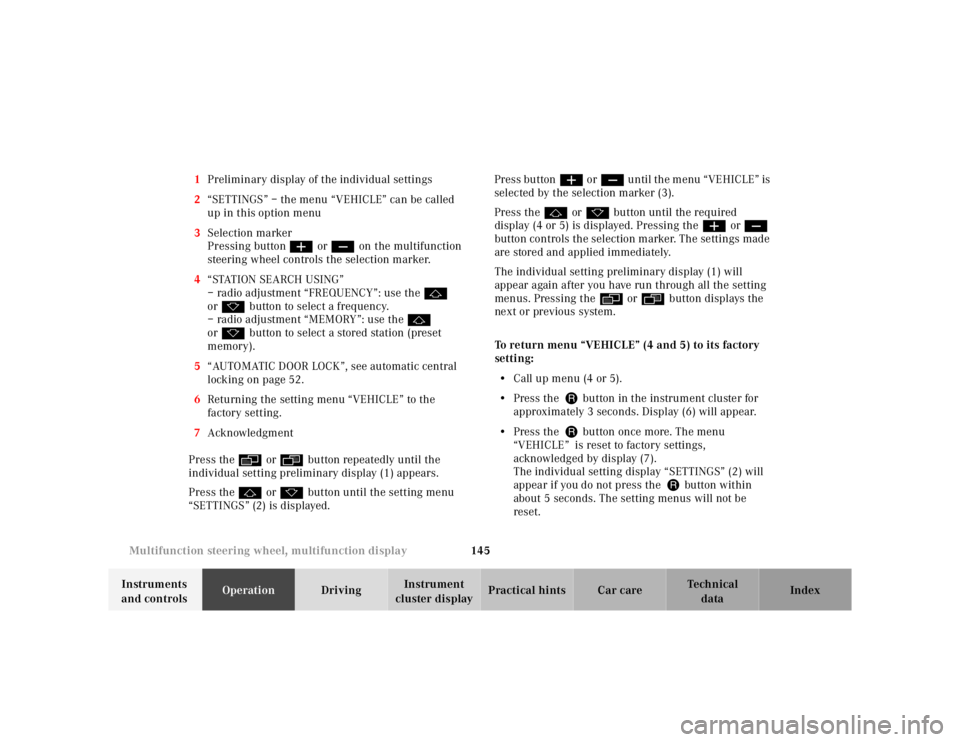
cluster displayPractical hints Car care Index 1Preliminary display of the individual settings
2“SETTINGS” – the menu “VEHICLE” can be called
up in this option menu
3Selection marker
Pressing buttonæ orç on the multifunction
steering wheel controls the selection marker.
4“STATION SEARCH USING”
– radio adjustment “FREQUENCY”: use the j
ork button to select a frequency.
– radio adjustment “MEMORY”: use the j
ork button to select a stored station (preset
memory).
5“AUTOMATIC DOOR LOCK”, see automatic central
locking on page 52.
6Returning the setting menu “VEHICLE” to the
factory setting.
7Acknowledgment
Press the è or ÿ button repeatedly until the
individual setting preliminary display (1) appears.
Press the j or k button until the setting menu
“SETTINGS” (2) is displayed.Press buttonæ orç until the menu “VEHICLE” is
selected by the selection marker (3).
Press the j or k button until the required
display (4 or 5) is displayed. Pressing the æ orç
button controls the selection marker. The settings made
are stored and applied immediately.
The individual setting preliminary display (1) will
appear again after you have run through all the setting
menus. Pressing the è or ÿ button displays the
next or previous system.
To return menu “VEHICLE” (4 and 5) to its factory
setting:
•Call up menu (4 or 5).
•Press the Jbutton in the instrument cluster for
approximately 3 seconds. Display (6) will appear.
•Press the Jbutton once more. The menu
“VEHICLE” is reset to factory settings,
acknowledged by display (7).
The individual setting display “SETTINGS” (2) will
appear if you do not press the Jbutton within
about 5 seconds. The setting menus will not be
reset.