CD name MERCEDES-BENZ S-Class 2001 W220 Comand Manual
[x] Cancel search | Manufacturer: MERCEDES-BENZ, Model Year: 2001, Model line: S-Class, Model: MERCEDES-BENZ S-Class 2001 W220Pages: 243, PDF Size: 2.33 MB
Page 75 of 243

73
Introduction
AudioTelephone
Navigation
Index Info Services and
system settings CD operationDelete CD name
Use the rotary/pushbutton
to highlight the “Delete
Names” menu field in the “CD Naming” menu and
confirm it.
The list of CD names will appear on the screen.
Use the rotary/pushbutton to highlight the name
you wish to delete.Press the rotary/pushbutton
briefly to delete the
name. The following entry will then move up one
position.
Press the rotary/pushbutton longer than 2 seconds
to return to the CD main menu.
Paging forward in the name memory:
• Highlight the
symbol and confirm
• Move the cursor with the rotary/pushbutton
above the last page entry and past the
symbol.
Paging backward in the name memory:
• Highlight the
symbol and confirm
• Move the cursor with the rotary/pushbutton
above the first page entry and past the
symbol.
P82.85-2555-26
Page 83 of 243

81
Introduction
AudioTelephone
Navigation
Index Info Services and
system settings CD operationDo not write or put stickers on CDs.
Note:
You can name a CD and then this name will be dis-
played on the screen when you play it, page 71.Do not expose the CDs to heat or direct sunlight.
P82.85-2110-26
P82.85-2111-26
Page 97 of 243
Telephone
Introduction
AudioTelephone
Navigation
Index Info Services and
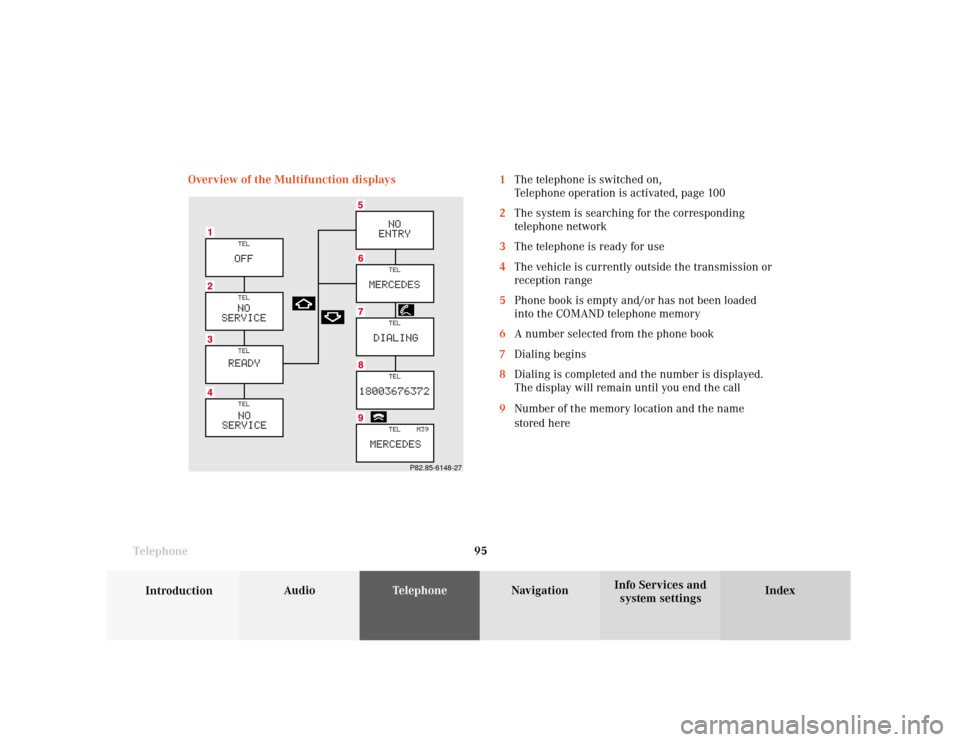
system settings Telephone95 Overview of the Multifunction displays 1The telephone is switched on,
Telephone operation is activated, page 100
2The system is searching for the corresponding
telephone network
3The telephone is ready for use
4The vehicle is currently outside the transmission or
reception range
5Phone book is empty and/or has not been loaded
into the COMAND telephone memory
6A number selected from the phone book
7Dialing begins
8Dialing is completed and the number is displayed.
The display will remain until you end the call
9Number of the memory location and the name
stored here
P82.85-6148-27
Page 101 of 243
Telephone
Introduction
AudioTelephone
Navigation
Index Info Services and
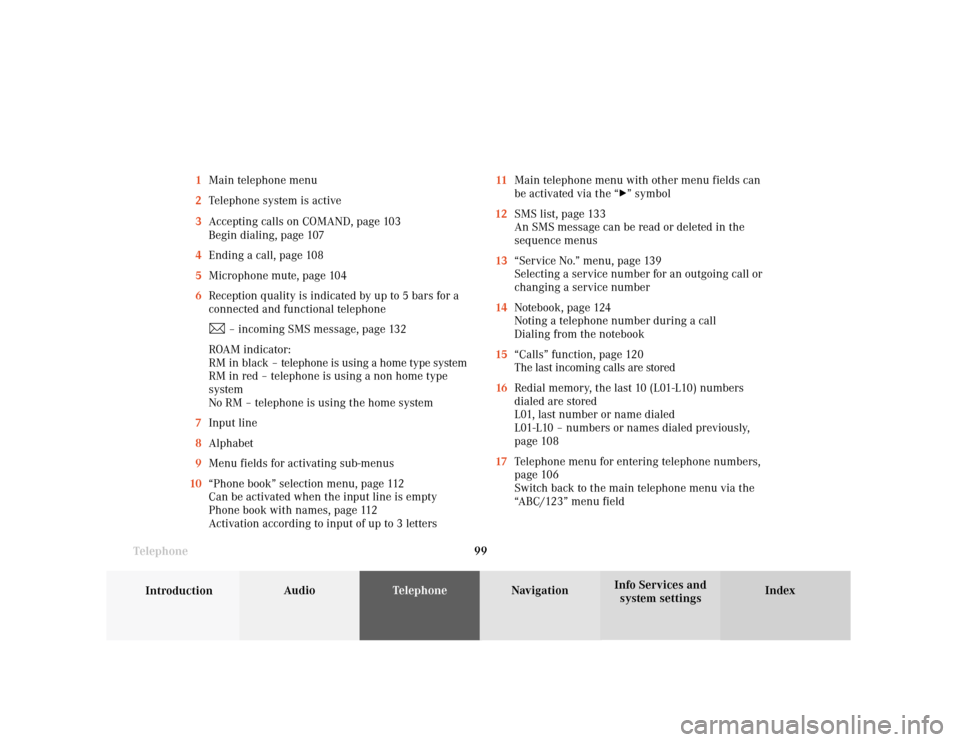
system settings Telephone9911Main telephone menu with other menu fields can
be activated via the “
” symbol
12SMS list, page 133
An SMS message can be read or deleted in the
sequence menus
13“Service No.” menu, page 139
Selecting a service number for an outgoing call or
changing a service number
14Notebook, page 124
Noting a telephone number during a call
Dialing from the notebook
15“Calls” function, page 120
The last incoming calls are stored
16Redial memory, the last 10 (L01-L10) numbers
dialed are stored
L01, last number or name dialed
L01-L10 – numbers or names dialed previously,
page 108
17Telephone menu for entering telephone numbers,
page 106
Switch back to the main telephone menu via the
“ABC/123” menu field 1Main telephone menu
2Telephone system is active
3Accepting calls on COMAND, page 103
Begin dialing, page 107
4Ending a call, page 108
5Microphone mute, page 104
6Reception quality is indicated by up to 5 bars for a
connected and functional telephone
– incoming SMS message, page 132
ROAM indicator:
RM in black – telephone is using a home type system
RM in red – telephone is using a non home type
system
No RM – telephone is using the home system
7Input line
8Alphabet
9Menu fields for activating sub-menus
10“Phone book” selection menu, page 112
Can be activated when the input line is empty
Phone book with names, page 112
Activation according to input of up to 3 letters
Page 109 of 243
Telephone
Introduction
AudioTelephone
Navigation
Index Info Services and
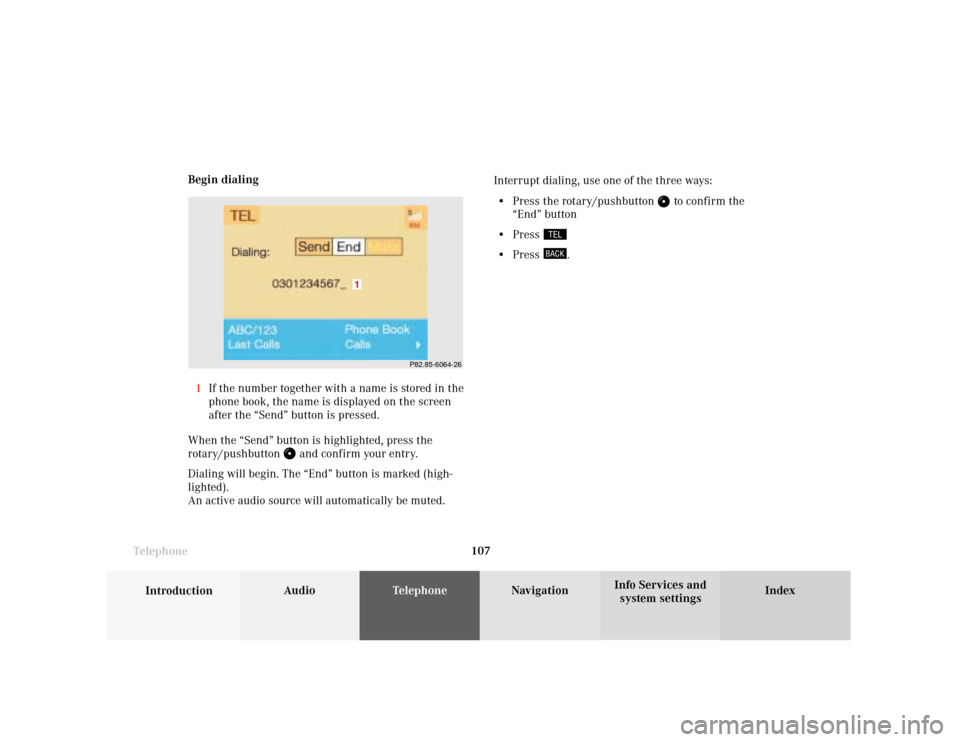
system settings Telephone107 Begin dialing
1If the number together with a name is stored in the
phone book, the name is displayed on the screen
after the “Send” button is pressed.
When the “Send” button is highlighted, press the
rotary/pushbutton
and confirm your entry.
Dialing will begin. The “End” button is marked (high-
lighted).
An active audio source will automatically be muted.Interrupt dialing, use one of the three ways:
• Press the rotary/pushbutton
to confirm the
“End” button
• Press
• Press
.
P82.85-6064-26
1
Page 111 of 243
Telephone
Introduction
AudioTelephone
Navigation
Index Info Services and
system settings Telephone109 Dialing a number from the phone book
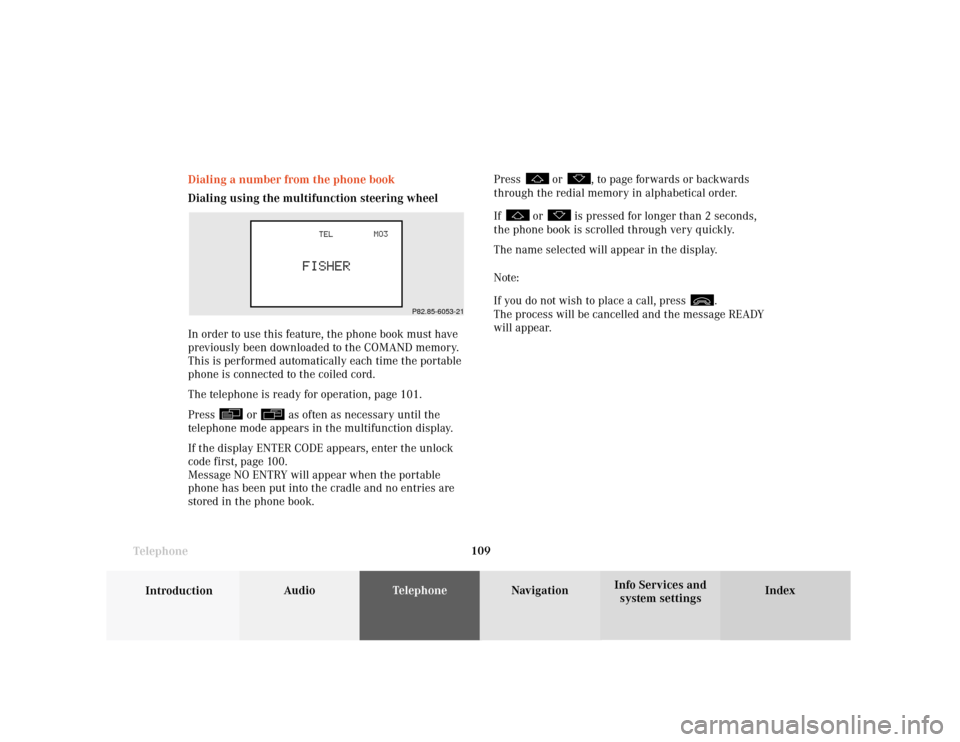
Dialing using the multifunction steering wheel
In order to use this feature, the phone book must have
previously been downloaded to the COMAND memory.
This is performed automatically each time the portable
phone is connected to the coiled cord.
The telephone is ready for operation, page 101.
Press
or
as often as necessary until the
telephone mode appears in the multifunction display.
If the display ENTER CODE appears, enter the unlock
code first, page 100.
Message NO ENTRY will appear when the portable
phone has been put into the cradle and no entries are
stored in the phone book.Press
or
, to page forwards or backwards
through the redial memory in alphabetical order.
If
or
is pressed for longer than 2 seconds,
the phone book is scrolled through very quickly.
The name selected will appear in the display.
Note:
If you do not wish to place a call, press
.
The process will be cancelled and the message READY
will appear.
P82.85-6053-21
Page 112 of 243
110 Telephone
Introduction AudioTelephone
Navigation
Index Info Services and
system settings
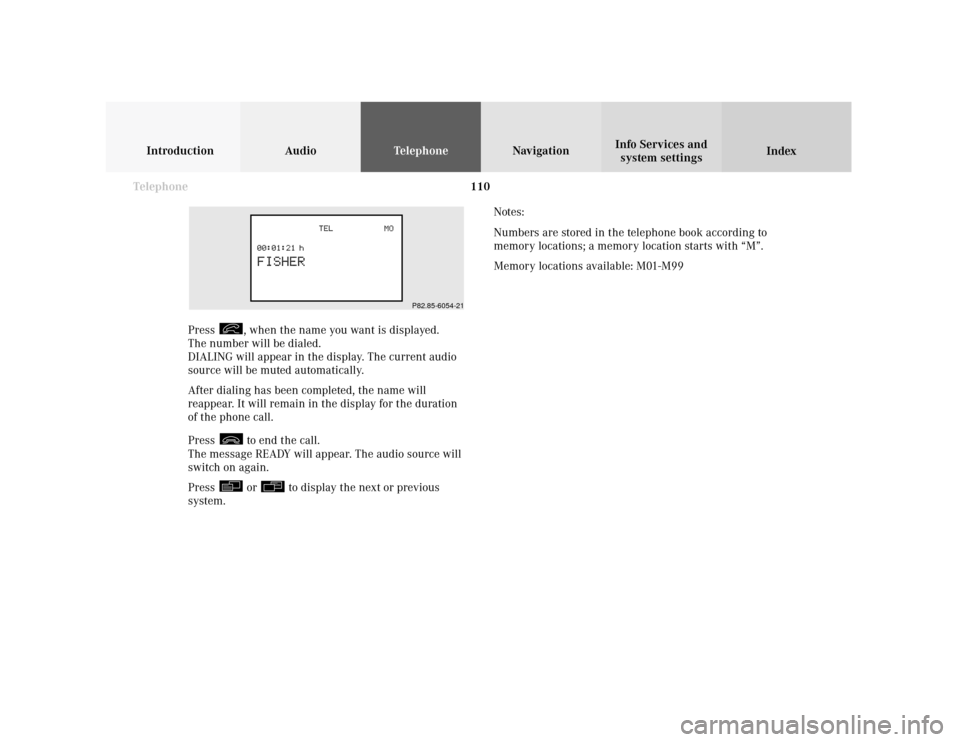
Press
, when the name you want is displayed.
The number will be dialed.
DIALING will appear in the display. The current audio
source will be muted automatically.
After dialing has been completed, the name will
reappear. It will remain in the display for the duration
of the phone call.
Press to end the call.
The message READY will appear. The audio source will
switch on again.
Press or
to display the next or previous
system.Notes:
Numbers are stored in the telephone book according to
memory locations; a memory location starts with “M”.
Memory locations available: M01-M99
P82.85-6054-21
Page 113 of 243

Telephone
Introduction
AudioTelephone
Navigation
Index Info Services and
system settings Telephone111 Dialing using COMAND
Phone book, names:
To access the phone book in the main telephone menu:
Use the rotary/pushbutton
to highlight menu field
(2) and press it to confirm.1Input line is empty – activates the “Phone book”
selection menu, page 112
When up to 3 letters are entered in the input line
the relevant page of the “Phone book” (names) will
be opened, page 112.
Use the rotary/pushbutton
to highlight the
letters one after the other and press to confirm. The
letters will be entered in the input line.
2Activates the “Phone book” selection menu or
opens the phone book (names).
Note:
The phone book will also be opened if the rotary/
pushbutton
is pressed for longer than
2 seconds after input of the last letter.
P82.85-6066-26
1
2
Page 114 of 243
112 Telephone
Introduction AudioTelephone
Navigation
Index Info Services and
system settings
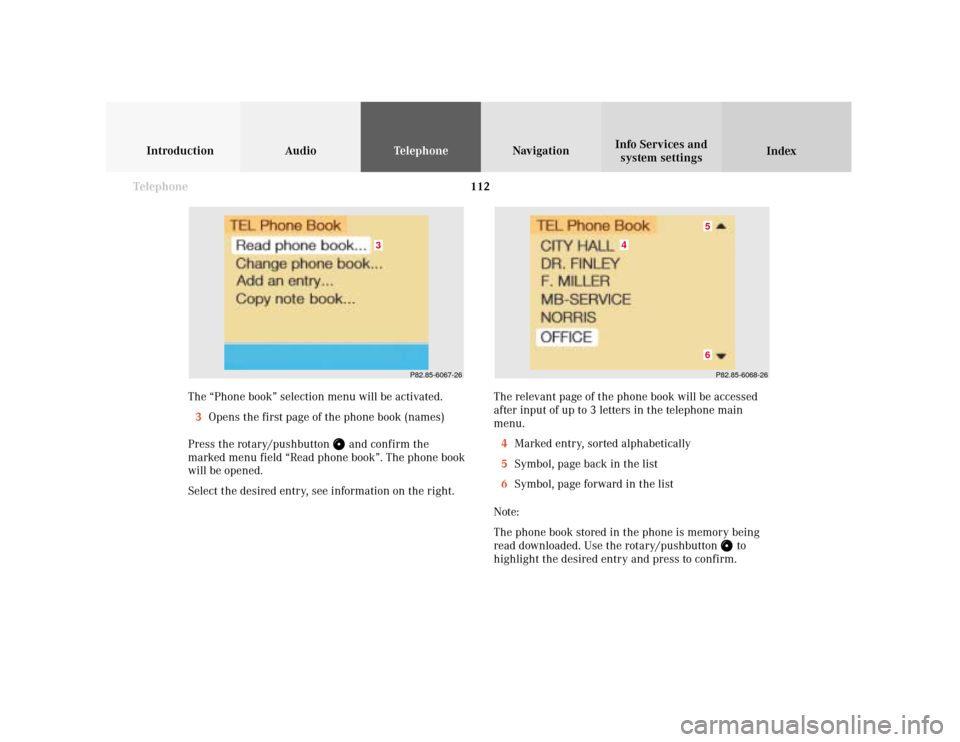
The relevant page of the phone book will be accessed
after input of up to 3 letters in the telephone main
menu.
4Marked entry, sorted alphabetically
5Symbol, page back in the list
6Symbol, page forward in the list
Note:
The phone book stored in the phone is memory being
read downloaded. Use the rotary/pushbutton
to
highlight the desired entry and press to confirm. The “Phone book” selection menu will be activated.
3Opens the first page of the phone book (names)
Press the rotary/pushbutton
and confirm the
marked menu field “Read phone book”. The phone book
will be opened.
Select the desired entry, see information on the right.
P82.85-6067-26
3
P82.85-6068-26
4
56
Page 115 of 243

Telephone
Introduction
AudioTelephone
Navigation
Index Info Services and
system settings Telephone113Begin dialing:
Press the rotary/pushbutton
(to confirm the “Send”
button). The “End” button is highlighted.
Ending a call, use one of the three ways:
• Press the rotary/pushbutton
to confirm the
“End” button
• Press
• Press
.
The main telephone menu will appear with information
on the name selected.
P82.85-6069-26