CD name MERCEDES-BENZ S-Class 2001 W220 Comand Manual
[x] Cancel search | Manufacturer: MERCEDES-BENZ, Model Year: 2001, Model line: S-Class, Model: MERCEDES-BENZ S-Class 2001 W220Pages: 243, PDF Size: 2.33 MB
Page 121 of 243
Telephone
Introduction
AudioTelephone
Navigation
Index Info Services and
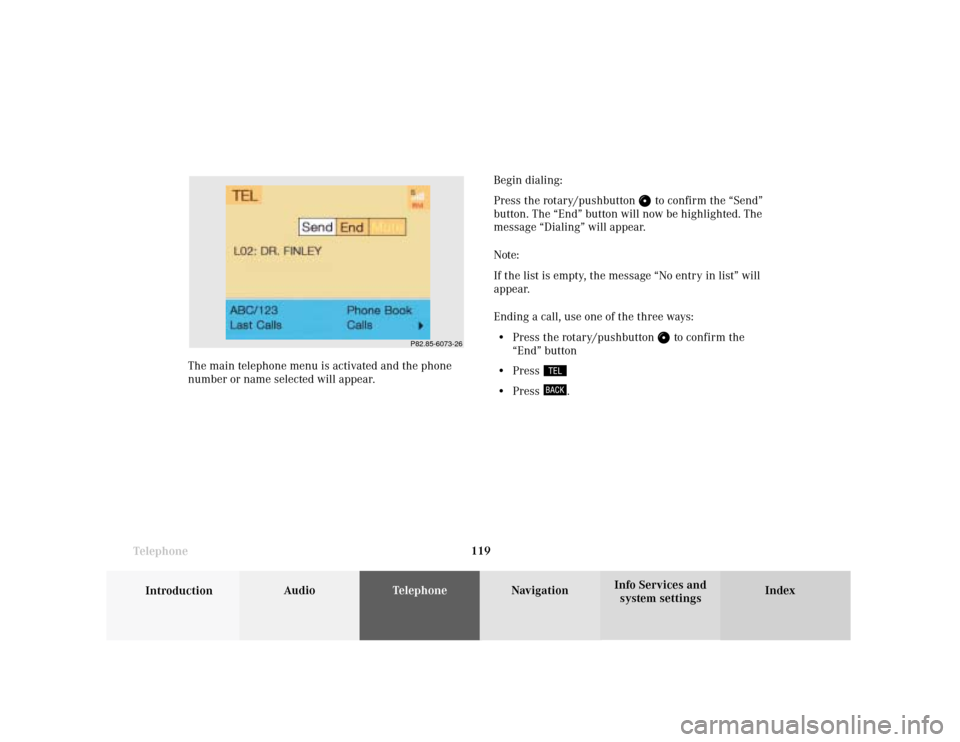
system settings Telephone119Begin dialing:
Press the rotary/pushbutton
to confirm the “Send”
button. The “End” button will now be highlighted. The
message “Dialing” will appear.
Note:
If the list is empty, the message “No entry in list” will
appear.
Ending a call, use one of the three ways:
• Press the rotary/pushbutton
to confirm the
“End” button
• Press
• Press
. The main telephone menu is activated and the phone
number or name selected will appear.
P82.85-6073-26
Page 124 of 243
122 Telephone
Introduction AudioTelephone
Navigation
Index Info Services and
system settings
Ending a call, use one of the three ways:
• Press the rotary/pushbutton
to confirm the
“End” button
• Press
• Press
.
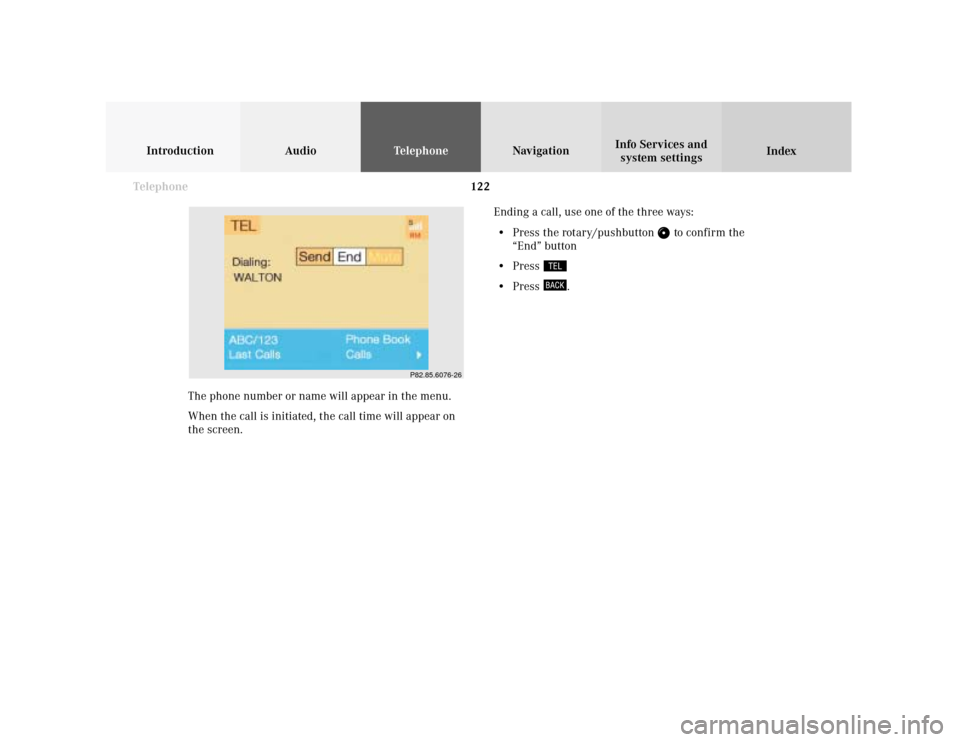
The phone number or name will appear in the menu.
When the call is initiated, the call time will appear on
the screen.
P82.85.6076-26
Page 125 of 243
Telephone
Introduction
AudioTelephone
Navigation
Index Info Services and
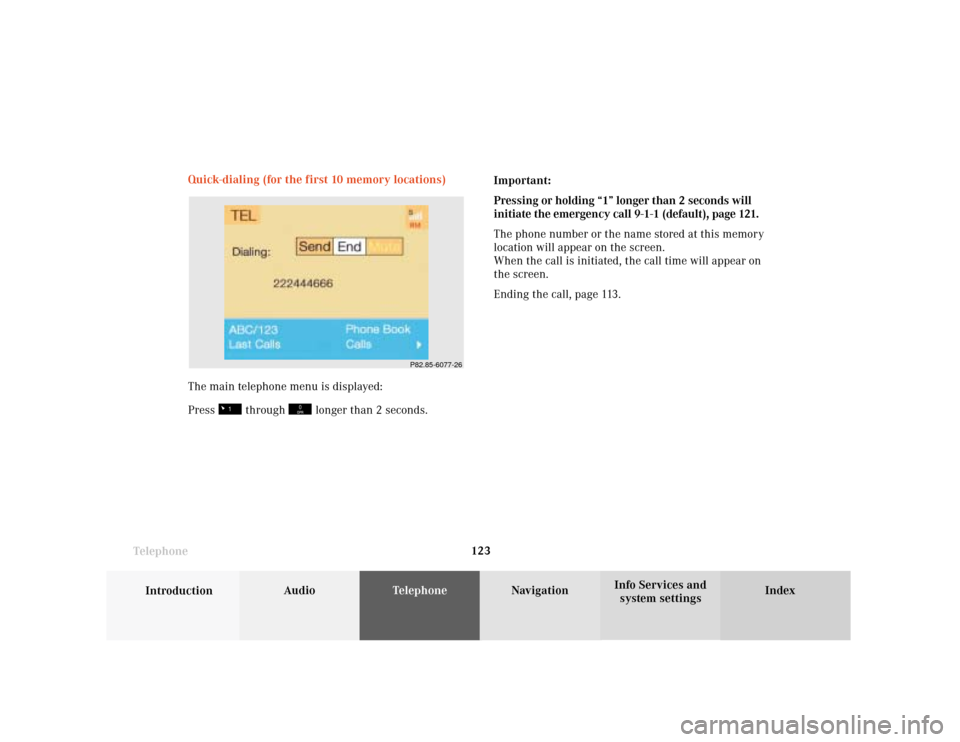
system settings Telephone123 Quick-dialing (for the first 10 memory locations)
The main telephone menu is displayed:
Press
through
longer than 2 seconds.Important:
Pressing or holding “1” longer than 2 seconds will
initiate the emergency call 9-1-1 (default), page 121.
The phone number or the name stored at this memory
location will appear on the screen.
When the call is initiated, the call time will appear on
the screen.
Ending the call, page 113.
P82.85-6077-26
Page 127 of 243
Telephone
Introduction
AudioTelephone
Navigation
Index Info Services and
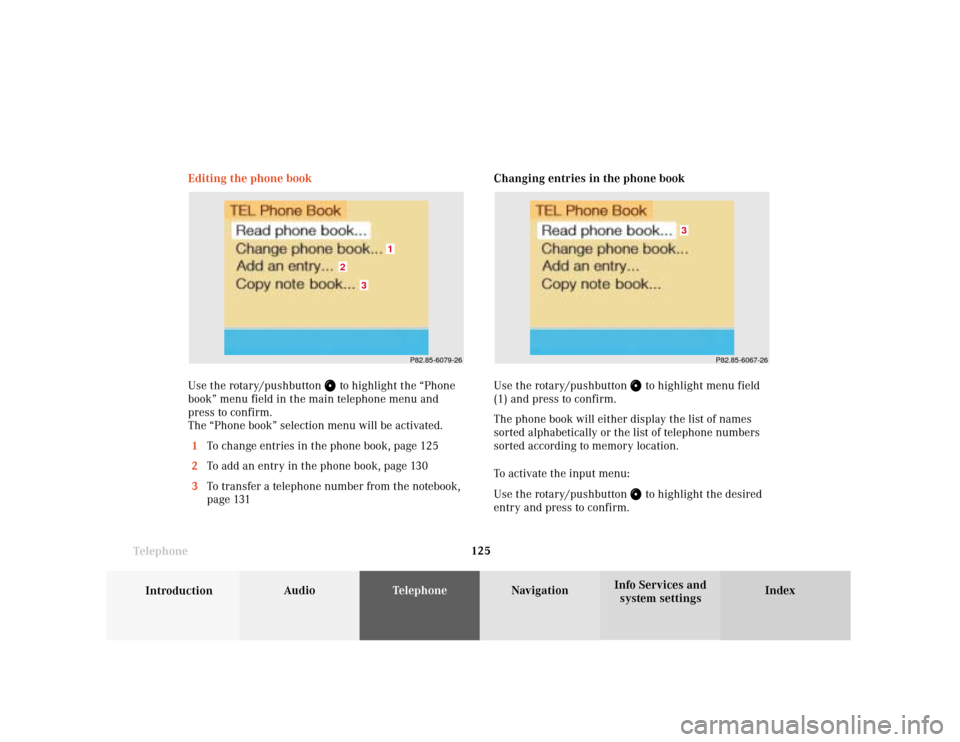
system settings Telephone125Changing entries in the phone book
Use the rotary/pushbutton
to highlight menu field
(1) and press to confirm.
The phone book will either display the list of names
sorted alphabetically or the list of telephone numbers
sorted according to memory location.
To activate the input menu:
Use the rotary/pushbutton to highlight the desired
entry and press to confirm. Editing the phone book
Use the rotary/pushbutton
to highlight the “Phone
book” menu field in the main telephone menu and
press to confirm.
The “Phone book” selection menu will be activated.
1To change entries in the phone book, page 125
2To add an entry in the phone book, page 130
3To transfer a telephone number from the notebook,
page 131
P82.85-6079-26
3
2
1
P82.85-6067-26
3
Page 128 of 243
126 Telephone
Introduction AudioTelephone
Navigation
Index Info Services and
system settings
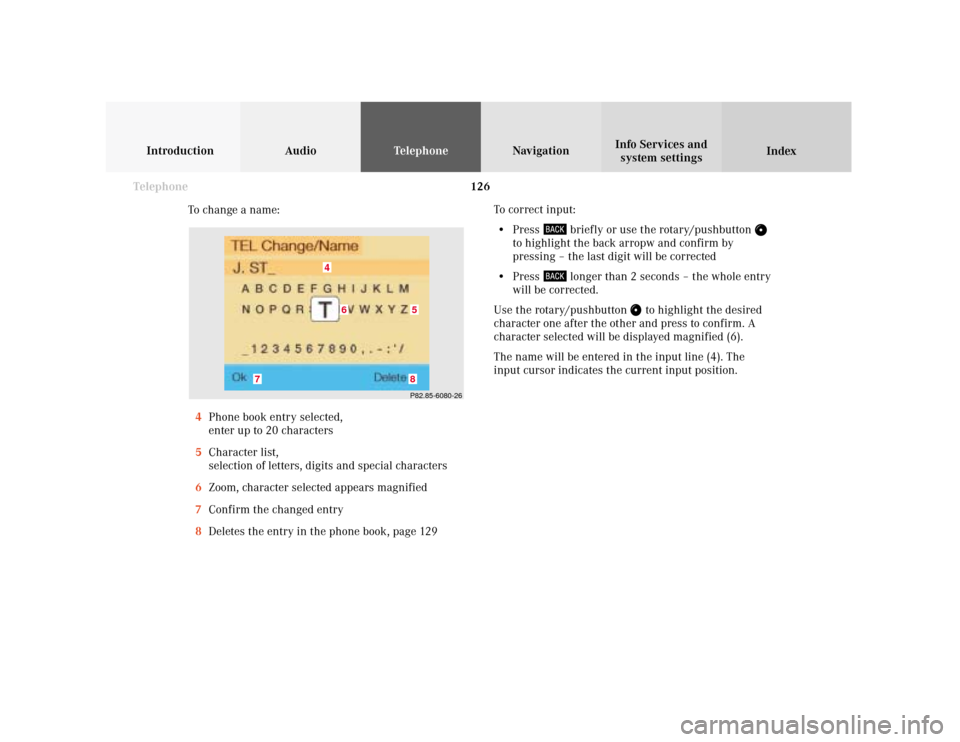
To change a name:
4Phone book entry selected,
enter up to 20 characters
5Character list,
selection of letters, digits and special characters
6Zoom, character selected appears magnified
7Confirm the changed entry
8Deletes the entry in the phone book, page 129To correct input:
• Press
briefly or use the rotary/pushbutton
to highlight the back arropw and confirm by
pressing – the last digit will be corrected
• Press
longer than 2 seconds – the whole entry
will be corrected.
Use the rotary/pushbutton
to highlight the desired
character one after the other and press to confirm. A
character selected will be displayed magnified (6).
The name will be entered in the input line (4). The
input cursor indicates the current input position.
P82.85-6080-268
7
4
5
6
Page 129 of 243
Telephone
Introduction
AudioTelephone
Navigation
Index Info Services and
system settings Telephone127To adopt the character selected and to enter it in the
input line:
• press
or turn the rotary/pushbutton
• automatically after 2 seconds.
Select one of the options to store a name changed in the
phone book:
• Use the rotary/pushbutton
highlight the “OK”
menu field and press it to confirm.
• Press and hold down the rotary/pushbutton
to
confirm the last letter of the name.
The menu for entering telephone numbers (page 128)
will appear.
If you do not wish to save the changes:
Press
. Note:
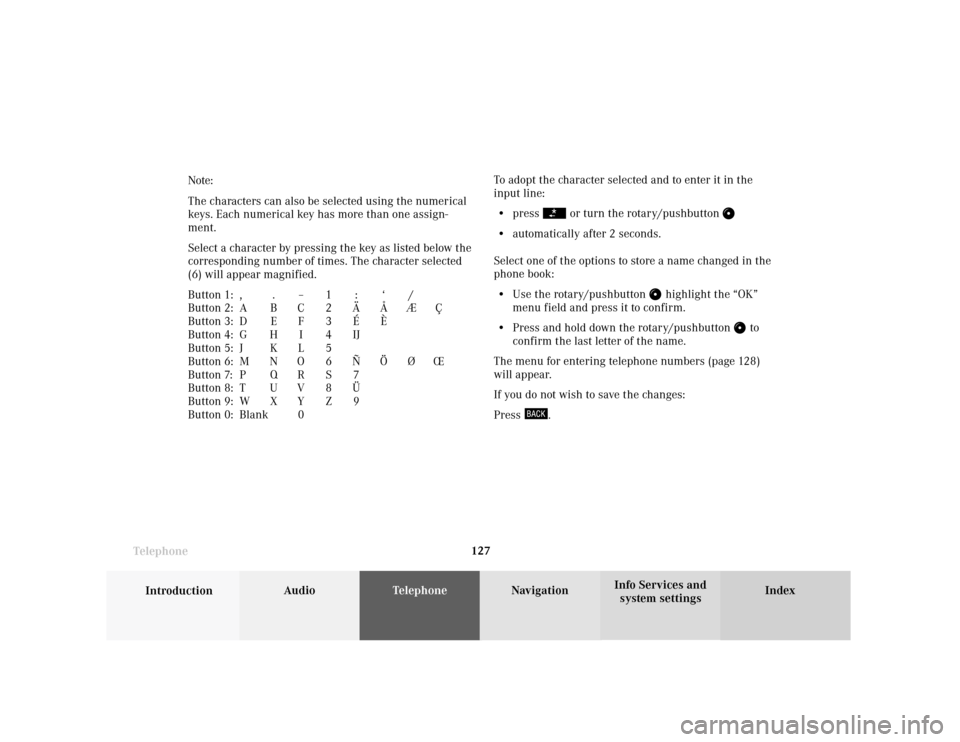
The characters can also be selected using the numerical
keys. Each numerical key has more than one assign-
ment.
Select a character by pressing the key as listed below the
corresponding number of times. The character selected
(6) will appear magnified.
Button 1: , . – 1 : ‘ /
Button 2: A B C 2 Ä Å Æ Ç
Button 3: D E F 3 É È
Button 4: G H I 4 IJ
Button 5: J K L 5
Button 6: M N O 6 Ñ Ö Ø Œ
Button 7: P Q R S 7
Button 8: T U V 8 Ü
Button 9: W X Y Z 9
Button 0: Blank 0
Page 130 of 243
128 Telephone
Introduction AudioTelephone
Navigation
Index Info Services and
system settings
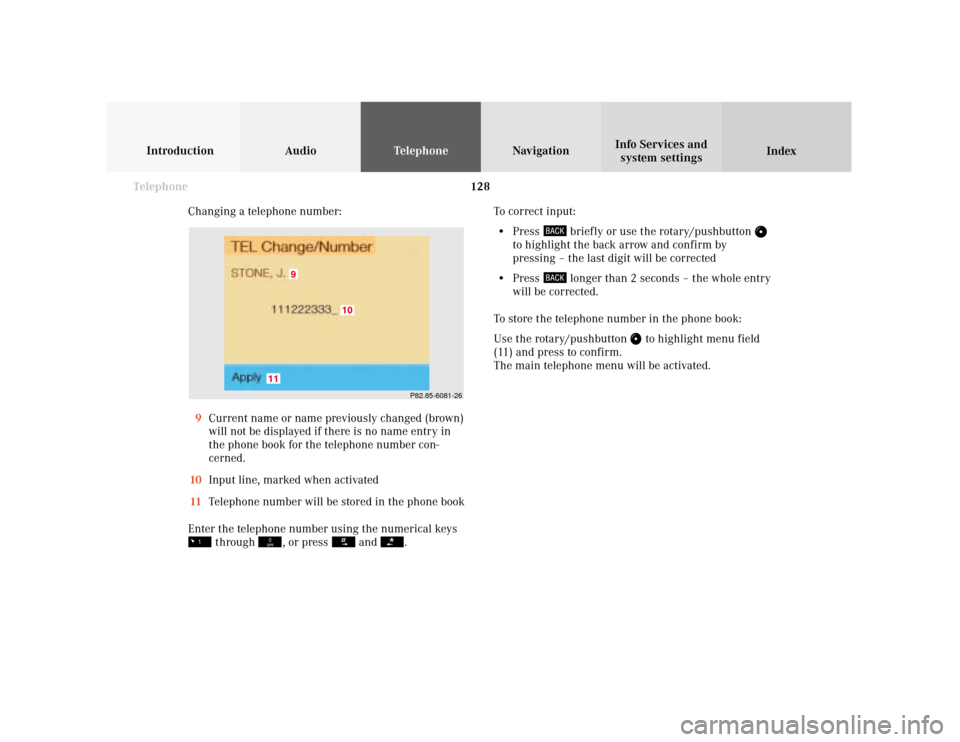
Changing a telephone number:
9Current name or name previously changed (brown)
will not be displayed if there is no name entry in
the phone book for the telephone number con-
cerned.
10Input line, marked when activated
11Telephone number will be stored in the phone book
Enter the telephone number using the numerical keys
through
, or press
and
.To correct input:
• Press
briefly or use the rotary/pushbutton
to highlight the back arrow and confirm by
pressing – the last digit will be corrected
• Press
longer than 2 seconds – the whole entry
will be corrected.
To store the telephone number in the phone book:
Use the rotary/pushbutton
to highlight menu field
(11) and press to confirm.
The main telephone menu will be activated.
P82.85-6081-26
9
11
10
Page 131 of 243
Telephone
Introduction
AudioTelephone
Navigation
Index Info Services and
system settings Telephone129 Deleting an entry in the phone book
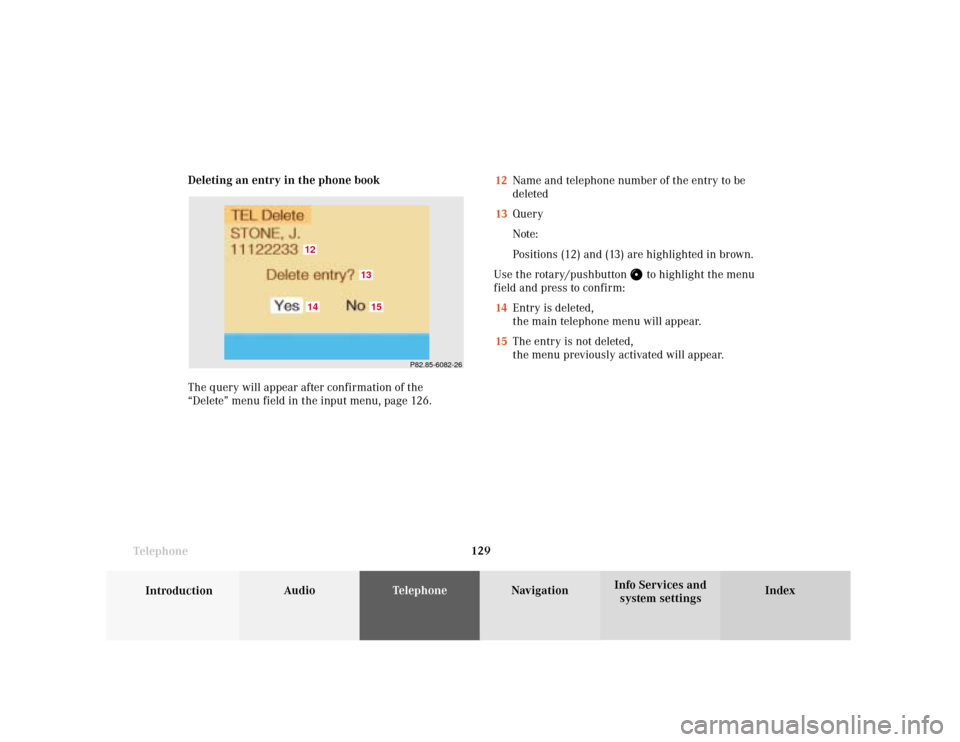
The query will appear after confirmation of the
“Delete” menu field in the input menu, page 126.12Name and telephone number of the entry to be
deleted
13Query
Note:
Positions (12) and (13) are highlighted in brown.
Use the rotary/pushbutton
to highlight the menu
field and press to confirm:
14Entry is deleted,
the main telephone menu will appear.
15The entry is not deleted,
the menu previously activated will appear.
P82.85-6082-26
1412
1513
Page 132 of 243
130 Telephone
Introduction AudioTelephone
Navigation
Index Info Services and
system settings
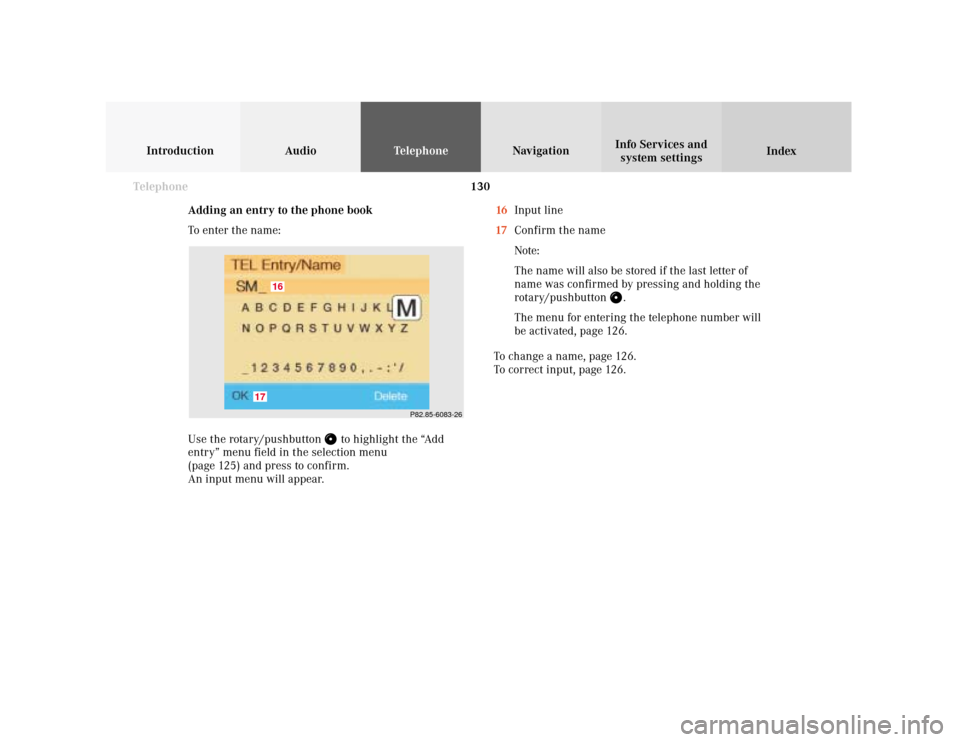
Adding an entry to the phone book
To enter the name:
Use the rotary/pushbutton
to highlight the “Add
entry” menu field in the selection menu
(page 125) and press to confirm.
An input menu will appear.16Input line
17Confirm the name
Note:
The name will also be stored if the last letter of
name was confirmed by pressing and holding the
rotary/pushbutton
.
The menu for entering the telephone number will
be activated, page 126.
To change a name, page 126.
To correct input, page 126.
P82.85-6083-26
17
16
Page 133 of 243
Telephone
Introduction
AudioTelephone
Navigation
Index Info Services and
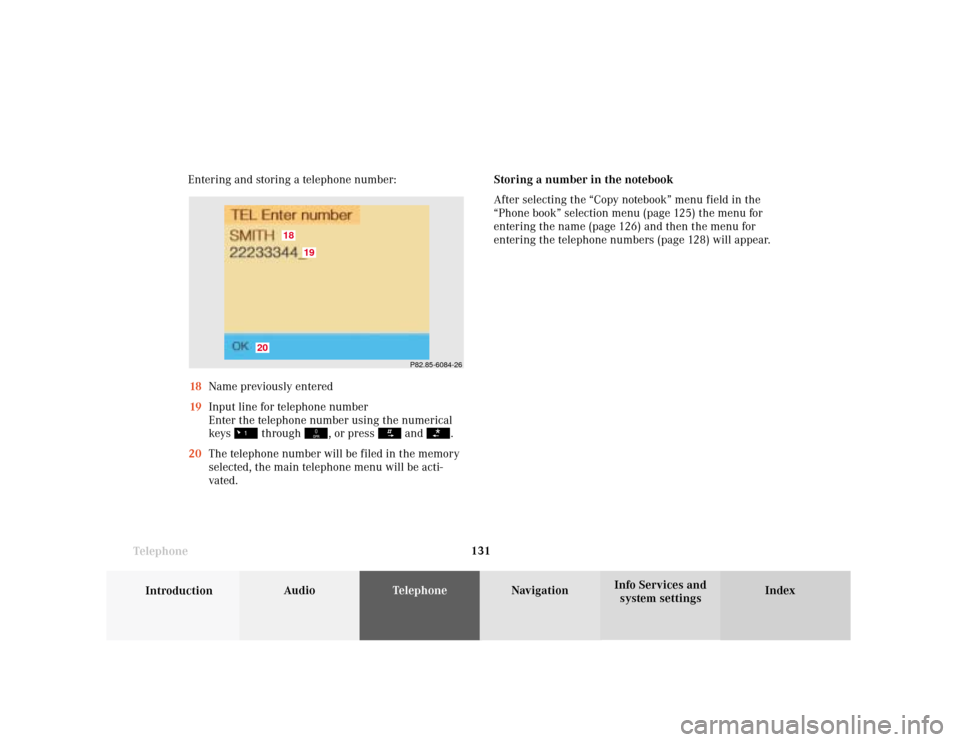
system settings Telephone131 Entering and storing a telephone number:
18Name previously entered
19Input line for telephone number
Enter the telephone number using the numerical
keys
through
, or press
and
.
20The telephone number will be filed in the memory
selected, the main telephone menu will be acti-
vated.Storing a number in the notebook
After selecting the “Copy notebook” menu field in the
“Phone book” selection menu (page 125) the menu for
entering the name (page 126) and then the menu for
entering the telephone numbers (page 128) will appear.
P82.85-6084-26
18
19
20