message MERCEDES-BENZ S-Class 2001 W220 Comand Manual
[x] Cancel search | Manufacturer: MERCEDES-BENZ, Model Year: 2001, Model line: S-Class, Model: MERCEDES-BENZ S-Class 2001 W220Pages: 243, PDF Size: 2.33 MB
Page 134 of 243
132 Telephone
Introduction AudioTelephone
Navigation
Index Info Services and
system settings
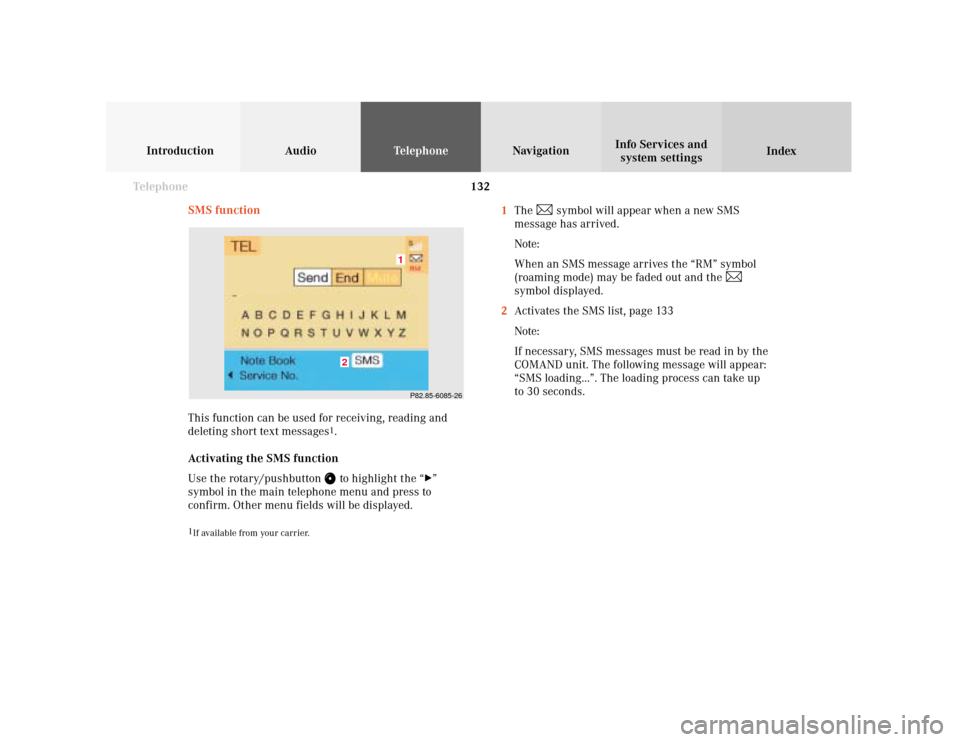
SMS function
This function can be used for receiving, reading and
deleting short text messages
1.
Activating the SMS function
Use the rotary/pushbutton to highlight the “
”
symbol in the main telephone menu and press to
confirm. Other menu fields will be displayed.
1
If available from your carrier.
1The
symbol will appear when a new SMS
message has arrived.
Note:
When an SMS message arrives the “RM” symbol
(roaming mode) may be faded out and the
symbol displayed.
2Activates the SMS list, page 133
Note:
If necessary, SMS messages must be read in by the
COMAND unit. The following message will appear:
“SMS loading...”. The loading process can take up
to 30 seconds.
P82.85-6085-261
2
Page 135 of 243
Telephone
Introduction
AudioTelephone
Navigation
Index Info Services and
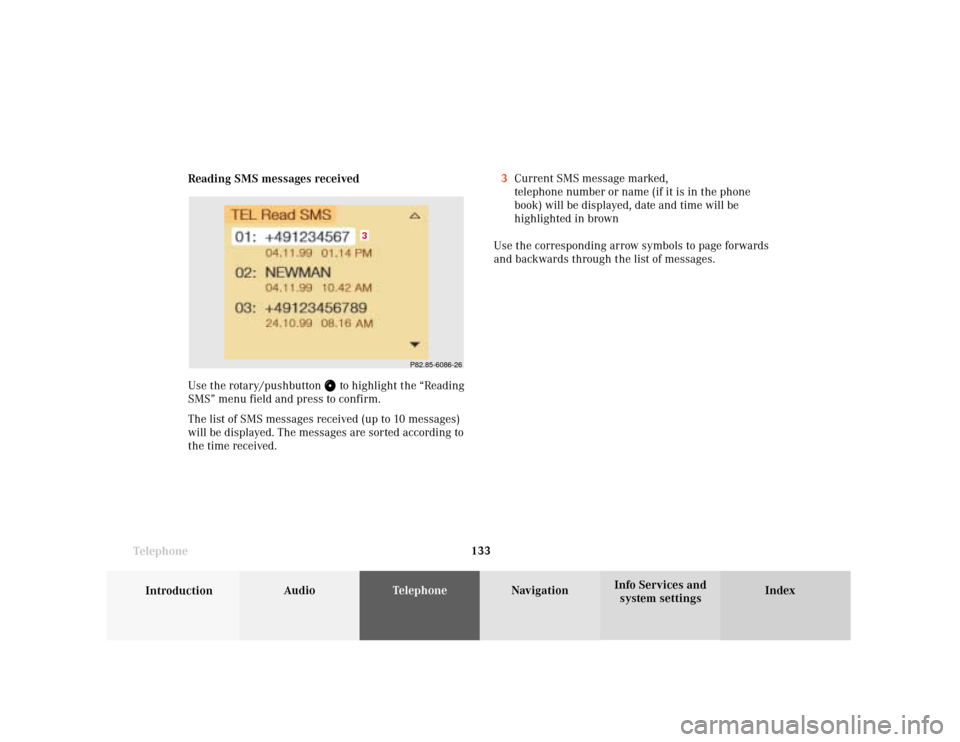
system settings Telephone133 Reading SMS messages received
Use the rotary/pushbutton
to highlight the “Reading
SMS” menu field and press to confirm.
The list of SMS messages received (up to 10 messages)
will be displayed. The messages are sorted according to
the time received.3Current SMS message marked,
telephone number or name (if it is in the phone
book) will be displayed, date and time will be
highlighted in brown
Use the corresponding arrow symbols to page forwards
and backwards through the list of messages.
P82.85-6086-26
3
Page 136 of 243
134 Telephone
Introduction AudioTelephone
Navigation
Index Info Services and
system settings
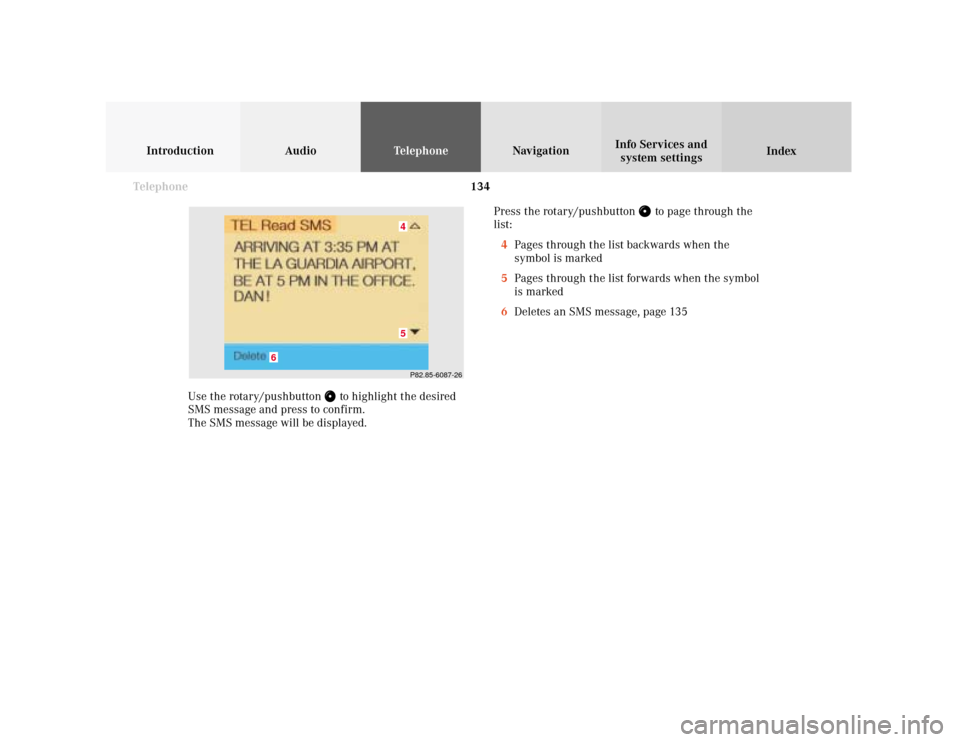
Use the rotary/pushbutton
to highlight the desired
SMS message and press to confirm.
The SMS message will be displayed.Press the rotary/pushbutton
to page through the
list:
4Pages through the list backwards when the
symbol is marked
5Pages through the list forwards when the symbol
is marked
6Deletes an SMS message, page 135
P82.85-6087-2645
6
Page 137 of 243
Telephone
Introduction
AudioTelephone
Navigation
Index Info Services and
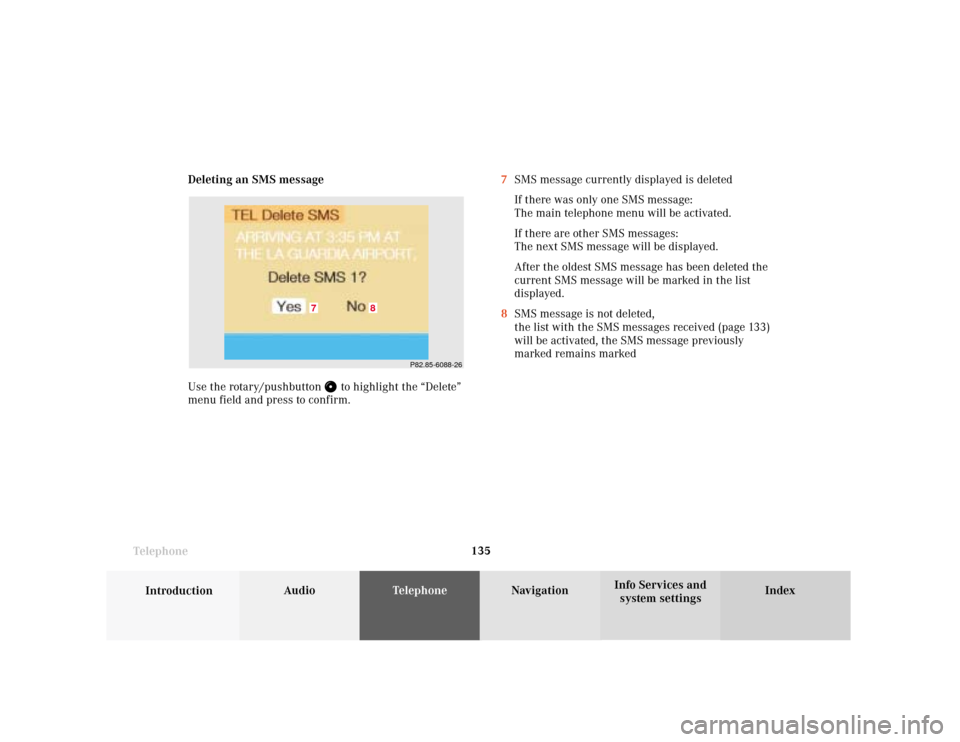
system settings Telephone135 Deleting an SMS message
Use the rotary/pushbutton
to highlight the “Delete”
menu field and press to confirm.7SMS message currently displayed is deleted
If there was only one SMS message:
The main telephone menu will be activated.
If there are other SMS messages:
The next SMS message will be displayed.
After the oldest SMS message has been deleted the
current SMS message will be marked in the list
displayed.
8SMS message is not deleted,
the list with the SMS messages received (page 133)
will be activated, the SMS message previously
marked remains marked
P82.85-6088-26
8
7
Page 139 of 243
Telephone
Introduction
AudioTelephone
Navigation
Index Info Services and
system settings Telephone137
Caution!
It will not be possible to complete the emergency call if
the the cellular system is busy. The message “System
busy, redial?” appears.
Take appropriate measures to alert an emergency
service as soon as possible.
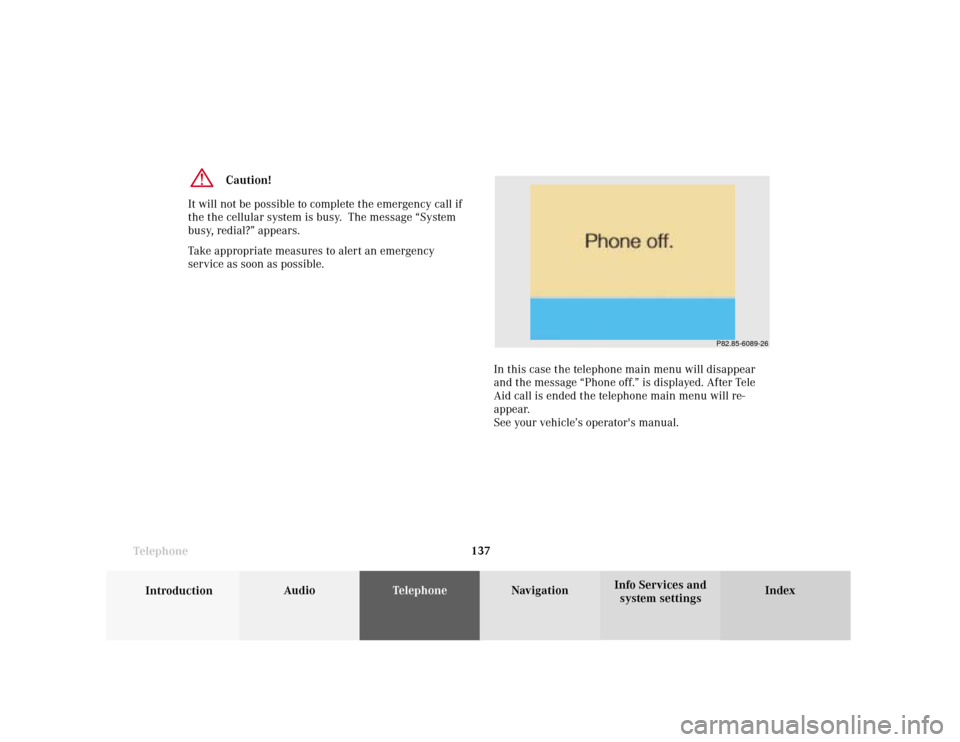
In this case the telephone main menu will disappear
and the message “Phone off.” is displayed. After Tele
Aid call is ended the telephone main menu will re-
appear.
See your vehicle’s operator's manual.
P82.85-6089-26
Page 141 of 243
Telephone
Introduction
AudioTelephone
Navigation
Index Info Services and
system settings Telephone139 Service numbers
Calling a service number
Use the rotary/pushbutton
to highlight the menu
field “Service No.” in the main telephone menu and
confirm by pressing.
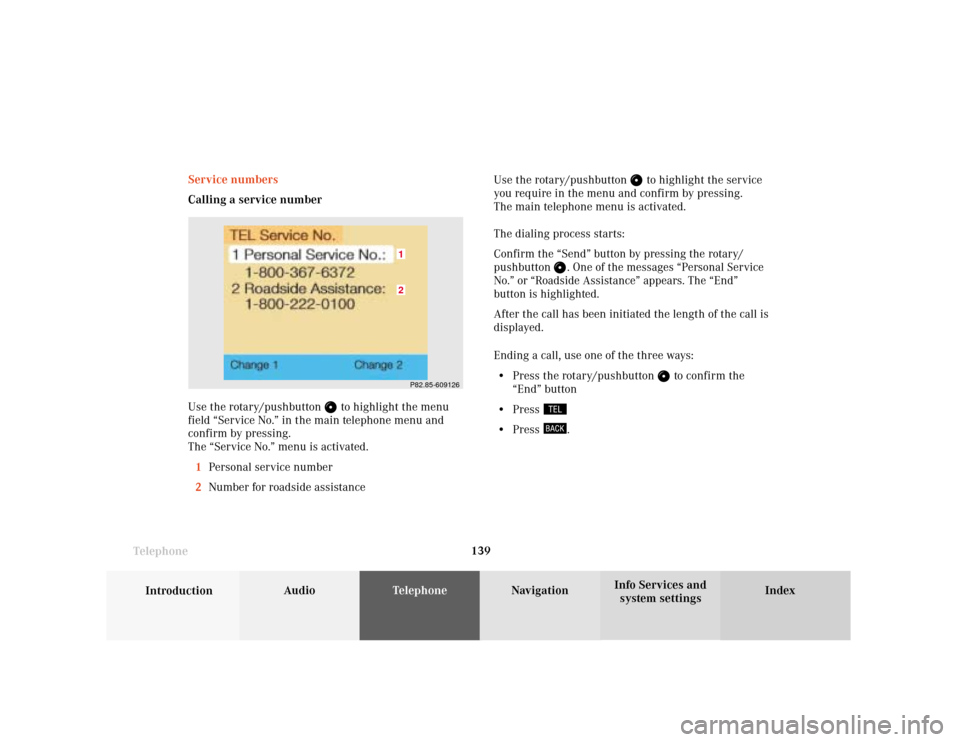
The “Service No.” menu is activated.
1Personal service number
2Number for roadside assistanceUse the rotary/pushbutton
to highlight the service
you require in the menu and confirm by pressing.
The main telephone menu is activated.
The dialing process starts:
Confirm the
“Send”
button by pressing the
rotary/
pushbutton
. One of the messages “Personal Service
No.” or “Roadside Assistance” appears. The
“End”
button is highlighted.After the call has been initiated the length of the call is
displayed.
Ending a call, use one of the three ways:
• Press the rotary/pushbutton
to confirm the
“End” button
• Press
• Press
.
P82.85-60912621
Page 151 of 243
149
Introduction
Audio
Telephone
Navigation
Index Info Services and
system settings Destination input
NavigationSwitching the navigation system on
Press
.
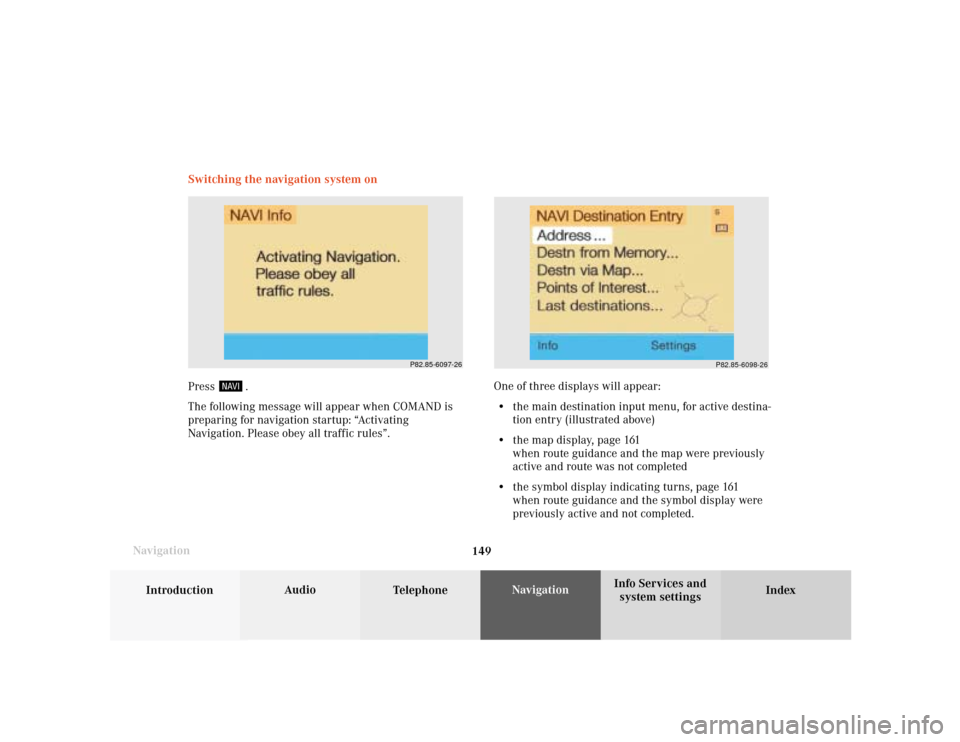
The following message will appear when COMAND is
preparing for navigation startup: “Activating
Navigation. Please obey all traffic rules”.One of three displays will appear:
• the main destination input menu, for active destina-
tion entry (illustrated above)
• the map display, page 161
when route guidance and the map were previously
active and route was not completed
• the symbol display indicating turns, page 161
when route guidance and the symbol display were
previously active and not completed.
P82.85-6097-26
P82.85-6098-26
Page 152 of 243
150
Index Info Services and
system settings IntroductionAudio TelephoneNavigation
Destination input
Changing the Navigation CD
Press
to eject an inserted navigation CD.
Insert another navigation CD.
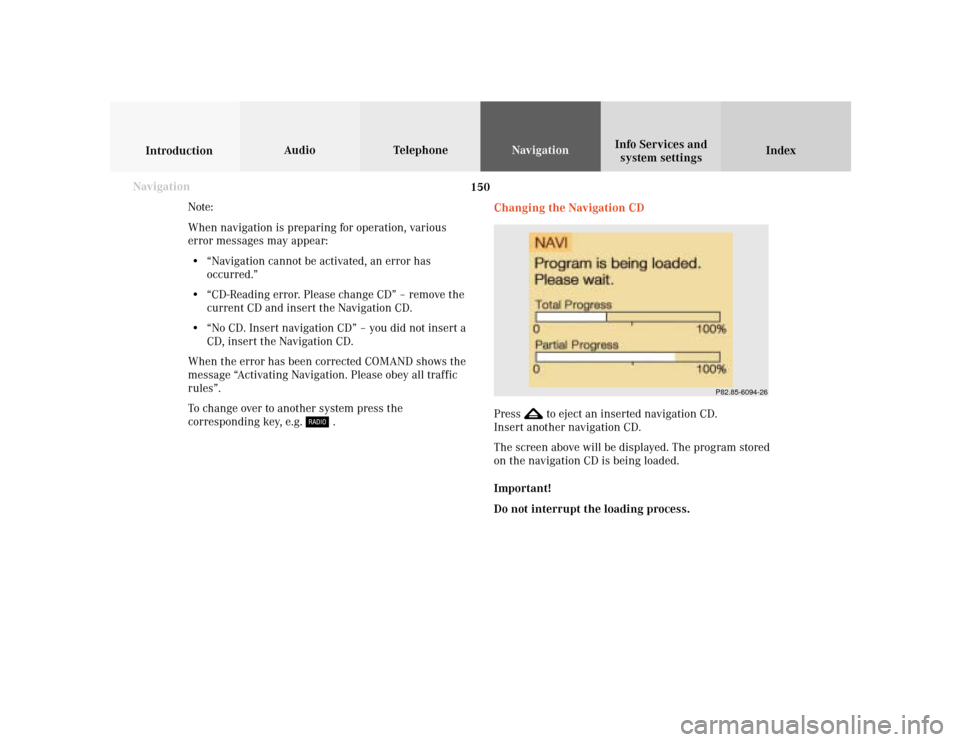
The screen above will be displayed. The program stored
on the navigation CD is being loaded.
Important!
Do not interrupt the loading process. Note:
When navigation is preparing for operation, various
error messages may appear:
• “Navigation cannot be activated, an error has
occurred.”
• “CD-Reading error. Please change CD” – remove the
current CD and insert the Navigation CD.
• “No CD. Insert navigation CD” – you did not insert a
CD, insert the Navigation CD.
When the error has been corrected COMAND shows the
message “Activating Navigation. Please obey all traffic
rules”.
To change over to another system press the
corresponding key, e.g.
. Navigation
P82.85-6094-26
Page 174 of 243
172
Index Info Services and
system settings IntroductionAudio TelephoneNavigation
Destination input
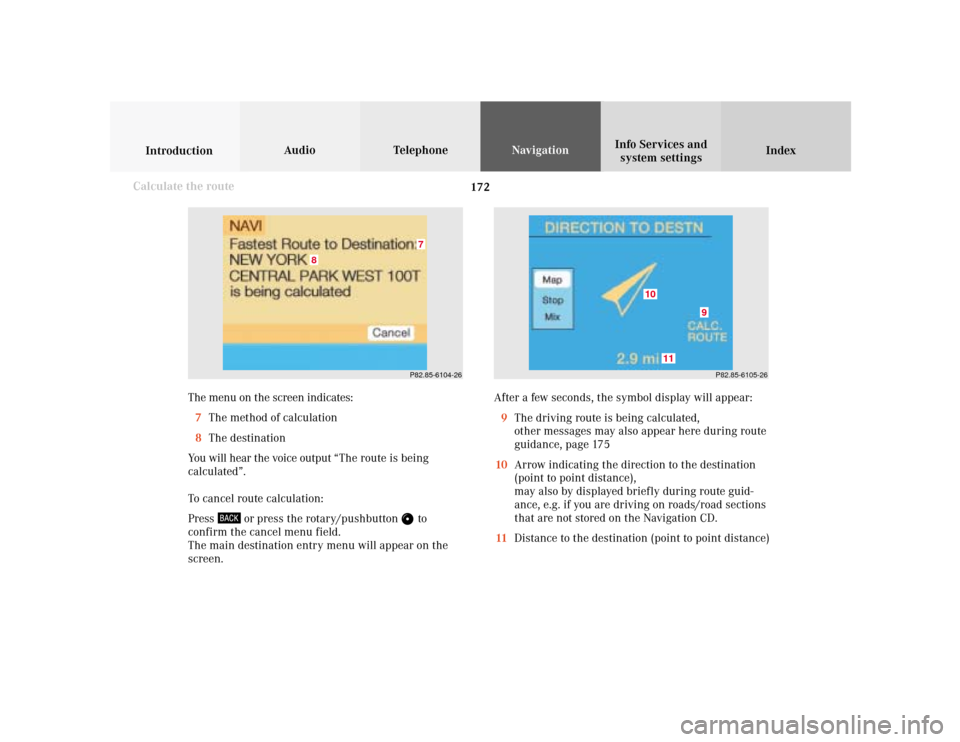
The menu on the screen indicates:
7The method of calculation
8The destination
You will hear the voice output “The route is being
calculated”.
To cancel route calculation:
Press
or press the rotary/pushbutton
to
confirm the cancel menu field.
The main destination entry menu will appear on the
screen.After a few seconds, the symbol display will appear:
9The driving route is being calculated,
other messages may also appear here during route
guidance, page 175
10Arrow indicating the direction to the destination
(point to point distance),
may also by displayed briefly during route guid-
ance, e.g. if you are driving on roads/road sections
that are not stored on the Navigation CD.
11Distance to the destination (point to point distance)
Calculate the route
P82.85-6104-26
8
7
P82.85-6105-26
10
11
9
Page 175 of 243
173
Introduction
Audio
Telephone
Navigation
Index Info Services and
system settings Destination input
Calculate the route
P82.85-2604-26
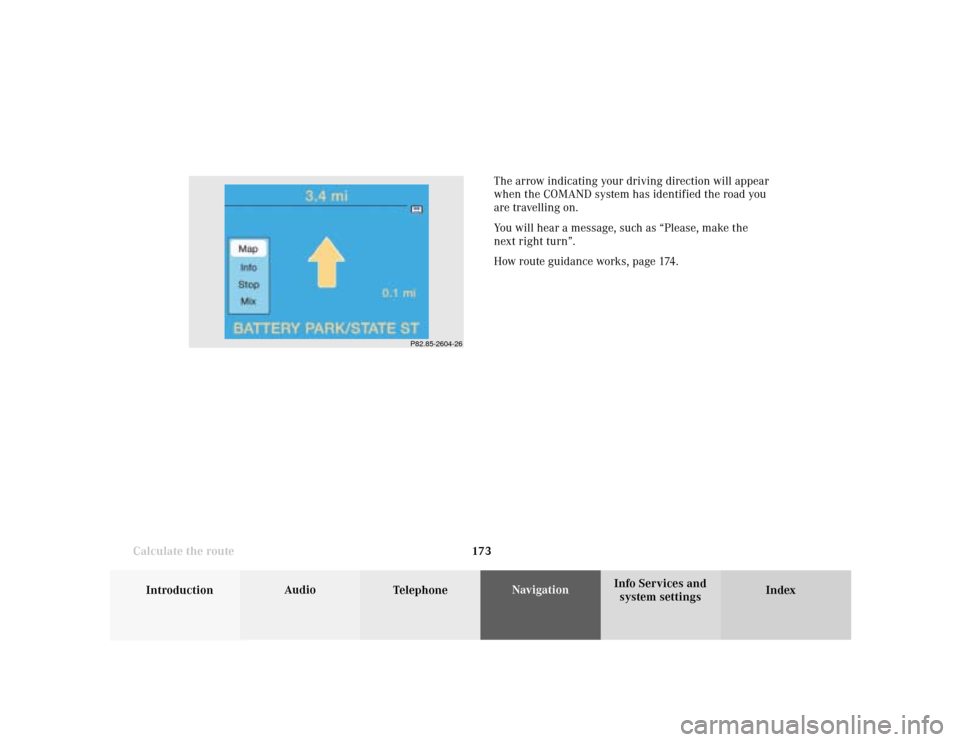
The arrow indicating your driving direction will appear
when the COMAND system has identified the road you
are travelling on.
You will hear a message, such as “Please, make the
next right turn”.
How route guidance works, page 174.