reset MERCEDES-BENZ S CLASS 2010 User Guide
[x] Cancel search | Manufacturer: MERCEDES-BENZ, Model Year: 2010, Model line: S CLASS, Model: MERCEDES-BENZ S CLASS 2010Pages: 548, PDF Size: 11.45 MB
Page 81 of 548
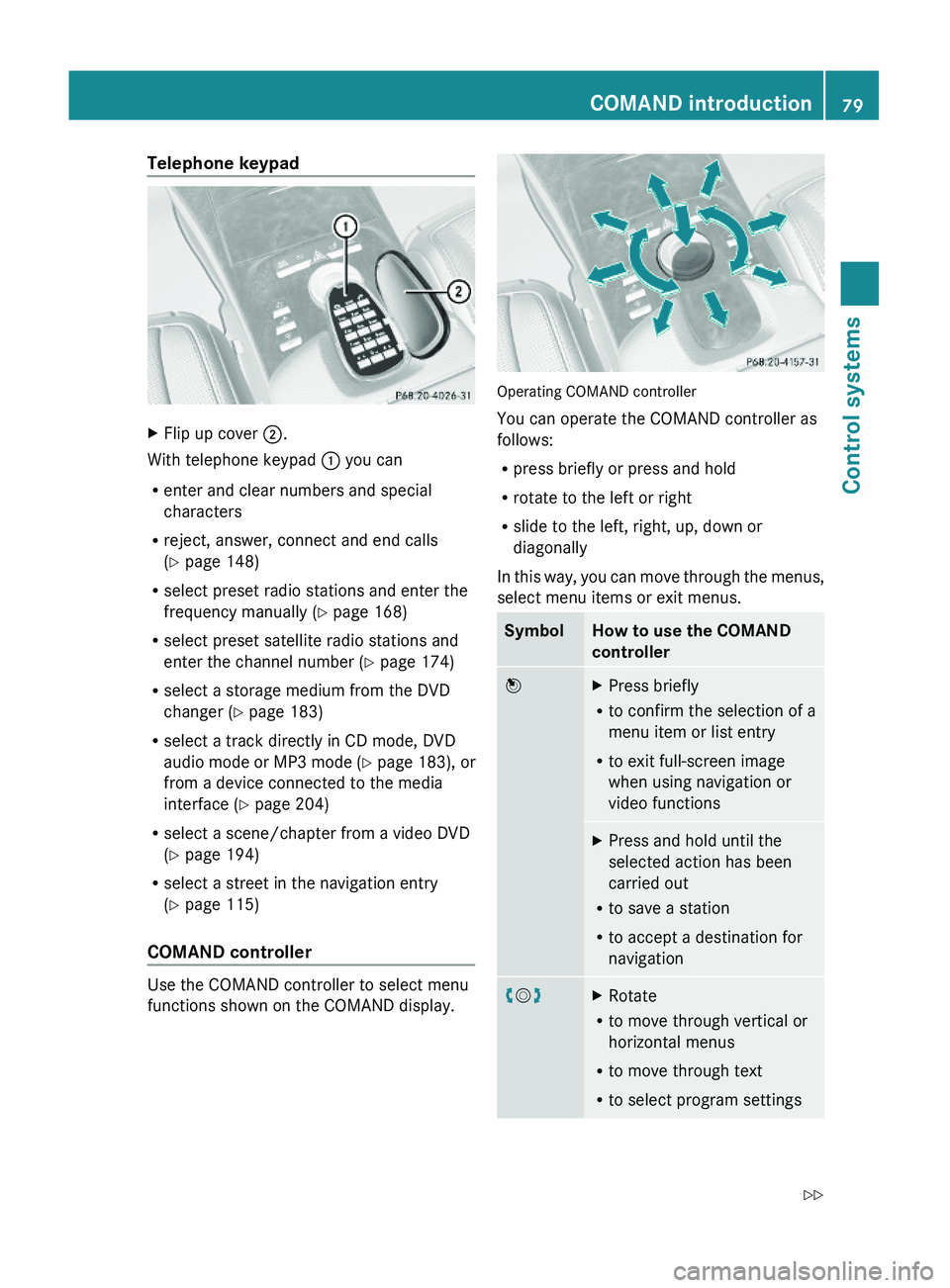
Telephone keypad XFlip up cover \000G.
With telephone keypad \000F you can
Renter and clear numbers and special
characters
Rreject, answer, connect and end calls
(Y page 148)
Rselect preset radio stations and enter the
frequency manually (Y page 168)
Rselect preset satellite radio stations and
enter the channel number (Y page 174)
Rselect a storage medium from the DVD
changer (Y page 183)
Rselect a track directly in CD mode, DVD
audio mode or MP3 mode (Y page 183), or
from a device connected to the media
interface (Y page 204)
Rselect a scene/chapter from a video DVD
(Y page 194)
Rselect a street in the navigation entry
(Y page 115)
COMAND controller
Use the COMAND controller to select menu
functions shown on the COMAND display.
Operating COMAND controller
You can operate the COMAND controller as
follows:
Rpress briefly or press and hold
Rrotate to the left or right
Rslide to the left, right, up, down or
diagonally
In this way, you can move through the menus,
select menu items or exit menus.
SymbolHow to use the COMAND
controller
\000
Page 94 of 548
RBluetooth \000T Search for Bluetooth
Devices, Bluetooth activated. For
information on the Bluetooth® interface
see (Y page 151).
RUpload/Download Data \000T Copy Data
to Storage Medium, Import Data from
Storage Medium (Y page 95)
RReset: Resetting the COMAND system to
factory settings
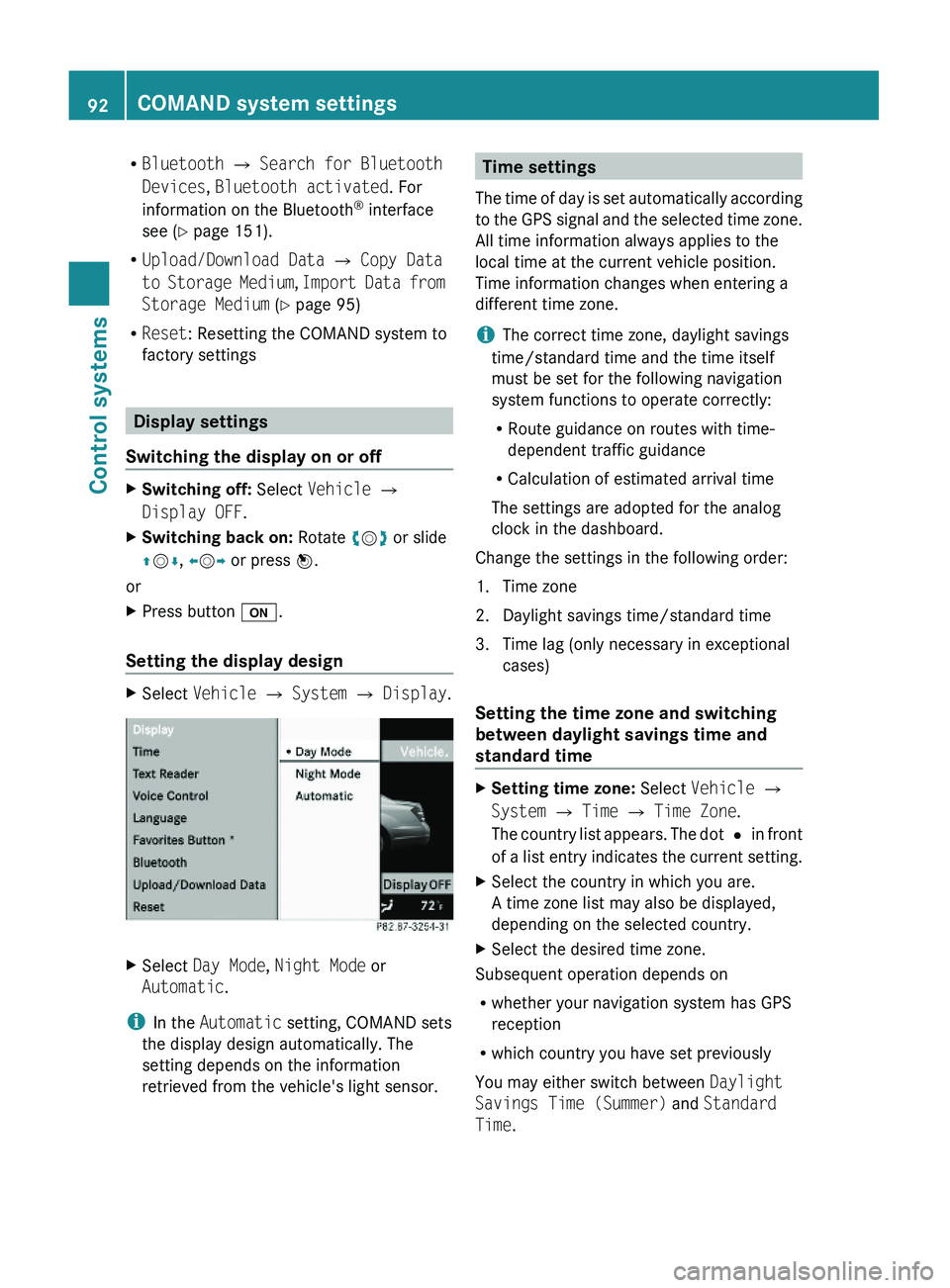
Display settings
Switching the display on or off
XSwitching off: Select Vehicle \000T
Display OFF.
XSwitching back on: Rotate \000
Page 97 of 548
Upload/Download of Data
This function lets you transfer COMAND data
to a memory card or a USB storage device and
vice versa.
The following COMAND data can be
transferred:
R Navigation destination memory and last
destination
R Address book entries
R Audio/Video presets memory
R System settings
i You can use this function, for example, to
save your COMAND data and transfer them
to another vehicle.XInsert an SD card into the SD card slot
( Y page 180) or connect a USB storage
device to the built-in USB socket in the
glove box (Y page 80). The USB jack of the
optional media interface is not intended for
this purpose.XSelect Vehicle 0054 System 0054 Upload/
Download Data .XDownload: Select Copy Data to
Storage Medium 0054 On the Memory
Card or On USB .XSelect Start Copying .XUpload: Select Import Data from
Storage Medium 0054 From Memory Card
or From USB .XSelect Start Data Import .XExiting menu without data transfer:
Select Back.
Reset
i You can reset COMAND back to its
factory settings.
Among other things, all personal data are
deleted, for example
R the address book entries
R the entries in the destination memory
R the list of last destinations of the
navigation systemXSelect Vehicle 0054 System 0054 Reset .
A prompt appears asking whether you
really want to reset.XSelect Yes or No.
If you select Yes another prompt will
appear asking whether you really want to
reset.XSelect Yes or No.
If you select Yes, COMAND will be reset
and restarted.
COMAND navigation (introduction)
Safety notes
GWarning!
For safety reasons, only enter a destination
when the vehicle is stationary. When the
vehicle is in motion, a passenger should enter
the destination. Study manual and select
route before driving.
Bear in mind that at a speed of just 30 mph
(approximately 50 km/h), your vehicle is
covering a distance of 44 feet (approximately
14 m) every second.
COMAND calculates the route to the
destination without taking account of the
following, for example:
R Traffic lights
R Stop and right-of-way signs
R Parking or stopping in prohibited areas
R Lane merging
R Other road and traffic rules and regulations
R Narrow bridges
COMAND navigation (introduction)95Control systems221_AKB; 6; 20, en-USd2ugruen,Version: 2.11.8.12009-09-24T13:28:17+02:00 - Seite 95Z
Page 124 of 548
Entering a destination from the list of
last destinations
XSelect Navi \000T Destination \000T From
Last Destinations.
The list of last destinations appears. The
most recent destination is at the top of the
list.
XSelect desired destination.XStarting route calculation: Select Start,
see also (Y page 120).
Entering a destination from the map
iDepending on the factory settings of the
vehicle, it may not be possible to enter a
destination while the vehicle exceeds a
preset speed. As soon as the vehicles
speed drops to below the preset speed, the
function is available again.
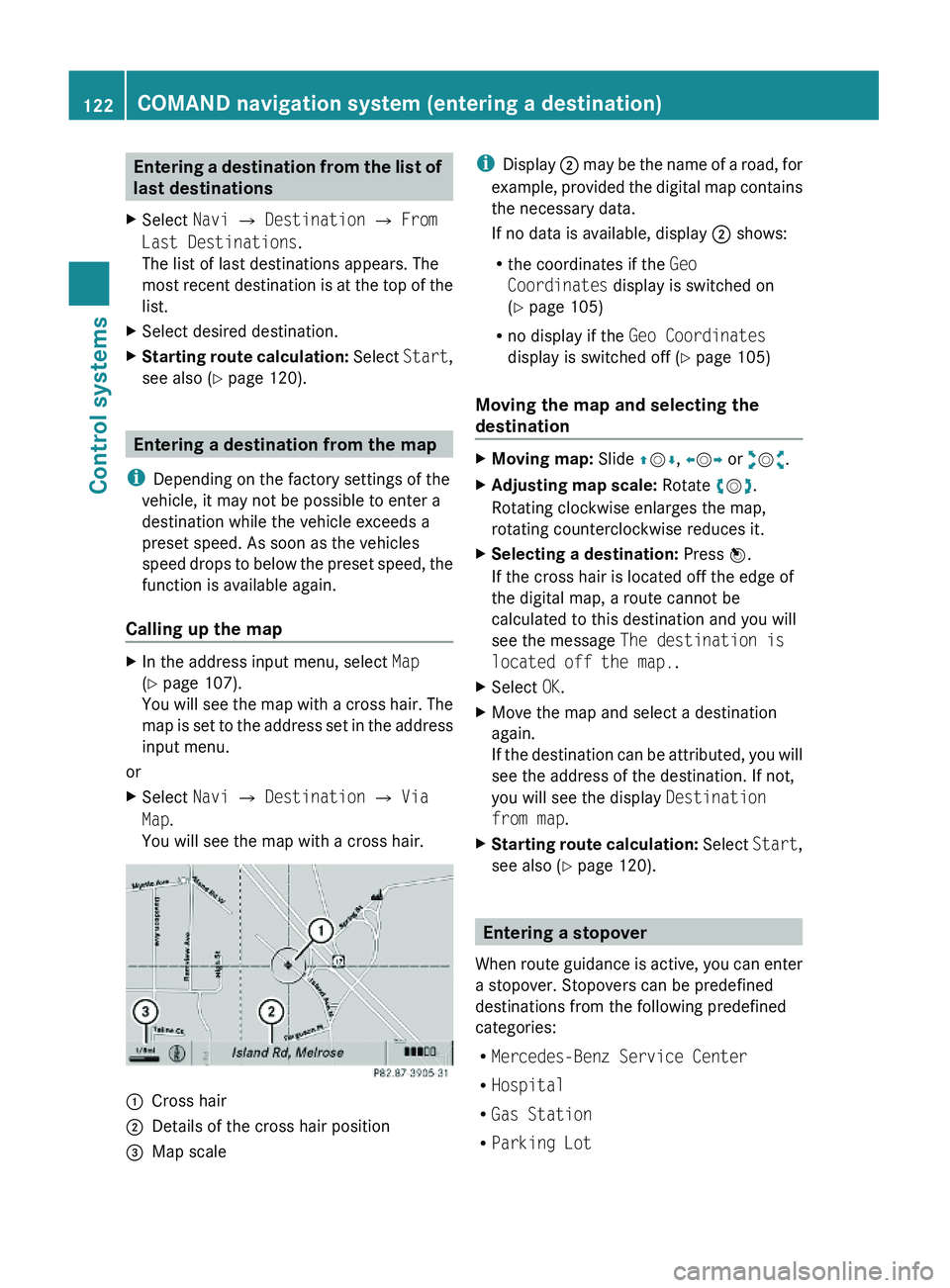
Calling up the map
XIn the address input menu, select Map
(Y page 107).
You will see the map with a cross hair. The
map is set to the address set in the address
input menu.
or
XSelect Navi \000T Destination \000T Via
Map.
You will see the map with a cross hair.
\000FCross hair\000GDetails of the cross hair position\000
Page 168 of 548
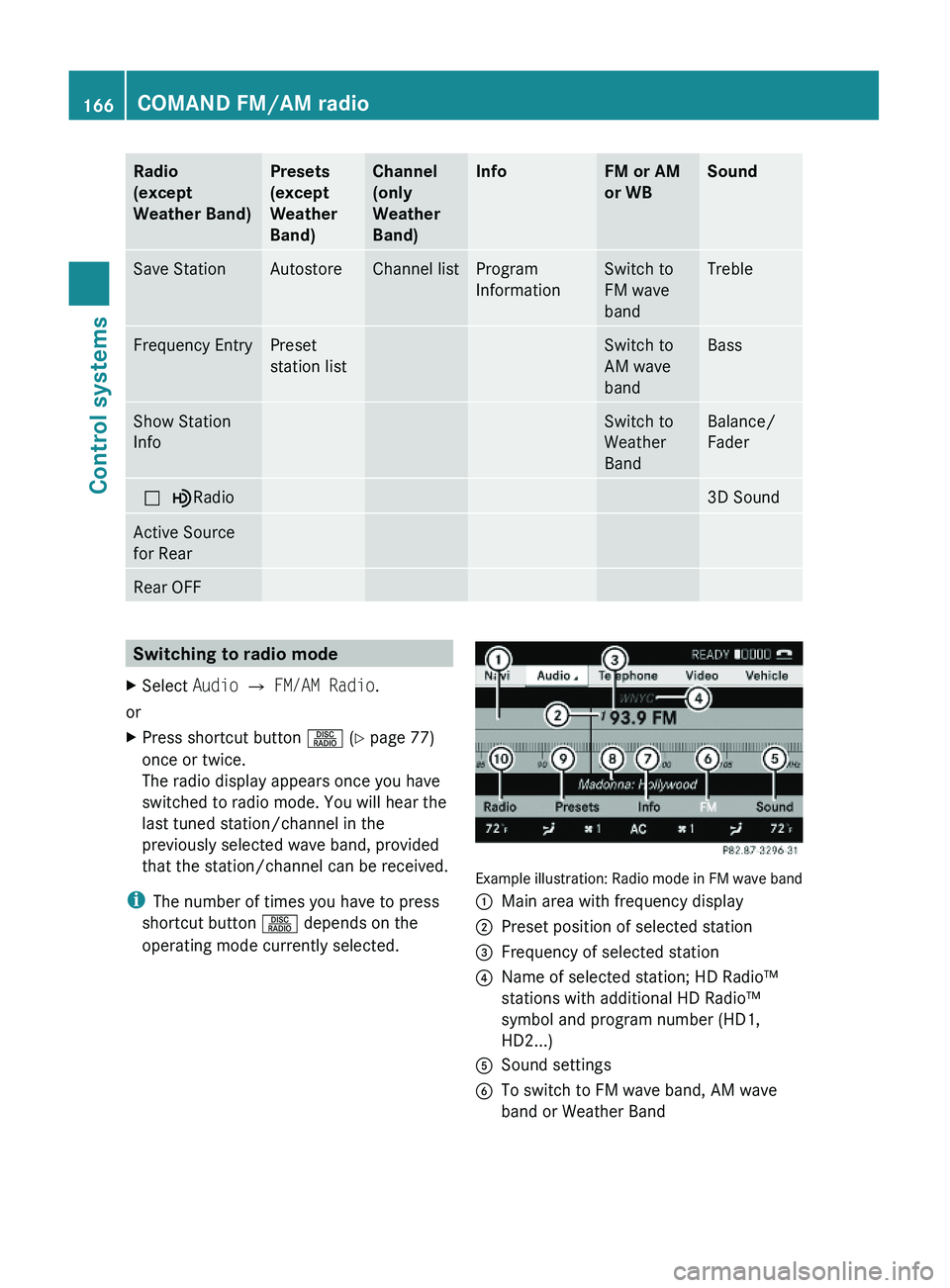
Radio
(except
Weather Band)
Presets
(except
Weather
Band)
Channel
(only
Weather
Band)
InfoFM or AM
or WB
SoundSave StationAutostoreChannel listProgram
Information
Switch to
FM wave
band
TrebleFrequency EntryPreset
station list
Switch to
AM wave
band
BassShow Station
Info
Switch to
Weather
Band
Balance/
Fader
\000?\000}Radio3D SoundActive Source
for Rear
Rear OFFSwitching to radio modeXSelect Audio \000T FM/AM Radio.
or
XPress shortcut button \000W (Y page 77)
once or twice.
The radio display appears once you have
switched to radio mode. You will hear the
last tuned station/channel in the
previously selected wave band, provided
that the station/channel can be received.
iThe number of times you have to press
shortcut button \000W depends on the
operating mode currently selected.
Example illustration: Radio mode in FM wave band
\000FMain area with frequency display\000GPreset position of selected station\000
Page 169 of 548
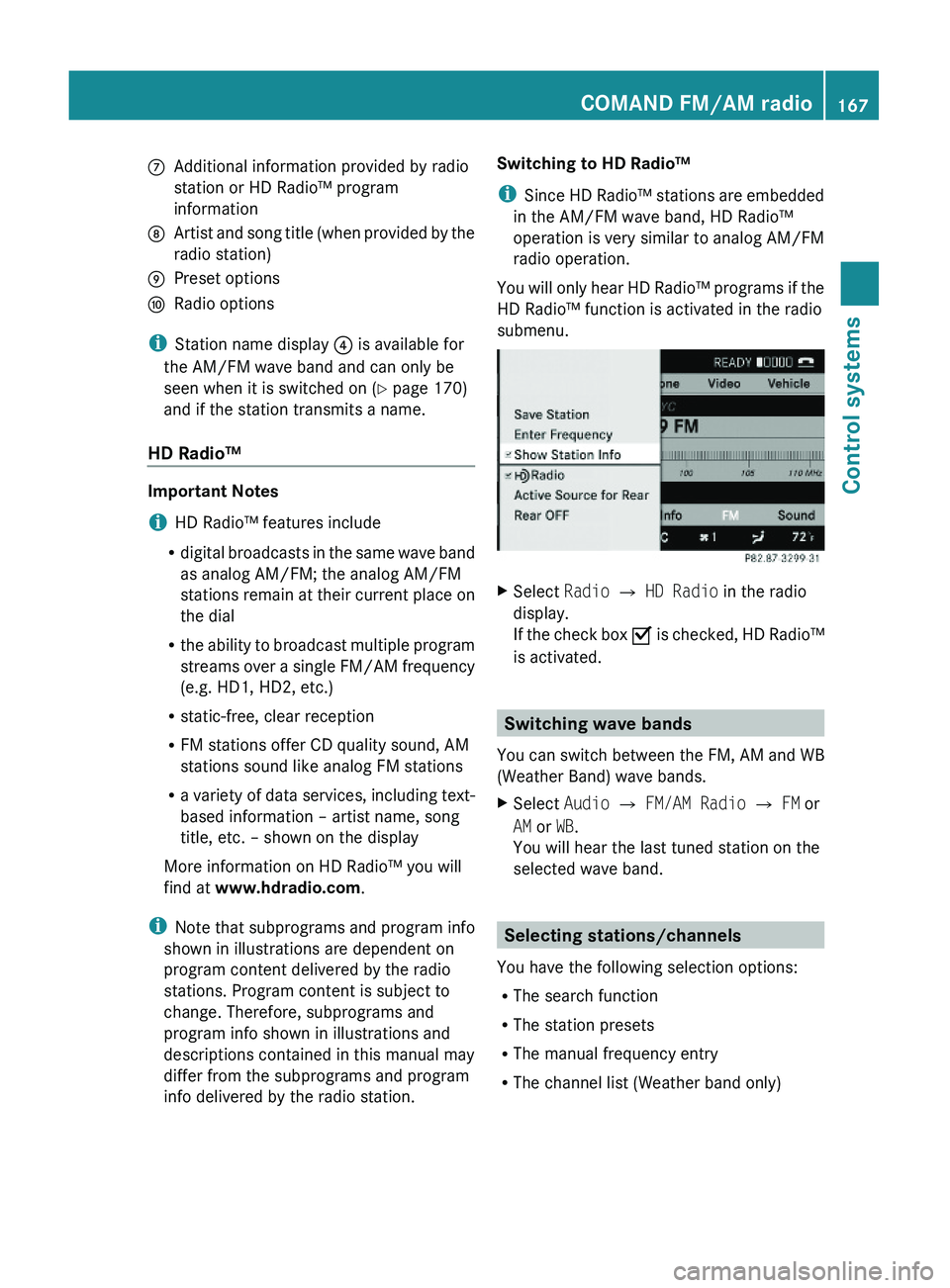
\000nAdditional information provided by radio
station or HD Radio™ program
information
\000oArtist and song title (when provided by the
radio station)
\000pPreset options\000qRadio options
iStation name display \000
Page 170 of 548
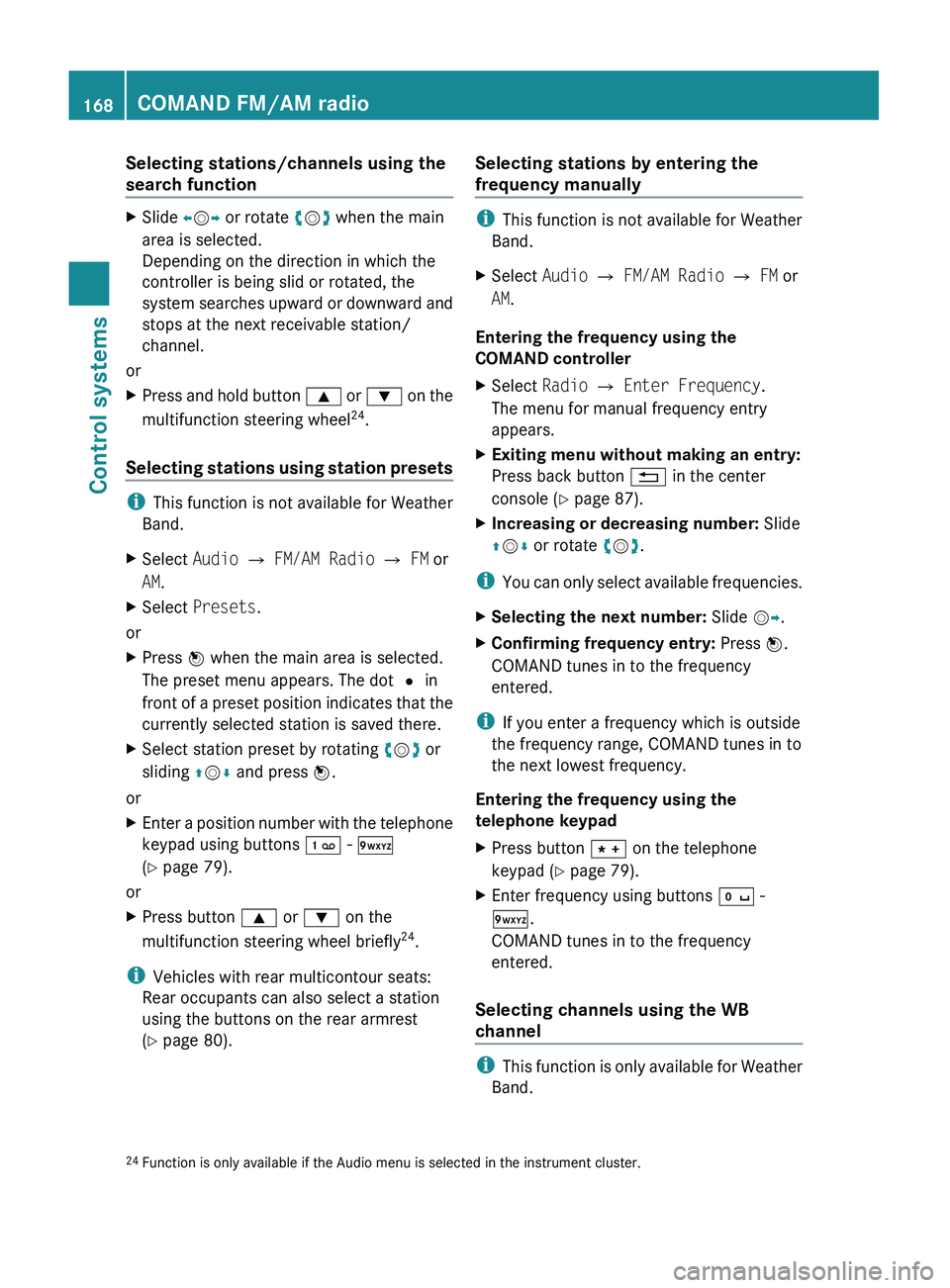
Selecting stations/channels using the
search functionXSlide 009E005B 009F or rotate 0082005B 0083 when the main
area is selected.
Depending on the direction in which the
controller is being slid or rotated, the
system searches upward or downward and
stops at the next receivable station/
channel.
or
XPress and hold button 003C or 003D on the
multifunction steering wheel 24
.
Selecting stations using station presets
i This function is not available for Weather
Band.
XSelect Audio 0054 FM/AM Radio 0054 FM or
AM .XSelect Presets .
or
XPress 00A1 when the main area is selected.
The preset menu appears. The dot 003F in
front of a preset position indicates that the
currently selected station is saved there.XSelect station preset by rotating 0082005B 0083 or
sliding 00A0005B 0050 and press 00A1.
or
XEnter a position number with the telephone
keypad using buttons 0101 - 0109
( Y page 79).
or
XPress button 003C or 003D on the
multifunction steering wheel briefly 24
.
i Vehicles with rear multicontour seats:
Rear occupants can also select a station
using the buttons on the rear armrest
( Y page 80).
Selecting stations by entering the
frequency manually
i This function is not available for Weather
Band.
XSelect Audio 0054 FM/AM Radio 0054 FM or
AM .
Entering the frequency using the
COMAND controller
XSelect Radio 0054 Enter Frequency .
The menu for manual frequency entry
appears.XExiting menu without making an entry:
Press back button 0041 in the center
console ( Y page 87).XIncreasing or decreasing number: Slide
00A0 005B 0050 or rotate 0082005B 0083.
i
You can only select available frequencies.
XSelecting the next number: Slide 005B009F.XConfirming frequency entry: Press 00A1.
COMAND tunes in to the frequency
entered.
i If you enter a frequency which is outside
the frequency range, COMAND tunes in to
the next lowest frequency.
Entering the frequency using the
telephone keypad
XPress button 004D on the telephone
keypad ( Y page 79).XEnter frequency using buttons 010B -
0109 .
COMAND tunes in to the frequency
entered.
Selecting channels using the WB
channel
i This function is only available for Weather
Band.
24 Function is only available if the Audio menu is selected in the instrument cluster.168COMAND FM/AM radioControl systems
221_AKB; 6; 20, en-USd2ugruen,Version: 2.11.8.12009-09-24T13:28:17+02:00 - Seite 168
Page 173 of 548
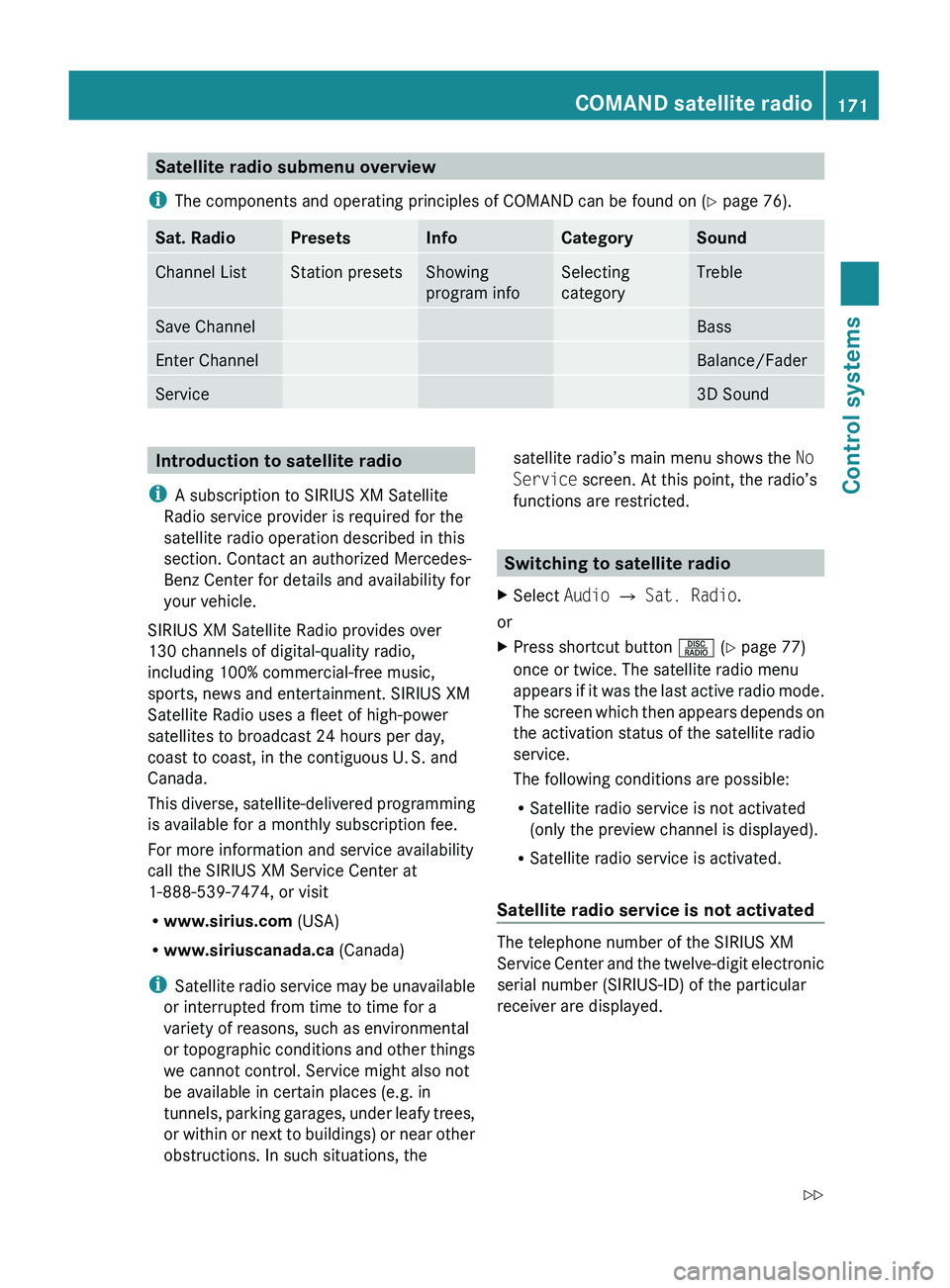
Satellite radio submenu overview
i The components and operating principles of COMAND can be found on ( Y page 76).Sat. RadioPresetsInfoCategorySoundChannel ListStation presetsShowing
program infoSelecting
categoryTrebleSave ChannelBassEnter ChannelBalance/FaderService3D SoundIntroduction to satellite radio
i A subscription to SIRIUS XM Satellite
Radio service provider is required for the
satellite radio operation described in this
section. Contact an authorized Mercedes-
Benz Center for details and availability for
your vehicle.
SIRIUS XM Satellite Radio provides over
130 channels of digital-quality radio,
including 100% commercial-free music,
sports, news and entertainment. SIRIUS XM
Satellite Radio uses a fleet of high-power
satellites to broadcast 24 hours per day,
coast to coast, in the contiguous U. S. and
Canada.
This diverse, satellite-delivered programming
is available for a monthly subscription fee.
For more information and service availability
call the SIRIUS XM Service Center at
1-888-539-7474, or visit
R www.sirius.com (USA)
R www.siriuscanada.ca (Canada)
i Satellite radio service may be unavailable
or interrupted from time to time for a
variety of reasons, such as environmental
or topographic conditions and other things
we cannot control. Service might also not
be available in certain places (e.g. in
tunnels, parking garages, under leafy trees,
or within or next to buildings) or near other
obstructions. In such situations, thesatellite radio’s main menu shows the No
Service screen. At this point, the radio’s
functions are restricted.
Switching to satellite radio
XSelect Audio 0054 Sat. Radio .
or
XPress shortcut button 0057 (Y page 77)
once or twice. The satellite radio menu
appears if it was the last active radio mode.
The screen which then appears depends on
the activation status of the satellite radio
service.
The following conditions are possible:
R Satellite radio service is not activated
(only the preview channel is displayed).
R Satellite radio service is activated.
Satellite radio service is not activated
The telephone number of the SIRIUS XM
Service Center and the twelve-digit electronic
serial number (SIRIUS-ID) of the particular
receiver are displayed.
COMAND satellite radio171Control systems221_AKB; 6; 20, en-USd2ugruen,Version: 2.11.8.12009-09-24T13:28:17+02:00 - Seite 171Z
Page 176 of 548
XSelect station preset and briefly press 00A1.
or
XEnter a position number with the telephone
keypad using buttons 0101 - 0109
( Y page 79).
COMAND tunes in the corresponding
channel as long as it is included in your
subscription and is still available.
i Vehicles with rear multicontour seats:
Rear occupants can also select a channel
using the buttons on the rear armrest
( Y page 80).
If the channel is not included in your
subscription, you will see the message
described in the section “Satellite radio
service is not activated” ( Y page 171).
If the channel is no longer available, you will
see the message Invalid Channel .
XClosing message: Press 00A1.
Tuning in channels using manual
channel number entry
i If you try to tune in a channel when the
satellite radio service is not activated, you
will see the screen described in the section
“Satellite radio service is not activated”
( Y page 171).
Entering the channel number using the
COMAND controller
XSelect Audio 0054 Audio 0054 Sat. Radio
0054 Sat. Radio 0054 Channel Entry .
The menu for manual channel number entry
appears.XExiting menu without making an entry:
Press back button 0041 in the center
console ( Y page 87).XIncrease or decreasing number: Slide
00A0 005B 0050 or rotate 0082005B 0083.XSelecting next number: Slide 009E005B 009F.XConfirming channel entry: Press 00A1.
Further operation depends on whether the
selected channel number is valid or if the
channel is included in your subscription.
Entering the channel number using the
telephone keypad
XPress button 004D on the telephone
keypad ( Y page 79).XEnter channel number using buttons 010B
- 0109 .
Further operation depends on whether the
selected channel number is valid or if the
channel is included in your subscription.
Channel number is valid and channel is
included in subscription
COMAND tunes in the channel entered.
Channel number is invalid
You will see the message Invalid Channel.
XClosing message: Press 00A1.
Channel number is valid but channel is
not included in subscription
You will see the screen described in the
section “Satellite radio service is not
activated” ( Y page 171).
XClosing display: Press 00A1.
Tuning in channels using the channel
list
XSelect Audio 0054 Audio 0054 Sat. Radio
0054 Sat. Radio 0054 Channel List .
The channel list appears. The dot 003F in
front of a list entry indicates the currently
selected channel.XSelect channel by rotating 0082005B 0083 or sliding
00A0 005B 0050 and press 00A1.
i
The contents of the channel list depends
on which channels are included in your
subscription and which program category
you have selected (Y page 173). If satellite
174COMAND satellite radioControl systems
221_AKB; 6; 20, en-USd2ugruen,Version: 2.11.8.12009-09-24T13:28:17+02:00 - Seite 174
Page 177 of 548
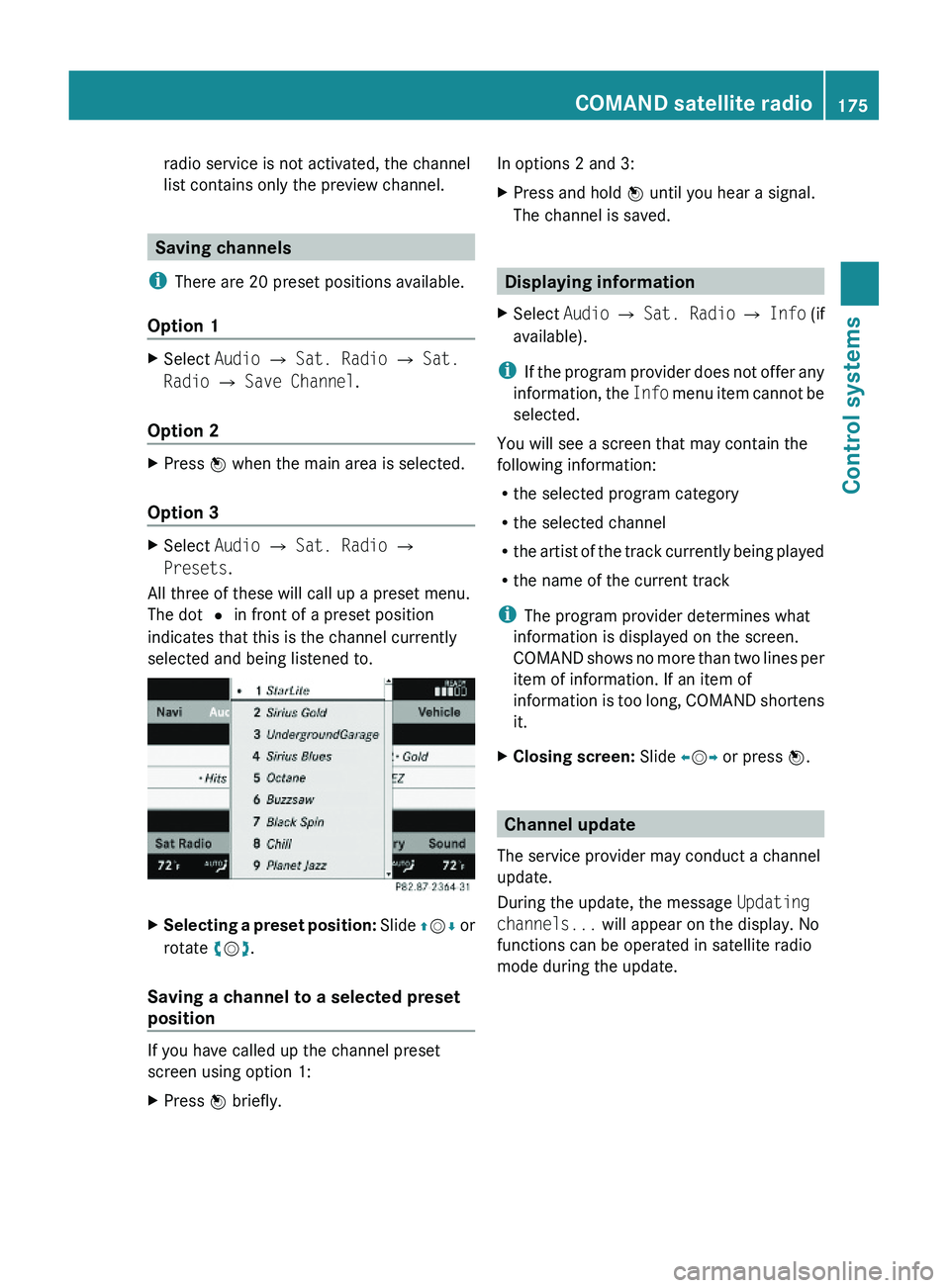
radio service is not activated, the channel
list contains only the preview channel.
Saving channels
iThere are 20 preset positions available.
Option 1
XSelect Audio \000T Sat. Radio \000T Sat.
Radio \000T Save Channel.
Option 2
XPress \000