reset MERCEDES-BENZ S CLASS 2010 Owner's Manual
[x] Cancel search | Manufacturer: MERCEDES-BENZ, Model Year: 2010, Model line: S CLASS, Model: MERCEDES-BENZ S CLASS 2010Pages: 548, PDF Size: 11.45 MB
Page 192 of 548
RForward and Rewind as well as Skipping
tracks
RSelecting the DVD menu and moving within
that menu
RChanging language, subtitles and camera
angle
RCalling up interactive DVD contents
The following functions will be applied to one
screen only:
RChanging audio, video and screen settings
RSwitching between full screen, menu
system and control menu
Switching between main functions
By selecting the main functions you set the
playback options of the various audio and
video sources.
Main functionDiscPlayback with rear
CD/DVD drive
COMANDPlayback with
COMAND System
AuxPlayback with an
external device
connected in the
rear
SystemMenu for basic
settings
When exiting a main function, the settings are
saved. When calling up again the function
later the following is possible:
RThe main function is already running on
both screens.
RThe main function does not run on the other
screen.
In the first case, the main function appears
the way it is already displayed on the other
screen.
In the second case, the setting at which you
have exited the main function the last time
appears.
Inserting/ejecting CDs and DVDs
Loading or ejecting a disc is only displayed on
the screen on which the main function Disc
is selected. Storage of the current settings for
both screens are reset to the original settings.
Simultaneous usage of COMAND and
the Rear Seat Entertainment System
Adopting the audio signal from Rear
Seat Entertainment System for front
passenger
You can transmit the audio signal of the CD/
DVD drive of the Rear Seat Entertainment
System to the headphone of the front
passenger. The volume is adjusted on the
headphone. The audio signal is transmitted to
the COMAND when the main function Disc is
selected on either rear screen. When the
main function Disc is not selected on at least
one rear screen, the audio signal is not
transmitted to the COMAND.
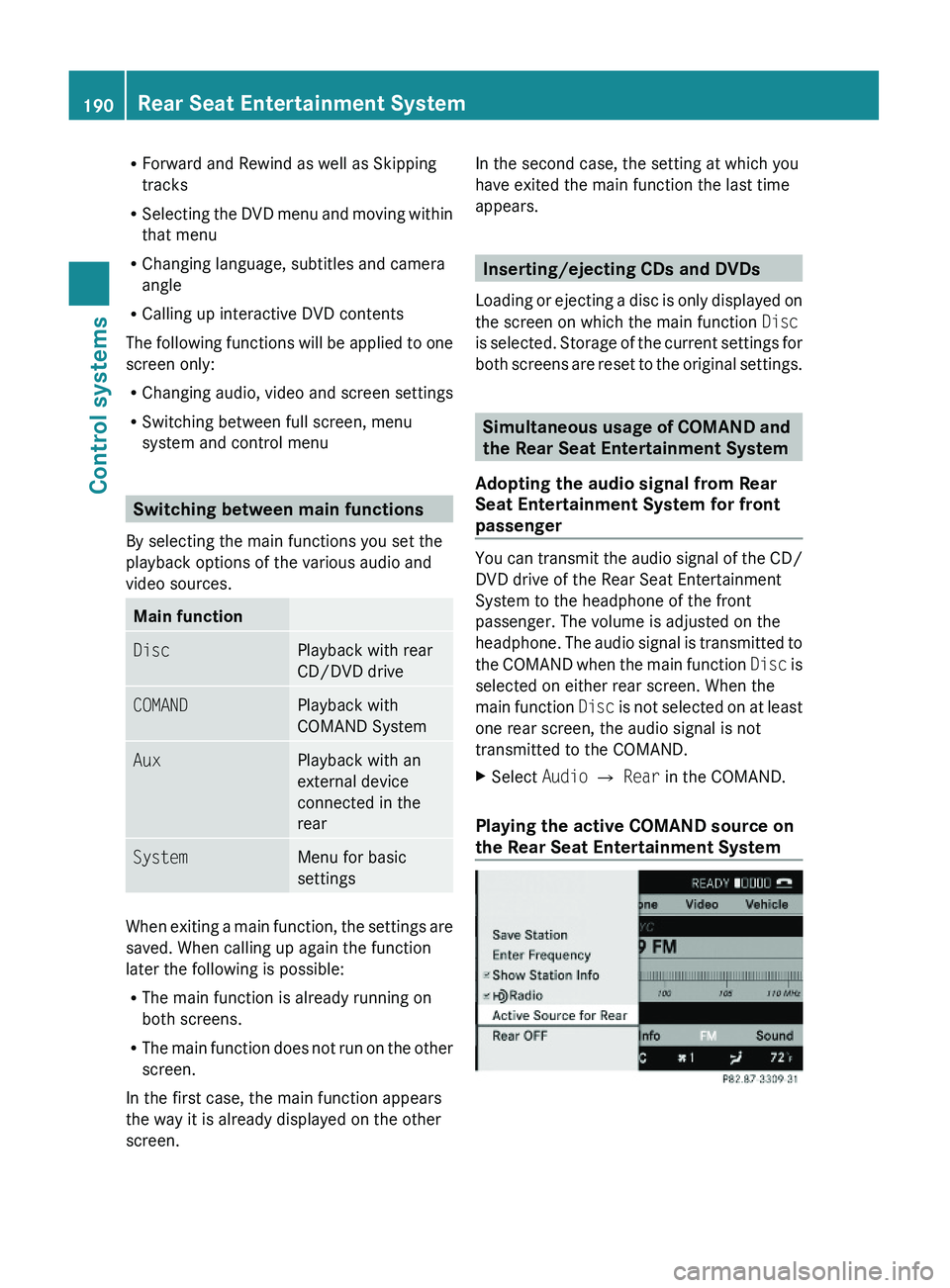
XSelect Audio \000T Rear in the COMAND.
Playing the active COMAND source on
the Rear Seat Entertainment System
190Rear Seat Entertainment SystemControl systems
221_AKB; 6; 20, en-USd2ugruen,Version: 2.11.8.12009-09-24T13:28:17+02:00 - Seite 190
Page 226 of 548
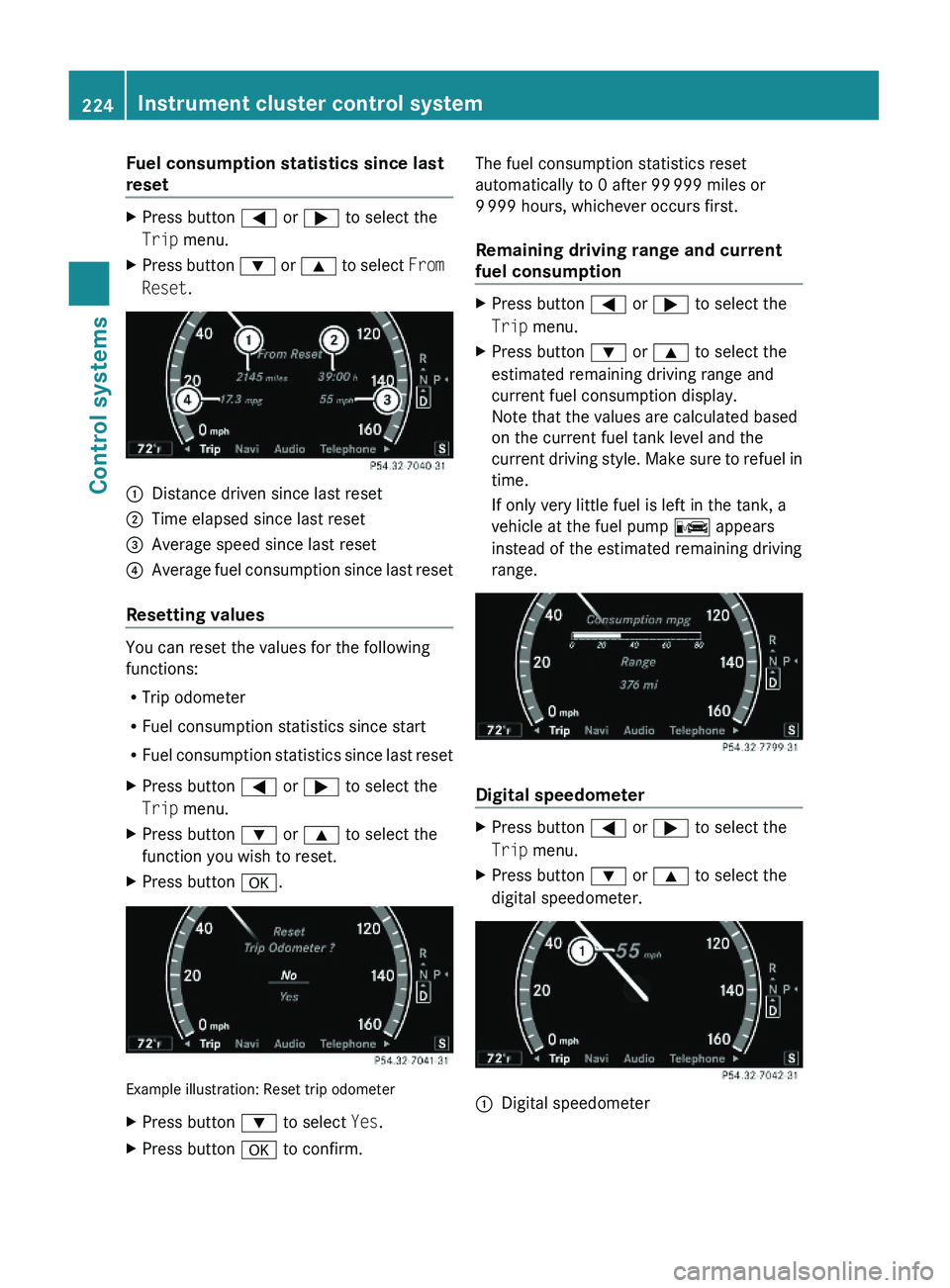
Fuel consumption statistics since last
reset
XPress button \000@ or \000> to select the
Trip menu.
XPress button \000= or \000< to select From
Reset.
\000FDistance driven since last reset\000GTime elapsed since last reset\000
Page 254 of 548
iThe list is displayed only when the
address book contains a very small number
of entries. When the address book contains
several entries, the Voice Control System
prompts you to speak a name.
You can also use the commands “Open
John Smith”, “Open Smith John”, or “Open
entry directly.
Voice Control System radio
Safety notes
GWarning!
Please devote your attention first and
foremost to the traffic situation you are in.
Before your journey, please familiarize
yourself with the radio functions.
Only use the Voice Control System when road
and traffic conditions permit you to do so.
Otherwise you could be involved in an
accident in which you or others could be
injured.
Radio operation
You can use the Voice Control System to
R select a station
R find a station
R select a frequency (FM, AM)
R select a category (satellite radio)
R select the wave band (FM, AM or weather
band)
R reading out the Presets
R switch to satellite radio
R switch to HD Radio™
R save a voice name for a station
R delete a station list (voice names only)
R delete a station (voice name only)
R select a channel number (satellite radio)
The names of all received and stored stations
are available for voice recognition. To
improve voice recognition, you can store a
voice name for a specific speaker.XTo select the radio or satellite radio
application: Press button 0062 button on
the multifunction steering wheel.XSay the command “Radio” or “Satellite
Radio”.XPress button 0062.XSay one of the radio or satellite radio
commands explained below.
Radio commands
For a list of commands, see ( Y page 257).
You can always give the commands for the
radio when you are listening to the radio, even
if a different application is shown on the
display.
“Help Radio”
Using the “Help Radio” command, the Voice
Control System asks “For which radio
functions do you want help?”. It then reads
out a list of topics.
“Help Satellite Radio”
Using the “Help Satellite Radio” command,
the Voice Control System asks “For which
radio functions do you want help?”. It then
reads out a list of topics.
“Help HD Radio”
Using the “Help HD Radio” command, you can
have all the commands for the HD Radio™
read out.
252Voice Control System radioControl systems
221_AKB; 6; 20, en-USd2ugruen,Version: 2.11.8.12009-09-24T13:28:17+02:00 - Seite 252
Page 256 of 548
Sample dialog:009DFavorite station37
.
The Voice Control System sets the station.
“Select Category” (satellite radio)
Using the “Select category” command, you
can select an available category.
Sample dialog:
009DSelect category.009CPlease say the category name.009DNews.
The Voice Control System sets the category.
“Category News” (satellite radio)
Use this command to select a satellite radio
category.
Sample dialog:
009DCategory news.
The Voice Control System sets the category.
“Enter Channel Number” (satellite
radio)
Use the command “Enter channel number” to
select a satellite radio channel.
“List station list” and “Selecting a
Station” (FM only)
Using the “List station list” command, you
can hear the stored stations from the
Presets and you can choose one of them.
i If the Voice Control System does not
recognize the station name, have it read out
the list of stations. This allows you to check
whether you have saved the station you
require in the Presets.
Sample dialog:
009DList station list.
The Voice Control System reads out the
stored stations from the Presets.
To select a station:XPress button 0062, when the system reads
the desired station.XCanceling the dialog: Press button 0041.
The dialog is concluded. The system
confirms “Cancel”.
“Delete station”
You can use the “Delete station” command to
delete a voice name for a station from the
Presets .
Sample dialog:
009DDelete station.009CWhich station name do you want to
delete?009DFavorite station 37
.009CDo you want to delete Favorite
station 37
?009DYes.009CFavorite station 37
deleted.
“Delete station list”
You can use the “Delete station list”
command to delete all voice names or
individual ones from the stations of the
Presets .
Sample dialog:
009DDelete station list.009CDo you want to delete them all?009DYes.009CAre you sure you want to delete all
voice names?009DYes.009CAll voice names have been deleted
from the station list.
The system permanently deletes all voice
names in the Presets.
or
009CNo37 Example for a voice name.254Voice Control System radioControl systems
221_AKB; 6; 20, en-USd2ugruen,Version: 2.11.8.12009-09-24T13:28:17+02:00 - Seite 254
Page 257 of 548
The system reads out the list of stations.
When the system reads the station to be
deleted:XPress button 0062.
The station to be deleted is selected. The
system reads out the selected station
again.009CDo you want to delete “Favorite
Station 37
”?009DYes.009CStation deleted.
The system deletes the station and reads out
the remaining entries in the Presets.
or
009CNo.
The system continues reading the Presets
entry by entry.
“HD Radio on”, “HD Radio off”
Use “HD Radio on” or “HD Radio off” to switch
the HD Radio™ on or off.
“Sirius”
Use “Sirius” to switch to SIRIUS XM Satellite
Radio.
Voice Control System CD/DVD
changer/MP3
Safety notes
GWarning!
Please devote your attention first and
foremost to the traffic situation you are in.
Before your journey, please familiarize
yourself with the audio functions.
Only use the Voice Control System when road
and traffic conditions permit you to do so.
Otherwise you could be involved in an
accident in which you or others could be
injured.
Operation
You can use the Voice Control System to
R select a CD/DVD or another medium
R select a track
R select a folder in MP3 mode
R change the category when in media
interface mode
R select a group in audio DVD mode
R select a chapter or scene when in video
DVD mode
i Upon the command “Next/Previous CD/
DVD”, the DVD changer switches from one
CD/DVD to the next. It will skip empty
slots. When you select an empty slot using
the commands “CD/DVD 1” through “CD/
DVD 6”, the current slot remains selected.
i The following commands “DVD audio”,
“DVD video”, “Next/Previous CD/DVD”
and “CD/DVD 1” to “CD/DVD 6”, cause
the DVD changer to switch from one slot to
another, regardless of the type of medium
found in the selected slot. In your
command, you can therefore replace the
term “CD/DVD” with “Medium”.
Selecting CD/DVD modeXPress button 0062 on the multifunction
steering wheel.XSpeak one of the following commands:
R “CD player”
R “CD changer”
R “DVD audio”
R “DVD video”
R “Hard disk”
R “Memory card”
R “Media interface”
R “USB”
R “Music Register”37Example for a voice name.Voice Control System CD/DVD changer/MP3255Control systems221_AKB; 6; 20, en-USd2ugruen,Version: 2.11.8.12009-09-24T13:28:17+02:00 - Seite 255Z
Page 273 of 548
Voice Control System
individualization
i The individualization can only be
performed when the vehicle is stationary.
If you drive off, the individualization will be
canceled.
After starting the session, the system will
guide you through the individualization by
means of acoustic instructions.
The individualization is used to adapt the
Voice Control System to your own voice and
to therefore improve speech recognition. This
does not affect the speech recognition of
other users.
Individualization consists of two stages:
R Digits
R Commands
You can activate individualization in the
COMAND system settings ( Y page 93). A
dialog and screen displays will guide you
through the individualization process.
The system can be reset to the factory
settings at any time.
i You may wish to complete only a portion
of the individualization process.
Completing the digits portion alone may
result in an improved recognition rate.
Individualization can be exited at any time.
The data trained, however, will only be
retained if a given individualization portion
is completed and the data is stored when
prompted to do so by the system.Voice Control System individualization271Control systems221_AKB; 6; 20, en-USd2ugruen,Version: 2.11.8.12009-09-24T13:28:17+02:00 - Seite 271Z
Page 281 of 548
The doors are designed to unlock
automatically after an accident if the force of
the impact exceeds a preset threshold.
The vehicle locks automatically when the
ignition is switched on and the wheels are
turning at a vehicle speed of above 9 mph
(15 km/h). You could therefore lock yourself
out when the vehicle is pushed or towed or is
on a test stand.
Locking and unlocking from the inside
GObserve Safety notes, see page 56.
You can lock or unlock the vehicle from the
inside using the central locking or unlocking
switch. This can be useful, for example, if you
want to lock the vehicle before starting to
drive.
The central locking or unlocking switch does
not lock or unlock the fuel filler flap or the
interior storage compartments, such as the
glove box.
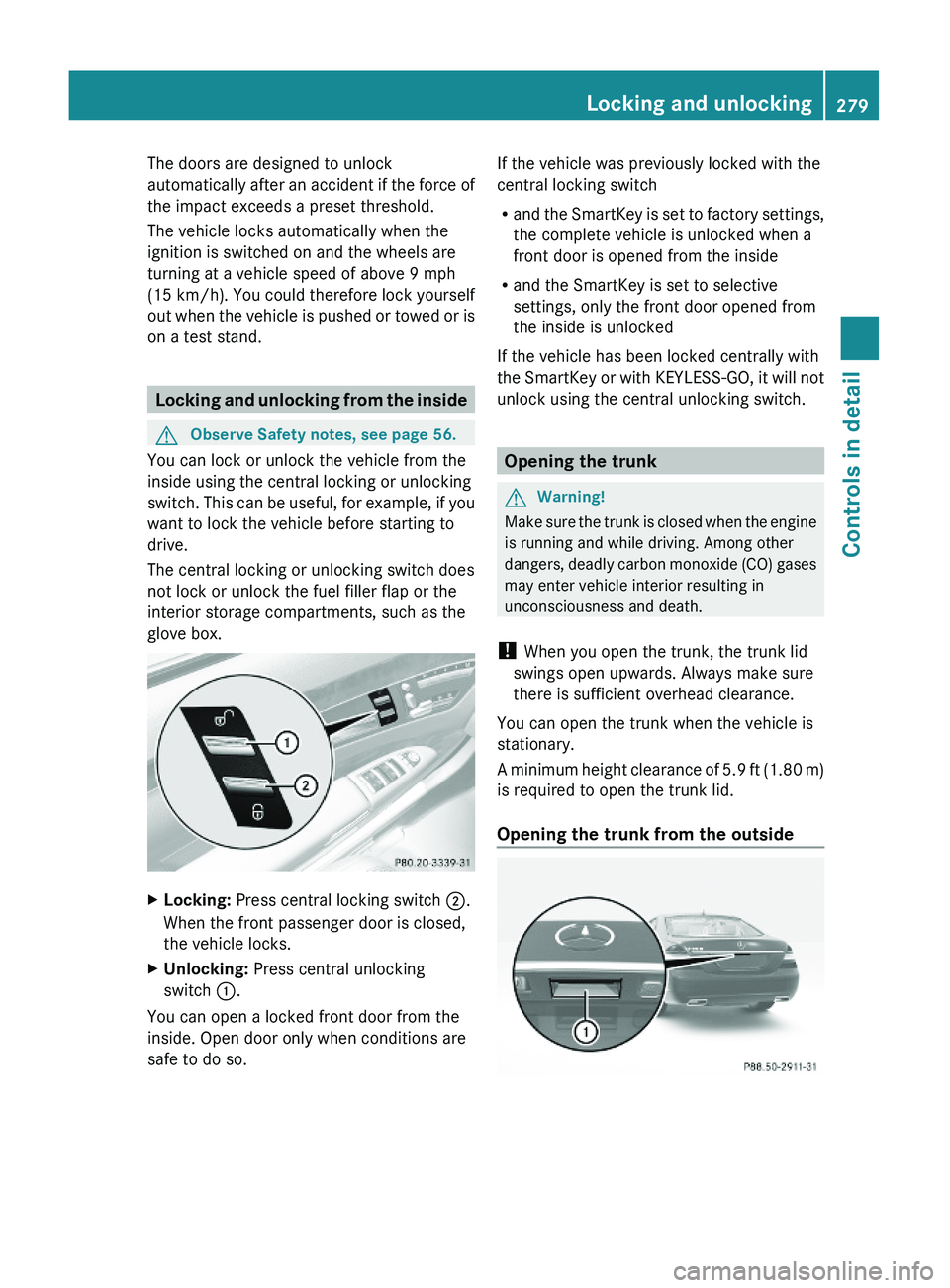
XLocking: Press central locking switch \000G.
When the front passenger door is closed,
the vehicle locks.
XUnlocking: Press central unlocking
switch \000F.
You can open a locked front door from the
inside. Open door only when conditions are
safe to do so.
If the vehicle was previously locked with the
central locking switch
Rand the SmartKey is set to factory settings,
the complete vehicle is unlocked when a
front door is opened from the inside
Rand the SmartKey is set to selective
settings, only the front door opened from
the inside is unlocked
If the vehicle has been locked centrally with
the SmartKey or with KEYLESS-GO, it will not
unlock using the central unlocking switch.
Opening the trunk
GWarning!
Make sure the trunk is closed when the engine
is running and while driving. Among other
dangers, deadly carbon monoxide (CO) gases
may enter vehicle interior resulting in
unconsciousness and death.
! When you open the trunk, the trunk lid
swings open upwards. Always make sure
there is sufficient overhead clearance.
You can open the trunk when the vehicle is
stationary.
A minimum height clearance of 5.9 ft (1.80 m)
is required to open the trunk lid.
Opening the trunk from the outside
Locking and unlocking279Controls in detail221_AKB; 6; 20, en-USd2ugruen,Version: 2.11.8.12009-09-24T13:28:17+02:00 - Seite 279Z
Page 305 of 548
right turn signals will operate when the
ignition is switched on.XSwitching off: Press hazard warning
flasher switch 0046 again.
i
If the hazard warning flasher was
activated automatically, press hazard
warning flasher switch 0046 to switch it off.
S 600 and S 65 AMG (USA only):
When the hazard warning flasher was
activated by a hard stop automatically, it
will be switched off automatically at a
vehicle speed of above 6 mph (10 km/h).
Headlamp cleaning system
The headlamps will be cleaned with a high-
pressure water jet automatically when the
engine is running and you have
R switched on the headlamps
and
R the windshield wipers have wiped the
windshield with washer fluid five times
The counter resets when you switch off the
ignition.
For information on filling up the washer
reservoir, see “Washer system and headlamp
cleaning system” ( Y page 409).
Corner-illuminating lamps
The corner-illuminating lamps improve
illumination of the area in the direction into
which you are turning.
The corner-illuminating lamps will only
operate in low ambient lighting conditions.
If you are driving faster than 25 mph
(40 km/h) the corner-illuminating function is
not available.
Switching onXMake sure the engine is running.XTurn the exterior lamp switch to position
0064 or 0066 (Y page 298).
or
XActivate the daytime running lamp mode
( Y page 299).XSwitch on the left or right turn signal,
depending on whether you are turning left
or right.
The respective corner-illuminating lamp
comes on. If you have switched on the turn
signal for one side but turn the steering
wheel in the other direction, the corner-
illuminating lamp comes on on the side of
the turn signal.
or
XTurn steering wheel in desired direction.
Driving forward: The corner-illuminating
lamp on the side of your steering direction
comes on.
Driving in reverse: The corner-illuminating
lamp opposite to your steering direction
comes on.
The corner-illuminating lamps will come on
automatically depending on the steering
angle, even if you did not switch on either turn
signal. If the corner-illuminating lamps came
on automatically, they will also go out
automatically depending on the steering
angle and vehicle speed.
The corner-illuminating lamps temporarily
come on on both sides of the vehicle if you
turn the steering wheel in one direction and
then again in the other direction shortly
thereafter.
The corner-illuminating lamp remains lit for a
short time only. It then goes out
automatically.
Lighting303Controls in detail221_AKB; 6; 20, en-USd2ugruen,Version: 2.11.8.12009-09-24T13:28:17+02:00 - Seite 303Z
Page 330 of 548
The driving safety systems ABS, Adaptive
Brake, Adaptive Brake Lights, BAS, BAS
PLUS, EBP, ESC and PRE-SAFE® Brake are
described in the “Safety and security” section
(Y page 63).
Cruise control
The cruise control maintains the speed you
set for your vehicle automatically.
The use of the cruise control is recommended
for driving at a constant speed for extended
periods of time.
The currently set speed or last set speed
(“Resume” function) appears in the
multifunction display for approximately
5 seconds. The set speed is shown by a
triangle in the speedometer and the
corresponding speedometer segments from
the selected speed to the vehicle maximum
speed in the multifunction display are
illuminated.
GWarning!
The cruise control is a convenience system
designed to assist the driver during vehicle
operation. The driver is and must always
remain responsible for the vehicle’s speed
and for safe brake operation.
Only use the cruise control if the road, traffic,
and weather conditions make it advisable to
travel at a constant speed.
RThe use of the cruise control can be
dangerous on winding roads or in heavy
traffic because conditions do not allow safe
driving at a constant speed.
RThe use of the cruise control can be
dangerous on slippery roads. Rapid
changes in tire traction can result in wheel
spin and loss of control.
RDeactivate the cruise control when driving
in fog.
The “Resume” function should only be
operated if the driver is fully aware of the
previously set speed and wishes to resume
this particular preset speed.
GWarning!
When the cruise control is braking, the brake
pedal is retracted (i.e. depressed
automatically). The pedals’ range of motion
must not be impeded by any obstacles:
RDo not place any objects in the footwell.
RMake sure that the floormats and carpets
are securely in place.
RDo not rest your foot underneath the brake
pedal, as it could otherwise be trapped.
You could otherwise cause an accident and
injure yourself and/or others.
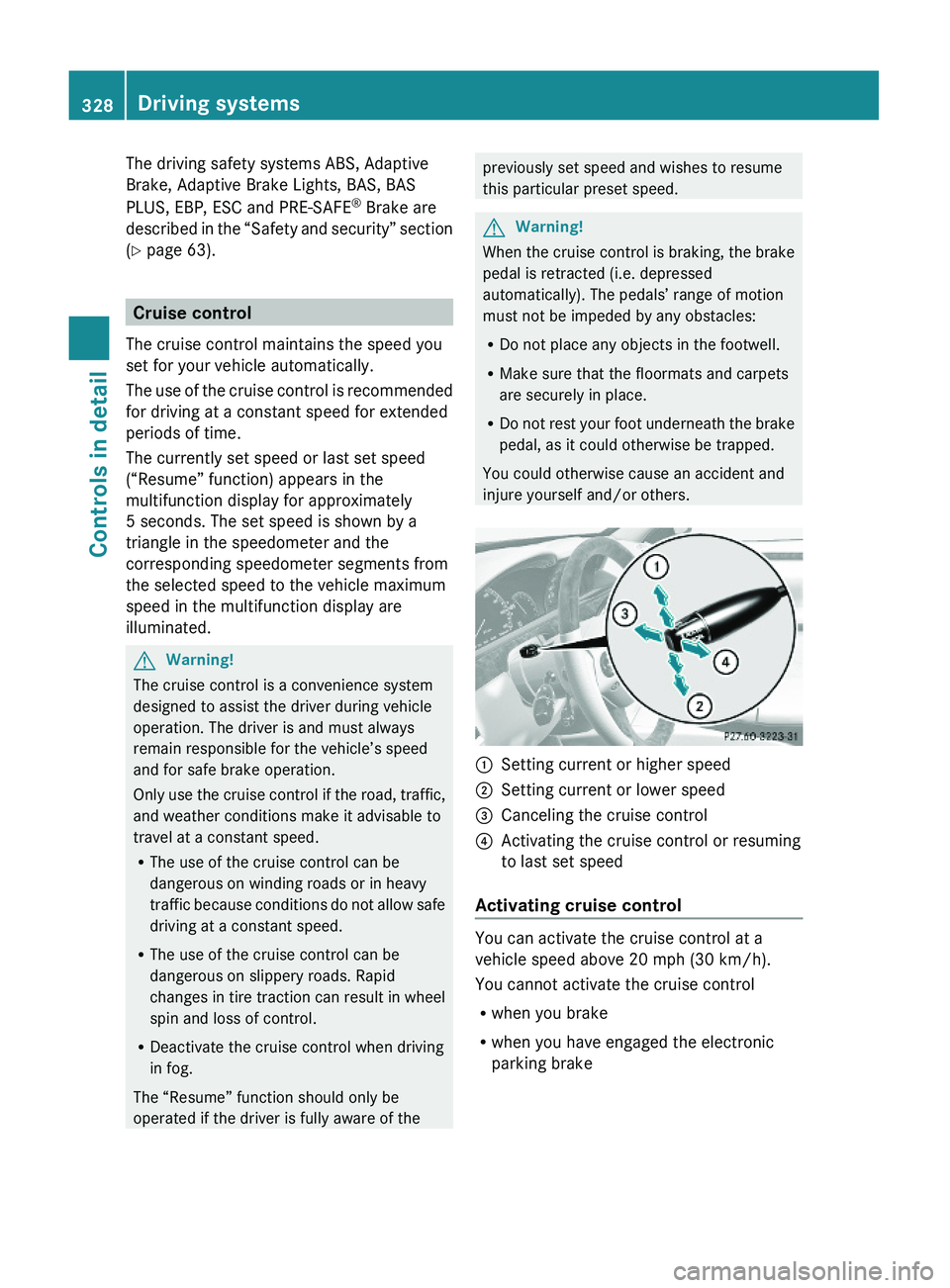
\000FSetting current or higher speed \000GSetting current or lower speed\000
Page 332 of 548
Adjustment in 1 mph (Canada:
1 km/h) increments
i The set speed value is increased or
decreased in 1 mph (Canada: 1 km/h)
increments each time you lift or press the
cruise control lever up or down to the
resistance point.XIncreasing: Briefly lift the cruise control
lever up to the resistance point in direction
of arrow 0046.XDecreasing: Briefly press the cruise
control lever down to the resistance point
in direction of arrow 0047.XRelease the cruise control lever.
The new speed is set and the vehicle will
accelerate or decelerate.
Adjustment in 5 mph (Canada:
10 km/h) increments
i The set speed value is increased or
decreased in 5 mph (Canada: 10 km/h)
increments each time you lift or press the
cruise control lever up or down past the
resistance point.
XIncreasing: Briefly lift the cruise control
lever up past the resistance point in
direction of arrow 0046.XDecreasing: Briefly press the cruise
control lever down past the resistance
point in direction of arrow 0047.XRelease the cruise control lever.
The new speed is set and the vehicle will
accelerate or decelerate. Keep in mind that
it may take a brief moment until the vehicle
has reached the set speed.
Setting stored speed (Resume
function)
GWarning!
The set speed stored in memory should only
be set again if prevailing road conditions and
legal speed limits permit. Possible
acceleration or deceleration differences
arising from returning to the preset speed
could cause an accident and/or serious injury
to you and others.XBriefly pull the cruise control lever in
direction of arrow 0088.
If no speed is stored, the current speed is
set and stored.XRemove your foot from the accelerator
pedal.
The last stored speed is deleted from memory
when the engine is turned off.
DISTRONIC PLUS
Safety notes
When activated, the DISTRONIC PLUS
adaptive cruise control system increases the
driving convenience afforded by the cruise
control while traveling on expressways and
other major roadways.
R If the DISTRONIC PLUS distance sensor
detects a slower moving vehicle directly
ahead, your vehicle speed will be reduced
so that you follow that vehicle at your
preset following distance.
R If there is no vehicle directly ahead of you,
the DISTRONIC PLUS will function in the
same way as standard cruise control
( Y page 328).
GWarning!
The DISTRONIC PLUS requires familiarity with
its operational characteristics. We strongly
recommend that you review the following
information carefully before operating the
system.
GWarning!
HYBRID vehicles: It is imperative that you read
the HYBRID Supplemental Operating
Instructions included in your vehicle literature
portfolio. You may otherwise not receive all
necessary safety information and warning for
the operation of your vehicle.
330Driving systemsControls in detail
221_AKB; 6; 20, en-USd2ugruen,Version: 2.11.8.12009-09-24T13:28:17+02:00 - Seite 330