display MERCEDES-BENZ S CLASS 2010 Owner's Manual
[x] Cancel search | Manufacturer: MERCEDES-BENZ, Model Year: 2010, Model line: S CLASS, Model: MERCEDES-BENZ S CLASS 2010Pages: 548, PDF Size: 11.45 MB
Page 65 of 548
Driving safety systems
Introduction
This section contains information about the
following driving safety systems:
R ABS (
Antilock Brake System)
R Adaptive Brake
R Adaptive Brake Lights
R BAS (
Brake Assist System)
R BAS PLUS (
Brake Assist System PLUS)
R EBP (
Electronic Brake Proportioning)
R ESC (
Electronic Stability Control)
R PRE-SAFE ®
Brake (
Preventive Occupant
Safety System Brake)
i In winter operation, the maximum
effectiveness of most of the driving
systems described in this section is only
achieved with winter tires, or snow chains
as required.
Safety notes
GWarning!
The following factors increase the risk of
accidents:
R Excessive speed, especially in turns
R Wet and slippery road surfaces
R Following another vehicle too closely
The driving safety systems described in this
section cannot reduce these risks or prevent
the natural laws of physics from acting on the
vehicle. They cannot increase braking or
steering efficiency beyond that afforded by
the condition of the vehicle brakes and tires
or the traction afforded.
Only a safe, attentive, and skillful driver can
prevent accidents.
The capabilities of a vehicle equipped with the
driving safety systems described in this
section must never be exploited in a reckless
or dangerous manner which could jeopardize
the user’s safety or the safety of others.
Always adjust your driving style to the
prevailing road and weather conditions and
keep a safe distance to other road users and
objects on the street.
If a driving system malfunctions, other driving
safety systems may also switch off. Observe
indicator and warning lamps that may come
on as well as messages in the multifunction
display that may appear.GWarning!
HYBRID vehicles: It is imperative that you read
the HYBRID Supplemental Operating
Instructions included in your vehicle literature
portfolio. You may otherwise not receive all
necessary safety information and warning for
the operation of your vehicle.
ABS
GObserve Safety notes, see page 63.GWarning!
Do not pump the brake pedal. Use firm, steady
brake pedal pressure instead. Pumping the
brake pedal defeats the purpose of the ABS
and significantly reduces braking
effectiveness.
The Antilock Brake System (ABS) regulates
the brake pressure so that the wheels do not
lock during braking. This allows you to
maintain the ability to steer your vehicle.
The ABS is functional above a speed of
approximately 5 mph (8 km/h) independent
of road surface conditions.
On slippery road surfaces, the ABS will
respond even to light brake pressure.
The ABS indicator lamp 0031 in the
instrument cluster comes on when you switch
on the ignition. It goes out when the engine
is running.
Driving safety systems63Safety and security221_AKB; 6; 20, en-USd2ugruen,Version: 2.11.8.12009-09-24T13:28:17+02:00 - Seite 63Z
Page 66 of 548
Braking
At the instant one of the wheels is about to
lock up, a slight pulsation can be felt in the
brake pedal. The pulsation indicates that the
ABS is in the regulating mode.
XKeep firm and steady pressure on the brake
pedal while you feel the pulsation.
Continuous, steady brake pedal pressure
yields the advantages provided by the ABS,
namely braking power and the ability to steer
the vehicle.
The pulsating brake pedal can be an
indication of hazardous road conditions and
functions as a reminder to take extra care
while driving.
Emergency brake maneuver
XKeep continuous full pressure on the brake
pedal.GWarning!
If the ABS malfunctions, other driving safety
systems such as the BAS or the ESC are also
switched off. Observe indicator and warning
lamps that may come on as well as messages
in the multifunction display that may appear.
If the ABS malfunctions, the wheels may lock
during hard braking, reducing steering
capability and extending the braking distance.
BAS
GObserve Safety notes, see page 63.
The Brake Assist System (BAS) operates in
emergency situations. If you apply the brakes
very quickly, the BAS provides full brake
boost automatically, thereby potentially
reducing the braking distance.
XApply continuous full braking pressure until
the emergency braking situation is over.
The ABS will prevent the wheels from
locking.When you release the brake pedal, the brakes
function again as normal. The BAS is then
deactivated.GWarning!
If the BAS malfunctions, the brake system still
functions, but without the additional brake
boost available that the BAS would normally
provide in an emergency braking maneuver.
Therefore, the braking distance may increase.
BAS PLUS
The Brake Assist System PLUS (BAS PLUS)
operates in emergency braking situations and
uses radar sensors to assess the traffic
situation. BAS PLUS assists you in braking at
speeds above approximately 20 mph
(30 km/h).
When traveling in Canada in a vehicle not
registered in Canada, you must switch off the
radar sensor system ( Y page 236). Canadian
law does not permit the use of the radar
sensor system for vehicles from outside of
Canada.
When you switch off the radar system, the
following functions are deactivated:
R BAS PLUS
R PRE-SAFE ®
Brake ( Y page 69)
R DISTRONIC PLUS ( Y page 330)
R Blind Spot Assist ( Y page 359)
GWarning!
BAS PLUS is a convenience system designed
to assist the driver during vehicle operation.
The responsibility for the vehicle speed and
the distance to the vehicle ahead, including
most importantly brake operation to assure
safe stopping distance, always remains with
the driver.
Always pay attention to traffic conditions
even while BAS PLUS is switched on.
Otherwise, you may not be able to recognize
dangerous situations until it is too late and
64Driving safety systemsSafety and security
221_AKB; 6; 20, en-USd2ugruen,Version: 2.11.8.12009-09-24T13:28:17+02:00 - Seite 64
Page 78 of 548
Vehicle equipment
i This Operator’s Manual describes all
features, standard or optional, potentially
available for your vehicle at the time of
purchase. Please be aware that your
vehicle might not be equipped with all
features described in this manual.
COMAND introduction
COMAND operating safety
COMAND (
Cockpit Management and Data
System) is an information and operating
center for vehicle sound and communications
systems. It includes the radio and navigation
system, as well as other optional equipment
(satellite radio, telephone, etc.).
GWarning!
Any alteration of electronic components or
software can cause malfunctions.
Radio, satellite radio, amplifier, CD/DVD
changer, navigation module, telephone and
Voice Control Systems are interconnected.
Therefore, if one of the components is not
operational, or has not been removed/
replaced properly, the function of other
components could be impaired.
Such conditions might seriously impair the
operating safety of your vehicle.
We recommend to have any service work on
electronic components carried out by an
authorized Mercedes-Benz Center.
GWarning!
In order to avoid distraction which could lead
to an accident, the driver should enter system
settings while the vehicle is at a standstill, and
operate the system only when permitted by
road, weather and traffic conditions.
Bear in mind that at a speed of just 30 mph
(approximately 50 km/h), your vehicle is
covering a distance of 44 feet (approximately
14 m) every second.
COMAND supplies you with information to
help you select your route more easily and
guide you conveniently and safely to your
destination. For safety reasons, we
encourage the driver to stop the vehicle in a
safe place before answering or placing a call,
or consulting the COMAND screen to read
navigational maps, instructions, or
downloaded information.GWarning!
While the navigation system provides
directional assistance, the driver must remain
focused on safe driving behavior, especially
attention to traffic and street signs, and
should utilize the system’s audio cues while
driving.
The navigation system does not supply any
information on stop signs, yield signs, traffic
regulations or traffic safety rules. Their
observance always remains in the driver’s
personal responsibility. Maps do not cover all
areas nor all routes within an area.
GWarning!
HYBRID vehicles: It is imperative that you read
the HYBRID Supplemental Operating
Instructions included in your vehicle literature
portfolio. You may otherwise not receive all
necessary safety information and warning for
the operation of your vehicle.
Availability of functions while the
vehicle is in motion
For safety reasons, certain COMAND
functions are not available while the vehicle
is in motion or they are only available to a
limited extent. You will notice this, for
example, by the fact that certain menu items
cannot be selected or that the COMAND
display shows a corresponding message.
76COMAND introductionControl systems
221_AKB; 6; 20, en-USd2ugruen,Version: 2.11.8.12009-09-24T13:28:17+02:00 - Seite 76
Page 81 of 548
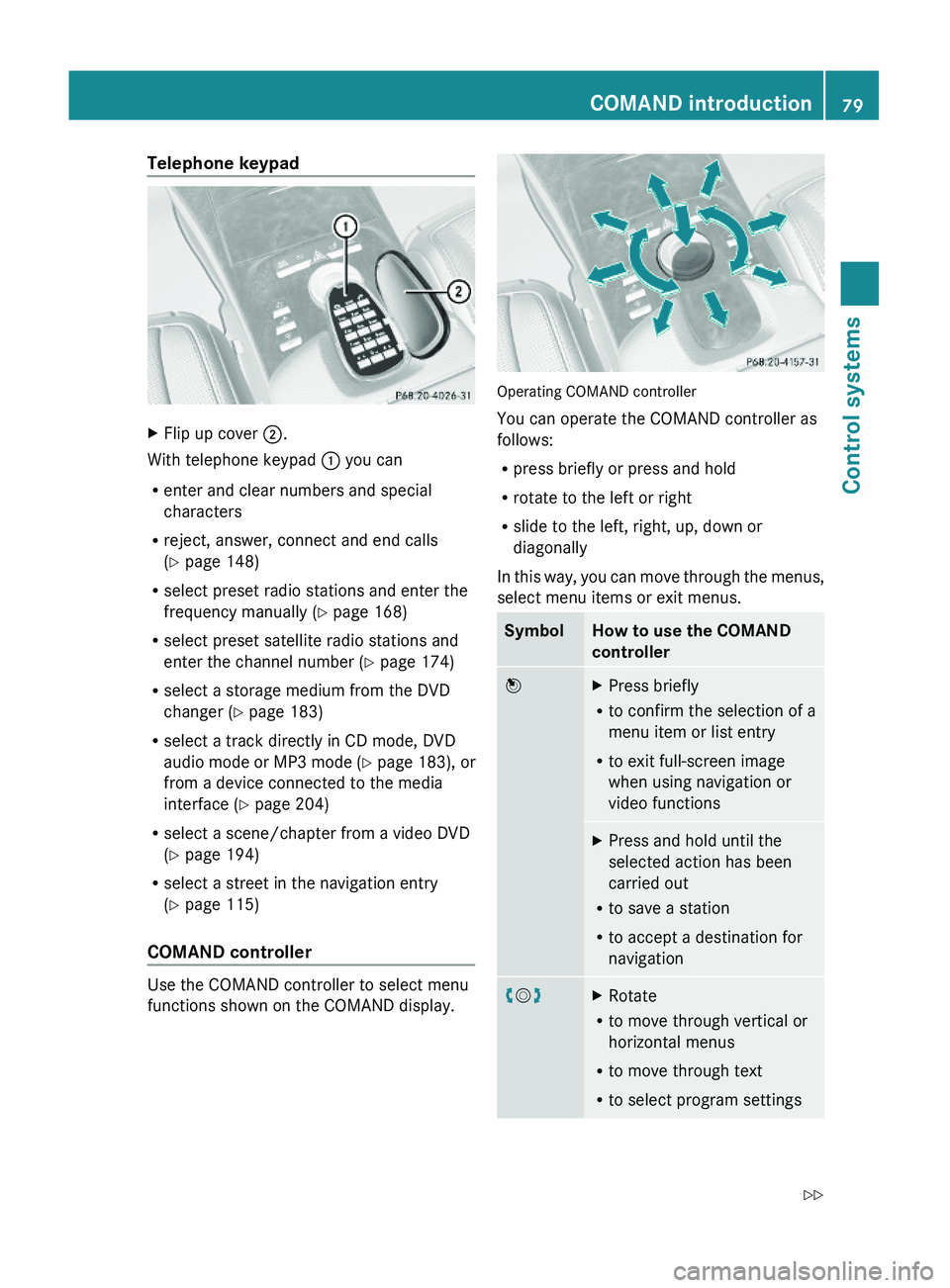
Telephone keypad XFlip up cover \000G.
With telephone keypad \000F you can
Renter and clear numbers and special
characters
Rreject, answer, connect and end calls
(Y page 148)
Rselect preset radio stations and enter the
frequency manually (Y page 168)
Rselect preset satellite radio stations and
enter the channel number (Y page 174)
Rselect a storage medium from the DVD
changer (Y page 183)
Rselect a track directly in CD mode, DVD
audio mode or MP3 mode (Y page 183), or
from a device connected to the media
interface (Y page 204)
Rselect a scene/chapter from a video DVD
(Y page 194)
Rselect a street in the navigation entry
(Y page 115)
COMAND controller
Use the COMAND controller to select menu
functions shown on the COMAND display.
Operating COMAND controller
You can operate the COMAND controller as
follows:
Rpress briefly or press and hold
Rrotate to the left or right
Rslide to the left, right, up, down or
diagonally
In this way, you can move through the menus,
select menu items or exit menus.
SymbolHow to use the COMAND
controller
\000
Page 92 of 548
R3-D sound does not work for mono-signal
sources, such as on analog AM radio or
in Weather Band.
R In the event of poor radio reception
quality, e.g. inside a tunnel, you should
switch off Logic 7 ®
, as a dynamic switch
from Stereo to Mono could occur,
resulting in temporary sound distortion.
R With some stereo recordings, the
resulting sound may deviate from
conventional stereo playback.
Switching the audio/video source off/
on
i When you load a CD or DVD, the audio or
video source is activated automatically.
Active audio source
XSwitching off: Select Audio 0054 Audio
OFF .
Playback is paused and the audio source is
switched off; Audio OFF appears in the
COMAND display.XSwitching on: Select Audio, then the
desired audio source.
or
XLoad a CD/DVD ( Y page 179) or an SD
card ( Y page 180).
or
XConnect a USB storage device
( Y page 80) or media interface device
( Y page 200) to COMAND.
Active video source
XSwitching off: Select Video 0054 Video
OFF .
The audio source is switched off; Video
OFF appears in the COMAND display.XSwitching on: Select Video, then the
desired video source.
or
XLoad a DVD ( Y page 179).SPLITVIEW
SPLITVIEW enables the driver and front
passenger to use separate COMAND
functions at the same time. Two different
displays appear in the COMAND screen. For
example, a Navigation display is only viewable
form the driver’s seat while a DVD Video
display is only viewable from the front
passenger’s seat.
COMAND is operated via SPLITVIEW from the
front passenger seat using the SPLITVIEW
remote control and the special wireless,
infrared headphone. You may also use a wired
headphone via the 3.5 mm socket in the front
passenger footwell.
For information about using the remote
control, see ( Y page 81).
For information about using the headphone,
see ( Y page 82).
Depending on the production date of your
vehicle, it may be equipped with SPLITVIEW.
At the time of this printing, the use of
SPLITVIEW is NOT allowed in the following US
states (AL, AZ, CO, IL, LA, MA, MD, NH, PA,
VA, VT, WA, WI, and WV) or Canadian
provinces (Manitoba, Newfoundland, New
Brunswick, and Prince Edward Island).
SPLITVIEW must NOT be operated in these
states or provinces. The driver is responsible
for observing ALL local statutory provisions.
If your vehicle is registered in a non-approved
state or province, then the feature will need
to be deactivated. Contact your authorized
Mercedes-Benz dealer to verify if SPLITVIEW
is allowed in your state or province.
Notes
R The audio volume of the wireless
headphone for the front passenger side
must be adjusted on the headphone
directly. The audio volume of a wired
headphone can be adjusted via the remote
90COMAND introductionControl systems
221_AKB; 6; 20, en-USd2ugruen,Version: 2.11.8.12009-09-24T13:28:17+02:00 - Seite 90
Page 93 of 548
control. Make sure the volume is not set
too high before putting on a headphone.
RThe DVD changer can playback only one
media source at a time. Example: if the
driver is playing an audio CD, the front
passenger can not play a different medium
(e.g. DVD video) from the DVD changer.
However, it is possible for the front
passenger to play media from radio,
memory card, MUSIC REGISTER, media
interface, USB, AUX or Rear Seat
Entertainment System.
RWhen driver and front passenger are using
the same medium, each can select
individual settings for that medium.
RCOMAND transmits music and voice to the
wireless headphone for the front passenger
side via infrared signal. The headphone and
the display must have visual contact. This
provides best possible transmission of the
infrared signal to the headphone. Please
note that the headphone has a left and right
side and must be used accordingly.
RWhen SPLITVIEW is on, the front passenger
can operate audio or video functions only.
RThe multifunction steering wheel lets you
operate functions for the driver’s side only.
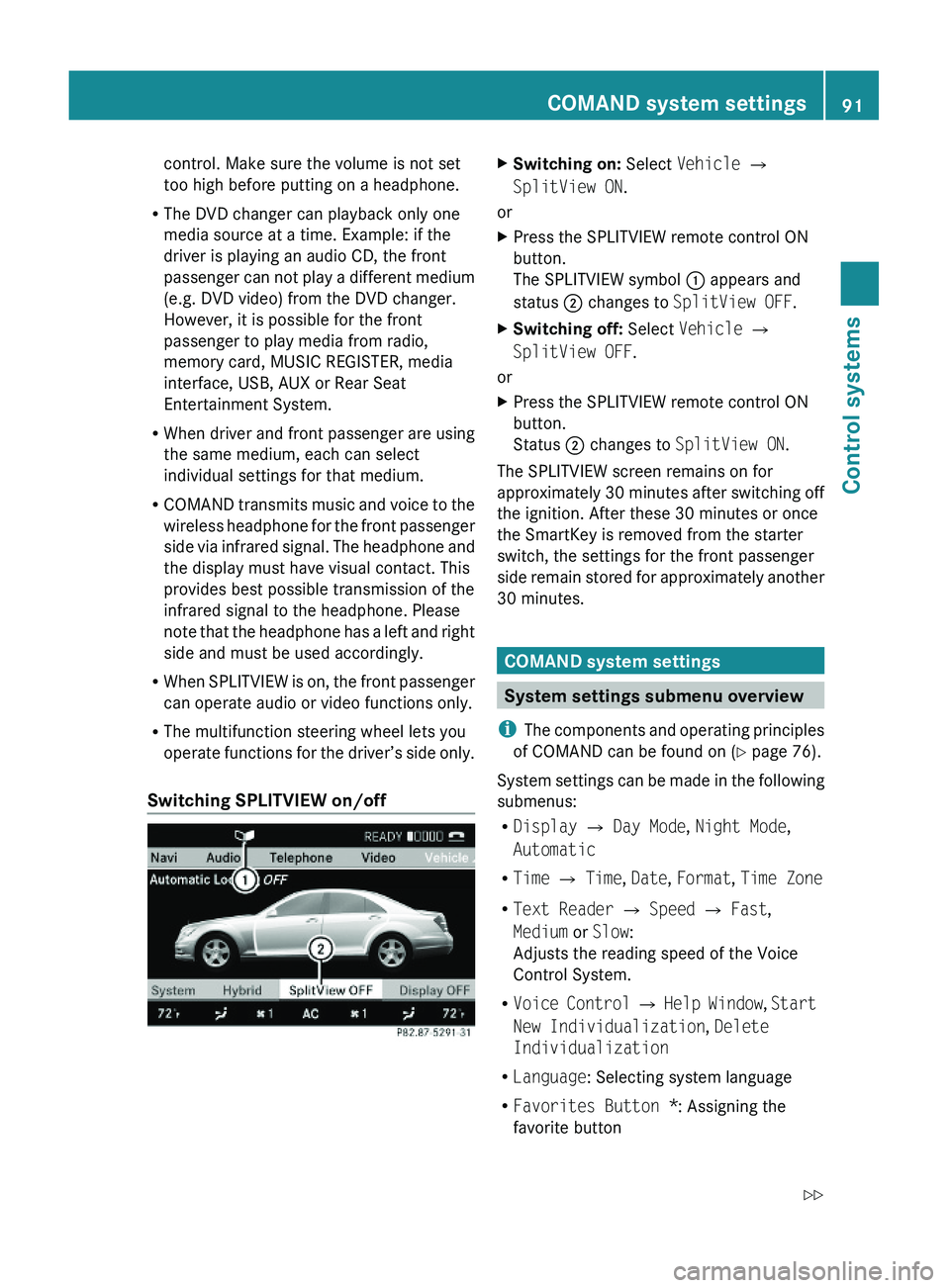
Switching SPLITVIEW on/off
XSwitching on: Select Vehicle \000T
SplitView ON.
or
XPress the SPLITVIEW remote control ON
button.
The SPLITVIEW symbol \000F appears and
status \000G changes to SplitView OFF.
XSwitching off: Select Vehicle \000T
SplitView OFF.
or
XPress the SPLITVIEW remote control ON
button.
Status \000G changes to SplitView ON.
The SPLITVIEW screen remains on for
approximately 30 minutes after switching off
the ignition. After these 30 minutes or once
the SmartKey is removed from the starter
switch, the settings for the front passenger
side remain stored for approximately another
30 minutes.
COMAND system settings
System settings submenu overview
iThe components and operating principles
of COMAND can be found on (Y page 76).
System settings can be made in the following
submenus:
RDisplay \000T Day Mode, Night Mode,
Automatic
RTime \000T Time, Date, Format, Time Zone
RText Reader \000T Speed \000T Fast,
Medium or Slow:
Adjusts the reading speed of the Voice
Control System.
RVoice Control \000T Help Window, Start
New Individualization, Delete
Individualization
RLanguage: Selecting system language
RFavorites Button *: Assigning the
favorite button
COMAND system settings 91Control systems221_AKB; 6; 20, en-USd2ugruen,Version: 2.11.8.12009-09-24T13:28:17+02:00 - Seite 91Z
Page 94 of 548
RBluetooth \000T Search for Bluetooth
Devices, Bluetooth activated. For
information on the Bluetooth® interface
see (Y page 151).
RUpload/Download Data \000T Copy Data
to Storage Medium, Import Data from
Storage Medium (Y page 95)
RReset: Resetting the COMAND system to
factory settings
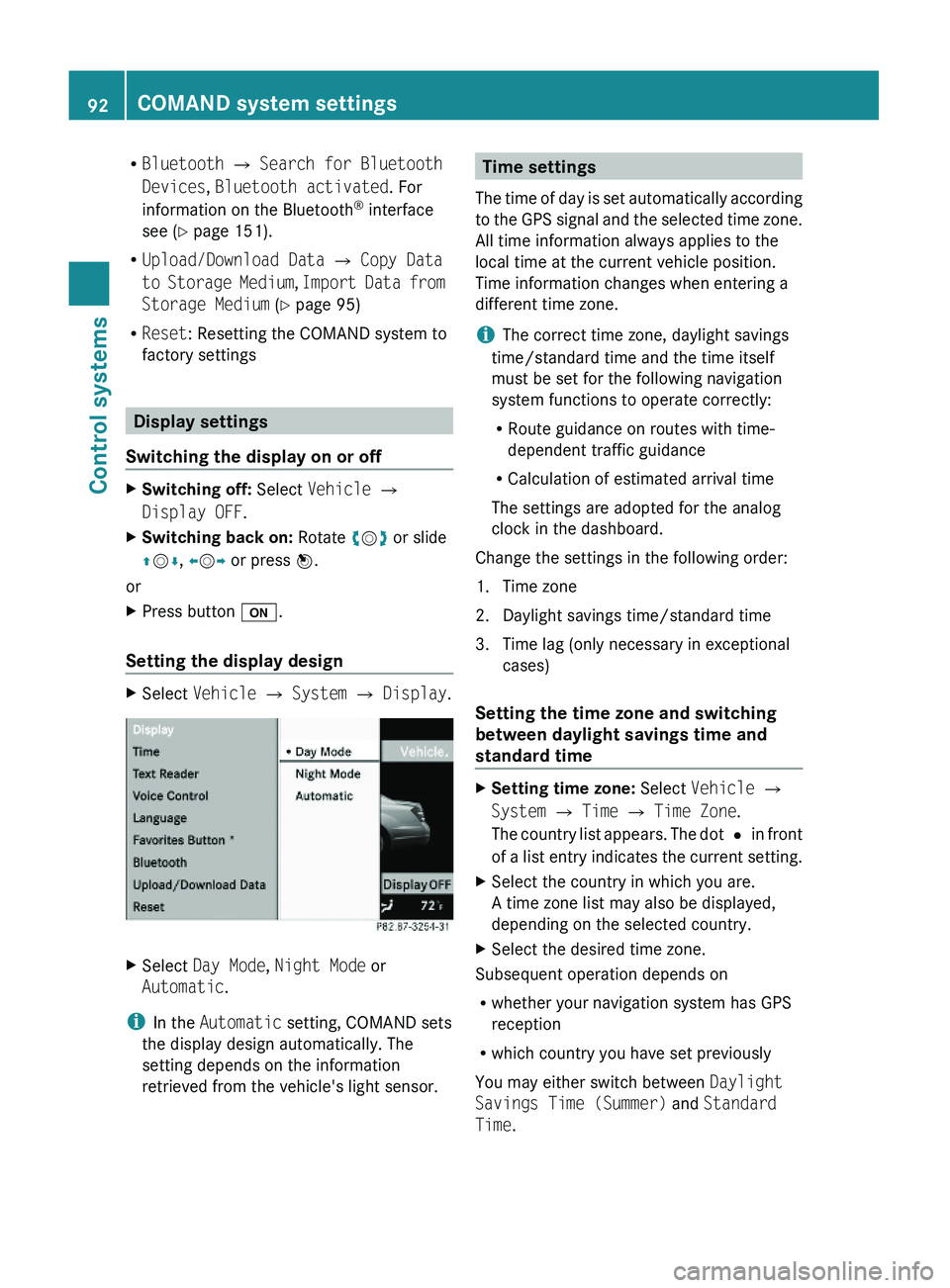
Display settings
Switching the display on or off
XSwitching off: Select Vehicle \000T
Display OFF.
XSwitching back on: Rotate \000
Page 95 of 548
XSelect Daylight Savings Time
(Summer) or Standard Time .
The dot 003F in front of a list entry indicates
the current setting.XSaving setting and exit the menu: Slide
009E 005B 009F.
Adjusting time lags
i
In some exceptional cases, e.g. where
time zones border, the displayed time and
the local time may show a time lag.
This time lag can be adjusted in steps of 30
minutes.
XSelect Vehicle 0054 System 0054 Time 0054
Time .XSelecting hour or minutes: Slide 009E005B 009F.XSetting value: Rotate 0082005B 0083 or slide 00A0005B 0050.XSaving setting: Press 00A1.
Setting the date
XSelect Vehicle 0054 System 0054 Time 0054
Date .XSelecting month, day, or year: Slide
009E 005B 009F.XSetting value: Rotate 0082005B 0083 or slide 00A0005B 0050.XSaving setting: Press 00A1.
i
Setting the date is only necessary or even
possible if the COMAND system does not
receive a GPS signal.
Setting the time/date format
XSelect Vehicle 0054 System 0054 Time 0054
Format .
The format list appears. The dots 003F in
front of the list entries indicate the current
setting.XChanging format setting: Select desired
format.XSaving setting and exit the menu: Slide
009E 005B 009F.Voice Control System settings
Switching help window on or offXSelect Vehicle 0054 System 0054 Voice
Control .XSelect Help Window .
A checkmark appears when the help
window is switched on.
Individualization
Using individualization, you can fine-tune the
Voice Control System to your own voice and
thus improve voice recognition. The ability of
the system to recognize the commands of
other users does not deteriorate as a result.
Individualization consists of two parts. You
train the system to recognize digits in the first
part and specific commands in the second
part.
Starting new individualization
i The vehicle must be stationary to start
individualization. After starting the session,
acoustic instructions will guide you through
the individualization.
XSelect Vehicle 0054 System 0054 Voice
Control 0054 Start New
Individualization .
A prompt appears asking whether you
would like further information.XSelect Yes or No.
If you select No, the first part of
individualization begins.
If you select Yes, an information display will
be shown with audio instruction.XClosing display: Select OK.
The first part of individualization begins.
At the end of the first part, you will see a
prompt asking whether you want to begin
the second part.XSelect Yes or No.
If you select No, individualization will be
canceled. The data from the first part is
saved automatically.COMAND system settings 93Control systems221_AKB; 6; 20, en-USd2ugruen,Version: 2.11.8.12009-09-24T13:28:17+02:00 - Seite 93Z
Page 98 of 548
COMAND may give incorrect navigation
commands if the data in the digital map does
not correspond with the actual road or traffic
situation. Maps do not cover all areas nor all
routes within an area. For example, if the
traffic routing has been changed or the
direction of a one-way road has been
reversed.
For this reason, you must always observe
applicable road and traffic rules and
regulations during your journey. Road and
traffic rules and regulations always have
priority over the navigation commands
generated by the system.GWarning!
Navigation announcements are intended to
direct you while driving without diverting your
attention from the road and driving.
Please always use navigation announcements
instead of consulting the map display for
directions. Consulting the symbols or map
display for directions may cause you to divert
your attention from driving and increase your
risk of an accident.
Map software
The digital maps generated by the map
software become outdated in the same way
as conventional road maps. Optimum route
guidance can only be provided by the
navigation system in conjunction with the
latest map software. Information about new
map software versions can be obtained from
an authorized Mercedes-Benz Center.
Displaying installed map version
XNavi 0054 Map Version
The installed map version is displayed.
For information on installing new map
software see ( Y page 96).
Installing the map software
Your vehicle is factory-equipped with map
software for the USA (including Alaska and
Hawaii), Canada, the U.S. Virgin Islands, and
Puerto Rico.
You can install new map software from one or
more DVDs, depending on the size of the map
software.
Copy protection of map software
COMAND map software is subject to charges.
The map software requires an activation
code. The map software can be used for one
individual vehicle only and is
non-transferrable. The six-digit activation
code is available at any authorized Mercedes-
Benz Center. Contact an authorized
Mercedes-Benz Center in case you have lost
your activation code or when the COMAND
system does not accept the activation code
you have received.
When reinstalling a map software that has
been installed in that vehicle already, an
activation code is not required.
Installation process
i The installation process can take
between 10 and 120 minutes, depending
on the size of the map software. If the radio
is switched on when you start the
installation process, you can still adjust the
volume. During the installation process,
some COMAND functions are suspended.
Still available are the COMAND functions
for automatic air conditioning operation
and canceling the installation process.
If possible, carry out the installation when
the vehicle is stationary. When the vehicle
is stationary, the reading rate of the DVD
drive is higher than in a moving vehicle and
the installation process requires less time.
GObserve Safety notes, see page 76.
i COMAND may switch off during the
installation process automatically in order
96COMAND navigation (introduction)Control systems
221_AKB; 6; 20, en-USd2ugruen,Version: 2.11.8.12009-09-24T13:28:17+02:00 - Seite 96
Page 99 of 548
to protect the battery. This may happen
when the engine is switched off and the
vehicle battery has insufficient power. If
this occurs, restart the installation with the
engine running. Similarly, if the SmartKey
position is unintentionally switched to 0,
restart the installation.GWarning!
Inhalation of exhaust gas is hazardous to your
health. All exhaust gas contains carbon
monoxide (CO), and inhaling it can cause
unconsciousness and lead to death. Do not
run the engine in confined areas (such as a
garage) which are not properly ventilated.
Installing
Notes about handling DVDs ( Y page 179).
XLoad the map software DVD into the DVD
changer ( Y page 179).
The COMAND system verifies the DVD and
a respective message appears in the
COMAND display.
Map software incompatible with
navigation system
A message indicates that installation of the
map software is not possible.
XConfirming message: Press 00A1.
The DVD is ejected.XRemove the DVD from the slot.XInsert a DVD that is compatible with the
navigation system of the vehicle.
Map software incompatible with the
current system software
A message indicates that the system
software and the map software are
incompatible.
XConfirming message: Press 00A1.
The DVD is ejected.XRemove the DVD from the slot.XHave the system software updated at an
authorized Mercedes-Benz Center.
The system software must be updated before
you can install the map software.
Map software compatible with
navigation software and current
system software
The COMAND system verifies whether the
map data on the DVD have been installed
already.
Map data installed already
A message that indicates that the map data
have been installed already appears. Also,
you are being asked if you would like to install
the map software anyhow.
XSelect Yes or No.
When you select Yes, the current map data
will be overwritten.
When you select No, the DVD will be ejected
automatically and the installation process
is cancelled.XRemove the DVD from the slot.
Map data not installed yet
The versions of the map software on the DVD
and of the installed map software appear in
the COMAND display. You are then asked if
you want to install the map software.
XSelect Yes or No.
When you select Yes, the map data will be
installed.
When you select No, the DVD will be ejected
automatically and the installation process
is cancelled.XRemove the DVD from the slot.
When an activation code is required, you will
be prompted to enter it.
COMAND navigation (introduction)97Control systems221_AKB; 6; 20, en-USd2ugruen,Version: 2.11.8.12009-09-24T13:28:17+02:00 - Seite 97Z