key MERCEDES-BENZ S CLASS 2010 Owner's Manual
[x] Cancel search | Manufacturer: MERCEDES-BENZ, Model Year: 2010, Model line: S CLASS, Model: MERCEDES-BENZ S CLASS 2010Pages: 548, PDF Size: 11.45 MB
Page 69 of 548
Because the ESC operates automatically,
the engine and ignition must be shut off
(SmartKey in starter switch position 0 or
1 or KEYLESS-GO start/stop button in
position 0 or 1) when the electronic parking
brake is being tested on a brake test
dynamometer.
Active braking action through the ESC may
otherwise seriously damage the brake
system which is not covered by the
Mercedes-Benz Limited Warranty.
! Vehicles without 4MATIC:
Because the ESC operates automatically,
the engine and ignition must be shut off
(SmartKey in starter switch position 0 or
1 or KEYLESS-GO start/stop button in
position 0 or 1) when the electronic parking
brake is being tested on a brake test
dynamometer or when the vehicle is being
towed with one axle raised.
Active braking action through the ESC may
otherwise seriously damage the brake
system which is not covered by the
Mercedes-Benz Limited Warranty.
! The ESC will only function properly if you
use wheels of the recommended tire size
as specified in the “Technical data” section
of this Operator’s Manual.
i The DISTRONIC PLUS and cruise control
switch off automatically when the ESC
engages.
Electronic Traction System
(ETS/4-ETS) GObserve Safety notes, see page 63.
The ETS (Electronic Traction System) and
4-ETS (four-wheel Electronic Traction
System, vehicles with 4MATIC only) are
components of the ESC. The ETS/4-ETS
improves the vehicle’s ability to utilize
available traction, especially under slippery
road conditions by applying the brakes to a
spinning wheel. Vehicles with 4MATIC also
transfer more power to the wheel(s) with
traction.
When you switch off the ESC, the
ETS/4-ETS is still enabled.
Switching off the ESC
Switching off the ESC (except S 63 AMG)
GWarning!
The ESC should not be switched off during
normal driving other than in the
circumstances described below. Disabling
the system will reduce vehicle stability in
driving maneuvers.
Do not switch off the ESC when a spare wheel
is mounted.
To improve the vehicle’s traction, switch off
the ESC. This allows the drive wheels to spin
and thus cut into surfaces for better grip, for
example
R when driving with snow chains
R in deep snow
R in sand or gravel
GWarning!
Switch on the ESC immediately if the
aforementioned circumstances do not apply
anymore. Otherwise the ESC will not stabilize
the vehicle when it is starting to skid or a
wheel is spinning.
When you switch off the ESC,
R the ESC does not stabilize the vehicle
R the engine output is not limited, which
allows the drive wheels to spin and thus cut
into surfaces for better grip
R the ETS/4-ETS will still apply the brakes to
a spinning wheel
R the ESC continues to operate when you are
braking
Driving safety systems67Safety and security221_AKB; 6; 20, en-USd2ugruen,Version: 2.11.8.12009-09-24T13:28:17+02:00 - Seite 67Z
Page 73 of 548
To maintain the proper distance to the vehicle
in front of you and thus prevent a rear-end
collision, you must apply the brakes yourself.XBrake the vehicle immediately to avoid a
collision.
Under no circumstances should the driver
await the intermittent warning sound
before braking. Observe the following
warning note.
The intermittent warning sound ceases and
the distance warning lamp 00BA goes out
when the necessary distance to the vehicle
ahead is again established.
The PRE-SAFE ®
Brake can react to stationary
obstacles such as standing or parked vehicles
at road speeds of up to approximately 40 mph
(70 km/h).
GWarning!
If you do not receive visual or acoustic
warning signals, the PRE-SAFE ®
Brake may
R not have recognized the collision risk
R have been deactivated
R be malfunctioning
Apply the brakes yourself to avoid a collision.
The PRE-SAFE ®
Brake does not always clearly
interpret complex traffic situations. If a visual
and/or acoustic warning is issued in an
uncritical driving situation, or if the vehicle
brakes lightly, you can interrupt the PRE-
SAFE ®
Brake maneuver by pressing down all
the way on the accelerator pedal, using
kickdown, or releasing the brake pedal.
The PRE-SAFE ®
Brake maneuver is
terminated immediately when
R you avoid the obstacle by evasive steering
R you drive less than 9 mph (15 km/h)
R an obstacle can no longer be identified
ahead of you
R the system no longer senses the risk of a
collision
i The PRE-SAFE ®
Brake will remain passive
while DISTRONIC PLUS is switched on
( Y page 330).
After a hard collision or damage to the front
of the vehicle from an accident, have the
settings and operation of the radar sensors
checked by an authorized Mercedes-Benz
Center.
When traveling in Canada in a vehicle not
registered in Canada, you must switch off the
radar sensor system ( Y page 236). Canadian
law does not permit the use of the radar
sensor system for vehicles from outside of
Canada.
When you switch off the radar system, the
following functions are deactivated:
R PRE-SAFE ®
Brake
R BAS PLUS ( Y page 64)
R DISTRONIC PLUS ( Y page 330)
R Blind Spot Assist ( Y page 359)XActivating and deactivating: Activate or
deactivate the PRE-SAFE ®
Brake using the
instrument cluster control system
( Y page 232).
After the function has been activated, the
PRE-SAFE ®
Brake indicator 00C7 appears
in the instrument cluster. When the HOLD
function is switched on, the PRE-SAFE ®
Brake indicator 00C7 will not appear.
Anti-theft systems
Immobilizer
The immobilizer prevents unauthorized
persons from starting your vehicle.
When leaving the vehicle, always take the
SmartKey with you and lock the vehicle. The
engine can be started by anyone with a valid
SmartKey that is left inside the vehicle.
Anti-theft systems71Safety and security221_AKB; 6; 20, en-USd2ugruen,Version: 2.11.8.12009-09-24T13:28:17+02:00 - Seite 71Z
Page 74 of 548
ActivatingXWith SmartKey: Remove the SmartKey
from the starter switch.
XWith KEYLESS-GO: Turn off the engine and
open the driver’s door.
Deactivating
XSwitch on the ignition.
iStarting the engine will also deactivate
the immobilizer.
In the event that the engine cannot be
started (yet the vehicle’s battery is
charged), the system is not operational.
Contact an authorized Mercedes-Benz
Center or call 1-800-FOR-MERCedes (in the
USA) or 1-800-387-0100 (in Canada).
Anti-theft alarm system
Once the alarm system has been armed, a
visual and audible alarm is triggered when
someone opens
Ra door
Rthe trunk
Rthe hood
The alarm will stay on even if the activating
element, a door, for example, is closed
immediately.
The alarm system will also be triggered when
Rthe vehicle is opened with the mechanical
key
Ra door is opened from the inside
To cancel the alarm after it has been
triggered, see “Canceling the alarm”
(Y page 73).
iIf the alarm stays on for more than
30 seconds, the Tele Aid system initiates a
call to the Customer Assistance Center
automatically. The Tele Aid system will
initiate the call provided that
Ryou have subscribed to the Tele Aid
service
Rthe Tele Aid service has been activated
properly
Rthe necessary mobile phone, power
supply and GPS coverage are available
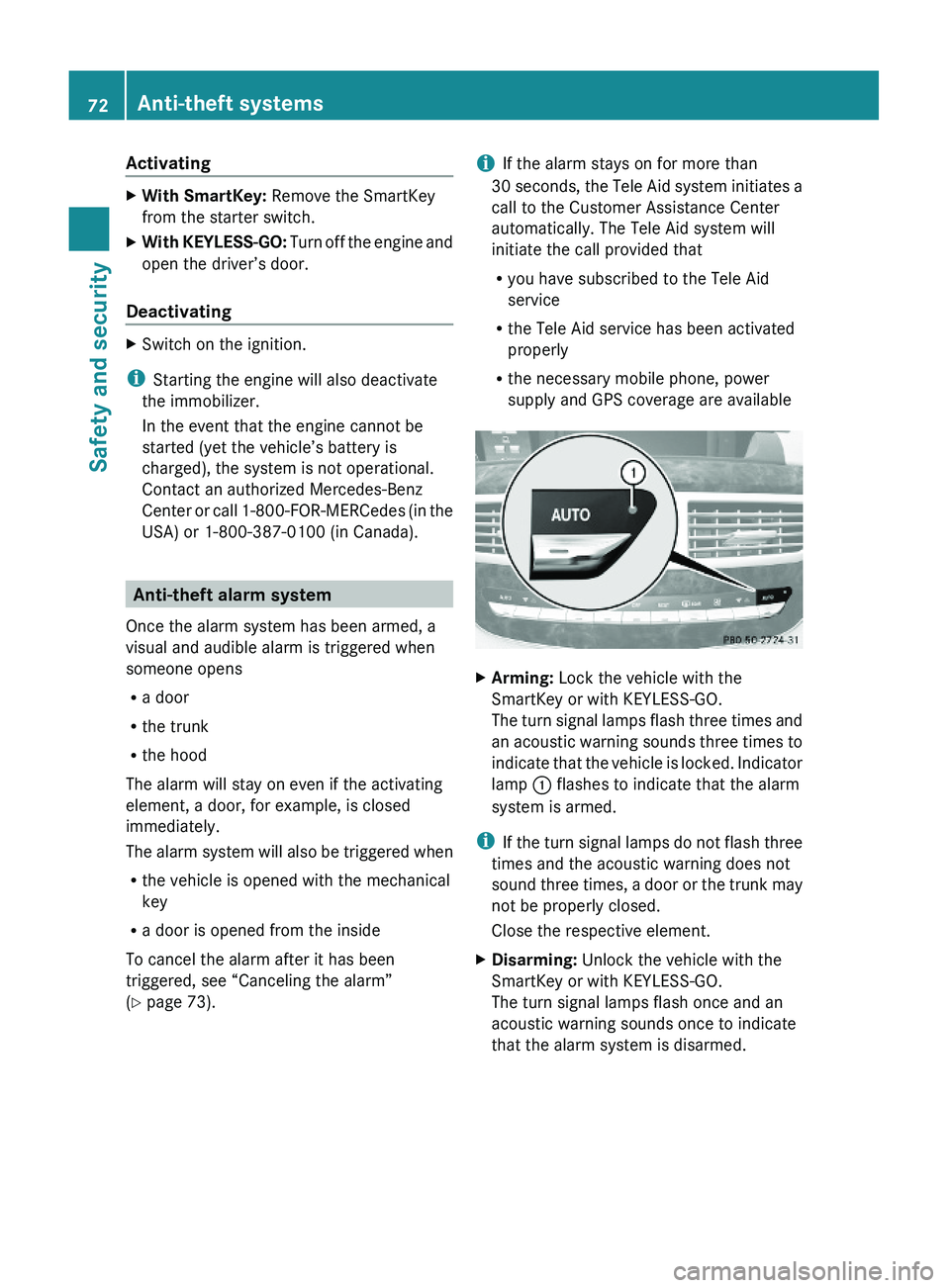
XArming: Lock the vehicle with the
SmartKey or with KEYLESS-GO.
The turn signal lamps flash three times and
an acoustic warning sounds three times to
indicate that the vehicle is locked. Indicator
lamp \000F flashes to indicate that the alarm
system is armed.
iIf the turn signal lamps do not flash three
times and the acoustic warning does not
sound three times, a door or the trunk may
not be properly closed.
Close the respective element.
XDisarming: Unlock the vehicle with the
SmartKey or with KEYLESS-GO.
The turn signal lamps flash once and an
acoustic warning sounds once to indicate
that the alarm system is disarmed.
72Anti-theft systemsSafety and security
221_AKB; 6; 20, en-USd2ugruen,Version: 2.11.8.12009-09-24T13:28:17+02:00 - Seite 72
Page 75 of 548
iUnless you open a door or the trunk within
approximately 40 seconds after unlocking
the vehicle:
R The vehicle will be locked again.
R The anti-theft alarm system will be
rearmed.
Canceling the alarm
To cancel the alarm, do one of the following:
XInsert the SmartKey into the starter switch.XPress button 0036 or 0037 on the
SmartKey.
In vehicles with KEYLESS-GO:
XGrasp an outside door handle.
The SmartKey must be within 3 ft (1 m) of
the vehicle.XPress the KEYLESS-GO start/stop button.
The SmartKey must be inside the vehicle.Anti-theft systems73Safety and security221_AKB; 6; 20, en-USd2ugruen,Version: 2.11.8.12009-09-24T13:28:17+02:00 - Seite 73Z
Page 81 of 548
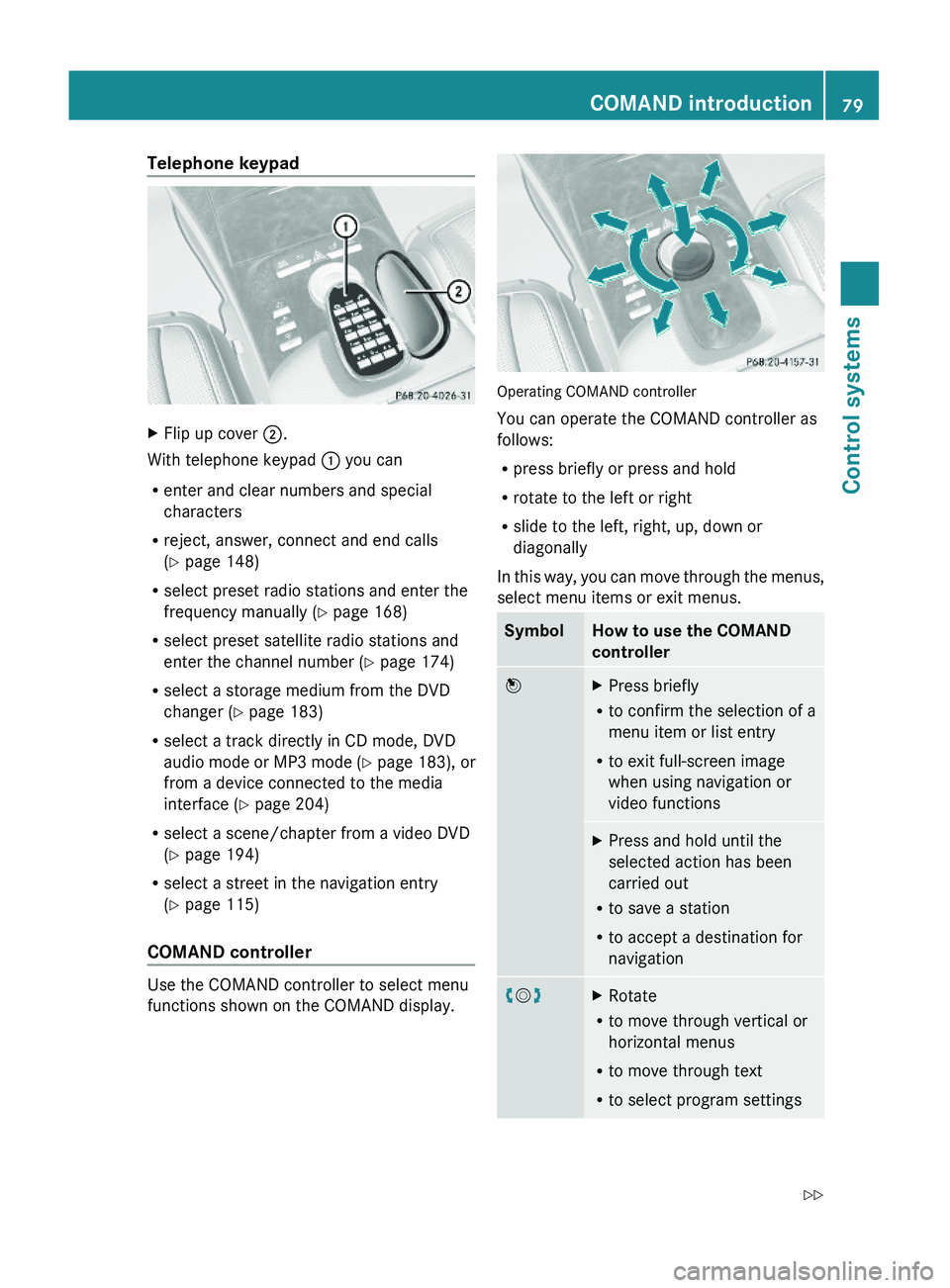
Telephone keypad XFlip up cover \000G.
With telephone keypad \000F you can
Renter and clear numbers and special
characters
Rreject, answer, connect and end calls
(Y page 148)
Rselect preset radio stations and enter the
frequency manually (Y page 168)
Rselect preset satellite radio stations and
enter the channel number (Y page 174)
Rselect a storage medium from the DVD
changer (Y page 183)
Rselect a track directly in CD mode, DVD
audio mode or MP3 mode (Y page 183), or
from a device connected to the media
interface (Y page 204)
Rselect a scene/chapter from a video DVD
(Y page 194)
Rselect a street in the navigation entry
(Y page 115)
COMAND controller
Use the COMAND controller to select menu
functions shown on the COMAND display.
Operating COMAND controller
You can operate the COMAND controller as
follows:
Rpress briefly or press and hold
Rrotate to the left or right
Rslide to the left, right, up, down or
diagonally
In this way, you can move through the menus,
select menu items or exit menus.
SymbolHow to use the COMAND
controller
\000
Page 84 of 548
REAR LLeft screen7REAR RRight screen 7
i
In position COMAND, you can operate
various COMAND functions via remote
control buttons 0088 and 0086.
Switching SPLITVIEW or rear screens on/
off
i When the SmartKey is in starter switch
position 0 or 1 or removed from the starter
switch, the rear screens switch off after 30
minutes automatically. A corresponding
message appears on the screens prior to
switching off.
You can switch the screens back on. Keep
in mind however that this will drain the
vehicle battery.
XSwitching on with the COMAND system
already on: Aim the remote control on the
screen.XPress button 0046.XSwitching off: Aim the remote control on
the screen.XPress button 0046.
Switching button backlight on/off
XPress button 0047.
i
When you do not use the remote control
for approximately 15 seconds, the button
backlight switches off automatically.
Mute on/off (for wired headphones or
COMAND)
XPress button 0087.Selecting menu or menu item and
confirming selectionXSelecting menu or menu item: Press
arrow buttons 0088.XConfirming selection: Press button 0086.
Headphone
GWarning!
The driver should not wear a headphone while
operating the vehicle under any
circumstances. The use of a headphone while
driving the vehicle could drastically impair the
ability to react to audible traffic conditions
(e.g. emergency sirens from police/fire/
ambulance, another car’s horn, etc.).
GWarning!
When not in use, headphones or external
video sources should be stored in a safe
location (e.g. one of the vehicle’s storage
compartments) so that they are not loose
within the passenger compartment during
braking, vehicle maneuvers or a traffic
accident. Objects moving within the
passenger compartment could cause serious
personal injury to vehicle occupants.
GWarning!
Due to a potential choking hazard, wired
headphone usage by children should only
occur with adult supervision.
For information on using SPLITVIEW, see
( Y page 90).
For information on using the Rear Seat
Entertainment System, see ( Y page 189).
7
This function is only available in vehicles with Rear Seat Entertainment System82COMAND introductionControl systems
221_AKB; 6; 20, en-USd2ugruen,Version: 2.11.8.12009-09-24T13:28:17+02:00 - Seite 82
Page 93 of 548
control. Make sure the volume is not set
too high before putting on a headphone.
RThe DVD changer can playback only one
media source at a time. Example: if the
driver is playing an audio CD, the front
passenger can not play a different medium
(e.g. DVD video) from the DVD changer.
However, it is possible for the front
passenger to play media from radio,
memory card, MUSIC REGISTER, media
interface, USB, AUX or Rear Seat
Entertainment System.
RWhen driver and front passenger are using
the same medium, each can select
individual settings for that medium.
RCOMAND transmits music and voice to the
wireless headphone for the front passenger
side via infrared signal. The headphone and
the display must have visual contact. This
provides best possible transmission of the
infrared signal to the headphone. Please
note that the headphone has a left and right
side and must be used accordingly.
RWhen SPLITVIEW is on, the front passenger
can operate audio or video functions only.
RThe multifunction steering wheel lets you
operate functions for the driver’s side only.
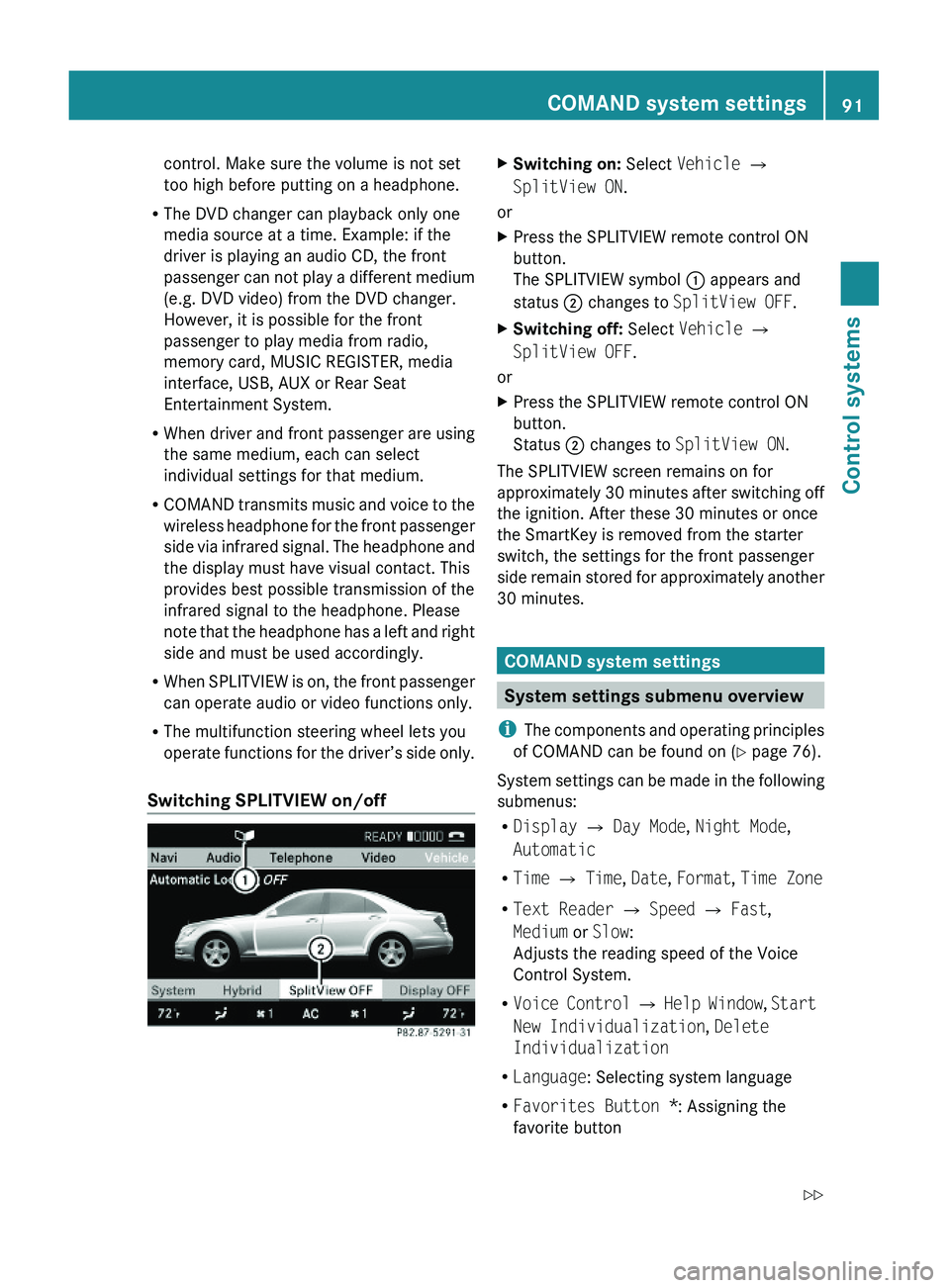
Switching SPLITVIEW on/off
XSwitching on: Select Vehicle \000T
SplitView ON.
or
XPress the SPLITVIEW remote control ON
button.
The SPLITVIEW symbol \000F appears and
status \000G changes to SplitView OFF.
XSwitching off: Select Vehicle \000T
SplitView OFF.
or
XPress the SPLITVIEW remote control ON
button.
Status \000G changes to SplitView ON.
The SPLITVIEW screen remains on for
approximately 30 minutes after switching off
the ignition. After these 30 minutes or once
the SmartKey is removed from the starter
switch, the settings for the front passenger
side remain stored for approximately another
30 minutes.
COMAND system settings
System settings submenu overview
iThe components and operating principles
of COMAND can be found on (Y page 76).
System settings can be made in the following
submenus:
RDisplay \000T Day Mode, Night Mode,
Automatic
RTime \000T Time, Date, Format, Time Zone
RText Reader \000T Speed \000T Fast,
Medium or Slow:
Adjusts the reading speed of the Voice
Control System.
RVoice Control \000T Help Window, Start
New Individualization, Delete
Individualization
RLanguage: Selecting system language
RFavorites Button *: Assigning the
favorite button
COMAND system settings 91Control systems221_AKB; 6; 20, en-USd2ugruen,Version: 2.11.8.12009-09-24T13:28:17+02:00 - Seite 91Z
Page 99 of 548
to protect the battery. This may happen
when the engine is switched off and the
vehicle battery has insufficient power. If
this occurs, restart the installation with the
engine running. Similarly, if the SmartKey
position is unintentionally switched to 0,
restart the installation.GWarning!
Inhalation of exhaust gas is hazardous to your
health. All exhaust gas contains carbon
monoxide (CO), and inhaling it can cause
unconsciousness and lead to death. Do not
run the engine in confined areas (such as a
garage) which are not properly ventilated.
Installing
Notes about handling DVDs ( Y page 179).
XLoad the map software DVD into the DVD
changer ( Y page 179).
The COMAND system verifies the DVD and
a respective message appears in the
COMAND display.
Map software incompatible with
navigation system
A message indicates that installation of the
map software is not possible.
XConfirming message: Press 00A1.
The DVD is ejected.XRemove the DVD from the slot.XInsert a DVD that is compatible with the
navigation system of the vehicle.
Map software incompatible with the
current system software
A message indicates that the system
software and the map software are
incompatible.
XConfirming message: Press 00A1.
The DVD is ejected.XRemove the DVD from the slot.XHave the system software updated at an
authorized Mercedes-Benz Center.
The system software must be updated before
you can install the map software.
Map software compatible with
navigation software and current
system software
The COMAND system verifies whether the
map data on the DVD have been installed
already.
Map data installed already
A message that indicates that the map data
have been installed already appears. Also,
you are being asked if you would like to install
the map software anyhow.
XSelect Yes or No.
When you select Yes, the current map data
will be overwritten.
When you select No, the DVD will be ejected
automatically and the installation process
is cancelled.XRemove the DVD from the slot.
Map data not installed yet
The versions of the map software on the DVD
and of the installed map software appear in
the COMAND display. You are then asked if
you want to install the map software.
XSelect Yes or No.
When you select Yes, the map data will be
installed.
When you select No, the DVD will be ejected
automatically and the installation process
is cancelled.XRemove the DVD from the slot.
When an activation code is required, you will
be prompted to enter it.
COMAND navigation (introduction)97Control systems221_AKB; 6; 20, en-USd2ugruen,Version: 2.11.8.12009-09-24T13:28:17+02:00 - Seite 97Z
Page 137 of 548
The Off Road message and an arrow showing
the compass heading to the destination
appear on the display.
As soon as the system can allocate the
vehicle position to the map again, route
guidance continues in the usual way.
Navigation announcements
GWarning!
Navigation announcements are intended to
direct you while driving without diverting your
attention from the road and driving.
Please always use navigation announcements
instead of consulting the map display for
directions. Consulting the symbols or map
display for directions may cause you to divert
your attention from driving and increase your
risk of an accident.
i If Chinese is set as the system language,
the navigation announcements are in
English. For information on how to set the
system language see ( Y page 94).
Navigation announcements are muted
during telephone calls. You can, however,
call up a current announcement at any
time. You can also call up a current
announcement at any time if you have
missed an announcement.
Route guidance is active already.
XCalling up a current announcement:
Select Navi 0054 RPT .
or
XPress favorite button 0087 if the button has
been programmed with this function
( Y page 94).XSwitching off navigation messages:
Press button 006C during an
announcement.
You will see the message The driving
instructions have been muted. for a
short while.
i The announcements remain switched off
even if you start a new route guidance or if
COMAND is switched off/on with button
0094 .
If you switch COMAND off by removing the
SmartKey from the starter switch and then
switch the ignition back on after more than
3 minutes, the announcements are
automatically switched back on.
XSwitching navigation announcements
back on manually: Select Navi 0054 RPT .XAdjusting volume of the messages:
Adjust the volume during an automatic
announcement ( Y page 87).
or
XCall up an announcement manually using
Navi 0054 RPT and adjust the volume
( Y page 87).
i
You can use the function Audio
Fadeout (Y page 106) to reduce the
volume of audio sources during navigation
announcements.
COMAND navigation system (during
route guidance)
Cancel route guidance
XSelect Destination 0054 Cancel Route
Guidance in map view with the menu
system displayed ( Y page 102).
Continuing canceled route guidance
XSelect Destination 0054 Continue
Route Guidance in map view with the
menu system displayed ( Y page 102).
COMAND calculates the route.COMAND navigation system (during route guidance)135Control systems221_AKB; 6; 20, en-USd2ugruen,Version: 2.11.8.12009-09-24T13:28:17+02:00 - Seite 135Z
Page 151 of 548
Using the Bluetooth®
interface
COMAND provides telephony via the
Bluetooth ®
interface by connecting a
Bluetooth ®
-compatible mobile phone. The
following functions can be used when a
suitable mobile phone is connected to the
Bluetooth ®
interface:
R Hands-free phone operation
R Phone book
R Reception of electronic business cards
(vCards 10
)
i For further information on suitable mobile
phones and connecting Bluetooth ®
-
enabled mobile phones to COMAND
R visit www.mbusa-mobile.com
R call the Mercedes-Benz Customer
Assistance Center at
1-800-FOR-MERCedes
(1-800-367-6372) (in the USA)
R call Customer Service at
1-800-387-0100 (in Canada)
Calls disconnected while the vehicle is
in motion
A call may be disconnected if
R there is insufficient network coverage
R you move from one transmitter/receiver
area (cell) into another and no channels are
free or the cell is full
Operating options
i The components and operating principles
of COMAND can be found on ( Y page 76).
You can operate the mobile phone using the
following:
R the keys on the mobile phone
R the COMAND telephone keypad in the
center console
R the COMAND controller
R the multifunction steering wheel
R the Voice Control System ( Y page 237)
Unless otherwise specified, the descriptions
and illustrations in this section apply to
COMAND or the telephone keypad in the
center console. Thus, in order to use the
described functions you always have to call
up the Telephone menu. The fastest way to
get to the Telephone menu is pressing
shortcut button 0058.
You can control other functions of the mobile
phone via the COMAND, instrument cluster
control system (Y page 230) or Voice Control
System ( Y page 237).
Caller ID
COMAND can display the telephone number
and the name of the caller, e.g. for an
incoming call and also in other menus or
displays.
For the telephone number to be displayed,
the caller must transmit his telephone
number.
This is also the case for name displays. For
this, the telephone number and the name of
the caller must also be saved in the mobile
phone book.
Functional restrictions
You will not be able to use the telephone, or
you may have to wait a while, in the following
situations:
R If the Bluetooth function in COMAND or
on the mobile phone is switched off.
R If the telephone has not yet logged into the
network.
The telephone tries to log into a network
automatically. If no network is available,
you will also not be able to make a “911”
emergency call. If you attempt to make an
10 vCards are electronic business cards used by e-mail applications, mobile phones, PDAs, etc. to exchange
contact information.COMAND telephone149Control systems221_AKB; 6; 20, en-USd2ugruen,Version: 2.11.8.12009-09-24T13:28:17+02:00 - Seite 149Z