multifunction MERCEDES-BENZ S-Class 2011 W221 Owner's Guide
[x] Cancel search | Manufacturer: MERCEDES-BENZ, Model Year: 2011, Model line: S-Class, Model: MERCEDES-BENZ S-Class 2011 W221Pages: 524, PDF Size: 22.53 MB
Page 217 of 524
Once COMAND receives the signal, the
satellite radio display appears. The station
last selected is played.
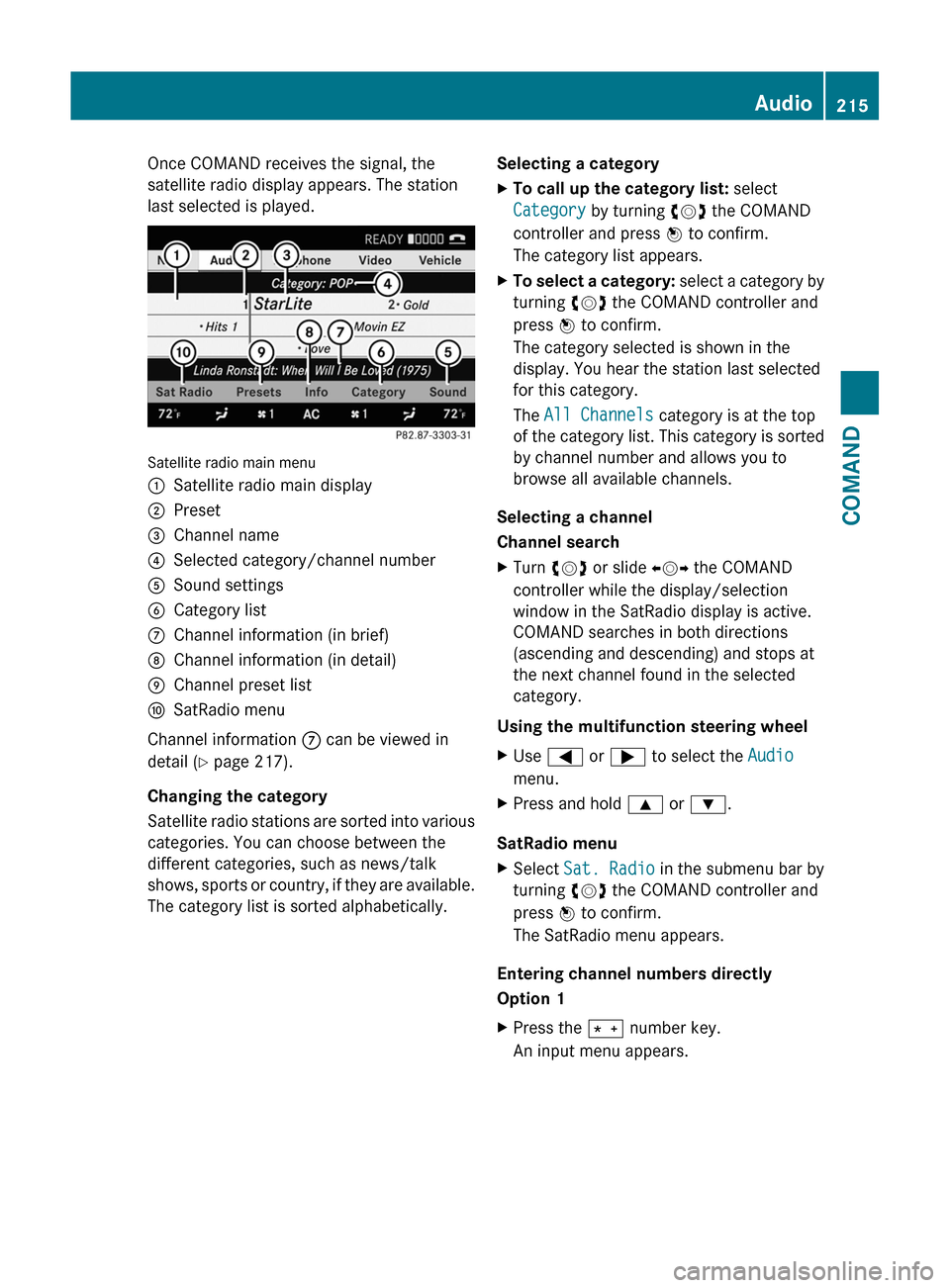
Satellite radio main menu
1Satellite radio main display2Preset3Channel name4Selected category/channel number5Sound settings6Category list7Channel information (in brief)8Channel information (in detail)9Channel preset listaSatRadio menu
Channel information 7 can be viewed in
detail ( Y page 217).
Changing the category
Satellite radio stations are sorted into various
categories. You can choose between the
different categories, such as news/talk
shows, sports or country, if they are available.
The category list is sorted alphabetically.
Selecting a categoryXTo call up the category list: select
Category by turning cVd the COMAND
controller and press W to confirm.
The category list appears.XTo select a category: select a category by
turning cVd the COMAND controller and
press W to confirm.
The category selected is shown in the
display. You hear the station last selected
for this category.
The All Channels category is at the top
of the category list. This category is sorted
by channel number and allows you to
browse all available channels.
Selecting a channel
Channel search
XTurn cVd or slide XVY the COMAND
controller while the display/selection
window in the SatRadio display is active.
COMAND searches in both directions
(ascending and descending) and stops at
the next channel found in the selected
category.
Using the multifunction steering wheel
XUse = or ; to select the Audio
menu.XPress and hold 9 or : .
SatRadio menu
XSelect Sat. Radio in the submenu bar by
turning cVd the COMAND controller and
press W to confirm.
The SatRadio menu appears.
Entering channel numbers directly
Option 1
XPress the Ä number key.
An input menu appears.Audio215COMANDZ
Page 219 of 524
Using the multifunction steering wheelXUse = or ; to select the Audio
menu.
XPress 9 or : briefly.
Displaying information
XSelect Info in the submenu bar by turning
cVd the COMAND controller and press
W to confirm.
Information on the currently received
program is displayed.
XTo return to the SatRadio main display:
slide XVY the COMAND controller.
Displaying service information
If you have any questions or require version
information, you can call the provider's
customer service center at any time.
XSelect Sat. Radio in the submenu bar by
turning cVd the COMAND controller and
press W to confirm.
XSelect Service and press W to confirm.
The provider's details appear.
XTo return to the SatRadio main display:
slide XVY the COMAND controller.
Updating the channel list
When receiving a new channel list, the display
shows the Updating channel... message.
The station last selected is muted until the
update has been completed. Satellite radio
mode is not available during the update
process.
When the update has been completed, the
satellite radio main menu appears. The
station last selected is played.
Sound settings
You will find details on the sound settings in
the "At a glance" section (Y page 133).
Audio CD/DVD and MP3 mode
Important safety notes
GWarning!
COMAND is classified as a Class 1 laser
product. You must not open the casing. If you
open the casing, or if the casing is faulty or
damaged, there is a risk of exposure to
invisible laser radiation. This may damage
your eyes, or those of others.
COMAND does not contain any parts that can
be serviced by the user. For safety reasons,
all maintenance work must be carried out by
qualified aftersales technicians.
GWarning!
Only when the vehicle is stationary should
you:
Rload a disc
Reject a disc
There is a risk of being distracted from the
road and traffic conditions if this is done while
the vehicle is in motion.
Inserting/ejecting CDs/DVDs
DVD changer
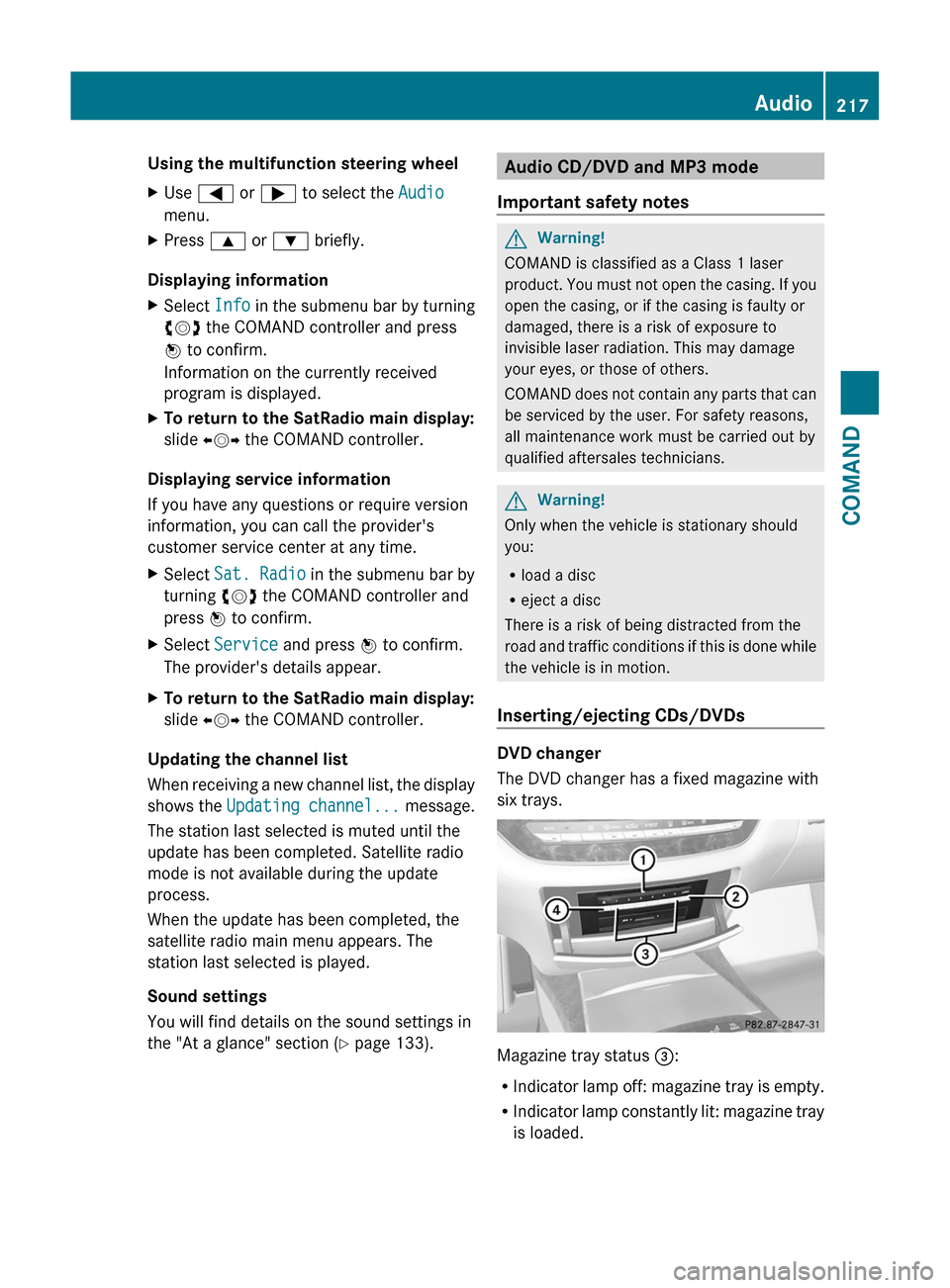
The DVD changer has a fixed magazine with
six trays.
Magazine tray status =:
RIndicator lamp off: magazine tray is empty.
RIndicator lamp constantly lit: magazine tray
is loaded.
Audio217COMANDZ
Page 222 of 524
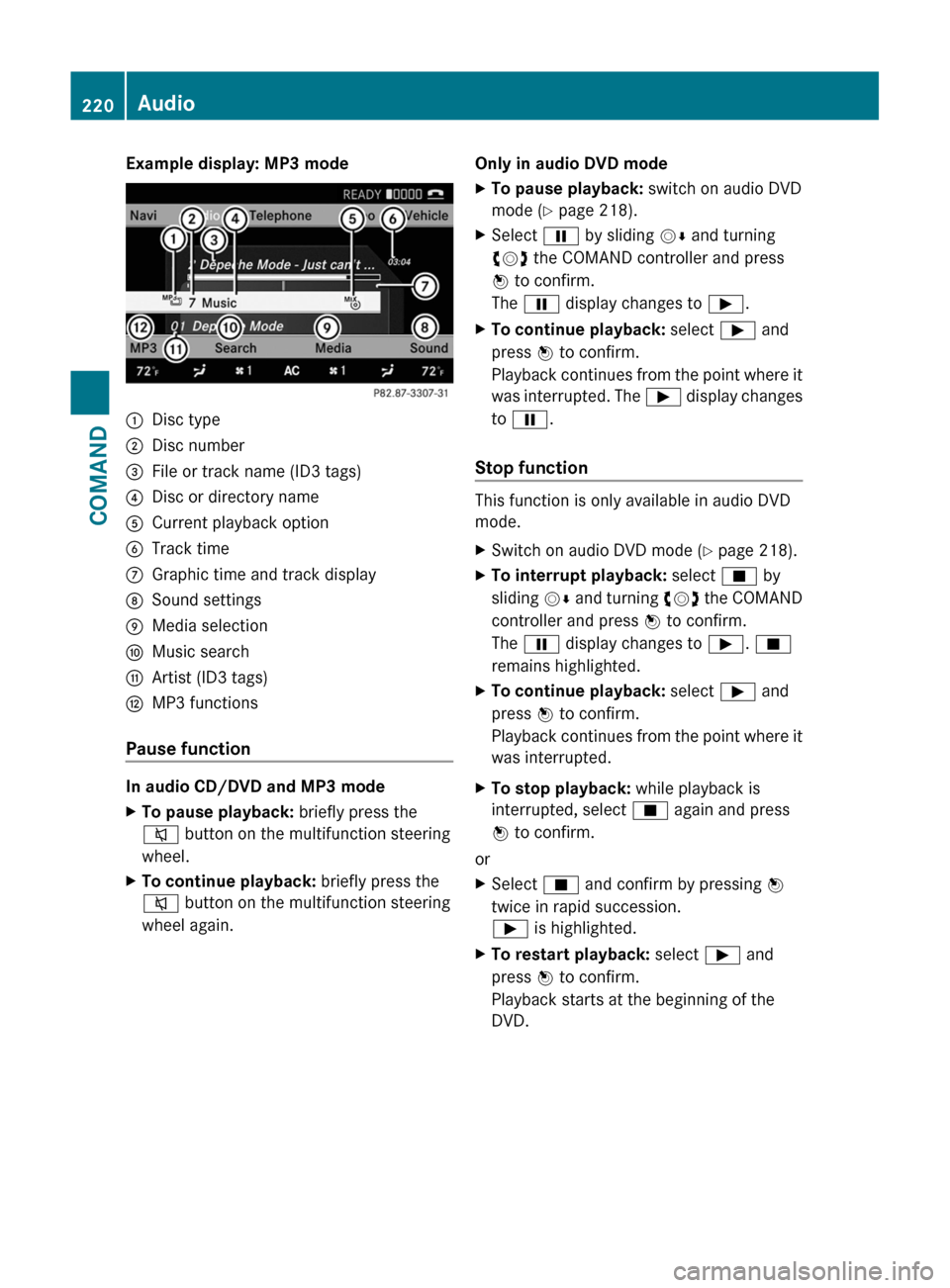
Example display: MP3 mode:Disc type;Disc number=File or track name (ID3 tags)?Disc or directory nameACurrent playback optionBTrack timeCGraphic time and track displayDSound settingsEMedia selectionFMusic searchGArtist (ID3 tags)HMP3 functions
Pause function
In audio CD/DVD and MP3 mode
XTo pause playback: briefly press the
8 button on the multifunction steering
wheel.XTo continue playback: briefly press the
8 button on the multifunction steering
wheel again.Only in audio DVD modeXTo pause playback: switch on audio DVD
mode ( Y page 218).XSelect Ë by sliding VÆ and turning
cVd the COMAND controller and press
W to confirm.
The Ë display changes to Ì.XTo continue playback: select Ì and
press W to confirm.
Playback continues from the point where it
was interrupted. The Ì display changes
to Ë .
Stop function
This function is only available in audio DVD
mode.
XSwitch on audio DVD mode ( Y page 218).XTo interrupt playback: select É by
sliding VÆ and turning cVd the COMAND
controller and press W to confirm.
The Ë display changes to Ì. É
remains highlighted.XTo continue playback: select Ì and
press W to confirm.
Playback continues from the point where it
was interrupted.XTo stop playback: while playback is
interrupted, select É again and press
W to confirm.
or
XSelect É and confirm by pressing W
twice in rapid succession.
Ì is highlighted.XTo restart playback: select Ì and
press W to confirm.
Playback starts at the beginning of the
DVD.220AudioCOMAND
Page 223 of 524

Selecting CD/audio DVD/MP3 discs
Selecting via the media list
XIn CD/audio DVD and MP3 mode: select
Media by sliding VÆ or turning cVd the
COMAND controller and press W to
confirm.
The media list appears. The # dot
indicates the currently selected medium.
Media list
The media list shows the discs currently
available.
Media list (when equipped with a DVD
changer)
Magazine trays, positions 1 to 6: readable
data media are audio CDs, MP3 CDs or MP3
DVDs, audio DVDs and video DVDs.
Memory card, position 7MUSIC REGISTER, position 8Media Interface, position 9USB, position 10
iIf a disc cannot be read, an entry appears
after the display in the magazine tray.
Equipped with a single DVD driveDVD drive, position 1: readable data media
are audio CDs, MP3 CDs or MP3 DVDs,
audio DVDs and video DVDs.
Memory card, position 2MUSIC REGISTER, position 3Media Interface, position 4USB, position 5XSelect the data medium by turning cVd
the COMAND controller and press W to
confirm.
iIf you select a video DVD, the system
switches to video DVD mode
(Y page 236).
Selecting a track using the number
keypad
XPress a number button, e.g. n, when the
display/selection window is active.
The medium at the corresponding position
in the media list is loaded and then played.
Selecting a track
Selecting by skipping to a track
XTo skip forwards or back to a track: slide
XVY or turn cVd the COMAND controller
when the display/selection window is
active.
The skip forward function skips to the next
track.
Skipping backwards restarts the current
track (if it has been playing for more than
eight seconds) or starts the previous track
(if the current track has only been playing
for a shorter time).
If you activate the Medium mix or Random
tracks playback option (MP3 mode only),
the track order is random.
XOn the multifunction steering wheel:
switch COMAND to audio CD, audio DVD or
MP3 mode (Y page 218).
XUse = or ; to select the Audio
menu.
XPress the 9 or : button on the
multifunction steering wheel.
Audio221COMANDZ
Page 224 of 524
Selecting by track listXIn audio mode, select Search by sliding
VÆ or turning cVd the COMAND
controller and press W to confirm.
XSelect Current track list.
or
XPress W the COMAND controller in MP3
mode when the display/selection window
is active.
The track list appears. The # dot indicates
the current track.
XSelect the track by turning cVd and press
W to confirm.
iIn MP3 mode, the list shows all the tracks
in alphabetical order.
XOn the multifunction steering wheel:
switch COMAND to audio CD, audio DVD or
MP3 mode (Y page 218).
XUse = or ; to select the Audio
menu.
XPress and hold the 9 or : button
until the desired track has been reached.
If you hold down 9 or :, the system
runs through the list more quickly. Not all
audio drives or data carriers support this
function.
If track information is stored on the audio
drive or data storage device, the
multifunction display shows the number and
name of the track.
Selecting a track using the number
keypad
XPress the Ä button on the number pad.
A numerical entry field appears. The
number of positions offered corresponds to
the number of tracks on the CD/DVD. Only
numbers that correspond to a track
number on the CD/DVD can be entered.
XEnter the desired track number using the
number buttons.
Fast forward/rewindXWhile the display/selection window is
active, slide XVY and hold the COMAND
controller until the desired position has
been reached.
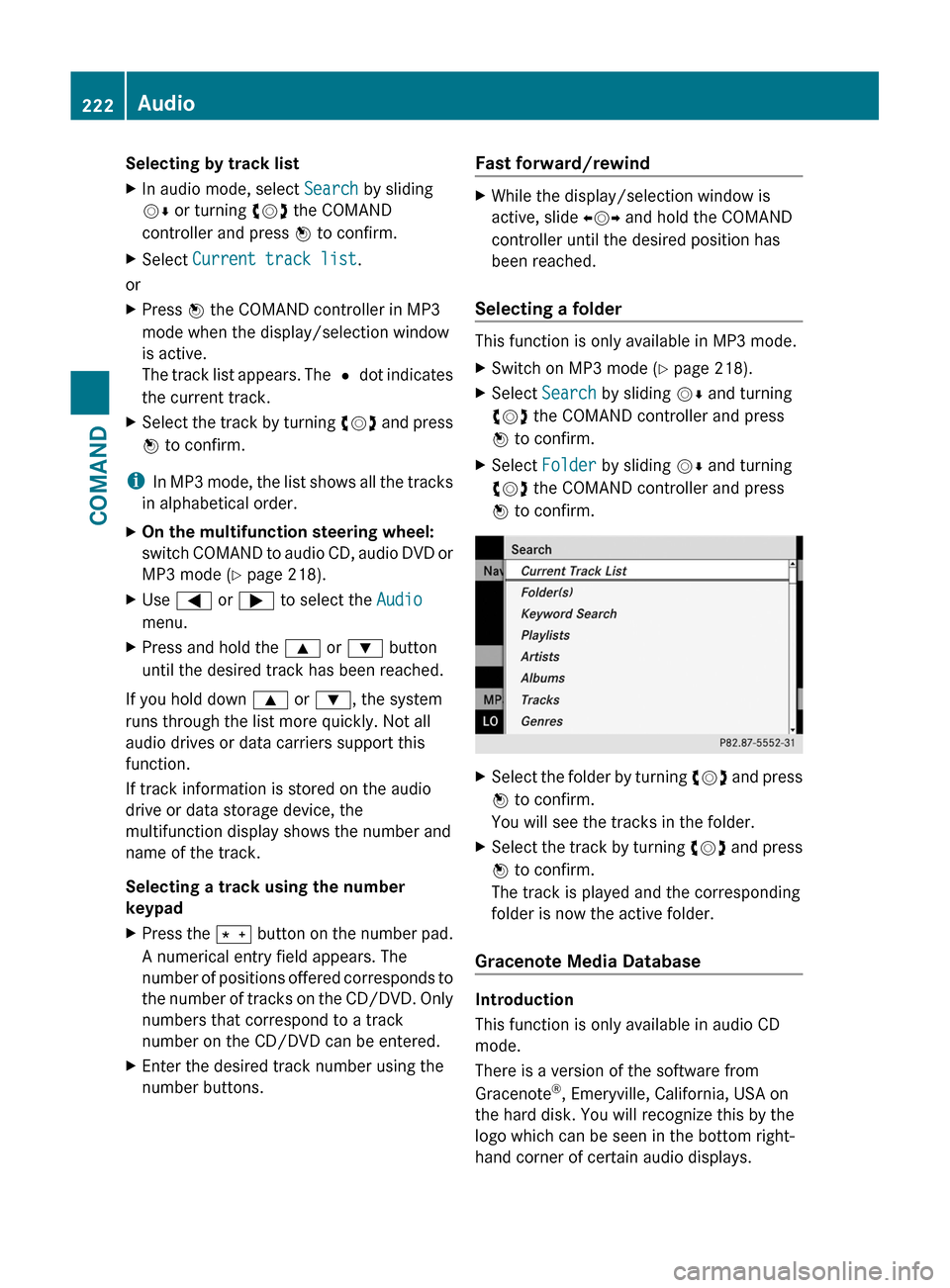
Selecting a folder
This function is only available in MP3 mode.
XSwitch on MP3 mode (Y page 218).XSelect Search by sliding VÆ and turning
cVd the COMAND controller and press
W to confirm.
XSelect Folder by sliding VÆ and turning
cVd the COMAND controller and press
W to confirm.
XSelect the folder by turning cVd and press
W to confirm.
You will see the tracks in the folder.
XSelect the track by turning cVd and press
W to confirm.
The track is played and the corresponding
folder is now the active folder.
Gracenote Media Database
Introduction
This function is only available in audio CD
mode.
There is a version of the software from
Gracenote®, Emeryville, California, USA on
the hard disk. You will recognize this by the
logo which can be seen in the bottom right-
hand corner of certain audio displays.
222AudioCOMAND
Page 234 of 524
XOn the multifunction steering wheel:
switch on Media Interface mode in
COMAND ( Y page 230).XOn the multifunction steering wheel, press
the = or ; button to select the
Audio menu.XOn the multifunction steering wheel, press
9 or : to select a track.
Selecting using the number keypad
XTo make an entry: press the Ä button.
The input menu appears. The number of
characters available for input depends on
the number of stored tracks.XTo enter a track number: press a number
key, e.g. q.
The digit is entered in the first position in
the input line.
i COMAND will ignore and not display an
invalid digit.
XEnter more numbers if desired.
The selected track is played.
Fast forward/rewind
XWhile the display/selection window is
active, slide XVY and hold the COMAND
controller until the desired position has
been reached.
i On an iPod ®
, fast rewind only functions
within the current track.
Selecting a category/playlist/folder
iPod ®
and certain MP3 players
For an iPod ®
or MP3 player, you can select
tracks using categories or folders.
Depending on the device connected, the
following categories may be available, for
example:
R Current Track List
R Playlists (e.g. All)
R Artists
R Albums
R
Track
R Podcasts
R Genres
R Composers
R Audiobooks
i Some playback categories contain the
entry All. If this entry has been selected,
the entire content of the category selected
will be played.
USB devices
For USB mass storage devices, you can select
both folders as well as any existing playlists.
COMAND can also display the album name
and artist (metadata) during playback, if this
information has been entered into the
system.
Playlists are indicated in the display by a
special icon. When you open the playlist, the
corresponding tracks are opened and
playback begins. You can now select
Category mix instead of Random folder as
a playback option.
For USB mass storage devices, you can
choose to display the metadata contained in
the tags of the encoded music data, or to
display the file and directory names during
playback.XTo display the album and artist name:
select Media Interface in the basic
display by sliding VÆ and turning cVd the
COMAND controller and press W to
confirm.XSelect Display Metadata and press W to
confirm.
Selecting a category and opening a folder
XPress W the COMAND controller when the
display/selection window is active.XSelect Folder by sliding VÆ and turning
cVd the COMAND controller and press
W to confirm.
The available categories or the folder
contents (e.g. further folders) are232AudioCOMAND
Page 241 of 524
Stop functionXPress W the COMAND controller to show
the menu.
XTo interrupt playback: select ± by
turning cVd the COMAND controller and
press W to confirm.
The « display changes to M. The video
image is hidden.
XTo continue playback: select M and press
W to confirm.
Playback continues from the point where it
was interrupted.
XTo stop playback: while playback is
interrupted, select ± again and press W
to confirm.
or
XDuring playback, confirm ± by pressing
W twice in quick succession.
M is selected.
XTo restart playback: confirm M by
pressing W.
Playback restarts from the beginning.
Pause function
XPress W the COMAND controller to show
the menu.
XTo pause: select « by turning cVd the
COMAND controller and press W to
confirm.
The « display changes to M.
XTo continue playback: select M and press
W to confirm.
The menu is hidden.
Selecting a scene/chapter
If the film is divided into scenes or chapters,
you can select them directly while the film is
running, or skip forwards step-by-step. Some
DVDs do not permit this at certain points (e.g.
during the opening credits).
It may also be possible to select the scene/
chapter from within the menu stored on the
DVD.
XTo skip forwards or back: turn cVd or
slide XVY the COMAND controller.
The navigation menu (Y page 237) appears
for approximately eight seconds.
XOn the multifunction steering wheel:
switch on video DVD mode in COMAND
(Y page 237).
XUse the = or ; button to select the
Audio menu.
XPress 9 or : to select a scene/
chapter.
If you press and hold 9 or : for an
extended period, rapid scroll begins.
Selecting a film/title
This function is only available if the DVD is
divided into several films/tracks. If the DVD
contains several films, these can be selected
directly. A film can be selected either when
the DVD is being played back or when it is
stopped.
The film can also be selected from the menu
on the DVD itself.
XPress W the COMAND controller to show
the menu.
XSelect DVD-V by turning cVd the COMAND
controller and press W to confirm.
XSelect DVD functions and press W to
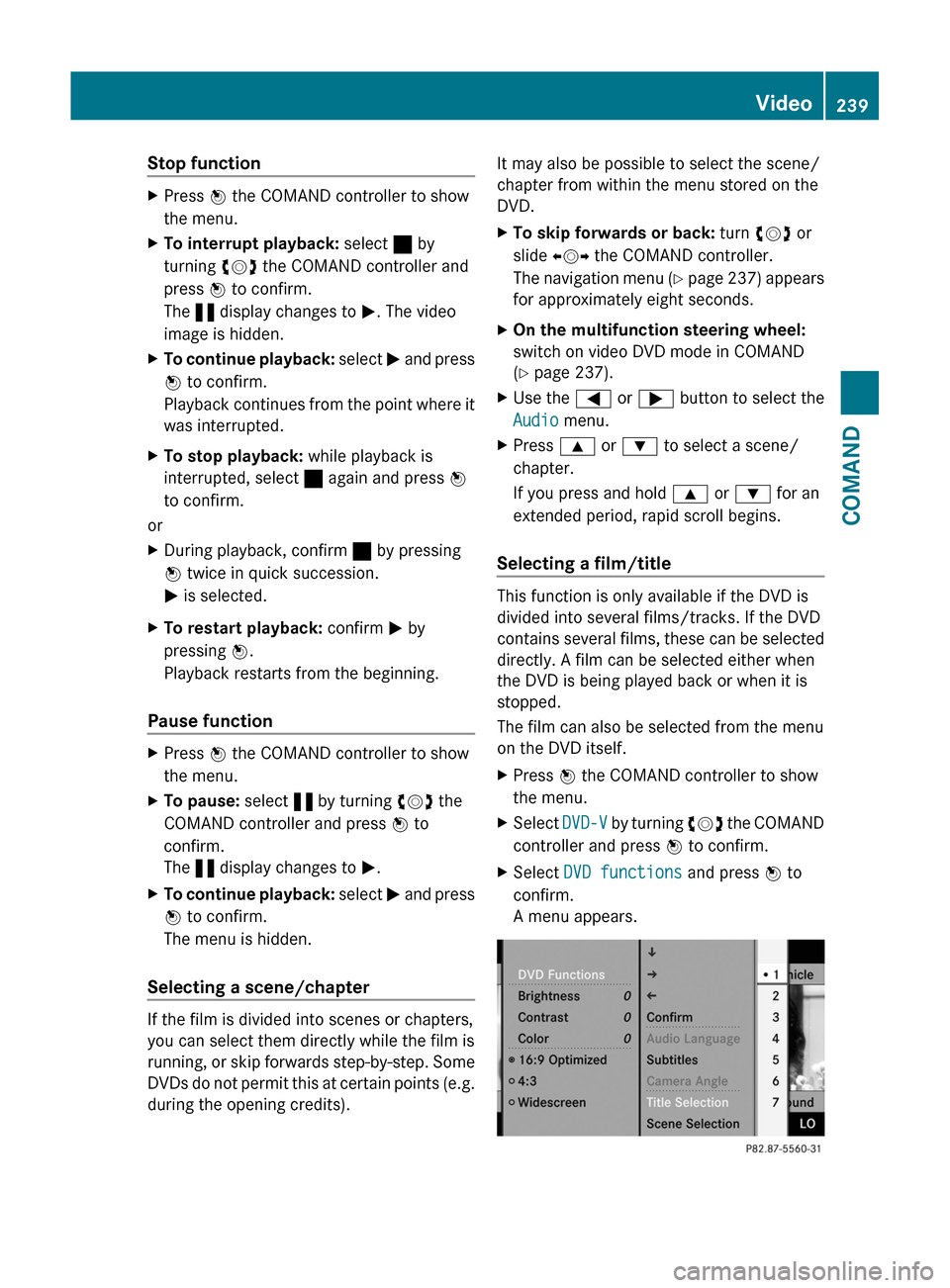
confirm.
A menu appears.
Video239COMANDZ
Page 303 of 524
Starting the engine
Important safety notesGWarning
Inhalation of exhaust gas is hazardous to your
health. All exhaust gas contains carbon
monoxide (CO), and inhaling it can cause
unconsciousness and possible death.
Do not run the engine in confined areas (such
as a garage) which are not properly ventilated.
If you think that exhaust gas fumes are
entering the vehicle while driving, have the
cause determined and corrected
immediately. If you must drive under these
conditions, drive only with at least one
window fully open at all times.
! Do not depress the accelerator pedal
when starting the engine.
Automatic transmission
XShift the transmission to position P.
i
The transmission position display in the
multifunction display shows P.
Starting procedure with the SmartKey
XTurn the SmartKey to position 3 in the
ignition lock (Y page 299) and release it as
soon as the engine is running.
Using KEYLESS-GO to start the engine
GWarning!
As long as the SmartKey is in your vehicle, the
vehicle can be started. Therefore, never leave
children unattended in the vehicle, as they
could otherwise accidentally start the engine.
When leaving the vehicle, always take the
SmartKey with you and lock the vehicle. Do
not leave children unattended in the vehicle,
or with access to an unlocked vehicle. A
child's unsupervised access to a vehicle could
result in an accident and/or serious personal
injury.
i The Start/Stop button can be used to
start the vehicle without inserting the
SmartKey in the ignition lock. The
SmartKey must be in the vehicle.XThe Start/Stop button must be inserted in
the ignition lock.
i To start the engine with the SmartKey
instead of with KEYLESS-GO, remove the
Start/Stop button from the ignition lock.
XDepress the brake pedal and keep it
depressed.XPress the Start/Stop button once
( Y page 299).
The engine starts.
Pulling away
Automatic transmission
GWarning
It is dangerous to shift AUTOTRONIC out of
parking position P or neutral position N if the
engine speed is higher than idle speed. If your
foot is not firmly on the brake pedal, the
vehicle could accelerate quickly forward or in
reverse. You could lose control of the vehicle
and hit someone or something. Only shift into
gear when the engine is idling normally and
when your right foot is firmly on the brake
pedal.
i It is only possible to shift the transmission
from position P to the desired position if
you depress the brake pedal. Only then is
the parking lock released. If you do not
depress the brake pedal, you can move the
DIRECT SELECT selector lever but the
parking lock remains engaged.
XDepress the brake pedal and keep it
depressed.XShift the transmission to position D or R.XWait until the gear change is completed
before pulling away.Driving301Driving and parkingZ
Page 304 of 524
XRelease the brake pedal.XCarefully depress the accelerator pedal.
The electric parking brake (Y page 317) is
automatically released.
The red F indicator lamp (USA only) or
the red ! indicator lamp (Canada only)
in the instrument cluster goes out.
iThe vehicle locks centrally once you have
pulled away. The locking knobs in the doors
drop down.
You can open the doors from the inside at
any time.
You can also deactivate the automatic
locking feature .
iUpshifts take place at higher engine
speeds after a cold start. This helps the
catalytic converter to reach its operating
temperature more quickly.
Hill start assist
Hill start assist helps you when pulling away
forwards or in reverse on an uphill gradient.
It holds the vehicle for a short time after you
have removed your foot from the brake pedal.
This gives you enough time to move your foot
from the brake pedal to the accelerator pedal
and depress it before the vehicle begins to
roll.
GWarning
Never leave the vehicle when it is held by hill
start assist. After approximately one second,
hill start assist will no longer brake your
vehicle and it could roll away.
XTake your foot off the brake pedal.
iOnce you have taken your foot off the
brake pedal, the vehicle is held for around
one second.
XPull away.
Hill start assist will not function if:
Ryou are pulling away on a level road or a
downhill gradient.
Rthe transmission is in position N.
Rthe electric parking brake is applied.
RESP® is malfunctioning.
ECO start/stop function
General notes
The ECO start/stop function is only available
for the S 63 AMG.
The ECO start/stop function is only available
in drive program C.
The ECO start/stop function switches the
engine off automatically when the vehicle
stops moving.
The engine starts automatically when you pull
away again. The ECO start/stop function
thereby helps you to reduce the fuel
consumption and emissions of your vehicle.
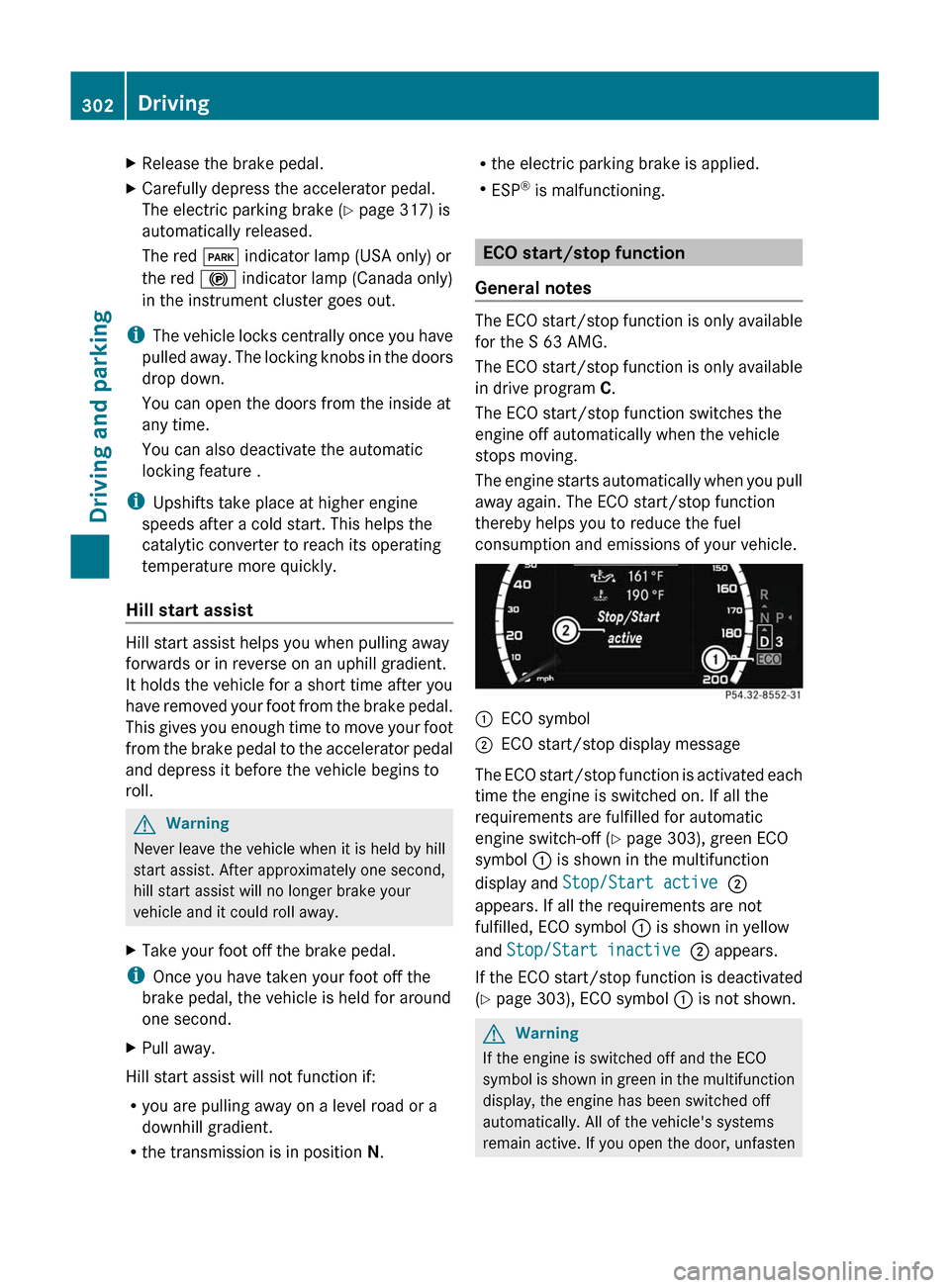
:ECO symbol;ECO start/stop display message
The ECO start/stop function is activated each
time the engine is switched on. If all the
requirements are fulfilled for automatic
engine switch-off (Y page 303), green ECO
symbol : is shown in the multifunction
display and Stop/Start active ;
appears. If all the requirements are not
fulfilled, ECO symbol : is shown in yellow
and Stop/Start inactive ; appears.
If the ECO start/stop function is deactivated
(Y page 303), ECO symbol : is not shown.
GWarning
If the engine is switched off and the ECO
symbol is shown in green in the multifunction
display, the engine has been switched off
automatically. All of the vehicle's systems
remain active. If you open the door, unfasten
302DrivingDriving and parking
Page 305 of 524
your seat belt or remove your foot from the
brake pedal, the engine will automatically
start. The vehicle may begin moving. You
could suffer serious or even fatal injury or
cause an accident resulting in injury or death.
Never leave the vehicle while the ECO symbol
in the multifunction display is shown in green
or yellow. Always secure the vehicle against
rolling away before leaving it.
! Always switch the ignition off and take the
key with you when leaving the vehicle.
Automatic engine switch-off
The ECO start/stop function switches the
engine off automatically if the vehicle is
braked to a standstill and the brake remains
depressed with the transmission in position
D or N.
i You can still activate HOLD when the
vehicle is stationary, even if the engine has
been switched off automatically. It is then
not necessary to continue applying the
brakes during the automatic stop phase.
When you depress the accelerator pedal,
the engine starts automatically and the
braking effect of the HOLD function is
deactivated. Depress the accelerator pedal
carefully, as the engine must be started
first.
The engine is only switched off if:
R the outside temperature is within the range
which is suitable for the system.
R the engine is at normal operating
temperature.
R the set temperature for the vehicle interior
has been reached.
R the battery is sufficiently charged.
R the system detects that the windshield is
not fogged up when the air-conditioning
system is switched on.
R the hood is closed.
Rno engine relevant diagnostics are active.
R the driver's door is closed and the seat belt
is fastened.
Automatic engine start
The engine is started automatically if you:
R release the brake pedal when HOLD is not
activated and the transmission is in
position D or N
R shift the transmission to position R
R depress the accelerator pedal
R switch off the ECO start/stop function or
switch to drive program S or M
R unfasten your seat belt or open the driver's
door
The engine is also started automatically if:
R the vehicle starts to roll.
R the brake system requires this.
R the system detects moisture on the
windshield when the air-conditioning
system is switched on.
R the temperature in the vehicle interior
deviates from the set range.
R the battery's condition of charge is too low.
Deactivating/activating the ECO start/
stop function
General notes
You can activate and deactivate the ECO
start/stop function using COMAND
( Y page 257).
i You can also use the programmable
button ( Y page 118) to activate and
deactivate the ECO start/stop function if
you have assigned this function to the
button.
Deactivating
XDeactivate the ECO start/stop function
using COMAND ( Y page 257):
The ECO symbol goes out and the Stop/
Start deactivated display message is
shown in the multifunction display.Driving303Driving and parkingZ