W mode MERCEDES-BENZ S-Class 2011 W221 Owner's Guide
[x] Cancel search | Manufacturer: MERCEDES-BENZ, Model Year: 2011, Model line: S-Class, Model: MERCEDES-BENZ S-Class 2011 W221Pages: 524, PDF Size: 22.53 MB
Page 134 of 524
Mute
Switching audio and video sources on/off
XPress the 8 button on the multifunction
steering wheel.
The sound from the respective audio or
video source is switched on or muted.
iWhen the sound is off, the system
displays the , symbol in the status line.
When you change the audio or video
source, or adjust the volume, the sound
automatically switches on again.
iEven if the sound is switched off, you will
still hear traffic and navigation system
announcements.
Switching off Traffic program and
navigation announcements completely
XTraffic program: press and hold the
8 button until the . display
disappears from the status bar of the
display.
A confirmation tone sounds.
XNavigation announcements: during an
announcement, press the 8 button on
the multifunction steering wheel.
Switching Traffic program and navigation
announcements on again
XTraffic program: press and hold down the
8 button until the . display in the
status bar appears.
A confirmation tone sounds.
XNavigation announcements: press the
8 button again.
iThe navigation announcements are
activated again if you switch COMAND off
and on again or start a new route guidance.
Adjusting the volume
Adjusting the volume for the audio or
video source
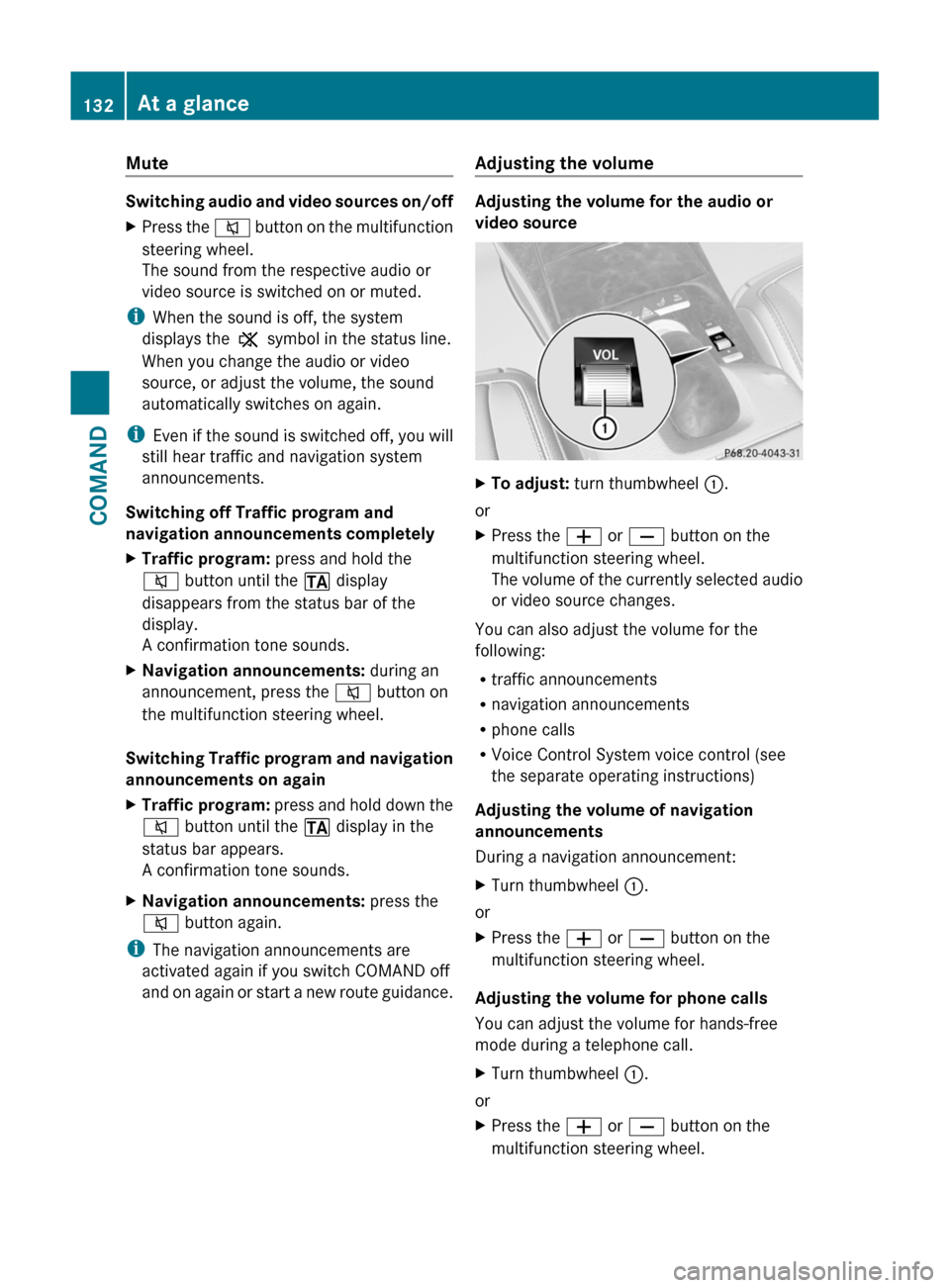
XTo adjust: turn thumbwheel :.
or
XPress the W or X button on the
multifunction steering wheel.
The volume of the currently selected audio
or video source changes.
You can also adjust the volume for the
following:
Rtraffic announcements
Rnavigation announcements
Rphone calls
RVoice Control System voice control (see
the separate operating instructions)
Adjusting the volume of navigation
announcements
During a navigation announcement:
XTurn thumbwheel :.
or
XPress the W or X button on the
multifunction steering wheel.
Adjusting the volume for phone calls
You can adjust the volume for hands-free
mode during a telephone call.
XTurn thumbwheel :.
or
XPress the W or X button on the
multifunction steering wheel.
132At a glanceCOMAND
Page 135 of 524
Adjusting the sound settings
Calling up the sound menu
You can make various sound settings for the
different audio and video sources. This means
that it is possible to set more bass for radio
mode than for audio CD mode, for example.
You can call up the respective sound menu
from the menu of the desired mode.
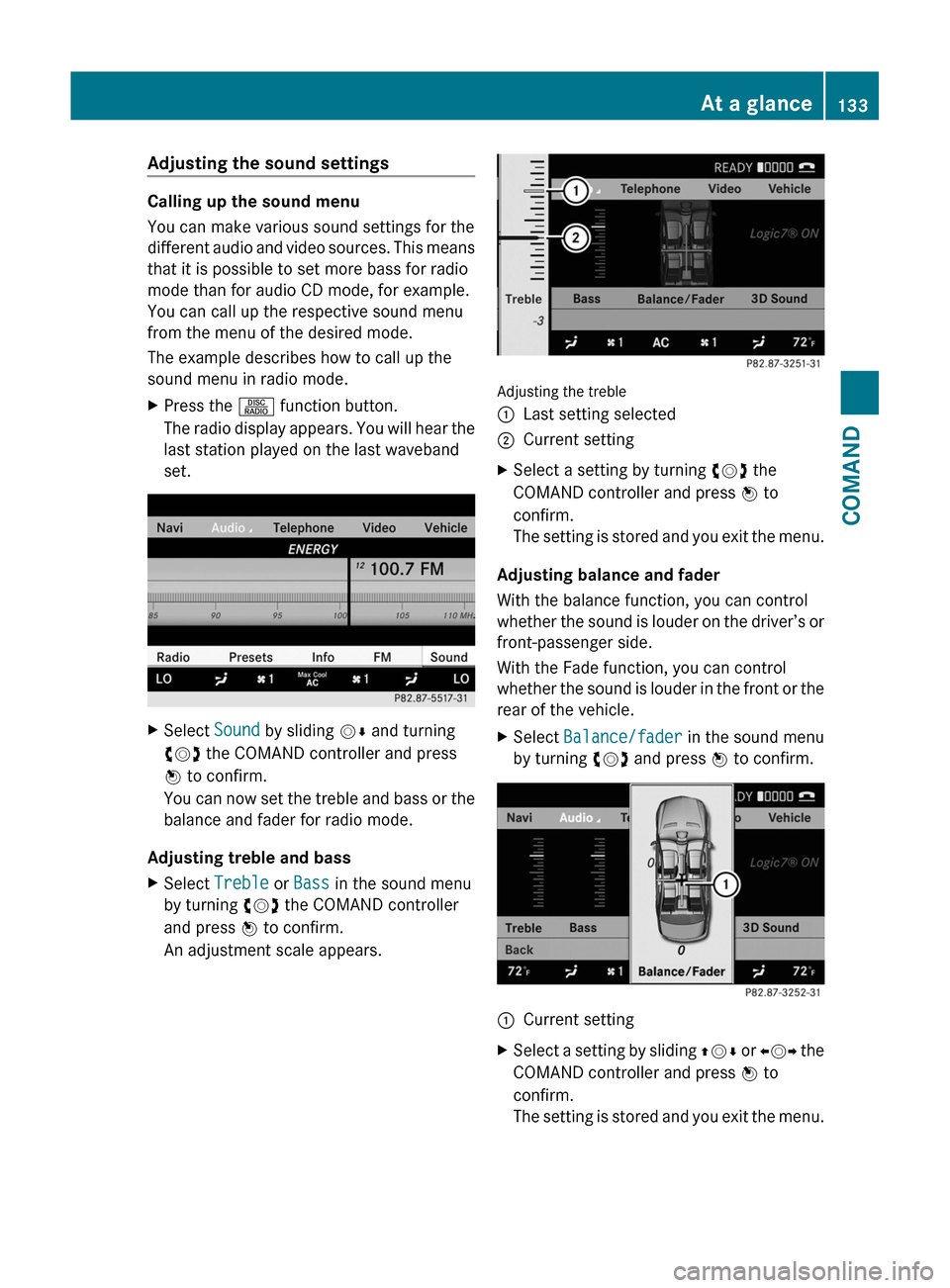
The example describes how to call up the
sound menu in radio mode.
XPress the R function button.
The radio display appears. You will hear the
last station played on the last waveband
set.
XSelect Sound by sliding VÆ and turning
cVd the COMAND controller and press
W to confirm.
You can now set the treble and bass or the
balance and fader for radio mode.
Adjusting treble and bass
XSelect Treble or Bass in the sound menu
by turning cVd the COMAND controller
and press W to confirm.
An adjustment scale appears.
Adjusting the treble
:Last setting selected;Current settingXSelect a setting by turning cVd the
COMAND controller and press W to
confirm.
The setting is stored and you exit the menu.
Adjusting balance and fader
With the balance function, you can control
whether the sound is louder on the driver’s or
front-passenger side.
With the Fade function, you can control
whether the sound is louder in the front or the
rear of the vehicle.
XSelect Balance/fader in the sound menu
by turning cVd and press W to confirm.:Current settingXSelect a setting by sliding ZVÆ or XVY the
COMAND controller and press W to
confirm.
The setting is stored and you exit the menu.
At a glance133COMANDZ
Page 136 of 524
Surround sound
General notes
If your vehicle is equipped with the harman/
kardon® Logic 7® surround sound system,
you can set the optimum surround sound for
every passenger.
The harman/kardon® Logic 7® surround
sound system is available for the following
operating modes:
Rradio (FM only)
Rsatellite radio
Raudio CD
Raudio DVD (MLP, dts, PCM and Dolby
Digital audio formats)
RMP3 (including SD memory card)
RBluetooth® audio mode
RMedia Interface
Rvideo DVD (PCM, dts and Dolby Digital
audio formats)
RAUX
Because many DVDs contain both stereo and
multi-channel audio formats, it may be
necessary to set the audio format
(Y page 223).
iThe Logic7® On function enables
playback of, e.g. stereo recordings with a
surround sound experience for every
passenger. It enables optimum playback of
music and films on CD, audio DVD or video
DVD with multichannel audio formats, such
as MLP, dts or Dolby Digital. The resulting
audio experience reflects that intended by
the sound engineer during the original
recording.
iIf you select LOGIC7® Off, the sound
system plays the tracks as stored on the
medium. Due to the design of the
passenger compartment, an optimum
audio experience cannot be guaranteed for
all passengers.
iDiscs which support the audio formats
mentioned have the following logos:
Dolby Digital
dts
MLP
Switching surround sound on/off
Example: switching on surround sound for
radio mode
XPress the R function button.
The radio display appears. You will hear the
last station played on the last waveband
set.
134At a glanceCOMAND
Page 137 of 524
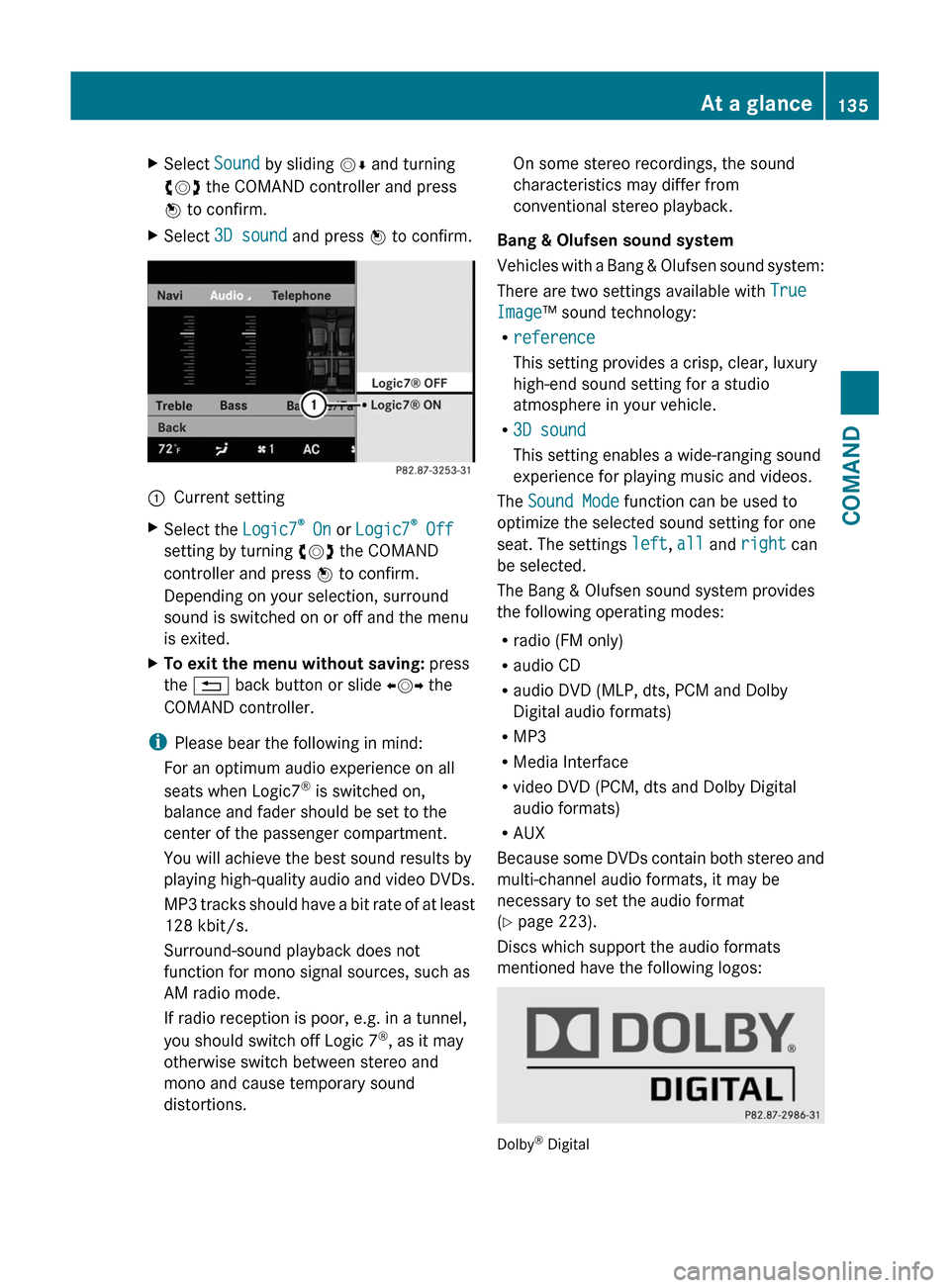
XSelect Sound by sliding VÆ and turning
cVd the COMAND controller and press
W to confirm.
XSelect 3D sound and press W to confirm.:Current settingXSelect the Logic7® On or Logic7® Off
setting by turning cVd the COMAND
controller and press W to confirm.
Depending on your selection, surround
sound is switched on or off and the menu
is exited.
XTo exit the menu without saving: press
the % back button or slide XVY the
COMAND controller.
iPlease bear the following in mind:
For an optimum audio experience on all
seats when Logic7® is switched on,
balance and fader should be set to the
center of the passenger compartment.
You will achieve the best sound results by
playing high-quality audio and video DVDs.
MP3 tracks should have a bit rate of at least
128 kbit/s.
Surround-sound playback does not
function for mono signal sources, such as
AM radio mode.
If radio reception is poor, e.g. in a tunnel,
you should switch off Logic 7®, as it may
otherwise switch between stereo and
mono and cause temporary sound
distortions.
On some stereo recordings, the sound
characteristics may differ from
conventional stereo playback.
Bang & Olufsen sound system
Vehicles with a Bang & Olufsen sound system:
There are two settings available with True
Image™ sound technology:
Rreference
This setting provides a crisp, clear, luxury
high-end sound setting for a studio
atmosphere in your vehicle.
R3D sound
This setting enables a wide-ranging sound
experience for playing music and videos.
The Sound Mode function can be used to
optimize the selected sound setting for one
seat. The settings left, all and right can
be selected.
The Bang & Olufsen sound system provides
the following operating modes:
Rradio (FM only)
Raudio CD
Raudio DVD (MLP, dts, PCM and Dolby
Digital audio formats)
RMP3
RMedia Interface
Rvideo DVD (PCM, dts and Dolby Digital
audio formats)
RAUX
Because some DVDs contain both stereo and
multi-channel audio formats, it may be
necessary to set the audio format
(Y page 223).
Discs which support the audio formats
mentioned have the following logos:
Dolby® Digital
At a glance135COMANDZ
Page 138 of 524
dts™
MLP™
Selecting settings for the Bang & Olufsen
sound system
Calling up the selection menu
XSelect Sound.XHighlight Bang&Olufsen.XPress W.
A selection menu appears.
A # dot in front of an entry indicates the
current setting.
Selecting the setting for True Image™
XTurn cVd or slide ZVÆ and highlight
reference or 3D sound.
XPress W.
Selecting sound mode
XSelect Sound Mode in the selection menu.XTurn cVd or slide ZVÆ and highlight left,
all or right.
XPress W.XTo exit the menu: press the % back
button beside the COMAND controller.
or
XSlide XVY.
iPlease bear the following in mind:
You will achieve the best sound results on
your Bang & Olufsen sound system by
playing high-quality audio DVDs and CDs.
MP3 tracks should have a bit rate of at least
224 kbit/s.
When playing using an iPod®, the bit rate
should also be at least 224 kbit/s.
For optimum playback quality:
XDeactivate the EQ setting on the
iPod®.
Surround-sound playback does not
function for mono signal sources, such as
the medium wave range (MW) in radio
mode.
On some stereo recordings, the sound
characteristics may differ from
conventional stereo playback.
Rear Seat Entertainment System
Components
Overview
The Rear Seat Entertainment System*
comprises:
Rtwo screens for the rear behind the front-
seat head restraints
Rthe remote control
Ra CD/DVD drive
RAUX jacks on both screens (display AUX)
and on the CD/DVD drive (drive AUX)
Rtwo sets of cordless headphones
136At a glanceCOMAND
Page 151 of 524
COMAND calculates the route to the
destination without taking account of the
following:
R Traffic lights
R Stop and right-of-way-signs
R Lane merging
R Parking or stopping prohibited areas
R Other road and traffic rules and regulations
R Narrow bridgesGWarning
COMAND may give incorrect navigation
commands if the data in the digital map does
not correspond with the actual road/traffic
situation. Digital maps do not cover all areas
nor all routes within an area. For example, if
the traffic routing has been changed or the
direction of a one-way road has been
reversed.
For this reason, you must always observe
applicable road and traffic rules and
regulations during your journey. Road and
traffic rules and regulations always have
priority over the navigation commands
generated by the system.
GWarning
Navigation announcements are intended to
direct you while driving without diverting your
attention from the road and driving.
Please always use this feature instead of
consulting the map display for directions.
Looking at the icons or map display can
distract you from traffic conditions and
driving, and increase the risk of an accident.
General information
Operational readiness of the navigation
system
The navigation system must determine the
position of the vehicle before first use or
whenever operational status is restored.
Therefore, you may have to drive for a while
before precise route guidance is possible.
GPS reception
Among other things, correct functioning of
the navigation system depends on GPS
reception. In certain situations, GPS
reception may be impaired, there may be
interference or there may be no reception at
all, e.g. in tunnels or parking garages.
Input restriction
On vehicles for certain countries, there is a
restriction on entering data.
The restriction is active at vehicle speeds
above approximately 3 mph (5 km/h). The
restriction is deactivated as soon as the
speed falls below 2 mph (3 km/h).
When the restriction is active, certain entries
cannot be made. This will be indicated by the
fact that certain menu items are grayed out
and cannot be selected.
The following entries are not possible, for
example:
R entering the destination city and street
R entering a destination via the map
R entering in the vicinity of a city or via a
name search
R editing entries
R direct entry using the number keypad
Other entries are still possible, such as
entering points of interest in the vicinity of the
destination or current position.
Switching on navigation modeXPress the S function button once or
twice.
or
XSelect Navi in the main function bar by
sliding ZV and turning cVd the COMAND
controller and press W to confirm.
In both cases, you will see the map either
with or without the menu shown.Navigation149COMANDZ
Page 152 of 524
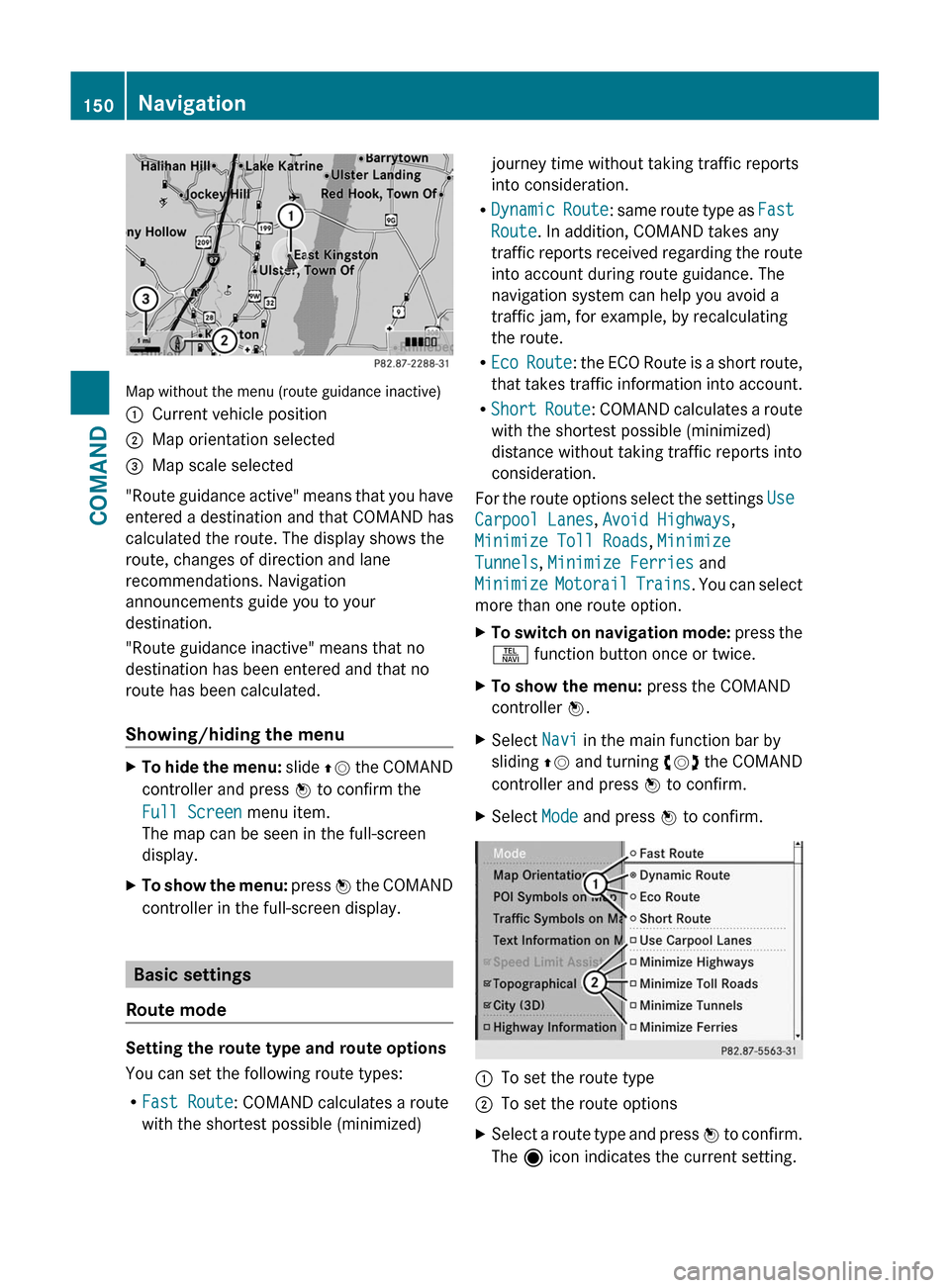
Map without the menu (route guidance inactive)
:Current vehicle position;Map orientation selected=Map scale selected
"Route guidance active" means that you have
entered a destination and that COMAND has
calculated the route. The display shows the
route, changes of direction and lane
recommendations. Navigation
announcements guide you to your
destination.
"Route guidance inactive" means that no
destination has been entered and that no
route has been calculated.
Showing/hiding the menu
XTo hide the menu: slide ZV the COMAND
controller and press W to confirm the
Full Screen menu item.
The map can be seen in the full-screen
display.
XTo show the menu: press W the COMAND
controller in the full-screen display.
Basic settings
Route mode
Setting the route type and route options
You can set the following route types:
RFast Route: COMAND calculates a route
with the shortest possible (minimized)
journey time without taking traffic reports
into consideration.
RDynamic Route: same route type as Fast
Route. In addition, COMAND takes any
traffic reports received regarding the route
into account during route guidance. The
navigation system can help you avoid a
traffic jam, for example, by recalculating
the route.
REco Route: the ECO Route is a short route,
that takes traffic information into account.
RShort Route: COMAND calculates a route
with the shortest possible (minimized)
distance without taking traffic reports into
consideration.
For the route options select the settings Use
Carpool Lanes, Avoid Highways,
Minimize Toll Roads, Minimize
Tunnels, Minimize Ferries and
Minimize Motorail Trains. You can select
more than one route option.
XTo switch on navigation mode: press the
S function button once or twice.
XTo show the menu: press the COMAND
controller W.
XSelect Navi in the main function bar by
sliding ZV and turning cVd the COMAND
controller and press W to confirm.
XSelect Mode and press W to confirm.:To set the route type;To set the route optionsXSelect a route type and press W to confirm.
The ä icon indicates the current setting.
150NavigationCOMAND
Page 153 of 524
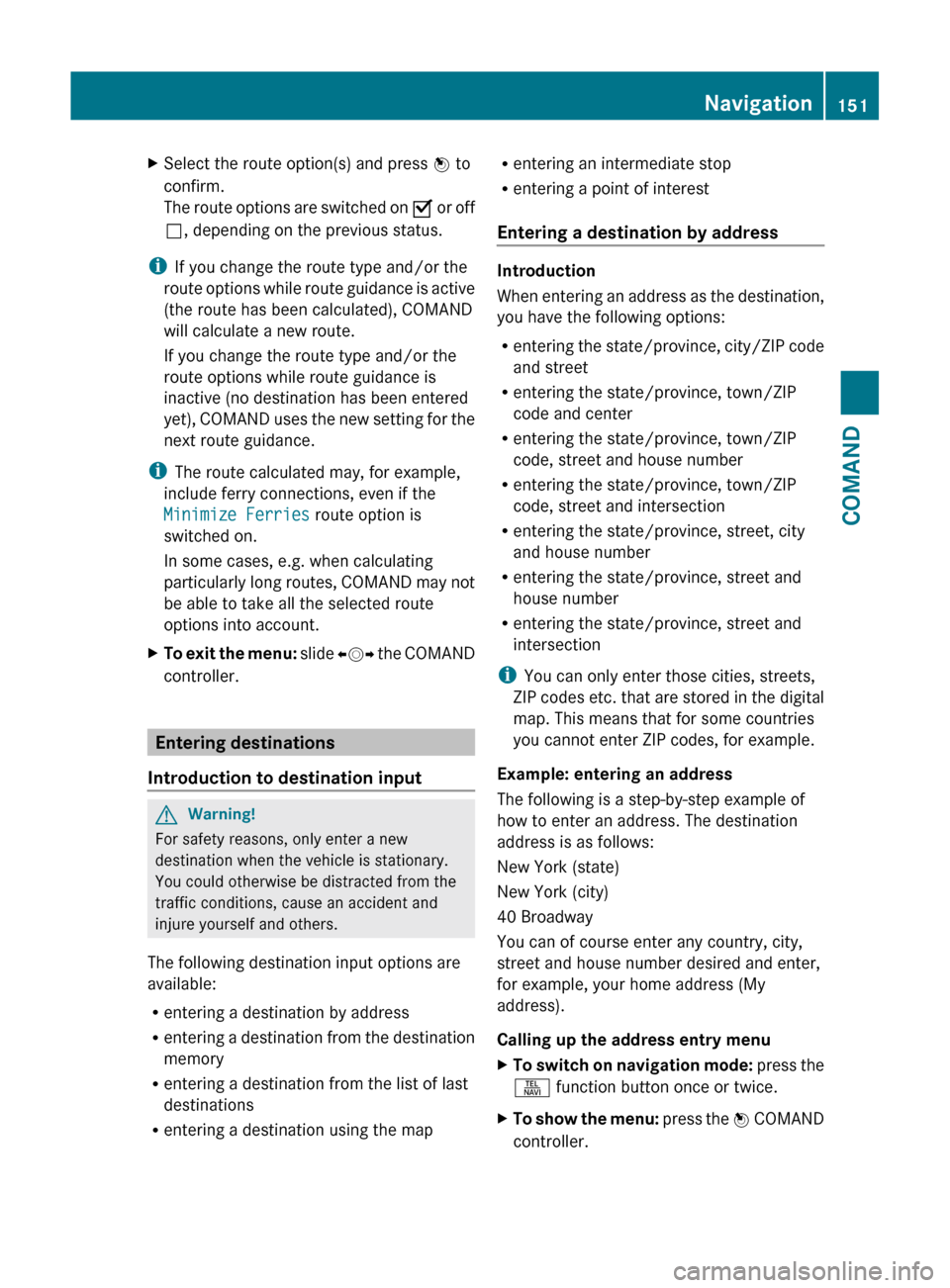
XSelect the route option(s) and press W to
confirm.
The route options are switched on O or off
ª , depending on the previous status.
i
If you change the route type and/or the
route options while route guidance is active
(the route has been calculated), COMAND
will calculate a new route.
If you change the route type and/or the
route options while route guidance is
inactive (no destination has been entered
yet), COMAND uses the new setting for the
next route guidance.
i The route calculated may, for example,
include ferry connections, even if the
Minimize Ferries route option is
switched on.
In some cases, e.g. when calculating
particularly long routes, COMAND may not
be able to take all the selected route
options into account.
XTo exit the menu: slide XVY the COMAND
controller.
Entering destinations
Introduction to destination input
GWarning!
For safety reasons, only enter a new
destination when the vehicle is stationary.
You could otherwise be distracted from the
traffic conditions, cause an accident and
injure yourself and others.
The following destination input options are
available:
R entering a destination by address
R entering a destination from the destination
memory
R entering a destination from the list of last
destinations
R entering a destination using the map
Rentering an intermediate stop
R entering a point of interest
Entering a destination by address
Introduction
When entering an address as the destination,
you have the following options:
R entering the state/province, city/ZIP code
and street
R entering the state/province, town/ZIP
code and center
R entering the state/province, town/ZIP
code, street and house number
R entering the state/province, town/ZIP
code, street and intersection
R entering the state/province, street, city
and house number
R entering the state/province, street and
house number
R entering the state/province, street and
intersection
i You can only enter those cities, streets,
ZIP codes etc. that are stored in the digital
map. This means that for some countries
you cannot enter ZIP codes, for example.
Example: entering an address
The following is a step-by-step example of
how to enter an address. The destination
address is as follows:
New York (state)
New York (city)
40 Broadway
You can of course enter any country, city,
street and house number desired and enter,
for example, your home address (My
address).
Calling up the address entry menu
XTo switch on navigation mode: press the
S function button once or twice.XTo show the menu: press the W COMAND
controller.Navigation151COMANDZ
Page 154 of 524
XSelect Destination by turning cVd the
COMAND controller and press W to
confirm.
XSelect Address Entry and press W to
confirm.
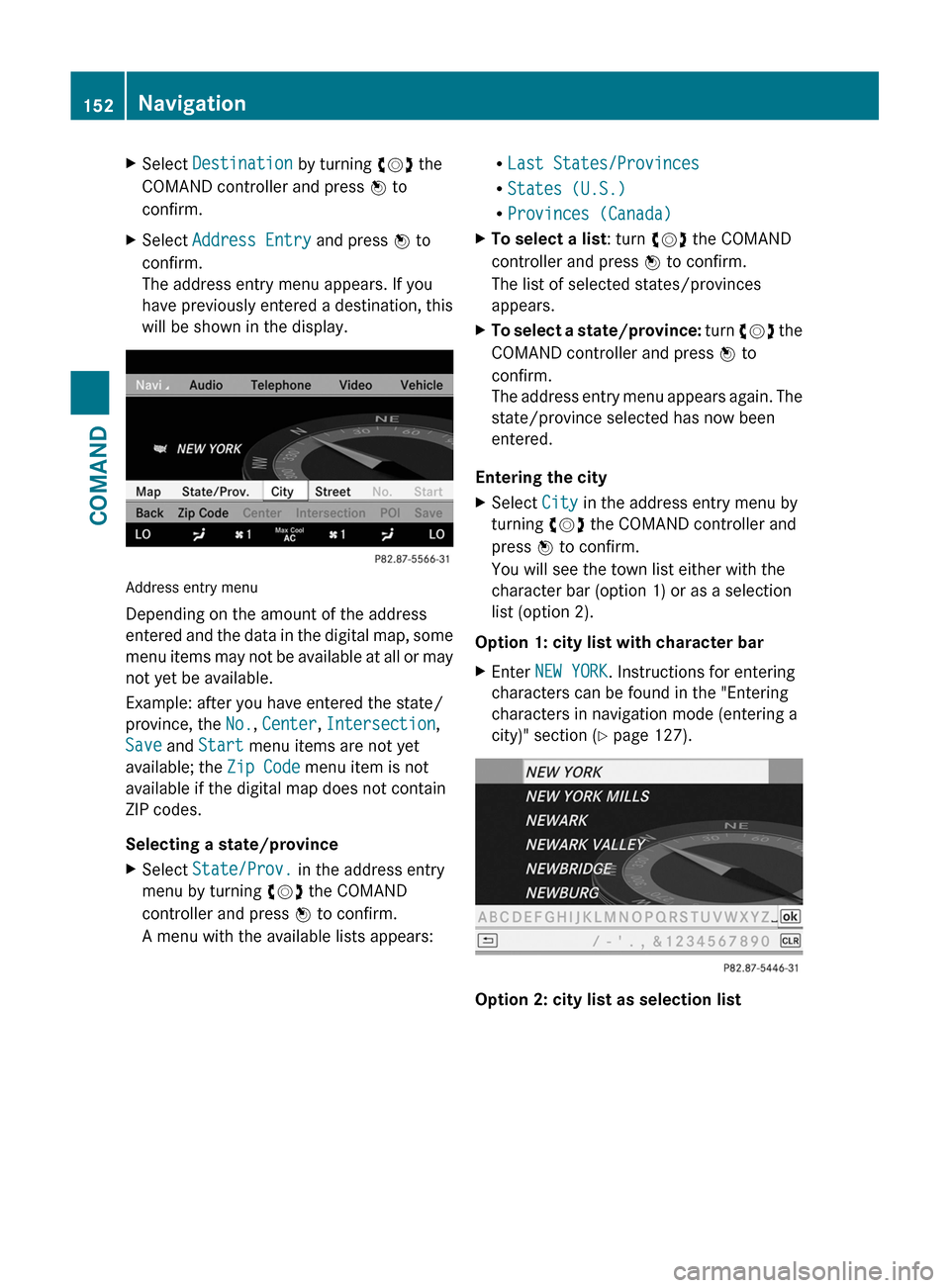
The address entry menu appears. If you
have previously entered a destination, this
will be shown in the display.
Address entry menu
Depending on the amount of the address
entered and the data in the digital map, some
menu items may not be available at all or may
not yet be available.
Example: after you have entered the state/
province, the No., Center, Intersection,
Save and Start menu items are not yet
available; the Zip Code menu item is not
available if the digital map does not contain
ZIP codes.
Selecting a state/province
XSelect State/Prov. in the address entry
menu by turning cVd the COMAND
controller and press W to confirm.
A menu with the available lists appears:
RLast States/Provinces
RStates (U.S.)
RProvinces (Canada)
XTo select a list: turn cVd the COMAND
controller and press W to confirm.
The list of selected states/provinces
appears.
XTo select a state/province: turn cVd the
COMAND controller and press W to
confirm.
The address entry menu appears again. The
state/province selected has now been
entered.
Entering the city
XSelect City in the address entry menu by
turning cVd the COMAND controller and
press W to confirm.
You will see the town list either with the
character bar (option 1) or as a selection
list (option 2).
Option 1: city list with character bar
XEnter NEW YORK. Instructions for entering
characters can be found in the "Entering
characters in navigation mode (entering a
city)" section (Y page 127).
Option 2: city list as selection list
152NavigationCOMAND
Page 155 of 524
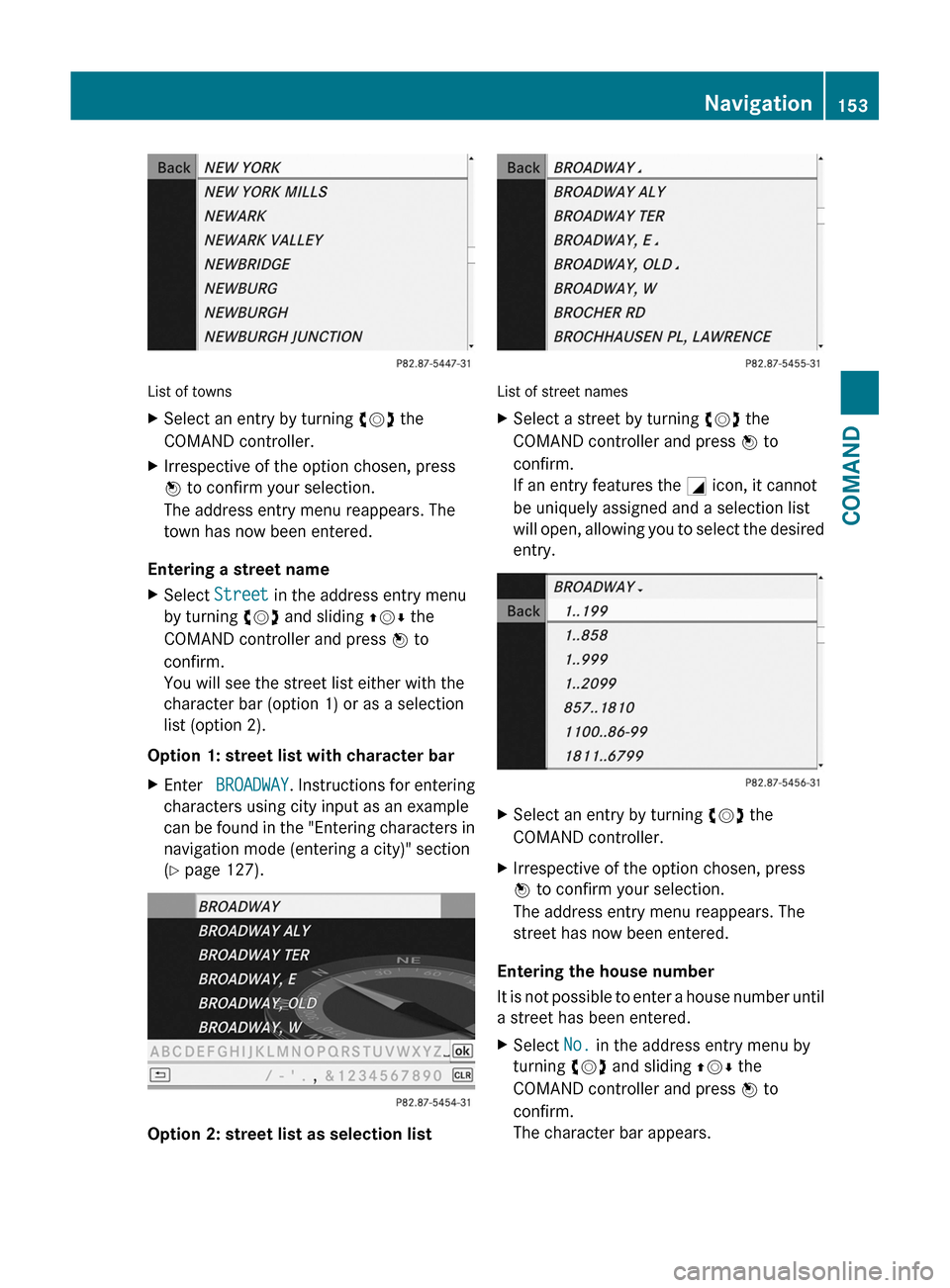
List of towns
XSelect an entry by turning cVd the
COMAND controller.
XIrrespective of the option chosen, press
W to confirm your selection.
The address entry menu reappears. The
town has now been entered.
Entering a street name
XSelect Street in the address entry menu
by turning cVd and sliding ZVÆ the
COMAND controller and press W to
confirm.
You will see the street list either with the
character bar (option 1) or as a selection
list (option 2).
Option 1: street list with character bar
XEnter BROADWAY. Instructions for entering
characters using city input as an example
can be found in the "Entering characters in
navigation mode (entering a city)" section
(Y page 127).
Option 2: street list as selection list
List of street names
XSelect a street by turning cVd the
COMAND controller and press W to
confirm.
If an entry features the G icon, it cannot
be uniquely assigned and a selection list
will open, allowing you to select the desired
entry.
XSelect an entry by turning cVd the
COMAND controller.
XIrrespective of the option chosen, press
W to confirm your selection.
The address entry menu reappears. The
street has now been entered.
Entering the house number
It is not possible to enter a house number until
a street has been entered.
XSelect No. in the address entry menu by
turning cVd and sliding ZVÆ the
COMAND controller and press W to
confirm.
The character bar appears.
Navigation153COMANDZ