W mode MERCEDES-BENZ S-Class 2011 W221 Workshop Manual
[x] Cancel search | Manufacturer: MERCEDES-BENZ, Model Year: 2011, Model line: S-Class, Model: MERCEDES-BENZ S-Class 2011 W221Pages: 524, PDF Size: 22.53 MB
Page 171 of 524
XSelect Route in the navigation menu bar by
turning cVd the COMAND controller and
press W to confirm.
XSelect Detour and press W to confirm.XTo block a section of the route: select
More or Less repeatedly and confirm using
the W button until the desired section has
been selected.
iThe length of the blockable route section
is predetermined by the digital map. The
menu items are available accordingly.
XTo start route calculation: select Start
and press W to confirm.
XTo delete the blocked section: select
Delete while the message is shown and
press W to confirm.
COMAND calculates the route without the
block.
Selecting an alternative route
With the "Alternative route" function, routes
other than the original one can be calculated.
XTo switch on navigation mode: press the
S function button once or twice.
XTo show the menu: press W the COMAND
controller.
XSelect Route in the navigation menu bar by
turning cVd the COMAND controller and
press W to confirm.
XSelect Alternative Route and press W
to confirm.
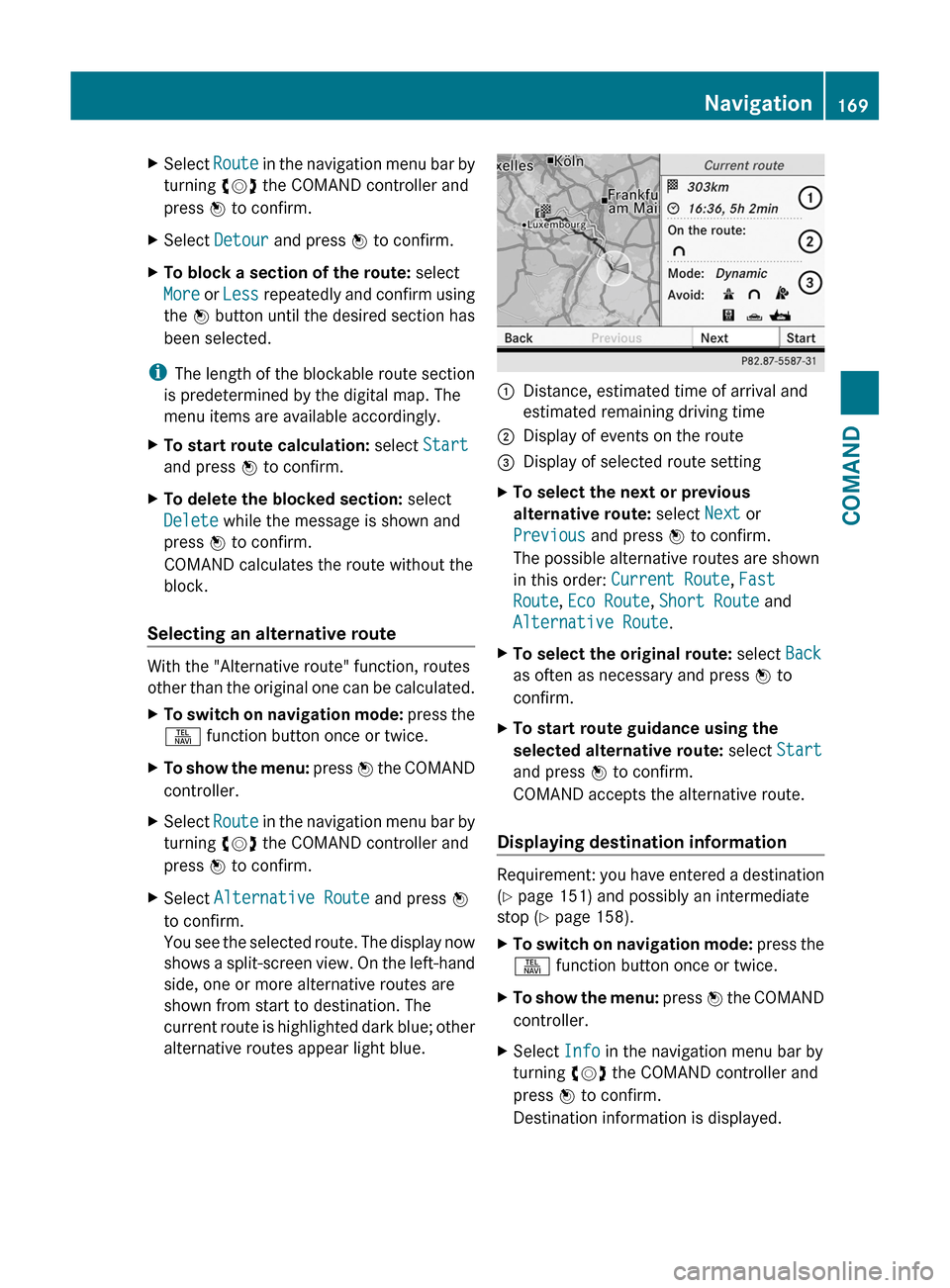
You see the selected route. The display now
shows a split-screen view. On the left-hand
side, one or more alternative routes are
shown from start to destination. The
current route is highlighted dark blue; other
alternative routes appear light blue.
:Distance, estimated time of arrival and
estimated remaining driving time
;Display of events on the route=Display of selected route settingXTo select the next or previous
alternative route: select Next or
Previous and press W to confirm.
The possible alternative routes are shown
in this order: Current Route, Fast
Route, Eco Route, Short Route and
Alternative Route.
XTo select the original route: select Back
as often as necessary and press W to
confirm.
XTo start route guidance using the
selected alternative route: select Start
and press W to confirm.
COMAND accepts the alternative route.
Displaying destination information
Requirement: you have entered a destination
(Y page 151) and possibly an intermediate
stop (Y page 158).
XTo switch on navigation mode: press the
S function button once or twice.
XTo show the menu: press W the COMAND
controller.
XSelect Info in the navigation menu bar by
turning cVd the COMAND controller and
press W to confirm.
Destination information is displayed.
Navigation169COMANDZ
Page 172 of 524
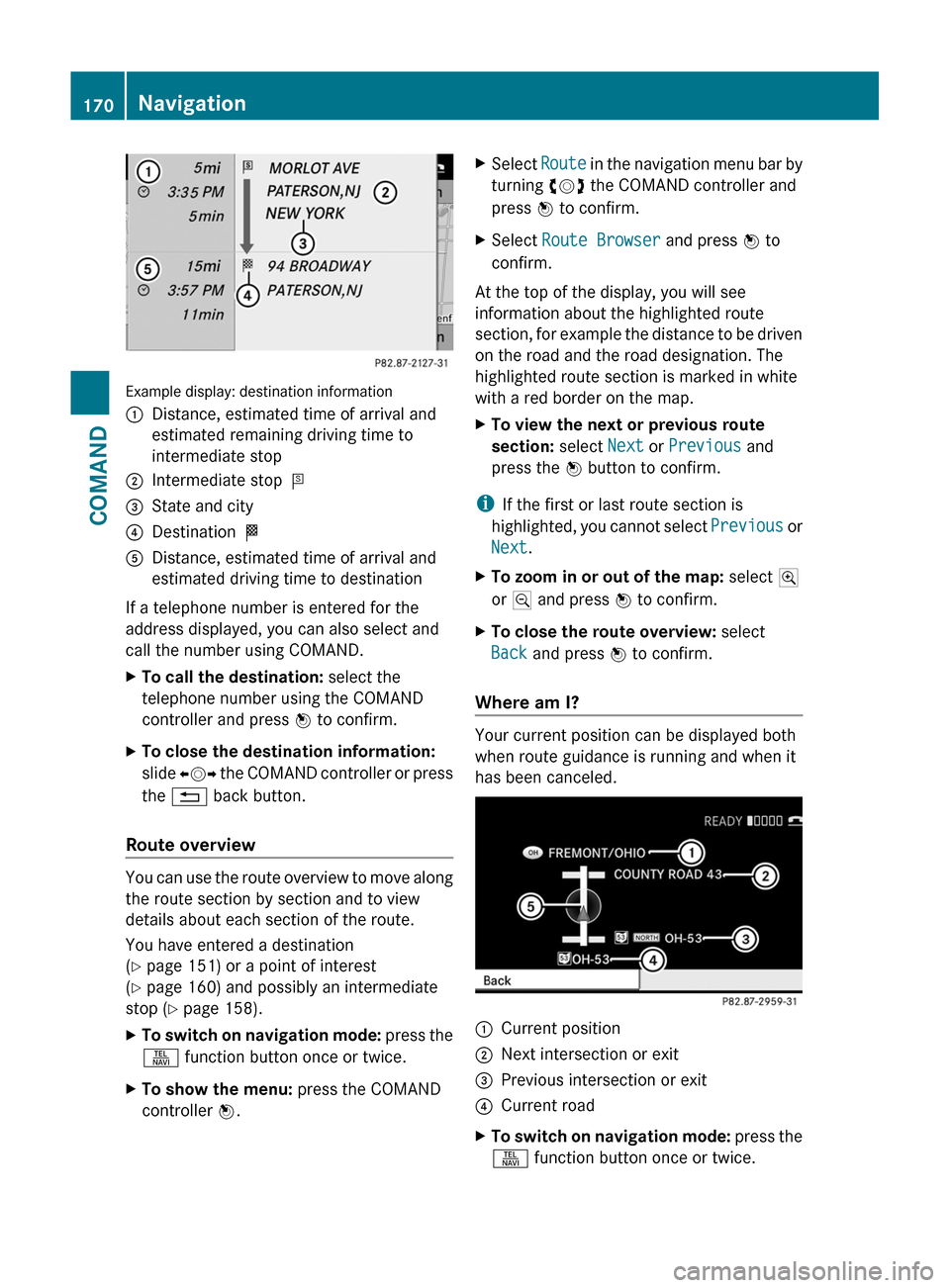
Example display: destination information
:Distance, estimated time of arrival and
estimated remaining driving time to
intermediate stop
;Intermediate stop P=State and city?Destination OADistance, estimated time of arrival and
estimated driving time to destination
If a telephone number is entered for the
address displayed, you can also select and
call the number using COMAND.
XTo call the destination: select the
telephone number using the COMAND
controller and press W to confirm.
XTo close the destination information:
slide XVY the COMAND controller or press
the % back button.
Route overview
You can use the route overview to move along
the route section by section and to view
details about each section of the route.
You have entered a destination
(Y page 151) or a point of interest
(Y page 160) and possibly an intermediate
stop (Y page 158).
XTo switch on navigation mode: press the
S function button once or twice.
XTo show the menu: press the COMAND
controller W.
XSelect Route in the navigation menu bar by
turning cVd the COMAND controller and
press W to confirm.
XSelect Route Browser and press W to
confirm.
At the top of the display, you will see
information about the highlighted route
section, for example the distance to be driven
on the road and the road designation. The
highlighted route section is marked in white
with a red border on the map.
XTo view the next or previous route
section: select Next or Previous and
press the W button to confirm.
iIf the first or last route section is
highlighted, you cannot select Previous or
Next.
XTo zoom in or out of the map: select N
or M and press W to confirm.
XTo close the route overview: select
Back and press W to confirm.
Where am I?
Your current position can be displayed both
when route guidance is running and when it
has been canceled.
:Current position;Next intersection or exit=Previous intersection or exit?Current roadXTo switch on navigation mode: press the
S function button once or twice.
170NavigationCOMAND
Page 176 of 524
Displaying real-time traffic reportsXIf necessary, switch to navigation mode
and show the menu (Y page 150).
XSelect Traffic in the navigation system
menu bar by turning cVd the COMAND
controller and press W to confirm.
If you see the No traffic messages.
message:
This means that:
Rno traffic reports have been received yet.
Rno traffic reports are available.
XTo cancel the search: select Cancel.XTo close the message window: select
OK.
If there are any traffic reports, a list is shown.
The content of the list varies depending on
whether route guidance is active or not.
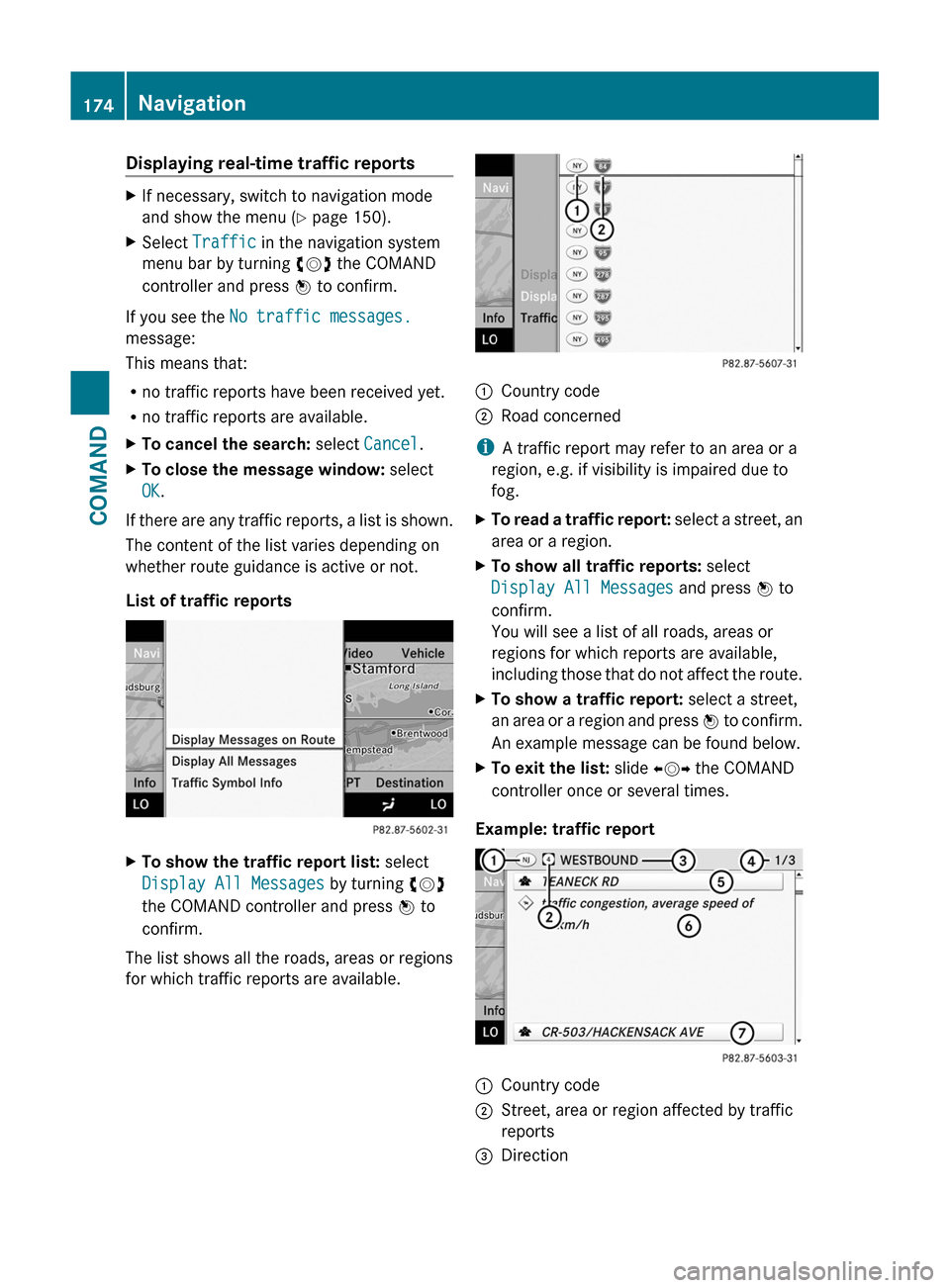
List of traffic reports
XTo show the traffic report list: select
Display All Messages by turning cVd
the COMAND controller and press W to
confirm.
The list shows all the roads, areas or regions
for which traffic reports are available.
1Country code2Road concerned
iA traffic report may refer to an area or a
region, e.g. if visibility is impaired due to
fog.
XTo read a traffic report: select a street, an
area or a region.
XTo show all traffic reports: select
Display All Messages and press W to
confirm.
You will see a list of all roads, areas or
regions for which reports are available,
including those that do not affect the route.
XTo show a traffic report: select a street,
an area or a region and press W to confirm.
An example message can be found below.
XTo exit the list: slide XVY the COMAND
controller once or several times.
Example: traffic report
1Country code2Street, area or region affected by traffic
reports
3Direction174NavigationCOMAND
Page 177 of 524
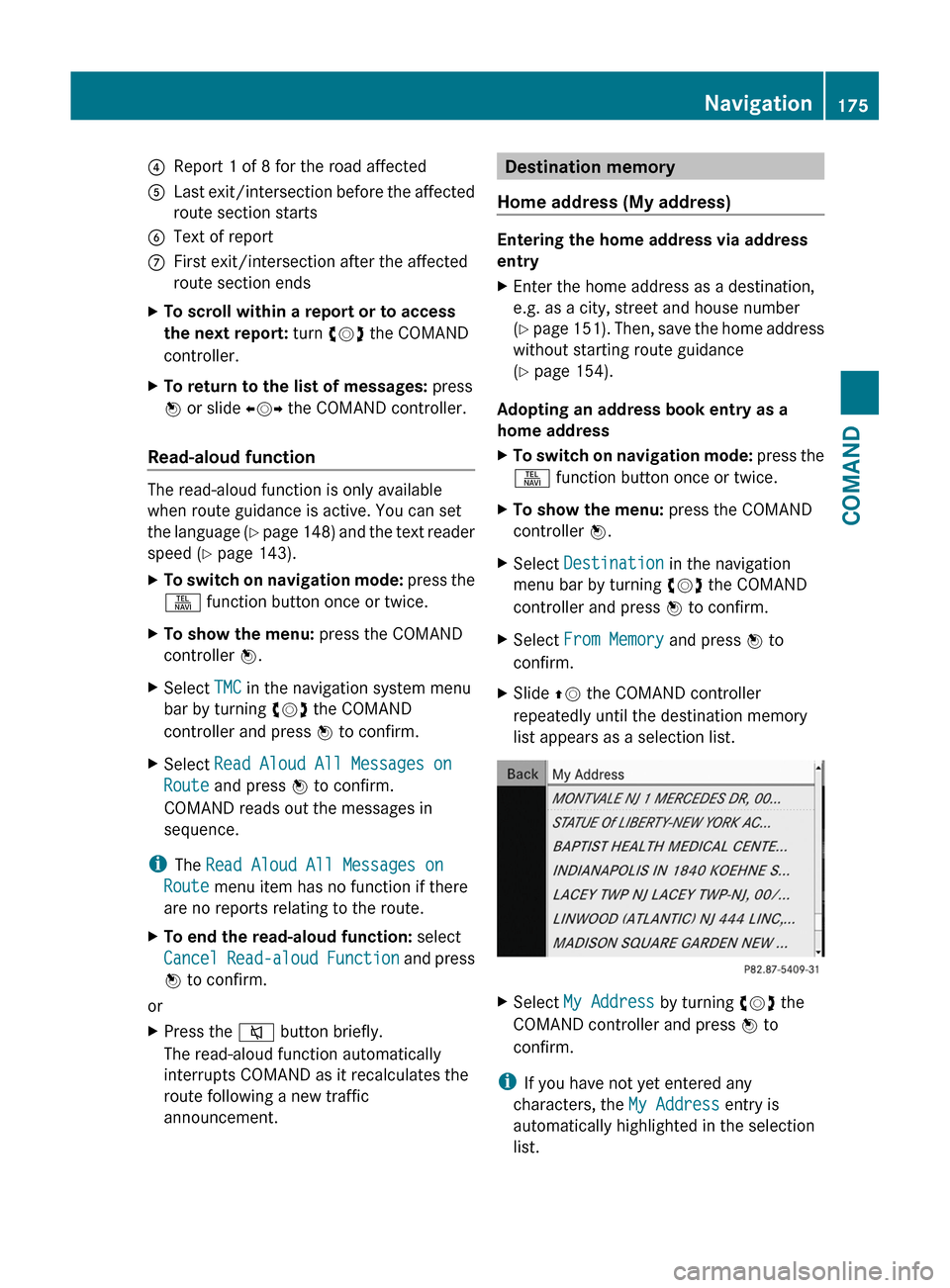
4Report 1 of 8 for the road affected5Last exit/intersection before the affected
route section starts
6Text of reportCFirst exit/intersection after the affected
route section ends
XTo scroll within a report or to access
the next report: turn cVd the COMAND
controller.
XTo return to the list of messages: press
W or slide XVY the COMAND controller.
Read-aloud function
The read-aloud function is only available
when route guidance is active. You can set
the language (Y page 148) and the text reader
speed (Y page 143).
XTo switch on navigation mode: press the
S function button once or twice.
XTo show the menu: press the COMAND
controller W.
XSelect TMC in the navigation system menu
bar by turning cVd the COMAND
controller and press W to confirm.
XSelect Read Aloud All Messages on
Route and press W to confirm.
COMAND reads out the messages in
sequence.
iThe Read Aloud All Messages on
Route menu item has no function if there
are no reports relating to the route.
XTo end the read-aloud function: select
Cancel Read-aloud Function and press
W to confirm.
or
XPress the 8 button briefly.
The read-aloud function automatically
interrupts COMAND as it recalculates the
route following a new traffic
announcement.
Destination memory
Home address (My address)
Entering the home address via address
entry
XEnter the home address as a destination,
e.g. as a city, street and house number
(Y page 151). Then, save the home address
without starting route guidance
(Y page 154).
Adopting an address book entry as a
home address
XTo switch on navigation mode: press the
S function button once or twice.
XTo show the menu: press the COMAND
controller W.
XSelect Destination in the navigation
menu bar by turning cVd the COMAND
controller and press W to confirm.
XSelect From Memory and press W to
confirm.
XSlide ZV the COMAND controller
repeatedly until the destination memory
list appears as a selection list.
XSelect My Address by turning cVd the
COMAND controller and press W to
confirm.
iIf you have not yet entered any
characters, the My Address entry is
automatically highlighted in the selection
list.
Navigation175COMANDZ
Page 179 of 524
XSelect Destination in the navigation
menu bar by turning cVd the COMAND
controller and press W to confirm.
XSelect From Last Destinations and
press W to confirm.
The list of previous destinations appears.
XSelect the destination by turning cVd the
COMAND controller and press W to
confirm.
The destination address is shown.
XSelect Save and press W to confirm.
You can now select storage options.
Selecting storage options
XTo save the destination without a
name: select Save without Name and
press W to confirm.
COMAND stores the destination in the
destination memory and uses the address
as the destination name.
XTo save the destination as My
Address: select Save as "My Address"
and press W to confirm.
COMAND stores the destination as My
Address in the destination memory. If the
entry already contains data that can be
used for navigation (L icon), a prompt will
appear asking whether you wish to
overwrite the existing data.
XSelect Yes or No and press W to confirm.
If you select Yes, the entry is overwritten.
If you select No, the process will be
canceled.
XTo save the destination with a name:
select Save with Name and press W to
confirm.
XSelect a category, e.g. Home, and press W
to confirm.
The input menu appears with data fields
and the character bar.
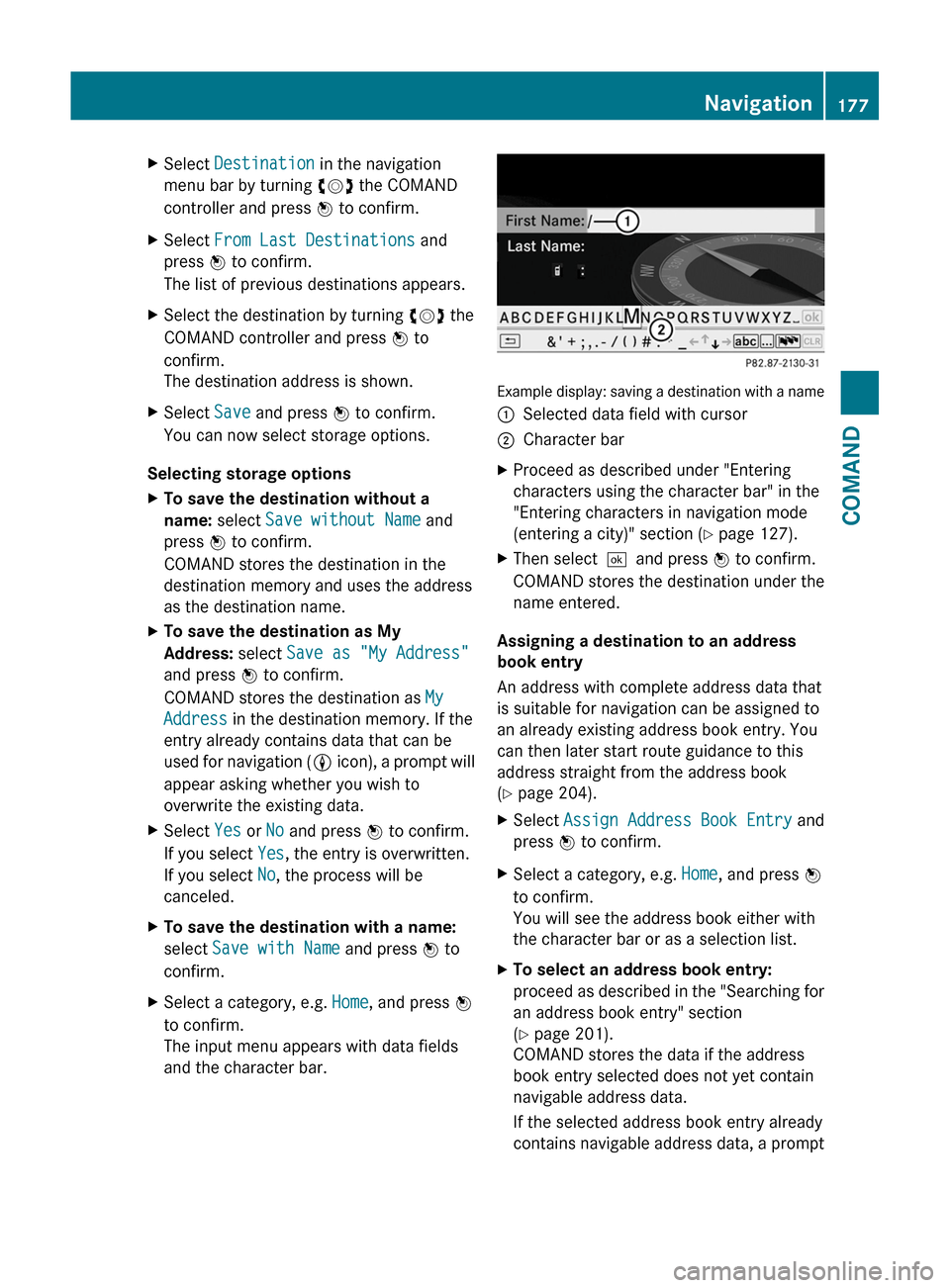
Example display: saving a destination with a name
:Selected data field with cursor;Character barXProceed as described under "Entering
characters using the character bar" in the
"Entering characters in navigation mode
(entering a city)" section (Y page 127).
XThen select¬and press W to confirm.
COMAND stores the destination under the
name entered.
Assigning a destination to an address
book entry
An address with complete address data that
is suitable for navigation can be assigned to
an already existing address book entry. You
can then later start route guidance to this
address straight from the address book
(Y page 204).
XSelect Assign Address Book Entry and
press W to confirm.
XSelect a category, e.g. Home, and press W
to confirm.
You will see the address book either with
the character bar or as a selection list.
XTo select an address book entry:
proceed as described in the "Searching for
an address book entry" section
(Y page 201).
COMAND stores the data if the address
book entry selected does not yet contain
navigable address data.
If the selected address book entry already
contains navigable address data, a prompt
Navigation177COMANDZ
Page 180 of 524
will appear asking whether you wish to
overwrite the existing data.XSelect Yes or No and press W to confirm.
If you select Yes, COMAND stores the data.
Deleting a destination or the home
address from the destination memory
XTo switch on navigation mode: press the
S function button once or twice.XTo show the menu: press W the COMAND
controller.XSelect Destination in the navigation
menu bar by turning cVd the COMAND
controller and press W to confirm.XSelect From Memory and press W to
confirm.
You will see the destination memory list
either with the character bar (option 1) or
as a selection list (option 2).XOption 1 – destination memory list with
character bar: proceed as described in the
"Entering characters using the character
bar" section ( Y page 127).XOption 2 - destination memory list as a
selection list: select the destination by
turning cVd the COMAND controller and
press W to confirm.
The address data appears for the selected
entry.XSelect Delete and press W to confirm.
A prompt appears asking whether you wish
to delete the destination.XSelect Yes or No and press W to confirm.
If you select Yes, COMAND deletes the
destination. You see a message to this
effect.
If you select No, the process will be
canceled.
i If the navigable address data for the
destination being deleted is also assigned
to an address book entry, COMAND will
also delete this data from there. If the
corresponding address book entry does
not contain any further data, such as
telephone numbers, COMAND deletes the
entire address book entry.
Last destinations
Introduction
COMAND automatically stores the previous
destinations for which the route calculation
was started. If the memory is full, COMAND
deletes the oldest destination. You can also
store one destination from the list of previous
destinations in the destination memory. It will
be stored there permanently.
Storing a destination permanently in
the destination memory
XProceed as described in the "From the list
of previous destinations" section
( Y page 176).
Storing the vehicle position in the list of
previous destinations
XTo switch on navigation mode: press the
S function button once or twice.XTo show the menu: press W the COMAND
controller.XSelect Position in the navigation menu
bar by turning cVd the COMAND
controller and press W to confirm.XSelect Store Vehicle Position and
press W to confirm.
COMAND stores the current vehicle
position as a destination in the list of
previous destinations.178NavigationCOMAND
Page 181 of 524
Storing the crosshair position in the list
of previous destinations
Route guidance not active
A crosshair appears on the map if you have
moved the map manually. You can store the
crosshair position as a destination in the list
of previous destinations.
XTo show the menu: press the COMAND
controller W.XSelect Position in the navigation menu
bar by turning cVd the COMAND
controller and press W to confirm.XSelect Save Crosshair Position and
press W to confirm.
Route guidance is active
XTo show the menu: press the COMAND
controller W.XSelect Position in the navigation menu
bar by turning cVd the COMAND
controller and press W to confirm.XSelect Destination Map and press W to
confirm.
You will see the map with a crosshair at the
destination.XTo show the menu: press the COMAND
controller W.XSelect Position in the navigation menu
bar by turning cVd the COMAND
controller and press W to confirm.XSelect Save Crosshair Position and
press W to confirm.
COMAND stores the crosshair position as
a destination in the list of previous
destinations.
Deleting one of the previous
destinations
XTo switch on navigation mode: press the
S function button once or twice.XTo show the menu: press the COMAND
controller W.XSelect Destination in the navigation
menu bar by turning cVd the COMAND
controller and press W to confirm.XSelect From Last Destinations and
press W to confirm.
The list of previous destinations appears.XSelect the desired destination and press
W to confirm.
The destination address appears.XSelect Delete and press W to confirm.
A prompt appears, asking whether the
entry should be deleted.XSelect Yes or No and press W to confirm.
If you select Yes, the entry is deleted.
If you select No, the process will be
canceled.
Map usage and settings
Note
Company logos displayed on the map are
trademarks of the respective companies and
used solely for the purpose of indicating the
location of these companies. The use of such
logos for the map does not indicate approval,
support or advertisement of the navigation
system by the respective companies.
Adjusting the map scale
XTo hide the menu: slide ZV the COMAND
controller and press W when the Full
Screen menu item is shown.XTo call up the scale bar: as soon as you
turn cVd the COMAND controller, scale
bar = appears.XTurn cVd until the desired scale is
selected.Navigation179COMANDZ
Page 183 of 524
Centering on the destination
This function requires a calculated route to a
destination.
XTo show the menu: press the COMAND
controller W.
XSelect Position in the navigation menu by
sliding VÆ and turning cVd the COMAND
controller and press W to confirm.
XSelect Destination Map and press W to
confirm.
The crosshair is centered on the
destination.
Map display
Setting the map orientation
Map orientation
:Currently set map orientation
The following display modes are possible:
R0 North orientation (the map view is
displayed so that north is always up).
R¤ Orientation in the direction of travel (the
map is displayed so that the heading is
always up; the orange point of the icon
points north).
R¤ Bird's-eye view (the map is displayed so
that the heading is always up; the map
projection reproduces the curvature of the
earth and the orange point of the icon
points north).
R¤ 3D map (the map is displayed so that
the heading is always up and with elevation
or terrain modeling. The orange point of the
icon points north).
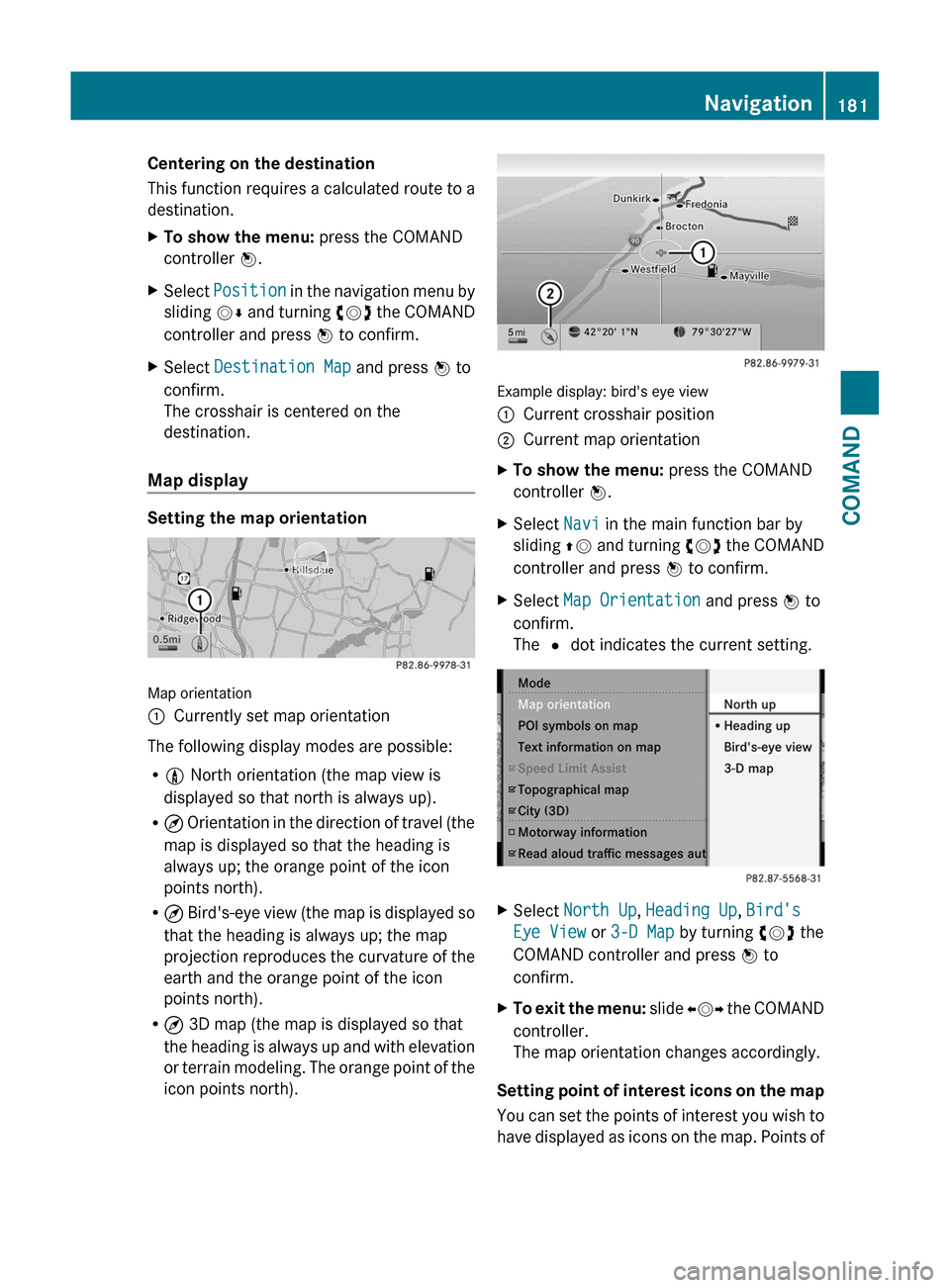
Example display: bird's eye view
:Current crosshair position;Current map orientationXTo show the menu: press the COMAND
controller W.
XSelect Navi in the main function bar by
sliding ZV and turning cVd the COMAND
controller and press W to confirm.
XSelect Map Orientation and press W to
confirm.
The # dot indicates the current setting.
XSelect North Up, Heading Up, Bird's
Eye View or 3-D Map by turning cVd the
COMAND controller and press W to
confirm.
XTo exit the menu: slide XVY the COMAND
controller.
The map orientation changes accordingly.
Setting point of interest icons on the map
You can set the points of interest you wish to
have displayed as icons on the map. Points of
Navigation181COMANDZ
Page 185 of 524
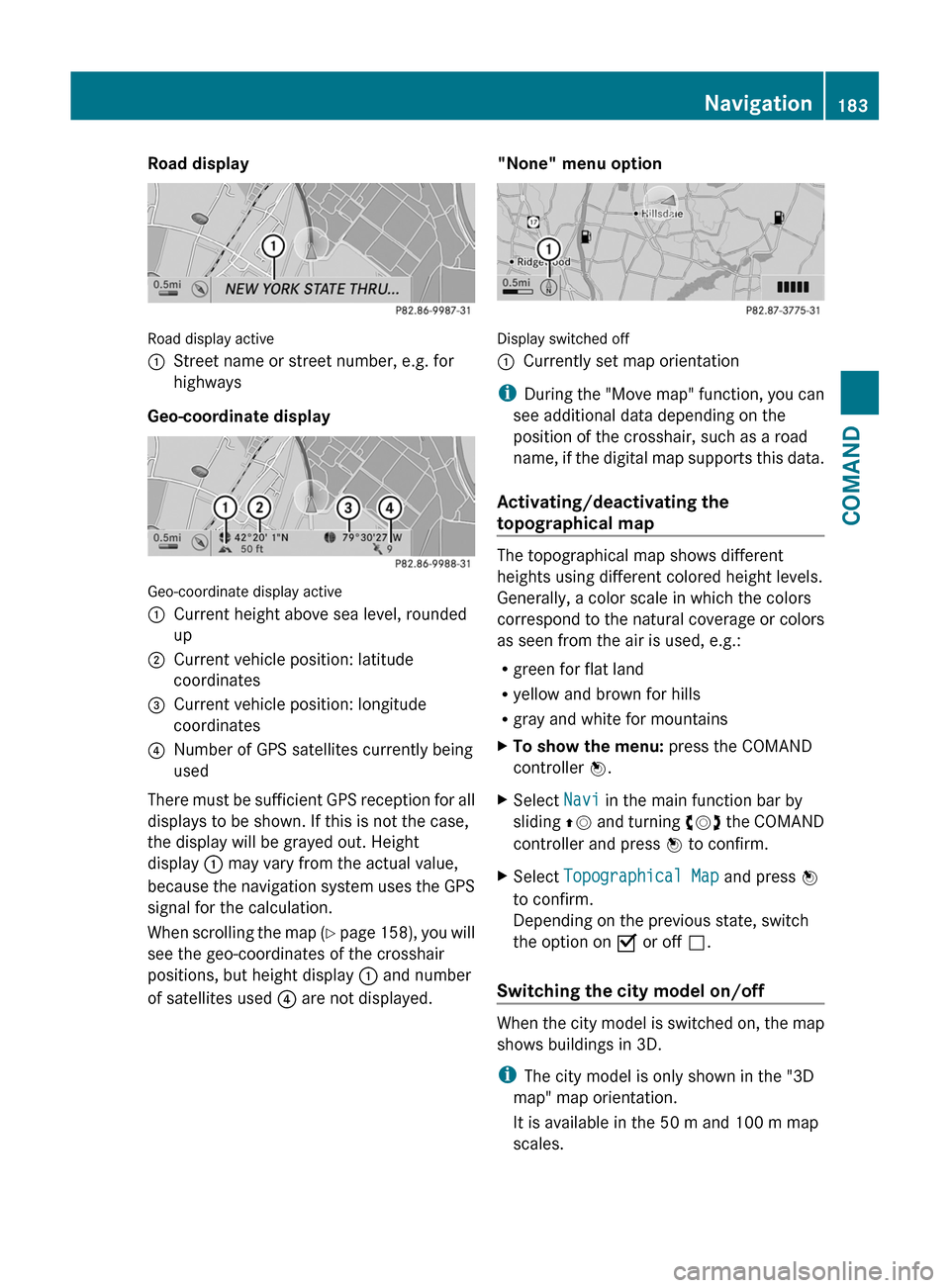
Road display
Road display active
:Street name or street number, e.g. for
highways
Geo-coordinate display
Geo-coordinate display active
:Current height above sea level, rounded
up
;Current vehicle position: latitude
coordinates
=Current vehicle position: longitude
coordinates
?Number of GPS satellites currently being
used
There must be sufficient GPS reception for all
displays to be shown. If this is not the case,
the display will be grayed out. Height
display : may vary from the actual value,
because the navigation system uses the GPS
signal for the calculation.
When scrolling the map (Y page 158), you will
see the geo-coordinates of the crosshair
positions, but height display : and number
of satellites used ? are not displayed.
"None" menu option
Display switched off
:Currently set map orientation
iDuring the "Move map" function, you can
see additional data depending on the
position of the crosshair, such as a road
name, if the digital map supports this data.
Activating/deactivating the
topographical map
The topographical map shows different
heights using different colored height levels.
Generally, a color scale in which the colors
correspond to the natural coverage or colors
as seen from the air is used, e.g.:
Rgreen for flat land
Ryellow and brown for hills
Rgray and white for mountains
XTo show the menu: press the COMAND
controller W.
XSelect Navi in the main function bar by
sliding ZV and turning cVd the COMAND
controller and press W to confirm.
XSelect Topographical Map and press W
to confirm.
Depending on the previous state, switch
the option on O or off ª.
Switching the city model on/off
When the city model is switched on, the map
shows buildings in 3D.
iThe city model is only shown in the "3D
map" map orientation.
It is available in the 50 m and 100 m map
scales.
Navigation183COMANDZ
Page 187 of 524
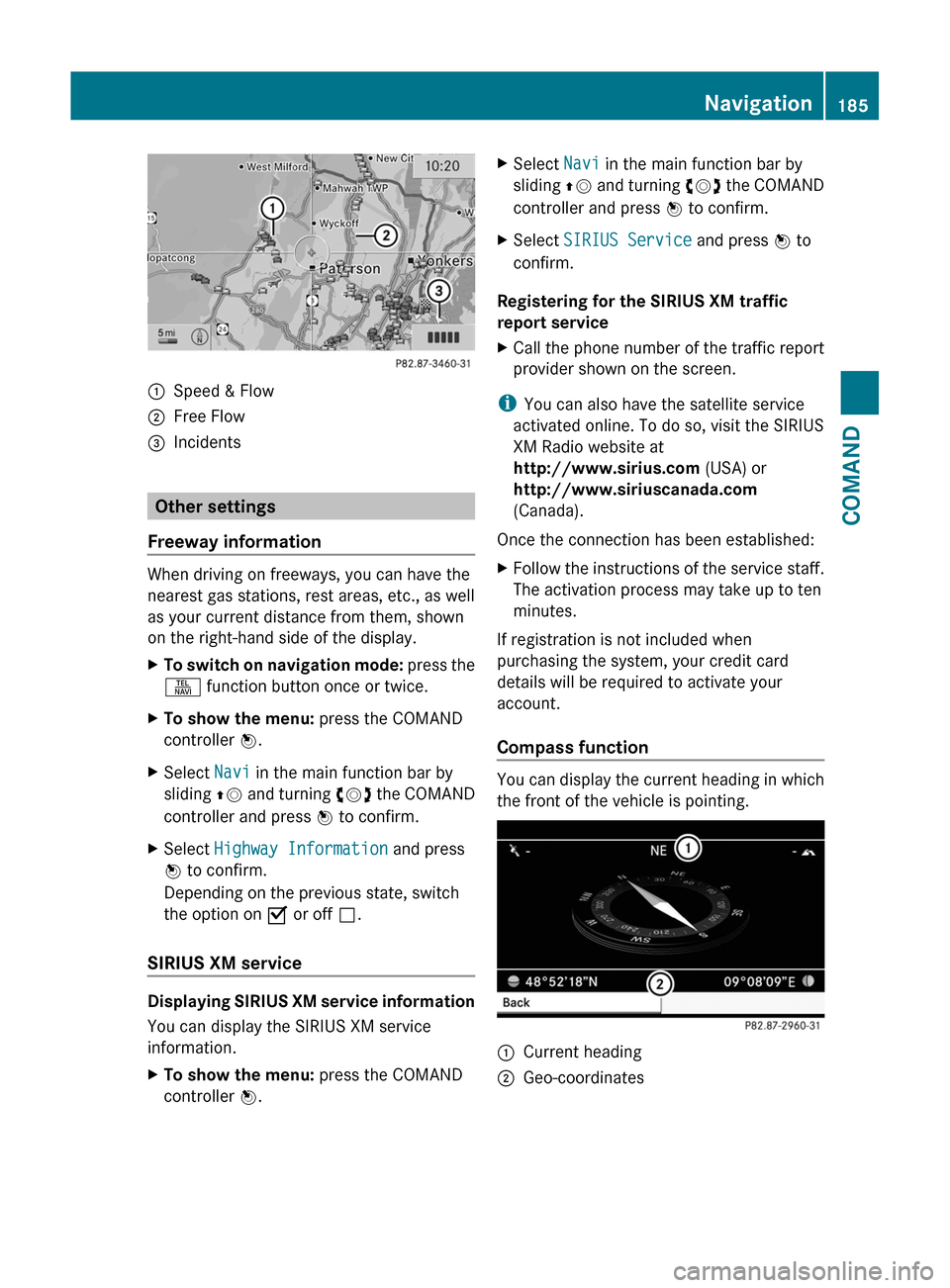
:Speed & Flow;Free Flow=Incidents
Other settings
Freeway information
When driving on freeways, you can have the
nearest gas stations, rest areas, etc., as well
as your current distance from them, shown
on the right-hand side of the display.
XTo switch on navigation mode: press the
S function button once or twice.
XTo show the menu: press the COMAND
controller W.
XSelect Navi in the main function bar by
sliding ZV and turning cVd the COMAND
controller and press W to confirm.
XSelect Highway Information and press
W to confirm.
Depending on the previous state, switch
the option on O or off ª.
SIRIUS XM service
Displaying SIRIUS XM service information
You can display the SIRIUS XM service
information.
XTo show the menu: press the COMAND
controller W.
XSelect Navi in the main function bar by
sliding ZV and turning cVd the COMAND
controller and press W to confirm.
XSelect SIRIUS Service and press W to
confirm.
Registering for the SIRIUS XM traffic
report service
XCall the phone number of the traffic report
provider shown on the screen.
iYou can also have the satellite service
activated online. To do so, visit the SIRIUS
XM Radio website at
http://www.sirius.com (USA) or
http://www.siriuscanada.com
(Canada).
Once the connection has been established:
XFollow the instructions of the service staff.
The activation process may take up to ten
minutes.
If registration is not included when
purchasing the system, your credit card
details will be required to activate your
account.
Compass function
You can display the current heading in which
the front of the vehicle is pointing.
:Current heading;Geo-coordinatesNavigation185COMANDZ