Button MERCEDES-BENZ S-Class 2011 W221 Repair Manual
[x] Cancel search | Manufacturer: MERCEDES-BENZ, Model Year: 2011, Model line: S-Class, Model: MERCEDES-BENZ S-Class 2011 W221Pages: 524, PDF Size: 22.53 MB
Page 140 of 524
Remote control
Overview
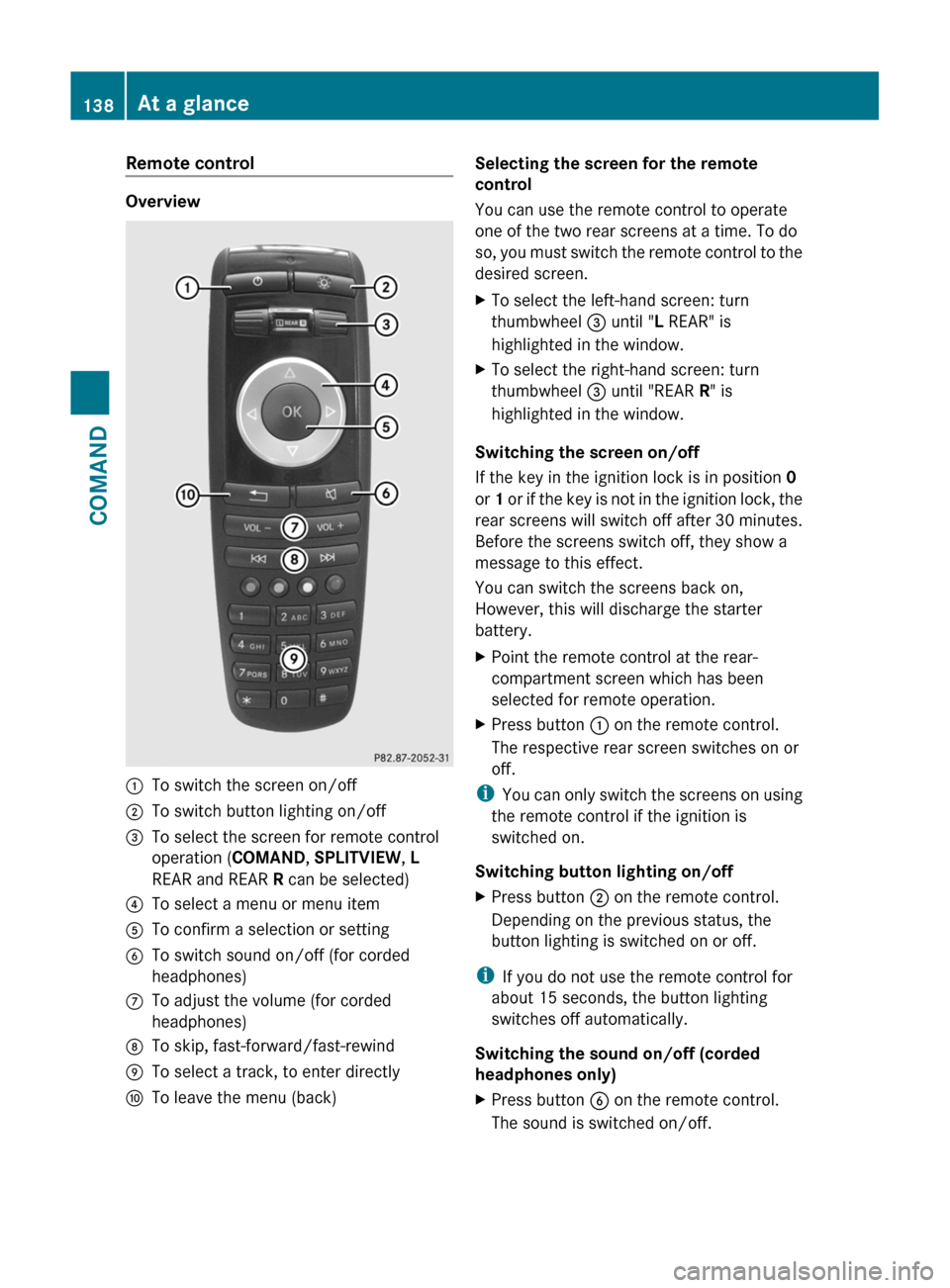
:To switch the screen on/off;To switch button lighting on/off=To select the screen for remote control
operation (COMAND, SPLITVIEW, L
REAR and REAR R can be selected)
?To select a menu or menu itemATo confirm a selection or settingBTo switch sound on/off (for corded
headphones)
CTo adjust the volume (for corded
headphones)
DTo skip, fast-forward/fast-rewindETo select a track, to enter directlyFTo leave the menu (back)Selecting the screen for the remote
control
You can use the remote control to operate
one of the two rear screens at a time. To do
so, you must switch the remote control to the
desired screen.
XTo select the left-hand screen: turn
thumbwheel = until "L REAR" is
highlighted in the window.
XTo select the right-hand screen: turn
thumbwheel = until "REAR R" is
highlighted in the window.
Switching the screen on/off
If the key in the ignition lock is in position 0
or 1 or if the key is not in the ignition lock, the
rear screens will switch off after 30 minutes.
Before the screens switch off, they show a
message to this effect.
You can switch the screens back on,
However, this will discharge the starter
battery.
XPoint the remote control at the rear-
compartment screen which has been
selected for remote operation.
XPress button : on the remote control.
The respective rear screen switches on or
off.
iYou can only switch the screens on using
the remote control if the ignition is
switched on.
Switching button lighting on/off
XPress button ; on the remote control.
Depending on the previous status, the
button lighting is switched on or off.
iIf you do not use the remote control for
about 15 seconds, the button lighting
switches off automatically.
Switching the sound on/off (corded
headphones only)
XPress button B on the remote control.
The sound is switched on/off.
138At a glanceCOMAND
Page 141 of 524
Selecting a menu/menu item and
confirming your selection
XSelect a menu/menu item using the
=;9: buttons and press
the 9 button to confirm.
CD/DVD drive and AUX jacks
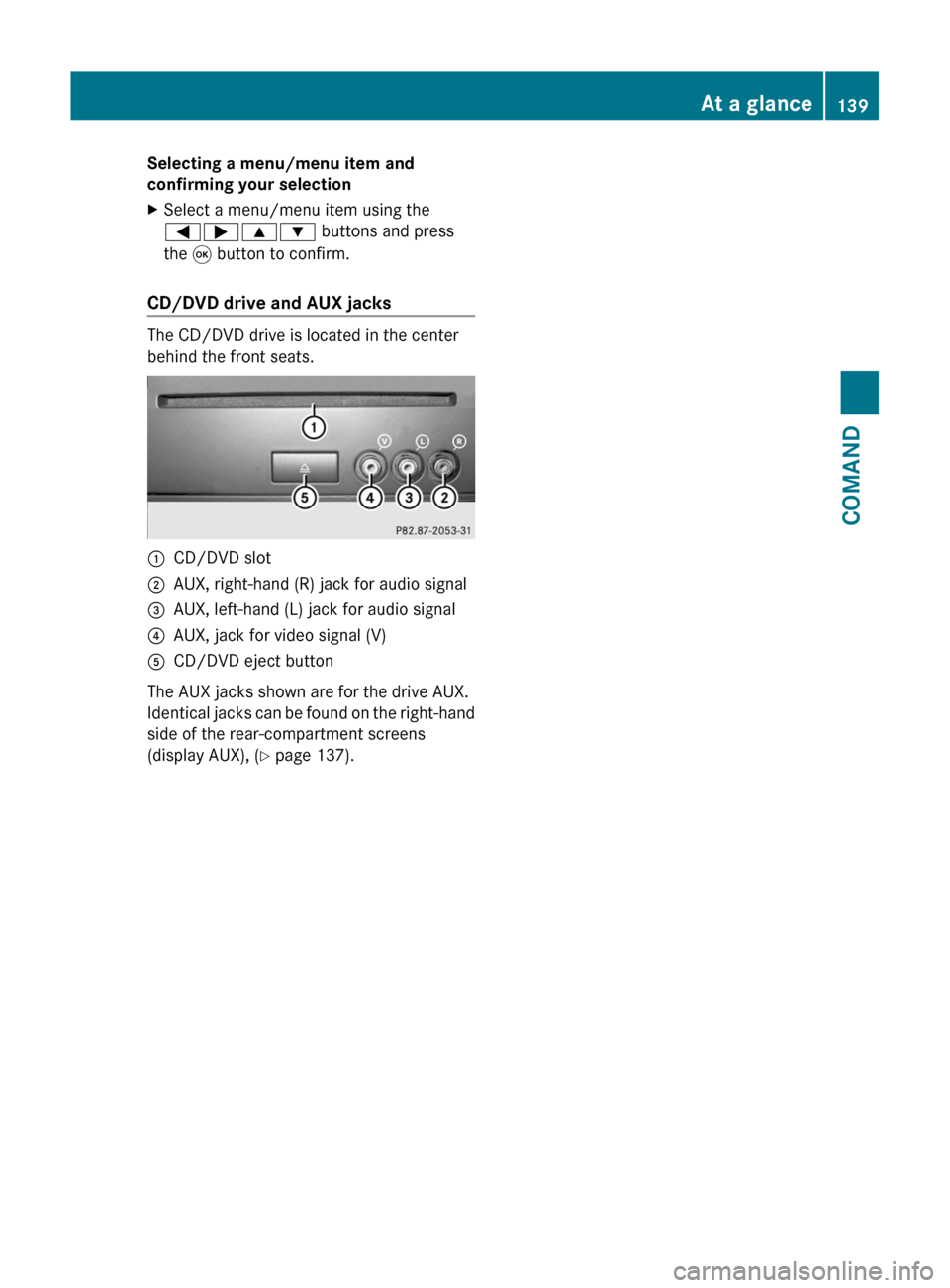
The CD/DVD drive is located in the center
behind the front seats.
:CD/DVD slot;AUX, right-hand (R) jack for audio signal=AUX, left-hand (L) jack for audio signal?AUX, jack for video signal (V)ACD/DVD eject button
The AUX jacks shown are for the drive AUX.
Identical jacks can be found on the right-hand
side of the rear-compartment screens
(display AUX), (Y page 137).
At a glance139COMANDZ
Page 142 of 524
Cordless headphones
Overview
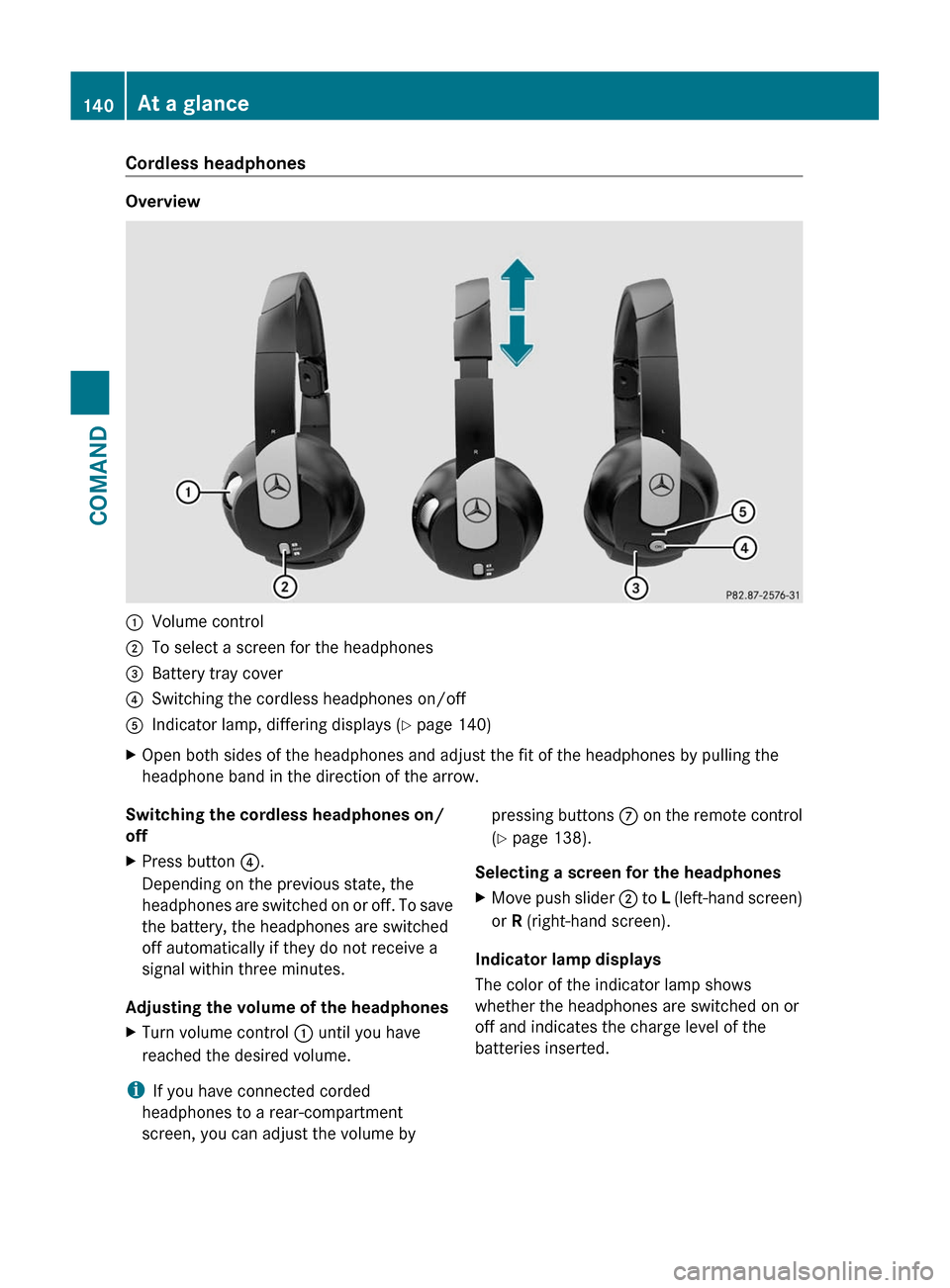
:Volume control;To select a screen for the headphones=Battery tray cover?Switching the cordless headphones on/offAIndicator lamp, differing displays (Y page 140)XOpen both sides of the headphones and adjust the fit of the headphones by pulling the
headphone band in the direction of the arrow.Switching the cordless headphones on/
offXPress button ?.
Depending on the previous state, the
headphones are switched on or off. To save
the battery, the headphones are switched
off automatically if they do not receive a
signal within three minutes.
Adjusting the volume of the headphones
XTurn volume control : until you have
reached the desired volume.
i If you have connected corded
headphones to a rear-compartment
screen, you can adjust the volume by
pressing buttons C on the remote control
( Y page 138).
Selecting a screen for the headphonesXMove push slider ; to L (left-hand screen)
or R (right-hand screen).
Indicator lamp displays
The color of the indicator lamp shows
whether the headphones are switched on or
off and indicates the charge level of the
batteries inserted.
140At a glanceCOMAND
Page 151 of 524
COMAND calculates the route to the
destination without taking account of the
following:
R Traffic lights
R Stop and right-of-way-signs
R Lane merging
R Parking or stopping prohibited areas
R Other road and traffic rules and regulations
R Narrow bridgesGWarning
COMAND may give incorrect navigation
commands if the data in the digital map does
not correspond with the actual road/traffic
situation. Digital maps do not cover all areas
nor all routes within an area. For example, if
the traffic routing has been changed or the
direction of a one-way road has been
reversed.
For this reason, you must always observe
applicable road and traffic rules and
regulations during your journey. Road and
traffic rules and regulations always have
priority over the navigation commands
generated by the system.
GWarning
Navigation announcements are intended to
direct you while driving without diverting your
attention from the road and driving.
Please always use this feature instead of
consulting the map display for directions.
Looking at the icons or map display can
distract you from traffic conditions and
driving, and increase the risk of an accident.
General information
Operational readiness of the navigation
system
The navigation system must determine the
position of the vehicle before first use or
whenever operational status is restored.
Therefore, you may have to drive for a while
before precise route guidance is possible.
GPS reception
Among other things, correct functioning of
the navigation system depends on GPS
reception. In certain situations, GPS
reception may be impaired, there may be
interference or there may be no reception at
all, e.g. in tunnels or parking garages.
Input restriction
On vehicles for certain countries, there is a
restriction on entering data.
The restriction is active at vehicle speeds
above approximately 3 mph (5 km/h). The
restriction is deactivated as soon as the
speed falls below 2 mph (3 km/h).
When the restriction is active, certain entries
cannot be made. This will be indicated by the
fact that certain menu items are grayed out
and cannot be selected.
The following entries are not possible, for
example:
R entering the destination city and street
R entering a destination via the map
R entering in the vicinity of a city or via a
name search
R editing entries
R direct entry using the number keypad
Other entries are still possible, such as
entering points of interest in the vicinity of the
destination or current position.
Switching on navigation modeXPress the S function button once or
twice.
or
XSelect Navi in the main function bar by
sliding ZV and turning cVd the COMAND
controller and press W to confirm.
In both cases, you will see the map either
with or without the menu shown.Navigation149COMANDZ
Page 152 of 524
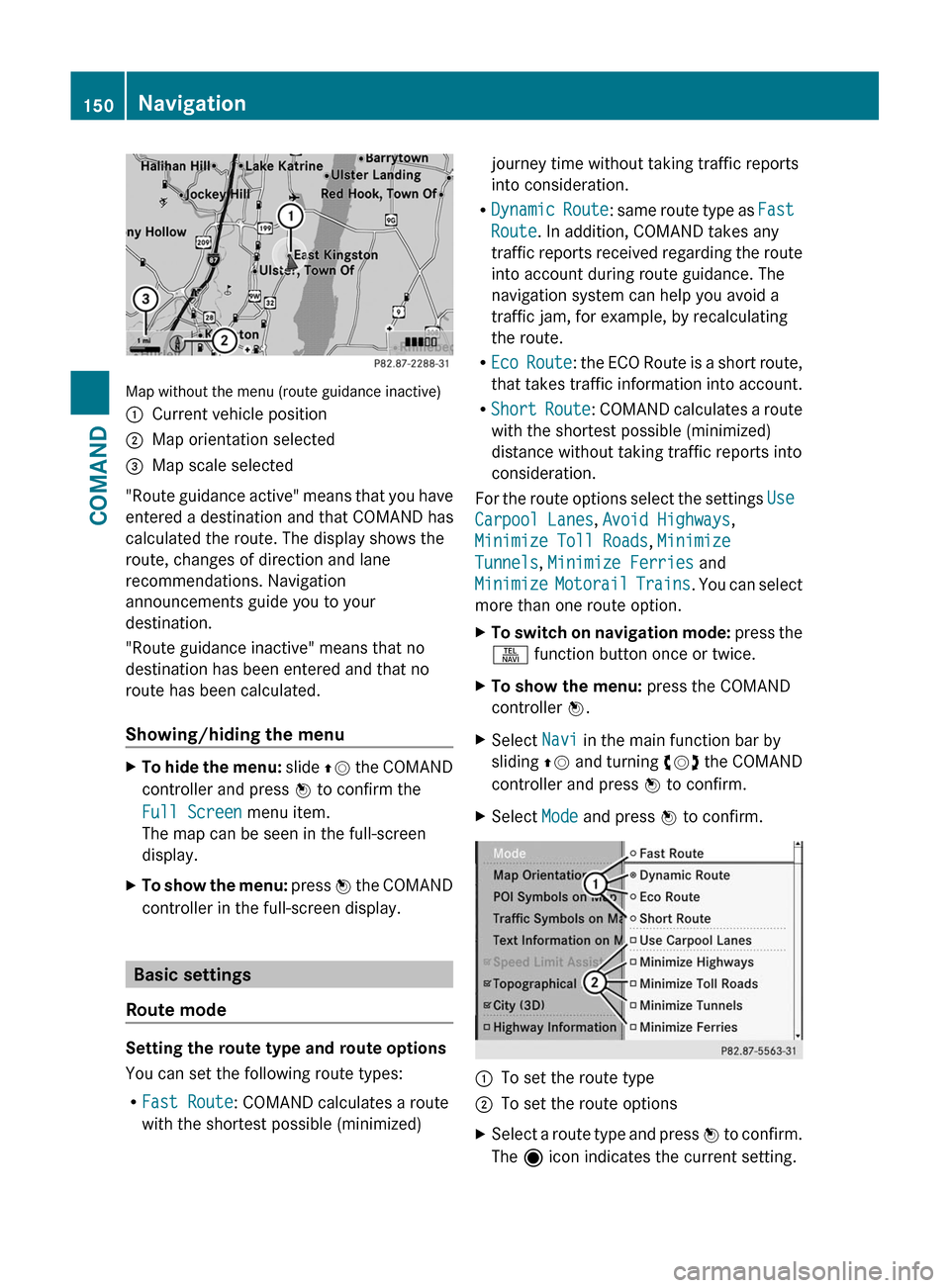
Map without the menu (route guidance inactive)
:Current vehicle position;Map orientation selected=Map scale selected
"Route guidance active" means that you have
entered a destination and that COMAND has
calculated the route. The display shows the
route, changes of direction and lane
recommendations. Navigation
announcements guide you to your
destination.
"Route guidance inactive" means that no
destination has been entered and that no
route has been calculated.
Showing/hiding the menu
XTo hide the menu: slide ZV the COMAND
controller and press W to confirm the
Full Screen menu item.
The map can be seen in the full-screen
display.
XTo show the menu: press W the COMAND
controller in the full-screen display.
Basic settings
Route mode
Setting the route type and route options
You can set the following route types:
RFast Route: COMAND calculates a route
with the shortest possible (minimized)
journey time without taking traffic reports
into consideration.
RDynamic Route: same route type as Fast
Route. In addition, COMAND takes any
traffic reports received regarding the route
into account during route guidance. The
navigation system can help you avoid a
traffic jam, for example, by recalculating
the route.
REco Route: the ECO Route is a short route,
that takes traffic information into account.
RShort Route: COMAND calculates a route
with the shortest possible (minimized)
distance without taking traffic reports into
consideration.
For the route options select the settings Use
Carpool Lanes, Avoid Highways,
Minimize Toll Roads, Minimize
Tunnels, Minimize Ferries and
Minimize Motorail Trains. You can select
more than one route option.
XTo switch on navigation mode: press the
S function button once or twice.
XTo show the menu: press the COMAND
controller W.
XSelect Navi in the main function bar by
sliding ZV and turning cVd the COMAND
controller and press W to confirm.
XSelect Mode and press W to confirm.:To set the route type;To set the route optionsXSelect a route type and press W to confirm.
The ä icon indicates the current setting.
150NavigationCOMAND
Page 153 of 524
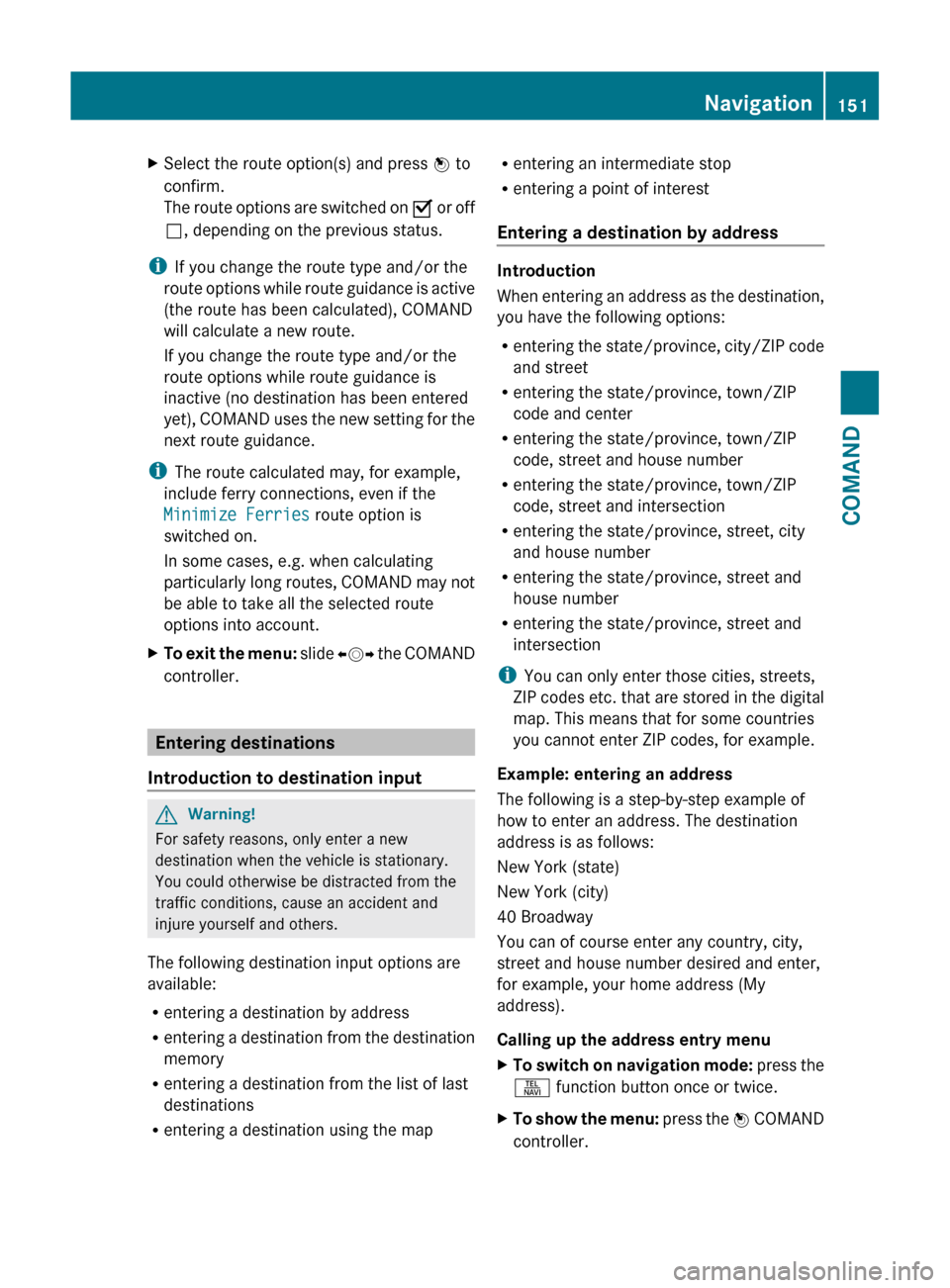
XSelect the route option(s) and press W to
confirm.
The route options are switched on O or off
ª , depending on the previous status.
i
If you change the route type and/or the
route options while route guidance is active
(the route has been calculated), COMAND
will calculate a new route.
If you change the route type and/or the
route options while route guidance is
inactive (no destination has been entered
yet), COMAND uses the new setting for the
next route guidance.
i The route calculated may, for example,
include ferry connections, even if the
Minimize Ferries route option is
switched on.
In some cases, e.g. when calculating
particularly long routes, COMAND may not
be able to take all the selected route
options into account.
XTo exit the menu: slide XVY the COMAND
controller.
Entering destinations
Introduction to destination input
GWarning!
For safety reasons, only enter a new
destination when the vehicle is stationary.
You could otherwise be distracted from the
traffic conditions, cause an accident and
injure yourself and others.
The following destination input options are
available:
R entering a destination by address
R entering a destination from the destination
memory
R entering a destination from the list of last
destinations
R entering a destination using the map
Rentering an intermediate stop
R entering a point of interest
Entering a destination by address
Introduction
When entering an address as the destination,
you have the following options:
R entering the state/province, city/ZIP code
and street
R entering the state/province, town/ZIP
code and center
R entering the state/province, town/ZIP
code, street and house number
R entering the state/province, town/ZIP
code, street and intersection
R entering the state/province, street, city
and house number
R entering the state/province, street and
house number
R entering the state/province, street and
intersection
i You can only enter those cities, streets,
ZIP codes etc. that are stored in the digital
map. This means that for some countries
you cannot enter ZIP codes, for example.
Example: entering an address
The following is a step-by-step example of
how to enter an address. The destination
address is as follows:
New York (state)
New York (city)
40 Broadway
You can of course enter any country, city,
street and house number desired and enter,
for example, your home address (My
address).
Calling up the address entry menu
XTo switch on navigation mode: press the
S function button once or twice.XTo show the menu: press the W COMAND
controller.Navigation151COMANDZ
Page 159 of 524
XTo switch on navigation mode: press the
S function button once or twice.
XTo show the menu: press the COMAND
controller W.
XSelect Destination in the navigation
system menu bar by turning cVd the
COMAND controller and press W to
confirm.
XSelect From Memory and press W to
confirm.
XSelect My Address by turning cVd the
COMAND controller.
XIrrespective of the option chosen, press
W to confirm your selection.
"My address" has been entered.
XTo start route calculation: select Start
and press W to confirm.
Entering a destination from the list of
last destinations
XTo switch on navigation mode: press the
S function button once or twice.
XTo show the menu: press the COMAND
controller W.
XSelect Destination in the navigation
system menu bar by turning cVd the
COMAND controller and press W to
confirm.
XSelect From Last Destinations and
press W to confirm.
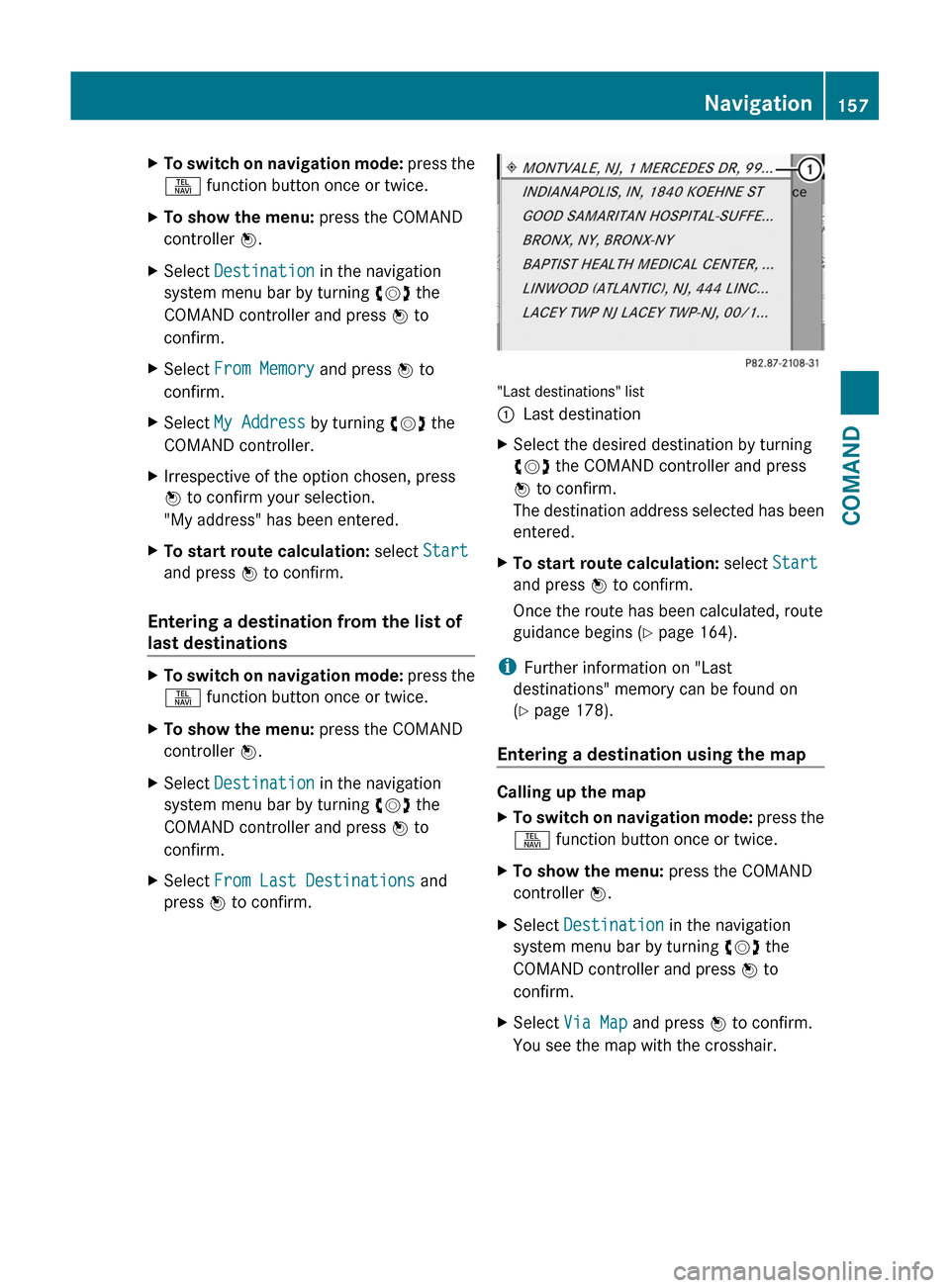
"Last destinations" list
:Last destinationXSelect the desired destination by turning
cVd the COMAND controller and press
W to confirm.
The destination address selected has been
entered.
XTo start route calculation: select Start
and press W to confirm.
Once the route has been calculated, route
guidance begins (Y page 164).
iFurther information on "Last
destinations" memory can be found on
(Y page 178).
Entering a destination using the map
Calling up the map
XTo switch on navigation mode: press the
S function button once or twice.
XTo show the menu: press the COMAND
controller W.
XSelect Destination in the navigation
system menu bar by turning cVd the
COMAND controller and press W to
confirm.
XSelect Via Map and press W to confirm.
You see the map with the crosshair.
Navigation157COMANDZ
Page 161 of 524
Entering predefined destinationsXTo switch on navigation mode: press the
S function button once or twice.XTo show the menu: press the COMAND
controller W.XSelect Destination in the navigation
system menu bar by turning cVd the
COMAND controller and press W to
confirm.XSelect Stopover and press W to confirm.
Option 1: no intermediate stop has been
entered yet.
XSelect a category, see option 2.
Option 2: an intermediate stop has
already been entered.
XSelect Change Stopover and press W to
confirm.XTo select a category: select a category by
turning cVd the COMAND controller and
press W to confirm.
COMAND first searches in the selected
category for destinations along the route.
If there are no destinations available there,
COMAND searches for destinations within
a radius of up to 100 km (approx. 60 mi) of
the vehicle position.
If COMAND finds destinations, a list
appears on the right-hand side of the
display.
The intermediate stops are listed according
to increasing distance from the current
vehicle position. They are displayed in the
form of a name and their position in relation
to the route and your direction of travel.
i For intermediate stops that are not
located along the calculated route, the
linear distance is shown.
If COMAND does not find any destinations,
you will see a message to this effect.
XConfirm OK by pressing W.XSelect a different category.XSelect the intermediate stop by turning
cVd the COMAND controller and press
W to confirm.XTo start route calculation: select Start
and press W to confirm.
Entering another destination as an
intermediate stop
XTo switch on navigation mode: press the
S function button once or twice.XTo show the menu: press the COMAND
controller W.XSelect Destination in the navigation
system menu bar by turning cVd the
COMAND controller and press W to
confirm.XSelect Stopover and press W to confirm.XSelect Other and press W to confirm.XSelect Address Entry , From Memory ,
From Last Destinations or From POIs .SelectionStepAddress EntryXEnter a
destination by
address
( Y page 151).From MemoryXSelect a
destination from
the destination
memory
( Y page 156).From Last
DestinationsXSelect a
destination from
the list of last
destinations
( Y page 157).From POIsXEnter a point of
interest
( Y page 160).Navigation159COMANDZ
Page 162 of 524
XTo start route calculation: once you have
entered a destination, select Start and
press W to confirm.
Deleting the intermediate stop
If an intermediate stop has already been
entered, you can delete it.
XTo switch on navigation mode: press the
S function button once or twice.XTo show the menu: press the COMAND
controller W.XSelect Destination in the navigation
system menu bar by turning cVd the
COMAND controller and press W to
confirm.XSelect Stopover and press W to confirm.XSelect Delete Stopover and press W to
confirm.
COMAND deletes the intermediate stop
and recalculates the route to the main
destination.
Entering points of interest
Initiating point of interest entry
XTo switch on navigation mode: press the
S function button once or twice.XTo show the menu: press W the COMAND
controller.XSelect Destination in the navigation
menu bar by turning cVd the COMAND
controller and press W to confirm.XSelect From POIs and press W to confirm.
A menu appears.
Entering a point of interest in the
vicinity of the destination
Entering a point of interest in the vicinity of
the destination is only possible when route
guidance is active.
XSelect Destination Area from the menu
and press W to confirm.XContinue with assigning the point of
interest category ( Y page 161).
Entering a point of interest in the
vicinity of the current position
XSelect Current Position from the menu
and press W to confirm.XContinue with assigning the point of
interest category ( Y page 161).
Entering a point of interest in the
vicinity of a city
Option 1
XSelect Other City from the menu and
press W to confirm.XIf desired, select the state/province
( Y page 152).XTo enter a city: select City and press W
to confirm.
Proceed as described in the "Entering a
city" section ( Y page 152).XAfter entering the city, assign the point of
interest category ( Y page 161).
Option 2
XEnter an address in the address entry
menu, e.g. as city, street and house number
( Y page 151).XSelect POI and press W to confirm.XAssign a point of interest category
( Y page 161).
Entering a point of interest using name
search
This function gives you access to all points of
interest available in the digital map.
160NavigationCOMAND
Page 165 of 524
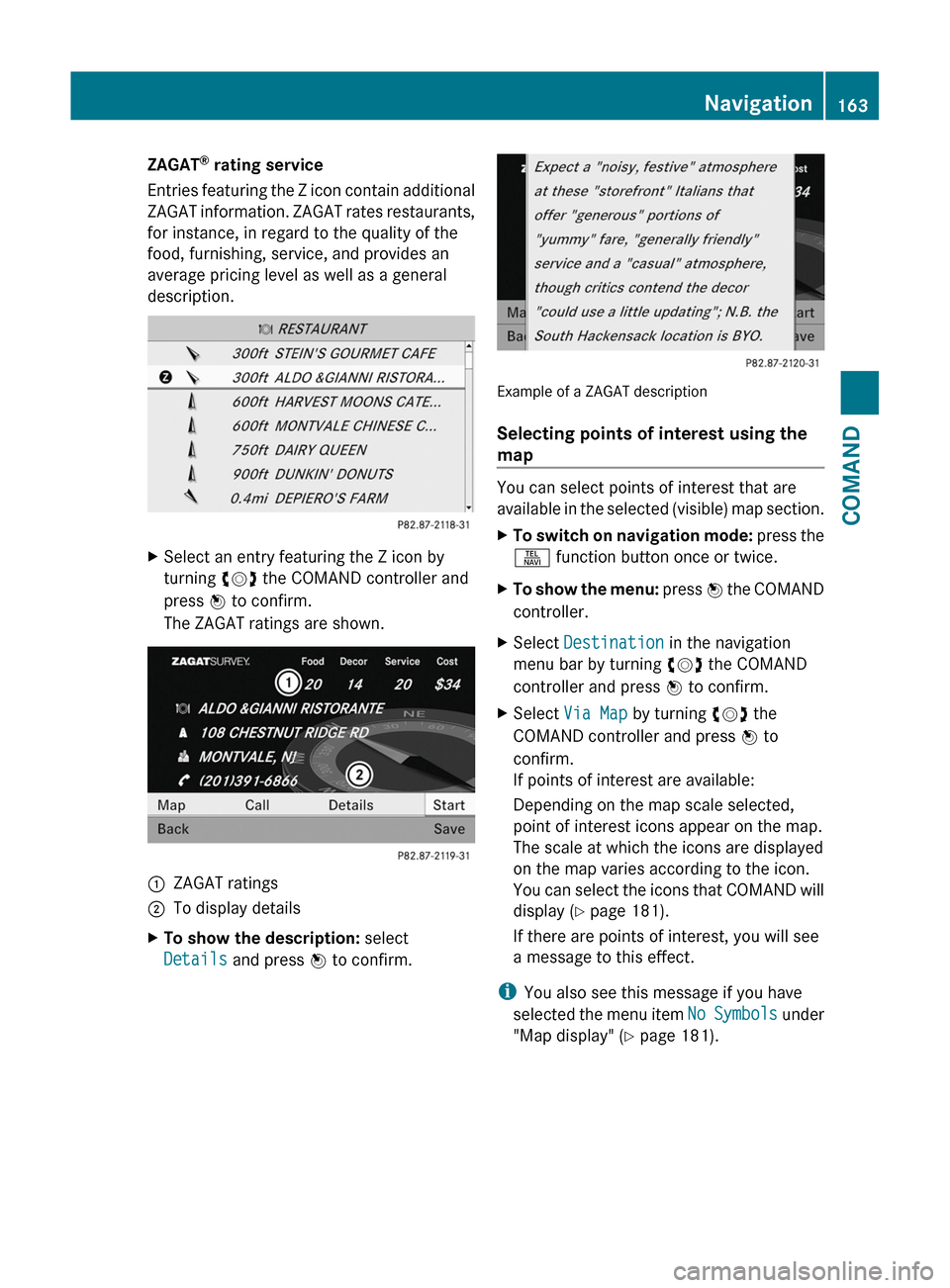
ZAGAT® rating service
Entries featuring the Z icon contain additional
ZAGAT information. ZAGAT rates restaurants,
for instance, in regard to the quality of the
food, furnishing, service, and provides an
average pricing level as well as a general
description.
XSelect an entry featuring the Z icon by
turning cVd the COMAND controller and
press W to confirm.
The ZAGAT ratings are shown.
1ZAGAT ratings2To display detailsXTo show the description: select
Details and press W to confirm.
Example of a ZAGAT description
Selecting points of interest using the
map
You can select points of interest that are
available in the selected (visible) map section.
XTo switch on navigation mode: press the
S function button once or twice.
XTo show the menu: press W the COMAND
controller.
XSelect Destination in the navigation
menu bar by turning cVd the COMAND
controller and press W to confirm.
XSelect Via Map by turning cVd the
COMAND controller and press W to
confirm.
If points of interest are available:
Depending on the map scale selected,
point of interest icons appear on the map.
The scale at which the icons are displayed
on the map varies according to the icon.
You can select the icons that COMAND will
display (Y page 181).
If there are points of interest, you will see
a message to this effect.
iYou also see this message if you have
selected the menu item No Symbols under
"Map display" (Y page 181).
Navigation163COMANDZ