Start MERCEDES-BENZ S-Class 2011 W221 Repair Manual
[x] Cancel search | Manufacturer: MERCEDES-BENZ, Model Year: 2011, Model line: S-Class, Model: MERCEDES-BENZ S-Class 2011 W221Pages: 524, PDF Size: 22.53 MB
Page 180 of 524
will appear asking whether you wish to
overwrite the existing data.XSelect Yes or No and press W to confirm.
If you select Yes, COMAND stores the data.
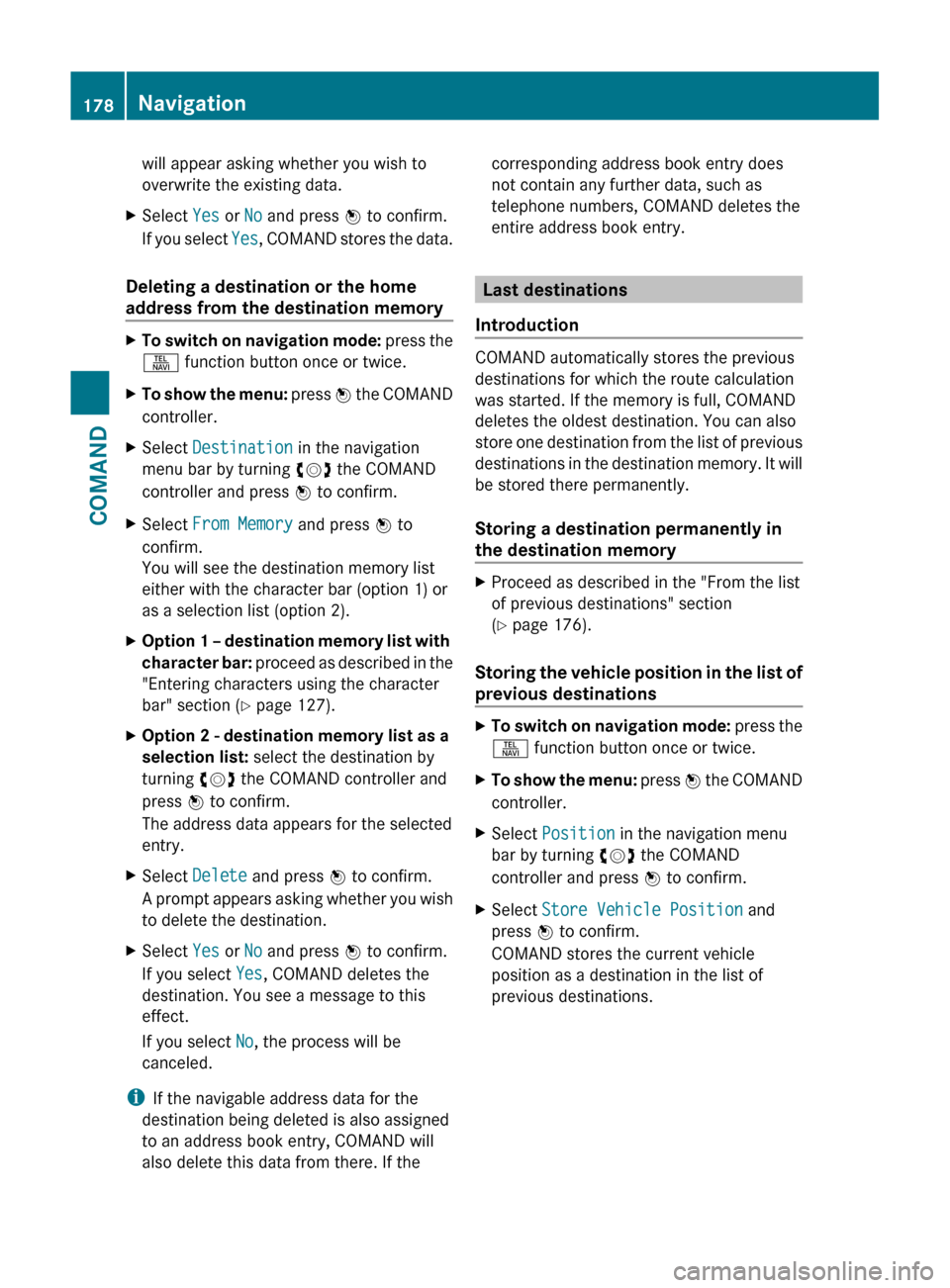
Deleting a destination or the home
address from the destination memory
XTo switch on navigation mode: press the
S function button once or twice.XTo show the menu: press W the COMAND
controller.XSelect Destination in the navigation
menu bar by turning cVd the COMAND
controller and press W to confirm.XSelect From Memory and press W to
confirm.
You will see the destination memory list
either with the character bar (option 1) or
as a selection list (option 2).XOption 1 – destination memory list with
character bar: proceed as described in the
"Entering characters using the character
bar" section ( Y page 127).XOption 2 - destination memory list as a
selection list: select the destination by
turning cVd the COMAND controller and
press W to confirm.
The address data appears for the selected
entry.XSelect Delete and press W to confirm.
A prompt appears asking whether you wish
to delete the destination.XSelect Yes or No and press W to confirm.
If you select Yes, COMAND deletes the
destination. You see a message to this
effect.
If you select No, the process will be
canceled.
i If the navigable address data for the
destination being deleted is also assigned
to an address book entry, COMAND will
also delete this data from there. If the
corresponding address book entry does
not contain any further data, such as
telephone numbers, COMAND deletes the
entire address book entry.
Last destinations
Introduction
COMAND automatically stores the previous
destinations for which the route calculation
was started. If the memory is full, COMAND
deletes the oldest destination. You can also
store one destination from the list of previous
destinations in the destination memory. It will
be stored there permanently.
Storing a destination permanently in
the destination memory
XProceed as described in the "From the list
of previous destinations" section
( Y page 176).
Storing the vehicle position in the list of
previous destinations
XTo switch on navigation mode: press the
S function button once or twice.XTo show the menu: press W the COMAND
controller.XSelect Position in the navigation menu
bar by turning cVd the COMAND
controller and press W to confirm.XSelect Store Vehicle Position and
press W to confirm.
COMAND stores the current vehicle
position as a destination in the list of
previous destinations.178NavigationCOMAND
Page 188 of 524
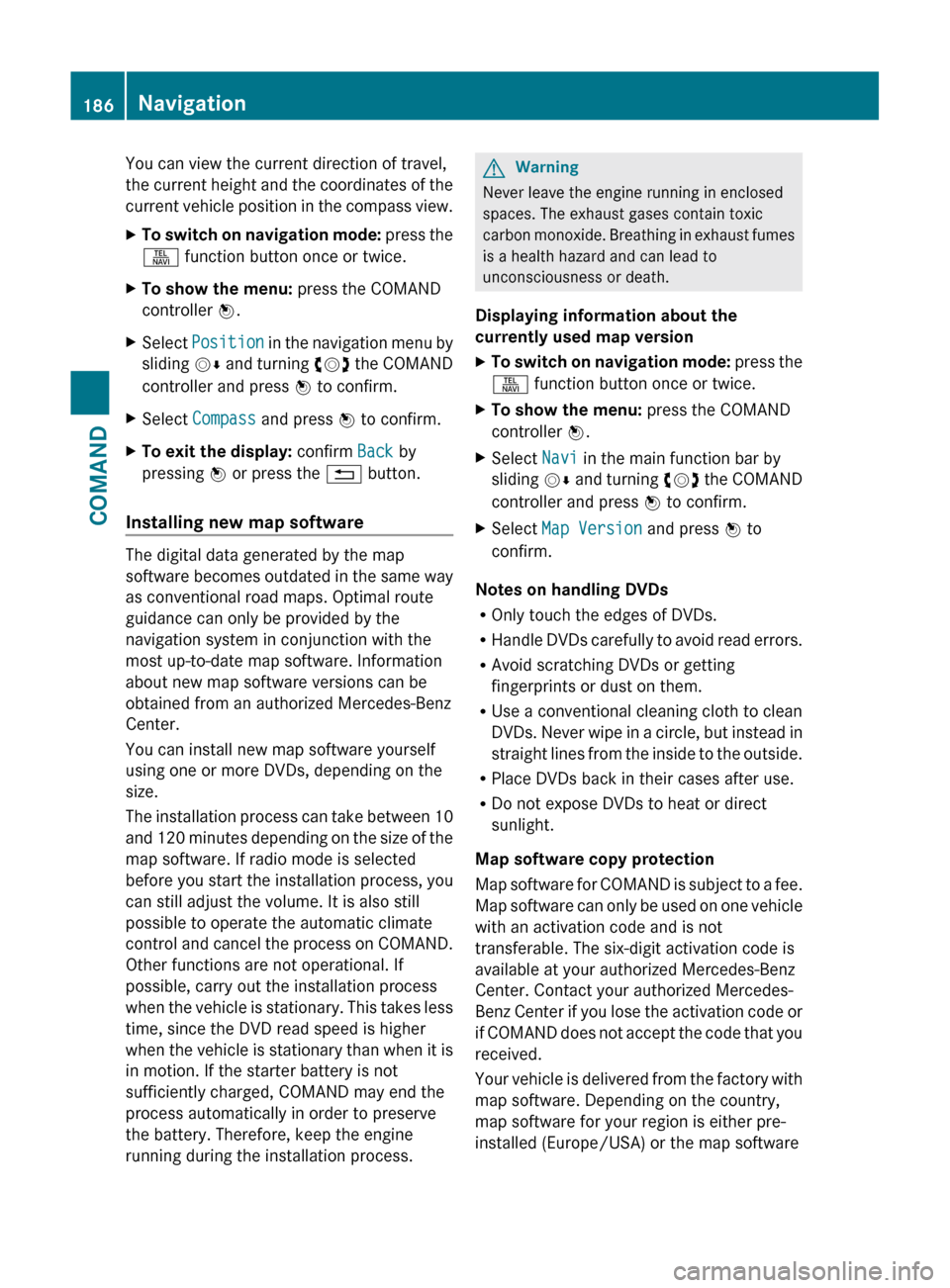
You can view the current direction of travel,
the current height and the coordinates of the
current vehicle position in the compass view.XTo switch on navigation mode: press the
S function button once or twice.XTo show the menu: press the COMAND
controller W.XSelect Position in the navigation menu by
sliding VÆ and turning cVd the COMAND
controller and press W to confirm.XSelect Compass and press W to confirm.XTo exit the display: confirm Back by
pressing W or press the % button.
Installing new map software
The digital data generated by the map
software becomes outdated in the same way
as conventional road maps. Optimal route
guidance can only be provided by the
navigation system in conjunction with the
most up-to-date map software. Information
about new map software versions can be
obtained from an authorized Mercedes-Benz
Center.
You can install new map software yourself
using one or more DVDs, depending on the
size.
The installation process can take between 10
and 120 minutes depending on the size of the
map software. If radio mode is selected
before you start the installation process, you
can still adjust the volume. It is also still
possible to operate the automatic climate
control and cancel the process on COMAND.
Other functions are not operational. If
possible, carry out the installation process
when the vehicle is stationary. This takes less
time, since the DVD read speed is higher
when the vehicle is stationary than when it is
in motion. If the starter battery is not
sufficiently charged, COMAND may end the
process automatically in order to preserve
the battery. Therefore, keep the engine
running during the installation process.
GWarning
Never leave the engine running in enclosed
spaces. The exhaust gases contain toxic
carbon monoxide. Breathing in exhaust fumes
is a health hazard and can lead to
unconsciousness or death.
Displaying information about the
currently used map version
XTo switch on navigation mode: press the
S function button once or twice.XTo show the menu: press the COMAND
controller W.XSelect Navi in the main function bar by
sliding VÆ and turning cVd the COMAND
controller and press W to confirm.XSelect Map Version and press W to
confirm.
Notes on handling DVDs
R Only touch the edges of DVDs.
R Handle DVDs carefully to avoid read errors.
R Avoid scratching DVDs or getting
fingerprints or dust on them.
R Use a conventional cleaning cloth to clean
DVDs. Never wipe in a circle, but instead in
straight lines from the inside to the outside.
R Place DVDs back in their cases after use.
R Do not expose DVDs to heat or direct
sunlight.
Map software copy protection
Map software for COMAND is subject to a fee.
Map software can only be used on one vehicle
with an activation code and is not
transferable. The six-digit activation code is
available at your authorized Mercedes-Benz
Center. Contact your authorized Mercedes-
Benz Center if you lose the activation code or
if COMAND does not accept the code that you
received.
Your vehicle is delivered from the factory with
map software. Depending on the country,
map software for your region is either pre-
installed (Europe/USA) or the map software
186NavigationCOMAND
Page 189 of 524
is supplied on a DVD (all other countries). You
do not need an activation code for the map
software that is delivered with your vehicle.
You also do not need to enter an activation
code if map software has already been
installed in the vehicle and must be installed
again.
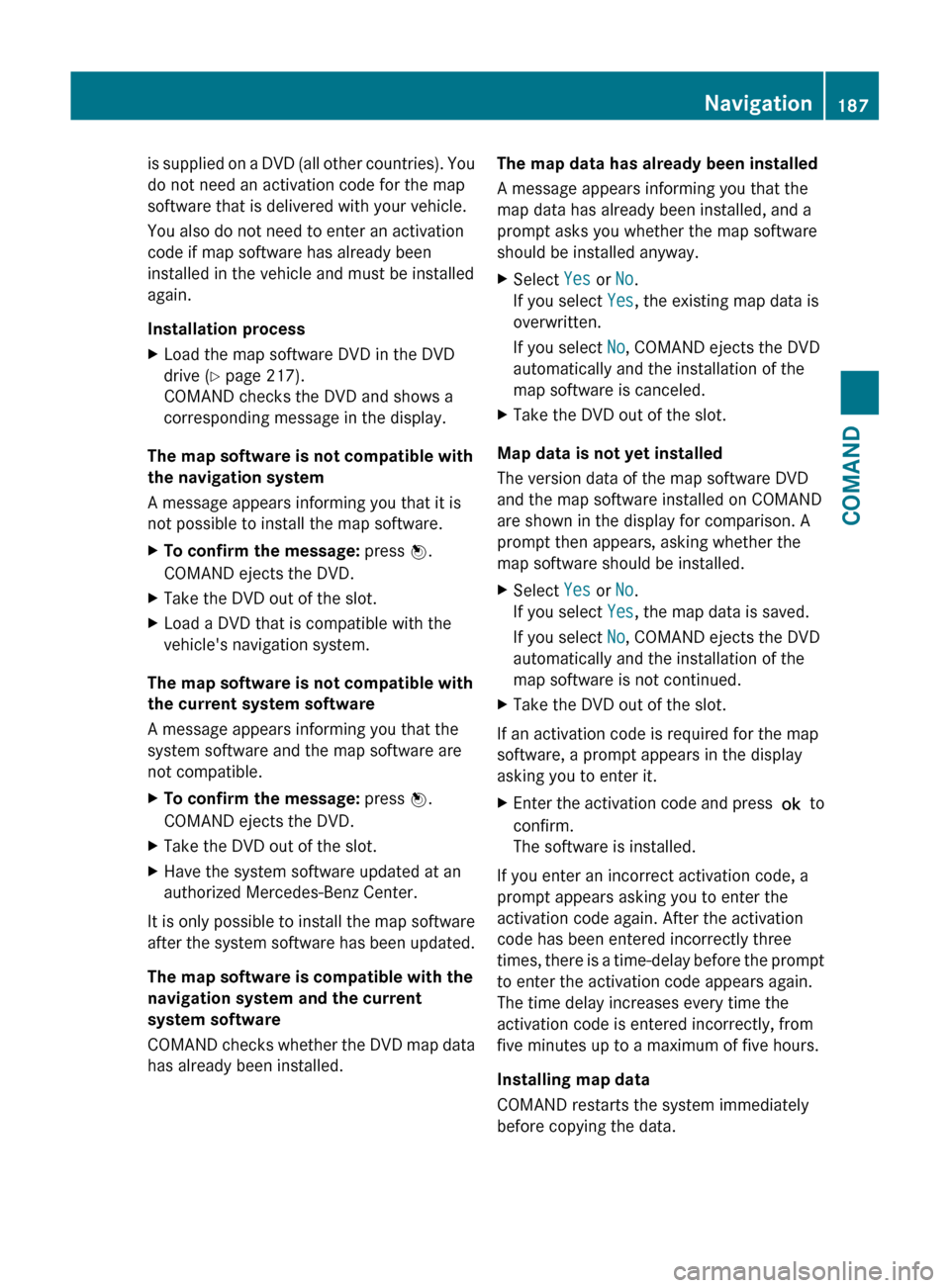
Installation processXLoad the map software DVD in the DVD
drive ( Y page 217).
COMAND checks the DVD and shows a
corresponding message in the display.
The map software is not compatible with
the navigation system
A message appears informing you that it is
not possible to install the map software.
XTo confirm the message: press W.
COMAND ejects the DVD.XTake the DVD out of the slot.XLoad a DVD that is compatible with the
vehicle's navigation system.
The map software is not compatible with
the current system software
A message appears informing you that the
system software and the map software are
not compatible.
XTo confirm the message: press W.
COMAND ejects the DVD.XTake the DVD out of the slot.XHave the system software updated at an
authorized Mercedes-Benz Center.
It is only possible to install the map software
after the system software has been updated.
The map software is compatible with the
navigation system and the current
system software
COMAND checks whether the DVD map data
has already been installed.
The map data has already been installed
A message appears informing you that the
map data has already been installed, and a
prompt asks you whether the map software
should be installed anyway.XSelect Yes or No.
If you select Yes, the existing map data is
overwritten.
If you select No, COMAND ejects the DVD
automatically and the installation of the
map software is canceled.XTake the DVD out of the slot.
Map data is not yet installed
The version data of the map software DVD
and the map software installed on COMAND
are shown in the display for comparison. A
prompt then appears, asking whether the
map software should be installed.
XSelect Yes or No.
If you select Yes, the map data is saved.
If you select No, COMAND ejects the DVD
automatically and the installation of the
map software is not continued.XTake the DVD out of the slot.
If an activation code is required for the map
software, a prompt appears in the display
asking you to enter it.
XEnter the activation code and press ! to
confirm.
The software is installed.
If you enter an incorrect activation code, a
prompt appears asking you to enter the
activation code again. After the activation
code has been entered incorrectly three
times, there is a time-delay before the prompt
to enter the activation code appears again.
The time delay increases every time the
activation code is entered incorrectly, from
five minutes up to a maximum of five hours.
Installing map data
COMAND restarts the system immediately
before copying the data.
Navigation187COMANDZ
Page 191 of 524
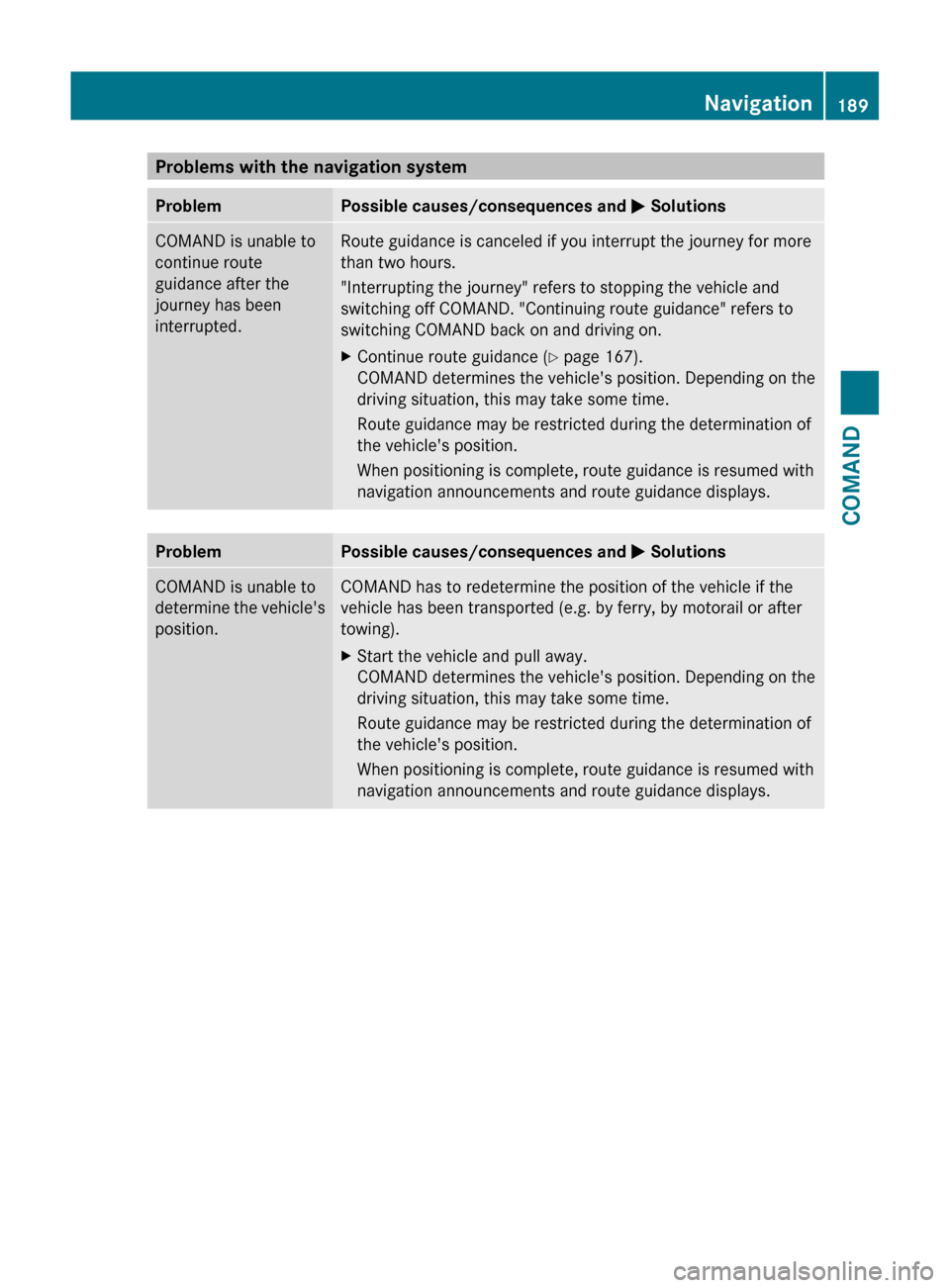
Problems with the navigation systemProblemPossible causes/consequences and M SolutionsCOMAND is unable to
continue route
guidance after the
journey has been
interrupted.Route guidance is canceled if you interrupt the journey for more
than two hours.
"Interrupting the journey" refers to stopping the vehicle and
switching off COMAND. "Continuing route guidance" refers to
switching COMAND back on and driving on.XContinue route guidance ( Y page 167).
COMAND determines the vehicle's position. Depending on the
driving situation, this may take some time.
Route guidance may be restricted during the determination of
the vehicle's position.
When positioning is complete, route guidance is resumed with
navigation announcements and route guidance displays.ProblemPossible causes/consequences and M SolutionsCOMAND is unable to
determine the vehicle's
position.COMAND has to redetermine the position of the vehicle if the
vehicle has been transported (e.g. by ferry, by motorail or after
towing).XStart the vehicle and pull away.
COMAND determines the vehicle's position. Depending on the
driving situation, this may take some time.
Route guidance may be restricted during the determination of
the vehicle's position.
When positioning is complete, route guidance is resumed with
navigation announcements and route guidance displays.Navigation189COMANDZ
Page 192 of 524
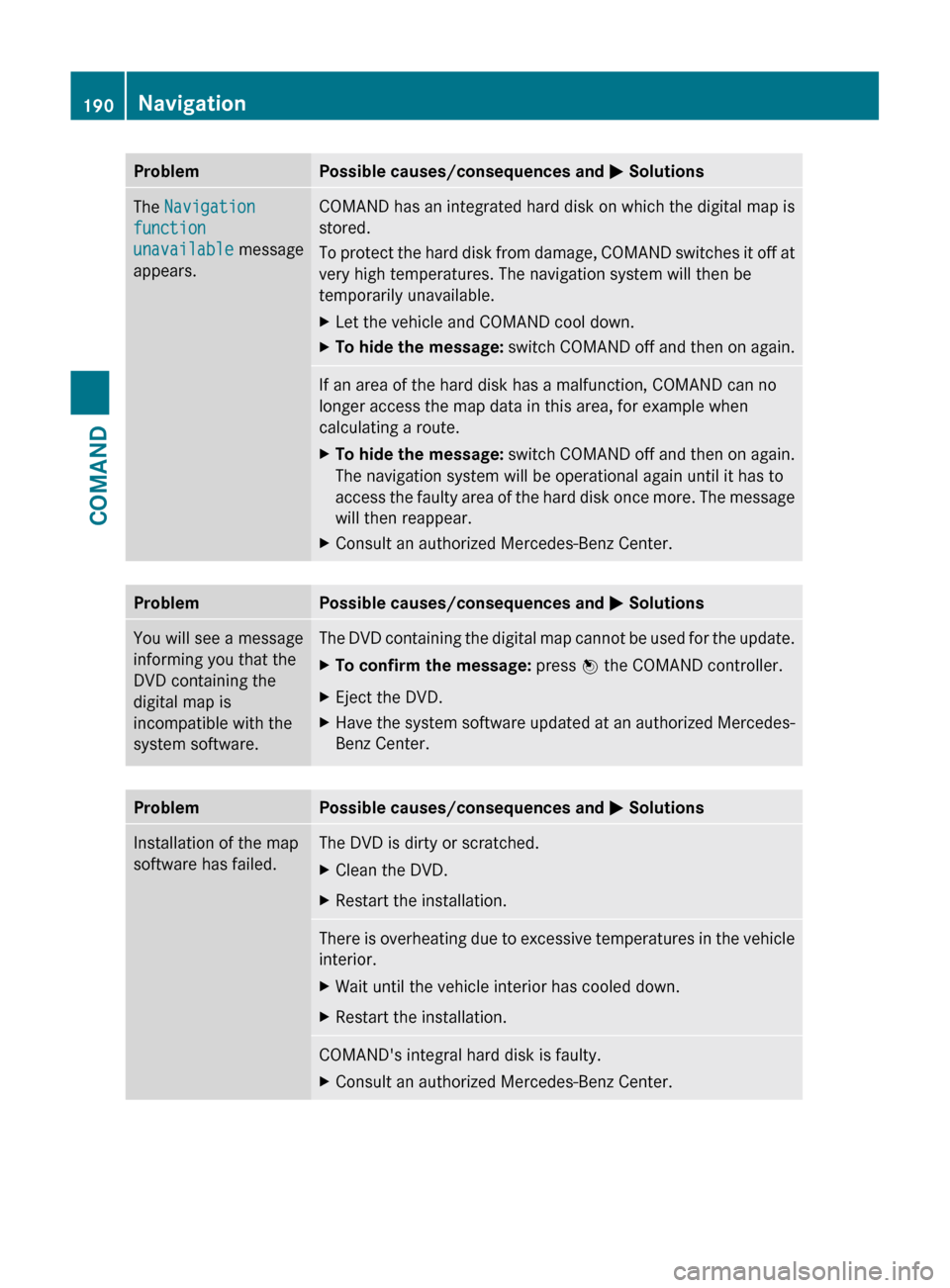
ProblemPossible causes/consequences and M SolutionsThe Navigation
function
unavailable message
appears.COMAND has an integrated hard disk on which the digital map is
stored.
To protect the hard disk from damage, COMAND switches it off at
very high temperatures. The navigation system will then be
temporarily unavailable.XLet the vehicle and COMAND cool down.XTo hide the message: switch COMAND off and then on again.If an area of the hard disk has a malfunction, COMAND can no
longer access the map data in this area, for example when
calculating a route.XTo hide the message: switch COMAND off and then on again.
The navigation system will be operational again until it has to
access the faulty area of the hard disk once more. The message
will then reappear.XConsult an authorized Mercedes-Benz Center.ProblemPossible causes/consequences and M SolutionsYou will see a message
informing you that the
DVD containing the
digital map is
incompatible with the
system software.The DVD containing the digital map cannot be used for the update.XTo confirm the message: press W the COMAND controller.XEject the DVD.XHave the system software updated at an authorized Mercedes-
Benz Center.ProblemPossible causes/consequences and M SolutionsInstallation of the map
software has failed.The DVD is dirty or scratched.XClean the DVD.XRestart the installation.There is overheating due to excessive temperatures in the vehicle
interior.XWait until the vehicle interior has cooled down.XRestart the installation.COMAND's integral hard disk is faulty.XConsult an authorized Mercedes-Benz Center.190NavigationCOMAND
Page 195 of 524
On COMANDXActivate the Bluetooth® function in
COMAND (Y page 145).
Connecting a mobile phone
General information
Before using your mobile phone with
COMAND for the first time, you will need to
connect it.
When you authorize a new mobile phone, it is
connected automatically.
Connecting is comprised of:
Rsearching for a Bluetooth®-capable mobile
phone
Rsubsequently authorizing it
You can connect up to ten mobile phones.
Searching for a mobile phone
XTo call up the telephone menu: press the
S function button once or twice.
XSelect Data/connections in the
telephone basic menu by sliding VÆ and
turning cVd the COMAND controller and
press W to confirm.
XSelect Bluetooth telephones and press
W to confirm.
XSelect Update and press W to confirm.
COMAND searches for Bluetooth®
telephones within range and adds them to
the Bluetooth® telephone list.
The duration of the search depends on the
number of Bluetooth® telephones within
range and their characteristics.
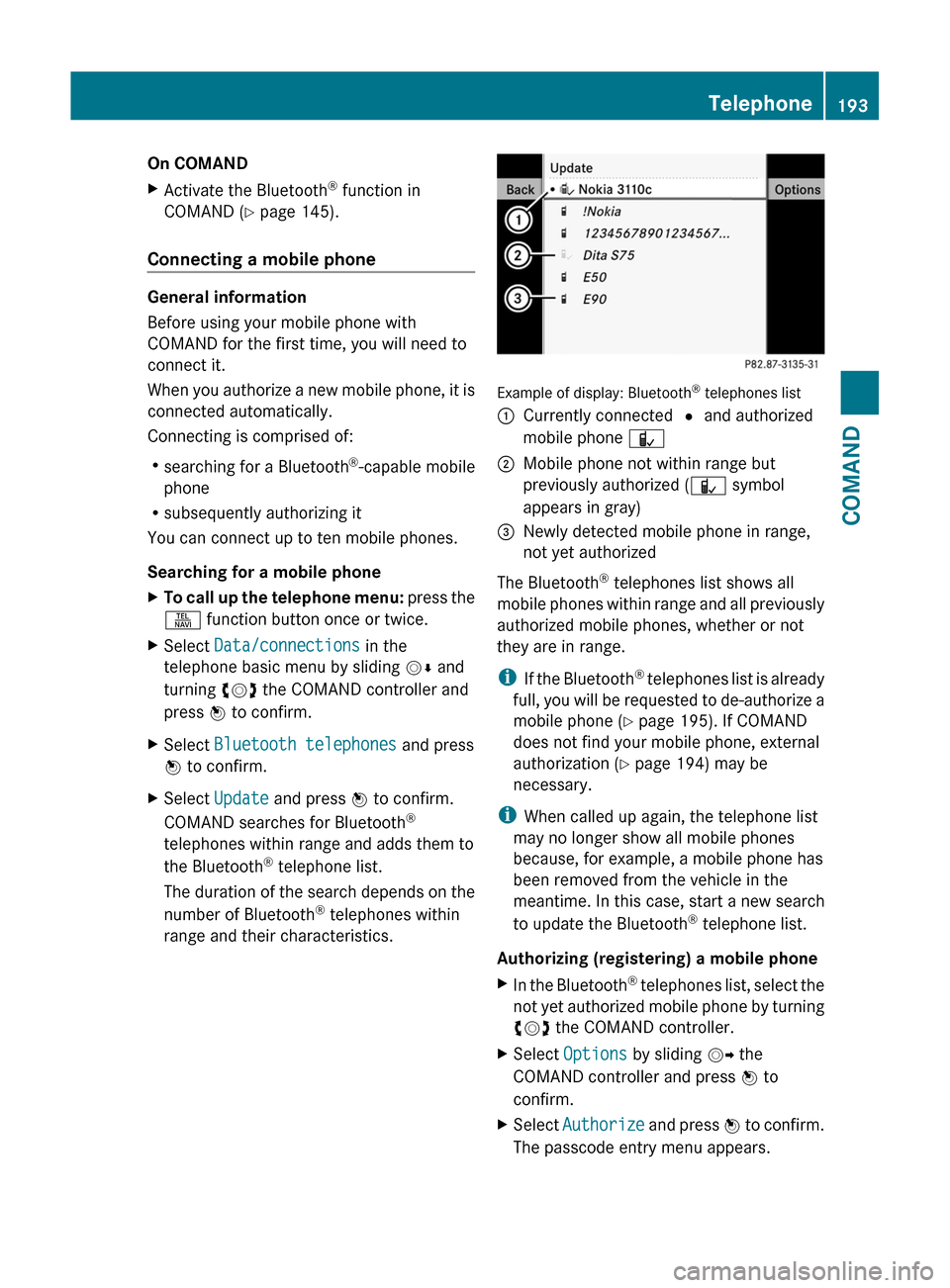
Example of display: Bluetooth® telephones list
:Currently connected # and authorized
mobile phone Ñ
;Mobile phone not within range but
previously authorized (Ñ symbol
appears in gray)
=Newly detected mobile phone in range,
not yet authorized
The Bluetooth® telephones list shows all
mobile phones within range and all previously
authorized mobile phones, whether or not
they are in range.
iIf the Bluetooth® telephones list is already
full, you will be requested to de-authorize a
mobile phone (Y page 195). If COMAND
does not find your mobile phone, external
authorization (Y page 194) may be
necessary.
iWhen called up again, the telephone list
may no longer show all mobile phones
because, for example, a mobile phone has
been removed from the vehicle in the
meantime. In this case, start a new search
to update the Bluetooth® telephone list.
Authorizing (registering) a mobile phone
XIn the Bluetooth® telephones list, select the
not yet authorized mobile phone by turning
cVd the COMAND controller.
XSelect Options by sliding VY the
COMAND controller and press W to
confirm.
XSelect Authorize and press W to confirm.
The passcode entry menu appears.
Telephone193COMANDZ
Page 197 of 524
XStart the Bluetooth®
search on the mobile
phone (see the mobile phone operating
instructions).XSelect COMAND ( MB Bluetooth) on the
mobile phone.XEnter the passkey on the mobile phone
when requested to and then enter it in
COMAND.
Connecting another mobile phone
If you have authorized more than one mobile
phone, you can switch between the individual
phones.
i You can only switch to another authorized
mobile phone if no phone call is active.
XSelect the mobile phone in the Bluetooth ®
telephones list by turning cVd the
COMAND controller and press W to
confirm.
The selected mobile phone is searched for
and connected if it is within Bluetooth ®
range and if Bluetooth ®
is activated.
Only one mobile phone can be connected
at any one time. The currently connected
mobile phone is indicated by the # dot in
the Bluetooth ®
telephones list
( Y page 193).
Displaying details
XSelect Data/connections in the
telephone basic menu by sliding VÆ and
turning cVd the COMAND controller and
press W to confirm.XSelect Bluetooth telephones and press
W to confirm.XSelect the desired mobile phone in the
Bluetooth ®
telephones list.XSelect Options by sliding VY and press
W to confirm.XSelect Details and press W to confirm.
The following information concerning the
selected mobile phone is shown:R Bluetooth ®
name
R Bluetooth ®
address
R availability
R authorization statusXTo close the detailed view: turn cVd or
slide XVY the COMAND controller.
De-registering (de-authorizing) a mobile
phone
Mercedes-Benz USA, LLC recommends de-
authorization in COMAND and on the mobile
phone. Subsequent authorization may
otherwise fail.
XTo call up the telephone menu: press the
S function button once or twice.XSelect Data/connections in the
telephone basic menu by sliding VÆ and
turning cVd the COMAND controller and
press W to confirm.XSelect Bluetooth telephones and press
W to confirm.XSelect the desired mobile phone in the
Bluetooth ®
telephones list.XSelect Options by sliding VY and press
W to confirm.XSelect De-authorize and press W to
confirm.
A prompt appears asking whether you
really wish to revoke authorization for this
device.XSelect Yes or No.
If you select Yes, the device will be deleted
from the Bluetooth ®
telephones list.
If you select No, the process will be aborted.
i
Before re-authorizing the mobile phone,
you should also delete the device name MB
Bluetooth from your mobile phone's
Bluetooth ®
list.
Telephone195COMANDZ
Page 206 of 524
XSlide ZVÆ the COMAND controller and
press W to confirm.
or
XPress Æ in the character bar.XTo cancel data entry: select the %
symbol in the character bar and press W
to confirm.
If one of the data fields contains data, a
prompt will appear asking whether you
wish to store the entry.
XTo save data entry: select the ¬
symbol in the character bar and press W
to confirm.
The entry is created in the phone book and
in the address book.
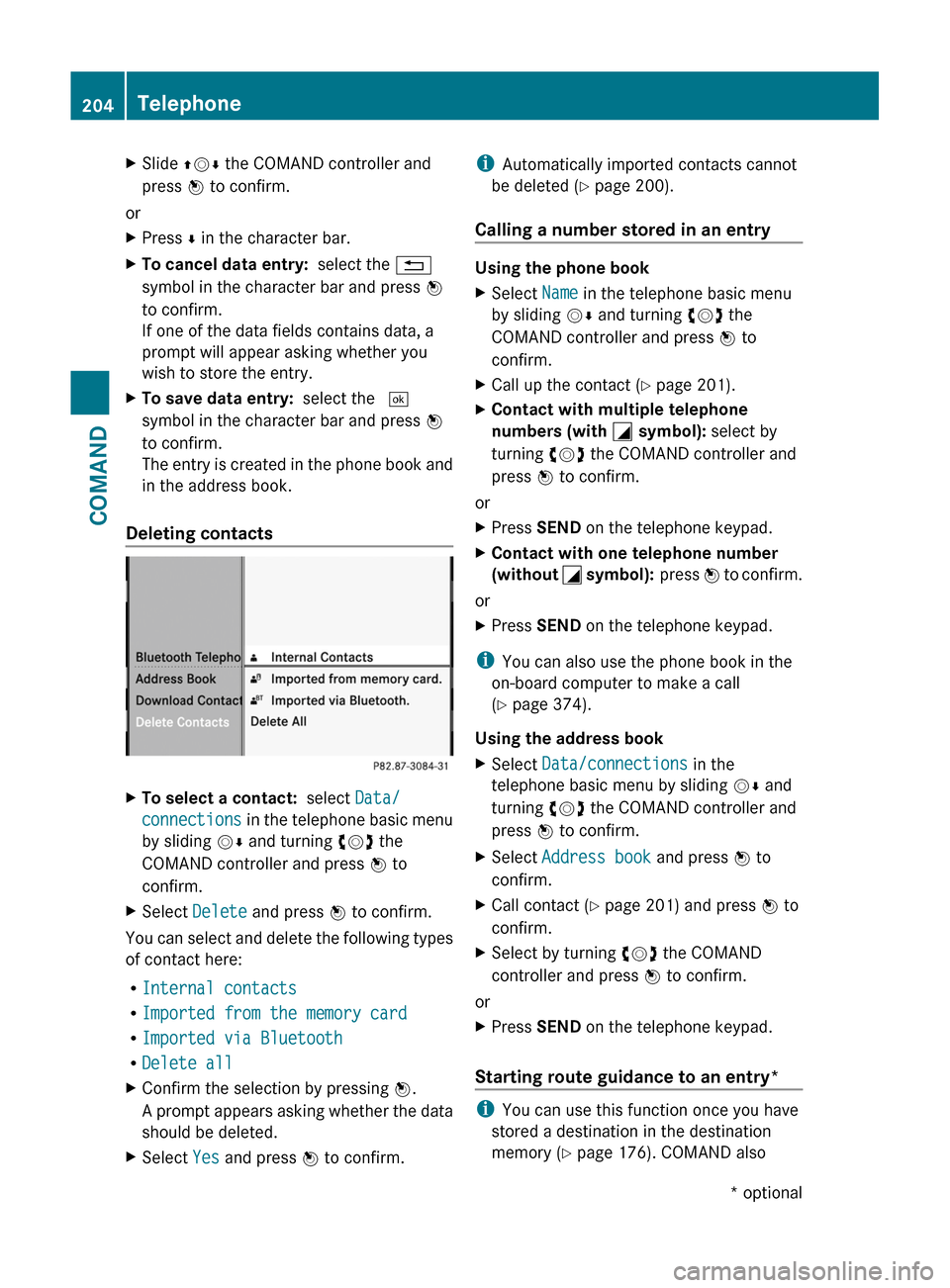
Deleting contacts
XTo select a contact: select Data/
connections in the telephone basic menu
by sliding VÆ and turning cVd the
COMAND controller and press W to
confirm.
XSelect Delete and press W to confirm.
You can select and delete the following types
of contact here:
RInternal contacts
RImported from the memory card
RImported via Bluetooth
RDelete all
XConfirm the selection by pressing W.
A prompt appears asking whether the data
should be deleted.
XSelect Yes and press W to confirm.iAutomatically imported contacts cannot
be deleted (Y page 200).
Calling a number stored in an entry
Using the phone book
XSelect Name in the telephone basic menu
by sliding VÆ and turning cVd the
COMAND controller and press W to
confirm.
XCall up the contact (Y page 201).XContact with multiple telephone
numbers (with G symbol): select by
turning cVd the COMAND controller and
press W to confirm.
or
XPress SEND on the telephone keypad.XContact with one telephone number
(without G symbol): press W to confirm.
or
XPress SEND on the telephone keypad.
iYou can also use the phone book in the
on-board computer to make a call
(Y page 374).
Using the address book
XSelect Data/connections in the
telephone basic menu by sliding VÆ and
turning cVd the COMAND controller and
press W to confirm.
XSelect Address book and press W to
confirm.
XCall contact (Y page 201) and press W to
confirm.
XSelect by turning cVd the COMAND
controller and press W to confirm.
or
XPress SEND on the telephone keypad.
Starting route guidance to an entry*
iYou can use this function once you have
stored a destination in the destination
memory (Y page 176). COMAND also
204TelephoneCOMAND* optional
Page 207 of 524
stores the destination in the address book
with the complete navigable address data.
In this case, navigation can be started
without any further data input.
If the contact entry contains a postal
address, e.g. as a result of importing a
vCard, the system can also navigate to this
address. If the data is incomplete or
unclear, COMAND asks the user to enter
the relevant address data. After the entry
has been completed and navigation has
been started, COMAND replaces the
existing address with the navigable
address if necessary.XSearch for an address book entry using the
¤ symbol.XDisplay the details about an entry and
highlight the address data field.XSelect Options by sliding VÆ and turning
cVd the COMAND controller and press
W to confirm.XSelect Navigate and press W to confirm.XSelect Start and press W to confirm.
i
You may only select Navigate if the
address data field contains complete,
navigable data. This is indicated by the ¤
symbol.
Voice tags*
i Voice tags are entered via Voice Control
System*; see the separate operating
instructions for Voice Control System*.
Adding or changing a voice tag
i You can add one voice tag per address
book entry.
XSearch for an address book entry with or
without a voice tag ( ¦ symbol).XSelect Options by sliding VÆ and turning
cVd the COMAND controller and press
W to confirm.XSelect Voice tag and press W to confirm.XSelect Add or Edit and press W to confirm.
Subsequent operation is controlled
by voice. Voice Control System* guides you
through the menus.
Deleting a voice tag
XSearch for an address book entry with a
voice tag.XSelect Options by sliding VÆ and turning
cVd the COMAND controller and press
W to confirm.XSelect Voice tag and press W to confirm.XSelect Delete and press W to confirm.
A deletion prompt appears.
Listening to a voice tag
XSearch for an address book entry with a
voice tag.XSelect Options by sliding VÆ and turning
cVd the COMAND controller and press
W to confirm.XSelect Voice tag and press W to confirm.XSelect Listen and press W to confirm.
You will hear the voice tag.
Using call lists
Introduction
COMAND displays calls received (including
missed calls) and made during phone
operation in lists.
i The respective menu item can only be
selected if calls have already been made or
received in COMAND or if the call lists have
been imported from the telephone.
Opening the call list and selecting an
entry
XTo call up the telephone menu: press the
S function button.XSelect Call lists in the telephone basic
menu by sliding VÆ and turning cVd theTelephone205COMAND* optionalZ
Page 212 of 524
range, COMAND tunes in to the next lower
frequency.
Storing stations
Storing stations manually
There are twenty presets available for the FM
and AM wavebands.
XQuick save: press and hold a number key,
e.g. l, until you hear a tone.
The station is stored.
XDirectly in the station presets: press W
the COMAND controller when the display/
selection window is active in the radio
display.
or
XSelect Presets by sliding VÆ and turning
cVd the COMAND controller and press
W to confirm.
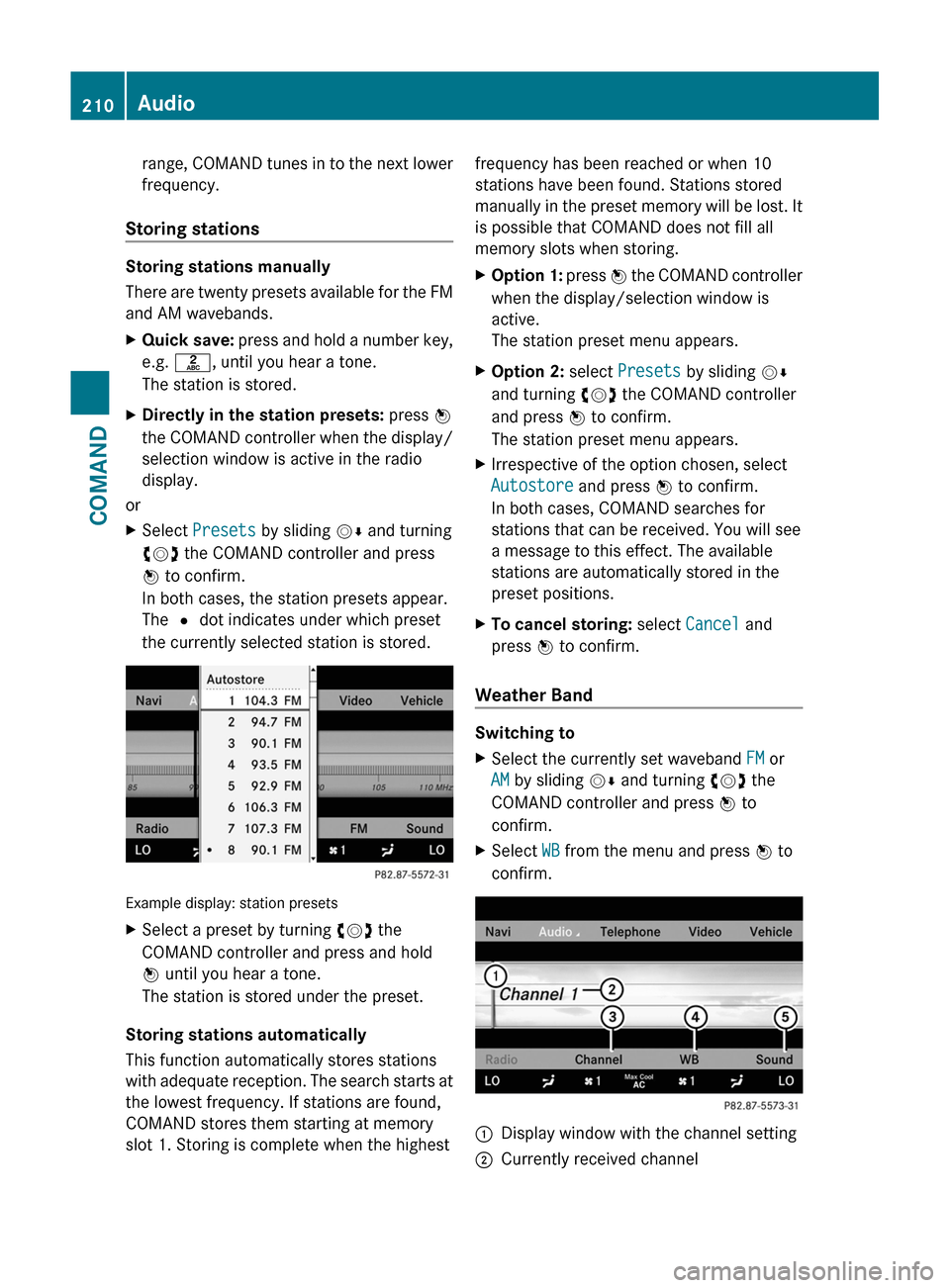
In both cases, the station presets appear.
The # dot indicates under which preset
the currently selected station is stored.
Example display: station presets
XSelect a preset by turning cVd the
COMAND controller and press and hold
W until you hear a tone.
The station is stored under the preset.
Storing stations automatically
This function automatically stores stations
with adequate reception. The search starts at
the lowest frequency. If stations are found,
COMAND stores them starting at memory
slot 1. Storing is complete when the highest
frequency has been reached or when 10
stations have been found. Stations stored
manually in the preset memory will be lost. It
is possible that COMAND does not fill all
memory slots when storing.
XOption 1: press W the COMAND controller
when the display/selection window is
active.
The station preset menu appears.
XOption 2: select Presets by sliding VÆ
and turning cVd the COMAND controller
and press W to confirm.
The station preset menu appears.
XIrrespective of the option chosen, select
Autostore and press W to confirm.
In both cases, COMAND searches for
stations that can be received. You will see
a message to this effect. The available
stations are automatically stored in the
preset positions.
XTo cancel storing: select Cancel and
press W to confirm.
Weather Band
Switching to
XSelect the currently set waveband FM or
AM by sliding VÆ and turning cVd the
COMAND controller and press W to
confirm.
XSelect WB from the menu and press W to
confirm.
:Display window with the channel setting;Currently received channel210AudioCOMAND