start stop button MERCEDES-BENZ S-Class 2012 W221 User Guide
[x] Cancel search | Manufacturer: MERCEDES-BENZ, Model Year: 2012, Model line: S-Class, Model: MERCEDES-BENZ S-Class 2012 W221Pages: 536, PDF Size: 25.27 MB
Page 95 of 536

Opening and closing the side
windows:Front left;Front right=Rear right?Rear left
The switches for all side windows are located
on the driver's door. There is also a switch on
each door for the corresponding side window.
The switches on the driver's door take
precedence.
i The side windows cannot be operated
from the rear when the override feature for
the side windows is activated ( Y page 67).
XTurn the SmartKey to position 1 or 2 in the
ignition lock.XTo open: press the corresponding switch.XTo close: pull the corresponding switch.
i
If you press the switch beyond the point
of resistance, an automatic opening/
closing process is started in the
corresponding direction. You can stop
automatic operation by operating the
switch again.
i You can continue to operate the side
windows after you switch off the engine or
remove the SmartKey. This function is
available for up to five minutes or until the
driver's or front-passenger door is opened.
Sunblinds on the rear side windowsXTo close fully: pull the corresponding
switch when the side window is closed.XTo open fully: press the corresponding
switch.
i You can use the switches on the rear
doors to close the rear roller sunblinds for
the opposite side.
Convenience opening feature
You can ventilate the vehicle before you start
driving. To do this, the key is used to carry out
the following functions simultaneously:
R unlock the vehicle
R open the side windows
R open the roller sunblinds on the rear side
windows
R open the sliding sunroof or the panorama
roof with power tilt/sliding panel and the
roller sunblinds
R switch on the seat ventilation for the
driver's seat
i The convenience opening feature can
only be operated using the SmartKey. The
SmartKey must be close to the driver's
door handle.
XPoint the tip of the SmartKey at the driver's
door handle.XPress and hold the % button until the
side windows and the sliding sunroof or the
panorama roof with power tilt/sliding
panel are in the desired position.
If one of the sunblinds is closed, the sunblind
will open first.
i The roller sunblinds of the panorama roof
with power tilt/sliding panel and the roller
sunblinds on the rear side windows are
opened at the same time.
XPress and hold the % button again until
the side windows and the sliding sunroof orSide windows93Opening/closingZ
Page 100 of 536

panorama roof with power tilt/sliding panel
is closed. The front and rear roller sunblinds
can be operated individually.
Operating the front roller sunblindGWARNING
When opening or closing the front roller
sunblind, make sure no one is in danger of
being injured by the opening or closing
procedure.
The front roller sunblind is equipped with
automatic operation and the anti-entrapment
feature. If the movement of the front roller
sunblind is blocked during the closing
procedure, the front roller sunblind will stop
and retract slightly.
The opening or closing of the front roller
sunblind can be immediately halted by
releasing the roof panel switch or, if the roof
panel switch was moved past the resistance
point and released, by moving the roof panel
switch in any direction.
Overhead control panel
:To open;To open=To closeXTurn the SmartKey to position 1 or 2 in the
ignition lock.XPress or pull the 3 switch in the
corresponding direction.
i If you press the 3 switch beyond the
point of resistance, an automatic opening/
closing process is started in the
corresponding direction. You can stop
automatic operation by operating the
switch again.
Operating the rear roller sunblind
Operating from the front
GWARNING
When opening or closing the rear roller
sunblind, make sure no one is in danger of
being injured by the opening or closing
procedure.
The rear roller sunblind is equipped with
automatic operation and the anti-entrapment
feature. If the movement of the rear roller
sunblind is blocked during the closing
procedure, the rear roller sunblind will stop
and retract slightly.
The opening and closing of the rear roller
sunblind can be immediately halted by
pressing the sunblind switch again.
Overhead control panel
XTo open or close: press button :.
The rear roller sunblind opens or closes
fully.XTo stop: press button : again.
i
You must first open or close the rear roller
sunblind fully before you can move it in the
other direction.
Operating from the rear compartment
GWARNING
When opening or closing the rear roller
sunblind, make sure no one is in danger of
98Sliding sunroofOpening/closing
Page 122 of 536
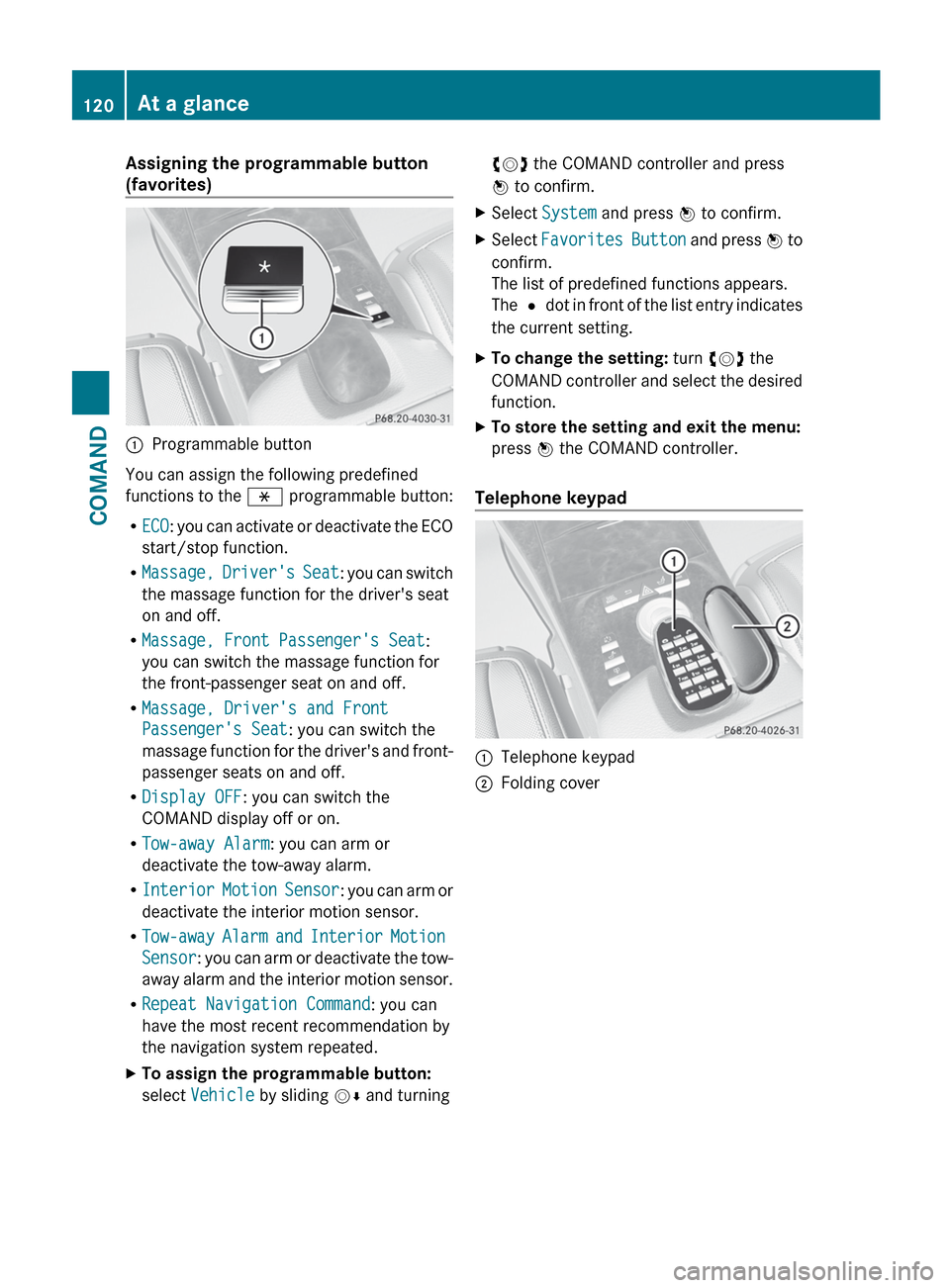
Assigning the programmable button
(favorites):Programmable button
You can assign the following predefined
functions to the h programmable button:
R ECO : you can activate or deactivate the ECO
start/stop function.
R Massage, Driver's Seat : you can switch
the massage function for the driver's seat
on and off.
R Massage, Front Passenger's Seat :
you can switch the massage function for
the front-passenger seat on and off.
R Massage, Driver's and Front
Passenger's Seat : you can switch the
massage function for the driver's and front-
passenger seats on and off.
R Display OFF : you can switch the
COMAND display off or on.
R Tow-away Alarm : you can arm or
deactivate the tow-away alarm.
R Interior Motion Sensor : you can arm or
deactivate the interior motion sensor.
R Tow-away Alarm and Interior Motion
Sensor : you can arm or deactivate the tow-
away alarm and the interior motion sensor.
R Repeat Navigation Command : you can
have the most recent recommendation by
the navigation system repeated.
XTo assign the programmable button:
select Vehicle by sliding VÆ and turningcVd the COMAND controller and press
W to confirm.XSelect System and press W to confirm.XSelect Favorites Button and press W to
confirm.
The list of predefined functions appears.
The # dot in front of the list entry indicates
the current setting.XTo change the setting: turn cVd the
COMAND controller and select the desired
function.XTo store the setting and exit the menu:
press W the COMAND controller.
Telephone keypad
:Telephone keypad;Folding cover120At a glanceCOMAND
Page 163 of 536
Entering an intermediate stop
Introduction
When route guidance is active, you can enter
an intermediate stop. Intermediate stops can
be predefined destinations from the following
categories that COMAND offers for selection:
R Mercedes-Benz Service Center
R Hospital
R Gas Station
R Parking Lot
R Restaurant
However, you can also enter destinations
other than the predefined ones. To do this
select the menu item Other.
You can use the intermediate stop function to
influence route guidance to the main
destination. When you have reached your
intermediate stop, COMAND automatically
recalculates the route to the main
destination.
Entering predefined destinations
XTo activate navigation mode: press the
S function button once or twice.XTo show the menu: press W the COMAND
controller.XSelect Destination in the navigation
system menu bar by turning cVd the
COMAND controller and pressing W to
confirm.XSelect Stopover and press W to confirm.
Option 1: no intermediate stop has been
entered yet.
XSelect a category; see option 2.
Option 2: an intermediate stop has
already been entered.
XSelect Change Stopover and press W to
confirm.XTo select a category: select a category by
turning cVd the COMAND controller and
pressing W to confirm.
COMAND first searches in the selected
category for destinations along the route.
If there are no destinations available there,
COMAND searches for destinations within
a radius of up to 100 km of the vehicle
position.
If COMAND finds destinations, a list
appears on the right-hand side of the
display. The currently selected point of
interest is highlighted on the left-hand side
of the map.
The intermediate stops are listed according
to increasing distance from the current
vehicle position. They are displayed in the
form of a name and their position in relation
to the route and your direction of travel.
If COMAND does not find any destinations,
you will see a message to this effect.
XConfirm OK by pressing W.XSelect a different category.XSelect the intermediate stop by turning
cVd the COMAND controller and pressing
W to confirm.XTo start route calculation: select Start
and press W to confirm.
Entering another destination as an
intermediate stop
XTo activate navigation mode: press the
S function button once or twice.XTo show the menu: press W the COMAND
controller.XSelect Destination in the navigation
system menu bar by turning cVd the
COMAND controller and pressing W to
confirm.XSelect Stopover and press W to confirm.XSelect Other and press W to confirm.Navigation161COMANDZ
Page 164 of 536
XSelect Address Entry , From Memory ,
From Last Destinations or From POIs .SelectionStepAddress EntryXEnter a
destination by
address
( Y page 153).From MemoryXSelect a
destination from
the destination
memory
( Y page 159).From Last
DestinationsXSelect a
destination from
the list of last
destinations
( Y page 159).From POIsXEnter a point of
interest
( Y page 162).XTo start route calculation: once you have
entered a destination, select Start and
press W to confirm.
Deleting an intermediate stop
If an intermediate stop has already been
entered, you can delete it.
XTo activate navigation mode: press the
S function button once or twice.XTo show the menu: press W the COMAND
controller.XSelect Destination in the navigation
system menu bar by turning cVd the
COMAND controller and pressing W to
confirm.XSelect Stopover and press W to confirm.XSelect Delete Stopover and press W to
confirm.
COMAND deletes the intermediate stop
and recalculates the route to the main
destination.
Entering a point of interest
Initiating point of interest entry
XTo activate navigation mode: press the
S function button once or twice.XTo show the menu: press W the COMAND
controller.XSelect Destination in the navigation
system menu bar by turning cVd the
COMAND controller and press W to
confirm.XSelect From POIs and press W to confirm.
A menu appears.
Entering a point of interest in the
vicinity of the destination
Entering a point of interest in the vicinity of
the destination is only possible when route
guidance is active.
XSelect Destination Area from the menu
and press W to confirm.XContinue with assigning the point of
interest category ( Y page 163).
Entering a point of interest in the
vicinity of the current position
XSelect Current Position and press W to
confirm.XContinue with assigning the point of
interest category ( Y page 163).162NavigationCOMAND
Page 225 of 536
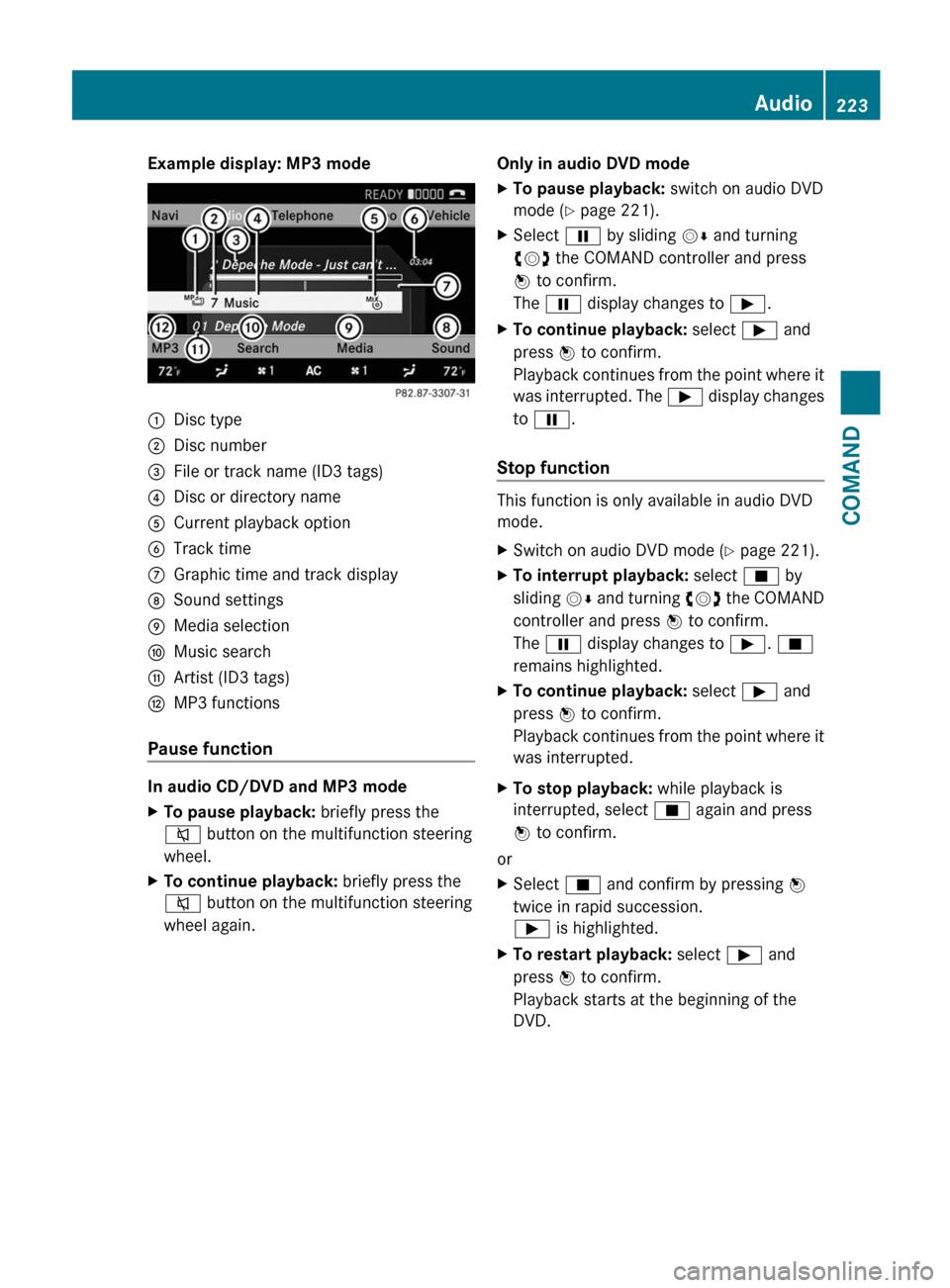
Example display: MP3 mode:Disc type;Disc number=File or track name (ID3 tags)?Disc or directory nameACurrent playback optionBTrack timeCGraphic time and track displayDSound settingsEMedia selectionFMusic searchGArtist (ID3 tags)HMP3 functions
Pause function
In audio CD/DVD and MP3 mode
XTo pause playback: briefly press the
8 button on the multifunction steering
wheel.XTo continue playback: briefly press the
8 button on the multifunction steering
wheel again.Only in audio DVD modeXTo pause playback: switch on audio DVD
mode ( Y page 221).XSelect Ë by sliding VÆ and turning
cVd the COMAND controller and press
W to confirm.
The Ë display changes to Ì.XTo continue playback: select Ì and
press W to confirm.
Playback continues from the point where it
was interrupted. The Ì display changes
to Ë .
Stop function
This function is only available in audio DVD
mode.
XSwitch on audio DVD mode ( Y page 221).XTo interrupt playback: select É by
sliding VÆ and turning cVd the COMAND
controller and press W to confirm.
The Ë display changes to Ì. É
remains highlighted.XTo continue playback: select Ì and
press W to confirm.
Playback continues from the point where it
was interrupted.XTo stop playback: while playback is
interrupted, select É again and press
W to confirm.
or
XSelect É and confirm by pressing W
twice in rapid succession.
Ì is highlighted.XTo restart playback: select Ì and
press W to confirm.
Playback starts at the beginning of the
DVD.Audio223COMANDZ
Page 245 of 536
Stop functionXPress W the COMAND controller to show
the menu.XTo interrupt playback: select É by
turning cVd the COMAND controller and
press W to confirm.
The Ë display changes to Ì. The
video image is hidden.XTo continue playback: select Ì and
press W to confirm.
Playback continues from the point where it
was interrupted.XTo stop playback: while playback is
interrupted, select É again and press
W to confirm.
or
XDuring playback, confirm É by pressing
W twice in quick succession.
Selection is at Ì.XTo restart playback: confirm Ì by
pressing W.
Playback restarts from the beginning.
Pause function
XPress W the COMAND controller to show
the menu.XTo pause: select Ë by turning cVd the
COMAND controller and press W to
confirm.
The Ë display changes to Ì.XTo continue playback: select Ì and
press W to confirm.
The menu is hidden.
Selecting a scene/chapter
If the film is divided into scenes or chapters,
you can select them directly while the film is
running, or skip forwards step-by-step. Some
DVDs do not permit this at certain points (e.g.
during the opening credits).
It may also be possible to select the scene/
chapter from within the menu stored on the
DVD.XTo skip forwards or back: turn cVd or
slide XVY the COMAND controller.
The control menu (Y page 241) appears for
approximately eight seconds.XOn the multifunction steering wheel:
switch on video DVD mode in COMAND
( Y page 241).XUse the = or ; button to select the
Audio menu.XPress 9 or : to select a scene/
chapter.
If you press and hold 9 or : for an
extended period, rapid scroll begins.
Selecting a film/title
This function is only available if the DVD is
divided into several films/tracks. If the DVD
contains several films, these can be selected
directly. A film can be selected either when
the DVD is being played back or when it is
stopped.
The film can also be selected from the menu
on the DVD itself.
XPress W the COMAND controller to show
the menu.XSelect DVD-V by turning cVd the COMAND
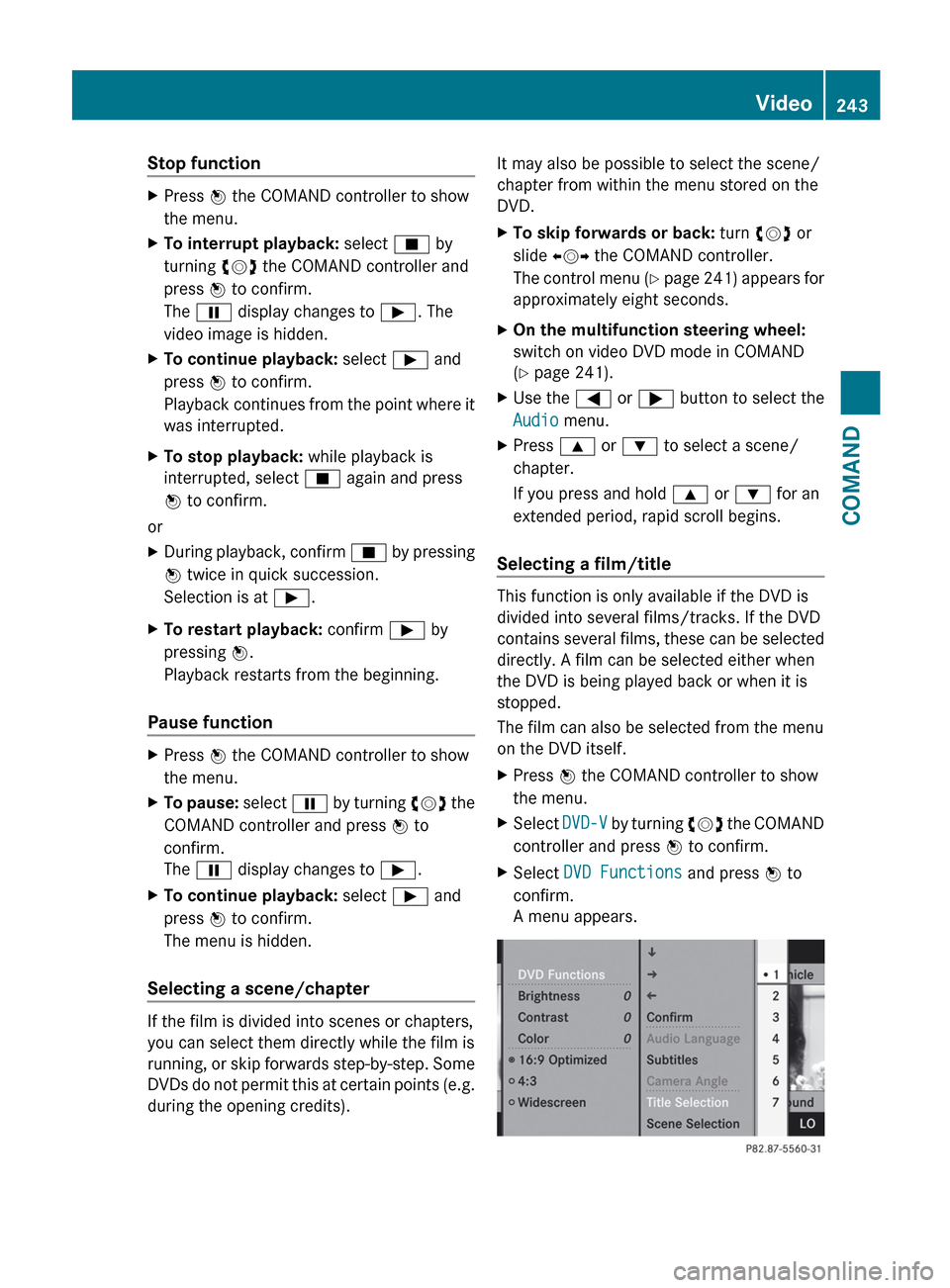
controller and press W to confirm.XSelect DVD Functions and press W to
confirm.
A menu appears.Video243COMANDZ
Page 255 of 536
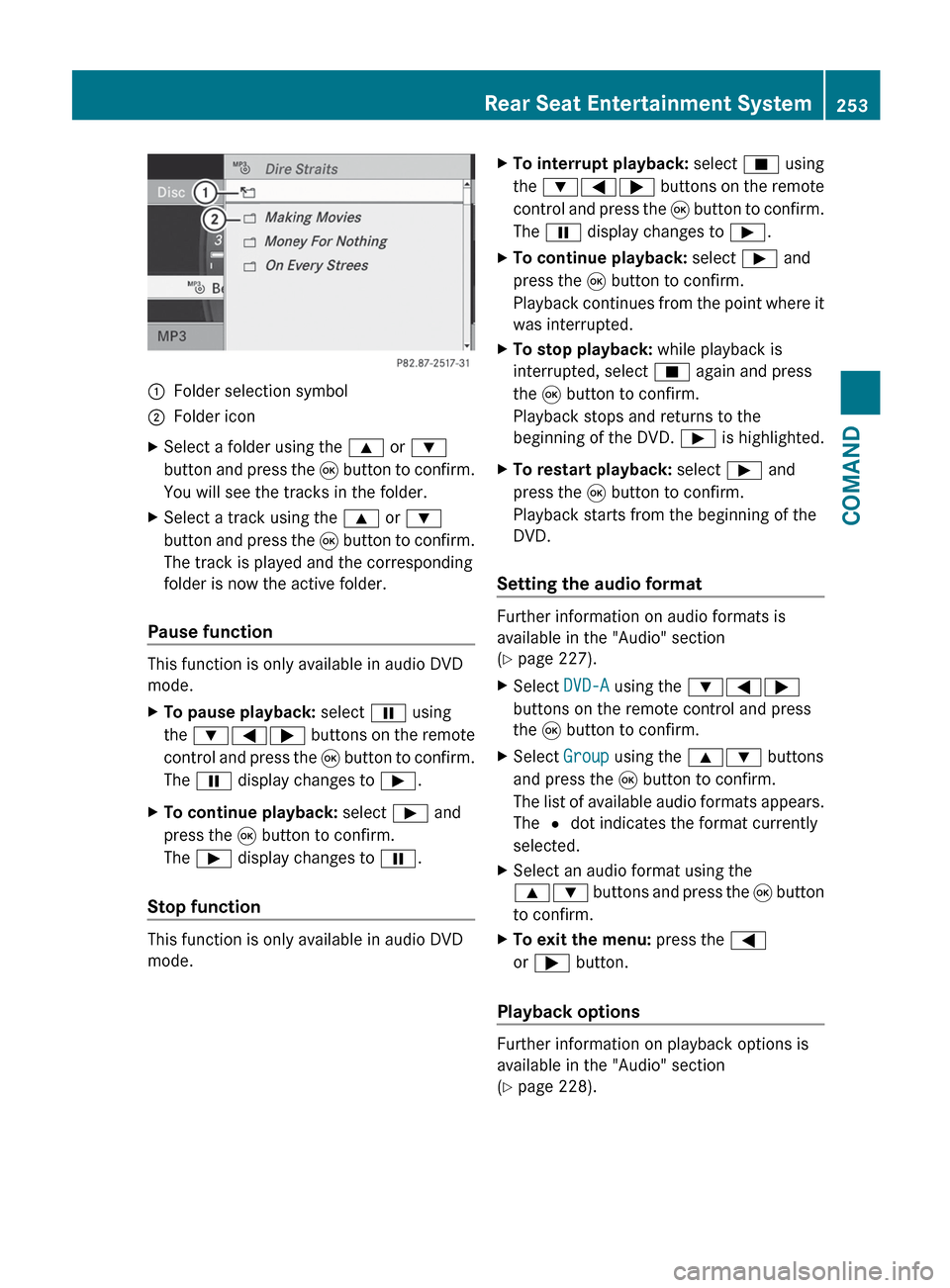
:Folder selection symbol;Folder iconXSelect a folder using the 9 or :
button and press the 9 button to confirm.
You will see the tracks in the folder.XSelect a track using the 9 or :
button and press the 9 button to confirm.
The track is played and the corresponding
folder is now the active folder.
Pause function
This function is only available in audio DVD
mode.
XTo pause playback: select Ë using
the :=; buttons on the remote
control and press the 9 button to confirm.
The Ë display changes to Ì.XTo continue playback: select Ì and
press the 9 button to confirm.
The Ì display changes to Ë.
Stop function
This function is only available in audio DVD
mode.
XTo interrupt playback: select É using
the :=; buttons on the remote
control and press the 9 button to confirm.
The Ë display changes to Ì.XTo continue playback: select Ì and
press the 9 button to confirm.
Playback continues from the point where it
was interrupted.XTo stop playback: while playback is
interrupted, select É again and press
the 9 button to confirm.
Playback stops and returns to the
beginning of the DVD. Ì is highlighted.XTo restart playback: select Ì and
press the 9 button to confirm.
Playback starts from the beginning of the
DVD.
Setting the audio format
Further information on audio formats is
available in the "Audio" section
( Y page 227).
XSelect DVD-A using the :=;
buttons on the remote control and press
the 9 button to confirm.XSelect Group using the 9: buttons
and press the 9 button to confirm.
The list of available audio formats appears.
The # dot indicates the format currently
selected.XSelect an audio format using the
9: buttons and press the 9 button
to confirm.XTo exit the menu: press the =
or ; button.
Playback options
Further information on playback options is
available in the "Audio" section
( Y page 228).
Rear Seat Entertainment System253COMANDZ
Page 258 of 536
Stop functionXTo show the menu: press the 9 button
on the remote control.
or
XSelect Menu while the navigation menu is
shown and press the 9 button to confirm.XTo interrupt playback: select É and
press the 9 button to confirm.
The Ë display changes to Ì. The
video image is hidden.XTo continue playback: select Ì and
press the 9 button to confirm.
Playback continues from the point where it
was interrupted. The menu is hidden.XTo stop playback: while playback is
interrupted, select É again and press
the 9 button to confirm.
Playback stops and returns to the
beginning of the DVD. Ì is highlighted.XTo restart playback: select Ì and
press the 9 button to confirm.
Playback starts from the beginning of the
DVD.
Selecting a scene/chapter
Note
Further information on this function is
available in the "Video" section
( Y page 243).
Skipping forwards/backwards
XPress the = or ; button on the
remote control.
or
XPress the E or F button.
The control menu appears for
approximately eight seconds.
Selecting a scene/chapter directly
The examples illustrate how to select scene/
chapter 5.
XOption 1: while the film is playing, press
the h button on the remote control.XPress a corresponding number key, e.g.
¿ .XOption 2: while the film is playing, press
the 9 button on the remote control and
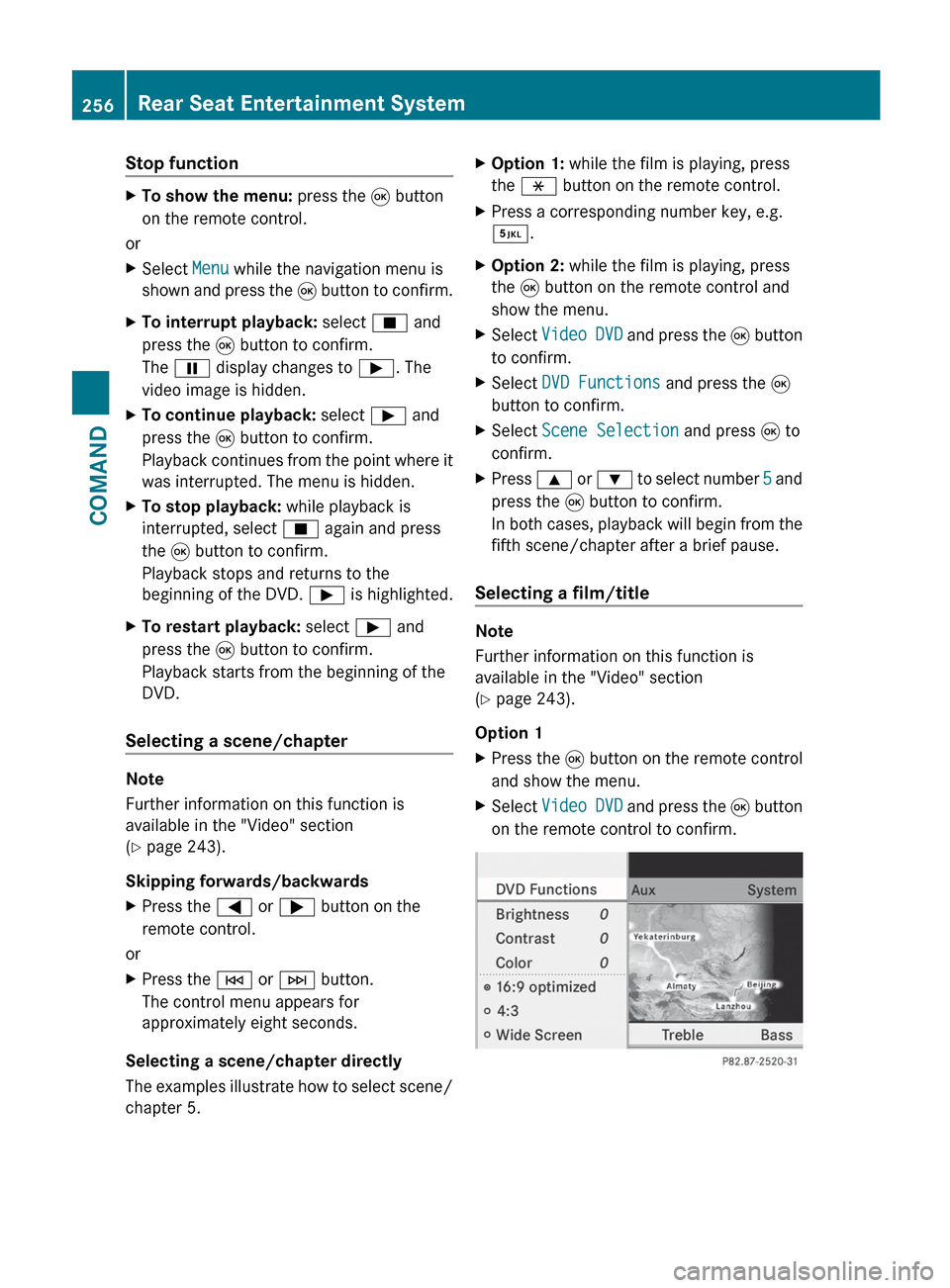
show the menu.XSelect Video DVD and press the 9 button
to confirm.XSelect DVD Functions and press the 9
button to confirm.XSelect Scene Selection and press 9 to
confirm.XPress 9 or : to select number 5 and
press the 9 button to confirm.
In both cases, playback will begin from the
fifth scene/chapter after a brief pause.
Selecting a film/title
Note
Further information on this function is
available in the "Video" section
( Y page 243).
Option 1
XPress the 9 button on the remote control
and show the menu.XSelect Video DVD and press the 9 button
on the remote control to confirm.256Rear Seat Entertainment SystemCOMAND
Page 288 of 536
Never fold a windshield wiper arm without
a wiper blade back onto the windshield.
Hold the windshield wiper arm firmly when
you change the wiper blade. If you release
the windshield wiper arm without a wiper
blade and it falls onto the windshield, the
windshield may be damaged by the force of
the impact.
Mercedes-Benz recommends that you have
the wiper blades replaced by a qualified
specialist workshop, e.g. at an authorized
Mercedes-Benz Center.
! Always position the windshield wiper
arms vertically before folding them away
from the windshield. By doing so, you will
avoid damage to the hood.
Replacing the wiper blades
Moving the wiper blades to a vertical
position
Vehicles without KEYLESS-GO
XTurn the SmartKey to position 1 or 2 in the
ignition lock.XSet the windshield wipers to
position °.XWhen the wiper arms have reached a
vertical position, turn the SmartKey to
position 0 and remove it from the ignition
lock.
Vehicles with KEYLESS-GO
XSwitch off the engine.XRemove your foot from the brake pedal.XSet the windshield wipers to
position °.XPress the Start/Stop button repeatedly
until the windshield wipers start.XWhen the wiper arms have reached a
vertical position, press the Start/Stop
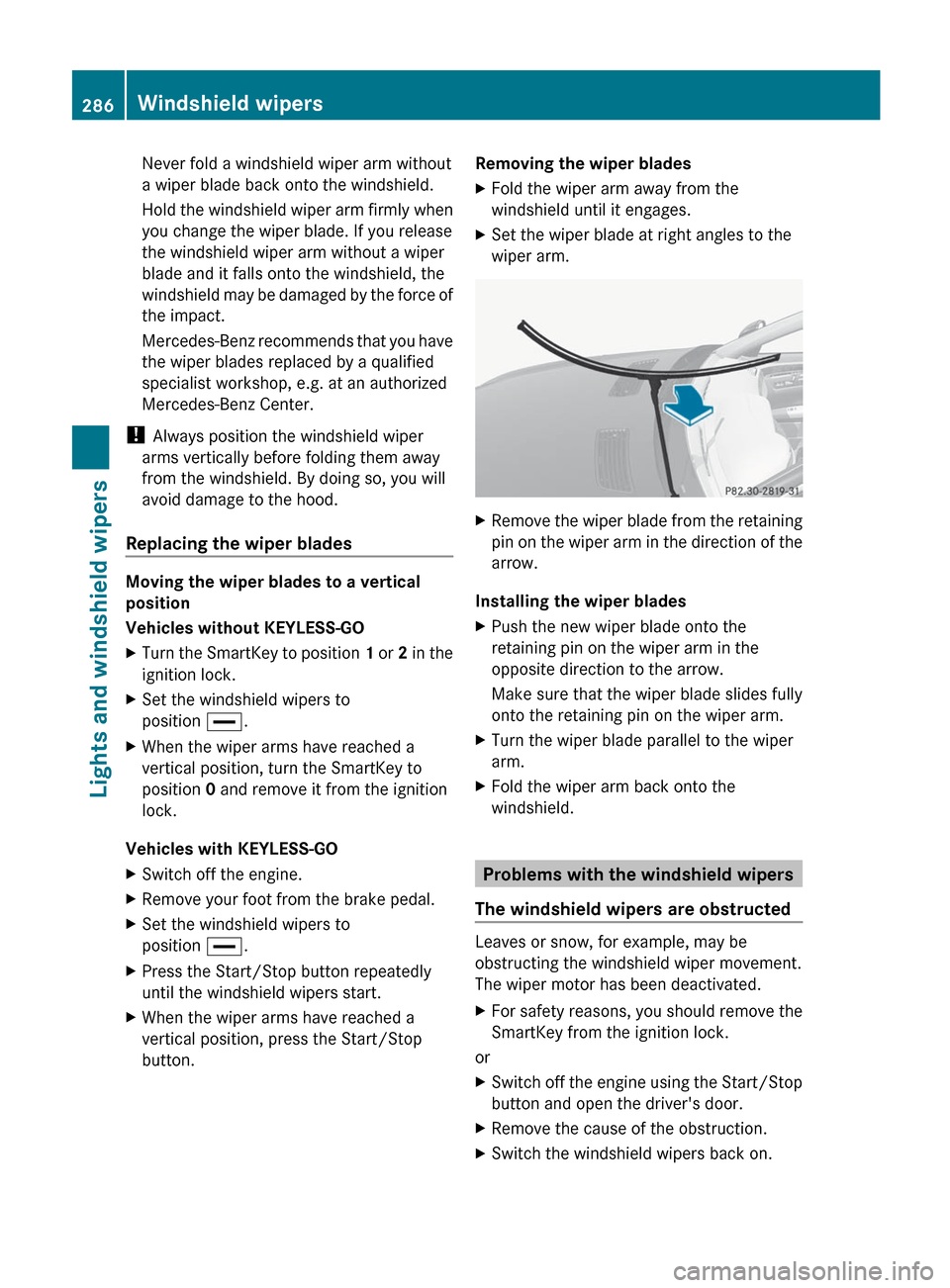
button.Removing the wiper bladesXFold the wiper arm away from the
windshield until it engages.XSet the wiper blade at right angles to the
wiper arm.XRemove the wiper blade from the retaining
pin on the wiper arm in the direction of the
arrow.
Installing the wiper blades
XPush the new wiper blade onto the
retaining pin on the wiper arm in the
opposite direction to the arrow.
Make sure that the wiper blade slides fully
onto the retaining pin on the wiper arm.XTurn the wiper blade parallel to the wiper
arm.XFold the wiper arm back onto the
windshield.
Problems with the windshield wipers
The windshield wipers are obstructed
Leaves or snow, for example, may be
obstructing the windshield wiper movement.
The wiper motor has been deactivated.
XFor safety reasons, you should remove the
SmartKey from the ignition lock.
or
XSwitch off the engine using the Start/Stop
button and open the driver's door.XRemove the cause of the obstruction.XSwitch the windshield wipers back on.286Windshield wipersLights and windshield wipers