change time MERCEDES-BENZ S-Class 2012 W221 Owner's Guide
[x] Cancel search | Manufacturer: MERCEDES-BENZ, Model Year: 2012, Model line: S-Class, Model: MERCEDES-BENZ S-Class 2012 W221Pages: 536, PDF Size: 25.27 MB
Page 176 of 536
Off-road during route guidance
Due to roadworks, for example, there may be
differences between the data on the digital
map and the actual course of the road.
In such cases, the system will temporarily be
unable to locate the vehicle position on the
digital map and thus considers the vehicle to
be in an off-road position.
In the display, you will see the Street
unknown message, an arrow and the distance
to the destination. The arrow shows the
compass heading to the last road you were
driving on.
As soon as the system can assign the vehicle
position to the map again, route guidance
continues in the usual way.
Route guidance on roads that are not
completely digitalized
COMAND attempts to avoid roads that have
not been completely digitalized. If the
vehicle's position or the destination is located
in an area that has not been completely
digitalized, then no active route guidance is
performed. Instead, the map shows a dashed
route along the roads and the target direction
is shown with an arrow. You hear the
announcement: "You will enter an area,
where turn-by-turn guidance can not be
provided. Please follow the arrow on the
display". Once these roads have been left,
regular route guidance is resumed.
Traffic reports
Prerequisite
i The SatRadio mode described below
requires optional satellite radio equipment
and a subscription to SIRIUS XM Satellite
Radio Traffic Message Service. Further
details on SatRadio are available in the
"SatRadio" section ( Y page 216).
COMAND can receive traffic reports via
SatRadio and incorporate them in the
navigation system. Traffic messages and map
symbols can then be shown in the COMAND
display.
COMAND uses high quality traffic data.
Nevertheless, there may be differences
between the traffic reports received and the
actual road and traffic conditions.
Switching traffic reports on/offXTo switch on: set the route type to
Dynamic Route 7
(Y page 152).XTo switch off: select the Fast Route or
Short Route route type (Y page 152).
i
COMAND calculates a new route if you
change the route type setting with route
guidance active. If you change the route
type setting when route guidance is
inactive, COMAND uses the new setting for
the next route guidance.
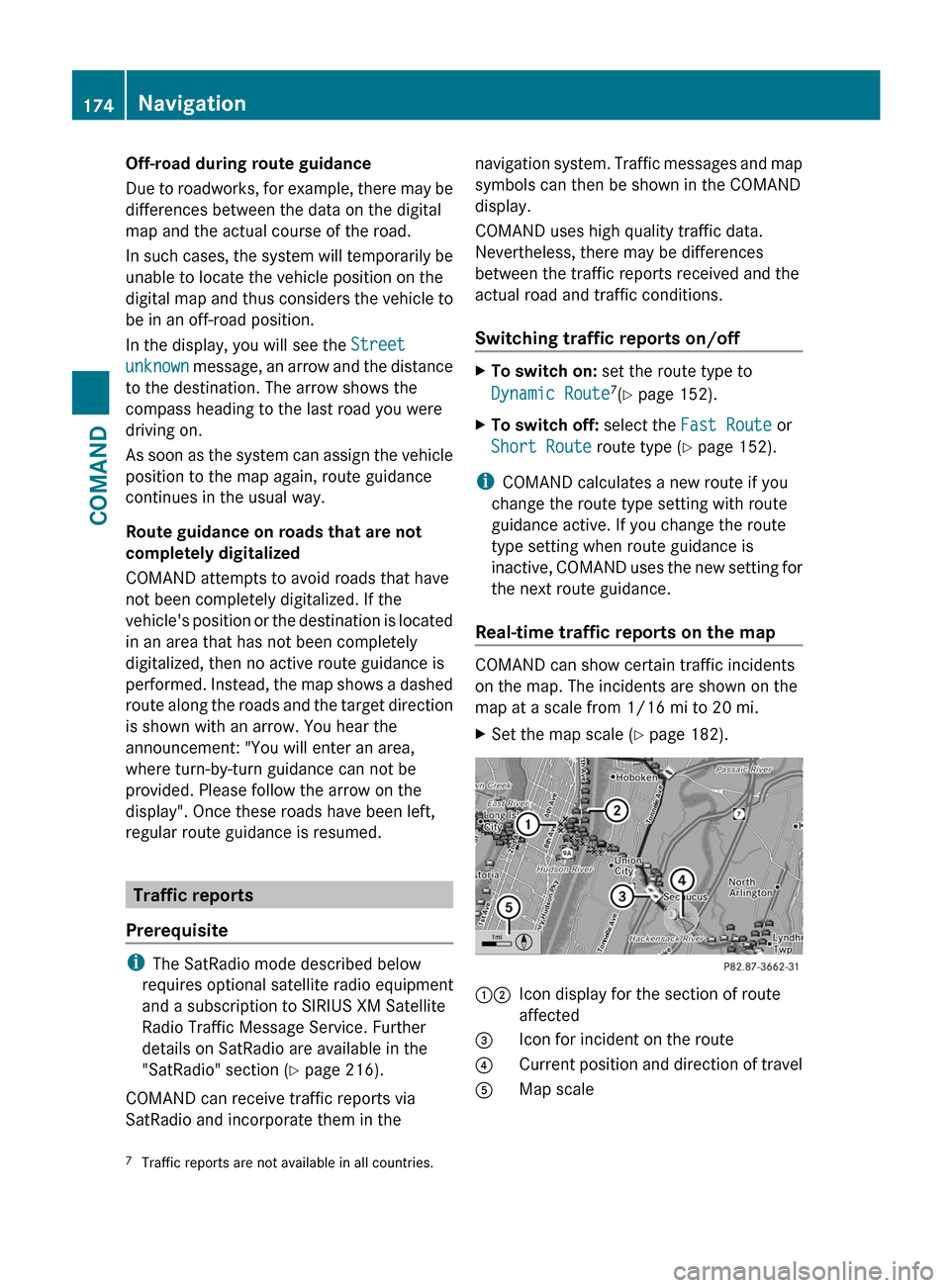
Real-time traffic reports on the map
COMAND can show certain traffic incidents
on the map. The incidents are shown on the
map at a scale from 1/16 mi to 20 mi.
XSet the map scale ( Y page 182).12Icon display for the section of route
affected3Icon for incident on the route4Current position and direction of travel5Map scale7 Traffic reports are not available in all countries.174NavigationCOMAND
Page 181 of 536
save the home address without starting
route guidance.XTo enter the home address for the first
time: select Assign Address Book
Entry and press W to confirm.XSelect Home or Work and press W to
confirm.XTo change the home address: select
Change and press W to confirm.XSelect Assign Address Book Entry and
press W to confirm.
i
If you select New Entry, you are also
offered the option of changing the home
address by entering an address. You can
then save the home address without
starting route guidance.
XSelect Home or Work and press W to
confirm.
In both cases, you will see the address book
either with the character bar or as a
selection list.XTo select an address book entry:
proceed as described in the "Searching for
an address book entry" section
( Y page 205).XTo confirm the selection: press W the
COMAND controller.
If no home address has been stored,
COMAND saves the entry. You will see a
message and then the address menu with
the selected address. Start is highlighted
automatically.
If a home address has already been stored,
you will see a prompt asking you whether
the My Address entry should be
overwritten.XSelect Yes or No and press W to confirm.
If you select Yes, COMAND overwrites the
destination. You will see a message and
then the address menu with the selected
address. Start is highlighted
automatically.
If you select No, the list will reappear.Selecting the home address for route
guidanceXProceed as described in the "Selecting a
destination from the destination memory"
section ( Y page 159).
Storing a destination in the destination
memory
Note
This function also stores the destination in
the address book.
After destination entry
XThe destination has been entered and is
shown in the address entry menu
( Y page 156).XSelect Save by sliding VÆ and turning
cVd the COMAND controller and press
W to confirm.
You can now select storage options.
During route guidance
XTo show the menu: press W the COMAND
controller.XSelect Destination in the navigation
system menu bar by turning cVd the
COMAND controller and press W to
confirm.XSelect Save Destination and press W to
confirm.
You can now select storage options.
From the list of previous destinations
XTo show the menu: press W the COMAND
controller.XSelect Destination in the navigation
system menu bar by turning cVd the
COMAND controller and press W to
confirm.XSelect From Last Destinations and
press W to confirm.
The list of last destinations appears.Navigation179COMANDZ
Page 197 of 536
Ra valid and operational SIM card must be
inserted in the mobile phone.
R the mobile phone is connected to COMAND
via Bluetooth ®
.
If you cannot make an emergency call, you
must arrange rescue measures yourself.XEnter numbers using the number keypad
( Y page 200).XPress the 6 button.
The telephone makes the connection.XWait for the emergency call center to
respond and then describe the emergency.
i If no SIM card has been inserted in a GSM
phone or if there is no service available for
a CDMA phone, the NO SERVICE message
appears in COMAND. In this case, an
emergency call can only be transmitted via
the mobile phone itself and not via
COMAND.
Telephony via the Bluetooth ®
interface
Conditions
On the mobile phone
For telephony via COMAND's Bluetooth ®
interface, a Bluetooth ®
-capable mobile
phone is required.
i Not all mobile phones available on the
market are equally suitable. More detailed
information on suitable mobile phones and
on connecting Bluetooth ®
-capable mobile
phones with COMAND can be found on the
Internet at
http://www.mbusa-mobile.com . Or call
the Mercedes-Benz Customer Assistance
Center on
1-800-FOR-MERCedes(1-800-367-6372)
(for the USA) or Customer Relations on
1-800-387-0100 (for Canada).
The battery of the mobile phone should
always be kept sufficiently charged in order
to prevent malfunctions.
In preparation for telephoning via the
Bluetooth ®
interface, you should check the
following items on your mobile phone (see the
mobile phone operating instructions):XHands-Free Profile
The mobile phone must support Hands-
Free Profile 1.0 or above.
i Certain displays and functions (e.g. signal
strength display, conference connection)
are available, depending on the supported
version of the Hands-Free Profile.
XBluetooth ®
visibility
On certain mobile phones, the device itself
must be made "visible" for other devices,
as well as activating the Bluetooth ®
function (see the mobile phone operating
instructions).XBluetooth ®
device name
Every Bluetooth ®
device has its own
Bluetooth ®
device name. This device name
is freely definable, but can be identical for
all devices from the same manufacturer. It
is therefore recommended that you change
this name so that you can easily recognize
your mobile phone (see the mobile phone
operating instructions).XSwitch on the mobile phone and enter the
PIN when prompted to do so (see the
mobile phone operating instructions).XActivate Bluetooth ®
functions and, where
necessary, Bluetooth ®
visibility on the
mobile phone (see the mobile phone
operating instructions).
In COMAND
XActivate the Bluetooth ®
function in
COMAND ( Y page 147).
Connecting a mobile phone
General information
Before using your mobile phone with
COMAND for the first time, you will need to
connect it.
Telephone195COMANDZ
Page 222 of 536
Using the multifunction steering wheelXPress = or ; to select the Audio
menu.XPress 9 or : briefly.
Displaying information
XSelect Info in the submenu bar by turning
cVd the COMAND controller and press
W to confirm.
Information on the currently received
program is displayed.XTo return to the SatRadio main display:
slide XVY the COMAND controller.
Displaying service information
The provider's customer service center is
available by phone at any time to answer any
general questions or questions on the
versions available.
XSelect Sat. Radio in the submenu bar by
turning cVd the COMAND controller and
press W to confirm.XSelect Service and press W to confirm.
The provider's details appear.XTo return to the SatRadio main display:
slide XVY the COMAND controller.
Channel list updates
When receiving a new channel list, the display
shows the Updating channel... message.
The station last selected is switched to mute
until the update has been completed.
Satellite radio mode is not available during
this process.
Once the update has been completed, the
satellite radio main menu appears. The
station last selected is played.
Sound settings
You will find details on the sound settings in
the "At a glance" section ( Y page 135).
Audio CD/DVD and MP3 mode
Important safety notesGWARNING
COMAND is classified as a Class 1 laser
product. You must not open the casing. If you
open the casing, or if the casing is faulty or
damaged, there is a risk of exposure to
invisible laser radiation. This may damage
your eyes, or those of others.
COMAND does not contain any parts that can
be serviced by the user. For safety reasons,
all maintenance work must be carried out by
qualified aftersales technicians.
GWARNING
Only when the vehicle is stationary should
you:
R load a disc
R eject a disc
There is a risk of being distracted from the
road and traffic conditions if this is done while
the vehicle is in motion.
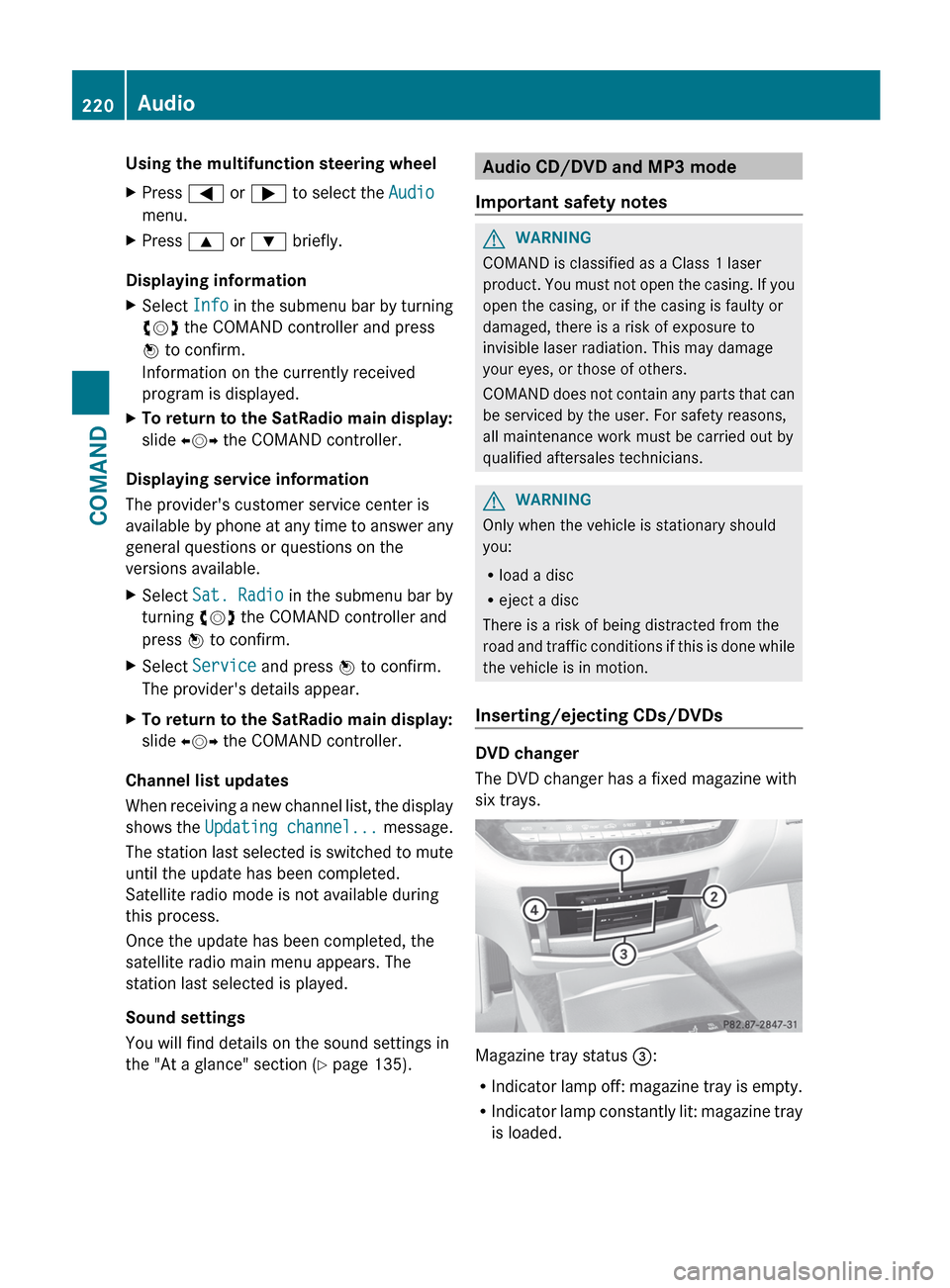
Inserting/ejecting CDs/DVDs
DVD changer
The DVD changer has a fixed magazine with
six trays.
Magazine tray status =:
R Indicator lamp off: magazine tray is empty.
R Indicator lamp constantly lit: magazine tray
is loaded.
220AudioCOMAND
Page 225 of 536
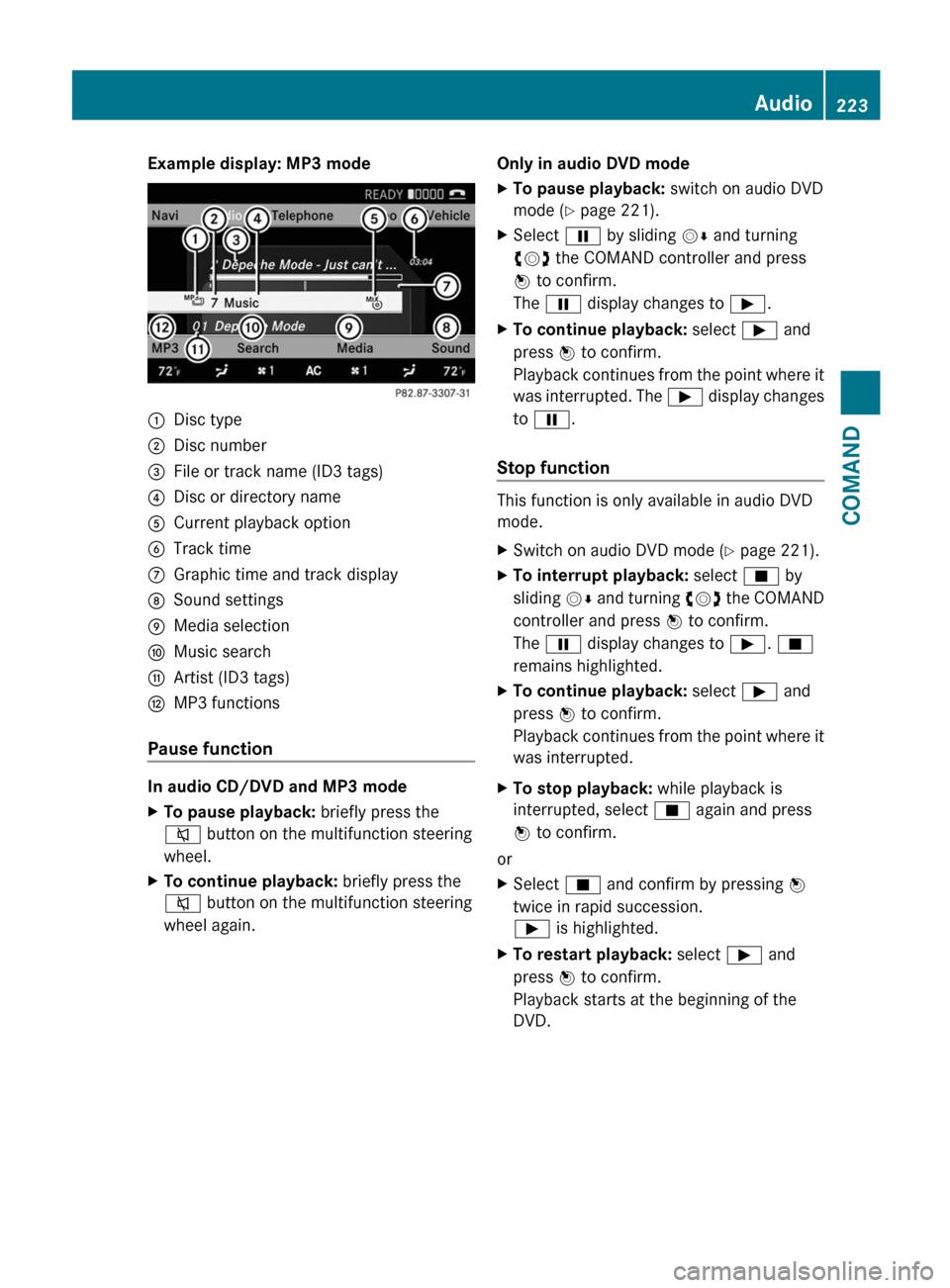
Example display: MP3 mode:Disc type;Disc number=File or track name (ID3 tags)?Disc or directory nameACurrent playback optionBTrack timeCGraphic time and track displayDSound settingsEMedia selectionFMusic searchGArtist (ID3 tags)HMP3 functions
Pause function
In audio CD/DVD and MP3 mode
XTo pause playback: briefly press the
8 button on the multifunction steering
wheel.XTo continue playback: briefly press the
8 button on the multifunction steering
wheel again.Only in audio DVD modeXTo pause playback: switch on audio DVD
mode ( Y page 221).XSelect Ë by sliding VÆ and turning
cVd the COMAND controller and press
W to confirm.
The Ë display changes to Ì.XTo continue playback: select Ì and
press W to confirm.
Playback continues from the point where it
was interrupted. The Ì display changes
to Ë .
Stop function
This function is only available in audio DVD
mode.
XSwitch on audio DVD mode ( Y page 221).XTo interrupt playback: select É by
sliding VÆ and turning cVd the COMAND
controller and press W to confirm.
The Ë display changes to Ì. É
remains highlighted.XTo continue playback: select Ì and
press W to confirm.
Playback continues from the point where it
was interrupted.XTo stop playback: while playback is
interrupted, select É again and press
W to confirm.
or
XSelect É and confirm by pressing W
twice in rapid succession.
Ì is highlighted.XTo restart playback: select Ì and
press W to confirm.
Playback starts at the beginning of the
DVD.Audio223COMANDZ
Page 226 of 536
Selecting CD/audio DVD/MP3 discs
Selecting via the media list
XIn CD/audio DVD and MP3 mode: select
Media by sliding VÆ or turning cVd the
COMAND controller and press W to
confirm.
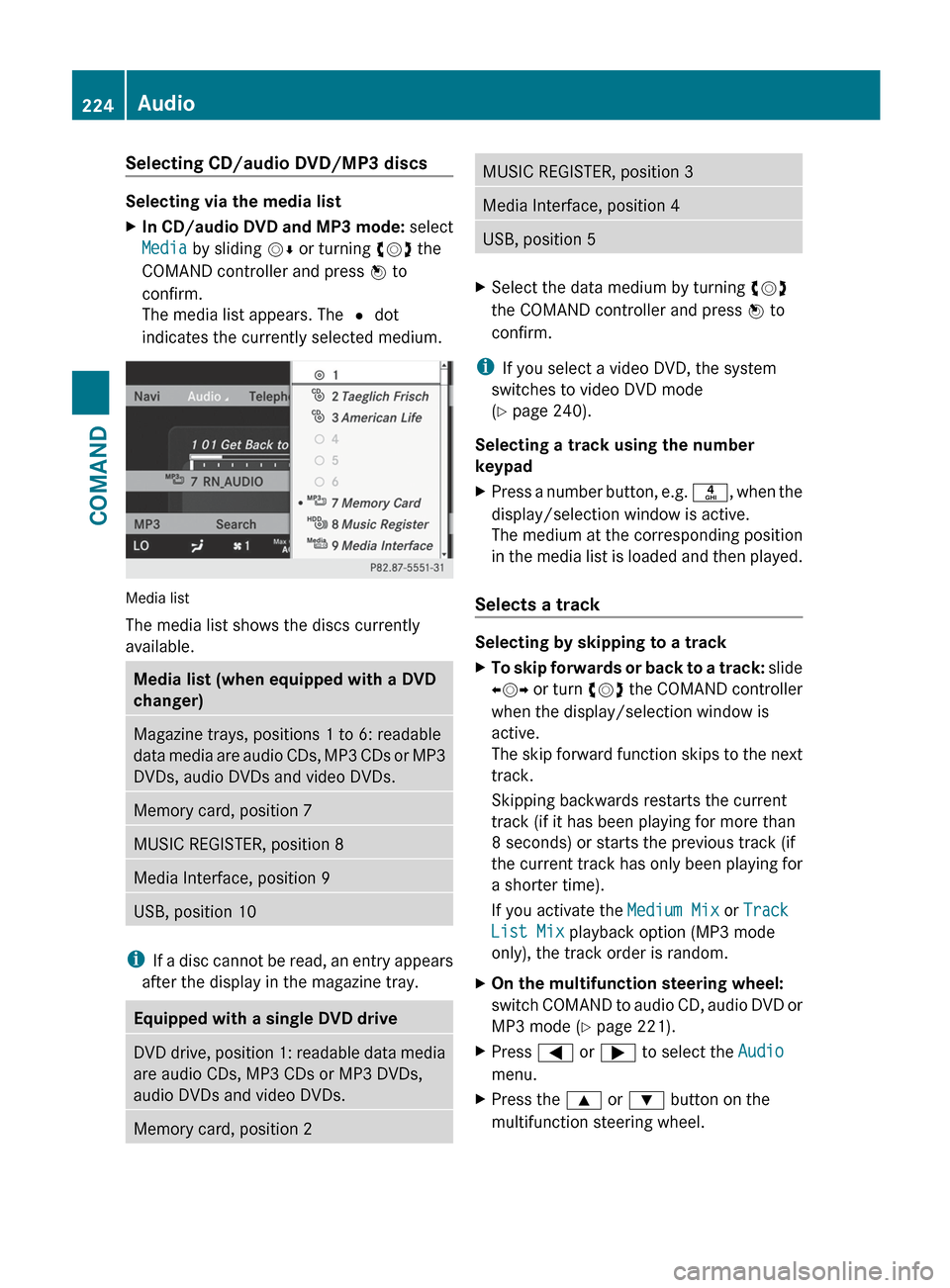
The media list appears. The # dot
indicates the currently selected medium.
Media list
The media list shows the discs currently
available.
Media list (when equipped with a DVD
changer)Magazine trays, positions 1 to 6: readable
data media are audio CDs, MP3 CDs or MP3
DVDs, audio DVDs and video DVDs.Memory card, position 7MUSIC REGISTER, position 8Media Interface, position 9USB, position 10
i If a disc cannot be read, an entry appears
after the display in the magazine tray.
Equipped with a single DVD driveDVD drive, position 1: readable data media
are audio CDs, MP3 CDs or MP3 DVDs,
audio DVDs and video DVDs.Memory card, position 2MUSIC REGISTER, position 3Media Interface, position 4USB, position 5XSelect the data medium by turning cVd
the COMAND controller and press W to
confirm.
i If you select a video DVD, the system
switches to video DVD mode
( Y page 240).
Selecting a track using the number
keypad
XPress a number button, e.g. n, when the
display/selection window is active.
The medium at the corresponding position
in the media list is loaded and then played.
Selects a track
Selecting by skipping to a track
XTo skip forwards or back to a track: slide
XVY or turn cVd the COMAND controller
when the display/selection window is
active.
The skip forward function skips to the next
track.
Skipping backwards restarts the current
track (if it has been playing for more than
8 seconds) or starts the previous track (if
the current track has only been playing for
a shorter time).
If you activate the Medium Mix or Track
List Mix playback option (MP3 mode
only), the track order is random.XOn the multifunction steering wheel:
switch COMAND to audio CD, audio DVD or
MP3 mode ( Y page 221).XPress = or ; to select the Audio
menu.XPress the 9 or : button on the
multifunction steering wheel.224AudioCOMAND
Page 232 of 536
If you insert thicker discs, e.g. those that
contain data on both sides (DVD on one
side and audio data on the other), they
cannot be ejected and can damage the
drive.
Do not use discs with a diameter of 8 cm,
even with an adapter. Only use round discs
with a diameter of 12 cm.
i COMAND is able to play back audio CDs
in multichannel audio format.
MUSIC REGISTER
General notes
You can store music files in MP3 or WMA
format in the MUSIC REGISTER. The memory
has a capacity of approximately 7 GB.
! Retain the original music files in a secure
location. An error in COMAND might result
in the loss of the music files stored in the
MUSIC REGISTER. Mercedes-Benz is not
liable for any loss of data.
Switching to MUSIC REGISTER
XSelect Audio in the main function bar by
sliding ZV and turning cVd the COMAND
controller and press W to confirm.
If MUSIC REGISTER was the last mode
selected, it is now switched on.
If another audio source is switched on, you
can now switch on the MUSIC REGISTER in
the audio menu.XSelect Music Register and press W to
confirm.
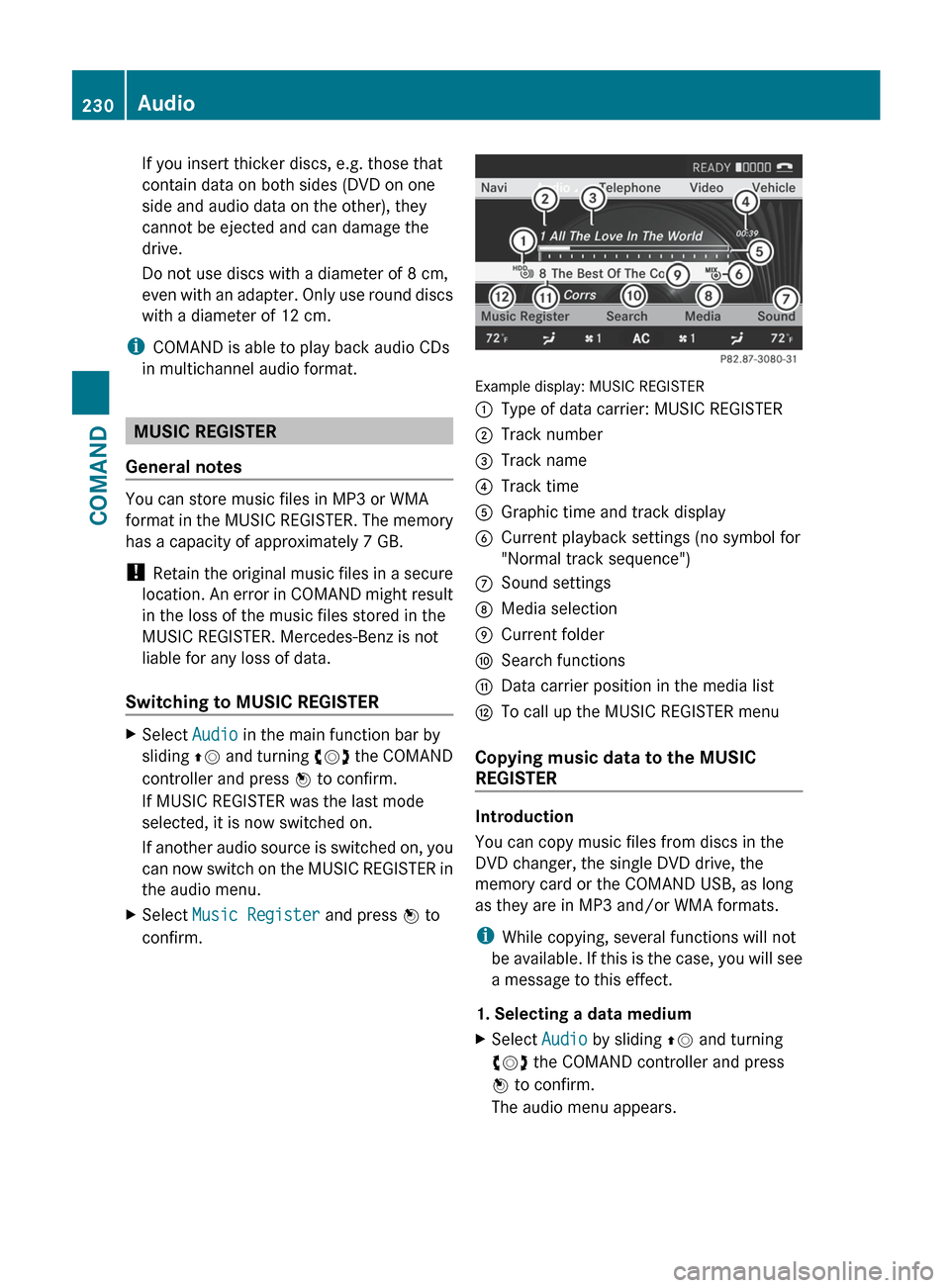
Example display: MUSIC REGISTER
:Type of data carrier: MUSIC REGISTER;Track number=Track name?Track timeAGraphic time and track displayBCurrent playback settings (no symbol for
"Normal track sequence")CSound settingsDMedia selectionECurrent folderFSearch functionsGData carrier position in the media listHTo call up the MUSIC REGISTER menu
Copying music data to the MUSIC
REGISTER
Introduction
You can copy music files from discs in the
DVD changer, the single DVD drive, the
memory card or the COMAND USB, as long
as they are in MP3 and/or WMA formats.
i While copying, several functions will not
be available. If this is the case, you will see
a message to this effect.
1. Selecting a data medium
XSelect Audio by sliding ZV and turning
cVd the COMAND controller and press
W to confirm.
The audio menu appears.230AudioCOMAND
Page 234 of 536
amount of data. The time required may vary
depending on the data source. If there is
not enough memory space, you will see a
message to this effect.XTo cancel copying: select Cancel .
Music files are stored in the MUSIC
REGISTER up until the point of cancellation.
Deleting all music files
This function deletes all music files from the
MUSIC REGISTER.
! The deletion procedure may take several
minutes. In order to prevent malfunctions,
do not use COMAND during this period.
XSelect Music Register by sliding VÆ and
turning cVd the COMAND controller and
press W to confirm.XSelect Delete All Music Files and
press W to confirm.
A query appears. No is highlighted.
If you select Yes, all music files are deleted.
You see the Please wait... message.
Then, you see the Deletion successful
message.
If you select No, the process will be aborted.
Calling up memory space info
XSelect Music Register by sliding VÆ and
turning cVd the COMAND controller and
press W to confirm.XSelect Memory Information and press
W to confirm.
The following is displayed:
R storage capacity
R available memory
R occupied memory
R content (folders, tracks)Folder functions
Introduction
You can view the content of the MUSIC
REGISTER, change folder or track names and
delete individual folders or tracks.
Calling up a folder
XSelect Search by sliding VÆ and turning
cVd the COMAND controller and press
W to confirm.XSelect Folder and press W to confirm.
You see the contents of the current folder.XTo switch to the superordinate folder:
select the U icon and press W to
confirm.
The display changes to the next folder up.
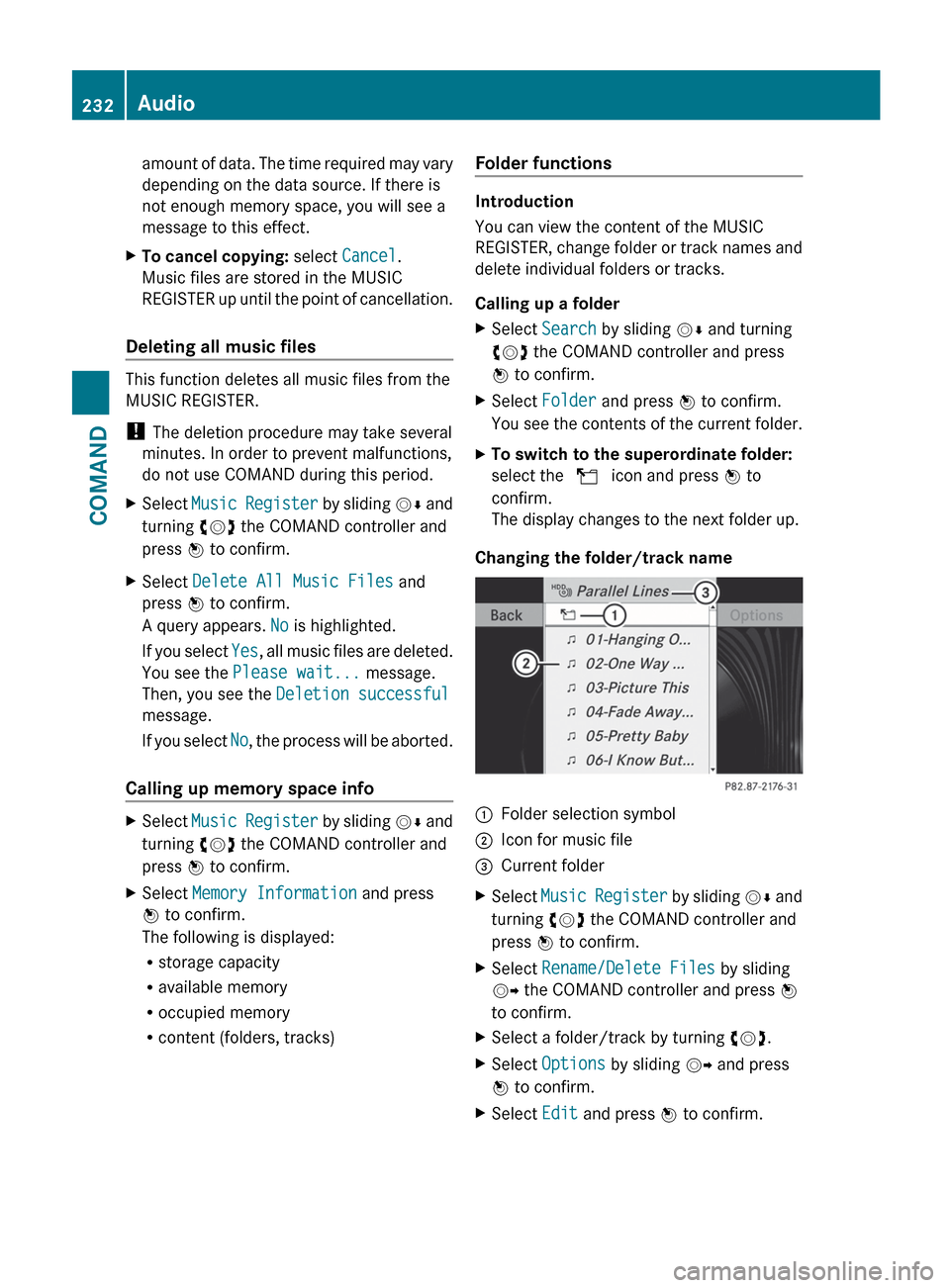
Changing the folder/track name
:Folder selection symbol;Icon for music file=Current folderXSelect Music Register by sliding VÆ and
turning cVd the COMAND controller and
press W to confirm.XSelect Rename/Delete Files by sliding
VY the COMAND controller and press W
to confirm.XSelect a folder/track by turning cVd.XSelect Options by sliding VY and press
W to confirm.XSelect Edit and press W to confirm.232AudioCOMAND
Page 243 of 536
! Do not affix stickers or labels to the discs,
as they could peel off and damage
COMAND. Stickers can cause the disc to
bend, which can result in read errors and
disc recognition problems.
! COMAND is designed to accommodate
discs which comply with the EN 60908
standard. You can therefore only use discs
with a maximum thickness of 1.3 mm.
If you insert thicker discs, e.g. those that
contain data on both sides (DVD on one
side and audio data on the other), they
cannot be ejected and can damage
COMAND.
Use round discs with a diameter of 12 cm.
Do not use discs with a diameter of 8 cm,
even with an adapter.
DVD playback conditions
If video DVDs do not conform to the NTSC or
PAL TV standards, they may create picture,
sound or other problems during playback.
COMAND can play back video DVDs
produced according to the following
standards:
R region code 1 or region code 0 (no region
code)
i If you insert a video DVD with a different
region code, you will see a message to this
effect.
R PAL or NTSC standard
You will generally find the relevant details
either on the DVD itself or on the DVD case.
i COMAND is set to region code 1 at the
factory. This setting can be changed at an
authorized Mercedes-Benz Center. This will
allow you to play video DVDs with a
different region code, provided that they
are produced in accordance with the PAL
or NTSC standard. The region code can be
changed up to five times.
Function restrictions
Depending on the DVD, it is possible that
certain functions or actions will be
temporarily blocked or may not function at all.
As soon as you try to activate these functions
or actions, you will see the K symbol in the
display.
Inserting and removing DVDs
XProceed as described in the "Inserting and
ejecting CDs and DVDs" section
( Y page 220).
Activating video DVD mode
Option 1
XInsert a video DVD.
COMAND loads the medium inserted and
starts to play it.
Option 2
XSelect Video in the main function bar by
sliding ZV and turning cVd the COMAND
controller and press W to confirm.
Video DVD mode is switched on.
Hiding/showing the navigation menu
XTo show: turn cVd or slide ZVÆ the
COMAND controller.
i This function is not available while the
DVD's own menu ( Y page 244) is being
displayed.
XTo hide: slide ZVÆ the COMAND
controller.
or
XWait for approximately eight seconds.Video241COMANDZ
Page 257 of 536
Hiding/showing the navigation menuXTo show: press the 9 or : button
on the remote control.XTo hide: press the 9 or : button.
or
XWait for approximately eight seconds.
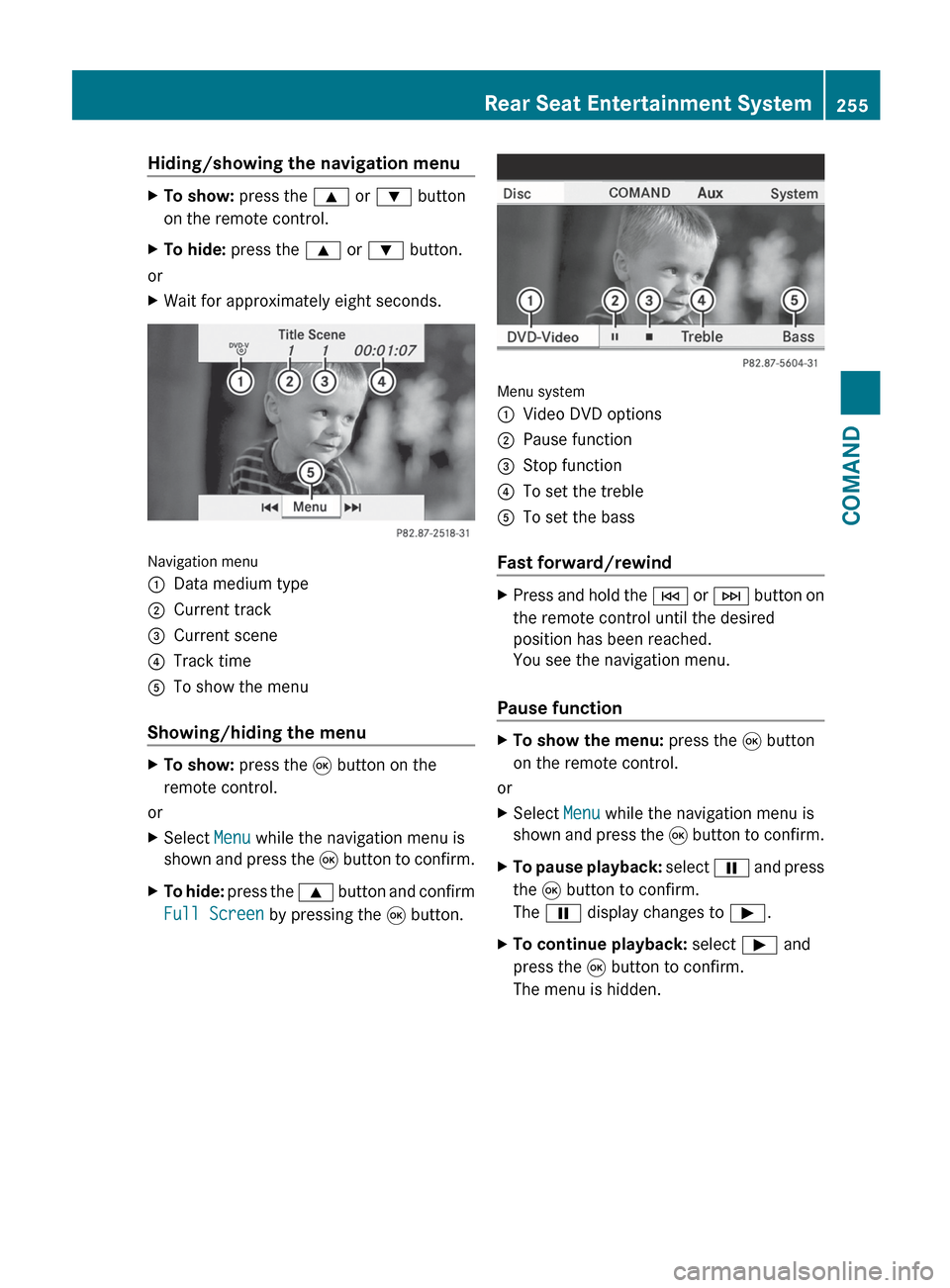
Navigation menu
:Data medium type;Current track=Current scene?Track timeATo show the menu
Showing/hiding the menu
XTo show: press the 9 button on the
remote control.
or
XSelect Menu while the navigation menu is
shown and press the 9 button to confirm.XTo hide: press the 9 button and confirm
Full Screen by pressing the 9 button.
Menu system
:Video DVD options;Pause function=Stop function?To set the trebleATo set the bass
Fast forward/rewind
XPress and hold the E or F button on
the remote control until the desired
position has been reached.
You see the navigation menu.
Pause function
XTo show the menu: press the 9 button
on the remote control.
or
XSelect Menu while the navigation menu is
shown and press the 9 button to confirm.XTo pause playback: select Ë and press
the 9 button to confirm.
The Ë display changes to Ì.XTo continue playback: select Ì and
press the 9 button to confirm.
The menu is hidden.Rear Seat Entertainment System255COMANDZ